Setting up a proxy for accessing the Oracle web console
Oracle Cloud web console used to create/retrieve/update/delete Oracle Services can only be accessed through Samsung Cloud Platform. To access the Oracle console, you must set a web browser proxy in the user’s network environment.
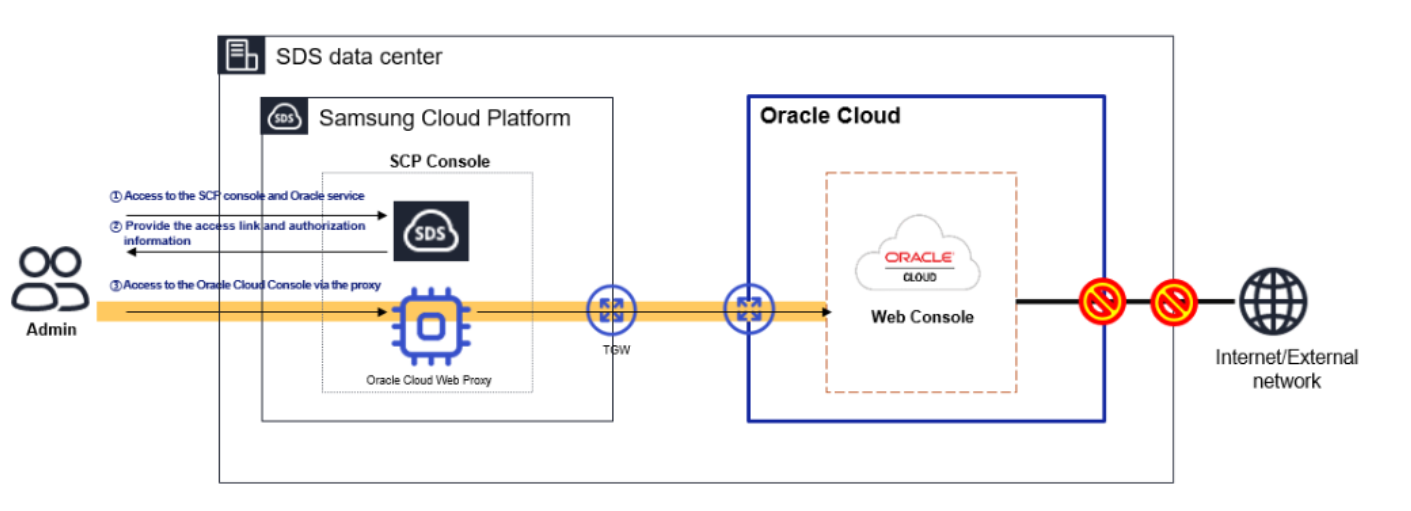
Oracle console access proceeds according to the following steps.
- After logging into the Samsung Cloud Platform console, access Oracle Services.
- Oracle Cloud is blocked from accessing the Internet and external networks, so it can only be accessed via the Samsung Cloud Platform.
- To access the Oracle Cloud console, you need to set the Oracle Cloud web proxy located within the Samsung Cloud Platform in the user’s web browser.
- If the user attempts to access the login link provided in the Samsung Cloud Platform console with a web browser, it will be accessed through the proxy set in the web browser.
Set web browser proxy according to user network environment
You can set the Oracle Cloud web proxy in the system settings’ web proxy configuration and use the Samsung Cloud Platform Oracle Service product. Depending on the security characteristics of the user environment, you can branch the connection at the internal proxy, or you can configure the user client to add an automatic configuration file (PAC file) to allow direct connection.
Create PAC file
You can create a PAC file to access the Oracle Cloud web console.
If you are a Samsung SDS employee, download the Developer PAC file from the following link. The branch settings for accessing the Oracle Cloud web console from the internal network are registered in the Developer PAC file.
- sdsdev.pac address : http://70.10.5.20/dev-pac.pac
To create a PAC file directly, write the following PAC file using an editor such as notepad, or download it and save it to disk.
function FindProxyForURL(url,host)
 {

//* Local Loopback return DIRECT *//
 if (shExpMatch(url,"*localhost*") || shExpMatch(url,"*127.0.0.1*")) return "DIRECT";

//* URL Miss return DIRECT *//
 if (!isResolvable(host)) return "DIRECT";

if (shExpMatch(host,"*.ap-suwon-1.oci.oraclecloud35.com")) {return "PROXY 42.15.1.42:8080";}  // TED
if (shExpMatch(host,"*.oci.oraclecloud35.com")) {return "PROXY 42.15.1.42:8080";}  // TED
 if (shExpMatch(host,"*.ap-suwon-1.oraclecloud35.com")) {return "PROXY 42.15.1.42:8080";}  // TED
 if (shExpMatch(host,"*.ap-suwon-idcs-1.identity.oci.oraclecloud35.com")) {return "PROXY 42.15.1.42:8080";}  // TED


if (shExpMatch(host,"*.ap-chunchen-2.oci.oraclecloud35.com")) {return "PROXY 42.15.1.42:8080";}  // TED
if (shExpMatch(host,"*.oci.oraclecloud35.com")) {return "PROXY 42.15.1.42:8080";}  // TED
 if (shExpMatch(host,"*.ap-chunchen-2.oraclecloud35.com")) {return "PROXY 42.15.1.42:8080";}  // TED
if (shExpMatch(host,"*.ap-chunchen-idcs-2.identity.oci.oraclecloud35.com")) {return "PROXY 42.15.1.42:8080";}  // TED


 if (dnsDomainIs(host,"locales.plugins.oci.oraclecloud.com")) {return "DIRECT";}     //
 if (dnsDomainIs(host,"ocsp.digicert.com")) {return "DIRECT";}     //

 else { return "DIRECT";  }
"}
Register PAC file on client PC
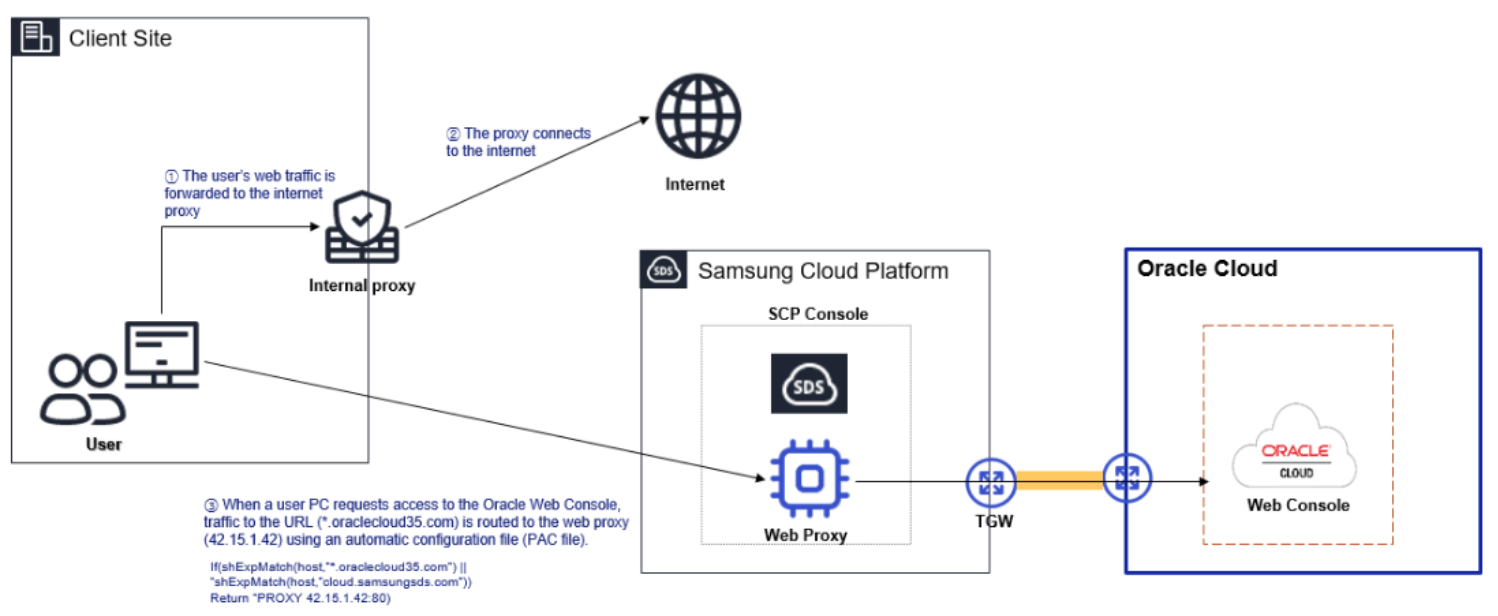
If you download the PAC file and register it on your PC, you can access the Oracle Cloud web console through Samsung Cloud Platform.
Follow the steps below to register the developer PAC file in the proxy settings.
- In the Windows search bar, search for Proxy Settings and click the result.
- Windows Settings > Network & Internet > Proxy click to go to the proxy settings page.
- Click Automatic Proxy Settings > Edit Configuration Script on the proxy page.
- Set the Use configuration script item to On and enter the generated PAC file as the script address.
- Enter http://70.10.5.20/dev-pac.pac.
- Click Save to complete registration.
- After accessing the Samsung Cloud Platform using browsers such as Chrome, Edge, then access the Oracle Cloud Console link provided by the Samsung Cloud Platform.
- When registering a PAC file on the client PC and connecting directly, the network path is as follows.
Setting up connection when there is a separate proxy server (Register forwarding information on the proxy server)
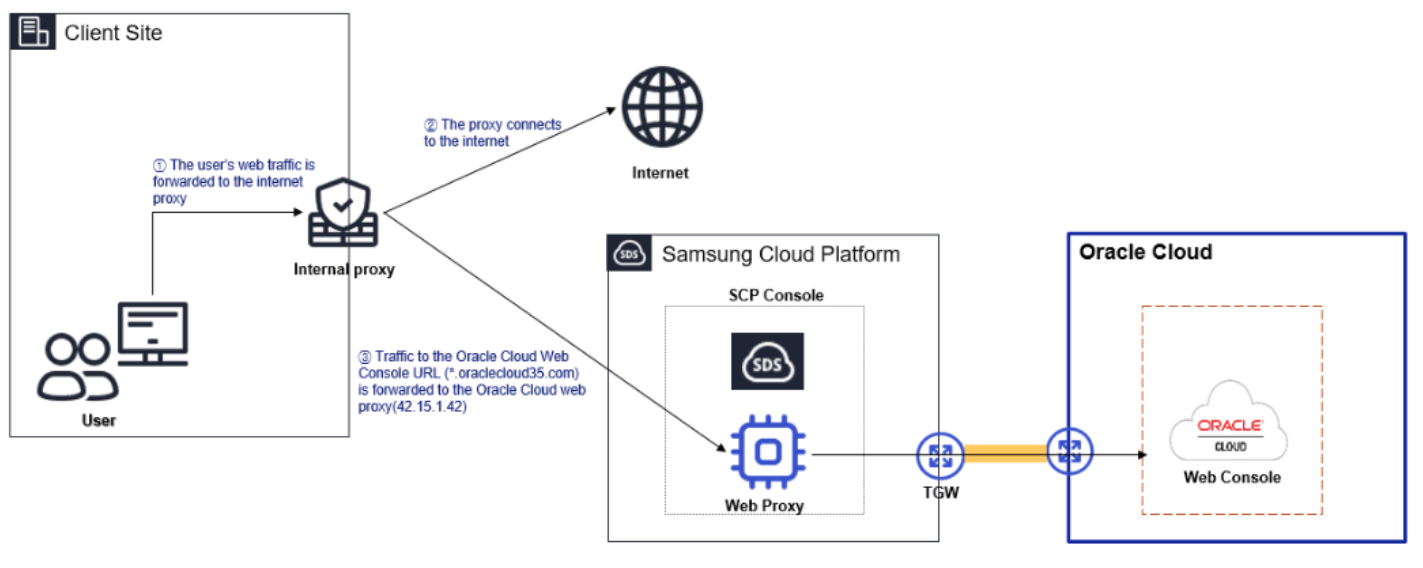
Depending on the user environment, there are cases where a proxy managed by the network/security administrator is already installed for security purposes. In such cases, you need to request the proxy administrator to add proxy settings for accessing the Samsung Cloud Platform Oracle service.
- When requesting the proxy administrator to register forwarding information, convey the following.
Proxy Settings URL
                *.ap-suwon-1.oci.oraclecloud35.com
                *.ap-suwon-1.oraclecloud35.com
                *.ap-suwon-idcs-1.identity.oci.oraclecloud35.com
                *.ap-chuncheon-2.oci.oraclecloud35.com
                *.ap-chuncheon-2.oraclecloud35.com
                *.ap-chuncheon-idcs-2.identity.oci.oraclecloud35.com

Proxy IP/port
                 42.15.1.42:8080
- If you register a forward setting on the internal proxy and connect, the network path is as follows.
In case of a network environment that passes through other separate security equipment
If a separate security device is installed and used in addition to the proxy, you must provide the network/security administrator with the Samsung Cloud Platform Oracle Cloud web console connection diagram and proceed with the connection configuration work.
- Ask the internal network/security administrator about proxy settings.
Apply for firewall registration
If a firewall is installed in the customer’s network environment for external access control, you must register the proxy server on the firewall to use Samsung Cloud Platform. When applying for firewall registration, apply the information below.
- Source IP: User PC IP Address
- Destination IP: Oracle Cloud web proxy IP Address (42.15.1.42)
- Protocol/port: TCP/8080