How-to guides
Users can enter the required information for Oracle Services and select detailed options through the Samsung Cloud Platform Console to create the service.
Create Oracle Services
You can create Oracle Services in the Samsung Cloud Platform Console and use them.
Only one Oracle Service can be applied for per project.
- To proceed with a new creation, cancel the existing Oracle Services and create it again.
To create Oracle Services, follow these steps.
- In the All Services > Hybrid Cloud > Oracle Services menu, click the Create Service button. 1. Go to the Service Home page of Oracle Services.
- On the Service Home page, click the Create Oracle Services button. 2. Navigate to the Create Oracle Services page.
- On the Oracle Services Creation page, enter the information required to create the service.
- Enter the required information in the Service Information Input area.
Category required statusDetailed description Oracle Services name Required Oracle Services name - must start with a lowercase English letter and be entered using lowercase English letters, numbers, and special characters (
-) with a length of 3 to 30 characters
Explanation option Enter additional description for Oracle Services Table. Oracle Services service information input items - must start with a lowercase English letter and be entered using lowercase English letters, numbers, and special characters (
- In the Additional Information Input area, enter or select the required information.
Category required statusDetailed description Tenancy selection option The tenancy name assigned to the user’s Organization - The assigned tenancy name of the account’s Organization is displayed automatically, so it cannot be selected
- To request a service, the account must belong to an Organization. Before creating the service, the account’s Organization must be created and joined
tag Selection Add Tag - Up to 50 per resource can be added
- After clicking the Add Tag button, input or select Key, Value values
Table. Oracle Services additional information input fields
- Enter the required information in the Service Information Input area.
- Review the detailed information and estimated charges generated in the summary panel, and click the Create button.
- When creation is complete, check the created resource on the Resource List page.
- It can be used only after the service is created and the administrator approves the usage request. * For detailed information about service usage approval, click ? > Support Center > Contact Us to view the details.
Check detailed information of Oracle Services
The Oracle Services service can view and edit the full resource list and detailed information from the Oracle Services menu. Oracle Services Details page consists of Detail Information, Tags, Operation History tabs.
Detailed information about Oracle Services can only be viewed after the service request is submitted and the operator has completed approval.
- To view detailed information, verify that the service status has changed to Active after the service approval is complete.
To view detailed information about Oracle Services, follow these steps.
- Click the All Services > Hybrid Cloud > Oracle Services menu. 1. Go to the Service Home page of Oracle Services.
- On the Service Home page, click the Oracle Services menu. 2. Oracle Services List Go to the page.
- On the Oracle Services List page, click the resource to view detailed information. 3. Navigate to the Oracle Services Details page.
- Oracle Services Details page displays status information and additional feature information, and is composed of Details, Tags, Activity History tabs.
Category Detailed description status Current service status - Creating: Service request in progress
- Active: Service approved and successfully created
- Creation Failed: Error occurred during creation
- Deletion Failed: Error occurred during deletion
- Denied: Operator approval denied
- Requested: Awaiting operator approval
- Deleting: Service termination request in progress
Service access Show Oracle Cloud console access window button Service termination Cancel service button Table. Oracle Services status information and additional feature items
- Oracle Services Details page displays status information and additional feature information, and is composed of Details, Tags, Activity History tabs.
Detailed Information
Detailed Information tab allows you to view detailed information of the selected Oracle Services.
| Category | Detailed description |
|---|---|
| service | Service name |
| Resource Type | Resource Type (Oracle Services) |
| SRN | Resource unique ID in Samsung Cloud Platform |
| Resource name | Resource Name |
| Resource ID | Unique resource ID in the service |
| Constructor | Service creation request user |
| Creation date and time | Service creation date and time |
| Modifier | Service modification request user |
| Modification date | Service modification timestamp |
| Tenancy name | Tenant name assigned to the Organization |
| Oracle Services NW configuration | Oracle Services Network Configuration Request and Modification
|
| Compartment name | Resource name connected to the service
|
| Connection between SCP VPC ↔ Oracles Service | Click Oracle Services line request/modify/termination shortcut to request an uplink line from the service request popup
|
| Dynamic Group configuration | Dynamic Group configuration status
|
| Virtual Circuit OCID | Virtual Circuit OCID path |
| Customer On-Prem ↔ Oracle Services connection | Oracle Services Add Connection Configuration Request Shortcut Click to request a service connection in the service request popup
|
| Explanation | Oracle Services service additional description
|
| Connected user | List of users who can access the Oracle Services
|
Tag
Tag tab lets you view the tag information of the selected resource, and add, modify, or delete it.
| Category | Detailed description |
|---|---|
| Tag list | Tag list
|
Job History
Work History tab allows you to view the selected resource’s task history.
| Category | Detailed description |
|---|---|
| Task History List | Resource change history
|
Oracle Services Network Configuration and Access
You can connect the user VPC of Samsung Cloud Platform with the VCN (Virtual Cloud Network) in Samsung Cloud Platform Dedicated Oracle Cloud to use Oracle Services. To connect a VPC with a VCN in Oracle Cloud, you must configure the Oracle Services network and then request a dedicated uplink for Oracle Services. When the Oracle Services network configuration and uplink request are completed, the connection between Samsung Cloud Platform VPC - TGW - dedicated line segment - Oracle Cloud DRG - VCN is completed, allowing various hybrid cloud configurations such as connecting the user’s VM in the VPC environment to the DB in the Oracle Cloud VCN.
Request Oracle Services network configuration
When using Samsung Cloud Platform Dedicated Oracle Cloud, you must create and configure the required network resources for the user. This configuration request uses the user’s input data with the Oracle Cloud API to provide a service provisioning role that creates and deploys Oracle Cloud network services, enabling users to easily use Oracle software such as Oracle DBCS (Database Cloud Service) and ExaCS (Exadata Cloud Service).
To request the network configuration of Oracle Services, follow these steps.
- Click the All Services > Hybrid Cloud > Oracle Services menu. 1. Go to the Service Home page of Oracle Services.
- On the Service Home page, click the Oracle Services menu. 2. Navigate to the Oracle Services List page.
- On the Oracle Services List page, click the resource to view detailed information. 3. Navigate to the Oracle Services Details page.
- On the Oracle Services Details page, click the edit icon of Oracle Services NW Configuration. 4. Oracle Services Network Configuration Edit window appears.
- Enter or select detailed information in the Oracle Services Network Configuration Edit window and click OK.
Category Detailed description Select SCP Transit Gateway Select the Transit Gateway to connect to Samsung Cloud Platform Dedicated Oracle Cloud VCN name Enter the VCN name to create in Samsung Cloud Platform Dedicated Oracle Cloud VCN IPv4 CIDR block Enter the VCN’s IPv4 CIDR block - Example: 10.0.0.0/16
Using DNS Hostname (VCN) To use Oracle Exa/DBCS, set to use - To assign an instance host name using VCN DNS or a third‑party DNS, use setting is required
DNS Label (VCN) The DNS label is generated from the value entered by the user - VCN name, but it may be changed according to DNS label constraints
Subnet name Enter the name of the Private subnet to be created in the VCN. Subnet IPv4 block Enter the IPv4 CIDR block of the private subnet - Example: 10.0.0.0/24
Using DNS Hostname (Subnet) To use Oracle Exa/DBCS, set to Use - To assign an instance host name using VCN DNS or third‑party DNS, Use setting is required
DNS Label (Subnet) DNS label is generated from the value entered by the user - It is set to be the same as the Subnet name, but may be changed according to DNS label constraints
Subnet resource logging Set whether to enable Subnet resource logging - Set when selected, you can receive resource tracing, troubleshooting, and data insight information
Routing table rule Enter Dynamic routing rules in Samsung Cloud Platform Dedicated Oracle Cloud Table. Oracle Services network configuration items
Oracle Services network configuration order
When you request an Oracle Services network configuration, it attempts to provision and automatically configure the network service using the values entered by the user. If users need to update after provisioning, they can directly update the configurable settings in the Oracle Cloud web console after creation.
- Create an Oracle Cloud VCN.
- Create an Oracle Cloud DRG.
- DRG(Dynamic Routing Gateway) is an optional virtual router that can be added to a VCN, and it serves a role similar to the Samsung Cloud Platform Transit Gateway. * This gateway provides a private network traffic path between the VCN and the on‑premises network.
- Connect the DRG to the VCN.
- Enable the VCN’s “Use DNS Hostnames” option.
- After defining FastConnect, create a Virtual Circuit for logical allocation.
- FastConnect is a dedicated line product for Oracle Cloud that serves a role similar to Samsung Cloud Platform Direct Connect.
- When defining FastConnect, set it to the same bandwidth as the corresponding TGW’s bandwidth.
- Create a Private Subnet within the VCN.
- Enable the “Use DNS Hostnames” option for the subnet.
- Add the DRG to the VCN Route Table with 0.0.0.0.
- The default input value of DRG is 0.0.0.0.
- Configure user logging.
- Create the log group first, then configure logging.
Request to connect Samsung Cloud Platform VPC with Oracle Services
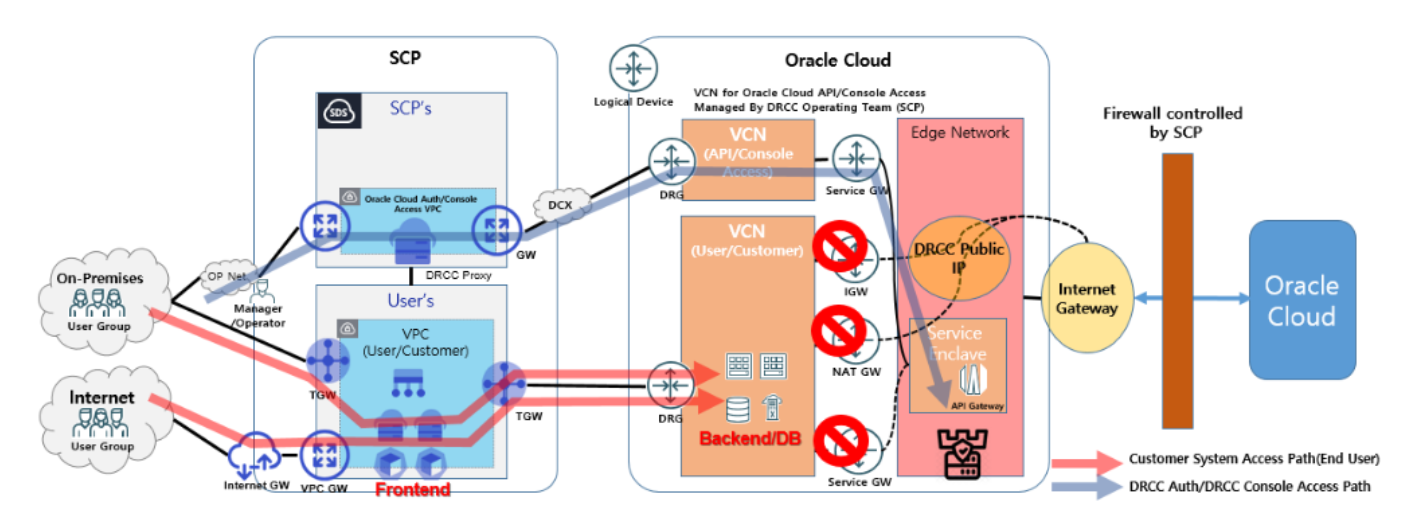
To provide Oracle Service, a connection as shown below has been established between Samsung Cloud Platform and Oracle Cloud.
- A common network is configured for service/authentication integration and console connection between Samsung Cloud Platform and Oracle Cloud.
- Through the Samsung Cloud Platform Oracle product, you configure a per‑user service connection network, and based on the physical network link between Samsung Cloud Platform and Oracle Cloud, you connect the Samsung Cloud Platform VPC to the Oracle Cloud VCN.
- Workloads configured in Oracle Cloud (e.g. * Computing, DB instance) can be utilized using a pre-configured Cross network between Samsung Cloud Platform and Oracle Cloud.
- Through Samsung Cloud Platform TGW and Direct Connect routing configuration, customers can directly access and use databases configured in Oracle Cloud even in network environments connected via Direct Connect or TGW Uplink.
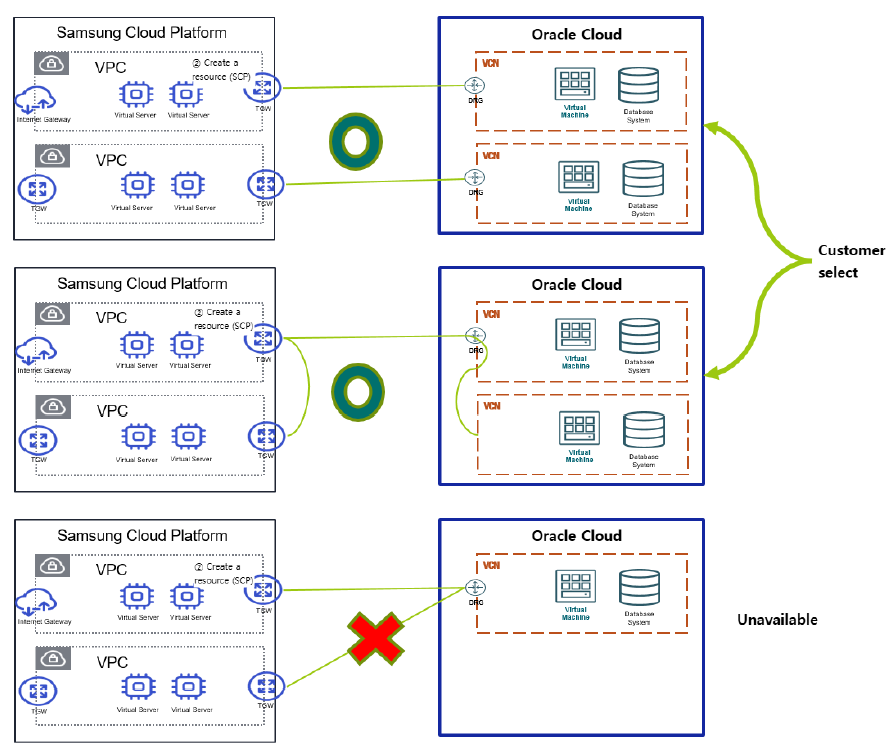
- A single connection architecture between Samsung Cloud Platform and Oracle Cloud can be implemented via TGW peering and TGW-to-TGW connections, and can be commonly used across multiple projects and VPCs. * However, when used jointly, performance and bandwidth considerations are required.
- The TGW of Samsung Cloud Platform and the DRG of Oracle Cloud must have a 1:1 connection architecture.
- It is possible to share a single connection architecture across multiple projects and VPCs through peering.
- However, it is not possible to peer multiple Samsung Cloud Platform VPCs using a single Oracle Cloud DRG.
Apply for Oracle Services Uplink line
After completing the Oracle Services network configuration, you must request a dedicated line connection to the DRG via the TGW of the Samsung Cloud Platform.
- Oracle Services Uplink line connection can only be requested after network configuration.
- The Samsung Cloud Platform TGW to be uplinked can only have a 1:1 relationship with Oracle Cloud. * Before requesting an uplink, first create a new TGW dedicated to Oracle Services, then proceed with the TGW‑VPC connection.
- Oracle Services uplink requests must be processed through the Hybrid Cloud > Oracle Services > Oracle Services Line Request/Modification/Cancellation Shortcut menu.
- If you request an uplink connection from Networking > Transit Gateway > Uplink line, the request details may not be accurately conveyed to the responsible engineer.
To request an Uplink line from Oracle Services, follow the steps below.
- All Services > Hybrid Cloud > Oracle Services Click the menu. 1. Go to the Service Home page of Oracle Services.
- On the Service Home page, click the Oracle Services menu. 2. Go to the Oracle Services List page.
- On the Oracle Services List page, click the resource to view detailed information. 3. Navigate to the Oracle Services Details page.
- On the Oracle Services Details page, click the Oracle Services Line Request/Modification/Termination Shortcut. 4. Go to the Service Request page.
- On the Service Request page, after entering the relevant information in the service information input area, click the Complete button.
Input item Detailed description Title Title of the service you want to request Region Select location of Samsung Cloud Platform - Automatically filled with the project’s region
service Select the service group and service for the given service - Service Group: Hybrid Cloud
- Service: Oracle Services
Task classification Select the task to perform - Oracle Services Uplink line request: Select if you are applying for this service
content Enter detailed information to connect the L3 switch for linking the user VPC TGW to Oracle Services - Enter applicant information: user email, name, and contact details. The application details, progress, and results will be delivered via email.
- Enter the customer IP range information to connect to the Oracle Cloud dedicated for Samsung Cloud Platform, along with the Samsung Cloud Platform TGW and OCI virtual circuit information
- Target DC/Region identifier: Korea (Seoul)/ap-seoul-2
- Customer OCI IP range: Enter the IP range to connect to the Oracle Cloud dedicated for Samsung Cloud Platform (e.g., 10.10.10.0/24)
- Samsung Cloud Platform VPC range communicating with OCI: Enter the Samsung Cloud Platform VPC range connected to Oracle Cloud (e.g., 20.20.20.0/24)
- SCP TGW name: Enter the TGW name to connect to the Oracle Cloud dedicated for Samsung Cloud Platform (see: Samsung Cloud Platform > Networking > TGW)
- SCP TGW resource ID: Enter the TGW ID to connect to the Oracle Cloud dedicated for Samsung Cloud Platform (see: Samsung Cloud Platform > Networking > TGW > Details)
- OCI virtual circuit OCID: Enter the OCID of the Virtual Circuit created in Network Configuration on Oracle Cloud (see: Samsung Cloud Platform > Hybrid Cloud > Oracle Services > Details)
- You can check the progress in the service request menu
- If there is a work account of the network department that can coordinate tasks, enter it additionally
Table. Oracle Services network configuration items
Request to configure connection with Oracle Services for the client
After completing the Oracle Services network configuration, a direct connection between the client and Oracle Services must be set up.
- A connection with Oracle Services can only be requested after the network is configured.
- A physical connection (cable installation) between the client and Oracle Services is required before applying for a direct connection configuration.
- When connecting to the Samsung Cloud Platform device for integration with Oracle Services and the client (On-Prem), the connection is made via the BGP routing protocol.
- To request a direct connection configuration between the client and Oracle Services, be sure to apply for the service via the Hybrid Cloud > Oracle Services > Oracle Services Details > Oracle Services Add Connection Configuration Request Shortcut menu.
To request a direct connection configuration between the client and Oracle Services, follow these steps.
- Click the All Services > Hybrid Cloud > Oracle Services menu. 1. Go to the Service Home page of Oracle Services.
- On the Service Home page, click the Oracle Services menu. 2. Navigate to the Oracle Services List page.
- On the Oracle Services List page, click the resource to view detailed information. 3. Oracle Services Details Navigate to the page.
- On the Oracle Services Details page, click the Oracle Services Add Connection Configuration Request Shortcut. 4. Navigate to the service request page.
- On the service request page, after entering the relevant information in the service information input area, click the Complete button.
- After requesting the service, configuring the connection between the client and Oracle Services can take up to seven days.
Input item Detailed description Title Title of the service you want to request Region Select location of Samsung Cloud Platform - Automatically filled with the project’s region
service Select the service group and service for the given service - Service Group: Hybrid Cloud
- Service: Oracle Services
Task classification Select the task to perform - Request direct connection setup between the client and Oracle Services: Select if you are applying for this service
content Enter detailed information to connect the L3 switch for user On-Prem ↔ Oracle Services connection - Enter applicant information: user email, name, and contact details. Application details, progress, and results will be delivered via email.
- Enter the customer IP range information, Samsung Cloud Platform TGW, and OCI virtual circuit details to connect to the Oracle Cloud dedicated for Samsung Cloud Platform
- Target DC/Region identifier: Korea (Seoul)/ap-seoul-2
- Customer OCI IP range: Enter the IP range to connect to the Oracle Cloud dedicated for Samsung Cloud Platform (e.g., 10.10.10.0/24)
- Samsung Cloud Platform VPC range communicating with OCI: Enter the VPC range of Samsung Cloud Platform connected to Oracle Cloud (e.g., 20.20.20.0/24)
- SCP TGW name: Enter the TGW name to connect to the Oracle Cloud dedicated for Samsung Cloud Platform (see: Samsung Cloud Platform > Networking > TGW)
- SCP TGW resource ID: Enter the TGW ID to connect to the Oracle Cloud dedicated for Samsung Cloud Platform (see: Samsung Cloud Platform > Networking > TGW > Details)
- OCI virtual circuit OCID: Enter the OCID of the Virtual Circuit created in Network Configuration on Oracle Cloud (see: Samsung Cloud Platform > Hybrid Cloud > Oracle Services > Details)
- You can check the progress in the service request menu
- If there is a work account of the network department that can coordinate tasks, enter it additionally
Table. Oracle Services connection additional configuration request items
- After requesting the service, configuring the connection between the client and Oracle Services can take up to seven days.
Connecting to Oracle Services
After connecting to Oracle Services, you can perform Single Sign On (SSO) for Oracle Cloud login and access the Customer console.
- Since it is an Oracle Cloud dedicated to the Samsung Cloud Platform and completely separate from Public Oracle Cloud, existing Public Oracle Cloud accounts cannot be used.
- You can only access after applying for Oracle Services and after the administrator approves the service usage.
To access Oracle Services, follow these steps.
- Click the All Services > Hybrid Cloud > Oracle Services menu. 1. Go to the Service Home page of Oracle Services.
- On the Service Home page, click the Oracle Services menu. 2. Go to the Oracle Services List page.
- On the Oracle Services List page, click the resource to view detailed information. 3. Go to the Oracle Services Details page.
- On the Oracle Services Details page, click the Service Access button. 4. Oracle Cloud Console Login window appears.
- In the Oracle Cloud Console Login window, after entering user information, click Samsung Cloud Platform Login.
- In the logged-in state of Samsung Cloud Platform, you can log in to Oracle Cloud via SSO.
- Enter the 6-digit OTP generated in the mobile app, then click Confirm.
- After the user information is authenticated, you are taken to the Tenancy page in Oracle Cloud.
Terminate Oracle Services
Cancelling unused Oracle Services can reduce operating costs.
To cancel Oracle Services, follow the steps below.
- Click the All Services > Hybrid Cloud > Oracle Services menu. 1. Go to the Service Home page of Oracle Services.
- On the Service Home page, click the Oracle Services menu. 2. Navigate to the Oracle Services List page.
- On the Oracle Services List page, click the resource to be terminated. 3. Oracle Services Details Navigate to the page.
- On the Oracle Services Details page, click the Service Termination button.
- When the termination is complete, check the resource termination status in the Oracle Services list.
Delete resources in a Compartment
Cancellation of Oracle Services products is only possible when all resources within the user’s Compartment have been deleted.
To check for remaining resources and delete them, follow the steps below.
- After clicking the top resource explorer in the Oracle Cloud console, click Advanced resource query. 1. Enter the Resource Explorer.
- Show basic search mode click.
- Click Search and Filter, then select Compartment.
- Select the Compartment to delete.
- Compartment starts with PROJECT- xxx and is located under the Root.
- Click Apply Filter to check the resources in the compartment to be deleted.
- Delete all resources in the compartment.