This is the multi-page printable view of this section. Click here to print.
Edge Server
- 1: Overview
- 2: How-to guides
- 3: Release Note
1 - Overview
Service Overview
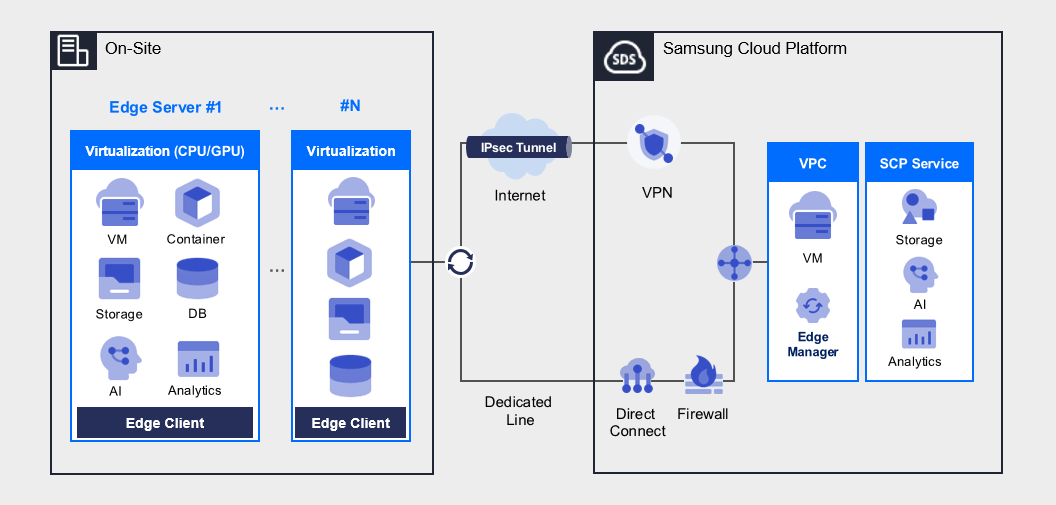
Edge Server provides Edge Cloud to on‑site environments of enterprises that find cloud migration difficult due to issues such as data security, regulations, performance, and latency. This service enables companies to perform data processing and analysis on‑site in real time. Based on edge computing technology, it processes data directly on servers located close to where the data is generated and offers an environment that can be efficiently managed in conjunction with the cloud. This maximizes the speed and efficiency of large‑scale data processing and minimizes data transmission latency through seamless integration with the cloud. In particular, it delivers outstanding performance in domains that require real‑time data processing and rapid decision‑making. Because the servers are deployed near the site, data can be processed quickly without network latency.
Through the Edge Server, you can migrate critical systems to the cloud and easily build a hybrid cloud with Samsung Cloud Platform to leverage its various services. Samsung SDS’s professional technical support organization provides optimal deployment assistance and technical support, considering each customer’s environment, and operates a 24x7 support channel at the Samsung Cloud Platform Support Center. With a delivery system built from multiple service request channels and systems, we can respond swiftly to customer requirements.
Configuration diagram
Provided features
The Edge Server provides the following functions.
- Hybrid Cloud Expansion: Important data is managed on-site, and the demand from companies that want to perform data‑driven operations by leveraging Public Cloud analytics, IoT, private 5G, AI, etc., is increasing. These companies can conveniently carry out data‑based work by building a hybrid cloud with the Edge Server of Samsung Cloud Platform.
- Convenient Integrated Management: To enable rapid processing of local data and quick access to on‑premises systems, we extend cloud services from the edge where data is generated and collected. Additionally, you can conveniently manage Edge Servers in an integrated manner through the Samsung Cloud Platform Console.
- High security and regulatory compliance: By establishing an Edge Computing service environment within the enterprise, ultra‑low‑latency data transmission is possible, and because all data and services reside inside the company, valuable corporate information can be securely protected. Data that requires security and workloads subject to strict regulations use edge resources, while workloads and data less sensitive to security utilize the more cost‑effective public resources of Samsung Cloud Platform.
- Customer-tailored service provision: We provide various virtualization platforms (Kernel-based Virtual Machine(KVM), Container, etc.) according to the user’s environment, and by leveraging pre-configured development environments and related ecosystems, you can adopt new technologies such as AI, machine learning, and big data.
Component
Edge Server provides various standard OS images and standard server types. Users can select the desired service type according to the scale of the service they want to configure.
Edge Manager
Edge Manager is located on the Samsung Cloud Platform and, through the Edge Client, manages the network and resources of Edge Servers installed at customer sites, and creates and manages virtual machines within the Edge Server.
Edge Client
The Edge Client is located on the Edge Server installed at the customer’s site, and through the Edge Manager, it performs KVM creation, deletion, modification, and query functions as well as Edge Server management functions.
Supported operating system versions
In the Edge Server, we supply the operating system (OS) requested by the customer through consultation with the customer.
The representative operating system versions supported by Edge Server are as follows.
| Operating System (OS) | Version |
|---|---|
| CentOS | CentOS 9 or later |
| RHEL | RHEL 8.9, RHEL 9.3, RHEL 9.4 |
| Ubuntu | Ubuntu 18.04, Ubuntu 20.04, Ubuntu 22.04 |
| Rocky Linux | Rocky Linux 8.9, Rocky Linux 9.3, Rocky Linux 9.4 |
Availability by Region
The Edge Server is available in the environments below.
| Region | Availability |
|---|---|
| Korea West (kr-west1) | Provide |
| Korea East (kr-east1) | Not provided |
| South Korea South 1 (kr-south1) | Provide |
| South Korea 2 (kr-south2) | Provide |
| South Korea South 3(kr-south3) | Provide |
Preceding Service
This is a list of services that must be pre‑configured before creating the service. Please refer to the guide provided for each service for details and prepare in advance.
| Service Category | Service | Detailed description |
|---|---|---|
| Networking | VPC | A service that provides an isolated virtual network in a cloud environment |
| Networking | Security Group | Virtual firewall that controls server traffic |
| Compute | Virtual Server | Virtual server optimized for cloud computing |
2 - How-to guides
Users can create the Edge Server service by entering the required information and selecting detailed options through the Samsung Cloud Platform Console.
Create Edge Server
You can create and use the Edge Server service from the Samsung Cloud Platform Console.
To create an Edge Server, follow these steps.
All Services > Hybrid Cloud > Edge Server menu. You will be taken to the Edge Server Dashboard page.
On the Edge Server Dashboard page, click the Edge Server Service Request button. You will be taken to the Service Request page.
Service Request page, after entering the relevant information in the service information input area, click the Complete button.
guideIn the task category, select Create Edge Server Service and create it.Input field Detailed description Title Title of the service you want to request Region Select location of Samsung Cloud Platform - Automatically filled with the project’s region
Service Select the service group and service for the given service - Service group: Hybrid Cloud
- Service: Edge Server
Task classification Select the task you want to perform - Create Edge Server service: select if you want to create this service
content Enter detailed information required to create an Edge Server
[Basic Information]- Account ID: Enter the corresponding account ID
- Customer) Name/Company/Department/E-mail/Phone Number: Enter user information
- Desired Service Start Date: Enter the start date the user wishes for the service to be applied
- Host Server OS: Enter the host server OS information to be used
[Application Information]- Purpose of Use: Enter the intended use of the Edge Server
- Example: manufacturing, logistics, robotics, CCTV, video analytics
- Server Type and Quantity: Enter the type and quantity of host servers to be used
- Example: Standard (128vCore/512GB/SSD 7.6TB), High-capacity (128vCore/512GB/SSD 7.6TB+HDD 160TB), GPU_L40s (128vCore/512GB/SSD 7.6TB/L40s*2 units)
- Refer to the Table. Edge Server Specification Information below for detailed information
- Usage Period (default 3 years): Service usage period
Attachment Proceed with upload only if you have additional files you want to share - You can attach up to 5 files, each no larger than 5 MB
- Only files of type doc, docx, xls, xlsx, ppt, ppts, hwp, txt, pdf, jpg, jpeg, png, gif, tif can be attached
Table. Detailed description of Edge Server request items- Among the above Table. Edge Server request item details information, Server type and quantity should be verified against the resource information of the corresponding Edge Server and entered.
Category CPU Memory Local HDD GPU General type 128vCore 512GB SSD 7.6TB large capacity 128vCore 512GB SSD 7.6TB, HDD 160TB GPU_L40s 128vCore 512GB SSD 7.6TB L40s 2ea Table. Edge Server specification information
Service Request page, verify the required information entered, and click the Request button.
- This request involves steps such as purchasing a physical server, delivery, configuration, and site setup, and requires a minimum of six weeks of business days.
Check application details
You can view Edge Server service subscription and cancellation details in the Samsung Cloud Platform Console.
You can view the service application and termination request history for Edge Server through the following procedure.
To check the Edge Server service application details, follow the steps below.
- Click the All Services > Management > Support Center menu. You will be taken to the Support Center > Service Home page.
- On the Support Center Service Home page, click the Service Request menu. You will be taken to the Service Request List page.
- On the Service Request List page, click the title of the service request you submitted. You will be taken to the Service Request Details page.
- Check the request status and information on the Service Request Details page.InformationWhen a service request is received, the sales/operations staff verify the service application details and proceed with the Edge Server service for the entered information.
View Edge Server detailed information
The Edge Server service allows you to view and edit the full resource list and detailed information. The Edge Server detail page consists of Details, Task History tabs.
To view detailed information about the Edge Server, follow these steps.
Click the All Services > Hybrid Cloud > Edge Server menu. You will be taken to the Edge Server Dashboard page.
On the Edge Server Dashboard page, click the Edge Server menu. You will be taken to the Edge Server List page.
- Resource items other than the required columns can be added by clicking the Settings button.
Category Required statusDetailed description Edge server name Required User-created Edge Server name Edge Server OS Required User-requested Edge Server operating system Server type Required Edge Server server type Edge server IP Required The IP of the Edge Server requested by the user Service posting date Required Edge Server billing start date and time Service End Date Required Edge Server billing termination time status Required Edge Server status Installation location Select Location where the Edge Server is installed Creator ID Select User who created an Edge Server in Edge Manager Creation Date/Time Select Date and time the Edge Server was created in Edge Manager Table. Edge Server list information
- Resource items other than the required columns can be added by clicking the Settings button.
On the Edge Server List page, click the Edge Server you want to view detailed information for. You will be taken to the Edge Server Details page.
- Edge Server Details At the top of the page, status information and descriptions of additional features are displayed.
Category Detailed description Edge Server status Status of the Edge Server created by the user - Active: The Edge Server is operating normally
- Inactive: The Edge Server cannot provide normal service
Table. Edge Server status information
- Edge Server Details At the top of the page, status information and descriptions of additional features are displayed.
Detailed Information
On the Edge Server Details page, you can view the detailed information of the selected resource and, if necessary, edit that information.
| Category | Detailed description |
|---|---|
| Service | Service group |
| Resource Type | Resource Type |
| SRN | Unique resource ID in Samsung Cloud Platform
|
| Resource Name | Resource Name
|
| Resource ID | Unique resource ID in the service |
| constructor | User who created an Edge Server in Edge Manager |
| Creation Date/Time | Date and time the Edge Server was created in Edge Manager |
| Editor | User who modified the Edge Server in Edge Manager |
| Modification date | Date and time the Edge Server was modified in Edge Manager |
| Edge server name | Name of the edge server |
| Resource usage | CPU, Memory, and Disk utilization ratio relative to the edge server’s total resources |
| Resource Information | Total allocatable resources of the edge server and information on currently allocated resources |
| VM information | Information of each Virtual Server created on the edge server |
Job History
On the Edge Server List page, you can view the operation history of the selected resource.
| Category | Detailed description |
|---|---|
| Task History List | Resource Change History
|
Terminate Edge Server
The Edge Server service whose contract period has expired can be terminated from the Console. If you wish to request termination before the contract period expires, you must first complete the contract termination of the relevant Edge Server through prior consultation between the user’s contract manager and Samsung SDS’s contract manager, and then proceed with termination according to the steps below.
To terminate the Edge Server, follow the steps below.
All Services > Hybrid Cloud > Edge Server menu. You will be taken to the Edge Server Dashboard page.
On the Edge Server Dashboard page, click the Edge Server Service Request button. You will be taken to the Service Request page.
On the Service Request page, select or enter the required information for the Edge Server.
guideIn the task type, select Edge Server Service Termination and apply.Input field Detailed description Title Title of the service you want to request Region Select location of Samsung Cloud Platform Service Select the service group and service for the given service - Service group: Hybrid Cloud
- Service: Edge Server
Task classification Select the task to perform - Terminate Edge Server service: select if you want to terminate this service
content Enter detailed information required for Edge Server termination
[Basic Information]- Account ID: Enter the corresponding account ID
- Customer) Name/Company/Department/E-mail/Phone Number: Enter user information
- Desired Service Termination Date: Enter the service termination date the user wishes
Attachment Proceed with upload only if you have additional files you want to share - You can attach up to 5 files, each no larger than 5 MB
- Only files with the following extensions are allowed: doc, docx, xls, xlsx, ppt, ppts, hwp, txt, pdf, jpg, jpeg, png, gif, tif
Table. Edge Server Service Termination Request Item DetailsService Request page, verify the required information entered, and click the Request button.
- This termination process requires the physical server to be returned, so it takes approximately 3–4 weeks of business days.
3 - Release Note
Edge Server
- Provides a Local Web feature on the Edge Server, allowing customers to create, read, update, and delete Edge Server resources within their own network.
- We provide the K8s and Storage functions within the Edge Server as an installable package, enabling their use in customer POCs and similar scenarios.
- Through the Samsung Cloud Platform, customers can choose general, high‑capacity, or GPU server types according to their needs.
- We have launched an on-site service that makes it easy to create, delete, and manage Virtual Servers.