This is the multi-page printable view of this section. Click here to print.
Edge Server
- 1: Overview
- 2: How-to guides
- 3: Release Note
1 - Overview
Service Overview
Edge Server provides Edge Cloud to On-Site environments of companies that are difficult to transition to the cloud due to issues such as data security, regulations, performance, and latency. This service is a service that supports companies to process and analyze data in real-time on-site. Based on edge computing technology, it processes data directly from the server closest to where the data is generated and provides an environment that can be efficiently managed in conjunction with the cloud. Through this, it maximizes the speed and efficiency of large-scale data processing and minimizes data transmission delays through smooth connection with the cloud. In particular, it shows excellent performance in fields that require real-time data processing and rapid decision-making. Since the server is placed near the site, data can be processed quickly without network delays.
Through the Edge Server, you can switch important systems to the cloud and easily configure a Hybrid Cloud with the Samsung Cloud Platform, allowing you to use various services of the Samsung Cloud Platform. Samsung SDS’s specialized technical support organization provides optimal construction support and technical support considering the customer’s environment, and the Samsung Cloud Platform Support Center operates a 24x7 customer support channel. Through the delivery system built with various service reception channels and systems, you can respond quickly to customer requirements.
Composition
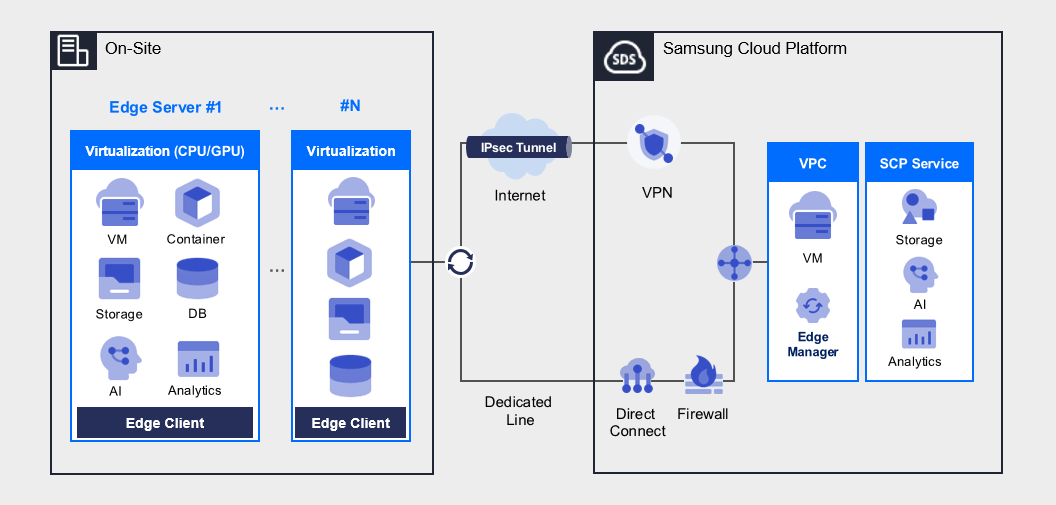
Provided Features
Edge Server provides the following functions.
- Hybrid Cloud expansion: The demand from companies that want to manage important data On-Site and utilize Public Cloud’s Analytics, IoT, Private 5G, AI, etc. to perform data-driven tasks is increasing. These companies can configure Hybrid Cloud with Samsung Cloud Platform’s Edge Server to conveniently perform data-based tasks.
- Convenient Integrated Management: Extends cloud services to the edge where data is created and collected to provide rapid processing of local data and quick access to on-premises systems, and also allows for convenient integrated management of Edge Server through Samsung Cloud Platform Console.
- High security and compliance: An Edge Computing service environment is configured within the enterprise, enabling ultra-low latency data transmission, and since all data and services are located within the enterprise, the company’s valuable information can be safely protected. Data and workloads that require security and are subject to strict regulations use the resources of the edge, while workloads and data that are less sensitive to security use the more economical public resources of the Samsung Cloud Platform.
- Customized Service Provision: Provides various virtualization platforms (Kernel-based Virtual Machine (KVM), Container, etc.) according to user environment, and introduces new technologies such as AI, machine learning, and big data by utilizing already configured development environments and related ecosystems.
Components
Edge Server provides various OS standard images and standard server types. Users can select and use the desired service type according to the scale of the service they want to configure.
Edge Manager
Edge Manager is located in the Samsung Cloud Platform and manages the Network and Resource of the Edge Server installed at the customer’s site through the Edge Client, and creates and manages virtual machines within the Edge Server.
Edge Client
Edge Client is located on the Edge Server installed on the customer site, and performs the creation/deletion/modification/inquiry function of KVM and the management function of Edge Server through Edge Manager.
Supported operating system versions
The Edge Server provides the operating system (OS) required by the customer through consultation with the customer.
The representative operating system versions supported by Edge Server are as follows.
| Operating System (OS) | Version |
|---|---|
| CentOS | CentOS 9 or higher |
| RHEL | RHEL 8.9, RHEL 9.3, RHEL 9.4 |
| Ubuntu | Ubuntu 18.04, Ubuntu 20.04, Ubuntu 22.04 |
| Rocky Linux | Rocky Linux 8.9, Rocky Linux 9.3, Rocky Linux 9.4 |
Regional Provision Status
The Edge Server can be provided in the following environment.
| Region | Availability |
|---|---|
| Western Korea(kr-west1) | Provided |
| Korea East(kr-east1) | Not provided |
| South Korea (kr-south1) | Provided |
| South Korea southern region 2(kr-south2) | Provided |
| South Korea, southern region 3(kr-south3) | Provided |
Preceding service
This is a list of services that must be pre-configured before creating this service. Please refer to the guide provided for each service and prepare in advance for more details.
| Service Category | Service | Detailed Description |
|---|---|---|
| Networking | VPC | A service that provides an independent virtual network in a cloud environment |
| Networking | Security Group | A virtual firewall that controls the server’s traffic |
| Compute | Virtual Server | Cloud computing-optimized virtual server |
2 - How-to guides
The user can enter the essential information of the Edge Server service and select detailed options to create the service through the Samsung Cloud Platform Console.
Edge Server creation
You can create and use the Edge Server service on the Samsung Cloud Platform Console.
To create an Edge Server, follow the following procedure.
- All services > Hybrid Cloud > Edge Server menu is clicked. It moves to the Edge Server dashboard page.
- Edge Server Dashboard page, click the Edge Server Service Request button. It moves to the Service Request page.
- Service Request page, enter the corresponding information in the service information input area, and then click the Complete button.GuidanceIn the job division, select and create Edge Server service creation.
Input Item Detailed Description title title of the service you want to request Region Location selection of Samsung Cloud Platform - Automatically entered as the region of the project
Service Select the service group and service for the corresponding service - Service Group: Hybrid Cloud
- Service: Edge Server
Task Classification Select the task you want to perform - Edge Server service creation: Select if you want to create this service
Content Enter detailed information required to create an Edge Server
[Basic Information]- Account ID: Enter the corresponding account ID
- Customer) Name/Company/Department/E-mail/Phone Number: Enter user information
- Service Start Date: Enter the date the user wants to start the service
- Host Server OS : Enter the host server OS information to be used
[Application Information]- Usage Purpose: Enter the purpose of using the Edge Server
- Example: Manufacturing, logistics, robots, CCTV, video analysis
- Server Type and Quantity: Enter the type and quantity of the host server to be used
- Example: Standard (128vCore/512GB/SSD 7.6TB), Large Capacity (128vCore/512GB/SSD 7.6TB+HDD 160TB), GPU_L40s (128vCore/512GB/SSD 7.6TB/L40s*2)
- Please refer to the Table. Edge Server Specification Information table below for more detailed information
- Usage Period (Default 3 years): Service usage period
attachment only upload when there are additional files to share - attached files can be up to 5 files, each within 5MB
- only doc, docx, xls, xlsx, ppt, ppts, hwp, txt, pdf, jpg, jpeg, png, gif, tif files can be attached
Table. Detailed contents of Edge Server request items
- Above table. Edge Server request item detailed content information, among them server type and quantity please confirm the resource information of the corresponding Edge Server and enter it.
Classification CPU Memory Local HDD GPU Standard type 128vCore 512GB SSD 7.6TB Large Capacity 128vCore 512GB SSD 7.6TB, HDD 160TB GPU_L40s 128 virtual Core 512GB Solid State Drive 7.6TB L40s 2 units Table. Edge Server Specification Information
- Service Request page where you enter the required information and click the Request button.
- The application work proceeds with procedures such as purchasing physical servers, delivery, configuration work, and site construction, which takes at least 6 weeks or more based on business days.
Check application history
You can check the application and cancellation history of the Edge Server service on the Samsung Cloud Platform Console.
Edge Server’s service application and cancellation request details can be checked through the following procedure.
To check the Edge Server service application history, follow the next procedure.
- All services > Management > Support Center menu, click. Support Center > Service Home page will be moved to.
- Support Center Service Home page, click the Service Request menu. It moves to the Service Request List page.
- Service Request List page, click the title of the service request you applied for. It moves to the Service Request Details page.
- Service Request Details page where you can check the application status and information.NoticeWhen a service request is received, the sales/operations manager checks the service application details and proceeds with the Edge Server service based on the entered information.
Edge Server detailed information check
Edge Server service can check and modify the entire resource list and detailed information. The Edge Server detail page consists of detailed information, operation history tabs.
To check the Edge Server detailed information, follow the next procedure.
- All Services > Hybrid Cloud > Edge Server menu, click. It moves to the Edge Server Dashboard page.
- Edge Server Dashboard page, click the Edge Server menu. It moves to the Edge Server List page.
- Columns other than required columns can be added by clicking the Settings button.
Classification MandatoryDetailed Description Edge Server Name Required The name of the Edge Server created by the user Edge Server OS Required The Edge Server operating system requested by the user server type required Edge Server’s server type Edge Server IP Required The IP of the Edge Server requested by the user Service posting date Required Edge Server’s billing start time Service Termination Date Required Edge Server’s Billing Termination Time Status Required The status of the Edge Server Installation location Selection The location where the Edge Server is installed Creator ID Selection The user who created the Edge Server in Edge Manager Creation Time Selection The time when the Edge Server was created in Edge Manager Table. Edge Server List Information
- Edge Server list page, click the Edge Server to check the detailed information. It moves to the Edge Server details page.
- Edge Server details page top displays the status information and additional features description.
Classification Detailed Description Edge Server status the status of the Edge Server created by the user - Active: the state in which the Edge Server operates normally
- Inactive: the state in which the Edge Server cannot provide normal services
Table. Edge Server Status Information
Detailed Information
Edge Server details page where you can check the detailed information of the selected resource and modify it if necessary.
| Category | Detailed Description |
|---|---|
| Service | Service Group |
| Resource Type | Resource Type |
| SRN | Unique resource ID in Samsung Cloud Platform
|
| Resource Name | Resource Name
|
| Resource ID | Unique resource ID in the service |
| Creator | The user who created the Edge Server in Edge Manager |
| Creation Time | The time when the Edge Server was created in Edge Manager |
| Modifier | User who modified the Edge Server in Edge Manager |
| Modification Time | The time when the Edge Server was modified in Edge Manager |
| Edge Server Name | The name of the Edge server |
| Resource usage | The ratio of CPU, Memory, Disk in use to the total resources of the edge server |
| Resource Information | Information on the total allocatable resources of the edge server and the currently allocated resources |
| VM information | information of each Virtual Server created on the edge server |
Work History
Edge Server list page where you can check the operation history of the selected resource.
| Classification | Detailed Description |
|---|---|
| Work history list | Resource change history
|
Edge Server Cancellation
The Edge Server service whose contract period has expired can be cancelled in the Console. To apply for cancellation of the service before the contract period expires, the user’s contract manager and the Samsung SDS contract manager must complete the cancellation of the contract for the corresponding Edge Server through prior consultation before cancellation, and then proceed with the cancellation according to the following procedure.
To cancel the Edge Server, follow the following procedure.
All Services > Hybrid Cloud > Edge Server menu, click. It moves to the Edge Server Dashboard page.
Edge Server dashboard page, click the Edge Server service request button. It moves to the service request page.
Service Request page, select or enter the required information for the Edge Server.
Notice작업 구분에서 Edge Server 서비스 해지를 선택해 신청하세요. -> In the job classification, select and apply for Edge Server service cancellation.Input Item Detailed Description title title of the service you want to request Region Selecting the location of Samsung Cloud Platform Service Select the service group and service for the corresponding service - Service Group: Hybrid Cloud
- Service: Edge Server
Work classification Select the work you want to perform - Edge Server service cancellation: Select if you want to cancel the service
Content Edge Server cancellation requires detailed information input
[Basic Information]- Account ID: Enter the corresponding account ID
- Customer) Name/Affiliated Company/Department/E-mail/Phone Number: Enter user information
- Service Termination Desired Date: Enter the user’s desired service termination date
Attachment Only upload when you have a file you want to share additionally - Attached files can be attached up to 5 files within 5MB each
- Only doc, docx, xls, xlsx, ppt, ppts, hwp, txt, pdf, jpg, jpeg, png, gif, tif files can be attached
Table. Detailed contents of Edge Server service cancellation request itemsService Request page where you enter the required information and click the Request button.
- The cancellation process takes around 3-4 weeks based on business days since it requires the return of physical servers.
3 - Release Note
Edge Server
- Edge Server provides Local Web functionality, allowing customers to create, retrieve, modify, and delete Edge Server resources within their own network.
- Edge Server provides K8s, Storage features as an installation type, allowing customers to utilize them for POC and other purposes.
- Through the Samsung Cloud Platform, customers can select general/high-capacity/GPU server types according to their needs.
- We have launched an On-Site type service that can easily create/delete and manage Virtual Servers.