You can flexibly connect the Samsung Cloud Platform with on‑premises infrastructure to use cost‑optimized cloud services.
This is the multi-page printable view of this section. Click here to print.
Hybrid Cloud
- 1: Dedicated Cloud
- 1.1: Overview
- 1.2: How-to guides
- 1.3: Release Note
- 2: Edge Server
- 2.1: Overview
- 2.2: How-to guides
- 2.3: Release Note
- 3: Oracle Services
- 3.1: Overview
- 3.2: How-to guides
- 3.3: Release Note
1 - Dedicated Cloud
1.1 - Overview
Service Overview
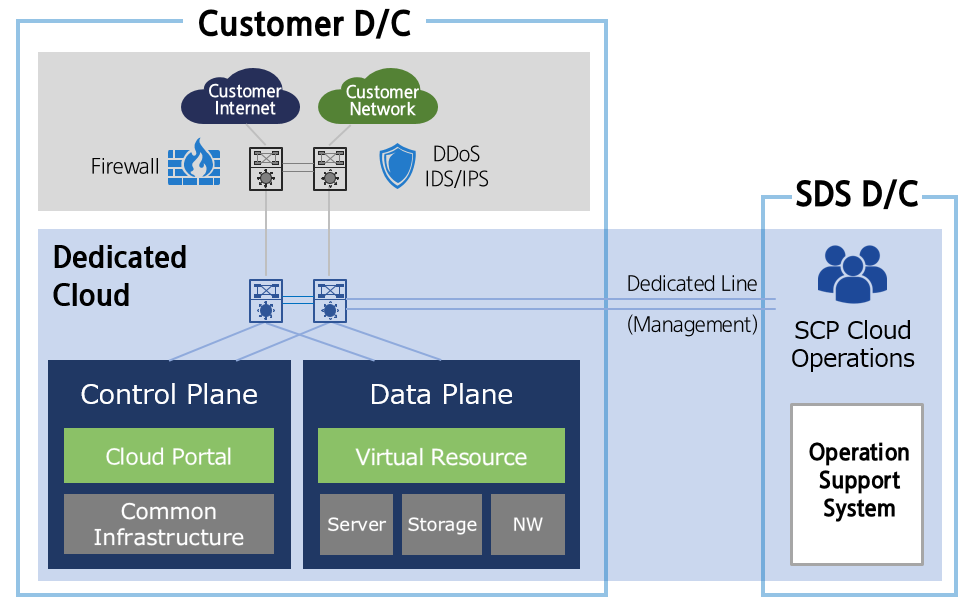
The Dedicated Cloud service is a service that builds a cloud infrastructure exclusively for the customer at the customer’s own facilities, using the cloud services provided by Samsung Cloud Platform. It is a service that configures both the cloud management area and the customer resource area on-premises, making it suitable for customers who require a high level of security control and regulatory compliance.
Info
- When using the Dedicated Cloud air-gap service, some products and features may be limited, and a dedicated operations service is required.
- Dedicated Cloud service cannot be configured on customer equipment because SDS builds the infrastructure directly.
Key Features
- Customer‑Dedicated Cloud Environment Setup: We provide cloud services by building a customer‑dedicated infrastructure in the customer‑specified facility (on‑premises) with the same architecture as the Samsung Cloud Platform. * Depending on the customer’s security requirements, the cloud management platform can be offered as a dedicated environment for the client and can address regulatory and security constraints.
- The customer provides the floor space, power, and network connectivity required for cloud infrastructure setup at the designated facility, and SDS builds the Samsung Cloud Platform, including hardware and software, to deliver a fully managed service.
- Providing Dedicated Cloud Air-Gap Service When data sovereignty and high-level regulatory requirements require complete isolation from external networks (the Internet and Samsung Cloud Platform), you can build a Dedicated Cloud service by applying an Air‑gap option that does not need a connection to external (SDS, Internet). At this point, dedicated operational staff are dispatched to support operations within the client’s organization.
- Service Operation and Operational Support System Integration: To ensure continuous maintenance and upgrades of cloud services, SDS operations staff operate by continuously monitoring the infrastructure and services deployed at the customer’s facilities.
Service architecture diagram
Provided Functions
Dedicated Cloud provides the following features.
- Dedicated Physical Resource Provision: We configure and provide the cloud management domain (console and shared infrastructure) and the customer resource domain (servers, storage, NW, etc., infrastructure for deploying virtual resources) exclusively for each client.
- Dedicated Internet and Customer Network Connection: It can connect to the internet and internal network of the customer environment where Dedicated Cloud is installed.
- Cloud Platform Operations and Upgrades: Regular feature upgrades and patches for services provided by Samsung Cloud Platform are offered. * However, a management line connection is required for platform operation, upgrades, and patches, and additional costs will be incurred.
- Resource provisioning and management: Virtual servers, storage, network, etc., provide CRUD functions for creating, modifying, deleting, and retrieving cloud resources via API or console.
- Resource Central Management: Virtual instances (Virtual Server), virtual networks (VPC), databases, storage (Block Storage, Object Storage, etc.) are deployed and configured centrally.
- User Authentication, Authorization Management: Provides authentication (Authentication), authorization (Authorization), and access control (Access Control) functions for users and services.
- Centralized Security Policy Management: Manages security-related policies such as network security, data encryption, and vulnerability management centrally.
- Automation and Orchestration: Provides users by automating complex tasks such as resource deployment, scaling, shrinking, and updates.
- Supports infrastructure and cloud service lifecycle management and workflow orchestration.
- Provides automation and management functions for IaaS services, PaaS services (DB, Container, security, etc.), and platform common services.
- Monitoring and Performance Management: Collects the status, performance, logs, and usage of cloud resources in real time for monitoring and provides alerts to users. * Provides operational visibility such as event management and operational status dashboards.
- Policy and Governance: Provides cost management, tagging, alerts, usage tracking, and other cost and resource governance features. * You can manage users by organization and centrally configure and apply security, compliance, and risk management policies in bulk.
- User and Service Interface Provision: We support users in managing cloud resources directly through various interfaces such as self-service portal, API, and CLI.
Component
Dedicated Cloud consists of the cloud management area (Control Plane) and the customer resource area (Data Plane).
Cloud Management Plane (Control Plane)
It is a core area responsible for centralized management and control of cloud infrastructure and services, handling virtual resource provisioning and automation, user authentication and authorization, monitoring, and policy configuration. The cloud management domain is physically separated from the customer resource domain and operates independently.
Info
- The cloud infrastructure of Dedicated Cloud is installed separately at the client site, but it is connected via a dedicated line to the SDS Center for common service maintenance and integrated management (however, it is not connected in the case of Dedicated Cloud air-gap).
- Users can deploy resources to the customer resource area and store user data using the various services and features provided by the Samsung Cloud Platform through the Console.
- Even if an issue occurs in the cloud management domain, resources and data deployed in the customer resource domain are not affected, but for some services provided in the cloud management domain, constraints may arise.
Customer Resource Area (Data Plane)
This is the area where virtual resources (virtual servers, virtual networks, storage, databases, etc.) required to configure the customer’s system are created and customer data is stored.
- Compute: Virtual Server, Bare Metal Server(option), GPU Server(option) etc.
- Stroage: Block Storage, File Storage, Object Storage, Backup, etc.
- Network: VPC, Security Group, Load Balancer, Firewall, etc.
- Database: PostgreSQL, MySQL, MariaDB, EPAS, etc.
Info
- By default, this is the area where IaaS and PaaS services are created and deployed, and to use certain specialized services (GPU Server, Multi-node GPU Cluster, high-performance File Storage, etc.), you must select the expansion option.
- In the public version, some Network services may not be available.
Rack configuration
The Dedicated Cloud service consists of a cloud management area and a customer resource area, and each area requires 11 dedicated racks.
| Category | Rack configuration | Power capacity per rack |
|---|---|---|
| Cloud Management Area | 7 items |
|
| Customer Resource Area | 4
|
|
Table. Rack configuration by Dedicated Cloud area
Reference
- When configuring GPU servers and large‑capacity VMs, the power capacity per rack may vary, and separate consultation is required.
Provided specifications
During the consultation process for adopting Dedicated Cloud, resources can be configured according to the customer’s desired setup, and the default specifications are listed below. (Additional configuration options require discussion)
| Category | Basic specifications | Explanation |
|---|---|---|
| Computing(Total vCPU) |
|
|
| Bare Metal Server | Additional configuration | Configure the Bare Metal Server by selecting the required detailed specifications and quantity according to the customer’s requirements. |
| GPU Server | Additional configuration | GPU Server can be configured by selecting GPU specifications (H100/B300) and the number of servers according to the customer’s requirements
|
| Block Storage | 60 TB | SSD is provided as standard, and capacity can be added in 20 TB increments (up to 500 TB for the default rack configuration). |
| File Storage | 15 TB | Provided as an HDD type, capacity can be added in 15 TB increments (up to 285 TB). |
| Object Storage | 1,300 TB | Provided as an HDD type, capacity can be added in 350 TB increments (up to 2,700 TB) |
| Backup | - | Backup service needed |
Table. Dedicated Cloud offering specifications
Provision status by region
Dedicated Cloud is available in the environments below.
| Region | Provision status |
|---|---|
| Korea West (kr-west1) | Provide |
| Korea East (kr-east1) | Provide |
| South Korea 1 (kr-south1) | Not provided |
| South Korea South 2 (kr-south2) | Not provided |
| South Korea South 3 (kr-south3) | Not provided |
Table. Dedicated Cloud regional availability status
Since the Samsung Cloud Platform continuously upgrades its services and features, the regulations and requirements for platform deployment and service maintenance must be met to keep the service running smoothly.
- For the Dedicated Cloud air-gap option service, a deployment system configuration and dedicated operations staff service are required for service maintenance and upgrades.
- The infrastructure for floor space, power and HVAC, and customer network connectivity required for Dedicated Cloud installation must be provided by the customer according to the specified specifications.
- Platform updates and upgrades
- Software upgrades for Dedicated Cloud and Dedicated Cloud Air-gap services include the entire stack, encompassing related device drivers, firmware, operating system, platform software, cloud service additions, and feature upgrades.
- To use the added services and features, additional hardware and software may be required beyond the existing installed infrastructure, and additional costs may be incurred at that time.
- Upgrades and patches for the Samsung Cloud Platform are a shared responsibility between cloud service operators and users.
- Dedicated resources configured for the client must be connected to the SDS Center via a dedicated line for service delivery and operational management (the dedicated line cost is billed separately).
- If external connections are not possible due to security and regulatory requirements, you can select the Air-gap option, but in this case some services and features are limited (metering/billing, SMS sending, etc.).
Preceding Service
There are no services that need to be pre-configured before creating this service.
1.2 - How-to guides
Users can enter the required information to apply for Dedicated Cloud services through the Samsung Cloud Platform Console, select detailed options, and use the service.
Apply for Dedicated Cloud
You can apply for Dedicated Cloud services from the Samsung Cloud Platform Console. To apply for Dedicated Cloud, follow the steps below.
Click the All Services > Hybrid Cloud > Dedicated Cloud menu. 1. Navigate to the Service Home page of Dedicated Cloud.
On the Service Home page, click the Dedicated Cloud Request button. 2. Dedicated Cloud Application page will be opened.
Dedicated Cloud Application page: enter the information required to request the service.
- Enter the required information in the Basic Information Input area.
Category Required statusDetailed description Offering type Required Select the offering type of Dedicated Cloud - Dedicated Cloud connected: Operated and managed by connecting to the SDS center via a dedicated line to provide Samsung Cloud Platform services
- Dedicated Cloud air-gap: Operated and managed without connection to external systems
- Selected when external connections are not possible to meet the customer’s security and regulatory requirements
- Dedicated operational services are required for service monitoring, operation, and maintenance
- Some services and features provided through connection to the SDS center are limited (metering/billing, SMS sending, etc.)
Service type Required Select the service type of Dedicated Cloud - General: Standard Samsung Cloud Platform service provided for typical cases
- Public: Samsung Cloud Platform service that complies with the requirements (security suitability verification) needed when governments and public institutions adopt cloud.
Service delivery method - Service delivery method Rack configuration - Rack configuration count and option information Dedicated Cloud name Required Enter the name of Dedicated Cloud - using English letters, numbers, spaces, and special characters, within 40 characters
Region name Required Enter the name of the region created when configuring Dedicated Cloud - Enter using lowercase English letters, numbers, and special characters, within 20 characters
- Example input: kr-west1, kr-east1
Installation location (address) Required Enter the address of the location where the Dedicated Cloud will be built - After building the Dedicated Cloud, a circuit connection between that location and the SDS center is required
Service start date Required Select Dedicated Cloud service start date Contract period Required Select service contract term - You can choose 1 year, 3 years, 5 years
Table. Dedicated Cloud Basic Information Input ItemsReference- For the public Dedicated Cloud, the services provided may differ because some equipment and configurations differ from the standard type.
- In the case of Dedicated Cloud, equipment purchase and installation are carried out according to the customer’s requested resources, so it takes several months until the service becomes actually available.
- Enter the required information in the Compute Information Input area.
Category Required statusDetailed description Total vCPU Selection Total vCPU amount for configuring Dedicated Cloud - Basic: 300 vCorev, 4 TB Memory provided by default
- Additional: vCPU is calculated as the total required across all services provided on virtual server bases such as Virtual Server, Database, Kubernetes Worker Node, etc., and entered
- One physical host provides 150 vCore and 2 TB Memory
- Maximum capacity per default rack: Standard type 2,400 vCore, Public type 3,000 vCore
- If the maximum capacity is exceeded, additional racks must be configured
Bare Metal Server Selection Whether to use and specification settings of the Bare Metal Server (physical server) provided by Samsung Cloud Platform - When using a Bare Metal Server, you can set the server type and the number of servers
- Refer to the detailed specifications of the Bare Metal Server in Bare Metal Server server type
GPU Server Selection Set the usage and specifications of the physical server that can create a GPU Server - When using a GPU Server, you can set the server type (H100, B300) and the number of servers
- Refer to the detailed specifications of the GPU Server in GPU Server server type
Table. Dedicated Cloud Compute information input itemsReference- GPU Server is provided based on a physical server equipped with eight units.
- If you use a GPU server, an additional rack is required. * Since a large power capacity is required, it is necessary to verify the customer’s environment.
- Enter the required information in the Storage Information Input area.
Category Required statusDetailed description Block Storage(SSD) Selection Enter the capacity of Block Storage (SSD type) that composes the Dedicated Cloud - Default: 60 TB provided by default
- Additional: Can be added in 20 TB increments
- Maximum capacity per default rack: 500 TB
- If the maximum capacity is exceeded, additional rack configuration is required
File Storage(HDD) Selection Enter the capacity of File Storage (HDD type) that composes the Dedicated Cloud - Basic: 15 TB provided by default
- Additional: Can be added in 15 TB increments
- Maximum capacity of a standard rack: 285 TB
- If the maximum capacity is exceeded, additional rack configuration is required
Object Storage(HDD) Selection Enter the Object Storage(HDD type) capacity for configuring Dedicated Cloud - Default: 1,300 TB provided by default
- Additional: Can be added in increments of 350 TB
- Maximum capacity per default rack: 2,700 TB
- If the maximum capacity is exceeded, additional rack configuration is required
- >Object Storage(HDD) capacity is applied after excluding the Backup service usage from the total capacity
Backup service Selection Select whether to use the Backup service and enter the usage amount - When using the Backup service, capacity can be added in 10 TB increments
- The usage amount can be set within the capacity of Object Storage (HDD)
Table. Dedicated Cloud Storage information entry fields - In the Additional Information Input area, enter or select the required information.
Category Required statusDetailed description tag Selection Add Tag - Up to 50 per resource can be added
- After clicking the Add Tag button, enter or select Key, Value values
Table. Dedicated Cloud additional information input items
- Enter the required information in the Basic Information Input area.
Verify the detailed information and estimated charges generated in the summary panel, and click the Create button.
- Dedicated Cloud Details page lets you view the requested items and their progress status.
Info
- Once the service application is completed, we review the requested information and then the sales representative contacts the customer directly to discuss the details (within one week of the application).
- The configuration may change depending on the customer’s installation environment and the resource scale required for the system setup during client consultation.
- After the customer consultation is completed and the customer’s service request is finally confirmed, equipment ordering will be carried out. * After the equipment is received and the client’s installation and configuration steps are completed, you can use the service (up to 6 months).
View Dedicated Cloud detailed information
Dedicated Cloud Details page allows you to view detailed information, tags, and operation history of Dedicated Cloud. To view detailed information about Dedicated Cloud, follow these steps.
Click the All Services > Hybrid Cloud > Dedicated Cloud menu. 1. Navigate to the Service Home page of Dedicated Cloud.
Click the Dedicated Cloud menu on the Service Home page. 2. Navigate to the Dedicated Cloud List page.
Category Detailed description Region name Explanation Offering type Dedicated Cloud offering types Service type Dedicated Cloud service types Status Current status of Dedicated Cloud - Requesting: Service request completed (sales notification processed)
- Verifying: Sales representative is confirming and reviewing the submitted information
- Verified: After the sales representative conducts customer discussions, awaiting confirmation of the customer’s service configuration
- After confirming the customer’s service configuration, confirmation is required
- Rejected: Service request denied
- Confirmed: Customer’s service configuration confirmed
- In the Confirmed state, service cancellation is not allowed
- In Production: Equipment ordered for service configuration
- Active: Service available
- Billing starts
- Terminated: Service usage terminated
Service request Dedicated Cloud - when the button is clicked, navigate to the Dedicated Cloud Apply page
- For more details, see Apply for Dedicated Cloud
Table. Dedicated Cloud list information itemsDedicated Cloud List Click the resource to view detailed information on the page. 3. Dedicated Cloud Details Navigate to the page.
- Dedicated Cloud Detailed page consists of Basic Information, Tags, Operation History tabs.
Basic Information
You can view the basic information of the selected resource on the Dedicated Cloud List page.
| Category | Detailed description |
|---|---|
| service | Service Name |
| Resource Type | Resource Type (Oracle Services) |
| SRN | Unique Resource ID in Samsung Cloud Platform |
| Resource name | Resource name |
| Resource ID | Unique resource ID in the service |
| Constructor | User requesting service creation |
| Creation timestamp | Service creation date and time |
| Modifier | Service Modification Request User |
| Modification date and time | Service modification timestamp |
| Offering type | Dedicated Cloud offering types |
| Service type | Service types of Dedicated Cloud
|
| Dedicated Cloud name | Dedicated Cloud name |
| Region name | Name of the region where Dedicated Cloud is deployed |
| Installation location (address) | Address of the location where the Dedicated Cloud will be built |
| Service start date | Dedicated Cloud Service Start Date |
| Contract period | Dedicated Cloud service contract period |
| Compute |
|
| Storage |
|
| SDS manager | Dedicated Cloud application processing manager
|
| Service URL | Dedicated Cloud service URL address
|
| Edit application information | Dedicated Cloud request information change
|
Table. Dedicated Cloud Basic Information Tab Items
tag
Dedicated Cloud List page lets you view the tag information of the selected resource, and you can add, modify, or delete it.
| Category | Detailed description |
|---|---|
| Tag List | Tag list
|
Table. Dedicated Cloud tag tab items
Job History
Dedicated Cloud List page allows you to view the operation history of the selected resource.
| Category | Detailed description |
|---|---|
| Task History List | Resource Change History
|
Table. Dedicated Cloud Job History Tab Items
1.3 - Release Note
Dedicated Cloud
2026.07.16
NEW
Service official version release- The official version of Dedicated Cloud service has been released.
- Customers can use the cloud services provided by Samsung Cloud Platform by building a dedicated cloud infrastructure in facilities they manage.
2 - Edge Server
2.1 - Overview
Service Overview
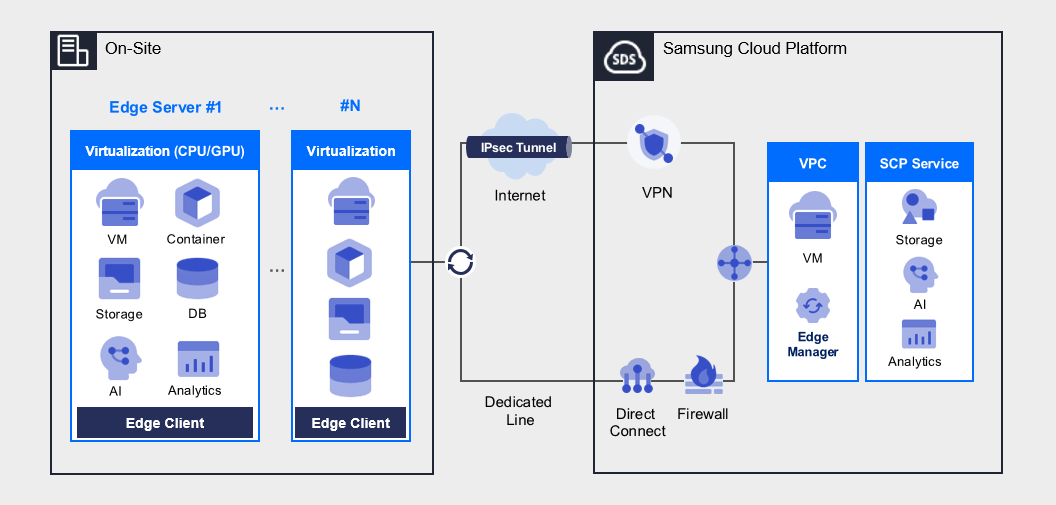
Edge Server provides Edge Cloud to on‑site environments of enterprises that find cloud migration difficult due to issues such as data security, regulations, performance, and latency. This service enables companies to perform data processing and analysis on‑site in real time. Based on edge computing technology, it processes data directly on servers located close to where the data is generated and offers an environment that can be efficiently managed in conjunction with the cloud. This maximizes the speed and efficiency of large‑scale data processing and minimizes data transmission latency through seamless integration with the cloud. In particular, it delivers outstanding performance in domains that require real‑time data processing and rapid decision‑making. Because the servers are deployed near the site, data can be processed quickly without network latency.
Through the Edge Server, you can migrate critical systems to the cloud and easily build a hybrid cloud with Samsung Cloud Platform to leverage its various services. Samsung SDS’s professional technical support organization provides optimal deployment assistance and technical support, considering each customer’s environment, and operates a 24x7 support channel at the Samsung Cloud Platform Support Center. With a delivery system built from multiple service request channels and systems, we can respond swiftly to customer requirements.
Configuration diagram
Provided features
The Edge Server provides the following functions.
- Hybrid Cloud Expansion: Important data is managed on-site, and the demand from companies that want to perform data‑driven operations by leveraging Public Cloud analytics, IoT, private 5G, AI, etc., is increasing. These companies can conveniently carry out data‑based work by building a hybrid cloud with the Edge Server of Samsung Cloud Platform.
- Convenient Integrated Management: To enable rapid processing of local data and quick access to on‑premises systems, we extend cloud services from the edge where data is generated and collected. Additionally, you can conveniently manage Edge Servers in an integrated manner through the Samsung Cloud Platform Console.
- High security and regulatory compliance: By establishing an Edge Computing service environment within the enterprise, ultra‑low‑latency data transmission is possible, and because all data and services reside inside the company, valuable corporate information can be securely protected. Data that requires security and workloads subject to strict regulations use edge resources, while workloads and data less sensitive to security utilize the more cost‑effective public resources of Samsung Cloud Platform.
- Customer-tailored service provision: We provide various virtualization platforms (Kernel-based Virtual Machine(KVM), Container, etc.) according to the user’s environment, and by leveraging pre-configured development environments and related ecosystems, you can adopt new technologies such as AI, machine learning, and big data.
Component
Edge Server provides various standard OS images and standard server types. Users can select the desired service type according to the scale of the service they want to configure.
Edge Manager
Edge Manager is located on the Samsung Cloud Platform and, through the Edge Client, manages the network and resources of Edge Servers installed at customer sites, and creates and manages virtual machines within the Edge Server.
Edge Client
The Edge Client is located on the Edge Server installed at the customer’s site, and through the Edge Manager, it performs KVM creation, deletion, modification, and query functions as well as Edge Server management functions.
Supported operating system versions
In the Edge Server, we supply the operating system (OS) requested by the customer through consultation with the customer.
The representative operating system versions supported by Edge Server are as follows.
| Operating System (OS) | Version |
|---|---|
| CentOS | CentOS 9 or later |
| RHEL | RHEL 8.9, RHEL 9.3, RHEL 9.4 |
| Ubuntu | Ubuntu 18.04, Ubuntu 20.04, Ubuntu 22.04 |
| Rocky Linux | Rocky Linux 8.9, Rocky Linux 9.3, Rocky Linux 9.4 |
Table. Edge Server operating system (OS) supported versions
Caution
The operating system (OS) costs, except for Rocky Linux, must be borne by the customer.
Availability by Region
The Edge Server is available in the environments below.
| Region | Availability |
|---|---|
| Korea West (kr-west1) | Provide |
| Korea East (kr-east1) | Not provided |
| South Korea South 1 (kr-south1) | Provide |
| South Korea 2 (kr-south2) | Provide |
| South Korea South 3(kr-south3) | Provide |
Table. Edge Server availability by region
Preceding Service
This is a list of services that must be pre‑configured before creating the service. Please refer to the guide provided for each service for details and prepare in advance.
| Service Category | Service | Detailed description |
|---|---|---|
| Networking | VPC | A service that provides an isolated virtual network in a cloud environment |
| Networking | Security Group | Virtual firewall that controls server traffic |
| Compute | Virtual Server | Virtual server optimized for cloud computing |
Table. Edge Server pre-service
2.2 - How-to guides
Users can create the Edge Server service by entering the required information and selecting detailed options through the Samsung Cloud Platform Console.
Create Edge Server
You can create and use the Edge Server service from the Samsung Cloud Platform Console.
To create an Edge Server, follow these steps.
All Services > Hybrid Cloud > Edge Server menu. You will be taken to the Edge Server Dashboard page.
On the Edge Server Dashboard page, click the Edge Server Service Request button. You will be taken to the Service Request page.
Service Request page, after entering the relevant information in the service information input area, click the Complete button.
guideIn the task category, select Create Edge Server Service and create it.Input field Detailed description Title Title of the service you want to request Region Select location of Samsung Cloud Platform - Automatically filled with the project’s region
Service Select the service group and service for the given service - Service group: Hybrid Cloud
- Service: Edge Server
Task classification Select the task you want to perform - Create Edge Server service: select if you want to create this service
content Enter detailed information required to create an Edge Server
[Basic Information]- Account ID: Enter the corresponding account ID
- Customer) Name/Company/Department/E-mail/Phone Number: Enter user information
- Desired Service Start Date: Enter the start date the user wishes for the service to be applied
- Host Server OS: Enter the host server OS information to be used
[Application Information]- Purpose of Use: Enter the intended use of the Edge Server
- Example: manufacturing, logistics, robotics, CCTV, video analytics
- Server Type and Quantity: Enter the type and quantity of host servers to be used
- Example: Standard (128vCore/512GB/SSD 7.6TB), High-capacity (128vCore/512GB/SSD 7.6TB+HDD 160TB), GPU_L40s (128vCore/512GB/SSD 7.6TB/L40s*2 units)
- Refer to the Table. Edge Server Specification Information below for detailed information
- Usage Period (default 3 years): Service usage period
Attachment Proceed with upload only if you have additional files you want to share - You can attach up to 5 files, each no larger than 5 MB
- Only files of type doc, docx, xls, xlsx, ppt, ppts, hwp, txt, pdf, jpg, jpeg, png, gif, tif can be attached
Table. Detailed description of Edge Server request items- Among the above Table. Edge Server request item details information, Server type and quantity should be verified against the resource information of the corresponding Edge Server and entered.
Category CPU Memory Local HDD GPU General type 128vCore 512GB SSD 7.6TB large capacity 128vCore 512GB SSD 7.6TB, HDD 160TB GPU_L40s 128vCore 512GB SSD 7.6TB L40s 2ea Table. Edge Server specification information
Service Request page, verify the required information entered, and click the Request button.
- This request involves steps such as purchasing a physical server, delivery, configuration, and site setup, and requires a minimum of six weeks of business days.
Check application details
You can view Edge Server service subscription and cancellation details in the Samsung Cloud Platform Console.
Reference
You can view the service application and termination request history for Edge Server through the following procedure.
To check the Edge Server service application details, follow the steps below.
- Click the All Services > Management > Support Center menu. You will be taken to the Support Center > Service Home page.
- On the Support Center Service Home page, click the Service Request menu. You will be taken to the Service Request List page.
- On the Service Request List page, click the title of the service request you submitted. You will be taken to the Service Request Details page.
- Check the request status and information on the Service Request Details page.InformationWhen a service request is received, the sales/operations staff verify the service application details and proceed with the Edge Server service for the entered information.
View Edge Server detailed information
The Edge Server service allows you to view and edit the full resource list and detailed information. The Edge Server detail page consists of Details, Task History tabs.
To view detailed information about the Edge Server, follow these steps.
Click the All Services > Hybrid Cloud > Edge Server menu. You will be taken to the Edge Server Dashboard page.
On the Edge Server Dashboard page, click the Edge Server menu. You will be taken to the Edge Server List page.
- Resource items other than the required columns can be added by clicking the Settings button.
Category Required statusDetailed description Edge server name Required User-created Edge Server name Edge Server OS Required User-requested Edge Server operating system Server type Required Edge Server server type Edge server IP Required The IP of the Edge Server requested by the user Service posting date Required Edge Server billing start date and time Service End Date Required Edge Server billing termination time status Required Edge Server status Installation location Select Location where the Edge Server is installed Creator ID Select User who created an Edge Server in Edge Manager Creation Date/Time Select Date and time the Edge Server was created in Edge Manager Table. Edge Server list information
- Resource items other than the required columns can be added by clicking the Settings button.
On the Edge Server List page, click the Edge Server you want to view detailed information for. You will be taken to the Edge Server Details page.
- Edge Server Details At the top of the page, status information and descriptions of additional features are displayed.
Category Detailed description Edge Server status Status of the Edge Server created by the user - Active: The Edge Server is operating normally
- Inactive: The Edge Server cannot provide normal service
Table. Edge Server status information
- Edge Server Details At the top of the page, status information and descriptions of additional features are displayed.
Detailed Information
On the Edge Server Details page, you can view the detailed information of the selected resource and, if necessary, edit that information.
| Category | Detailed description |
|---|---|
| Service | Service group |
| Resource Type | Resource Type |
| SRN | Unique resource ID in Samsung Cloud Platform
|
| Resource Name | Resource Name
|
| Resource ID | Unique resource ID in the service |
| constructor | User who created an Edge Server in Edge Manager |
| Creation Date/Time | Date and time the Edge Server was created in Edge Manager |
| Editor | User who modified the Edge Server in Edge Manager |
| Modification date | Date and time the Edge Server was modified in Edge Manager |
| Edge server name | Name of the edge server |
| Resource usage | CPU, Memory, and Disk utilization ratio relative to the edge server’s total resources |
| Resource Information | Total allocatable resources of the edge server and information on currently allocated resources |
| VM information | Information of each Virtual Server created on the edge server |
Table. Edge Server Detailed Information Tab Items
Job History
On the Edge Server List page, you can view the operation history of the selected resource.
| Category | Detailed description |
|---|---|
| Task History List | Resource Change History
|
Table. Edge Server Job History Tab Detailed Information Items
Terminate Edge Server
The Edge Server service whose contract period has expired can be terminated from the Console. If you wish to request termination before the contract period expires, you must first complete the contract termination of the relevant Edge Server through prior consultation between the user’s contract manager and Samsung SDS’s contract manager, and then proceed with termination according to the steps below.
To terminate the Edge Server, follow the steps below.
All Services > Hybrid Cloud > Edge Server menu. You will be taken to the Edge Server Dashboard page.
On the Edge Server Dashboard page, click the Edge Server Service Request button. You will be taken to the Service Request page.
On the Service Request page, select or enter the required information for the Edge Server.
guideIn the task type, select Edge Server Service Termination and apply.Input field Detailed description Title Title of the service you want to request Region Select location of Samsung Cloud Platform Service Select the service group and service for the given service - Service group: Hybrid Cloud
- Service: Edge Server
Task classification Select the task to perform - Terminate Edge Server service: select if you want to terminate this service
content Enter detailed information required for Edge Server termination
[Basic Information]- Account ID: Enter the corresponding account ID
- Customer) Name/Company/Department/E-mail/Phone Number: Enter user information
- Desired Service Termination Date: Enter the service termination date the user wishes
Attachment Proceed with upload only if you have additional files you want to share - You can attach up to 5 files, each no larger than 5 MB
- Only files with the following extensions are allowed: doc, docx, xls, xlsx, ppt, ppts, hwp, txt, pdf, jpg, jpeg, png, gif, tif
Table. Edge Server Service Termination Request Item DetailsService Request page, verify the required information entered, and click the Request button.
- This termination process requires the physical server to be returned, so it takes approximately 3–4 weeks of business days.
2.3 - Release Note
Edge Server
2025.10.23
FEATURE
Add Local Web feature- Provides a Local Web feature on the Edge Server, allowing customers to create, read, update, and delete Edge Server resources within their own network.
2025.07.01
NEW
K8s, Storage provided as installable version- We provide the K8s and Storage functions within the Edge Server as an installable package, enabling their use in customer POCs and similar scenarios.
2025.04.24
NEW
Edge Server service official version release- Through the Samsung Cloud Platform, customers can choose general, high‑capacity, or GPU server types according to their needs.
- We have launched an on-site service that makes it easy to create, delete, and manage Virtual Servers.
3 - Oracle Services
3.1 - Overview
Service Overview
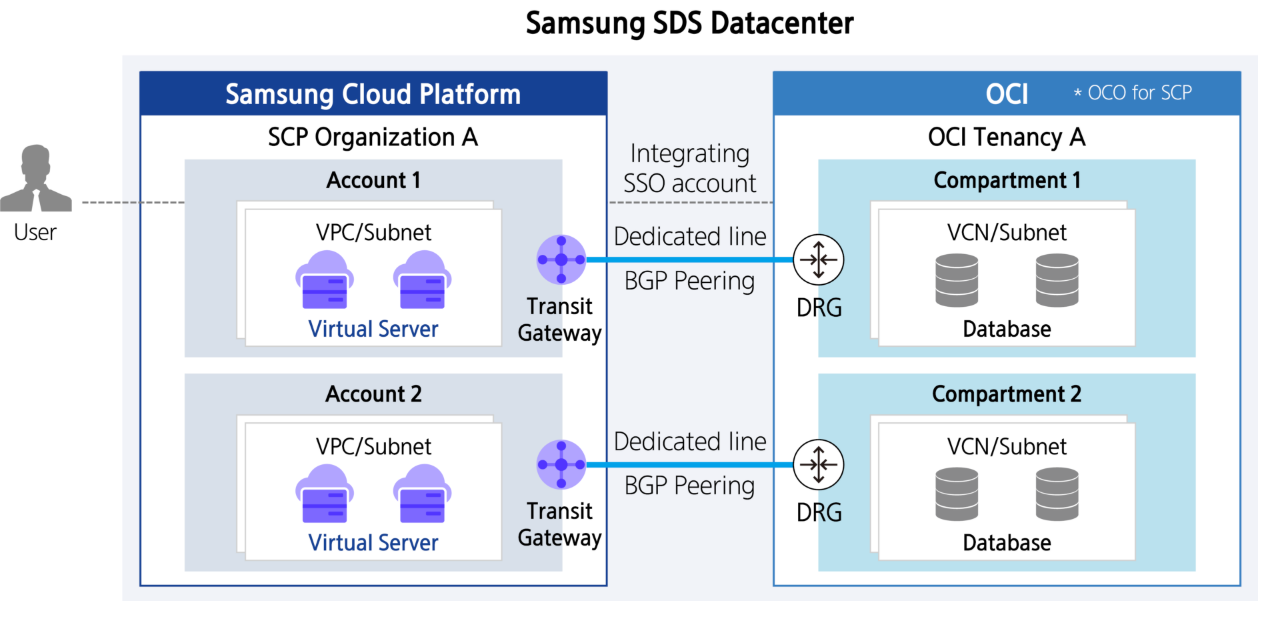
Oracle Services is an Oracle Cloud service that physically provisions Oracle Cloud resources dedicated to the Samsung Cloud Platform within the Samsung SDS data center, supporting workloads based on Oracle software. Samsung Cloud Platform users can utilize Oracle-based workloads through the Samsung Cloud Platform without separately provisioning Oracle Cloud resources.
Features
Multi-Cloud
- With just the Samsung Cloud Platform console login process, you can easily access the OCI environment. It provides the same high performance, scalability, security, availability, and automation as the services offered by OCI, allowing you to configure Oracle workloads such as Oracle Database, Exadata, and Weblogic without licensing issues.
High level of security
- Samsung Cloud Platform Oracle Services are completely physically and logically isolated from Public OCI, ensuring a high level of security. The OCI provided by Samsung Cloud Platform connects to SCP resources via a fast and reliable dedicated line, and a secure OCI usage environment is guaranteed within the Samsung SDS data center.
Convenient integrated management
- Samsung Cloud Platform customers can use their Samsung Cloud Platform contract information to manage OCI by integrating with existing Samsung Cloud Platform resources, and OCI usage fees are conveniently consolidated and billed through Samsung Cloud Platform.
Service Architecture Diagram
Provided features
Oracle Services provides the following functions.
User account integration between Samsung Cloud Platform and OCI
- Automatically create and register OCI tenancy/account using the Account and IAM User information of Samsung Cloud Platform users.
- Through Single Sign-On (SSO), you can access the OCI web console without additional login simply by accessing the Samsung Cloud Platform console.
Connecting/Extending User Environments between Samsung Cloud Platform and OCI
- Connect and extend the user’s Samsung Cloud Platform VPC to the user’s OCI VCN environment
- Establish a BGP peering connection between the Samsung Cloud Platform Transit Gateway and the OCI DRG using a pre‑provisioned dedicated line between Samsung Cloud Platform and OCI.
Provides functionality to initially configure the OCI internal network
- Provides a Blueprint feature that initially configures the essential prerequisite products for using Oracle DB, Exadata, and Weblogic.
- VCN, Private Subnet, Service Gateway creation, DRG-VCN attachment, one-click IP registration configuration
- Provides a Blueprint feature that initially configures the essential prerequisite products for using Oracle DB, Exadata, and Weblogic.
- Users can easily request and use the required OCI services using the OCI web console.
View OCI usage details and consolidated billing through Samsung Cloud Platform
Availability by Region
Oracle Services are available in the environments below.
| Region | Whether provided |
|---|---|
| Korea West (kr-west1) | Provide |
| Korea East (kr-east1) | Provide |
| South Korea South 1 (kr-south1) | Not provided |
| South Korea 2 (kr-south2) | Not provided |
| South Korea South 3 (kr-south3) | Not provided |
Table. Oracle Services Availability by Region
Constraints
You can request Oracle Services only when the requesting account is registered with the organization (orgarnization).
Preceding Service
This is a list of services that must be pre-configured before creating the service. Refer to the guide provided for each service for details and prepare in advance.
| Service Category | Service | Detailed description |
|---|---|---|
| Networking | VPC | A service that provides an isolated virtual network in a cloud environment |
| Networking | VPC > Transit Gateway | Multi-gateway service for connecting to the customer network or acting as a hub for connections among multiple VPCs |
Table. Oracle Services Prerequisite Service
3.2 - How-to guides
Users can enter the required information for Oracle Services and select detailed options through the Samsung Cloud Platform Console to create the service.
Create Oracle Services
You can create Oracle Services in the Samsung Cloud Platform Console and use them.
Reference
Only one Oracle Service can be applied for per project.
- To proceed with a new creation, cancel the existing Oracle Services and create it again.
To create Oracle Services, follow these steps.
- In the All Services > Hybrid Cloud > Oracle Services menu, click the Create Service button. 1. Go to the Service Home page of Oracle Services.
- On the Service Home page, click the Create Oracle Services button. 2. Navigate to the Create Oracle Services page.
- On the Oracle Services Creation page, enter the information required to create the service.
- Enter the required information in the Service Information Input area.
Category required statusDetailed description Oracle Services name Required Oracle Services name - must start with a lowercase English letter and be entered using lowercase English letters, numbers, and special characters (
-) with a length of 3 to 30 characters
Explanation option Enter additional description for Oracle Services Table. Oracle Services service information input items - must start with a lowercase English letter and be entered using lowercase English letters, numbers, and special characters (
- In the Additional Information Input area, enter or select the required information.
Category required statusDetailed description Tenancy selection option The tenancy name assigned to the user’s Organization - The assigned tenancy name of the account’s Organization is displayed automatically, so it cannot be selected
- To request a service, the account must belong to an Organization. Before creating the service, the account’s Organization must be created and joined
tag Selection Add Tag - Up to 50 per resource can be added
- After clicking the Add Tag button, input or select Key, Value values
Table. Oracle Services additional information input fields
- Enter the required information in the Service Information Input area.
- Review the detailed information and estimated charges generated in the summary panel, and click the Create button.
- When creation is complete, check the created resource on the Resource List page.
- It can be used only after the service is created and the administrator approves the usage request. * For detailed information about service usage approval, click ? > Support Center > Contact Us to view the details.
Check detailed information of Oracle Services
The Oracle Services service can view and edit the full resource list and detailed information from the Oracle Services menu. Oracle Services Details page consists of Detail Information, Tags, Operation History tabs.
Reference
Detailed information about Oracle Services can only be viewed after the service request is submitted and the operator has completed approval.
- To view detailed information, verify that the service status has changed to Active after the service approval is complete.
To view detailed information about Oracle Services, follow these steps.
- Click the All Services > Hybrid Cloud > Oracle Services menu. 1. Go to the Service Home page of Oracle Services.
- On the Service Home page, click the Oracle Services menu. 2. Oracle Services List Go to the page.
- On the Oracle Services List page, click the resource to view detailed information. 3. Navigate to the Oracle Services Details page.
- Oracle Services Details page displays status information and additional feature information, and is composed of Details, Tags, Activity History tabs.
Category Detailed description status Current service status - Creating: Service request in progress
- Active: Service approved and successfully created
- Creation Failed: Error occurred during creation
- Deletion Failed: Error occurred during deletion
- Denied: Operator approval denied
- Requested: Awaiting operator approval
- Deleting: Service termination request in progress
Service access Show Oracle Cloud console access window button Service termination Cancel service button Table. Oracle Services status information and additional feature items
- Oracle Services Details page displays status information and additional feature information, and is composed of Details, Tags, Activity History tabs.
Detailed Information
Detailed Information tab allows you to view detailed information of the selected Oracle Services.
| Category | Detailed description |
|---|---|
| service | Service name |
| Resource Type | Resource Type (Oracle Services) |
| SRN | Resource unique ID in Samsung Cloud Platform |
| Resource name | Resource Name |
| Resource ID | Unique resource ID in the service |
| Constructor | Service creation request user |
| Creation date and time | Service creation date and time |
| Modifier | Service modification request user |
| Modification date | Service modification timestamp |
| Tenancy name | Tenant name assigned to the Organization |
| Oracle Services NW configuration | Oracle Services Network Configuration Request and Modification
|
| Compartment name | Resource name connected to the service
|
| Connection between SCP VPC ↔ Oracles Service | Click Oracle Services line request/modify/termination shortcut to request an uplink line from the service request popup
|
| Dynamic Group configuration | Dynamic Group configuration status
|
| Virtual Circuit OCID | Virtual Circuit OCID path |
| Customer On-Prem ↔ Oracle Services connection | Oracle Services Add Connection Configuration Request Shortcut Click to request a service connection in the service request popup
|
| Explanation | Oracle Services service additional description
|
| Connected user | List of users who can access the Oracle Services
|
Table. Oracle Services detailed information tab items
Tag
Tag tab lets you view the tag information of the selected resource, and add, modify, or delete it.
| Category | Detailed description |
|---|---|
| Tag list | Tag list
|
Table. Oracle Services Tag Tab Items
Job History
Work History tab allows you to view the selected resource’s task history.
| Category | Detailed description |
|---|---|
| Task History List | Resource change history
|
Table. Oracle Services Job History Tab Detailed Information Items
Oracle Services Network Configuration and Access
You can connect the user VPC of Samsung Cloud Platform with the VCN (Virtual Cloud Network) in Samsung Cloud Platform Dedicated Oracle Cloud to use Oracle Services. To connect a VPC with a VCN in Oracle Cloud, you must configure the Oracle Services network and then request a dedicated uplink for Oracle Services. When the Oracle Services network configuration and uplink request are completed, the connection between Samsung Cloud Platform VPC - TGW - dedicated line segment - Oracle Cloud DRG - VCN is completed, allowing various hybrid cloud configurations such as connecting the user’s VM in the VPC environment to the DB in the Oracle Cloud VCN.
Request Oracle Services network configuration
When using Samsung Cloud Platform Dedicated Oracle Cloud, you must create and configure the required network resources for the user. This configuration request uses the user’s input data with the Oracle Cloud API to provide a service provisioning role that creates and deploys Oracle Cloud network services, enabling users to easily use Oracle software such as Oracle DBCS (Database Cloud Service) and ExaCS (Exadata Cloud Service).
Reference
Requests can only be made when the Oracle Services network configuration status is unconfigured.
To request the network configuration of Oracle Services, follow these steps.
- Click the All Services > Hybrid Cloud > Oracle Services menu. 1. Go to the Service Home page of Oracle Services.
- On the Service Home page, click the Oracle Services menu. 2. Navigate to the Oracle Services List page.
- On the Oracle Services List page, click the resource to view detailed information. 3. Navigate to the Oracle Services Details page.
- On the Oracle Services Details page, click the edit icon of Oracle Services NW Configuration. 4. Oracle Services Network Configuration Edit window appears.
- Enter or select detailed information in the Oracle Services Network Configuration Edit window and click OK.
Category Detailed description Select SCP Transit Gateway Select the Transit Gateway to connect to Samsung Cloud Platform Dedicated Oracle Cloud VCN name Enter the VCN name to create in Samsung Cloud Platform Dedicated Oracle Cloud VCN IPv4 CIDR block Enter the VCN’s IPv4 CIDR block - Example: 10.0.0.0/16
Using DNS Hostname (VCN) To use Oracle Exa/DBCS, set to use - To assign an instance host name using VCN DNS or a third‑party DNS, use setting is required
DNS Label (VCN) The DNS label is generated from the value entered by the user - VCN name, but it may be changed according to DNS label constraints
Subnet name Enter the name of the Private subnet to be created in the VCN. Subnet IPv4 block Enter the IPv4 CIDR block of the private subnet - Example: 10.0.0.0/24
Using DNS Hostname (Subnet) To use Oracle Exa/DBCS, set to Use - To assign an instance host name using VCN DNS or third‑party DNS, Use setting is required
DNS Label (Subnet) DNS label is generated from the value entered by the user - It is set to be the same as the Subnet name, but may be changed according to DNS label constraints
Subnet resource logging Set whether to enable Subnet resource logging - Set when selected, you can receive resource tracing, troubleshooting, and data insight information
Routing table rule Enter Dynamic routing rules in Samsung Cloud Platform Dedicated Oracle Cloud Table. Oracle Services network configuration items
Oracle Services network configuration order
When you request an Oracle Services network configuration, it attempts to provision and automatically configure the network service using the values entered by the user. If users need to update after provisioning, they can directly update the configurable settings in the Oracle Cloud web console after creation.
- Create an Oracle Cloud VCN.
- Create an Oracle Cloud DRG.
- DRG(Dynamic Routing Gateway) is an optional virtual router that can be added to a VCN, and it serves a role similar to the Samsung Cloud Platform Transit Gateway. * This gateway provides a private network traffic path between the VCN and the on‑premises network.
- Connect the DRG to the VCN.
- Enable the VCN’s “Use DNS Hostnames” option.
- After defining FastConnect, create a Virtual Circuit for logical allocation.
- FastConnect is a dedicated line product for Oracle Cloud that serves a role similar to Samsung Cloud Platform Direct Connect.
- When defining FastConnect, set it to the same bandwidth as the corresponding TGW’s bandwidth.
- Create a Private Subnet within the VCN.
- Enable the “Use DNS Hostnames” option for the subnet.
- Add the DRG to the VCN Route Table with 0.0.0.0.
- The default input value of DRG is 0.0.0.0.
- Configure user logging.
- Create the log group first, then configure logging.
Request to connect Samsung Cloud Platform VPC with Oracle Services
To provide Oracle Service, a connection as shown below has been established between Samsung Cloud Platform and Oracle Cloud.
- A common network is configured for service/authentication integration and console connection between Samsung Cloud Platform and Oracle Cloud.
- Through the Samsung Cloud Platform Oracle product, you configure a per‑user service connection network, and based on the physical network link between Samsung Cloud Platform and Oracle Cloud, you connect the Samsung Cloud Platform VPC to the Oracle Cloud VCN.
- Workloads configured in Oracle Cloud (e.g. * Computing, DB instance) can be utilized using a pre-configured Cross network between Samsung Cloud Platform and Oracle Cloud.
- Through Samsung Cloud Platform TGW and Direct Connect routing configuration, customers can directly access and use databases configured in Oracle Cloud even in network environments connected via Direct Connect or TGW Uplink.
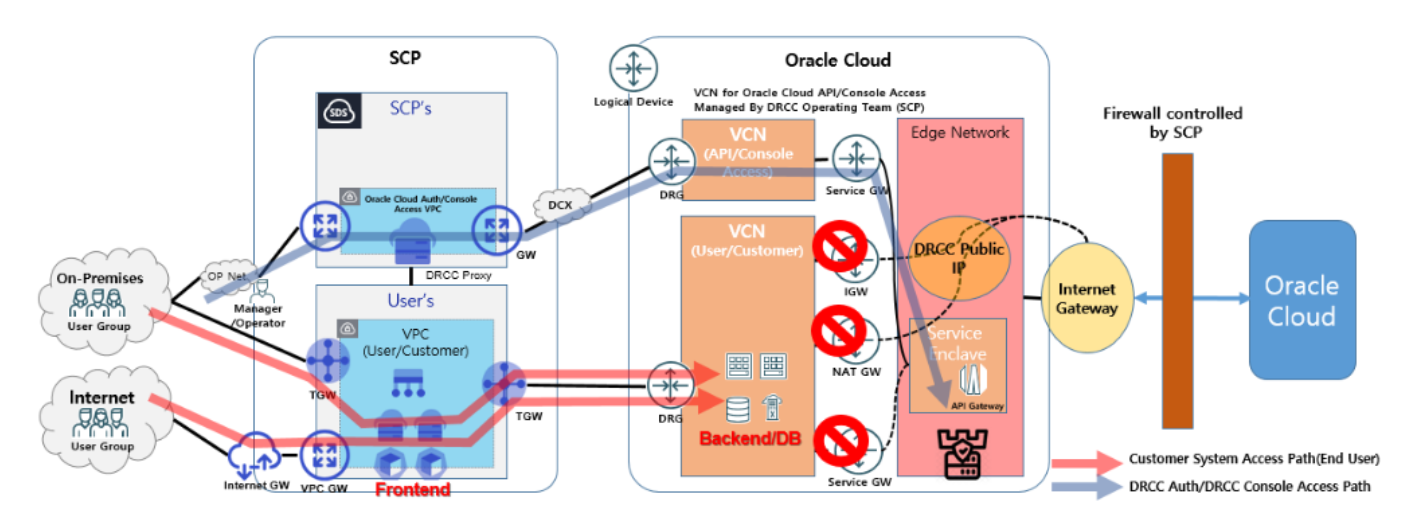
- A single connection architecture between Samsung Cloud Platform and Oracle Cloud can be implemented via TGW peering and TGW-to-TGW connections, and can be commonly used across multiple projects and VPCs. * However, when used jointly, performance and bandwidth considerations are required.
- The TGW of Samsung Cloud Platform and the DRG of Oracle Cloud must have a 1:1 connection architecture.
- It is possible to share a single connection architecture across multiple projects and VPCs through peering.
- However, it is not possible to peer multiple Samsung Cloud Platform VPCs using a single Oracle Cloud DRG.
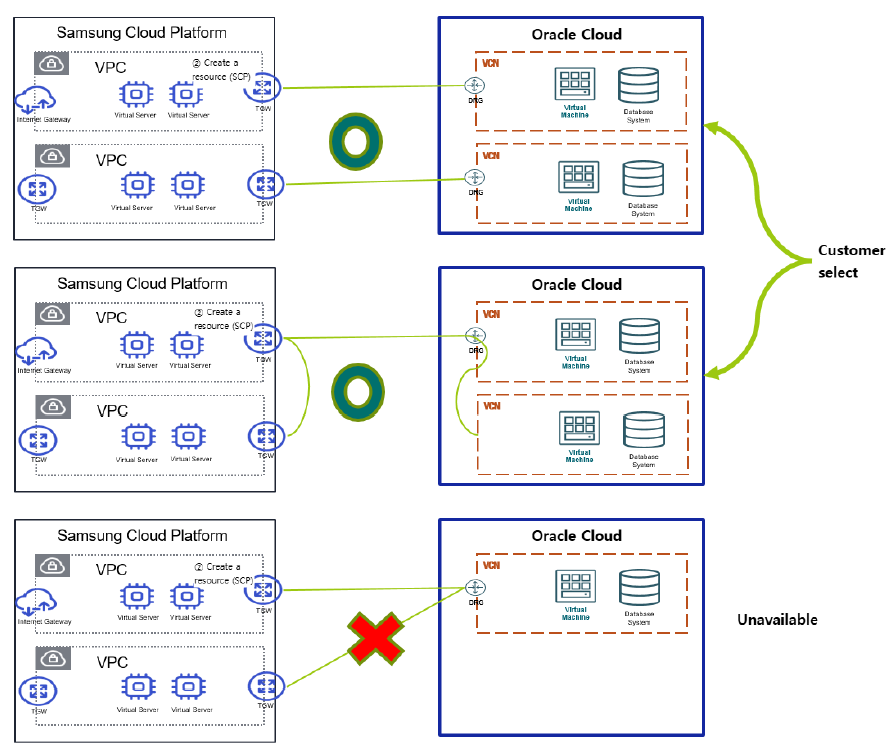
Apply for Oracle Services Uplink line
After completing the Oracle Services network configuration, you must request a dedicated line connection to the DRG via the TGW of the Samsung Cloud Platform.
Reference
- Oracle Services Uplink line connection can only be requested after network configuration.
- The Samsung Cloud Platform TGW to be uplinked can only have a 1:1 relationship with Oracle Cloud. * Before requesting an uplink, first create a new TGW dedicated to Oracle Services, then proceed with the TGW‑VPC connection.
- Oracle Services uplink requests must be processed through the Hybrid Cloud > Oracle Services > Oracle Services Line Request/Modification/Cancellation Shortcut menu.
- If you request an uplink connection from Networking > Transit Gateway > Uplink line, the request details may not be accurately conveyed to the responsible engineer.
To request an Uplink line from Oracle Services, follow the steps below.
- All Services > Hybrid Cloud > Oracle Services Click the menu. 1. Go to the Service Home page of Oracle Services.
- On the Service Home page, click the Oracle Services menu. 2. Go to the Oracle Services List page.
- On the Oracle Services List page, click the resource to view detailed information. 3. Navigate to the Oracle Services Details page.
- On the Oracle Services Details page, click the Oracle Services Line Request/Modification/Termination Shortcut. 4. Go to the Service Request page.
- On the Service Request page, after entering the relevant information in the service information input area, click the Complete button.
Input item Detailed description Title Title of the service you want to request Region Select location of Samsung Cloud Platform - Automatically filled with the project’s region
service Select the service group and service for the given service - Service Group: Hybrid Cloud
- Service: Oracle Services
Task classification Select the task to perform - Oracle Services Uplink line request: Select if you are applying for this service
content Enter detailed information to connect the L3 switch for linking the user VPC TGW to Oracle Services - Enter applicant information: user email, name, and contact details. The application details, progress, and results will be delivered via email.
- Enter the customer IP range information to connect to the Oracle Cloud dedicated for Samsung Cloud Platform, along with the Samsung Cloud Platform TGW and OCI virtual circuit information
- Target DC/Region identifier: Korea (Seoul)/ap-seoul-2
- Customer OCI IP range: Enter the IP range to connect to the Oracle Cloud dedicated for Samsung Cloud Platform (e.g., 10.10.10.0/24)
- Samsung Cloud Platform VPC range communicating with OCI: Enter the Samsung Cloud Platform VPC range connected to Oracle Cloud (e.g., 20.20.20.0/24)
- SCP TGW name: Enter the TGW name to connect to the Oracle Cloud dedicated for Samsung Cloud Platform (see: Samsung Cloud Platform > Networking > TGW)
- SCP TGW resource ID: Enter the TGW ID to connect to the Oracle Cloud dedicated for Samsung Cloud Platform (see: Samsung Cloud Platform > Networking > TGW > Details)
- OCI virtual circuit OCID: Enter the OCID of the Virtual Circuit created in Network Configuration on Oracle Cloud (see: Samsung Cloud Platform > Hybrid Cloud > Oracle Services > Details)
- You can check the progress in the service request menu
- If there is a work account of the network department that can coordinate tasks, enter it additionally
Table. Oracle Services network configuration items
Request to configure connection with Oracle Services for the client
After completing the Oracle Services network configuration, a direct connection between the client and Oracle Services must be set up.
Reference
- A connection with Oracle Services can only be requested after the network is configured.
- A physical connection (cable installation) between the client and Oracle Services is required before applying for a direct connection configuration.
- When connecting to the Samsung Cloud Platform device for integration with Oracle Services and the client (On-Prem), the connection is made via the BGP routing protocol.
- To request a direct connection configuration between the client and Oracle Services, be sure to apply for the service via the Hybrid Cloud > Oracle Services > Oracle Services Details > Oracle Services Add Connection Configuration Request Shortcut menu.
To request a direct connection configuration between the client and Oracle Services, follow these steps.
- Click the All Services > Hybrid Cloud > Oracle Services menu. 1. Go to the Service Home page of Oracle Services.
- On the Service Home page, click the Oracle Services menu. 2. Navigate to the Oracle Services List page.
- On the Oracle Services List page, click the resource to view detailed information. 3. Oracle Services Details Navigate to the page.
- On the Oracle Services Details page, click the Oracle Services Add Connection Configuration Request Shortcut. 4. Navigate to the service request page.
- On the service request page, after entering the relevant information in the service information input area, click the Complete button.
- After requesting the service, configuring the connection between the client and Oracle Services can take up to seven days.
Input item Detailed description Title Title of the service you want to request Region Select location of Samsung Cloud Platform - Automatically filled with the project’s region
service Select the service group and service for the given service - Service Group: Hybrid Cloud
- Service: Oracle Services
Task classification Select the task to perform - Request direct connection setup between the client and Oracle Services: Select if you are applying for this service
content Enter detailed information to connect the L3 switch for user On-Prem ↔ Oracle Services connection - Enter applicant information: user email, name, and contact details. Application details, progress, and results will be delivered via email.
- Enter the customer IP range information, Samsung Cloud Platform TGW, and OCI virtual circuit details to connect to the Oracle Cloud dedicated for Samsung Cloud Platform
- Target DC/Region identifier: Korea (Seoul)/ap-seoul-2
- Customer OCI IP range: Enter the IP range to connect to the Oracle Cloud dedicated for Samsung Cloud Platform (e.g., 10.10.10.0/24)
- Samsung Cloud Platform VPC range communicating with OCI: Enter the VPC range of Samsung Cloud Platform connected to Oracle Cloud (e.g., 20.20.20.0/24)
- SCP TGW name: Enter the TGW name to connect to the Oracle Cloud dedicated for Samsung Cloud Platform (see: Samsung Cloud Platform > Networking > TGW)
- SCP TGW resource ID: Enter the TGW ID to connect to the Oracle Cloud dedicated for Samsung Cloud Platform (see: Samsung Cloud Platform > Networking > TGW > Details)
- OCI virtual circuit OCID: Enter the OCID of the Virtual Circuit created in Network Configuration on Oracle Cloud (see: Samsung Cloud Platform > Hybrid Cloud > Oracle Services > Details)
- You can check the progress in the service request menu
- If there is a work account of the network department that can coordinate tasks, enter it additionally
Table. Oracle Services connection additional configuration request items
- After requesting the service, configuring the connection between the client and Oracle Services can take up to seven days.
Connecting to Oracle Services
After connecting to Oracle Services, you can perform Single Sign On (SSO) for Oracle Cloud login and access the Customer console.
Reference
- Since it is an Oracle Cloud dedicated to the Samsung Cloud Platform and completely separate from Public Oracle Cloud, existing Public Oracle Cloud accounts cannot be used.
- You can only access after applying for Oracle Services and after the administrator approves the service usage.
To access Oracle Services, follow these steps.
- Click the All Services > Hybrid Cloud > Oracle Services menu. 1. Go to the Service Home page of Oracle Services.
- On the Service Home page, click the Oracle Services menu. 2. Go to the Oracle Services List page.
- On the Oracle Services List page, click the resource to view detailed information. 3. Go to the Oracle Services Details page.
- On the Oracle Services Details page, click the Service Access button. 4. Oracle Cloud Console Login window appears.
- In the Oracle Cloud Console Login window, after entering user information, click Samsung Cloud Platform Login.
- In the logged-in state of Samsung Cloud Platform, you can log in to Oracle Cloud via SSO.
- Enter the 6-digit OTP generated in the mobile app, then click Confirm.
- After the user information is authenticated, you are taken to the Tenancy page in Oracle Cloud.
Terminate Oracle Services
Cancelling unused Oracle Services can reduce operating costs.
Caution
If the service status of Oracle Services is Active, Requested, Creation Failed/Deletion Failed, or Denied, the service can be terminated.
To cancel Oracle Services, follow the steps below.
- Click the All Services > Hybrid Cloud > Oracle Services menu. 1. Go to the Service Home page of Oracle Services.
- On the Service Home page, click the Oracle Services menu. 2. Navigate to the Oracle Services List page.
- On the Oracle Services List page, click the resource to be terminated. 3. Oracle Services Details Navigate to the page.
- On the Oracle Services Details page, click the Service Termination button.
- When the termination is complete, check the resource termination status in the Oracle Services list.
Delete resources in a Compartment
Cancellation of Oracle Services products is only possible when all resources within the user’s Compartment have been deleted.
To check for remaining resources and delete them, follow the steps below.
Reference
If the resource status within a Compartment is Terminated, it is considered that all resources have been deleted. In this case, you can proceed with terminating the Oracle Services product.
- After clicking the top resource explorer in the Oracle Cloud console, click Advanced resource query. 1. Enter the Resource Explorer.
- Show basic search mode click.
- Click Search and Filter, then select Compartment.
- Select the Compartment to delete.
- Compartment starts with PROJECT- xxx and is located under the Root.
- Click Apply Filter to check the resources in the compartment to be deleted.
- Delete all resources in the compartment.
3.2.1 - Setting Up Proxy for Oracle Web Console Access
The Oracle Cloud web console used to create, read, update, and delete Oracle Services can be accessed only through the Samsung Cloud Platform. To access the Oracle console, you must configure a web browser proxy in the user’s network environment.
Connecting to the Oracle console follows the steps below.
- After logging into the Samsung Cloud Platform console, access Oracle Services.
- Oracle Cloud can only be accessed via the Samsung Cloud Platform because access to the Internet and external networks is blocked.
- To access the Oracle Cloud console, you must configure the Oracle Cloud web proxy located within the Samsung Cloud Platform in your web browser.
- When a user attempts to access the login link provided in the Samsung Cloud Platform console using a web browser, the connection is made through the proxy configured in the web browser.
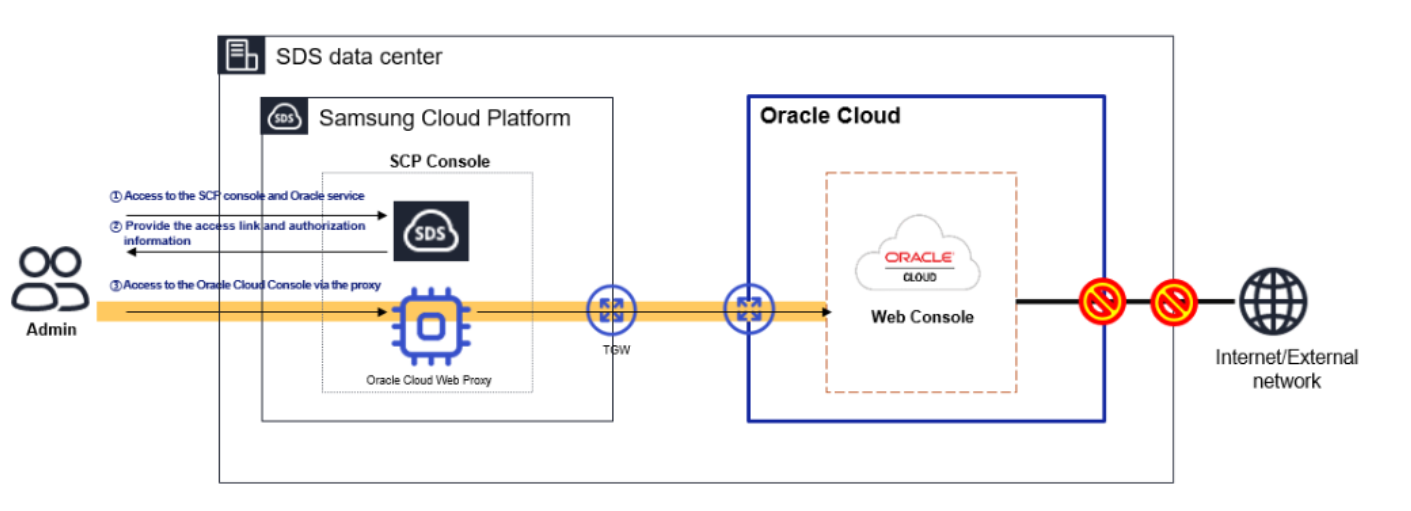
Setting the web browser proxy according to the user’s network environment
You can set the Oracle Cloud web proxy in the system settings’ web proxy configuration and use the Samsung Cloud Platform Oracle Service product. Depending on the security characteristics of the user environment, you can route connections through an internal proxy, or configure the user client to add a proxy auto‑configuration (PAC file) so that direct connections are possible.
Information
When configuring a web proxy, connect in consultation with the network/security personnel who manage the internal proxy according to company policy.
Creating a PAC file
You can generate a PAC file to access the Oracle Cloud web console.
Information
If you are a Samsung SDS employee, download the Developer PAC file from the following link. The branch settings for accessing the Oracle Cloud web console from the intranet are registered in the Developer PAC file.
- sdsdev.pac address: http://70.10.5.20/dev-pac.pac
To create a PAC file manually, write the following PAC file using an editor such as Notepad, or download it and save it to disk.
information
If you have a separate PAC file or proxy server, update the specified PAC file and use it.
function FindProxyForURL(url,host)
 {

//* Local Loopback return DIRECT *//
 if (shExpMatch(url,"*localhost*") || shExpMatch(url,"*127.0.0.1*")) return "DIRECT";

//* URL Miss return DIRECT *//
 if (!isResolvable(host)) return "DIRECT";

 if (shExpMatch(host,"*.ap-suwon-1.oci.oraclecloud35.com")) {return "PROXY 42.15.1.42:8080";}  // TED
 if (shExpMatch(host,"*.oci.oraclecloud35.com")) {return "PROXY 42.15.1.42:8080";}  // TED
 if (shExpMatch(host,"*.ap-suwon-1.oraclecloud35.com")) {return "PROXY 42.15.1.42:8080";}  // TED
 if (shExpMatch(host,"*.ap-suwon-idcs-1.identity.oci.oraclecloud35.com")) {return "PROXY 42.15.1.42:8080";}  // TED


 if (shExpMatch(host,"*.ap-chunchen-2.oci.oraclecloud35.com")) {return "PROXY 42.15.1.42:8080";}  // TED
 if (shExpMatch(host,"*.oci.oraclecloud35.com")) {return "PROXY 42.15.1.42:8080";}  // TED
 if (shExpMatch(host,"*.ap-chunchen-2.oraclecloud35.com")) {return "PROXY 42.15.1.42:8080";}  // TED
 if (shExpMatch(host,"*.ap-chunchen-idcs-2.identity.oci.oraclecloud35.com")) {return "PROXY 42.15.1.42:8080";}  // TED


 if (dnsDomainIs(host,"locales.plugins.oci.oraclecloud.com")) {return "DIRECT";}     //
 if (dnsDomainIs(host,"ocsp.digicert.com")) {return "DIRECT";}     //

 else { return "DIRECT";  }
}
Register PAC file on client PC
If you download the PAC file and register it on your PC, you can access the Oracle Cloud web console through the Samsung Cloud Platform.
To register a developer PAC file in the proxy settings, follow these steps.
- In the Windows search box, search for Proxy Settings and click the result.
- Click Windows Settings > Network and Internet > Proxy to go to the proxy settings page.
- On the proxy page, click Automatic proxy configuration > Edit configuration script.
- Set the Use configuration script option to On and enter the pac file that generated the script address.
- Enter http://70.10.5.20/dev-pac.pac.
- Click Save to complete registration.
- After accessing the Samsung Cloud Platform using browsers such as Chrome or Edge, follow the Oracle Cloud Console link provided by the Samsung Cloud Platform.
- When registering a PAC file on the client PC and connecting directly, the network path is as follows.
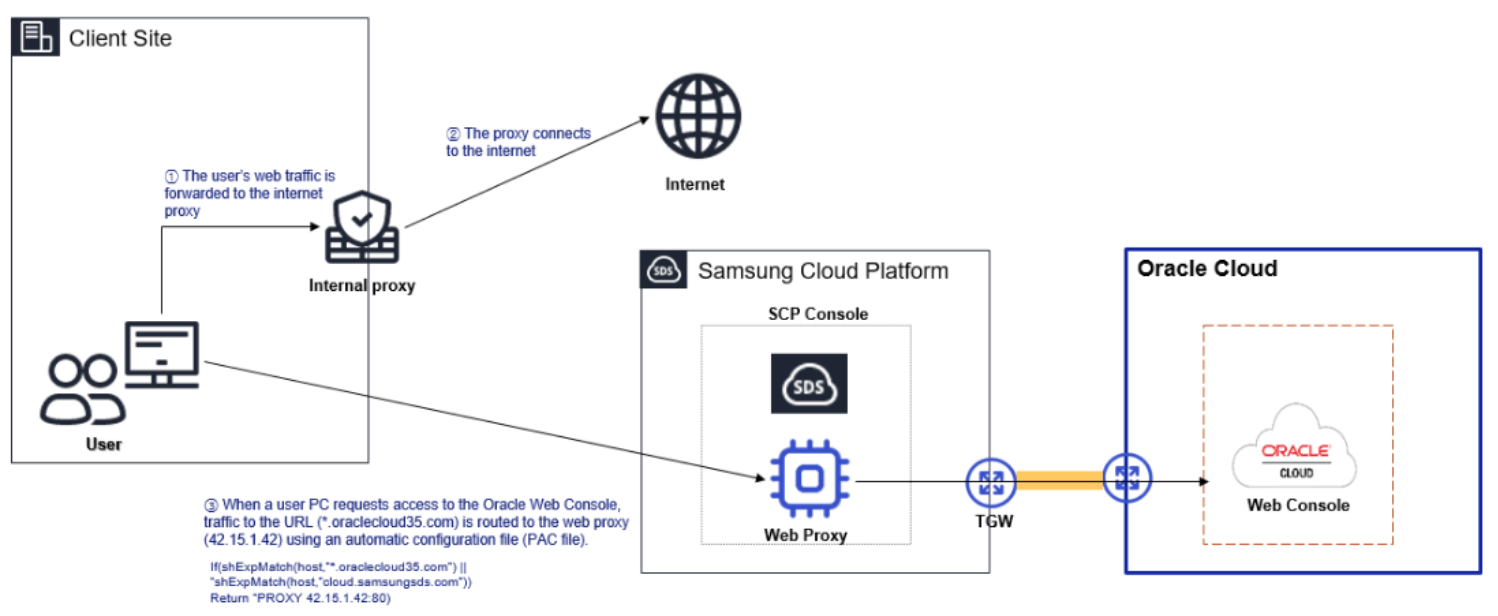
Configure connection when a separate proxy server is present (register forwarding information on the proxy server)
Depending on the user environment, a proxy managed by the network/security administrator may already be installed for security purposes. In such cases, you need to request the proxy administrator to add a proxy configuration for accessing the Samsung Cloud Platform Oracle service.
- When requesting the proxy administrator to register forwarding information, provide the following details.
프록시 설정 URL
                *.ap-suwon-1.oci.oraclecloud35.com
                *.ap-suwon-1.oraclecloud35.com
                *.ap-suwon-idcs-1.identity.oci.oraclecloud35.com
                *.ap-chuncheon-2.oci.oraclecloud35.com
                *.ap-chuncheon-2.oraclecloud35.com
                *.ap-chuncheon-idcs-2.identity.oci.oraclecloud35.com

프록시 IP/port
                 42.15.1.42:8080
- When connecting by registering a forward setting on the internal proxy, the network path is as follows.
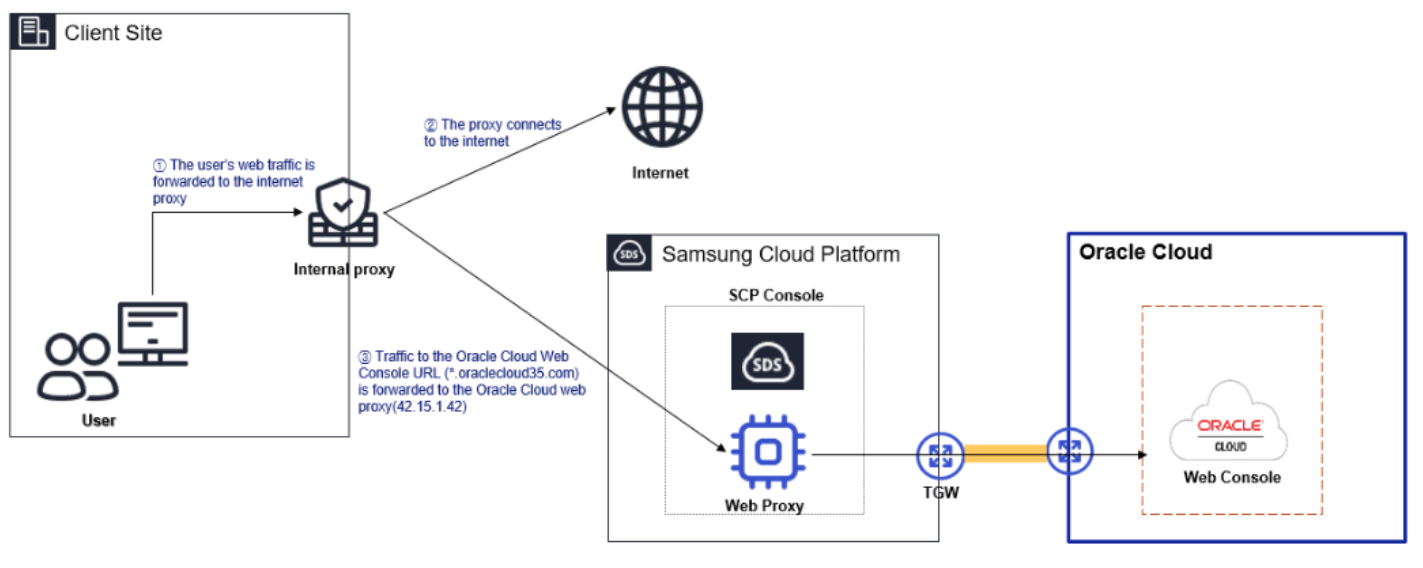
If the network environment passes through other separate security devices
When a separate security device is installed and used in addition to a proxy, you must provide the network/security administrator with a diagram of the Samsung Cloud Platform Oracle Cloud web console connection and carry out the connection configuration. Contact the internal network/security administrator for proxy settings.
Apply for firewall registration
If a firewall is installed in the customer’s network environment to control external access, you must register the proxy server with the firewall to use Samsung Cloud Platform. When applying for firewall registration, use the information below.
- Source IP: User PC IP Address Destination IP: Oracle Cloud web proxy IP Address (42.15.1.42)
- Protocol/port: TCP/8080
3.3 - Release Note
Oracle Services
2026.05.21
FEATURE
Add compartment name editing feature, add direct connection configuration between client and Oracle Services- In the Samsung Cloud Platform console, users can modify the name of the Oracle Services compartment assigned to them.
- A menu for requesting additional Oracle Services connection configuration, enabling customers (On-Premise) to apply for a connection to Oracle Services, has been added.
2025.12.16
NEW
Oracle Services official version release- To support workloads based on Oracle S/W, we physically configure OCI (Oracle Cloud Infrastructure) resources within the Samsung SDS data center and provide OCI services.