This is the multi-page printable view of this section. Click here to print.
Planned Compute
- 1: Overview
- 2: How-to Guides
- 3: Release Note
1 - Overview
Service Overview
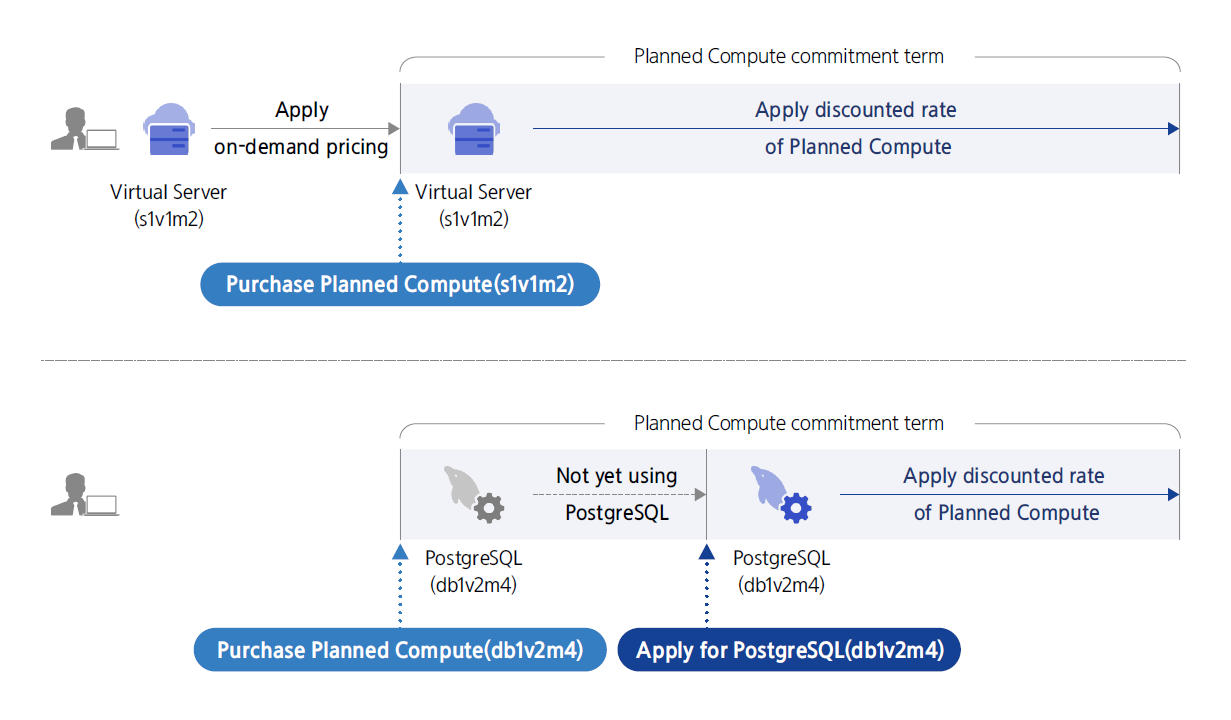
Planned Compute is a pricing policy that allows you to use resources at a discounted price of up to 40% compared to non-contracted prices, with a condition of contracting for a 1-year or 3-year server type. It applies to resources of non-contracted Compute services, Database services, and Data Analytics services. If the attributes applied to Planned Compute match the attributes of non-contracted target resources, the discounted price of Planned Compute is automatically applied. You can check the discounted details of Planned Compute through the report and apply for additional Planned Compute if necessary.
Features
Planned Compute is a contract-based discount service provided by Samsung Cloud Platform, which allows you to choose the desired operating system and server type to use. It has high flexibility as you can apply for a discount for a contract period of 1 to 3 years without specifying a specific resource.
- Discounted Pricing: Planned Compute is a discounted pricing policy that allows you to use resources at a lower cost, up to 40% off the on-demand price, with a 1-year or 3-year commitment. It applies to resources in the Compute service category, Analytics service category, and Database service category, and if the attributes applied to Planned Compute match the attributes of the on-demand resources, the Planned Compute discounted price is automatically applied.
- Various feature support: Planned Compute provides various features such as application, extension, server type change, etc. When applying for Planned Compute, select the contract discount target service, operating system, server type, and contract period, and enter the application quantity to apply.
- Convenient management and monitoring: Through the Planned Compute list check, you can check the Planned Compute usage information and modify the application information when changing the contract conditions are required. In addition, convenient management is possible, such as checking the difference between the Planned Compute usage cost and the non-contract usage amount through Coverage check.
Service Composition Diagram
Provided Features
Planne Compute provides the following functions.
- Planned Compute Service Application: You can apply for Planned Compute by selecting the service, operating system, server type, and contract period you want to offer discounts for, and then entering the application quantity and confirming the application information.
- Planned Compute Extension: When the contracted period ends, the corresponding Planned Compute will be terminated and no further discounts will be applied to the non-contracted resources. The termination of Planned Compute does not mean that the non-contracted resources will be cancelled. If you want to extend the discount period, you can reserve the next contract period after the contract period ends through the contract extension feature.
- Planned Compute Server Type Change: The server type of Planned Compute can be changed to a value higher than the set value.
- Planned Compute Cancellation: Although it is possible to cancel unused Planned Compute, 50% of the remaining period usage fee will be charged 2 months after cancellation. Planned Compute cancellation does not mean the cancellation of non-contracted resources.
- Coverage Check: You can check the discount coverage of the resource usage amount by service, operating system, and server type. By selecting the desired period, it displays the name of the on-demand resource, usage time, the amount that would have been used without a discount, and the amount that Planned Compute could not cover. This allows you to check the difference in billing amount between on-demand usage and Planned Compute usage.
Constraints
The constraints of Planned Compute are as follows.
- The application, change, and coverage are all based on the Asia/Seoul (GMT +09:00) time zone standard at midnight.
- If you apply for Planned Compute, the discount will be applied from midnight the day after the application.
- To calculate the exact discount amount, Coverage can be inquired up to 2 days ago.
- 23:30~23:59 every day is the settlement time, and new applications and changes are not applied.
- Discounts are applied to non-contract resources in the same region of the same account.
Preceding Service
Planned Compute does not require any prior service work.
2 - How-to Guides
Users can apply for the service by entering the required information for Planned Compute through the Samsung Cloud Platform Console.
Planned Compute Apply
You can apply for and use the Planned Compute service from the Samsung Cloud Platform Console.
To apply for Planned Compute, follow the steps below.
All Services > Financial Management > Planned Compute Click the menu. Navigate to the Service Home page of Planned Compute.
Click the Planned Compute Apply button on the Service Home page. You will be taken to the Planned Compute Apply page.
Planned Compute Request 페이지에서 필수 정보를 입력한 후, Next 버튼을 클릭하세요.
Item Required or notDescription Service Required Select the service you want to apply for Planned Compute Operating System Required Select Operating System - Service item selection after, selectable
- Depending on the selected service, Open Source, RHEL, Windows etc. selectable
Server Type Required Select server type - Service after selecting the item, selectable
Contract Period Required Select contract period - Can be selected after selecting the Server Type item
- 1-year or 3-year can be selected
Requested Quantity Required Enter the requested quantity - You can enter up to 1~100 items
- After applying the Planned Compute quantity, refunds are not possible, so caution is needed when entering
- If an increase in quantity is needed, you can add a new Planned Compute with the same server type
Contract Start Date Required Select the date when the contract becomes effective - Can be set from the day after the application date
Table. Planned Compute service input informationSummary Check the detailed information and estimated billing amount generated in the panel, and click the Complete button.
When the popup notifying the creation of Planned Compute opens, click the Confirm button.
- Once the application is completed, check the resources you created on the Planned Compute List page.
Planned Compute Check List
You can view and edit the full list of resources and detailed information of Planned Compute.
To view the list of Planned Compute, follow these steps.
All Services > Financial Management > Planned Compute Click the menu. Navigate to the Service Home page of Planned Compute.
On the Service Home page, click the Planned Compute menu. You will be taken to the Planned Compute List page.
On the Planned Compute List page, click the contract number of the Planned Compute to view detailed information. Navigate to the Planned Compute Details page.
- Resource items other than required columns can be added via the Settings button.
Item Required or notDescription Contract Number Required Key value per billing unit that can be checked in the billing details Resource Name Select Resource Contract Number Target Service Required Planned Compute Discount Target Service - Discount applied to non-contract resources that match the corresponding value
Server Type Required Planned Compute discount eligible server type - Discount applied to non-contract resources that match the value
Operating System Required Planned Compute discount target operating system - Apply discount to non-contract resources that match the given value
Initial contract start date Required The start date when the Planned Compute contract applies - Planned Compute Details page can change the date
- For more details, see Change Contract Start Date
Contract Period Required Check applicable period based on individual Planned Compute contract selection of 1 year or 3 years - When the Planned Compute contract ends, discounts no longer apply.
- If you want to continue applying discounts with ongoing Planned Compute, contract extension is required.
Extension Period Required Check extension period of individual Planned Compute contract - Change the 1-year or 3-year term of the extension period before the extension date arrives
- Also, the extension reservation can be canceled.
Status Required Status reflected after a change request for Planned Compute - Creating: State after contract request, before the contract is applied
- Active: State while the contract is being applied
- In Progress: State while the change request is being processed
Creator Select Planned Compute created user Creation Time Select Planned Compute Creation Time Editor Select Planned Compute Modified User Modification Date Select Planned Compute Modification Date Table. Planned Compute list item information
- Resource items other than required columns can be added via the Settings button.
Planned Compute When you click the right more button in the list, the contract management option is provided. That item is also available via the top button when multiple selections are made using the checkboxes.
Category Detailed description Contract Extension Button to extend the contract - It becomes active when there is no next contract reservation. Select the next contract period after the current contract to make a reservation
- For more details, refer to Contract Extension
Contract Change Button to change the agreement - You can change the server type. Changes are only possible to a higher spec than the current setting.
- For details, see Change Agreement
Contract Termination Button to terminate the contract - Terminate the contracted Planned Compute during the term
- When terminating, a termination fee is incurred based on the remaining usage period (monthly fee * 50% * remaining months of the contract period) and will be reflected on the invoice after 2 months.
- For more details, refer to Terminate Contract
Agreement Extension Edit Button to edit the next agreement reservation - It becomes active when there is a next agreement reservation. It changes the agreement period for the next agreement after the current agreement.
- For details, refer to Agreement Extension Edit
Cancel Contract Extension Button to cancel the next contract reservation - It becomes active when there is a next contract reservation. It cancels the contract extension reservation for the next contract after the current contract.
- For details, refer to Cancel Contract Extension
Table. Planned Compute list item information - Contract Management
Planned Compute View detailed information
You can view and edit the detailed information of Planned Compute.
To view detailed information of Planned Compute, follow the steps below.
- All Services > Financial Management > Planned Compute Click the menu. Navigate to the Service Home page of Planned Compute.
- Click the Planned Compute menu on the Service Home page. Navigate to the Planned Compute list page.
- On the Planned Compute List page, click the contract number of the Planned Compute to view detailed information. You will be taken to the Planned Compute Details page.
- Planned Compute Detail page consists of Detail Information, Tags, Operation History tabs.
Detailed Information
Planned Compute list page allows you to view and edit the detailed information of the selected resource.
| Item | Description |
|---|---|
| Category | Detailed description |
| ——— | ——— |
| Service | Service Name |
| Resource Type | Resource Type |
| SRN | Unique resource ID in Samsung Cloud Platform |
| Resource Name | Resource Name |
| Resource ID | Unique resource ID in the service |
| Creator | User who created Planned Compute |
| Creation Date/Time | Creation Date/Time of Planned Compute |
| Editor | User who modified Planned Compute |
| Modification Date/Time | Modification Date/Time of Planned Compute |
| Contract Number | Key value per billing unit that can be checked in the billing details |
| Target Service | Planned Compute Discount Target Service
|
| Server Type | Planned Compute discount eligible server type
|
| Operating System | Planned Compute discount target operating system
|
| Initial Contract Start Date | Start date when the Planned Compute contract applies
|
| Contract Period | Applied contract period and corresponding date |
| Extension Period | If the contract is extended, the extension period and the corresponding date
|
| Status | Status after change request of Planned Compute
|
- If the contract for Planned Compute ends, the discount will no longer be applied. To continue applying the Planned Compute discount, extend the contract.
- For detailed information about contract extension, please refer to Extend Contract.
Tag
Planned Compute list page allows you to view the tag information of the selected resource, and you can add, modify, or delete it.
| Category | Detailed description |
|---|---|
| Tag List | Tag List
|
Work History
Planned Compute List page allows you to view the operation history of the selected resource.
| Category | Detailed description |
|---|---|
| Work History List | Resource Change History
|
Planned Compute Manage Agreements
Change Agreement Start Date
You can change the contract application start date of Planned Compute. To change the contract start date of Planned Compute, follow the steps below.
- All Services > Financial Management > Planned Compute Click the menu. Navigate to the Service Home page of Planned Compute.
- Click the Planned Compute menu on the Service Home page. You will be taken to the Planned Compute list page.
- Planned Compute List page, click the contract number of the Planned Compute whose agreement start date you want to change. Navigate to the Planned Compute Details page.
- Click the Edit button of Initial Contract Start Date on the Planned Compute Details page. The Initial Contract Start Date Edit popup opens.
- After changing the contract start date, click the Confirm button.
- The start date of the agreement can be set from a date after the next day.
- If the contract has started, the initial contract start date cannot be modified.
Extend Agreement
Planned Compute의 약정을 연장할 수 있습니다. Planned Compute의 약정을 연장하려면 다음 절차를 따르세요.
- All Services > Financial Management > Planned Compute menu, click it. Move to Planned Compute’s Service Home page.
- Click the Planned Compute menu on the Service Home page. Navigate to the Planned Compute list page.
- Planned Compute On the list page, click the more button at the far right of the Planned Compute of the resource whose contract you want to extend, then click the Extend Contract button. The Extend Contract popup window opens.
- Select the next contract period and click the Confirm button. You will be taken to the Planned Compute list page.
- Contract Extension button can be clicked before the current contract expires, if the next contract has not yet been scheduled.
- Extend Agreement를 통해 다음 약정을 예약한 경우, 다음 약정의 시작일 전까지, 다음 약정 연장 기간 수정 및 취소가 가능합니다.
Change Agreement
Planned Compute’s agreement can be changed. To change the agreement of Planned Compute, follow the steps below.
- All Services > Financial Management > Planned Compute Click the menu. Go to the Service Home page of Planned Compute.
- Click the Planned Compute menu on the Service Home page. Navigate to the Planned Compute list page.
- Planned Compute list page에서 약정을 변경할 자원의 Planned Compute의 오른쪽 끝 더보기 버튼을 클릭하여, Change Commitment 버튼을 클릭하세요. Change Commitment popup window opens.
- Select the server type to change, and click the Confirm button. You will be taken to the Planned Compute list page.
- Contract amendment is only possible to a higher spec than the current contract settings.
- If you change the server type using Change Contract, it will be applied at midnight of the same day based on the Asia/Seoul, GMT +09:00 time zone, and resources with the changed server type will be moved to the corresponding Coverage list.
Edit Contract Extension
- All Services > Financial Management > Planned Compute Click the menu. Go to the Service Home page of Planned Compute.
- Click the Planned Compute menu on the Service Home page. Navigate to the Planned Compute list page.
- Planned Compute On the list page, click the “More” button at the far right of the Planned Compute of the resource whose contract you want to change, and click the Edit Contract Extension button. The Edit Contract Extension popup window opens.
- After the current contract, change the contract period for the next contract, and click the Confirm button. It moves to the Planned Compute list page.
- Contract Extension Edit button is activated when there is a next contract reservation. After the current contract, it changes the contract period for the next contract.
- If there is a next reservation, you can modify or cancel the extension period of the next agreement until the start date of the next agreement.
Cancel contract extension
- All Services > Financial Management > Planned Compute Click the menu. Navigate to the Service Home page of Planned Compute.
- Click the Planned Compute menu on the Service Home page. Navigate to the Planned Compute list page.
- Planned Compute on the list page, click the far‑right more button of the Planned Compute of the resource whose contract you want to change, and click the Cancel Contract Extension button. The Cancel Contract Extension popup opens.
- Cancel Contract Extension After checking the popup message, click the Confirm button. You will be taken to the Planned Compute list page.
- Contract Extension Cancellation button is activated when there is a next contract reservation. It cancels the contract extension reservation for the next contract after the current contract.
- Cancel contract extension if you cancel the next contract reservation, it will be applied as non-contract after the current contract period expires.
Terminate Agreement
You can cancel the Planned Compute contract. To cancel the Planned Compute contract, follow the steps below.
- All Services > Financial Management > Planned Compute Click the menu. Go to the Service Home page of Planned Compute.
- On the Service Home page, click the Planned Compute menu. You will be taken to the Planned Compute List page.
- Planned Compute on the list page, click the rightmost more button of the Planned Compute of the resource to cancel the contract, and click the Cancel Contract button. The Cancel Contract popup window opens.
- Contract termination Check the popup message and click the Confirm button. Navigate to the Planned Compute list page.
- In case of termination, a termination fee will be incurred according to the remaining usage period (monthly fee * 50% * remaining months of contract period) and will be reflected on the bill after 2 months. Please consider the occurrence of termination fees sufficiently before proceeding with the termination process.
- For same-day applications, based on the Asia/Seoul, GMT +09:00 time zone, if terminated before midnight on the same day, no termination fee will be incurred.
Planned Compute Coverage
Planned Compute You can check the discount amount applied to the requested quantity and non‑contracted resources based on the same target service, server type, and operating system. Planned Compute Coverage To view detailed information, follow the steps below.
Planned Compute Coverage Check List
- Click the All Services > Financial Management > Planned Compute menu. Navigate to the Service Home page of Planned Compute.
- Click the Coverage menu on the Service Home page. It moves to the Coverage List page.
Category Detailed description Target Service Planned Compute discount target service to check coverage Operating system The planned compute discount target operating system for checking coverage Server Type Server type subject to Planned Compute discount for checking Coverage Requested quantity The Planned Compute request quantity to check coverage Table. Coverage Resource List Items
Planned Compute Coverage Check Detailed Information
Coverage list page, you can view detailed information of the selected resource and download the needed information.
- All Services > Financial Management > Planned Compute Click the menu. Navigate to the Service Home page of Planned Compute.
- On the Service Home page, click the Coverage menu. Navigate to the Coverage list page.
- Coverage List page, click the resource (Coverage) you want to view detailed information for. Coverage Details page will be opened.
Category Detailed description Target Service Planned Compute discount target service to check Coverage Operating system Operating system to check Coverage for the Planned Compute discount target Server Type Server type subject to Planned Compute discount for checking Coverage Requested Quantity Planned Compute request quantity for checking coverage Table. Coverage Details - Target Planned Compute and Requested Quantity Items
- You can select the period you want to query at the top of the Coverage table and retrieve it.
- Coverage data can be downloaded via the Excel download button.
- Considering the settlement time of the discount amount, we provide information up to 2 days before the inquiry date based on the Asia/Seoul (GMT +09:00) time zone.
- The billing calculation basis is midnight in the Asia/Seoul (GMT +09:00) time zone, and list lookup is available from the start date of the contract.
| Item | Description |
|---|---|
| Resource Name | Resource Name of Uncontracted Resource |
| Usage Time | Time used by the non-contract resources in the list during the selected period |
| Non-contract hourly rate | Hourly rate when non-contract resources are not discounted |
| Non-contract usage amount | The amount used by the non-contract resources in the list during the selected period
|
| Unapplied Amount | Planned Compute deducts the charges of the list’s non-contracted resources as consideration for paying the contracted fee
|
| Uncontracted usage amount | Billing amount when Planned Compute is not used |
| Planned Compute usage amount | Amount paid for Planned Compute during the selected period
|
| Planned Compute Unapplied Amount | Total sum of amounts not covered by Planned Compute |
| Billing Amount | Sum of Planned Compute usage amount and Planned Compute non-applied amount
|
3 - Release Note
Planned Compute
- Planned Compute contract application can set the start date when the contract is applied.
- You can start applying the contract from the desired date, starting from the day after the application date.
- Planned Compute target services have been added.
- Data Catalog, Vertica(DBaaS)
- Planned Compute service was launched.
- Compute, Database 서비스 카테고리의 서비스에 대해 서버 타입을 약정하는 조건으로 할인 요금 서비스를 제공합니다 -> * Compute, Database service category services are provided with discounted rates as a condition for committing to the server type.