You can search for the required software according to the purpose of use on Samsung Cloud Platform, apply directly, and manage detailed information of the applied software.
This is the multi-page printable view of this section. Click here to print.
Financial Management
- 1: Cost Management
- 1.1: Overview
- 1.2: How-to Guides
- 1.2.1: Payment History
- 1.2.2: Cost Analysis
- 1.2.3: Credit Management
- 1.2.4: Budget Management
- 1.2.5: Cost Savings
- 1.2.6: Account
- 1.2.7: Payment Management
- 1.2.8: Carbon Emissions
- 1.2.9: EDP Report
- 1.3: Release Note
- 2: Planned Compute
- 2.1: Overview
- 2.2: How-to Guides
- 2.3: Release Note
- 3: Marketplace
- 3.1: Overview
- 3.2: How-to Guides
- 3.3: Release Note
1 - Cost Management
1.1 - Overview
Service Overview
The Cost Management service provides tools to manage and track the costs of Samsung Cloud Platform services.
You can make faster and more accurate financial decisions by identifying cost trends and savings opportunities. Users can efficiently obtain the desired information through the grouping and subdivision of information.
Provided Features
- Usage and Billing Details: You can predict the expected amount for this month and check the billing amount. It provides the amount, usage, and unit price by resource, and it is possible to save it as an Excel file.
- Payment Details: Provided when the payment method is a credit card. Check the billing amount, overdue amount, payment date, payment status, etc.
- Cost Analysis: You can check the cost trend for up to 6 months. It provides cost grouping and various search filters to analyze cost and usage data.
- Credit Management: You can manage and use credits.
- Budget Management: You can set and manage budgets.
- Cost Savings: You can save on usage costs by setting a time contract for the Compute service of the Samsung Cloud Platform Console.
- Account: You can check the account information. You can check the account name, account ID, alias, and company name.
- Payment Management: Provides information about the payment method of the Account. Credit card and non-cash deposit information are displayed.
- Carbon Emissions: You can check the carbon emissions generated when using the Samsung Cloud Platform Console services, monthly carbon emissions trends, carbon emissions by service group, and carbon emissions information by account.
Constraints
- Provided based on the Asia/Seoul(GMT +09:00) time zone.
- Cancellation fees and Support plan amounts can be checked in the month when the billing settlement is completed.
- Cost analysis is provided on a monthly basis.
- The tag information of the billing report will be provided when sending an email.
Preceding Service
Cost Management has no preceding service.
1.2 - How-to Guides
The user supports cloud efficiency optimization by utilizing various cost management tools through the Cost Management of the Samsung Cloud Platform Console. Cost Management allows you to check usage and billing details, payment history, and cost analysis, and manage Credit, budget, Account, and payment methods.
Check usage and billing history
You can predict the expected amount for this month and check the billing amount for the services used in the Samsung Cloud Platform Console.
To check the usage details and billing details, follow the next procedure.
- All services > Financial Management > Cost Management menu is clicked. It moves to the Service Home page of Cost Management.
- Service Home page, click the Usage and Billing Details menu. It moves to the Usage and Billing Details page.
- Usage and Billing Details page, in the period setting area at the top right, select the year and month to check the usage and billing details, the usage or billing details for the corresponding period will be displayed.
- Select the item to check the details in the upper right corner of the detailed list of expenses. The details of the item will be displayed.
Note
For more information about usage and billing details, please refer to Usage and Billing Details.
Check payment history
Account의 monthly payment details can be checked by item, including billed amount, used amount, unpaid amount, and payment amount, etc.
Samsung Cloud Platform Console에서 사용자의 Account의 납부 내역을 월별로 확인할 수 있습니다, translates to: On the Samsung Cloud Platform Console, you can check the payment history of the user’s account on a monthly basis.
To use the payment history, follow the following procedure.
- All services > Financial Management > Cost Management menu is clicked. It moves to the Service Home page of Cost Management.
- Service Home page, click the Payment Details menu. It moves to the Payment Details page.
- Payment History page where you can check the payment history of the corresponding Account.
Item Description Claim Month and Year Reference Month and Year Claim Amount The amount added to the unpaid accumulated amount for the current month’s usage Used Amount Monthly Used Amount Overdue Amount (Current Month) Overdue Amount for the Current Month unpaid amount (cumulative) total unpaid amount Payment Amount Denoted as the actual payment currency preferred, not the contract currency of the Account Payment Date Credit Card Payment Date Table. Payment Details Item
Reference
- All rates are exclusive of value-added tax.
- For more detailed information about the payment history, please refer to Payment History.
Analyzing Costs
You can check the analysis data on costs, such as the estimated or invoiced amount for up to 6 months of the Account, the average monthly invoiced amount, and the top 5 costs.
You can check the cost analysis on the Samsung Cloud Platform Console.
To check the cost analysis, follow the next procedure.
Note
The billing calculation standard is midnight in the Asia/Seoul (GMT +09:00) time zone. The estimated data may differ from the actual data.
- All services > Financial Management > Cost Management menu is clicked. It moves to the Service Home page of Cost Management.
- Service Home page, click the Cost Analysis menu. It moves to the Cost Analysis page.
- Cost Analysis page where you can check the cost analysis of the corresponding Account.
- By selecting the inquiry period at the top right, you can check the cost analysis for the corresponding period.
- The search period can be selected from the start to the end, up to a maximum of 6 months.
Note
- The inquiry period is based on the 1st day of the starting month to the last day of the ending month.
- It provides a graph visualized based on the search period.
- When selecting by service group, colors are applied by service group, and service group colors and amount information are provided as tooltips when hovering over with the mouse.
*is displayed when it is an estimated amount.
- Cost Analysis page where you can check the detailed cost statement.
Item Description Service Group Service Group Notation of Resources Service Service name notation of resources Resource Name Resource Name Notation Billed amount or estimated billed amount* The billed amount or estimated billed amount of the resource is displayed Table. Detailed Cost Analysis Items
Note
- The analysis content varies depending on whether the billing settlement month and the unsettled month are included within the inquiry period.
- For more information about cost analysis, please refer to Cost Analysis.
Credit check
You can check and manage the monthly usage of the Credit received through the Samsung Cloud Platform Console.
- All Services > Financial Management > Cost Management menu is clicked. It moves to the Service Home page of Cost Management.
- Service Home page, click the Credit Management menu. It moves to the Credit Management page.
- Credit management page where you can check the monthly usage of Credit.
- Account item’s right end expand button click then you can check the monthly detailed contents.
Division Detailed Description Division Credit Type Valid period The usage amount of the month displayed as the valid period will be applied. - In the credit expiration month, the extension button appears.
Issued Credit Credit issued respectively by Credit type and issue date Remaining Credit The remaining credit amount after excluding the total used credit from the received credit usage month you can check the monthly limit amount set by the user for the corresponding month. - in the current month, the limit setting button appears, and the credit amount to be used in the month can be set within the remaining credit
Monthly Limit The monthly limit amount set by the user. If not set, it represents the same amount as the remaining credit each month. Monthly Used Credit This is the actual cost of Credit used within the monthly limit set for the corresponding month. Monthly Remaining Credit This is the cost excluding the actual Credit used from the monthly limit amount set for the month, the balance is included in the remaining Credit. Table. Credit Management List
Caution
If the bill amount up to the previous month has not been settled, the current month will not be applied to Credit.
Reference
Credit confirmation details are available at Credit confirmation please refer to it.
Managing Budget
You can set and manage the budget.
To check the budget management information, follow the following procedure.
- All services > Financial Management > Cost Management menu is clicked. It moves to the Service Home page of Cost Management.
- Service Home page, click the Budget Management menu. It moves to the Budget Management page.
- Budget Management page where you can check the list of budgets set.
Division Detailed Description Budget Name Budget name to distinguish the generated budget management type You can check the type that manages the budget. - Monthly budget setting: Initialize the usage amount on a monthly basis
- Total budget setting: Accumulate and calculate the used amount from the set month
Budget setting amount Check the set budget. This month’s usage amount It represents the usage amount of the account up to yesterday of the current month. Burn rate It represents the ratio of the total amount used up to the previous day to the budget setting amount compared to this month’s usage amount. - In the case of the total budget, it is calculated as the total of the usage amount from the starting month to this month.
This month’s estimated usage amount It represents the estimated value of the total usage amount for this month based on the usage fee of the account up to the previous day of the current month. Expected consumption rate It represents the ratio of the expected usage amount for this month to the set budget amount. - In the case of the total budget, it is calculated as the total of the expected usage amount from the start month to this month.
More button You can move to the budget modification page by clicking the More button in the list. Table. Budget Management List Information
Note
For more information on budget management, please refer to Budget Management.
Cost Savings
The user can set a time contract for the Compute service of the Samsung Cloud Platform Console to save usage costs.
To check the detailed information of Cost Savings, please follow the next procedure.
- All services > Financial Management > Cost Management menu is clicked. It moves to the Service Home page of Cost Management.
- Service Home page, click the Cost Savings > Cost Savings list menu. It moves to the Cost Savings list page.
- Cost Savings Click the plan group name to check the detailed information in the list. It moves to the Cost Savings details page.
- Cost Savings Details page consists of Coverage, Utilization, Plan Group tabs.
Division Detailed Description Plan Group Name Plan Group’s Name Plan ID Plan group’s ID Contract Period Contract period of the plan group Start Date Plan Start Date Expiration Date Plan Expiration Date hourly contract amount hourly contract amount Status Plan application status - Creating: After application is completed, plan creation waiting status
- Active: Plan start status
- Expired: Plan contract period expiration status
Application Cancellation Cancel the plan application - Creating status only can be canceled
Table. Cost Savings list information
Reference
Cost Savings에 대한 자세한 내용은 Cost Savings를 참고하세요. -> For more information on Cost Savings, please refer to Cost Savings.
Account information check
Account information can be checked and account aliases can be managed.
Account information to confirm, please follow the next procedure.
Reference
To check and modify the account information, a payment method must be registered.
For more information about payment method registration, please check Registering a payment method.
For more information about payment method registration, please check Registering a payment method.
- All services > Financial Management > Cost Management menu is clicked. It moves to the Service Home page of Cost Management.
- Service Home page, click the Account menu. It moves to the Account page.
- You can also move by clicking My menu > Account at the top right of the Console.
- Account page where you can check the Account information.
Item Description Account name The name given to the account when creating an account. It allows you to easily identify the account when managing multiple accounts. AccountID Account’s unique identification number. Used when the IAM user logs in. Account Alias Alias given to the Account when the Account is created. - In the case of managing multiple Accounts, it allows for easy identification of Accounts for billing management, etc.
- The IAM user can log in using the Account alias when logging in to the Console.
- Modify: Refer to Modifying Account Alias to modify the Account alias
- Delete: Refer to Deleting Account Alias to delete the Account alias
Company Name Company name entered when registering payment method Table. Account Detailed Information
Note
Payment method management
Samsung Cloud Platform Console에서 Account에 등록된 결제 수단을 확인하고 등록할 수 있습니다 translates to You can check and register the payment method registered in the Account on the Samsung Cloud Platform Console.
To check the payment method, follow the next procedure.
- All services > Financial Management > Cost Management menu is clicked. It moves to the Service Home page of Cost Management.
- Service Home page, click the Payment Management menu. It moves to the Payment Management page.
- Payment Management page where you can check the currently registered payment method.
Notice
- Payment method, receipt collection, and other payment-related inquiries should be requested through the sales representative or contact us.
- For more information about payment methods, please refer to payment methods.
Check carbon emissions
You can check the carbon emissions generated when using the Samsung Cloud Platform Console service.
To check the carbon emissions by service, follow the next procedure.
- All services > Financial Management > Cost Management menu is clicked. It moves to the Service Home page of Cost Management.
- Service Home page, click the Carbon Emissions menu. It moves to the Carbon Emissions page.
- Set the period for checking the carbon emission in the period setting area at the top right.
Classification Detailed Description Carbon Emission by Period Carbon emission from day 1 to present and On-prem. comparison carbon emission display - Month-end expected On-prem. comparison: Display of month-end expected On-prem. comparison increase/decrease amount
- Month-end expected carbon emission: Month-end expected carbon emission
Carbon Emission Trend The carbon emission trend is displayed as a graph compared to the previous month - If you place the mouse cursor on the graph, you can check the total carbon emission
- Month-over-Month: The increase/decrease rate (%) of carbon emissions compared to the previous month
- Increase/Decrease: The increase/decrease amount of carbon emissions compared to the previous month
- Previous Month’s Carbon Emissions: The carbon emissions of the previous month
Average monthly carbon emissions Average carbon emissions over the past 6 months Carbon Emission Graph 1-day to current carbon emission graph - Total: Displays the total carbon emission of the entire service
- Service Group: Selects a service group (e.g. Compute, Storage) to display the carbon emission of the corresponding service group Placing the mouse cursor over the graph allows you to check the detailed information of the graph
Service-based carbon emissions Service-based carbon emissions from day 1 to the present - Detailed statement Excel download: Download service-based carbon emissions as an Excel file
Table. This month's carbon emission information
Reference
- On the 1st of every month, data is not displayed. (based on Asia/Seoul, GMT +09:00)
- The expected amount at the end of the month is an estimated value based on the current emission.
- For more information on carbon emissions, please refer to Carbon Emissions.
Guidance
- The amount of carbon emissions is rounded after summing up the decimal points by service, so there may be a difference in the total.
- Indirect 서비스군: Compute와 Storage 서비스를 제외한 기타 모든 이용 서비스에서 발생한 배출량을 포함합니다 translates to * Indirect service group: Includes emissions from all other services used, excluding Compute and Storage services.
1.2.1 - Payment History
Users can check the billing details of their account, such as the billing amount, usage amount, unpaid amount, and payment amount, on a monthly basis through the payment history in the Samsung Cloud Platform Console.
Check payment history
You can check the payment history of the user’s account on the Samsung Cloud Platform Console on a monthly basis.
To use the payment history, follow the next procedure.
- Click All services > Financial Management > Cost Management menu. It moves to the Service Home page of Cost Management.
- On the Service Home page, click the Payment History menu. It moves to the Payment History page.
- Payment History page where you can check the payment history of the corresponding Account.
Item Description Billing Month Billing Standard Month Claim Amount The amount obtained by adding the unpaid accumulated amount to the monthly usage amount Amount Used Monthly Amount Used Overdue Amount (Current Month) Overdue amount for the current month Accumulated Amount of Unpaid Fees Total Unpaid Amount Payment Amount The actual payment currency, not the contract currency of the account, is indicated by the symbol Payment Date Credit Card Payment Date Payment Status Payment Status - Normal: Payment completed
- Overdue: Overdue for more than 1 month
Table. Payment Details Item
Reference
- All prices are exclusive of VAT.
- The unpaid amount will be re-charged on the next billing date.
Detailed statement Excel download
You can download the payment history as an Excel file.
To download the payment history as an Excel file, follow these steps.
- 모든 서비스 > Financial Management > Cost Management menu should be clicked. It moves to the Service Home page of Cost Management.
- On the Service Home page, click the Payment History menu. It moves to the Payment History page.
- Payment Details page, click the Detailed Statement Excel Download button.
- Please check the downloaded Excel file.
1.2.2 - Cost Analysis
The user can check the analysis data of the cost, such as the estimated billing amount or billing amount for up to 6 months of the user’s account, the average monthly billing amount, and the top 5 costs, through the cost analysis of the Samsung Cloud Platform Console.
Check cost analysis
You can check the cost analysis on the Samsung Cloud Platform Console.
To check the cost analysis, follow the following procedure.
Note
The billing calculation standard is midnight in the Asia/Seoul (GMT +09:00) time zone. The expected data may differ from the actual data.
- 모든 서비스 > Financial Management > Cost Management menu should be clicked. It moves to the Service Home page of Cost Management.
- On the Service Home page, click the Cost Analysis menu. It moves to the Cost Analysis page.
- Cost Analysis page where you can check the cost analysis of the corresponding Account.
- You can check the cost analysis for the selected period by selecting the inquiry period at the top right.
- The search period can be selected up to a maximum of 6 months from the start to the end.
Note
The inquiry period is based on the 1st of the starting month to the last day of the ending month.
- It provides a graph visualized based on the search period.
- When selecting by service group, colors are applied by service group, and when mouse-over, service group colors and amount information are provided as tooltips.
*is displayed when it is an estimated amount.
- If the inquiry period includes a month with unsettled claims, a month with settled claims only, a month with unsettled claims only, or only the current month, please refer to each case respectively.
- Cost Analysis page where you can check the detailed cost statement.
Item Description Service Group Service Group Notation of Resources Service Resource Service Name Display Resource Name Resource Name Notation The billed amount or expected billed amount* Displays the billed amount or expected billed amount of the resource Table. Detailed Cost Analysis Items
If the month with unsettled bills is included in the inquiry period
In cost analysis, if the inquiry period includes an unsettled billing month, it provides the total expected billing amount*, monthly average billing amount, expected monthly average billing amount*, and graph.
| Item | Description |
|---|---|
| Total Estimated Billing Amount* | Estimated usage amount from the 1st of the current month to the day before the inquiry date |
| Average monthly billing amount | Predicted billing amount based on the trend of usage from the 1st to the end of the month |
| Expected monthly average billing amount* | Expected monthly average billing amount during the inquiry period |
| Monthly Graph | Monthly graph provided
|
Table. If the billing unsettled month is included in the cost analysis inquiry period
In case of only billing settlement month within the inquiry period
In cost analysis, if there are only billing settlement months within the inquiry period, it provides the total billing amount, monthly average billing amount, cost Top5, and graph.
| Item | Description |
|---|---|
| Total billed amount | Actual billed amount and discount amount within the inquiry period |
| Average monthly billing amount | Average actual billing amount and discount amount during the inquiry period |
| Cost Top5 | Top 5 costs and discount amounts within the inquiry period |
| Monthly Graph | Monthly Graph Provided |
Table. Only billing settlement months are available within the cost analysis inquiry period
If there are only unsettled bills for the month within the inquiry period
In cost analysis, if only unsettled months are included in the inquiry period, it provides total expected billing amount*, monthly average billing amount, expected monthly average billing amount*, and graph.
| Item | Description |
|---|---|
| Total Estimated Billing Amount* | Estimated billing amount and discount amount during the inquiry period |
| Average monthly billing amount | Indicated as no data |
| Expected monthly average billing amount* | Expected billing amount from the 1st to the last day of the inquiry month |
| Graph | Monthly graph provided |
Table. Only unsettled bills for the month within the cost analysis inquiry period
If only the current month is included in the search period
In the cost analysis, if only the current month is included in the inquiry period, it provides the usage amount, expected billing amount*, monthly average billing amount, and graph.
| Item | Description |
|---|---|
| Estimated usage amount* | Estimated usage amount from the 1st of the current month to the day before the inquiry date |
| Expected billing amount* | Expected billing amount from the 1st to the end of the current month |
| Monthly average billing amount | Average billing amount for the past 6 months |
| Graph | Daily Graph/Daily Accumulated Graph |
Table. Cost analysis only for the current month
Detailed statement Excel download
You can download the detailed breakdown of the cost analysis as an Excel file.
To download the detailed breakdown of cost analysis as an Excel file, follow these steps.
- Click All services > Financial Management > Cost Management menu. It moves to the Service Home page of Cost Management.
- On the Service Home page, click the Cost Analysis menu. It moves to the Cost Analysis page.
- On the Cost Analysis page, click the Detailed Statement Excel Download button.
- Please check the downloaded Excel file.
Item Description Contract Number Ledger ID (Unique Key of the instance) Account ID Account ID Account name Account full name Billing Year and Month Billing Year and Month of Cost Service Service Group Type Service Name Resource Name Name of the Resource Region Resource Usage Region Name Unit Price Pricing Unit and Pricing Standard Usage Time resources were used Currency Currency of Account Amount Used Amount Used Before Discount Planned Compute Planned Compute discounted amount Cancellation fee A cancellation fee occurs for cancelled resources. It occurs for 2 months after the cancellation date Total Used Amount Used Amount + Cancellation Fee - Planned Compute Amount SLA SLA Discount Amount Credit Credit Application Amount Other discounts Total of discounts excluding SLA/Credit discounts Billing Amount The final payment amount after excluding the discount amount from the total usage amount Table. Detailed cost analysis Excel download
1.2.3 - Credit Management
The user can check and manage the monthly usage of the credits received through the Samsung Cloud Platform Console.
Credit check
You can check the Credit received from Samsung Cloud Platform Console. To check the Credit, please follow the following procedure.
- All services > Financial Management > Cost Management menu is clicked. It moves to the Service Home page of Cost Management.
- Service Home page, click the Credit management menu. It moves to the Credit management page.
- Credit management page where you can check the monthly usage of Credit.
Credit Summary Information: You can check the summary information of valid Credit and expired Credit.
Division Detailed Description Summary Classification Select Credit type to check summary information - Valid Credit: Summary information of currently valid Credit
- Expired Credit (last 6 months): Summary information of Credit that expired within the last 6 months
Summary Information Summary information by summary classification - Valid Credit
- Total Remaining Credit: total amount of remaining Credit
- Total Used Credit: total amount of used Credit
- Number of Active Credits: total number of valid Credits
- Expired Credit (last 6 months)
- Total Remaining Credit: total amount of unused Credit
- Total Used Credit: total amount of used Credit
- Number of Expired Credits: total number of expired Credits
Table. Summary of Credit ItemsCredit detailed information: You can check the detailed information by credit type. Clicking the expand button at the far right of the Account item displays the monthly detailed contents.
Division Detailed Description Division Credit Type Valid period The usage amount of the month displayed as the valid period will be applied. - In the credit expiration month, the extension button appears.
Paid Credit Credit paid by each type and issue date Remaining Credit The remaining credit amount after excluding the total used credit from the paid credit usage month you can check the monthly limit amount specified by the user for the corresponding month. - in the current month, the limit setting button appears, and the credit amount to be used in the month can be set within the remaining credit
Monthly Limit The monthly limit amount set by the user. If not set, it represents the same amount as the remaining credit each month. Monthly Used Credit This is the actual cost of Credit used within the monthly limit set for the corresponding month. Monthly Remaining Credit This is the cost excluding the actual Credit used from the monthly limit amount set for the month, the balance is included in the remaining Credit. Table. Credit Details
Caution
If the bill amount up to the previous month has not been settled, the current month will not be applied to Credit.
Credit extension
Credit 만료월에는 유효 기간 오른쪽에 extension 버튼을 확인할 수 있습니다 should be translated to: Credit expiration month, you can find the extension button to the right of the validity period.
- All services > Financial Management > Cost Management menu is clicked. It moves to the Service Home page of Cost Management.
- Service Home page, click the Credit Management menu. It moves to the Credit Management page.
- Credit management page, click the extension button. Credit extension popup window opens.
- Select the period you want to extend among 1 month, 2 months, 3 months, and then click the Confirm button.Caution
- The remaining amount of Credit that is not extended during the extension period will expire when the period expires, and the Credit will be destroyed and can no longer be used.
- Credit extension is only possible once, and after the extension is completed, it is not possible to change the extended usage period.
- Credit 연장은 is translated to: * Credit extension can only be changed if you have IAM permissions or are a Root Account, Organization Manager Account.
Credit limit setting
The user can set the amount to be deducted from the credit in the current month’s usage amount in Credit management.
- All services > Financial Management > Cost Management menu is clicked. It moves to the Service Home page of Cost Management.
- Service Home page, click the Credit Management menu. It moves to the Credit Management page.
- Credit management page, click the limit setting button. Credit limit setting popup window opens.
- Credit limit setting popup window to check the Credit balance.
- Automatic full deduction setting, the Credit monthly limit input box is deactivated, and the full amount is automatically deducted every month.
- Automatic full deduction setting is disabled, the Credit monthly limit input box is activated, allowing you to set the limit amount.
- Credit monthly limit Enter the amount you want to deduct every month in the input field.
- The amount entered will be applied equally until the Credit period expires, and if the remaining Credit amount is less than the monthly set limit, the monthly limit will be applied to the remaining Credit amount.
- An amount larger than the remaining Credit amount cannot be entered.Reference
- Credit limit will be automatically deducted in full if it is not set.
- Until the middle of every month is the settlement period of the previous month’s bill, so the credit limit setting button does not appear.
Caution- By the end of each month at 23:00(Asia/Seoul(GMT +09:00)), modifications are not possible after the set limit, so please be sure to check the monthly limit.
- Credit limit setting can only be changed if you have IAM permissions or are a Root Account, Organization Manager Account.
1.2.4 - Budget Management
The user can enter essential budget management information through the Samsung Cloud Platform Console, select detailed options, and create the service.
Create Budget
You can create a budget in the Samsung Cloud Platform Console.
To create a budget, follow these steps.
- Click the All Services > Financial Management > Cost Management menu. Go to the Service Home page of Cost Management.
- Click the Create Budget button on the Service Home page. Navigate to the Create Budget page.
- Budget Creation on the page, enter the information required for budget creation and select detailed options.
| Category | Required? | Detailed description |
|---|---|---|
| Budget Name | Required | Enter the budget name to distinguish when creating multiple budgets.
|
| Management Type | Required | Select the budget management method.
|
| Budget | Required | Enter the budget based on this month’s usage amount. |
| Start month | Required | Select the month to start budget management.
|
| Threshold Reached Notification | Optional | Set whether to send a notification when the budget consumption rate reaches the threshold.
|
| New Creation Prevention | Select | When using New Creation Prevention, the creation of new services included in Compute or Database service groups is restricted.
|
Table. Budget Creation Input Information
- Check the entered content and click the Complete button. A popup notifying the creation of the budget will open.
- Confirm Click the button. Budget creation is complete.
- Completed budgets can be viewed on the Budget Management list page.
Information
New Creation Prevention function target services (as of December 2025) are as follows.
- Virtual Server, Database Category, Event Streams, Serch Engine, Vertica, Oracle Service
Caution
Prevent New Creation 기능을 사용해도 기존에 사용 중인 자원은 그대로 유지되며 계속 과금되므로 설정된 금액이 최종 비용을 보장하지 않습니다.
Check budget management list
Budget management can view and edit the entire budget list.
To check the budget management information, follow the steps below.
- All Services > Financial Management > Cost Management Click the menu. Navigate to the Service Home page of Cost Management.
- Click the Budget Management menu on the Service Home page. You will be taken to the Budget Management page.
- Budget Management 페이지에서 설정된 예산 목록을 확인할 수 있습니다.
Category Detailed description Budget Name Budget name to distinguish the created budget Management Type You can check the type of budget management. - Monthly budget setting: Reset the used amount on a monthly basis
- Total budget setting: Accumulate the used amount from the set month
Budget Setting Amount Check the set budget. This month’s usage amount Indicates the usage amount of the Account up to yesterday of the current month. Consumption rate Shows the proportion of the amount used up to the day before today this month compared to the budgeted amount. - For the total budget, it is calculated as the sum of this month’s usage amounts from the start month.
- For budgets that have not started, the consumption rate cannot be checked.
Estimated usage amount for this month Based on the usage fees up to the day before the current month of the Account, it shows the estimated total usage amount for this month. Estimated Burn Rate Indicates the ratio of the expected usage amount for this month to the budgeted amount. - For the total budget, it is calculated as the sum of the expected usage amounts from the start month to this month.
- For budgets that have not started, the estimated burn rate cannot be determined.
Start month Indicates the month when the usage amount starts to be applied to budget management. More button By clicking the More button in the list, you can go to the Budget Edit page. Table. Budget Management List Information
Edit Budget
The user can edit the budget they created.
To edit the budget management information, follow the steps below.
- All Services > Financial Management > Cost Management Click the menu. Go to the Service Home page of Cost Management.
- Click the Budget Management menu on the Service Home page. You will be taken to the Budget Management page.
- In the list, click the More button > Edit Budget button. You will be taken to the Edit Budget page.
- On the Budget Edit page, enter the information that needs to be edited and select the detailed options.
| Category | Required? | Detailed description |
|---|---|---|
| Budget Name | Required | Enter the budget name to distinguish when creating multiple budgets.
|
| Management Type | Required | Select the budget management method.
|
| Budget | Required | Enter the budget based on this month’s usage amount. |
| Start Month | Required | Select the month to start budget management.
|
| Threshold Reached Notification | Optional | Set whether to send a notification when the budget consumption rate reaches the threshold.
|
| New Creation Prevention | Select | When using New Creation Prevention, the creation of new services included in Compute or Database service groups is restricted.
|
Table. Budget Modification Input Information
- Verify the entered content and click the Complete button. A popup notifying budget modification will open.
- Click the Confirm button. Budget creation is complete.
- The revised budget can be viewed on the Budget Management list page.
Caution
Budget amount or Threshold Reached Notification settings are changed, existing notifications may be reset and notifications may be resent.
Delete Budget
Unused budgets can be deleted. However, once a budget is deleted it cannot be recovered, so you must consider the impact thoroughly before proceeding with the deletion.
Caution
Please note that after deleting a budget, it cannot be restored.
To delete the budget, follow the steps below.
- All Services > Financial Management > Cost Management Click the menu. Navigate to the Service Home page of Cost Management.
- Click the Budget Management menu on the Service Home page. You will be taken to the Budget Management page.
- In the list, click the More button > Delete budget button. A notification popup appears for budget deletion.
- Pressing the Confirm button will delete the budget.
- When deletion is complete, check whether the budget has been deleted on the Budget Management list page.
1.2.5 - Cost Savings
Users can set time commitments for instance-based services in the Compute, Database, and Data Analytics service categories of the Samsung Cloud Platform Console to save usage costs.
Cost Savings Apply
You can apply for and use Cost Savings on the Samsung Cloud Platform Console.
To apply for Cost Savings, follow the following procedure.
- All Services > Financial Management > Cost Management Click the menu. Navigate to the Service Home page of Cost Management.
- Click the Cost Savings Apply button on the Service Home page. You will be taken to the Cost Savings Plan Apply page.
- Cost Savings Plan Application page, please enter the information required for the Cost Savings plan application.
| Category | Required? | Detailed description |
|---|---|---|
| Plan Group | Required | Select the plan group to set the plan
|
| Plan Name | Required | Enter the name of the plan to create
|
| Reference usage fee | Select | Select reference past fee period
|
| View fee history | Select | Select the previous fee verification period to refer to for recommending a fee plan
|
| Contract Period | Select | Select Plan Application Period |
| Hourly contract amount (₩) | Select | Enter hourly contract amount
|
| Plan start date | Required | Select plan application start date
|
Table. Cost Savings Application Information
- When creation is complete, check the created budget on the Budget Management list page.
Guide
- If you group into a plan group, you share the plan amount with other accounts within the Organization.
- Single plan groups cannot be shared.
Cost Savings Plan Group Management
You can create and manage Cost Savings plan groups.
Cost Savings Create a plan group
Guide
- Organization Management Account can create a plan group of Member Account and share the contracted amount between groups.
- Plan groups can only be created in the Management Account. However, if the account belongs to a plan group created by the Management Account, a plan group that only the Member Account belongs to can be created.
To create a Cost Savings plan group, follow the steps below.
- All Services > Financial Management > Cost Management Click the menu. Go to the Service Home page of Cost Management.
- Service Home page, click the Cost Savings > Cost Savings plan group menu. Navigate to the Cost Savings plan group list page.
- Click the Create Plan Group button on the Cost Savings Plan Group List page. You will be taken to the Create Plan Group page.
- Cost Savings Plan Group Application on the page, after setting the basic information and target Account, click the Confirm button.
| Category | Required status | Detailed description |
|---|---|---|
| Plan Group Name | Required | Enter the name of the plan group
|
| Description | Select | Description of the plan group |
| Target Account | Required | Select the target Account of the plan group |
Table. Cost Savings Plan Group Application Information
Reference
Target Account when selected, Target Accounts already belonging to the plan group created by the Management Account are not shown in the list.
- When the popup notifying the creation of a plan group opens, click the Confirm button.
Cost Savings Check detailed information of the plan group
You can view the list of Cost Savings plan groups that are currently applied or pending, along with detailed information.
To view the detailed information of the Cost Savings plan group, follow the steps below.
- All Services > Financial Management > Cost Management Click the menu. Go to the Service Home page of Cost Management.
- Click the Cost Savings > Cost Savings Plan Group menu on the Service Home page. You will be taken to the Cost Savings Plan Group List page.
- Click the plan group name to view detailed information in the Cost Savings list. You will be taken to the Cost Savings Plan Group Details page.
- Cost Savings Plan Group Details page consists of Basic Information, Plan, Coverage, Utilization tabs.
Basic Information
You can view the basic information about the plan group.
| Category | Detailed description |
|---|---|
| Creator | Plan Group Creator |
| Creation Date/Time | Plan Group Creation Date/Time |
| Editor | Plan Group Editor |
| Modification DateTime | Plan Group Modification DateTime |
| Plan Group Name | Name of the plan group
|
| Plan Group ID | Plan Group’s ID |
| Contract period | Contract period of the plan group |
| Description | Description of the plan group
|
| Create Account | Create Plan Group Account |
| Target Account | Plan Group Target Account
|
Table. Cost Savings Plan Group Details - Basic Information Tab
Plan
You can view the plan information included in the plan group.
| Category | Detailed description |
|---|---|
| Plan | Plan ID, contract period, hourly contract amount, start date, status display
|
| Monthly Billing Amount | Basic Information and Billing Amount Details by Plan ID
|
| Cancel Application | Cancel plan application
|
Table. Cost Savings Plan Group Details - Plan Tab
Coverage
You can check the coverage with Cost Savings applied to non-contract resources for a specific period.
| Category | Detailed description |
|---|---|
| Total estimated amount (non-contract) | Total amount of non-contract instances for the set period
|
| Cover Amount Total | Total coverage amount for the set period |
| Coverage (%) | The proportion of Coverage amount among the expected amount without contract during the set period
|
| Used Resources | Plan Start Date |
| Usage Time | Plan Start Date |
| No contract | Plan expiration date |
| Cost Savings | Contracted amount per hour |
| Cost Savings Unapplied Amount | Plan Application Status
|
Table. Coverage tab information
Reference
- Since it is displayed based on the amount used up to 2 days before the inquiry date, the amount for this month is not displayed on the 1st-2nd of each month.
- Detailed Excel Download button, when clicked, you can download detailed information about the Coverage amount as an Excel file.
Utilization
You can check the used amount, unused amount, and savings amount compared to the contracted amount of Cost Savings.
| Category | Detailed description |
|---|---|
| Plan ID | Plan Group ID |
| Total contract amount | Sum of the plan group’s contract amount |
| Used amount | Amount used compared to contracted amount |
| Unused Amount | ‘Total contract amount - used amount’ as the plan’s contract amount’s unused amount |
| Utilization (%) | Ratio of used amount to total contracted amount |
| Savings Amount | Difference between the instance’s non-contract amount and the actual plan applied amount for instance usage (including plan contract amount) |
| Expiration Date | Contract End Date of the Plan |
Table. Utilization tab information
Reference
- Since it is displayed based on the amount used up to 2 days before the inquiry date, the amount for this month is not displayed on the 1st-2nd of each month.
- Excel download button can be clicked to download detailed information about Utilization as an Excel file.
Cost Savings Delete Plan Group
You can delete the Cost Savings plan group.
To delete the Cost Savings plan group, follow the steps below.
- All Services > Financial Management > Cost Management Click the menu. Navigate to the Service Home page of Cost Management.
- Service Home page, click the Cost Savings > Cost Savings plan group menu. Navigate to the Cost Savings plan group list page.
- Cost Savings In the plan group list, after selecting all plan groups to delete, click the Delete button at the top of the list.
- Cost Savings Plan Group Details page’s Plan Group Delete button can be clicked to delete individually.
- When a popup window notifying deletion opens, click the Confirm button.
Cost Savings Plan Management
You can create and manage a Cost Savings plan.
Cost Savings Apply for the plan
To apply for the new Cost Savings plan, follow the steps below.
- All Services > Financial Management > Cost Management Click the menu. Go to the Service Home page of Cost Management.
- Click the Cost Savings > Cost Savings 플랜 menu on the Service Home page. Navigate to the Cost Savings 플랜 목록 page.
- Cost Savings Plan List page, click the Apply for Plan button. You will be taken to the Cost Savings Plan Application page.
- Cost Savings Plan Application page, please enter the information required for the Cost Savings plan application.
- After checking the estimated discount amount, click the Complete button.
- When the popup notifying the Cost Savings application opens, click the Confirm button.
- When creation is complete, check the created budget on the Budget Management list page.
Note
For details about the new Cost Savings plan application, please refer to Cost Savings Apply.
Guide
- If you group by plan group, you share the plan amount with other accounts within the Organization.
- Single plan groups cannot be shared.
Cost Savings Plan Detailed Information Check
You can view the list and detailed information of Cost Savings plans that are currently applied or pending application.
To view detailed information of the Cost Savings plan, follow the steps below.
- All Services > Financial Management > Cost Management Click the menu. Go to the Service Home page of Cost Management.
- Click the Cost Savings > Cost Savings Plan menu on the Service Home page. You will be taken to the Cost Savings Plan list page.
- Click the plan name to view detailed information in the Cost Savings list. Cost Savings Plan Details page will be opened.
- Cost Savings Plan Details page consists of Basic Information, Tag tabs.
Basic Information
You can view basic information about the plan group.
| Category | Detailed description |
|---|---|
| service | service name |
| Resource Type | Resource Type |
| SRN | Unique resource ID in Samsung Cloud Platform |
| Resource Name | Resource Name |
| Resource ID | Unique resource ID of the service |
| Creator | User who created the service |
| Creation DateTime | DateTime when the service was created |
| Editor | User who modified the service |
| Modification Date/Time | Date/Time the service was modified |
| Creator | Plan Creator |
| Creation Date/Time | Plan Creation Date/Time |
| Editor | Plan Group Editor |
| Modification Date/Time | Plan Modification Date/Time |
| Plan Name | Plan Name |
| Plan Group Name | Name of the plan group set in the plan |
| Plan ID | Plan’s ID |
| Contract period | Contract period of the plan |
| Hourly contracted amount | Hourly contracted amount |
| Start Date | Plan start date
|
| Expiration Date | Plan Expiration Date |
| Create Account | Create Plan Group Account |
Table. Cost Savings Plan Details - Basic Information Tab
Tag
You can view the plan’s tag information, and add, modify, or delete it.
| Category | Detailed description |
|---|---|
| Tag List | Tag List
|
Table. Cost Savings Plan Details - Tag Tab Items
Cost Savings Cancel Plan
You can cancel the Cost Savings plan you are currently applying for.
If you want to cancel the Cost Savings plan, follow the steps below.
- All Services > Financial Management > Cost Management Click the menu. Navigate to the Service Home page of Cost Management.
- Click the Cost Savings > Cost Savings Plan menu on the Service Home page. You will be taken to the Cost Savings Plan List page.
- Cost Savings After selecting all plans to cancel in the Cost Savings plan list, click the Delete button at the top of the list.
- Cost Savings Plan Details page’s Plan Cancellation button by clicking you can also cancel individually.
- If a popup notifying termination opens, click the Confirm button.
1.2.6 - Account
When you sign up for the Samsung Cloud Platform Console, an Account is created, and the person who created the Account becomes the Root user. You can check the account information in the Account and manage the account alias.
Check Account Information
To check the account information and modify the account alias, follow the next procedure.
Reference
To check and modify the account information, a payment method must be registered.
For payment method registration, please check Registering a payment method.
For payment method registration, please check Registering a payment method.
- 모든 서비스 > Financial Management > Cost Management menu is clicked. It moves to the Service Home page of Cost Management.
- Service Home page, click the Account menu. It moves to the Account page.
- You can also move by clicking My menu > Account at the top right of the Console.
- Account page where you can check the account information.
Item Description Account name The name given to the account when creating an account. It allows you to easily identify the account when managing multiple accounts. AccountID Account’s unique identifier. Used when IAM user logs in. Account Alias Alias given to the Account when the Account is created. - In the case of managing multiple Accounts, it allows for easy identification of Accounts for billing management, etc.
- The IAM user can log in using the Account alias when logging in to the Console.
- Modify: Refer to Modifying Account Alias to modify the Account alias
- Delete: Refer to Deleting Account Alias to delete the Account alias
Company Name Company name entered when registering payment method Table. Account detailed information
Caution
When modifying or deleting an account alias, the login URL of the Console using the current alias can no longer be used.
IAM users cannot log in to the console with the existing account alias.
Modify account alias
- Click All services > Financial Management > Cost Management menu. It moves to the Service Home page of Cost Management.
- On the Service Home page, click the Account menu. It moves to the Account page.
- You can also move by clicking My menu > Account at the top right of the Console.
- Account page, click the Edit button in the Account Alias item. Move to the Account Alias Edit popup window.
- In the Account Alias Modification popup window, check the guide message, modify the Account alias, and click the Confirm button.
Reference
When modifying the account alias, the console login URL using the current alias can no longer be used.
After modification, if the alias is not used in other accounts, the current alias can be used again.
After modification, if the alias is not used in other accounts, the current alias can be used again.
Delete account alias
- Click on the menu for all services > Financial Management > Cost Management. It moves to the Service Home page of Cost Management.
- Service Home page, click the Account menu. It moves to the Account page.
- You can also move by clicking My menu > Account at the top right of the Console.
- On the Account page, click the Delete button in the Account Alias section. It moves to the Account Alias Delete pop-up window.
- Delete Account Alias popup window, check the guide message, then click the Confirm button.
Caution
If you delete an account alias, IAM users can no longer use it to sign in.
- IAM login URL is also unavailable.
1.2.7 - Payment Management
You can check and register the payment method registered in the Account on the Samsung Cloud Platform Console.
Check payment method
You can check the payment method registered in the Account on the Samsung Cloud Platform Console.
To check the payment method, follow the next procedure.
- 모든 서비스 > Financial Management > Cost Management > Payment Management menu를 클릭하세요. Payment Management 페이지로 이동합니다.
- Payment Management page where you can check the registration date and alias of the currently registered payment method.
Reference
- To check and modify account information, a payment method must be registered.
- When you belong to an Organization, it will be billed as a payment method for the Management Account.
Change payment method
You can change the payment method registered in the Account on the Samsung Cloud Platform Console.
- All services > Financial Management > Cost Management > Payment Management menu is clicked. It moves to the Payment Management page.
- Payment Method Clicking the edit button on the right of the payment method allows you to change the payment method.
- You can register and distinguish the alias of the payment method through the alias creation button of the registered payment method, and it is possible to delete it through alias deletion.
Notice
For payment methods, receipt of specifications, and payment-related inquiries, or to change to a non-cash basis, please contact the sales representative or contact us.
Registering a payment method
To use all services of the Samsung Cloud Platform, you must register a payment method. To register a payment method, follow the procedure below.
- All services > Financial Management > Cost Management > Payment Management menu is clicked. It moves to the Payment Management page.
- If a payment method is not registered, the Payment Method Registration button is activated. Click the Payment Method Registration button.
- Please enter the business registration number, then enter the company name, representative name, and address.
- If you have a transaction history with Samsung SDS, the company name, representative name, and address will be automatically filled in.
If the lot address is entered, it may need to be changed to a road name address and saved.
- If you have a transaction history with Samsung SDS, the company name, representative name, and address will be automatically filled in.
- After attaching the applicant’s business card and business registration certificate, click the next button to proceed with payment method registration.
Notice
If you register a payment method on the Samsung Cloud Platform Console, you can use all services of the Samsung Cloud Platform Console.
1.2.8 - Carbon Emissions
When using the Samsung Cloud Platform Console service, it provides carbon emission data visualization, allowing you to understand the emission trend. Additionally, it estimates the expected carbon emissions that could have been saved by using the Samsung Cloud Platform instead of On-Premise data centers, and reviews the predicted emissions based on current usage.
Check Carbon Emissions
You can check the carbon emissions by service of the Samsung Cloud Platform Console.
To check the carbon emissions by service, follow the next procedure.
- 모든 서비스 > Financial Management > Cost Management menu is clicked. It moves to the Service Home page of Cost Management.
- On the Service Home page, click the Carbon Emissions menu. It moves to the Carbon Emissions page.
- In the period setting area at the top right, set the period for which to check the carbon emissions. The carbon emissions for the set period will be displayed.
Check this month’s carbon emissions
Click the This month button in the period setting area of the Carbon Emissions page.
| Division | Detailed Description |
|---|---|
| Carbon Emissions by Period | Carbon emissions from day 1 to the present and On-prem. comparison carbon emissions
|
| Carbon Emission Trend | A graph comparing the carbon emission trend with the previous month
|
| Average monthly carbon emissions | Average carbon emissions over the past 6 months |
| Carbon Emission Graph | A graph of carbon emissions from day 1 to the present
|
| Carbon Emissions by Service | Carbon emissions by service from day 1 to the present
|
Fig. This month's carbon emission information
Reference
- On the 1st of every month, data is not displayed. (Based on Asia/Seoul, GMT +09:00)
- The estimated amount at the end of the month is based on the current emission rate.
Notice
- The carbon emission is rounded after summing up by service unit, so there may be differences in the total.
- Indirect Service group: Includes emissions from all other services used, excluding Compute and Storage services.
Checking carbon emissions over a certain period
In the period setting area of the Carbon Emissions page, click the Direct button and select the period for which you want to check the carbon emissions.
Reference
The verification period can be set up to a maximum of 6 months.
| Classification | Detailed Description |
|---|---|
| Carbon Emissions by Period | Total carbon emissions during the set period and On-prem. comparison of carbon emissions displayed
|
| Carbon Emission Trend | Displays the trend of carbon emissions as a graph during the set period
|
| Average monthly carbon emissions | Average carbon emissions during the set period |
| Carbon Emission Graph | A graph of carbon emissions during the setting period
|
| Carbon Emissions by Service | Carbon emissions by service during the set period
|
Fig. This month's carbon emission information
Notice
- The carbon emission amount is rounded after summing up the decimal points by service group, so there may be a difference in the total.
- Indirect service group: Includes emissions from all other services used, excluding Compute and Storage services.
1.2.9 - EDP Report
When signing an EDP contract, you can check contract information and usage cost information.
EDP Report Check Basic Information
To check the basic information of the EDP Report, follow the steps below.
- All Services > Financial Management > Cost Management Click the menu. Navigate to the Service Home page of Cost Management.
- Click the EDP Report menu on the Service Home page. You will be taken to the EDP Report page.
| Category | Detailed description |
|---|---|
| Company Name | Company Name |
| Target Information | Samsung Cloud Platform version-specific offering and target ID information
|
| contract period | contract period |
| Annual contract status | Annual contract status |
| Contract Amount | Annual Contract Amount
|
| Base discount rate | Base discount rate when contracted |
| Discount rate by product | Discount rate per product when contracted
|
Table. EDP Report Basic Information Items
EDP Report Check
To check the EDP Report, follow the steps below.
- All Services > Financial Management > Cost Management Click the menu. Go to the Service Home page of Cost Management.
- Click the EDP Report menu on the Service Home page. You will be taken to the EDP Report page.
- Click the Report tab on the EDP Report page.
| Category | Detailed description |
|---|---|
| EDP Cumulative Graph | Total contract amount data of EDP agreement
|
| EDP Details | Contract period, contract amount, offering, target ID, usage amount, shortage and excess amount display
|
Table. EDP Report items
Reference
In the case of a USD contract, the used amount is converted to Korean won and displayed.
1.3 - Release Note
Cost Management
2025.10.23
FEATURE
Credit and Budget Management Feature Added- Credit management 페이지에서 유효한 Credit과 만료된 Credit의 요약 정보를 확인할 수 있습니다 -> * Credit management page where you can check the summary information of valid Credit and expired Credit.
- A function for budget management has been added.
- When creating a budget, you can specify the month to start applying the budget.
- The budget depletion rate can be set to limit new service creation when it reaches the corresponding point.
2025.07.01
FEATURE
Carbon Emission Check Function Added- Cost Savings, Carbon Emissions feature has been added.
- Cost Savings: Samsung Cloud Platform Console’s Compute service allows you to set time contracts to save on usage costs.
- Carbon Emissions: You can check the carbon emissions generated when using the services of the Samsung Cloud Platform Console.
2025.02.27
NEW
Cost Management Service Release- Cost Management service has been launched. You can manage and optimize service costs.
- It provides features such as usage and billing records, cost analysis, and credit management.
- You can set and manage budgets and provide account and payment method information.
2 - Planned Compute
2.1 - Overview
Service Overview
Planned Compute is a pricing policy that allows you to use resources at a discounted price of up to 40% compared to non-contracted prices, with a condition of contracting for a 1-year or 3-year server type. It applies to resources of non-contracted Compute services, Database services, and Data Analytics services. If the attributes applied to Planned Compute match the attributes of non-contracted target resources, the discounted price of Planned Compute is automatically applied. You can check the discounted details of Planned Compute through the report and apply for additional Planned Compute if necessary.
Features
Planned Compute is a contract-based discount service provided by Samsung Cloud Platform, which allows you to choose the desired operating system and server type to use. It has high flexibility as you can apply for a discount for a contract period of 1 to 3 years without specifying a specific resource.
- Discounted Pricing: Planned Compute is a discounted pricing policy that allows you to use resources at a lower cost, up to 40% off the on-demand price, with a 1-year or 3-year commitment. It applies to resources in the Compute service category, Analytics service category, and Database service category, and if the attributes applied to Planned Compute match the attributes of the on-demand resources, the Planned Compute discounted price is automatically applied.
- Various feature support: Planned Compute provides various features such as application, extension, server type change, etc. When applying for Planned Compute, select the contract discount target service, operating system, server type, and contract period, and enter the application quantity to apply.
- Convenient management and monitoring: Through the Planned Compute list check, you can check the Planned Compute usage information and modify the application information when changing the contract conditions are required. In addition, convenient management is possible, such as checking the difference between the Planned Compute usage cost and the non-contract usage amount through Coverage check.
Service Composition Diagram
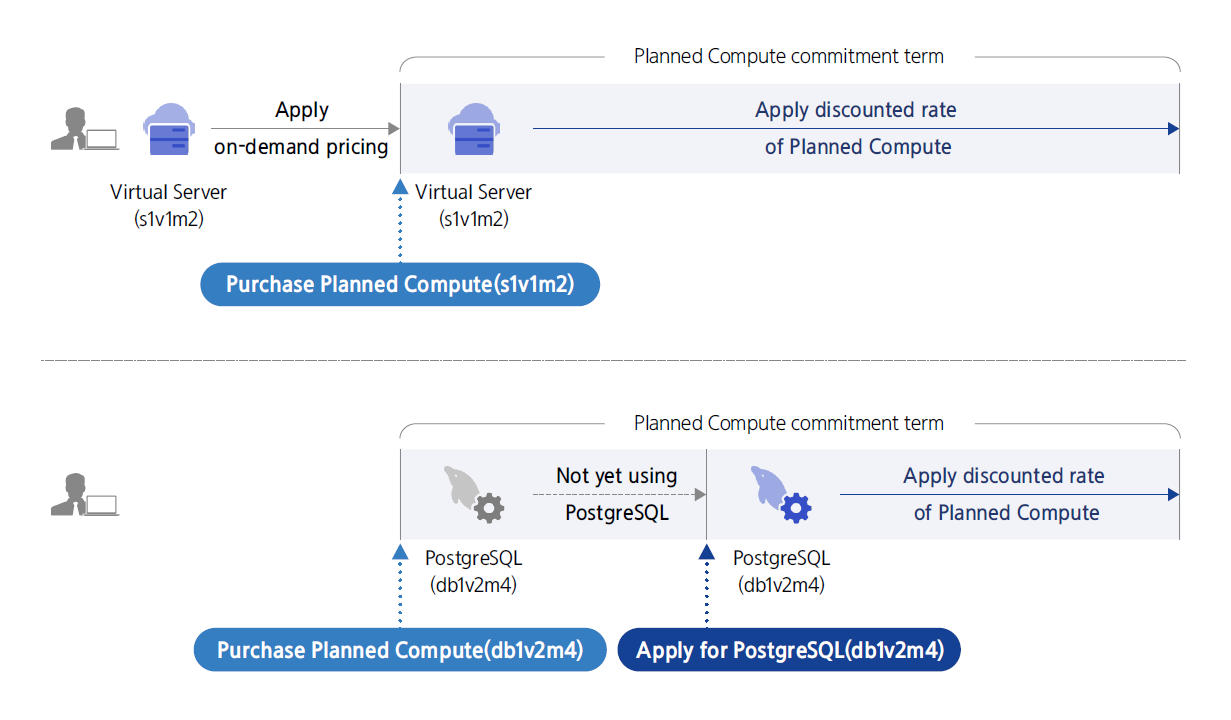
Provided Features
Planne Compute provides the following functions.
- Planned Compute Service Application: You can apply for Planned Compute by selecting the service, operating system, server type, and contract period you want to offer discounts for, and then entering the application quantity and confirming the application information.
- Planned Compute Extension: When the contracted period ends, the corresponding Planned Compute will be terminated and no further discounts will be applied to the non-contracted resources. The termination of Planned Compute does not mean that the non-contracted resources will be cancelled. If you want to extend the discount period, you can reserve the next contract period after the contract period ends through the contract extension feature.
- Planned Compute Server Type Change: The server type of Planned Compute can be changed to a value higher than the set value.
- Planned Compute Cancellation: Although it is possible to cancel unused Planned Compute, 50% of the remaining period usage fee will be charged 2 months after cancellation. Planned Compute cancellation does not mean the cancellation of non-contracted resources.
- Coverage Check: You can check the discount coverage of the resource usage amount by service, operating system, and server type. By selecting the desired period, it displays the name of the on-demand resource, usage time, the amount that would have been used without a discount, and the amount that Planned Compute could not cover. This allows you to check the difference in billing amount between on-demand usage and Planned Compute usage.
Constraints
The constraints of Planned Compute are as follows.
- The application, change, and coverage are all based on the Asia/Seoul (GMT +09:00) time zone standard at midnight.
- If you apply for Planned Compute, the discount will be applied from midnight the day after the application.
- To calculate the exact discount amount, Coverage can be inquired up to 2 days ago.
- 23:30~23:59 every day is the settlement time, and new applications and changes are not applied.
- Discounts are applied to non-contract resources in the same region of the same account.
Preceding Service
Planned Compute does not require any prior service work.
2.2 - How-to Guides
Users can apply for the service by entering the required information for Planned Compute through the Samsung Cloud Platform Console.
Planned Compute Apply
You can apply for and use the Planned Compute service from the Samsung Cloud Platform Console.
To apply for Planned Compute, follow the steps below.
All Services > Financial Management > Planned Compute Click the menu. Navigate to the Service Home page of Planned Compute.
Click the Planned Compute Apply button on the Service Home page. You will be taken to the Planned Compute Apply page.
Planned Compute Request 페이지에서 필수 정보를 입력한 후, Next 버튼을 클릭하세요.
Item Required or notDescription Service Required Select the service you want to apply for Planned Compute Operating System Required Select Operating System - Service item selection after, selectable
- Depending on the selected service, Open Source, RHEL, Windows etc. selectable
Server Type Required Select server type - Service after selecting the item, selectable
Contract Period Required Select contract period - Can be selected after selecting the Server Type item
- 1-year or 3-year can be selected
Requested Quantity Required Enter the requested quantity - You can enter up to 1~100 items
- After applying the Planned Compute quantity, refunds are not possible, so caution is needed when entering
- If an increase in quantity is needed, you can add a new Planned Compute with the same server type
Contract Start Date Required Select the date when the contract becomes effective - Can be set from the day after the application date
Table. Planned Compute service input informationSummary Check the detailed information and estimated billing amount generated in the panel, and click the Complete button.
When the popup notifying the creation of Planned Compute opens, click the Confirm button.
- Once the application is completed, check the resources you created on the Planned Compute List page.
Planned Compute Check List
You can view and edit the full list of resources and detailed information of Planned Compute.
To view the list of Planned Compute, follow these steps.
All Services > Financial Management > Planned Compute Click the menu. Navigate to the Service Home page of Planned Compute.
On the Service Home page, click the Planned Compute menu. You will be taken to the Planned Compute List page.
On the Planned Compute List page, click the contract number of the Planned Compute to view detailed information. Navigate to the Planned Compute Details page.
- Resource items other than required columns can be added via the Settings button.
Item Required or notDescription Contract Number Required Key value per billing unit that can be checked in the billing details Resource Name Select Resource Contract Number Target Service Required Planned Compute Discount Target Service - Discount applied to non-contract resources that match the corresponding value
Server Type Required Planned Compute discount eligible server type - Discount applied to non-contract resources that match the value
Operating System Required Planned Compute discount target operating system - Apply discount to non-contract resources that match the given value
Initial contract start date Required The start date when the Planned Compute contract applies - Planned Compute Details page can change the date
- For more details, see Change Contract Start Date
Contract Period Required Check applicable period based on individual Planned Compute contract selection of 1 year or 3 years - When the Planned Compute contract ends, discounts no longer apply.
- If you want to continue applying discounts with ongoing Planned Compute, contract extension is required.
Extension Period Required Check extension period of individual Planned Compute contract - Change the 1-year or 3-year term of the extension period before the extension date arrives
- Also, the extension reservation can be canceled.
Status Required Status reflected after a change request for Planned Compute - Creating: State after contract request, before the contract is applied
- Active: State while the contract is being applied
- In Progress: State while the change request is being processed
Creator Select Planned Compute created user Creation Time Select Planned Compute Creation Time Editor Select Planned Compute Modified User Modification Date Select Planned Compute Modification Date Table. Planned Compute list item information
- Resource items other than required columns can be added via the Settings button.
Planned Compute When you click the right more button in the list, the contract management option is provided. That item is also available via the top button when multiple selections are made using the checkboxes.
Category Detailed description Contract Extension Button to extend the contract - It becomes active when there is no next contract reservation. Select the next contract period after the current contract to make a reservation
- For more details, refer to Contract Extension
Contract Change Button to change the agreement - You can change the server type. Changes are only possible to a higher spec than the current setting.
- For details, see Change Agreement
Contract Termination Button to terminate the contract - Terminate the contracted Planned Compute during the term
- When terminating, a termination fee is incurred based on the remaining usage period (monthly fee * 50% * remaining months of the contract period) and will be reflected on the invoice after 2 months.
- For more details, refer to Terminate Contract
Agreement Extension Edit Button to edit the next agreement reservation - It becomes active when there is a next agreement reservation. It changes the agreement period for the next agreement after the current agreement.
- For details, refer to Agreement Extension Edit
Cancel Contract Extension Button to cancel the next contract reservation - It becomes active when there is a next contract reservation. It cancels the contract extension reservation for the next contract after the current contract.
- For details, refer to Cancel Contract Extension
Table. Planned Compute list item information - Contract Management
Planned Compute View detailed information
You can view and edit the detailed information of Planned Compute.
To view detailed information of Planned Compute, follow the steps below.
- All Services > Financial Management > Planned Compute Click the menu. Navigate to the Service Home page of Planned Compute.
- Click the Planned Compute menu on the Service Home page. Navigate to the Planned Compute list page.
- On the Planned Compute List page, click the contract number of the Planned Compute to view detailed information. You will be taken to the Planned Compute Details page.
- Planned Compute Detail page consists of Detail Information, Tags, Operation History tabs.
Detailed Information
Planned Compute list page allows you to view and edit the detailed information of the selected resource.
| Item | Description |
|---|---|
| Category | Detailed description |
| ——— | ——— |
| Service | Service Name |
| Resource Type | Resource Type |
| SRN | Unique resource ID in Samsung Cloud Platform |
| Resource Name | Resource Name |
| Resource ID | Unique resource ID in the service |
| Creator | User who created Planned Compute |
| Creation Date/Time | Creation Date/Time of Planned Compute |
| Editor | User who modified Planned Compute |
| Modification Date/Time | Modification Date/Time of Planned Compute |
| Contract Number | Key value per billing unit that can be checked in the billing details |
| Target Service | Planned Compute Discount Target Service
|
| Server Type | Planned Compute discount eligible server type
|
| Operating System | Planned Compute discount target operating system
|
| Initial Contract Start Date | Start date when the Planned Compute contract applies
|
| Contract Period | Applied contract period and corresponding date |
| Extension Period | If the contract is extended, the extension period and the corresponding date
|
| Status | Status after change request of Planned Compute
|
Table. Planned Compute detailed information items
Notice
- If the contract for Planned Compute ends, the discount will no longer be applied. To continue applying the Planned Compute discount, extend the contract.
- For detailed information about contract extension, please refer to Extend Contract.
Tag
Planned Compute list page allows you to view the tag information of the selected resource, and you can add, modify, or delete it.
| Category | Detailed description |
|---|---|
| Tag List | Tag List
|
Table. Planned Compute Details - Tag Tab Items
Work History
Planned Compute List page allows you to view the operation history of the selected resource.
| Category | Detailed description |
|---|---|
| Work History List | Resource Change History
|
Table. Planned Compute Details - Work History Tab Items
Planned Compute Manage Agreements
Change Agreement Start Date
You can change the contract application start date of Planned Compute. To change the contract start date of Planned Compute, follow the steps below.
- All Services > Financial Management > Planned Compute Click the menu. Navigate to the Service Home page of Planned Compute.
- Click the Planned Compute menu on the Service Home page. You will be taken to the Planned Compute list page.
- Planned Compute List page, click the contract number of the Planned Compute whose agreement start date you want to change. Navigate to the Planned Compute Details page.
- Click the Edit button of Initial Contract Start Date on the Planned Compute Details page. The Initial Contract Start Date Edit popup opens.
- After changing the contract start date, click the Confirm button.
Reference
- The start date of the agreement can be set from a date after the next day.
- If the contract has started, the initial contract start date cannot be modified.
Extend Agreement
Planned Compute의 약정을 연장할 수 있습니다. Planned Compute의 약정을 연장하려면 다음 절차를 따르세요.
- All Services > Financial Management > Planned Compute menu, click it. Move to Planned Compute’s Service Home page.
- Click the Planned Compute menu on the Service Home page. Navigate to the Planned Compute list page.
- Planned Compute On the list page, click the more button at the far right of the Planned Compute of the resource whose contract you want to extend, then click the Extend Contract button. The Extend Contract popup window opens.
- Select the next contract period and click the Confirm button. You will be taken to the Planned Compute list page.
Reference
- Contract Extension button can be clicked before the current contract expires, if the next contract has not yet been scheduled.
- Extend Agreement를 통해 다음 약정을 예약한 경우, 다음 약정의 시작일 전까지, 다음 약정 연장 기간 수정 및 취소가 가능합니다.
Change Agreement
Planned Compute’s agreement can be changed. To change the agreement of Planned Compute, follow the steps below.
- All Services > Financial Management > Planned Compute Click the menu. Go to the Service Home page of Planned Compute.
- Click the Planned Compute menu on the Service Home page. Navigate to the Planned Compute list page.
- Planned Compute list page에서 약정을 변경할 자원의 Planned Compute의 오른쪽 끝 더보기 버튼을 클릭하여, Change Commitment 버튼을 클릭하세요. Change Commitment popup window opens.
- Select the server type to change, and click the Confirm button. You will be taken to the Planned Compute list page.
Reference
- Contract amendment is only possible to a higher spec than the current contract settings.
- If you change the server type using Change Contract, it will be applied at midnight of the same day based on the Asia/Seoul, GMT +09:00 time zone, and resources with the changed server type will be moved to the corresponding Coverage list.
Edit Contract Extension
- All Services > Financial Management > Planned Compute Click the menu. Go to the Service Home page of Planned Compute.
- Click the Planned Compute menu on the Service Home page. Navigate to the Planned Compute list page.
- Planned Compute On the list page, click the “More” button at the far right of the Planned Compute of the resource whose contract you want to change, and click the Edit Contract Extension button. The Edit Contract Extension popup window opens.
- After the current contract, change the contract period for the next contract, and click the Confirm button. It moves to the Planned Compute list page.
Reference
- Contract Extension Edit button is activated when there is a next contract reservation. After the current contract, it changes the contract period for the next contract.
- If there is a next reservation, you can modify or cancel the extension period of the next agreement until the start date of the next agreement.
Cancel contract extension
- All Services > Financial Management > Planned Compute Click the menu. Navigate to the Service Home page of Planned Compute.
- Click the Planned Compute menu on the Service Home page. Navigate to the Planned Compute list page.
- Planned Compute on the list page, click the far‑right more button of the Planned Compute of the resource whose contract you want to change, and click the Cancel Contract Extension button. The Cancel Contract Extension popup opens.
- Cancel Contract Extension After checking the popup message, click the Confirm button. You will be taken to the Planned Compute list page.
Reference
- Contract Extension Cancellation button is activated when there is a next contract reservation. It cancels the contract extension reservation for the next contract after the current contract.
- Cancel contract extension if you cancel the next contract reservation, it will be applied as non-contract after the current contract period expires.
Terminate Agreement
You can cancel the Planned Compute contract. To cancel the Planned Compute contract, follow the steps below.
- All Services > Financial Management > Planned Compute Click the menu. Go to the Service Home page of Planned Compute.
- On the Service Home page, click the Planned Compute menu. You will be taken to the Planned Compute List page.
- Planned Compute on the list page, click the rightmost more button of the Planned Compute of the resource to cancel the contract, and click the Cancel Contract button. The Cancel Contract popup window opens.
- Contract termination Check the popup message and click the Confirm button. Navigate to the Planned Compute list page.
Caution
- In case of termination, a termination fee will be incurred according to the remaining usage period (monthly fee * 50% * remaining months of contract period) and will be reflected on the bill after 2 months. Please consider the occurrence of termination fees sufficiently before proceeding with the termination process.
- For same-day applications, based on the Asia/Seoul, GMT +09:00 time zone, if terminated before midnight on the same day, no termination fee will be incurred.
Planned Compute Coverage
Planned Compute You can check the discount amount applied to the requested quantity and non‑contracted resources based on the same target service, server type, and operating system. Planned Compute Coverage To view detailed information, follow the steps below.
Planned Compute Coverage Check List
- Click the All Services > Financial Management > Planned Compute menu. Navigate to the Service Home page of Planned Compute.
- Click the Coverage menu on the Service Home page. It moves to the Coverage List page.
Category Detailed description Target Service Planned Compute discount target service to check coverage Operating system The planned compute discount target operating system for checking coverage Server Type Server type subject to Planned Compute discount for checking Coverage Requested quantity The Planned Compute request quantity to check coverage Table. Coverage Resource List Items
Planned Compute Coverage Check Detailed Information
Coverage list page, you can view detailed information of the selected resource and download the needed information.
- All Services > Financial Management > Planned Compute Click the menu. Navigate to the Service Home page of Planned Compute.
- On the Service Home page, click the Coverage menu. Navigate to the Coverage list page.
- Coverage List page, click the resource (Coverage) you want to view detailed information for. Coverage Details page will be opened.
Category Detailed description Target Service Planned Compute discount target service to check Coverage Operating system Operating system to check Coverage for the Planned Compute discount target Server Type Server type subject to Planned Compute discount for checking Coverage Requested Quantity Planned Compute request quantity for checking coverage Table. Coverage Details - Target Planned Compute and Requested Quantity Items
Reference
- You can select the period you want to query at the top of the Coverage table and retrieve it.
- Coverage data can be downloaded via the Excel download button.
- Considering the settlement time of the discount amount, we provide information up to 2 days before the inquiry date based on the Asia/Seoul (GMT +09:00) time zone.
- The billing calculation basis is midnight in the Asia/Seoul (GMT +09:00) time zone, and list lookup is available from the start date of the contract.
| Item | Description |
|---|---|
| Resource Name | Resource Name of Uncontracted Resource |
| Usage Time | Time used by the non-contract resources in the list during the selected period |
| Non-contract hourly rate | Hourly rate when non-contract resources are not discounted |
| Non-contract usage amount | The amount used by the non-contract resources in the list during the selected period
|
| Unapplied Amount | Planned Compute deducts the charges of the list’s non-contracted resources as consideration for paying the contracted fee
|
| Uncontracted usage amount | Billing amount when Planned Compute is not used |
| Planned Compute usage amount | Amount paid for Planned Compute during the selected period
|
| Planned Compute Unapplied Amount | Total sum of amounts not covered by Planned Compute |
| Billing Amount | Sum of Planned Compute usage amount and Planned Compute non-applied amount
|
Table. Coverage details - Coverage information
2.3 - Release Note
Planned Compute
2025.10.23
FEATURE
Planned Compute contract start date setting feature added- Planned Compute contract application can set the start date when the contract is applied.
- You can start applying the contract from the desired date, starting from the day after the application date.
2025.07.01
FEATURE
Add Planned Compute target service- Planned Compute target services have been added.
- Data Catalog, Vertica(DBaaS)
2024.10.01
NEW
Planned Compute Service Official Version Release- Planned Compute service was launched.
- Compute, Database 서비스 카테고리의 서비스에 대해 서버 타입을 약정하는 조건으로 할인 요금 서비스를 제공합니다 -> * Compute, Database service category services are provided with discounted rates as a condition for committing to the server type.
3 - Marketplace
3.1 - Overview
Service Overview
Marketplace is a service that supports subscription and installation of products in various fields through the Samsung Cloud Platform. Users can search for the required marketplace products according to their purpose and directly apply for a subscription, and can manage detailed information of the subscribed products and check usage fees.
Provided Features
Marketplace provides the following features.
- Product Introduction: Provides information on the main features, fees, and seller details of marketplace products offered by SCP.
- Product Subscription: Users can select desired marketplace products through the product catalog and apply for a subscription.
- Product Installation: It can be installed and deployed according to the user’s environment depending on the subscribed product type.
- Product Management: You can easily manage cancellations or terminations by checking the subscription status, installation, and termination status of marketplace products applied by the current user.
Software Provision Type
In Marketplace, you can subscribe to the following two types of products.
- Seller Support: It is a form where the software seller installs it directly. When you apply for a product subscription, the application information is sent to the software seller by email. The seller checks the application details and installs the software in consultation with the user.
- Machine Image: It is a form that can be installed on SCP Virtual Server. After applying for a product subscription, if the user directly selects a Marketplace image through the Virtual Server product, the software will be installed automatically.
Components
Marketplace provides product subscription management and product catalog functionality.
- Product Subscription Management: Users can view and manage the detailed information and subscription status of marketplace products they have applied for.
- Product Catalog: You can view detailed information about marketplace products available from SCP and subscribe to the desired product.
Constraints
The services sold in the Samsung Cloud Platform Marketplace are services sold by individual sellers. In the case of those services, Samsung SDS is a telecommunications sales intermediary and not a party to the telecommunications sales. Therefore, Samsung SDS assumes no responsibility for the service information and transactions sold by individual sellers.
Preceding Service
Please check the pre-service for each product in the service portal’s product catalog and with the seller.
3.2 - How-to Guides
Users can apply for, install, and manage subscriptions to marketplace products in various fields through the Marketplace service of Samsung Cloud Platform. They can view detailed information, subscription management, and usage fees of the subscribed marketplace products.
Apply for product subscription in the product Catalog
You can check the features and pricing of the marketplace product you want to use in the product catalog of the Samsung Cloud Platform Console, and you can apply for a subscription.
Caution
The services sold in the Marketplace of Samsung Cloud Platform are services sold by individual sellers. In the case of those services, Samsung SDS is a communication sales intermediary and not a party to the communication sales. Therefore, Samsung SDS does not assume any responsibility for the service information and transactions sold by individual sellers.
Reference
In Marketplace, you can subscribe to the following two types of products.
- Seller Support: It is a form where the software seller installs it directly. When you apply for a product subscription, the application information is sent to the software seller by email. The seller checks the application details and installs the software in consultation with the user.
- Machine Image: It is a form that can be installed on SCP Virtual Server. After applying for a product subscription, if the user directly selects a Marketplace image through the Virtual Server product, the software will be automatically installed.
Search Marketplace Products in Product Catalog
To search for Marketplace products in the Product Catalog, follow the steps below.
- All Services > Financial Management > Marketplace > Product Catalog Click the menu. Product Catalog page.
- Product Catalog page, search for the desired marketplace product. The list of search results will be displayed according to the selected criteria.
- You can search by entering the product name you want to find in the search area.
- Click Detailed Search to filter by product name, category, provision type, and status.
- Click the product you want to view detailed information for in the search results list. Product Catalog Details page will be opened.
- Product Catalog Detail Check the detailed information of the selected product on the page.
Item Description Product specifications Product name and version, manufacturer information Product subscription application Application for subscription to the product Overview Product overview description Fee Product fee detailed breakdown Technical Support Product Technical Support Information Manufacturer Product manufacturer information Seller Information Product Seller Information Table. Product Catalog Detailed Information Items
Apply for product subscription in product Catalog
To subscribe to Marketplace product from the product Catalog, follow the steps below.
- All Services > Financial Management > Marketplace > Product Catalog Click the menu. Go to the Product Catalog page.
- Product Catalog On the page, search for the desired marketplace product. The search results list will be displayed according to the selected criteria.
- Click the product whose detailed information you want to view in the search results list. You will be taken to the Product Catalog Details page.
- Product Catalog Details On the page, check the detailed information of the selected product and click the Product Subscription Request button.
- Product Terms Agreement and Application When the window appears, select the required agreement items and click the Complete button.
- Please read all the product usage terms and verify them thoroughly.
- If you do not select all required agreement items among the product terms agreement items, you cannot apply for the product.
- When the alert window appears, click the Confirm button. The product application will be completed.
- You can view product subscription details in the Subscription Management menu.
- Seller Support type marketplace product subscription request, the request information will be sent to the software vendor by email. Coordinate product details and schedule with the software vendor. Software installation and charges will be billed based on the agreed installation date.
- If you have subscribed to a marketplace product of type Machine Image, the user must select the Marketplace image in Virtual Server > Create Virtual Server > Marketplace tab. Fees for Virtual Server service and software usage are charged from the time the Virtual Server is created.
Check product subscription details
You can check the detailed information of marketplace products applied for in the product Catalog.
To check the product subscription information, follow the steps below.
- All Services > Financial Management > Marketplace > Subscription Management Click the menu. Subscription Management page will be opened.
- Subscription Management Search for the desired software on the page. The list of search results will be displayed according to the selected criteria.
- You can search by entering the product name you want to find in the search area.
- Click Detailed Search to filter by product name, category, offering type, and status.
- Click on the product you want to view details for in the search results list. Subscription Management Details page will be opened.
- Check the detailed information of the selected product on the Subscription Management Details page.
- Subscription Management Details page displays the product’s status information and detailed information, and consists of Basic Information, Terms Agreement tabs.
Category Detailed description Subscription Status Product subscription status - Seller Support type product
- Install Requesting: Product is subscribed, and vendor installation request status
- Active: Product is subscribed, and installation completed
- Terminate Requesting: Product is being terminated, and vendor termination request status
- Terminated: Product subscription termination completed
- Canceled: Product subscription cancelled
- Error: Installation error, service abnormality occurred
- Machine Image type product
- Active: Product is subscribed
- Terminated: Product subscription termination status
- Canceled: Product subscription cancelled
- Error: Installation error, service abnormality occurred
Cancel product subscription Button to cancel the subscribed software Cancel subscription request Button to cancel the subscribed product Table. Status Information and Additional Functions - Seller Support type product
- Subscription Management Details page displays the product’s status information and detailed information, and consists of Basic Information, Terms Agreement tabs.
Basic Information
You can view detailed information of the selected product on the Subscription Management page.
| Item | Description |
|---|---|
| Subscription ID | Unique subscription identifier |
| Product Name | Subscribed product name |
| Provision Type | Product Offering Type |
| Category | Product Category |
| Product Details | Product Details if you click, you can view information on the corresponding software detail page of the product Catalog |
| Applicant | Subscription applicant |
| Application date and time | Subscription application date and time |
| Start date of use | Product usage start date |
| License quantity | Installed product license quantity |
Table. Subscription Management Basic Information Items
Reference
For terminated products, you can check the cancellation applicant, cancellation request date and time, and cancellation date on the basic information page.
Terms Agreement
You can check the terms and conditions information that the user agreed to when applying for a subscription.
- If you click View Content for each term item, you can check the terms information you agreed to at the time of product application in a popup window.
Cancel product
If you do not use the marketplace product you subscribed to, you will cancel the subscription and proceed with service termination.
Reference
- If you cancel the subscription, the service in operation may be terminated immediately, so proceed with the cancellation after fully considering the impact that may occur when the service is discontinued.
- Machine Image After applying for cancellation, delete the Virtual Server where the product is installed from the Virtual Server list. If you do not delete the Virtual Server where the product is installed, the Virtual Server fee will continue to be charged even if you apply for product subscription cancellation.
To cancel a product subscription, follow the steps below.
- All Services > Financial Management > Marketplace > Subscription Management Click the menu. Subscription Management page will be displayed.
- Click the software you want to cancel on the Subscription Management page. You will be taken to the Subscription Management Details page.
- Click the Cancel Product Subscription button on the Subscription Management Details page.
- Product subscription cancellation In the popup window, after entering the product name, click the Confirm button.
- Seller Support When the product cancellation request is completed, the cancellation details will be sent to the user’s email.