This is the multi-page printable view of this section. Click here to print.
DevOps Service
- 1: Overview
- 2: How-to guides
- 3: API Reference
- 4: CLI Reference
- 5: Release Note
1 - Overview
Service Overview
DevOps Service is a service that provides standardized development tools, code‑framework‑based development templates, and integrated management functions for application and system development, deployment, and operation through the DevOps Console. This enables fast and reliable software development, deployment, and operation, and allows convenient integrated management of Samsung Cloud Platform resources and CI/CD tools within the DevOps Workflow.
Features
- Convenient Code Management and Deployment: Users can conveniently manage everything from source code management to build and deployment via a web-based console. It also supports integration with various tools to analyze source code and improve quality.
- Flexible Deployment Options: Minimize user service downtime and provide deployment environment configurations for k8s clusters or Virtual Machines, allowing users to configure deployments that fit their services and offering flexible deployment methods.
- Repository for Deployment Management: Provides a repository that can manage source code, libraries, application artifacts, container images, and other assets for the deployment management of user services.
Service Architecture Diagram
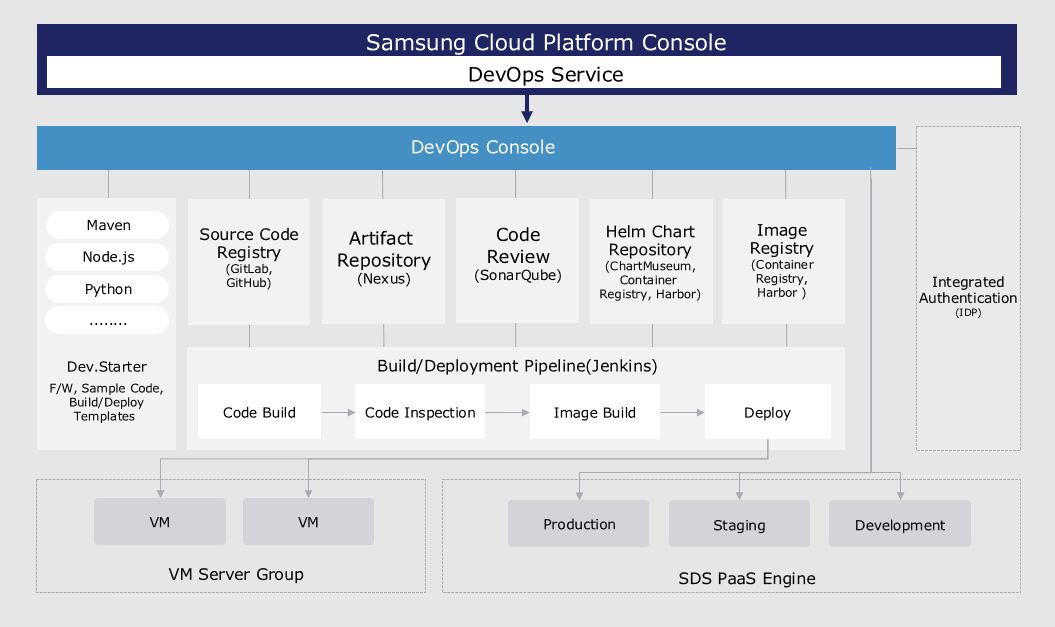
Provided features
DevOps Service integrates standard development tools to easily set up the development environment and provides convenience for build/deployment, offering the following features.
- Continuous Integration and Deployment (CI/CD Continuous Integration/Continuous Deployment): Users can access tools responsible for source code repositories, artifact repositories, code analysis, image registries, and build/deployment with a single login.
- Application template-based project configuration: Users can easily set up a project using a wizard approach with a template that reflects development standards.
- Major Development Languages and Frameworks Provided: Users can select the development languages (Java, C#, Python, Ruby, etc.) and frameworks (SpringBoot, Vue.js, .Net, etc.) required for application development to configure a project for building/deployment.
- Automated Build/Deployment Pipeline Configuration: Users can automatically generate pipeline scripts using the build/deployment pipeline template included in the application template, or configure each stage of the pipeline through a GUI-based interface.
- Support for Various Deployment Strategies and Rollback: Users can use deployment strategies (RollingUpdate, Blue-Green) to minimize downtime of running applications, and can roll back to the desired version with a single click. If a user wants to use a Virtual Server as the deployment environment, they can deploy to the Virtual Server as a packaged file or a Docker image.
- Custom Release Process Support: Users can define and repeatedly execute various release processes, taking into account the type of application changes.
Components
Users can easily use the DevOps Service through the Samsung Cloud Platform DevOps Console.
DevOps Console
DevOps Console provides integrated support for the tools required for application development and build/deployment, allowing easy management of project configuration and build/deployment.
- Dev.Starter: An application template that provides integrated templates required for build and deployment, as well as sample code reflecting development standards.
- Source Code Repository (Source Code Repository): Supports integration with source code configuration management tools. Can be linked with Git Repository.
- Artifact Repository (Artifact Repository): Supports integration with an artifact repository for storing libraries needed for application builds and application artifacts.
- Code Quality (Code Review): Supports integration with code quality tools that can measure and manage source code quality through static code analysis.
- Helm Chart Repository (Helm Chart Repository): In Kubernetes, Helm charts are used to install and upgrade software easily. To install software, users must create Helm charts themselves. ChartMuseum is provided as the default repository for managing Helm charts. Integration with other chart repository tools is also supported.
- Image Registry: Supports integration with an image registry for storing container images.
- VM server group: a collection of Virtual Servers that serve as the deployment target for an application. Users can register Virtual Servers in the DevOps Console and designate them as deployment targets.
- Kubernetes Cluster: The cluster that serves as the deployment target for applications. Users can register a Kubernetes Cluster in the DevOps Console and designate it as a deployment target.
Provision status by region
The DevOps Service is available in the environments below.
| region | Provision status |
|---|---|
| Korea West (kr-west1) | Provide |
| Korea East (kr-east1) | Provide |
| South Korea South 1 (kr-south1) | Provide |
| South Korea South 2 (kr-south2) | Provide |
| South Korea 3 (kr-south3) | Provide |
Preliminary Service
The DevOps Service has no prerequisite services.
2 - How-to guides
The user can create the service by entering the required information for the DevOps Service and selecting detailed options through the Samsung Cloud Platform Console. Additionally, by using the DevOps Service’s standardized development tools, code, framework-based development templates, and integrated management features, the user can efficiently carry out development projects.
Create DevOps Service
You can create and use a DevOps Service in the Samsung Cloud Platform Console.
- Each account can use one DevOps Service.
- Only IAM users can create the DevOps Service.
- When creating a DevOps Service, the creator’s ID is granted Tenant Admin privileges in the DevOps Console.
To create a DevOps Service, follow these steps.
- From the All Services > DevOps Tools > DevOps Service menu, click the Create Service button. You will be taken to the Service Home page of the DevOps Service.
- On the Service Home page, click the DevOps Service Create button. You will be taken to the DevOps Service Create page.
- On the DevOps Service Creation page, enter the information required to create the service.
- Enter the required information in the Service Information Input area.
Category Required statusDetailed description Tenant name Required Tenant name of the DevOps Service created by the user - Name displayed logically when accessing the DevOps Console
- Start with a lowercase English letter and use lowercase English letters, numbers, and special characters (
-) to enter 3 to 30 characters
Tenant code Required ID used internally by the system - It is an ID value used internally, similar to a project ID, generated from the value entered by the user
- It must start with a lowercase English letter and be entered using lowercase English letters, numbers, and special characters (
-) with a length of 3 to 30 characters
Table. DevOps Service required information input items - In the Add Tenant Member area, select the tenant user who will use the service.
Category Required statusDetailed description user Required Select members from the user list - Service applicants are included as default members of the Tenant
- You must select at least one user to create the service
Table. DevOps Service Tenant member addition items - Enter or select the required information in the Additional Information Input area.
Category RequiredDetailed description tag Selection Add Tag - Up to 50 can be added per resource
- After clicking the Add Tag button, enter or select Key, Value values
Table. DevOps Service Additional Information Input Fields
- Enter the required information in the Service Information Input area.
- Verify the detailed information and estimated charges generated in the summary panel, and click the Create button.
- Once creation is complete, check the created resource on the Resource List page.
Using DevOps Service
The DevOps Service can configure an actual DevOps environment in a separate console called DevOps Console.
To use the DevOps Service, follow these steps.
- Click the All Services > DevOps Tools > DevOps Service menu. Go to the Service Honme page of DevOps Service.
- From the Service Home page, click the DevOps Service menu. You will be taken to the DevOps Service list page.
- DevOps Service List page, click the resource you want to view detailed information for. You will be taken to the DevOps Service Details page.
- On the DevOps Service Details page, click the DevOps Console button. You will be taken to the Samsung Cloud Platform DevOps Console page.
Check DevOps Service details
DevOps Service service allows you to view and edit the full list of resources and detailed information. The DevOps Service Details page consists of Details, Tags, Activity Log tabs.
To view the detailed information of the DevOps Service, follow the steps below.
- Click the All Services > DevOps Tools > DevOps Service menu. Navigate to the Service Honme page of DevOps Service.
- On the Service Home page, click the DevOps Service menu. You will be taken to the DevOps Service list page.
- On the DevOps Service List page, click the resource you want to view detailed information for. You will be taken to the DevOps Service Details page.
- DevOps Service Details page displays status information and consists of Details, Tags, Activity History tabs.
Category Detailed description Status indicator Display the status of the DevOps Service - Active: Available state
- Creating: Creating state
- Error: Operational error state
DevOps Console Navigate to the DevOps Console to control the service. Service termination Service cancellation button Table. DevOps Service status information and additional features
- DevOps Service Details page displays status information and consists of Details, Tags, Activity History tabs.
Detailed information
You can view detailed information of the selected resource on the DevOps Service List page.
| Category | Detailed description |
|---|---|
| service | Service name |
| Resource Type | Resource Type |
| SRN | Unique resource ID in Samsung Cloud Platform
|
| Resource name | Resource Name
|
| Resource ID | Unique resource ID within the service |
| Constructor | User who created the service |
| Creation date and time | Service creation date and time |
| Tenant name | User-created Tenant name |
| Tenant code | System unique ID for the Tenant created by the user |
tag
DevOps Service List page lets you view the tag information of the selected resource, and you can add, modify, or delete it.
| Category | Detailed description |
|---|---|
| Tag list | Tag list
|
Work History
On the DevOps Service List page, you can view the operation history of the selected resource.
| Category | Detailed description |
|---|---|
| Task History List | Resource Change History
|
Cancel DevOps Service
- If a project in the DevOps Console has resources attached, you cannot terminate the DevOps Service.
- To cancel the DevOps Service, delete all resources connected within the DevOps Console.
- For detailed information on using the DevOps Console, refer to the Samsung Cloud Platform DevOps Console User Guide.
To cancel the DevOps Service, follow the steps below.
- Click the All Services > DevOps Tools > DevOps Service menu. You will be taken to the Service Home page of the DevOps service.
- On the Service Home page, click the DevOps Service menu. You will be taken to the DevOps List page.
- On the DevOps Service List page, click the resource to cancel. You will be taken to the DevOps Service Detail page.
- On the DevOps Service Details page, click the Cancel Service button.
- When termination is complete, verify on the DevOps Service List page whether the resource has been terminated.
3 - API Reference
4 - CLI Reference
5 - Release Note
- You can also use the DevOps Service in the Korea East (kr-east1) region.
- Add user member
- When creating a DevOps Service, you can add members who will perform the Admin role.
- Samsung Cloud Platform Common Feature Changes
- We have incorporated common CX changes, such as Account, IAM, Service Home, and tags.
- We have launched the DevOps Service, which delivers an integrated, fast, and secure software development, deployment, and operations environment.