This is the multi-page printable view of this section. Click here to print.
DevOps Service
- 1: Overview
- 2: How-to guides
- 3: API Reference
- 4: CLI Reference
- 5: Release Note
1 - Overview
Service Overview
DevOps Service is a service that provides standardized development tools and code framework-based development templates and integrated management functions for application and system development/deployment/operation through the DevOps Console, allowing for fast and stable software development/deployment/operation, and convenient integrated management of Samsung Cloud Platform resources and CI/CD Tools within the DevOps Workflow.
Features
- Convenient code management and deployment: Users can easily manage source code, build, and deploy through a web-based console, and also support various tool integrations to improve quality by analyzing source code.
- Flexible deployment methods: It provides minimal downtime for user services and offers deployment environment configurations for k8s clusters or Virtual Machines, allowing users to configure flexible deployment methods that suit their services.
- Repository provision for deployment management: Provides a repository that can manage source code, library and application artifacts, container images, etc. for deployment management of user services.
Service Composition Diagram
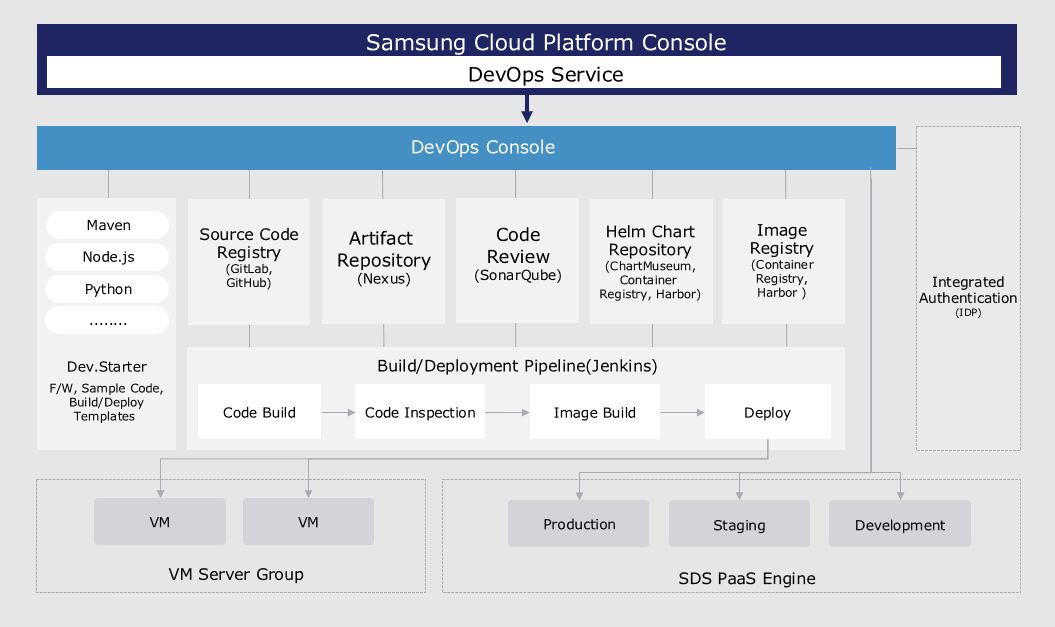
Provided Function
DevOps Service is a service that provides convenience for building/deployment by integrating standard development tools to easily configure the development environment, and provides the following functions:
- Continuous Integration/Continuous Deployment (CI/CD): users can access tools responsible for source code repository, artifact repository, code analysis, image repository, build/deployment with a single login.
- Application template-based project composition: Users can easily compose a project using a template that reflects development standards in a wizard-style manner.
- Key development languages and frameworks provided: Users can choose the development languages (Java, C#, Python, Ruby, etc.) and frameworks (SpringBoot, Vue.js, .Net, etc.) needed for application development to configure a project for build/deployment.
- Build/Deployment Pipeline Auto Configuration: The user can automatically configure the pipeline script using the build/deployment pipeline template included in the application template, or configure each stage of the pipeline based on GUI.
- Support for various deployment methods and rollback support: Users can use deployment methods (RollingUpdate, Blue-Green) to minimize downtime of operating applications, and can roll back to the desired version with one click. If the user wants to use a Virtual Server as a deployment environment, they can deploy it to a Virtual Server in the form of a packaged file or a Docker image.
- Customizable release process support: users can define and repeatedly execute various release processes considering the type of application changes.
Components
The user can easily use the DevOps Service through the Samsung Cloud Platform DevOps Console.
DevOps Console
DevOps Console supports the tools necessary for application development and build/deployment in an integrated manner, allowing for easy management of project configuration and build/deployment.
- Dev.Starter: An application template that provides not only sample code reflecting development standards but also templates necessary for build/deployment.
- Source Code Repository: It supports linkage with source code configuration management tools. It can be linked with Git Repository.
- Artifact Repository: It supports linkage with the artifact repository for storing libraries and application artifacts required for application build.
- Code Quality (Code Review): It supports linkage with code quality tools that can measure and manage the quality of source code through code static analysis.
- Helm Chart Repository: Kubernetes uses Helm Charts to easily install and upgrade software. To install software, users must write the Helm Chart directly. It provides ChartMuseum as a repository for managing Helm Charts, and also supports linking with other chart storage tools.
- Image Registry: Supports linking with an image registry for storing container images.
- VM Server Group: a collection of Virtual Servers that are the deployment target of an application. Users can register and specify Virtual Servers as deployment targets in the DevOps Console.
- Kubernetes Cluster: the cluster that is the deployment target of the application. The user can register and specify the Kubernetes Cluster as the deployment target in the DevOps Console.
Regional Provision Status
DevOps Service is available in the following environments.
| Region | Availability |
|---|---|
| Korean West(kr-west1) | Provided |
| Korean East(kr-east1) | Provided |
| South Korea 1(kr-south1) | Provided |
| South Korea 2(kr-south2) | Provided |
| South Korea South 3 | Provided |
Preceding service
DevOps Service does not have a preceding service.
2 - How-to guides
Users can create a DevOps Service by entering essential information and selecting detailed options through the Samsung Cloud Platform Console. Additionally, users can efficiently manage development projects using standardized development tools, code, and framework-based development templates, as well as integrated management features provided by DevOps Service.
Creating a DevOps Service
Users can create a DevOps Service through the Samsung Cloud Platform Console.
- Only one DevOps Service can be used per account.
- When creating a DevOps Service, the creator’s ID is granted Tenant Admin privileges in the DevOps Console.
To create a DevOps Service, follow these steps:
- All Services > DevOps Tools > DevOps Service menu, click the Create Service button. This will take you to the Service Home page of DevOps Service.
- On the Service Home page, click the Create DevOps Service button. This will take you to the Create DevOps Service page.
- On the Create DevOps Service page, enter the necessary information for service creation.
- In the Service Information section, enter the required information.
| Category | Required | Description |
|---|---|---|
| Tenant Name | Required | The name of the Tenant for the DevOps Service created by the user.
|
| Tenant Code | Required | The system-internal ID used for the Tenant.
|
- In the summary panel, review the created details and estimated billing amount, then click the Complete button.
- Once creation is complete, verify the created resource on the Resource List page.
Using DevOps Service
The DevOps Service provides a separate console called DevOps Console where users can configure the actual DevOps environment.
To use DevOps Service, follow these steps:
- Click the All Services > DevOps Tools > DevOps Service menu. This will take you to the Service Home page of DevOps Service.
- On the Service Home page, click the DevOps Service menu. This will take you to the DevOps Service List page.
- On the DevOps Service List page, click the resource you want to view detailed information for. This will take you to the DevOps Service Details page.
- On the DevOps Service Details page, click the DevOps Console button. This will take you to the Samsung Cloud Platform DevOps Console page.
Viewing DevOps Service Details
The DevOps Service provides a list of all resources and their detailed information, which can be modified. The DevOps Service Details page consists of Details, Task History tabs.
To view DevOps Service details, follow these steps:
- Click the All Services > DevOps Tools > DevOps Service menu. This will take you to the Service Home page of DevOps Service.
- On the Service Home page, click the DevOps Service menu. This will take you to the DevOps Service List page.
- On the DevOps Service List page, click the resource you want to view detailed information for. This will take you to the DevOps Service Details page.
- The DevOps Service Details page displays status information and consists of Details, Tags, Task History tabs.
| Category | Description |
|---|---|
| Status Display | Represents the status of DevOps Service
|
| DevOps Console | Allows control of the service by moving to DevOps Console |
| Service Cancellation | Button to cancel the service |
Details
The DevOps Service List page allows you to view detailed information about the selected resource.
| Category | Description |
|---|---|
| Service | Service category |
| Resource Type | Service type |
| SRN | Unique resource ID in Samsung Cloud Platform
|
| Resource Name | Resource name
|
| Resource ID | Unique resource ID within the service |
| Creator | User who created the service |
| Creation Time | Time when the service was created |
| Tenant Name | Name of the Tenant created by the user |
| Tenant Code | System-internal ID value for the Tenant created by the user |
Tags
The DevOps Service List page allows you to view and add, modify, or delete tag information for the selected resource.
| Category | Description |
|---|---|
| Tag List | List of tags
|
Task History
The DevOps Service List page allows you to view the task history of the selected resource.
| Category | Description |
|---|---|
| Task History List | History of changes to the resource
|
Canceling DevOps Service
- If there are resources connected to a project in the DevOps Console, the DevOps Service cannot be canceled.
- To cancel the DevOps Service, delete all connected resources in the DevOps Console.
- For more information on using DevOps Console, refer to the Samsung Cloud Platform DevOps Console User Guide provided within the DevOps Console.
To cancel a DevOps Service, follow these steps:
- Click the All Services > DevOps Tools > DevOps Service menu. This will take you to the Service Home page of DevOps Service.
- On the Service Home page, click the DevOps Service menu. This will take you to the DevOps Service List page.
- On the DevOps Service List page, click the resource you want to cancel. This will take you to the DevOps Service Details page.
- On the DevOps Service Details page, click the Service Cancellation button.
- Once cancellation is complete, verify that the resource has been canceled on the DevOps Service List page.
3 - API Reference
4 - CLI Reference
5 - Release Note
- The DevOps Service can also be used in the Korean eastern (kr-east1) region.
- Add user member
- When creating a DevOps Service, you can add members to perform the Admin role.
- Samsung Cloud Platform common feature changes
- Account, IAM and Service Home, tags, etc. reflected common CX changes.
- We have launched a DevOps Service service that provides an integrated environment for software development/deployment/operation quickly and safely.