Creating a Helm chart that supports Form input
Users can create Helm charts that support Form input.
Helm 3 is only usable in versions 3 or higher.Helm chart that supports Form input
When you use a Helm chart that supports Form input for helm install, a user UI is provided that allows you to enter each item.
Helm chart file structure and values.schema.json file
Helm chart file structure
To support Form input, an additional values.schema.json file is required in the basic Helm chart file structure.

The relationship between values.schema.json and values.yaml files
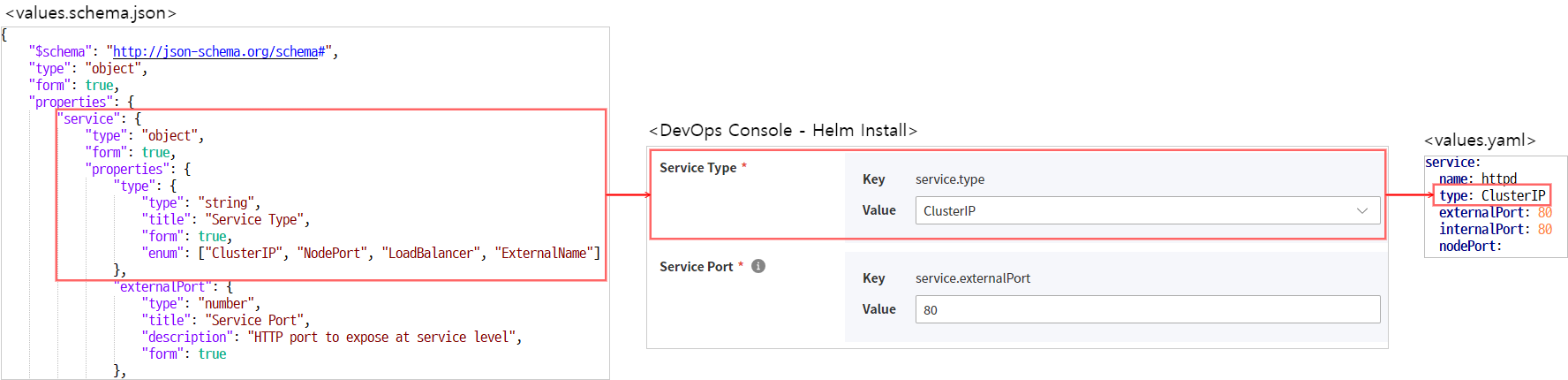
values.schema.json
- This file is defined with JSON Schema to validate the values entered in the
values.yamlfile. - In the DevOps Console, in addition to the JSON Schema functionality, we added a feature that displays a form on the screen to allow users to input data easily.
JSON Schema Basics
The values.schema.json file used in DevOps Console supports the standard format defined by JSON Schema.
For detailed guidance on the standard format, please refer to the site below.
The description of the basic attributes is as follows.
| attribute | Description | Data type | Allowed value |
|---|---|---|---|
| $schema |
| string | http://json-schema.org/schema# |
| type | Data type
| string |
|
| |||
| |||
with
| |||
| |||
| |||
| |||
| title | Label | string | Definition of item label |
| description | description | string | Displayed as a tooltip |
| readOnly | read-only status | boolean |
|
| required | List of required input fields | array | e.g, "required": ["username", "password"] |
Items defined in the DevOps Console
The following items are defined in the DevOps Console and operate only within the DevOps Console.
| attribute | Description | Data type | Allowed value |
|---|---|---|---|
| form | DevOps Console screen display option
| boolean | default: false |
| render | Renderer change | string |
|
| format | string format reference reference | string |
|
| form_locale | Defined for internationalization processing
| object |
|
|
Hierarchical processing
To handle hierarchical structures, JSON Schema can define a "type": "object" property value and a properties attribute.
For nested properties, define them under the properties item.
Below is an example that defines the service.internalPort property.
"service": {
    "type": "object",
    "form": true,
    "properties": {
        "internalPort": {
            "type": "number",
            "title": "Container Port"
            "description": "HTTP port to expose at container level"
            "form": true
        }
<중략>
"service": {
"type": "object",
"form": true,
"properties": {
"internalPort": {
"type": "number",
"title": "Container Port"
"description": "HTTP port to expose at container level"
"form": true
}
<중략>Internationalization handling
To handle internationalization, use the form_locale attribute and define it as follows.
We support Korean and English.
"db": {
  "type": "string",
  "title": "DB"
  "description": "choose db type"
  "oneOf": [
    {
      "const": "in",
      "title": "internal"
    },
    {
      "const": "ex",
      "title": "external"
    }
  ],
  "form": true,
  "form_locale": {
    "ko": {
      "label": "Database",
      "description": "Select the database type"
      "internal": "internal"
      "external": "external"
    },
    "en": {
      "label": "Database"
    }
  }
}
"db": {
"type": "string",
"title": "DB"
"description": "choose db type"
"oneOf": [
{
"const": "in",
"title": "internal"
},
{
"const": "ex",
"title": "external"
}
],
"form": true,
"form_locale": {
"ko": {
"label": "Database",
"description": "Select the database type"
"internal": "internal"
"external": "external"
},
"en": {
"label": "Database"
}
}
}values.schema.json example
Form type-specific examples
Input
To display the fields defined in the values.schema.json file as a form on the screen, you must set the form field’s value to true.
{
  "$schema": "http://json-schema.org/schema#"
  "type": "object",
  "properties": {
    "form_field": {
      "type": "string", <--- Create an input field that receives a string
      "form": true <----- displayed on screen when true
    },
    "hide_field": {  <-- not displayed
      "type": "string"
    }
  }
}
{
"$schema": "http://json-schema.org/schema#"
"type": "object",
"properties": {
"form_field": {
"type": "string", <--- Create an input field that receives a string
"form": true <----- displayed on screen when true
},
"hide_field": { <-- not displayed
"type": "string"
}
}
}Password
{
  "$schema": "http://json-schema.org/schema#"
  "type": "object",
  "properties": {
    "password_field": {
      "type": "string",
      "form": true,
      "render": "password", <---- displayed as password
      "format": "password_confirm" <--- when adding a password confirmation input field
    }
  }
}
{
"$schema": "http://json-schema.org/schema#"
"type": "object",
"properties": {
"password_field": {
"type": "string",
"form": true,
"render": "password", <---- displayed as password
"format": "password_confirm" <--- when adding a password confirmation input field
}
}
}Checkbox
"enabled": {
  "title": "enable persistence"
  "type": "boolean",
  "form": true
}
"enabled": {
"title": "enable persistence"
"type": "boolean",
"form": true
}Dropdown
To display a Dropdown field on the screen and specify allowed values, you can use the enum and oneOf properties.
enum
Use when the displayed text on the screen and the stored value are the same.
"postgres": {
  "type": "string",
  "title": "Postgres"
  "description": "choose PostgreSQL type."
  "enum": [
    "internal"
    "external"
    both
  ],
  "form": true
}
"postgres": {
"type": "string",
"title": "Postgres"
"description": "choose PostgreSQL type."
"enum": [
"internal"
"external"
both
],
"form": true
}oneOf
Use this when you want the displayed text on the screen and the stored value to be different.
"Oneof": {
  "type": "string",
  "title": "DB",
  "description": "choose db type"
  "oneOf": [
    {
      "const": "in",  <-- value saved to yaml file when selected
      "title": "internal" <-- value displayed in the dropdown form
    },
    {
      "const": "ex",
      "title": "external"
    }
  ],
  "form": true
}
"Oneof": {
"type": "string",
"title": "DB",
"description": "choose db type"
"oneOf": [
{
"const": "in", <-- value saved to yaml file when selected
"title": "internal" <-- value displayed in the dropdown form
},
{
"const": "ex",
"title": "external"
}
],
"form": true
}Array
"Array": {
  "type": "array",
  "items": {
    "type": "string",
    "form": true
  },
  "form": true
}
"Array": {
"type": "array",
"items": {
"type": "string",
"form": true
},
"form": true
}Object Array
"objectArray": {
  "type": "array",
  "title": "Object Array"
  "form": true,
  "items": {
    "type": "object",
    "form": true,
    "properties": {
      "host": {
        "type": "string",
        "form": true
      },
      "path": {
        "type": "string",
        "form": true
      }
    }
  }
}
"objectArray": {
"type": "array",
"title": "Object Array"
"form": true,
"items": {
"type": "object",
"form": true,
"properties": {
"host": {
"type": "string",
"form": true
},
"path": {
"type": "string",
"form": true
}
}
}
}values.schema.json Full file creation example
system-nginx
{
    "$schema": "http://json-schema.org/schema#"
    "type": "object",
    "form": true,
    "properties": {
        "service": {
            "type": "object",
            "form": true,
            "properties": {
                "type": {
                    "type": "string",
                    "title": "Service Type"
                    "form": true,
                    "enum": ["ClusterIP", "NodePort", "LoadBalancer", "ExternalName"]
                },
                "externalPort": {
                    "type": "number",
                    "title": "Service Port"
                    "description": "HTTP port to expose at service level"
                    "form": true
                },
                "internalPort": {
                    "type": "number",
                    "title": "Container Port"
                    "description": "HTTP port to expose at container level"
                    "form": true
                }
            },
            "required": ["type", "externalPort", "internalPort"]
        },
        "ingress": {
            "type": "object",
            "form": true,
            "properties": {
                "enabled": {
                    "type": "boolean",
                    "title": "Use Ingress"
                    "form": true
                },
                "domain": {
                    "type": ["string", "null"],
                    "format": "hostname"
                    "title": "Ingress Domain"
                    "description": "Default host for the ingress resource (required when `ingress.enabled=true`)"
                    "form": true
                }
            }
        },
        "networkPolicy": {
            "type": "object",
            "form": true,
            "properties": {
                "enabled": {
                    "type": "boolean",
                    "title": "Use NetworkPolicy"
                    "form": true
                }
            }
        }
    }
}
{
"$schema": "http://json-schema.org/schema#"
"type": "object",
"form": true,
"properties": {
"service": {
"type": "object",
"form": true,
"properties": {
"type": {
"type": "string",
"title": "Service Type"
"form": true,
"enum": ["ClusterIP", "NodePort", "LoadBalancer", "ExternalName"]
},
"externalPort": {
"type": "number",
"title": "Service Port"
"description": "HTTP port to expose at service level"
"form": true
},
"internalPort": {
"type": "number",
"title": "Container Port"
"description": "HTTP port to expose at container level"
"form": true
}
},
"required": ["type", "externalPort", "internalPort"]
},
"ingress": {
"type": "object",
"form": true,
"properties": {
"enabled": {
"type": "boolean",
"title": "Use Ingress"
"form": true
},
"domain": {
"type": ["string", "null"],
"format": "hostname"
"title": "Ingress Domain"
"description": "Default host for the ingress resource (required when `ingress.enabled=true`)"
"form": true
}
}
},
"networkPolicy": {
"type": "object",
"form": true,
"properties": {
"enabled": {
"type": "boolean",
"title": "Use NetworkPolicy"
"form": true
}
}
}
}
}