To start managing Helm Charts, follow these steps:
Main page, click the Manage icon at the top right. The Manage page opens.
In the left menu, click Tools & Templates > Helm Chart.
Getting Started with Project Helm Chart
Note
You can register, modify, or delete Helm Charts that are only available within the project.
Main page, click the Project card. The Project Dashboard page moves.
In the left menu, click Repository > Helm Chart. The Helm Chart page moves.
Adding Helm Chart
Users can add their own Helm Charts.
Before registering a Helm Chart, users must upload the chart to be used through Uploading Charts.
To add a Helm Chart, follow these steps:
Main page, click the Manage icon at the top right. The Manage page opens.
In the left menu, click Tools & Templates > Helm Chart. The Helm Chart page opens.
In the Helm Chart Type menu, select the type of Helm Chart. The Add Helm Chart button is only visible if you have registration permissions based on the selected information.
Click the Add Helm Chart button. The Register Helm Chart page opens.
Enter the Helm Chart Basic Information and click the Start button.
Item
Description
Helm Chart Type
Select the type of Helm Chart to add.
Tenant/Project Group
Select the tenant or project group where the Helm Chart will be added.
If you select a tenant, the registered chart can only be used in projects within that tenant.
If you select a project group, the registered chart can only be used in projects within that project group.
Allow New Installation
Select whether to allow new installations through Helm Install
Table. Helm Chart Basic Information Setting Items
Select the Helm Chart Repository and Helm Chart, then click the Validation Check button.
Enter the remaining information and click the Next button.
Repository
Item
Description
ChartMuseum
Helm Chart Repository
Select ChartMuseum as the chart repository.
Chart Selection
Select the chart to register as a Helm Chart from the charts uploaded through Uploading Charts.
Harbor OCI
Helm Chart Repository
Select Harbor OCI as the chart repository.
Authentication Information
Enter the authentication information for the chart repository and click the Connection Test button.
Chart Selection
Select the Helm Chart that can be retrieved using the entered authentication information and click the Validation Check button.
OCI
Helm Chart Repository
Select OCI as the chart repository.
Authentication Information
Enter the authentication information for the chart repository and click the Connection Test button.
Chart Input
Enter the Helm Chart that can be retrieved using the authentication information entered in Authentication Information and click the Validation Check button. (e.g., oci://chart.url/repo/chartname:version)
Common
Icon
Select an icon to represent the Helm Chart.
CI/CD Information
Select whether to support CI/CD functionality.
This indicates whether the Helm Chart can be linked to an App template.
The Values.yaml file of the chart must contain the image.repository, image.tag, and imagePullSecrets[0].name keys.
If Support CI/CD is selected, the CI/CD information step is added.
Chart Image
Select whether to register an image.
The Values.yaml file of the chart must contain the imagePullSecrets[0].name key.
If No Image is selected, the image secret information step is excluded.
Table. Chart Repository Setting Items
Select the image repository and enter the authentication information, then click the Connection Test button.
Enter the remaining information and click the Next button.
Item
Description
Image Repository Information
Select the image repository and enter the authentication information.
Administrator privileges are required for the image repository.
The user who will use the Helm Chart to perform Helm Install will be granted Read privileges for the image repository.
The entered authentication information will be used to grant privileges to the image repository.
Add Used Images
Add the image paths from the selected image repository.
Select images from the list: Organization, Repository, and Tag can be selected and added.
User input: The docker repository and docker tag of the image can be entered directly and added.
Multiple inputs are possible.
Use Register’s Authentication Information
This option is available when the selected image repository is a tool that cannot grant privileges (e.g., SCR).
If not checked, when a user performs Helm Install, the user will be granted Pull privileges for the used image. If the tool cannot grant privileges, no privileges will be granted.
If checked, the Helm Chart user will use the registrant’s authentication information instead of their own privileges when performing Helm Install.
Be cautious when checking this option:
The registrant’s authentication information may be exposed to the Helm Chart user, so use this option only when necessary.
This option must be selected for image repositories that only provide image pull functionality. A separate image repository for pull purposes only must be entered. (If checked, one image repository cannot be used for both pull and push at the same time.)
The registrant’s authentication information is used in Project > Image Repository > Pull-only Image and Helm Release’s Image Pull Secret. This information cannot be changed by the Helm Chart user, and changes to the registrant’s authentication information in the Helm Chart will be applied universally.
Select Docker Base Image
Select the image to be used as the Docker base image.
This option is only available if Support CI/CD was selected in the previous step.
The selected image will be used as the base image for Docker build.
Table. Image Secret Information Setting Items
Select the supported App template and click the Complete button.
Note
App templates marked as Environment Only provide only build/deployment environments without project sample code.
Modifying Helm Chart
To modify a Helm Chart, follow these steps:
Main page, click the Manage icon at the top right. The Manage page opens.
In the left menu, click Tools & Templates > Helm Chart.
In the Helm Chart list, click the Helm Chart card you want to modify. The Helm Chart Details page opens.
Click the Modify button at the bottom right.
Modify the information and click the Save button to complete the modification.
Adding Helm Chart Version
To add a Helm Chart version, the chart with a different version must be registered in advance through Uploading Charts.
To add a Helm Chart version, follow these steps:
Main page, click the Manage icon at the top right. The Manage page opens.
In the left menu, click Tools & Templates > Helm Chart.
In the Helm Chart list, click the Helm Chart card you want to modify. The Helm Chart Details page opens.
Click the Add Version button at the bottom right. The Add Helm Chart Version popup opens.
Enter the information and click the Save button to complete the version addition.
Item
Description
Chart Version
Select the chart version to add.
Chart versions that are not registered as Helm Charts in the chart repository are displayed.
Table. Helm Chart Version Addition Setting Items
Deleting Helm Chart
To delete a Helm Chart, follow these steps:
Main page, click the Manage icon at the top right. The Manage page opens.
In the left menu, click Tools & Templates > Helm Chart. The Helm Chart page opens.
In the Helm Chart list, click the Helm Chart card you want to delete. The Helm Chart Details page opens.
Click the Delete button at the bottom right.
In the confirmation popup, click the Confirm button to complete the deletion.
1 - Creating a Helm Chart that Supports Form Input
Users can create a Helm chart that supports form input.
Note
Only available in Helm 3 or later versions.
Form Input Support Helm Chart
Using a Helm chart that supports form input, users can input each item through a user interface when installing the Helm chart.
Helm Chart File Composition and values.schema.json File
Helm Chart File Composition
To support form input, a values.schema.json file is required in addition to the basic Helm chart file composition.
Figure. Helm Chart Directory Structure
Relationship between values.schema.json and values.yaml Files
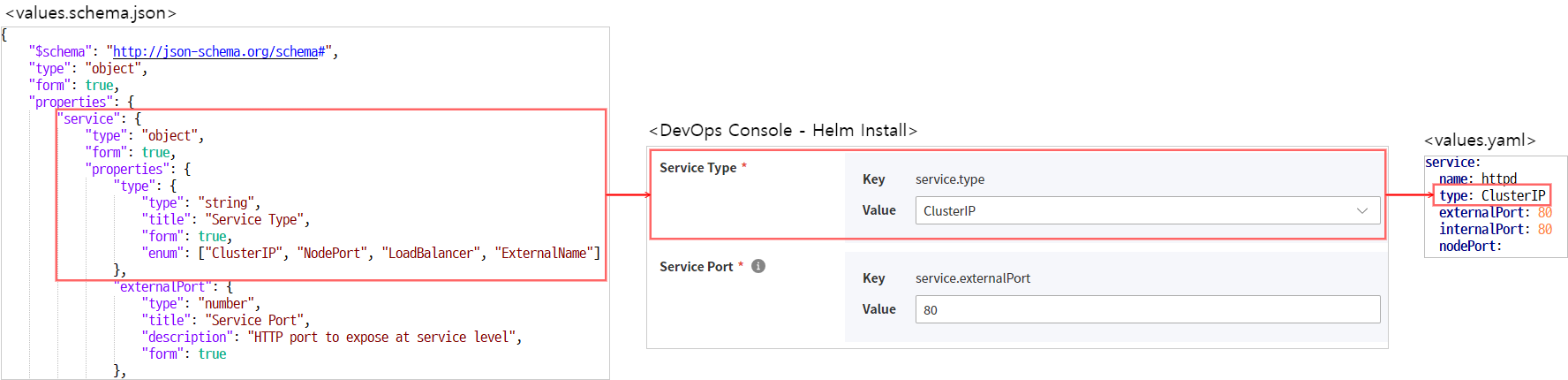
Figure. Relationship between values.schema.json and values.yaml files
values.schema.json
A file defined in JSON Schema to validate the values entered in the values.yaml file.
DevOps Console provides additional features to display forms on the screen and allow users to easily input values.
JSON Schema Basics
The values.schema.json file used in DevOps Console supports the standard format defined in JSON Schema.
Note
For detailed guides on standard formats, please refer to the following sites:
ip, hostname, uri, etc.: Input formats provided by JSON Schema
password_confirm: Creates an input field for password confirmation
form_locale
Defined for internationalization processing
Uses the default property value if the set locale is not available
Supports Korean (ko) and English (en)
object
ko
label
description
en
label
description
Table. DevOps Console Defined Items
Hierarchical Processing
To process hierarchical structures, JSON Schema defines the "type": "object" property value and the properties property. Sub-properties are defined under the properties item.
The following example defines the service.internalPort property.
Color mode
"service": {"type": "object","form": true,"properties": {"internalPort": {"type": "number","title": "Container Port","description": "HTTP port to expose at container level","form": true}<omitted>
"service": {"type": "object","form": true,"properties": {"internalPort": {"type": "number","title": "Container Port","description": "HTTP port to expose at container level","form": true}<omitted>
Hierarchical Processing Example
Internationalization Processing
For internationalization processing, use the form_locale property and define it as follows.