This is the multi-page printable view of this section. Click here to print.
Overview
1 - DevOps Console Introduction
Service Overview
DevOps Console integrates standard development tools, making it easy to configure development environments and providing convenience for building and deploying, with the following features.
Key tool integration and unified authentication for Continuous Integration and Deployment (CI/CD Continuous Integration/Continuous Deployment)
Users can access tools responsible for source code repositories, artifact repositories, code analysis, image repositories, and build/deployment with a single login.
Project configuration based on application template
Users can easily configure a project using a wizard-style approach with templates that incorporate development standards.
Major development languages and frameworks provided
Users can select the development languages (Java, C#, Python, Ruby, etc.) and frameworks (SpringBoot, Vue.js, .Net, etc.) required for application development to configure a project for building and deployment.
Automatic Build/Deployment Pipeline Configuration
Users can automatically generate pipeline scripts using the build/deployment pipeline templates included in the application template, or configure each pipeline stage through a GUI-based approach.
Support for multiple deployment methods and rollback
Users can employ deployment strategies (RollingUpdate, Blue-Green) to minimize downtime of running applications, and can roll back to a desired version with a single click. If users wish to use a VM server as the deployment environment, they can deploy to the VM server in the form of packaged files or Docker images.
Custom Release Process Support
Users can define and repeatedly execute various release processes, taking into account the type of application changes.
Component
Users can easily use the DevOps Service through the DevOps Console.
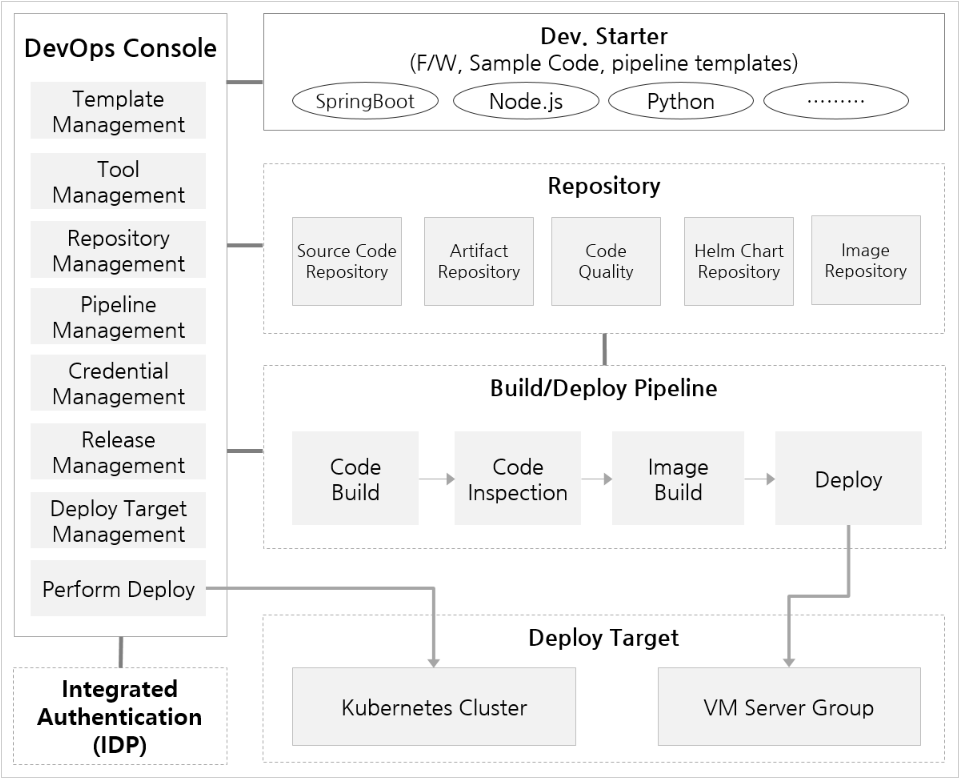
DevOps Console
It provides integrated support for the tools required for application development and build/deployment, allowing easy management of project configuration and build/deployment.
Dev. Starter
It is an application template that provides not only sample code reflecting development standards but also integrated templates required for build and deployment.
IDP(ID Provider)
It manages users centrally and handles authentication.
Source Code Repository
Supports integration with source code version control tools.
Artifact Repository
Supports integration with an artifact repository for storing libraries required for application builds and application artifacts.
code quality
Supports integration with code quality tools that can measure and manage source code quality through static code analysis.
Helm chart repository
In Kubernetes, Helm charts are used to easily install and upgrade software. Users must create Helm charts themselves to install software. It provides ChartMuseum as the default repository for managing Helm charts. It also supports integration with other chart repository tools.
Image Repository
Supports integration with an image registry for storing container images.
VM Server Group
A group of VM servers that serve as the deployment target for the application. Users can register VMs and designate them as deployment targets in the DevOps Console.
Kubernetes Cluster
The cluster that serves as the deployment target for the application. Users can register a Kubernetes Cluster in the DevOps Console and designate it as a deployment target.
DevOps Console can be found in Tool Classification.Key concepts and relationships
System administrators (System Admin) or administrators (Admin) must predefine the tools and application templates required when a user creates a project.
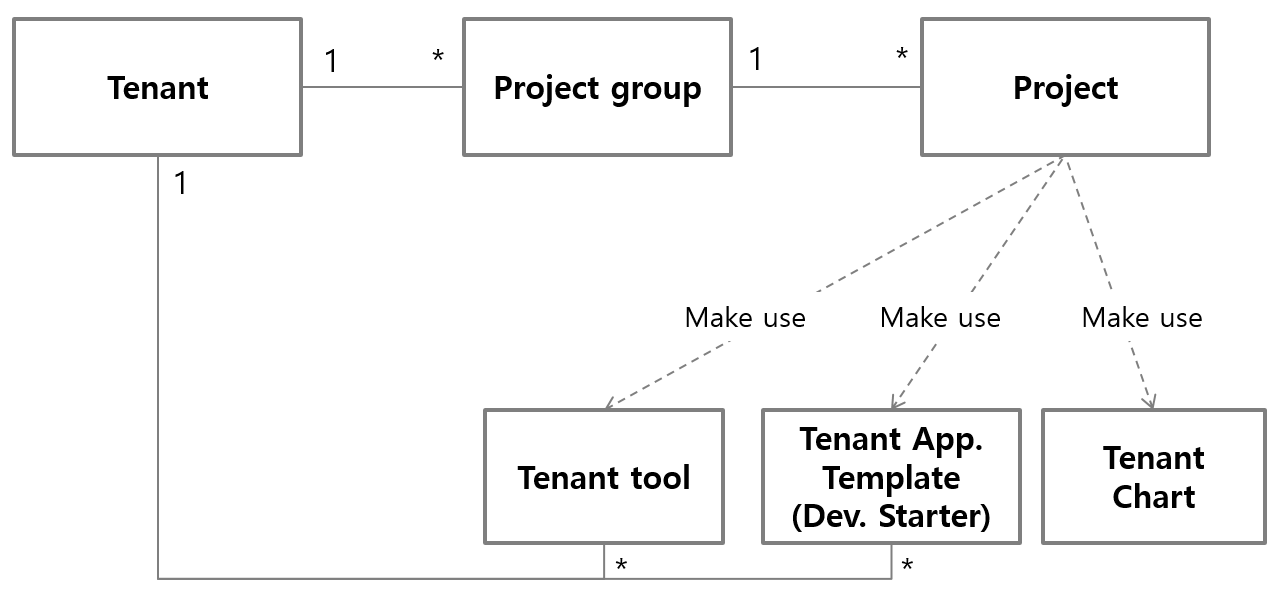
tenant
It is a logical unit that independently provides and shares tools and application templates usable in projects. The system administrator registers a tenant for each organization (or client) unit that must guarantee independence and assigns a tenant administrator. The tenant administrator can register tenant tools, application templates, and tenant members that can be used within that tenant.
Project Group
As a unit for managing individual projects, a member belonging to a specific tenant can create a project group. Therefore, a project group belongs to a single tenant and can utilize the tools and templates configured for that tenant.
project
A project is a unit that develops and manages an application or microservice that is deployed and run independently. Consequently, it is common to structure a project around a single source code repository, but it can be flexibly organized according to the characteristics of the application or the development and operations teams.
tool
It is a development tool that supports source code repositories, image registries, build/deployment pipelines, and code quality used in projects. Each project can use the tools assigned to its project group, tenant, or the Kubernetes Cluster that is the deployment target of the application. Typically, when assigned at the cluster level, the tools support build/pipelines and image registries that affect deployment speed. Tools are broadly classified into three types based on their scope of use.
ProjectGroup Tool: It is a tool that can be used only in projects belonging to a Project Group. Multiple Project Groups can be mapped and used. The Project Group Owner and Master register and manage it.
Tenant Tool: A tool that can only be used within project groups belonging to a tenant. Multiple tenants can be mapped for use. When registering the tool, only the tenant administrator of the initially registered tenant can manage it. Tenants added later to the tool can only use it. Additionally, it can be designated and managed to be usable in clusters accessible to the tenant administrator.
System Tool: DevOps Service is a tool that can be used as a service across the entire project. System administrators designate and manage the tenants and clusters that can be registered and used.
Application Template
This is a template that makes it easy to set up a project. A template that reflects development standards and even provides sample code is called Dev. Starter, while a template that simply supports development environment setup is called Environment Only. Like tools, it is divided into three main types based on the scope of use.
Project Group Template: A template that can be used only by projects belonging to a project group. The project group Owner and Master register and manage it.
Tenant Template: This is a template that can only be used by project groups belonging to a tenant. It is registered and managed by the tenant administrator.
System Template: This template can be used across all projects in DevOps Service. It designates and manages the tenants that system administrators can register and use.
2 - Roles
Project group roles and permissions
- The project group creator has Owner permission by default.
- Master lacks the project group deletion permission among the Owner’s permissions.
- Developers and Viewers have view‑only permissions.
| Category | Permission | Owner | Master | Developer | Viewer |
|---|---|---|---|---|---|
| Project Group | Lookup | ○ | ○ | ○ | ○ |
| Project Group | Edit | ○ | ○ | ||
| Project Group | Delete | ○ | |||
| project | Create | ○ | ○ | ||
| Project | Lookup | ○ | ○ | ○ | ○ |
| Member | Add | ○ | ○ | ||
| member | Lookup | ○ | ○ | ○ | ○ |
| Member | Delete | ○ | ○ |
Project roles and permissions
- They are classified as Owner, Master, Developer, and Viewer.
- Viewer can only view.
- Developers can create or delete development-related functions.
- Example) build pipeline, Helm chart, deployment
- Owner/Master can view, create, and delete all functions within a project.
- The project role holder inherits the role holder of the project group.
- Even if you are not registered as a project member, you can perform the role in the project if you are a member of the project group.
- When a user’s project role and project group role differ, the project role takes precedence.
- In other words, you can restrict permissions for a specific project among the members of a project group.
- Example) If you do not want to grant Master permissions to the Master role holder of a project group for a specific project, register them as a project member and assign Developer or Viewer permissions.
| Category | Permission | Owner | Master | Developer | Viewer |
|---|---|---|---|---|---|
| Dashboard | Lookup | ○ | ○ | ○ | ○ |
| Build pipeline | Lookup | ○ | ○ | ○ | ○ |
| Build pipeline | Import | ○ | ○ | ○ | |
| Build pipeline | (development) create/add | ○ | ○ | ○ | |
| Build pipeline | (development) run | ○ | ○ | ○ | |
| Build pipeline | (Development) Fix | ○ | ○ | ○ | |
| Build pipeline | (development) delete | ○ | ○ | ○ | |
| Build pipeline | (Operation) Create/Add | ○ | ○ | ||
| Build pipeline | (operation) execution | ○ | ○ | ||
| Build pipeline | (Operation) Edit | ○ | ○ | ||
| Build pipeline | (Operation) Delete | ○ | ○ | ||
| helm install | (development) install | ○ | ○ | ○ | |
| helm install | (Operation) Installation | ○ | ○ | ||
| Project | Edit | ○ | ○ | ||
| Project | Delete | ○ |
| Daegu division | Subcategory | Permission | Owner | Master | Developer | Viewer |
|---|---|---|---|---|---|---|
| Kubernetes deployment | Helm release | (development) lookup | ○ | ○ | ○ | ○ |
| Kubernetes deployment | Helm release | (development) upgrade | ○ | ○ | ○ | |
| Kubernetes deployment | Helm release | (development) rollback | ○ | ○ | ○ | |
| Kubernetes deployment | Helm release | (development) delete | ○ | ○ | ○ | |
| Kubernetes deployment | Helm release | (Operation) Lookup | ○ | ○ | ○ | ○ |
| Kubernetes deployment | Helm release | (Operation) Upgrade | ○ | ○ | ||
| Kubernetes deployment | Helm release | (Production) Rollback | ○ | ○ | ||
| Kubernetes deployment | Helm release | (operation) Delete | ○ | ○ | ||
| Kubernetes deployment | Helm release | Import | ○ | ○ | ||
| Kubernetes deployment | Ingress/Service | Create/Update/Delete | ○ | ○ | ||
| Kubernetes deployment | Blue/Green | (development) create/modify/delete | ○ | ○ | ||
| Kubernetes deployment | Blue/Green | (Operations) Create/Update/Delete | ○ | ○ | ||
| Kubernetes deployment | Canary | (development) lookup | ○ | ○ | ○ | ○ |
| Kubernetes deployment | Canary | (Development) Create/Delete | ○ | ○ | ○ | |
| Kubernetes deployment | Canary | (Operation) Query | ○ | ○ | ○ | ○ |
| Kubernetes deployment | Canary | (Operation) Create | ○ | ○ | ||
| Kubernetes deployment | Canary | (Operation) Delete | ○ | ○ | ||
| Kubernetes deployment | Istio | (development) query | ○ | ○ | ○ | ○ |
| Kubernetes deployment | Istio | (development) create/modify/delete | ○ | ○ | ○ | |
| Kubernetes deployment | Istio | (Operation) Lookup | ○ | ○ | ○ | ○ |
| Kubernetes deployment | Istio | (Operation) Create/Edit | ○ | ○ | ||
| Kubernetes deployment | Istio | (Operation) Delete | ○ | ○ | ||
| Kubernetes deployment | Workload | (development) query | ○ | ○ | ○ | ○ |
| Kubernetes deployment | workload | (Development) Create/Delete/Rollback | ○ | ○ | ○ | |
| Kubernetes deployment | workload | (Operation) Lookup | ○ | ○ | ○ | ○ |
| Kubernetes deployment | Workload | (Operational) Create/Rollback | ○ | ○ | ||
| Kubernetes deployment | Workload | (Operation) Delete | ○ | ○ | ||
| Code repository/Code quality/Artifact repository/Image repository | All | Lookup | ○ | ○ | ○ | ○ |
| Code repository/Code quality/Artifact repository/Image repository | All | Create | ○ | ○ | ○ | |
| Code repository/Code quality/Artifact repository/Image repository | All | Delete | ○ | ○ |
- Jenkins system permissions
- Access permissions are granted based on the project permission hierarchy of
DevOps Console. - Permissions are assigned to the Jenkins pipeline based on the project’s role assignments.
- For tools other than Jenkins, you can set permissions in the tool’s menu.
- Access permissions are granted based on the project permission hierarchy of
| Category | Permission | Owner | Master | Developer | Viewer |
|---|---|---|---|---|---|
| (Folder) Project Group | Folder view | ○ | ○ | ○ | ○ |
| (folder) project | Credential lookup | ○ | ○ | ○ | ○ |
| (folder) project | Create/Update/Delete credentials | ○ | ○ | ||
| (folder) project | Folder view | ○ | ○ | ○ | ○ |
| (folder) project | Create folder | ||||
| (folder) project | Folder Settings | ||||
| (folder) project | Delete folder | ○ | ○ | ||
| (folder) type | (Development) Folder Lookup | ○ | ○ | ○ | |
| (folder) type | (Development) Create pipeline | ||||
| (folder) type | (development) folder settings | ||||
| (folder) type | (Development) Delete folder | ○ | ○ | ○ | |
| (folder) type | (Production) Folder Lookup | ○ | ○ | ||
| (folder) type | (Production) Pipeline creation | ||||
| (folder) type | (Production) Folder Settings | ||||
| (folder) type | (Operation) Delete folder | ○ | ○ | ||
| pipeline | (Development) View Pipeline | ○ | ○ | ○ | |
| pipeline | (Development) Pipeline Configuration | ○ | ○ | ○ | |
| pipeline | (Development) Delete pipeline | ○ | ○ | ○ | |
| pipeline | (development) pipeline build | ○ | ○ | ○ | |
| pipeline | (Production) Pipeline Lookup | ○ | ○ | ||
| pipeline | (Production) Pipeline Configuration | ○ | ○ | ||
| pipeline | (Production) Delete pipeline | ○ | ○ | ||
| pipeline | (Production) Pipeline Build | ○ | ○ |
System roles and permissions
| Daegu division | Subcategory | Permission | System Administrator | Administrator (Tenant Manager) | User (Project Group Owner) |
|---|---|---|---|---|---|
| tool | System tool | Register/Edit/Delete | ○ | ||
| Tool | System tool | Add/Modify supported tenant | ○ | ||
| tool | System tool | Delete supported tenant | ○ | ○ | |
| tool | System tool | Add/Modify supported cluster | ○ | ||
| tool | System tool | Delete supported cluster | ○ | ○ | ○ |
| tool | Tenant tool | Register/Edit/Delete | ○ | ○ | |
| tool | Tenant tool | Add/Modify/Delete supported tenant | ○ | ○ | |
| tool | Project Group Tool | Register/Edit/Delete | ○ | ○ | |
| tool | Project Group Tool | Add/Modify/Delete supported tenant | ○ | ○ |
| Daegu division | Subcategory | Permission | System Administrator | Administrator (Tenant Manager) | User (Project Group Owner) |
|---|---|---|---|---|---|
| App. Template | System template | Register/Edit/Delete | ○ | ||
| App. Template | System template | Add/Modify supported tenant | ○ | ||
| App. Template | System template | Delete supported tenant | ○ | ○ | |
| App. Template | System template | Add/Modify/Delete Supported Images | ○ | ||
| App. Template | System template | Add/Modify/Delete supported Helm charts | ○ | ||
| App. Template | Tenant template | Register/Edit/Delete | ○ | ○ | |
| App. Template | Tenant template | Add/Modify/Delete supported images | ○ | ○ | |
| App. Template | Tenant template | Add/Modify/Delete supported Helm charts | ○ | ○ | |
| App. Template | Project Group Template | Register/Edit/Delete | ○ | ○ | |
| App. Template | Project Group Template | Add/Modify/Delete Supported Images | ○ | ○ | |
| App. Template | Project Group Template | Add/Modify/Delete supported Helm charts | ○ | ○ | |
| Helm chart management | System Helm chart | Add/Edit/Delete | ○ | ||
| Helm chart management | Tenant Helm chart | Add/Edit/Delete | ○ | ○ | |
| Helm chart management | Project group Helm chart | Add/Edit/Delete | ○ | ○ | |
| Project Group | All | Create | ○ | ○ | ○ |
3 - Screen Configuration
Describes the main menu pages of DevOps Console.
When you first log in, the top menu and all project groups and projects you have permission for are displayed.
Top menu
Through the top menu, you can navigate to the Main screen, Management screen, etc., and edit user information. The top menu is always displayed while using DevOps Console.
| Item | Explanation |
|---|---|
| Main page | Go to the main page. |
| management | Navigate to the admin page. |
| Support | You can view the guide, inquiries, and announcements. |
| Link | You can view the related system links. |
| User Information | You can view and edit user information or log out.
|
Main Page
Displays the status of all project groups and projects for which the user has permissions.
| Item | Explanation |
|---|---|
| Create project group | You can create a new project group. |
| Project group name | Indicates the project group name. |
| Tenant name | Represents the tenant name. |
| Project Group Management | Navigate to the project group page. |
| Release Management | Go to the release management page. |
| Create project | You can create a new project. |
| Project Details | All projects the user has permission for are displayed
|
| Go to the user guide | Go to the user guide page. |
Admin Page
It includes overall management functions of the DevOps Console, such as dashboard, tenant, project, tool, and user.
| Item | Explanation |
|---|---|
| Management menu | DevOps Console These are the management feature menus.
|
Project Group Management Page
This is the management page for project groups and releases.
| Item | Explanation |
|---|---|
| Project Group Management Menu | This is the project group management menu. |
| Release Management Menu | This is the release management menu. |
Project page
This is a page about the project.
| Item | Explanation |
|---|---|
| Project Management Menu | This is the project management menu. |