This is the multi-page printable view of this section. Click here to print.
Overview
1 - Introduction to DevOps Console
Service Overview
DevOps Console is a service that provides convenience for building and deploying by integrating standard development tools to support development environments, and has the following characteristics.
Key tool integration and unified authentication for Continuous Integration/Continuous Deployment (CI/CD)
The user can access tools responsible for source code repository, artifact repository, code analysis, image repository, and build/deployment with a single login.
Application template-based project composition
The user can easily configure the project in a wizard-like manner using a template that reflects the development standards.
Main development languages and frameworks provided
The user can select the development language (such as Java, C#, Python, Ruby, etc.) and framework (such as SpringBoot, Vue.js, .Net, etc.) required for application development to configure a project for build/deployment.
Build/Deployment Pipeline Auto Configuration
The user can use the build/deploy pipeline template included in the application template to automatically configure the pipeline script or configure each stage of the pipeline based on GUI.
Support for various deployment methods and rollback support
The user can use the deployment method (RollingUpdate, Blue-Green) to minimize the downtime of the operating application, and can roll back to the desired version with one click. If the user wants to use a VM server as a deployment environment, they can deploy it to the VM server in the form of a packaged file or a Docker image.
Customized Release Process Support
The user can define and repeatedly execute various release processes considering the type of application change.
Components
Users can easily use the DevOps Service through the DevOps Console.
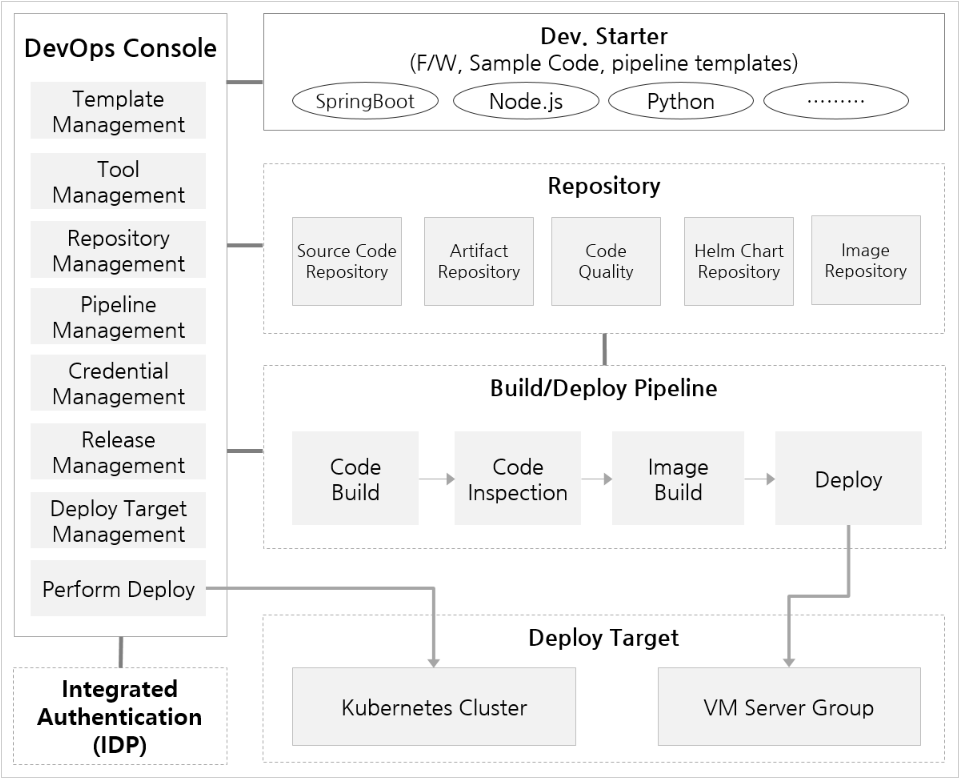
DevOps Console
It supports the tools necessary for application development and build/deployment in an integrated manner, making it easy to manage project configuration and build/deployment.
Dev. Starter
It is an application template that provides not only sample code reflecting development standards, but also templates necessary for build/deployment.
IDP(ID Provider)
It is in charge of integrated management and authentication of users.
Source Code Repository
It supports integration with source code management tools. It can be linked with DevOps Code.
Artifact Repository
It supports linkage with the artifact repository for storing libraries and application artifacts necessary for application build.
Code Quality
It supports linkage with code quality tools that can measure and manage the quality of source code through static code analysis.
Helm Chart Repository
In Kubernetes, Helm charts are used to easily install and upgrade software. To install software, users must write Helm charts directly. It provides ChartMuseum as a default repository for managing charts, and also supports linking with other chart storage tools.
Image Repository
It supports linkage with an image repository for storing container images.
VM Server Group
This is a bundle of VM servers that are the deployment target of the application. Users can register and specify VMs as deployment targets in the DevOps Console.
Kubernetes Cluster
This is the cluster that is the deployment target of the application. Users can register and specify the “Kubernetes Cluster” as the deployment target in the DevOps Console.
Main Concepts and Relationships
The 시스템 관리자(System Admin) or 관리자(Admin) must pre-define the necessary tools and application templates when a user creates a project.
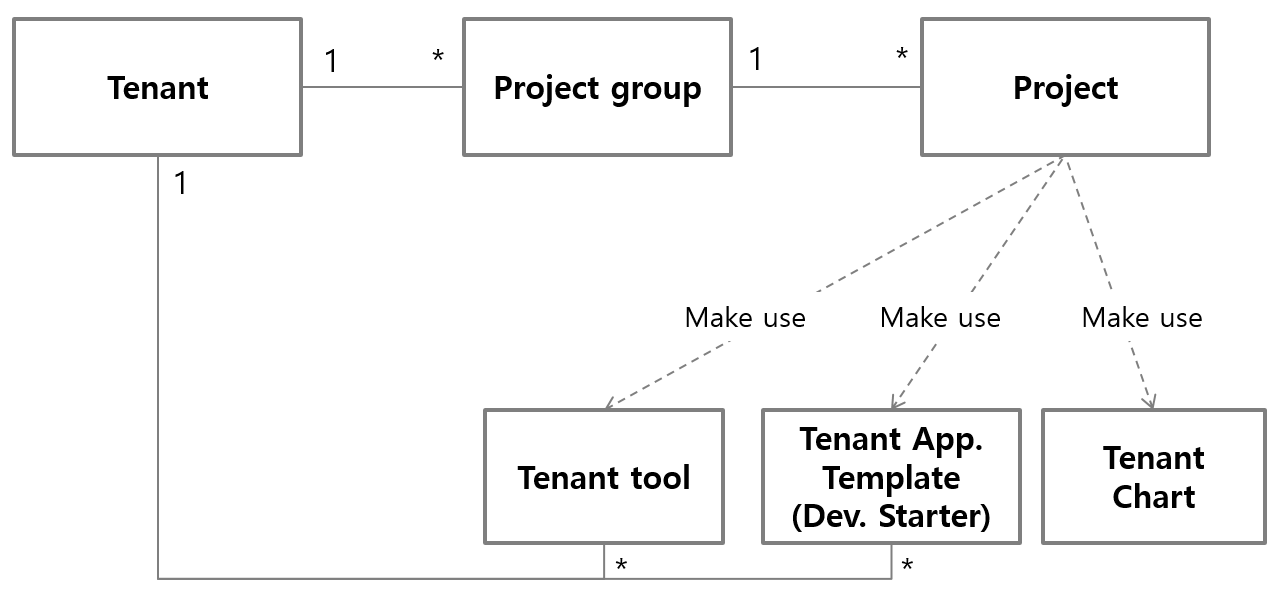
Tenant
It is a logical distinction unit that provides and shares tools and application templates that can be used in the project independently. The system administrator registers tenants by organization (or customer) unit that must guarantee independence and designates a tenant administrator. The tenant administrator can register tenant tools and application templates that can be used in the corresponding tenant, and tenant members.
Project Group
As a unit for managing individual projects, members belonging to a specific tenant can create a project group. Therefore, the project group belongs to one tenant and can utilize the tools and templates set by the tenant.
Project
The project is a unit that develops and manages applications or microservices that are deployed and executed independently. Therefore, it is common to configure a project based on a single source code repository, but it can be configured flexibly according to the characteristics of the application or the development and operation organization.
Tool
It is a development tool that supports source code repositories, image repositories, build/deployment pipelines, and code quality used in projects. Each project can use the designated tool for the project group, tenant, or application to which it belongs, or the Kubernetes Cluster that is the deployment target. In general, tools that support build/pipelines and image repositories that affect deployment speed are specified by cluster unit. Tools are largely divided into three types according to their scope of use.
ProjectGroup Tool: This tool can only be used in projects belonging to the project group. Multiple project groups can be mapped and used. Project group Owner and Master register and manage it.
Tenant Tool: This is a tool that can only be used in the project group belonging to the tenant. Multiple tenants can be mapped and used. Only the tenant administrator of the initially registered tenant can manage the tool when it is registered. Subsequently, only usage is possible in additional registered tenants. Additionally, it can be designated and managed to be used in clusters accessible by the tenant administrator.
System Tool: DevOps Service is a tool that can be used in the form of a service throughout the entire project. It specifies and manages tenants and clusters that system administrators can register and use.
Application Template
This is a template that allows you to easily configure a project. Templates that support sample code by reflecting development standards are called Dev. Starter, and templates that simply support development environment configuration are called Environment Only. Like tools, they are largely divided into three types according to their scope of use.
Project Group Template: This is a template that can only be used by projects belonging to the project group. It is registered and managed by the Project Group Owner and Master.
Tenant Template: a template that can only be used in project groups belonging to the tenant. It is registered and managed by the tenant administrator.
System Template: This is a template available for use in the entire DevOps Service project. The system administrator can register and manage the tenant to be specified and used.
2 - Roles
Project Group Roles and Permissions
- The project group creator is the Owner by default.
- Master has all the permissions of the Owner, except for the project group deletion permission.
- Developer and Viewer have only view permissions.
| Category | Permission | Owner | Master | Developer | Viewer |
|---|---|---|---|---|---|
| Project Group | View | ○ | ○ | ○ | ○ |
| Edit | ○ | ○ | |||
| Delete | ○ | ||||
| Project | Create | ○ | ○ | ||
| View | ○ | ○ | ○ | ○ | |
| Member | Add | ○ | ○ | ||
| View | ○ | ○ | ○ | ○ | |
| Delete | ○ | ○ |
Project Roles and Permissions
- Roles are divided into Owner, Master, Developer, and Viewer.
- Viewer can only view.
- Developer can create and delete development-related features.
- Examples) Build pipeline, Helm chart, deployment
- Owner/Master can view, create, and delete all features in the project.
- Project roles inherit the project group roles.
- Even if a user is not registered as a project member, they can perform the role in the project if they are a member of the project group.
- When the same user has different roles in the project and project group, the project role takes priority.
- In other words, you can limit the authority of a project group member in a specific project.
- Example) If you want to restrict the Master role of a project group from having Master permissions in a specific project, you can register them as a project member and grant them Developer or Viewer permissions.
| Category | Permission | Owner | Master | Developer | Viewer |
|---|---|---|---|---|---|
| Dashboard | View | ○ | ○ | ○ | ○ |
| Build Pipeline | View | ○ | ○ | ○ | ○ |
| Import | ○ | ○ | ○ | ||
| (Development) Create/Add | ○ | ○ | ○ | ||
| (Development) Run | ○ | ○ | ○ | ||
| (Development) Edit | ○ | ○ | ○ | ||
| (Development) Delete | ○ | ○ | ○ | ||
| (Operation) Create/Add | ○ | ○ | |||
| (Operation) Run | ○ | ○ | |||
| (Operation) Edit | ○ | ○ | |||
| (Operation) Delete | ○ | ○ | |||
| Helm Install | (Development) Install | ○ | ○ | ○ | |
| (Operation) Install | ○ | ○ | |||
| Project | Edit | ○ | ○ | ||
| Delete | ○ |
| Large Category | Small Category | Permission | Owner | Master | Developer | Viewer |
|---|---|---|---|---|---|---|
| Kubernetes Deployment | Helm Release | (Development) View | ○ | ○ | ○ | ○ |
| (Development) Upgrade | ○ | ○ | ○ | |||
| (Development) Rollback | ○ | ○ | ○ | |||
| (Development) Delete | ○ | ○ | ○ | |||
| (Operation) View | ○ | ○ | ○ | ○ | ||
| (Operation) Upgrade | ○ | ○ | ||||
| (Operation) Rollback | ○ | ○ | ||||
| (Operation) Delete | ○ | ○ | ||||
| Import | ○ | ○ | ||||
| Ingress/Service | Create/Edit/Delete | ○ | ○ | |||
| Blue/Green | (Development) Create/Edit/Delete | ○ | ○ | |||
| (Operation) Create/Edit/Delete | ○ | ○ | ||||
| Canary | (Development) View | ○ | ○ | ○ | ○ | |
| (Development) Create/Delete | ○ | ○ | ○ | |||
| (Operation) View | ○ | ○ | ○ | ○ | ||
| (Operation) Create | ○ | ○ | ||||
| (Operation) Delete | ○ | ○ | ||||
| Istio | (Development) View | ○ | ○ | ○ | ○ | |
| (Development) Create/Edit/Delete | ○ | ○ | ○ | |||
| (Operation) View | ○ | ○ | ○ | ○ | ||
| (Operation) Create/Edit | ○ | ○ | ||||
| (Operation) Delete | ○ | ○ | ||||
| Workload | (Development) View | ○ | ○ | ○ | ○ | |
| (Development) Create/Delete/Rollback | ○ | ○ | ○ | |||
| (Operation) View | ○ | ○ | ○ | ○ | ||
| (Operation) Create/Rollback | ○ | ○ | ||||
| (Operation) Delete | ○ | ○ | ||||
| Code Repository/Code Quality/Artifact Repository/Image Repository | View | ○ | ○ | ○ | ○ | |
| Create | ○ | ○ | ○ | |||
| Delete | ○ | ○ |
- Jenkins System Permissions
- Access permissions are granted according to the project permission system in
DevOps Console. - Permissions are granted to Jenkins pipelines based on project roles.
- Other tools can set permissions in their respective menus.
- Access permissions are granted according to the project permission system in
| Category | Permission | Owner | Master | Developer | Viewer |
|---|---|---|---|---|---|
| (Folder) Project Group | Folder View | ○ | ○ | ○ | ○ |
| (Folder) Project | Credential View | ○ | ○ | ○ | ○ |
| Credential Create/Edit/Delete | ○ | ○ | |||
| Folder View | ○ | ○ | ○ | ○ | |
| Folder Create | |||||
| Folder Settings | |||||
| Folder Delete | ○ | ○ | |||
| (Folder) Type | (Development) Folder View | ○ | ○ | ○ | |
| (Development) Pipeline Create | |||||
| (Development) Folder Settings | |||||
| (Development) Folder Delete | ○ | ○ | ○ | ||
| (Operation) Folder View | ○ | ○ | |||
| (Operation) Pipeline Create | |||||
| (Operation) Folder Settings | |||||
| (Operation) Folder Delete | ○ | ○ | |||
| Pipeline | (Development) Pipeline View | ○ | ○ | ○ | |
| (Development) Pipeline Settings | ○ | ○ | ○ | ||
| (Development) Pipeline Delete | ○ | ○ | ○ | ||
| (Development) Pipeline Build | ○ | ○ | ○ | ||
| (Operation) Pipeline View | ○ | ○ | |||
| (Operation) Pipeline Settings | ○ | ○ | |||
| (Operation) Pipeline Delete | ○ | ○ | |||
| (Operation) Pipeline Build | ○ | ○ |
System Roles and Permissions
| Large Category | Small Category | Permission | System Administrator | Administrator (Tenant Manager) | User (Project Group Owner) |
|---|---|---|---|---|---|
| Tool | System Tool | Register/Edit/Delete | ○ | ||
| Add/Edit Tenant | ○ | ||||
| Delete Tenant | ○ | ○ | |||
| Add/Edit Cluster | ○ | ||||
| Delete Cluster | ○ | ○ | ○ | ||
| Tenant Tool | Register/Edit/Delete | ○ | ○ | ||
| Add/Edit/Delete Tenant | ○ | ○ | |||
| Project Group Tool | Register/Edit/Delete | ○ | ○ | ||
| Add/Edit/Delete Tenant | ○ | ○ |
| Large Category | Small Category | Permission | System Administrator | Administrator (Tenant Manager) | User (Project Group Owner) |
|---|---|---|---|---|---|
| App. Template | System Template | Register/Edit/Delete | ○ | ||
| Add/Edit Tenant | ○ | ||||
| Delete Tenant | ○ | ○ | |||
| Add/Edit/Delete Image | ○ | ||||
| Add/Edit/Delete Helm Chart | ○ | ||||
| Tenant Template | Register/Edit/Delete | ○ | ○ | ||
| Add/Edit/Delete Image | ○ | ○ | |||
| Add/Edit/Delete Helm Chart | ○ | ○ | |||
| Project Group Template | Register/Edit/Delete | ○ | ○ | ||
| Add/Edit/Delete Image | ○ | ○ | |||
| Add/Edit/Delete Helm Chart | ○ | ○ | |||
| Helm Chart Management | System Helm Chart | Add/Edit/Delete | ○ | ||
| Tenant Helm Chart | Add/Edit/Delete | ○ | ○ | ||
| Project Group Helm Chart | Add/Edit/Delete | ○ | ○ | ||
| Project Group | Create | ○ | ○ | ○ |
3 - Screen Composition
DevOps Console의 주요 메뉴 페이지에 대해 설명합니다.
처음 접속하면 상단 메뉴와 권한을 가진 모든 프로젝트그룹과 프로젝트가 표시됩니다.
상단 메뉴
상단 메뉴를 통해 메인 화면, 관리 화면 등으로 이동할 수 있으며 사용자 정보를 수정할 수 있습니다. 상단 메뉴는 DevOps Console을 이용하는 동안 항상 표시됩니다.
| 항목 | 설명 |
|---|---|
| 메인 페이지 | 메인 페이지로 이동합니다. |
| 관리 | 관리 페이지로 이동합니다. |
| Support | 가이드, 문의, 공지사항을 확인할 수 있습니다. |
| Link | 연관 시스템 링크를 확인할 수 있습니다. |
| 사용자 정보 | 사용자 정보를 확인 및 수정하거나 로그아웃할 수 있습니다.
|
메인 페이지
사용자가 권한을 가진 모든 프로젝트그룹과 프로젝트의 현황을 표시합니다.
| 항목 | 설명 |
|---|---|
| 프로젝트그룹 생성 | 새로운 프로젝트그룹을 생성할 수 있습니다. |
| 프로젝트그룹 명 | 프로젝트그룹 명을 나타냅니다. |
| 테넌트 명 | 테넌트 명을 나타냅니다. |
| 프로젝트그룹 관리 | 프로젝트그룹 페이지로 이동합니다. |
| 릴리스 관리 | 릴리스 관리 페이지로 이동합니다. |
| 프로젝트 생성 | 새로운 프로젝트를 생성할 수 있습니다. |
| 프로젝트 상세 | 사용자가 권한을 가진 모든 프로젝트가 표시
|
| 사용자 가이드 보러가기 | 사용자 가이드 페이지로 이동합니다. |
관리 페이지
대시보드, 테넌트, 프로젝트, 툴, 사용자 등 DevOps Console 전반적인 관리 기능을 포함하고 있습니다.
| 항목 | 설명 |
|---|---|
| 관리 메뉴 | DevOps Console 관리 기능 메뉴들입니다.
|
프로젝트그룹 관리 페이지
프로젝트그룹과 릴리스에 대한 관리 페이지입니다.
| 항목 | 설명 |
|---|---|
| 프로젝트그룹 관리 메뉴 | 프로젝트그룹 관리 메뉴입니다. |
| 릴리스 관리 메뉴 | 릴리스 관리 메뉴입니다. |
프로젝트 페이지
프로젝트에 대한 페이지입니다.
| 항목 | 설명 |
|---|---|
| 프로젝트 관리 메뉴 | 프로젝트 관리 메뉴입니다. |