This is the multi-page printable view of this section. Click here to print.
Deployment Target
1 - K8S Cluster
Users can register a K8S cluster in the DevOps Console and deploy various applications through the DevOps Console.
Users can add, modify, and delete K8S clusters and namespaces. The added K8S cluster and namespace can be used by selecting them in various menus such as project creation (Getting Started with Project Creation), Helm Install (Getting Started with Helm Install), etc.
Getting Started with K8S Cluster
To start managing K8S clusters, follow these steps:
- Click the Manage icon at the top right of the Main page. You will be moved to the Tenant Dashboard page.
- Click the Deployment Target > K8S Cluster menu on the left. You will be moved to the K8S Cluster page.
Adding a K8S Cluster
To add a K8S cluster, follow these steps:
- Click the Manage icon at the top right of the Main page. You will be moved to the Tenant Dashboard page.
- Click the Deployment Target > K8S Cluster menu on the left. You will be moved to the K8S Cluster page.
- Click the Add button on the K8S Cluster page. You will be moved to the Add K8S Cluster page.
- Enter basic information and connection information on the Add K8S Cluster page, and then click the Connection Test button.
- Select the Helm version and click the Save button.
| Item | Description |
|---|---|
| K8S Cluster Name | Enter the cluster name. |
| K8S Cluster ID | Enter the cluster ID. The cluster ID is a unique ID value for distinguishing clusters, and you can enter it directly. |
| CA Certificate | Enter the server certificate information used in the kubeconfig file configuration.
|
| Authentication Method | Select the administrator token method. |
| API Server URL | Enter the Kubernetes API Server address. |
| Administrator Token | Enter the Admin-privileged Token used in the kubeconfig file configuration.Refer to Checking the Cluster Admin Token. |
| Helm Version | Select the Helm version.
|
| Item | Description |
|---|---|
| Authentication Method | Select the client certificate method. |
| API Server URL | Enter the Kubernetes API Server address. |
| Client Certificate | Enter the client certificate information. |
| Client Key | Enter the client key information. |
| Item | Description |
|---|---|
| Authentication Method | Select the kubeconfig file upload method. |
| Kubeconfig File | Click the Browse button to select the kubeconfig file.
|
| API Server URL | Select the Kubernetes API Server address. |
| User | Select the user to authenticate.
|
Managing K8S Clusters
Modifying a K8S Cluster
To modify a K8S cluster, follow these steps:
- Click the Manage icon at the top right of the Main page. You will be moved to the Tenant Dashboard page.
- Click the Deployment Target > K8S Cluster menu on the left. You will be moved to the K8S Cluster page.
- Click the K8S cluster on the K8S Cluster page list. You will be moved to the K8S Cluster Details page of the selected K8S cluster.
- Click the Modify button on the K8S Cluster Details page.
- Modify the information and click the Connection Test button.
- Select the Helm version and click the Save button.
Deleting a K8S Cluster
To delete a K8S cluster, follow these steps:
- Click the Manage icon at the top right of the Main page. You will be moved to the Tenant Dashboard page.
- Click the Deployment Target > K8S Cluster menu on the left. You will be moved to the K8S Cluster page.
- Click the K8S cluster on the K8S Cluster page list. You will be moved to the K8S Cluster Details page of the selected K8S cluster.
- Click the Delete button on the K8S Cluster Details page.
- Click the Confirm button in the confirmation pop-up window to complete the deletion.
Adding a K8S Cluster Member
To add a K8S cluster member, follow these steps:
- Click the Manage icon at the top right of the Main page. You will be moved to the Tenant Dashboard page.
- Click the Deployment Target > K8S Cluster menu on the left. You will be moved to the K8S Cluster page.
- Click the K8S cluster on the K8S Cluster page list. You will be moved to the K8S Cluster Details page of the selected K8S cluster.
- Click the Members tab on the K8S Cluster Details page.
- Click the Add button on the Members tab. The Add Member pop-up window will open.
- Enter the email address in the Add Member pop-up window and click the Search icon.
- Click the Add button to add the member to the list below.
- Select the permission and click the Save button to complete adding the member.
Deleting a K8S Cluster Member
To delete a K8S cluster member, follow these steps:
- Click the Manage icon at the top right of the Main page. You will be moved to the Tenant Dashboard page.
- Click the Deployment Target > K8S Cluster menu on the left. You will be moved to the K8S Cluster page.
- Click the K8S cluster on the K8S Cluster page list. You will be moved to the K8S Cluster Details page of the selected K8S cluster.
- Click the Members tab on the K8S Cluster Details page.
- Select the checkbox of the user to delete on the Members tab list.
- Click the Delete button to delete the selected user from the member list.
Managing K8S Cluster Permission Requests
To approve or reject K8S cluster permission requests, follow these steps:
- Click the Manage icon at the top right of the Main page. You will be moved to the Tenant Dashboard page.
- Click the Deployment Target > K8S Cluster menu on the left. You will be moved to the K8S Cluster page.
- Click the K8S cluster permission request item on the K8S Cluster page list. The number displayed is the number of permission requests.
- The K8S Cluster Permission Request Approval pop-up window will open.
- Click the permission request item to approve or reject.
- Enter your opinion and click the Approve or Reject button.
Viewing K8S Cluster Permission Request Approval History
To view the K8S cluster permission request approval history, follow these steps:
- Click the Manage icon at the top right of the Main page. You will be moved to the Tenant Dashboard page.
- Click the Deployment Target > K8S Cluster menu on the left. You will be moved to the K8S Cluster page.
- Click the K8S cluster on the K8S Cluster page list. You will be moved to the K8S Cluster Details page of the selected K8S cluster.
- Click the Approval History tab. The approval history list will be displayed.
Managing Namespaces
- This is reference information managed only in DevOps Console.
- The registered information will be displayed for users to refer to when creating projects or performing Helm installs, etc., using the cluster.
Importing a Namespace
To import a namespace, follow these steps:
- Click the Manage icon at the top right of the Main page. You will be moved to the Tenant Dashboard page.
- Click the Deployment Target > K8S Cluster menu on the left. You will be moved to the K8S Cluster page.
- Click the K8S cluster on the K8S Cluster page list. You will be moved to the K8S Cluster Details page of the selected K8S cluster.
- Click the Namespace tab. The namespace list will be displayed.
- Click the Import button on the Namespace tab screen. The Import Namespace pop-up window will open.
- Select the namespace on the Import Namespace pop-up window and click the Save button to complete importing the namespace.
Deleting a Namespace
To delete a namespace, follow these steps:
- Click the Manage icon at the top right of the Main page. You will be moved to the Tenant Dashboard page.
- Click the Deployment Target > K8S Cluster menu on the left. You will be moved to the K8S Cluster page.
- Click the K8S cluster on the K8S Cluster page list. You will be moved to the K8S Cluster Details page of the selected K8S cluster.
- Click the Namespace tab. The namespace list will be displayed.
- Click the namespace on the Namespace tab screen. You will be moved to the Namespace Details page.
- Click the Delete button on the Namespace Details page to delete the namespace.
Adding a Namespace Member
To add a namespace member, follow these steps:
- Click the Manage icon at the top right of the Main page. You will be moved to the Tenant Dashboard page.
- Click the Deployment Target > K8S Cluster menu on the left. You will be moved to the K8S Cluster page.
- Click the K8S cluster on the K8S Cluster page list. You will be moved to the K8S Cluster Details page of the selected K8S cluster.
- Click the Namespace tab. The namespace list will be displayed.
- Click the namespace on the Namespace tab screen. You will be moved to the Namespace Details page.
- Click the Members tab on the Namespace Details page. The namespace member list will be displayed.
- Click the Add button. The Add Member pop-up window will open.
- Enter the email address in the Add Member pop-up window and click the Search icon.
- Click the Add button to add the member to the list below.
- Select the permission and click the Save button to complete adding the member.
Deleting a Namespace Member
To delete a namespace member, follow these steps:
- Click the Manage icon at the top right of the Main page. You will be moved to the Tenant Dashboard page.
- Click the Deployment Target > K8S Cluster menu on the left. You will be moved to the K8S Cluster page.
- Click the K8S cluster on the K8S Cluster page list. You will be moved to the K8S Cluster Details page of the selected K8S cluster.
- Click the Namespace tab. The namespace list will be displayed.
- Click the namespace on the Namespace tab screen. You will be moved to the Namespace Details page.
- Click the Members tab on the Namespace Details page. The namespace member list will be displayed.
- Select the checkbox of the user to delete on the list.
- Click the Delete button to delete the selected user from the member list.
Managing Namespace Permission Requests
To approve or reject namespace permission requests, follow these steps:
- Click the Manage icon at the top right of the Main page. You will be moved to the Tenant Dashboard page.
- Click the Deployment Target > K8S Cluster menu on the left. You will be moved to the K8S Cluster page.
- Click the namespace permission request item on the K8S Cluster page list. The number displayed is the number of permission requests.
- The Namespace Permission Request Approval pop-up window will open.
- Select the checkbox of the permission request item to approve or reject.
- Enter your opinion and click the Approve or Reject button.
Viewing Namespace Permission Request Approval History
To view the namespace permission request approval history, follow these steps:
- Click the Manage icon at the top right of the Main page. You will be moved to the Tenant Dashboard page.
- Click the Deployment Target > K8S Cluster menu on the left. You will be moved to the K8S Cluster page.
- Click the K8S cluster on the K8S Cluster page list. You will be moved to the K8S Cluster Details page of the selected K8S cluster.
- Click the Namespace tab. The namespace list will be displayed.
- Click the namespace on the Namespace tab screen. You will be moved to the Namespace Details page.
- Click the Approval History tab. The approval history list will be displayed.
Managing Ingress Domains
- This is reference information managed only in DevOps Console.
- The registered information will be displayed for users to refer to when creating projects or performing Helm installs, etc., using the cluster.
Adding an Ingress Domain
To add an ingress domain, follow these steps:
- Click the Manage icon at the top right of the Main page. You will be moved to the Tenant Dashboard page.
- Click the Deployment Target > K8S Cluster menu on the left. You will be moved to the K8S Cluster page.
- Click the K8S cluster on the K8S Cluster page list. You will be moved to the K8S Cluster Details page of the selected K8S cluster.
- Click the Ingress Domain tab. The ingress domain list will be displayed.
- Click the Add button on the Ingress Domain tab screen. The Add Ingress Domain Information pop-up window will open.
- Enter the information on the Add Ingress Domain Information pop-up window and click the Save button to complete adding the ingress domain.
| Item | Description |
|---|---|
| Node Selector | Enter the node selector. The input value is divided into a prefix and a key-value pair by the first slash (/). The prefix is optional. ex) kubernetes.io/nodetype: app |
| Proxy IP | Enter the Proxy Server IP or Proxy Server LoadBalancer IP. |
| Ingress Domain | Enter the domain that the application will use by default. |
| Ingress Class | Enter the ingress controller class. |
Modifying Ingress Domain
To modify an ingress domain, follow these steps:
- Main page, click the Management icon at the top right. Move to the Tenant Dashboard page.
- Click the Deployment Target > K8S Cluster menu on the left menu. Move to the K8S Cluster page.
- On the K8S Cluster page, click the K8S cluster in the list. Move to the K8S Cluster Details page of the selected K8S cluster.
- Click the Ingress Domain tab. The ingress domain list appears.
- On the Ingress Domain tab screen, click the ingress domain you want to modify, and the Modify Ingress Domain Information popup window opens.
- In the Modify Ingress Domain Information popup window, modify the information and click the Save button to complete the ingress domain modification.
Deleting Ingress Domain
To delete an ingress domain, follow these steps:
- Main page, click the Management icon at the top right. Move to the Tenant Dashboard page.
- Click the Deployment Target > K8S Cluster menu on the left menu. Move to the K8S Cluster page.
- On the K8S Cluster page, click the K8S cluster in the list. Move to the K8S Cluster Details page of the selected K8S cluster.
- Click the Ingress Domain tab. The ingress domain list appears.
- On the Ingress Domain tab screen, select the checkbox of the ingress domain you want to delete.
- On the Ingress Domain tab screen, click the Delete button to delete the selected ingress domain.
1.1 - Checking Cluster Admin Token
To register a K8S cluster, you need to check the cluster’s Admin Token.
The Admin Token refers to the Token value of the ServiceAccount that is ClusterRoleBinding to ClusterRole/cluster-admin.
Preparations before starting
Before checking the Admin Token, please check and prepare the following:
- Environment where kubectl CLI can be used
- Cluster Admin permission check
- ClusterRole, ClusterRoleBinding inquiry and creation
- Namespace, ServiceAccount inquiry and creation
- ClusterRole cluster-admin is queried
$ kubectl get clusterrole cluster-admin
NAME            CREATED AT
cluster-admin   2022-12-09T08:21:50Z
$ kubectl get clusterrole cluster-admin
NAME CREATED AT
cluster-admin 2022-12-09T08:21:50ZChecking Admin Token
Checking existing Admin Token
- Query the ClusterRoleBinding that is bound to ClusterRole/cluster-admin.
- Check the ServiceAccount bound to ClusterRoleBinding.Color mode
# Query admin token
$ kubectl get clusterrolebinding | grep ClusterRole/cluster-admin
[crb_name]     ClusterRole/cluster-admin     77d

$ kubectl describe clusterrolebinding [crb_name]
Name:         [crb_name]
Labels:       <none>
Annotations:  <none>
Role:
Kind:  ClusterRole
Name:  cluster-admin
Subjects:
Kind            Name       Namespace
  ----            ----       ---------
ServiceAccount  [sa_name]  [namespace_name]
# Query admin token $ kubectl get clusterrolebinding | grep ClusterRole/cluster-admin [crb_name] ClusterRole/cluster-admin 77d $ kubectl describe clusterrolebinding [crb_name] Name: [crb_name] Labels: <none> Annotations: <none> Role: Kind: ClusterRole Name: cluster-admin Subjects: Kind Name Namespace ---- ---- --------- ServiceAccount [sa_name] [namespace_name]Existing Admin Token query result - Check the Secret connected to the ServiceAccount and query the token (Admin Token).Color mode
# Query Secret
$ kubectl get secret -n [namespace_name] | grep [sa_name]
[sa_name]-token-xxxxx                            kubernetes.io/service-account-token   3      77d

# Query token
$ kubectl describe secret [sa_name]-token-xxxxx -n [namespace_name]
Name:         [sa_name]-token-xxxxx
...<omitted>...
Data
====
ca.crt:     1070 bytes
namespace:  11 bytes
token:      eyJhbGciOiJSUzI1NiI...
# Query Secret $ kubectl get secret -n [namespace_name] | grep [sa_name] [sa_name]-token-xxxxx kubernetes.io/service-account-token 3 77d # Query token $ kubectl describe secret [sa_name]-token-xxxxx -n [namespace_name] Name: [sa_name]-token-xxxxx ...<omitted>... Data ==== ca.crt: 1070 bytes namespace: 11 bytes token: eyJhbGciOiJSUzI1NiI...ServiceAccount connected Secret, token query result
Creating Admin Token
- Create a Namespace to create a ServiceAccount. If it already exists, proceed to the next step.Color mode
$ kubectl create namespace [namespace_name]

# ex) kubectl create namespace my-app
$ kubectl create namespace [namespace_name] # ex) kubectl create namespace my-appAdmin Token creation command - Create a [namespace_name]-additional-cluster-admin-sa.yaml file and execute it.Color mode
apiVersion: v1 kind: ServiceAccount metadata: name: [namespace_name]-additional-cluster-admin namespace: [namespace_name]apiVersion: v1 kind: ServiceAccount metadata: name: [namespace_name]-additional-cluster-admin namespace: [namespace_name]ServiceAccount creation example Color mode# Create ServiceAccount $ kubectl apply -f [namespace_name]-additional-cluster-admin-sa.yaml -n [namespace_name] # ex) kubectl apply -f my-app-additional-cluster-admin-sa.yaml -n my-app# Create ServiceAccount $ kubectl apply -f [namespace_name]-additional-cluster-admin-sa.yaml -n [namespace_name] # ex) kubectl apply -f my-app-additional-cluster-admin-sa.yaml -n my-appServiceAccount creation command - Create a [namespace_name]-additional-cluster-admin-crb.yaml file and execute it.Color mode
kind: ClusterRoleBinding apiVersion: rbac.authorization.k8s.io/v1 metadata: name: [namespace_name]-additional-cluster-admin subjects: - kind: ServiceAccount name: [namespace_name]-additional-cluster-admin namespace: [namespace_name] roleRef: kind: ClusterRole name: cluster-admin apiGroup: ""kind: ClusterRoleBinding apiVersion: rbac.authorization.k8s.io/v1 metadata: name: [namespace_name]-additional-cluster-admin subjects: - kind: ServiceAccount name: [namespace_name]-additional-cluster-admin namespace: [namespace_name] roleRef: kind: ClusterRole name: cluster-admin apiGroup: ""ClusterRoleBinding creation example Color mode# Create ClusterRoleBinding $ kubectl apply -f [namespace_name]-additional-cluster-admin-crb.yaml # ex) kubectl apply -f my-app-additional-cluster-admin-crb.yaml# Create ClusterRoleBinding $ kubectl apply -f [namespace_name]-additional-cluster-admin-crb.yaml # ex) kubectl apply -f my-app-additional-cluster-admin-crb.yamlClusterRoleBinding creation command - Check the Secret connected to the ServiceAccount and query the token (Admin Token).Color mode
# Query Secret
$ kubectl get secret -n [namespace_name] | grep [namespace_name]-additional-cluster-admin
[namespace_name]-additional-cluster-admin-token-xxxxx   kubernetes.io/service-account-token   3      4m53s

# Query token
$ kubectl describe secret [namespace_name]-additional-cluster-admin-token-xxxxx -n [namespace_name]
Name:         [namespace_name]-additional-cluster-admin-token-xxxxx
...<omitted>...
Data
====
ca.crt:     1111 bytes
namespace:  6 bytes
token:      eyJhbGciOiJSUzI1Ni...
# Query Secret $ kubectl get secret -n [namespace_name] | grep [namespace_name]-additional-cluster-admin [namespace_name]-additional-cluster-admin-token-xxxxx kubernetes.io/service-account-token 3 4m53s # Query token $ kubectl describe secret [namespace_name]-additional-cluster-admin-token-xxxxx -n [namespace_name] Name: [namespace_name]-additional-cluster-admin-token-xxxxx ...<omitted>... Data ==== ca.crt: 1111 bytes namespace: 6 bytes token: eyJhbGciOiJSUzI1Ni...ServiceAccount connected Secret, token query result NoteIf the created Secret does not exist (in Kubernetes version 1.24 or later), create it manually and query the token.Color modeapiVersion: v1 kind: Secret type: kubernetes.io/service-account-token metadata: name: [namespace_name]-additional-cluster-admin-token namespace: [namespace_name] annotations: kubernetes.io/service-account.name: "[namespace_name]-additional-cluster-admin"apiVersion: v1 kind: Secret type: kubernetes.io/service-account-token metadata: name: [namespace_name]-additional-cluster-admin-token namespace: [namespace_name] annotations: kubernetes.io/service-account.name: "[namespace_name]-additional-cluster-admin"Secret creation example
Checking Admin Token validity
You can check the validity of the queried Admin Token value by modifying the ~/.kube/config file.
- Modify the
~/.kube/configfile to use the token for user authentication.ex) users[0].user.tokenModify to input the Admin Token value.Color modeapiVersion: v1 clusters: - cluster: certificate-authority-data: LS0... server: https://devopscluster-12345.sk... name: devopscluster-12345 contexts: - context: cluster: devopscluster-12345 user: user name: user@devopscluster-12345 current-context: user@devopscluster-12345 kind: Config users: - name: user user: token: [admin_token]apiVersion: v1 clusters: - cluster: certificate-authority-data: LS0... server: https://devopscluster-12345.sk... name: devopscluster-12345 contexts: - context: cluster: devopscluster-12345 user: user name: user@devopscluster-12345 current-context: user@devopscluster-12345 kind: Config users: - name: user user: token: [admin_token]~/.kube/config modification example - Execute the
kubectlcommand to check if you have cluster-admin permissions.Color mode$ kubectl get nodes $ kubectl get namespace $ kubectl get all -n kube-system $ kubectl create namespace admin-test $ kubectl delete namespace admin-test # Execute other commands$ kubectl get nodes $ kubectl get namespace $ kubectl get all -n kube-system $ kubectl create namespace admin-test $ kubectl delete namespace admin-test # Execute other commandscluster-admin permission check command
2 - VM Server Group
A VM server group is a logical unit for managing VM servers.
Users can add, modify, and delete VM server groups and VM servers. The configured VM server group and VM server can be used as a deployment target in project creation (Setting up the deployment environment) or VM deployment (Adding a VM deployment).
| Deployment Method | Description |
|---|---|
| SSH | Uses Secure Shell (SSH) to deploy directly from the Jenkins where the build pipeline is executed to the target VM server.
|
| Agent | Refer to Connecting an agent to run an agent on the target VM server. Jenkins does not execute the deployment directly. The executed agent collects and executes deployment-related information from the DevOps Console using the REST API.
|
Getting Started with VM Server Group
To start managing VM server groups, follow these steps:
- Main page, click the Management icon in the top right corner. Move to the Tenant Dashboard page.
- In the left menu, click Deployment Target > VM Server Group. Move to the VM Server Group page.
Adding a VM Server Group
To add a VM server group, follow these steps:
- Main page, click the Management icon at the top right. Move to the Tenant Dashboard page.
- Click the Deployment Target > VM Server Group menu from the left menu. Move to the VM Server Group page.
- On the VM Server Group page, click the Add button. Move to the Add VM Server Group page.
- Enter the basic information and click the Save button to complete the VM server group settings.
| Item | Description |
|---|---|
| Server Group Name | Enter the name of the VM server group. |
| Description | Enter a description. |
| Type | Select the type of VM server group
|
| VM Server |
|
Adding a VM Server
To add a VM server, you need Manager permissions for the corresponding VM server group.
To add a VM server, follow these steps:
- Click the Manage icon in the top right corner of the Main page. You will be taken to the Tenant Dashboard page.
- Click the Deployment Target > VM Server Group menu from the left menu. You will be taken to the VM Server Group page.
- Click the VM server group where you want to add the VM server from the VM server group list on the VM Server Group page. You will be taken to the VM Server Group Details page.
- Click the Add button on the VM Server Group Details page. You will be taken to the Add VM Server page.
- Enter the basic information on the Add VM Server page and click the Add button to complete the VM server settings.
| Item | Description |
|---|---|
| Server Name | Enter the name of the VM server. |
| Description | Enter a description. |
| IP | Enter the IP address. |
| SSH Port | Enter the port of the VM server to use for SSH connection. |
| OS | Enter the operating system. |
| Location | Select a location. |
| Authentication Information | Enter the authentication information of the VM server to use for SSH connection. |
| Secret Key | This is a secret key to authenticate the VM server where the agent is installed. |
Modifying a VM Server Group
To modify a VM server group, you need Manager permission for the corresponding VM server group.
To modify a VM server group, follow these steps:
- Main page, click the Management icon in the top right corner. Move to the Tenant Dashboard page.
- In the left menu, click Deployment Target > VM Server Group. Move to the VM Server Group page.
- In the VM server group list on the VM Server Group page, click the VM server group you want to modify. Move to the VM Server Group Details page.
- On the VM Server Group Details page, click the Modify button. Move to the VM Server Group Modification page.
- After modifying, click the Save button to complete the modification of the VM server group.
Modifying a VM Server
To modify a VM server, you need Manager permission for the corresponding VM server group.
To modify a VM server, follow these steps:
- Main page, click the Management icon in the top right corner. Move to the Tenant Dashboard page.
- In the left menu, click Deployment Target > VM Server Group. Move to the VM Server Group page.
- In the VM server group list on the VM Server Group page, click the VM server group that includes the VM server you want to modify. Move to the VM Server Group Details page.
- In the VM server list on the VM Server Group Details page, click the VM server you want to modify. Move to the VM Server Details page.
- On the VM Server Details page, click the Modify button to move to the VM Server Modification page.
- After modifying, click the Save button to complete the modification of the VM server.
Deleting a VM Server Group
To delete a VM server group, follow these steps:
- Main page, click the Management icon in the top right corner. Move to the Tenant Dashboard page.
- In the left menu, click Deployment Target > VM Server Group. Move to the VM Server Group page.
- In the VM server group list on the VM Server Group page, click the VM server group you want to delete. Move to the VM Server Group Details page.
- On the VM Server Group Details page, click the Delete button to complete the deletion of the VM server group.
Deleting a VM Server
To delete a VM server, follow these steps:
- Main page, click the Management icon in the top right corner. Move to the Tenant Dashboard page.
- In the left menu, click Deployment Target > VM Server Group. Move to the VM Server Group page.
- In the VM server group list on the VM Server Group page, click the VM server group that includes the VM server you want to delete. Move to the VM Server Group Details page.
- On the VM Server Group Details page, click the VM server you want to delete. Move to the VM Server Details page.
- On the VM Server Details page, click the Delete button to complete the deletion of the VM server.
Managing VM Server Group Members
To manage VM server group members, you need Manager permission for the corresponding VM server group.
Adding a VM Server Group Member
To add a member to a VM server group, follow these steps:
- Main page, click the Management icon in the top right corner. Move to the Tenant Dashboard page.
- In the left menu, click Deployment Target > VM Server Group. Move to the VM Server Group page.
- In the VM server group list on the VM Server Group page, click the VM server group you want to add a member to. Move to the VM Server Group Details page.
- On the VM Server Group Details page, click the User tab.
- On the User tab, click the Add button to open the Add Member popup window.
- After setting, click the Confirm button to complete adding a VM server group member. (The Manager can modify or delete the server group, and the Member can use the server group when creating a project or adding a pipeline.)
Deleting a VM Server Group Member
To delete a member of a VM server group, follow these steps:
- Main page, click the Management icon at the top right. Move to the Tenant Dashboard page.
- Click the Deployment Target > VM Server Group menu on the left. Move to the VM Server Group page.
- On the VM Server Group page, click the VM server group from which you want to delete a member from the list of VM server groups. Move to the VM Server Group Details page.
- On the VM Server Group Details page, click the User tab.
- In the User list, select the checkbox of the user you want to delete.
- Click the Delete button to delete the selected user from the VM server group member.
Managing VM Server Group Permission Requests
To approve or reject a VM server group permission request, follow these steps:
- Main page, click the Management icon at the top right. Move to the Tenant Dashboard page.
- Click the Deployment Target > VM Server Group menu on the left. Move to the VM Server Group page.
- On the VM Server Group page, click the permission request item of the VM server group for which you want to approve the permission from the list of VM server groups. The VM Server Group Permission Approval popup window opens.
- In the VM Server Group Permission Approval popup window, click the request you want to approve or reject.
- Enter your opinion and click the Approve or Reject button.
Viewing VM Server Group Permission Approval History
To view the VM server group permission approval history, follow these steps:
- Main page, click the Management icon at the top right. Move to the Tenant Dashboard page.
- Click the Deployment Target > VM Server Group menu on the left. Move to the VM Server Group page.
- On the VM Server Group page, click the VM server group you want to view from the list of VM server groups. Move to the VM Server Group Details page.
- On the VM Server Group Details page, click the Approval History tab.
Releasing VM Server Firewall
SSH Method
SSH method VM deployment uses Secure Shell (SSH) to deploy directly from Jenkins to the target VM server.
Firewall release information for deployment
- Source IP: Jenkins IP selected when configuring the pipeline
- Target IP: IP of the VM server to be deployed
To release the firewall, follow these steps:
- Main page, click the Management icon at the top right. Move to the Tenant Dashboard page.
- Click the Deployment Target > VM Server Group menu on the left. Move to the VM Server Group page.
- On the VM Server Group page, click the Firewall Application Guide link. The Firewall Application Guide popup window opens.
- Jenkins firewall information is displayed.
- The information displayed is what was entered when registering the Jenkins tool, and if not entered, it may appear as an empty value.
- If necessary, contact the tool administrator.
Agent Method
Agent method VM deployment requires running an agent on the target VM server. The running agent collects information from DevOps Console and performs deployment.
Firewall release information for deployment
- Source IP: IP of the VM server to be deployed
- Target IP: DevOps Console IP, (if using Rollback) Rollback Artifact Repository IP
- Main page, click the Management icon at the top right. Move to the Tenant Dashboard page.
- Click the Deployment Target > VM Server Group menu on the left. Move to the VM Server Group page.
- On the VM Server Group page, click the Agent Installation Guide link. The Agent Installation Guide popup window opens.
- DevOps Console firewall details and User Guide Shortcut and Agent File Download links are displayed.
Connecting an Agent
Agent method VM deployment requires running an agent on the target VM server. The running agent collects information from DevOps Console and performs deployment.
Preparing for Agent Connection
VM Server Preparation
Java Installation
The agent was written and tested based on Java 8. Install Java 8 or higher on the target VM server.
Firewall Release and Hosts File Modification
The agent uses REST API to collect deployment information from DevOps Console, so communication from the target VM server where the agent is running to DevOps Console is required.
Additionally, if using Rollback, communication with the Rollback Artifact Repository is also required.
If necessary, firewall release or hosts file registration may be required. Refer to the firewall information in the Agent Installation Guide popup window in DevOps Console.
DevOps Console Preparation
Authentication Key Preparation
When running the agent on the target VM server, authentication of the agent is required. Create a user authentication key and secret key for authentication. (Managing Authentication Keys)
VM Server Secret Key Preparation
When running the agent on the target VM server, the Secret Key value is required to authenticate the agent and the VM server.
When adding an agent-type VM server group and VM server, the VM server Secret Key is automatically generated. You can also check it on the VM Server Details page later.
Running an Agent
Downloading an Agent File
You can download the agent execution file from the Agent Installation Guide popup window.
- Click the Management icon at the top right of the Main page. Move to the Tenant Dashboard page.
- Click the Deployment Target > VM Server Group menu on the left. Move to the VM Server Group page.
- Click the Agent Installation Guide link on the VM Server Group page. The Agent Installation Guide popup window opens.
- Click the Agent File Download button in the Agent Installation Guide popup window.
- The
deploy-agent.jarfile is downloaded.
Running an Agent Directly
To run an agent on a target VM server, follow these steps:
- Create a directory on the target VM server.
- Move the
deploy-agent.jarfile to the directory. - Refer to the usage below to run the agent.Color mode
usage: java -jar deploy-agent.jar -A <arg> -L <arg> [-P <arg>] -S <arg> -V <arg>
 -A,--accessKey <arg>               AccessKey for HMAC
 -L,--serverUrl <arg>               Api server url
 -P,--loggingConfigFilePath <arg>   Path to the property file with 'java.util.logging' settings
 -S,--secretKey <arg>               SecretKey for HMAC
 -V,--vmSecretKey <arg>             VM SecretKey
usage: java -jar deploy-agent.jar -A <arg> -L <arg> [-P <arg>] -S <arg> -V <arg> -A,--accessKey <arg> AccessKey for HMAC -L,--serverUrl <arg> Api server url -P,--loggingConfigFilePath <arg> Path to the property file with 'java.util.logging' settings -S,--secretKey <arg> SecretKey for HMAC -V,--vmSecretKey <arg> VM SecretKeyDeployment Agent Execution Usage
| Item | Description |
|---|---|
| -A, –accessKey | Authentication key created by the user |
| -L, –serverUrl | DevOps Console API URL path ex) https://{DEVOPS_CONSOLE_URL}:8443/devops-console-api |
| -P, –loggingConfigFilePath | Agent log file path If not entered, the {JAVA_HOME}\jre\lib\logging.properties file is applied. |
| -S, –secretKey | Secret key created by the user |
| -V, –vmSecretKey | Secret key created by the VM server |
Running an Agent using a Script File
To run an agent on a target VM server using a script, follow these steps:
- Create a directory on the target VM server.
- Move the
deploy-agent.jarfile to the directory. - Refer to the sample execution script below to create a file.
- Modify the information in the sample execution script.
DC_URL,ACCESS_KEY,SECRET_KEY,VM_SECRET_KEY
- Run the script.
Linux Sample Script

#!/bin/sh

JAVA_EXE="java"
DC_URL="https://devops-console-url.com:8443/devops-console-api"
ACCESS_KEY="user-access-key"
SECRET_KEY="user-secret-key"
VM_SECRET_KEY="vm-secret-key"

start()
{
  [ -f deploy-agent.jar ] || { echo "ERROR: deploy-agent.jar file does not exist."; exit 1; }
  echo "Starting Deploy Agent..."
  $JAVA_EXE -jar deploy-agent.jar -A $ACCESS_KEY -S $SECRET_KEY -V $VM_SECRET_KEY -L $DC_URL > deploy-agent.log 2>&1 &
  PID=`ps aux | grep 'java -jar deploy-agent.jar' | grep '\-A' | grep '\-S' | grep '\-V' | grep '\-L' | awk '{print $2}'`
  echo "Process ID : $PID"
  echo $PID > deploy-agent.pid
  echo "Done."
}
stop()
{
  echo "Shutdown Deploy Agent..."
  ps aux | grep 'java -jar deploy-agent.jar' | grep '\-A' | grep '\-S' | grep '\-V' | grep '\-L' | awk '{print $2}' | xargs kill
  echo "Done."
}

case "$1" in
  start)
    start
    ;;
  stop)
    stop
    ;;
  restart)
    stop
    start
    ;;
  *)
    echo $ "Usage: $0 {start|stop|restart}"
    exit 1
    ;;
esac
exit 0
#!/bin/sh
JAVA_EXE="java"
DC_URL="https://devops-console-url.com:8443/devops-console-api"
ACCESS_KEY="user-access-key"
SECRET_KEY="user-secret-key"
VM_SECRET_KEY="vm-secret-key"
start()
{
[ -f deploy-agent.jar ] || { echo "ERROR: deploy-agent.jar file does not exist."; exit 1; }
echo "Starting Deploy Agent..."
$JAVA_EXE -jar deploy-agent.jar -A $ACCESS_KEY -S $SECRET_KEY -V $VM_SECRET_KEY -L $DC_URL > deploy-agent.log 2>&1 &
PID=`ps aux | grep 'java -jar deploy-agent.jar' | grep '\-A' | grep '\-S' | grep '\-V' | grep '\-L' | awk '{print $2}'`
echo "Process ID : $PID"
echo $PID > deploy-agent.pid
echo "Done."
}
stop()
{
echo "Shutdown Deploy Agent..."
ps aux | grep 'java -jar deploy-agent.jar' | grep '\-A' | grep '\-S' | grep '\-V' | grep '\-L' | awk '{print $2}' | xargs kill
echo "Done."
}
case "$1" in
start)
start
;;
stop)
stop
;;
restart)
stop
start
;;
*)
echo $ "Usage: $0 {start|stop|restart}"
exit 1
;;
esac
exit 0Windows Sample Script

@ECHO OFF

SET JAVA_EXE="java"
SET DC_URL="https://devops-console-url.com:8443/devops-console-api"
SET ACCESS_KEY="user-access-key"
SET SECRET_KEY="user-secret-key"
SET VM_SECRET_KEY="vm-secret-key"

IF NOT EXIST deploy-agent.jar (
    ECHO "ERROR: deploy-agent.jar file does not exist."
    EXIT /b 0
)
ECHO "Starting Deploy Agent..."
%JAVA_EXE% -jar deploy-agent.jar -A %ACCESS_KEY% -S %SECRET_KEY% -V %VM_SECRET_KEY% -L %DC_URL%

EXIT /b 0
@ECHO OFF
SET JAVA_EXE="java"
SET DC_URL="https://devops-console-url.com:8443/devops-console-api"
SET ACCESS_KEY="user-access-key"
SET SECRET_KEY="user-secret-key"
SET VM_SECRET_KEY="vm-secret-key"
IF NOT EXIST deploy-agent.jar (
ECHO "ERROR: deploy-agent.jar file does not exist."
EXIT /b 0
)
ECHO "Starting Deploy Agent..."
%JAVA_EXE% -jar deploy-agent.jar -A %ACCESS_KEY% -S %SECRET_KEY% -V %VM_SECRET_KEY% -L %DC_URL%
EXIT /b 0- Can be executed in
java 8or higher. - The execution location of the jar file is assumed to be
{WORKSPACE}. - Additional directories such as backup and logs are created under
{WORKSPACE}. - If
-loggingConfigFilePathis not entered, the{JAVA_HOME}\jre\lib\logging.propertiesfile is applied. - Deployment-related files are stored under
{WORKSPACE}/backup. - Only the last
3deployment-related files are kept. - The entire log of
deploy-agent.jaris not automatically saved. Only deployment-related logs are saved under{WORKSPACE}/logs. - Logs are kept for
30days.
If the agent runs with root privileges, there is a risk of taking over the entire server by executing malicious commands.
- It is recommended to use a non-root account.
Agent Problem Solving
Changing Log Levels
If necessary, you can change the log level of the agent. Refer to the sample log file below and add the -P, --loggingConfigFilePath option.
Sample Log File
############################################################
#      Default Logging Configuration File
#
# You can use a different file by specifying a filename
# with the java.util.logging.config.file system property.
# For example java -Djava.util.logging.config.file=myfile
############################################################

############################################################
#      Global properties
############################################################

# "handlers" specifies a comma separated list of log Handler
# classes.  These handlers will be installed during VM startup.
# Note that these classes must be on the system classpath.
# By default we only configure a ConsoleHandler, which will only
# show messages at the INFO and above levels.
handlers= java.util.logging.ConsoleHandler

# To also add the FileHandler, use the following line instead.
#handlers= java.util.logging.FileHandler, java.util.logging.ConsoleHandler

# Default global logging level.
# This specifies which kinds of events are logged across
# all loggers.  For any given facility this global level
# can be overriden by a facility specific level
# Note that the ConsoleHandler also has a separate level
# setting to limit messages printed to the console.
#.level= INFO
.level= FINE

############################################################
# Handler specific properties.
# Describes specific configuration info for Handlers.
############################################################

# default file output is in user's home directory.
java.util.logging.FileHandler.pattern = %h/java%u.log
java.util.logging.FileHandler.limit = 50000
java.util.logging.FileHandler.count = 1
java.util.logging.FileHandler.formatter = java.util.logging.XMLFormatter

# Limit the message that are printed on the console to INFO and above.
#java.util.logging.ConsoleHandler.level = INFO
java.util.logging.ConsoleHandler.level = FINE
java.util.logging.ConsoleHandler.formatter = java.util.logging.SimpleFormatter

# Example to customize the SimpleFormatter output format
# to print one-line log message like this:
#     <level>: <log message> [<date/time>]
#
# java.util.logging.SimpleFormatter.format=%4$s: %5$s [%1$tc]%n

############################################################
# Facility specific properties.
# Provides extra control for each logger.
############################################################

# For example, set the com.xyz.foo logger to only log SEVERE
# messages:
com.xyz.foo.level = SEVERE
############################################################
# Default Logging Configuration File
#
# You can use a different file by specifying a filename
# with the java.util.logging.config.file system property.
# For example java -Djava.util.logging.config.file=myfile
############################################################
############################################################
# Global properties
############################################################
# "handlers" specifies a comma separated list of log Handler
# classes. These handlers will be installed during VM startup.
# Note that these classes must be on the system classpath.
# By default we only configure a ConsoleHandler, which will only
# show messages at the INFO and above levels.
handlers= java.util.logging.ConsoleHandler
# To also add the FileHandler, use the following line instead.
#handlers= java.util.logging.FileHandler, java.util.logging.ConsoleHandler
# Default global logging level.
# This specifies which kinds of events are logged across
# all loggers. For any given facility this global level
# can be overriden by a facility specific level
# Note that the ConsoleHandler also has a separate level
# setting to limit messages printed to the console.
#.level= INFO
.level= FINE
############################################################
# Handler specific properties.
# Describes specific configuration info for Handlers.
############################################################
# default file output is in user's home directory.
java.util.logging.FileHandler.pattern = %h/java%u.log
java.util.logging.FileHandler.limit = 50000
java.util.logging.FileHandler.count = 1
java.util.logging.FileHandler.formatter = java.util.logging.XMLFormatter
# Limit the message that are printed on the console to INFO and above.
#java.util.logging.ConsoleHandler.level = INFO
java.util.logging.ConsoleHandler.level = FINE
java.util.logging.ConsoleHandler.formatter = java.util.logging.SimpleFormatter
# Example to customize the SimpleFormatter output format
# to print one-line log message like this:
# <level>: <log message> [<date/time>]
#
# java.util.logging.SimpleFormatter.format=%4$s: %5$s [%1$tc]%n
############################################################
# Facility specific properties.
# Provides extra control for each logger.
############################################################
# For example, set the com.xyz.foo logger to only log SEVERE
# messages:
com.xyz.foo.level = SEVEREWhen IP is Not Recognized
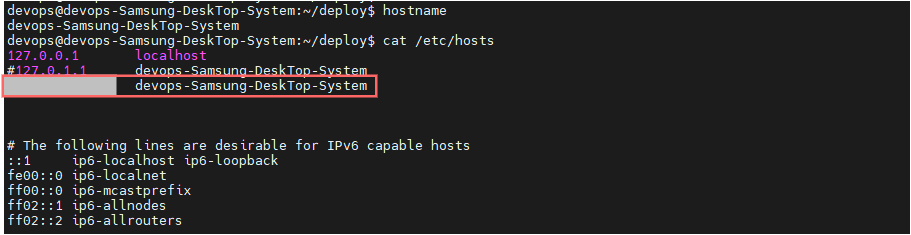
When connecting the agent, not only the Secret Key but also the actual OS name and IP (IPv4) of the VM server must match the information registered in the DevOps Console.
In some cases, VM servers with multiple network devices installed may not be able to recognize the IP correctly. In such cases, add the IP and hostname settings to the /etc/hosts file as follows:
3 - Apply for Authorization
Apply for authorization to use K8S clusters, namespaces, and VM server groups managed as deployment targets in DevOps Console.
Start Applying for Authorization
To start applying for authorization, follow these steps:
- Main page, click the Manage icon in the upper right corner. Move to the Tenant Dashboard page.
- Click Deployment Target > Apply for Authorization in the left menu. The Apply for Authorization screen appears.
Apply for K8S Cluster Authorization
To apply for K8S cluster authorization, follow these steps:
- Main page, click the Manage icon in the upper right corner. Move to the Tenant Dashboard page.
- Click Deployment Target > Apply for Authorization in the left menu. The Apply for Authorization screen appears.
- Click the K8S Cluster tab on the Apply for Authorization screen. The K8S Cluster screen appears.
- Click the Apply button on the K8S Cluster screen. The K8S Cluster Authorization Application popup window opens.
- Search for the K8S cluster for which you want to apply for authorization in the K8S Cluster Authorization Application popup window.
- Enter the reason for the application and click the Add button.
- Select the authorization for the added K8S cluster and click the Save button.
Cancel K8S Cluster Authorization Application
To cancel the K8S cluster authorization application, follow these steps:
- Main page, click the Manage icon in the upper right corner. Move to the Tenant Dashboard page.
- Click Deployment Target > Apply for Authorization in the left menu. The Apply for Authorization screen appears.
- Click the K8S Cluster tab on the Apply for Authorization screen. The K8S Cluster screen appears.
- Select the cluster on the K8S Cluster screen and click the Cancel button.
REQUESTED.Apply for Namespace Authorization
To apply for namespace authorization, follow these steps:
- Main page, click the Manage icon in the upper right corner. Move to the Tenant Dashboard page.
- Click Deployment Target > Apply for Authorization in the left menu. The Apply for Authorization screen appears.
- Click the Namespace tab on the Apply for Authorization screen. The Namespace screen appears.
- Click the Apply button on the Namespace screen. The Namespace Authorization Application popup window opens.
- Search for the K8S cluster to which the namespace you want to apply for authorization belongs in the Namespace Authorization Application popup window.
- Select the namespace and enter the reason for the application, then click the Add button.
- Select the authorization for the added namespace and click the Save button.
Cancel Namespace Authorization Application
To cancel the namespace authorization application, follow these steps:
- Main page, click the Manage icon in the upper right corner. Move to the Tenant Dashboard page.
- Click Deployment Target > Apply for Authorization in the left menu. The Apply for Authorization screen appears.
- Click the Namespace tab on the Apply for Authorization screen. The Namespace screen appears.
- Select the namespace on the Namespace screen and click the Cancel button.
REQUESTED.Apply for VM Server Group Authorization
To apply for VM server group authorization, follow these steps:
- Main page, click the Manage icon in the upper right corner. Move to the Tenant Dashboard page.
- Click Deployment Target > Apply for Authorization in the left menu. The Apply for Authorization screen appears.
- Click the VM Server Group tab on the Apply for Authorization screen. The VM Server Group screen appears.
- Click the Apply button on the VM Server Group screen. The VM Server Group Authorization Application popup window opens.
- Search for the VM server group for which you want to apply for authorization in the VM Server Group Authorization Application popup window.
- Enter the reason for the application and click the Add button.
- Select the authorization for the added VM server group and click the Save button.
Cancel VM Server Group Authorization Application
To cancel the VM server group authorization application, follow these steps:
- Main page, click the Manage icon in the upper right corner. Move to the Tenant Dashboard page.
- Click Deployment Target > Apply for Authorization in the left menu. The Apply for Authorization screen appears.
- Click the VM Server Group tab on the Apply for Authorization screen. The VM Server Group screen appears.
- Select the VM server group on the VM Server Group screen and click the Cancel button.
REQUESTED.