This is the multi-page printable view of this section. Click here to print.

Return to the regular view of this page.

Build Pipeline

Note
For more information about Jenkins pipeline, please refer to the official website.

Users can combine a series of tasks into a pipeline. The pipeline configured here is created as a Jenkins pipeline.

Getting Started with Build Pipeline

To start using the build pipeline, follow these steps.

  1. Main page, click the Project card. Move to the Project Dashboard page.
  2. Click the Build/Deploy > Build Pipeline menu on the left. Move to the Build Pipeline page.

Adding a Build Pipeline

To add a build pipeline, follow the procedure below.

  1. Main page, click the Project card. Move to the Project Dashboard page.
  2. Click the Build/Deployment > Build Pipeline menu in the left menu. Move to the Build Pipeline page.
  3. On the Build Pipeline page, click the Add Pipeline button at the top right. Move to the Add Pipeline page.
  4. Enter/set each item on the Add Pipeline page.
  5. Click the Next button.
ItemDescription
ClassificationSelect development or operation classification
Jenkins URLSelect Jenkins to add a build pipeline from the list.
Build AgentSelect the agent (build environment) where the build pipeline will run.
Click the Info icon to view the list of tools provided by the agent.
Build Environment OSDisplays the OS information of the environment where the build agent runs.
Folder TypeSelect the folder type.
  • Existing folder: Add a pipeline under an existing folder in Jenkins.
  • New folder: Create a new folder in Jenkins and add a pipeline under it.
FolderSelect a folder from the list or enter the name of the new folder to be created.
Pipeline NameEnter the pipeline name.
Parameter SettingSet the parameters to be used in the pipeline.
Environment Variable SettingSet the environment variables to be used in the pipeline.
Stage SettingSet the stages to be used in the pipeline.
Build Result Email Recipient SettingSet the recipient to receive the result email after the pipeline is completed (success/failure).
Table. Build Pipeline Addition Setting Items

Setting Parameters

To set parameters to use when running a pipeline, follow these steps:

  1. Parameters card should be clicked.
  2. Add button should be clicked to add parameters.
  3. Apply button should be clicked to complete parameter settings.

Setting Environment Variables

To set environment variables to be used in the pipeline, follow the procedure below.

  1. Environment Variables section, click. The Environment Variable Registration page opens on the right.
  2. A list of pre-registered Environment Variables appears, and select the checkbox of the environment variable to be used.
  3. Check the Selected Environment Variables and click the Apply button to complete the environment variable setting.

Setting Stages

To set up stages to be used in the pipeline, follow these steps.

  1. Click the New Stage card. The Stage area appears on the right.
  2. In the Stage area, select the Tool and Stage type.
  3. Enter the necessary information according to the stage type and click the Apply button to complete the stage setup.
Note
You can add stages by clicking the Add icon.
For more information about stage settings, see Stage.

Setting Build Result Email Recipients

To set up the recipient to receive the build result by email, follow the procedure below.

  1. Email Recipient area, click. The Add Email Recipient page opens on the right.
  2. In the Search area, search for and add the recipient.
  3. Click the Apply button to complete the email recipient setting.

Checking the Final Pipeline Script

  1. Check the actual build pipeline script to be created. Modify the script directly if necessary.
  2. Click the Complete button to complete adding the pipeline.

Pipeline Addition Result

  1. The added result appears on the Build Pipeline page.
Note
The added pipeline will not be executed automatically. If execution is required, run the pipeline directly.

Managing Build Pipelines

Build Pipeline List

ItemDescription
StatusDisplays the status of the build pipeline.
  • Green: Normal execution completed
  • Blue (flashing): Running
  • Red: Failed
  • Gray: Others
URLMoves to the Jenkins Build Pipeline page.
Recent Build Execution History URLMoves to the Jenkins Build Execution History page.
LogOpens the Pipeline Log popup window.
RunRuns the build pipeline.
MoreDisplays additional menus.
  • Edit Pipeline
  • Clone Pipeline
  • Delete Pipeline
  • Build history
Pipeline Stage ViewClick the Expand icon to expand the stage view.
Table. Build Pipeline List View Function

Build Pipeline Authentication

When performing build pipeline actions (execution, stop, modification, deletion, etc.), user authentication information may be required, so it may be requested from the user in some cases.

IDP-Linked Jenkins

If you are not registered as a Jenkins user, a User Registration Guide popup window opens, click the Go to Jenkins link to proceed with User Registration or Jenkins Initial Login.

IDP-Unlinked Jenkins

If Jenkins authentication information is not stored, a Add Account popup window opens, select Existing User Use or New User Creation in Account Type to add authentication information.

Running a Build Pipeline

To run a build pipeline, follow these steps.

  1. On the Build Pipeline page, click the Run button of the build pipeline you want to run.
  2. If there are parameters (parameters), the Pipeline Run Parameter Input popup window opens.
  3. Enter the necessary items and click the OK button.
Caution

If the Number of executors item in the Built-In Node of Jenkins system settings is set to 1 or more, pipeline execution may not be possible due to security issues.

  • In this case, you need to contact the Jenkins administrator to change the settings.
    • You can use it by changing the Number of executors item of the Built-In Node in the Jenkins management menu to 0.
  • Note Jenkins officially recommends avoiding build execution on the Controller Node.

Viewing Build Pipeline Execution Logs

To view the build pipeline execution log, follow these steps.

  1. On the Build Pipeline page, click the Log button of the build pipeline you want to run.
  2. The Pipeline Log popup window opens, and you can check the execution log.
Note
If the build pipeline is running, the Pipeline Log popup window is refreshed periodically to display the latest log.

Viewing Build Pipeline Build History

To view the entire build history of a build pipeline, follow these steps.

  1. On the Build Pipeline page, click the More icon of the build pipeline you want to check.
  2. Click the Build History menu. The Build History page opens.
ItemDescription
Config DiffOpens the Config Diff popup window.
LogOpens the Pipeline Log popup window.
More MenuMoves to the Build Details page.
Pipeline Stage ViewClick the Expand icon to expand the stage view.
Table. Build Pipeline List View Function

Comparing Settings

You can compare settings with previous build history using the Config Diff button.

Viewing Logs

You can check the log of the build history using the Log button.

Viewing Build Details

You can check the build details by clicking the More icon.

Modifying a Build Pipeline

To modify a build pipeline, follow these steps.

  1. On the Build Pipeline page, click the More icon of the build pipeline you want to modify.
  2. Click the Pipeline Modification button. Move to the Pipeline Modification page.

Modifying the Script Directly

To modify the pipeline script directly, follow these steps.

  1. In the script editor window on the Pipeline Modification page, enter the script directly in the syntax supported by Jenkins.
  2. After entering, click the Save button to complete the pipeline modification.

Modifying Using the Script Generator Function

Note
The Script Generator function can only set one stage at a time. If you want to modify multiple stages, perform multiple times.

To modify the pipeline script using the Script Generator function, follow these steps.

  1. On the Pipeline Modification page, change the Script Generator to ON.
  2. Select the Build Agent and Script Type.
  3. Proceed with the Stage Setting and click the Script Generation button to generate the script.
  4. Refer to the generated script to modify the pipeline and click the Save button to complete the pipeline modification.
ItemDescription
Script GeneratorTurn the Script Generator function ON/OFF.
Script Basic InformationSelect the basic information for script generation.
Existing ScriptExisting script.
New ScriptNew script generated through the Script Generator.
Script ModificationModify the existing script on the left by referring to the new script generated.
Jenkins Credential UpdateIf there is new authentication information in the newly generated script, click the Jenkins Credential Update button. Update (save) the authentication information to Jenkins.
K8S Secret UpdateIn the case of the Deploy to K8S stage, if the K8S Secret is changed, click the K8S Secret Update button. Update (save) the Secret to be used when creating and deploying.
Table. Script Generator Function

Cloning a Build Pipeline

To clone a build pipeline, follow these steps.

  1. Click the More icon of the build pipeline you want to clone.
  2. Click the Clone Pipeline menu. Opens the Clone Pipeline popup window.
  3. Enter the information and click the Save button to complete the pipeline clone.
ItemDescription
Pipeline Clone InformationEnter the information of the pipeline to be cloned.
Pipeline ModificationModify the pipeline to be cloned.
Table. Build Pipeline Clone Function

Deleting a Build Pipeline

To delete a build pipeline, follow these steps.

  1. On the Build Pipeline page, click the More icon of the build pipeline you want to delete.
  2. Click the Pipeline Deletion menu. The Pipeline Deletion popup window opens.
  3. In the Pipeline Deletion popup window, click the OK button to complete the pipeline deletion.
Note

Jenkins pipeline is also deleted together

  • Selected: The pipeline is actually deleted from Jenkins.
  • Not selected: Only deleted from the Build Pipeline list and remains in Jenkins.
1 - Stage

The user can check the description of stage types and each stage item.

You can set up a stage in Add Build Pipeline or Modify Build Pipeline.

Common Items

The Stage Setting page is composed as follows.

ItemDescription
ToolsUsed to select and use specific tools other than the default tools set in the stage
  • JDK
  • Maven
  • Git
  • Ant
  • Go
  • Gradle
  • NodeJS
Stage TypeSelect the required stage from the list and enter the necessary information.
Stage NameEnter the stage name.
Table. Stage Input Item Composition

Checkout

This stage performs the checkout command in the Git repository registered in the code repository.

Select Checkout as the stage type.

ItemDescription
URLSelect the code repository to perform the checkout command.
Branch NameEnter the branch name to checkout.
Table. Checkout Stage Input Items

Build

This stage executes the command to build the application.

Select Build as the stage type.

ItemDescription
LanguageSelect the programming language used by the application.
Build ToolSelect the build tool used to build the application.
A basic shell command is provided depending on the selected build tool.
Shell CommandEnter the command to use for building the application.
All commands available in the shell can be used.
Table. Build Stage Input Items

Docker Build

This stage builds a Docker image.

Select Docker Build as the stage type.

Item
DescriptionExample
Registry URL (docker push)Select the image repository where the completed Docker build result image will be pushed.
IDID value of the account to be used in the image repository
Image Tag PatternThe Docker image tag will be automatically generated based on the selected pattern.
  • {YYYYMMDD}: year, month, day
  • {HHMMSS}: hour, minute, second
  • {BUILD_NUM}: current build pipeline execution number
  • {YYYYMMDD}.{HHMMSS}: 20200414.150938
  • {YYYYMMDD}.{BUILD_NUM}: 20220414.13
Add Base Image RepositoryThe Add Base Image Repository popup window will open.
Registry URL (docker pull)If the image repository providing the base image (Dockerfile’s FROM clause, docker pull) used in the Dockerfile and the image repository of the Registry URL (docker push) are different, select the image repository for docker pull.
Image Build ToolDisplays the image build tool.
Pre-build CommandIf there are commands that must be executed before building the Docker image, write them in Shell command format.cp target/*.jar docker/
Image Build FolderIf the Docker image build needs to be executed in a specific folder, select the checkbox and enter the folder path.docker
DockerfileEnter the Dockerfile file name.Dockerfile
Image Build OptionsIf additional options are required for the image build tool, enter them.--no-cache
Build CommandDisplays the actual image build command to be executed.
Post-build CommandIf there are commands that must be executed after building the Docker image, write them in Shell command format.rm -rf docker/*.jar
Table. Docker Build Stage Input Items

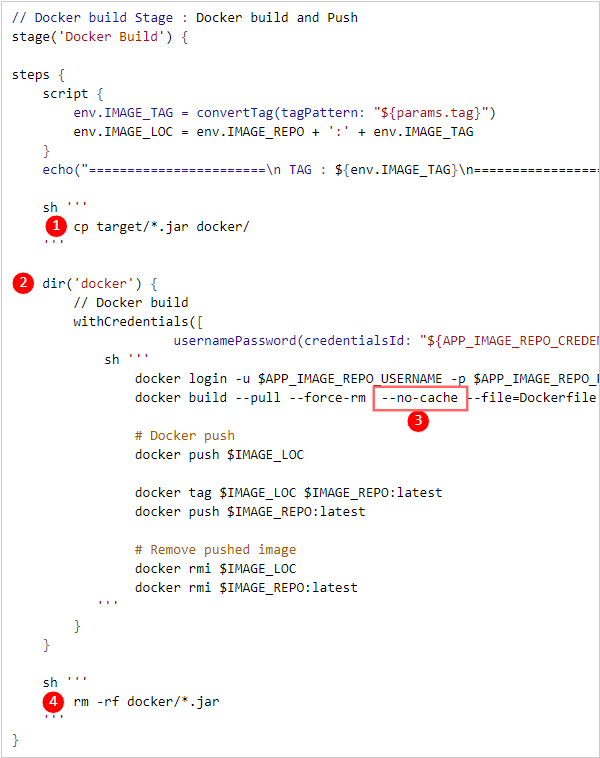
Example Script

The resulting build pipeline script from the example is as follows.

Example Script
Figure. Docker Build Example Script
ItemDescription
Pre-build command
Image build folder
Image build option
Post-build command
Table. Docker Build Example Script Description

Deploy to K8S

This stage deploys to Kubernetes.

Select Deploy to K8S as the stage type.

Item
Description
TypeSelect deployment type
  • Helm Release (Helm Chart Type)
  • Workload
  • ArgoCD
K8S ClusterSelect K8S cluster
  • Helm Release (Helm Chart Type) selection will display a list of Helm releases deployed through DevOps Console.
NamespaceSelect namespace.
Helm ReleaseSelect Helm release.
Deployment MethodSelect deployment method
  • Recreate
  • Rolling Update
Registry URLSelect the image repository where the image to be deployed to Kubernetes is docker pushed.
SecretSelect secret information input method
  • Auto Generation: Automatically generate and use the secret corresponding to the selected image repository in DevOps Console.
  • Use Existing Secret: Use a pre-created secret through K8S secret management.
Table. Deploy to K8S Stage Input Items

Deploy to VM

This stage deploys to a VM.

Select Deploy to VM as the stage type.

ItemDescription
Deployment ConfigurationSelect the deployment configuration method
  • Deployment target setting (using SSH command/Agent): Deploy using SSH command or Agent.
  • Direct script writing: Users directly input all commands for deployment.
Deployment GroupSelect the deployment group
Deployment InformationContents saved in the deployment group are automatically set.
Manual DeploymentSelect the default value for manual deployment
  • Please select the default setting value for manual deployment-related parameters when running the pipeline.
Table. Deploy to VM Stage Input Items

Trigger Build

This stage remotely executes a pipeline.

Select Trigger Build as the stage type.

ItemDescription
Target PipelineSelect the target pipeline to execute remotely.
The available items vary depending on the development/operation distinction of the pipeline.
Parameter InformationExposed depending on the parameter setting of the target pipeline.
The parameter information entered at the time of pipeline execution is used.
Table. Trigger Build Stage Input Items

Remote Execution Information Check

Remote execution information (upper/lower pipeline) through the Trigger Build stage can be checked on the Build Details View screen.

Other Stages

ItemDescription
ArchiveArchives the application build result. The archived file can be downloaded from Jenkins.
Code QualityStage for executing the Code Quality step.
CustomThe user writes the pipeline script directly in the desired format.
Table. Other Stage Setting Items

2 - Multibranch Pipeline

Note
For more detailed information on Jenkins multibranch pipeline, please refer to the official website.

Users can manage multiple branches of a code repository as a single job through the multibranch pipeline.

Getting Started with Multibranch Pipeline

To start using the multibranch pipeline, follow these steps:

  1. Main page, click the Project card. Move to the Project Dashboard page.
  2. Click the Build/Deployment > Build Pipeline menu on the left. Move to the Build Pipeline page.

Adding a Multibranch Pipeline

To add a multibranch pipeline, follow these steps:

  1. Main page, click the Project card. Move to the Project Dashboard page.
  2. Click the Build/Deployment > Build Pipeline menu on the left. Move to the Build Pipeline page.
  3. On the Build Pipeline page, click the Add Multibranch Pipeline button at the top right. The Add Multibranch Pipeline popup window opens.
  4. In the Add Multibranch Pipeline popup window, enter each item and click the Save button.
ItemDescription
TypeSelect the development and operation distinction
Jenkins URLSelect Jenkins to add a multibranch pipeline from the list.
Folder TypeSelect the folder type
  • Existing folder: Add a pipeline under an existing folder in Jenkins.
  • New folder: Create a new folder in Jenkins and add a pipeline under it.
Folder NameSelect a folder from the list or enter the name of the new folder to be created.
Pipeline NameEnter the pipeline name.
Git RepositorySelect the code repository to perform branch-based builds.
Only code repositories registered in the DevOps Console project can be selected.
Branch FilteringFilter the branch names to be built from the registered branches in the code repository.
If filtering is used, enter the filtering conditions in Java regular expression format.
Jenkinsfile PathEnter the path to the Jenkinsfile that defines the pipeline build in the code repository.
Table. Multibranch Pipeline Addition Information Input Items

Managing Multibranch Pipelines

Multibranch Pipeline List

ItemDescription
Multibranch Icon and LabelThe icon and label representing the multibranch pipeline are displayed.
URLMove to the Multibranch Pipeline page in Jenkins.
Scan LogThe Multibranch Pipeline Scan Log popup window opens.
ScanScan the multibranch pipeline.
MoreDisplay additional menus.
  • Pipeline modification
  • Pipeline deletion
  • Build history
Table. Multibranch Pipeline List Screen Items

Scanning a Multibranch Pipeline

To scan a multibranch pipeline, follow these steps:

  1. On the Build Pipeline page, click the Scan button on the multibranch pipeline card you want to scan.
  2. In the confirmation popup window, click the Confirm button.

Viewing Multibranch Pipeline Scan Logs

To view the scan logs of a multibranch pipeline, follow these steps:

  1. On the Build Pipeline page, click the Scan Log button on the multibranch pipeline card you want to view the scan log for. The Multibranch Pipeline Scan Log popup window opens.
  2. In the Multibranch Pipeline Scan Log popup window, check the contents and click the Confirm button to close.

Viewing Multibranch Pipeline Build History

To view the branch-based build history of a multibranch pipeline, follow these steps:

  1. On the Build Pipeline page, click the More icon on the multibranch pipeline card you want to view the build history for.
  2. Click the Build History menu. Move to the Branch-based Build History screen in Jenkins (Not provided by DevOps Console).

Modifying a Multibranch Pipeline

To modify a multibranch pipeline, follow these steps:

  1. On the Build Pipeline page, click the More icon on the multibranch pipeline card you want to modify.
  2. Click the Pipeline Modification menu. Move to the Settings screen in Jenkins (Not provided by DevOps Console).

Deleting a Multibranch Pipeline

To delete a multibranch pipeline, follow these steps:

  1. On the Build Pipeline page, click the More icon on the multibranch pipeline card you want to delete.
  2. Click the Pipeline Deletion menu. The Pipeline Deletion popup window opens.
  3. In the Pipeline Deletion popup window, select whether to delete the pipeline in Jenkins together and click the Confirm button.
Note

Delete pipeline in Jenkins together

  • Selected: The pipeline is actually deleted in Jenkins.
  • Not selected: The pipeline is deleted only from the Build Pipeline list and remains in Jenkins.