This is the multi-page printable view of this section. Click here to print.
Build/Deployment
- 1: Build Pipeline
- 1.1: Stage
- 1.2: Multibranch Pipeline
- 2: Kubernetes Deployment
- 2.1: Helm Release
- 2.2: Workload
- 2.3: Blue/Green Deployment
- 2.4: Canary Deployment
- 2.5: Istio
- 2.6: ArgoCD
- 3: VM Deployment
- 4: Helm Install
- 5: Ingress/Service Management
- 6: Managing Kubernetes Secrets
- 7: Environment Variable Management
1 - Build Pipeline
Jenkins pipeline, please refer to the official website.Users can combine a series of tasks into a pipeline. The pipeline configured here is created as a Jenkins pipeline.
Getting Started with Build Pipeline
To start using the build pipeline, follow these steps.
- Main page, click the Project card. Move to the Project Dashboard page.
- Click the Build/Deploy > Build Pipeline menu on the left. Move to the Build Pipeline page.
Adding a Build Pipeline
To add a build pipeline, follow the procedure below.
- Main page, click the Project card. Move to the Project Dashboard page.
- Click the Build/Deployment > Build Pipeline menu in the left menu. Move to the Build Pipeline page.
- On the Build Pipeline page, click the Add Pipeline button at the top right. Move to the Add Pipeline page.
- Enter/set each item on the Add Pipeline page.
- Click the Next button.
| Item | Description |
|---|---|
| Classification | Select development or operation classification
|
| Jenkins URL | Select Jenkins to add a build pipeline from the list. |
| Build Agent | Select the agent (build environment) where the build pipeline will run. Click the Info icon to view the list of tools provided by the agent. |
| Build Environment OS | Displays the OS information of the environment where the build agent runs. |
| Folder Type | Select the folder type.
|
| Folder | Select a folder from the list or enter the name of the new folder to be created. |
| Pipeline Name | Enter the pipeline name. |
| Parameter Setting | Set the parameters to be used in the pipeline. |
| Environment Variable Setting | Set the environment variables to be used in the pipeline. |
| Stage Setting | Set the stages to be used in the pipeline. |
| Build Result Email Recipient Setting | Set the recipient to receive the result email after the pipeline is completed (success/failure). |
Setting Parameters
To set parameters to use when running a pipeline, follow these steps:
- Parameters card should be clicked.
- Add button should be clicked to add parameters.
- Apply button should be clicked to complete parameter settings.
Setting Environment Variables
To set environment variables to be used in the pipeline, follow the procedure below.
- Environment Variables section, click. The Environment Variable Registration page opens on the right.
- A list of pre-registered Environment Variables appears, and select the checkbox of the environment variable to be used.
- Check the Selected Environment Variables and click the Apply button to complete the environment variable setting.
Setting Stages
To set up stages to be used in the pipeline, follow these steps.
- Click the New Stage card. The Stage area appears on the right.
- In the Stage area, select the Tool and Stage type.
- Enter the necessary information according to the stage type and click the Apply button to complete the stage setup.
For more information about stage settings, see Stage.
Setting Build Result Email Recipients
To set up the recipient to receive the build result by email, follow the procedure below.
- Email Recipient area, click. The Add Email Recipient page opens on the right.
- In the Search area, search for and add the recipient.
- Click the Apply button to complete the email recipient setting.
Checking the Final Pipeline Script
- Check the actual build pipeline script to be created. Modify the script directly if necessary.
- Click the Complete button to complete adding the pipeline.
Pipeline Addition Result
- The added result appears on the Build Pipeline page.
Managing Build Pipelines
Build Pipeline List
| Item | Description |
|---|---|
| Status | Displays the status of the build pipeline.
|
| URL | Moves to the Jenkins Build Pipeline page. |
| Recent Build Execution History URL | Moves to the Jenkins Build Execution History page. |
| Log | Opens the Pipeline Log popup window. |
| Run | Runs the build pipeline. |
| More | Displays additional menus.
|
| Pipeline Stage View | Click the Expand icon to expand the stage view. |
Build Pipeline Authentication
When performing build pipeline actions (execution, stop, modification, deletion, etc.), user authentication information may be required, so it may be requested from the user in some cases.
IDP-Linked Jenkins
If you are not registered as a Jenkins user, a User Registration Guide popup window opens, click the Go to Jenkins link to proceed with User Registration or Jenkins Initial Login.
IDP-Unlinked Jenkins
If Jenkins authentication information is not stored, a Add Account popup window opens, select Existing User Use or New User Creation in Account Type to add authentication information.
Running a Build Pipeline
To run a build pipeline, follow these steps.
- On the Build Pipeline page, click the Run button of the build pipeline you want to run.
- If there are parameters (parameters), the Pipeline Run Parameter Input popup window opens.
- Enter the necessary items and click the OK button.
If the Number of executors item in the Built-In Node of Jenkins system settings is set to 1 or more, pipeline execution may not be possible due to security issues.
- In this case, you need to contact the Jenkins administrator to change the settings.
- You can use it by changing the Number of executors item of the Built-In Node in the Jenkins management menu to 0.
- Note Jenkins officially recommends avoiding build execution on the Controller Node.
Viewing Build Pipeline Execution Logs
To view the build pipeline execution log, follow these steps.
- On the Build Pipeline page, click the Log button of the build pipeline you want to run.
- The Pipeline Log popup window opens, and you can check the execution log.
Viewing Build Pipeline Build History
To view the entire build history of a build pipeline, follow these steps.
- On the Build Pipeline page, click the More icon of the build pipeline you want to check.
- Click the Build History menu. The Build History page opens.
| Item | Description |
|---|---|
| Config Diff | Opens the Config Diff popup window. |
| Log | Opens the Pipeline Log popup window. |
| More Menu | Moves to the Build Details page. |
| Pipeline Stage View | Click the Expand icon to expand the stage view. |
Comparing Settings
You can compare settings with previous build history using the Config Diff button.
Viewing Logs
You can check the log of the build history using the Log button.
Viewing Build Details
You can check the build details by clicking the More icon.
Modifying a Build Pipeline
To modify a build pipeline, follow these steps.
- On the Build Pipeline page, click the More icon of the build pipeline you want to modify.
- Click the Pipeline Modification button. Move to the Pipeline Modification page.
Modifying the Script Directly
To modify the pipeline script directly, follow these steps.
- In the script editor window on the Pipeline Modification page, enter the script directly in the syntax supported by
Jenkins. - After entering, click the Save button to complete the pipeline modification.
Modifying Using the Script Generator Function
To modify the pipeline script using the Script Generator function, follow these steps.
- On the Pipeline Modification page, change the Script Generator to ON.
- Select the Build Agent and Script Type.
- Proceed with the Stage Setting and click the Script Generation button to generate the script.
- Refer to the generated script to modify the pipeline and click the Save button to complete the pipeline modification.
| Item | Description |
|---|---|
| Script Generator | Turn the Script Generator function ON/OFF. |
| Script Basic Information | Select the basic information for script generation. |
| Existing Script | Existing script. |
| New Script | New script generated through the Script Generator. |
| Script Modification | Modify the existing script on the left by referring to the new script generated. |
| Jenkins Credential Update | If there is new authentication information in the newly generated script, click the Jenkins Credential Update button. Update (save) the authentication information to Jenkins. |
| K8S Secret Update | In the case of the Deploy to K8S stage, if the K8S Secret is changed, click the K8S Secret Update button. Update (save) the Secret to be used when creating and deploying. |
Cloning a Build Pipeline
To clone a build pipeline, follow these steps.
- Click the More icon of the build pipeline you want to clone.
- Click the Clone Pipeline menu. Opens the Clone Pipeline popup window.
- Enter the information and click the Save button to complete the pipeline clone.
| Item | Description |
|---|---|
| Pipeline Clone Information | Enter the information of the pipeline to be cloned. |
| Pipeline Modification | Modify the pipeline to be cloned. |
Deleting a Build Pipeline
To delete a build pipeline, follow these steps.
- On the Build Pipeline page, click the More icon of the build pipeline you want to delete.
- Click the Pipeline Deletion menu. The Pipeline Deletion popup window opens.
- In the Pipeline Deletion popup window, click the OK button to complete the pipeline deletion.
Jenkins pipeline is also deleted together
- Selected: The pipeline is actually deleted from
Jenkins. - Not selected: Only deleted from the Build Pipeline list and remains in
Jenkins.
1.1 - Stage
The user can check the description of stage types and each stage item.
You can set up a stage in Add Build Pipeline or Modify Build Pipeline.
Common Items
The Stage Setting page is composed as follows.
| Item | Description |
|---|---|
| Tools | Used to select and use specific tools other than the default tools set in the stage
|
| Stage Type | Select the required stage from the list and enter the necessary information. |
| Stage Name | Enter the stage name. |
Checkout
This stage performs the checkout command in the Git repository registered in the code repository.
Select Checkout as the stage type.
| Item | Description |
|---|---|
| URL | Select the code repository to perform the checkout command. |
| Branch Name | Enter the branch name to checkout. |
Build
This stage executes the command to build the application.
Select Build as the stage type.
| Item | Description |
|---|---|
| Language | Select the programming language used by the application. |
| Build Tool | Select the build tool used to build the application. A basic shell command is provided depending on the selected build tool. |
| Shell Command | Enter the command to use for building the application. All commands available in the shell can be used. |
Docker Build
This stage builds a Docker image.
Select Docker Build as the stage type.
Item | Description | Example |
|---|---|---|
Registry URL (docker push) | Select the image repository where the completed Docker build result image will be pushed. | |
| ID | ID value of the account to be used in the image repository | |
| Image Tag Pattern | The Docker image tag will be automatically generated based on the selected pattern.
|
|
| Add Base Image Repository | The Add Base Image Repository popup window will open.
| |
Registry URL (docker pull) | If the image repository providing the base image (Dockerfile’s FROM clause, docker pull) used in the Dockerfile and the image repository of the Registry URL (docker push) are different, select the image repository for docker pull. | |
| Image Build Tool | Displays the image build tool. | |
| Pre-build Command | If there are commands that must be executed before building the Docker image, write them in Shell command format. | cp target/*.jar docker/ |
| Image Build Folder | If the Docker image build needs to be executed in a specific folder, select the checkbox and enter the folder path. | docker |
| Dockerfile | Enter the Dockerfile file name. | Dockerfile |
| Image Build Options | If additional options are required for the image build tool, enter them. | --no-cache |
| Build Command | Displays the actual image build command to be executed. | |
| Post-build Command | If there are commands that must be executed after building the Docker image, write them in Shell command format. | rm -rf docker/*.jar |
Example Script
The resulting build pipeline script from the example is as follows.
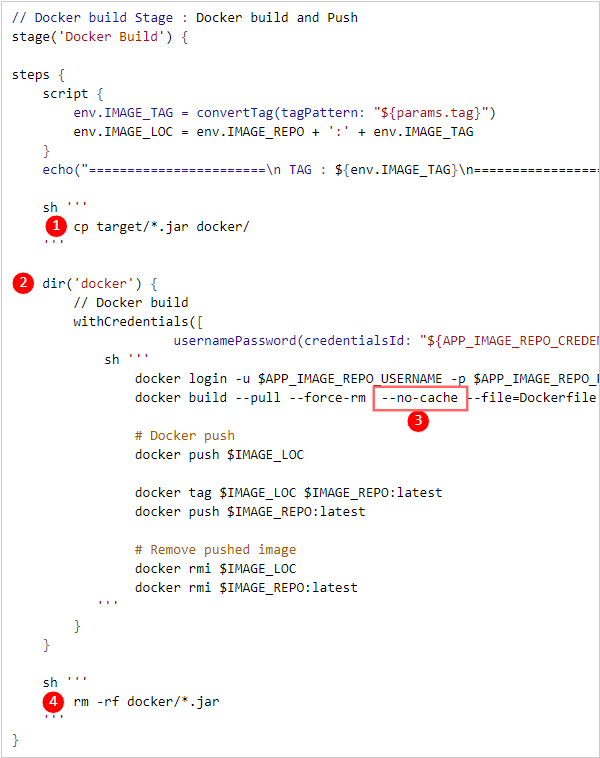
| Item | Description |
|---|---|
➊ | Pre-build command |
➋ | Image build folder |
➌ | Image build option |
➍ | Post-build command |
Deploy to K8S
This stage deploys to Kubernetes.
Select Deploy to K8S as the stage type.
Item | Description |
|---|---|
| Type | Select deployment type
|
| K8S Cluster | Select K8S cluster
|
| Namespace | Select namespace. |
| Helm Release | Select Helm release. |
| Deployment Method | Select deployment method
|
| Registry URL | Select the image repository where the image to be deployed to Kubernetes is docker pushed. |
| Secret | Select secret information input method
|
Deploy to VM
This stage deploys to a VM.
Select Deploy to VM as the stage type.
| Item | Description |
|---|---|
| Deployment Configuration | Select the deployment configuration method
|
| Deployment Group | Select the deployment group
|
| Deployment Information | Contents saved in the deployment group are automatically set. |
| Manual Deployment | Select the default value for manual deployment
|
Trigger Build
This stage remotely executes a pipeline.
Select Trigger Build as the stage type.
| Item | Description |
|---|---|
| Target Pipeline | Select the target pipeline to execute remotely. The available items vary depending on the development/operation distinction of the pipeline. |
| Parameter Information | Exposed depending on the parameter setting of the target pipeline. The parameter information entered at the time of pipeline execution is used. |
Remote Execution Information Check
Remote execution information (upper/lower pipeline) through the Trigger Build stage can be checked on the Build Details View screen.
Other Stages
| Item | Description |
|---|---|
| Archive | Archives the application build result. The archived file can be downloaded from Jenkins. |
| Code Quality | Stage for executing the Code Quality step. |
| Custom | The user writes the pipeline script directly in the desired format. |
1.2 - Multibranch Pipeline
Users can manage multiple branches of a code repository as a single job through the multibranch pipeline.
Getting Started with Multibranch Pipeline
To start using the multibranch pipeline, follow these steps:
- Main page, click the Project card. Move to the Project Dashboard page.
- Click the Build/Deployment > Build Pipeline menu on the left. Move to the Build Pipeline page.
Adding a Multibranch Pipeline
To add a multibranch pipeline, follow these steps:
- Main page, click the Project card. Move to the Project Dashboard page.
- Click the Build/Deployment > Build Pipeline menu on the left. Move to the Build Pipeline page.
- On the Build Pipeline page, click the Add Multibranch Pipeline button at the top right. The Add Multibranch Pipeline popup window opens.
- In the Add Multibranch Pipeline popup window, enter each item and click the Save button.
| Item | Description |
|---|---|
| Type | Select the development and operation distinction
|
| Jenkins URL | Select Jenkins to add a multibranch pipeline from the list. |
| Folder Type | Select the folder type
|
| Folder Name | Select a folder from the list or enter the name of the new folder to be created. |
| Pipeline Name | Enter the pipeline name. |
| Git Repository | Select the code repository to perform branch-based builds. Only code repositories registered in the DevOps Console project can be selected. |
| Branch Filtering | Filter the branch names to be built from the registered branches in the code repository. If filtering is used, enter the filtering conditions in Java regular expression format. |
| Jenkinsfile Path | Enter the path to the Jenkinsfile that defines the pipeline build in the code repository. |
Managing Multibranch Pipelines
Multibranch Pipeline List
| Item | Description |
|---|---|
| Multibranch Icon and Label | The icon and label representing the multibranch pipeline are displayed. |
| URL | Move to the Multibranch Pipeline page in Jenkins. |
| Scan Log | The Multibranch Pipeline Scan Log popup window opens. |
| Scan | Scan the multibranch pipeline. |
| More | Display additional menus.
|
Scanning a Multibranch Pipeline
To scan a multibranch pipeline, follow these steps:
- On the Build Pipeline page, click the Scan button on the multibranch pipeline card you want to scan.
- In the confirmation popup window, click the Confirm button.
Viewing Multibranch Pipeline Scan Logs
To view the scan logs of a multibranch pipeline, follow these steps:
- On the Build Pipeline page, click the Scan Log button on the multibranch pipeline card you want to view the scan log for. The Multibranch Pipeline Scan Log popup window opens.
- In the Multibranch Pipeline Scan Log popup window, check the contents and click the Confirm button to close.
Viewing Multibranch Pipeline Build History
To view the branch-based build history of a multibranch pipeline, follow these steps:
- On the Build Pipeline page, click the More icon on the multibranch pipeline card you want to view the build history for.
- Click the Build History menu. Move to the Branch-based Build History screen in Jenkins (Not provided by DevOps Console).
Modifying a Multibranch Pipeline
To modify a multibranch pipeline, follow these steps:
- On the Build Pipeline page, click the More icon on the multibranch pipeline card you want to modify.
- Click the Pipeline Modification menu. Move to the Settings screen in Jenkins (Not provided by DevOps Console).
Deleting a Multibranch Pipeline
To delete a multibranch pipeline, follow these steps:
- On the Build Pipeline page, click the More icon on the multibranch pipeline card you want to delete.
- Click the Pipeline Deletion menu. The Pipeline Deletion popup window opens.
- In the Pipeline Deletion popup window, select whether to delete the pipeline in Jenkins together and click the Confirm button.
Delete pipeline in Jenkins together
- Selected: The pipeline is actually deleted in Jenkins.
- Not selected: The pipeline is deleted only from the Build Pipeline list and remains in Jenkins.
2 - Kubernetes Deployment
The user can check the list of Helm releases used in the project and the deployment status. It appears in the development/operation list when creating a project or installing a chart, depending on the development classification.
The user can check the deployment by distinguishing it with an icon.
 Helm Chart
 Istio
Istio Workload
 Canary
 Blue-Green
 ArgoCD
Getting Started with Kubernetes Deployment
To start using Kubernetes deployment, follow the procedure below.
- Main page, click the Project card. Move to the Project Dashboard page.
- In the left menu, click the Build/Deploy > Kubernetes Deployment menu. Move to the Kubernetes Deployment page.
2.1 - Helm Release
Helm Release is an instance of a chart running in a Kubernetes cluster. Users can create a Helm Release when creating a project or through the Helm Install menu.
Getting Started with Helm Release
To get started with Helm Release, follow these steps:
- Main page, click the Project card. Move to the Project Dashboard page.
- In the left menu, click Build/Deploy > Kubernetes Deploy. Move to the Kubernetes Deploy page.
Item Description Name Displays the deployment name. Click to view detailed information. Chart Displays information about the Helm chart used for deployment. Cluster/Namespace Displays the cluster/namespace where the deployment is located. Pod Status Displays the current status of the Pod. Deployment Result Displays the result of the deployment execution. Deployment Time Displays the deployment execution time. Refresh Refreshes the current item. The items that change are Pod status, deployment result, and deployment time. Delete Deletes the current item. Table. Helm Release Items - On the Kubernetes Deploy page, click the Name in the Helm Release list. Move to the Deployment Details page.
Adding Helm Release
Helm Install
You can add a Helm Release through Helm Install.
Adding Related Helm Release
To add a related Helm Release, follow these steps:
- Main page, click the Project card. Move to the Project Dashboard page.
- In the left menu, click Build/Deploy > Kubernetes Deploy. Move to the Kubernetes Deploy page.
- Click the Add Related Helm Release button. The Add Related Helm Release popup window opens.
- In the Add Related Helm Release popup window, enter each item.
- Click the Save button to complete adding the Helm Release.
| Item | Description |
|---|---|
| Helm Release already registered in the project | Displays the Helm Release already registered in the project.
|
Managing Helm Release Secrets
Getting Started with Helm Release Secrets
Helm Release Secrets allows you to manage the ImagePull Secret used for the image deployed through the build pipeline.
To get started with Helm Release Secrets, follow these steps:
- On the Deployment Details page, click the Edit Authentication Information icon to the right of Helm Release.
- The Helm Release Secrets popup window opens.
Adding Helm Release Secrets
To add a Helm Release Secret, follow these steps:
- On the Deployment Details page, click the Edit Authentication Information icon to the right of Helm Release. The Helm Release Secrets popup window opens.
- In the Helm Release Secrets popup window, if you need to add a secret to pull a private chart image, click the Add button in the Chart Install Secret section. The Add Secret popup window opens.
- If you need to add a secret to pull the app image used for build/deploy, click the Add button in the ImagePull Secret section. The Add Secret popup window opens.
- In the Add Secret popup window, enter the secret-related content and click the Save button to complete the addition.
| Item | Description |
|---|---|
| Registry URL | Select the image to use for ImagePull Secret from the image list in the image repository. |
| Secret | Select the method for entering secret information
|
Modifying Helm Release Secrets
To modify a Helm Release Secret, follow these steps:
- On the Deployment Details page, click the Edit Authentication Information icon to the right of Helm Release. The Helm Release Secrets popup window opens.
- In the Helm Release Secret list, click the name of the secret you want to modify. The Modify Secret popup window opens.
- Modify the content and click the Save button to complete the modification.
Deleting Helm Release Secrets
To delete a Helm Release Secret, follow these steps:
- On the Deployment Details page, click the Edit Authentication Information icon to the right of Helm Release. The Helm Release Secrets popup window opens.
- In the Helm Release Secret list, click the name of the secret you want to delete.
- Click the Delete button to complete the deletion.
Modifying K8S Authentication Information
K8S authentication information refers to the authentication information used to verify the authority to use the K8S cluster/namespace when performing deployment in the build pipeline.
To modify the K8S authentication information, follow the procedure below.
- Deployment Details page, click the Edit Authentication Information icon to the right of K8S Cluster/Namespace. The Edit Authentication Information popup window will open.
- The authentication information is fixed to the account of the logged-in user. Click the Save button to modify it.
- In the confirmation popup window, click the Confirm button.
- The K8S authentication information will be changed to the logged-in user.
Checking values.yaml used in Helm Release
To check the contents of values.yaml, follow these steps:
- On the Deployment Details page, click the History tab.
- In the Values column, click the View icon. The Revision # - Values.yaml popup window opens.
- Check the contents of the
values.yamlfile.
Comparing values.yaml used in Helm Release
To compare the contents of values.yaml used in each release, follow these steps:
- On the Deployment Details page, click the History tab.
- In the list, select the checkboxes of the two revisions you want to compare.
- Click the Yaml Diff button. The Yaml Diff popup window opens.
- In the Yaml Diff (Revision #>#) popup window, check the comparison contents.
Rolling Back Helm Release
To roll back a Helm Release to a previous revision, follow these steps:
- On the Deployment Details page, click the History tab.
- Click the Rollback button for the revision you want to roll back. The Rollback popup window opens.
- Click the Confirm button to complete the rollback.
Upgrading Helm Release
To upgrade a Helm Release, follow these steps:
- On the Deployment Details page, click the History tab.
- In the Values column, click the View icon. The Revision # - Values.yaml popup window opens.
- Modify the contents of the current Values.yaml and click the Upgrade button. The Upgrade popup window opens.
- Check the information being upgraded.
- Click the Execute button to complete the upgrade.
Viewing Pod Logs
To view the logs of Pods related to Helm Release, follow these steps:
- On the Deployment Details page, click the Release Objects tab.
- In the Pod Items section, click the LOG icon in the LOG column. The Log popup window opens.
| Item | Description |
|---|---|
| Container | Select the container for which you want to output logs. |
| Real-time Refresh | Refreshes the log output in real-time. |
| Stop Refresh | Stops real-time refresh. |
| Download | Downloads the Pod log as a file. |
Deleting Helm Release
To delete a Helm Release, follow these steps:
- On the Deployment Details page, click the Delete button at the bottom right of Helm Release. The Delete Helm Release popup window opens.
- Click the Confirm button to complete the deletion.
Also execute the Helm delete command
- Selected: The Helm Release is actually deleted from the cluster.
- Not selected: Only deleted from the Kubernetes Deploy list and remains in the cluster.
2.2 - Workload
A workload is an application that runs on Kubernetes, and users can add workloads to the DevOps Console for management.
The workload types manageable from DevOps Console are Deployment, StatefulSet, DaemonSet.
Start Workload
To start using the workload, follow the steps below.
- Click the Project card on the Main page. It moves to the Project Dashboard page.
- Click the Build/Deploy > Kubernetes Deploy menu in the left menu. You will be taken to the Kubernetes Deploy page.
- Kubernetes Deployment On the page, click the name of the workload.
Item Description Workload Type Displays the workload type. DeploymentStatefulSetDaemonSet
Name Displays the workload name. Click to view detailed information. Chart Displays the Helm chart information used for deployment. Cluster/Namespace Displays the deployed cluster/namespace. Pod status Displays the current status of the Pod. Deployment Result Displays the deployment execution result. Deployment Time Displays the deployment execution time. Refresh Refresh the current item. The items that change are Pod status, deployment result, deployment time. Delete Deletes the current item. Table. Workload screen items
Add workload
To add a workload, follow the procedure below.
- Main page, click the Project card. It moves to the Project Dashboard page.
- In the left menu, click the Build/Deploy > Kubernetes Deployment menu. It moves to the Kubernetes Deployment page.
- On the Kubernetes Deployment page, click the Add Workload menu. The Add Workload popup window opens.
- In the Add Workload popup window, enter the information and click the Save button.
- In the confirmation popup window, click the Confirm button to complete adding the workload.
Item | Description |
|---|---|
| Target to be retrieved | Only workloads deployed with the same image as the base image of the App template used when creating the project for the first time are displayed. |
| Workload already registered in the project | It shows the workload already registered in the project.
|
K8S Modify authentication information
K8S authentication information refers to the authentication information used to verify the authority to use the K8S cluster/namespace when performing deployment in the build pipeline.
To modify the K8S authentication information, follow the procedure below.
- Deployment Details page, click the Edit Authentication Information icon to the right of K8S Cluster/Namespace. The Edit Authentication Information popup window will open.
- The authentication information is fixed to the account of the logged-in user. Click the Save button to modify it.
- In the confirmation popup window, click the Confirm button.
- The K8S authentication information will be changed to the logged-in user.
Rollback workload
To roll back the workload to a previous image, follow the steps below.
- On the Main page, click the Project card. It navigates to the Project Dashboard page.
- In the left menu, click the Build/Deploy > Kubernetes Deploy menu. You will be taken to the Kubernetes Deploy page.
- Kubernetes deployment page, click the workload name to roll back. You will be taken to the workload details page.
- Click the Details tab of the Workload Details page.
- Detailed Information tab list, click the Rollback button in the row that has the image you want to rollback. Rollback popup window opens.
- Rollback Click the button in the popup window in the desired way to complete the rollback.
- Recreate
- Rolling Update
Add distribution result recipient
To add a distribution result recipient, follow the steps below.
- Click the Deployment Result Recipients tab on the Workload Details page.
- Click the Add button on the Distribution Result Recipient tab. The Add Distribution Result Recipient popup opens.
- Add distribution result recipients In the popup window, select the target and click the Confirm button to complete adding distribution result recipients.
- Search button or click the list to add the recipient to the bottom of the popup.
- Added recipients can be deleted by clicking the X icon on the right.
Delete workload
To delete the workload, follow the steps below.
- Click the X icon of the workload to delete on the Kubernetes Deployment page.
- In the confirmation popup, click the Confirm button to complete the deletion.ReferenceWorkloads are not deleted in the actual cluster.
If you want to delete in the actual cluster, delete it using the method you originally deployed the workload.
2.3 - Blue/Green Deployment
Users can perform blue/green deployments using Ingress or Service.
Adding a blue/green deployment means creating a new K8S Ingress or K8S Service that can replace two Helm releases with each other.
Only two Helm releases with the same Project, Cluster, Namespace, Release Type, Chart Name, Chart Version, and Development Classification can be linked.
Getting Started with Blue/Green Deployment
To start using blue/green deployment, follow these steps:
- Click the Project card on the Main page. You will be moved to the Project Dashboard page.
- Click the Build/Deployment > Kubernetes Deployment menu on the left. You will be moved to the Kubernetes Deployment page.Item
Description Name Displays the name of the blue/green deployment. Click to view detailed information. Cluster/Namespace Displays the cluster/namespace where the deployment is deployed. (Operation) Displays information about the currently operating Helm release. (Pre-operation) Displays the Helm release that will be the next version of the operation. When using blue/green replacement, the pre-operation becomes the operation. Delete Deletes the current item. Table. Kubernetes Deployment Screen Blue/Green Deployment Card Items - On the Kubernetes Deployment page, click the name of the blue/green deployment you want to start in the deployment list. You will be moved to the Deployment Details page.
Adding Blue/Green Deployment
To add a blue/green deployment, follow these steps:
- Click the Project card on the Main page. You will be moved to the Project Dashboard page.
- Click the Build/Deployment > Kubernetes Deployment menu on the left. You will be moved to the Kubernetes Deployment page.
- Click the Add Blue/Green Deployment button at the top right of the Kubernetes Deployment page. The Add Blue/Green Deployment popup window will open.
- Enter the information in the Add Blue/Green Deployment popup window and click the Save button to complete the addition of the blue/green deployment.
Item | Description |
|---|---|
| Classification | Select development or operation
|
| Blue/Green Deployment Name | Enter the deployment name. |
| Operation | Select the release and Jenkins job
|
| Pre-operation | Select the release and Jenkins job
|
| K8S Cluster/Namespace | Displays the K8S cluster/namespace where the Helm release is installed. |
| Type Classification | Choose whether to use Ingress or Service to switch blue/green. |
| New Classification | Choose whether to create a new Ingress or Service or use an existing one. |
| Name | Enter the name
|
| Service (Operation) | Select the Kubernetes Service related to the currently operating Helm release from the list. |
| Service (Pre-operation) | Select the Kubernetes Service related to the Helm release to be reflected in the next version of the operation from the list. |
| Rules | Enter the information to be used in Ingress. |
| Item | Description |
|---|---|
| Type | Select the type of Kubernetes Service from the list
|
| Deployment (Operation) | Select the Kubernetes Deployment related to the currently operating Helm release from the list. |
| Deployment (Pre-operation) | Select the Kubernetes Deployment related to the Helm release to be reflected in the next version of the operation from the list. |
| Ports | Enter the information to be used in Service. |
Switching Blue/Green
To switch blue/green, follow these steps:
- Click the Blue/Green Switch button on the Deployment Details page. The Blue/Green Switch popup window will open.
- Click the Confirm button in the Blue/Green Switch popup window to complete the blue/green switch.
- The Helm releases for operation and pre-operation are swapped with each other.
- The switch history is added.
Checking YAML of Ingress or Service Used in Blue/Green Deployment
To check the YAML of the Ingress or Service used in blue/green, follow these steps:
- Click the View icon of Ingress YAML or Service YAML on the Deployment Details page. The Ingress YAML or Service YAML popup window will open.
- Check the contents in the Ingress YAML or Service YAML popup window and click the Confirm button to close.
Managing Jenkins Job of Blue/Green Deployment
Viewing Jenkins Job Log
To view the Jenkins job log, follow these steps:
- Click the Log button in the Jenkins job item of the desired release on the Deployment Details page. The Pipeline Log popup window will open.
- Check the log in the Pipeline Log popup window and click the Confirm button.
Running Jenkins Job
To run a Jenkins job, follow these steps:
- Click the Run button in the Jenkins job item of the desired release on the Deployment Details page. The Pipeline Run Parameter Input popup window will open.
- Enter or select each item in the Pipeline Run Parameter Input popup window and click the Confirm button to complete the Jenkins job run.
Modifying Blue/Green Deployment
To modify a blue/green deployment, follow these steps:
- Click the Modify button on the Deployment Details page. The Modify Blue/Green Deployment popup window will open.
- Modify the desired items in the Modify Blue/Green Deployment popup window and click the Save button to complete the modification.
Deleting Blue/Green Deployment
To delete a blue/green deployment, follow these steps:
- Click the Delete button on the Deployment Details page. The Delete Blue/Green Deployment popup window will open.
- Select whether to execute the Ingress/Service Deletion Command and click the Confirm button to complete the deletion.
Ingress/Service Deletion Command
- Selected: The Ingress or Service used in the blue/green deployment is actually deleted from the cluster.
- Not selected: The Ingress or Service used in the blue/green deployment is not deleted and remains in the cluster.
2.4 - Canary Deployment
Users can add canary deployments.
Canary addition refers to setting up two Helm releases to be bundled for canary testing.
Project, Cluster, Release Type, Chart Name, Chart Version, and Development Classification must all be the same for two Helm releases to be bundled.
Getting Started with Canary Deployment
To start using canary deployment, follow these steps:
- Click the Project card on the Main page to go to the Project Dashboard page.
- Click Build/Deployment > Kubernetes Deployment in the left menu to go to the Kubernetes Deployment page.
Item Description Name Displays the canary name. Click to view detailed information. Cluster Displays the deployed cluster. (Operation) Displays the currently operating Helm release. (Canary) Displays the canary Helm release. Terminate Terminates the canary. Table. Kubernetes Deployment Screen Canary Card Items - Click the name of the canary you want to use on the Kubernetes Deployment page’s deployment list to go to the Deployment Details page.
Adding a Canary
To add a canary, follow these steps:
Canary is supported in the following environments. Check before adding a canary.
Kubernetesv1.17or highernginx-ingressv0.29.0or higher
- Click the Project card on the Main page to go to the Project Dashboard page.
- Click Build/Deployment > Kubernetes Deployment in the left menu to go to the Kubernetes Deployment page.
- Click the Add Canary button at the top right of the Kubernetes Deployment page. The Add Canary popup window opens.
- Enter information in the Add Canary popup window and click the Save button to complete adding the canary.
| Item | Description |
|---|---|
| Classification | Select development or operation.
|
| Canary Name | Enter the canary name. |
| Operation |
|
| Canary |
|
| K8S Cluster | Displays the K8S cluster where the Helm release is installed. |
| Ingress Annotation | Enter the annotation item you want to apply from the canary annotation provided by nginx-ingress. |
Checking Ingress YAML of Canary
To check the operating Ingress YAML and canary Ingress YAML used by the canary, follow these steps:
- Click the View icon for Operating Ingress YAML or Canary Ingress YAML on the Deployment Details page. The Ingress YAML popup window opens.
- Check the contents in the Ingress YAML popup window and click the OK button to close it.
Managing Jenkins Job of Canary
Viewing Jenkins Job Log
To view the Jenkins job log, follow these steps:
- Click the Log button for the Jenkins job item of the desired release on the Deployment Details page. The Pipeline Log popup window opens.
- Check the log in the Pipeline Log popup window and click the OK button.
Running Jenkins Job
To run a Jenkins job, follow these steps:
- Click the Run button for the Jenkins job item of the desired release on the Deployment Details page. The Pipeline Run Parameter Input popup window opens.
- Enter or select each item in the Pipeline Run Parameter Input popup window and click the OK button to complete running the Jenkins job.
Modifying Canary
To modify a canary, follow these steps:
- Click the Modify button on the Deployment Details page. The Modify Canary popup window opens.
- Modify the desired items in the Modify Canary popup window and click the Save button to complete the modification.
Recovering Canary
When the ingress annotation information of the operating release and canary release does not work normally due to changes in the Helm release, recover it to work again.
To recover a canary, follow these steps:
- Click the Recover button on the Deployment Details page. The Recover popup window opens.
- Click the OK button in the Recover popup window to complete the recovery.
Terminating (Deleting) Canary
To terminate a canary, follow these steps:
- Click the Terminate button on the Deployment Details page. The Terminate Canary popup window opens.
- Select the desired items in the Terminate Canary popup window and click the OK button to complete the termination.
Item | Description |
|---|---|
| Canary Release | Select the canary release
|
| Operation Release | Select the operation release
|
2.5 - Istio
GatewayVirtual ServiceDestination Rule
Getting Started with Istio
To start using Istio, follow these steps:
- Main page, click on the Project card. Move to the Project Dashboard page.
- In the left menu, click on Build/Deploy > Kubernetes Deploy. Move to the Kubernetes Deploy page.
Item Description Name Displays the Istio name. Click to view detailed information. Cluster/Namespace Displays the deployed cluster/namespace. Delete Deletes the current item. Table. Kubernetes Deploy page Istio card item - On the Kubernetes Deploy page, click on the name of the Istio you want to use. Move to the Istio Details page.
Adding Istio
To add Istio, follow these steps:
- Main page, click on the Project card. Move to the Project Dashboard page.
- In the left menu, click on Build/Deploy > Kubernetes Deploy. Move to the Kubernetes Deploy page.
- On the Kubernetes Deploy page, click the Add Istio button in the top right corner. The Add Istio popup window opens.
- In the Add Istio popup window, enter the information and click the Save button to add Istio.
| Item | Description |
|---|---|
| Type | Select development or operation. |
| K8S Cluster | Select a K8S cluster. |
| Namespace | Select a namespace. Only namespaces that can use Istio are displayed in the list. |
Although you have added Istio, you have not created an Istio object yet, so you cannot use the Istio-related functions yet.
Perform Create Wizard to add Istio object or Object addition to add Istio object to add an Istio object and use it.
Istio Objects
Adding Istio Objects
Using Create Wizard to Add Istio Objects
- On the Istio Details page, click on the Istio Objects tab.
- On the Istio Objects tab, click the Create Wizard button. Move to the Create Wizard page.
Helm Release
This is the step to select the Helm release to be used in Istio.
- On the Create Wizard page, click the Add button to select all Helm releases to be used in Istio.
- Click the Start button. The Gateway screen appears.
Gateway
Istio Gateway is the front-end object that receives traffic from outside.
- On the Create Wizard page, on the Gateway screen, select whether to create a Gateway.
- If you want to create a Gateway, enter each item.
- If you do not want to create a Gateway, select Skip object creation.
- Click the Next button. The Destination Rule screen appears.
| Item | Description |
|---|---|
| Name Prefix | Specify the prefix name for the Istio Gateway object to be created. |
| Host | Specify the domain of the Gateway object to be accessed from outside. |
Destination Rule
Destination Rule defines the traffic policy of Istio.
- On the Create Wizard page, on the Destination Rule screen, select whether to create a Destination Rule.
- If you want to create a Destination Rule, enter each item.
- If you do not want to create a Destination Rule, select Skip object creation.
- Click the Next button. The Virtual Service screen appears.
| Item | Description |
|---|---|
| Name Prefix | Enter the prefix name for the Istio Destination Rule object to be created. |
| Load Balancer | Select the load balancer method.
|
| Max Connections | Enter the maximum number of allowed connections. |
Virtual Service
Virtual Service plays a role in routing incoming traffic to a service.
- On the Create Wizard page, on the Virtual Service screen, enter each item if you want to create a Virtual Service.
- Click the Complete button to complete the creation of the Istio object using the Create Wizard.
| Item | Description |
|---|---|
| Name Prefix | Enter the prefix name for the Istio Virtual Service to be created. |
| Prefix-Uri | Enter the prefix URI to route traffic to the corresponding URI. |
| Helm Release Weight | If there are multiple Helm releases, enter the connection weight. The sum of each number must be 100. |
Using Object Addition to Add Istio Objects
- On the Istio Details page, click on the Istio Objects tab.
- On the Istio Objects tab, click the Object Addition button. The Object Addition popup window opens.
- In the Object Addition popup window, enter each item and click the Save button to complete the addition of the Istio object.
| Item | Description |
|---|---|
| Object | Select the object to be created
|
| Input | The input items vary depending on each object. Refer to the Create Wizard for input.
|
| Generate | Click the Generate button. A basic Yaml is created in the Yaml area based on the input above. |
| Yaml | Modify the basic Yaml to complete the final Yaml of the object you want to create. |
| Save | Click the Save button to create the object. |
Modifying Istio Objects
To modify an Istio object, follow these steps:
- On the Istio Details page, click on the Istio Objects tab.
- On the Istio Objects tab, click on the object you want to modify in the Istio object list. The Object popup window opens.
- In the Object popup window, modify the Yaml and click the Save button to complete the modification of the Istio object.
Deleting Istio Objects
To delete an Istio object, follow these steps:
- On the Istio Details page, click on the Istio Objects tab.
- On the Istio Objects tab, click on the object you want to modify in the Istio object list. The Object popup window opens.
- In the Object popup window, click the Delete button to complete the deletion of the Istio object.
Helm Release
Adding Helm Release
To add a Helm release used in Istio, follow these steps:
- On the Istio Details page, click on the Helm Release tab.
- On the Helm Release tab, click the Add button. The Add Helm Release popup window opens.
- In the Add Helm Release popup window, enter each item and click the Save button to complete the addition of the Helm release.
Deleting Helm Release
To delete a Helm release used in Istio, follow these steps:
- On the Istio Details page, click on the Helm Release tab.
- On the Helm Release tab, select the checkbox of the Helm release you want to delete and click the Delete button.
- In the confirmation popup window, click the Confirm button to complete the deletion of the Helm release.
Deleting Istio
To delete Istio, follow these steps:
- On the Istio Details page, click the Delete button at the bottom right.
- In the confirmation popup window, click the Confirm button to complete the deletion.
2.6 - ArgoCD
ArgoCD is a software used for GitOps deployment in a Kubernetes environment. Users can set up ArgoCD deployment when creating a project or through the Kubernetes deployment menu.
Getting Started with ArgoCD
To view the details of an ArgoCD application, follow these steps:
- Click the Project card on the Main page. You will be taken to the Project Dashboard page.
- Click the Build/Deploy > Kubernetes Deploy menu on the left. You will be taken to the Kubernetes Deploy page.
- Click the ArgoCD Application Card you want to start. You will be taken to the Deploy Details page.
Category | Item | Description |
|---|---|---|
| ArgoCD Application | Name | Displays the ArgoCD project name/ArgoCD URL. |
| Git Information | Displays the Git information used for deployment. | |
| Cluster/Namespace | Displays the deployed cluster/namespace. | |
| App Status | Displays the current status of the app. | |
| Deployment Result | Displays the current sync status. | |
| Deployment Time | Displays the deployment execution time. | |
| Refresh | Clicking the Refresh icon refreshes the current item. The items that change are App Status and Deployment Result. | |
| Delete | Deletes the current item. | |
| Deployment Details | Edit ArgoCD App Secret | Clicking the Edit Authentication Information icon on the right side of the application name opens a popup window to manage the image secret used for deployment. |
| Go to ArgoCD App | The Application Details screen of the actual ArgoCD tool opens in a new window. |
Adding an ArgoCD Application
Creating a New ArgoCD Application using Helm Chart
To create a new ArgoCD application using a Helm chart and add it, follow these steps:
- Click the Project card on the Main page. You will be taken to the Project Dashboard page.
- Click the Build/Deploy > Kubernetes Deploy menu on the left. You will be taken to the Kubernetes Deploy page.
- Click the Create New ArgoCD App button at the top right. You will be taken to the Create New ArgoCD App page.
- Enter the ArgoCD Information and click the Confirm button. The Authentication Information input field will appear.
- Enter the Authentication Information and click the Connection Test button.
- The Application Basic Information and Deployment Target K8S Cluster input fields will appear.
- Enter the Application Name and click the Duplicate Check button.
- Enter the Project Name.
- Select Helm Chart to Create a New Repository as the Repository Type.
- Select the K8S Cluster and Namespace.
- Select the Helm Chart. The Helm Chart information and Helm Chart Git Repository information will appear.
- Modify the contents of the Values.yaml file located in the K8S Cluster Values of the Helm Chart and click the Validation Check button.
- Enter the Helm Chart Git Repository information and click the Connection Test button.
- Enter the Manifest Keys information.
- Click the Create button to complete the creation.
| Item | Description |
|---|---|
| URL Input Method | Select the URL input method.
|
| ArgoCD URL | Enter the ArgoCD URL and click the Confirm button. |
| Authentication Information | Enter the authentication information and click the Connection Test button. |
| Application Name | Enter the ArgoCD application name and click the Duplicate Check button. |
| Project Name | Enter the project name of the ArgoCD application. |
| Repository Type | Select the repository type.
|
| K8S Cluster | Select the target cluster for deployment.
|
| Namespace | Select the target namespace for deployment.
|
| Helm Chart | Select the Helm chart. |
| Helm Chart Git Repository | Enter the information of the Git repository used for Helm Chart. |
| Manifest Key Information | Enter the information for continuous deployment (Manifest file/Key information). |
Creating a New ArgoCD Application using an Existing Git Repository
To create a new ArgoCD application using an existing Git repository and add it, follow these steps:
- Click the Project card on the Main page. You will be taken to the Project Dashboard page.
- Click the Build/Deploy > Kubernetes Deploy menu on the left. You will be taken to the Kubernetes Deploy page.
- Click the Create New ArgoCD App button at the top right. You will be taken to the Create New ArgoCD App page.
- Enter the ArgoCD Information and click the Confirm button. The Authentication Information input field will appear.
- Enter the Authentication Information and click the Connection Test button.
- The Application Basic Information and Deployment Target K8S Cluster input fields will appear.
- Enter the Application Name and click the Duplicate Check button.
- Enter the Project Name.
- Select Use an Existing Git Repository as the Repository Type.
- Select the K8S Cluster and Namespace.
- Select the Helm Chart. The Helm Chart and Helm Chart Git Repository information will appear.
- Modify the contents of the Values.yaml file located in the K8S Cluster Values of the Helm Chart and click the Validation Check button.
- Enter the Helm Chart Git Repository information and click the Connection Test button.
- Enter the Manifest Keys information.
- Click the Create button to complete the creation.
Item | Description |
|---|---|
| URL Input Method | Select the URL input method.
|
| ArgoCD URL | Enter the ArgoCD URL and click the Confirm button. |
| Authentication Information | Enter the authentication information and click the Connection Test button. |
| Application Name | Enter the ArgoCD application name and click the Duplicate Check button. |
| Project Name | Enter the project name of the ArgoCD application. |
| Repository Type | Select the repository type.
|
| K8S Cluster | Select the target cluster for deployment.
|
| Namespace | Select the target namespace for deployment.
|
| Git Repository | Enter the information of the Git repository where the Manifest information for creating the ArgoCD application is stored. |
| Manifest Keys Information | Enter the information for continuous deployment (Manifest Root path, Manifest type, Manifest file/Key information). |
Adding an Existing ArgoCD Application
To add an existing ArgoCD application, follow these steps:
- Click the Project card on the Main page. You will be taken to the Project Dashboard page.
- Click the Build/Deploy > Kubernetes Deploy menu on the left. You will be taken to the Kubernetes Deploy page.
- Click the Add ArgoCD App button at the top right. You will be taken to the Add ArgoCD App page.
- Enter the ArgoCD URL and click the Confirm button.
- The input screen for the existing application name and authentication information will appear.
- Enter the Existing Application Name and Authentication Information and click the Connection Test button.NoteIf the Git repository linked to the ArgoCD application is not registered in the DevOps Console, the URL Check popup window will open. Follow steps 7-8.
- The URL Check popup window will open to distinguish the Git repository linked to the ArgoCD application.
- Modify the Base URL and click the Confirm button.
- The information of the Git Repository linked to the application will appear.
- Enter the Git Repository Authentication Information and click the Connection Test button.
- Enter the Manifest Keys information.
- Click the Save button to complete the Add ArgoCD Application.
Item | Description |
|---|---|
| URL Input Method | Select the URL input method.
|
| ArgoCD URL | Enter the ArgoCD URL and click the Confirm button. |
| Application Name / Authentication Information | Enter the Existing Application Name and Authentication Information and click the Connection Test button. |
| Git Repository Authentication Information | Enter the authentication information of the Git repository used by the selected existing application. |
| Image Repo Key | Enter the YAML file path and key value where the image repository information is recorded. |
| Image Tag Key | Enter the YAML file path and key value where the image tag information is recorded. |
| Image Secret Key | Enter the YAML file path and key value where the image secret information is recorded. |
| Deploy Strategy Key | Enter the YAML file path and key value where the deployment strategy information is recorded. (Not a required value) |
Managing ArgoCD Applications
To view the details of an ArgoCD application, follow these steps:
- Click the Project card on the Main page. You will be taken to the Project Dashboard page.
- Click the Build/Deploy > Kubernetes Deploy menu on the left. You will be taken to the Kubernetes Deploy page.
- Click the ArgoCD Application Card you want to start. You will be taken to the Deploy Details page.
Editing Manifest Information
To edit the manifest information, follow these steps:
- Click the Git-related Information tab.
- Click the Edit icon next to Manifest Information. The Edit Manifest Key Information popup window will open.
- Modify the manifest key value and click the Save button.
Editing ArgoCD Authentication Information
To edit the ArgoCD authentication information, follow these steps:
- Click the Edit icon next to ArgoCD User ID. The Edit Authentication Information popup window will open.
- Modify the authentication information value and click the Save button to complete the modification.
Editing Linked Git Repository Authentication Information
To edit the authentication information of the linked Git repository, follow these steps:
- Click the Edit icon next to Linked Git ID. The Edit Authentication Information popup window will open.
- Modify the authentication information and click the Save button to complete the modification.
Setting Sync
To change the sync setting, follow these steps:
- Click the Sync icon next to Current Sync. The ArgoCD App Sync popup window will open.
- Enter the modified contents and click the Sync button to complete the Sync Setting.
| Item | Description |
|---|---|
| Revision | Select the target branch for synchronization. |
| Sync Options | Select the synchronization options. |
| Synchronize Resources | Select the synchronization target. |
Setting Auto-Sync
To change the Auto-Sync setting of an ArgoCD application, follow these steps:
- Click the Edit icon next to Auto-Sync. The Auto-Sync Options popup window will open.
- Modify the contents and click the Save button to complete the setting.
| Item | Description |
|---|---|
| Prune Resources | Select whether to delete the synchronization target when the Git setting is deleted. |
| Self Heal | Select whether to automatically change the value in the cluster to the value defined in Git when the value of the synchronization target is changed in the cluster. |
Managing Application Secrets
If the ArgoCD application was created using a Helm chart, you can add, modify, or delete application secrets.
To start managing application secrets, follow these steps:
- Click the application secret icon to the right of the application name.
- The Application Secret Settings popup window will open.
Adding an Application Secret
To add an application secret, follow these steps:
- Click the Edit icon next to Application Name. The Application Secret Settings popup window will open.
- If you need to add a secret to pull the Chart Image, click the Add button in the Chart Install Secret section.
- If you need to add a secret to pull the App Image during build/deployment, click the Add button in the ImagePull Secret section.
- Enter the contents and click the Save button to complete the addition.
Item | Description |
|---|---|
| Registry URL | Select the image to use for ImagePull Secret from the image list registered in the image repository. |
| Secret | Select the method of entering ImagePull Secret information.
|
Editing an Application Secret
To edit an application secret, follow these steps:
- Click the Edit icon next to Application Name. The Application Secret Settings popup window will open.
- Click the Name of the secret you want to modify in the application secret list.
- Enter the contents and click the Save button to complete the modification.
Deleting an Application Secret
… (rest of the text remains the same) To delete an application secret, follow these steps:
- Click the Edit Authentication Information icon next to the Application Name. The Application Secret Settings popup window will open.
- Click the Name of the secret you want to delete from the application secret list.
- Click the Delete button to complete the deletion.
Comparing Values.yaml Files
If you are using an ArgoCD application with Helm charts, you can compare values.yaml files.
To compare the values.yaml files used for each release, follow these steps:
- Click the History tab.
- Click the two revisions you want to compare.
- Click the App Diff button. The App Diff popup window will open.
Rolling Back an Application
To roll back an application to a previous revision, follow these steps:
- Click the History tab.
- Click the Rollback button in the rollback column of the revision you want to roll back. The Rollback popup window will open.
- Click the Confirm button to complete the rollback.
Deleting an Application
To delete an application, follow these steps:
- Click the Delete button at the bottom right. The Application Deletion popup will open.
- Click the Confirm button to complete the deletion.
3 - VM Deployment
Users can register/manage VM deployments through the DevOps Console.
Before registering a VM deployment, there must be an available VM server group (VM server group), and registered VM deployments can be used in the build pipeline (Deploy to VM).
Users can distinguish deployment methods by icon.
 (SSH method) VM deployment
 (Agent method) VM deployment
Starting VM Deployment
To start a VM deployment, follow these steps.
- Click the Project card on the Main page. Move to the Project Dashboard page.
- Click the Build/Deployment > VM Deployment menu on the left. Move to the VM Deployment page.
| Item | Description |
|---|---|
| Deployment group name | Displays the name of the deployment group. |
| VM deployment result | (Success)/(Total): Displays the number of VM servers that are deployment targets and the number of VM servers that have been successfully deployed.
|
| Deployment time | Displays the deployment time. |
| Delete | Deletes the VM deployment. |
Adding VM Deployment
To add a VM deployment, follow these steps.
- Click the Project card on the Main page. Move to the Project Dashboard page.
- Click the Build/Deployment > VM Deployment menu on the left. Move to the VM Deployment page.
- Click the Add VM Deployment button at the top right of the VM Deployment page. The Add VM Deployment popup window opens.
- Enter information in the Add VM Deployment popup window and click the Save button.
| Item | Description |
|---|---|
| Deployment group | Enter the deployment group name. |
| Execution method | Select the execution method.
|
| Deployment method | Select the deployment method |
| Deployment order | Select whether to deploy to multiple target servers in parallel or sequentially. |
| Deployment target VM | Set the deployment target server.
|
| Command before file deployment | Enter the command to be executed before file deployment. |
| File to transfer |
|
| Command after file deployment | Enter the command to be executed after file deployment. |
| Auto-rollback setting | Select whether to enable auto-rollback.
|
| Artifact repository | Select whether to use an artifact repository for rollback.
|
| Repository name | Only visible when using an artifact repository.
|
The Deployment Target VM Settings popup window displays the server groups available for use.
For more information, see VM Server Group.
Viewing VM Deployment Details
To view the details of a VM deployment, follow these steps.
- Click the Project card on the Main page. Move to the Project Dashboard page.
- Click the Build/Deployment > VM Deployment menu on the left. Move to the VM Deployment page.
- Click the VM deployment you want to view in detail on the VM Deployment page. Move to the VM Deployment Details page.
- Click the server list on the History tab. The Deployment Details popup window opens.
- You can view detailed history in the Deployment Details popup window.
- Click the Log button of the execution pipeline to open the Pipeline Log popup window.
- You can view detailed logs in the Pipeline Log popup window.
- Click the Log button of the server you want to view logs for in the deployment server history list. The VM Agent Log popup window opens.
- You can view detailed logs in the VM Agent Log popup window.
| Item | Description |
|---|---|
| Pause/Start deployment | Pause and Start Deployment buttons are enabled. |
| Rollback | You can roll back to a previous version. |
| History tab | Displays deployment history. |
| Pipeline Information tab | Displays the build pipeline information connected to the VM deployment. |
| Log | You can view the build pipeline log. |
| Item | Description |
|---|---|
| Execution pipeline log | You can view the build pipeline log. |
| Deployment server history log | You can view the deployment agent log.
|
Deleting VM Deployment
Deleting from the List
To delete a VM deployment, follow these steps.
- Click the Project card on the Main page. Move to the Project Dashboard page.
- Click the Build/Deployment > VM Deployment menu on the left. Move to the VM Deployment page.
- Click the X icon of the VM deployment you want to delete on the VM Deployment page.
- Click the Confirm button in the confirmation popup window to complete the VM deployment deletion.
Deleting from the Details Page
To delete a VM deployment, follow these steps.
- Click the Project card on the Main page. Move to the Project Dashboard page.
- Click the Build/Deployment > VM Deployment menu on the left. Move to the VM Deployment page.
- Click the VM deployment you want to delete on the VM Deployment page. Move to the VM Deployment Details page.
- Click the Delete button on the VM Deployment Details page.
- Click the Confirm button in the confirmation popup window to complete the VM deployment deletion.
Using Environment Variables in VM Deployment Commands
You can use environment variables in file deployment commands before and after file deployment, source path of files to transfer, and target path of files to transfer.
You can use the $ symbol or the ${} symbol in the command to use the environment variables of the build pipeline.
echo ${BUILD_NUMBER}
echo $JOB_NAME
echo ${BUILD_NUMBER}
echo $JOB_NAMEIf you want to refer to the environment variables of the VM server where the command is executed, add a \ symbol.
echo \${PATH}
echo \$LANG
echo \${PATH}
echo \$LANGPausing VM Deployment
You can pause an ongoing VM deployment on the Deployment Details page. Click the Pause button in the recent deployment status section of the Deployment Details page to pause the VM deployment.
The deployment pause is possible in the following states, and the Pause button is only displayed when in these states.
| Method | Status value | Description |
|---|---|---|
| SSH | Request | Build pipeline is running |
| AGENT | Request | Build pipeline is running |
| Build complete | Build pipeline has completed
| |
| Ready | AGENT can perform deployment | |
| In progress | AGENT is executing deployment |
Understanding VM Deployment Status Values
You can check the current status of a VM deployment on the Deployment Details page.
| Method | Status value | Description |
|---|---|---|
| SSH | Not executed | Initially created and never executed |
| Request | Build pipeline is running | |
| Success | Build/deployment was successful | |
| Failure | Build or deployment failed | |
| AGENT | Not executed | Initially created and never executed |
| Request | Build pipeline is running | |
| Build complete | Build pipeline has completed
| |
| Ready | AGENT can perform deployment after build pipeline completion | |
| In progress | AGENT is executing deployment | |
| Success | Build/deployment was successful | |
| Failure | Build or deployment failed | |
| Paused | Build or deployment was paused
|
4 - Helm Install
Users can use the Helm Install menu to view and install project charts, project group charts, tenant charts, and system charts.
Getting Started with Helm Install
To start using Helm Install, follow these steps:
- Main page, click the Project card. Move to the Project Dashboard page.
- In the left menu, click Build/Deploy > Helm Install. The Helm Install page opens.
| Item | Description |
|---|---|
| K8S Cluster | Select the K8S cluster that will be the target for Helm Install. The list of Helm charts below will only show charts that can be installed in the selected K8S cluster. |
| Chart Name | Displays the chart name. |
| Chart Repository | Displays the chart repository information where the Helm chart file is stored. |
Viewing Helm Chart Details
To view Helm chart details, follow these steps:
- Main page, click the Project card.
- In the left menu, click Build/Deploy > Helm Install. The Helm Install page opens.
- In the Helm Install page, select the K8S cluster where you want to install from the K8S cluster item. The list of Helm charts belonging to the cluster appears.
- In the Helm Chart list, click the Helm chart card you want to view in detail. The Helm Chart Detail page opens.
Viewing Helm Chart Details
| Item | Description |
|---|---|
| Version | If there are multiple versions, you can select the desired version. |
| Download | You can download the Helm chart file to your PC. |
| Helm Install | You can install Helm. |
Summary Tab
Displays the README.md file included in the Helm chart. You can check the information provided by the chart author.
Values.yaml Tab
Displays the values.yaml file included in the Helm chart. You can check the values that can be changed in the chart before Helm installation.
Detail Info Tab
Item | Description |
|---|---|
| Helm Chart Repository Information | Displays the repository where the Helm chart is stored. |
| Api Version | Displays the API version of the Helm chart.
|
| Support CI/CD | Displays whether it is possible to select the Helm chart type as Helm Release in the Deploy to K8S stage when creating a build pipeline. |
| New Installation Allowed |
|
| Chart Images | Displays the image information used in the Helm chart. |
Installing Helm
To install Helm, follow these steps:
- In the Helm Install page, select the K8S cluster where you want to install from the K8S cluster item. The list of Helm charts belonging to the cluster appears.
- In the Helm Install page, click the Helm chart card you want to view in detail. The Helm Chart Detail page opens.
- In the Helm Chart Detail page, click the Helm Install button. The Helm Install page opens.
- In the Helm Install page, enter each item on the screen and click the Next button. The Helm Chart Installation popup window opens.
- In the Helm Chart Installation popup window, check the contents and click the Run button to complete the Helm installation.
- Once the installation is complete, the Kubernetes Deployment page opens automatically.
Item | Description |
|---|---|
| Release Name | Enter the name to be used in Helm. It must be unique and cannot be duplicated within the namespace. |
| Type | Development, operation |
| Version | Select the version of the chart you want to install. |
| K8S Cluster | Displays the target K8S cluster where Helm will be installed. Changes are not possible, and if you want to change, select the K8S cluster in Getting Started with Helm Install. |
| Namespace | Select the target namespace where Helm will be installed from the list. |
| Reference Information | Reference information provided by the selected K8S cluster. You can check detailed information by clicking each tab. |
| Default Values.yaml included in the Chart | You can modify the values.yaml content to install Helm with the desired value.If necessary, check the reference information and modify the values.yaml with the corresponding value. |
Item | Description |
|---|---|
| Release Name | Enter the name to be used in Helm. It must be unique and cannot be duplicated within the namespace. |
| Type | Development, operation |
| Version | Select the version of the chart you want to install. |
| K8S Cluster | Displays the target K8S cluster where Helm will be installed. Changes are not possible, and if you want to change, select the K8S cluster in Getting Started with Helm Install. |
| Namespace | Select the target namespace where Helm will be installed from the list. |
| Reference Information | Reference information provided by the selected K8S cluster. You can check detailed information by clicking each tab. |
| Default Values.yaml included in the Chart | You can modify the values.yaml content to install Helm with the desired value.If necessary, check the reference information and modify the values.yaml with the corresponding value. |
| Input Type |
|
| Form Input | The screen displayed when the input type is selected as Form, check each item, and enter the value. After entering, click the Validation Check button to verify the input value. |
5 - Ingress/Service Management
Users can add and manage Ingress/Service using the DevOps Console.
Getting Started with Ingress/Service Management
To start managing Ingress/Service, follow these steps:
- Main page, click the Project card. Move to the Project Dashboard page.
- Click the Build/Deploy > Ingress/Service Management menu in the left menu. Move to the Ingress/Service Management page.
Ingress Management
- Click the Ingress tab on the Ingress/Service Management page.
- Select K8S Cluster and Namespace in the Ingress tab. The Ingress list belonging to the selected namespace is retrieved.
Ingress
DevOps Console are displayed.| Item | Description |
|---|---|
| K8S Cluster | Select a K8S cluster from the list. |
| Namespace | Select a namespace from the list. The Ingress created in the selected namespace is retrieved. |
| Ingress List | Displays the Ingress list. |
| Search | You can search for Ingress. |
| Add | You can add Ingress. |
Adding Ingress
To add Ingress, follow these steps:
- Click the Add button in the Ingress tab. The Add Ingress popup window opens.
- Enter information in the Add Ingress popup window and click the OK button.
- Click the OK button in the confirmation popup window to complete adding Ingress.
| Item | Description |
|---|---|
| Ingress Name | Enter the Ingress name. |
| K8S Cluster | Displays the K8S cluster where Ingress will be created. |
| Namespace | Displays the namespace where Ingress will be created. |
| Service | Select a Service from the Service list that Ingress will use as a target. |
| Rules | Enter Host, Path, and Service Port to be set for Ingress. You can enter multiple items by clicking Add. |
Ingress Details
To view Ingress details, follow these steps:
- Click the Ingress you want to view in the Ingress tab. Move to the Ingress Details page.
- Check the detailed information of Ingress on the Ingress Details page.
- Click the View icon to open the Ingress YAML popup window.
- You can check the Ingress YAML content in the Ingress YAML popup window.
Modifying Ingress
To modify Ingress, follow these steps:
- Click the Ingress you want to modify in the Ingress tab. Move to the Ingress Details page.
- Click the Modify button on the Ingress Details page. The Modify Ingress popup window opens.
- Modify the Ingress information in the Modify Ingress popup window and click the OK button.
- Click the OK button in the confirmation popup window to complete modifying Ingress.
Deleting Ingress
To delete Ingress, follow these steps:
- Click the Ingress you want to delete in the Ingress tab. Move to the Ingress Details page.
- Click the Delete button on the Ingress Details page.
- Click the OK button in the confirmation popup window to complete deleting Ingress.
Service Management
- Click the Service tab on the Ingress/Service Management page.
- Select K8S Cluster and Namespace in the Service tab. The Service list belonging to the selected namespace is retrieved.
Service
DevOps Console are displayed.| Item | Description |
|---|---|
| K8S Cluster | Select a K8S cluster from the list. |
| Namespace | Select a namespace from the list. The Service created in the selected namespace is retrieved. |
| Service List | Displays the Service list. |
| Search | You can search for Service. |
| Add | You can add Service. |
| External Endpoint Information Icon | If there is additional information, it is displayed. |
Adding Service
To add Service, follow these steps:
- Click the Add button in the Service tab. The Add Service popup window opens.
- Enter information in the Add Service popup window and click the OK button.
- Click the OK button in the confirmation popup window to complete adding Service.
| Item | Description |
|---|---|
| Service Name | Enter the Service name. |
| K8S Cluster | Displays the K8S cluster where Service will be created. |
| Namespace | Displays the namespace where Service will be created. |
| Type | Select the type of Service
|
| Deployment | Select the Deployment that will be the target of Service from the list. |
| Ports | Enter Port Name, Port, Target, and Protocol used by Service. You can enter multiple items by clicking Add. |
Service Details
To view Service details, follow these steps:
- Click the Service you want to view in the Service tab. Move to the Service Details page.
- Check the detailed information of Service on the Service Details page.
- Click the View icon to open the Service YAML popup window.
- You can check the Service YAML content in the Service YAML popup window.
Modifying Service
To modify Service, follow these steps:
- Click the Service you want to modify in the Service tab. Move to the Service Details page.
- Click the Modify button on the Service Details page. The Modify Service popup window opens.
- Modify the Service information in the Modify Service popup window and click the OK button.
- Click the OK button in the confirmation popup window to complete modifying Service.
Deleting Service
To delete Service, follow these steps:
- Click the Service you want to delete in the Service tab. Move to the Service Details page.
- Click the Delete button on the Service Details page.
- Click the OK button in the confirmation popup window to complete deleting Service.
6 - Managing Kubernetes Secrets
Users can view secrets created in a namespace. Moreover, users can create and delete secrets.
Getting Started with Kubernetes Secret Management
To start managing Kubernetes secrets, follow these steps:
- Main page, click the Project card. It moves to the Project Dashboard page.
- In the left menu, click Build/Deploy > Kubernetes Secret Management. It moves to the Kubernetes Secret Management page.
| Item | Description |
|---|---|
| K8S Cluster | Select a K8S cluster from the list. |
| Namespace | Select a namespace from the list. The secrets created in the selected namespace are retrieved. |
| Secret List | Displays the list of secrets. |
| Search | Search for secrets. |
| Detailed Filter | Use detailed filters for detailed searches. |
| Add | Add secrets. |
Adding Secrets
Docker Config Secret refers to a secret used to store Docker registry access credentials for an image.
To add a Kubernetes secret, follow these steps:
- On the Kubernetes Secret Management page, select a K8S Cluster.
- Select a Namespace.
- Click the Add button. The Add Secret popup window opens.
- In the Add Secret popup window, enter the information and click the Connection Test button.
- If the Connection Test is successful, click the Save button.
- In the confirmation popup window, click the Confirm button to complete the addition.
| Item | Description |
|---|---|
| K8S Cluster | Displays the K8S cluster where the secret will be created. |
| Namespace | Displays the namespace where the secret will be created. |
| Image Repository URL | Select the image repository to use for the secret. |
| Secret Name | Enter the secret name. |
| Authentication Information Selection |
|
Viewing Secret Details
To view secret details, follow these steps:
- On the Kubernetes Secret Management page, click the secret for which you want to view detailed information. The Secret Details popup window opens.
- In the Secret Details popup window, check the detailed information of the secret.
Deleting Secrets
To delete a secret, follow these steps:
- On the Kubernetes Secret Management page, select the checkbox of the secret you want to delete.
- Click the Delete button.
- In the confirmation popup window, click the Confirm button to complete the deletion.
7 - Environment Variable Management
Users can add frequently used parameters and authentication information as environment variables to use when creating build pipelines.
Getting Started with Environment Variable Management
To manage environment variables used in build pipelines, follow these steps:
- Main page, click the Project card. Move to the Project Dashboard page.
- On the Project Dashboard page, click the Build/Deployment > Environment Variable Management menu in the left menu. Move to the Environment Variable Management page.
Adding Environment Variables
Adding Parameter Environment Variables
Parameter environment variables play the role of Linux Environment variables and are used in the NAME=VALUE format.
To add a parameter environment variable, follow these steps:
- On the Environment Variable Management page, click the Add button. The Add Environment Variable popup window opens.
- In the Add Environment Variable popup window, select Parameter as the type.
- Enter the information and click the Save button.
- In the confirmation popup window, click the Confirm button to complete the addition.
| Item | Description |
|---|---|
| Name | Enter the parameter name. |
| Value | Enter the parameter value. |
| Description | Enter a description for user reference. |
Adding Authentication Information Environment Variables
Authentication information environment variables store authentication information for use. Authentication information required for stages can be easily used (preventing duplicate input) by registering and sharing it in advance.
To add an authentication information environment variable, follow these steps:
- On the Environment Variable Management page, click the Add button. The Add Environment Variable popup window opens.
- In the Add Environment Variable popup window, select Authentication Information as the type.
- Enter the information and click the Save button.
- In the confirmation popup window, click the Confirm button to complete the addition.
| Item | Description |
|---|---|
| Name | Enter the name of the authentication information. |
| Classification | Select a classification value
|
| Authentication Type | Select the authentication type. |
| ID | Enter the ID. |
| Password/Private Key | Enter the password or private key according to the authentication type. |
| Description | Enter a description for user reference. |
Modifying Environment Variables
To modify an environment variable, follow these steps:
- On the Environment Variable Management page, click the environment variable you want to modify. The Modify Environment Variable popup window opens.
- In the Modify Environment Variable popup window, modify the desired item and click the Save button.
- In the confirmation popup window, click the Confirm button to complete the modification.
Deleting Environment Variables
To delete an environment variable, follow these steps:
Deleting from the List
- On the Environment Variable Management screen, select the checkbox of the environment variable you want to delete.
- On the Environment Variable Management screen, click the Delete button.
- In the confirmation popup window, click the Confirm button to complete the deletion.
Deleting from the Environment Variable Modification Popup Window
- On the Environment Variable Management screen, click the environment variable you want to delete. The Modify Environment Variable popup window opens.
- In the Modify Environment Variable popup window, click the Delete button.
- In the confirmation popup window, click the Confirm button to complete the deletion.