It provides a service that easily integrates and configures application and system development environments in a platform environment.
This is the multi-page printable view of this section. Click here to print.
DevOps Tools
- 1: DevOps Service
- 1.1: Overview
- 1.2: How-to guides
- 1.3: API Reference
- 1.4: CLI Reference
- 1.5: Release Note
- 2: DevOps Console
- 2.1: Overview
- 2.1.1: Introduction to DevOps Console
- 2.1.2: Roles
- 2.1.3: Screen Composition
- 2.2: Getting Started
- 2.2.1: Getting Started with DevOps Console
- 2.2.1.1: Membership Information
- 2.2.2: Tutorial (Project Creation to Build/Deployment)
- 2.3: Project
- 2.3.1: Project Overview
- 2.3.2: Creating a Project
- 2.3.2.1: Creating a Project (Helm Chart Deployment)
- 2.3.2.2: Creating a Project (Workload Deployment)
- 2.3.2.3: Creating an ArgoCD Deployment Project
- 2.3.2.4: Creating a Project (VM Deployment)
- 2.3.2.5: Creating an Empty Project
- 2.3.3: Getting Started with Project
- 2.3.4: Project Dashboard
- 2.3.5: Project Members
- 2.4: Build/Deployment
- 2.4.1: Build Pipeline
- 2.4.1.1: Stage
- 2.4.1.2: Multibranch Pipeline
- 2.4.2: Kubernetes Deployment
- 2.4.2.1: Helm Release
- 2.4.2.2: Workload
- 2.4.2.3: Blue/Green Deployment
- 2.4.2.4: Canary Deployment
- 2.4.2.5: Istio
- 2.4.2.6: ArgoCD
- 2.4.3: VM Deployment
- 2.4.4: Helm Install
- 2.4.5: Ingress/Service Management
- 2.4.6: Managing Kubernetes Secrets
- 2.4.7: Environment Variable Management
- 2.5: Project Group
- 2.5.1: Project Group Overview
- 2.5.2: Creating a Project Group
- 2.5.3: Project Group Dashboard
- 2.6: Tenant
- 2.6.1: Tenant Management
- 2.6.2: Tenant Dashboard
- 2.6.3: Tenant Notice
- 2.7: Repository
- 2.7.1: Code Repository
- 2.7.2: Artifact Repository
- 2.7.3: Image Repository
- 2.7.4: Chart Repository
- 2.7.5: Helm Chart
- 2.8: Quality
- 2.8.1: Code Quality
- 2.9: Tools & Templates
- 2.9.1: Tool Management
- 2.9.2: App Template
- 2.9.3: Register user-installed Jenkins tool
- 2.10: Deployment Target
- 2.10.1: K8S Cluster
- 2.10.1.1: Checking Cluster Admin Token
- 2.10.2: VM Server Group
- 2.10.3: Apply for Authorization
- 2.11: Release Management
- 2.11.1: Release Management
- 2.11.2: Workflow Management
- 2.11.3: Approval Template Settings
- 2.11.4: Task
- 2.11.5: JIRA Project
- 2.12: Release Note
1 - DevOps Service
1.1 - Overview
Service Overview
DevOps Service is a service that provides standardized development tools and code framework-based development templates and integrated management functions for application and system development/deployment/operation through the DevOps Console, allowing for fast and stable software development/deployment/operation, and convenient integrated management of Samsung Cloud Platform resources and CI/CD Tools within the DevOps Workflow.
Features
- Convenient code management and deployment: Users can easily manage source code, build, and deploy through a web-based console, and also support various tool integrations to improve quality by analyzing source code.
- Flexible deployment methods: It provides minimal downtime for user services and offers deployment environment configurations for k8s clusters or Virtual Machines, allowing users to configure flexible deployment methods that suit their services.
- Repository provision for deployment management: Provides a repository that can manage source code, library and application artifacts, container images, etc. for deployment management of user services.
Service Composition Diagram
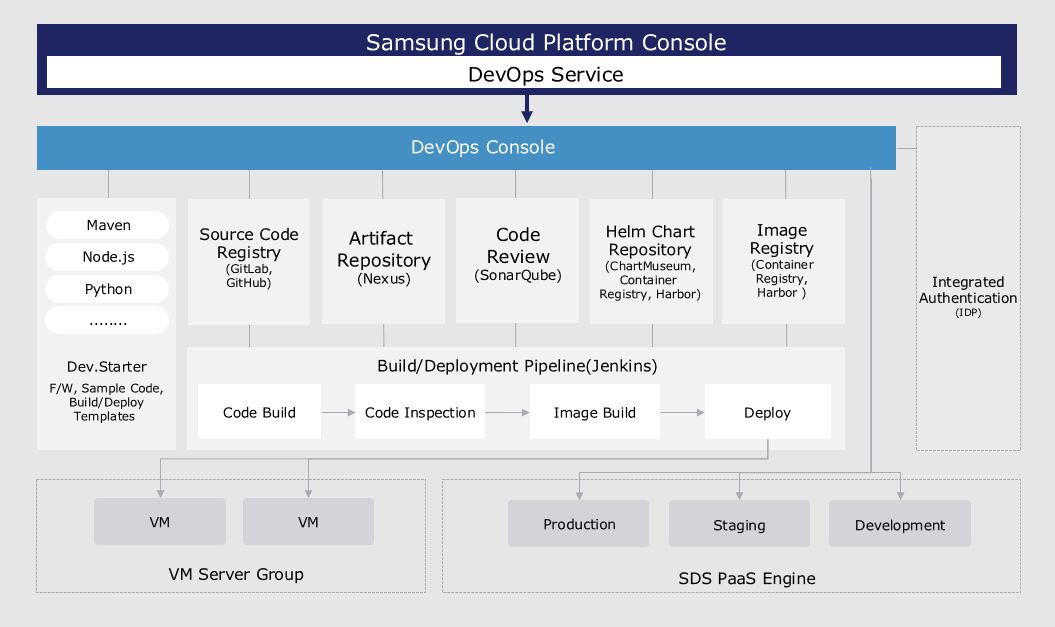
Provided Function
DevOps Service is a service that provides convenience for building/deployment by integrating standard development tools to easily configure the development environment, and provides the following functions:
- Continuous Integration/Continuous Deployment (CI/CD): users can access tools responsible for source code repository, artifact repository, code analysis, image repository, build/deployment with a single login.
- Application template-based project composition: Users can easily compose a project using a template that reflects development standards in a wizard-style manner.
- Key development languages and frameworks provided: Users can choose the development languages (Java, C#, Python, Ruby, etc.) and frameworks (SpringBoot, Vue.js, .Net, etc.) needed for application development to configure a project for build/deployment.
- Build/Deployment Pipeline Auto Configuration: The user can automatically configure the pipeline script using the build/deployment pipeline template included in the application template, or configure each stage of the pipeline based on GUI.
- Support for various deployment methods and rollback support: Users can use deployment methods (RollingUpdate, Blue-Green) to minimize downtime of operating applications, and can roll back to the desired version with one click. If the user wants to use a Virtual Server as a deployment environment, they can deploy it to a Virtual Server in the form of a packaged file or a Docker image.
- Customizable release process support: users can define and repeatedly execute various release processes considering the type of application changes.
Components
The user can easily use the DevOps Service through the Samsung Cloud Platform DevOps Console.
DevOps Console
DevOps Console supports the tools necessary for application development and build/deployment in an integrated manner, allowing for easy management of project configuration and build/deployment.
- Dev.Starter: An application template that provides not only sample code reflecting development standards but also templates necessary for build/deployment.
- Source Code Repository: It supports linkage with source code configuration management tools. It can be linked with Git Repository.
- Artifact Repository: It supports linkage with the artifact repository for storing libraries and application artifacts required for application build.
- Code Quality (Code Review): It supports linkage with code quality tools that can measure and manage the quality of source code through code static analysis.
- Helm Chart Repository: Kubernetes uses Helm Charts to easily install and upgrade software. To install software, users must write the Helm Chart directly. It provides ChartMuseum as a repository for managing Helm Charts, and also supports linking with other chart storage tools.
- Image Registry: Supports linking with an image registry for storing container images.
- VM Server Group: a collection of Virtual Servers that are the deployment target of an application. Users can register and specify Virtual Servers as deployment targets in the DevOps Console.
- Kubernetes Cluster: the cluster that is the deployment target of the application. The user can register and specify the Kubernetes Cluster as the deployment target in the DevOps Console.
Regional Provision Status
DevOps Service is available in the following environments.
| Region | Availability |
|---|---|
| Korean West(kr-west1) | Provided |
| Korean East(kr-east1) | Provided |
| South Korea 1(kr-south1) | Provided |
| South Korea 2(kr-south2) | Provided |
| South Korea South 3 | Provided |
Table. DevOps Service Availability by Region
Preceding service
DevOps Service does not have a preceding service.
1.2 - How-to guides
Users can create a DevOps Service by entering essential information and selecting detailed options through the Samsung Cloud Platform Console. Additionally, users can efficiently manage development projects using standardized development tools, code, and framework-based development templates, as well as integrated management features provided by DevOps Service.
Note
After creating a DevOps Service, to configure a CI/CD environment in the DevOps Console, users must utilize the Kubernetes Engine service and Container Registry service.
Creating a DevOps Service
Users can create a DevOps Service through the Samsung Cloud Platform Console.
Note
- Only one DevOps Service can be used per account.
- When creating a DevOps Service, the creator’s ID is granted Tenant Admin privileges in the DevOps Console.
To create a DevOps Service, follow these steps:
- All Services > DevOps Tools > DevOps Service menu, click the Create Service button. This will take you to the Service Home page of DevOps Service.
- On the Service Home page, click the Create DevOps Service button. This will take you to the Create DevOps Service page.
- On the Create DevOps Service page, enter the necessary information for service creation.
- In the Service Information section, enter the required information.
| Category | Required | Description |
|---|---|---|
| Tenant Name | Required | The name of the Tenant for the DevOps Service created by the user.
|
| Tenant Code | Required | The system-internal ID used for the Tenant.
|
Table. DevOps Service Required Information Input Items
- In the summary panel, review the created details and estimated billing amount, then click the Complete button.
- Once creation is complete, verify the created resource on the Resource List page.
Using DevOps Service
The DevOps Service provides a separate console called DevOps Console where users can configure the actual DevOps environment.
To use DevOps Service, follow these steps:
- Click the All Services > DevOps Tools > DevOps Service menu. This will take you to the Service Home page of DevOps Service.
- On the Service Home page, click the DevOps Service menu. This will take you to the DevOps Service List page.
- On the DevOps Service List page, click the resource you want to view detailed information for. This will take you to the DevOps Service Details page.
- On the DevOps Service Details page, click the DevOps Console button. This will take you to the Samsung Cloud Platform DevOps Console page.
Note
For more information on using DevOps Console, refer to the Samsung Cloud Platform DevOps Console User Guide provided within the DevOps Console.
Viewing DevOps Service Details
The DevOps Service provides a list of all resources and their detailed information, which can be modified. The DevOps Service Details page consists of Details, Task History tabs.
To view DevOps Service details, follow these steps:
- Click the All Services > DevOps Tools > DevOps Service menu. This will take you to the Service Home page of DevOps Service.
- On the Service Home page, click the DevOps Service menu. This will take you to the DevOps Service List page.
- On the DevOps Service List page, click the resource you want to view detailed information for. This will take you to the DevOps Service Details page.
- The DevOps Service Details page displays status information and consists of Details, Tags, Task History tabs.
| Category | Description |
|---|---|
| Status Display | Represents the status of DevOps Service
|
| DevOps Console | Allows control of the service by moving to DevOps Console |
| Service Cancellation | Button to cancel the service |
Table. DevOps Service Status Information and Additional Features
Details
The DevOps Service List page allows you to view detailed information about the selected resource.
| Category | Description |
|---|---|
| Service | Service category |
| Resource Type | Service type |
| SRN | Unique resource ID in Samsung Cloud Platform
|
| Resource Name | Resource name
|
| Resource ID | Unique resource ID within the service |
| Creator | User who created the service |
| Creation Time | Time when the service was created |
| Tenant Name | Name of the Tenant created by the user |
| Tenant Code | System-internal ID value for the Tenant created by the user |
Table. DevOps Service Details Items
Tags
The DevOps Service List page allows you to view and add, modify, or delete tag information for the selected resource.
| Category | Description |
|---|---|
| Tag List | List of tags
|
Table. Virtual Server Tags Tab Items
Task History
The DevOps Service List page allows you to view the task history of the selected resource.
| Category | Description |
|---|---|
| Task History List | History of changes to the resource
|
Table. Task History Tab Detailed Information Items
Canceling DevOps Service
Cancellation Not Allowed
- If there are resources connected to a project in the DevOps Console, the DevOps Service cannot be canceled.
- To cancel the DevOps Service, delete all connected resources in the DevOps Console.
- For more information on using DevOps Console, refer to the Samsung Cloud Platform DevOps Console User Guide provided within the DevOps Console.
To cancel a DevOps Service, follow these steps:
- Click the All Services > DevOps Tools > DevOps Service menu. This will take you to the Service Home page of DevOps Service.
- On the Service Home page, click the DevOps Service menu. This will take you to the DevOps Service List page.
- On the DevOps Service List page, click the resource you want to cancel. This will take you to the DevOps Service Details page.
- On the DevOps Service Details page, click the Service Cancellation button.
- Once cancellation is complete, verify that the resource has been canceled on the DevOps Service List page.
1.3 - API Reference
API Reference
1.4 - CLI Reference
CLI Reference
1.5 - Release Note
2025.10.23
FEATURE
Korea East (kr-east1) Region Service Open- The DevOps Service can also be used in the Korean eastern (kr-east1) region.
2025.07.01
FEATURE
Add User Member- Add user member
- When creating a DevOps Service, you can add members to perform the Admin role.
2025.02.27
FEATURE
Common Feature Changes- Samsung Cloud Platform common feature changes
- Account, IAM and Service Home, tags, etc. reflected common CX changes.
2024.12.23
NEW
DevOps Service Official Version Release- We have launched a DevOps Service service that provides an integrated environment for software development/deployment/operation quickly and safely.
2 - DevOps Console
2.1 - Overview
2.1.1 - Introduction to DevOps Console
Service Overview
DevOps Console is a service that provides convenience for building and deploying by integrating standard development tools to support development environments, and has the following characteristics.
Key tool integration and unified authentication for Continuous Integration/Continuous Deployment (CI/CD)
The user can access tools responsible for source code repository, artifact repository, code analysis, image repository, and build/deployment with a single login.
Application template-based project composition
The user can easily configure the project in a wizard-like manner using a template that reflects the development standards.
Main development languages and frameworks provided
The user can select the development language (such as Java, C#, Python, Ruby, etc.) and framework (such as SpringBoot, Vue.js, .Net, etc.) required for application development to configure a project for build/deployment.
Build/Deployment Pipeline Auto Configuration
The user can use the build/deploy pipeline template included in the application template to automatically configure the pipeline script or configure each stage of the pipeline based on GUI.
Support for various deployment methods and rollback support
The user can use the deployment method (RollingUpdate, Blue-Green) to minimize the downtime of the operating application, and can roll back to the desired version with one click. If the user wants to use a VM server as a deployment environment, they can deploy it to the VM server in the form of a packaged file or a Docker image.
Customized Release Process Support
The user can define and repeatedly execute various release processes considering the type of application change.
Components
Users can easily use the DevOps Service through the DevOps Console.
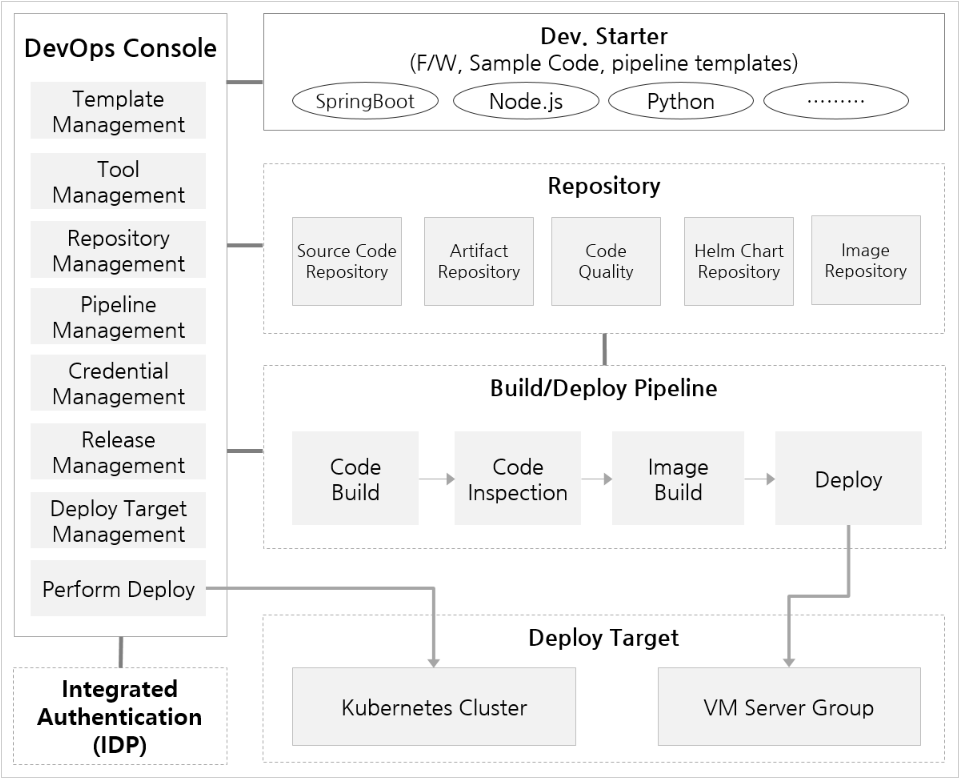
DevOps Console
It supports the tools necessary for application development and build/deployment in an integrated manner, making it easy to manage project configuration and build/deployment.
Dev. Starter
It is an application template that provides not only sample code reflecting development standards, but also templates necessary for build/deployment.
IDP(ID Provider)
It is in charge of integrated management and authentication of users.
Source Code Repository
It supports integration with source code management tools. It can be linked with DevOps Code.
Artifact Repository
It supports linkage with the artifact repository for storing libraries and application artifacts necessary for application build.
Code Quality
It supports linkage with code quality tools that can measure and manage the quality of source code through static code analysis.
Helm Chart Repository
In Kubernetes, Helm charts are used to easily install and upgrade software. To install software, users must write Helm charts directly. It provides ChartMuseum as a default repository for managing charts, and also supports linking with other chart storage tools.
Image Repository
It supports linkage with an image repository for storing container images.
VM Server Group
This is a bundle of VM servers that are the deployment target of the application. Users can register and specify VMs as deployment targets in the DevOps Console.
Kubernetes Cluster
This is the cluster that is the deployment target of the application. Users can register and specify the “Kubernetes Cluster” as the deployment target in the DevOps Console.
Main Concepts and Relationships
The 시스템 관리자(System Admin) or 관리자(Admin) must pre-define the necessary tools and application templates when a user creates a project.
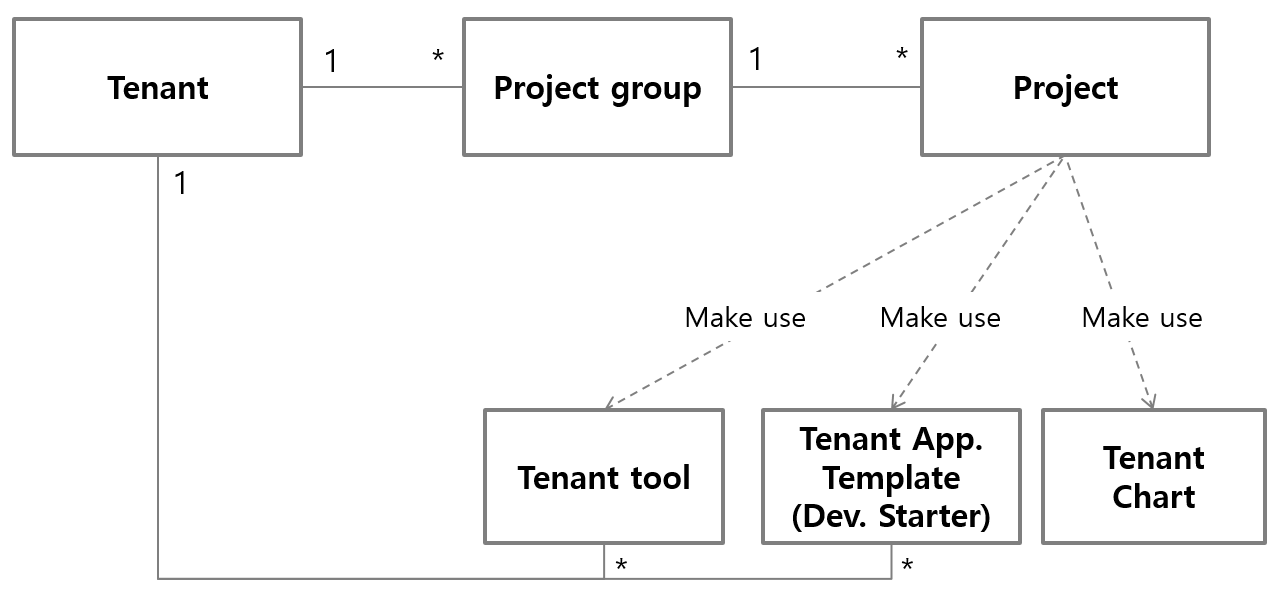
Tenant
It is a logical distinction unit that provides and shares tools and application templates that can be used in the project independently. The system administrator registers tenants by organization (or customer) unit that must guarantee independence and designates a tenant administrator. The tenant administrator can register tenant tools and application templates that can be used in the corresponding tenant, and tenant members.
Project Group
As a unit for managing individual projects, members belonging to a specific tenant can create a project group. Therefore, the project group belongs to one tenant and can utilize the tools and templates set by the tenant.
Project
The project is a unit that develops and manages applications or microservices that are deployed and executed independently. Therefore, it is common to configure a project based on a single source code repository, but it can be configured flexibly according to the characteristics of the application or the development and operation organization.
Tool
It is a development tool that supports source code repositories, image repositories, build/deployment pipelines, and code quality used in projects. Each project can use the designated tool for the project group, tenant, or application to which it belongs, or the Kubernetes Cluster that is the deployment target. In general, tools that support build/pipelines and image repositories that affect deployment speed are specified by cluster unit. Tools are largely divided into three types according to their scope of use.
ProjectGroup Tool: This tool can only be used in projects belonging to the project group. Multiple project groups can be mapped and used. Project group Owner and Master register and manage it.
Tenant Tool: This is a tool that can only be used in the project group belonging to the tenant. Multiple tenants can be mapped and used. Only the tenant administrator of the initially registered tenant can manage the tool when it is registered. Subsequently, only usage is possible in additional registered tenants. Additionally, it can be designated and managed to be used in clusters accessible by the tenant administrator.
System Tool: DevOps Service is a tool that can be used in the form of a service throughout the entire project. It specifies and manages tenants and clusters that system administrators can register and use.
Application Template
This is a template that allows you to easily configure a project. Templates that support sample code by reflecting development standards are called Dev. Starter, and templates that simply support development environment configuration are called Environment Only. Like tools, they are largely divided into three types according to their scope of use.
Project Group Template: This is a template that can only be used by projects belonging to the project group. It is registered and managed by the Project Group Owner and Master.
Tenant Template: a template that can only be used in project groups belonging to the tenant. It is registered and managed by the tenant administrator.
System Template: This is a template available for use in the entire DevOps Service project. The system administrator can register and manage the tenant to be specified and used.
2.1.2 - Roles
Project Group Roles and Permissions
- The project group creator is the Owner by default.
- Master has all the permissions of the Owner, except for the project group deletion permission.
- Developer and Viewer have only view permissions.
| Category | Permission | Owner | Master | Developer | Viewer |
|---|---|---|---|---|---|
| Project Group | View | ○ | ○ | ○ | ○ |
| Edit | ○ | ○ | |||
| Delete | ○ | ||||
| Project | Create | ○ | ○ | ||
| View | ○ | ○ | ○ | ○ | |
| Member | Add | ○ | ○ | ||
| View | ○ | ○ | ○ | ○ | |
| Delete | ○ | ○ |
Table. Permissions for each role in the project group
Project Roles and Permissions
- Roles are divided into Owner, Master, Developer, and Viewer.
- Viewer can only view.
- Developer can create and delete development-related features.
- Examples) Build pipeline, Helm chart, deployment
- Owner/Master can view, create, and delete all features in the project.
- Project roles inherit the project group roles.
- Even if a user is not registered as a project member, they can perform the role in the project if they are a member of the project group.
- When the same user has different roles in the project and project group, the project role takes priority.
- In other words, you can limit the authority of a project group member in a specific project.
- Example) If you want to restrict the Master role of a project group from having Master permissions in a specific project, you can register them as a project member and grant them Developer or Viewer permissions.
| Category | Permission | Owner | Master | Developer | Viewer |
|---|---|---|---|---|---|
| Dashboard | View | ○ | ○ | ○ | ○ |
| Build Pipeline | View | ○ | ○ | ○ | ○ |
| Import | ○ | ○ | ○ | ||
| (Development) Create/Add | ○ | ○ | ○ | ||
| (Development) Run | ○ | ○ | ○ | ||
| (Development) Edit | ○ | ○ | ○ | ||
| (Development) Delete | ○ | ○ | ○ | ||
| (Operation) Create/Add | ○ | ○ | |||
| (Operation) Run | ○ | ○ | |||
| (Operation) Edit | ○ | ○ | |||
| (Operation) Delete | ○ | ○ | |||
| Helm Install | (Development) Install | ○ | ○ | ○ | |
| (Operation) Install | ○ | ○ | |||
| Project | Edit | ○ | ○ | ||
| Delete | ○ |
Table. Permissions for each role in the project (1)
| Large Category | Small Category | Permission | Owner | Master | Developer | Viewer |
|---|---|---|---|---|---|---|
| Kubernetes Deployment | Helm Release | (Development) View | ○ | ○ | ○ | ○ |
| (Development) Upgrade | ○ | ○ | ○ | |||
| (Development) Rollback | ○ | ○ | ○ | |||
| (Development) Delete | ○ | ○ | ○ | |||
| (Operation) View | ○ | ○ | ○ | ○ | ||
| (Operation) Upgrade | ○ | ○ | ||||
| (Operation) Rollback | ○ | ○ | ||||
| (Operation) Delete | ○ | ○ | ||||
| Import | ○ | ○ | ||||
| Ingress/Service | Create/Edit/Delete | ○ | ○ | |||
| Blue/Green | (Development) Create/Edit/Delete | ○ | ○ | |||
| (Operation) Create/Edit/Delete | ○ | ○ | ||||
| Canary | (Development) View | ○ | ○ | ○ | ○ | |
| (Development) Create/Delete | ○ | ○ | ○ | |||
| (Operation) View | ○ | ○ | ○ | ○ | ||
| (Operation) Create | ○ | ○ | ||||
| (Operation) Delete | ○ | ○ | ||||
| Istio | (Development) View | ○ | ○ | ○ | ○ | |
| (Development) Create/Edit/Delete | ○ | ○ | ○ | |||
| (Operation) View | ○ | ○ | ○ | ○ | ||
| (Operation) Create/Edit | ○ | ○ | ||||
| (Operation) Delete | ○ | ○ | ||||
| Workload | (Development) View | ○ | ○ | ○ | ○ | |
| (Development) Create/Delete/Rollback | ○ | ○ | ○ | |||
| (Operation) View | ○ | ○ | ○ | ○ | ||
| (Operation) Create/Rollback | ○ | ○ | ||||
| (Operation) Delete | ○ | ○ | ||||
| Code Repository/Code Quality/Artifact Repository/Image Repository | View | ○ | ○ | ○ | ○ | |
| Create | ○ | ○ | ○ | |||
| Delete | ○ | ○ |
Table. Permissions for each role in the project (2)
- Jenkins System Permissions
- Access permissions are granted according to the project permission system in
DevOps Console. - Permissions are granted to Jenkins pipelines based on project roles.
- Other tools can set permissions in their respective menus.
- Access permissions are granted according to the project permission system in
| Category | Permission | Owner | Master | Developer | Viewer |
|---|---|---|---|---|---|
| (Folder) Project Group | Folder View | ○ | ○ | ○ | ○ |
| (Folder) Project | Credential View | ○ | ○ | ○ | ○ |
| Credential Create/Edit/Delete | ○ | ○ | |||
| Folder View | ○ | ○ | ○ | ○ | |
| Folder Create | |||||
| Folder Settings | |||||
| Folder Delete | ○ | ○ | |||
| (Folder) Type | (Development) Folder View | ○ | ○ | ○ | |
| (Development) Pipeline Create | |||||
| (Development) Folder Settings | |||||
| (Development) Folder Delete | ○ | ○ | ○ | ||
| (Operation) Folder View | ○ | ○ | |||
| (Operation) Pipeline Create | |||||
| (Operation) Folder Settings | |||||
| (Operation) Folder Delete | ○ | ○ | |||
| Pipeline | (Development) Pipeline View | ○ | ○ | ○ | |
| (Development) Pipeline Settings | ○ | ○ | ○ | ||
| (Development) Pipeline Delete | ○ | ○ | ○ | ||
| (Development) Pipeline Build | ○ | ○ | ○ | ||
| (Operation) Pipeline View | ○ | ○ | |||
| (Operation) Pipeline Settings | ○ | ○ | |||
| (Operation) Pipeline Delete | ○ | ○ | |||
| (Operation) Pipeline Build | ○ | ○ |
Table. Jenkins system permissions for each project role
System Roles and Permissions
| Large Category | Small Category | Permission | System Administrator | Administrator (Tenant Manager) | User (Project Group Owner) |
|---|---|---|---|---|---|
| Tool | System Tool | Register/Edit/Delete | ○ | ||
| Add/Edit Tenant | ○ | ||||
| Delete Tenant | ○ | ○ | |||
| Add/Edit Cluster | ○ | ||||
| Delete Cluster | ○ | ○ | ○ | ||
| Tenant Tool | Register/Edit/Delete | ○ | ○ | ||
| Add/Edit/Delete Tenant | ○ | ○ | |||
| Project Group Tool | Register/Edit/Delete | ○ | ○ | ||
| Add/Edit/Delete Tenant | ○ | ○ |
Table. System roles and permissions (1)
| Large Category | Small Category | Permission | System Administrator | Administrator (Tenant Manager) | User (Project Group Owner) |
|---|---|---|---|---|---|
| App. Template | System Template | Register/Edit/Delete | ○ | ||
| Add/Edit Tenant | ○ | ||||
| Delete Tenant | ○ | ○ | |||
| Add/Edit/Delete Image | ○ | ||||
| Add/Edit/Delete Helm Chart | ○ | ||||
| Tenant Template | Register/Edit/Delete | ○ | ○ | ||
| Add/Edit/Delete Image | ○ | ○ | |||
| Add/Edit/Delete Helm Chart | ○ | ○ | |||
| Project Group Template | Register/Edit/Delete | ○ | ○ | ||
| Add/Edit/Delete Image | ○ | ○ | |||
| Add/Edit/Delete Helm Chart | ○ | ○ | |||
| Helm Chart Management | System Helm Chart | Add/Edit/Delete | ○ | ||
| Tenant Helm Chart | Add/Edit/Delete | ○ | ○ | ||
| Project Group Helm Chart | Add/Edit/Delete | ○ | ○ | ||
| Project Group | Create | ○ | ○ | ○ |
Table. System roles and permissions (2)
2.1.3 - Screen Composition
DevOps Console의 주요 메뉴 페이지에 대해 설명합니다.
처음 접속하면 상단 메뉴와 권한을 가진 모든 프로젝트그룹과 프로젝트가 표시됩니다.
상단 메뉴
상단 메뉴를 통해 메인 화면, 관리 화면 등으로 이동할 수 있으며 사용자 정보를 수정할 수 있습니다. 상단 메뉴는 DevOps Console을 이용하는 동안 항상 표시됩니다.
| 항목 | 설명 |
|---|---|
| 메인 페이지 | 메인 페이지로 이동합니다. |
| 관리 | 관리 페이지로 이동합니다. |
| Support | 가이드, 문의, 공지사항을 확인할 수 있습니다. |
| Link | 연관 시스템 링크를 확인할 수 있습니다. |
| 사용자 정보 | 사용자 정보를 확인 및 수정하거나 로그아웃할 수 있습니다.
|
표. 상단 메뉴 항목
메인 페이지
사용자가 권한을 가진 모든 프로젝트그룹과 프로젝트의 현황을 표시합니다.
| 항목 | 설명 |
|---|---|
| 프로젝트그룹 생성 | 새로운 프로젝트그룹을 생성할 수 있습니다. |
| 프로젝트그룹 명 | 프로젝트그룹 명을 나타냅니다. |
| 테넌트 명 | 테넌트 명을 나타냅니다. |
| 프로젝트그룹 관리 | 프로젝트그룹 페이지로 이동합니다. |
| 릴리스 관리 | 릴리스 관리 페이지로 이동합니다. |
| 프로젝트 생성 | 새로운 프로젝트를 생성할 수 있습니다. |
| 프로젝트 상세 | 사용자가 권한을 가진 모든 프로젝트가 표시
|
| 사용자 가이드 보러가기 | 사용자 가이드 페이지로 이동합니다. |
표. 메인 페이지 항목
관리 페이지
대시보드, 테넌트, 프로젝트, 툴, 사용자 등 DevOps Console 전반적인 관리 기능을 포함하고 있습니다.
| 항목 | 설명 |
|---|---|
| 관리 메뉴 | DevOps Console 관리 기능 메뉴들입니다.
|
표. 관리 페이지 항목
프로젝트그룹 관리 페이지
프로젝트그룹과 릴리스에 대한 관리 페이지입니다.
| 항목 | 설명 |
|---|---|
| 프로젝트그룹 관리 메뉴 | 프로젝트그룹 관리 메뉴입니다. |
| 릴리스 관리 메뉴 | 릴리스 관리 메뉴입니다. |
표. 프로젝트그룹 관리 페이지 항목
프로젝트 페이지
프로젝트에 대한 페이지입니다.
| 항목 | 설명 |
|---|---|
| 프로젝트 관리 메뉴 | 프로젝트 관리 메뉴입니다. |
표. 프로젝트 관리 페이지 항목
2.2 - Getting Started
Note: I translated the title and description to English while keeping the rest of the Markdown grammar and document format intact.
2.2.1 - Getting Started with DevOps Console
This guide explains how to log in to the DevOps Console, set the display language, and configure user information.
Signing Up
To use the DevOps Console, you need to create a separate DevOps Console account, which is distinct from the Samsung Cloud Platform account. You can create an account by signing up.
To create an account in the DevOps Console, follow these steps:
- Click the Sign Up link on the login page. You will be redirected to the sign-up page.
- Complete the Identity Verification process. After completing the verification, click the Next button.
Item RequiredDescription CAPTCHA Required Enter the characters displayed in the image into the input field Table. Identity Verification Information - Agree to the terms and conditions in the Sign-up Information section.
Item RequiredDescription Terms of Service Required Check to agree to the terms of service Privacy Policy Required Check to agree to the collection and use of personal information I am 14 years old or older. Required Check to confirm that you are 14 years old or older Table. Sign-up Information - Enter the required information in the User Information section.
Item RequiredDescription User ID (Email) Required Enter the email address to use as your user ID Mobile Phone Number Required Enter your mobile phone number - Enter your mobile phone number and click the Send OTP button to receive an OTP number
- Enter the OTP number received on your mobile phone and click the Verify button
- If the OTP number is valid, the mobile phone number verification is complete
Password Required Enter a password to use, which must be 8-20 characters long - Cannot use your user ID or name as your password
- Must include at least one uppercase letter (English), one lowercase letter (English), one number, and one special character (
!@#$%^&*) - Cannot use the same character three or more times in a row
- Cannot use four or more consecutive characters or numbers
- Password change cycle: 90 days
Confirm Password Required Confirm the password you want to use Name Required Enter your name - Can be entered using characters, numbers, and spaces, up to 100 characters
Language Required Set the language for notifications such as email and SMS Time Zone Required Set your time zone information Table. User Information - After entering all the information, click the Complete button. An Verification Email will be sent to the email address you entered.
- Click the Email Address Verification button in the received email to complete the sign-up process.
Logging in
To log in to the DevOps Console, enter your account information on the login page and click the Next button.
On the OTP authentication page, enter the OTP number issued by the selected OTP type and click the Login button.
If you don’t remember your ID or password, click the ID/Password Find link to find your account information before attempting to log in.
Once logged in, the DevOps Console Main page will open.
Note
If you enter your password incorrectly more than 5 times, your account will be locked, so enter it accurately.
To unlock your account, click the ID/Password Find link and reset your password.
Modifying User Information
To modify user information, follow these steps:
- Click the Shortcut icon at the top right of the Main page.
- Click the DevOps IDP link. The DevOps IDP page will open in a new tab.
- On the user information page, you can change information such as your phone number, password, name, time zone, and language.
Info
The time zone and language settings in DevOps IDP are not linked to
DevOps Console.To modify the information used in DevOps Console, follow these steps:
- Click the User icon at the top menu of the Main page.
- Click the Account Information menu. The Account Information popup window will open.
- Change the language and time zone information, and then click the Save button to complete the modification of your account information.
Changing Console Language
To change the language displayed in DevOps Console, click Language Settings at the bottom of the DevOps Console page after logging in, and change it to your desired language.
Managing Authentication Keys
Info
Authentication keys are used when using the Open API service of
DevOps Console.You can manage your individual authentication keys through the Authentication Key Management menu by clicking the User icon at the top menu of the Main page.
Adding Authentication Keys
To add an authentication key, follow these steps:
- Click the User icon at the top right of the Main page.
- Click the Authentication Key Management menu. The Authentication Key Management popup window will open.
- Click the Create Authentication Key button. The Create Authentication Key popup window will open.
- Set the expiration date and click the Save button to complete the creation of the authentication key.
Info
If you have already added an authentication key, you cannot add another one.
Setting up Security
Through security settings, you can restrict the IP that can use the authentication key.
To add security settings, follow these steps:
- Click the User icon at the top right of the Main page.
- Click the API Key Management menu. The API Key Management popup window opens.
- Click the Security Settings tab and then click the Modify button. The Security Settings Change popup window opens.
- Set IP access control to Use.
- Enter the allowed IP access and click the Save button to complete the security settings.
Deleting an Authentication Key
To delete an authentication key, follow these steps:
- Click the User icon at the top right of the Main page.
- Click the API Key Management menu. The API Key Management popup window opens.
- Click the Status Change button.
- In the API Key Status Change popup, select Not in use and click the Save button.
- Click the Delete button to complete the deletion of the authentication key.
Information
You cannot delete an authentication key that is in use. Change it to Not in use before deleting.
Checking My Activity History
By clicking the My Activity History menu in the top menu of the Main page, you can check your activity history in the DevOps Console.
Setting up Access Control IP
You can register an IP that can access the DevOps Console to control access.
To register an access control IP, follow these steps:
- Click the Shortcut icon at the top right of the Main page.
- Click the DevOps IDP link. The DevOps IDP page opens in a new tab.
- Click the Access Control menu on the left.
- Click the Modify button at the bottom of the Access Control page. The page changes to Access Control Modification.
- Set Access Control IP Settings to Use.
- Add the IP to be allowed access and click the Save button to complete the access control settings.
Information
If the IP has changed or is incorrectly registered and access is not possible, you can change the settings by clicking the Access Control IP Settings link at the bottom of the login page.
Withdrawing from Membership
Caution
When withdrawing from
DevOps Console membership, all collected member information and related resources and authorities are deleted.To withdraw from DevOps Console membership, follow these steps:
- Click the Shortcut icon at the top right of the Main page.
- Click the DevOps IDP link. The DevOps IDP page opens in a new tab.
- Click the Withdrawal from Membership button at the top right of the user information page. The Withdrawal from Membership popup window opens.
- Enter your current password in the input field and click the Withdrawal from Membership button to complete the withdrawal.
2.2.1.1 - Membership Information
Users can view and manage their basic information, authentication information, registered tenants, registered project groups, and registered projects.
Getting Started with Membership Information
To start managing membership information, follow these steps:
- Main page, click the Manage icon in the top right corner. Move to the Tenant Dashboard page.
- In the left menu, click the Membership Information menu. Move to the Membership Information page.
Managing Authentication Information
Authentication information is automatically stored when a user uses it for tool registration, usage, etc. If necessary, you can add new authentication information, modify or delete existing authentication information.
To manage authentication information, follow these steps:
- Main page, click the Manage icon in the top right corner. Move to the Tenant Dashboard page.
- In the left menu, click the Membership Information menu. Move to the Membership Information page.
- On the Membership Information page, click the Authentication Information tab.
Adding Authentication Information
To add authentication information, follow these steps:
- Authentication Information tab, click the Add button. The Add Authentication Information popup window will open.
- In the Add Authentication Information popup window, enter the information.
- All tools and URLs that the user can access will be displayed.
- After entering the information, click the Connection Test button.
- Click the Save button.
Modifying Authentication Information
To modify authentication information, follow these steps:
- In the Authentication Information tab, click on the authentication information you want to modify. The Modify Authentication Information popup window will open.
- In the Modify Authentication Information popup window, enter the information and click the Connection Test button.
- When the Save button is activated, click the Save button.
Deleting Authentication Information
To delete authentication information, follow these steps:
- In the Authentication Information tab, select the checkbox of the authentication information you want to delete.
- In the Authentication Information list, click the Delete button.
- In the confirmation popup window, click the Confirm button.
Note
You cannot delete authentication information that is currently in use.
Managing Joined Tenants
Users can view the list of tenants they have joined. They can also request to join a new tenant and leave a tenant they have already joined.
To manage joined tenants, follow these steps:
- Click the Management icon at the top right of the Main page. You will be moved to the Tenant Dashboard page.
- In the left menu, click the Join Information menu. You will be moved to the Join Information page.
- In the Join Information page, click the Joined Tenants tab.
Requesting Tenant Membership
To request tenant membership, follow these steps:
- Registered Tenants tab, click the Join button. The Tenant Membership Request popup window will open.
- In the Tenant Membership Request popup window, enter the tenant code you want to join and click the Search icon.
- Enter the reason for the request and click the Add button.
- Select the authority of the added tenant and click the Save button.
- In the confirmation popup window, click the Confirm button.
Leaving a Tenant
To leave a tenant, follow these steps:
- In the Registered Tenants tab, select the checkbox of the tenant you want to leave.
- Click the Leave button.
- In the confirmation popup window, click the Confirm button.
Managing Joined Project Groups
Users can view the list of project groups they have joined.
To manage joined project groups, follow these steps:
- Click the Manage icon at the top right of the Main page. You will be moved to the Tenant Dashboard page.
- Click the Membership Information menu on the left. You will be moved to the Membership Information page.
- On the Membership Information page, click the Joined Project Groups tab.
When you click on a project group in the project group list, you will be moved to the Project Group Management page.
For more information on project group management, see Project Group Overview.
Managing Joined Projects
Users can view the list of projects they have joined.
To manage joined projects, follow these steps:
- Click the Manage icon at the top right of the Main page. You will be moved to the Tenant Dashboard page.
- Click the Membership Information menu on the left. You will be moved to the Membership Information page.
- On the Membership Information page, click the Joined Projects tab.
When you click on a project in the project list, you will be moved to the Project Management page.
For more information on projects, see Project.
2.2.2 - Tutorial (Project Creation to Build/Deployment)
The user can create a DevOps Console project and build the source to create an image and deploy a Helm chart to a Kubernetes cluster through the following procedure.
Creating a Project Group
The user can create a project group. The user must be a member of the tenant to create a project group.
Creating a Project Group
To create a project group, follow these steps:
- Click the Create Project Group and Start button or Create Project Group button on the Main page. The Create Project Group popup window opens.
- Enter the items and click the Save button to complete the project group creation.
Note
- Approval from the tenant administrator may be required.
- If there are no available tenants to choose from, click the Join Tenant Quick Link to proceed with tenant registration.
Joining a Tenant
To join a tenant, follow the procedure below.
- Project Group Creation popup window, click the Join Tenant Shortcut link. The Tenant Join Request popup window will open.
- In the Tenant Search field, enter the tenant code you want to join exactly and click the Search icon. The tenant information will be retrieved.
- Verify that the searched tenant is correct, enter the Reason for Request, and click the Add button. It will be added to the list below.
- Select the authority for the tenant added to the list below and click the Save button.
Creating a Project (Helm Chart Deployment)
Note
- The user must be a member of the project group and tenant to create a project.
- For project group and tenant registration, refer to Creating a Project Group.
The user can create a project that deploys an application to a specific Kubernetes cluster using App Template, Helm Chart, and Tool Management.
Starting Project Creation
To start creating a project, follow these steps:
- Click the Create Project button on the Main page. The Create Project page opens.
Entering Basic Information
Enter the project’s basic information. The project name and project ID must be unique and cannot be duplicated.
To enter basic information, follow these steps:
- Project Creation page, select Project Configuration Method item’s App. Template Utilization.
- Select Kubernetes for the Deployment Target item.
- Enter additional content and click the Start button.
Item Description Project Name Enter the project name. Project ID Enter the project ID. Project Configuration Method Select the project configuration method - App. Template Utilization: Select a pre-provided App. template.
- Direct Configuration: Configure directly without an App. template.
Deployment Target Select the deployment target - Kubernetes: Deploy the application to a Kubernetes cluster.
- Kubernetes(ArgoCD): Deploy the application to a Kubernetes cluster using ArgoCD.
- VM(Artifact): Deploy the application to a VM server.
- VM(Docker): Deploy the application to a VM server as a Docker image.
- N/A: Select if the build result is not deployed.
K8S Cluster Select the target cluster to deploy DevOps ConsoleK8S cluster’s cluster, only clusters with user access rights can be selected.
Namespace Select the target namespace to deploy - K8S cluster’s retrieved cluster, only namespaces with user access rights can be selected.
Table. Project Creation Basic Information Input Items
Selecting an Application Template
Note
For more information on application templates, see App Template.
Users can select an application template to configure their project.
If you create a project based on an application template with sample source code, you can verify the application to be deployed.
On the other hand, using a template marked as Environment Only configures only the build/deployment environment without sample source code.
If you are using an already configured source code repository to configure your project, select a template marked as Environment Only.
To start choosing an application template, follow these steps:
- Application Template screen, enter the template name to select the desired application template card and click it.
- When the Next button is activated, click the Next button.
| Item | Description |
|---|---|
| Filter | You can easily find application templates through predefined filters. |
| Search | You can easily find application templates through search. |
Table. Project Creation Application Template Items
Setting Up a Code Repository
The user can set up a repository to manage the source code through the code repository setting step.
Creating a New Repository and Using an Existing Repository activation conditions vary depending on the Application Template and Tool.
| Repository Type | App. template with source code + DevOps Console registered tool / DevOps Code | App. template with source code + DevOps Console unregistered tool | App. template without source code (Environment Only) + DevOps Console registered tool / DevOps Code | App. template without source code (Environment Only) + DevOps Console unregistered tool |
|---|---|---|---|---|
| New Repository Creation | ○ | X | ○ | X |
| Existing Repository Use | X | X | ○ | ○ |
Table. New Repository Creation and Existing Repository Activation Conditions
Note
Authentication information, once saved, can be used for Using Saved Authentication Information without entering account information, and Connection Test can be performed from then on.
To modify or delete saved authentication information, please refer to Managing Authentication Information.
To set up a code repository, follow these steps:
- In the Code Repository section, select the Code Repository type.
- Select Create a New Repository or Use an Existing Repository and enter the information.
- Enter the Authentication Information and click the Connection Test button.
- If the Next button is activated, click the Next button.
| Item | Description |
|---|---|
| Repository Type | Select the code repository to use
|
| New/Existing Usage | Select whether to Create a New Repository or Use an Existing Repository.
|
| Repository Information | Enter repository information
|
| Authentication Information | Enter authentication information
|
| (Unregistered Tool) Repository Information | Enter repository information
|
Table. Project Creation Code Repository Setting Items
Setting Up Code Quality
The user can configure a repository for quality management.
To set up code quality, follow the procedure below.
- Code Quality item, select the Repository Type.
- Enter Basic Information and Authentication Information, then click the Connection Test button.
- When the Next button is activated, click the Next button.
| Item | Description |
|---|---|
| Repository Type | Select the repository to use
|
| New/Existing/Not Used | Select the repository creation method
|
| Base URL | Select the SonarQube URL. |
| Quality Project Name | Enter the name of the SonarQube project. |
| Quality Project Key | Enter the key of the SonarQube project. |
| Authentication Information | Enter authentication information
|
Table. Project Creation Code Quality Setting Items
Setting Up an Image Repository
The user can set up the repository to store the built container image through the image repository setting step.
Note
Authentication information, once saved, can be used for Using Saved Authentication Information without entering account information, and Connection Test can be performed from then on.
To modify or delete saved authentication information, please refer to Managing Authentication Information.
To set up an image repository, follow these steps:
- Image Repository section, select the Repository Type.
- Select Create New Repository/Use Existing Repository and enter the information.
- Enter the Authentication Information and click the Connection Test button.
- When the Next button is activated, click the Next button.
| Item | Description |
|---|---|
| Repository Type | Select the type of repository to use
|
| Repository Information | Select the repository creation method.
|
| Authentication Information | Enter the authentication information. |
Table. Project Creation Image Repository Setting Items
Setting Up a Release Target Environment
The user can deploy through direct configuration using Helm charts.
When selecting Helm release name and Helm chart, the Helm chart installation items and the default Values.yaml items included in the chart are displayed.
Available Helm charts are linked to App templates. You can modify or delete them through Managing Supported Helm Charts.
To set up the deployment target environment, follow these steps:
- Select direct configuration using Helm charts in the deployment target section.
- Enter the Helm release name.
- Click the Search button to select the Helm chart to use.
- Modify the Values.yaml and click the Validation Check button.
- Click the Next button when it is activated.
| Item | Description |
|---|---|
| Deployment Target | Select the deployment target. |
| Helm Release Name | Enter the name of the Helm release to be created.
|
| Helm Chart | Select the Helm chart.
|
| K8S Information | Displays the information of the Kubernetes cluster required for the Value.yaml configuration. |
| Values.yaml | Modify the Values.yaml content.
|
Table. Project Creation Deployment Target Environment Setting Items
Setting Up a Build Pipeline
Users can configure pipelines for building and deploying applications.
You can check each stage of the pipeline to be configured and change the build job name.
To set up a build pipeline, follow these steps:
- Build Pipeline screen branches according to IDP connection.
- For IDP-connected Jenkins, click the User Check button to verify user registration.
- For non-IDP-connected Jenkins, enter authentication information and click the Connection Test button.
- When the Next button is activated, click the Next button.
Item | Description |
|---|---|
| Build/Deploy Pipeline | Displays build/deploy pipeline information.
|
| Classification | Select development/operation classification.
|
| URL | Select Jenkins to configure the pipeline and enter the job name.
|
| Build Agent | Select the agent to be used for pipeline build.
|
| Build Environment OS | Displays the OS information of the environment where the build agent runs. |
| User Information | IDP-connected Jenkins
|
| Environment Variable Setting | Set environment variables to be registered in the Jenkins pipeline. |
| Image Tag Pattern | Select the method for assigning tags to container images. |
| Deploy Strategy | Select the deployment method for container images. |
| Deployment Result Recipient | Select the user to receive the result after the build pipeline is completed. |
Table. Build Pipeline Setting Items for Project Creation
Setting Up User Definitions
Users can specify and modify the path of the Dockerfile file to be used for building.
Additionally, you can check and modify the final script generated based on the information set up in Configuring the Build Pipeline.
To configure Dockerfile and pipeline scripts, follow these steps:
- Customize settings page, enter information, and click the Connection Test button.
- When the Next button is activated, click the Next button.
| Item | Description |
|---|---|
| Dockerfile Settings | Choose whether to Create a new Dockerfile or Use an existing Dockerfile.
|
| Dockerfile Path | Specify the path of the Dockerfile file in the source code. |
| Branch Name | The branch name is automatically registered when setting up Configuring the Code Repository. |
| Dockerfile | Check and modify the contents of the Dockerfile. |
| Pipeline Script | Check and modify the pipeline script. |
Table. Project Creation Customization Settings
Note
For more information on Jenkins pipeline scripts, refer to the official website.
Completing Project Creation
The user can finally check the project and tool information to be created and start creating the project.
To complete the project creation, follow the procedure below.
- Summary Information screen, check the information and click the Complete button.
- The Project Creation popup window opens and the project creation proceeds.
- After the project creation is complete, click the Confirm button to move to the Project page.
Notice
It cannot be canceled during creation, and if the project is created normally, the Confirm button is activated.
Checking Build Pipeline Execution
On the Project page, you can check the pipeline execution status, and the build pipeline is automatically executed when the project is created for the first time.
If the build pipeline fails, modify and re-execute the pipeline through the Build Pipeline menu on the left.
To check the build pipeline execution, follow these steps:
- Click the Project card on the Main page. Move to the Project Dashboard page.
- Click the Build/Deployment > Build Pipeline menu on the left.
Checking Deployment Results
After the pipeline execution is complete, you can check the Helm chart deployment results.
For more information on Helm chart deployment results, refer to Helm Release.
To check the deployment results, follow these steps:
- Click the Project card on the Main page. Move to the Project Dashboard page.
- Click the Build/Deployment > Kubernetes Deployment menu on the left. Move to the Kubernetes Deployment page.
- Click the Helm Release list to check the detailed deployment results.
2.2.2.1 - (Helm Chart Deployment) Adding Build/Deployment
The user can create a new build pipeline in an already created DevOps Console project and build the source to create an image and deploy it to a Kubernetes cluster through the following procedure.
The Helm Release deployed through Helm Installation will be used in Deploy to K8S Stage Settings.
Start Adding Build/Deployment
To start adding build/deployment, follow the procedure below.
- Click the Project card on the Main page. It will move to the Project Dashboard page.
Adding Code Repository (Option)
Note
Proceed only if a new code repository is required.
| Repository Type | App. template with source code + DevOps Console registered tool / DevOps Code | App. template with source code + DevOps Console unregistered tool | App. template without source code (Environment Only) + DevOps Console registered tool / DevOps Code | App. template without source code (Environment Only) + DevOps Console unregistered tool |
|---|---|---|---|---|
| New Repository Creation | ○ | X | ○ | X |
| Existing Repository Use | X | X | ○ | ○ |
Table. New Repository Creation and Existing Repository Activation Conditions
To add a code repository, follow the procedure below.
- Click the Project card on the Main page. It will move to the Project Dashboard page.
- Click Repository > Code Repository in the left menu.
- Click the Add Code Repository button at the top right. The Add Code Repository page will open.
- Enter/set each item and click the Connection Test button.
- Click the Save button to complete Add Code Repository.
| Item | Description |
|---|---|
| Repository Type | Select the type of repository to use
|
| New/Existing Usage | Select whether to Create a New Repository or Use an Existing Repository
|
| Repository Information | Enter repository information
|
| Authentication Information | Enter authentication information. |
| Repository Information | Enter repository information
|
Table. Code Repository Setting Items
Adding Image Repository (Option)
Note
Proceed only if a new image repository is required.
To add an image repository, follow the procedure below.
Adding App Image Repository
- Image Repository page, click the App Image Repository Addition button in the top right. Move to the App Image Repository Addition page.
- On the App Image Repository Addition page, enter/settings for each item.
- Click the Connection Test button.
- Click the Save button.
| Item | Description |
|---|---|
| Repository Type Selection | Select the image repository type. If you want to use an image repository not registered in Devops Console, select the Image Registry type. |
| Repository Creation Selection | Choose whether to create a new repository or use an existing one.
|
| Registered Tool | Enter repository information. |
| Unregistered Tool | Enter repository information
|
Table. App Image Repository Addition Input Items
Adding Pull-only Image Repository
- Image Repository page, click the Add Pull-only Image Repository button at the top right. It moves to the Add Pull-only Image Repository page.
- On the Add Pull-only Image Repository page, enter/set each item.
- Click the Connection Test button.
- Click the Save button.
Helm Installation
To install Helm, follow the procedure below.
- Click the Project card on the Main page. It will move to the Project Dashboard page.
- Click Build/Deployment > Helm Installation in the left menu.
- Select the K8S cluster to install in the K8S cluster item.
- Click the desired Helm chart to move to the Helm Chart Details screen.
- Click the Helm Installation button. It will move to the Helm Chart Installation screen.
- Enter each item and click the Next button.
Item Description Release Name Enter the name to use for the Helm chart release.
It must be unique and not duplicated within the namespace.Type Development, operation Version Select the version of the chart to install Helm. K8S Cluster Displays the target K8S cluster for Helm installation.
It cannot be changed, and if a change is desired, select the K8S cluster in Helm Installation Start.Namespace Select the target namespace for Helm installation from the list. Reference Information Reference information provided by the selected K8S cluster.
Click each tab to check detailed information.Chart Included Default Values.yaml The values.yamlfile can be modified to run Helm installation with the desired value.
If necessary, check the reference information and modify thevalues.yamlfile with the corresponding value.Input Type The input type item is only displayed for Helm charts that support form input. - Form: Enter the items displayed on the screen. Refer to Form Input Support Helm Chart Creation for Helm chart creation that supports form input.
values.yaml: Modify the value in the general Helm chart yaml editor screen.
Form Input The screen displayed when Form is selected as the input type, check each item, and enter the value. After entering, click the Validation Check button to verify the input value. Table. Helm Installation Setting Items - The Helm Chart Installation popup window will open. Click the Run button to complete Helm installation.
- Once the installation is complete, the Kubernetes deployment page will open.
Adding Build Pipeline
To add a build pipeline, follow the procedure below.
- Main page, click the Project card. Move to the Project Dashboard page.
- Click the Build/Deployment > Build Pipeline menu in the left menu. Move to the Build Pipeline page.
- On the Build Pipeline page, click the Add Pipeline button at the top right. Move to the Add Pipeline page.
- Enter/set each item on the Add Pipeline page.
- Click the Next button.
| Item | Description |
|---|---|
| Classification | Select development or operation classification
|
| Jenkins URL | Select Jenkins to add a build pipeline from the list. |
| Build Agent | Select the agent (build environment) where the build pipeline will run. Click the Info icon to view the list of tools provided by the agent. |
| Build Environment OS | Displays the OS information of the environment where the build agent runs. |
| Folder Type | Select the folder type.
|
| Folder | Select a folder from the list or enter the name of the new folder to be created. |
| Pipeline Name | Enter the pipeline name. |
| Parameter Setting | Set the parameters to be used in the pipeline. |
| Environment Variable Setting | Set the environment variables to be used in the pipeline. |
| Stage Setting | Set the stages to be used in the pipeline. |
| Build Result Email Recipient Setting | Set the recipient to receive the result email after the pipeline is completed (success/failure). |
Table. Build Pipeline Addition Setting Items
Setting Parameters
To set parameters to use when running the pipeline, follow the procedure below.
- Click the Parameters area. The Parameter Registration page will open on the right.
- Click the Add button to open the Add Parameter popup window.
- Add parameters and click the Apply button to complete parameter settings.
Setting Environment Variables
To set environment variables to be used in the pipeline, follow the procedure below.
- Environment Variables section, click. The Environment Variable Registration page opens on the right.
- A list of pre-registered Environment Variables appears, and select the checkbox of the environment variable to be used.
- Check the Selected Environment Variables and click the Apply button to complete the environment variable setting.
Setting Build Result Email Recipients
To set up the recipient to receive the build result by email, follow the procedure below.
- Email Recipient area, click. The Add Email Recipient page opens on the right.
- In the Search area, search for and add the recipient.
- Click the Apply button to complete the email recipient setting.
Setting Additional Stages
Setting Checkout Stage
To add a Checkout stage, follow the procedure below.
- Click the New Stage area. The stage setting page will open on the right.
- Select Checkout as the Stage Type.
- Enter information and click Apply. (The code repository added in Adding Code Repository (Option) can be selected from the URL.)
| Item | Description |
|---|---|
| URL | Select the code repository to perform checkout. |
| Branch Name | Enter the branch name to checkout. |
Table. Checkout Stage Setting Items
Setting Build Stage
To add a Build stage, follow these steps:
- Click the plus icon to add a new stage.
- Click the new stage area. The Stage Settings page opens on the right.
- On the Stage Settings page, select Build as the Stage Type.
- On the Stage Settings page, enter the information and click the Apply button.
| Item | Description |
|---|---|
| Language | Select the programming language used by the application. |
| Build Tool | Select the Build tool used for application building. Provides default Shell commands based on the selected Build tool. |
| Shell Command | Enter the command to use for application building. All commands available in the Shell can be used. |
Table. Build Stage Input Items
Setting Docker Build Stage
To add a Docker Build stage, follow these steps:
- Plus icon을 클릭하여 새로운 스테이지를 추가하세요.
- New Stage 영역을 클릭하세요. Stage Settings 페이지가 오른쪽에 열립니다.
- Stage Type으로 Docker Build를 선택하세요.
- 정보 입력 후 Apply 버튼을 클릭하세요. (Registry URL에서 Adding Image Repository (Option)에서 추가한 이미지 저장소를 선택할 수 있습니다.)
Item | Description | Example |
|---|---|---|
Registry URL (docker push) | Select the image repository where the completed Docker build result image will be pushed. | |
| ID | ID value of the account to be used in the image repository | |
| Image Tag Pattern | The Docker image tag will be automatically generated based on the selected pattern.
|
|
| Add Base Image Repository | The Add Base Image Repository popup window will open.
| |
Registry URL (docker pull) | If the image repository providing the base image (Dockerfile’s FROM clause, docker pull) used in the Dockerfile and the image repository of the Registry URL (docker push) are different, select the image repository for docker pull. | |
| Image Build Tool | Displays the image build tool. | |
| Pre-build Command | If there are commands that must be executed before building the Docker image, write them in Shell command format. | cp target/*.jar docker/ |
| Image Build Folder | If the Docker image build needs to be executed in a specific folder, select the checkbox and enter the folder path. | docker |
| Dockerfile | Enter the Dockerfile file name. | Dockerfile |
| Image Build Options | If additional options are required for the image build tool, enter them. | --no-cache |
| Build Command | Displays the actual image build command to be executed. | |
| Post-build Command | If there are commands that must be executed after building the Docker image, write them in Shell command format. | rm -rf docker/*.jar |
Table. Docker Build Stage Input Items
Setting Deploy to K8S Stage
To add a Deploy to K8S stage, follow the procedure below.
- Click the Add icon to add a new stage.
- Click the New Stage area. The stage setting page will open on the right.
- Select Deploy to K8S as the Stage Type.
- Enter information and click the Apply button. (When selecting Helm Release (Helm Chart Type) in Type, the Helm release added in Helm Installation can be selected.)
Item | Description |
|---|---|
| Type | Select deployment type
|
| K8S Cluster | Select K8S cluster
|
| Namespace | Select namespace. |
| Helm Release | Select Helm release. |
| Deployment Method | Select deployment method
|
| Registry URL | Select the image repository where the image to be deployed to Kubernetes is docker pushed. |
| Secret | Select secret information input method
|
Table. Deploy to K8S Stage Input Items
Checking Final Pipeline Script
- Check the actual build pipeline script to be created. Modify the script directly if necessary.
- Click the Complete button to complete adding the pipeline.
Result of Adding Pipeline
Note
The added pipeline will not be executed automatically. If execution is required, run the pipeline directly.
2.2.2.2 - (Workload Deployment) Adding Build/Deployment
The user can create a new build pipeline in an already created DevOps Console project, build the source to create an image, and proceed with workload deployment to a Kubernetes cluster through the following procedure.
The workload added through Adding Workload will be used in Setting up Deploy to K8S Stage.
Starting Build/Deployment Addition
To start adding build/deployment, follow the procedure below.
- Click the Project card on the Main page. It moves to the Project Dashboard page.
Adding Code Repository (Option)
Guide
Proceed only if a new code repository is needed.
To add a code repository, follow the procedure below.
- Code Repository page, click the Add Code Repository button in the top right corner. It will move to the Add Code Repository page.
- On the Add Code Repository page, enter/set each item.
- Click the Connection Test button.
- Click the Save button.
| Item | Description |
|---|---|
| Repository Type | Select the repository to use
|
| New/Existing Usage | Select Create New Repository or Use Existing Repository
|
| Repository Information | Enter repository information
|
| Authentication Information | Enter authentication information. |
| Repository Information | Enter repository information
|
Table. Add Code Repository Input Items
Adding Image Repository (Option)
Guide
Proceed only if a new image repository is needed.
To add an image repository, follow the procedure below.
App. Adding Image Repository
- Image Repository page, click the App Image Repository Addition button in the top right. Move to the App Image Repository Addition page.
- On the App Image Repository Addition page, enter/settings for each item.
- Click the Connection Test button.
- Click the Save button.
| Item | Description |
|---|---|
| Repository Type Selection | Select the image repository type. If you want to use an image repository not registered in Devops Console, select the Image Registry type. |
| Repository Creation Selection | Choose whether to create a new repository or use an existing one.
|
| Registered Tool | Enter repository information. |
| Unregistered Tool | Enter repository information
|
Table. App Image Repository Addition Input Items
Adding Pull-only Image Repository
- Image Repository page, click the Add Pull-only Image Repository button at the top right. It moves to the Add Pull-only Image Repository page.
- On the Add Pull-only Image Repository page, enter/set each item.
- Click the Connection Test button.
- Click the Save button.
Adding Workload
To add a workload, follow the procedure below.
- Main page, click the Project card. It moves to the Project Dashboard page.
- In the left menu, click the Build/Deploy > Kubernetes Deployment menu. It moves to the Kubernetes Deployment page.
- On the Kubernetes Deployment page, click the Add Workload menu. The Add Workload popup window opens.
- In the Add Workload popup window, enter the information and click the Save button.
- In the confirmation popup window, click the Confirm button to complete adding the workload.
Item | Description |
|---|---|
| Target to be retrieved | Only workloads deployed with the same image as the base image of the App template used when creating the project for the first time are displayed. |
| Workload already registered in the project | It shows the workload already registered in the project.
|
Table. Input items for adding workload
Modifying K8S Authentication Information
K8S authentication information refers to the authentication information used to verify the authority to use the K8S cluster/namespace when performing deployment in the build pipeline.
To modify the K8S authentication information, follow the procedure below.
- Deployment Details page, click the Edit Authentication Information icon to the right of K8S Cluster/Namespace. The Edit Authentication Information popup window will open.
- The authentication information is fixed to the account of the logged-in user. Click the Save button to modify it.
- In the confirmation popup window, click the Confirm button.
- The K8S authentication information will be changed to the logged-in user.
Adding Build Pipeline
To add a build pipeline, follow the procedure below.
- Main page, click the Project card. Move to the Project Dashboard page.
- Click the Build/Deployment > Build Pipeline menu in the left menu. Move to the Build Pipeline page.
- On the Build Pipeline page, click the Add Pipeline button at the top right. Move to the Add Pipeline page.
- Enter/set each item on the Add Pipeline page.
- Click the Next button.
| Item | Description |
|---|---|
| Classification | Select development or operation classification
|
| Jenkins URL | Select Jenkins to add a build pipeline from the list. |
| Build Agent | Select the agent (build environment) where the build pipeline will run. Click the Info icon to view the list of tools provided by the agent. |
| Build Environment OS | Displays the OS information of the environment where the build agent runs. |
| Folder Type | Select the folder type.
|
| Folder | Select a folder from the list or enter the name of the new folder to be created. |
| Pipeline Name | Enter the pipeline name. |
| Parameter Setting | Set the parameters to be used in the pipeline. |
| Environment Variable Setting | Set the environment variables to be used in the pipeline. |
| Stage Setting | Set the stages to be used in the pipeline. |
| Build Result Email Recipient Setting | Set the recipient to receive the result email after the pipeline is completed (success/failure). |
Table. Build Pipeline Addition Setting Items
Setting up Parameters
To set parameters to use when running a pipeline, follow these steps:
- Parameters card should be clicked.
- Add button should be clicked to add parameters.
- Apply button should be clicked to complete parameter settings.
Setting up Environment Variables
To set environment variables to be used in the pipeline, follow the procedure below.
- Environment Variables section, click. The Environment Variable Registration page opens on the right.
- A list of pre-registered Environment Variables appears, and select the checkbox of the environment variable to be used.
- Check the Selected Environment Variables and click the Apply button to complete the environment variable setting.
Setting up Build Result Email Recipients
To set up the recipient to receive the build result by email, follow the procedure below.
- Email Recipient area, click. The Add Email Recipient page opens on the right.
- In the Search area, search for and add the recipient.
- Click the Apply button to complete the email recipient setting.
Setting up Additional Stages
Setting up Checkout Stage
To add a Checkout stage, follow these steps:
- Click the New Stage area. The Stage Settings page opens on the right.
- On the Stage Settings page, select Checkout as the Stage Type.
- Enter the information and click the Apply button. (You can select the code repository added in Adding a Code Repository (Option) from the URL.)
| Item | Description |
|---|---|
| URL | Select the code repository to perform checkout. |
| Branch Name | Enter the branch name to checkout. |
Table. Checkout Stage Input Items
Setting up Build Stage
To add a Build stage, follow these steps:
- Click the plus icon to add a new stage.
- Click the new stage area. The Stage Settings page opens on the right.
- On the Stage Settings page, select Build as the Stage Type.
- On the Stage Settings page, enter the information and click the Apply button.
| Item | Description |
|---|---|
| Language | Select the programming language used by the application. |
| Build Tool | Select the Build tool used for application building. Provides default Shell commands based on the selected Build tool. |
| Shell Command | Enter the command to use for application building. All commands available in the Shell can be used. |
Table. Build Stage Input Items
Setting up Docker Build Stage
To add a Docker Build stage, follow these steps:
- Plus icon을 클릭하여 새로운 스테이지를 추가하세요.
- New Stage 영역을 클릭하세요. Stage Settings 페이지가 오른쪽에 열립니다.
- Stage Type으로 Docker Build를 선택하세요.
- 정보 입력 후 Apply 버튼을 클릭하세요. (Registry URL에서 Adding Image Repository (Option)에서 추가한 이미지 저장소를 선택할 수 있습니다.)
Item | Description | Example |
|---|---|---|
Registry URL (docker push) | Select the image repository where the completed Docker build result image will be pushed. | |
| ID | ID value of the account to be used in the image repository | |
| Image Tag Pattern | The Docker image tag will be automatically generated based on the selected pattern.
|
|
| Add Base Image Repository | The Add Base Image Repository popup window will open.
| |
Registry URL (docker pull) | If the image repository providing the base image (Dockerfile’s FROM clause, docker pull) used in the Dockerfile and the image repository of the Registry URL (docker push) are different, select the image repository for docker pull. | |
| Image Build Tool | Displays the image build tool. | |
| Pre-build Command | If there are commands that must be executed before building the Docker image, write them in Shell command format. | cp target/*.jar docker/ |
| Image Build Folder | If the Docker image build needs to be executed in a specific folder, select the checkbox and enter the folder path. | docker |
| Dockerfile | Enter the Dockerfile file name. | Dockerfile |
| Image Build Options | If additional options are required for the image build tool, enter them. | --no-cache |
| Build Command | Displays the actual image build command to be executed. | |
| Post-build Command | If there are commands that must be executed after building the Docker image, write them in Shell command format. | rm -rf docker/*.jar |
Table. Docker Build Stage Input Items
Setting up Deploy to K8S Stage
To add the Deploy to K8S stage, follow the procedure below.
- Click the + icon to add a new stage.
- Click the New Stage area. The Stage Setting page opens on the right.
- On the Stage Setting page, select Deploy to K8S as the Stage Type.
- On the Stage Setting page, enter the information and click the Apply button. (If you select the type as workload, you can select the workload added in Adding Workload.)
Item | Description |
|---|---|
| Type | Select deployment type
|
| K8S Cluster | Select K8S cluster
|
| Namespace | Select namespace. |
| Helm Release | Select Helm release. |
| Deployment Method | Select deployment method
|
| Registry URL | Select the image repository where the image to be deployed to Kubernetes is docker pushed. |
| Secret | Select secret information input method
|
Table. Deploy to K8S Stage Input Items
Checking the Final Pipeline Script
- Check the actual build pipeline script to be created. Modify the script directly if necessary.
- Click the Complete button to complete adding the pipeline.
Result of Adding Pipeline
Note
The added pipeline will not be executed automatically. If execution is required, run the pipeline directly.
2.2.2.3 - (VM Deployment) Adding Build/Deployment
The user can create a new build pipeline in an already created DevOps Console project, build the source, create an image, and deploy it to a VM server (VM Deployment) through the following procedure.
The VM server group/VM server added through Adding VM Server Group/VM Server (Option) will be used in Setting up Deploy to VM Stage.
Starting to Add Build/Deployment
To start adding build/deployment, follow the procedure below.
- Click the Project card on the Main page. It will move to the Project Dashboard page.
Adding Code Repository (Option)
Notice
Proceed only if a new code repository is needed.
To add a code repository, follow the procedure below.
- Code Repository page, click the Add Code Repository button in the top right corner. It will move to the Add Code Repository page.
- On the Add Code Repository page, enter/set each item.
- Click the Connection Test button.
- Click the Save button.
| Item | Description |
|---|---|
| Repository Type | Select the repository to use
|
| New/Existing Usage | Select Create New Repository or Use Existing Repository
|
| Repository Information | Enter repository information
|
| Authentication Information | Enter authentication information. |
| Repository Information | Enter repository information
|
Table. Add Code Repository Input Items
Adding Image Repository (Option)
Notice
Proceed only if a new image repository is needed.
To add an image repository, follow the procedure below.
App. Adding Image Repository
- Image Repository page, click the App Image Repository Addition button in the top right. Move to the App Image Repository Addition page.
- On the App Image Repository Addition page, enter/settings for each item.
- Click the Connection Test button.
- Click the Save button.
| Item | Description |
|---|---|
| Repository Type Selection | Select the image repository type. If you want to use an image repository not registered in Devops Console, select the Image Registry type. |
| Repository Creation Selection | Choose whether to create a new repository or use an existing one.
|
| Registered Tool | Enter repository information. |
| Unregistered Tool | Enter repository information
|
Table. App Image Repository Addition Input Items
Adding Pull-only Image Repository
- Image Repository page, click the Add Pull-only Image Repository button at the top right. It moves to the Add Pull-only Image Repository page.
- On the Add Pull-only Image Repository page, enter/set each item.
- Click the Connection Test button.
- Click the Save button.
Adding Artifact Repository (Option)
Notice
Proceed only if a new artifact repository is needed.
If used as a rollback artifact repository, only Nexus with raw(hosted) repository type is available.
To add an artifact repository, follow these steps:
- Artifact Repository page, click the Add Artifact Repository button in the top right corner. It will move to the Add Artifact Repository page.
- On the Add Artifact Repository page, enter/set each item.
- Click the Connection Test button.
- Click the Save button.
| Item | Description |
|---|---|
| Repository Creation Option | Select whether to create a new repository or use an existing one. |
| Basic Information Input | Enter Base URL, select repository type, and enter repository/authentication information. |
Table. Input Items for Adding an Artifact Repository
Adding VM Server Group/VM Server (Option)
Notice
Proceed only if a new VM server group/VM server is needed.
To add a VM server group, follow these steps:
- Main page, click the Management icon at the top right. Move to the Tenant Dashboard page.
- Click the Deployment Target > VM Server Group menu from the left menu. Move to the VM Server Group page.
- On the VM Server Group page, click the Add button. Move to the Add VM Server Group page.
- Enter the basic information and click the Save button to complete the VM server group settings.
| Item | Description |
|---|---|
| Server Group Name | Enter the name of the VM server group. |
| Description | Enter a description. |
| Type | Select the type of VM server group
|
| VM Server |
|
Table. Input Items for Adding a VM Server Group
Adding VM Server
To add a VM server, you need Manager permissions for the corresponding VM server group.
Note
The VM server addition popup window may open differently depending on the type of VM server group.
To add a VM server, follow these steps:
- Click the Manage icon in the top right corner of the Main page. You will be taken to the Tenant Dashboard page.
- Click the Deployment Target > VM Server Group menu from the left menu. You will be taken to the VM Server Group page.
- Click the VM server group where you want to add the VM server from the VM server group list on the VM Server Group page. You will be taken to the VM Server Group Details page.
- Click the Add button on the VM Server Group Details page. You will be taken to the Add VM Server page.
- Enter the basic information on the Add VM Server page and click the Add button to complete the VM server settings.
| Item | Description |
|---|---|
| Server Name | Enter the name of the VM server. |
| Description | Enter a description. |
| IP | Enter the IP address. |
| SSH Port | Enter the port of the VM server to use for SSH connection. |
| OS | Enter the operating system. |
| Location | Select a location. |
| Authentication Information | Enter the authentication information of the VM server to use for SSH connection. |
| Secret Key | This is a secret key to authenticate the VM server where the agent is installed. |
Table. Input Items for Adding a VM Server
Adding Build Pipeline
To add a build pipeline, follow the procedure below.
- Main page, click the Project card. Move to the Project Dashboard page.
- Click the Build/Deployment > Build Pipeline menu in the left menu. Move to the Build Pipeline page.
- On the Build Pipeline page, click the Add Pipeline button at the top right. Move to the Add Pipeline page.
- Enter/set each item on the Add Pipeline page.
- Click the Next button.
| Item | Description |
|---|---|
| Classification | Select development or operation classification
|
| Jenkins URL | Select Jenkins to add a build pipeline from the list. |
| Build Agent | Select the agent (build environment) where the build pipeline will run. Click the Info icon to view the list of tools provided by the agent. |
| Build Environment OS | Displays the OS information of the environment where the build agent runs. |
| Folder Type | Select the folder type.
|
| Folder | Select a folder from the list or enter the name of the new folder to be created. |
| Pipeline Name | Enter the pipeline name. |
| Parameter Setting | Set the parameters to be used in the pipeline. |
| Environment Variable Setting | Set the environment variables to be used in the pipeline. |
| Stage Setting | Set the stages to be used in the pipeline. |
| Build Result Email Recipient Setting | Set the recipient to receive the result email after the pipeline is completed (success/failure). |
Table. Build Pipeline Addition Setting Items
Setting up Parameters
To set parameters to use when running a pipeline, follow these steps:
- Parameters card should be clicked.
- Add button should be clicked to add parameters.
- Apply button should be clicked to complete parameter settings.
Setting up Environment Variables
To set environment variables to be used in the pipeline, follow the procedure below.
- Environment Variables section, click. The Environment Variable Registration page opens on the right.
- A list of pre-registered Environment Variables appears, and select the checkbox of the environment variable to be used.
- Check the Selected Environment Variables and click the Apply button to complete the environment variable setting.
Setting up Build Result Email Recipients
To set up the recipient to receive the build result by email, follow the procedure below.
- Email Recipient area, click. The Add Email Recipient page opens on the right.
- In the Search area, search for and add the recipient.
- Click the Apply button to complete the email recipient setting.
Setting up Additional Stages
Setting up Checkout Stage
To add a Checkout stage, follow these steps:
- Click the New Stage area. The Stage Settings page opens on the right.
- On the Stage Settings page, select Checkout as the Stage Type.
- Enter the information and click the Apply button. (You can select the code repository added in Adding a Code Repository (Option) from the URL.)
| Item | Description |
|---|---|
| URL | Select the code repository to perform checkout. |
| Branch Name | Enter the branch name to checkout. |
Table. Checkout Stage Input Items
Setting up Build Stage
To add a Build stage, follow these steps:
- Click the plus icon to add a new stage.
- Click the new stage area. The Stage Settings page opens on the right.
- On the Stage Settings page, select Build as the Stage Type.
- On the Stage Settings page, enter the information and click the Apply button.
| Item | Description |
|---|---|
| Language | Select the programming language used by the application. |
| Build Tool | Select the Build tool used for application building. Provides default Shell commands based on the selected Build tool. |
| Shell Command | Enter the command to use for application building. All commands available in the Shell can be used. |
Table. Build Stage Input Items
Setting up Docker Build Stage
To add a Docker Build stage, follow these steps:
- Plus icon을 클릭하여 새로운 스테이지를 추가하세요.
- New Stage 영역을 클릭하세요. Stage Settings 페이지가 오른쪽에 열립니다.
- Stage Type으로 Docker Build를 선택하세요.
- 정보 입력 후 Apply 버튼을 클릭하세요. (Registry URL에서 Adding Image Repository (Option)에서 추가한 이미지 저장소를 선택할 수 있습니다.)
Item | Description | Example |
|---|---|---|
Registry URL (docker push) | Select the image repository where the completed Docker build result image will be pushed. | |
| ID | ID value of the account to be used in the image repository | |
| Image Tag Pattern | The Docker image tag will be automatically generated based on the selected pattern.
|
|
| Add Base Image Repository | The Add Base Image Repository popup window will open.
| |
Registry URL (docker pull) | If the image repository providing the base image (Dockerfile’s FROM clause, docker pull) used in the Dockerfile and the image repository of the Registry URL (docker push) are different, select the image repository for docker pull. | |
| Image Build Tool | Displays the image build tool. | |
| Pre-build Command | If there are commands that must be executed before building the Docker image, write them in Shell command format. | cp target/*.jar docker/ |
| Image Build Folder | If the Docker image build needs to be executed in a specific folder, select the checkbox and enter the folder path. | docker |
| Dockerfile | Enter the Dockerfile file name. | Dockerfile |
| Image Build Options | If additional options are required for the image build tool, enter them. | --no-cache |
| Build Command | Displays the actual image build command to be executed. | |
| Post-build Command | If there are commands that must be executed after building the Docker image, write them in Shell command format. | rm -rf docker/*.jar |
Table. Docker Build Stage Input Items
Setting up Deploy to VM Stage
To add the Deploy to VM stage, follow the procedure below.
- Click the + icon to add a new stage.
- Click the New Stage area. The Stage Setting page will open on the right.
- On the Stage Setting page, select Deploy to VM as the Stage Type.
- Enter information on the Stage Setting page and click the Apply button.
| Item | Description |
|---|---|
| Deployment Configuration | Select the deployment configuration method
|
| Deployment Group | Select the deployment group
|
| Deployment Information | Contents saved in the deployment group are automatically set. |
| Manual Deployment | Select the default value for manual deployment
|
Table. Deploy to VM Stage Input Items
Checking the Final Pipeline Script
- Check the actual build pipeline script to be created. Modify the script directly if necessary.
- Click the Complete button to complete adding the pipeline.
Result of Adding Pipeline
Note
The added pipeline will not be executed automatically. If execution is required, run the pipeline directly.
2.2.2.4 - (Before Project Creation) Checking Deployment Target Namespace Permissions
Users should follow the procedure to create a DevOps Console project and check if they have usage permissions for the target cluster/namespace before building/deploying, and request the person in charge to add permissions to the cluster/namespace if necessary.
Checking Namespace Permissions for DevOps Console K8S Cluster
To check the permissions for the namespace of the K8S cluster in use in DevOps Console, follow the procedure below.
- Main page, click the Management icon at the top right. Move to the Tenant Dashboard page.
- Click the Deployment Target > K8S Cluster menu on the left menu. Move to the K8S Cluster list page.
- Click on a K8S cluster. Move to the Details page of the selected K8S cluster.
- Click the Namespace tab. The Namespace List screen appears.
- When you click on a namespace, you will be moved to the Namespace Details page.
Note
You must have Administrator or User permissions. If you do not have permissions, request permissions from the cluster administrator.
Reference
If the deployment target cluster is not registered, register the deployment target cluster directly.
For more information, see K8S Cluster.
2.3 - Project
2.3.1 - Project Overview
Users can view detailed information about the project, as well as related Helm release information and tool usage.
Users with Master or higher authority over the project can modify the project name through this menu, and Owners can delete the project.
Getting Started with Project Overview
To start using the Project Overview, follow these steps:
- Main page, click the Project card. Move to the Project Dashboard page.
- Click the Project Overview menu on the left menu. The Project Overview screen appears.
Modifying the Project Name
To modify the project name, follow these steps:
- On the Project Overview screen, click the Modify Project Name button at the top right. The Modify Project Name popup window opens.
- In the Modify Project Name popup window, modify the project name and click the Save button to complete the project name modification.
Deleting a Project
To delete a project, follow these steps:
- On the Project Overview screen, click the Delete Project button at the top right. The Delete Project popup window opens.
- In the Delete Project popup window, click the Confirm button. Move to the Delete Project page.
- On the Delete Project page, enter or select the required information and click the Delete button. The Delete Project popup window opens.
- Enter the project name in the Delete Project popup window.
- Click the Confirm button to complete the project deletion.
| Item | Description |
|---|---|
| Project Name Confirmation | Enter the current project name to be deleted. |
| Helm Release Deletion Build Pipeline Deletion Code Repository Deletion | Select if you want to delete simultaneously with the project:
|
Table. Project Deletion Input Items
Managing All Projects
Note
Displays information about all projects for which the user has authority. Provides the same functionality as Project Overview and Project Members, except for Project Name Change and Project Deletion.
For more information, see Project Overview and Project Members.
- Click the Management icon at the top right of the Main page. Move to the Tenant Dashboard page.
- Click the Tenant > Project menu on the left menu. Move to the Project page.
2.3.2 - Creating a Project
2.3.2.1 - Creating a Project (Helm Chart Deployment)
Note
The user must be enrolled in a project group and tenant to create a project.
For information on how to join a project group and tenant, see Creating a Project Group.
Users can create a project to deploy an application to a specific Kubernetes cluster using App Template, Helm Chart, and Tool Management.
Getting Started with Project Creation
To start creating a project, follow these steps.
- Main page, click the Create Project button. This will take you to the Create Project page.
Entering Basic Information
Enter the project’s basic information. The project name and project ID must be unique and cannot be duplicated.
To enter basic information, follow these steps:
- Project Creation page, select Project Configuration Method item’s App. Template Utilization.
- Select Kubernetes for the Deployment Target item.
- Enter additional content and click the Start button.
Item Description Project Name Enter the project name. Project ID Enter the project ID. Project Configuration Method Select the project configuration method - App. Template Utilization: Select a pre-provided App. template.
- Direct Configuration: Configure directly without an App. template.
Deployment Target Select the deployment target - Kubernetes: Deploy the application to a Kubernetes cluster.
- Kubernetes(ArgoCD): Deploy the application to a Kubernetes cluster using ArgoCD.
- VM(Artifact): Deploy the application to a VM server.
- VM(Docker): Deploy the application to a VM server as a Docker image.
- N/A: Select if the build result is not deployed.
K8S Cluster Select the target cluster to deploy DevOps ConsoleK8S cluster’s cluster, only clusters with user access rights can be selected.
Namespace Select the target namespace to deploy - K8S cluster’s retrieved cluster, only namespaces with user access rights can be selected.
Table. Project Creation Basic Information Input Items
Selecting App Template
Note
For more information on application templates, see App Template.
Users can select an application template to configure their project.
If you create a project based on an application template with sample source code, you can verify the application to be deployed.
On the other hand, using a template marked as Environment Only configures only the build/deployment environment without sample source code.
If you are using an already configured source code repository to configure your project, select a template marked as Environment Only.
To start choosing an application template, follow these steps:
- Application Template screen, enter the template name to select the desired application template card and click it.
- When the Next button is activated, click the Next button.
| Item | Description |
|---|---|
| Filter | You can easily find application templates through predefined filters. |
| Search | You can easily find application templates through search. |
Table. Project Creation Application Template Items
Setting Code Repository
The user can set up a repository to manage the source code through the code repository setting step.
Creating a New Repository and Using an Existing Repository activation conditions vary depending on the Application Template and Tool.
| Repository Type | App. template with source code + DevOps Console registered tool / DevOps Code | App. template with source code + DevOps Console unregistered tool | App. template without source code (Environment Only) + DevOps Console registered tool / DevOps Code | App. template without source code (Environment Only) + DevOps Console unregistered tool |
|---|---|---|---|---|
| New Repository Creation | ○ | X | ○ | X |
| Existing Repository Use | X | X | ○ | ○ |
Table. New Repository Creation and Existing Repository Activation Conditions
Note
Authentication information, once saved, can be used for Using Saved Authentication Information without entering account information, and Connection Test can be performed from then on.
To modify or delete saved authentication information, please refer to Managing Authentication Information.
To set up a code repository, follow these steps:
- In the Code Repository section, select the Code Repository type.
- Select Create a New Repository or Use an Existing Repository and enter the information.
- Enter the Authentication Information and click the Connection Test button.
- If the Next button is activated, click the Next button.
| Item | Description |
|---|---|
| Repository Type | Select the code repository to use
|
| New/Existing Usage | Select whether to Create a New Repository or Use an Existing Repository.
|
| Repository Information | Enter repository information
|
| Authentication Information | Enter authentication information
|
| (Unregistered Tool) Repository Information | Enter repository information
|
Table. Project Creation Code Repository Setting Items
Setting Code Quality
The user can configure a repository for quality management.
To set up code quality, follow the procedure below.
- Code Quality item, select the Repository Type.
- Enter Basic Information and Authentication Information, then click the Connection Test button.
- When the Next button is activated, click the Next button.
| Item | Description |
|---|---|
| Repository Type | Select the repository to use
|
| New/Existing/Not Used | Select the repository creation method
|
| Base URL | Select the SonarQube URL. |
| Quality Project Name | Enter the name of the SonarQube project. |
| Quality Project Key | Enter the key of the SonarQube project. |
| Authentication Information | Enter authentication information
|
Table. Project Creation Code Quality Setting Items
Setting Image Repository
The user can set up the repository to store the built container image through the image repository setting step.
Note
Authentication information, once saved, can be used for Using Saved Authentication Information without entering account information, and Connection Test can be performed from then on.
To modify or delete saved authentication information, please refer to Managing Authentication Information.
To set up an image repository, follow these steps:
- Image Repository section, select the Repository Type.
- Select Create New Repository/Use Existing Repository and enter the information.
- Enter the Authentication Information and click the Connection Test button.
- When the Next button is activated, click the Next button.
| Item | Description |
|---|---|
| Repository Type | Select the type of repository to use
|
| Repository Information | Select the repository creation method.
|
| Authentication Information | Enter the authentication information. |
Table. Project Creation Image Repository Setting Items
Setting Release Target Environment
The user can deploy through direct configuration using Helm charts.
When selecting Helm release name and Helm chart, the Helm chart installation items and the default Values.yaml items included in the chart are displayed.
Available Helm charts are linked to App templates. You can modify or delete them through Managing Supported Helm Charts.
To set up the deployment target environment, follow these steps:
- Select direct configuration using Helm charts in the deployment target section.
- Enter the Helm release name.
- Click the Search button to select the Helm chart to use.
- Modify the Values.yaml and click the Validation Check button.
- Click the Next button when it is activated.
| Item | Description |
|---|---|
| Deployment Target | Select the deployment target. |
| Helm Release Name | Enter the name of the Helm release to be created.
|
| Helm Chart | Select the Helm chart.
|
| K8S Information | Displays the information of the Kubernetes cluster required for the Value.yaml configuration. |
| Values.yaml | Modify the Values.yaml content.
|
Table. Project Creation Deployment Target Environment Setting Items
Setting Build Pipeline
Users can configure pipelines for building and deploying applications.
You can check each stage of the pipeline to be configured and change the build job name.
To set up a build pipeline, follow these steps:
- Build Pipeline screen branches according to IDP connection.
- For IDP-connected Jenkins, click the User Check button to verify user registration.
- For non-IDP-connected Jenkins, enter authentication information and click the Connection Test button.
- When the Next button is activated, click the Next button.
Item | Description |
|---|---|
| Build/Deploy Pipeline | Displays build/deploy pipeline information.
|
| Classification | Select development/operation classification.
|
| URL | Select Jenkins to configure the pipeline and enter the job name.
|
| Build Agent | Select the agent to be used for pipeline build.
|
| Build Environment OS | Displays the OS information of the environment where the build agent runs. |
| User Information | IDP-connected Jenkins
|
| Environment Variable Setting | Set environment variables to be registered in the Jenkins pipeline. |
| Image Tag Pattern | Select the method for assigning tags to container images. |
| Deploy Strategy | Select the deployment method for container images. |
| Deployment Result Recipient | Select the user to receive the result after the build pipeline is completed. |
Table. Build Pipeline Setting Items for Project Creation
Setting User Definition
Users can specify and modify the path of the Dockerfile file to be used for building.
Additionally, you can check and modify the final script generated based on the information set up in Configuring the Build Pipeline.
To configure Dockerfile and pipeline scripts, follow these steps:
- Customize settings page, enter information, and click the Connection Test button.
- When the Next button is activated, click the Next button.
| Item | Description |
|---|---|
| Dockerfile Settings | Choose whether to Create a new Dockerfile or Use an existing Dockerfile.
|
| Dockerfile Path | Specify the path of the Dockerfile file in the source code. |
| Branch Name | The branch name is automatically registered when setting up Configuring the Code Repository. |
| Dockerfile | Check and modify the contents of the Dockerfile. |
| Pipeline Script | Check and modify the pipeline script. |
Table. Project Creation Customization Settings
Note
For more information on Jenkins pipeline scripts, refer to the official website.
Completing Project Creation
The user can finally check the project and tool information to be created and start creating the project.
To complete the project creation, follow the procedure below.
- Summary Information screen, check the information and click the Complete button.
- The Project Creation popup window opens and the project creation proceeds.
- After the project creation is complete, click the Confirm button to move to the Project page.
Notice
It cannot be canceled during creation, and if the project is created normally, the Confirm button is activated.
2.3.2.2 - Creating a Project (Workload Deployment)
Note
The user must be a member of a project group and tenant to create a project.
For information on how to join a project group and tenant, see Creating a Project Group.
For information on how to join a project group and tenant, see Creating a Project Group.
Users can create a project that deploys to a specific Kubernetes cluster using App Templates, Tool Management, and Workloads.
Starting Project Creation
To start creating a project, follow these steps:
- Main page, click the Create Project button. This will take you to the Create Project page.
Entering Basic Information
Enter the project’s basic information. The project name and project ID must be unique and cannot be duplicated.
To enter basic information, follow these steps:
- Project Creation page, select Project Configuration Method item’s App. Template Utilization.
- Select Kubernetes for the Deployment Target item.
- Enter additional content and click the Start button.
Item Description Project Name Enter the project name. Project ID Enter the project ID. Project Configuration Method Select the project configuration method - App. Template Utilization: Select a pre-provided App. template.
- Direct Configuration: Configure directly without an App. template.
Deployment Target Select the deployment target - Kubernetes: Deploy the application to a Kubernetes cluster.
- Kubernetes(ArgoCD): Deploy the application to a Kubernetes cluster using ArgoCD.
- VM(Artifact): Deploy the application to a VM server.
- VM(Docker): Deploy the application to a VM server as a Docker image.
- N/A: Select if the build result is not deployed.
K8S Cluster Select the target cluster to deploy DevOps ConsoleK8S cluster’s cluster, only clusters with user access rights can be selected.
Namespace Select the target namespace to deploy - K8S cluster’s retrieved cluster, only namespaces with user access rights can be selected.
Table. Project Creation Basic Information Input Items
Selecting an Application Template
Note
For more information on application templates, see App Template.
Users can select an application template to configure their project.
If you create a project based on an application template with sample source code, you can verify the application to be deployed.
On the other hand, using a template marked as Environment Only configures only the build/deployment environment without sample source code.
If you are using an already configured source code repository to configure your project, select a template marked as Environment Only.
To start choosing an application template, follow these steps:
- Application Template screen, enter the template name to select the desired application template card and click it.
- When the Next button is activated, click the Next button.
| Item | Description |
|---|---|
| Filter | You can easily find application templates through predefined filters. |
| Search | You can easily find application templates through search. |
Table. Project Creation Application Template Items
Setting Up a Code Repository
The user can set up a repository to manage the source code through the code repository setting step.
Creating a New Repository and Using an Existing Repository activation conditions vary depending on the Application Template and Tool.
| Repository Type | App. template with source code + DevOps Console registered tool / DevOps Code | App. template with source code + DevOps Console unregistered tool | App. template without source code (Environment Only) + DevOps Console registered tool / DevOps Code | App. template without source code (Environment Only) + DevOps Console unregistered tool |
|---|---|---|---|---|
| New Repository Creation | ○ | X | ○ | X |
| Existing Repository Use | X | X | ○ | ○ |
Table. New Repository Creation and Existing Repository Activation Conditions
Note
Authentication information, once saved, can be used for Using Saved Authentication Information without entering account information, and Connection Test can be performed from then on.
To modify or delete saved authentication information, please refer to Managing Authentication Information.
To set up a code repository, follow these steps:
- In the Code Repository section, select the Code Repository type.
- Select Create a New Repository or Use an Existing Repository and enter the information.
- Enter the Authentication Information and click the Connection Test button.
- If the Next button is activated, click the Next button.
| Item | Description |
|---|---|
| Repository Type | Select the code repository to use
|
| New/Existing Usage | Select whether to Create a New Repository or Use an Existing Repository.
|
| Repository Information | Enter repository information
|
| Authentication Information | Enter authentication information
|
| (Unregistered Tool) Repository Information | Enter repository information
|
Table. Project Creation Code Repository Setting Items
Setting Up Code Quality
The user can configure a repository for quality management.
To set up code quality, follow the procedure below.
- Code Quality item, select the Repository Type.
- Enter Basic Information and Authentication Information, then click the Connection Test button.
- When the Next button is activated, click the Next button.
| Item | Description |
|---|---|
| Repository Type | Select the repository to use
|
| New/Existing/Not Used | Select the repository creation method
|
| Base URL | Select the SonarQube URL. |
| Quality Project Name | Enter the name of the SonarQube project. |
| Quality Project Key | Enter the key of the SonarQube project. |
| Authentication Information | Enter authentication information
|
Table. Project Creation Code Quality Setting Items
Setting Up an Image Repository
The user can set up the repository to store the built container image through the image repository setting step.
Note
Authentication information, once saved, can be used for Using Saved Authentication Information without entering account information, and Connection Test can be performed from then on.
To modify or delete saved authentication information, please refer to Managing Authentication Information.
To set up an image repository, follow these steps:
- Image Repository section, select the Repository Type.
- Select Create New Repository/Use Existing Repository and enter the information.
- Enter the Authentication Information and click the Connection Test button.
- When the Next button is activated, click the Next button.
| Item | Description |
|---|---|
| Repository Type | Select the type of repository to use
|
| Repository Information | Select the repository creation method.
|
| Authentication Information | Enter the authentication information. |
Table. Project Creation Image Repository Setting Items
Setting Up the Deployment Environment
Users can deploy by selecting the Deployment Target Workload.
To set up the deployment environment, follow these steps:
- In the Deployment Target section, select Select Deployment Target Workload. The Deployment Target Workload area will appear.
- In the Deployment Target Workload area, select the target workload and target container to deploy.
- When the Next button is activated, click the Next button.
| Item | Description |
|---|---|
| Deployment Target | Select the deployment target
|
| Inquiry Target | Select the inquiry target. |
| Workload | Select the workload
|
| Target Container | Select the target container to use from the selected workload. |
Table. Deployment Environment Setting Items
Setting Up the Build Pipeline
Users can configure pipelines for building and deploying applications.
You can check each stage of the pipeline to be configured and change the build job name.
To set up a build pipeline, follow these steps:
- Build Pipeline screen branches according to IDP connection.
- For IDP-connected Jenkins, click the User Check button to verify user registration.
- For non-IDP-connected Jenkins, enter authentication information and click the Connection Test button.
- When the Next button is activated, click the Next button.
Item | Description |
|---|---|
| Build/Deploy Pipeline | Displays build/deploy pipeline information.
|
| Classification | Select development/operation classification.
|
| URL | Select Jenkins to configure the pipeline and enter the job name.
|
| Build Agent | Select the agent to be used for pipeline build.
|
| Build Environment OS | Displays the OS information of the environment where the build agent runs. |
| User Information | IDP-connected Jenkins
|
| Environment Variable Setting | Set environment variables to be registered in the Jenkins pipeline. |
| Image Tag Pattern | Select the method for assigning tags to container images. |
| Deploy Strategy | Select the deployment method for container images. |
| Deployment Result Recipient | Select the user to receive the result after the build pipeline is completed. |
Table. Build Pipeline Setting Items for Project Creation
Setting Up Custom Settings
Users can specify and modify the path of the Dockerfile file to be used for building.
Additionally, you can check and modify the final script generated based on the information set up in Configuring the Build Pipeline.
To configure Dockerfile and pipeline scripts, follow these steps:
- Customize settings page, enter information, and click the Connection Test button.
- When the Next button is activated, click the Next button.
| Item | Description |
|---|---|
| Dockerfile Settings | Choose whether to Create a new Dockerfile or Use an existing Dockerfile.
|
| Dockerfile Path | Specify the path of the Dockerfile file in the source code. |
| Branch Name | The branch name is automatically registered when setting up Configuring the Code Repository. |
| Dockerfile | Check and modify the contents of the Dockerfile. |
| Pipeline Script | Check and modify the pipeline script. |
Table. Project Creation Customization Settings
Note
For more information on Jenkins pipeline scripts, refer to the official website.
Completing Project Creation
The user can finally check the project and tool information to be created and start creating the project.
To complete the project creation, follow the procedure below.
- Summary Information screen, check the information and click the Complete button.
- The Project Creation popup window opens and the project creation proceeds.
- After the project creation is complete, click the Confirm button to move to the Project page.
Notice
It cannot be canceled during creation, and if the project is created normally, the Confirm button is activated.
2.3.2.3 - Creating an ArgoCD Deployment Project
Note
- The user must be a member of a project group and tenant to create a project.
- For information on how to join a project group and tenant, see Creating a Project Group.
- ArgoCD deployment requires ArgoCD and a Git repository for GitOps deployment to be set up in advance.
- In the DevOps Console, the existing ArgoCD and its associated Git information are used for deployment.
Users can create a project using App Template, Tool Management, and ArgoCD.
Starting Project Creation
To start creating a project, follow these steps.
- Click the Create Project button on the Main page. This will take you to the Create Project page.
Entering Basic Information
Enter the project’s basic information. The project name and project ID must be unique and cannot be duplicated.
To enter the basic information, follow these steps.
- Enter the project name and project ID.
- Select App Template as the Project Configuration Method.
- Select Kubernetes (ArgoCD) as the Deployment Target.
- Choose the ArgoCD App Creation Method.
- Create a new App: Create a new ArgoCD application while creating the project.
- Use an existing App: Use an existing ArgoCD application to create the project.
- Click the Start button after completing each input.
Selecting an App Template
Note
For more information on application templates, see App Template.
Users can select an application template to configure their project.
If you create a project based on an application template with sample source code, you can verify the application to be deployed.
On the other hand, using a template marked as Environment Only configures only the build/deployment environment without sample source code.
If you are using an already configured source code repository to configure your project, select a template marked as Environment Only.
To start choosing an application template, follow these steps:
- Application Template screen, enter the template name to select the desired application template card and click it.
- When the Next button is activated, click the Next button.
| Item | Description |
|---|---|
| Filter | You can easily find application templates through predefined filters. |
| Search | You can easily find application templates through search. |
Table. Project Creation Application Template Items
Setting up a Code Repository
The user can set up a repository to manage the source code through the code repository setting step.
Creating a New Repository and Using an Existing Repository activation conditions vary depending on the Application Template and Tool.
| Repository Type | App. template with source code + DevOps Console registered tool / DevOps Code | App. template with source code + DevOps Console unregistered tool | App. template without source code (Environment Only) + DevOps Console registered tool / DevOps Code | App. template without source code (Environment Only) + DevOps Console unregistered tool |
|---|---|---|---|---|
| New Repository Creation | ○ | X | ○ | X |
| Existing Repository Use | X | X | ○ | ○ |
Table. New Repository Creation and Existing Repository Activation Conditions
Note
Authentication information, once saved, can be used for Using Saved Authentication Information without entering account information, and Connection Test can be performed from then on.
To modify or delete saved authentication information, please refer to Managing Authentication Information.
To set up a code repository, follow these steps:
- In the Code Repository section, select the Code Repository type.
- Select Create a New Repository or Use an Existing Repository and enter the information.
- Enter the Authentication Information and click the Connection Test button.
- If the Next button is activated, click the Next button.
| Item | Description |
|---|---|
| Repository Type | Select the code repository to use
|
| New/Existing Usage | Select whether to Create a New Repository or Use an Existing Repository.
|
| Repository Information | Enter repository information
|
| Authentication Information | Enter authentication information
|
| (Unregistered Tool) Repository Information | Enter repository information
|
Table. Project Creation Code Repository Setting Items
Setting up Code Quality
The user can configure a repository for quality management.
To set up code quality, follow the procedure below.
- Code Quality item, select the Repository Type.
- Enter Basic Information and Authentication Information, then click the Connection Test button.
- When the Next button is activated, click the Next button.
| Item | Description |
|---|---|
| Repository Type | Select the repository to use
|
| New/Existing/Not Used | Select the repository creation method
|
| Base URL | Select the SonarQube URL. |
| Quality Project Name | Enter the name of the SonarQube project. |
| Quality Project Key | Enter the key of the SonarQube project. |
| Authentication Information | Enter authentication information
|
Table. Project Creation Code Quality Setting Items
Setting up an Image Repository
The user can set up the repository to store the built container image through the image repository setting step.
Note
Authentication information, once saved, can be used for Using Saved Authentication Information without entering account information, and Connection Test can be performed from then on.
To modify or delete saved authentication information, please refer to Managing Authentication Information.
To set up an image repository, follow these steps:
- Image Repository section, select the Repository Type.
- Select Create New Repository/Use Existing Repository and enter the information.
- Enter the Authentication Information and click the Connection Test button.
- When the Next button is activated, click the Next button.
| Item | Description |
|---|---|
| Repository Type | Select the type of repository to use
|
| Repository Information | Select the repository creation method.
|
| Authentication Information | Enter the authentication information. |
Table. Project Creation Image Repository Setting Items
Setting up the Deployment Environment
Note
To set up the deployment environment, you need to have ArgoCD and a Git repository for GitOps deployment ready.
The input values differ depending on the ArgoCD App Creation Method chosen.
- Create a new App
- Use an existing App
Creating a New App
To set up the deployment environment by creating a new ArgoCD application, follow these steps.
- On the Deployment Environment screen, enter the ArgoCD URL and click the Confirm button.
- The authentication information input screen appears.
- Enter the authentication information and click the Connection Test button.
- The input screen for the new ArgoCD application appears.
- Enter the ArgoCD application name and ArgoCD project name.
- Select the repository type.
- Select the Helm chart.
- The Helm chart and Helm chart Git repository information are displayed.
- Modify the Values.yaml and click the Validation Check button.
- Enter the Git repository information and authentication information, then click the Connection Test button.
- Click the Next button when it becomes active.
| Item | Description |
|---|---|
| URL input method | Select the URL input method.
|
| ArgoCD URL | Enter the ArgoCD URL and click the Confirm button. The authentication information section appears. |
| Authentication information | Enter the authentication information and click the Connection Test button. The application basic information section opens. |
| Application name | Enter the name of the ArgoCD application to be created. |
| Project name | Enter the name of the ArgoCD project. |
| Repository type | Select the repository type.
|
| Helm chart | Select the Helm chart. |
| Helm chart Git repository | Enter the information of the Git repository to be used for GitOps. |
Table. New App creation settings
Using an Existing App
To set up the deployment environment using an existing ArgoCD application, follow these steps.
- On the Deployment Environment screen, enter the ArgoCD URL and click the Confirm button.
- The input screen for the existing ArgoCD application name and authentication information appears.
- Enter the existing application name and authentication information, then click the Connection Test button.
- A pop-up window for URL Check opens to distinguish the Git repository linked to the ArgoCD application.
- Modify the Base URL in the URL Check pop-up window and click the Confirm button.
- The information of the Git repository linked to the ArgoCD application is displayed.
- Enter the authentication information of the Git repository and click the Connection Test button.
- In the Manifest Root path section, enter the yaml file name and key value to be modified.
- Click the Next button when it becomes active.
| Item | Description |
|---|---|
| URL input method | Select the URL input method
|
| ArgoCD URL | Enter the ArgoCD URL and click the Confirm button. The existing application name and authentication information section appears. |
| Application name / Authentication information | Enter the existing application name and authentication information, then click the Connection Test button. The Git repository and ArgoCD information section appears. |
| URL Check | Distinguish the Base URL and Path from the entire URL. |
| Git repository authentication information | Enter the authentication information of the Git repository used by the selected existing application. |
| Image Repo Key | Enter the path and key value of the yaml file where the image repository information is recorded. If the key values for the repository and tag are the same, enter the same value. |
| Image Tag Key | Enter the path and key value of the yaml file where the image tag information is recorded. If the key values for the repository and tag are the same, enter the same value. |
| Image Secret Key | Enter the path and key value of the yaml file where the image secret information is recorded. |
| Deploy Strategy Key | Enter the path and key value of the yaml file where the deployment strategy information is recorded (optional). |
Table. Existing App usage settings
Note
The ArgoCD deployment project in the DevOps Console performs deployment by changing the information registered in Image Repo Key, Image Tag Key, Image Secret Key, and Deploy Strategy Key.
Setting up a Build Pipeline
Users can configure pipelines for building and deploying applications.
You can check each stage of the pipeline to be configured and change the build job name.
To set up a build pipeline, follow these steps:
- Build Pipeline screen branches according to IDP connection.
- For IDP-connected Jenkins, click the User Check button to verify user registration.
- For non-IDP-connected Jenkins, enter authentication information and click the Connection Test button.
- When the Next button is activated, click the Next button.
Item | Description |
|---|---|
| Build/Deploy Pipeline | Displays build/deploy pipeline information.
|
| Classification | Select development/operation classification.
|
| URL | Select Jenkins to configure the pipeline and enter the job name.
|
| Build Agent | Select the agent to be used for pipeline build.
|
| Build Environment OS | Displays the OS information of the environment where the build agent runs. |
| User Information | IDP-connected Jenkins
|
| Environment Variable Setting | Set environment variables to be registered in the Jenkins pipeline. |
| Image Tag Pattern | Select the method for assigning tags to container images. |
| Deploy Strategy | Select the deployment method for container images. |
| Deployment Result Recipient | Select the user to receive the result after the build pipeline is completed. |
Table. Build Pipeline Setting Items for Project Creation
Setting up User Definitions
Users can specify and modify the path of the Dockerfile file to be used for building.
Additionally, you can check and modify the final script generated based on the information set up in Configuring the Build Pipeline.
To configure Dockerfile and pipeline scripts, follow these steps:
- Customize settings page, enter information, and click the Connection Test button.
- When the Next button is activated, click the Next button.
| Item | Description |
|---|---|
| Dockerfile Settings | Choose whether to Create a new Dockerfile or Use an existing Dockerfile.
|
| Dockerfile Path | Specify the path of the Dockerfile file in the source code. |
| Branch Name | The branch name is automatically registered when setting up Configuring the Code Repository. |
| Dockerfile | Check and modify the contents of the Dockerfile. |
| Pipeline Script | Check and modify the pipeline script. |
Table. Project Creation Customization Settings
Note
For more information on Jenkins pipeline scripts, refer to the official website.
Completing Project Creation
The user can finally check the project and tool information to be created and start creating the project.
To complete the project creation, follow the procedure below.
- Summary Information screen, check the information and click the Complete button.
- The Project Creation popup window opens and the project creation proceeds.
- After the project creation is complete, click the Confirm button to move to the Project page.
Notice
It cannot be canceled during creation, and if the project is created normally, the Confirm button is activated.
2.3.2.4 - Creating a Project (VM Deployment)
Note
The user must be a member of a project group and tenant to create a project.
For more information on joining a project group and tenant, see Creating a Project Group.
Users can create a project that deploys to a specific VM server using App Template and Tool Management.
Before creating a project for VM deployment, register the VM server information. For more information on registering a VM server, see Getting Started with VM Server Group.
Starting Project Creation
To start creating a project, follow these steps:
- Main page, click the Create Project button. This will take you to the Create Project page.
Entering Basic Information
- On the Create Project page, enter the project name and project ID.
- For the Project Configuration Method, select App Template.
- For the Deployment Target, select VM (Artifact) or VM (Docker).
- VM (Artifact) creates a
war/jarfile and deploys it to the target server. - VM (Docker) builds and deploys a Docker image using the
dockercommand.
- VM (Artifact) creates a
- Select the Deployment Method.
- For differences in deployment methods, see Table. SSH Method vs Agent Method
- After completing each input, click the Start button.
Selecting App Template
Note
For more information on application templates, see App Template.
Users can select an application template to configure their project.
If you create a project based on an application template with sample source code, you can verify the application to be deployed.
On the other hand, using a template marked as Environment Only configures only the build/deployment environment without sample source code.
If you are using an already configured source code repository to configure your project, select a template marked as Environment Only.
To start choosing an application template, follow these steps:
- Application Template screen, enter the template name to select the desired application template card and click it.
- When the Next button is activated, click the Next button.
| Item | Description |
|---|---|
| Filter | You can easily find application templates through predefined filters. |
| Search | You can easily find application templates through search. |
Table. Project Creation Application Template Items
Setting Up Code Repository
The user can set up a repository to manage the source code through the code repository setting step.
Creating a New Repository and Using an Existing Repository activation conditions vary depending on the Application Template and Tool.
| Repository Type | App. template with source code + DevOps Console registered tool / DevOps Code | App. template with source code + DevOps Console unregistered tool | App. template without source code (Environment Only) + DevOps Console registered tool / DevOps Code | App. template without source code (Environment Only) + DevOps Console unregistered tool |
|---|---|---|---|---|
| New Repository Creation | ○ | X | ○ | X |
| Existing Repository Use | X | X | ○ | ○ |
Table. New Repository Creation and Existing Repository Activation Conditions
Note
Authentication information, once saved, can be used for Using Saved Authentication Information without entering account information, and Connection Test can be performed from then on.
To modify or delete saved authentication information, please refer to Managing Authentication Information.
To set up a code repository, follow these steps:
- In the Code Repository section, select the Code Repository type.
- Select Create a New Repository or Use an Existing Repository and enter the information.
- Enter the Authentication Information and click the Connection Test button.
- If the Next button is activated, click the Next button.
| Item | Description |
|---|---|
| Repository Type | Select the code repository to use
|
| New/Existing Usage | Select whether to Create a New Repository or Use an Existing Repository.
|
| Repository Information | Enter repository information
|
| Authentication Information | Enter authentication information
|
| (Unregistered Tool) Repository Information | Enter repository information
|
Table. Project Creation Code Repository Setting Items
Setting Up Code Quality
The user can configure a repository for quality management.
To set up code quality, follow the procedure below.
- Code Quality item, select the Repository Type.
- Enter Basic Information and Authentication Information, then click the Connection Test button.
- When the Next button is activated, click the Next button.
| Item | Description |
|---|---|
| Repository Type | Select the repository to use
|
| New/Existing/Not Used | Select the repository creation method
|
| Base URL | Select the SonarQube URL. |
| Quality Project Name | Enter the name of the SonarQube project. |
| Quality Project Key | Enter the key of the SonarQube project. |
| Authentication Information | Enter authentication information
|
Table. Project Creation Code Quality Setting Items
Setting Up Artifact Repository
Users can configure a repository for artifacts.
If you select Not Created, you can proceed to the next step.
To set up an artifact repository, follow these steps:
- On the Artifact Repository screen, select the repository type.
- Enter the basic information and authentication information, then click the Connection Test button.
- If the Next button is activated, click it.
| Item | Description |
|---|---|
| Repository Type | Select the type of repository to use
|
| New/Existing/Not Used | Select the method of creating a repository
|
| Base URL / Endpoint URL | Select the Nexus URL or Object Storage URL. |
| Repository Type / Bucket Name |
|
| Repository Name / Folder Name |
|
| Authentication Information | Enter the authentication information
|
Table. Artifact Repository Setup Input Items
Setting Up Deployment Target Environment
Note
Deployment Target Setting requires a registered VM Server Group/VM Server.
For registration methods and more information, see VM Server Group.
To set up the deployment target environment, follow these steps:
- On the Deployment Target Environment screen, enter the required information and click the Next button.
| Item | Description |
|---|---|
| Deployment Configuration | Choose whether to write a deployment script directly
|
| Deployment Method | The selected deployment method is displayed.
|
| Artifact Repository | The address of the repository to use for the agent method is displayed.
|
| Manual Deployment | Select the default value for manual deployment
|
| Deployment Order | Choose whether to deploy to multiple target servers in parallel or sequentially. |
| Deployment Target Setting | Set up the deployment target server.
|
| Auto-Restore Setting | Choose whether to set up automatic restoration.
|
| Command Before File Deployment | Enter the command to be executed before file deployment. |
| Files to be Deployed |
|
| Command After File Deployment | Enter the command to be executed after file deployment. |
Table. Deployment Target Environment Setup Items
Setting Up Build Pipeline
Users can configure a pipeline to build and deploy an application.
You can check each stage of the pipeline to be configured and change the build job name.
To set up a build pipeline, follow these steps:
- On the build pipeline setup stage, enter the Authentication Information and click the Connection Test button.
- If the Next button is activated, click it.
| Item | Description |
|---|---|
| Build/Deployment Pipeline | Displays build/deployment pipeline information.
|
| Classification | Select the development/operation classification.
|
| URL | Select the Jenkins to configure the pipeline and enter the job name.
|
| Build Agent | Select the agent to use for pipeline build.
|
| Build Environment OS | Displays the OS information of the environment where the build agent is executed. |
| Authentication Information | Enter the authentication information for Jenkins. |
| Environment Variable Setting | Set the environment variables to be registered in the Jenkins pipeline. |
| Deployment Result Recipient | Select the user to receive the result of the build pipeline completion. |
Table. Build Pipeline Setup Input Items
Setting Up User-Defined Configuration
If you selected Direct Deployment Script Writing in the deployment target and deployment setting stage, modify the pipeline content in this stage to complete the deployment setting.
To set up a user-defined configuration, follow these steps:
- On the User-Defined stage, review and modify the content, then click the Next button.
Completing Project Creation
The user can finally check the project and tool information to be created and start creating the project.
To complete the project creation, follow the procedure below.
- Summary Information screen, check the information and click the Complete button.
- The Project Creation popup window opens and the project creation proceeds.
- After the project creation is complete, click the Confirm button to move to the Project page.
Notice
It cannot be canceled during creation, and if the project is created normally, the Confirm button is activated.
2.3.2.5 - Creating an Empty Project
Note
- The user must be a member of a project group and tenant to create a project.
- For information on how to join a project group and tenant, see Creating a Project Group.
Users can create an empty (empty) project with no settings.
After creating an empty project, to configure the build/deployment, users must manually perform tasks such as Adding a Code Repository, Adding an Image Repository, Installing Helm, Adding a Build Pipeline.
Starting Project Creation
To start creating an empty project, follow these steps.
- Click the Create Project button on the Main page. This will take you to the Create Project page.
Entering Basic Information
Enter the project’s basic information. The project name and project ID must be unique and cannot be duplicated.
To enter basic information, follow these steps.
- On the Create Project page, select Direct Configuration from the Project Configuration Method.
- Enter the Project Name and Project ID, then click the Start button. The Summary Information screen will appear.
Completing Project Creation
The user can finally check the project and tool information to be created and start creating the project.
To complete the project creation, follow the procedure below.
- Summary Information screen, check the information and click the Complete button.
- The Project Creation popup window opens and the project creation proceeds.
- After the project creation is complete, click the Confirm button to move to the Project page.
Notice
It cannot be canceled during creation, and if the project is created normally, the Confirm button is activated.
2.3.3 - Getting Started with Project
Users can create a project through Creating a Project.
On the project page, users can utilize various menus for project management.
Getting Started with Project
To start a project, follow the procedure below.
- Main page, click the Project card. It will move to the Project Dashboard page.
Project Menu
Dashboard
Dashboard (Project Dashboard)
A dashboard menu that allows you to see the information of individual items that make up the project at a glance.
Build/Deploy
Build Pipeline (Build/Deploy - Build Pipeline)
A menu that allows you to check the Jenkins pipeline and perform and modify build/deploy tasks.
Kubernetes Deployment (Build/Deploy - Kubernetes Deployment)
A menu that allows you to check the list of deployed Helm releases and deployment status.
VM Deployment (Build/Deploy - VM Deployment)
A menu that allows you to check the list of deployed VMs and deployment status.
Helm Install (Helm Install)
A menu that allows you to query and perform Helm charts.
Ingress/Service Management (Ingress/Service Management)
A menu that allows you to query and add Ingress/Service.
Kubernetes Secret Management (Kubernetes Secret Management)
A menu that allows you to query and add Kubernetes Secrets.
Environment Variable Management (Environment Variable Management)
A menu that allows you to query and add environment variables.
Repository
Code Repository (Repository)
A menu that allows you to query and add a project’s code repository.
Artifact Repository (Artifact Repository)
A menu that allows you to query and add a project’s image repository.
Image Repository (Image Repository)
A menu that allows you to query and add a project’s image repository.
Chart Repository (Chart Repository)
A menu that allows you to query and add a project’s chart repository.
Helm Chart (Helm Chart)
A menu that allows you to query and add a project’s Helm chart.
Quality
Code Quality (Code Quality)
A menu that allows you to query and add a project’s code quality project.
Project Overview
Project Overview (Project Overview)
A menu that allows you to check the project’s detailed information, as well as related Helm release information and information about the tools being used.
Member
Member (Project Member)
A menu that allows you to manage project users.
2.3.4 - Project Dashboard
You can view information about individual items that make up the project on the dashboard at a glance.
Getting Started with Project Dashboard
To start using the dashboard, follow these steps:
- Main page, click the Project card. It moves to the Project Dashboard page.
- Click the Dashboard menu in the left menu.
| Item | Description |
|---|---|
| Project Information | Displays basic project information. |
| Pipeline | Displays the status of pipelines added to the build pipeline. You can check the status of other pipelines by clicking on the numeric link. |
| Helm Release Status | You can check the status of Helm releases added to Kubernetes deployment. |
| Blue/Green Deployment Status | You can check the Blue/Green deployment status. |
| Canary Status | You can check the Canary status. |
| ArgoCD Application Status | You can check the status of ArgoCD applications added to Kubernetes deployment. |
| Kubernetes Deployment History | Displays Kubernetes deployment history in the latest order. |
| VM Deployment History | Displays VM deployment history in the latest order. |
| Code Quality | Displays code quality tool analysis information in conjunction with the code quality tool. |
| Code History | Displays the history of code repositories added to the code repository. You can select and display code history from the list for the following items:
|
| Scale and Usage | Displays the usage and tools of the project and the build/deployment status. |
| Monthly Pipeline Execution Trend | Displays the monthly pipeline execution count, average execution cycle, and execution time within the project. |
| Inactive Pipeline | Displays a list of pipelines that have not been executed and have no success history based on the reference date. |
| Essential Stage | Displays which stage tasks were performed in the pipeline based on the code repository. |
| Recent Event History | You can check the recent event history that occurred in the project. |
Table. Project Dashboard Display Items
2.3.5 - Project Members
Note
Master or higher users can manage project user permissions.
This includes granting access to other users, changing permissions for users with access to the project, or deleting permissions so that users can no longer access the project.
Getting Started with Project Members
To start using project members, follow these steps:
- Main page, click the Project card. Move to the Project Dashboard page.
- Click the Members menu in the left menu. The Members screen appears.
Adding Project Members
To add members to a project, follow these steps:
- Click the Add button in the Members list. The Add Member popup window opens.
- In the Add Member popup window, complete the settings and click the Confirm button to complete adding the project member.
| Item | Description |
|---|---|
| User Tab | Search by email and add as a member by clicking the Add button. |
| Project Tab | Select if you want to add all members of another project as members of the current project. |
| Add Member | Click the user you want to add as a project member to add. |
| Permission Settings | Set the role to be assigned to the member.
|
| Member Delete | Delete from the project member by clicking the X icon. |
Table. Project Member Addition Screen Items
Note
Refer to Project Roles and Permissions for project role-based permissions.
Changing Project Member Roles
To change the role of a project member, follow these steps:
- In the Members list, check the user you want to change the role for.
- Select the user’s Project Role from the list. It is saved and changed to the corresponding user’s project role as soon as it is selected.
Deleting Project Members
To delete a member from a project, follow these steps:
- In the Members list, select the checkbox of the user you want to delete.
- Click the Delete button above the Members list to delete the selected user from the project member.
2.4 - Build/Deployment
2.4.1 - Build Pipeline
Note
For more information about
Jenkins pipeline, please refer to the official website.Users can combine a series of tasks into a pipeline. The pipeline configured here is created as a Jenkins pipeline.
Getting Started with Build Pipeline
To start using the build pipeline, follow these steps.
- Main page, click the Project card. Move to the Project Dashboard page.
- Click the Build/Deploy > Build Pipeline menu on the left. Move to the Build Pipeline page.
Adding a Build Pipeline
To add a build pipeline, follow the procedure below.
- Main page, click the Project card. Move to the Project Dashboard page.
- Click the Build/Deployment > Build Pipeline menu in the left menu. Move to the Build Pipeline page.
- On the Build Pipeline page, click the Add Pipeline button at the top right. Move to the Add Pipeline page.
- Enter/set each item on the Add Pipeline page.
- Click the Next button.
| Item | Description |
|---|---|
| Classification | Select development or operation classification
|
| Jenkins URL | Select Jenkins to add a build pipeline from the list. |
| Build Agent | Select the agent (build environment) where the build pipeline will run. Click the Info icon to view the list of tools provided by the agent. |
| Build Environment OS | Displays the OS information of the environment where the build agent runs. |
| Folder Type | Select the folder type.
|
| Folder | Select a folder from the list or enter the name of the new folder to be created. |
| Pipeline Name | Enter the pipeline name. |
| Parameter Setting | Set the parameters to be used in the pipeline. |
| Environment Variable Setting | Set the environment variables to be used in the pipeline. |
| Stage Setting | Set the stages to be used in the pipeline. |
| Build Result Email Recipient Setting | Set the recipient to receive the result email after the pipeline is completed (success/failure). |
Table. Build Pipeline Addition Setting Items
Setting Parameters
To set parameters to use when running a pipeline, follow these steps:
- Parameters card should be clicked.
- Add button should be clicked to add parameters.
- Apply button should be clicked to complete parameter settings.
Setting Environment Variables
To set environment variables to be used in the pipeline, follow the procedure below.
- Environment Variables section, click. The Environment Variable Registration page opens on the right.
- A list of pre-registered Environment Variables appears, and select the checkbox of the environment variable to be used.
- Check the Selected Environment Variables and click the Apply button to complete the environment variable setting.
Setting Stages
To set up stages to be used in the pipeline, follow these steps.
- Click the New Stage card. The Stage area appears on the right.
- In the Stage area, select the Tool and Stage type.
- Enter the necessary information according to the stage type and click the Apply button to complete the stage setup.
Note
You can add stages by clicking the Add icon.
For more information about stage settings, see Stage.
For more information about stage settings, see Stage.
Setting Build Result Email Recipients
To set up the recipient to receive the build result by email, follow the procedure below.
- Email Recipient area, click. The Add Email Recipient page opens on the right.
- In the Search area, search for and add the recipient.
- Click the Apply button to complete the email recipient setting.
Checking the Final Pipeline Script
- Check the actual build pipeline script to be created. Modify the script directly if necessary.
- Click the Complete button to complete adding the pipeline.
Pipeline Addition Result
- The added result appears on the Build Pipeline page.
Note
The added pipeline will not be executed automatically. If execution is required, run the pipeline directly.
Managing Build Pipelines
Build Pipeline List
| Item | Description |
|---|---|
| Status | Displays the status of the build pipeline.
|
| URL | Moves to the Jenkins Build Pipeline page. |
| Recent Build Execution History URL | Moves to the Jenkins Build Execution History page. |
| Log | Opens the Pipeline Log popup window. |
| Run | Runs the build pipeline. |
| More | Displays additional menus.
|
| Pipeline Stage View | Click the Expand icon to expand the stage view. |
Table. Build Pipeline List View Function
Build Pipeline Authentication
When performing build pipeline actions (execution, stop, modification, deletion, etc.), user authentication information may be required, so it may be requested from the user in some cases.
IDP-Linked Jenkins
If you are not registered as a Jenkins user, a User Registration Guide popup window opens, click the Go to Jenkins link to proceed with User Registration or Jenkins Initial Login.
IDP-Unlinked Jenkins
If Jenkins authentication information is not stored, a Add Account popup window opens, select Existing User Use or New User Creation in Account Type to add authentication information.
Running a Build Pipeline
To run a build pipeline, follow these steps.
- On the Build Pipeline page, click the Run button of the build pipeline you want to run.
- If there are parameters (parameters), the Pipeline Run Parameter Input popup window opens.
- Enter the necessary items and click the OK button.
Caution
If the Number of executors item in the Built-In Node of Jenkins system settings is set to 1 or more, pipeline execution may not be possible due to security issues.
- In this case, you need to contact the Jenkins administrator to change the settings.
- You can use it by changing the Number of executors item of the Built-In Node in the Jenkins management menu to 0.
- Note Jenkins officially recommends avoiding build execution on the Controller Node.
Viewing Build Pipeline Execution Logs
To view the build pipeline execution log, follow these steps.
- On the Build Pipeline page, click the Log button of the build pipeline you want to run.
- The Pipeline Log popup window opens, and you can check the execution log.
Note
If the build pipeline is running, the Pipeline Log popup window is refreshed periodically to display the latest log.
Viewing Build Pipeline Build History
To view the entire build history of a build pipeline, follow these steps.
- On the Build Pipeline page, click the More icon of the build pipeline you want to check.
- Click the Build History menu. The Build History page opens.
| Item | Description |
|---|---|
| Config Diff | Opens the Config Diff popup window. |
| Log | Opens the Pipeline Log popup window. |
| More Menu | Moves to the Build Details page. |
| Pipeline Stage View | Click the Expand icon to expand the stage view. |
Table. Build Pipeline List View Function
Comparing Settings
You can compare settings with previous build history using the Config Diff button.
Viewing Logs
You can check the log of the build history using the Log button.
Viewing Build Details
You can check the build details by clicking the More icon.
Modifying a Build Pipeline
To modify a build pipeline, follow these steps.
- On the Build Pipeline page, click the More icon of the build pipeline you want to modify.
- Click the Pipeline Modification button. Move to the Pipeline Modification page.
Modifying the Script Directly
To modify the pipeline script directly, follow these steps.
- In the script editor window on the Pipeline Modification page, enter the script directly in the syntax supported by
Jenkins. - After entering, click the Save button to complete the pipeline modification.
Modifying Using the Script Generator Function
Note
The Script Generator function can only set one stage at a time. If you want to modify multiple stages, perform multiple times.
To modify the pipeline script using the Script Generator function, follow these steps.
- On the Pipeline Modification page, change the Script Generator to ON.
- Select the Build Agent and Script Type.
- Proceed with the Stage Setting and click the Script Generation button to generate the script.
- Refer to the generated script to modify the pipeline and click the Save button to complete the pipeline modification.
| Item | Description |
|---|---|
| Script Generator | Turn the Script Generator function ON/OFF. |
| Script Basic Information | Select the basic information for script generation. |
| Existing Script | Existing script. |
| New Script | New script generated through the Script Generator. |
| Script Modification | Modify the existing script on the left by referring to the new script generated. |
| Jenkins Credential Update | If there is new authentication information in the newly generated script, click the Jenkins Credential Update button. Update (save) the authentication information to Jenkins. |
| K8S Secret Update | In the case of the Deploy to K8S stage, if the K8S Secret is changed, click the K8S Secret Update button. Update (save) the Secret to be used when creating and deploying. |
Table. Script Generator Function
Cloning a Build Pipeline
To clone a build pipeline, follow these steps.
- Click the More icon of the build pipeline you want to clone.
- Click the Clone Pipeline menu. Opens the Clone Pipeline popup window.
- Enter the information and click the Save button to complete the pipeline clone.
| Item | Description |
|---|---|
| Pipeline Clone Information | Enter the information of the pipeline to be cloned. |
| Pipeline Modification | Modify the pipeline to be cloned. |
Table. Build Pipeline Clone Function
Deleting a Build Pipeline
To delete a build pipeline, follow these steps.
- On the Build Pipeline page, click the More icon of the build pipeline you want to delete.
- Click the Pipeline Deletion menu. The Pipeline Deletion popup window opens.
- In the Pipeline Deletion popup window, click the OK button to complete the pipeline deletion.
Note
Jenkins pipeline is also deleted together
- Selected: The pipeline is actually deleted from
Jenkins. - Not selected: Only deleted from the Build Pipeline list and remains in
Jenkins.
2.4.1.1 - Stage
The user can check the description of stage types and each stage item.
You can set up a stage in Add Build Pipeline or Modify Build Pipeline.
Common Items
The Stage Setting page is composed as follows.
| Item | Description |
|---|---|
| Tools | Used to select and use specific tools other than the default tools set in the stage
|
| Stage Type | Select the required stage from the list and enter the necessary information. |
| Stage Name | Enter the stage name. |
Table. Stage Input Item Composition
Checkout
This stage performs the checkout command in the Git repository registered in the code repository.
Select Checkout as the stage type.
| Item | Description |
|---|---|
| URL | Select the code repository to perform the checkout command. |
| Branch Name | Enter the branch name to checkout. |
Table. Checkout Stage Input Items
Build
This stage executes the command to build the application.
Select Build as the stage type.
| Item | Description |
|---|---|
| Language | Select the programming language used by the application. |
| Build Tool | Select the build tool used to build the application. A basic shell command is provided depending on the selected build tool. |
| Shell Command | Enter the command to use for building the application. All commands available in the shell can be used. |
Table. Build Stage Input Items
Docker Build
This stage builds a Docker image.
Select Docker Build as the stage type.
Item | Description | Example |
|---|---|---|
Registry URL (docker push) | Select the image repository where the completed Docker build result image will be pushed. | |
| ID | ID value of the account to be used in the image repository | |
| Image Tag Pattern | The Docker image tag will be automatically generated based on the selected pattern.
|
|
| Add Base Image Repository | The Add Base Image Repository popup window will open.
| |
Registry URL (docker pull) | If the image repository providing the base image (Dockerfile’s FROM clause, docker pull) used in the Dockerfile and the image repository of the Registry URL (docker push) are different, select the image repository for docker pull. | |
| Image Build Tool | Displays the image build tool. | |
| Pre-build Command | If there are commands that must be executed before building the Docker image, write them in Shell command format. | cp target/*.jar docker/ |
| Image Build Folder | If the Docker image build needs to be executed in a specific folder, select the checkbox and enter the folder path. | docker |
| Dockerfile | Enter the Dockerfile file name. | Dockerfile |
| Image Build Options | If additional options are required for the image build tool, enter them. | --no-cache |
| Build Command | Displays the actual image build command to be executed. | |
| Post-build Command | If there are commands that must be executed after building the Docker image, write them in Shell command format. | rm -rf docker/*.jar |
Table. Docker Build Stage Input Items
Example Script
The resulting build pipeline script from the example is as follows.
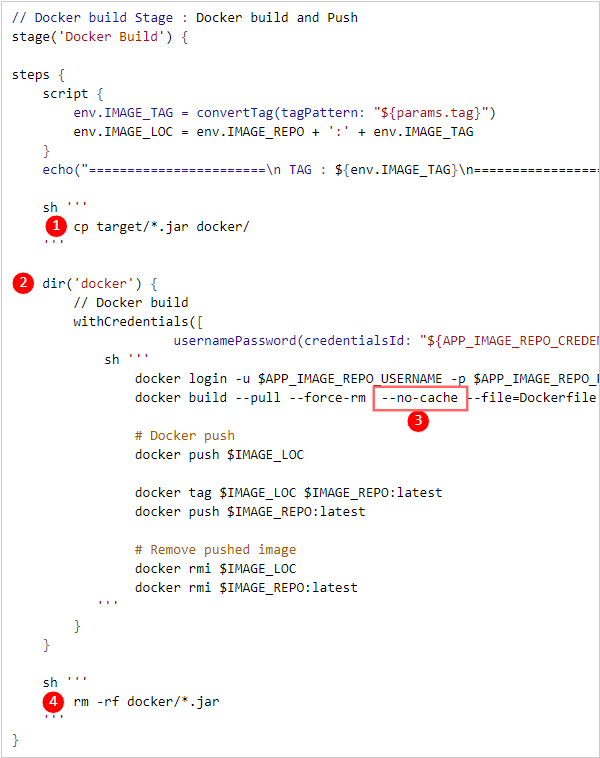
| Item | Description |
|---|---|
➊ | Pre-build command |
➋ | Image build folder |
➌ | Image build option |
➍ | Post-build command |
Table. Docker Build Example Script Description
Deploy to K8S
This stage deploys to Kubernetes.
Select Deploy to K8S as the stage type.
Item | Description |
|---|---|
| Type | Select deployment type
|
| K8S Cluster | Select K8S cluster
|
| Namespace | Select namespace. |
| Helm Release | Select Helm release. |
| Deployment Method | Select deployment method
|
| Registry URL | Select the image repository where the image to be deployed to Kubernetes is docker pushed. |
| Secret | Select secret information input method
|
Table. Deploy to K8S Stage Input Items
Deploy to VM
This stage deploys to a VM.
Select Deploy to VM as the stage type.
| Item | Description |
|---|---|
| Deployment Configuration | Select the deployment configuration method
|
| Deployment Group | Select the deployment group
|
| Deployment Information | Contents saved in the deployment group are automatically set. |
| Manual Deployment | Select the default value for manual deployment
|
Table. Deploy to VM Stage Input Items
Trigger Build
This stage remotely executes a pipeline.
Select Trigger Build as the stage type.
| Item | Description |
|---|---|
| Target Pipeline | Select the target pipeline to execute remotely. The available items vary depending on the development/operation distinction of the pipeline. |
| Parameter Information | Exposed depending on the parameter setting of the target pipeline. The parameter information entered at the time of pipeline execution is used. |
Table. Trigger Build Stage Input Items
Remote Execution Information Check
Remote execution information (upper/lower pipeline) through the Trigger Build stage can be checked on the Build Details View screen.
Other Stages
| Item | Description |
|---|---|
| Archive | Archives the application build result. The archived file can be downloaded from Jenkins. |
| Code Quality | Stage for executing the Code Quality step. |
| Custom | The user writes the pipeline script directly in the desired format. |
Table. Other Stage Setting Items
2.4.1.2 - Multibranch Pipeline
Note
For more detailed information on Jenkins multibranch pipeline, please refer to the official website.
Users can manage multiple branches of a code repository as a single job through the multibranch pipeline.
Getting Started with Multibranch Pipeline
To start using the multibranch pipeline, follow these steps:
- Main page, click the Project card. Move to the Project Dashboard page.
- Click the Build/Deployment > Build Pipeline menu on the left. Move to the Build Pipeline page.
Adding a Multibranch Pipeline
To add a multibranch pipeline, follow these steps:
- Main page, click the Project card. Move to the Project Dashboard page.
- Click the Build/Deployment > Build Pipeline menu on the left. Move to the Build Pipeline page.
- On the Build Pipeline page, click the Add Multibranch Pipeline button at the top right. The Add Multibranch Pipeline popup window opens.
- In the Add Multibranch Pipeline popup window, enter each item and click the Save button.
| Item | Description |
|---|---|
| Type | Select the development and operation distinction
|
| Jenkins URL | Select Jenkins to add a multibranch pipeline from the list. |
| Folder Type | Select the folder type
|
| Folder Name | Select a folder from the list or enter the name of the new folder to be created. |
| Pipeline Name | Enter the pipeline name. |
| Git Repository | Select the code repository to perform branch-based builds. Only code repositories registered in the DevOps Console project can be selected. |
| Branch Filtering | Filter the branch names to be built from the registered branches in the code repository. If filtering is used, enter the filtering conditions in Java regular expression format. |
| Jenkinsfile Path | Enter the path to the Jenkinsfile that defines the pipeline build in the code repository. |
Table. Multibranch Pipeline Addition Information Input Items
Managing Multibranch Pipelines
Multibranch Pipeline List
| Item | Description |
|---|---|
| Multibranch Icon and Label | The icon and label representing the multibranch pipeline are displayed. |
| URL | Move to the Multibranch Pipeline page in Jenkins. |
| Scan Log | The Multibranch Pipeline Scan Log popup window opens. |
| Scan | Scan the multibranch pipeline. |
| More | Display additional menus.
|
Table. Multibranch Pipeline List Screen Items
Scanning a Multibranch Pipeline
To scan a multibranch pipeline, follow these steps:
- On the Build Pipeline page, click the Scan button on the multibranch pipeline card you want to scan.
- In the confirmation popup window, click the Confirm button.
Viewing Multibranch Pipeline Scan Logs
To view the scan logs of a multibranch pipeline, follow these steps:
- On the Build Pipeline page, click the Scan Log button on the multibranch pipeline card you want to view the scan log for. The Multibranch Pipeline Scan Log popup window opens.
- In the Multibranch Pipeline Scan Log popup window, check the contents and click the Confirm button to close.
Viewing Multibranch Pipeline Build History
To view the branch-based build history of a multibranch pipeline, follow these steps:
- On the Build Pipeline page, click the More icon on the multibranch pipeline card you want to view the build history for.
- Click the Build History menu. Move to the Branch-based Build History screen in Jenkins (Not provided by DevOps Console).
Modifying a Multibranch Pipeline
To modify a multibranch pipeline, follow these steps:
- On the Build Pipeline page, click the More icon on the multibranch pipeline card you want to modify.
- Click the Pipeline Modification menu. Move to the Settings screen in Jenkins (Not provided by DevOps Console).
Deleting a Multibranch Pipeline
To delete a multibranch pipeline, follow these steps:
- On the Build Pipeline page, click the More icon on the multibranch pipeline card you want to delete.
- Click the Pipeline Deletion menu. The Pipeline Deletion popup window opens.
- In the Pipeline Deletion popup window, select whether to delete the pipeline in Jenkins together and click the Confirm button.
Note
Delete pipeline in Jenkins together
- Selected: The pipeline is actually deleted in Jenkins.
- Not selected: The pipeline is deleted only from the Build Pipeline list and remains in Jenkins.
2.4.2 - Kubernetes Deployment
The user can check the list of Helm releases used in the project and the deployment status. It appears in the development/operation list when creating a project or installing a chart, depending on the development classification.
The user can check the deployment by distinguishing it with an icon.
 Helm Chart
 Istio
Istio Workload
 Canary
 Blue-Green
 ArgoCD
Getting Started with Kubernetes Deployment
To start using Kubernetes deployment, follow the procedure below.
- Main page, click the Project card. Move to the Project Dashboard page.
- In the left menu, click the Build/Deploy > Kubernetes Deployment menu. Move to the Kubernetes Deployment page.
2.4.2.1 - Helm Release
Helm Release is an instance of a chart running in a Kubernetes cluster. Users can create a Helm Release when creating a project or through the Helm Install menu.
Getting Started with Helm Release
To get started with Helm Release, follow these steps:
- Main page, click the Project card. Move to the Project Dashboard page.
- In the left menu, click Build/Deploy > Kubernetes Deploy. Move to the Kubernetes Deploy page.
Item Description Name Displays the deployment name. Click to view detailed information. Chart Displays information about the Helm chart used for deployment. Cluster/Namespace Displays the cluster/namespace where the deployment is located. Pod Status Displays the current status of the Pod. Deployment Result Displays the result of the deployment execution. Deployment Time Displays the deployment execution time. Refresh Refreshes the current item. The items that change are Pod status, deployment result, and deployment time. Delete Deletes the current item. Table. Helm Release Items - On the Kubernetes Deploy page, click the Name in the Helm Release list. Move to the Deployment Details page.
Adding Helm Release
Helm Install
You can add a Helm Release through Helm Install.
Adding Related Helm Release
To add a related Helm Release, follow these steps:
- Main page, click the Project card. Move to the Project Dashboard page.
- In the left menu, click Build/Deploy > Kubernetes Deploy. Move to the Kubernetes Deploy page.
- Click the Add Related Helm Release button. The Add Related Helm Release popup window opens.
- In the Add Related Helm Release popup window, enter each item.
- Click the Save button to complete adding the Helm Release.
| Item | Description |
|---|---|
| Helm Release already registered in the project | Displays the Helm Release already registered in the project.
|
Table. Items displayed when adding related Helm Release
Managing Helm Release Secrets
Getting Started with Helm Release Secrets
Helm Release Secrets allows you to manage the ImagePull Secret used for the image deployed through the build pipeline.
To get started with Helm Release Secrets, follow these steps:
- On the Deployment Details page, click the Edit Authentication Information icon to the right of Helm Release.
- The Helm Release Secrets popup window opens.
Adding Helm Release Secrets
To add a Helm Release Secret, follow these steps:
- On the Deployment Details page, click the Edit Authentication Information icon to the right of Helm Release. The Helm Release Secrets popup window opens.
- In the Helm Release Secrets popup window, if you need to add a secret to pull a private chart image, click the Add button in the Chart Install Secret section. The Add Secret popup window opens.
- If you need to add a secret to pull the app image used for build/deploy, click the Add button in the ImagePull Secret section. The Add Secret popup window opens.
- In the Add Secret popup window, enter the secret-related content and click the Save button to complete the addition.
| Item | Description |
|---|---|
| Registry URL | Select the image to use for ImagePull Secret from the image list in the image repository. |
| Secret | Select the method for entering secret information
|
Table. Helm Release Secret Addition Settings
Modifying Helm Release Secrets
To modify a Helm Release Secret, follow these steps:
- On the Deployment Details page, click the Edit Authentication Information icon to the right of Helm Release. The Helm Release Secrets popup window opens.
- In the Helm Release Secret list, click the name of the secret you want to modify. The Modify Secret popup window opens.
- Modify the content and click the Save button to complete the modification.
Deleting Helm Release Secrets
To delete a Helm Release Secret, follow these steps:
- On the Deployment Details page, click the Edit Authentication Information icon to the right of Helm Release. The Helm Release Secrets popup window opens.
- In the Helm Release Secret list, click the name of the secret you want to delete.
- Click the Delete button to complete the deletion.
Modifying K8S Authentication Information
K8S authentication information refers to the authentication information used to verify the authority to use the K8S cluster/namespace when performing deployment in the build pipeline.
To modify the K8S authentication information, follow the procedure below.
- Deployment Details page, click the Edit Authentication Information icon to the right of K8S Cluster/Namespace. The Edit Authentication Information popup window will open.
- The authentication information is fixed to the account of the logged-in user. Click the Save button to modify it.
- In the confirmation popup window, click the Confirm button.
- The K8S authentication information will be changed to the logged-in user.
Checking values.yaml used in Helm Release
To check the contents of values.yaml, follow these steps:
- On the Deployment Details page, click the History tab.
- In the Values column, click the View icon. The Revision # - Values.yaml popup window opens.
- Check the contents of the
values.yamlfile.
Comparing values.yaml used in Helm Release
To compare the contents of values.yaml used in each release, follow these steps:
- On the Deployment Details page, click the History tab.
- In the list, select the checkboxes of the two revisions you want to compare.
- Click the Yaml Diff button. The Yaml Diff popup window opens.
- In the Yaml Diff (Revision #>#) popup window, check the comparison contents.
Rolling Back Helm Release
To roll back a Helm Release to a previous revision, follow these steps:
- On the Deployment Details page, click the History tab.
- Click the Rollback button for the revision you want to roll back. The Rollback popup window opens.
- Click the Confirm button to complete the rollback.
Upgrading Helm Release
To upgrade a Helm Release, follow these steps:
- On the Deployment Details page, click the History tab.
- In the Values column, click the View icon. The Revision # - Values.yaml popup window opens.
- Modify the contents of the current Values.yaml and click the Upgrade button. The Upgrade popup window opens.
- Check the information being upgraded.
- Click the Execute button to complete the upgrade.
Viewing Pod Logs
To view the logs of Pods related to Helm Release, follow these steps:
- On the Deployment Details page, click the Release Objects tab.
- In the Pod Items section, click the LOG icon in the LOG column. The Log popup window opens.
| Item | Description |
|---|---|
| Container | Select the container for which you want to output logs. |
| Real-time Refresh | Refreshes the log output in real-time. |
| Stop Refresh | Stops real-time refresh. |
| Download | Downloads the Pod log as a file. |
Table. Log Popup Window Function Description
Deleting Helm Release
To delete a Helm Release, follow these steps:
- On the Deployment Details page, click the Delete button at the bottom right of Helm Release. The Delete Helm Release popup window opens.
- Click the Confirm button to complete the deletion.
Note
Also execute the Helm delete command
- Selected: The Helm Release is actually deleted from the cluster.
- Not selected: Only deleted from the Kubernetes Deploy list and remains in the cluster.
2.4.2.2 - Workload
A workload is an application that runs on Kubernetes, and users can add workloads to the DevOps Console for management.
The workload types manageable from DevOps Console are Deployment, StatefulSet, DaemonSet.
Start Workload
To start using the workload, follow the steps below.
- Click the Project card on the Main page. It moves to the Project Dashboard page.
- Click the Build/Deploy > Kubernetes Deploy menu in the left menu. You will be taken to the Kubernetes Deploy page.
- Kubernetes Deployment On the page, click the name of the workload.
Item Description Workload Type Displays the workload type. DeploymentStatefulSetDaemonSet
Name Displays the workload name. Click to view detailed information. Chart Displays the Helm chart information used for deployment. Cluster/Namespace Displays the deployed cluster/namespace. Pod status Displays the current status of the Pod. Deployment Result Displays the deployment execution result. Deployment Time Displays the deployment execution time. Refresh Refresh the current item. The items that change are Pod status, deployment result, deployment time. Delete Deletes the current item. Table. Workload screen items
Add workload
To add a workload, follow the procedure below.
- Main page, click the Project card. It moves to the Project Dashboard page.
- In the left menu, click the Build/Deploy > Kubernetes Deployment menu. It moves to the Kubernetes Deployment page.
- On the Kubernetes Deployment page, click the Add Workload menu. The Add Workload popup window opens.
- In the Add Workload popup window, enter the information and click the Save button.
- In the confirmation popup window, click the Confirm button to complete adding the workload.
Item | Description |
|---|---|
| Target to be retrieved | Only workloads deployed with the same image as the base image of the App template used when creating the project for the first time are displayed. |
| Workload already registered in the project | It shows the workload already registered in the project.
|
Table. Input items for adding workload
K8S Modify authentication information
K8S authentication information refers to the authentication information used to verify the authority to use the K8S cluster/namespace when performing deployment in the build pipeline.
To modify the K8S authentication information, follow the procedure below.
- Deployment Details page, click the Edit Authentication Information icon to the right of K8S Cluster/Namespace. The Edit Authentication Information popup window will open.
- The authentication information is fixed to the account of the logged-in user. Click the Save button to modify it.
- In the confirmation popup window, click the Confirm button.
- The K8S authentication information will be changed to the logged-in user.
Rollback workload
To roll back the workload to a previous image, follow the steps below.
- On the Main page, click the Project card. It navigates to the Project Dashboard page.
- In the left menu, click the Build/Deploy > Kubernetes Deploy menu. You will be taken to the Kubernetes Deploy page.
- Kubernetes deployment page, click the workload name to roll back. You will be taken to the workload details page.
- Click the Details tab of the Workload Details page.
- Detailed Information tab list, click the Rollback button in the row that has the image you want to rollback. Rollback popup window opens.
- Rollback Click the button in the popup window in the desired way to complete the rollback.
- Recreate
- Rolling Update
Add distribution result recipient
To add a distribution result recipient, follow the steps below.
- Click the Deployment Result Recipients tab on the Workload Details page.
- Click the Add button on the Distribution Result Recipient tab. The Add Distribution Result Recipient popup opens.
- Add distribution result recipients In the popup window, select the target and click the Confirm button to complete adding distribution result recipients.
- Search button or click the list to add the recipient to the bottom of the popup.
- Added recipients can be deleted by clicking the X icon on the right.
Delete workload
To delete the workload, follow the steps below.
- Click the X icon of the workload to delete on the Kubernetes Deployment page.
- In the confirmation popup, click the Confirm button to complete the deletion.ReferenceWorkloads are not deleted in the actual cluster.
If you want to delete in the actual cluster, delete it using the method you originally deployed the workload.
2.4.2.3 - Blue/Green Deployment
Users can perform blue/green deployments using Ingress or Service.
Adding a blue/green deployment means creating a new K8S Ingress or K8S Service that can replace two Helm releases with each other.
Only two Helm releases with the same Project, Cluster, Namespace, Release Type, Chart Name, Chart Version, and Development Classification can be linked.
Getting Started with Blue/Green Deployment
To start using blue/green deployment, follow these steps:
- Click the Project card on the Main page. You will be moved to the Project Dashboard page.
- Click the Build/Deployment > Kubernetes Deployment menu on the left. You will be moved to the Kubernetes Deployment page.Item
Description Name Displays the name of the blue/green deployment. Click to view detailed information. Cluster/Namespace Displays the cluster/namespace where the deployment is deployed. (Operation) Displays information about the currently operating Helm release. (Pre-operation) Displays the Helm release that will be the next version of the operation. When using blue/green replacement, the pre-operation becomes the operation. Delete Deletes the current item. Table. Kubernetes Deployment Screen Blue/Green Deployment Card Items - On the Kubernetes Deployment page, click the name of the blue/green deployment you want to start in the deployment list. You will be moved to the Deployment Details page.
Adding Blue/Green Deployment
To add a blue/green deployment, follow these steps:
Note
To add a blue/green deployment, you need two Helm releases installed using the same chart.
- Click the Project card on the Main page. You will be moved to the Project Dashboard page.
- Click the Build/Deployment > Kubernetes Deployment menu on the left. You will be moved to the Kubernetes Deployment page.
- Click the Add Blue/Green Deployment button at the top right of the Kubernetes Deployment page. The Add Blue/Green Deployment popup window will open.
- Enter the information in the Add Blue/Green Deployment popup window and click the Save button to complete the addition of the blue/green deployment.
Item | Description |
|---|---|
| Classification | Select development or operation
|
| Blue/Green Deployment Name | Enter the deployment name. |
| Operation | Select the release and Jenkins job
|
| Pre-operation | Select the release and Jenkins job
|
| K8S Cluster/Namespace | Displays the K8S cluster/namespace where the Helm release is installed. |
| Type Classification | Choose whether to use Ingress or Service to switch blue/green. |
| New Classification | Choose whether to create a new Ingress or Service or use an existing one. |
| Name | Enter the name
|
| Service (Operation) | Select the Kubernetes Service related to the currently operating Helm release from the list. |
| Service (Pre-operation) | Select the Kubernetes Service related to the Helm release to be reflected in the next version of the operation from the list. |
| Rules | Enter the information to be used in Ingress. |
Table. Input Items for Ingress Type when Adding Blue/Green Deployment
| Item | Description |
|---|---|
| Type | Select the type of Kubernetes Service from the list
|
| Deployment (Operation) | Select the Kubernetes Deployment related to the currently operating Helm release from the list. |
| Deployment (Pre-operation) | Select the Kubernetes Deployment related to the Helm release to be reflected in the next version of the operation from the list. |
| Ports | Enter the information to be used in Service. |
Table. Input Items for Service Type when Adding Blue/Green Deployment
Switching Blue/Green
To switch blue/green, follow these steps:
- Click the Blue/Green Switch button on the Deployment Details page. The Blue/Green Switch popup window will open.
- Click the Confirm button in the Blue/Green Switch popup window to complete the blue/green switch.
- The Helm releases for operation and pre-operation are swapped with each other.
- The switch history is added.
Checking YAML of Ingress or Service Used in Blue/Green Deployment
To check the YAML of the Ingress or Service used in blue/green, follow these steps:
- Click the View icon of Ingress YAML or Service YAML on the Deployment Details page. The Ingress YAML or Service YAML popup window will open.
- Check the contents in the Ingress YAML or Service YAML popup window and click the Confirm button to close.
Managing Jenkins Job of Blue/Green Deployment
Viewing Jenkins Job Log
To view the Jenkins job log, follow these steps:
- Click the Log button in the Jenkins job item of the desired release on the Deployment Details page. The Pipeline Log popup window will open.
- Check the log in the Pipeline Log popup window and click the Confirm button.
Running Jenkins Job
To run a Jenkins job, follow these steps:
- Click the Run button in the Jenkins job item of the desired release on the Deployment Details page. The Pipeline Run Parameter Input popup window will open.
- Enter or select each item in the Pipeline Run Parameter Input popup window and click the Confirm button to complete the Jenkins job run.
Modifying Blue/Green Deployment
To modify a blue/green deployment, follow these steps:
- Click the Modify button on the Deployment Details page. The Modify Blue/Green Deployment popup window will open.
- Modify the desired items in the Modify Blue/Green Deployment popup window and click the Save button to complete the modification.
Deleting Blue/Green Deployment
To delete a blue/green deployment, follow these steps:
- Click the Delete button on the Deployment Details page. The Delete Blue/Green Deployment popup window will open.
- Select whether to execute the Ingress/Service Deletion Command and click the Confirm button to complete the deletion.
Note
Ingress/Service Deletion Command
- Selected: The Ingress or Service used in the blue/green deployment is actually deleted from the cluster.
- Not selected: The Ingress or Service used in the blue/green deployment is not deleted and remains in the cluster.
2.4.2.4 - Canary Deployment
Users can add canary deployments.
Canary addition refers to setting up two Helm releases to be bundled for canary testing.
Project, Cluster, Release Type, Chart Name, Chart Version, and Development Classification must all be the same for two Helm releases to be bundled.
Getting Started with Canary Deployment
To start using canary deployment, follow these steps:
- Click the Project card on the Main page to go to the Project Dashboard page.
- Click Build/Deployment > Kubernetes Deployment in the left menu to go to the Kubernetes Deployment page.
Item Description Name Displays the canary name. Click to view detailed information. Cluster Displays the deployed cluster. (Operation) Displays the currently operating Helm release. (Canary) Displays the canary Helm release. Terminate Terminates the canary. Table. Kubernetes Deployment Screen Canary Card Items - Click the name of the canary you want to use on the Kubernetes Deployment page’s deployment list to go to the Deployment Details page.
Adding a Canary
To add a canary, follow these steps:
Note
Canary is supported in the following environments. Check before adding a canary.
Kubernetesv1.17or highernginx-ingressv0.29.0or higher
Guide
To add a canary, you need two Helm releases installed using the same chart.
- Click the Project card on the Main page to go to the Project Dashboard page.
- Click Build/Deployment > Kubernetes Deployment in the left menu to go to the Kubernetes Deployment page.
- Click the Add Canary button at the top right of the Kubernetes Deployment page. The Add Canary popup window opens.
- Enter information in the Add Canary popup window and click the Save button to complete adding the canary.
| Item | Description |
|---|---|
| Classification | Select development or operation.
|
| Canary Name | Enter the canary name. |
| Operation |
|
| Canary |
|
| K8S Cluster | Displays the K8S cluster where the Helm release is installed. |
| Ingress Annotation | Enter the annotation item you want to apply from the canary annotation provided by nginx-ingress. |
Table. Add Canary Input Items
Note
For detailed guidance on each item of nginx-ingress ingress annotations, see the next page.
Checking Ingress YAML of Canary
To check the operating Ingress YAML and canary Ingress YAML used by the canary, follow these steps:
- Click the View icon for Operating Ingress YAML or Canary Ingress YAML on the Deployment Details page. The Ingress YAML popup window opens.
- Check the contents in the Ingress YAML popup window and click the OK button to close it.
Managing Jenkins Job of Canary
Viewing Jenkins Job Log
To view the Jenkins job log, follow these steps:
- Click the Log button for the Jenkins job item of the desired release on the Deployment Details page. The Pipeline Log popup window opens.
- Check the log in the Pipeline Log popup window and click the OK button.
Running Jenkins Job
To run a Jenkins job, follow these steps:
- Click the Run button for the Jenkins job item of the desired release on the Deployment Details page. The Pipeline Run Parameter Input popup window opens.
- Enter or select each item in the Pipeline Run Parameter Input popup window and click the OK button to complete running the Jenkins job.
Modifying Canary
To modify a canary, follow these steps:
- Click the Modify button on the Deployment Details page. The Modify Canary popup window opens.
- Modify the desired items in the Modify Canary popup window and click the Save button to complete the modification.
Recovering Canary
When the ingress annotation information of the operating release and canary release does not work normally due to changes in the Helm release, recover it to work again.
To recover a canary, follow these steps:
- Click the Recover button on the Deployment Details page. The Recover popup window opens.
- Click the OK button in the Recover popup window to complete the recovery.
Terminating (Deleting) Canary
To terminate a canary, follow these steps:
- Click the Terminate button on the Deployment Details page. The Terminate Canary popup window opens.
- Select the desired items in the Terminate Canary popup window and click the OK button to complete the termination.
Item | Description |
|---|---|
| Canary Release | Select the canary release
|
| Operation Release | Select the operation release
|
Table. Canary Termination Selection Items
2.4.2.5 - Istio
Note
For a detailed guide on Istio, please refer to the next page.
GatewayVirtual ServiceDestination Rule
Getting Started with Istio
To start using Istio, follow these steps:
- Main page, click on the Project card. Move to the Project Dashboard page.
- In the left menu, click on Build/Deploy > Kubernetes Deploy. Move to the Kubernetes Deploy page.
Item Description Name Displays the Istio name. Click to view detailed information. Cluster/Namespace Displays the deployed cluster/namespace. Delete Deletes the current item. Table. Kubernetes Deploy page Istio card item - On the Kubernetes Deploy page, click on the name of the Istio you want to use. Move to the Istio Details page.
Adding Istio
To add Istio, follow these steps:
- Main page, click on the Project card. Move to the Project Dashboard page.
- In the left menu, click on Build/Deploy > Kubernetes Deploy. Move to the Kubernetes Deploy page.
- On the Kubernetes Deploy page, click the Add Istio button in the top right corner. The Add Istio popup window opens.
- In the Add Istio popup window, enter the information and click the Save button to add Istio.
| Item | Description |
|---|---|
| Type | Select development or operation. |
| K8S Cluster | Select a K8S cluster. |
| Namespace | Select a namespace. Only namespaces that can use Istio are displayed in the list. |
Table. Add Istio input items
Note
Although you have added Istio, you have not created an Istio object yet, so you cannot use the Istio-related functions yet.
Perform Create Wizard to add Istio object or Object addition to add Istio object to add an Istio object and use it.
Istio Objects
Adding Istio Objects
Using Create Wizard to Add Istio Objects
- On the Istio Details page, click on the Istio Objects tab.
- On the Istio Objects tab, click the Create Wizard button. Move to the Create Wizard page.
Helm Release
This is the step to select the Helm release to be used in Istio.
- On the Create Wizard page, click the Add button to select all Helm releases to be used in Istio.
- Click the Start button. The Gateway screen appears.
Gateway
Istio Gateway is the front-end object that receives traffic from outside.
- On the Create Wizard page, on the Gateway screen, select whether to create a Gateway.
- If you want to create a Gateway, enter each item.
- If you do not want to create a Gateway, select Skip object creation.
- Click the Next button. The Destination Rule screen appears.
| Item | Description |
|---|---|
| Name Prefix | Specify the prefix name for the Istio Gateway object to be created. |
| Host | Specify the domain of the Gateway object to be accessed from outside. |
Table. Create Wizard Gateway input items
Destination Rule
Destination Rule defines the traffic policy of Istio.
- On the Create Wizard page, on the Destination Rule screen, select whether to create a Destination Rule.
- If you want to create a Destination Rule, enter each item.
- If you do not want to create a Destination Rule, select Skip object creation.
- Click the Next button. The Virtual Service screen appears.
| Item | Description |
|---|---|
| Name Prefix | Enter the prefix name for the Istio Destination Rule object to be created. |
| Load Balancer | Select the load balancer method.
|
| Max Connections | Enter the maximum number of allowed connections. |
Table. Create Wizard Destination Rule input items
Virtual Service
Virtual Service plays a role in routing incoming traffic to a service.
- On the Create Wizard page, on the Virtual Service screen, enter each item if you want to create a Virtual Service.
- Click the Complete button to complete the creation of the Istio object using the Create Wizard.
| Item | Description |
|---|---|
| Name Prefix | Enter the prefix name for the Istio Virtual Service to be created. |
| Prefix-Uri | Enter the prefix URI to route traffic to the corresponding URI. |
| Helm Release Weight | If there are multiple Helm releases, enter the connection weight. The sum of each number must be 100. |
Table. Create Wizard Virtual Service input items
Using Object Addition to Add Istio Objects
- On the Istio Details page, click on the Istio Objects tab.
- On the Istio Objects tab, click the Object Addition button. The Object Addition popup window opens.
- In the Object Addition popup window, enter each item and click the Save button to complete the addition of the Istio object.
| Item | Description |
|---|---|
| Object | Select the object to be created
|
| Input | The input items vary depending on each object. Refer to the Create Wizard for input.
|
| Generate | Click the Generate button. A basic Yaml is created in the Yaml area based on the input above. |
| Yaml | Modify the basic Yaml to complete the final Yaml of the object you want to create. |
| Save | Click the Save button to create the object. |
Table. Object addition to add Istio object screen items
Modifying Istio Objects
To modify an Istio object, follow these steps:
- On the Istio Details page, click on the Istio Objects tab.
- On the Istio Objects tab, click on the object you want to modify in the Istio object list. The Object popup window opens.
- In the Object popup window, modify the Yaml and click the Save button to complete the modification of the Istio object.
Deleting Istio Objects
To delete an Istio object, follow these steps:
- On the Istio Details page, click on the Istio Objects tab.
- On the Istio Objects tab, click on the object you want to modify in the Istio object list. The Object popup window opens.
- In the Object popup window, click the Delete button to complete the deletion of the Istio object.
Helm Release
Adding Helm Release
To add a Helm release used in Istio, follow these steps:
- On the Istio Details page, click on the Helm Release tab.
- On the Helm Release tab, click the Add button. The Add Helm Release popup window opens.
- In the Add Helm Release popup window, enter each item and click the Save button to complete the addition of the Helm release.
Deleting Helm Release
To delete a Helm release used in Istio, follow these steps:
- On the Istio Details page, click on the Helm Release tab.
- On the Helm Release tab, select the checkbox of the Helm release you want to delete and click the Delete button.
- In the confirmation popup window, click the Confirm button to complete the deletion of the Helm release.
Deleting Istio
To delete Istio, follow these steps:
- On the Istio Details page, click the Delete button at the bottom right.
- In the confirmation popup window, click the Confirm button to complete the deletion.
2.4.2.6 - ArgoCD
ArgoCD is a software used for GitOps deployment in a Kubernetes environment. Users can set up ArgoCD deployment when creating a project or through the Kubernetes deployment menu.
Getting Started with ArgoCD
To view the details of an ArgoCD application, follow these steps:
- Click the Project card on the Main page. You will be taken to the Project Dashboard page.
- Click the Build/Deploy > Kubernetes Deploy menu on the left. You will be taken to the Kubernetes Deploy page.
- Click the ArgoCD Application Card you want to start. You will be taken to the Deploy Details page.
Category | Item | Description |
|---|---|---|
| ArgoCD Application | Name | Displays the ArgoCD project name/ArgoCD URL. |
| Git Information | Displays the Git information used for deployment. | |
| Cluster/Namespace | Displays the deployed cluster/namespace. | |
| App Status | Displays the current status of the app. | |
| Deployment Result | Displays the current sync status. | |
| Deployment Time | Displays the deployment execution time. | |
| Refresh | Clicking the Refresh icon refreshes the current item. The items that change are App Status and Deployment Result. | |
| Delete | Deletes the current item. | |
| Deployment Details | Edit ArgoCD App Secret | Clicking the Edit Authentication Information icon on the right side of the application name opens a popup window to manage the image secret used for deployment. |
| Go to ArgoCD App | The Application Details screen of the actual ArgoCD tool opens in a new window. |
Table. ArgoCD Application Card and Deployment Details Items
Adding an ArgoCD Application
Creating a New ArgoCD Application using Helm Chart
To create a new ArgoCD application using a Helm chart and add it, follow these steps:
- Click the Project card on the Main page. You will be taken to the Project Dashboard page.
- Click the Build/Deploy > Kubernetes Deploy menu on the left. You will be taken to the Kubernetes Deploy page.
- Click the Create New ArgoCD App button at the top right. You will be taken to the Create New ArgoCD App page.
- Enter the ArgoCD Information and click the Confirm button. The Authentication Information input field will appear.
- Enter the Authentication Information and click the Connection Test button.
- The Application Basic Information and Deployment Target K8S Cluster input fields will appear.
- Enter the Application Name and click the Duplicate Check button.
- Enter the Project Name.
- Select Helm Chart to Create a New Repository as the Repository Type.
- Select the K8S Cluster and Namespace.
- Select the Helm Chart. The Helm Chart information and Helm Chart Git Repository information will appear.
- Modify the contents of the Values.yaml file located in the K8S Cluster Values of the Helm Chart and click the Validation Check button.
- Enter the Helm Chart Git Repository information and click the Connection Test button.
- Enter the Manifest Keys information.
- Click the Create button to complete the creation.
Note
The Deploy Strategy in the Manifest File and Key Information is not a required input value.
| Item | Description |
|---|---|
| URL Input Method | Select the URL input method.
|
| ArgoCD URL | Enter the ArgoCD URL and click the Confirm button. |
| Authentication Information | Enter the authentication information and click the Connection Test button. |
| Application Name | Enter the ArgoCD application name and click the Duplicate Check button. |
| Project Name | Enter the project name of the ArgoCD application. |
| Repository Type | Select the repository type.
|
| K8S Cluster | Select the target cluster for deployment.
|
| Namespace | Select the target namespace for deployment.
|
| Helm Chart | Select the Helm chart. |
| Helm Chart Git Repository | Enter the information of the Git repository used for Helm Chart. |
| Manifest Key Information | Enter the information for continuous deployment (Manifest file/Key information). |
Table. Create New ArgoCD Application - Helm Chart Creation Settings
Creating a New ArgoCD Application using an Existing Git Repository
To create a new ArgoCD application using an existing Git repository and add it, follow these steps:
- Click the Project card on the Main page. You will be taken to the Project Dashboard page.
- Click the Build/Deploy > Kubernetes Deploy menu on the left. You will be taken to the Kubernetes Deploy page.
- Click the Create New ArgoCD App button at the top right. You will be taken to the Create New ArgoCD App page.
- Enter the ArgoCD Information and click the Confirm button. The Authentication Information input field will appear.
- Enter the Authentication Information and click the Connection Test button.
- The Application Basic Information and Deployment Target K8S Cluster input fields will appear.
- Enter the Application Name and click the Duplicate Check button.
- Enter the Project Name.
- Select Use an Existing Git Repository as the Repository Type.
- Select the K8S Cluster and Namespace.
- Select the Helm Chart. The Helm Chart and Helm Chart Git Repository information will appear.
- Modify the contents of the Values.yaml file located in the K8S Cluster Values of the Helm Chart and click the Validation Check button.
- Enter the Helm Chart Git Repository information and click the Connection Test button.
- Enter the Manifest Keys information.
- Click the Create button to complete the creation.
Note
The Deploy Strategy in the Manifest File and Key Information is not a required input value.
Item | Description |
|---|---|
| URL Input Method | Select the URL input method.
|
| ArgoCD URL | Enter the ArgoCD URL and click the Confirm button. |
| Authentication Information | Enter the authentication information and click the Connection Test button. |
| Application Name | Enter the ArgoCD application name and click the Duplicate Check button. |
| Project Name | Enter the project name of the ArgoCD application. |
| Repository Type | Select the repository type.
|
| K8S Cluster | Select the target cluster for deployment.
|
| Namespace | Select the target namespace for deployment.
|
| Git Repository | Enter the information of the Git repository where the Manifest information for creating the ArgoCD application is stored. |
| Manifest Keys Information | Enter the information for continuous deployment (Manifest Root path, Manifest type, Manifest file/Key information). |
Table. Create New ArgoCD Application - Existing Git Repository Creation Settings
Adding an Existing ArgoCD Application
To add an existing ArgoCD application, follow these steps:
- Click the Project card on the Main page. You will be taken to the Project Dashboard page.
- Click the Build/Deploy > Kubernetes Deploy menu on the left. You will be taken to the Kubernetes Deploy page.
- Click the Add ArgoCD App button at the top right. You will be taken to the Add ArgoCD App page.
- Enter the ArgoCD URL and click the Confirm button.
- The input screen for the existing application name and authentication information will appear.
- Enter the Existing Application Name and Authentication Information and click the Connection Test button.NoteIf the Git repository linked to the ArgoCD application is not registered in the DevOps Console, the URL Check popup window will open. Follow steps 7-8.
- The URL Check popup window will open to distinguish the Git repository linked to the ArgoCD application.
- Modify the Base URL and click the Confirm button.
- The information of the Git Repository linked to the application will appear.
- Enter the Git Repository Authentication Information and click the Connection Test button.
- Enter the Manifest Keys information.
- Click the Save button to complete the Add ArgoCD Application.
Item | Description |
|---|---|
| URL Input Method | Select the URL input method.
|
| ArgoCD URL | Enter the ArgoCD URL and click the Confirm button. |
| Application Name / Authentication Information | Enter the Existing Application Name and Authentication Information and click the Connection Test button. |
| Git Repository Authentication Information | Enter the authentication information of the Git repository used by the selected existing application. |
| Image Repo Key | Enter the YAML file path and key value where the image repository information is recorded. |
| Image Tag Key | Enter the YAML file path and key value where the image tag information is recorded. |
| Image Secret Key | Enter the YAML file path and key value where the image secret information is recorded. |
| Deploy Strategy Key | Enter the YAML file path and key value where the deployment strategy information is recorded. (Not a required value) |
Table. Add Existing ArgoCD Application Settings
Managing ArgoCD Applications
To view the details of an ArgoCD application, follow these steps:
- Click the Project card on the Main page. You will be taken to the Project Dashboard page.
- Click the Build/Deploy > Kubernetes Deploy menu on the left. You will be taken to the Kubernetes Deploy page.
- Click the ArgoCD Application Card you want to start. You will be taken to the Deploy Details page.
Editing Manifest Information
To edit the manifest information, follow these steps:
- Click the Git-related Information tab.
- Click the Edit icon next to Manifest Information. The Edit Manifest Key Information popup window will open.
- Modify the manifest key value and click the Save button.
Editing ArgoCD Authentication Information
To edit the ArgoCD authentication information, follow these steps:
- Click the Edit icon next to ArgoCD User ID. The Edit Authentication Information popup window will open.
- Modify the authentication information value and click the Save button to complete the modification.
Editing Linked Git Repository Authentication Information
To edit the authentication information of the linked Git repository, follow these steps:
- Click the Edit icon next to Linked Git ID. The Edit Authentication Information popup window will open.
- Modify the authentication information and click the Save button to complete the modification.
Setting Sync
To change the sync setting, follow these steps:
- Click the Sync icon next to Current Sync. The ArgoCD App Sync popup window will open.
- Enter the modified contents and click the Sync button to complete the Sync Setting.
| Item | Description |
|---|---|
| Revision | Select the target branch for synchronization. |
| Sync Options | Select the synchronization options. |
| Synchronize Resources | Select the synchronization target. |
Table. Sync Settings
Note
For more information about ArgoCD synchronization, refer to the official website.
Setting Auto-Sync
To change the Auto-Sync setting of an ArgoCD application, follow these steps:
- Click the Edit icon next to Auto-Sync. The Auto-Sync Options popup window will open.
- Modify the contents and click the Save button to complete the setting.
| Item | Description |
|---|---|
| Prune Resources | Select whether to delete the synchronization target when the Git setting is deleted. |
| Self Heal | Select whether to automatically change the value in the cluster to the value defined in Git when the value of the synchronization target is changed in the cluster. |
Table. Auto-Sync Settings
Managing Application Secrets
If the ArgoCD application was created using a Helm chart, you can add, modify, or delete application secrets.
To start managing application secrets, follow these steps:
- Click the application secret icon to the right of the application name.
- The Application Secret Settings popup window will open.
Adding an Application Secret
To add an application secret, follow these steps:
- Click the Edit icon next to Application Name. The Application Secret Settings popup window will open.
- If you need to add a secret to pull the Chart Image, click the Add button in the Chart Install Secret section.
- If you need to add a secret to pull the App Image during build/deployment, click the Add button in the ImagePull Secret section.
- Enter the contents and click the Save button to complete the addition.
Item | Description |
|---|---|
| Registry URL | Select the image to use for ImagePull Secret from the image list registered in the image repository. |
| Secret | Select the method of entering ImagePull Secret information.
|
Table. Application Secret Addition Settings
Editing an Application Secret
To edit an application secret, follow these steps:
- Click the Edit icon next to Application Name. The Application Secret Settings popup window will open.
- Click the Name of the secret you want to modify in the application secret list.
- Enter the contents and click the Save button to complete the modification.
Deleting an Application Secret
… (rest of the text remains the same) To delete an application secret, follow these steps:
- Click the Edit Authentication Information icon next to the Application Name. The Application Secret Settings popup window will open.
- Click the Name of the secret you want to delete from the application secret list.
- Click the Delete button to complete the deletion.
Comparing Values.yaml Files
If you are using an ArgoCD application with Helm charts, you can compare values.yaml files.
To compare the values.yaml files used for each release, follow these steps:
- Click the History tab.
- Click the two revisions you want to compare.
- Click the App Diff button. The App Diff popup window will open.
Rolling Back an Application
To roll back an application to a previous revision, follow these steps:
- Click the History tab.
- Click the Rollback button in the rollback column of the revision you want to roll back. The Rollback popup window will open.
- Click the Confirm button to complete the rollback.
Deleting an Application
To delete an application, follow these steps:
- Click the Delete button at the bottom right. The Application Deletion popup will open.
- Click the Confirm button to complete the deletion.
Note
Deletion only occurs in the DevOps Console, and the actual ArgoCD application is not deleted.
2.4.3 - VM Deployment
Users can register/manage VM deployments through the DevOps Console.
Before registering a VM deployment, there must be an available VM server group (VM server group), and registered VM deployments can be used in the build pipeline (Deploy to VM).
Users can distinguish deployment methods by icon.
 (SSH method) VM deployment
 (Agent method) VM deployment
Note
Difference by deployment method: Table. SSH method vs Agent method
Starting VM Deployment
To start a VM deployment, follow these steps.
- Click the Project card on the Main page. Move to the Project Dashboard page.
- Click the Build/Deployment > VM Deployment menu on the left. Move to the VM Deployment page.
| Item | Description |
|---|---|
| Deployment group name | Displays the name of the deployment group. |
| VM deployment result | (Success)/(Total): Displays the number of VM servers that are deployment targets and the number of VM servers that have been successfully deployed.
|
| Deployment time | Displays the deployment time. |
| Delete | Deletes the VM deployment. |
Table. VM deployment display items
Adding VM Deployment
To add a VM deployment, follow these steps.
- Click the Project card on the Main page. Move to the Project Dashboard page.
- Click the Build/Deployment > VM Deployment menu on the left. Move to the VM Deployment page.
- Click the Add VM Deployment button at the top right of the VM Deployment page. The Add VM Deployment popup window opens.
- Enter information in the Add VM Deployment popup window and click the Save button.
| Item | Description |
|---|---|
| Deployment group | Enter the deployment group name. |
| Execution method | Select the execution method.
|
| Deployment method | Select the deployment method |
| Deployment order | Select whether to deploy to multiple target servers in parallel or sequentially. |
| Deployment target VM | Set the deployment target server.
|
| Command before file deployment | Enter the command to be executed before file deployment. |
| File to transfer |
|
| Command after file deployment | Enter the command to be executed after file deployment. |
| Auto-rollback setting | Select whether to enable auto-rollback.
|
| Artifact repository | Select whether to use an artifact repository for rollback.
|
| Repository name | Only visible when using an artifact repository.
|
Table. VM deployment addition input items
Note
The Deployment Target VM Settings popup window displays the server groups available for use.
For more information, see VM Server Group.
Viewing VM Deployment Details
To view the details of a VM deployment, follow these steps.
- Click the Project card on the Main page. Move to the Project Dashboard page.
- Click the Build/Deployment > VM Deployment menu on the left. Move to the VM Deployment page.
- Click the VM deployment you want to view in detail on the VM Deployment page. Move to the VM Deployment Details page.
- Click the server list on the History tab. The Deployment Details popup window opens.
- You can view detailed history in the Deployment Details popup window.
- Click the Log button of the execution pipeline to open the Pipeline Log popup window.
- You can view detailed logs in the Pipeline Log popup window.
- Click the Log button of the server you want to view logs for in the deployment server history list. The VM Agent Log popup window opens.
- You can view detailed logs in the VM Agent Log popup window.
| Item | Description |
|---|---|
| Pause/Start deployment | Pause and Start Deployment buttons are enabled. |
| Rollback | You can roll back to a previous version. |
| History tab | Displays deployment history. |
| Pipeline Information tab | Displays the build pipeline information connected to the VM deployment. |
| Log | You can view the build pipeline log. |
Table. VM deployment details screen items
| Item | Description |
|---|---|
| Execution pipeline log | You can view the build pipeline log. |
| Deployment server history log | You can view the deployment agent log.
|
Table. Deployment details screen items
Deleting VM Deployment
Deleting from the List
To delete a VM deployment, follow these steps.
- Click the Project card on the Main page. Move to the Project Dashboard page.
- Click the Build/Deployment > VM Deployment menu on the left. Move to the VM Deployment page.
- Click the X icon of the VM deployment you want to delete on the VM Deployment page.
- Click the Confirm button in the confirmation popup window to complete the VM deployment deletion.
Deleting from the Details Page
To delete a VM deployment, follow these steps.
- Click the Project card on the Main page. Move to the Project Dashboard page.
- Click the Build/Deployment > VM Deployment menu on the left. Move to the VM Deployment page.
- Click the VM deployment you want to delete on the VM Deployment page. Move to the VM Deployment Details page.
- Click the Delete button on the VM Deployment Details page.
- Click the Confirm button in the confirmation popup window to complete the VM deployment deletion.
Using Environment Variables in VM Deployment Commands
You can use environment variables in file deployment commands before and after file deployment, source path of files to transfer, and target path of files to transfer.
You can use the $ symbol or the ${} symbol in the command to use the environment variables of the build pipeline.
Color mode
echo ${BUILD_NUMBER}
echo $JOB_NAME
echo ${BUILD_NUMBER}
echo $JOB_NAMEIf you want to refer to the environment variables of the VM server where the command is executed, add a \ symbol.
Color mode
echo \${PATH}
echo \$LANG
echo \${PATH}
echo \$LANGPausing VM Deployment
You can pause an ongoing VM deployment on the Deployment Details page. Click the Pause button in the recent deployment status section of the Deployment Details page to pause the VM deployment.
The deployment pause is possible in the following states, and the Pause button is only displayed when in these states.
| Method | Status value | Description |
|---|---|---|
| SSH | Request | Build pipeline is running |
| AGENT | Request | Build pipeline is running |
| Build complete | Build pipeline has completed
| |
| Ready | AGENT can perform deployment | |
| In progress | AGENT is executing deployment |
Table. States where deployment pause is possible
Understanding VM Deployment Status Values
You can check the current status of a VM deployment on the Deployment Details page.
| Method | Status value | Description |
|---|---|---|
| SSH | Not executed | Initially created and never executed |
| Request | Build pipeline is running | |
| Success | Build/deployment was successful | |
| Failure | Build or deployment failed | |
| AGENT | Not executed | Initially created and never executed |
| Request | Build pipeline is running | |
| Build complete | Build pipeline has completed
| |
| Ready | AGENT can perform deployment after build pipeline completion | |
| In progress | AGENT is executing deployment | |
| Success | Build/deployment was successful | |
| Failure | Build or deployment failed | |
| Paused | Build or deployment was paused
|
Table. Description of deployment status values
2.4.4 - Helm Install
Users can use the Helm Install menu to view and install project charts, project group charts, tenant charts, and system charts.
Getting Started with Helm Install
To start using Helm Install, follow these steps:
- Main page, click the Project card. Move to the Project Dashboard page.
- In the left menu, click Build/Deploy > Helm Install. The Helm Install page opens.
| Item | Description |
|---|---|
| K8S Cluster | Select the K8S cluster that will be the target for Helm Install. The list of Helm charts below will only show charts that can be installed in the selected K8S cluster. |
| Chart Name | Displays the chart name. |
| Chart Repository | Displays the chart repository information where the Helm chart file is stored. |
Table. Helm Install screen items
Viewing Helm Chart Details
To view Helm chart details, follow these steps:
- Main page, click the Project card.
- In the left menu, click Build/Deploy > Helm Install. The Helm Install page opens.
- In the Helm Install page, select the K8S cluster where you want to install from the K8S cluster item. The list of Helm charts belonging to the cluster appears.
- In the Helm Chart list, click the Helm chart card you want to view in detail. The Helm Chart Detail page opens.
Viewing Helm Chart Details
| Item | Description |
|---|---|
| Version | If there are multiple versions, you can select the desired version. |
| Download | You can download the Helm chart file to your PC. |
| Helm Install | You can install Helm. |
Table. Helm chart detail screen items
Summary Tab
Displays the README.md file included in the Helm chart. You can check the information provided by the chart author.
Values.yaml Tab
Displays the values.yaml file included in the Helm chart. You can check the values that can be changed in the chart before Helm installation.
Detail Info Tab
Item | Description |
|---|---|
| Helm Chart Repository Information | Displays the repository where the Helm chart is stored. |
| Api Version | Displays the API version of the Helm chart.
|
| Support CI/CD | Displays whether it is possible to select the Helm chart type as Helm Release in the Deploy to K8S stage when creating a build pipeline. |
| New Installation Allowed |
|
| Chart Images | Displays the image information used in the Helm chart. |
Table. Detail info tab query items
Installing Helm
To install Helm, follow these steps:
- In the Helm Install page, select the K8S cluster where you want to install from the K8S cluster item. The list of Helm charts belonging to the cluster appears.
- In the Helm Install page, click the Helm chart card you want to view in detail. The Helm Chart Detail page opens.
- In the Helm Chart Detail page, click the Helm Install button. The Helm Install page opens.
- In the Helm Install page, enter each item on the screen and click the Next button. The Helm Chart Installation popup window opens.
- In the Helm Chart Installation popup window, check the contents and click the Run button to complete the Helm installation.
- Once the installation is complete, the Kubernetes Deployment page opens automatically.
Item | Description |
|---|---|
| Release Name | Enter the name to be used in Helm. It must be unique and cannot be duplicated within the namespace. |
| Type | Development, operation |
| Version | Select the version of the chart you want to install. |
| K8S Cluster | Displays the target K8S cluster where Helm will be installed. Changes are not possible, and if you want to change, select the K8S cluster in Getting Started with Helm Install. |
| Namespace | Select the target namespace where Helm will be installed from the list. |
| Reference Information | Reference information provided by the selected K8S cluster. You can check detailed information by clicking each tab. |
| Default Values.yaml included in the Chart | You can modify the values.yaml content to install Helm with the desired value.If necessary, check the reference information and modify the values.yaml with the corresponding value. |
Table. General Helm chart installation screen items
Item | Description |
|---|---|
| Release Name | Enter the name to be used in Helm. It must be unique and cannot be duplicated within the namespace. |
| Type | Development, operation |
| Version | Select the version of the chart you want to install. |
| K8S Cluster | Displays the target K8S cluster where Helm will be installed. Changes are not possible, and if you want to change, select the K8S cluster in Getting Started with Helm Install. |
| Namespace | Select the target namespace where Helm will be installed from the list. |
| Reference Information | Reference information provided by the selected K8S cluster. You can check detailed information by clicking each tab. |
| Default Values.yaml included in the Chart | You can modify the values.yaml content to install Helm with the desired value.If necessary, check the reference information and modify the values.yaml with the corresponding value. |
| Input Type |
|
| Form Input | The screen displayed when the input type is selected as Form, check each item, and enter the value. After entering, click the Validation Check button to verify the input value. |
Table. Form input-supported Helm chart installation screen items
2.4.5 - Ingress/Service Management
Users can add and manage Ingress/Service using the DevOps Console.
Getting Started with Ingress/Service Management
To start managing Ingress/Service, follow these steps:
- Main page, click the Project card. Move to the Project Dashboard page.
- Click the Build/Deploy > Ingress/Service Management menu in the left menu. Move to the Ingress/Service Management page.
Ingress Management
- Click the Ingress tab on the Ingress/Service Management page.
- Select K8S Cluster and Namespace in the Ingress tab. The Ingress list belonging to the selected namespace is retrieved.
Ingress
Note
Not all Ingress created in the namespace are displayed, and only Ingress created in
DevOps Console are displayed.| Item | Description |
|---|---|
| K8S Cluster | Select a K8S cluster from the list. |
| Namespace | Select a namespace from the list. The Ingress created in the selected namespace is retrieved. |
| Ingress List | Displays the Ingress list. |
| Search | You can search for Ingress. |
| Add | You can add Ingress. |
Table. Ingress Management Screen Items
Adding Ingress
To add Ingress, follow these steps:
- Click the Add button in the Ingress tab. The Add Ingress popup window opens.
- Enter information in the Add Ingress popup window and click the OK button.
- Click the OK button in the confirmation popup window to complete adding Ingress.
| Item | Description |
|---|---|
| Ingress Name | Enter the Ingress name. |
| K8S Cluster | Displays the K8S cluster where Ingress will be created. |
| Namespace | Displays the namespace where Ingress will be created. |
| Service | Select a Service from the Service list that Ingress will use as a target. |
| Rules | Enter Host, Path, and Service Port to be set for Ingress. You can enter multiple items by clicking Add. |
Table. Ingress Addition Input Items
Ingress Details
To view Ingress details, follow these steps:
- Click the Ingress you want to view in the Ingress tab. Move to the Ingress Details page.
- Check the detailed information of Ingress on the Ingress Details page.
- Click the View icon to open the Ingress YAML popup window.
- You can check the Ingress YAML content in the Ingress YAML popup window.
Modifying Ingress
Caution
Ingress used in blue/green deployment and canary cannot be modified.
To modify Ingress, follow these steps:
- Click the Ingress you want to modify in the Ingress tab. Move to the Ingress Details page.
- Click the Modify button on the Ingress Details page. The Modify Ingress popup window opens.
- Modify the Ingress information in the Modify Ingress popup window and click the OK button.
- Click the OK button in the confirmation popup window to complete modifying Ingress.
Deleting Ingress
Caution
Ingress used in blue/green deployment and canary cannot be deleted.
To delete Ingress, follow these steps:
- Click the Ingress you want to delete in the Ingress tab. Move to the Ingress Details page.
- Click the Delete button on the Ingress Details page.
- Click the OK button in the confirmation popup window to complete deleting Ingress.
Service Management
- Click the Service tab on the Ingress/Service Management page.
- Select K8S Cluster and Namespace in the Service tab. The Service list belonging to the selected namespace is retrieved.
Service
Note
Not all Services created in the namespace are displayed, and only Services created in
DevOps Console are displayed.| Item | Description |
|---|---|
| K8S Cluster | Select a K8S cluster from the list. |
| Namespace | Select a namespace from the list. The Service created in the selected namespace is retrieved. |
| Service List | Displays the Service list. |
| Search | You can search for Service. |
| Add | You can add Service. |
| External Endpoint Information Icon | If there is additional information, it is displayed. |
Table. Service Management Screen Items
Adding Service
To add Service, follow these steps:
- Click the Add button in the Service tab. The Add Service popup window opens.
- Enter information in the Add Service popup window and click the OK button.
- Click the OK button in the confirmation popup window to complete adding Service.
| Item | Description |
|---|---|
| Service Name | Enter the Service name. |
| K8S Cluster | Displays the K8S cluster where Service will be created. |
| Namespace | Displays the namespace where Service will be created. |
| Type | Select the type of Service
|
| Deployment | Select the Deployment that will be the target of Service from the list. |
| Ports | Enter Port Name, Port, Target, and Protocol used by Service. You can enter multiple items by clicking Add. |
Table. Service Addition Input Items
Service Details
To view Service details, follow these steps:
- Click the Service you want to view in the Service tab. Move to the Service Details page.
- Check the detailed information of Service on the Service Details page.
- Click the View icon to open the Service YAML popup window.
- You can check the Service YAML content in the Service YAML popup window.
Modifying Service
Caution
Service used in blue/green deployment cannot be modified.
To modify Service, follow these steps:
- Click the Service you want to modify in the Service tab. Move to the Service Details page.
- Click the Modify button on the Service Details page. The Modify Service popup window opens.
- Modify the Service information in the Modify Service popup window and click the OK button.
- Click the OK button in the confirmation popup window to complete modifying Service.
Deleting Service
Caution
Service used in blue/green deployment cannot be deleted.
To delete Service, follow these steps:
- Click the Service you want to delete in the Service tab. Move to the Service Details page.
- Click the Delete button on the Service Details page.
- Click the OK button in the confirmation popup window to complete deleting Service.
2.4.6 - Managing Kubernetes Secrets
Users can view secrets created in a namespace. Moreover, users can create and delete secrets.
Getting Started with Kubernetes Secret Management
To start managing Kubernetes secrets, follow these steps:
- Main page, click the Project card. It moves to the Project Dashboard page.
- In the left menu, click Build/Deploy > Kubernetes Secret Management. It moves to the Kubernetes Secret Management page.
| Item | Description |
|---|---|
| K8S Cluster | Select a K8S cluster from the list. |
| Namespace | Select a namespace from the list. The secrets created in the selected namespace are retrieved. |
| Secret List | Displays the list of secrets. |
| Search | Search for secrets. |
| Detailed Filter | Use detailed filters for detailed searches. |
| Add | Add secrets. |
Table. Kubernetes Secret Management Screen Items
Adding Secrets
Note
The secrets that can be added in Kubernetes Secret Management are Docker Config Secrets, and other secrets cannot be added on this screen.
Docker Config Secret refers to a secret used to store Docker registry access credentials for an image.
Docker Config Secret refers to a secret used to store Docker registry access credentials for an image.
To add a Kubernetes secret, follow these steps:
- On the Kubernetes Secret Management page, select a K8S Cluster.
- Select a Namespace.
- Click the Add button. The Add Secret popup window opens.
- In the Add Secret popup window, enter the information and click the Connection Test button.
- If the Connection Test is successful, click the Save button.
- In the confirmation popup window, click the Confirm button to complete the addition.
| Item | Description |
|---|---|
| K8S Cluster | Displays the K8S cluster where the secret will be created. |
| Namespace | Displays the namespace where the secret will be created. |
| Image Repository URL | Select the image repository to use for the secret. |
| Secret Name | Enter the secret name. |
| Authentication Information Selection |
|
Table. Add Secret Input Items
Viewing Secret Details
To view secret details, follow these steps:
- On the Kubernetes Secret Management page, click the secret for which you want to view detailed information. The Secret Details popup window opens.
- In the Secret Details popup window, check the detailed information of the secret.
Deleting Secrets
To delete a secret, follow these steps:
- On the Kubernetes Secret Management page, select the checkbox of the secret you want to delete.
- Click the Delete button.
- In the confirmation popup window, click the Confirm button to complete the deletion.
2.4.7 - Environment Variable Management
Users can add frequently used parameters and authentication information as environment variables to use when creating build pipelines.
Getting Started with Environment Variable Management
To manage environment variables used in build pipelines, follow these steps:
- Main page, click the Project card. Move to the Project Dashboard page.
- On the Project Dashboard page, click the Build/Deployment > Environment Variable Management menu in the left menu. Move to the Environment Variable Management page.
Adding Environment Variables
Adding Parameter Environment Variables
Parameter environment variables play the role of Linux Environment variables and are used in the NAME=VALUE format.
To add a parameter environment variable, follow these steps:
- On the Environment Variable Management page, click the Add button. The Add Environment Variable popup window opens.
- In the Add Environment Variable popup window, select Parameter as the type.
- Enter the information and click the Save button.
- In the confirmation popup window, click the Confirm button to complete the addition.
| Item | Description |
|---|---|
| Name | Enter the parameter name. |
| Value | Enter the parameter value. |
| Description | Enter a description for user reference. |
Table. Parameter Environment Variable Addition Input Items
Adding Authentication Information Environment Variables
Authentication information environment variables store authentication information for use. Authentication information required for stages can be easily used (preventing duplicate input) by registering and sharing it in advance.
To add an authentication information environment variable, follow these steps:
- On the Environment Variable Management page, click the Add button. The Add Environment Variable popup window opens.
- In the Add Environment Variable popup window, select Authentication Information as the type.
- Enter the information and click the Save button.
- In the confirmation popup window, click the Confirm button to complete the addition.
| Item | Description |
|---|---|
| Name | Enter the name of the authentication information. |
| Classification | Select a classification value
|
| Authentication Type | Select the authentication type. |
| ID | Enter the ID. |
| Password/Private Key | Enter the password or private key according to the authentication type. |
| Description | Enter a description for user reference. |
Table. Authentication Information Environment Variable Addition Input Items
Modifying Environment Variables
To modify an environment variable, follow these steps:
- On the Environment Variable Management page, click the environment variable you want to modify. The Modify Environment Variable popup window opens.
- In the Modify Environment Variable popup window, modify the desired item and click the Save button.
- In the confirmation popup window, click the Confirm button to complete the modification.
Deleting Environment Variables
To delete an environment variable, follow these steps:
Deleting from the List
- On the Environment Variable Management screen, select the checkbox of the environment variable you want to delete.
- On the Environment Variable Management screen, click the Delete button.
- In the confirmation popup window, click the Confirm button to complete the deletion.
Deleting from the Environment Variable Modification Popup Window
- On the Environment Variable Management screen, click the environment variable you want to delete. The Modify Environment Variable popup window opens.
- In the Modify Environment Variable popup window, click the Delete button.
- In the confirmation popup window, click the Confirm button to complete the deletion.
2.5 - Project Group
2.5.1 - Project Group Overview
Users can view and modify project group information based on their permissions.
Project Group Overview
To view the project group overview, follow these steps:
- Main page, click the Project Group Management icon of the project group. It moves to the Project Group Dashboard page.
- Click the Project Group Overview menu in the left menu. The Project Group Overview screen appears.
Modifying Project Group Name
To modify the project group name, follow these steps:
- On the Project Group Overview screen, click the Modify Project Group Name button. The Modify Project Group Name popup window opens.
- In the Modify Project Group Name popup window, modify the project group name and click the Save button to complete the modification.
Deleting Project Group
To delete a project group, follow these steps:
- On the Project Group Overview screen, click the Delete Project Group button. The Delete Project Group popup window opens.
- In the Delete Project Group popup window, confirm the path of the
Jenkinsfolder to be deleted and enter the project group name, then click the Delete button. - Click the Confirm button in the confirmation popup window to complete the deletion.
Note
- If there are projects within the project group, it cannot be deleted.
- A deleted project group cannot be recovered.
- All
Jenkinsproject group level folders that can be used will be deleted, so please confirm.
Project Group Members
Starting Project Group Members
To view project group members, follow these steps:
- On the Project Group Overview screen, click the Members tab.
Adding Project Group Members
To add members to a project group, follow these steps:
- On the Project Group Overview screen, click the Members tab. The Project Group Member List screen appears.
- On the Project Group Member List screen, click the Add button. The Add Project Group Member popup window opens.
- In the Add Project Group Member popup window, complete the settings and click the Save button to complete the addition.
| Item | Description |
|---|---|
| Add Member | Search for the user to be added as a project group member by email and click the Add button. |
| Authority Setting | Set the role to be granted to the member to be added
|
| Member Deletion | Click the X icon to delete from the members to be added to the project group. |
Table. Project Group Member Addition Items
Changing Project Group Member Roles
To change the role of a project group member, follow these steps:
- On the Project Group Overview screen, click the Members tab. The Project Group Member List screen appears.
- On the Project Group Member List screen, find the user whose role you want to change.
- Select the Project Group Role of the user from the list. It is saved as soon as it is selected, and the project group role of the user is changed.
Deleting Project Group Members
To delete project group members, follow these steps:
- On the Project Group Overview screen, click the Members tab. The Project Group Member List screen appears.
- On the Project Group Member List screen, select the checkbox of the user to be deleted.
- Click the Delete button at the top of the list to delete the selected user from the project group members.
Project Group Common Settings
Starting Project Group Common Settings
To view project group common settings, follow these steps:
- On the Project Group Overview screen, click the Common Settings tab. The Common Settings screen appears.
Setting Up Messenger
Setting up a messenger allows you to send event content to the messenger when an event occurs in the project group.
To set up a project group messenger, follow these steps:
- On the Project Group Overview screen, click the Common Settings tab. The Common Settings screen appears.
- On the Common Settings screen, click the Edit icon of the messenger settings. The Messenger Settings popup window opens.
- In the Messenger Settings popup window, complete the settings and click the Save button to complete the setup.
Managing All Project Groups
Note
It displays information about all project groups for which the user has permissions. It provides the same functionality as Project Group Overview, except for Project Group Name Change and Project Group Deletion.
- Click the Management icon at the top right of the Main page. It moves to the Tenant Dashboard page.
- Click the Tenant > Project Group menu in the left menu. It moves to the Project Group page.
2.5.2 - Creating a Project Group
Creating a Project Group
To create a project group, follow the procedure below.
- Main page, click the Create Project Group button at the top. The Create Project Group popup window opens.
- In the Create Project Group popup window, enter the items and click the Confirm button to complete the project group creation.
| Item | Description |
|---|---|
| Project Group Name | Enter the project group name to be displayed on the screen. |
| Project Group ID | Enter the ID of the project group to be managed in DevOps Console.The project group ID is used in build pipelines, etc. |
| Tenant | Select the tenant where the project group will be created from the list
|
Table. Project Group Creation Input Items
Note
Depending on the selected tenant, the approval process of the tenant administrator may be required.
Joining a Tenant
To join a tenant, follow the procedure below.
- Project Group Creation popup window, click the Join Tenant Shortcut link. The Tenant Join Request popup window will open.
- In the Tenant Search field, enter the tenant code you want to join exactly and click the Search icon. The tenant information will be retrieved.
- Verify that the searched tenant is correct, enter the Reason for Request, and click the Add button. It will be added to the list below.
- Select the authority for the tenant added to the list below and click the Save button.
2.5.3 - Project Group Dashboard
Getting Started with Project Group Dashboard
To view the project group dashboard, follow these steps.
- Main page, click the Project Group Management icon of the project group. It moves to the Project Group Dashboard page.
- Click the Dashboard menu in the left menu.
| Item | Description |
|---|---|
| Basic Information | Displays basic information of the project group. |
| Scale and Usage | Displays the organizational scale and tool usage of the project group, build/deployment status. |
| Monthly Pipeline Execution Trend | Displays the monthly pipeline execution count, average execution cycle, and execution time within the project group. |
| Inactive Pipelines | Displays a list of pipelines that have not been executed and have no success history based on the reference date. |
| Release Execution Trend | Displays the daily release execution count, average lead time, average release cycle, etc. within the project group. |
| Recent Event History | You can check the recent event history that occurred in the project group. |
Table. Project Group Dashboard Items
2.6 - Tenant
2.6.1 - Tenant Management
Tenant is a logical unit that provides tools and app templates independently and shares them for use in projects.
Each project belongs to a project group, and each project group belongs to a tenant, so projects can access and use the tools and app templates specified for the tenant.
Getting Started with Tenant Management
To start managing tenants, follow these steps:
- Main page, click the Manage icon in the top right corner. Move to the Tenant Dashboard page.
- Click Tenant > Tenant Management in the left menu. Move to the Tenant Management page.
Detailed Tenant Inquiry
To make a detailed inquiry about a tenant, follow these steps:
- On the Tenant Management page, click the tenant you want to inquire about in detail. Move to the Tenant Details page.
Managing Tenant Members
To manage tenant members, follow these steps:
- On the Tenant Details page, click the Members tab.
Adding Tenant Members
To add tenant members, follow these steps:
- On the Tenant Details page, click the Members tab.
- Click the Add button on the Members tab. The Add Member popup window opens.
- In the Add Member popup window, select the member, set the authority, and click the Save button.
- Click the Confirm button in the confirmation popup window to complete.
Deleting Tenant Members
To delete tenant members, follow these steps:
- On the Tenant Details page, click the Members tab.
- Select the checkbox of the member to be deleted on the Members tab.
- Click the Delete button.
- Click the Confirm button in the confirmation popup window to complete.
Checking Tenant Tools
To check tenant tools, follow these steps:
- On the Tenant Details page, click the Tools tab.
Checking Tenant Member Approval History
To check the approval history of tenant members, follow these steps:
- On the Tenant Details page, click the Approval History tab.
Managing Tenant Common Settings
To manage tenant common settings, follow these steps:
- On the Tenant Details page, click the Common Settings tab.
| Item | Description |
|---|---|
| Billing | Select whether to bill or not. |
| Project Group Creation Approval | Select whether to approve project group creation or not
|
| Release Deletion | Select whether to delete releases or not
|
| Release Cancellation Approval | Select whether to approve release cancellation or not
|
| Approval Task - JIRA Field Addition | When connecting a Jira project to an approval task, add custom fields from the Jira project to be included in the approval history. |
Enter the recipient’s email address
|
Table. Tenant Common Settings Items
Managing Tenant Join Requests
To manage tenant join requests, follow these steps:
- Main page, click the Manage icon in the top right corner. Move to the Tenant Dashboard page.
- Click Tenant > Tenant Management in the left menu. Move to the Tenant Management page.
- On the Tenant Management page, click the Join Request link of the tenant. The number displayed is the number of join requests for the tenant.
- The Tenant Join Request popup window opens.
- In the Tenant Join Request popup window, select the checkbox of the request you want to approve or reject.
- Enter your opinion and click the Approve or Reject button.
Managing Project Group Creation Requests
To manage project group creation requests, follow these steps:
- Main page, click the Manage icon in the top right corner. Move to the Tenant Dashboard page.
- Click Tenant > Tenant Management in the left menu. Move to the Tenant Management page.
- On the Tenant Management page, click the Project Group Creation Request link of the tenant. The number displayed is the number of project group creation requests.
- The Project Group Creation Request popup window opens.
- In the Project Group Creation Request popup window, select the checkbox of the request you want to approve or reject.
- Enter your opinion and click the Approve or Reject button.
2.6.2 - Tenant Dashboard
The user can understand various usage trends by system (tenant) through the dashboard.
Getting Started with Tenant Dashboard
To check the tenant dashboard, follow the procedure below.
- Main page, click the Management icon in the top right corner. Move to the Tenant Dashboard page.
- Click the Tenant > Dashboard menu in the left menu.
| Item | Description |
|---|---|
| Tenant | Select the tenant to display the tenant dashboard. |
| Scale and Usage | You can check the scale of the organization under the tenant, tool usage, and the number of builds/deployments. |
| Monthly Pipeline Execution Trend | Displays the monthly pipeline execution count, average execution cycle, and execution time within the tenant. |
| Inactive Pipelines | Displays a list of pipelines that have not been executed and have no success history based on the reference date. |
| Release Execution Trend | You can check the execution trend of releases under the tenant. |
| Tool Usage | You can check the usage of each tool under the tenant. Usage refers to the number of projects, repositories, and pipelines for each tool. |
| App. Template Usage | You can check the usage of each App. template under the tenant. Usage refers to the number of templates used when creating a project. |
| Helm Chart Usage | You can check the usage of each Helm chart under the tenant. Usage refers to the number of Helm charts used when installing the chart. |
| Recent Event History | You can check the recent event history that occurred in the tenant. |
Table. Tenant Dashboard Display Items
2.6.3 - Tenant Notice
Note
The tenant administrator can add, modify, and delete notices to be displayed to users belonging to the tenant.
Modification and deletion are only possible for the registered user.
Getting Started with Tenant Notice
To get started with the tenant notice, follow the procedure below.
- Main page, click the Management icon at the top right. Move to the Tenant Dashboard page.
- Click the Tenant > Tenant Notice menu from the left menu. Move to the Tenant Notice page.
Adding a Tenant Notice
To add a tenant notice, follow the procedure below.
- On the Tenant Notice page, click the Add button. The Add Notice popup window opens.
- In the Add Notice popup window, specify the notice title, notice content, and target tenant, and click the Save button.
| Item | Description |
|---|---|
| Notice Title | Enter the notice title. |
| Notice Content | Enter the notice body. Tables, lists, and fonts can be specified. |
| Popup Width/Height | Enter the width and height of the popup to be displayed on the screen. |
| Target Tenant | Select the tenant that will be the target for the notice. One or more tenants can be specified. Only tenants registered with administrator privileges are retrieved. |
| Notice Period | The following selection is available depending on the notice nature.
|
| Email Sending Time | Select immediate transmission, transmission at a specific time, or non-transmission by email, depending on the notice purpose. It is not displayed if the system does not use email. |
Table. Tenant Notice Additional Input Items
Managing Tenant Notice
Modifying a Tenant Notice
To modify a tenant notice, follow the procedure below.
- On the Tenant Notice page, click on the notice. The Notice Details popup window opens.
- In the Notice Details popup window, click the Modify button. The Modify Notice popup window opens.
- In the Modify Notice popup window, modify the information and click the Save button.
- Click the Confirm button in the confirmation popup window to complete the modification.
Deleting a Tenant Notice
To delete a tenant notice, follow the procedure below.
- On the Tenant Notice page, click on the notice. The Notice Details popup window opens.
- In the Notice Details popup window, click the Delete button.
- Click the Confirm button in the confirmation popup window to complete the deletion.
Previewing a Tenant Notice
To preview a tenant notice, follow the procedure below.
- On the Tenant Notice page, click the Preview button of the notice.
- The notice popup window opens in the actual display size.
- After confirmation, click the Confirm button.
2.7 - Repository
2.7.1 - Code Repository
Users can view the list of code repositories used in the project and add new repositories from the code repository menu in the project.
Getting Started with Code Repository
To start using the code repository, follow these steps:
- Main page, click the Project card. Move to the Project Dashboard page.
- Click the Repository > Code Repository menu from the left menu. Move to the Code Repository page.
Adding a Code Repository
To add a code repository, follow the procedure below.
- Code Repository page, click the Add Code Repository button in the top right corner. It will move to the Add Code Repository page.
- On the Add Code Repository page, enter/set each item.
- Click the Connection Test button.
- Click the Save button.
| Item | Description |
|---|---|
| Repository Type | Select the repository to use
|
| New/Existing Usage | Select Create New Repository or Use Existing Repository
|
| Repository Information | Enter repository information
|
| Authentication Information | Enter authentication information. |
| Repository Information | Enter repository information
|
Table. Add Code Repository Input Items
Managing Code Repositories
Code Repository List
| Item | Description |
|---|---|
| User Permission Settings | User Permission Settings popup window opens. |
| Webhook Settings | Webhook Settings popup window opens. |
| Edit Icon | Authentication Information Modification popup window for the code repository opens. |
| Delete | Deletes the code repository. When deleting, you can choose whether to delete the code repository in SCM as well. |
Table. Code Repository List Screen Items
Adding an Account to a Code Repository
To add an account to a code repository, follow these steps:
- On the Code Repository page, click the User Permission Settings icon for the code repository you want to set up. The User Permission Settings popup window opens.
- In the User Permission Settings popup window, enter the authentication information for the account you want to add, and then click the Save button to complete adding the account.
Setting up a Webhook for a Code Repository
You can set up a webhook to run a pipeline when changes such as commit, push occur in a code repository branch.
To set up a webhook, follow these steps:
- On the Code Repository page, click the Webhook Settings icon for the code repository you want to set up. The Webhook Settings popup window opens.
- In the Webhook Settings popup window, click the Add button.
- In the Webhook Settings popup window, select the pipeline you want to run, enter the branch name, and then click the Save button to complete setting up the webhook.
Changing an Account in a Code Repository
To change an account in a code repository, follow these steps:
- On the Code Repository page, click the Edit icon for the code repository you want to change. The Authentication Information Modification popup window opens.
- In the Authentication Information Modification popup window, enter the authentication information and then click the Save button to complete changing the account.
Deleting a Code Repository
To delete a code repository, follow these steps:
- On the Code Repository page, click the X icon for the code repository you want to delete. The Code Repository Deletion popup window opens.
- In the Code Repository Deletion popup window, select Delete the repository in SCM as well and then click the Confirm button to complete deleting the code repository.
Note
Delete the repository in SCM as well
- Selected: Both the code repository list and the actual code repository in SCM are deleted.
- Not selected: Only the code repository list is deleted, and the code repository in SCM remains.
2.7.2 - Artifact Repository
Users can create and utilize projects in conjunction with Nexus and retrieve created projects.
Getting Started with Artifact Repository
To start managing the artifact repository, follow these steps.
- Main page, click the Project card. It moves to the Project Dashboard page.
- Click the Repository > Artifact Repository menu from the left menu. It moves to the Artifact Repository page.
Adding an Artifact Repository
To add an artifact repository, follow these steps:
- Artifact Repository page, click the Add Artifact Repository button in the top right corner. It will move to the Add Artifact Repository page.
- On the Add Artifact Repository page, enter/set each item.
- Click the Connection Test button.
- Click the Save button.
| Item | Description |
|---|---|
| Repository Creation Option | Select whether to create a new repository or use an existing one. |
| Basic Information Input | Enter Base URL, select repository type, and enter repository/authentication information. |
Table. Input Items for Adding an Artifact Repository
Managing Artifact Repository
Artifact Repository List
| Item | Description |
|---|---|
| Account Change | Modifies the artifact repository authentication information. |
| Delete | Deletes the artifact repository. |
Table. Artifact Repository List Screen Items
Changing Artifact Repository Account
To change the account of an artifact repository, follow these steps.
- On the Artifact Repository page, click the Edit icon of the artifact repository you want to change. The Authentication Information Modification popup window opens.
- In the Authentication Information Modification popup window, enter the authentication information and click the Save button to complete the account change.
Deleting an Artifact Repository
To delete an artifact repository, follow these steps.
- On the Artifact Repository page, click the X icon of the artifact repository you want to delete. The Artifact Repository Deletion popup window opens.
- In the Artifact Repository Deletion popup window, select Delete the repository in Nexus as well and click the Confirm button to complete the deletion of the artifact repository.
Note
Delete the repository in Nexus as well
- Selected: Both the artifact repository list and the Nexus repository are deleted.
- Not selected: Only the artifact repository list is deleted, and the Nexus repository remains.
2.7.3 - Image Repository
The user can manage the image repository used in the project from the project’s image repository menu.
Getting Started with Image Repository
To start managing the image repository, follow these steps.
- Main page, click the Project card. Move to the Project Dashboard page.
- In the left menu, click the Repository > Image Repository menu. Move to the Image Repository page.
Adding an Image Repository
To add an image repository, follow these steps.
App. Adding an Image Repository
- Image Repository page, click the App Image Repository Addition button in the top right. Move to the App Image Repository Addition page.
- On the App Image Repository Addition page, enter/settings for each item.
- Click the Connection Test button.
- Click the Save button.
| Item | Description |
|---|---|
| Repository Type Selection | Select the image repository type. If you want to use an image repository not registered in Devops Console, select the Image Registry type. |
| Repository Creation Selection | Choose whether to create a new repository or use an existing one.
|
| Registered Tool | Enter repository information. |
| Unregistered Tool | Enter repository information
|
Table. App Image Repository Addition Input Items
Adding a Pull-only Image Repository
- Image Repository page, click the Add Pull-only Image Repository button at the top right. It moves to the Add Pull-only Image Repository page.
- On the Add Pull-only Image Repository page, enter/set each item.
- Click the Connection Test button.
- Click the Save button.
Managing an Image Repository
Image Repository List
| Item | Description |
|---|---|
| Account Change | The Authentication Information Modification popup window for the image repository opens |
| Delete | The Image Repository Deletion popup window opens |
Table. Image Repository List Screen Items
Changing an Image Repository Account
To change the account of an image repository, follow these steps.
- On the Image Repository page, click the Edit icon of the image repository to be changed. The Authentication Information Modification popup window opens.
- In the Authentication Information Modification popup window, enter the authentication information and click the Save button to complete the account change.
Deleting an Image Repository
To delete an image repository, follow these steps.
- On the Image Repository page, click the X icon of the image repository to be deleted. The Image Repository Deletion popup window opens.
- In the Image Repository Deletion popup window, select Also delete the repository in IR and click the Confirm button to complete the image repository deletion.
Note
Also delete the repository in IR
- Selected: Both the image repository list and the actual image repository’s repository are deleted.
- Not selected: Only the image repository list is deleted, and the actual image repository’s repository remains.
2.7.4 - Chart Repository
Users can upload and delete Helm charts in the chart repository.
The charts uploaded to the chart repository are used in Adding Helm Charts and are used for Helm installation or project creation.
Getting Started with Chart Repository
To start managing the chart repository, follow these steps.
- Main page, click the Manage icon at the top right. Move to the Tenant Dashboard page.
- Click the Tools & Templates > Chart Repository menu on the left menu. The Chart Repository screen appears.
Getting Started with Project Chart Repository
Note
You can upload/modify/delete charts that are only available within the project to the chart repository.
- Click the Project card on the Main page. Move to the Project Dashboard page.
- Click the Repository > Chart Repository menu on the left menu. Move to the Chart Repository page.
Uploading Charts
Note
For more information on
Chart.yaml, see the Helm Official Page.The registration information is automatically generated based on the name and version of the Chart.yaml file of the uploaded chart.
To upload a chart to the chart repository, follow these steps.
- Click the Manage icon at the top right of the Main page. Move to the Tenant Dashboard page.
- Click the Tools & Templates > Chart Repository menu on the left menu. The Chart Repository screen appears.
- Click the Upload button on the Chart Repository page. The Chart File Upload popup window opens.
- Enter the contents in the Chart File Upload popup window and click the Upload button
| Item | Description |
|---|---|
| Chart Type | Select the chart type. |
| Tenant / Project Group | Select the tenant / project group where the chart will be used. |
| Chart File | Click the Browse button to upload the chart file.
|
Table. Chart Upload Input Items
Deleting Charts
To delete a chart, follow these steps.
- Click the Manage icon at the top right of the Main page. Move to the Tenant Dashboard page.
- Click the Tools & Templates > Chart Repository menu on the left menu. The Chart Repository screen appears.
- Select the checkbox of the item to be deleted in the Chart Repository list and click the Delete button.
- Click the Confirm button in the confirmation popup window.
Caution
If the chart is registered in the Helm chart, it cannot be deleted. Please remove the information from the Helm Chart menu first.
Deleting a Specific Version of a Chart
To delete a specific version of a chart, follow these steps.
- Click the Manage icon at the top right of the Main page. Move to the Tenant Dashboard page.
- Click the Tools & Templates > Chart Repository menu on the left menu. The Chart Repository screen appears.
- Click the item to be deleted in the Chart Repository list. Move to the Chart Version List page.
- Select the checkbox of the item to be deleted on the Chart Version List page and click the Delete button.
- Click the Confirm button in the confirmation popup window.
2.7.5 - Helm Chart
Helm Chart is a feature that allows you to register charts from the Chart Repository to be used in the DevOps Console.
Helm Chart can be used through Helm Install. It can also be linked to App templates through Adding Supported Helm Charts.
Getting Started with Helm Chart
To start managing Helm Charts, follow these steps:
- Main page, click the Manage icon at the top right. The Manage page opens.
- In the left menu, click Tools & Templates > Helm Chart.
Getting Started with Project Helm Chart
Note
You can register, modify, or delete Helm Charts that are only available within the project.
- Main page, click the Project card. The Project Dashboard page moves.
- In the left menu, click Repository > Helm Chart. The Helm Chart page moves.
Adding Helm Chart
Users can add their own Helm Charts.
Before registering a Helm Chart, users must upload the chart to be used through Uploading Charts.
To add a Helm Chart, follow these steps:
- Main page, click the Manage icon at the top right. The Manage page opens.
- In the left menu, click Tools & Templates > Helm Chart. The Helm Chart page opens.
- In the Helm Chart Type menu, select the type of Helm Chart. The Add Helm Chart button is only visible if you have registration permissions based on the selected information.
- Click the Add Helm Chart button. The Register Helm Chart page opens.
- Enter the Helm Chart Basic Information and click the Start button.
Item Description Helm Chart Type Select the type of Helm Chart to add. Tenant/Project Group Select the tenant or project group where the Helm Chart will be added. - If you select a tenant, the registered chart can only be used in projects within that tenant.
- If you select a project group, the registered chart can only be used in projects within that project group.
Allow New Installation Select whether to allow new installations through Helm Install Table. Helm Chart Basic Information Setting Items - Select the Helm Chart Repository and Helm Chart, then click the Validation Check button.
- Enter the remaining information and click the Next button.
Repository ItemDescription ChartMuseumHelm Chart Repository Select ChartMuseumas the chart repository.Chart Selection Select the chart to register as a Helm Chart from the charts uploaded through Uploading Charts. Harbor OCIHelm Chart Repository Select Harbor OCIas the chart repository.Authentication Information Enter the authentication information for the chart repository and click the Connection Test button. Chart Selection Select the Helm Chart that can be retrieved using the entered authentication information and click the Validation Check button. OCIHelm Chart Repository Select OCIas the chart repository.Authentication Information Enter the authentication information for the chart repository and click the Connection Test button. Chart Input Enter the Helm Chart that can be retrieved using the authentication information entered in Authentication Information and click the Validation Check button.
(e.g., oci://chart.url/repo/chartname:version)Common Icon Select an icon to represent the Helm Chart. CI/CD Information Select whether to support CI/CD functionality. - This indicates whether the Helm Chart can be linked to an App template.
- The Values.yaml file of the chart must contain the image.repository, image.tag, and imagePullSecrets[0].name keys.
- If Support CI/CD is selected, the CI/CD information step is added.
Chart Image Select whether to register an image. - The Values.yaml file of the chart must contain the imagePullSecrets[0].name key.
- If No Image is selected, the image secret information step is excluded.
Table. Chart Repository Setting Items - Select the image repository and enter the authentication information, then click the Connection Test button.
- Enter the remaining information and click the Next button.
Item Description Image Repository Information Select the image repository and enter the authentication information. - Administrator privileges are required for the image repository.
- The user who will use the Helm Chart to perform Helm Install will be granted Read privileges for the image repository.
- The entered authentication information will be used to grant privileges to the image repository.
Add Used Images Add the image paths from the selected image repository. - Select images from the list: Organization, Repository, and Tag can be selected and added.
- User input: The docker repository and docker tag of the image can be entered directly and added.
- Multiple inputs are possible.
Use Register’s Authentication Information This option is available when the selected image repository is a tool that cannot grant privileges (e.g., SCR). - If not checked, when a user performs Helm Install, the user will be granted Pull privileges for the used image. If the tool cannot grant privileges, no privileges will be granted.
- If checked, the Helm Chart user will use the registrant’s authentication information instead of their own privileges when performing Helm Install.
- The registrant’s authentication information may be exposed to the Helm Chart user, so use this option only when necessary.
- This option must be selected for image repositories that only provide image pull functionality. A separate image repository for pull purposes only must be entered. (If checked, one image repository cannot be used for both pull and push at the same time.)
- The registrant’s authentication information is used in Project > Image Repository > Pull-only Image and Helm Release’s Image Pull Secret. This information cannot be changed by the Helm Chart user, and changes to the registrant’s authentication information in the Helm Chart will be applied universally.
Select Docker Base Image Select the image to be used as the Docker base image. - This option is only available if Support CI/CD was selected in the previous step.
- The selected image will be used as the base image for Docker build.
Table. Image Secret Information Setting Items - Select the supported App template and click the Complete button.
Note
App templates marked as
Environment Only provide only build/deployment environments without project sample code.Modifying Helm Chart
To modify a Helm Chart, follow these steps:
- Main page, click the Manage icon at the top right. The Manage page opens.
- In the left menu, click Tools & Templates > Helm Chart.
- In the Helm Chart list, click the Helm Chart card you want to modify. The Helm Chart Details page opens.
- Click the Modify button at the bottom right.
- Modify the information and click the Save button to complete the modification.
Adding Helm Chart Version
To add a Helm Chart version, the chart with a different version must be registered in advance through Uploading Charts.
To add a Helm Chart version, follow these steps:
- Main page, click the Manage icon at the top right. The Manage page opens.
- In the left menu, click Tools & Templates > Helm Chart.
- In the Helm Chart list, click the Helm Chart card you want to modify. The Helm Chart Details page opens.
- Click the Add Version button at the bottom right. The Add Helm Chart Version popup opens.
- Enter the information and click the Save button to complete the version addition.
Item Description Chart Version Select the chart version to add. - Chart versions that are not registered as Helm Charts in the chart repository are displayed.
Table. Helm Chart Version Addition Setting Items
Deleting Helm Chart
To delete a Helm Chart, follow these steps:
- Main page, click the Manage icon at the top right. The Manage page opens.
- In the left menu, click Tools & Templates > Helm Chart. The Helm Chart page opens.
- In the Helm Chart list, click the Helm Chart card you want to delete. The Helm Chart Details page opens.
- Click the Delete button at the bottom right.
- In the confirmation popup, click the Confirm button to complete the deletion.
2.7.5.1 - Creating a Helm Chart that Supports Form Input
Users can create a Helm chart that supports form input.
Note
Only available in
Helm 3 or later versions.Form Input Support Helm Chart
Using a Helm chart that supports form input, users can input each item through a user interface when installing the Helm chart.
Helm Chart File Composition and values.schema.json File
Helm Chart File Composition
To support form input, a values.schema.json file is required in addition to the basic Helm chart file composition.

Relationship between values.schema.json and values.yaml Files
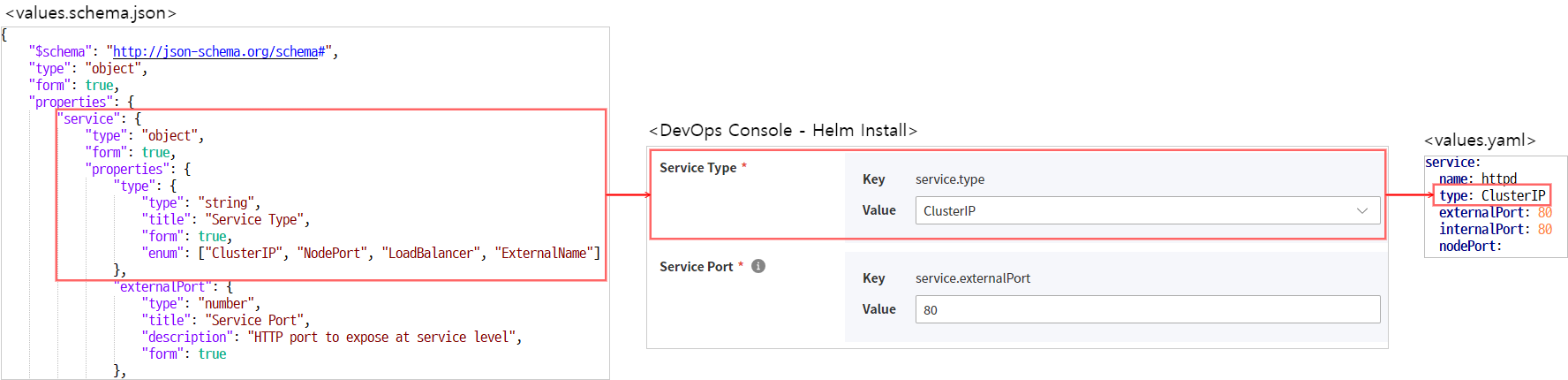
values.schema.json
- A file defined in JSON Schema to validate the values entered in the
values.yamlfile. - DevOps Console provides additional features to display forms on the screen and allow users to easily input values.
JSON Schema Basics
The values.schema.json file used in DevOps Console supports the standard format defined in JSON Schema.
Note
For detailed guides on standard formats, please refer to the following sites:
The basic properties are described as follows:
| Property | Description | Data Type | Allowed Values |
|---|---|---|---|
| $schema |
| string | http://json-schema.org/schema# |
| type | Data type
| string |
|
| |||
| |||
| |||
| |||
| |||
| |||
| title | Label | string | Defines the label for the item |
| description | Description | string | Displays as a tooltip |
| readOnly | Read-only status | boolean |
|
| required | List of required input items | array | e.g., "required": ["username", "password"] |
Table. JSON Schema Property Items
DevOps Console Defined Items
The following items are defined in DevOps Console and only work in DevOps Console.
| Property | Description | Data Type | Allowed Values |
|---|---|---|---|
| form | DevOps Console screen display status
| boolean | default: false |
| render | Renderer change | string |
|
| format | String format reference | string |
|
| form_locale | Defined for internationalization processing
| object |
|
|
Table. DevOps Console Defined Items
Hierarchical Processing
To process hierarchical structures, JSON Schema defines the "type": "object" property value and the properties property. Sub-properties are defined under the properties item.
The following example defines the service.internalPort property.
Color mode
"service": {
    "type": "object",
    "form": true,
    "properties": {
        "internalPort": {
            "type": "number",
            "title": "Container Port",
            "description": "HTTP port to expose at container level",
            "form": true
        }
<omitted>
"service": {
"type": "object",
"form": true,
"properties": {
"internalPort": {
"type": "number",
"title": "Container Port",
"description": "HTTP port to expose at container level",
"form": true
}
<omitted>Internationalization Processing
For internationalization processing, use the form_locale property and define it as follows.
Supports Korean and English.
Color mode
"db": {
  "type": "string",
  "title": "DB",
  "description": "choose db type",
  "oneOf": [
    {
      "const": "in",
      "title": "internal"
    },
    {
      "const": "ex",
      "title": "external"
    }
  ],
  "form": true,
  "form_locale": {
    "ko": {
      "label": "데이터베이스",
      "description": "데이터베이스 타입을 선택하세요",
      "internal": "내부",
      "external": "외부"
    },
    "en": {
      "label": "Database"
    }
  }
}
"db": {
"type": "string",
"title": "DB",
"description": "choose db type",
"oneOf": [
{
"const": "in",
"title": "internal"
},
{
"const": "ex",
"title": "external"
}
],
"form": true,
"form_locale": {
"ko": {
"label": "데이터베이스",
"description": "데이터베이스 타입을 선택하세요",
"internal": "내부",
"external": "외부"
},
"en": {
"label": "Database"
}
}
}values.schema.json Writing Example
Form Type Examples
Input
To display the defined fields in the values.schema.json file as a form on the screen, set the form field value to true.
Color mode
{
  "$schema": "http://json-schema.org/schema#",
  "type": "object",
  "properties": {
    "form_field": {
      "type": "string",
      "form": true
    },
    "hide_field": {
      "type": "string"
    }
  }
}
{
"$schema": "http://json-schema.org/schema#",
"type": "object",
"properties": {
"form_field": {
"type": "string",
"form": true
},
"hide_field": {
"type": "string"
}
}
}Password
Color mode
{
  "$schema": "http://json-schema.org/schema#",
  "type": "object",
  "properties": {
    "password_field": {
      "type": "string",
      "form": true,
      "render": "password",
      "format": "password_confirm"
    }
  }
}
{
"$schema": "http://json-schema.org/schema#",
"type": "object",
"properties": {
"password_field": {
"type": "string",
"form": true,
"render": "password",
"format": "password_confirm"
}
}
}Checkbox
Color mode
"enabled": {
  "title": "enable persistence",
  "type": "boolean",
  "form": true
}
"enabled": {
"title": "enable persistence",
"type": "boolean",
"form": true
}Dropdown
To display a dropdown field on the screen and specify allowed values, use the enum and oneOf properties.
enum
Used when the displayed text and stored value are the same.
Color mode
"postgres": {
  "type": "string",
  "title": "Postgres",
  "description": "choose PostgreSQL type.",
  "enum": [
    "internal",
    "external",
    "both"
  ],
  "form": true
}
"postgres": {
"type": "string",
"title": "Postgres",
"description": "choose PostgreSQL type.",
"enum": [
"internal",
"external",
"both"
],
"form": true
}oneOf
Used when the displayed text and stored value are different.
Color mode
"Oneof": {
  "type": "string",
  "title": "DB",
  "description": "choose db type",
  "oneOf": [
    {
      "const": "in",
      "title": "internal"
    },
    {
      "const": "ex",
      "title": "external"
    }
  ],
  "form": true
}
"Oneof": {
"type": "string",
"title": "DB",
"description": "choose db type",
"oneOf": [
{
"const": "in",
"title": "internal"
},
{
"const": "ex",
"title": "external"
}
],
"form": true
}Array
Color mode
"Array": {
  "type": "array",
  "items": {
    "type": "string",
    "form": true
  },
  "form": true
}
"Array": {
"type": "array",
"items": {
"type": "string",
"form": true
},
"form": true
}Object Array
Color mode
"objectArray": {
  "type": "array",
  "title": "Object Array",
  "form": true,
  "items": {
    "type": "object",
    "form": true,
    "properties": {
      "host": {
        "type": "string",
        "form": true
      },
      "path": {
        "type": "string",
        "form": true
      }
    }
  }
}
"objectArray": {
"type": "array",
"title": "Object Array",
"form": true,
"items": {
"type": "object",
"form": true,
"properties": {
"host": {
"type": "string",
"form": true
},
"path": {
"type": "string",
"form": true
}
}
}
}values.schema.json full file writing example
system-nginx
Color mode
{
    "$schema": "http://json-schema.org/schema#",
    "type": "object",
    "form": true,
    "properties": {
        "service": {
            "type": "object",
            "form": true,
            "properties": {
                "type": {
                    "type": "string",
                    "title": "Service Type",
                    "form": true,
                    "enum": ["ClusterIP", "NodePort", "LoadBalancer", "ExternalName"]
                },
                "externalPort": {
                    "type": "number",
                    "title": "Service Port",
                    "description": "HTTP port to expose at service level",
                    "form": true
                },
                "internalPort": {
                    "type": "number",
                    "title": "Container Port",
                    "description": "HTTP port to expose at container level",
                    "form": true
                }
            },
            "required": ["type", "externalPort", "internalPort"]
        },
        "ingress": {
            "type": "object",
            "form": true,
            "properties": {
                "enabled": {
                    "type": "boolean",
                    "title": "Use Ingress",
                    "form": true
                },
                "domain": {
                    "type": ["string", "null"],
                    "format": "hostname",
                    "title": "Ingress Domain",
                    "description": "Default host for the ingress resource (required when `ingress.enabled=true`)",
                    "form": true
                }
            }
        },
        "networkPolicy": {
            "type": "object",
            "form": true,
            "properties": {
                "enabled": {
                    "type": "boolean",
                    "title": "Use NetworkPolicy",
                    "form": true
                }
            }
        }
    }
}
{
"$schema": "http://json-schema.org/schema#",
"type": "object",
"form": true,
"properties": {
"service": {
"type": "object",
"form": true,
"properties": {
"type": {
"type": "string",
"title": "Service Type",
"form": true,
"enum": ["ClusterIP", "NodePort", "LoadBalancer", "ExternalName"]
},
"externalPort": {
"type": "number",
"title": "Service Port",
"description": "HTTP port to expose at service level",
"form": true
},
"internalPort": {
"type": "number",
"title": "Container Port",
"description": "HTTP port to expose at container level",
"form": true
}
},
"required": ["type", "externalPort", "internalPort"]
},
"ingress": {
"type": "object",
"form": true,
"properties": {
"enabled": {
"type": "boolean",
"title": "Use Ingress",
"form": true
},
"domain": {
"type": ["string", "null"],
"format": "hostname",
"title": "Ingress Domain",
"description": "Default host for the ingress resource (required when `ingress.enabled=true`)",
"form": true
}
}
},
"networkPolicy": {
"type": "object",
"form": true,
"properties": {
"enabled": {
"type": "boolean",
"title": "Use NetworkPolicy",
"form": true
}
}
}
}
}2.8 - Quality
2.8.1 - Code Quality
Users can create a project in conjunction with SonarQube and utilize the created project in the DevOps Console.
Getting Started with Code Quality
To start managing code quality, follow these steps:
- Main page, click the Project card. Move to the Project Dashboard page.
- In the left menu, click Quality > Code Quality. Move to the Code Quality page.
Adding a Code Quality Project
To add a code quality project, follow these steps:
- On the Code Quality page, click the Add Code Quality Project button. Move to the Add Project page.
- On the Add Code Quality Project page, enter/set each item.
- Click the Connection Test button and then click the Save button.
- In the confirmation popup, click the Confirm button to complete adding the code quality project.
| Item | Description |
|---|---|
| Repository creation option | Choose whether to create a repository or use an existing one.
|
| Base URL | Select the code quality server to use. |
| Project Name | Enter the project name to use. |
| Project Key | Enter the project key to use. |
| Authentication Information | Choose whether to create new user information or use existing user information, and then enter the ID and password. |
Table. Adding a Code Quality Project
Managing Code Quality Projects
Code Quality Project List
Users can change or delete the account of a code quality project.
| Item | Description |
|---|---|
| Account Change | The Code Quality Authentication Information Modification popup opens. |
| Delete | The Code Quality Project Deletion popup opens. |
Table. Code Quality Project List Items
Changing Account in a Code Quality Project
To change the account in a code quality project, follow these steps:
- On the Code Quality page, click the Edit icon. The Authentication Information Modification popup opens.
- In the Authentication Information Modification popup, enter the Authentication Information and click the Save button to complete the account change.
Deleting a Code Quality Project
To delete a code quality project, follow these steps:
- On the Code Quality page, click the X icon of the code quality project card to be deleted. The Code Quality Project Deletion popup opens.
- In the Code Quality Project Deletion popup, select whether to Delete the project in SonarQube as well, and then click the Confirm button.
Note
Delete the project in SonarQube as well
- Selected: The project is actually deleted in SonarQube.
- Not selected: The project is deleted only from the Code Quality list and remains in SonarQube.
2.9 - Tools & Templates
2.9.1 - Tool Management
A tool refers to an application that interacts with the DevOps Console to support CI/CD functionality.
For a list of tools currently supported by the DevOps Console, refer to Tool Classification.
Getting Started with Tool Management
To start managing tools, follow these steps:
- Main page, click the Manage icon in the top right corner. You will be taken to the Tenant Dashboard page.
- In the left menu, click Tools & Templates > Tools. You will be taken to the Tools page.
Tool Types
Each tool has a different usage area depending on the tool type.
| Tool Type | Description |
|---|---|
| System Tool |
|
| Tenant Tool |
|
| ProjectGroup Tool |
|
Table. Tool Types
Tool Classification
The following is a list of tools currently supported by the DevOps Console:
Note
The list of supported tools may change (added/removed) according to the release schedule.
| Tool Classification | Tool |
|---|---|
| CICD Pipeline | Jenkins |
| SCM Repository | GitLab, GitHub, Git-based SCM |
| Image Registry | Harbor, Docker Hub, SCP Container Registry, Docker Image Registry |
| Code Quality | SonarQube |
| Artifact Repository | Nexus, Object Storage (S3 compatible) |
| Helm Chart Repository | Harbor |
| Project Management Software | JIRA |
Table. Tool Classification
Management Affiliation
The tenant or project group type selected when adding a tool indicates the management affiliation. The following icons distinguish the type of management affiliation:
 Management affiliation is a tenant.
 Management affiliation is a project group.
Adding a Tool
To add a tool, follow these steps:
- On the Tools page, click the Add button. The Add Tool popup window will open.
Selecting Tool Support Type
- In the Add Tool popup window, select the tool’s support type.
- Complete the selection and click the Next button. The Basic Information input screen will appear.
| Item | Description |
|---|---|
| Type | Select the tool’s support type.
|
| Tenant/Project Group | Select which tenant or project group to map to. |
Table. Tool Support Type Selection Items
Entering Basic Information
- In the Add Tool popup window, on the Basic Information input screen, select the tool classification and tool. The input screen will vary depending on the selected tool.
- See Tool Classification for classification descriptions.
- Enter the necessary information and click the Connection Test button.
- Click the Next button.
SCM Repository
| Item | Description |
|---|---|
| Tool Name | Enter a tool name for user identification. |
| Tool Classification | Select the tool classification. |
| Tool | Select the tool. |
| URL | Enter the URL address to access the tool.
|
| URL for API | Enter the Github.com API path. |
| Org Creation Possible | Select whether to allow creation of new Github Organizations in the tenant or project group. |
| New Creation Possible | Select whether to allow creation of new repositories in the tenant or project group. |
| IDP Usage | Select whether to use IDP. |
| User Account Authentication Type | Select the authentication type for tool users. |
| Admin Account Authentication Type | Select the authentication type for tool administrators. |
| Admin ID | Enter the admin ID for the tool. |
| Admin Password / Token | Enter the admin password or token for the tool. |
Table. SCM Repository Input Items
CICD Pipeline
| Item | Description |
|---|---|
| Tool Name | Enter a tool name for user identification. |
| Tool Classification | Select the tool classification. |
| Tool | Select the tool. |
| URL | Enter the URL address to access the tool.
|
| Mail Service | Select whether to use the email sending feature. |
| Type | Select whether to use the tool for development or operation. |
| IP | Enter the IP list.
|
| IP Range | Enter the IP range.
|
| IDP Usage | Select whether to use IDP. |
| IDP Type | If using IDP, select the IDP type (CMP IDP, other IDP). |
| User Account Authentication Type | Select the authentication type for tool users. |
| Admin Account Authentication Type | Select the authentication type for tool administrators. |
| Admin ID | Enter the admin ID for the tool. |
| Admin Password / Token | Enter the admin password or token for the tool. |
Table. CICD Pipeline Input Items
Caution
If the Number of executors item in the Built-In Node of Jenkins system settings is set to 1 or more, tools may not be added due to potential security issues.
- The Number of executors item in the Built-In Node must be set to 0 in the Jenkins management menu.
- Note Jenkins officially recommends avoiding build execution on the Controller Node.
Image Registry
| Item | Description |
|---|---|
| Tool Name | Enter a tool name for user identification. |
| Tool Classification | Select the tool classification. |
| Tool | Select the tool. |
| New Creation Possible | Select whether to allow creation of new repositories in the tenant or project group. |
| URL | Enter the URL address to access the tool.
|
| URL for API | Enter the Docker Hub API path. |
| Image Repository URL | Enter the URL for Docker Registry use. |
| Private SSL Certificate Usage | Select whether to use a private SSL certificate. |
| System Common Image Inclusion | Select whether to include system common images. |
| IDP Usage | Select whether to use IDP. |
| User Account Authentication Type | Select the authentication type for tool users. |
| Admin Account Authentication Type | Select the authentication type for tool administrators. |
| Admin ID | Enter the admin ID for the tool. |
| Admin Password / Token | Enter the admin password or token for the tool. |
Table. Image Registry Input Items
Code Quality
| Item | Description |
|---|---|
| Tool Name | Enter a tool name for user identification. |
| Tool Classification | Select the tool classification. |
| Tool | Select the tool. |
| New Creation Possible | Select whether to allow creation of new SonarQube projects in the tenant or project group. |
| URL | Enter the URL address to access the tool.
|
| Tool Version | Enter the SonarQube version. |
| IDP Usage | Select whether to use IDP. |
| User Account Authentication Type | Select the authentication type for tool users. |
| Admin Account Authentication Type | Select the authentication type for tool administrators. |
| Admin ID | Enter the admin ID for the tool. |
| Admin Password / Token | Enter the admin password or token for the tool. |
Table. Code Quality Input Items
Artifact Repository
| Item | Description |
|---|---|
| Tool Name | Enter a tool name for user identification. |
| Tool Classification | Select the tool classification. |
| Tool | Select the tool. |
| New Creation Possible | Select whether to allow creation of new Nexus repositories in the tenant or project group. |
| URL | Enter the URL address to access the tool.
|
| IDP Usage | Select whether to use IDP. |
| User Account Authentication Type | Select the authentication type for tool users. |
| Admin Account Authentication Type | Select the authentication type for tool administrators. |
| Admin ID | Enter the admin ID for the tool. |
| Admin Password / Token | Enter the admin password or token for the tool. |
Table. Artifact Repository Input Items
Helm Chart Repository
| Item | Description |
|---|---|
| Tool Name | Enter a tool name for user identification. |
| Tool Classification | Select the tool classification. |
| Tool | Select the tool. |
| New Creation Possible | Select whether to allow creation of new repositories in the tenant or project group. |
| URL | Enter the URL address to access the tool.
|
| Private SSL Certificate Usage | Select whether to use a private SSL certificate. |
| Helm Chart Repository URL | Enter the repository URL for the tool.
|
| IDP Usage | Select whether to use IDP. |
| User Account Authentication Type | Select the authentication type for tool users. |
| Admin Account Authentication Type | Select the authentication type for tool administrators. |
| Admin ID | Enter the admin ID for the tool. |
| Admin Password / Token | Enter the admin password or token for the tool. |
Table. Helm Chart Repository Input Items
Project Management Software
| Item | Description |
|---|---|
| Tool Name | Enter a tool name for user identification. |
| Tool Classification | Select the tool classification. |
| Tool | Select the tool. |
| New Creation Possible | Select whether to allow creation of new JIRA projects in the tenant or project group. |
| URL | Enter the URL address to access the tool.
|
| IDP Usage | Select whether to use IDP. |
| User Account Authentication Type | Select the authentication type for tool users. |
| Admin Account Authentication Type | Select the authentication type for tool administrators. |
| Admin ID | Enter the admin ID for the tool. |
| Admin Password / Token | Enter the admin password or token for the tool. |
Table. Project Management Software Input Items
Entering Additional Information
- On the Add Tool popup window, on the Basic Information input screen, click the Next button. The Additional Information input screen will appear.
- Select each item and click the Complete button.
- In the confirmation popup window, click the Confirm button to complete the tool addition.
| Item | Description |
|---|---|
| Usage | Select whether to use the tool in the tenant or project group. |
| New Creation Possible | Select whether to allow creation of new repositories in the tenant or project group.
|
Table. Additional Information Input Items
Tool Details
To manage tool details, follow these steps:
- On the Tools page, click the tool for which you want to manage details. You will be taken to the Tool Details page.
Managing Tool Basic Information
To view the tool’s basic information, follow these steps:
- On the Tool Details page, click the Basic Information tab.
To modify the tool’s basic information, follow these steps:
- On the Tool Details page, click the Basic Information tab.
- Click the Modify button.
- Modify the necessary information and click the Save button.
Managing Global Tools
Note
The Global Tool tab is only visible if the tool is
Jenkins.This feature allows you to manipulate the Global Tool Configuration menu in the Jenkins web screen from the DevOps Console.
The DevOps Console only supports one-way registration to Jenkins. (In other words, changes made by the user in the DevOps Console will overwrite the information in Jenkins.)
Users can manage the list of tools available in Jenkins, and tools registered in Global Tool can be used in the Tools section when configuring a stage.
To manage global tools, follow these steps:
- Click the Global Tool tab on the Tool Details page.
Adding Global Tools
To add a global tool, follow these steps:
- Click the Edit icon for the item you want to add in the Global Tool tab. The Global Tool Management popup window will open.
- Required Tools are automatically set by the DevOps Console.
- Required Tools cannot be deleted, and only the home path can be modified.
- Click the Add button. A new row will be added to the bottom of the list.
- Enter the information in the new row and click the Save button.
- Click the Confirm button in the confirmation popup window to complete the process.
| Item | Description |
|---|---|
| Tool Type | The tool type is automatically set. |
| Name | Enter the tool name. |
| Home Path | Enter the path where the tool is installed. |
Table. Global Tool Add Input Items
Modifying Global Tools
To modify a global tool, follow these steps:
- Click the Edit icon for the item you want to modify. The Global Tool Management popup window will open.
- Modify the content and click the Save button.
- Click the Confirm button in the confirmation popup window to complete the modification.
Deleting Global Tools
To delete a global tool, follow these steps:
- Click the Global Tool tab on the Tool Details page. Click the Edit icon for the item you want to delete. The Global Tool Management popup window will open.
- Delete the content and click the Save button.
- Click the Confirm button in the confirmation popup window to complete the deletion.
Managing Agent (Kubernetes)
Note
The Agent (Kubernetes) tab is only visible if the tool is
Jenkins.This feature allows you to manage the agents (slaves) used in Jenkins builds.
The Jenkins web screen’s 1) Jenkins Management > System Settings > Cloud > Pod Templates or 2) Jenkins Management > Node Management > Configure Clouds > Pod Templates menu can be manipulated from the DevOps Console.
The DevOps Console only supports one-way registration to Jenkins. (In other words, changes made by the user in the DevOps Console will overwrite the information in Jenkins.)
To manage agents (Kubernetes), follow these steps:
- Click the Agent (Kubernetes) tab on the Tool Details page.
- Click the Information icon in the Pod Template Management list. The Pod Template Usage Guide popup window will open.
Adding Container Resource Types
Guide
Modifying the container resource type will affect the Pod Template.
- Changing the container resource type from Not Used to Used will increase the number of Pod Templates by (container resource type number X Pod Template number).
- Changing the container resource type from Used to Not Used will decrease the number of Pod Templates back to the original number.
- The increased Pod Templates’ agent names, labels, etc. will be automatically generated by combining the Resource Type item entered by the user when registering the container resource type to avoid duplication.
To add a container resource type, follow these steps:
- Click the Agent (Kubernetes) tab on the Tool Details page.
- Click the Edit icon in the Container Resource Type Management section. The Container Resource Type Management popup window will open.
- Click the Add button and enter the content. Click the Save button.
- Click the Confirm button in the confirmation popup window to complete the process.
| Item | Description |
|---|---|
| Usage | Set the usage.
|
| Resource Type | Enter the resource name. |
| CPU/Memory (Request) | Enter the requested resource value when configuring the Kubernetes Pod Agent. |
| CPU/Memory (Limit) | Enter the limited resource value when configuring the Kubernetes Pod Agent. |
Table. Container Resource Type Add Input Items
Modifying Container Resource Types
To modify a container resource type, follow these steps:
- Click the Agent (Kubernetes) tab on the Tool Details page.
- Click the Edit icon in the Container Resource Type Management section. The Container Resource Type Management popup window will open.
- Modify the content and click the Save button.
- Click the Confirm button in the confirmation popup window to complete the modification.
Deleting Container Resource Types
To delete a container resource type, follow these steps:
- Click the Agent (Kubernetes) tab on the Tool Details page.
- Click the Edit icon in the Container Resource Type Management section. The Container Resource Type Management popup window will open.
- Delete the content and click the Save button.
- Click the Confirm button in the confirmation popup window to complete the deletion.
Adding Pod Templates
To add a Pod Template, follow these steps:
- Click the Agent (Kubernetes) tab on the Tool Details page.
- Click the Add button in the Pod Template Management list. The Add Agent (Kubernetes) screen will appear.
- Enter the content and click the Save button.
- Click the Confirm button in the confirmation popup window to complete the process.
| Item | Description |
|---|---|
| Target Kubernetes | Select the target Kubernetes to add the Pod Template.
|
| Agent Name | Enter the name of the Pod Template. |
| Label | Enter the label value to call the corresponding agent in the Jenkins Pipeline Script. |
| Inherit Pod Template | Select the Pod Template to inherit the settings (environment variables, volumes, etc.).
|
| Container | Enter the information mapped to the Container Template item in Jenkins, such as name, Docker image, working directory, command, and arguments.
|
| Tool Path | Enter the information mapped to the Tool Locations item in Jenkins, such as name and home path.
|
| Supported Stage | Select the supported stage configuration.
|
Table. Add Pod Template Input Items
Note
If the user does not check Docker Build in the Supported Stage item,
- The corresponding
Jenkinscannot be used when configuring a project using the Kubernetes or VM (Docker) type App template that requires Docker Build. - When configuring a build pipeline using Add Build Pipeline, the Docker Build stage cannot be added.
Viewing Pod Template Details
To view the details of a Pod Template, follow these steps:
- Click the Agent (Kubernetes) tab on the Tool Details page.
- Click the View Details button for the agent you want to view in the Pod Template Management list. The Agent (Kubernetes) Details screen will appear.
Modifying Pod Templates
To modify a Pod Template, follow these steps:
- Click the Agent (Kubernetes) tab on the Tool Details page.
- Click the View Details button for the agent you want to modify in the Pod Template Management list. The Agent (Kubernetes) Details screen will appear.
- Click the Modify button.
- Modify the content and click the Save button.
- Click the Confirm button in the confirmation popup window to complete the modification.
Deleting Pod Templates
To delete a Pod Template, follow these steps:
- Click the Agent (Kubernetes) tab on the Tool Details page.
- Click the View Details button for the agent you want to delete in the Pod Template Management list. The Agent (Kubernetes) Details screen will appear.
- Click the Delete button.
- Click the Confirm button in the confirmation popup window to complete the deletion.
Managing Agent (VM)
Note
The Agent (VM) tab is only visible if the tool is
Jenkins.This feature allows you to manage the list of nodes available in Jenkins.
The Jenkins web screen’s Jenkins Management > Node Management menu can be manipulated from the DevOps Console.
The DevOps Console only supports one-way registration to Jenkins. (In other words, changes made by the user in the DevOps Console will overwrite the information in Jenkins.)
To manage agents (VM), follow these steps:
- Click the Agent (VM) tab on the Tool Details page.
- Click the Information icon in the Node Management list. The Node Usage Guide popup window will open.
Managing Agent Connections
This feature registers the tunneling port to connect the actual Jenkins and agent (VM). The tunneling port may vary depending on Jenkins.
To manage agent connections, follow these steps:
- Click the Agent (VM) tab on the Tool Details page.
- Click the Edit icon in the Agent Connection Management section. The Agent Connection Management popup window will open.
- Enter the content and click the Save button.
Adding Agent (VM)
To add an agent (VM), follow these steps:
- Click the Agent (VM) tab on the Tool Details page.
- Click the Add button in the Agent Connection Management section. The Add Agent (VM) screen will appear.
- Enter the content and click the Save button.
- Click the Confirm button in the confirmation popup window to complete the process.
| Item | Description |
|---|---|
| Target OS | Enter the OS information of the VM. |
| Agent Name | Enter the name of the VM. |
| Remote Root Directory | Enter the directory path. |
| Label | Enter the label value to call the corresponding agent in the Jenkins Pipeline Script. |
| Tool Path | Enter the information mapped to the Tool Locations item in Jenkins, such as name and home path.
|
| Supported Stage | Select the supported stage configuration.
|
Table. Add Agent (VM) Input Items
Note
If the user does not check Docker Build in the Supported Stage item,
- The corresponding
Jenkinscannot be used when configuring a project using the Kubernetes or VM (Docker) type App template that requires Docker Build. - When configuring a build pipeline using Add Build Pipeline, the Docker Build stage cannot be added.
Viewing Agent (VM) Details
To view the details of an agent (VM), follow these steps:
- Click the Agent (VM) tab on the Tool Details page.
- Click the agent you want to view in the Node Management list. The Agent (VM) Details screen will appear.
- Click the Information icon in the Jenkins - Agent Connection Information section.
- The Agent Connection Guide popup window will open.
Connecting Agent (VM)
Note
To connect the agent,
Java must be installed on the VM server.To register and use an agent (VM), you must connect it to the actual VM server.
To connect an agent (VM), follow these steps:
- Click the Agent (VM) tab on the Tool Details page.
- Click the agent you want to connect in the Node Management list. The Agent (VM) Details screen will appear.
- Refer to
jnlpUrlandsecret. - Click the Information icon in the Jenkins - Agent Connection Information section. The Agent Connection Guide popup window will open.
- Click the Download Agent File button to download the
agent.jarfile.- The
agent.jarversion may cause issues with execution. - You can also download it directly from your
Jenkins({JENKINS_URL}/jnlpJars/agent.jar).
- The
- Connect to the VM server where you want to deploy and create a directory.
- Copy the downloaded
agent.jarfile to the created directory. - Run the following command in the created directory path:
Color mode
java -jar agent.jar -jnlpUrl {jnlpUrl} -secret {secret}java -jar agent.jar -jnlpUrl {jnlpUrl} -secret {secret}Modifying Agent (VM)
To modify an agent (VM), follow these steps:
- Click the Agent (VM) tab on the Tool Details page.
- Click the agent you want to modify in the Node Management list. The Agent (VM) Details screen will appear.
- Click the Modify button.
- Modify the content and click the Save button.
- Click the Confirm button in the confirmation popup window to complete the modification.
Deleting Agent (VM)
To delete an agent (VM), follow these steps:
- Click the Agent (VM) tab on the Tool Details page.
- Click the agent you want to delete in the Node Management list. The Agent (VM) Details screen will appear.
- Click the Delete button.
- Click the Confirm button in the confirmation popup window to complete the deletion.
Managing Global Libraries
You can manage the list of libraries available in the build pipeline.
This is a feature that can be manipulated in the DevOps Console from the Jenkins Jenkins Management -> System Settings -> Global Pipeline Libraries menu.
Library and connected Credential information can be found in the Jenkins Management > Manage Credentials menu.
The DevOps Console only supports one-way registration to Jenkins. (In other words, the information modified by the user in the DevOps Console will overwrite the information in Jenkins.)
To manage agents (VMs), follow these steps:
- Tool Details page, click the Global Library tab.
Adding Global Libraries
Note
Libraries with Required Library set to Y cannot be modified or deleted.
To add a global library, follow these steps:
- Tool Details page, click the Global Library tab.
- Click the Add button. The Add Global Library screen appears.
- Enter the contents and click the Save button.
- In the confirmation popup, click the Confirm button to complete.
| Item | Description |
|---|---|
| Library Name | Enter the name of the library. |
| Type | Fixed as SCM and cannot be changed. |
| Library URL | Enter the Git repository URL where the library exists. |
| Default Version | Enter the branch name or tag of the Git repository where the library exists. |
| ID | Enter the ID for pulling the library. |
| Password | Enter the password for pulling the library. |
Table. Global Library Addition Input Items
Viewing Global Library Details
To view the details of a global library, follow these steps:
- Tool Details page, click the Global Library tab.
- In the Global Library list, click the item you want to view in detail. The Global Library Details screen appears.
Note
If the Type is SCM, SCM-related information is exposed.
- Required library, library name, type, library URL, default version, ID
Modifying Global Libraries
To modify a global library, follow these steps:
- Tool Details page, click the Global Library tab.
- In the Global Library list, click the item you want to view in detail. The Global Library Details screen appears.
- Click the Modify button.
- Modify the contents and click the Save button.
- In the confirmation popup, click the Confirm button to complete.
Deleting Global Libraries
To delete a global library, follow these steps:
- Tool Details page, click the Global Library tab.
- In the Global Library list, click the item you want to delete. The Global Library Details screen appears.
- Click the Delete button.
- In the confirmation popup, click the Confirm button to complete.
Managing Supported Tenants/Project Groups
Note
The tab name may be exposed differently depending on the tool type.
- System Tool/Tenant Tool: Supported Tenants
- ProjectGroup Tool: Supported Information
Users can manage the tenants or project groups that can use the tool.
To manage supported tenants or project groups, follow these steps:
- Tool Details page, click the Supported Tenants or Supported Information tab.
Note
The Primary icon is displayed for the managed tenant/project group.
Adding Supported Tenants/Project Groups
To add a supported tenant or project group, follow these steps:
- Tool Details page, click the Supported Tenants or Supported Information tab.
- Click the Add button. The Add Tenant/Project Group popup window opens.
- Enter the contents and click the Save button.
- In the confirmation popup, click the Confirm button to complete.
| Item | Description |
|---|---|
| Tenant/Project Group | Select the tenant/project group that can use the tool. |
| Usage | Select whether to use the tool in the tenant/project group. |
| New Creation Possible | Select whether to allow new repository creation in the tenant/project group. This setting is only available for the following tool categories:
|
Table. Supported Tenant/Project Group Addition Input Items
Modifying Supported Tenants/Project Groups
To modify a supported tenant/project group, follow these steps:
- Tool Details page, click the Supported Tenants or Supported Information tab.
- In the Supported Tenants or Supported Information list, select the usage and new creation possibility to modify.
Transferring Management Tenants/Project Groups
To transfer the management tenant/project group, follow these steps:
- Tool Details page, click the Supported Tenants or Supported Information tab.
- Click the Transfer Management Tenant or Transfer Management Project Group button. The Transfer Management Tenant or Transfer Management Project Group popup window opens.
- Select the transfer target tenant or project group and click the Save button.
Deleting Supported Tenants/Project Groups
To delete a supported tenant/project group, follow these steps:
- Tool Details page, click the Supported Tenants or Supported Information tab.
- Select the checkbox of the tenant/project group you want to delete.
- Click the Delete button.
- In the confirmation popup, click the Confirm button to complete.
Note
The primary tenant/project group cannot be deleted.
Managing Supported K8S Clusters
Users can manage the K8S clusters that can use the tool.
To manage supported K8S clusters, follow these steps:
- Tool Details page, click the Supported K8S Clusters tab.
Adding Supported K8S Clusters
To add a supported K8S cluster, follow these steps:
- Tool Details page, click the Supported K8S Clusters tab.
- Click the Add button. The Add K8S Cluster popup window opens.
- Enter the contents and click the Save button.
- In the confirmation popup, click the Confirm button to complete.
| Item | Description |
|---|---|
| K8S Cluster | Select the K8S cluster that can use the tool. |
| Usage | Select whether to use the tool in the tenant/project group. |
| New Creation Possible | Select whether to allow new repository creation in the tenant/project group. This setting is only available for the following tool categories:
|
Table. Supported K8S Cluster Addition Input Items
Modifying Supported K8S Clusters
To modify a supported K8S cluster, follow these steps:
- Tool Details page, click the Supported K8S Clusters tab.
- In the Supported K8S Clusters list, select the usage and new creation possibility to modify.
Deleting Supported K8S Clusters
To delete a supported K8S cluster, follow these steps:
- Tool Details page, click the Supported K8S Clusters tab.
- Select the checkbox of the K8S cluster you want to delete.
- Click the Delete button.
- In the confirmation popup, click the Confirm button to complete.
Managing Tool Operators
To manage tool operators, follow these steps:
- Tool Details page, click the Tool Operator tab.
Adding Tool Operators
To add a tool operator, follow these steps:
- Tool Details page, click the Tool Operator tab.
- Click the Add button. The Add Tool Operator popup window opens.
- Select the operator and click the Save button.
- In the confirmation popup, click the Confirm button to complete.
Deleting Tool Operators
To delete a tool operator, follow these steps:
- Tool Details page, click the Tool Operator tab.
- Select the checkbox of the operator you want to delete.
- Click the Delete button.
- In the confirmation popup, click the Confirm button to complete.
Managing Jenkins Recommended Plugins
Note
The Plugins tab is only visible if the tool is
Jenkins.You can view the installed Jenkins version and plugin installation status and version information.
- Tool version: Jenkins version information
- Recommended plugins: Recommended plugin installation status and version information
Checking Tool Version and Recommended Plugins Information
To view the tool version and required plugin information, follow these steps:
- Click Tool(CICD Pipeline) on the Tool Management page.
- If tool has an information to update or install recommended plugins info, then popup is occurred and click confirm button then move to Plugins tab.
- On the Tool Details page, click the Plugins tab.
- View the Tool Version and Recommended Plugins items.
Installing Recommended Plugins
Follow this procedure to install recommended plugins.
- On the Plugins page, Click Install button which you want to install plugin in Recommended Plugins area.
- Install Recommended Plugin popup is occured, and click Confirm button.
- Then popup appears message that installation request has been completed, and you can check the actual installation through the link in the popup.
Updating Recommended Plugins
Follow this procedure to update recommended plugins.
- On the Plugins page, Click Update button which you want to install plugin in Recommended Plugins area.
- Update Recommended Plugin popup is occured, and click Confirm button.
- Then popup appears message that update request has been completed, and you can check the actual installation through the link in the popup.
- You must restart your Jenkins to apply the update.
Deleting Tools
Note
Tools that are in use in a project cannot be deleted.
To delete a tool, follow these steps:
- Tool page, click the tool you want to delete. The Tool Details page opens.
- Click the Delete button.
- In the confirmation popup, click the Confirm button to complete.
2.9.2 - App Template
App Template is a feature provided for quick development environment setup.
App Template consists of sample source code, Dockerfile, Helm Chart, and more. Users can quickly set up their development environment using App Template when creating a project.
We provide App Templates for various frameworks such as Node.js, Python, Spring Boot, and more. Users can also create and register their own App Templates.
| App Template Type | Description |
|---|---|
| System Template |
|
| Tenant Template |
|
| ProjectGroup Template |
|
Table. App Template Type
Getting Started with App Template
To start managing App Templates, follow these steps:
- Main page, click the Manage icon at the top right. Move to the Tenant Dashboard page.
- In the left menu, click Tools & Templates > App Template. Move to the App Template page.
Adding App Template
Users can add their own App Templates.
Source Code
Source code used to configure a sample project in the App Template.
The SCM Repository tool must be available in the tenant or project group where the App Template will be registered. Refer to Adding Tools for how to register the SCM Repository tool.
Register the source code in the SCM Repository in advance. When registering the App Template, the registered SCM Repository will appear, and you can enter the path to the source code.
Dockerfile
Note
You can manage the
For explanations and writing methods of
Dockerfile without registering it inside the source code. Refer to Managing Dockerfile Templates for more information.For explanations and writing methods of
Dockerfile, refer to the official website.To register an App Template that supports Kubernetes or VM (Docker) deployment targets, you must add a Dockerfile to the source code or register a Dockerfile through Managing Dockerfile Templates.
When writing a Dockerfile, the FROM clause must be fixed as FROM ${BASE_IMAGE}.
The registered ${BASE_IMAGE} value is replaced with the image.repository value of the Helm chart for Kubernetes deployment targets or the image path registered in Managing Supported Images for VM (Docker) deployment targets.
Dockerfile sample
Color mode
FROM ${BASE_IMAGE}

COPY *.jar app.jar
ENTRYPOINT ["java","-jar","/app.jar"]
FROM ${BASE_IMAGE}
COPY *.jar app.jar
ENTRYPOINT ["java","-jar","/app.jar"]Registering App Template
To register an App Template, follow these steps:
- App Template page, click the Add button. Move to the Add App Template page.
- Add App Template page, select the template support type and click the Start button.
- Enter the necessary information and click the Complete button.
| Item | Description |
|---|---|
| Type | Select the type of template.
|
| Tenant/Project Group | Select the tenant or project group to map. |
Table. Add App Template - Template Support Type Selection Items
| Item | Description |
|---|---|
| Deployment Target | Select the deployment target supported by the template.
|
| Template Name | Enter the name of the App Template. |
| Application Classification | Select the classification of the application included in the template.
|
| Language | Select the development language of the source code included in the template. |
| Source Code | Select whether the template includes source code. |
| Source Code Repository Type | Select the location where the source code is stored. SCM or ZIP file selection is possible. |
| Repository URL | Enter the URL of the repository where the template source code is located.
|
| Repository Branch | Enter the branch of the repository where the template source code is located. |
| Individual Authentication | Enter authentication information to access the repository.
|
| Dockerfile Path | Enter the path to the Dockerfile in the repository.
|
| Code Quality | Select whether to use code quality. |
| Description | Write a description of the App Template. |
| Document URL | Enter the URL of the document that explains the template.
|
| Template Icon | Select an icon to use for the template. |
| Build Result Path | Specify the build result path and file name. |
| Dockerfile Type | Select the Dockerfile type.
|
Table. Add App Template - Basic Information Input Items
Note
If the deployment target of the App Template is Kubernetes, the Supported Helm Chart step is added.
- Select the Helm chart that can be used when deploying using this App Template.
- You can select the Helm chart list by checking the checkbox and using the Add and Delete buttons in the middle.
Warning
App Templates cannot be used immediately after registration and require additional settings.
Refer to Adding Pipeline Templates and modify the usage to Yes by referring to Modifying Supported Tenant Information.
Refer to Adding Pipeline Templates and modify the usage to Yes by referring to Modifying Supported Tenant Information.
Modifying App Template Basic Information
To modify the basic information of an App Template, follow these steps:
- App Template page, click the item you want to modify. Move to the App Template Details page.
- App Template Details page, click the Basic Information tab.
- Basic Information tab, click the Modify button.
- Modify the necessary information and click the Save button.
Note
If a pipeline template is not registered, a Notification popup will appear.
Managing Pipeline Templates
Pipeline templates are settings for building pipelines that are automatically configured when a user creates a project using an App Template.
Warning
If a pipeline template is not registered, the App Template cannot be used.
Adding Pipeline Templates
To add a pipeline template, follow these steps:
- App Template page, click the item you want to add. Move to the App Template Details page.
- App Template Details page, click the Pipeline Template tab.
- Pipeline Template tab, click the Add button. Move to the Add Pipeline Template page.
- Add Pipeline Template page, enter the necessary information and click the Save button.
| Item | Description |
|---|---|
| Template Name | Enter the name of the pipeline template. |
| Default Template |
|
| Supported Jenkins | Select the Jenkins that supports this pipeline template.
|
| Environment Variable | Enter environment variable information.
|
| Stage | Enter each stage information.
|
Table. Add Pipeline Template Input Items
Note
For explanations and writing methods of
Jenkins environment variables, refer to the official website.Modifying Pipeline Templates
To modify a pipeline template, follow these steps:
- App Template page, click the item you want to modify. Move to the App Template Details page.
- App Template Details page, click the Pipeline Template tab.
- Pipeline Template tab, click the item you want to modify. Move to the Pipeline Template Details page.
- Pipeline Template Details page, click the Modify button. Move to the Modify Pipeline Template page.
- Modify Pipeline Template page, modify the information and click the Save button.
Deleting Pipeline Templates
Warning
Pipeline templates marked as Default cannot be deleted.
To delete a pipeline template, follow these steps:
- App Template page, click the item you want to delete. Move to the App Template Details page.
- App Template Details page, click the Pipeline Template tab.
- Pipeline Template tab, click the item you want to delete. Move to the Pipeline Template Details page.
- Pipeline Template Details page, click the Delete button.
- Click the Confirm button in the confirmation popup.
Managing Dockerfile Templates
This tab only appears when the Dockerfile Type item in the Basic Information content of the App Template is GUI Template.
Modifying Dockerfile Templates
To modify a Dockerfile template, follow these steps:
- App Template page, click the item you want to modify. Move to the App Template Details page.
- App Template Details page, click the Dockerfile Template tab.
- Dockerfile Template tab, click the Modify or Create button.
- Dockerfile Template tab, enter the contents and click the Save button.
| Item | Description |
|---|---|
| Authentication Information Setting | Register authentication information for the image used in the FROM clause of the multi-stage build. |
| Add | Add an image used in the FROM clause of the multi-stage build. |
| Multi-stage Dockerfile | Configure the multi-stage build based on the registered information. |
| Dockerfile | Configure the basic Dockerfile. |
Table. Modify Dockerfile Template Input Items
Guide
You can also manage the Dockerfile without registering it through Dockerfile in the source code.
- If you use the Dockerfile file included in the source code, the Dockerfile Type item in the Basic Information content of the App Template must be set to Code Repository File.
The FROM clause is automatically set to the image path registered in Managing Supported Images.
Note
For explanations and writing methods of Dockerfile files, refer to the official website.
Managing Supported Tenants/Project Groups
Guide
The tab name is displayed differently depending on the template type.
- System Template/Tenant Template: Supported Tenants
- ProjectGroup Template: Supported Information
Users can manage the tenants or project groups where the App Template can be used.
To manage supported tenants or project groups, follow these steps:
- App Template page, click the item you want to modify. Move to the App Template Details page.
- App Template Details page, click the Supported Tenants or Supported Information tab.
Note
The primary icon appears for the managed tenant.
Adding Supported Tenants
To add supported tenants, follow these steps:
- App Template page, click the item you want to modify. Move to the App Template Details page.
- App Template Details page, click the Supported Tenants tab.
- Supported Tenants tab, click the Add button. The Add Tenant popup will appear.
- Add Tenant popup, select the tenant to support and click the Save button.
Modifying Supported Tenant Information
To modify the information of supported tenants, follow these steps:
- App Template page, click the item you want to modify. Move to the App Template Details page.
- App Template Details page, click the Supported Tenants tab.
- Supported Tenants tab, select the tenant to modify and select the Verification and Usage items to modify.
| Item | Description |
|---|---|
| Tenant | Information about the available tenant. |
| Verification | Select the verification.
|
| Usage | Select the usage.
|
Table. Supported Tenants Screen Items
Note
If the Verification is Verification in progress, only the user who registered the App Template can use it.
- Other users can use the App template after verification and usage processing.
Modifying Supported Project Group Information
To modify the information of a supported project group, follow these steps:
- App Template page, click the item you want to modify. Move to the App Template Details page. App Template Details page, click the Support Information tab.
- Support Information tab, click the Modify button. The App Template Modification screen appears.
- App Template Modification screen, select and modify the Verification and Usage items.
- Click the Save button.
| Item | Description |
|---|---|
| Project Group | Information about the available project group. |
| Verification | Select the verification.
|
| Usage | Select the usage.
|
Table. Support Information Screen Items
Note
If the verification is in progress, only the user who registered the App template can use it.
- Other users can use the App template after verification and usage processing.
Transferring Management Tenant
To transfer the management tenant, follow these steps:
- App Template page, click the item you want to modify. Move to the App Template Details page.
- App Template Details page, click the Support Tenant tab.
- Support Tenant tab, click the Transfer Management Tenant button. The Transfer Management Tenant popup window opens.
- Transfer Management Tenant popup window, select the target tenant to transfer and click the Save button.
Deleting Support Tenant
To delete a support tenant, follow these steps:
- App Template page, click the item you want to modify. Move to the App Template Details page.
- App Template Details page, click the Support Tenant tab.
- Support Tenant tab, select the tenant to delete and click the Delete button.
- Click the Confirm button in the confirmation popup window.
Caution
Primary designated tenants cannot be deleted.
Managing Support Images
Guide
The Support Image tab only appears when the deployment target of the App template is Kubernetes or VM(Docker).
The Support Image registered by the user is used in the Dockerfile or Dockerfile template of the source code.
Adding Support Images
Guide
When adding support images, only Image Registry Tools available in the tenant and project group are listed.
To add a support image, follow these steps:
- App Template page, click the item you want to modify. Move to the App Template Details page.
- App Template Details page, click the Support Image tab.
- Support Image tab, click the Add button. The Add Support Image popup window opens.
- Add Support Image popup window, enter the information and click the Connection Test button.
- When the Save button is activated, click the Save button.
- Click the Confirm button in the confirmation popup window.
| Item | Description |
|---|---|
| Image Information Input | Enter the support image and authentication information. |
| Use Registrar’s Authentication Information | An option that can be selected when the selected image storage tool cannot grant permissions (e.g., SCR).
|
Table. Support Image Addition Input Items
Caution
Precautions for using the registrar’s authentication information
- Be careful when using this option, as the registrar’s authentication information may be exposed to the support image user.
- This option should only be used when necessary, and only for image storage that provides pull-only functionality. (If checked, one image storage cannot be used for both pull and push at the same time.)
- The registrar’s authentication information is used in the project > image storage > pull-only image. This information cannot be changed by the support image user, and if the registrar’s authentication information is re-registered in the support image, it will be changed collectively.
Deleting Support Images
To delete a support image, follow these steps:
- App Template page, click the item you want to modify. Move to the App Template Details page.
- App Template Details page, click the Support Image tab.
- Support Image tab, select the checkbox of the item to delete and click the Delete button.
- Click the Confirm button in the confirmation popup window.
Managing Support Helm Charts
Guide
The Support Helm Chart tab is only exposed when the deployment target of the App template is Kubernetes.
Refer to Adding Helm Charts for support helm chart registration.
Refer to Adding Helm Charts for support helm chart registration.
The Support Helm Chart registered by the user is used when creating a project using the App template.
Adding Support Helm Charts
To add a support helm chart, follow these steps:
- App Template page, click the item you want to modify. Move to the App Template Details page.
- App Template Details page, click the Support Helm Chart tab.
- Support Helm Chart tab, click the Modify button. The App Template Modification screen appears.
- App Template Modification screen, select the checkbox of the helm chart to use in the Helm Chart List, and click the Add button to add it to the Selected Helm Chart List, then click the Save button.
Modifying Support Helm Charts
To modify a support helm chart, follow these steps:
- App Template page, click the item you want to modify. Move to the App Template Details page.
- App Template Details page, click the Support Helm Chart tab.
- Support Helm Chart tab, click the Modify button. The App Template Modification screen appears.
- App Template Modification screen, select the checkbox of the helm chart to use in the Helm Chart List, and click the Add or Delete button to modify the Selected Helm Chart List, then click the Save button.
Deleting Support Helm Charts
To delete a support helm chart, follow these steps:
- App Template page, click the item you want to modify. Move to the App Template Details page.
- App Template Details page, click the Support Helm Chart tab.
- Support Helm Chart tab, click the Modify button. The App Template Modification screen appears.
- App Template Modification screen, select the checkbox of the helm chart to delete in the Selected Helm Chart List, and click the Delete button to delete it, then click the Save button.
Deleting App Templates
To delete an App template, follow these steps:
- App Template page, click the item you want to delete. Move to the App Template Details page.
- App Template Details page, click the Basic Information tab.
- Basic Information tab, click the Delete button.
- Click the Confirm button in the confirmation popup window.
2.9.3 - Register user-installed Jenkins tool
Reference
- For installing and operating Jenkins, it is recommended to use the Samsung Cloud Platform Marketplace.
- If you cannot use the marketplace or want to register a self-installed Jenkins as a tool in DevOps Console, use this document.
- This document is a guide for registering the Jenkins tool in DevOps Console, so it briefly explains Jenkins installation and operation.
Start registering Jenkins tool for user installation
Install Jenkins and plugins.
Jenkins Installation
Before installing
To register Jenkins in the DevOps Console, Jenkins generally must meet the following conditions. If there are other conditions, register an SR before installation to verify.
- Use domain for Jenkins access
- Jenkins domain registered in DNS
- Jenkins communication with HTTPS (port 443), use public certificate
Installation
Install Jenkins on a VM or Kubernetes.
Plugin Installation
Install the following plugin in Jenkins.
| Plugin ID | Name |
|---|---|
| apache-httpcomponents-client-4-api | Apache HttpComponents Client 4.x API |
| credentials | Credentials |
| credentials-binding | Credentials Binding |
| github | GitHub |
| jobConfigHistory | Job Configuration History |
| kubernetes | Kubernetes |
| mask-passwords | Mask Passwords |
| maven-plugin | Maven Integration |
| matrix-auth | Matrix Authorization Strategy |
| metrics | Metrics |
| pipeline-stage-view | Pipeline: Stage View |
| pipeline-utility-steps | Pipeline Utility Steps |
| script-security | Script Security |
| ssh-steps | SSH Pipeline Steps |
| workflow-aggregator | Pipeline |
| workflow-step-api | Pipeline: Step API |
Table. Installed plugin list
Reference
https://plugins.jenkins.io/{Plugin ID} you can view detailed plugin information.
Jenkins Settings
Common Settings
Jenkins Management > System
| Item | Value | Description |
|---|---|---|
| # of executors | 0 | Set to 0 to restrict direct build execution on the Controller and allow builds only on Agents |
| Jenkins URL | (ex) https://{YOUR_DOMAIN}/jenkins/ | |
| System Admin e-mail address | (ex) admin@example.com |
Table. Jenkins Management > System Settings
Jenkins Management > Security
| Item | Value | Description |
|---|---|---|
| Authorization | Project-based Matrix Authorization Strategy | |
| Authenticated Users | Overall > Read | |
| <ADMIN_USER> | Overall > Administer | Add admin account using Add user |
Table. Jenkins Management > Security Settings
Support email format for Jenkins Username
- By default, Jenkins does not allow the @ symbol (.) to be used in the login Username. However, since DevOps Console uses email as the Username, we configure Jenkins to allow using email as the Username as well.
/{JENKINS_HOME}/init.groovy.d/init.groovyCreate the file, enter the following contents, and restart Jenkins.- (ex)
/var/jenkins_home/init.groovy.d/init.groovy
- (ex)
Color mode
hudson.security.HudsonPrivateSecurityRealm.ID_REGEX=/^[\w-\.\@\_]+$/hudson.security.HudsonPrivateSecurityRealm.ID_REGEX=/^[\w-\.\@\_]+$/Additional Jenkins configuration installed on Kubernetes
RBAC
Set RBAC on Jenkins’s Service Account so that Jenkins can create Pods in Kubernetes.
Color mode
# In GKE need to get RBAC permissions first with
# kubectl create clusterrolebinding cluster-admin-binding --clusterrole=cluster-admin [--user=<user-name>|--group=<group-name>]

---
apiVersion: v1
kind: ServiceAccount
metadata:
  name: jenkins

---
kind: Role
apiVersion: rbac.authorization.k8s.io/v1
metadata:
  name: jenkins
rules:
- apiGroups: [""]
  resources: ["pods"]
  verbs: ["create","delete","get","list","patch","update","watch"]
- apiGroups: [""]
  resources: ["pods/exec"]
  verbs: ["create","delete","get","list","patch","update","watch"]
- apiGroups: [""]
  resources: ["pods/log"]
  verbs: ["get","list","watch"]
- apiGroups: [""]
  resources: ["events"]
  verbs: ["watch"]
- apiGroups: [""]
  resources: ["secrets"]
  verbs: ["get"]

---
apiVersion: rbac.authorization.k8s.io/v1
kind: RoleBinding
metadata:
  name: jenkins
roleRef:
  apiGroup: rbac.authorization.k8s.io
  kind: Role
  name: jenkins
subjects:
- kind: ServiceAccount
  name: jenkins
# In GKE need to get RBAC permissions first with
# kubectl create clusterrolebinding cluster-admin-binding --clusterrole=cluster-admin [--user=<user-name>|--group=<group-name>]
---
apiVersion: v1
kind: ServiceAccount
metadata:
name: jenkins
---
kind: Role
apiVersion: rbac.authorization.k8s.io/v1
metadata:
name: jenkins
rules:
- apiGroups: [""]
resources: ["pods"]
verbs: ["create","delete","get","list","patch","update","watch"]
- apiGroups: [""]
resources: ["pods/exec"]
verbs: ["create","delete","get","list","patch","update","watch"]
- apiGroups: [""]
resources: ["pods/log"]
verbs: ["get","list","watch"]
- apiGroups: [""]
resources: ["events"]
verbs: ["watch"]
- apiGroups: [""]
resources: ["secrets"]
verbs: ["get"]
---
apiVersion: rbac.authorization.k8s.io/v1
kind: RoleBinding
metadata:
name: jenkins
roleRef:
apiGroup: rbac.authorization.k8s.io
kind: Role
name: jenkins
subjects:
- kind: ServiceAccount
name: jenkinsReference
Jenkins Management > Clouds
kubernetes
- kubernetes add the cloud.
- kubernetes set the cloud as follows. Use the default values for the remaining items.
| Item | Value | Description |
|---|---|---|
| Cloud name | kubernetes | |
| Type | Kubernetes selection | |
| Kubernetes URL | https://kubernetes.default | Create a Pod (Agent) in the cluster where Jenkins is running |
| Disable https certificate | Check | |
| Kubernetes Namespace | (example) jenkins | Enter the Namespace where the Jenkins Controller is running, a Pod (Agent) will be created in that Namespace |
| WebSocket | check | |
| Jenkins URL | (example) http://{JENKINS_SERVICE_NAME}:{PORT}/jenkins |
|
Table. Jenkins Management > Clouds > kubernetes Settings
kubernetes > Pod Templates
- Add a Pod Template.
- BASE-TEMPLATE is a higher-level template used in the DevOps Console that sets values that must be commonly used in each Pod Template.
| Item | Value | Description |
|---|---|---|
| Name | BASE-TEMPLATE | |
| Image Pull Secret | {IMAGE_PULL_SECRET} Enter name | Create a Secret in the Namespace so that the Pod (Agent) image can be pulled, and enter its name |
Table. Jenkins Management > Clouds > kubernetes > Pod Templates Settings
Register Jenkins tool in DevOps Console
Register firewall
Refer to the table below and register the firewall in Jenkins.
| Origin | Destination | Destination Port |
|---|---|---|
| User Install Jenkins | DevOps Console Web | 443 |
| DevOps Console Source IP | User-installed Jenkins web | 443 |
Table. Jenkins (Destination) Firewall List
Reference
To check the source IP of DevOps Console, click the URL ⓘ on the tool addition screen. You can check the source IP of DevOps Console in the tooltip.
DevOps Console Task
- For detailed information related to Jenkins tool registration, please refer to Add Tool.
- In the tool registration step, check the plugins installed in Jenkins, and if there are plugins that need to be installed, a plugin installation guide page will be displayed. Download and install the plugins as instructed.
Jenkins Check
Jenkins Management > System
Global Trusted Pipeline Libraries
- Check if cicdpaas is set in the Library.
- If it is not set
- DevOps Console ↔ Jenkins Check the communication status.
- DevOps Console > Management > Jenkins detail screen > Check the settings in the Global Library tab.
DevOps Console Credentials
- Test Connection Click the button to verify that Success is displayed.
Add agent (VM) to Jenkins
DevOps Console Task
Check Add Agent (VM) and add the agent (VM).
Jenkins job
Jenkins Management > Nodes > Agent Detail Screen
Check that the Agent added from the DevOps Console has been created. Run the Agent according to the guide on the Jenkins screen and connect it to Jenkins.
Add agent (Kubernetes) to Jenkins
Before adding the agent (Kubernetes)
User Jenkins agent image creation
- An agent image is required for CI/CD in Jenkins.
- Use the default images provided by Jenkins to create a Jenkins agent image that fits the user.
- After generating the image, push it to the user image repository.
Color mode
FROM jenkins/inbound-agent:latest-jdk17

USER root

# Docker CLI
RUN curl -L0 "https://download.docker.com/linux/static/stable/x86_64/docker-29.1.3.tgz" -o /tmp/docker.tgz && \
    tar --extract \
      --file /tmp/docker.tgz \
      --strip-components 1 \
      --directory /usr/local/bin/ && \
    rm /tmp/docker.tgz

COPY --from=docker/buildx-bin /buildx /usr/libexec/docker/cli-plugins/docker-buildx

# Install your build tools...
# xxx

USER jenkins
FROM jenkins/inbound-agent:latest-jdk17
USER root
# Docker CLI
RUN curl -L0 "https://download.docker.com/linux/static/stable/x86_64/docker-29.1.3.tgz" -o /tmp/docker.tgz && \
tar --extract \
--file /tmp/docker.tgz \
--strip-components 1 \
--directory /usr/local/bin/ && \
rm /tmp/docker.tgz
COPY --from=docker/buildx-bin /buildx /usr/libexec/docker/cli-plugins/docker-buildx
# Install your build tools...
# xxx
USER jenkinsDocker in Docker image
- DevOps Console uses Docker in Docker to generate Docker images in a Kubernetes environment.
- Push the docker:dind (Docker in Docker) image provided by Docker to your repository.
Reference
DevOps Console Task
- Pod Template Add check and add the agent (kubernetes).
- By default, one (or multiple) agents are registered. Delete the default registered agent.
- If you need to build a Docker image, select to use Docker in Docker.
- Enter the Jenkins agent address of the user created above into the jnlp image URL.
Jenkins job
Jenkins Management > Clouds > kubernetes > Pod Templates
- The agent (Kubernetes) added from DevOps Console is registered as a Pod Template.
- If you selected Docker in Docker in the DevOps Console, the dind container has the default image address entered. Change to the docker:dind image address you pushed to your user repository.
2.10 - Deployment Target
2.10.1 - K8S Cluster
Users can register a K8S cluster in the DevOps Console and deploy various applications through the DevOps Console.
Users can add, modify, and delete K8S clusters and namespaces. The added K8S cluster and namespace can be used by selecting them in various menus such as project creation (Getting Started with Project Creation), Helm Install (Getting Started with Helm Install), etc.
Note
To use the K8S cluster in menus such as project creation, Helm Install, etc., you must have permission for the namespace.
Getting Started with K8S Cluster
To start managing K8S clusters, follow these steps:
- Click the Manage icon at the top right of the Main page. You will be moved to the Tenant Dashboard page.
- Click the Deployment Target > K8S Cluster menu on the left. You will be moved to the K8S Cluster page.
Adding a K8S Cluster
To add a K8S cluster, follow these steps:
- Click the Manage icon at the top right of the Main page. You will be moved to the Tenant Dashboard page.
- Click the Deployment Target > K8S Cluster menu on the left. You will be moved to the K8S Cluster page.
- Click the Add button on the K8S Cluster page. You will be moved to the Add K8S Cluster page.
- Enter basic information and connection information on the Add K8S Cluster page, and then click the Connection Test button.
- Select the Helm version and click the Save button.
| Item | Description |
|---|---|
| K8S Cluster Name | Enter the cluster name. |
| K8S Cluster ID | Enter the cluster ID. The cluster ID is a unique ID value for distinguishing clusters, and you can enter it directly. |
| CA Certificate | Enter the server certificate information used in the kubeconfig file configuration.
|
| Authentication Method | Select the administrator token method. |
| API Server URL | Enter the Kubernetes API Server address. |
| Administrator Token | Enter the Admin-privileged Token used in the kubeconfig file configuration.Refer to Checking the Cluster Admin Token. |
| Helm Version | Select the Helm version.
|
Table. Add K8S Cluster - Items for Adding with Administrator Token Authentication
| Item | Description |
|---|---|
| Authentication Method | Select the client certificate method. |
| API Server URL | Enter the Kubernetes API Server address. |
| Client Certificate | Enter the client certificate information. |
| Client Key | Enter the client key information. |
Table. Add K8S Cluster - Items for Adding with Client Certificate Authentication
| Item | Description |
|---|---|
| Authentication Method | Select the kubeconfig file upload method. |
| Kubeconfig File | Click the Browse button to select the kubeconfig file.
|
| API Server URL | Select the Kubernetes API Server address. |
| User | Select the user to authenticate.
|
Table. Add K8S Cluster - Items for Adding by Uploading Kubeconfig File
Managing K8S Clusters
Modifying a K8S Cluster
To modify a K8S cluster, follow these steps:
- Click the Manage icon at the top right of the Main page. You will be moved to the Tenant Dashboard page.
- Click the Deployment Target > K8S Cluster menu on the left. You will be moved to the K8S Cluster page.
- Click the K8S cluster on the K8S Cluster page list. You will be moved to the K8S Cluster Details page of the selected K8S cluster.
- Click the Modify button on the K8S Cluster Details page.
- Modify the information and click the Connection Test button.
- Select the Helm version and click the Save button.
Deleting a K8S Cluster
To delete a K8S cluster, follow these steps:
- Click the Manage icon at the top right of the Main page. You will be moved to the Tenant Dashboard page.
- Click the Deployment Target > K8S Cluster menu on the left. You will be moved to the K8S Cluster page.
- Click the K8S cluster on the K8S Cluster page list. You will be moved to the K8S Cluster Details page of the selected K8S cluster.
- Click the Delete button on the K8S Cluster Details page.
- Click the Confirm button in the confirmation pop-up window to complete the deletion.
Adding a K8S Cluster Member
To add a K8S cluster member, follow these steps:
- Click the Manage icon at the top right of the Main page. You will be moved to the Tenant Dashboard page.
- Click the Deployment Target > K8S Cluster menu on the left. You will be moved to the K8S Cluster page.
- Click the K8S cluster on the K8S Cluster page list. You will be moved to the K8S Cluster Details page of the selected K8S cluster.
- Click the Members tab on the K8S Cluster Details page.
- Click the Add button on the Members tab. The Add Member pop-up window will open.
- Enter the email address in the Add Member pop-up window and click the Search icon.
- Click the Add button to add the member to the list below.
- Select the permission and click the Save button to complete adding the member.
Deleting a K8S Cluster Member
To delete a K8S cluster member, follow these steps:
- Click the Manage icon at the top right of the Main page. You will be moved to the Tenant Dashboard page.
- Click the Deployment Target > K8S Cluster menu on the left. You will be moved to the K8S Cluster page.
- Click the K8S cluster on the K8S Cluster page list. You will be moved to the K8S Cluster Details page of the selected K8S cluster.
- Click the Members tab on the K8S Cluster Details page.
- Select the checkbox of the user to delete on the Members tab list.
- Click the Delete button to delete the selected user from the member list.
Managing K8S Cluster Permission Requests
To approve or reject K8S cluster permission requests, follow these steps:
- Click the Manage icon at the top right of the Main page. You will be moved to the Tenant Dashboard page.
- Click the Deployment Target > K8S Cluster menu on the left. You will be moved to the K8S Cluster page.
- Click the K8S cluster permission request item on the K8S Cluster page list. The number displayed is the number of permission requests.
- The K8S Cluster Permission Request Approval pop-up window will open.
- Click the permission request item to approve or reject.
- Enter your opinion and click the Approve or Reject button.
Note
Rejecting a permission request requires entering an opinion.
Viewing K8S Cluster Permission Request Approval History
To view the K8S cluster permission request approval history, follow these steps:
- Click the Manage icon at the top right of the Main page. You will be moved to the Tenant Dashboard page.
- Click the Deployment Target > K8S Cluster menu on the left. You will be moved to the K8S Cluster page.
- Click the K8S cluster on the K8S Cluster page list. You will be moved to the K8S Cluster Details page of the selected K8S cluster.
- Click the Approval History tab. The approval history list will be displayed.
Note
Only users with Administrator permission for the corresponding K8S cluster can view the approval history.
Managing Namespaces
Guide
- This is reference information managed only in DevOps Console.
- The registered information will be displayed for users to refer to when creating projects or performing Helm installs, etc., using the cluster.
Importing a Namespace
To import a namespace, follow these steps:
- Click the Manage icon at the top right of the Main page. You will be moved to the Tenant Dashboard page.
- Click the Deployment Target > K8S Cluster menu on the left. You will be moved to the K8S Cluster page.
- Click the K8S cluster on the K8S Cluster page list. You will be moved to the K8S Cluster Details page of the selected K8S cluster.
- Click the Namespace tab. The namespace list will be displayed.
- Click the Import button on the Namespace tab screen. The Import Namespace pop-up window will open.
- Select the namespace on the Import Namespace pop-up window and click the Save button to complete importing the namespace.
Deleting a Namespace
Guide
Only the namespace information managed in DevOps Console will be deleted, and the actual namespace in the cluster will not be deleted.
To delete a namespace, follow these steps:
- Click the Manage icon at the top right of the Main page. You will be moved to the Tenant Dashboard page.
- Click the Deployment Target > K8S Cluster menu on the left. You will be moved to the K8S Cluster page.
- Click the K8S cluster on the K8S Cluster page list. You will be moved to the K8S Cluster Details page of the selected K8S cluster.
- Click the Namespace tab. The namespace list will be displayed.
- Click the namespace on the Namespace tab screen. You will be moved to the Namespace Details page.
- Click the Delete button on the Namespace Details page to delete the namespace.
Adding a Namespace Member
To add a namespace member, follow these steps:
- Click the Manage icon at the top right of the Main page. You will be moved to the Tenant Dashboard page.
- Click the Deployment Target > K8S Cluster menu on the left. You will be moved to the K8S Cluster page.
- Click the K8S cluster on the K8S Cluster page list. You will be moved to the K8S Cluster Details page of the selected K8S cluster.
- Click the Namespace tab. The namespace list will be displayed.
- Click the namespace on the Namespace tab screen. You will be moved to the Namespace Details page.
- Click the Members tab on the Namespace Details page. The namespace member list will be displayed.
- Click the Add button. The Add Member pop-up window will open.
- Enter the email address in the Add Member pop-up window and click the Search icon.
- Click the Add button to add the member to the list below.
- Select the permission and click the Save button to complete adding the member.
Deleting a Namespace Member
To delete a namespace member, follow these steps:
- Click the Manage icon at the top right of the Main page. You will be moved to the Tenant Dashboard page.
- Click the Deployment Target > K8S Cluster menu on the left. You will be moved to the K8S Cluster page.
- Click the K8S cluster on the K8S Cluster page list. You will be moved to the K8S Cluster Details page of the selected K8S cluster.
- Click the Namespace tab. The namespace list will be displayed.
- Click the namespace on the Namespace tab screen. You will be moved to the Namespace Details page.
- Click the Members tab on the Namespace Details page. The namespace member list will be displayed.
- Select the checkbox of the user to delete on the list.
- Click the Delete button to delete the selected user from the member list.
Managing Namespace Permission Requests
To approve or reject namespace permission requests, follow these steps:
- Click the Manage icon at the top right of the Main page. You will be moved to the Tenant Dashboard page.
- Click the Deployment Target > K8S Cluster menu on the left. You will be moved to the K8S Cluster page.
- Click the namespace permission request item on the K8S Cluster page list. The number displayed is the number of permission requests.
- The Namespace Permission Request Approval pop-up window will open.
- Select the checkbox of the permission request item to approve or reject.
- Enter your opinion and click the Approve or Reject button.
Note
Rejecting a permission request requires entering an opinion.
Viewing Namespace Permission Request Approval History
To view the namespace permission request approval history, follow these steps:
- Click the Manage icon at the top right of the Main page. You will be moved to the Tenant Dashboard page.
- Click the Deployment Target > K8S Cluster menu on the left. You will be moved to the K8S Cluster page.
- Click the K8S cluster on the K8S Cluster page list. You will be moved to the K8S Cluster Details page of the selected K8S cluster.
- Click the Namespace tab. The namespace list will be displayed.
- Click the namespace on the Namespace tab screen. You will be moved to the Namespace Details page.
- Click the Approval History tab. The approval history list will be displayed.
Managing Ingress Domains
Guide
- This is reference information managed only in DevOps Console.
- The registered information will be displayed for users to refer to when creating projects or performing Helm installs, etc., using the cluster.
Adding an Ingress Domain
To add an ingress domain, follow these steps:
- Click the Manage icon at the top right of the Main page. You will be moved to the Tenant Dashboard page.
- Click the Deployment Target > K8S Cluster menu on the left. You will be moved to the K8S Cluster page.
- Click the K8S cluster on the K8S Cluster page list. You will be moved to the K8S Cluster Details page of the selected K8S cluster.
- Click the Ingress Domain tab. The ingress domain list will be displayed.
- Click the Add button on the Ingress Domain tab screen. The Add Ingress Domain Information pop-up window will open.
- Enter the information on the Add Ingress Domain Information pop-up window and click the Save button to complete adding the ingress domain.
| Item | Description |
|---|---|
| Node Selector | Enter the node selector. The input value is divided into a prefix and a key-value pair by the first slash (/). The prefix is optional. ex) kubernetes.io/nodetype: app |
| Proxy IP | Enter the Proxy Server IP or Proxy Server LoadBalancer IP. |
| Ingress Domain | Enter the domain that the application will use by default. |
| Ingress Class | Enter the ingress controller class. |
Table. Add Ingress Domain - Input Items
Modifying Ingress Domain
To modify an ingress domain, follow these steps:
- Main page, click the Management icon at the top right. Move to the Tenant Dashboard page.
- Click the Deployment Target > K8S Cluster menu on the left menu. Move to the K8S Cluster page.
- On the K8S Cluster page, click the K8S cluster in the list. Move to the K8S Cluster Details page of the selected K8S cluster.
- Click the Ingress Domain tab. The ingress domain list appears.
- On the Ingress Domain tab screen, click the ingress domain you want to modify, and the Modify Ingress Domain Information popup window opens.
- In the Modify Ingress Domain Information popup window, modify the information and click the Save button to complete the ingress domain modification.
Deleting Ingress Domain
To delete an ingress domain, follow these steps:
- Main page, click the Management icon at the top right. Move to the Tenant Dashboard page.
- Click the Deployment Target > K8S Cluster menu on the left menu. Move to the K8S Cluster page.
- On the K8S Cluster page, click the K8S cluster in the list. Move to the K8S Cluster Details page of the selected K8S cluster.
- Click the Ingress Domain tab. The ingress domain list appears.
- On the Ingress Domain tab screen, select the checkbox of the ingress domain you want to delete.
- On the Ingress Domain tab screen, click the Delete button to delete the selected ingress domain.
2.10.1.1 - Checking Cluster Admin Token
To register a K8S cluster, you need to check the cluster’s Admin Token.
The Admin Token refers to the Token value of the ServiceAccount that is ClusterRoleBinding to ClusterRole/cluster-admin.
Preparations before starting
Notice
Before checking the Admin Token, please check and prepare the following:
- Environment where kubectl CLI can be used
- Cluster Admin permission check
- ClusterRole, ClusterRoleBinding inquiry and creation
- Namespace, ServiceAccount inquiry and creation
- ClusterRole cluster-admin is queried
Color mode
$ kubectl get clusterrole cluster-admin
NAME            CREATED AT
cluster-admin   2022-12-09T08:21:50Z
$ kubectl get clusterrole cluster-admin
NAME CREATED AT
cluster-admin 2022-12-09T08:21:50ZChecking Admin Token
Checking existing Admin Token
- Query the ClusterRoleBinding that is bound to ClusterRole/cluster-admin.
- Check the ServiceAccount bound to ClusterRoleBinding.Color mode
# Query admin token
$ kubectl get clusterrolebinding | grep ClusterRole/cluster-admin
[crb_name]     ClusterRole/cluster-admin     77d

$ kubectl describe clusterrolebinding [crb_name]
Name:         [crb_name]
Labels:       <none>
Annotations:  <none>
Role:
Kind:  ClusterRole
Name:  cluster-admin
Subjects:
Kind            Name       Namespace
  ----            ----       ---------
ServiceAccount  [sa_name]  [namespace_name]
# Query admin token $ kubectl get clusterrolebinding | grep ClusterRole/cluster-admin [crb_name] ClusterRole/cluster-admin 77d $ kubectl describe clusterrolebinding [crb_name] Name: [crb_name] Labels: <none> Annotations: <none> Role: Kind: ClusterRole Name: cluster-admin Subjects: Kind Name Namespace ---- ---- --------- ServiceAccount [sa_name] [namespace_name]Existing Admin Token query result - Check the Secret connected to the ServiceAccount and query the token (Admin Token).Color mode
# Query Secret
$ kubectl get secret -n [namespace_name] | grep [sa_name]
[sa_name]-token-xxxxx                            kubernetes.io/service-account-token   3      77d

# Query token
$ kubectl describe secret [sa_name]-token-xxxxx -n [namespace_name]
Name:         [sa_name]-token-xxxxx
...<omitted>...
Data
====
ca.crt:     1070 bytes
namespace:  11 bytes
token:      eyJhbGciOiJSUzI1NiI...
# Query Secret $ kubectl get secret -n [namespace_name] | grep [sa_name] [sa_name]-token-xxxxx kubernetes.io/service-account-token 3 77d # Query token $ kubectl describe secret [sa_name]-token-xxxxx -n [namespace_name] Name: [sa_name]-token-xxxxx ...<omitted>... Data ==== ca.crt: 1070 bytes namespace: 11 bytes token: eyJhbGciOiJSUzI1NiI...ServiceAccount connected Secret, token query result
Creating Admin Token
- Create a Namespace to create a ServiceAccount. If it already exists, proceed to the next step.Color mode
$ kubectl create namespace [namespace_name]

# ex) kubectl create namespace my-app
$ kubectl create namespace [namespace_name] # ex) kubectl create namespace my-appAdmin Token creation command - Create a [namespace_name]-additional-cluster-admin-sa.yaml file and execute it.Color mode
apiVersion: v1 kind: ServiceAccount metadata: name: [namespace_name]-additional-cluster-admin namespace: [namespace_name]apiVersion: v1 kind: ServiceAccount metadata: name: [namespace_name]-additional-cluster-admin namespace: [namespace_name]ServiceAccount creation example Color mode# Create ServiceAccount $ kubectl apply -f [namespace_name]-additional-cluster-admin-sa.yaml -n [namespace_name] # ex) kubectl apply -f my-app-additional-cluster-admin-sa.yaml -n my-app# Create ServiceAccount $ kubectl apply -f [namespace_name]-additional-cluster-admin-sa.yaml -n [namespace_name] # ex) kubectl apply -f my-app-additional-cluster-admin-sa.yaml -n my-appServiceAccount creation command - Create a [namespace_name]-additional-cluster-admin-crb.yaml file and execute it.Color mode
kind: ClusterRoleBinding apiVersion: rbac.authorization.k8s.io/v1 metadata: name: [namespace_name]-additional-cluster-admin subjects: - kind: ServiceAccount name: [namespace_name]-additional-cluster-admin namespace: [namespace_name] roleRef: kind: ClusterRole name: cluster-admin apiGroup: ""kind: ClusterRoleBinding apiVersion: rbac.authorization.k8s.io/v1 metadata: name: [namespace_name]-additional-cluster-admin subjects: - kind: ServiceAccount name: [namespace_name]-additional-cluster-admin namespace: [namespace_name] roleRef: kind: ClusterRole name: cluster-admin apiGroup: ""ClusterRoleBinding creation example Color mode# Create ClusterRoleBinding $ kubectl apply -f [namespace_name]-additional-cluster-admin-crb.yaml # ex) kubectl apply -f my-app-additional-cluster-admin-crb.yaml# Create ClusterRoleBinding $ kubectl apply -f [namespace_name]-additional-cluster-admin-crb.yaml # ex) kubectl apply -f my-app-additional-cluster-admin-crb.yamlClusterRoleBinding creation command - Check the Secret connected to the ServiceAccount and query the token (Admin Token).Color mode
# Query Secret
$ kubectl get secret -n [namespace_name] | grep [namespace_name]-additional-cluster-admin
[namespace_name]-additional-cluster-admin-token-xxxxx   kubernetes.io/service-account-token   3      4m53s

# Query token
$ kubectl describe secret [namespace_name]-additional-cluster-admin-token-xxxxx -n [namespace_name]
Name:         [namespace_name]-additional-cluster-admin-token-xxxxx
...<omitted>...
Data
====
ca.crt:     1111 bytes
namespace:  6 bytes
token:      eyJhbGciOiJSUzI1Ni...
# Query Secret $ kubectl get secret -n [namespace_name] | grep [namespace_name]-additional-cluster-admin [namespace_name]-additional-cluster-admin-token-xxxxx kubernetes.io/service-account-token 3 4m53s # Query token $ kubectl describe secret [namespace_name]-additional-cluster-admin-token-xxxxx -n [namespace_name] Name: [namespace_name]-additional-cluster-admin-token-xxxxx ...<omitted>... Data ==== ca.crt: 1111 bytes namespace: 6 bytes token: eyJhbGciOiJSUzI1Ni...ServiceAccount connected Secret, token query result NoteIf the created Secret does not exist (in Kubernetes version 1.24 or later), create it manually and query the token.Color modeapiVersion: v1 kind: Secret type: kubernetes.io/service-account-token metadata: name: [namespace_name]-additional-cluster-admin-token namespace: [namespace_name] annotations: kubernetes.io/service-account.name: "[namespace_name]-additional-cluster-admin"apiVersion: v1 kind: Secret type: kubernetes.io/service-account-token metadata: name: [namespace_name]-additional-cluster-admin-token namespace: [namespace_name] annotations: kubernetes.io/service-account.name: "[namespace_name]-additional-cluster-admin"Secret creation example
Checking Admin Token validity
You can check the validity of the queried Admin Token value by modifying the ~/.kube/config file.
- Modify the
~/.kube/configfile to use the token for user authentication.ex) users[0].user.tokenModify to input the Admin Token value.Color modeapiVersion: v1 clusters: - cluster: certificate-authority-data: LS0... server: https://devopscluster-12345.sk... name: devopscluster-12345 contexts: - context: cluster: devopscluster-12345 user: user name: user@devopscluster-12345 current-context: user@devopscluster-12345 kind: Config users: - name: user user: token: [admin_token]apiVersion: v1 clusters: - cluster: certificate-authority-data: LS0... server: https://devopscluster-12345.sk... name: devopscluster-12345 contexts: - context: cluster: devopscluster-12345 user: user name: user@devopscluster-12345 current-context: user@devopscluster-12345 kind: Config users: - name: user user: token: [admin_token]~/.kube/config modification example - Execute the
kubectlcommand to check if you have cluster-admin permissions.Color mode$ kubectl get nodes $ kubectl get namespace $ kubectl get all -n kube-system $ kubectl create namespace admin-test $ kubectl delete namespace admin-test # Execute other commands$ kubectl get nodes $ kubectl get namespace $ kubectl get all -n kube-system $ kubectl create namespace admin-test $ kubectl delete namespace admin-test # Execute other commandscluster-admin permission check command
2.10.2 - VM Server Group
A VM server group is a logical unit for managing VM servers.
Users can add, modify, and delete VM server groups and VM servers. The configured VM server group and VM server can be used as a deployment target in project creation (Setting up the deployment environment) or VM deployment (Adding a VM deployment).
| Deployment Method | Description |
|---|---|
| SSH | Uses Secure Shell (SSH) to deploy directly from the Jenkins where the build pipeline is executed to the target VM server.
|
| Agent | Refer to Connecting an agent to run an agent on the target VM server. Jenkins does not execute the deployment directly. The executed agent collects and executes deployment-related information from the DevOps Console using the REST API.
|
Table. SSH method vs Agent method
Getting Started with VM Server Group
To start managing VM server groups, follow these steps:
- Main page, click the Management icon in the top right corner. Move to the Tenant Dashboard page.
- In the left menu, click Deployment Target > VM Server Group. Move to the VM Server Group page.
Adding a VM Server Group
To add a VM server group, follow these steps:
- Main page, click the Management icon at the top right. Move to the Tenant Dashboard page.
- Click the Deployment Target > VM Server Group menu from the left menu. Move to the VM Server Group page.
- On the VM Server Group page, click the Add button. Move to the Add VM Server Group page.
- Enter the basic information and click the Save button to complete the VM server group settings.
| Item | Description |
|---|---|
| Server Group Name | Enter the name of the VM server group. |
| Description | Enter a description. |
| Type | Select the type of VM server group
|
| VM Server |
|
Table. Input Items for Adding a VM Server Group
Adding a VM Server
To add a VM server, you need Manager permissions for the corresponding VM server group.
Note
The VM server addition popup window may open differently depending on the type of VM server group.
To add a VM server, follow these steps:
- Click the Manage icon in the top right corner of the Main page. You will be taken to the Tenant Dashboard page.
- Click the Deployment Target > VM Server Group menu from the left menu. You will be taken to the VM Server Group page.
- Click the VM server group where you want to add the VM server from the VM server group list on the VM Server Group page. You will be taken to the VM Server Group Details page.
- Click the Add button on the VM Server Group Details page. You will be taken to the Add VM Server page.
- Enter the basic information on the Add VM Server page and click the Add button to complete the VM server settings.
| Item | Description |
|---|---|
| Server Name | Enter the name of the VM server. |
| Description | Enter a description. |
| IP | Enter the IP address. |
| SSH Port | Enter the port of the VM server to use for SSH connection. |
| OS | Enter the operating system. |
| Location | Select a location. |
| Authentication Information | Enter the authentication information of the VM server to use for SSH connection. |
| Secret Key | This is a secret key to authenticate the VM server where the agent is installed. |
Table. Input Items for Adding a VM Server
Modifying a VM Server Group
To modify a VM server group, you need Manager permission for the corresponding VM server group.
To modify a VM server group, follow these steps:
- Main page, click the Management icon in the top right corner. Move to the Tenant Dashboard page.
- In the left menu, click Deployment Target > VM Server Group. Move to the VM Server Group page.
- In the VM server group list on the VM Server Group page, click the VM server group you want to modify. Move to the VM Server Group Details page.
- On the VM Server Group Details page, click the Modify button. Move to the VM Server Group Modification page.
- After modifying, click the Save button to complete the modification of the VM server group.
Modifying a VM Server
To modify a VM server, you need Manager permission for the corresponding VM server group.
To modify a VM server, follow these steps:
- Main page, click the Management icon in the top right corner. Move to the Tenant Dashboard page.
- In the left menu, click Deployment Target > VM Server Group. Move to the VM Server Group page.
- In the VM server group list on the VM Server Group page, click the VM server group that includes the VM server you want to modify. Move to the VM Server Group Details page.
- In the VM server list on the VM Server Group Details page, click the VM server you want to modify. Move to the VM Server Details page.
- On the VM Server Details page, click the Modify button to move to the VM Server Modification page.
- After modifying, click the Save button to complete the modification of the VM server.
Deleting a VM Server Group
To delete a VM server group, follow these steps:
- Main page, click the Management icon in the top right corner. Move to the Tenant Dashboard page.
- In the left menu, click Deployment Target > VM Server Group. Move to the VM Server Group page.
- In the VM server group list on the VM Server Group page, click the VM server group you want to delete. Move to the VM Server Group Details page.
- On the VM Server Group Details page, click the Delete button to complete the deletion of the VM server group.
Deleting a VM Server
To delete a VM server, follow these steps:
- Main page, click the Management icon in the top right corner. Move to the Tenant Dashboard page.
- In the left menu, click Deployment Target > VM Server Group. Move to the VM Server Group page.
- In the VM server group list on the VM Server Group page, click the VM server group that includes the VM server you want to delete. Move to the VM Server Group Details page.
- On the VM Server Group Details page, click the VM server you want to delete. Move to the VM Server Details page.
- On the VM Server Details page, click the Delete button to complete the deletion of the VM server.
Managing VM Server Group Members
To manage VM server group members, you need Manager permission for the corresponding VM server group.
Adding a VM Server Group Member
To add a member to a VM server group, follow these steps:
- Main page, click the Management icon in the top right corner. Move to the Tenant Dashboard page.
- In the left menu, click Deployment Target > VM Server Group. Move to the VM Server Group page.
- In the VM server group list on the VM Server Group page, click the VM server group you want to add a member to. Move to the VM Server Group Details page.
- On the VM Server Group Details page, click the User tab.
- On the User tab, click the Add button to open the Add Member popup window.
- After setting, click the Confirm button to complete adding a VM server group member. (The Manager can modify or delete the server group, and the Member can use the server group when creating a project or adding a pipeline.)
Deleting a VM Server Group Member
To delete a member of a VM server group, follow these steps:
- Main page, click the Management icon at the top right. Move to the Tenant Dashboard page.
- Click the Deployment Target > VM Server Group menu on the left. Move to the VM Server Group page.
- On the VM Server Group page, click the VM server group from which you want to delete a member from the list of VM server groups. Move to the VM Server Group Details page.
- On the VM Server Group Details page, click the User tab.
- In the User list, select the checkbox of the user you want to delete.
- Click the Delete button to delete the selected user from the VM server group member.
Managing VM Server Group Permission Requests
To approve or reject a VM server group permission request, follow these steps:
- Main page, click the Management icon at the top right. Move to the Tenant Dashboard page.
- Click the Deployment Target > VM Server Group menu on the left. Move to the VM Server Group page.
- On the VM Server Group page, click the permission request item of the VM server group for which you want to approve the permission from the list of VM server groups. The VM Server Group Permission Approval popup window opens.
- In the VM Server Group Permission Approval popup window, click the request you want to approve or reject.
- Enter your opinion and click the Approve or Reject button.
Note
When rejecting a permission request, entering an opinion is required.
Viewing VM Server Group Permission Approval History
To view the VM server group permission approval history, follow these steps:
- Main page, click the Management icon at the top right. Move to the Tenant Dashboard page.
- Click the Deployment Target > VM Server Group menu on the left. Move to the VM Server Group page.
- On the VM Server Group page, click the VM server group you want to view from the list of VM server groups. Move to the VM Server Group Details page.
- On the VM Server Group Details page, click the Approval History tab.
Releasing VM Server Firewall
SSH Method
SSH method VM deployment uses Secure Shell (SSH) to deploy directly from Jenkins to the target VM server.
Note
Firewall release information for deployment
- Source IP: Jenkins IP selected when configuring the pipeline
- Target IP: IP of the VM server to be deployed
To release the firewall, follow these steps:
- Main page, click the Management icon at the top right. Move to the Tenant Dashboard page.
- Click the Deployment Target > VM Server Group menu on the left. Move to the VM Server Group page.
- On the VM Server Group page, click the Firewall Application Guide link. The Firewall Application Guide popup window opens.
- Jenkins firewall information is displayed.
- The information displayed is what was entered when registering the Jenkins tool, and if not entered, it may appear as an empty value.
- If necessary, contact the tool administrator.
Agent Method
Agent method VM deployment requires running an agent on the target VM server. The running agent collects information from DevOps Console and performs deployment.
Note
Firewall release information for deployment
- Source IP: IP of the VM server to be deployed
- Target IP: DevOps Console IP, (if using Rollback) Rollback Artifact Repository IP
- Main page, click the Management icon at the top right. Move to the Tenant Dashboard page.
- Click the Deployment Target > VM Server Group menu on the left. Move to the VM Server Group page.
- On the VM Server Group page, click the Agent Installation Guide link. The Agent Installation Guide popup window opens.
- DevOps Console firewall details and User Guide Shortcut and Agent File Download links are displayed.
Connecting an Agent
Agent method VM deployment requires running an agent on the target VM server. The running agent collects information from DevOps Console and performs deployment.
Preparing for Agent Connection
VM Server Preparation
Java Installation
The agent was written and tested based on Java 8. Install Java 8 or higher on the target VM server.
Firewall Release and Hosts File Modification
The agent uses REST API to collect deployment information from DevOps Console, so communication from the target VM server where the agent is running to DevOps Console is required.
Additionally, if using Rollback, communication with the Rollback Artifact Repository is also required.
If necessary, firewall release or hosts file registration may be required. Refer to the firewall information in the Agent Installation Guide popup window in DevOps Console.
DevOps Console Preparation
Authentication Key Preparation
When running the agent on the target VM server, authentication of the agent is required. Create a user authentication key and secret key for authentication. (Managing Authentication Keys)
VM Server Secret Key Preparation
When running the agent on the target VM server, the Secret Key value is required to authenticate the agent and the VM server.
When adding an agent-type VM server group and VM server, the VM server Secret Key is automatically generated. You can also check it on the VM Server Details page later.
Note
When connecting the agent, not only the Secret Key entered but also the actual OS name and IP (IPv4) of the VM server must match the information registered in DevOps Console.
Running an Agent
Downloading an Agent File
You can download the agent execution file from the Agent Installation Guide popup window.
- Click the Management icon at the top right of the Main page. Move to the Tenant Dashboard page.
- Click the Deployment Target > VM Server Group menu on the left. Move to the VM Server Group page.
- Click the Agent Installation Guide link on the VM Server Group page. The Agent Installation Guide popup window opens.
- Click the Agent File Download button in the Agent Installation Guide popup window.
- The
deploy-agent.jarfile is downloaded.
Running an Agent Directly
To run an agent on a target VM server, follow these steps:
- Create a directory on the target VM server.
- Move the
deploy-agent.jarfile to the directory. - Refer to the usage below to run the agent.Color mode
usage: java -jar deploy-agent.jar -A <arg> -L <arg> [-P <arg>] -S <arg> -V <arg>
 -A,--accessKey <arg>               AccessKey for HMAC
 -L,--serverUrl <arg>               Api server url
 -P,--loggingConfigFilePath <arg>   Path to the property file with 'java.util.logging' settings
 -S,--secretKey <arg>               SecretKey for HMAC
 -V,--vmSecretKey <arg>             VM SecretKey
usage: java -jar deploy-agent.jar -A <arg> -L <arg> [-P <arg>] -S <arg> -V <arg> -A,--accessKey <arg> AccessKey for HMAC -L,--serverUrl <arg> Api server url -P,--loggingConfigFilePath <arg> Path to the property file with 'java.util.logging' settings -S,--secretKey <arg> SecretKey for HMAC -V,--vmSecretKey <arg> VM SecretKeyDeployment Agent Execution Usage
| Item | Description |
|---|---|
| -A, –accessKey | Authentication key created by the user |
| -L, –serverUrl | DevOps Console API URL path ex) https://{DEVOPS_CONSOLE_URL}:8443/devops-console-api |
| -P, –loggingConfigFilePath | Agent log file path If not entered, the {JAVA_HOME}\jre\lib\logging.properties file is applied. |
| -S, –secretKey | Secret key created by the user |
| -V, –vmSecretKey | Secret key created by the VM server |
Table. Direct Agent Execution Option Items
Running an Agent using a Script File
To run an agent on a target VM server using a script, follow these steps:
- Create a directory on the target VM server.
- Move the
deploy-agent.jarfile to the directory. - Refer to the sample execution script below to create a file.
- Modify the information in the sample execution script.
DC_URL,ACCESS_KEY,SECRET_KEY,VM_SECRET_KEY
- Run the script.
Linux Sample Script

Color mode
#!/bin/sh

JAVA_EXE="java"
DC_URL="https://devops-console-url.com:8443/devops-console-api"
ACCESS_KEY="user-access-key"
SECRET_KEY="user-secret-key"
VM_SECRET_KEY="vm-secret-key"

start()
{
  [ -f deploy-agent.jar ] || { echo "ERROR: deploy-agent.jar file does not exist."; exit 1; }
  echo "Starting Deploy Agent..."
  $JAVA_EXE -jar deploy-agent.jar -A $ACCESS_KEY -S $SECRET_KEY -V $VM_SECRET_KEY -L $DC_URL > deploy-agent.log 2>&1 &
  PID=`ps aux | grep 'java -jar deploy-agent.jar' | grep '\-A' | grep '\-S' | grep '\-V' | grep '\-L' | awk '{print $2}'`
  echo "Process ID : $PID"
  echo $PID > deploy-agent.pid
  echo "Done."
}
stop()
{
  echo "Shutdown Deploy Agent..."
  ps aux | grep 'java -jar deploy-agent.jar' | grep '\-A' | grep '\-S' | grep '\-V' | grep '\-L' | awk '{print $2}' | xargs kill
  echo "Done."
}

case "$1" in
  start)
    start
    ;;
  stop)
    stop
    ;;
  restart)
    stop
    start
    ;;
  *)
    echo $ "Usage: $0 {start|stop|restart}"
    exit 1
    ;;
esac
exit 0
#!/bin/sh
JAVA_EXE="java"
DC_URL="https://devops-console-url.com:8443/devops-console-api"
ACCESS_KEY="user-access-key"
SECRET_KEY="user-secret-key"
VM_SECRET_KEY="vm-secret-key"
start()
{
[ -f deploy-agent.jar ] || { echo "ERROR: deploy-agent.jar file does not exist."; exit 1; }
echo "Starting Deploy Agent..."
$JAVA_EXE -jar deploy-agent.jar -A $ACCESS_KEY -S $SECRET_KEY -V $VM_SECRET_KEY -L $DC_URL > deploy-agent.log 2>&1 &
PID=`ps aux | grep 'java -jar deploy-agent.jar' | grep '\-A' | grep '\-S' | grep '\-V' | grep '\-L' | awk '{print $2}'`
echo "Process ID : $PID"
echo $PID > deploy-agent.pid
echo "Done."
}
stop()
{
echo "Shutdown Deploy Agent..."
ps aux | grep 'java -jar deploy-agent.jar' | grep '\-A' | grep '\-S' | grep '\-V' | grep '\-L' | awk '{print $2}' | xargs kill
echo "Done."
}
case "$1" in
start)
start
;;
stop)
stop
;;
restart)
stop
start
;;
*)
echo $ "Usage: $0 {start|stop|restart}"
exit 1
;;
esac
exit 0Windows Sample Script

Color mode
@ECHO OFF

SET JAVA_EXE="java"
SET DC_URL="https://devops-console-url.com:8443/devops-console-api"
SET ACCESS_KEY="user-access-key"
SET SECRET_KEY="user-secret-key"
SET VM_SECRET_KEY="vm-secret-key"

IF NOT EXIST deploy-agent.jar (
    ECHO "ERROR: deploy-agent.jar file does not exist."
    EXIT /b 0
)
ECHO "Starting Deploy Agent..."
%JAVA_EXE% -jar deploy-agent.jar -A %ACCESS_KEY% -S %SECRET_KEY% -V %VM_SECRET_KEY% -L %DC_URL%

EXIT /b 0
@ECHO OFF
SET JAVA_EXE="java"
SET DC_URL="https://devops-console-url.com:8443/devops-console-api"
SET ACCESS_KEY="user-access-key"
SET SECRET_KEY="user-secret-key"
SET VM_SECRET_KEY="vm-secret-key"
IF NOT EXIST deploy-agent.jar (
ECHO "ERROR: deploy-agent.jar file does not exist."
EXIT /b 0
)
ECHO "Starting Deploy Agent..."
%JAVA_EXE% -jar deploy-agent.jar -A %ACCESS_KEY% -S %SECRET_KEY% -V %VM_SECRET_KEY% -L %DC_URL%
EXIT /b 0Notice
- Can be executed in
java 8or higher. - The execution location of the jar file is assumed to be
{WORKSPACE}. - Additional directories such as backup and logs are created under
{WORKSPACE}. - If
-loggingConfigFilePathis not entered, the{JAVA_HOME}\jre\lib\logging.propertiesfile is applied. - Deployment-related files are stored under
{WORKSPACE}/backup. - Only the last
3deployment-related files are kept. - The entire log of
deploy-agent.jaris not automatically saved. Only deployment-related logs are saved under{WORKSPACE}/logs. - Logs are kept for
30days.
Caution
If the agent runs with root privileges, there is a risk of taking over the entire server by executing malicious commands.
- It is recommended to use a non-root account.
Agent Problem Solving
Changing Log Levels
If necessary, you can change the log level of the agent. Refer to the sample log file below and add the -P, --loggingConfigFilePath option.
Sample Log File
Color mode
############################################################
#      Default Logging Configuration File
#
# You can use a different file by specifying a filename
# with the java.util.logging.config.file system property.
# For example java -Djava.util.logging.config.file=myfile
############################################################

############################################################
#      Global properties
############################################################

# "handlers" specifies a comma separated list of log Handler
# classes.  These handlers will be installed during VM startup.
# Note that these classes must be on the system classpath.
# By default we only configure a ConsoleHandler, which will only
# show messages at the INFO and above levels.
handlers= java.util.logging.ConsoleHandler

# To also add the FileHandler, use the following line instead.
#handlers= java.util.logging.FileHandler, java.util.logging.ConsoleHandler

# Default global logging level.
# This specifies which kinds of events are logged across
# all loggers.  For any given facility this global level
# can be overriden by a facility specific level
# Note that the ConsoleHandler also has a separate level
# setting to limit messages printed to the console.
#.level= INFO
.level= FINE

############################################################
# Handler specific properties.
# Describes specific configuration info for Handlers.
############################################################

# default file output is in user's home directory.
java.util.logging.FileHandler.pattern = %h/java%u.log
java.util.logging.FileHandler.limit = 50000
java.util.logging.FileHandler.count = 1
java.util.logging.FileHandler.formatter = java.util.logging.XMLFormatter

# Limit the message that are printed on the console to INFO and above.
#java.util.logging.ConsoleHandler.level = INFO
java.util.logging.ConsoleHandler.level = FINE
java.util.logging.ConsoleHandler.formatter = java.util.logging.SimpleFormatter

# Example to customize the SimpleFormatter output format
# to print one-line log message like this:
#     <level>: <log message> [<date/time>]
#
# java.util.logging.SimpleFormatter.format=%4$s: %5$s [%1$tc]%n

############################################################
# Facility specific properties.
# Provides extra control for each logger.
############################################################

# For example, set the com.xyz.foo logger to only log SEVERE
# messages:
com.xyz.foo.level = SEVERE
############################################################
# Default Logging Configuration File
#
# You can use a different file by specifying a filename
# with the java.util.logging.config.file system property.
# For example java -Djava.util.logging.config.file=myfile
############################################################
############################################################
# Global properties
############################################################
# "handlers" specifies a comma separated list of log Handler
# classes. These handlers will be installed during VM startup.
# Note that these classes must be on the system classpath.
# By default we only configure a ConsoleHandler, which will only
# show messages at the INFO and above levels.
handlers= java.util.logging.ConsoleHandler
# To also add the FileHandler, use the following line instead.
#handlers= java.util.logging.FileHandler, java.util.logging.ConsoleHandler
# Default global logging level.
# This specifies which kinds of events are logged across
# all loggers. For any given facility this global level
# can be overriden by a facility specific level
# Note that the ConsoleHandler also has a separate level
# setting to limit messages printed to the console.
#.level= INFO
.level= FINE
############################################################
# Handler specific properties.
# Describes specific configuration info for Handlers.
############################################################
# default file output is in user's home directory.
java.util.logging.FileHandler.pattern = %h/java%u.log
java.util.logging.FileHandler.limit = 50000
java.util.logging.FileHandler.count = 1
java.util.logging.FileHandler.formatter = java.util.logging.XMLFormatter
# Limit the message that are printed on the console to INFO and above.
#java.util.logging.ConsoleHandler.level = INFO
java.util.logging.ConsoleHandler.level = FINE
java.util.logging.ConsoleHandler.formatter = java.util.logging.SimpleFormatter
# Example to customize the SimpleFormatter output format
# to print one-line log message like this:
# <level>: <log message> [<date/time>]
#
# java.util.logging.SimpleFormatter.format=%4$s: %5$s [%1$tc]%n
############################################################
# Facility specific properties.
# Provides extra control for each logger.
############################################################
# For example, set the com.xyz.foo logger to only log SEVERE
# messages:
com.xyz.foo.level = SEVEREWhen IP is Not Recognized
When connecting the agent, not only the Secret Key but also the actual OS name and IP (IPv4) of the VM server must match the information registered in the DevOps Console.
In some cases, VM servers with multiple network devices installed may not be able to recognize the IP correctly. In such cases, add the IP and hostname settings to the /etc/hosts file as follows:
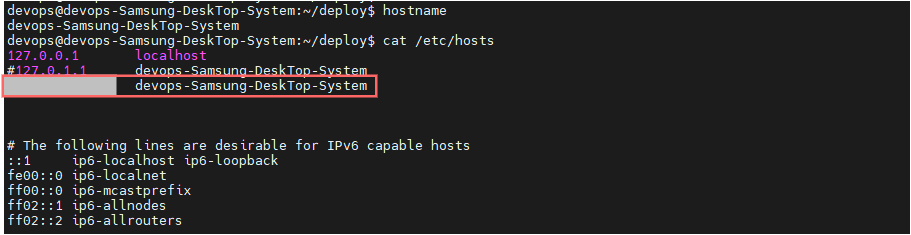
2.10.3 - Apply for Authorization
Apply for authorization to use K8S clusters, namespaces, and VM server groups managed as deployment targets in DevOps Console.
Start Applying for Authorization
To start applying for authorization, follow these steps:
- Main page, click the Manage icon in the upper right corner. Move to the Tenant Dashboard page.
- Click Deployment Target > Apply for Authorization in the left menu. The Apply for Authorization screen appears.
Apply for K8S Cluster Authorization
To apply for K8S cluster authorization, follow these steps:
- Main page, click the Manage icon in the upper right corner. Move to the Tenant Dashboard page.
- Click Deployment Target > Apply for Authorization in the left menu. The Apply for Authorization screen appears.
- Click the K8S Cluster tab on the Apply for Authorization screen. The K8S Cluster screen appears.
- Click the Apply button on the K8S Cluster screen. The K8S Cluster Authorization Application popup window opens.
- Search for the K8S cluster for which you want to apply for authorization in the K8S Cluster Authorization Application popup window.
- Enter the reason for the application and click the Add button.
- Select the authorization for the added K8S cluster and click the Save button.
Cancel K8S Cluster Authorization Application
To cancel the K8S cluster authorization application, follow these steps:
- Main page, click the Manage icon in the upper right corner. Move to the Tenant Dashboard page.
- Click Deployment Target > Apply for Authorization in the left menu. The Apply for Authorization screen appears.
- Click the K8S Cluster tab on the Apply for Authorization screen. The K8S Cluster screen appears.
- Select the cluster on the K8S Cluster screen and click the Cancel button.
Note
The Cancel button is only displayed for applications with a status of
REQUESTED.Apply for Namespace Authorization
To apply for namespace authorization, follow these steps:
- Main page, click the Manage icon in the upper right corner. Move to the Tenant Dashboard page.
- Click Deployment Target > Apply for Authorization in the left menu. The Apply for Authorization screen appears.
- Click the Namespace tab on the Apply for Authorization screen. The Namespace screen appears.
- Click the Apply button on the Namespace screen. The Namespace Authorization Application popup window opens.
- Search for the K8S cluster to which the namespace you want to apply for authorization belongs in the Namespace Authorization Application popup window.
- Select the namespace and enter the reason for the application, then click the Add button.
- Select the authorization for the added namespace and click the Save button.
Cancel Namespace Authorization Application
To cancel the namespace authorization application, follow these steps:
- Main page, click the Manage icon in the upper right corner. Move to the Tenant Dashboard page.
- Click Deployment Target > Apply for Authorization in the left menu. The Apply for Authorization screen appears.
- Click the Namespace tab on the Apply for Authorization screen. The Namespace screen appears.
- Select the namespace on the Namespace screen and click the Cancel button.
Note
The Cancel button is only displayed for applications with a status of
REQUESTED.Apply for VM Server Group Authorization
To apply for VM server group authorization, follow these steps:
- Main page, click the Manage icon in the upper right corner. Move to the Tenant Dashboard page.
- Click Deployment Target > Apply for Authorization in the left menu. The Apply for Authorization screen appears.
- Click the VM Server Group tab on the Apply for Authorization screen. The VM Server Group screen appears.
- Click the Apply button on the VM Server Group screen. The VM Server Group Authorization Application popup window opens.
- Search for the VM server group for which you want to apply for authorization in the VM Server Group Authorization Application popup window.
- Enter the reason for the application and click the Add button.
- Select the authorization for the added VM server group and click the Save button.
Cancel VM Server Group Authorization Application
To cancel the VM server group authorization application, follow these steps:
- Main page, click the Manage icon in the upper right corner. Move to the Tenant Dashboard page.
- Click Deployment Target > Apply for Authorization in the left menu. The Apply for Authorization screen appears.
- Click the VM Server Group tab on the Apply for Authorization screen. The VM Server Group screen appears.
- Select the VM server group on the VM Server Group screen and click the Cancel button.
Note
The Cancel button is only displayed for applications with a status of
REQUESTED.2.11 - Release Management
2.11.1 - Release Management
Release refers to the process of performing the actual deployment process using a workflow.
Users with Owner or Master authority in a project group can configure and apply a release process suitable for the project.
Getting Started with Release Management
To start release management, follow these steps.
- Main page, click the Release Management icon next to the project group name. Move to the Release Management page.
- Click the Release Management > Release Management menu from the left menu. Move to the Release Management page.
Creating a Release
The release creation process proceeds in the following order.
Procedure
Enter Basic Information - Set Workflow - Check/Edit Task - Set Release - Check Summary Information
Pre-Release Check
Before creating a release, check the following.
Item | Required | Description |
|---|---|---|
| Workflow | Y | Workflow is a release process template that must be created before creating a release. Refer to Workflow Management. |
| Approval Template | N | You can set up an approval line and approval content to be used in the release in advance from the approval template. Refer to Approval Template Setting. |
Table. Pre-Release Check
Starting Release Creation
Starting Release Creation from the Release Management Screen
To create a release, follow these steps.
- Main page, click the Release Management icon next to the project group name. Move to the Release Management page.
- Click the Release Management > Release Management menu from the left menu. Move to the Release Management page.
- Click the Create Release button.
Starting Release Creation from the Workflow List
To create a release, follow these steps.
- Main page, click the Release Management icon next to the project group name. Move to the Release Management page.
- Click the Release Management > Workflow Management menu.
- Click the More icon on the Workflow list. Click the Create Release with this Workflow menu from the More menu.
Starting Release Creation from the Workflow Details Screen
To create a release, follow these steps.
- Main page, click the Release Management icon next to the project group name. Move to the Release Management page.
- Click the Release Management > Workflow Management menu from the left menu.
- Click the workflow you want to view in detail from the Workflow list.
- Click the Create Release with this Workflow menu from the Workflow Details screen.
Entering Release Basic Information
Enter the release basic information.
- Click the Start button.
Setting Workflow
- Select the workflow to perform the release. If you started creating a release through Workflow Management, the corresponding workflow is automatically selected.
- If you set environment variables in the workflow, check and change the values.
- Click the Next button.
Checking/Editing Tasks
- Check the tasks to be performed in the release.
- Edit or delete tasks as needed.
- Once you have checked and edited all tasks, click the Next button.
Setting Release
- Add the person in charge of receiving emails/messengers when the release and task status change.
- Select whether to automatically terminate the release when all tasks are completed.
- Click the Next button.
Summary Information
- Check the release creation summary information and click the Complete button.
- Click the Confirm button in the confirmation popup to complete the creation.
- Once the release creation is complete, the Release Details screen appears.
Viewing Release Details
To view release details, follow these steps.
- Click the release you want to view in detail from the Release list.
- The Release Details screen appears.
Proceeding with Release
Releases in Progress
To proceed with a release, follow these steps.
- Click the release card with a status of In Progress from the Release list.
- The Release Details screen appears.
- You can proceed with the release tasks included in the release.
Proceeding with Tasks
Only the task assignee or the release creator can proceed with the release task. To proceed with a release task, follow these steps.
- If you are the task assignee or release creator, click the Task card. The task information is displayed on the right task editing screen.
- Edit before starting the task: You can edit some items of the task before starting the task. Complete the editing and click the Apply button.
Task Editable Items User - Expected time
- Description
- Assignee
- Receive email when completed
- AttachmentJenkins - Parameters
- Assignee
- Receive email when completedBlue/Green Switching - Assignee
- Receive email when completedImage Repository Replication - Source tag
- Target tag
- Assignee
- Receive email when completedSCM Repository Release - SCM tag
- Assignee
- Receive email when completedGIT Branch Creation - Project
- Repository branch
- New branch
- Assignee
- Receive email when completedInternal Approval - JIRA Version issue
- Approver
- Approval title
- Approval content
- Assignee
- Receive email when completedHelm Release - SET VALUES
- Assignee
- Receive email when completedJIRA Release - JIRA project
- JIRA version
- Assignee
- Receive email when completedTable. Items that can be edited before starting the task - Start task: Click the Start button to start the task. If Task Auto-Execution is selected, the task starts automatically without clicking the Start button.
- Task in progress: While the task is in progress, the status bar at the top of the task is displayed as In Progress.
Note
Tasks that are in progress, except for User tasks, cannot be modified.
However, User tasks can be modified even while in progress, such as expected time, description, and attachment.
However, User tasks can be modified even while in progress, such as expected time, description, and attachment.
- Complete task: Click the Complete button to complete the task. Some tasks cannot be completed by clicking the Complete button by the user and are automatically completed by the system.
- Proceed with other tasks in the same way and complete them.
Suspending/Restarting/Skipping Tasks
Only the task assignee or the release creator can suspend/restart/skip tasks.
To suspend/restart/skip a task, follow these steps.
- If you are the task assignee or release creator, click the More icon on the task.
- Click the Suspend/Restart/Skip menu from the More menu.
Note
Some menus may not be available depending on the task status.
Completing Release
The release creator can complete the release. The final result of the release is divided into three categories: success, failure, and suspension.
- Success: The release creator completed the release as a success after all tasks in the release were completed.
- Failure: The release creator completed the release as a failure after all tasks in the release were completed.
- Suspension: The release creator suspended the release, even though there is at least one task that has not been completed.
Completing Release as Success/Failure
To complete a release, follow these steps.
- Click the Release card with a status of In Progress from the Release list.
- The Release Details screen appears.
- Check that all tasks included in the release have been completed.
- Click the Release Complete button.
- In the Release Complete popup, select the Release Result (Success/Failure) and click the Complete button to complete the release.
Suspending Release
To suspend a release without completing it, follow these steps.
However, according to the Release Management setting in the tenant common setting, suspension may require approval. (Managing Tenant Common Settings)
- Click the Release card with a status of In Progress from the Release list.
- The Release Details screen appears.
- Check that there are no tasks in progress and that there are tasks that have not started.
- Click the Release Complete button.
- The Release Complete popup opens, and the release result is displayed as Suspension. Click the Complete button to suspend the release.
- If the tenant common setting requires approval for suspension, the Release Suspension Approval popup opens when the Release Complete button is clicked.
Deleting Release History
Release history can be deleted if the release status is success/failure/suspension. Releases in progress cannot be deleted.
However, depending on the Release Management setting in the tenant common setting, the delete function may not be visible. (Managing Tenant Common Settings)
To delete release history, follow these steps.
- To delete release history, use one of the following methods.
- Click the Delete button from the Release Details screen.
- Click the More icon from the release list. Click the Delete menu from the More menu.
- The Delete Release History popup appears, and enter the release name to confirm deletion.
- Click the Confirm button to complete the deletion.
2.11.2 - Workflow Management
A workflow is a collection of tasks and task groups of various characteristics that must be configured before creating a release.
The workflow is a release process template that helps perform a series of tasks required for the build-deployment stage by tasking and setting responsible persons for each task, allowing for sequential work during deployment.
Getting Started with Workflow Management
To start managing workflows, follow these steps:
- Main page, click the Release Management icon next to the project group name. Move to the Release Management page.
- On the Release Management page, click the Release Management > Workflow Management menu. The Workflow Management page appears.
Creating a Workflow
Getting Started with Creating a Workflow
To create a workflow, follow these steps:
- On the Workflow Management page, click the Create Workflow button. The Create Workflow popup opens.
- In the Create Workflow popup, enter the information, select the project to be released through the workflow, and click the Start button. Move to the Create Workflow page.
- On the Create Workflow screen, edit the workflow.
Modifying Basic Information
To modify the basic workflow information, follow these steps:
- On the Create Workflow screen, click the Modify Basic Information button. The Modify Basic Information popup opens.
- In the Modify Basic Information popup, modify the information and click the Save button.
- In the Save Confirmation popup, click the Confirm button to complete the modification.
Modifying Environment Variables
You can manage variable values that can be used throughout the workflow using workflow environment variables.
To modify workflow environment variables, follow these steps:
- On the Create Workflow screen, click the Modify Environment Variables button. The Modify Environment Variables popup opens.
- In the Modify Environment Variables popup, edit the environment variables.
- Click the Add button to add an environment variable.
- Enter the key/value.
- Click the X icon to delete an environment variable.
- After editing the environment variables, click the Save button.
- In the confirmation popup, click the Confirm button to complete the modification.
Adding Tasks
To add a task to a workflow, follow these steps:
- On the Create Workflow screen, add a task using one of the following methods:
- Click the Task button to add a task to the bottom of the workflow.
- Click the top of the task to add a task above the current task.
- Click the bottom of the task to add a task below the current task.
- On the right task editing screen, set up the task.
- Click the Apply button to apply the task to the workflow.
| Item | Description |
|---|---|
| Add Task | Adds a task. |
| Add Task to Top | Adds a task to the top. |
| Add Task to Bottom | Adds a task to the bottom. |
| Edit Task | Edits the selected task. |
Table. Workflow Creation Screen Items
Info
For more information about tasks that can be added, see Tasks.
Adding Task Groups
Task groups can be used to manage the execution (sequential, parallel) and prerequisites of related tasks.
To add a task group to a workflow, follow these steps:
- On the Create Workflow screen, click the Task Group button.
- Click the newly created New Task Group card.
- On the right task group editing screen, set up the task group and click the Apply button.
| Item | Description |
|---|---|
| Add Task Group | Adds a task group. |
| Task Group | Click to display the task group editing screen. |
| Task Group Name | Enter the task group name. |
| Task Progress | Select the task execution method within the task group.
|
| Condition Execution | Select whether to use the task group execution condition. - ON: Sets the task group execution based on the status of the preceding task. - OFF: Executes the task group tasks regardless of the status of the preceding task. |
| Task Group Execution Prerequisite Status | Executes the current task group when the selected preceding task is in the specified status. If multiple preceding tasks are selected, it works as an AND condition. |
| Receive Email on Completion | Searches and enters the target to receive an email when the task is successfully completed.
|
Table. Workflow Task Group Addition Items
Editing Tasks and Task Groups
To edit tasks and task groups in a workflow, follow these steps:
- Click the Task or Task Group card you want to modify in the workflow. The Task or Task Group Editing screen appears on the right.
- Complete the task or task group editing and click the Apply button to apply the task or task group to the workflow.
Deleting Tasks and Task Groups
To delete tasks and task groups in a workflow, follow these steps:
- Click the Task or Task Group card you want to modify in the workflow. The Task or Task Group Editing screen appears on the right.
- Click the Delete button on the Task or Task Group Editing screen.
- Click the Confirm button in the confirmation popup to complete the task or task group deletion.
Completing Workflow Creation
To complete the workflow creation after adding tasks and task groups, follow these steps:
- Click the Save button on the Create Workflow screen. The Workflow Save popup opens.
- Click the Confirm button in the Workflow Save popup to complete the workflow creation.
Viewing Workflow Details
To view workflow details, follow these steps:
- Click the workflow you want to view in detail on the Workflow Management page.
- The Workflow Details screen appears.
Modifying Workflows
To modify a workflow, follow these steps:
- To display the workflow modification screen, use one of the following methods:
- Click the Modify button on the Workflow Details screen.
- Click the More icon on the Workflow List screen and click the Modify menu.
- On the Modify Workflow screen, edit the workflow. Editing is the same as Creating a Workflow.
- After completing the workflow modification, click the Save button. The Workflow Save popup opens.
- Click the Confirm button in the Workflow Save popup to complete the workflow modification.
Deleting Workflows
To delete a workflow, follow these steps:
- To delete a workflow, use one of the following methods:
- Click the Delete button on the Workflow Details screen.
- Click the More icon on the Workflow List screen and click the Delete menu.
- In the Workflow Delete popup, enter the workflow name to confirm deletion.
- Click the Confirm button in the Workflow Delete popup to complete the deletion.
Duplicating Workflows
You can create a new workflow by duplicating an existing workflow.
To duplicate a workflow, follow these steps:
- On the Workflow List screen, click the More icon and click the Duplicate this Workflow menu. The Workflow Duplicate popup opens.
- In the Workflow Duplicate popup, enter the information and click the Start button. The Create Workflow screen appears.
- On the Create Workflow screen, edit the workflow. Editing is the same as Creating a Workflow.
- After completing the modification, click the Save button on the Create Workflow screen.
- Click the Confirm button in the Workflow Save popup to complete the workflow creation.
Creating a Release with a Workflow
Note
For more information about creating a release, see Getting Started with Release Management.
You can create a new release from the Workflow Management screen.
To create a release with a workflow, follow these steps:
- To create a release with a workflow, use one of the following methods:
- Click the Create Release with this Workflow button on the Workflow Details screen.
- Click the More icon on the Workflow List screen and click the Create Release with this Workflow menu.
- The Create Release screen appears, and you can create a release.
- After entering the release information, click the Create button to complete the release creation.
2.11.3 - Approval Template Settings
Approval templates can be used in workflows and releases, and they include approval lines and approval contents.
| Item | Description |
|---|---|
| Approval Line | Frequently used approval lines can be preset. |
| Approval Content | Frequently used approval contents can be preset. |
Table. Approval Template Provided Items
Getting Started with Approval Template Settings
To start setting up approval templates, follow these steps:
- Main page, click the Release Management icon next to the project group name. Move to the Release Management page.
- On the Release Management page, click the Release Management > Approval Template Settings menu from the left menu.
Approval Line
Getting Started with Approval Line
To start using the approval line, follow these steps:
- Main page, click the Release Management icon next to the project group name. Move to the Release Management page.
- On the Release Management page, click the Release Management > Approval Template Settings menu from the left menu. The Approval Template Settings screen appears.
- On the Approval Template Settings screen, click the Approval Line tab.
Adding Approval Line Templates
To add an internal approval line template, follow these steps:
Internal approval lines can be created for owners and masters within the project group.
- On the Approval Template Settings screen, click the Internal Approval Line tab. The Internal Approval Line screen appears.
- On the Internal Approval Line screen, click the Add button. The Add Approval Line Template popup opens.
- In the Add Approval Line Template popup, enter the information and click the Save button.
| Item | Description |
|---|---|
| Template Name | Enter the template name. |
| Approval Responsible | Search for the approval responsible and add it to the approval line.
|
| Approval Edit |
|
Table. Approval Line Template Addition Input Items
Viewing Approval Line Details
To view the approval line in detail, follow these steps:
- On the Internal Approval Line screen, click the approval line you want to view in detail.
- The Approval Line Details screen appears.
Modifying Approval Lines
To modify an approval line, follow these steps:
- On the Internal Approval Line screen, click the approval line you want to modify. The Approval Line Details screen appears.
- On the Approval Line Details screen, click the Modify button. The Modify Approval Line screen appears.
- On the Modify Approval Line screen, complete the modification and click the Save button.
- Click the OK button in the confirmation popup to complete the modification.
Deleting Approval Lines
To delete an approval line, follow these steps:
- To delete an approval line, use one of the following methods:
- On the Approval Line Details screen, click the Delete button.
- On the Approval Line List screen, select the approval line you want to delete and click the Delete button.
- Click the OK button in the confirmation popup to complete the deletion.
Managing Approval Contents
Getting Started with Approval Contents
To start using approval contents, follow these steps:
- Main page, click the Release Management icon next to the project group name. Move to the Release Management page.
- On the Release Management page, click the Release Management > Approval Template Settings menu from the left menu. The Approval Template Settings screen appears.
- On the Approval Template Settings screen, click the Approval Content tab.
Creating Approval Content Templates
To add an approval content template, follow these steps:
- On the Approval Template Settings screen, click the Approval Content tab. The Approval Content screen appears.
- On the Approval Content screen, click the Add button. The Add Approval Content Template popup opens.
- In the Add Approval Content Template popup, enter the information and click the Save button.
- Click the OK button in the confirmation popup to complete the addition.
Viewing Approval Content Details
To view the approval content in detail, follow these steps:
- On the Approval Content screen, click the approval content you want to view in detail.
- The Approval Content Details screen appears.
Modifying Approval Contents
To modify an approval content, follow these steps:
- On the Approval Content screen, click the approval content you want to modify.
- The Approval Content Details screen appears, then click the Modify button. The Modify Approval Content screen appears.
- On the Modify Approval Content screen, complete the modification and click the Save button.
- Click the OK button in the confirmation popup to complete the modification.
Deleting Approval Contents
To delete an approval content, follow these steps:
- To delete an approval content, use one of the following methods:
- On the Approval Content Details screen, click the Delete button.
- On the Approval Content List screen, select the approval content you want to delete and click the Delete button.
- Click the OK button in the confirmation popup to complete the deletion.
2.11.4 - Task
A task is the smallest executable unit that makes up a workflow (or release), and each task can perform a predetermined operation.
A workflow (or release) consists of one or several tasks.
You can add and edit tasks in Release Management and Workflow Management.
Task List
The tasks provided in Release Management are as follows.
Item | Description |
|---|---|
| Jenkins | You can run a Jenkins pipeline or Jenkins job associated with a DevOps Console project or a separate Jenkins job. |
| User | You can register tasks that require manual work by the user, rather than integrating with a specific tool. |
| Blue/Green Switching | You can associate with Blue/Green deployment belonging to a DevOps Console project. |
| Internal Approval | You can approve through a user belonging to a DevOps Console project group. |
| Helm Release | You can associate with a Helm release belonging to a DevOps Console project. |
| Image Repository Replication | You can replicate an image to another repository. |
| SCM Repository Release | You can release using the release feature of the SCM repository. |
| Git Branch Creation | You can create a new branch by copying a specific branch of a repository belonging to a DevOps Console project. |
| JIRA Release | You can release or unrelease a specific version of a JIRA project. |
| VM Deployment | This is a task that can deploy a VM deployment group with a build complete status or roll back to a previous version. |
Table. Task List
Common Task Items
You can add and edit tasks in Workflow (or Release) Management. When you select a task, the Task Edit screen is displayed, and the Task Edit screen consists of the following.
| Item | Description |
|---|---|
| Task Name | Enter the task name. |
| Task Type | Select the task type. |
| Auto-Execution | Select whether to automatically execute after the preceding task is completed.
|
| Conditional Execution | Select whether to execute the current task based on the status (success/failure/skip) of the preceding task.
|
| Conditional Execution Item |
|
| Manager | Search for and enter the person in charge of the task from the project group members.
|
| Designate Yourself as Manager | Click to designate yourself as the manager of the current task. |
| Receive Email upon Completion | Search for and enter the target to receive an email when the task is completed.
|
| Delete | Delete the current task. |
| Apply | Apply the current task settings to the workflow. |
Table. Common Task Items
Jenkins Task
This is a task that can run a build pipeline or a Jenkins job registered in a DevOps Console project or a separate Jenkins job.
| Item | Description |
|---|---|
| Jenkins Type | Select the Jenkins type.
|
| Project | Select the project to run the pipeline. |
| Jenkins URL | Select the URL of the Jenkins tool registered in the selected project. |
| Job | Select the job from the selected Jenkins URL. Only jobs with execution permissions for the current user are displayed in the list. |
| Parameter | Enter the parameters required to run the build pipeline.
|
| Jenkins Job URL | Enter the URL of the Jenkins job that is not registered in the DevOps Console. |
| Jenkins ID Jenkins Password or Token |
|
Table. Jenkins Task Items
User Task
This is a task that registers manual work that the user must perform.
| Item | Description |
|---|---|
| Expected Time | Enter the expected time required for the user task. |
| Description | Enter the contents that the user must perform manually. |
Table. User Task Items
Blue/Green Switching Task
This is a task that can be associated with Blue/Green deployment belonging to a DevOps Console project.
| Item | Description |
|---|---|
| Project | Select the project to perform the Blue/Green switching. |
| Blue/Green List | Select the Blue/Green deployment from the list of the selected project that you want to perform in the task. |
Table. Blue/Green Switching Task Items
When the Blue/Green switching task is in progress in the release, you can perform the following work.
| Item | Description |
|---|---|
| Operation Status Check | Click the Operation Status Check button to open the Blue/Green Operation Status Check popup. |
| Switching | Check the operation/operation standby status and click the Switching button. The operation and operation standby are switched. |
| Completion | Check the Blue/Green switching result and click the Completion button to complete the Blue/Green task. If there is a problem with the switching, you can also revert to the previous state by clicking the Operation Status Check button. |
Table. Possible Work Items in Blue/Green Switching Task
Internal Approval Task
This is a task that can approve through a user belonging to a DevOps Console project group.
Item | Description |
|---|---|
| Include JIRA Version Issue | Select whether to include JIRA version issues in the approval content. When proceeding with the release, the JIRA version set in the project group is selected, and the list of all issues corresponding to the version is automatically added to the approval document. |
| JIRA Project | Select the JIRA project. Only JIRA projects registered in JIRA Project can be selected. |
| Approval Line Template | Select the approval line added in Approval Template Setting to add approvers in bulk. |
| Approver | Search for and add an approver. Only project group members can be searched and added. |
| Approver List | Modify the approver list by changing the approval type, adjusting the order, or deleting. |
| Approval Content Template | Select the approval content added in Managing Approval Content to add the title and content. |
| Approval Content | Enter the approval title and content. |
Table. Internal Approval Task Items
When the internal approval task is in progress in the release, the following work can be performed.
- Approver : Can approve or reject the approval.
- Approval : Click the Approval button. In the Approval confirmation popup, enter the approval opinion and click the Confirm button to approve.
- Rejection : Click the Rejection button. In the Rejection confirmation popup, enter the rejection opinion and click the Confirm button to reject.
- Other Roles : Can check the approval status.
Helm Release Task
This is a task that can be associated with a Helm release belonging to a DevOps Console project.
Item | Description |
|---|---|
| Auto-Termination | Select whether to automatically terminate the task after the Helm release execution is completed. |
| Project | Select the project to perform the Helm release. |
| Helm Release | Select the Helm release to use in the task from the Kubernetes deployment in the project. Workload, Helm Release can be selected. The information of the selected Helm release is displayed. |
| SET_VALUES (Helm Release) | Displayed when the selected Helm release is Helm Release.
|
| SET_VALUES (Workload) | Displayed when the selected Helm release is Workload.
|
Table. Helm Release Task Items
When the Helm release task is in progress in the release, you can check the following contents in the task edit screen.
If Helm Release is selected, you can check the following items.
| Item | Description |
|---|---|
| Current Status | Displays the current status of the Helm release. |
| Execution Status | Displays the result of the Helm release execution. |
| History | Displays the history of the Helm release. Click the Inquiry icon to check the values.yaml used in the Helm release by revision. To roll back to a previous deployment, click the Rollback button. In the confirmation popup, click the Confirm button to complete. |
Table. Items Displayed when Helm Release Type
If Workload is selected, you can check the following items.
| Item | Description |
|---|---|
| Execution Status | Displays the result of the Helm release execution. |
| History | Displays the deployment history. To roll back to a previous deployment, click the Rollback button. In the confirmation popup, click the Confirm button to complete. |
Table. Items Displayed when Workload Type
Image Repository Replication Task
This is a task that can replicate an image to another repository.
Source image → (replication) Target image
Item | Description |
|---|---|
| Type | Select the type.
|
| Source Project | Select the project where the source image repository is registered. |
| Source Image Repository | Select the source image repository from the project. |
| Source Tag | Enter the source tag. Tag can be entered directly or environment variables can be used by selecting them. Environment variables can be referenced in Modifying Environment Variables. |
| Target Project | Select the project where the target image repository is registered. |
| Target Image Repository | Select the target image repository from the project. |
| Target Tag | Enter the target tag. |
| Source Host | Enter the source host domain name. |
| Source Path | Enter the source path. |
| Source ID Source Password | Enter the account information of the source image repository. After entering, click the Connection Test button to check if it is connected normally. |
| Target Host | Enter the target host domain name. |
| Target Path | Enter the target path. |
| Target ID Target Password | Enter the account information of the target image repository. After entering, click the Connection Test button to check if it is connected normally. |
Table. Image Repository Replication Task Items
SCM Repository Release Task
This is a task that runs the release of an SCM repository.
The SCM repository release performs the creation of a release or tag according to the SCM repository tool (GitHub, GitLab, other Git repositories).
| Item | Description |
|---|---|
| Git Type | Select the Git type.
|
| Project | Select the project where the code repository is registered. |
| SCM Repository | Select the code repository from the project. |
| SCM Branch | Select the branch of the code repository. |
| SCM Tag | Enter the tag to be created in the release. |
| Git URL | Enter the URL of the Git repository. |
| Git ID Git Password or Token | Enter the account information of the Git repository. |
| Branch | Enter the branch of the Git repository. After entering, click the Connection Test button to check if it is connected normally. |
Table. SCM Repository Release Task Items
GIT Branch Creation Task
This is a task that can create a new branch by copying a specific branch of a repository belonging to a DevOps Console project.
| Item | Description |
|---|---|
| Git Type | Select the Git type.
|
| Project | Select the project where the code repository is registered. |
| Repository | Select the code repository from the project. |
| Branch | Select the existing branch that the new branch will reference. |
| New Branch | Enter the name of the new branch to be created. |
| Apply Protection | Select whether to apply the protection rule to the new branch. |
| Protection Rule | If the protection rule is applied, set the merge and push permissions.
|
| Git URL | Enter the URL of the Git repository. |
| Git ID Git Password or Token | Enter the account information of the Git repository. |
| Branch | Enter the existing branch that the new branch will reference. After entering, click the Connection Test button to check if it is connected normally. |
Table. GIT Branch Creation Task Items
JIRA Release Task
This is a task that can release or unrelease a specific version of a JIRA project.
| Item | Description |
|---|---|
| JIRA Project | Select the JIRA project registered in the project group. |
| JIRA URL | Check the server of the selected JIRA project. (Readonly) |
| JIRA Version | Select the version of the JIRA project.
|
Table. JIRA Release Task Items
When the JIRA release task is in progress in the release, the following work can be performed.
| Item | Description |
|---|---|
| Status | Status button opens the JIRA release popup window. |
| Status Change | Status Change button changes the JIRA Version to Released or back to Unreleased. |
| Confirm | Confirm button completes the JIRA release. |
Table. Tasks that can be performed in the JIRA release task
VM Deployment Task
This task deploys a VM deployment group with a Build Complete status or rolls back to a previous version.
| Item | Description |
|---|---|
| Project | Select a project. |
| Deployment Group | Select a deployment group.
|
| Deployment Group Information | The contents stored in the deployment group are automatically set. |
Table. VM Deployment Task Items
2.11.5 - JIRA Project
The user can manage JIRA project information to be used in the release management JIRA task.
Note
This feature is only supported when the JIRA tool is registered in the system.
Getting Started with JIRA Project
To start managing JIRA projects, follow these steps:
- Main page, click the Project Group Management icon of the project group. Move to the Project Group Dashboard page.
- On the Project Group Dashboard page, click the JIRA Project menu. The JIRA Project screen appears.
Adding a JIRA Project
To add a JIRA project, follow these steps:
- On the JIRA Project screen, click the Add button. The Add JIRA Project popup window opens.
- In the Add JIRA Project popup window, enter the JIRA URL and Authentication Information, and then click the Connection Test button.
- Select the JIRA Project and click the Save button.
| Item | Description |
|---|---|
| JIRA URL | Select the JIRA URL
|
| Tool Registration Shortcut | If JIRA tool registration is required, you can go directly to the tool registration page. |
| Authentication Information | Enter the authentication information. |
| JIRA Project | Select the JIRA project
|
Table. JIRA Project Addition Input Items
Deleting a JIRA Project
To delete a JIRA project, follow these steps:
- On the JIRA Project screen, select the checkbox of the item to be deleted and click the Delete button.
- In the confirmation popup window, click the Confirm button to complete the deletion of the JIRA project.
2.12 - Release Note
DevOps Console
2025.07.01
FEATURE
v1.16.0 changes- Self-user management and authentication features have been added.
DevOps IDPis used to manage and authenticate users.- Jenkins DevOps Plugin installation and update feature has been added. You can check the version of the installed Jenkins and the installation and version information of the recommended plugins, and install and update them.
- You can download the billing basis data from the current data in the tenant dashboard in Excel.
2024.10.24
FEATURE
v1.15.0 changesA supported Helm chart repository has been added.
OCI standard Helm chart repository is now available.
Pipeline feature has been added. It supports creating multi-branch pipeline functionality.
Note: Multibranch Pipeline
Other changed things Items that can be checked in the dashboard have been added.
2024.10.24
CHANGED
v1.15.0 changes- The authority management function of the deployment target has been improved.
- Deployment Target(K8S Cluster, Namespace, VM Server Group) has added a Permission Application/Approval feature.
- Note: Apply for permission
- The management organization function of tools/templates has been improved. The organization (tenant, project group) that manages tools and templates can be transferred and has been improved.
Note
- Tool: Migrate Management Tenant/Project Group
- Template: Migrate Management Tenant
- Other changed things
The supported version of the image storage tool
Harborhas been expanded. (~2.10) It has become impossible to directly create a Job inJenkins. (Only possible through DevOps Service)