This is the multi-page printable view of this section. Click here to print.
Scalable DB(DBaaS)
- 1: Overview
- 1.1: Server Types
- 1.2: ServiceWatch Metrics
- 2: How-to guides
- 2.1: Read Node Manage
- 2.2: Backup DB
- 3: Release Note
1 - Overview
Service Overview
Scalable DB(DBaaS) is a database service designed to efficiently manage rapidly increasing data processing demands and user load.
Scalable DB (DBaaS) automatically scales resources up or down in response to traffic changes, maintaining optimal performance and availability. This maximizes resource efficiency and provides cost savings.
Additionally, the Proxy Endpoint configuration feature not only distributes database load by separating read/write and read‑only roles, but also enables more efficient independent connection management per application.
By combining these features, users can reduce the complexity of service operations and build a cost‑effective, scalable database environment.
Service Diagram
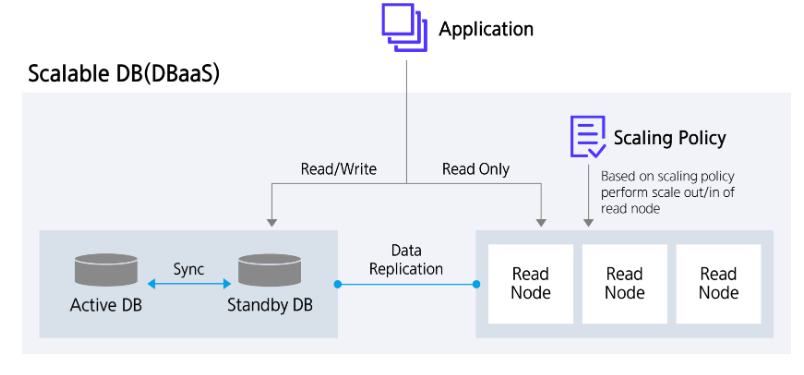
Provided features
Scalable DB(DBaaS) provides the following features.
- Auto Provisioning: Allows installation and configuration of the Database (DB) via UI, and provides an Active‑standby redundancy configuration built on storage replication. In case of an Active server failure, it automatically fails over to the Standby.
- Operation Control Management: Provides functionality to control the status of running servers. Offers start and stop functions for the entire cluster and restart buttons for each node, supporting a flexible cluster and node management environment for users.
- Scaling feature: Through the automatic scaling feature, read nodes are automatically expanded and contracted according to the policy set by the user. Additionally, users can manually adjust the number of nodes as needed.
- Proxy Endpoint configuration: By using the Proxy Endpoint feature that separates read/write and read‑only connections, it supports database connection optimization and traffic distribution.
- Backup: Provides data backup functionality based on its own backup command. Users can set the backup time window and storage repository, and additional fees are incurred based on backup size.
- Read Node status view: Provides real-time Read Node status view functionality, allowing monitoring of replication lag time (Replication Lag Time) to accurately determine data synchronization status.
- Service Status Query: Retrieves the final status of the current DB service.
- Monitoring: CPU, memory, performance monitoring information can be viewed through Servicewatch.
Component
Scalable DB (DBaaS) provides pre‑validated engine versions and various server types in accordance with its open‑source support policy. Users can select and use them based on the scale of the service they wish to configure.
Engine version
The engine versions supported by Scalable DB (DBaaS) are as follows.
Technical support can be used until the supplier’s EoTS (End of Technical Service) date, and the EOS date when new creation is stopped is set to six months before the EoTS date.
The EOS and EoTS dates may change according to the supplier’s policy, so please refer to the supplier’s license management policy page for details.
- MariaDB(Commuity): https://mariadb.org/about/#maintenance-policy
| Provided version | EOS Date (Samsung Cloud Platform new creation stop date) | EoTS Date (Community technical support end date) |
|---|---|---|
| 10.11.13 | 2027-06 (planned) | 2028-02-16 |
Server Type
The server types supported by Scalable DB(DBaaS) are as follows.
For detailed information about the server types provided by Scalable DB (DBaaS), refer to Scalable DB(DBaaS) Server Types.
High Capacity sdbh2v24m48
Category | example | Detailed description |
|---|---|---|
| Server type | High Capacity | Provided server type classification |
| Server specifications | sdbh2 | Provided server type classification and generation
|
| Server specifications | v24 | Number of vCores
|
| Server specifications | m48 | Memory Capacity
|
Provision status by region
Scalable DB(DBaaS) is available in the following environments.
| region | Provision status |
|---|---|
| Korea West (kr-west1) | Provide |
| Korea East (kr-east1) | Not provided |
| South Korea 1 (kr-south1) | Provide |
| South Korea South 2 (kr-south2) | Not provided |
| South Korea 3 (kr-south3) | Not provided |
Preliminary Service
This is a list of services that must be pre-configured before creating the service. Please refer to the guide provided for each service and prepare in advance.
| Service Category | service | Detailed description |
|---|---|---|
| Networking | VPC | A service that provides an isolated virtual network in a cloud environment |
1.1 - Server Types
Scalable DB(DBaaS) server type
Scalable DB (DBaaS) offers server types configured with various combinations of CPU, memory, and network bandwidth. When creating a Scalable DB(DBaaS), the Database Engine is installed according to the server type selected for the intended use.
The server types supported by Scalable DB (DBaaS) are as follows.
High Capacity sdbh2v24m48
Category | example | Detailed description |
|---|---|---|
| Server type | High Capacity | Provided server type classification |
| Server specifications | sdbh2 | Provided server type classification and generation
|
| Server specifications | v24 | Number of vCores
|
| Server specifications | m48 | Memory Capacity
|
sdbh2 server type
The dbh2 server type of Scalable DB (DBaaS) is offered with high-capacity server specifications and is suitable for database workloads that require large-scale data processing.
- Intel 4th‑generation (Sapphire Rapids) Xeon Gold 6448H Processor up to 3.2 GHz
- Supports up to 128 vCPUs and 1,536 GB of memory
- Networking speed up to 25 Gbps
| Category | Server type | vCPU | Memory | Network Bandwidth |
|---|---|---|---|---|
| High Capacity | sdbh2v24m48 | 24 vCore | 48 GB | Maximum 25 Gbps |
| High Capacity | sdbh2v24m96 | 24 vCore | 96 GB | Maximum 25 Gbps |
| High Capacity | sdbh2v24m192 | 24 vCore | 192 GB | Maximum 25 Gbps |
| High Capacity | sdbh2v24m288 | 24 vCore | 288 GB | Maximum 25 Gbps |
| High Capacity | sdbh2v32m64 | 32 vCore | 64 GB | Maximum 25 Gbps |
| High Capacity | sdbh2v32m128 | 32 vCore | 128 GB | Maximum 25 Gbps |
| High Capacity | sdbh2v32m256 | 32 vCore | 256 GB | Maximum 25 Gbps |
| High Capacity | sdbh2v32m384 | 32 vCore | 384 GB | Maximum 25 Gbps |
| High Capacity | sdbh2v48m192 | 48 vCore | 192 GB | Maximum 25 Gbps |
| High Capacity | sdbh2v48m576 | 48 vCore | 576 GB | Maximum 25 Gbps |
| High Capacity | sdbh2v64m256 | 64 vCore | 256 GB | Up to 25 Gbps |
| High Capacity | sdbh2v64m768 | 64 vCore | 768 GB | Maximum 25 Gbps |
| High Capacity | sdbh2v72m288 | 72 vCore | 288 GB | Maximum 25 Gbps |
| High Capacity | sdbh2v72m864 | 72 vCore | 864 GB | Maximum 25 Gbps |
| High Capacity | sdbh2v96m384 | 96 vCore | 384 GB | Up to 25 Gbps |
| High Capacity | sdbh2v96m1152 | 96 vCore | 1152 GB | Maximum 25 Gbps |
| High Capacity | sdbh2v128m512 | 128 vCore | 512 GB | Maximum 25 Gbps |
| High Capacity | sdbh2v128m1536 | 128 vCore | 1536 GB | Maximum 25 Gbps |
1.2 - ServiceWatch Metrics
Scalable DB sends metrics to ServiceWatch. The metrics provided by default monitoring are data collected at a 1‑minute interval.
Basic Metrics
The following are the basic metrics for the namespace Scalable DB(DBaaS).
The indicators whose names are shown in bold below are the indicators selected as major indicators among the basic indicators provided by Scalable DB(DBaaS). Key metrics are used to build service dashboards that are automatically created for each service in ServiceWatch.
Each metric indicates through the user guide which statistical value is meaningful when viewing that metric, and among the meaningful statistics, the values displayed in bold are the primary statistics. In the service dashboard, you can view key metrics using these primary statistical values.
OS Basic Metrics
Category | Performance items | unit | Detailed description | meaningful statistics |
|---|---|---|---|---|
| CPU | CPU Usage | Percent | CPU usage |
|
| Disk | Disk Usage | Percent | Disk usage |
|
| Disk | Disk Write Bytes | Bytes/Second | Write bandwidth (bytes/second) on block device |
|
| Disk | Disk Read Bytes | Bytes/Second | Read capacity (bytes/second) from block device |
|
| Disk | Disk Write Requests | Count/Second | Number of write requests on block device (requests per second) |
|
| Disk | Disk Read Requests | Count/Second | Number of read requests on block device (requests per second) |
|
| Disk | Average Disk I/O Queue Size | None | Average queue length of requests issued to the block device |
|
| Disk | Disk I/O Utilization | Percent | Proportion of time the block device actually handled I/O operations |
|
| Memory | Memory Usage | Percent | Memory usage |
|
| Network | Network In Bytes | Bytes/Second | Received capacity (bytes/second) on the network interface |
|
| Network | Network Out Bytes | Bytes/Second | Transmitted capacity (bytes/second) on the network interface |
|
| Network | TCP Connections | Count/Second | Current total number of successfully established TCP connections |
|
| Network | Network In Packets | Count | Number of packets received on the network interface |
|
| Network | Network Out Packets | Count | Number of packets transmitted on the network interface |
|
| Network | Network In Dropped | Count | Number of packet drops received on the network interface |
|
| Network | Network Out Dropped | Count | Number of packet drops transmitted on the network interface |
|
| Network | Network In Errors | Count | Number of packet errors received on the network interface |
|
| Network | Network Out Errors | Count | Number of packet errors transmitted on the network interface |
|
Scalable DB Basic Metrics
Category | Performance items | unit | Detailed description | meaningful statistics |
|---|---|---|---|---|
| Activelock | Active locks | Count | Number of transactions in lock wait (Lock Wait) state for 1 minute (60 seconds) or longer in the InnoDB storage engine |
|
| Activesession | Active sessions | Count | Number of active sessions |
|
| Activesession | Connection usage | Percent | DB connection session usage rate |
|
| Activesession | Connections | Count | DB connection session |
|
| Activesession | Aborted Connections | Count/Minute | Number of abnormal terminated connections |
|
| Datafile | Current open files | Count | Number of file descriptors opened by the DB |
|
| Datafile | Max open files | Count | Maximum number of file descriptors the DB can open |
|
| Datafile | Open files usage | Percent | DB file maximum count utilization |
|
| InnoDB | InnoDB buffer pool hit ratio | Percent | The proportion of data read directly from memory without accessing the disk |
|
| InnoDB | Innodb row lock wait transactions | Count | Current number of InnoDB transactions waiting for a row lock |
|
| InnoDB | InnoDB row lock time | Milliseconds | Total time waited due to InnoDB row locks (in milliseconds) |
|
| InnoDB | InnoDB deadlocks | Count/Minute | Number of transactions rolled back due to deadlock |
|
| InnoDB | Table lock waits | Count/Minute | Number of waits that occurred to acquire a table lock |
|
| InnoDB | Temp disk tables | Count/Minute | Number of Temp Tables created on disk |
|
| InnoDB | Innodb log waits | Count | Number of times waited to write the redo log to disk |
|
| ProxySQL | Proxy Uptime | Seconds | Express the proxy’s uptime in seconds |
|
| ProxySQL | Backend connections(CONNECTED) | Count | Number of sessions connected to the Proxy server |
|
| ProxySQL | Client connections connected | Count | Number of client sessions currently connected to the proxy |
|
| ProxySQL | Queries routed | Count | Number of queries routed to the backend server |
|
| ProxySQL | Backend connections(ACTIVE, IDLE) | Count | Active / idle connection count per endpoint |
|
| ProxySQL | Backend server status | None | Backend server status
|
|
| ProxySQL | Backend conneciton check | Count | Backend server connection success/failure count | - |
| State | Instance state | None | Check Scalable DB status up/down
| - |
| State | Slave behind master seconds | Seconds | Replica latency (unit: seconds) |
|
| State | Slave io thread running (Replica Only) | None | I/O Thread status
| - |
| State | Slave SQL thread running (Replica Only) | None | SQL Thread status
| - |
| Tablespace | Tablespace used | Megabytes | Tablespace usage |
|
| Tablespace | Tablespace used(TOTAL) | Megabytes | Tablespace usage (total) |
|
| Transactions | Slow queries | Count | Number of queries running longer than 10 seconds |
|
| Transactions | Long transaction time | Seconds | Long Transaction time |
|
| Transactions | Wait locks | Count | Number of sessions waiting for lock |
|
| Transactions | SQL Queries/Minute | Count/Minute | Queries executed per minute |
|
2 - How-to guides
Users can create the service by entering the required information for Scalable DB (DBaaS) and selecting detailed options through the Samsung Cloud Platform Console.
Create Scalable DB(DBaaS)
You can create and use the Scalable DB (DBaaS) service in the Samsung Cloud Platform Console.
Before creating the service, configure the VPC’s subnet type as General.
- If the subnet type is Local, the corresponding Database service cannot be created.
To create a Scalable DB (DBaaS), follow the steps below.
All Services > Database > Scalable DB(DBaaS) Click the menu. 1. Go to the Service Home page of Scalable DB (DBaaS).
On the Service Home page, click the Create Scalable DB (DBaaS) button. 2. Create Scalable DB (DBaaS) Navigate to the page.
On the Scalable DB(DBaaS) Creation page, enter the information required to create the service and select detailed options.
- Select the required information in the Image and version selection area.
Category required statusDetailed description Image version Required Provide version list of Scalable DB (DBaaS) Table. Scalable DB (DBaaS) Image and version selection items - Service Information Input (Primary Node) Enter or select the required information.
Category required statusDetailed description Server name Prefix Required Server name where the DB will be installed - must start with a lowercase English letter, and using lowercase letters, numbers, and special characters (
-) enter 3 - 13 characters
- Based on the server name, a postfix such as 001, 002 is appended to generate the actual server name
Cluster name Required Cluster name of DB servers - Enter using English letters, 3 - 20 characters
- A cluster is a unit that groups multiple servers
Service Type > Server Type Required Server type on which the DB will be installed - High Capacity: Large-capacity server with 24 vCores or more
- For detailed information about the server types provided by Scalable DB (DBaaS), refer to Scalable DB(DBaaS) 서버 타입.
Service Type > Planned Compute Select Status of resources with Planned Compute configured - In Use: Number of resources with Planned Compute that are currently in use
- Configured: Number of resources with Planned Compute configured
- Coverage Preview: Amount applied per resource by Planned Compute
- Create Planned Compute Service: Navigate to the Planned Compute service application page
- For more details, see Planned Compute Request
Service Type > Block Storage Required Block Storage settings used by the DB according to purpose - Base OS: Area where the DB engine is installed
- DATA: Storage area for table data, archive files, etc.
- Select a storage type and then enter the capacity (see Block Storage 생성하기 for details on each Block Storage type)
- SSD: High‑performance general volume
- HDD: General volume
- SSD_KMS, HDD_KMS: Additional encrypted volumes that use Samsung Cloud Platform KMS (Key Management System) encryption keys
- The configured storage type is applied identically to additional storage
- Capacity must be entered as a multiple of 8 within the range 16–5,120
- Because large sorts during SQL execution or monthly batch jobs can cause service interruptions, a separate TEMP storage must be allocated and used
- Add: Storage areas for DATA, Archive, TEMP, Backup data
- After selecting Use, enter the storage’s purpose and capacity
- The storage type is applied the same as the type set for DATA, and capacity can be entered as a multiple of 8 within the range 16–5,120
- To add storage, click the Add button; to delete, click the x button. Up to 9 can be added
- Before transmitting backup data, temporarily store it in the BACKUP storage
- If the data to be backed up exceeds 100 GB and undergoes frequent changes, it is recommended to add a separate BACKUP storage for reliable backup; the backup capacity is advised to be set at about 60 % of the DATA capacity
- If BACKUP storage is not added, using the
/tmparea is recommended
- For each service, Archive, TEMP, and BACKUP storages are allocated only one Block Storage each
- Select a storage type and then enter the capacity (see Block Storage 생성하기 for details on each Block Storage type)
Network > Common Settings Required Network settings for servers created by the service - Select when you want to apply the same settings to all installed servers
- Select a pre‑created VPC, Subnet, IP, and Public NAT
- IP can only be generated automatically
- The Public NAT feature is available only when the VPC is connected to an Internet Gateway; checking use allows you to select from reserved IPs in the VPC product’s Public IP. For more details, see Public IP 생성하기
Network > Server-specific Settings Required Network settings where servers generated by the service are installed - Select when you want to apply different settings for each installed server
- Select a pre‑created VPC, Subnet, IP, and Public NAT
- Enter the IP for each server
- When Use is checked, you can select a reserved IP from the VPC product’s Public IP. For more information, refer to Public IP 생성하기
IP access control Selection Service Access Policy Configuration - Since the access policy is set for the IP entered on the page, you do not need to configure a separate Security Group policy.
- Enter in IP format (example:
192.168.10.1) or CIDR format (example:192.168.10.0/24,192.168.10.1/32) and click the Add button.
- To delete an entered IP, click the x button next to the entered IP.
maintenance period Select Database maintenance window - If you select Use, set the day, start time, and duration
- It is recommended to set a maintenance window for stable management of the DB. Patch operations will be performed at the scheduled time, causing service interruption
- If set to not use, Samsung SDS is not responsible for issues arising from unapplied patches.
Table. Scalable DB(DBaaS) Primary Node Service Information Input Items - must start with a lowercase English letter, and using lowercase letters, numbers, and special characters (
- Service Information Input (Read Node) Enter or select the required information in this area.
Category required statusDetailed description Read Node count Required Select the number of Read Nodes to create within the range 1 - 5 - The Host name is automatically assigned as a combination of the server name prefix + r + a three‑digit number (001 - 999) for each Node
Service Type > Server Type Required Server type on which the DB will be installed - High Capacity: large-capacity server with 24 vCores or more
- For detailed information about the server types provided by Scalable DB (DBaaS), refer to Scalable DB(DBaaS) 서버 타입.
Service Type > Planned Compute Selection Status of resources with Planned Compute configured - In Use: Number of resources with Planned Compute configured that are currently in use
- Configured: Number of resources with Planned Compute configured
- Coverage Preview: Amount applied per resource by Planned Compute
- Create Planned Compute Service: Navigate to the Planned Compute service application page
- For more details, see Planned Compute 신청하기
Service Type > Block Storage Required Block Storage settings used by the DB according to purpose - Base OS: Area where the DB engine is installed
- DATA: Storage area for table data, archive files, etc.
- Select a storage type and then enter the capacity (see Block Storage 생성하기 for details on each Block Storage type)
- SSD: High‑performance general volume
- HDD: General volume
- SSD_KMS, HDD_KMS: Additional encrypted volumes that use Samsung Cloud Platform KMS (Key Management System) encryption keys
- The configured storage type is applied identically to additional storage
- Capacity must be entered as a multiple of 8 within the range 16–5,120
- Because large sorts during SQL execution or monthly batch jobs can cause service interruptions, a separate TEMP storage must be allocated and used
- Add: Storage areas for DATA, Archive, TEMP, Backup data
- After selecting Use, enter the storage’s purpose and capacity
- The storage type is applied the same as the type set for DATA, and the capacity can be entered as a multiple of 8 within the range 16–5,120
- To add storage, click the Add button; to delete, click the x button. Up to 9 can be added
- Before transmitting backup data, temporarily store it in the BACKUP storage
- If the data to be backed up exceeds 100 GB and undergoes frequent changes, it is recommended to add a separate BACKUP storage for reliable backup; the backup capacity is advised to be set at about 60 % of the DATA capacity.
- If a BACKUP storage is not added, using the
/tmparea is recommended
- For each service, Archive, TEMP, and BACKUP storages are allocated only one Block Storage each
- Select a storage type and then enter the capacity (see Block Storage 생성하기 for details on each Block Storage type)
Network > Common Settings Required Network settings for servers created by the service - Select when you want to apply the same configuration to all installed servers
- Automatically apply the same as the Primary Node configuration items
Network > Server-specific Settings Required Network settings where servers generated by the service are installed - Select when you want to apply different settings for each installed server
- Automatically applied same as the Primary Node configuration items, IP information can be entered manually
Scaling Policy Settings > Node Count Required Enter the number of Read Nodes referenced commonly by both Auto Scaling and Manual Scaling - Min: Enter the minimum number of nodes to maintain based on the scaling policy, within the range 1 - 5
- Max: Enter the maximum number of nodes to maintain based on the scaling policy, within the range 1 - 5
Scaling policy configuration > Auto Scale-out policy option Auto Scale-out policy detailed settings - Use after selecting, set the detailed items of the execution condition of the Auto Scale-out policy
- Enter the wait time for the Cooldown item, after the scaling operation by the policy is completed, before restarting the scaling operation, enter the wait time within the range 60 – 3,600
Scaling Policy Settings > Auto Scale-in Policy option Auto Scale-in policy detailed settings - After selecting Use, configure the detailed items of the execution condition of the Auto Scale-out policy
- Enter the wait time for the Cooldown item; after the scaling operation by the policy is completed, input the wait time within the range of 60 – 3,600 before restarting the scaling operation
Table. Scalable DB (DBaaS) Read Node Service Information Input Items - Enter or select the required information in the Proxy Service Information Input area.
Category required statusDetailed description Proxy Endpoint Settings > Read Endpoint Port Required Set the port to connect to the Read Node that handles read requests - The port cannot be the same as the Database Port and must be entered within the range 1200 - 65535
Proxy Endpoint Settings > Write Endpoint Port Required Set the Port to connect to the Primary Node that will handle write requests - The port cannot be the same as the Database Port and must be entered within the range 1200 - 65535
Proxy Endpoint Settings > Connection Idle Time Required Enter the idle time in milliseconds (ms) before automatically terminating a client connection with no request - Enter a value within the range 0 - 1,728,000,000
Proxy Endpoint Settings > Read Connection Count Required Set the maximum number of connections that a Proxy can create simultaneously with a Read Node - Enter within the range 10 - 100,000
Proxy Endpoint Settings > Write Connection Count Required Set the maximum number of connections that a Proxy can create simultaneously with the Primary Node - Enter within the range 10 - 100,000
Proxy Endpoint Settings > Lagging Time Required Set the Replication delay time allowed for the Read Node - Enter a value in the range 0 - 126,144,000
Table. Scalable DB (DBaaS) Proxy Service Information Input Items - In the Enter required database configuration information area, enter or select the necessary information.
Category required statusDetailed description Database name Required Server name applied during DB installation - must start with an English letter and be entered using English letters and numbers, 3 - 20 characters long
Database username Required DB user name - An account with the same name is also created on the OS
- Enter using lowercase English letters, 2 to 20 characters
- Restricted database user names can be viewed in the Console
Database password Required Password to use when accessing the DB - Enter 8 - 30 characters including letters, numbers, and special characters (excluding
“‘)
Database password verification Required Re-enter the same password to use for DB access Database Port number Required Port number required for DB connection - Enter the DB port within the range 1200 ~ 65535
Backup > Use Selection Backup usage - Select Use to set backup file retention period, backup start time, and Archive backup interval
Backup > Retention Period Selection Backup retention period - Select the backup retention period, set the file retention period from 7 days to 35 days
- Backup files incur additional charges based on size
Backup > Backup Start Time Selection Backup start time - Select backup start time
- The minutes during which the backup runs (minutes) are set randomly, and the backup end time cannot be set
Backup > Archive backup cycle Selection Archive backup interval - Select the archive backup interval
- The archive backup interval is recommended to be 1 hour. Selecting 5 minutes, 10 minutes, or 30 minutes may affect DB performance.
Parameter Required Parameters to be used in the DB - Query button can be clicked to view detailed information of the parameters
DB character set Required Set the DB character set appropriate for the characters (language) to be used in the DB - The DB is created with the selected character set as the default
time zone Required Standard time zone for the database ServiceWatch log collection Selection ServiceWatch log collection status - use to enable the ServiceWatch log collection feature
- For detailed information about the collected logs, see ServiceWatch 지표
- Up to 5 GB is provided free of charge for all services within the account, and charges apply based on storage size for usage exceeding 5 GB
- When collecting, log groups and log streams are created automatically and cannot be deleted until the resources are removed
- To prevent exceeding 5 GB, it is recommended to delete log data directly or shorten the retention period
Table. Essential items for configuring a Scalable DB (DBaaS) database - In the Additional Information Input area, enter or select the required information.
Category required statusDetailed description tag Selection Add Tag - Up to 50 per resource can be added
- After clicking the Add Tag button, enter or select Key, Value values
Table. Scalable DB (DBaaS) additional information input fields
- Select the required information in the Image and version selection area.
Summary panel, check the detailed information and estimated charges generated, and click the Create button.
- Once creation is complete, check the created resource on the Resource List page.
Scalable DB(DBaaS) View detailed information
The Scalable DB (DBaaS) service allows you to view and edit the full list of resources and detailed information. Scalable DB (DBaaS) Details page consists of Details, Read Node Status View, Auto Scaling Policy, Tags, Operation History tabs.
To view detailed information about the Scalable DB (DBaaS) service, follow these steps.
- All Services > Database > Scalable DB(DBaaS) Click the menu. 1. Go to the Service Home page of Scalable DB (DBaaS).
- On the Service Home page, click the Scalable DB(DBaaS) menu. 2. Navigate to the Scalable DB(DBaaS) List page.
- On the Scalable DB(DBaaS) List page, click the resource to view detailed information. 3. Scalable DB(DBaaS) Details Navigate to the page.
- Scalable DB(DBaaS) Details At the top of the page, status information and additional feature information are displayed.
Category Detailed description Cluster status Cluster status with DB installed - Creating: Creating cluster
- Editing: Cluster is transitioning to an operational state
- Error: Cluster encountered an error during operation
- If it occurs continuously, contact the administrator
- Failed: Cluster failed during creation
- Restarting: Restarting cluster
- Running: Cluster is running normally
- Starting: Starting cluster
- Stopped: Cluster is stopped
- Stopping: Cluster is stopping
- Synchronizing: Synchronizing cluster
- Terminating: Terminating cluster
- Unknown: Unknown cluster status
- If it occurs continuously, contact the administrator
- Upgrading: Cluster is upgrading
Cluster control Button to change the cluster state - Start: Start a stopped cluster
- Stop: Stop a running cluster
View more features Cluster-related management buttons - Service status synchronization: Retrieve real-time DB service status
- Backup history: When backup is configured, verify successful execution and view the history
- Add node: Add a Read Node to the DB; for detailed instructions on adding nodes, see 노드 추가하기
- Delete node: Delete a Read Node from the DB; for detailed instructions on deleting nodes, see 노드 삭제하기
- Proxy Endpoint configuration management: View and modify Proxy Endpoint settings; for detailed instructions on node deletion, see Proxy Endpoint 설정 관리하기
Service termination Button to cancel the service Table. Scalable DB (DBaaS) status information and additional features
- Scalable DB(DBaaS) Details At the top of the page, status information and additional feature information are displayed.
Detailed Information
Scalable DB (DBaaS) List page allows you to view detailed information of the selected resource and edit the information if needed.
| Category | Detailed description |
|---|---|
| Server Information | Server information configured in this cluster
|
| service | Service name |
| Resource Type | Resource Type |
| SRN | Unique resource ID in Samsung Cloud Platform
|
| Resource Name | Resource name
|
| Resource ID | Unique resource ID in the service |
| Constructor | User who created the service |
| Creation date and time | Service creation date and time |
| Modifier | User who edited the service information |
| Modification date | Date and time the service information was modified |
| Image version | Installed DB image and version information
|
| Cluster name | Cluster name of the DB servers |
| Read Endpoint Port | Port connected to the Read Node that handles read requests |
| Write Endpoint Port | Port connected to the Primary Node that handles write requests |
| Database name | Server name applied during DB installation |
| Database username | DB user name |
| Planned Compute | Resources with Planned Compute configured
|
| maintenance period | DB patch work period setting status
|
| Backup | Backup configuration status
|
| DB character set | Character set to use for the DB |
| ServiceWatch log collection | ServiceWatch Log Collection Configuration Status
|
| Scailing policy node count | Scailing policy node count configuration status
|
| time zone | Standard time zone for the database |
| Network | Network information where the DB is installed (VPC, Subnet, VIP, NAT IP(VIP)) |
| IP access control | Service access policy configuration
|
| Resource Management (Primary) | Primary Node configuration information for the DB server |
| Resource Management (Read Node) | Read Node configuration information for the DB server |
Read Node status query
Read Node Status View tab allows the user to view the server status and replication status of the configured Read Node. For detailed information, please refer to Read Node Status Query.
Auto Scaling policy
The Auto Scaling policy tab lets you add, modify, and delete Auto Scaling policies to manage the automatic scaling and shrinking of Read Nodes. For more details, please refer to Auto Scaling 정책 설정하기.
Tag
Scalable DB (DBaaS) List page allows you to view the tag information of the selected resource, and you can add, modify, or delete it.
| Category | Detailed description |
|---|---|
| Tag list | Tag list
|
Job History
Scalable DB(DBaaS) List page lets you view the operation history of the selected resource.
| Category | Detailed description |
|---|---|
| Task History List | Resource Change History
|
Managing Scalable DB (DBaaS) Resources
If you need to manage the created Scalable DB (DBaaS) resources, you can perform the tasks on the Scalable DB(DBaaS) Details page.
Control Operation
If a change occurs to a running Scalable DB (DBaaS) resource, you can start or stop it.
To control the operation of Scalable DB(DBaaS), follow the steps below.
- Click the All Services > Database > Scalable DB(DBaaS) menu. 1. Go to the Service Home page of Scalable DB (DBaaS).
- On the Service Home page, click the Scalable DB(DBaaS) menu. 2. Scalable DB(DBaaS) List Go to the page.
- Scalable DB(DBaaS) List Click the resource you want to control on the page. 3. Scalable DB(DBaaS) Details Navigate to the page.
- Check the status of Scalable DB (DBaaS) and complete the change using the control button below.
- Start: DB service is installed on the server and the DB service is running (Running).
- Stop: The server where the DB service is installed and the DB service are stopped.
Synchronize Service Status
You can synchronize the real-time service status of Scalable DB (DBaaS).
To view and synchronize the service status of Scalable DB (DBaaS), follow the steps below.
- All Services > Database > Scalable DB (DBaaS) Click the menu. 1. Navigate to the Service Home page of Scalable DB (DBaaS).
- On the Service Home page, click the Scalable DB(DBaaS) menu. 2. Scalable DB(DBaaS) List Navigate to the page.
- Scalable DB(DBaaS) List Click the resource on the page to view the service status. 3. Scalable DB(DBaaS) Details Navigate to the page.
- Service Status Sync Click the button. 4. While it is being queried, the cluster changes to Synchronizing state.
- When the query completes, the status in the server information field is updated, and the cluster changes to the Running state.
Managing Proxy Endpoint Settings
You can modify the Proxy Endpoint settings of Scalable DB (DBaaS).
To modify the Proxy Endpoint settings of Scalable DB (DBaaS), follow the steps below.
- All Services > Database > Scalable DB(DBaaS) Click the menu. 1. Navigate to the Service Home page of Scalable DB (DBaaS).
- On the Service Home page, click the Scalable DB(DBaaS) menu. 2. Go to the Scalable DB (DBaaS) List page.
- Scalable DB(DBaaS) List Click the resource on the page to view the service status. 3. Scalable DB(DBaaS) Details Navigate to the page.
- In the add-on menu, click the Proxy Endpoint Settings Management button. 4. Proxy Endpoint Settings Management Navigate to the page.
- On the Proxy Endpoint Settings Management page, click the Search button. 5. Next, when the query alert appears, click the Confirm button.
- On the Proxy Endpoint Settings Management page, click the Edit button. 6. Go to the Proxy Endpoint Settings Edit page.
- On the Edit Proxy Endpoint Settings page, after modifying the desired items, click the Done button.
Scalable DB(DBaaS) Terminate
You can reduce operating costs by terminating unused Scalable DB (DBaaS). Note that terminating the service may cause the currently operating service to stop immediately, so you should proceed with the termination only after fully considering the impact of a service interruption.
- For a DB with a Replica configured, terminating the Master DB does not delete the Replica. * If you delete the replica as well, cancel it separately from the resource list.
- If you terminate the DB, all stored data and any configured backup data will be deleted.
To cancel Scalable DB(DBaaS), follow the steps below.
- Click the All Services > Database > Scalable DB(DBaaS) menu. 1. Go to the Service Home page of Scalable DB (DBaaS).
- On the Service Home page, click the Scalable DB(DBaaS) menu. 2. Scalable DB(DBaaS) List Navigate to the page.
- On the Scalable DB(DBaaS) List page, select the resource to cancel and click the Cancel Service button.
- After termination is complete, check whether the resource has been terminated on the Scalable DB(DBaaS) list page.
2.1 - Read Node Manage
Users can manage Read Node through the Samsung Cloud Platform Console.
Read Node status query
Users can view the server status and replication status of the Read Node via the Read Node Status View tab.
To view the Read Node status of the Scalable DB (DBaaS) service, follow these steps.
- Click the All Services > Database > Scalable DB(DBaaS) menu. Navigate to the Service Home page of Scalable DB(DBaaS).
- On the Service Home page, click the Scalable DB(DBaaS) menu. You will be taken to the Scalable DB(DBaaS) List page.
- Click the resource to view detailed information on the Scalable DB(DBaaS) List page. You will be taken to the Scalable DB(DBaaS) Details page.
- On the Scalable DB(DBaaS) Details page, click the Read Node Status tab.
- On the Read Node status query page, click the Status Query button.
- When the alert window appears, click the Confirm button. The query results will be displayed in the Read Node status list.
| Category | Detailed description |
|---|---|
| Read Node status | Read Node server status
|
Configure Auto Scaling Policy
Users can add, modify, and delete Auto Scaling policies through the Auto Scalinng policy tab to manage the automatic scaling and shrinking of Read Nodes. Based on CPU utilization metrics, you can set the minimum and maximum number of Read Nodes, allowing flexible adjustment according to workload changes.
Add Auto Scaling policy
The Scailing policy allows only one policy each for Scale In and Scale Out.
- If a pre‑created policy already exists, it cannot be added.
To add an Auto Scaling policy to the Scalable DB (DBaaS) service, follow these steps.
- Click the All Services > Database > Scalable DB(DBaaS) menu. Navigate to the Service Home page of Scalable DB(DBaaS).
- On the Service Home page, click the Scalable DB(DBaaS) menu. You will be taken to the Scalable DB(DBaaS) List page.
- Scalable DB(DBaaS) List Click the resource on the page to view detailed information. Scalable DB(DBaaS) Details You will be taken to the page.
- On the Scalable DB(DBaaS) Detail page, click the Auto Scaling Policy tab.
- On the Auto Scaling policy page, click the Add Policy button.
- When the policy addition window appears, click the Scale policy tab to create it.
- If a pre‑created Scale policy exists, that tab is disabled and cannot be selected.
- Set the detailed items of the selected Scale policy and click the Confirm button.
- The added Scale policy is displayed in the list.
Modify Auto Scaling policy
Follow these steps to modify the Auto Scaling policy of the Scalable DB(DBaaS) service.
- Click the All Services > Database > Scalable DB(DBaaS) menu. Navigate to the Service Home page of Scalable DB(DBaaS).
- On the Service Home page, click the Scalable DB(DBaaS) menu. You will be taken to the Scalable DB(DBaaS) List page.
- Click the resource to view detailed information on the Scalable DB(DBaaS) List page. You will be taken to the Scalable DB(DBaaS) Details page.
- On the Scalable DB(DBaaS) Details page, click the Auto Scaling Policy tab.
- On the Auto Scaling policy page, click the Edit button for the policy you want to modify.
- When the policy edit window appears, modify the desired information and click the Confirm button.
Delete Auto Scaling policy
To delete the Auto Scaling policy of the Scalable DB (DBaaS) service, follow the steps below.
- Click the All Services > Database > Scalable DB(DBaaS) menu. Navigate to the Service Home page of Scalable DB(DBaaS).
- Click the Scalable DB(DBaaS) menu on the Service Home page. You will be taken to the Scalable DB(DBaaS) List page.
- Click the resource to view detailed information on the Scalable DB(DBaaS) List page. You will be taken to the Scalable DB(DBaaS) Details page.
- On the Scalable DB(DBaaS) Details page, click the Auto Scaling Policy tab.
- On the Auto Scaling policy page, select the policy to delete and click the Delete button.
- When the policy deletion is complete, it disappears from the list.
Add Read Node
When creating a Scalable DB(DBaaS) service, you can add a Read Node under the same conditions as the Primary Node settings you configured.
- You can add nodes only when the cluster status is Running.
- When creating a Scalable DB (DBaaS) service, you cannot add nodes if the configured maximum number of nodes has been reached.
- If there is a Failed Node among the existing Read Nodes, you cannot add a node. Delete the Failed Node and then add the node again.
To add a Read Node to the Scalable DB (DBaaS) service, follow the steps below.
- Click the All Services > Database > Scalable DB(DBaaS) menu. Navigate to the Service Home page of Scalable DB(DBaaS).
- Click the Scalable DB(DBaaS) menu on the Service Home page. You will be taken to the Scalable DB(DBaaS) List page.
- Click the resource to view detailed information on the Scalable DB(DBaaS) List page. You will be taken to the Scalable DB(DBaaS) Details page.
- On the Scalable DB(DBaaS) Details page, click Additional Functions > Add Node. You will be taken to the Add Read Node page.
- Add Read Node Check the specifications on the page and click the Complete button.
- If you need to assign an IP for the Read Node, please enter the IP in the Network > Server-specific Settings > IP field.
Delete Read Node
You can delete the Read Node of the Scalable DB (DBaaS) service.
- Nodes can be deleted only when the cluster status is Running.
- If you delete a node and the remaining number of nodes is less than the configured minimum, you cannot delete the node.
To delete the Read Node of the Scalable DB (DBaaS) service, follow the steps below.
- Click the All Services > Database > Scalable DB(DBaaS) menu. Navigate to the Service Home page of Scalable DB(DBaaS).
- Click the Scalable DB(DBaaS) menu on the Service Home page. Navigate to the Scalable DB(DBaaS) List page.
- Scalable DB(DBaaS) List Click the resource to view detailed information. Scalable DB(DBaaS) Details You will be taken to the page.
- Scalable DB(DBaaS) Details on the page, click Additional Functions > Delete Node.
- When the Delete dialog for Read Node appears, select the items to delete and click the Delete button.
- When the alert window appears, enter the name of the node to delete and click the Confirm button.
- Read Node In the delete dialog, verify that the selected node has been removed from the node list, and click the Confirm button.
2.2 - Backup DB
Users can configure backups of Scalable DB (DBaaS) through the Samsung Cloud Platform Console.
Scalable DB(DBaaS) Backup
Scalable DB (DBaaS) provides data backup functionality based on its own backup commands. Additionally, it provides a backup environment optimized for data protection and management through backup history verification and backup file deletion functions.
Configure backup
Refer to Scalable DB(DBaaS) 생성하기 for backup configuration of Scalable DB (DBaaS).
To modify the backup settings of the created resource, follow the steps below.
- For reliable backups, we recommend adding a separate BACKUP storage or sufficiently expanding the storage capacity.
- Especially when the backup data exceeds 100 GB and undergoes frequent changes, please provision additional storage amounting to approximately 60 % of the data size.
- If a backup is configured, it will run at the designated time after the set time, and additional fees will apply based on the backup size.
- If you change the backup setting to Unset, backup execution will stop immediately, and the stored backup data will be deleted and can no longer be used.
To set up a backup, follow these steps.
- All Services > Database > Scalable DB(DBaaS) Click the menu. 1. Go to the Service Home page of Scalable DB (DBaaS).
- On the Service Home page, click the Scalable DB(DBaaS) menu. 2. Scalable DB(DBaaS) List Navigate to the page.
- Scalable DB(DBaaS) List On the page, click the resource to configure backup. 3. Scalable DB(DBaaS) Details Navigate to the page.
- Click the Edit button for the backup item. 4. Backup Settings popup window opens.
- When configuring a backup, click Use in the Backup Settings popup, select the retention period, backup start time, and Archive backup cycle, then click the Confirm button.
- If you wish to stop the backup configuration, deselect Use in the Backup Settings popup and authenticate using the logged-in user’s mobile phone.
Once user authentication is complete, the backup configuration is disabled and backup execution stops.
- If you wish to stop the backup configuration, deselect Use in the Backup Settings popup and authenticate using the logged-in user’s mobile phone.
Check backup history
To view the backup history, follow these steps.
- Click the All Services > Database > Scalable DB(DBaaS) menu. 1. Navigate to the Service Home page of Scalable DB (DBaaS).
- On the Service Home page, click the Scalable DB(DBaaS) menu. 2. Scalable DB(DBaaS) List Go to the page.
- Scalable DB(DBaaS) List page: click the resource to view the backup history. 3. Scalable DB(DBaaS) Details Navigate to the page.
- Click the Backup History button. 4. Backup History The popup window opens.
- Backup History In the popup window, you can view the backup status, version, backup start time, backup completion time, and size.
Delete backup file
To delete the backup history, follow these steps.
- Click the All Services > Database > Scalable DB (DBaaS) menu. 1. Navigate to the Service Home page of Scalable DB (DBaaS).
- On the Service Home page, click the Scalable DB(DBaaS) menu. 2. Scalable DB (DBaaS) List Go to the page.
- Scalable DB(DBaaS) List On the page, click the resource to view the backup history. 3. Scalable DB(DBaaS) Details Navigate to the page.
- Click the Backup History button. 4. Backup History The popup window opens.
- Backup History In the popup window, check the files you want to delete, then authenticate via the logged-in user’s mobile phone.
- When user authentication is completed, the backup file is deleted.
3 - Release Note
Scalable DB(DBaaS)
- You can monitor logs by integrating with Servicewatch.
- The fully managed Database service, Scalable DB (DBaaS), which flexibly adjusts resources according to traffic changes, has been launched.