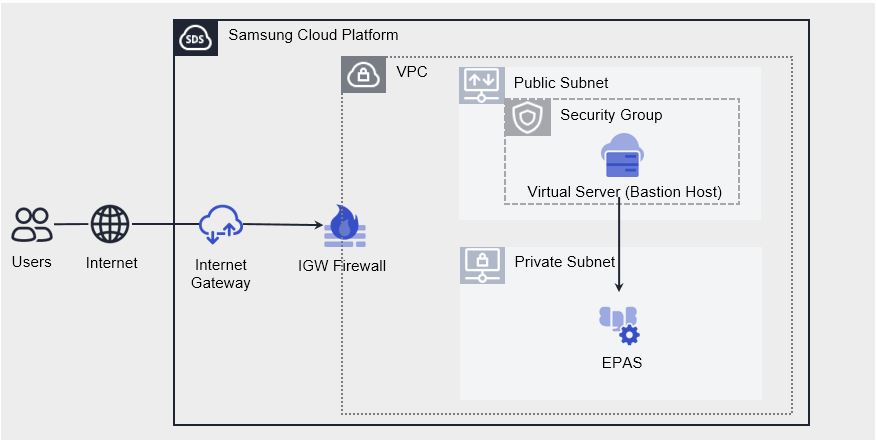
The user can enter the required information for EPAS (DBaaS) and select detailed options through the Samsung Cloud Platform Console to create the service.
Creating EPAS(DBaaS)
You can create and use the EPAS (DBaaS) service from the Samsung Cloud Platform Console.
- Please configure the VPC’s Subnet type as General before creating the service.
- If the Subnet type is Local, the creation of the corresponding Database service is not possible.
- If you load more than 2 TB of large data, backups may take a long time or the DB’s performance may degrade. To prevent this, you need to consider operational aspects such as cleaning up unnecessary data or moving old data to a statistical collection environment.
To create EPAS (DBaaS), follow the steps below.
- All Services > Database > EPAS(DBaaS) Click the menu. Navigate to the Service Home page of EPAS(DBaaS).
- Service Home on the page click the EPAS(DBaaS) Creation button. Navigate to the EPAS(DBaaS) Creation page.
- Create EPAS (DBaaS) page, enter the information required to create the service, and select detailed options.
- Image and Version Selection Select the required information in the area.
Category RequiredDetailed description Image version Required Provide version list of EPAS (DBaaS) Table. EPAS(DBaaS) Image and Version Selection Items - Service Information Input area, please enter or select the required information.
Category RequiredDetailed description Server Name Prefix Required Server name where DB will be installed - Start with an English lowercase letter, and use lowercase letters, numbers, and the special character (
-) to input 3 to 13 characters
- Based on the server name, a postfix such as 001, 002 is attached to create the actual server name
Cluster Name Required Cluster name of DB servers - Enter using English letters, 3 ~ 20 characters
- A cluster is a unit that groups multiple servers
Service Type > Server Type Required Server type where DB will be installed - Standard: Standard specifications commonly used
- High Capacity: Large-capacity server with 24 vCore or more
- For detailed information about the server types provided by EPAS (DBaaS), refer to EPAS(DBaaS) Server Type
Service Type > Planned Compute Select Status of resources with Planned Compute set - In Use: Number of resources with Planned Compute set that are currently in use
- Configured: Number of resources with Planned Compute set
- Coverage Preview: Amount applied by Planned Compute per resource
- Create Planned Compute Service: Go to the Planned Compute service application page
- For more details, refer to Apply for Planned Compute
Service Type > Block Storage Required Block Storage settings used by DB according to purpose - Base OS: Area where the DB engine is installed
- DATA: Storage area for table data, archive files, etc.
- Select the storage type and then enter the capacity. (For details on each Block Storage type, refer to Create Block Storage)
- SSD: High‑performance general volume
- HDD: General volume
- SSD_KMS, HDD_KMS: Additional encrypted volumes using Samsung Cloud Platform KMS (Key Management System) encryption keys
- Select the storage type and then enter the capacity. (For details on each Block Storage type, refer to Create Block Storage)
- The configured storage type is applied identically to additional storage
- Capacity must be entered as a multiple of 8 within the range 16–5,120
- Since large sorts during SQL execution or monthly batch processes can cause service interruption, a separate TEMP storage must be allocated and used
- Add: DATA, Archive, TEMP, Backup data storage areas
- Select Use, then enter the storage purpose and capacity
- The storage type is applied the same as set for DATA, and capacity can be entered as a multiple of 8 within the range 16–5,120
- Click the + button to add storage, and the x button to delete. Up to 9 can be added
- Backup data is temporarily stored in BACKUP storage before transmission
- If the data to be backed up exceeds 100 GB and changes frequently, it is recommended to add a separate BACKUP storage for reliable backup; set the backup capacity to about 60 % of the DATA capacity
- If no BACKUP storage is added, using the
/tmparea is recommended
- For each service, only one Block Storage is allocated for Archive, TEMP, and BACKUP
Redundancy Configuration Select Redundancy Configuration Status - If redundancy configuration is used, the DB instance is configured as Active DB and Standby DB
Network > Common Settings Required Network settings where servers generated by the service are installed - Select if you want to apply the same settings to all servers being installed
- Select a pre‑created VPC, Subnet, IP, and Public NAT
- IP can only be auto‑generated
- The Public NAT feature is available only when the VPC is connected to an Internet Gateway. If you check Use, you can select a reserved IP from the VPC product’s Public IP pool. For more information, see Create Public IP.
Network > Server-specific Settings Required Network settings where servers generated by the service are installed - Select if you want to apply different settings per installed server
- Select a pre-created VPC, Subnet, IP, Public NAT
- Enter each server’s IP
- The Public NAT feature is available only when the VPC is connected to an Internet Gateway. If you check Use, you can select a reserved IP from the VPC product’s Public IP. For more details, see Create Public IP
IP Access Control Select Service Access Policy Settings - Since the access policy is set for the IP entered on the page, a separate Security Group policy setting is not required.
- Enter in IP format (e.g.,
192.168.10.1) or CIDR format (e.g.,192.168.10.0/24,192.168.10.1/32) and click the Add button
- To delete an entered IP, click the x button next to the entered IP
Maintenance Period Select DB Maintenance Period - Use is selected, set the day of the week, start time, and duration
- It is recommended to set a maintenance period for stable DB management. Patch work will be performed at the set time, causing service interruption
- If set to not use, Samsung SDS is not responsible for issues arising from patches not being applied
Table. EPAS (DBaaS) Service Information Input Items - Start with an English lowercase letter, and use lowercase letters, numbers, and the special character (
- Image and Version Selection Select the required information in the area.
- Database configuration required information input area, please input or select the required information.
Category RequiredDetailed description Database name Required Server name applied when installing DB - Start with an English letter, and use English letters and numbers, input 3 to 20 characters
Database username Required DB user name - An account with the same name is also created on the OS
- Enter using lowercase English letters, 2 ~ 20 characters
- Restricted Database usernames can be checked in the Console
Database password Required Password to use when accessing the DB - Enter 8-30 characters including letters, numbers, and special characters (
“‘excluded)
Database Password verification Required Re-enter the same password to be used when accessing the DB Database Port number Required Port number required for DB connection - Enter DB port within the range 1,024 ~ 65,535
Backup > Use Select Whether to use backup - Select Use to set backup file retention period, backup start time, and Archive backup cycle.
Backup > Retention Period Select Backup Retention Period - Select the backup retention period. File retention period can be set from 7 days to 35 days.
- Backup files incur additional charges based on size.
Backup > Backup Start Period Select Backup Start Time - Select backup start time
- The minutes (minutes) when the backup is performed are set randomly, and the backup end time cannot be set
Backup > Archive backup frequency Select Archive backup frequency - Select the Archive backup frequency
- Archive backup frequency is recommended at 1 hour. Selecting 5 minutes, 10 minutes, or 30 minutes may affect DB performance.
Audit Log Settings Select Whether to store Audit Log - Select Use to configure the Audit Log feature
- DDL, DML, SELECT, and user connection information records are stored
- Users can specify the types of SQL statements to audit via the
edb_audit_statementparameter, and can modify it through the Parameter screen
- Refer to the EDB documentation for details on this parameter
- Users can specify the types of SQL statements to audit via the
- Enabling Audit may degrade DB performance
Parameter Required DB configuration parameters - View button click to view detailed information of the parameter
- Parameters can be modified after the service creation is completed, and after modification, the DB must be restarted
Database Encoding Required Character encoding method to be used for the DB - Character set used when storing text data
- The DB is created with the selected encoding as the default setting
DB Locale Required Locale to use for the DB - Settings related to string processing, number/currency/date/time display formats, etc.
- The DB is created with the selected Locale as the default setting
Time zone Required Standard time zone to be used by the Database License Required Check EPAS License - As a verification item for license usage, you cannot proceed to the next step unless you click confirm.
Table. EPAS(DBaaS) Database configuration items- Enter additional information area, please input or select the required information.
Category Required or notDetailed description Tag Select Add Tag - Up to 50 can be added per resource
- After clicking the Add Tag button, enter or select Key, Value values
Table. EPAS (DBaaS) Additional Information Input Items
- Summary Check the detailed information and estimated billing amount generated in the panel, and click the Complete button.
- Once creation is complete, check the created resource on the Resource List page.
EPAS(DBaaS) Check detailed information
EPAS(DBaaS) service can view and edit the full resource list and detailed information. EPAS(DBaaS) Detail page consists of Detail Information, Tag, Operation History tabs, and for a DB with a Replica configured, a Replica Information tab is additionally provided.
To view detailed information about the EPAS (DBaaS) service, follow the steps below.
- All Services > Database > EPAS(DBaaS) Click the menu. Navigate to the Service Home page of EPAS(DBaaS).
- Click the EPAS(DBaaS) menu on the Service Home page. You will be taken to the EPAS(DBaaS) List page.
- Click the resource to view detailed information on the EPAS(DBaaS) List page. Move to the EPAS(DBaaS) Details page.
- EPAS(DBaaS) Details At the top of the page, status information and information about additional features are displayed.
Category Detailed description Cluster Status Cluster status with DB installed - Creating: Creating cluster
- Editing: Cluster is changing to operation execution state
- Error: Cluster error occurred during operation execution
- If it occurs continuously, contact the administrator
- Failed: Cluster failed during creation process
- Restarting: Restarting cluster
- Running: Cluster is operating normally
- Starting: Starting cluster
- Stopped: Cluster is stopped
- Stopping: Cluster is in stopping state
- Synchronizing: Synchronizing cluster
- Terminating: Terminating cluster
- Unknown: Unknown cluster status
- If it occurs continuously, contact the administrator
- Upgrading: Cluster is changing to upgrade execution state
Cluster Control Buttons to change the cluster state - Start: Start a stopped cluster
- Stop: Stop a running cluster
- Restart: Restart a running cluster
- Switch-Over: Switch a standby cluster to active
More features Cluster related management buttons - Service status synchronization: Real-time DB service status lookup
- Backup history: If backup is set, check whether backup runs normally and view history
- Database recovery: Recover DB based on a specific point in time
- Parameter management: View and modify DB configuration parameters
- Replica configuration: Set up a read-only cluster as a Replica
- DB user management: View and manage DB account (user) information registered in the DB
- DB access control management: Register and revoke allowed IPs based on DB accounts registered in the DB
- Archive management: Set archive file retention period and archive mode
- Export DB Log: Through Audit settings, export stored logs to user’s Object Storage
- Migration configuration: Provide Migration function using Replication method
Service termination Button to cancel the service Table. EPAS (DBaaS) status information and additional features
- EPAS(DBaaS) Details At the top of the page, status information and information about additional features are displayed.
Detailed Information
EPAS(DBaaS) List page allows you to view detailed information of the selected resource and, if necessary, edit the information.
| Category | Detailed description |
|---|---|
| Server Information | Server information configured in the respective cluster
|
| Service | Service Name |
| Resource Type | Resource Type |
| SRN | Unique resource ID in Samsung Cloud Platform
|
| Resource Name | Resource Name
|
| Resource ID | Unique resource ID in the service |
| Creator | User who created the service |
| Creation time | Service creation time |
| Editor | User who modified the service information |
| Modification Time | Date and time when service information was modified |
| Image/Version | Installed DB image and version information
|
| Cluster Type | Cluster Type (Master Cluster, Replica Cluster, Migration Cluster) |
| Cluster Name | Name of the cluster composed of DB servers |
| Master cluster name | Replica’s Master cluster name
|
| Database name | Server name applied when installing DB |
| Database username | DB user name |
| Planned Compute | Resource status with Planned Compute configured
|
| Maintenance Period | DB Maintenance Period Status
|
| Backup | Backup Settings Status
|
| Audit Log Settings | Audit Log Settings Status
|
| Time zone | Standard time zone used by the Database |
| DB Locale | Locale to use for DB |
| Database Encoding | Character encoding method to be used in DB |
| VIP | Virtual IP information
|
| Network | Network information where DB is installed (VPC, Subnet, VIP, NAT IP(VIP)) |
| IP Access Control | Service Access Policy Settings
|
| Active & Standby | Active/Standby server type, default OS, additional Disk information
|
Replica Information
Replica information tab is enabled only when a Replica is configured in the cluster. Through the Replica information tab, you can check the master cluster name, replica count, and Replica status.
| Category | Detailed description |
|---|---|
| Master Information | Name of Master Cluster |
| Replica count | Number of Replicas created in the Master cluster |
| Replica Status | Replica server status created in the Master cluster
|
Tag
EPAS(DBaaS) List page allows you to view the tag information of the selected resource, and you can add, modify, or delete it.
| Category | Detailed description |
|---|---|
| Tag List | Tag List
|
Work History
On the EPAS(DBaaS) List page, you can view the operation history of the selected resource.
| Category | Detailed description |
|---|---|
| Work History List | Resource Change History
|
EPAS(DBaaS) Manage Resources
If you need to change or restore the existing configuration options of a created EPAS (DBaaS) resource, or require a Replica configuration, you can perform the work on the EPAS (DBaaS) Details page.
Operating Control
If changes occur to the running EPAS (DBaaS) resources, you can start, stop, or restart them. Also, if HA is configured, you can switch the Active-Standby servers via Switch-over.
To control the operation of EPAS (DBaaS), follow the steps below.
- All Services > Database > EPAS(DBaaS) Click the menu. Navigate to the Service Home page of EPAS(DBaaS).
- Click the EPAS(DBaaS) menu on the Service Home page. Navigate to the EPAS(DBaaS) List page.
- Click the resource to control operation on the EPAS(DBaaS) List page. It moves to the EPAS(DBaaS) Detail page.
- Check the EPAS (DBaaS) status and complete the change using the control button below.
- Start: The server where the DB service is installed and the DB service is running.
- Stop: The server where the DB service is installed and the DB service are stopped.
- Restart: Only the DB service will be restarted.
- Switch Over: You can switch the DB’s Active server and Standby server.
Synchronize Service Status
You can synchronize the real-time service status of EPAS (DBaaS).
To check the service status of EPAS (DBaaS), follow the steps below.
- All Services > Database > EPAS(DBaaS) Click the menu. Navigate to the Service Home page of EPAS(DBaaS).
- Click the EPAS(DBaaS) menu on the Service Home page. You will be taken to the EPAS(DBaaS) List page.
- Click the resource to view the service status on the EPAS(DBaaS) List page. It will navigate to the EPAS(DBaaS) Details page.
- Service Status Synchronization Click the button. While it is being queried, the cluster will change to Synchronizing state.
- When the query is completed, the status in the server information item is updated, and the cluster changes to Running state.
Change Server Type
You can change the configured server type.
To change the server type, follow the steps below.
- All Services > Database > EPAS(DBaaS) Click the menu. Navigate to the Service Home page of EPAS(DBaaS).
- Click the EPAS(DBaaS) menu on the Service Home page. Go to the EPAS(DBaaS) List page.
- Click the resource to change the server type on the EPAS (DBaaS) List page. It will navigate to the EPAS (DBaaS) Details page.
- Click the Edit icon of the server type you want to change at the bottom of the detailed information. The Edit Server Type popup window will open.
- Server Type Edit In the popup window, after selecting the server type, click the Confirm button.
Add storage
If more than 5 TB of data storage space is required, additional storage can be added. In the case of a redundant DB configuration, both redundant servers are added simultaneously.
To add storage, follow these steps.
- It is applied the same way as the Storage type selected when creating the service.
- In the case of a redundant DB, adding storage will be applied simultaneously to the storage of the Active DB and the Standby DB.
- If a Replica exists, the Master cluster’s storage cannot be larger than the Replica’s storage. Expand the Replica storage first, then expand the Master cluster storage.
- When adding Archive/Temp storage, the DB restarts and is temporarily unavailable.
- All Services > Database > EPAS(DBaaS) Click the menu. Navigate to the Service Home page of EPAS(DBaaS).
- Click the EPAS(DBaaS) menu on the Service Home page. You will be taken to the EPAS(DBaaS) List page.
- EPAS(DBaaS) List Click the resource to add storage on the page. EPAS(DBaaS) Details Navigate to the page.
- Click the Add Disk button at the bottom of the detailed information. The Request Additional Storage popup window opens.
- Additional Storage Request In the popup window, after entering the purpose and capacity, click the Confirm button.
Expanding Storage
You can expand the storage added to the data area up to a maximum of 5 TB based on the initially allocated capacity. In the case of a redundant DB configuration, all redundant servers are expanded simultaneously.
To increase storage capacity, follow the steps below.
- All Services > Database > EPAS(DBaaS) Click the menu. Navigate to the Service Home page of EPAS(DBaaS).
- Service Home page, click the EPAS(DBaaS) menu. Navigate to the EPAS(DBaaS) List page.
- EPAS(DBaaS) 목록 Click the resource to change the server type on the page. EPAS(DBaaS) 상세 Navigate to the page.
- Click the Edit icon of the additional Disk you want to add at the bottom of the detailed information. The Edit Additional Storage popup window opens.
- Add Storage Modification After entering the expansion capacity in the popup window, click the Confirm button.
EPAS(DBaaS) Cancel
You can cancel unused EPAS (DBaaS) to reduce operating costs. However, if you cancel the service, the service currently in operation may be stopped immediately, so you should proceed with the cancellation after fully considering the impact that may occur when the service is discontinued.
- In the case of a DB with a Replica configured, even if you terminate the Master DB, the Replica is not deleted together. If you also want to delete the Replica, please terminate it separately from the resource list.
- If you cancel the DB, stored data and, if backup is set, backup data will also be deleted.
To cancel EPAS (DBaaS), follow the steps below.
- Click the All Services > Database > EPAS(DBaaS) menu. Go to the Service Home page of EPAS(DBaaS).
- Click the EPAS(DBaaS) menu on the Service Home page. You will be taken to the EPAS(DBaaS) List page.
- EPAS(DBaaS) list on the page, select the resource to cancel, and click the Cancel Service button.
- Once the termination is complete, check whether the resource has been terminated on the EPAS(DBaaS) list page.