EPAS(DBaaS) is a relational database management system (RDBMS) with high compatibility with Oracle databases. Samsung Cloud Platform provides an environment that can automate EPAS installation and perform management functions for operation through a web-based Console.
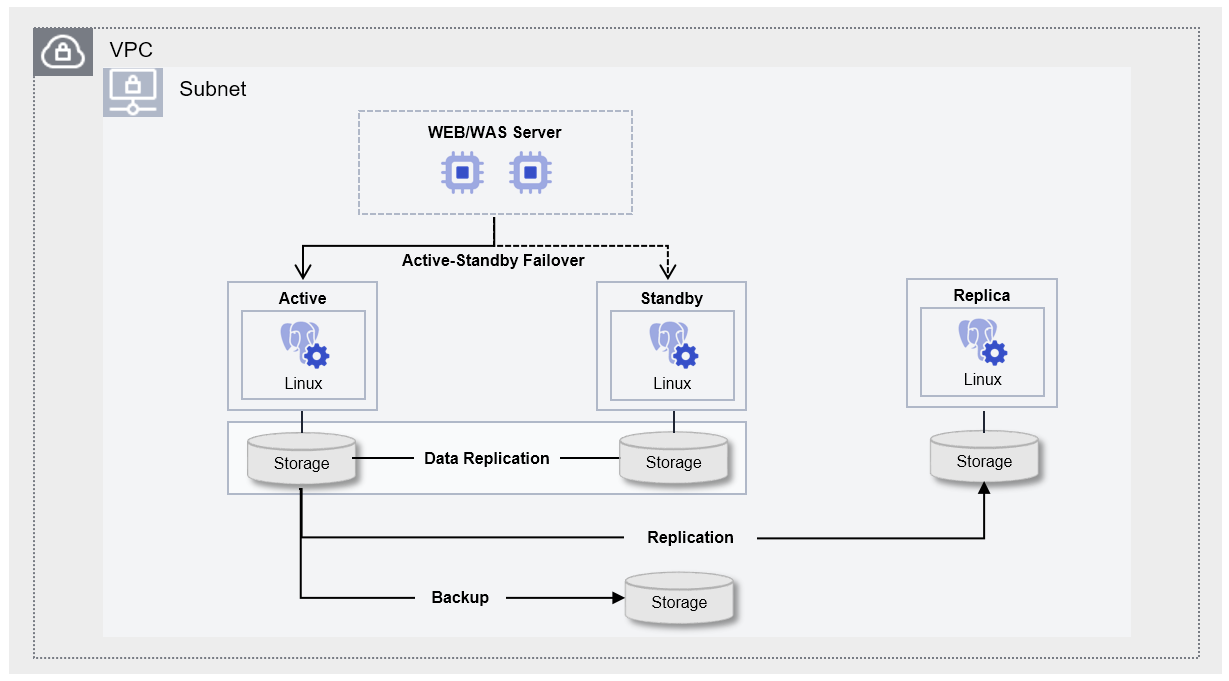
EPAS (DBaaS) is designed as a high‑availability architecture that performs storage‑based data replication and minimizes failover time. To prevent data loss, when the contents of the Active server change, they are synchronously replicated to the Standby server, and up to five read‑only Replica servers for read load balancing and disaster recovery (DR) are provided. Additionally, to prepare for potential issues with the DB server or data, we provide an automatic backup feature at user-specified times, enabling data recovery at the desired point in time.
Figure. EPAS(DBaaS) Architecture
Provided features
EPAS(DBaaS) provides the following features.
Auto Provisioning: It allows installation and configuration of Database (DB) through the UI, and provides an Active‑standby redundancy configuration built on storage replication. * When the active server fails, it automatically fails over to standby.
Operation Control Management: Provides a function to control the status of running servers. * In addition to start and stop, a restart is possible if there is a DB issue or to apply configuration changes. * When high availability (HA) is configured, a node transition between Active-Standby can be performed directly by the user through a switch-over.
Backup and Recovery: Provides data backup functionality based on its own backup commands. * Backup time windows and storage locations can be configured by the user, and additional fees may apply based on the backup size. * It also provides a recovery feature for backed‑up data; when the user initiates a recovery, a separate database is created, and the recovery proceeds to the point in time selected by the user (the backup creation time or a user‑specified time). * When restoring to a user-specified point in time, the restore point can be set up to 5 minutes, 10 minutes, 30 minutes, or 1 hour prior to the stored backup and archive files.
Version Management: Provides Minor version upgrade functionality based on some feature improvements and security patches. * Whether to perform a backup for a version upgrade can be selected by the user, and if a backup is performed, the data is backed up before applying the patch, after which the DB engine is updated.
Replica configuration: Up to five Read Replicas can be configured in the same or different regions for read load balancing and disaster recovery (DR).
Audit configuration: Provides an Audit configuration feature that can monitor users’ DB access and the results of DDL (Data Definition Language)/DML (Data Manipulation Language) operations.
Parameter Management: Performance improvement and security-related DB configuration parameters can be modified.
Service Status Query: Retrieves the final status of the current DB service.
Monitoring: CPU, memory, performance monitoring information can be viewed through Cloud Monitoring and Servicewatch.
DB User Management: View and manage the DB account (user) information registered in the DB.
DB Access Control Management: Based on DB accounts registered in the DB, you can register and revoke allowed IPs for access.
Archive Management: You can set the Archive file retention period (1~35 days) on the DB server and configure the Archive mode (On/Off).
DB Log Export: You can export stored logs to the user’s Object Storage via Audit settings.
Migration: Synchronizes data in real time with the operational database and supports migration using replication without service interruption.
OS Kernel Upgrade: You can upgrade the OS Kernel to apply some feature improvements and security patches.
Components
EPAS (DBaaS) provides pre‑validated engine versions and various server types. Users can select and use it based on the scale of the service they wish to configure.
Engine version
The engine versions supported by EPAS (DBaaS) are as follows.
Technical support is available until the supplier’s EoTS (End of Technical Service) date, and the EOS date when new creation is halted is set to six months before the EoTS date.
Since the EOS and EoTS dates may change according to the supplier’s policy, please refer to the supplier’s license management policy page for details.
EOS Date (Samsung Cloud Platform new creation stop date)
EoTS Date(Community Technical Support End Date)
14.17
2026-05-20
2026-12-01
14.18
2026-05-20
2026-12-01
14.19
2026-05-20
2026-12-01
15.12
2027-09 (planned)
2028-02-13
15.13
2027-09 (planned)
2028-02-13
15.14
2027-09 (planned)
2028-02-13
15.15
2027-09 (planned)
2028-02-13
16.8
2028-06 (planned)
2028-11-09
16.9
2028-06 (planned)
2028-11-09
16.10
2028-06 (planned)
2028-11-09
16.11
2028-06 (planned)
2028-11-09
17.6
2029-06 (planned)
2029-11-08
17.7
2029-06 (planned)
2029-11-21
Table. EPAS (DBaaS) provided engine versions
Information
The next version of EPAS is scheduled to be provided after September 2026. The actual service delivery schedule is subject to change.
EPAS 15.17
EPAS 16.13
EPAS 17.9
Server type
The server types supported by EPAS (DBaaS) are as follows.
For detailed information about the server types provided by EPAS (DBaaS), see EPAS(DBaaS) 서버 타입.
Standard db1v2m4
Category
example
Detailed description
Server type
Standard
Provided server types
Standard: Standard specifications (vCPU, Memory) commonly used
High Capacity: Large server specifications of 24 vCores or more
Server specifications
db1
Provided server specifications
db1: Standard specifications (vCPU, Memory) commonly used
dbh2: Large-capacity server specifications
Provide servers with 24 vCores or more
Server specifications
v2
Number of vCores
v2: 2 virtual cores
Server specifications
m4
Memory capacity
m4: 4GB Memory
Table. EPAS (DBaaS) server type components
Preceding Service
This is a list of services that must be pre‑configured before creating the service. Please refer to the guide provided for each service and prepare in advance.
A service that provides an isolated virtual network in a cloud environment.
Table. EPAS (DBaaS) Preliminary Service
1.1 - Server type
EPAS(DBaaS) server type
EPAS (DBaaS) offers server types composed of various combinations such as CPU, Memory, and Network Bandwidth.
When creating EPAS (DBaaS), the Database Engine is installed according to the server type selected for the intended use.
Reference
The server types offered may vary depending on the region and AZ.
The server types supported by EPAS (DBaaS) are as follows.
Standard db1v2m4
Category
Example
Detailed description
Server type
Standard
Provided server type categories
Standard: Configured with standard specifications (vCPU, Memory) commonly used
High Capacity: Specifications for large‑capacity servers beyond Standard
Server specifications
db1
Provided server type classification and generation
db1: means a standard specification, and 1 indicates the generation
dbh2: h indicates a large-capacity server specification, and 2 indicates the generation
Server specifications
v2
Number of vCores
v2: 2 virtual cores
Server specifications
m4
Memory capacity
m4: 4GB Memory
Table. EPAS (DBaaS) server type format
db1 server type
The db1 server type of EPAS (DBaaS) is offered with standard specifications (vCPU, Memory) and is suitable for various database workloads.
Intel 3rd Generation (Ice Lake) Xeon Gold 6342 Processor up to 3.3 GHz
Supports up to 16 vCPUs and 256 GB of memory
Maximum networking speed of 12.5 Gbps
Category
Server type
vCPU
Memory
Network Bandwidth
Standard
db1v2m4
2 vCore
4 GB
Up to 10 Gbps
Standard
db1v2m8
2 vCore
8 GB
Up to 10 Gbps
Standard
db1v2m16
2 vCore
16 GB
Up to 10 Gbps
Standard
db1v2m24
2 vCore
24 GB
Up to 10 Gbps
Standard
db1v2m32
2 vCore
32 GB
Up to 10 Gbps
Standard
db1v4m8
4 vCore
8 GB
Up to 10 Gbps
Standard
db1v4m16
4 vCore
16 GB
Up to 10 Gbps
Standard
db1v4m32
4 vCore
32 GB
Up to 10 Gbps
Standard
db1v4m48
4 vCore
48 GB
Up to 10 Gbps
Standard
db1v4m64
4 vCore
64 GB
Up to 10 Gbps
Standard
db1v6m12
6 vCore
12 GB
Up to 10 Gbps
Standard
db1v6m24
6 vCore
24 GB
Up to 10 Gbps
Standard
db1v6m48
6 vCore
48 GB
Up to 10 Gbps
Standard
db1v6m72
6 vCore
72 GB
Up to 10 Gbps
Standard
db1v6m96
6 vCore
96 GB
Up to 10 Gbps
Standard
db1v8m16
8 vCore
16 GB
Up to 10 Gbps
Standard
db1v8m32
8 vCore
32 GB
Up to 10 Gbps
Standard
db1v8m64
8 vCore
64 GB
Up to 10 Gbps
Standard
db1v8m96
8 vCore
96 GB
Up to 10 Gbps
Standard
db1v8m128
8 vCore
128 GB
Up to 10 Gbps
Standard
db1v10m20
10 vCore
20 GB
Up to 10 Gbps
Standard
db1v10m40
10 vCore
40 GB
Up to 10 Gbps
Standard
db1v10m80
10 vCore
80 GB
Maximum 10 Gbps
Standard
db1v10m120
10 vCore
120 GB
Up to 10 Gbps
Standard
db1v10m160
10 vCore
160 GB
Up to 10 Gbps
Standard
db1v12m24
12 vCore
24 GB
Up to 12.5 Gbps
Standard
db1v12m48
12 vCore
48 GB
Up to 12.5 Gbps
Standard
db1v12m96
12 vCore
96 GB
Maximum 12.5 Gbps
Standard
db1v12m144
12 vCore
144 GB
Up to 12.5 Gbps
Standard
db1v12m192
12 vCore
192 GB
Up to 12.5 Gbps
Standard
db1v14m28
14 vCore
28 GB
Up to 12.5 Gbps
Standard
db1v14m56
14 vCore
56 GB
Up to 12.5 Gbps
Standard
db1v14m112
14 vCore
112 GB
Up to 12.5 Gbps
Standard
db1v14m168
14 vCore
168 GB
Up to 12.5 Gbps
Standard
db1v14m224
14 vCore
224 GB
Up to 12.5 Gbps
Standard
db1v16m32
16 vCore
32 GB
Up to 12.5 Gbps
Standard
db1v16m64
16 vCore
64 GB
Up to 12.5 Gbps
Standard
db1v16m128
16 vCore
128 GB
Up to 12.5 Gbps
Standard
db1v16m192
16 vCore
192 GB
Up to 12.5 Gbps
Standard
db1v16m256
16 vCore
256 GB
Up to 12.5 Gbps
Table. EPAS(DBaaS) server type specifications - db1 server type
db2 server type
The db2 server type of EPAS (DBaaS) is offered with standard specifications (vCPU, Memory) and is suitable for various database workloads.
Intel 4th‑generation (Sapphire Rapids) Xeon Gold 6448H Processor up to 3.2 GHz
Supports up to 16 vCPUs and 256 GB of memory
Maximum networking speed of 12.5 Gbps
Category
Server type
vCPU
Memory
Network Bandwidth
Standard
db2v2m4
2 vCore
4 GB
Up to 10 Gbps
Standard
db2v2m8
2 vCore
8 GB
Up to 10 Gbps
Standard
db2v2m16
2 vCore
16 GB
Up to 10 Gbps
Standard
db2v2m24
2 vCore
24 GB
Up to 10 Gbps
Standard
db2v32m32
2 vCore
32 GB
Up to 10 Gbps
Standard
db2v4m8
4 vCore
8 GB
Up to 10 Gbps
Standard
db2v4m16
4 vCore
16 GB
Up to 10 Gbps
Standard
db2v4m32
4 vCore
32 GB
Up to 10 Gbps
Standard
db2v4m48
4 vCore
48 GB
Up to 10 Gbps
Standard
db2v4m64
4 vCore
64 GB
Up to 10 Gbps
Standard
db2v6m12
6 vCore
12 GB
Up to 10 Gbps
Standard
db2v6m24
6 vCore
24 GB
Up to 10 Gbps
Standard
db2v6m48
6 vCore
48 GB
Up to 10 Gbps
Standard
db2v6m72
6 vCore
72 GB
Up to 10 Gbps
Standard
db2v6m96
6 vCore
96 GB
Up to 10 Gbps
Standard
db2v8m16
8 vCore
16 GB
Up to 10 Gbps
Standard
db2v8m32
8 vCore
32 GB
Up to 10 Gbps
Standard
db2v8m64
8 vCore
64 GB
Up to 10 Gbps
Standard
db2v8m96
8 vCore
96 GB
Up to 10 Gbps
Standard
db2v8m128
8 vCore
128 GB
Up to 10 Gbps
Standard
db2v10m20
10 vCore
20 GB
Up to 10 Gbps
Standard
db2v10m40
10 vCore
40 GB
Up to 10 Gbps
Standard
db2v10m80
10 vCore
80 GB
Up to 10 Gbps
Standard
db2v10m120
10 vCore
120 GB
Up to 10 Gbps
Standard
db2v10m160
10 vCore
160 GB
Up to 10 Gbps
Standard
db2v12m24
12 vCore
24 GB
Up to 12.5 Gbps
Standard
db2v12m48
12 vCore
48 GB
Up to 12.5 Gbps
Standard
db2v12m96
12 vCore
96 GB
Up to 12.5 Gbps
Standard
db2v12m144
12 vCore
144 GB
Up to 12.5 Gbps
Standard
db2v12m192
12 vCore
192 GB
Up to 12.5 Gbps
Standard
db2v14m28
14 vCore
28 GB
Up to 12.5 Gbps
Standard
db2v14m56
14 vCore
56 GB
Up to 12.5 Gbps
Standard
db2v14m112
14 vCore
112 GB
Up to 12.5 Gbps
Standard
db2v14m168
14 vCore
168 GB
Up to 12.5 Gbps
Standard
db2v14m224
14 vCore
224 GB
Up to 12.5 Gbps
Standard
db2v16m32
16 vCore
32 GB
Up to 12.5 Gbps
Standard
db2v16m64
16 vCore
64 GB
Up to 12.5 Gbps
Standard
db2v16m128
16 vCore
128 GB
Up to 12.5 Gbps
Standard
db2v16m192
16 vCore
192 GB
Up to 12.5 Gbps
Standard
db2v16m256
16 vCore
256 GB
Up to 12.5 Gbps
Table. EPAS(DBaaS) server type specifications - db2 server type
dbh2 server type
The dbh2 server type of EPAS (DBaaS) is offered with high-capacity server specifications and is suitable for database workloads that require large-scale data processing.
Intel 4th‑generation (Sapphire Rapids) Xeon Gold 6448H Processor up to 3.2 GHz
Supports up to 128 vCPUs and 1,536 GB of memory
Maximum networking speed of 25 Gbps
Category
Server type
vCPU
Memory
Network Bandwidth
High Capacity
dbh2v24m48
24 vCore
48 GB
Maximum 25 Gbps
High Capacity
dbh2v96
(Note: Actually original is dbh2v24m96; I must output exactly as-is. Apologies.)
TEXT: dbh2v24m96 | 24 vCore | 96 GB | Up to 25 Gbps |
| High Capacity | dbh2v24m192 | 24 vCore | 192 GB | Maximum 25 Gbps |
| High Capacity | dbh2v24m288 | 24 vCore | 288 GB | Maximum 25 Gbps |
| High Capacity | dbh2v32m64 | 32 vCore | 64 GB | Maximum 25 Gbps |
| High Capacity | dbh2v32m128 | 32 vCore | 128 GB | Maximum 25 Gbps |
| High Capacity | dbh2v32m256 | 32 vCore | 256 GB | Maximum 25 Gbps |
| High Capacity | dbh2v32m384 | 32 vCore | 384 GB | Maximum 25 Gbps |
| High Capacity | dbh2v48m192 | 48 vCore | 192 GB | Maximum 25 Gbps |
| High Capacity | dbh2v48m576 | 48 vCore | 576 GB | Maximum 25 Gbps |
| High Capacity | dbh2v64m256 | 64 vCore | 256 GB | Maximum 25 Gbps |
| High Capacity | dbh2v64m768 | 64 vCore | 768 GB | Maximum 25 Gbps |
| High Capacity | dbh2v72m288 | 72 vCore | 288 GB | Maximum 25 Gbps |
| High Capacity | dbh2v72m864 | 72 vCore | 864 GB | Maximum 25 Gbps |
| High Capacity | dbh2v96m384 | 96 vCore | 384 GB | Maximum 25 Gbps |
| High Capacity | dbh2v96m1152 | 96 vCore | 1152 GB | Maximum 25 Gbps |
| High Capacity | dbh2v128m512 | 128 vCore | 512 GB | Maximum 25 Gbps |
| High Capacity | dbh2v128m1536 | 128 vCore | 1536 GB | Maximum 25 Gbps |
Table. EPAS (DBaaS) server type specifications - dbh2 server type
db3 server type
The db3 server type of EPAS (DBaaS) is offered with standard specifications (vCPU, Memory) and is suitable for various database workloads.
Intel 6th‑generation (Granite Rapids) Xeon 6737P Processor up to 4.0 GHz
Supports up to 16 vCPUs and 256 GB of memory
Maximum networking speed of 12.5 Gbps
Category
Server type
vCPU
Memory
Network Bandwidth
Standard
db3v2m4
2 vCore
4 GB
Up to 10 Gbps
Standard
db3v2m8
2 vCore
8 GB
Up to 10 Gbps
Standard
db3v2m16
2 vCore
16 GB
Up to 10 Gbps
Standard
db3v2m24
2 vCore
24 GB
Up to 10 Gbps
Standard
db3v2m32
2 vCore
32 GB
Up to 10 Gbps
Standard
db3v4m8
4 vCore
8 GB
Up to 10 Gbps
Standard
db3v4m16
4 vCore
16 GB
Up to 10 Gbps
Standard
db3v4m32
4 vCore
32 GB
Up to 10 Gbps
Standard
db3v4m48
4 vCore
48 GB
Up to 10 Gbps
Standard
db3v4m64
4 vCore
64 GB
Up to 10 Gbps
Standard
db3v6m12
6 vCore
12 GB
Up to 10 Gbps
Standard
db3v6m24
6 vCore
24 GB
Up to 10 Gbps
Standard
db3v6m48
6 vCore
48 GB
Up to 10 Gbps
Standard
db3v6m72
6 vCore
72 GB
Maximum 10 Gbps
Standard
db3v6m96
6 vCore
96 GB
Up to 10 Gbps
Standard
db3v8m16
8 vCore
16 GB
Up to 10 Gbps
Standard
db3v8m32
8 vCore
32 GB
Up to 10 Gbps
Standard
db3v8m64
8 vCore
64 GB
Up to 10 Gbps
Standard
db3v8m96
8 vCore
96 GB
Maximum 10 Gbps
Standard
db3v8m128
8 vCore
128 GB
Up to 10 Gbps
Standard
db3v10m20
10 vCore
20 GB
Up to 10 Gbps
Standard
db3v10m40
10 vCore
40 GB
Up to 10 Gbps
Standard
db3v10m80
10 vCore
80 GB
Up to 10 Gbps
Standard
db3v10m120
10 vCore
120 GB
Up to 10 Gbps
Standard
db3v10m160
10 vCore
160 GB
Up to 10 Gbps
Standard
db3v12m24
12 vCore
24 GB
Up to 12.5 Gbps
Standard
db3v12m48
12 vCore
48 GB
Up to 12.5 Gbps
Standard
db3v12m96
12 vCore
96 GB
Up to 12.5 Gbps
Standard
db3v12m144
12 vCore
144 GB
Up to 12.5 Gbps
Standard
db3v12m192
12 vCore
192 GB
Up to 12.5 Gbps
Standard
db3v14m28
14 vCore
28 GB
Up to 12.5 Gbps
Standard
db3v14m56
14 vCore
56 GB
Up to 12.5 Gbps
Standard
db3v14m112
14 vCore
112 GB
Up to 12.5 Gbps
Standard
db3v14m168
14 vCore
168 GB
Maximum 12.5 Gbps
Standard
db3v14m224
14 vCore
224 GB
Up to 12.5 Gbps
Standard
db3v16m32
16 vCore
32 GB
Up to 12.5 Gbps
Standard
db3v16m64
16 vCore
64 GB
Up to 12.5 Gbps
Standard
db3v16m128
16 vCore
128 GB
Up to 12.5 Gbps
Standard
db3v16m192
16 vCore
192 GB
Up to 12.5 Gbps
Standard
db3v16m256
16 vCore
256 GB
Up to 12.5 Gbps
Table. EPAS(DBaaS) server type specifications - db3 server type
dbh3 server type
The dbh3 server type of EPAS(DBaaS) is offered with high-capacity server specifications and is suitable for database workloads that require large-scale data processing.
Maximum 4.1 GHz Intel 6th‑generation (Granite Rapids) Xeon 6
CPU
Maximum 4.1 GHz Intel 6th‑generation (Granite Rapids) Xeon 6
CPU
Maximum 4.1 GHz Intel 6th‑generation (Granite Rapids) Xeon 6
CPU
Maximum 4.1 GHz Intel 6th‑generation (Granite Rapids) Xeon 6
CPU
Maximum 4.1 GHz Intel 6th‑generation (Granite Rapids) Xeon 6
CPU
Maximum 4.1 GHz Intel 6th‑generation (Granite Rapids) Xeon 6
CPU
Maximum 4.1 GHz Intel 6th‑generation (Granite Rapids) Xeon 6
CPU
Maximum 4.1 GHz Intel 6th‑generation (Granite Rapids) Xeon 6
CPU
Maximum 4.1 GHz Intel 6th‑generation (Granite Rapids) Xeon 6
CPU
Maximum 4.1 GHz Intel 6th‑generation (Granite Rapids) Xeon 6
CPU
Maximum 4.1 GHz Intel 6th‑generation (Granite Rapids) Xeon 6
CPU
Maximum 4.1 GHz Intel 6th‑generation (Granite Rapids) Xeon 6
CPU
Maximum 4.1 GHz Intel 6th‑generation (Granite Rapids) Xeon 6
CPU
Maximum 4.1 GHz Intel 6th‑generation (Granite Rapids) Xeon 6
CPU
Maximum 4.1 GHz Intel 6th‑generation (Granite Rapids) Xeon 6
CPU
Maximum 4.1 GHz
Supports up to 128 vCPUs and 1,536 GB of memory
Maximum networking speed of 25 Gbps
Category
Server type
vCPU
Memory
Network Bandwidth
High Capacity
dbh3v24m48
24 vCore
48 GB
Maximum 25 Gbps
High Capacity
dbh3v24m96
24 vCore
96 GB
Maximum 25 Gbps
High Capacity
dbh3v24m192
24 vCore
192 GB
Maximum 25 Gbps
High Capacity
dbh3v24m288
24 vCore
288 GB
Maximum 25 Gbps
High Capacity
dbh3v32m64
32 vCore
64 GB
Maximum 25 Gbps
High Capacity
dbh3v32m128
32 vCore
128 GB
Maximum 25 Gbps
High Capacity
dbh3v32m256
32 vCore
256 GB
Maximum 25 Gbps
High Capacity
dbh3v32m384
32 vCore
384 GB
Maximum 25 Gbps
High Capacity
dbh3v48m192
48 vCore
192 GB
Maximum 25 Gbps
High Capacity
dbh3v48m576
48 vCore
576 GB
Maximum 25 Gbps
High Capacity
dbh3v64m256
64 vCore
256 GB
Maximum 25 Gbps
High Capacity
dbh3v64m768
64 vCore
768 GB
Maximum 25 Gbps
High Capacity
dbh3v72m288
72 vCore
288 GB
Maximum 25 Gbps
High Capacity
dbh3v72m864
72 vCore
864 GB
Maximum 25 Gbps
High Capacity
dbh3v96m384
96 vCore
384 GB
Maximum 25 Gbps
High Capacity
dbh3v96m1152
96 vCore
1152 GB
Maximum 25 Gbps
High Capacity
dbh3v128m512
128 vCore
512 GB
Maximum 25 Gbps
High Capacity
dbh3v128m1536
128 vCore
1536 GB
Maximum 25 Gbps
Table. EPAS(DBaaS) server type specifications - dbh3 server type
Database password
Required
Password to use when accessing the DB
Enter 8 to 30 characters, including letters, numbers, and special characters (“‘ excluded)
Check database password
Required
Re-enter the same password to use for DB access
Database Port number
Required
Port number required for DB connection
Enter the DB port within the range 1200 ~ 65535
Backup > Use
Selection
Backup usage
Select Use to set backup file retention period, backup start time, and Archive backup interval
Backup > Retention Period
Selection
Backup retention period
Select the backup retention period. Set the file retention period from 7 days to 35 days
Backup files incur additional charges based on size
Backup > Backup Start Period
Selection
Backup start time
Select backup start time
The minutes (minutes) at which the backup runs are set randomly, and the backup end time cannot be configured
Backup > Archive backup schedule
Selection
Archive backup frequency
Select the archive backup frequency
The archive backup frequency is recommended to be 1 hour. Selecting 5 minutes, 10 minutes, or 30 minutes may affect DB performance.
Audit Log Settings
Selection
Whether to store Audit Log
Select Use to enable the Audit Log feature
DDL, DML, SELECT, and user connection information records are stored
The user can specify the types of SQL statements to audit via the edb_audit_statement parameter, and can modify it through the Parameter screen
For detailed information about this parameter, refer to the EDB documentation
Enabling Audit may degrade database performance
ServiceWatch log collection
Selection
ServiceWatch log collection status
Select Use to configure the ServiceWatch log collection feature
Provided free up to 5 GB for all services within the Account, and charges apply based on storage size for usage exceeding 5 GB
When collecting, log groups and log streams are created automatically, and they cannot be deleted until the resource is removed
To prevent exceeding 5 GB, it is recommended to delete log data directly or shorten the retention period
Parameter
required
DB configuration parameters
View button can be clicked to view detailed information of the parameters
Parameters can be modified after the service creation is completed, and the DB must be restarted after any modification
Database Encoding
Required
Character encoding method to be used for the DB
Character set used when storing text data
The DB is created with the selected encoding as the default setting
DB Locale
Required
Locale
settings related to string handling, number/currency/date/time display formats, etc.
The DB is created with the selected Locale as the default setting.
Time zone
Required
Standard time zone used by the database
License
Required
EPAS License verification status
This is a verification item for license usage; you cannot proceed to the next step unless you click Confirm
Table. EPAS (DBaaS) Database configuration items
Additional Information Input area, please enter or select the required information.
Category
Required status
Detailed description
tag
Selection
Add Tag
Up to 50 per resource can be added
Add Tag button after clicking, enter or select Key, Value values
Table. EPAS (DBaaS) additional information input fields
Summary Verify the detailed information and estimated charges generated in the panel, then click the Create button.
When creation is complete, check the created resource on the Resource List page.
EPAS(DBaaS) Check detailed information
The EPAS (DBaaS) service allows you to view and edit the full list of resources and detailed information. On the EPAS(DBaaS) Details page, it is composed of the Details, Tags, Activity Log tabs, and for databases with a Replica configured, a Replica Information tab is added.
Follow the steps below to view detailed information about the EPAS (DBaaS) service.
All Services > Database > EPAS(DBaaS) Click the menu. 1. Navigate to the Service Home page of EPAS (DBaaS).
On the Service Home page, click the EPAS(DBaaS) menu. 2. Go to the EPAS (DBaaS) List page.
On the EPAS(DBaaS) List page, click the resource to view detailed information. 3. EPAS(DBaaS) Details Go to the page.
EPAS(DBaaS) Details At the top of the page, status information and additional feature details are displayed.
Category
Detailed description
Cluster status
Cluster status with DB installed
Creating: Cluster is being created
Editing: Cluster is transitioning to an operational state
Error: Cluster is in an error state during task execution
If this persists, contact the administrator
Failed: Cluster is in a failed state during creation
Restarting: Cluster is being restarted
Running: Cluster is operating normally
Starting: Cluster is being started
Stopped: Cluster is in a stopped state
Stopping: Cluster is in the process of stopping
Synchronizing: Cluster is being synchronized
Terminating: Cluster is being terminated
Unknown: Cluster status is unknown
If this persists, contact the administrator
Upgrading: Cluster is transitioning to an upgrading state
Cluster control
Button to change the cluster state
Start: Start a stopped cluster
Stop: Stop a running cluster
Restart: Restart a running cluster
Switch-Over: Switch a standby cluster to Active
More features
Cluster-related management buttons
Service status synchronization: Real-time DB service status lookup
Backup history: When backup is configured, check whether it runs correctly and view its history
Database recovery: Recover the DB based on a specific point in time
Parameter management: View and modify DB configuration parameters
Replica configuration: Configure a read-only cluster as a Replica
Replica configuration (Other-Region): Configure a disaster-recovery Replica in another region; if the account has no region to configure, the button is disabled
DB user management: View and manage DB account (user) information registered in the DB
DB access control management: Based on DB accounts registered in the DB, you can register and revoke allowed IP addresses
Archive settings management: Set archive file retention period and configure archive mode
DB Log export: Logs stored via audit settings can be exported to the user’s Object Storage
Migration configuration: Provides migration functionality using replication
Block Storage usage management: Provides usage query functionality per Block Storage type
OS (Kernel) upgrade: Upgrade OS Kernel version
Service cancellation
Button to cancel the service
Table. EPAS (DBaaS) status information and additional features
Detailed Information
You can view detailed information of the selected resource on the EPAS (DBaaS) List page and, if necessary, edit the information.
Category
Detailed description
Server Information
Server information configured in this cluster
Category: Server type (Active, Standby, Replica)
Server name: Server name
IP port: Server IP and port
Availability Zone: Server creation location
Status: Server status
Service
Service name
Resource Type
Resource Type
SRR
Unique resource ID in Samsung Cloud Platform
In the DB service, it refers to the cluster SRN
Resource Name
Resource name
In the DB service, it refers to the cluster name
Resource ID
Unique resource ID in the service
Constructor
User who created the service
Creation Date/Time
Service creation date and time
Modifier
User who edited the service information
Modification date and time
Date and time the service information was modified
Image version
Installed DB image and version information
If a version upgrade is required, click the Edit icon to configure
If log collection configuration is required, click the Edit icon next to Log Collection to configure
Time zone
Standard time zone used by the database
DB Locale
Locale to use in the DB
Database Encoding
Character encoding to use for the DB
VIP
Virtual IP information
can be checked only when high availability is configured
Network
Network information where the DB is installed (VPC, Subnet, VIP, NAT IP(VIP))
IP access control
Service access policy configuration
If you need to add or delete IPs, click the Edit icon to configure
Active & Standby
Active/Standby server type, default OS, additional Disk information
If you need to modify the server type, click the Edit icon next to the server type to configure. Refer to the server type modification procedure in 서버 타입 변경하기
Modifying the server type requires a server reboot
If you need to expand storage, click the Edit icon next to the storage capacity to expand. Refer to the storage expansion procedure in 스토리지 증설하기
If you need to add storage, click the Add Disk button next to the additional Disk to add it. Refer to the storage addition procedure in 스토리지 추가하기
Table. EPAS(DBaaS) Database detailed information items
Replica information
Replica information tab is enabled only when a Replica is configured in the cluster. Replica information tab lets you check the Master cluster name, replica count, and Replica status.
Category
Detailed description
Master information
Name of the Master cluster
Replica count
Number of Replicas created in the Master cluster
Replica status
Replica server status in the Master cluster
Server name, status query, status details, and status verification time can be viewed
To view the Replica status, click the Status Query button
While the query is in progress, the cluster remains in Synchronizing state, and once the query completes, the cluster changes to Running state.
Table. Replica information tab detailed information items
tag
EPAS(DBaaS) List page allows you to view the tag information of the selected resource, and add, modify, or delete it.
Category
Detailed description
Tag list
Tag list
You can view the Key and Value information of the tag
Up to 50 tags can be added per resource
When entering a tag, you can search and select from the list of previously created Keys and Values
Table. EPAS (DBaaS) Tag Tab Items
Job History
EPAS (DBaaS) List page lets you view the operation history of the selected resource.
Category
Detailed description
Task History List
Resource Change History
Operation Time, Resource ID, Resource Name, Operation Details, Event Topic, Operation Result, Operator Information Check
Table. Work History tab detailed information items
EPAS(DBaaS) Resource Management
If you need to change or restore the existing configuration options of a created EPAS (DBaaS) resource, or require a Replica configuration, you can perform the operation on the EPAS(DBaaS) Details page.
Operation Control
If changes occur to a running EPAS (DBaaS) resource, you can start, stop, or restart it. Also, when HA is configured, you can switch the Active‑Standby servers via a switch‑over.
To control the operation of EPAS (DBaaS), follow the steps below.
All Services > Database > EPAS(DBaaS) Click the menu. 1. Navigate to the Service Home page of EPAS (DBaaS).
On the Service Home page, click the EPAS(DBaaS) menu. 2. Go to the EPAS (DBaaS) List page.
On the EPAS(DBaaS) List page, click the resource you want to control. 3. Navigate to the EPAS(DBaaS) Details page.
Check the EPAS (DBaaS) status and complete the change using the control button below.
Start: DB service is installed on the server and the DB service is running (Running).
Stop: The server where the DB service is installed and the DB service will be stopped (Stopped).
Restart: Only the DB service will be restarted.
Switch Over: You can switch the DB’s Active server and Standby server.
Synchronize service status
You can synchronize the real-time service status of EPAS (DBaaS).
To check the service status of EPAS (DBaaS), follow the steps below.
All Services > Database > EPAS(DBaaS) Click the menu. 1. Navigate to the Service Home page of EPAS (DBaaS).
On the Service Home page, click the EPAS(DBaaS) menu. 2. EPAS (DBaaS) List Navigate to the page.
On the EPAS(DBaaS) List page, click the resource to view its service status. 3. Go to the EPAS(DBaaS) Details page.
Click the Service Status Synchronization button. 4. While it is being queried, the cluster changes to Synchronizing state.
When the query completes, the status in the server information item is updated, and the cluster changes to Running state.
Change Server Type
You can change the configured server type.
To change the server type, follow these steps.
Caution
If you modify the server type, a server restart is required. Please verify separately any software license modifications or software settings and their implementation due to server specification changes.
All Services > Database > EPAS(DBaaS) Click the menu. 1. Navigate to the Service Home page of EPAS (DBaaS).
On the Service Home page, click the EPAS(DBaaS) menu. 2. Navigate to the EPAS(DBaaS) List page.
EPAS(DBaaS) List page, click the resource whose server type you want to change. 3. EPAS(DBaaS) Details page is accessed.
Click the Edit icon of the server type you want to change at the bottom of the detailed information. 4. Edit Server Type The popup window opens.
Edit Server Type In the popup window, after selecting the server type, click the Confirm button.
Add storage
If you need more than 5 TB of data storage, you can add additional storage. In a redundant DB setup, all redundant servers are added simultaneously.
To add storage, follow these steps.
Caution
It is applied in the same way as the Storage type selected when creating the service.
For a DB configured with redundancy, adding storage is applied simultaneously to the storage of both the Active DB and the Standby DB.
A Replica’s storage cannot be larger than the primary’s storage. * Expand the Replica storage first, then expand the Master storage.
When adding Archive/Temp storage, the DB restarts and is temporarily unavailable.
All Services > Database > EPAS(DBaaS) Click the menu. 1. Navigate to the Service Home page of EPAS (DBaaS).
On the Service Home page, click the EPAS(DBaaS) menu. 2. EPAS (DBaaS) List Navigate to the page.
EPAS(DBaaS) List Click the resource to add storage on the page. 3. EPAS(DBaaS) Details Go to the page.
Click the Add Disk button at the bottom of the detailed information. 4. Additional Storage Request The popup window opens.
Additional Storage Request In the popup window, after entering the purpose and capacity, click the Confirm button.
Expanding Storage
Storage added to the data area can be expanded up to a maximum of 5 TB based on the initially allocated capacity. In a redundant DB setup, all redundant servers are expanded simultaneously.
To increase storage capacity, follow the steps below.
All Services > Database > EPAS(DBaaS) Click the menu. 1. Navigate to the Service Home page of EPAS (DBaaS).
On the Service Home page, click the EPAS(DBaaS) menu. 2. EPAS (DBaaS) List Navigate to the page.
EPAS(DBaaS) List Click the resource on the page for which you want to change the server type. 3. EPAS(DBaaS) Details Go to the page.
Click the Edit icon of the additional Disk you want to expand at the bottom of the detailed information. 4. Edit Additional Storage popup opens.
Edit Additional Storage In the popup window, after entering the expansion capacity, click the Confirm button.
EPAS(DBaaS) Terminate
You can cancel unused EPAS (DBaaS) to reduce operating costs. However, if you terminate the service, the running service may be discontinued immediately, so you should proceed with the termination only after fully considering the impact of the service interruption.
Caution
Replica is not deleted together. * If you also delete the Replica, delete it separately from the resource list.
If you terminate the DB, all stored data and any configured backup data will be deleted.
To cancel EPAS (DBaaS), follow the steps below.
All Services > Database > EPAS(DBaaS) Click the menu. 1. Navigate to the Service Home page of EPAS (DBaaS).
On the Service Home page, click the EPAS(DBaaS) menu. 2. EPAS(DBaaS) List page is accessed.
Select the resource to terminate on the EPAS (DBaaS) List page, and click the Terminate Service button.
Once the termination is complete, check the EPAS(DBaaS) list page to confirm that the resource has been terminated.
2.1 - Managing DB Services
Users can manage EPAS (DBaaS) through the Samsung Cloud Platform Console.
Parameter Management
Provides a feature that allows you to easily view and modify database configuration parameters.
View Parameter
Follow these steps to retrieve configuration parameters.
All Services > Database > EPAS(DBaaS) Click the menu. 1. Go to the Service Home page of EPAS (DBaaS).
On the Service Home page, click the EPAS(DBaaS) menu. 2. Go to the EPAS(DBaaS) List page.
EPAS (DBaaS) List page, click the resource for which you want to view or modify parameters. 3. EPAS(DBaaS) Details Navigate to the page.
Click the More button, then click the Parameter Management button. 4. Parameter Management The popup window opens.
Parameter Management In the popup window, click the Search button. 5. View Notification A popup window opens.
When the View Notification popup appears, click the Confirm button. 6. Retrieving may take a short amount of time.
Edit Parameter
Follow the instructions.
All Services > Database > EPAS(DBaaS) Click the menu. 1. Navigate to the Service Home page of EPAS (DBaaS).
On the Service Home page, click the EPAS(DBaaS) menu. 2. Navigate to the EPAS (DBaaS) List page.
EPAS (DBaaS) List page, click the resource for which you want to view or modify parameters. 3. EPAS(DBaaS) Details Navigate to the page.
More button, click it, then click the Parameter Management button. 4. Parameter Management The popup window opens.
Parameter Management In the popup window, click the Search button. 5. View Notification A popup window opens.
View notification when the popup window opens, click the Confirm button. 6. Retrieving may take a short amount of time.
If editing is required, click the Edit button and enter the changes in the custom value field of the Parameter to be edited.
When the input is complete, click the Done button.
Manage DB Users
Provides administrative features to view DB user information and modify status information.
Query DB Users
To look up DB users, follow these steps.
All Services > Database > EPAS(DBaaS) Click the menu. 1. Go to the Service Home page of EPAS (DBaaS).
On the Service Home page, click the EPAS(DBaaS) menu. 2. Navigate to the EPAS (DBaaS) List page.
EPAS(DBaaS) List page, click the resource you wish to query the DB user for. 3. Go to the EPAS(DBaaS) Details page.
Click the More button and then click the DB User Management button. 4. Go to the DB User Management page.
On the DB User Management page, click the Search button. 5. Retrieving may take a short amount of time.
Change DB User Status
To change the status of the retrieved DB user, follow these steps.
All Services > Database > EPAS(DBaaS) Click the menu. 1. Go to the Service Home page of EPAS (DBaaS).
On the Service Home page, click the EPAS(DBaaS) menu. 2. Navigate to the EPAS (DBaaS) List page.
EPAS(DBaaS) List page: click the resource for which you want to edit the DB user. 3. EPAS(DBaaS) Details Go to the page.
Click the More button and then click the DB User Management button. 4. DB User Management go to the page.
On the DB User Management page, click the Search button. 5. Retrieving may take a short amount of time.
If modification is required, click the Edit button, and change the status area value or enter remarks.
When the input is complete, click the Complete button.
Managing DB Access Control
Provides IP-based DB user access control management functionality. Users can directly specify the IP addresses that can access the database, configuring it so that only authorized IPs are allowed access.
안내
Perform a DB user lookup before setting DB access control. For DB user lookup, please refer to DB 사용자 관리하기.
View DB Access Control
To view DB users with IP access control enabled, follow these steps.
All Services > Database > EPAS(DBaaS) Click the menu. 1. Navigate to the Service Home page of EPAS (DBaaS).
Click the EPAS(DBaaS) menu on the Service Home page. 2. EPAS (DBaaS) List Navigate to the page.
EPAS (DBaaS) List page, click the resource you want to manage access control for. 3. EPAS(DBaaS) Details Navigate to the page.
Click the More button and then click the DB Access Control Management button. 4. DB Access Control Management Navigate to the page.
On the DB Access Control Management page, click the Search button. 5. Retrieving may take a short amount of time.
Add DB access control
Follow these steps to add IP access control.
All Services > Database > EPAS(DBaaS) Click the menu. 1. Navigate to the Service Home page of EPAS (DBaaS).
On the Service Home page, click the EPAS(DBaaS) menu. 2. EPAS (DBaaS) List Navigate to the page.
On the EPAS (DBaaS) List page, click the resource for which you want to add IP access control. 3. EPAS(DBaaS) Details Navigate to the page.
Click the More button, then click the DB Access Control Management button. 4. Go to the DB Access Control Management page.
Click the Search button on the DB Access Control Management page. 5. Retrieving may take a short amount of time.
When the query is complete, click the Add button. 6. Add DB Access Control A popup window opens.
Add DB Access Control In the popup window, select the DB username and enter the IP address.
Once the input is complete, click the Save button.
Delete DB access control
To delete IP access control, follow these steps.
All Services > Database > EPAS(DBaaS) Click the menu. 1. Navigate to the Service Home page of EPAS (DBaaS).
On the Service Home page, click the EPAS(DBaaS) menu. 2. Navigate to the EPAS (DBaaS) List page.
EPAS (DBaaS) List page, click the resource for which you want to delete IP access control. 3. Navigate to the EPAS(DBaaS) Details page.
Click the More button, then click the DB Access Control Management button. 4. Navigate to the DB Access Control Management page.
On the DB Access Control Management page, click the Search button. 5. Retrieving takes a short amount of time.
When the query is complete, click the Delete button. 6. Delete popup window opens.
Delete in the popup window Confirm click the button.
Managing Archives
Provides Archive mode configuration and Archive Log retention period settings, allowing users to flexibly configure Archive log management policies to suit their operating environment.
Additionally, it provides a feature to manually delete archive logs, allowing you to clean up unnecessary log data and manage system resources effectively.
안내
When creating a service, the default setting uses Archive mode, and the retention period is 3 days.
Configure Archive mode
To set the Archive mode, follow these steps.
All Services > Database > EPAS(DBaaS) Click the menu. 1. Navigate to the Service Home page of EPAS (DBaaS).
On the Service Home page, click the EPAS(DBaaS) menu. 2. EPAS (DBaaS) List page is accessed.
On the EPAS (DBaaS) List page, click the resource for which you want to set Archive mode. 3. EPAS(DBaaS) Details Navigate to the page.
Click the More button, then click the Archive Settings Management button. 4. Go to the Archive Settings Management page.
On the Archive Settings Management page, click the Search button. 5. Retrieving may take a short amount of time.
Click the Edit button and select the usage status and retention period.
When the edit is complete, click the Done button.
Delete archive file
To delete the Archive file, follow these steps.
All Services > Database > EPAS(DBaaS) Click the menu. 1. Navigate to the Service Home page of EPAS (DBaaS).
Service Home 페이지에서 EPAS(DBaaS) 메뉴를 클릭하세요. 2. Navigate to the EPAS (DBaaS) List page.
EPAS(DBaaS) List Click the resource on the page for which you want to set Archive mode. 3. EPAS(DBaaS) Details Navigate to the page.
Click the More button and then click the Archive Settings Management button. 4. Go to the Archive Settings Management page.
Archive Settings Management page, if you want to delete all Archive files, click the Delete All Archives button; if you want to delete only backed‑up Archive files, click the Delete Backed‑up Archives button.
Modify Audit Settings
You can modify the Audit log storage settings of EPAS (DBaaS).
To change the Audit log storage settings of EPAS (DBaaS), follow the steps below.
All Services > Database > EPAS(DBaaS) Click the menu. 1. Navigate to the Service Home page of EPAS (DBaaS).
on the Service Home page, click the EPAS(DBaaS) menu. 2. EPAS (DBaaS) List Navigate to the page.
On the EPAS (DBaaS) List page, click the resource to view the service status. 3. EPAS(DBaaS) Details Navigate to the page.
Click the Edit icon of Audit Settings at the bottom of the detailed information. 4. Edit Audit Settings A popup window opens.
Modify Audit Settings After changing the usage in the popup window, click the Confirm button.
When Use is selected, the Audit log feature is enabled. * Enabling audit logging may degrade database performance.
If you disable use, the Audit log storage file will be deleted. * Back up the Audit log file separately before disabling.
Export DB Log
Supports exporting log data that requires long-term retention among audit (Audit) logs to Object Storage. Users can directly configure the log types that need to be stored, the destination Bucket for export, and the log export interval. Copies logs to the specified Object Storage for retention according to the configured criteria.
Additionally, to efficiently manage disk space, we provide an option that exports logs to Object Storage while automatically deleting the original log files. By using this option, you can effectively free up storage capacity while safely retaining the necessary log data for the long term.
안내
To use the DB Log export feature, you need to create an Object Storage. * For Object Storage creation, please refer to the Object Storage 사용자 가이드.
Please be sure to verify the expiration date and time of the authentication key. * If the authentication key expires, logs will not be stored in the bucket.
Please ensure that authentication key information is not exposed to external parties.
Setting DB Log Export Mode
To set the DB Log export mode, follow these steps.
Click the All Services > Database > EPAS(DBaaS) menu. 1. Navigate to the Service Home page of EPAS (DBaaS).
Click the EPAS(DBaaS) menu on the Service Home page. 2. Go to the EPAS (DBaaS) List page.
On the EPAS (DBaaS) List page, click the resource for which you want to export the DB Log. 3. Go to the EPAS(DBaaS) Details page.
Click the More button and then click the DB Log Export button. 4. Navigate to the DB Log Export page.
On the DB Log Export page, click the Register button. 5. Go to the Register DB Log Export page.
On the DB Log Export Registration page, after entering the required information, click the Complete button.
Category
Required
Detailed description
Log type
Required
Log type to be saved
Save bucket name
Required
Object Storage bucket name to be saved
Authentication key > Access key
Required
Access key for accessing the Object Storage you want to store
Authentication key > Secret key
Required
Secret key for accessing the Object Storage you want to store
File creation cycle
Required
File creation frequency in Object Storage
Whether to delete the original log
Selection
Whether to delete the original logs when exporting to Object Storage
Table. EPAS (DBaaS) DB Log Export Configuration Items
Managing DB Log Export
To modify, cancel, or immediately export the DB Log export settings, follow the steps below.
All Services > Database > EPAS(DBaaS) Click the menu. 1. Navigate to the Service Home page of EPAS (DBaaS).
On the Service Home page, click the EPAS(DBaaS) menu. 2. Navigate to the EPAS (DBaaS) List page.
EPAS (DBaaS) List page, click the resource you want to manage DB Log export for. 3. EPAS(DBaaS) Details Navigate to the page.
Click the More button and then click the DB Log Export button. 4. Go to the Export DB Log page.
On the DB Log Export page, depending on the log type you want to manage, click the More button and then click the Export Now, Edit, or Terminate buttons.
Export Immediately: The selected logs are exported to the bucket of the previously configured Object Storage.
Edit: Modify the DB Log export mode setting.
Cancel: Cancels the DB Log export mode setting.
Minor version upgrade
If a latest patch that includes security enhancements and feature improvements is available, it can be applied through the version upgrade feature. Only minor version upgrades are supported within the same major version.
Caution
First retrieve the service status via service status synchronization, then proceed with the version upgrade.
It is recommended to perform an immediate backup in advance to prepare for any issues that may arise during the upgrade process. * If not, a failure may occur and some data may not be recoverable.
In a DB with a Replica configured, the Master DB version cannot be higher than the Replica version. * First check the version of Replica, and if necessary, perform a version upgrade.
The backed-up data is automatically deleted after the version upgrade is completed.
To perform a minor version upgrade, follow the steps below.
All Services > Database > EPAS(DBaaS) Click the menu. 1. Navigate to the Service Home page of EPAS (DBaaS).
On the Service Home page, click the EPAS(DBaaS) menu. 2. EPAS (DBaaS) List Navigate to the page.
On the EPAS(DBaaS) List page, click the resource to upgrade the Minor version. 3. EPAS(DBaaS) Details Navigate to the page.
Version Upgrade The popup window opens.
Version Upgrade In the popup window, select the updated version, then click the Confirm button.
Version Upgrade Notification Click the OK button in the popup window.
Configure Migration
Provides a Migration feature that synchronizes in real time with the operational database and replicates using a Replication method without any service interruption.
All Services > Database > EPAS(DBaaS) Click the menu. 1. Navigate to the Service Home page of EPAS (DBaaS).
On the Service Home page, click the EPAS(DBaaS) menu. 2. Go to the EPAS (DBaaS) List page.
On the EPAS(DBaaS) List page, click the resource to migrate. 3. Go to the EPAS(DBaaS) Details page.
Click the More button and click the Migration Configuration button. 4. Migration Configuration The popup window opens.
Migration configuration In the popup window, review the instructions and click the Confirm button. 5. Go to the Migration configuration page.
After entering the required information on the Migration configuration page, click the Check Connection button.
When the connection is complete, click the Complete button.
Category
Required
Detailed description
Source DB Database name
Required
Database name of the source DB to be migrated
Source DB IP
Required
IP of the Source DB that is the migration target
Source DB Port
Required
Port of the Source DB to be migrated
Source DB username
Required
Username of the Source DB to be migrated
Source DB password
Required
Password of the source DB that is the migration target
Table. EPAS (DBaaS) Migration Configuration Items
Promote Migration Cluster to Master Cluster
You can promote a fully configured Migration Cluster to a Master Cluster.
Caution
When the master is promoted, synchronization with the source DB that is the migration target is stopped.
To promote the Migration Cluster to Master, follow these steps.
All Services > Database > EPAS(DBaaS) Click the menu. 1. Navigate to the Service Home page of EPAS (DBaaS).
On the Service Home page, click the EPAS(DBaaS) menu. 2. Navigate to the EPAS (DBaaS) List page.
On the EPAS(DBaaS) List page, click the resource to promote to Master. 3. Navigate to the EPAS(DBaaS) Details page.
Click the More button and then click the Master Promotion button. 4. Master Promotion Notification The popup window opens.
Master Promotion Notification Click the Confirm button in the popup window.
Managing Block Storage Usage
You can view the usage of Block Storage by type allocated to the DB instance.
To view Block Storage usage, follow these steps.
All Services > Database > EPAS(DBaaS) Click the menu. 1. Navigate to the Service Home page of EPAS (DBaaS).
On the Service Home page, click the EPAS(DBaaS) menu. 2. Navigate to the EPAS(DBaaS) List page.
On the EPAS(DBaaS) List page, click the resource to view Block Storage usage. 3. EPAS(DBaaS) Details Navigate to the page.
Click the More button and then click the Block Storage Usage Management button. 4. Go to the Block Storage Usage Management page.
On the Block Storage Usage Management page, click the View button. 5. Block Storage Usage Management The page displays usage by Block Storage type.
Retrieving usage by Block Storage type takes a short amount of time.
Upgrade OS Kernel
You can upgrade the OS kernel to improve the functionality of the running database and apply security patches.
Caution
The service will be unavailable while the OS upgrade is in progress.
The upgrade duration may vary depending on the version, and if the upgrade fails, it will be rolled back to the previous configuration.
After the upgrade is complete, you cannot revert to the previous OS.
To upgrade the OS Kernel, follow these steps.
All Services > Database > EPAS(DBaaS) Click the menu. 1. Navigate to the Service Home page of EPAS (DBaaS).
On the Service Home page, click the EPAS(DBaaS) menu. 2. Navigate to the EPAS(DBaaS) List page.
On the EPAS(DBaaS) List page, click the resource to upgrade the OS Kernel. 3. EPAS(DBaaS) Details Navigate to the page.
Click the More button, then click the OS(Kernel) Upgrade button. 4. OS(Kernel) Upgrade Notification A popup window opens.
OS(Kernel) Upgrade Notification Check the instructions in the popup window and click the Confirm button.
2.2 - Backing up and restoring the DB
Users can configure backups for EPAS (DBaaS) through the Samsung Cloud Platform Console and restore using the backed‑up files.
EPAS(DBaaS) Backing up
To ensure that user data is stored securely, EPAS (DBaaS) provides a data backup feature based on its own backup commands. Additionally, you can verify whether the backup was successful using the backup history feature, and you can also delete backed-up files.
Configure Backup
Refer to EPAS(DBaaS) 생성하기 for how to configure backup settings for EPAS (DBaaS).
To modify the backup settings of a created resource, follow the steps below.
Caution
For reliable backups, we recommend adding separate BACKUP storage or sufficiently expanding storage capacity. * Especially when the backup data exceeds 100 GB and experiences frequent changes, please secure additional storage equal to about 60 % of the data size. * For storage addition and expansion methods, please refer to the guides EPAS(DBaaS) 스토리지 추가하기, EPAS(DBaaS) 스토리지 증설하기.
If a backup is configured, it runs at the specified time after the set time, and additional fees apply based on the backup size.
If you change the backup setting to Unset, backup execution will stop immediately, and the stored backup data will be deleted and can no longer be used.
To set up a backup, follow these steps.
All Services > Database > EPAS(DBaaS) Click the menu. 1. Navigate to the Service Home page of EPAS (DBaaS).
On the Service Home page, click the EPAS(DBaaS) menu. 2. Navigate to the EPAS(DBaaS) List page.
On the EPAS (DBaaS) List page, click the resource you want to configure backup for. 3. Go to the EPAS(DBaaS) Details page.
Click the Edit button of the backup item. 4. Backup Settings The popup window opens.
When configuring a backup, click Use in the Backup Settings popup, select retention period, backup start time, and Archive backup interval, then click the Confirm button.
If you want to stop the backup setting, deselect Use in the Backup Settings popup window and authenticate via the logged-in user’s mobile phone. Once user authentication is completed, the backup setting is disabled and backup execution stops.
Perform immediate backup
If additional data protection is required, you can quickly create a backup using the instant backup feature.
To perform an immediate backup, follow these steps.
Click the All Services > Database > EPAS(DBaaS) menu. 1. Navigate to the Service Home page of EPAS (DBaaS).
On the Service Home page, click the EPAS(DBaaS) menu. 2. Navigate to the EPAS (DBaaS) List page.
On the EPAS(DBaaS) List page, click the resource to perform an immediate backup. 3. Go to the EPAS(DBaaS) Details page.
Click the Immediate Backup button of the backup item. 4. Immediate Backup Settings popup window opens.
In the Immediate backup setup popup, click the Confirm button.
Check backup history
안내
To set notifications for backup success and failure, you can configure them through the Notification Manager product. For a detailed usage guide on configuring notification policies, refer to 알림 정책 생성하기.
To view the backup history, follow these steps.
Click the All Services > Database > EPAS(DBaaS) menu. 1. Navigate to the Service Home page of EPAS (DBaaS).
Click the EPAS(DBaaS) menu on the Service Home page. 2. Go to the EPAS (DBaaS) List page.
On the EPAS(DBaaS) List page, click the resource to view the backup history. 3. Navigate to the EPAS(DBaaS) Details page.
Click the Backup History button. 4. Backup History The popup window opens.
Backup History In the popup window, you can view the backup status, version, backup start time, backup completion time, and size.
Delete backup file
To delete the backup history, follow these steps.
Caution
Backup files cannot be restored after deletion. Please be sure to confirm that the data is unnecessary before deleting it.
All Services > Database > EPAS(DBaaS) Click the menu. 1. Navigate to the Service Home page of EPAS (DBaaS).
On the Service Home page, click the EPAS(DBaaS) menu. 2. Navigate to the EPAS(DBaaS) List page.
EPAS(DBaaS) List page, click the resource to view the backup history. 3. Navigate to the EPAS(DBaaS) Details page.
Click the Backup History button. 4. Backup History The popup window opens.
Backup History In the popup window, check the files you want to delete, then authenticate using the logged-in user’s mobile phone.
When user authentication is completed, the backup file will be deleted.
Recover EPAS(DBaaS)
If a failure or data loss occurs and restoration from a backup file is required, recovery can be performed based on a specific point in time using the recovery feature. When you perform EPAS (DBaaS) recovery, a new server is created with the OS image from the initial provisioning point, the database is installed with the version from the backup point, and recovery proceeds with the database’s configuration information and data.
Caution
To perform recovery, you need at least an amount of space equal to the Disk data type’s capacity. If disk space is insufficient, recovery may fail.
To restore EPAS(DBaaS), follow the steps below.
All Services > Database > EPAS(DBaaS) Click the menu. 1. Navigate to the Service Home page of EPAS (DBaaS).
Click the EPAS(DBaaS) menu on the Service Home page. 2. EPAS (DBaaS) List Navigate to the page.
EPAS(DBaaS) resource On the list page, click the resource you want to recover. 3. EPAS(DBaaS) Details page is accessed.
Click the Database Recovery button. 4. Go to the Database Recovery page.
Database Recovery Configuration After entering the relevant information in the area, click the Complete button.
Required status
Detailed description
Recovery type
Required
Set the point in time the user wants to recover
Backup point (recommended): Recover based on the backup file. Select from the list of backup file timestamps displayed in the list
Custom point: Recover to a user‑desired point within the range where backups are possible. The recoverable period depends on the Archive backup cycle setting, allowing recovery from the initial backup start time up to 1 hour/30 minutes/10 minutes/5 minutes before the current time. Select the date and time to back up
Server name prefix
Required
Recovery DB server name
Start with a lowercase English letter, then use lowercase letters, numbers, and special characters (-) to input 3 to 16 characters
Based on the server name, a postfix such as 001, 002 is appended to generate the actual server name
Cluster name
Required
Recovery DB cluster name
Enter using English letters, 3 ~ 20 characters
A cluster is a unit that groups multiple servers
Service Type > Server Type
Required
Recovery DB server type
Standard: standard specifications commonly used
High Capacity: large-capacity server with 24vCore or more
Service Type > Planned Compute
Selection
Planned Compute가 설정된 자원 현황
In Use: Number of resources with Planned Compute configured that are currently in use
Configured: Number of resources with Planned Compute configured
Coverage Preview: Amount applied by Planned Compute per resource
Create Planned Compute Service: Go to the Planned Compute service application page
DATA: Storage area for table data, archive files, etc.
Applied identically with the storage type set in the original cluster
Enter capacity as a multiple of 8 within the range 16 to 5,120
Additional: Storage area for DATA, Archive, TEMP, Backup data
Applied identically with the storage type set in the original cluster
In the recovery DB, only DATA, TEMP, and Archive purposes can be added
After selecting Use, enter the storage purpose and capacity
To add storage, click the Add button; to delete, click the x button
Capacity can be entered as a multiple of 8 within the range 16 to 5,120, and up to 9 can be created
Database username
Required
Database username
Apply the same username set in the original cluster
Database Port number
Required
Database Port number
Apply the same Port number as set in the original cluster
IP access control
Selection
Service Access Policy Configuration
Since the access policy is set for the IP entered on the page, you do not need to configure a separate Security Group policy
Enter in IP format (example: 192.168.10.1) or CIDR format (example: 192.168.10.0/24, 192.168.10.1/32) and click the Add button
To delete an entered IP, click the x button next to the entered IP
Maintenance period
Selection
DB maintenance window
Use if selected, you can set the day of the week, start time, and duration
The maintenance window is a feature that lets the user define the time slot for patch operations, and any patch work during that period must be performed directly by the user.
We ask you to set a maintenance window for the stable operation of the system; we are not responsible for any problems arising from not setting it or from failure to perform tasks within the designated period.
tag
Selection
Add Tag
After clicking the Add Tag button, enter or select Key, Value values
Table. EPAS (DBaaS) recovery configuration items
2.3 - Configure Read Replica
Users can enter the required information for a Read Replica through the Samsung Cloud Platform Console and create the service using the detailed options.
Configure Replica
You can create replica servers for read‑only or disaster‑recovery purposes through replica configuration. You can create up to 5 replicas per database.
information
To configure a disaster recovery Replica, please create it via Replica configuration(Other Region).
To configure a Replica, follow these steps.
All Services > Database > EPAS(DBaaS) Click the menu. 1. Go to the Service Home page of EPAS (DBaaS).
On the Service Home page, click the EPAS(DBaaS) menu. 2. Go to the EPAS(DBaaS) List page.
On the EPAS(DBaaS) List page, click the resource to configure the Replica. 3. Navigate to the EPAS(DBaaS) Details page.
Click the Replica configuration button. 4. Go to the Replica configuration page.
After entering information in the Replica configuration area, click the Complete button.
Category
required status
Detailed description
Region
Required
Region to configure the Replica
Replica configuration (Other Region)exposed only when selected
Replica count
Required
Number of Replicas to configure
Up to 5 can be configured per cluster
If you select more than one value, additionally enter the Replica name and service type information
Replica name
Required
Replica server name
Start with a lowercase English letter, and use lowercase letters, numbers, and special characters (-) to enter 3 to 19 characters
The entered Replica name is displayed as the cluster name in the list
Service Type > Server Type
Required
Replica server type
Standard: standard specification commonly used
High Capacity: large-capacity server with 24 vCore or more
Service Type > Planned Compute
Selection
Status of resources with Planned Compute configured
In Use: Number of resources with Planned Compute that are currently in use
Configured: Number of resources with Planned Compute configured
Coverage Preview: Amount applied per resource by Planned Compute
Create Planned Compute Service: Navigate to the Planned Compute service application page
Since the access policy is set for the IP entered on the page, you do not need to configure a separate Security Group policy
Enter in IP format (example: 192.168.10.1) or CIDR format (example: 192.168.10.0/24, 192.168.10.1/32) and click the Add button
To delete an entered IP, click the x button next to the entered IP
maintenance period
Selection
Database maintenance window
If you select Use, set the day, start time, and duration
It is recommended to set a maintenance window for stable management of the DB. Patch operations will be performed at the scheduled time, causing service interruption
If set to unused, we are not responsible for any issues arising from patches not being applied.
Tag
Select
Add Tag
Add Tag after clicking the button Enter or select Key, Value values
Table. EPAS (DBaaS) Replica configuration items
Reconfigure Replica
If a network outage or replication delay with the Master Cluster occurs, you can use the Replica reconstruction function to replicate the Master Cluster’s data again.
To reconfigure the Replica, follow these steps.
All Services > Database > EPAS(DBaaS) Click the menu. 1. Go to the Service Home page of EPAS (DBaaS).
On the Service Home page, click the EPAS(DBaaS) menu. 2. Go to the EPAS(DBaaS) List page.
On the EPAS(DBaaS) List page, click the resource to reconfigure the Replica. 3. EPAS(DBaaS) Details Navigate to the page.
Click the Reconstruct Replica button. 4. Replica Reconfiguration Notification A popup window opens.
Replica Reconfiguration Notification popup window, click the Confirm button.
Promoting a Replica Cluster to a Master Cluster
You can promote a configured Replica Cluster to a Master Cluster.
Caution
When the Master is promoted, synchronization with the existing Master Cluster is stopped.
To promote a Replica Cluster to Master, follow these steps.
All Services > Database > EPAS(DBaaS) Click the menu. 1. Go to the Service Home page of EPAS (DBaaS).
On the Service Home page, click the EPAS(DBaaS) menu. 2. EPAS(DBaaS) List go to the page.
On the EPAS(DBaaS) List page, click the resource to promote to Master. 3. Go to the EPAS(DBaaS) Details page.
Click the More button, then click the Promote to Master button. 4. Master Promotion Notification The popup window opens.
In the Master Promotion Notification popup, click the Confirm button.
2.4 - EPAS (DBaaS) server connection
Scenario Overview
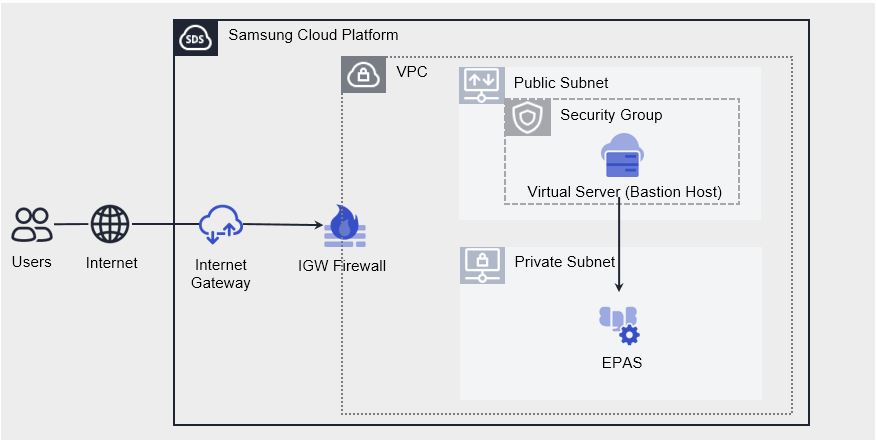
EPAS(DBaaS) Server Connection scenario creates a Bastion host (Virtual Server) and a Database service, and accesses the DB service through the Bastion host. To reliably connect to EPAS (DBaaS) in the Samsung Cloud Platform environment, you need to create a Bastion host and establish a network connection using it. To maintain stability and a high level of security, we recommend configuring the Database service in a Private Subnet environment and setting up the Bastion host in a restricted Public Subnet environment.
This scenario primarily describes creating a Bastion host and Database service, configuring the network environment for Bastion host and Database access, and connecting through a DB client.
Figure. EPAS (DBaaS) Connection Architecture
Scenario components
You can build the scenario using the following services.
Service group
service
Detailed description
Networking
VPC
A service that provides an isolated virtual network in a cloud environment
Networking
VPC > Subnet
A service that lets users segment the network within a VPC to match their purpose and scale
Networking
VPC > Public IP
A service that reserves a public IP and allocates and releases it to Compute resources.
Networking
VPC > Internet Gateway
A service that connects VPC resources to the Internet
Networking
Security Group
Virtual firewall that controls server traffic
Database
EPAS(DBaaS)
A service that easily creates and manages EPAS in a web environment.
Compute
Virtual Server
Virtual server optimized for cloud computing
Compute
Virtual Server > Keypair
Encryption file used to connect to the Virtual Server
Table. Scenario component list
Reference
Since the default policy of the Security Group is Deny All, you must register only the allowed IPs.
The All Open (Any IP, Any Port) policy for In/Outbound can expose cloud resources directly to external threats.
By specifying the required IP and Port and setting a policy, you can strengthen security.
Scenario setup method
Create the services needed to build the scenario by following the procedure below.
1. ## Configure Network
Describes the process of configuring the network environment for accessing the Bastion Host and Database services.
All Services > Networking > FirewallClick the menu. 1. Navigate to the Firewall’s Service Home page.
On the Service Home page, click the Firewall menu. 2. Go to the Firewall List page.
On the Firewall List page, select the Internet Gateway resource name created in 1-3. Internet Gateway 생성하기. 3. Go to the detailed information page for the resource.
On the detail information page, click the Rules tab. 4. Go to the Rules tab.
Click the Add Rule button on the Rule tab. 5. Add Rule Navigate to the popup window.
Add Rule In the popup window, enter the rule below, and click the Confirm button.
Origin address
Destination address
Protocol
Port
Operation
Direction
Explanation
Bastion connection PC IP
Bastion host IP
TCP
3389(RDP)
Allow
Inbound
User PC → Bastion host
Table. Internet Gateway Firewall rules to be added
5. ## Database Connect
Describes the process of a user connecting to a database through a DB client program.
This guide explains how to connect using pgAdmin. Database client programs and CLI utilities are diverse, so you can install and use the tool that best suits your needs.
5-1. ### Connecting to Bastion host
In the Windows environment of the PC that will connect to the Bastion host, run Remote Desktop Connection, then enter the NAT IP of the Bastion Host and click the Connect button.
When the remote desktop connection succeeds, user credential input window opens. 2. Enter the ID and Password verified in 2-3. Bastion host 접속 ID 및 PW 확인하기 and click the Confirm button.
5-2. ### Install the DB client program (pgAdmin) on the Bastion host
Go to the official pgAdmin page and download the pgAdmin program.
Connect the user’s PC hard drive to upload the file to the Bastion host.
Click the Details button of the Local devices and resources item on the Local Resources tab of the Remote Desktop Connection.
Select the local disk of the location where the file was downloaded on the drive, and click the Confirm button.
Copy the downloaded file, upload it to the Bastion Host, and click the pgAdmin installer to install it.
5-3. ### Connect to the Database using the DB client program (pgAdmin)
Run pgAdmin and click the Add New Server button.
In the Register - Server popup, enter the Database server information created in 3-1. EPAS(DBaaS) 서비스 생성하기 into the General and Connection tabs, and click the Save button.
Screen (tab)
Required input element item
input value
General
Name
Custom (ex. service name)
Connection
Host name/address
Database server IP
Connection
Port
Database Port
Connection
Maintenance database
Database name
Connection
Password
Database password
Table DB connection client program input fields
Click the name of the database created in pgAdmin to connect.
After connecting, you can perform simple queries, etc.
2.5 - Extension Usage
Using EPAS(DBaaS) Extension
Reference
You can view the list of extensions included in each EPAS version on the PostgreSQL official page.
You can view the list of extensions that can be installed in the current database with the SQL statement below.
SQL> select * from pg_available_extensions;
In EPAS(DBaaS), the items installed in addition to the default extensions included per version are as follows.
Extension name
Explanation
pg_cron
A scheduler that can schedule jobs using cron syntax within the database.
pgvector
Provides AI vector operation features such as vector data types and similarity search.
postgis
Provides GIS (Geographic Information System) spatial object storage and spatial query functionality
If you need to install additional extensions beyond the items above, refer to Support Center > Inquiry and contact us.
After a request is received, we will review it and proceed with installation. Please note that some extensions may not function properly during replica configuration and recovery.
3 - API Reference
API Reference
4 - CLI Reference
CLI Reference
5 - Release Note
EPAS(DBaaS)
2026.07.16
FEATUREAdd immediate backup, Disk usage query feature, and ServiceWatch service integration
Add immediate backup and disk usage query feature
If additional data protection is needed, you can quickly create a backup using the instant backup feature.
Through the Disk usage query feature, you can view the usage of each Block Storage type assigned to an instance.
ServiceWatch service integration
You can view CPU, memory, and DB performance monitoring information through the ServiceWatch service.
Add third-generation server type
The third-generation server type has been newly added. * For more details, please refer to the EPAS(DBaaS) 서버 타입.