This is the multi-page printable view of this section. Click here to print.
CacheStore(DBaaS)
1 - Overview
Service Overview
CacheStore (DBaaS) is a service that provides the in‑memory data stores Redis OSS and Valkey. Samsung Cloud Platform provides an environment that automates the installation of Redis OSS and valkey through a web-based console and performs management functions for operation.
CacheStore(DBaaS) provides a Sentinel architecture composed of a Master server that performs read/write operations and read‑only Replica servers that replicate the Master data. Sentinel checks the status of DB servers where the engine is installed, and if a failure occurs on the Master server, it automatically fails over the Replica servers to the Master server. Additionally, to prepare for potential issues with the DB server or data, we provide a feature that automatically backs up at a user-specified time, allowing data recovery based on the backup point.
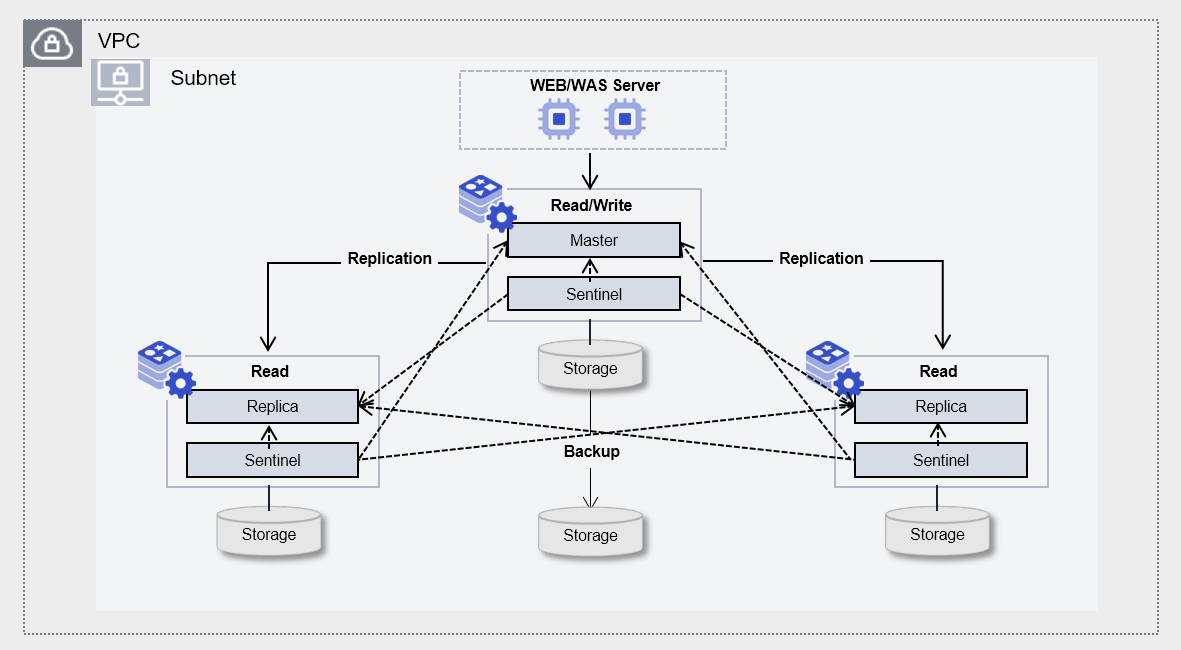
Provided features
CacheStore (DBaaS) provides the following features.
- Auto Provisioning: UI allows installation and configuration of Database (DB), and a redundant configuration with a Sentinel-based Single Master server and Replica servers (1 or 2) is possible.
- Operation Control Feature: Provides a function that controls the status of running servers. * In addition to start and stop, a restart is possible if there is a DB issue or to apply configuration changes. * When configured for high availability (HA), you can switch the Active-Standby servers using a switch‑over.
- Backup and Recovery: Provides data backup functionality based on its own backup commands. * The backup time window and storage location can be set by the user, and additional charges are incurred based on the backup size. * It also provides a recovery function for backed‑up data, so when the user initiates a recovery, a separate database is created and the recovery proceeds to the point in time selected by the user.
- Parameter Management: It is possible to modify DB configuration parameters related to performance improvement and security.
- Service Status Query: Retrieves the final status of the current DB service.
- Monitoring: CPU, memory, performance monitoring information can be viewed through Cloud Monitoring and Servicewatch.
- Minor version upgrade: Minor version upgrades can be performed within the same Major version to apply some feature improvements and security patches.
Components
CacheStore (DBaaS) provides pre‑validated engine versions and various server types in accordance with its open‑source support policy. Users can select and use it according to the scale of the service they wish to configure.
Engine version
The engine versions supported by CacheStore (DBaaS) are as follows.
Technical support is available until the supplier’s EoTS (End of Technical Service) date, and the EOS date when new creation is halted is set to six months before the EoTS date.
Since the EOS and EoTS dates may change according to the supplier’s policy, please refer to the supplier’s license management policy page for details.
- Redis: https://redis.io/docs/latest/operate/oss_and_stack/install/version-mgmt/
- Valkey: https://valkey.io/topics/releases/
| service | Provided version | EoS Date (Samsung Cloud Plaform New Creation Stop Date) | EoTS date (Community technical support end date) |
|---|---|---|---|
| Redis OSS Sentinel | 7.2.11 | 2026-07-16 | 2029-12-01 |
| Redis OSS Sentinel | 7.2.14 | 2029-06 (예정) | 2029-12-01 |
| valkey Sentinel | 8.1.4 | 2026-07-16 | TBD |
| valkey Sentinel | 8.1.8 | TBD | TBD |
| valkey Sentinel | 9.0.4 | TBD | TBD |
Server type
The server types supported by CacheStore (DBaaS) are as follows.
For detailed information about the server types provided by CacheStore(DBaaS), see CacheStore(DBaaS) 서버 타입.
Standard redis1v2m4
| Category | example | Detailed description |
|---|---|---|
| Server type | Standard | Provided server type
|
| Server specifications | redis1 | Provided server specifications
|
| Server specifications | v2 | Number of vCores
|
| Server specifications | m4 | Memory capacity
|
Preliminary Service
This is a list of services that must be pre‑configured before creating the service. For detailed information, please refer to the guide provided for each service and prepare in advance.
| Service Category | service | Detailed description |
|---|---|---|
| Networking | VPC | A service that provides an isolated virtual network in a cloud environment |
1.1 - Server type
CacheStore(DBaaS) server type
CacheStore (DBaaS) offers server types configured with various combinations such as CPU, Memory, and Network Bandwidth. When creating a CacheStore (DBaaS), Redis is installed according to the server type selected for the intended purpose.
The server types supported by CacheStore (DBaaS) are as follows.
Standard redis1v2m4
Category | example | Detailed description |
|---|---|---|
| Server type | Standard | Provided server type classification
|
| Server specifications | redis1 | Provided server type classification and generation
|
| Server specifications | v2 | Number of vCores
|
| Server specifications | m4 | Memory capacity
|
redis1 server type
The redis1 server type of CacheStore (DBaaS) is offered with standard specifications (vCPU, Memory) and is suitable for various database workloads.
- Intel 3rd Generation (Ice Lake) Xeon Gold 6342 Processor up to 3.3 GHz
- Supports up to 16 vCPUs and 256 GB of memory
- Maximum networking speed of 12.5 Gbps
| Category | Server type | vCPU | Memory | Network Bandwidth |
|---|---|---|---|---|
| Standard | redis1v1m2 | 1 vCore | 2 GB | Up to 10 Gbps |
| Standard | redis1v2m4 | 2 vCore | 4 GB | Up to 10 Gbps |
| Standard | redis1v2m8 | 2 vCore | 8 GB | Up to 10 Gbps |
| Standard | redis1v2m16 | 2 vCore | 16 GB | Up to 10 Gbps |
| Standard | redis1v2m24 | 2 vCore | 24 GB | Up to 10 Gbps |
| Standard | redis1v4m8 | 4 vCore | 8 GB | Up to 10 Gbps |
| Standard | redis1v4m16 | 4 vCore | 16 GB | Up to 10 Gbps |
| Standard | redis1v4m32 | 4 vCore | 32 GB | Up to 10 Gbps |
| Standard | redis1v4m48 | 4 vCore | 48 GB | Up to 10 Gbps |
| Standard | redis1v4m64 | 4 vCore | 64 GB | Up to 10 Gbps |
| Standard | redis1v6m72 | 6 vCore | 72 GB | Up to 10 Gbps |
| Standard | redis1v6m96 | 6 vCore | 96 GB | Up to 10 Gbps |
| Standard | redis1v8m128 | 8 vCore | 128 GB | Up to 10 Gbps |
| Standard | redis1v10m160 | 10 vCore | 160 GB | Up to 10 Gbps |
| Standard | redis1v12m192 | 12 vCore | 192 GB | Up to 12.5 Gbps |
| Standard | redis1v14m224 | 14 vCore | 224 GB | Up to 12.5 Gbps |
| Standard | redis1v16m256 | 16 vCore | 256 GB | Up to 12.5 Gbps |
redis2 server type
The redis2 server type of CacheStore (DBaaS) is offered with standard specifications (vCPU, Memory) and is suitable for various database workloads.
- Intel 4th‑generation (Sapphire Rapids) Xeon Gold 6448H Processor up to 3.2 GHz
- Supports up to 16 vCPUs and 256 GB of memory
- Maximum networking speed of 12.5 Gbps
| Category | Server type | vCPU | Memory | Network Bandwidth |
|---|---|---|---|---|
| Standard | redis2v1m2 | 1 vCore | 2 GB | Up to 10 Gbps |
| Standard | redis2v2m4 | 2 vCore | 4 GB | Up to 10 Gbps |
| Standard | redis2v2m8 | 2 vCore | 8 GB | Up to 10 Gbps |
| Standard | redis2v2m16 | 2 vCore | 16 GB | Up to 10 Gbps |
| Standard | redis2v2m24 | 2 vCore | 24 GB | Up to 10 Gbps |
| Standard | redis2v4m8 | 4 vCore | 8 GB | Up to 10 Gbps |
| Standard | redis2v4m16 | 4 vCore | 16 GB | Up to 10 Gbps |
| Standard | redis2v4m32 | 4 vCore | 32 GB | Up to 10 Gbps |
| Standard | redis2v4m48 | 4 vCore | 48 GB | Up to 10 Gbps |
| Standard | redis2v4m64 | 4 vCore | 64 GB | Up to 10 Gbps |
| Standard | redis2v6m72 | 6 vCore | 72 GB | Up to 10 Gbps |
| Standard | redis2v96m96 | 6 vCore | 96 GB | Up to 10 Gbps |
| Standard | redis2v8m128 | 8 vCore | 128 GB | Up to 10 Gbps |
| Standard | redis2v10m160 | 10 vCore | 160 GB | Up to 10 Gbps |
| Standard | redis2v12m192 | 12 vCore | 192 GB | Up to 12.5 Gbps |
| Standard | redis2v14m224 | 14 vCore | 224 GB | Up to 12.5 Gbps |
| Standard | redis2v16m256 | 16 vCore | 256 GB | Up to 12.5 Gbps |
redis3 server type
The redis3 server type of CacheStore (DBaaS) is offered with standard specifications (vCPU, Memory) and is suitable for various database workloads.
- Intel 6th‑generation (Granite Rapids) Xeon 6737P Processor up to 4.0 GHz
- Supports up to 16 vCPUs and 256 GB of memory
- Maximum networking speed of 12.5 Gbps
| Category | Server type | vCPU | Memory | Network Bandwidth |
|---|---|---|---|---|
| Standard | redis3v1m2 | 1 vCore | 2 GB | Up to 10 Gbps |
| Standard | redis3v2m4 | 2 vCore | 4 GB | Up to 10 Gbps |
| Standard | redis3v2m8 | 2 vCore | 8 GB | Up to 10 Gbps |
| Standard | redis3v16 | 2 vCore | 16 GB | Up to 10 Gbps |
| Standard | redis3v2m24 | 2 vCore | 24 GB | Up to 10 Gbps |
| Standard | redis3v4m8 | 4 vCore | 8 GB | Up to 10 Gbps |
| Standard | redis3v4m16 | 4 vCore | 16 GB | Up to 10 Gbps |
| Standard | redis3v4m32 | 4 vCore | 32 GB | Up to 10 Gbps |
| Standard | redis3v4m48 | 4 vCore | 48 GB | Up to 10 Gbps |
| Standard | redis3v4m64 | 4 vCore | 64 GB | Up to 10 Gbps |
| Standard | redis3v6m72 | 6 vCore | 72 GB | Up to 10 Gbps |
| Standard | redis3v6m96 | 6 vCore | 96 GB | Up to 10 Gbps |
| Standard | redis3v8m128 | 8 vCore | 128 GB | Up to 10 Gbps |
| Standard | redis3v10m160 | 10 vCore | 160 GB | Up to 10 Gbps |
| Standard | redis3v12m192 | 12 vCore | 192 GB | Up to 12.5 Gbps |
| Standard | redis3v14m224 | 14 vCore | 224 GB | Up to 12.5 Gbps |
| Standard | redis3v16m256 | 16 vCore | 256 GB | Up to 12.5 Gbps |
css1 server type
The css1 server type of CacheStore (DBaaS) is offered with standard specifications (vCPU, Memory) and is suitable for various database workloads.
- Intel 3rd Generation (Ice Lake) Xeon Gold 6342 Processor up to 3.3 GHz
- Supports up to 16 vCPUs and 256 GB of memory
- Maximum networking speed of 12.5 Gbps
| Category | Server type | vCPU | Memory | Network Bandwidth |
|---|---|---|---|---|
| Standard | css1v1m2 | 1 vCore | 2 GB | Up to 10 Gbps |
| Standard | css1v2m4 | 2 vCore | 4 GB | Up to 10 Gbps |
| Standard | css1v2m8 | 2 vCore | 8 GB | Up to 10 Gbps |
| Standard | css1v2m16 | 2 vCore | 16 GB | Up to 10 Gbps |
| Standard | css1v2m24 | 2 vCore | 24 GB | Up to 10 Gbps |
| Standard | css1v4m8 | 4 vCore | 8 GB | Up to 10 Gbps |
| Standard | css1v4m16 | 4 vCore | 16 GB | Up to 10 Gbps |
| Standard | css1v4m32 | 4 vCore | 32 GB | Up to 10 Gbps |
| Standard | css1v4m48 | 4 vCore | 48 GB | Up to 10 Gbps |
| Standard | css1v4m64 | 4 vCore | 64 GB | Up to 10 Gbps |
| Standard | css1v6m72 | 6 vCore | 72 GB | Up to 10 Gbps |
| Standard | css1v6m96 | 6 vCore | 96 GB | Up to 10 Gbps |
| Standard | css1v8m128 | 8 vCore | 128 GB | Up to 10 Gbps |
| Standard | css1v10m160 | 10 vCore | 160 GB | Up to 10 Gbps |
| Standard | css1v12m192 | 12 vCore | 192 GB | Up to 12.5 Gbps |
| Standard | css1v14m224 | 14 vCore | 224 GB | Up to 12.5 Gbps |
| Standard | css1v16m256 | 16 vCore | 256 GB | Up to 12.5 Gbps |
css2 server type
CacheStore(DBaaS)’s css2 server type is offered with standard specifications (vCPU, Memory) and is suitable for various database workloads.
- Intel 4th‑generation (Sapphire Rapids) Xeon Gold 6448H Processor up to 3.2 GHz
- Supports up to 16 vCPUs and 256 GB of memory
- Maximum networking speed of 12.5 Gbps
| Category | Server type | vCPU | Memory | Network Bandwidth |
|---|---|---|---|---|
| Standard | css2v1m2 | 1 vCore | 2 GB | Up to 10 Gbps |
| Standard | css2v2m4 | 2 vCore | 4 GB | Up to 10 Gbps |
| Standard | css2v2m8 | 2 vCore | 8 GB | Up to 10 Gbps |
| Standard | css2v2m16 | 2 vCore | 16 GB | Up to 10 Gbps |
| Standard | css2v2m24 | 2 vCore | 24 GB | Up to 10 Gbps |
| Standard | css2v4m8 | 4 vCore | 8 GB | Up to 10 Gbps |
| Standard | css2v4m16 | 4 vCore | 16 GB | Up to 10 Gbps |
| Standard | css2v4m32 | 4 vCore | 32 GB | Up to 10 Gbps |
| Standard | css2v4m48 | 4 vCore | 48 GB | Up to 10 Gbps |
| Standard | css2v4m64 | 4 vCore | 64 GB | Up to 10 Gbps |
| Standard | css2v6m72 | 6 vCore | 72 GB | Up to 10 Gbps |
| Standard | css2v6m96 | 6 vCore | 96 GB | Up to 10 Gbps |
| Standard | css2v8m128 | 8 vCore | 128 GB | Up to 10 Gbps |
| Standard | css2v10m160 | 10 vCore | 160 GB | Up to 10 Gbps |
| Standard | css2v12m192 | 12 vCore | 192 GB | Up to 12.5 Gbps |
| Standard | css2v14m224 | 14 vCore | 224 GB | Up to 12.5 Gbps |
| Standard | css2v16m256 | 16 vCore | 256 GB | Up to 12.5 Gbps |
css3 server type
The css3 server type of CacheStore(DBaaS) is provided with standard specifications (vCPU, Memory) and is suitable for various database workloads.
- Intel 6th‑generation (Granite Rapids) Xeon 6737P Processor up to 4.0 GHz
- Supports up to 16 vCPUs and 256 GB of memory
- Maximum networking speed of 12.5 Gbps
| Category | Server type | vCPU | Memory | Network Bandwidth |
|---|---|---|---|---|
| Standard | css3v1m2 | 1 vCore | 2 GB | Up to 10 Gbps |
| Standard | css3v2m4 | 2 vCore | 4 GB | Up to 10 Gbps |
| Standard | css3v2m8 | 2 vCore | 8 GB | Up to 10 Gbps |
| Standard | css3v2m16 | 2 vCore | 16 GB | Up to 10 Gbps |
| Standard | css3v2m24 | 2 vCore | 24 GB | Up to 10 Gbps |
| Standard | css3v4m8 | 4 vCore | 8 GB | Up to 10 Gbps |
| Standard | css3v4m16 | 4 vCore | 16 GB | Up to 10 Gbps |
| Standard | css3v4m32 | 4 vCore | 32 GB | Up to 10 Gbps |
| Standard | css3v4m48 | 4 vCore | 48 GB | Up to 10 Gbps |
| Standard | css3v4m64 | 4 vCore | 64 GB | Up to 10 Gbps |
| Standard | css3v6m72 | 6 vCore | 72 GB | Up to 10 Gbps |
| Standard | css3v6m96 | 6 vCore | 96 GB | Up to 10 Gbps |
| Standard | css3v8m128 | 8 vCore | 128 GB | Up to 10 Gbps |
| Standard | css3v10m160 | 10 vCore | 160 GB | Up to 10 Gbps |
| Standard | css3v12m192 | 12 vCore | 192 GB | Up to 12.5 Gbps |
| Standard | css3v14m224 | 14 vCore | 224 GB | Up to 12.5 Gbps |
| Standard | css3v16m256 | 16 vCore | 256 GB | Up to 12.5 Gbps |
1.2 - Monitoring metrics
According to the policy of Samsung Cloud Platform, the Cloud Monitoring service is scheduled to be terminated.
Accordingly, services whose monitoring metrics are linked in Cloud Monitoring will no longer be able to monitor resources through Cloud Monitoring after the service improvement work in November 2026.
After that, resource monitoring can be continuously performed through the ServiceWatch service released in October 2025.
To ensure smooth service usage, proceed with the migration work according to the service termination schedule below.
Guide to Applying Monitoring Services by Resource
- New Resources: Resources created after the service improvement work in July 2026 are monitored by default using the ServiceWatch service.
- Existing resources: After the service improvement work in September 2026 We provide concurrent monitoring through Cloud Monitoring and ServiceWatch services.
- During the parallel operation period, we must prepare for the Servicewatch transition. *
Performance and log data backup, user-configured settings integrated with existing Cloud Monitoring (e. You need to review the event policies, etc., perform tasks such as resetting the ServiceWatch service, and complete them.
Cloud Monitoring Service Phased Termination Schedule Notice
- Console menu termination (September 2026 service improvement work)
- You cannot access the Cloud Monitoring Console through the Console menu; you can only connect via the separate URLs for each region listed below.
- Console menu termination (September 2026 service improvement work)
| Offering | Region | Cloud Monitoring console URL |
|---|---|---|
| Enterprise | kr-west1 | https://console.kr-west1.e.samsungsdscloud.com/console/monitoring |
| Enterprise | kr-east1 | https://console.kr-east1.e.samsungsdscloud.com/console/monitoring |
| Samsung | kr-west1 | https://console.kr-west1.s.samsungsdscloud.com/console/monitoring |
| Samsung | kr-east1 | https://console.kr-east1.s.samsungsdscloud.com/console/monitoring |
| Sovereign | kr-south1 | https://console.kr-south1.g.samsungsdscloud.com/console/monitoring |
| Sovereign | kr-south2 | https://console.kr-south2.g.samsungscloud.com/console/monitoring |
| Sovereign | kr-south3 | https://console.kr-south3.g.samsungscloud.com/console/monitoring |
- Service termination (service improvement work in November 2026)
- All services of Cloud Monitoring, including the API, will be permanently discontinued.
- After the service ends in November, Cloud Monitoring data cannot be accessed. * Be sure to complete the ServiceWatch migration within the parallel operation period**.
- All services of Cloud Monitoring, including the API, will be permanently discontinued.
Detailed information about ServiceWatch can be found in the ServiceWatch 개요.
CacheStore(DBaaS) Monitoring Metrics
The table below shows the performance monitoring metrics for CacheStore (DBaaS) that can be viewed through Cloud Monitoring. For detailed usage of Cloud Monitoring, refer to the Cloud Monitoring guide.
For CacheStore (DBaaS) server monitoring metrics, refer to the Virtual Server Monitoring Metrics guide.
| Performance items | Detailed description | unit |
|---|---|---|
| Active Defragmentation Keys [Hits] | Number of keys after defragmentation | cnt |
| Active Defragmentation Keys [Miss] | Number of keys skipped in the active defragmentation removal process | cnt |
| Active Defragmentationd [Hits] | Number of value reallocations performed by the active defragmentation removal process | cnt |
| Active Defragmentations [Miss] | Count of value reallocations interrupted by the active defragmentation removal process | cnt |
| Allocated Bytes [OS] | Number of bytes allocated by CacheStore (DBaaS) and recognized by the operating system (resident set size) | bytes |
| Allocated Bytes [Redis] | Total bytes allocated by CacheStore (DBaaS) | bytes |
| AOF Buffer Size | AOF buffer size | bytes |
| AOF File Size [Current] | AOF current file size | bytes |
| AOF File Size [Lastest Startup] | AOF file size on recent start or rewrite | bytes |
| AOF Rewrite Buffer Size | AOF rewrite buffer size | bytes |
| AOF Rewrite Current Time | If applicable, the time of the ongoing AOF rewrite operation | sec |
| AOF Rewrite Last Time | Final AOF rewrite time | sec |
| Calls | Number of calls that reached command execution (not rejected) | cnt |
| Changes [Last Saved] | Number of changes after the final dump | cnt |
| Client Output Buffer [MAX] | Longest output list among current client connections | cnt |
| Clients [Sentinel] | Number of client connections (Sentinel) | cnt |
| Connected Slaves | Number of connected slaves | cnt |
| Connections [Blocked] | Number of clients pending on blocking calls (BLPOP, BRPOP, BRPOPLPUSH) | cnt |
| Connections [Current] | Number of client connections (excluding slave connections) | cnt |
| Copy On Write Allocated Size [AOF] | COW allocation size during final RBD save operation | bytes |
| Copy On Write Allocated Size [RDB] | COW allocation size during the final RBD save operation | bytes |
| CPU Time [Average] | Average CPU time used per command execution | cnt |
| CPU Time [Total] | Total CPU time used by these commands | usec |
| CPU Usage [System Process] | System CPU usage by background processes | % |
| CPU Usage [System] | System CPU usage on the CacheStore (DBaaS) server | % |
| CPU Usage [User Process] | User CPU usage used by background processes | % |
| CPU Usage [User] | System CPU usage by background processes | % |
| Dataset Used | Dataset size | bytes |
| Disk Used | datadir usage | MB |
| Evicted Keys | Number of evicted keys caused by the maxmemory limit | cnt |
| Fsyncs [Delayed] | Delayed fsync counter | cnt |
| Fsyncs [Pending] | Number of pending fsync operations in the background I/O queue | cnt |
| Full Resyncs | Number of full resynchronizations with the slave | cnt |
| Keys [Expired] | Total number of key expiration events | cnt |
| Keys [Keyspace] | Number of keys in the key space | cnt |
| Lastest Fork Duration Time | Recent fork (fork) operation time | usec |
| Lookup Keys [Hit] | Number of successful key lookups in the dictionary | cnt |
| Lookup Keys [Miss] | Number of failed key lookups in the main dictionary | cnt |
| Lua Engine Memory Used | Memory used by the Lua engine | bytes |
| Master Last Interaction Time Ago | Time elapsed since the final interaction with the master | sec |
| Master Last Interaction Time Ago [Sync] | Time elapsed since the final interaction with the master | sec |
| Master Offset | Current replication offset of the server | pid |
| Master Second Offset | Offset until the replication ID is accepted | pid |
| Master Sync Left Bytes | Remaining bytes before synchronization completes | bytes |
| Memory Fragmentation Rate | Ratio of used_memory_rss to used_memory | % |
| Memory Fragmentation Rate [Allocator] | Fragmentation ratio | % |
| Memory Fragmentation Used | Bytes between used_memory_rss and used_memory | bytes |
| Memory Fragmentation Used [Allocator] | resident byte | bytes |
| Memory Max Value | Memory limit | bytes |
| Memory Resident [Allocator] | resident memory | bytes |
| Memory RSS Rate [Allocator] | Resident ratio | % |
| Memory Used [Active] | Active memory | bytes |
| Memory Used [Allocated] | Allocated memory | bytes |
| Memory Used [Resident] | Resident byte | bytes |
| Network In Bytes [Total] | Total network input (bytes) | bytes |
| Network Out Bytes [Total] | Total network output (bytes) | bytes |
| Network Read Rate | Network read speed (KB/sec) | cnt |
| Network Write Rate | Network write speed (KB/sec) | cnt |
| Partial Resync Requests [Accepted] | Number of accepted partial resynchronization requests | cnt |
| Partial Resync Requests [Denied] | Number of rejected partial resynchronization requests | cnt |
| Peak Memory Consumed | Maximum memory used by CacheStore (DBaaS) | bytes |
| Processed Commands | Number of commands processed per second | cnt |
| Processed Commands [Total] | Total number of processed commands | cnt |
| Pub/Sub Channels | Global count of pub/sub channels with client subscriptions | cnt |
| Pub/Sub Patterns | Global count of publish/subscribe patterns with client subscriptions | cnt |
| RDB Saved Duration Time [Current] | If applicable, the time of the ongoing RDB save operation | sec |
| RDB Saved Duration Time [Last] | Final RDB save operation time | sec |
| Received Connections [Total] | Total number of received connections | cnt |
| Rejected Connections [Total] | Total number of rejected connections | cnt |
| Replication Backlog Actove Count | Replication backlog activation flag | cnt |
| Replication Backlog Master Offset | Master offset of the replication backlog buffer | cnt |
| Replication Backlog Size | Data size of the replication backlog buffer | bytes |
| Replication Backlog Size [Total] | Total size of the replication backlog buffer | bytes |
| Slave Priority | Server priority as a fault remediation target | cnt |
| Slave Replication Offset | Replication offset of the slave server | pid |
| Slow Operations | Number of slow tasks | cnt |
| Sockets [MIGRATE] | Number of sockets opened for migration | cnt |
| Tracked Keys [Expiry] | Number of keys tracked for expiration (applicable only to writable slaves) | cnt |
| Instance Status [PID] | redis-server process PID | pid |
| Sentinel Status [PID] | sentinel process PID | pid |
1.3 - ServiceWatch metric
CacheStore (DBaaS) sends metrics to ServiceWatch. The metrics provided by basic monitoring are data collected at 1‑minute intervals.
Basic Metrics
The following are the basic metrics for the namespace CacheStore(DBaaS).
The indicators whose names are shown in bold below are the key metrics selected from the basic metrics provided by CacheStore(DBaaS). The key metrics are used to build service dashboards that are automatically created for each service in ServiceWatch.
Each metric provides guidance in the user guide on which statistical values are meaningful when viewing that metric, and among the meaningful statistics, the values shown in bold are the primary statistics. In the service dashboard, you can view key metrics through primary statistical values.
OS Basic Metrics
Classification | Performance items | unit | Detailed description | meaningful statistics |
|---|---|---|---|---|
| CPU | CPU Usage | Percent | CPU usage |
|
| Disk | Disk Usage | Percent | Disk usage |
|
| Disk | Disk Write Bytes | Bytes/Second | Write capacity (bytes/second) on block device |
|
| Disk | Disk Read Bytes | Bytes/Second | Read throughput from block device (bytes/second) |
|
| Disk | Disk Write Requests | Count/Second | Number of write requests on block device (requests per second) |
|
| Disk | Disk Read Requests | Count/Second | Number of read requests on block device (requests per second) |
|
| Disk | Average Disk I/O Queue Size | None | Average queue length of requests issued to the block device |
|
| Disk | Disk I/O Utilization | Percent | The proportion of time the block device actually spent processing I/O operations |
|
| Memory | Memory Usage | Percent | Memory usage |
|
| Memory | Swap Out Bytes | Bytes/Second | Amount of data exported from memory to swap area (bytes/second) |
|
| Memory | Swap Used Bytes | Bytes | Current swap space size |
|
| Memory | Swap Cached Usage | Percent | Cached swap usage rate |
|
| Memory | Swap Total Bytes | Bytes | Total swap space size configured on the system |
|
| Memory | Swap In Bytes | Bytes/Second | Amount read from swap area into memory (bytes/second) |
|
| Memory | Swap Usage | Percent | Current usage ratio relative to total swap space |
|
| Memory | Swap Cached Bytes | Bytes | Size of pages that have been restored to memory but still have a copy in the swap area |
|
| Memory | Swap Free Bytes | Bytes | Size of unused remaining swap space |
|
| Network | Network In Bytes | Bytes/Second | Received capacity (bytes/second) on the network interface |
|
| Network | Network Out Bytes | Bytes/Second | Transmitted capacity (bytes/second) on the network interface |
|
| Network | TCP Connections | Count/Second | Total number of TCP connections currently properly established |
|
| Network | Network In Packets | Count | Number of packets received on the network interface |
|
| Network | Network Out Packets | Count | Number of packets transmitted on the network interface |
|
| Network | Network In Dropped | Count | Number of packet drops received on the network interface |
|
| Network | Network Out Dropped | Count | Number of packet drops transmitted from the network interface |
|
| Network | Network In Errors | Count | Number of packet errors received on the network interface |
|
| Network | Network Out Errors | Count | Number of packet errors transmitted from the network interface |
|
| OS | OS Uptime | Seconds | Time elapsed (seconds) since the system was last booted |
|
CacheStore(DBaaS) basic metrics
Classification | Performance items | unit | Detailed description | meaningful statistics |
|---|---|---|---|---|
| Client | blocked clients | Count | client waiting due to a blocking call |
|
| Client | connected clients | Count | clients connected to Redis |
|
| Client | connected replicas | Count | Number of Replicas connected to the Master |
|
| Command | average command counts | Count/Minute | Average number of Redis commands processed per minute |
|
| keys | keys per db | Count | Number of registered keys per DB |
|
| keys | expired keys per db | Count | Number of expired keys registered per DB |
|
| keys | evicted keys | Count/Minute | Number of evicted keys per minute in Redis memory |
|
| Memory | keyspace hits on memory | Count/Minute | Number of keys retrieved from Redis memory per minute |
|
| Memory | keyspace_misses on memory | Count/Minute | Number of keys that failed to be retrieved from Redis memory per minute |
|
| Memory | memory max bytes | Count | Maximum memory bytes available in Redis |
|
| Memory | current redis memory used bytes | Count | Current memory bytes used by Redis |
|
| Memory | current allocated redis memory | Count | Current OS-allocated Redis memory size |
|
| Memory | redis_up | Count | Redis process On/Off |
|
| Memory | master replication offset | Count | Replication offset location for the Replica target within the Master server |
|
| Memory | aof buffer bytes | Count | The buffer size that Redis allocates to the AOF |
|
| Memory | Total client memory size | Count | Total size of the input/output buffer allocated to the client |
|
| Memory | Total replication buffer bytes | Count | Total buffer bytes allocated to Replication |
|
| Memory | dataset bytes | Count | memory bytes used for user data |
|
| Memory | memory peak bytes | Count | Maximum memory usage of the Redis process, in bytes |
|
| Memory | network input bytes | Count/Minute | Network bytes received by redis in 1 minute |
|
| Memory | network output bytes | Count/Minute | Network bytes transmitted by redis in 1 minute |
|
| Memory | cached script number | Count | Number of cached scripts |
|
| Memory | function number | Count | Number of cached functions |
|
| Memory | library number | Count | Number of cached libraries |
|
| Memory | last bgsave duration | Count | Time taken to create the last bgsave |
|
| Memory | slowlog queue length | Count | Number of logs stored in the slowlog queue |
|
2 - How-to guides
Users can create the service by entering the required information for CacheStore(DBaaS) and selecting detailed options through the Samsung Cloud Platform Console.
According to Samsung Cloud Platform’s policy, the Cloud Monitoring service is scheduled to be discontinued.
Accordingly, services whose monitoring metrics are linked in Cloud Monitoring will no longer be able to monitor resources through Cloud Monitoring after the service improvement work in November 2026.
After that, resource monitoring can be continuously performed through the ServiceWatch service released in October 2025.
To ensure smooth service usage, proceed with the migration work according to the service termination schedule below.
Resource-specific Monitoring Service Application Guide
- New Resources: Resources created after the service improvement work in July 2026 are provided with monitoring using the ServiceWatch service by default.
- Existing resources: After the service improvement work in September 2026 We provide monitoring concurrently through the Cloud Monitoring service and the ServiceWatch service.
- During the parallel operation period, we must prepare for the Servicewatch transition *
Performance and log data backup, settings configured by users linked with existing Cloud Monitoring (e.g. You must verify the event policy, etc., and perform tasks such as resetting the ServiceWatch service, and then complete them.
Cloud Monitoring Service Phased Termination Schedule Notice
- Console menu termination (September 2026 service improvement work)
- You cannot access the Cloud Monitoring Console through the Console menu; you can only connect via the separate URLs for each region listed below.
- Console menu termination (September 2026 service improvement work)
| Offering | Region | Cloud Monitoring console URL |
|---|---|---|
| Enterprise | kr-west1 | https://console.kr-west1.e.samsungsdscloud.com/console/monitoring |
| Enterprise | kr-east1 | https://console.kr-east1.e.samsungsdscloud.com/console/monitoring |
| Samsung | kr-west1 | https://console.kr-west1.s.samsungsdscloud.com/console/monitoring |
| Samsung | kr-east1 | https://console.kr-east1.s.samsungsdscloud.com/console/monitoring |
| Sovereign | kr-south1 | https://console.kr-south1.g.samsungsdscloud.com/console/monitoring |
| Sovereign | kr-south2 | https://console.kr-south2.g.samsungsdscloud.com/console/monitoring |
| Sovereign | kr-south3 | https://console.kr-south3.g.samsungscloud.com/console/monitoring |
- Service termination (November 2026 service improvement work)
- All services of Cloud Monitoring, including the API, will be permanently discontinued.
- After the service ends in November, Cloud Monitoring data cannot be viewed. * Be sure to complete the ServiceWatch migration within the parallel operation period**
- All services of Cloud Monitoring, including the API, will be permanently discontinued.
Detailed information about ServiceWatch can be found in the ServiceWatch 개요.
CacheStore(DBaaS) Create
You can create and use the CacheStore (DBaaS) service in the Samsung Cloud Platform Console.
- Before creating the service, configure the VPC’s Subnet type as General.
- If the subnet type is Local, the creation of the corresponding Database service is not possible.
- When loading more than 2 TB of large data, backups may take a long time or the database’s performance may degrade. * To prevent this, it is necessary to consider operational aspects such as cleaning up unnecessary data or migrating old data to a statistical collection environment.
- This service is provided on a Single-AZ basis.
To create a CacheStore (DBaaS), follow the steps below.
- All Services > Database > CacheStore(DBaaS) Click the menu. 1. Navigate to the Service Home page of CacheStore (DBaaS).
- Click the Create CacheStore(DBaaS) button on the Service Home page. 2. Go to the Create CacheStore (DBaaS) page.
- On the Create CacheStore (DBaaS) page, enter the information required to create the service and select detailed options.
- Select the required information in the Image and version selection area.
Category Required statusDetailed description Image version Required Provide version list of CacheStore (DBaaS) Table. CacheStore (DBaaS) Image and version selection items - Enter or select the required information in the Service Information Input area.
Category required statusDetailed description Server name Prefix Required Server name where Redis/Valkey will be installed - must start with a lowercase English letter and be entered using lowercase letters, numbers, and special characters(
-) with a length of 3 to 13 characters
- Based on the server name, a postfix such as 001, 002 is appended to generate the actual server name
Cluster name Required Cluster name where Redis/Valkey is installed - Enter using English letters, 3 to 20 characters
- A cluster is a unit that groups multiple servers
Service Type > Server Type Required Server type for installing Redis/Valkey - Standard: the commonly used standard specification
- For detailed information about the server types provided by CacheStore (DBaaS), refer to CacheStore(DBaaS) 서버 타입
Service Type > Planned Compute Required Status of resources with Planned Compute set - In Use: Number of resources with Planned Compute that are currently in use
- Configured: Number of resources with Planned Compute set
- Coverage Preview: Amount applied per resource by Planned Compute
- Create Planned Compute Service: Go to the Planned Compute service application page
- For more details, refer to Planned Compute 신청하기
Service Type > Block Storage Required Block Storage settings used by the DB according to purpose - Basic OS: Area where the DB engine is installed
- DATA: Storage area for table data, archive files, etc.
- Select the storage type and then enter the capacity (see Block Storage 생성하기 for details on each Block Storage type)
- SSD: High‑performance general volume
- HDD: General volume
- SSD_KMS, HDD_KMS: Additional encrypted volumes that use Samsung Cloud Platform KMS (Key Management System) encryption keys
- The configured storage type is also applied to additional storage
- Enter the capacity as a multiple of 8 within the range 16 to 5,120
- Select the storage type and then enter the capacity (see Block Storage 생성하기 for details on each Block Storage type)
High availability Selection High Availability (HA) configuration option - When High Availability (HA) is enabled, it is provided as a Master-Replica configuration, and the Replica can be configured with 1 or 2 instances
- Sentinel Port number: The port used for connecting to Sentinel
- Enter a port for Master-Replica communication within the range 1200 to 65535
- Replica count: Number of Replicas to configure
- If 1 is selected, it is configured as Master-Replica-Sentinel
- If 2 is selected, it is configured as Master-Replica-Replica, and Sentinel is automatically installed on the server where Redis is installed
- Set the server type for Sentinel to the minimum specification
Network > Common Settings Required Network settings for servers created by the service - Select when you want to apply the same settings to all installed servers
- Select a pre‑created VPC and Subnet
- Each server’s IP is generated automatically
Network > Server-specific Settings Required Network settings where servers generated by the service are installed - Select when you want to apply different settings for each installed server
- Select a pre‑created VPC, Subnet, IP, and Public NAT
- Enter the IP for each server
- The Public NAT feature is available only when the VPC is connected to an Internet Gateway. Use when checked, you can select from reserved IPs in the VPC product’s Public IP. For more information, refer to Public IP 생성하기
IP access control Selection Service Access Policy Configuration - Since the access policy is set for the IP entered on the page, you do not need to configure a separate Security Group policy.
- Enter the IP in IP format (e.g.,
192.168.10.1) or CIDR format (e.g.,192.168.10.0/24,192.168.10.1/32), and click the Add button.
- To delete an entered IP, click the x button next to the IP.
Maintenance Period Selection CacheStore(DBaaS) maintenance window - If you select Use, you can set the day, start time, and duration
- The maintenance window is a feature that allows the user to set the time slot for performing patch operations, and any patch work within that period must be performed directly by the user.
- We ask you to set a maintenance window for the stable operation of the system, and we are not responsible for any issues arising from not setting it or from failure to perform tasks within the window.
Table. CacheStore (DBaaS) Service Configuration Items - must start with a lowercase English letter and be entered using lowercase letters, numbers, and special characters(
- Enter required database configuration information In this area, enter or select the required information.
Category Required statusDetailed description Backup Selection Backup usage - If you select Use, you can set the backup file retention period and backup start time
- Backup files incur additional charges based on size
- The file retention period can be set from 7 days to 35 days
- The minute(s) when the backup runs is set randomly, and the backup end time cannot be set
Redis/Valkey Port number Required Port number required for connecting to Redis/Valkey - Enter a port within the range 1200 ~ 65535
Redis/Valkey password Required Password required when connecting to Redis/Valkey - Enter 8 ~ 30 characters, including English letters, numbers, and special characters (
$“‘excluded)
Check Redis/Valkey password Required Re-enter the same password ServiceWatch log collection Selection ServiceWatch log collection status - Select Use to configure the ServiceWatch log collection feature
- Provided free up to 5 GB for all services within the Account, and charges apply based on storage size for usage exceeding 5 GB.
- When collected, log groups and log streams are created automatically, and they cannot be deleted until the resource is removed.
- To prevent exceeding 5 GB, direct deletion of log data or shortening the retention period is recommended.
Parameter Required Parameters to use with Redis/Valkey - View button to view detailed information of the parameters
- Parameters can be modified after creation is complete, and a DB restart is required after any modifications
time zone Required Time zone where the database will be used Table. CacheStore(DBaaS) Database configuration items - In the Additional Information Input area, enter or select the required information.Required status
Detailed description tag Selection Add Tag - Up to 50 can be added per resource
- After clicking the Add Tag button, input or select Key, Value values
Table. CacheStore (DBaaS) additional information input fields
- Select the required information in the Image and version selection area.
- Summary Verify the detailed information and estimated charges generated in the panel, then click the Create button.
- When creation is complete, check the created resource on the Resource List page.
Check detailed information of CacheStore (DBaaS)
The CacheStore (DBaaS) service allows you to view and edit the full list of resources and detailed information. CacheStore(DBaaS) Details page consists of Detail Information, Tags, Activity History tabs.
Follow the steps below to view detailed information about the CacheStore (DBaaS) service.
- All Services > Database > CacheStore(DBaaS) Click the menu. 1. Navigate to the Service Home page of CacheStore (DBaaS).
- On the Service Home page, click the CacheStore(DBaaS) menu. 2. CacheStore(DBaaS) List Navigate to the page.
- CacheStore(DBaaS) List page, click the resource to view detailed information. 3. CacheStore(DBaaS) Details Go to the page.
- CacheStore(DBaaS) Details At the top of the page, status information and additional feature details are displayed.
Detailed description Cluster status Cluster status with Redis installed - Creating: Cluster is being created
- Editing: Cluster is changing to an operational state
- Error: Cluster encountered an error during operation
- If it occurs continuously, contact the administrator
- Failed: Cluster failed during creation
- Restarting: Cluster is restarting
- Running: Cluster is operating normally
- Starting: Cluster is starting
- Stopped: Cluster is stopped
- Stopping: Cluster is stopping
- Synchronizing: Cluster is synchronizing
- Terminating: Cluster is being terminated
- Unknown: Cluster status is unknown
- If it occurs continuously, contact the administrator
Cluster control Buttons that can change the cluster state - Start: Start a stopped cluster
- Stop: Stop a running cluster
- Restart: Restart a running cluster
- Switch-Over: Switch a replica cluster to Master
View more features Cluster-related management buttons - Service status synchronization: Real-time Redis/Valkey service status lookup
- Backup history: When backup is configured, check whether the backup runs correctly and view its history
- Database recovery: Recover the DB based on a specific point in time
- Parameter management: Ability to view and modify Redis/Valkey configuration parameters
- Rename-Command: Change the name of a Redis/Valkey command
Service cancellation Cancel Service button Table. CacheStore (DBaaS) status information and additional features
- CacheStore(DBaaS) Details At the top of the page, status information and additional feature details are displayed.
Detailed Information
CacheStore(DBaaS) List page lets you view detailed information of the selected resource and modify it if needed.
| Detailed description | |
|---|---|
| Server Information | Server information configured in this cluster
|
| service | Service name |
| Resource Type | Resource Type |
| SRN | Unique resource ID in Samsung Cloud Platform
|
| Resource Name | Resource name
|
| Resource ID | Unique resource ID in the service |
| Constructor | User who created the service |
| Creation Date/Time | Service creation date and time |
| Modifier | User who edited the service information |
| Modification date and time | Date and time the service information was modified |
| Image version | Installed Redis/Valkey image and version information
|
| Cluster name | Cluster name of the configured Redis/Valkey servers |
| Planned Compute | Resource status with Planned Compute configured
|
| Maintenance period | DB patch work period setting status
|
| ServiceWatch log collection | ServiceWatch Log Collection Configuration Status
|
| Backup | Backup Configuration Status
|
| Redis/Valkey Port number | Port number required for connecting to Redis/Valkey |
| Time zone | Redis/Valkey time zone |
| Sentinel Port number | Port number for communication between Master and Replica |
| VIP | Virtual IP information
|
| Network | Network information (VPC, Subnet) where CacheStore (DBaaS) is installed |
| IP access control | Service access policy settings
|
| Master & Replica | Master, Replica server type, default OS, additional Disk information
|
| Sentinel | Sentinel server type, basic OS information
|
tag
CacheStore(DBaaS) List page lets you view the tag information of the selected resource, and you can add, modify, or delete it.
| Detailed description | |
|---|---|
| Tag list | Tag list
|
Job History
CacheStore(DBaaS) List page allows you to view the operation history of the selected resource.
| Detailed description | |
|---|---|
| Task: 1. Open the file, 2. Read the data, 3. Close the file. | Resource Change History
|
CacheStore(DBaaS) Managing Resources
If you need to change or restore the existing configuration options of a created CacheStore (DBaaS) resource, or modify commands, you can perform the work on the CacheStore(DBaaS) Details page.
Operation Control
If changes occur to a running CacheStore (DBaaS) resource, you can start, stop, or restart it. Also, when HA is configured, you can switch the Master-Replica servers via a switch‑over.
To control the operation of CacheStore(DBaaS), follow these steps.
- All Services > Database > CacheStore(DBaaS) Click the menu. 1. Navigate to the Service Home page of CacheStore (DBaaS).
- On the Service Home page, click the CacheStore(DBaaS) menu. 2. CacheStore(DBaaS) List Navigate to the page.
- On the CacheStore(DBaaS) List page, click the resource you want to control. 3. Go to the CacheStore(DBaaS) Details page.
- Check the CacheStore status and complete the change using the control button below.
- Start: the server where the CacheStore service is installed and the CacheStore service is running (Running).
- Stop: The server on which the CacheStore service is installed and the CacheStore service can be stopped (Stopped).
- Restart: Only the CacheStore service can be restarted.
- Switch Over: You can switch the Master server and the Replica server.
Synchronize service status
You can synchronize the real-time service status of CacheStore(DBaaS).
To view the service status of CacheStore (DBaaS), follow the steps below.
- All Services > Database > CacheStore(DBaaS) Click the menu. 1. Navigate to the Service Home page of CacheStore (DBaaS).
- On the Service Home page, click the CacheStore(DBaaS) menu. 2. Navigate to the CacheStore(DBaaS) List page.
- CacheStore(DBaaS) List page, click the resource to view the service status. 3. Navigate to the CacheStore(DBaaS) Details page.
- Click the Service status synchronization button. 4. While it is being queried, the cluster changes to Synchronizing state.
- When the query completes, the status in the server information item is updated, and the cluster changes to Running status.
Change Server Type
You can change the configured server type.
To change the server type, follow these steps.
- All Services > Database > CacheStore(DBaaS) Click the menu. 1. Navigate to the Service Home page of CacheStore (DBaaS).
- On the Service Home page, click the CacheStore(DBaaS) menu. 2. CacheStore(DBaaS) List Navigate to the page.
- On the CacheStore(DBaaS) List page, click the resource to change the server type. 3. CacheStore(DBaaS) Details Go to the page.
- Click the Edit icon of the server type you want to change at the bottom of the detailed information. 4. Edit Server Type The popup window opens.
- Server Type Edit In the popup window, after selecting the server type, click the Confirm button.
Cancel CacheStore(DBaaS)
You can reduce operating costs by terminating unused CacheStore (DBaaS). However, if you terminate the service, the running service may be discontinued immediately, so you should proceed with the termination only after fully considering the impact of the service interruption.
To cancel CacheStore (DBaaS), follow the steps below.
- All Services > Database > CacheStore(DBaaS) Click the menu. 1. Navigate to the Service Home page of CacheStore (DBaaS).
- On the Service Home page, click the CacheStore(DBaaS) menu. 2. Go to the CacheStore(DBaaS) List page.
- On the CacheStore(DBaaS) List page, select the resource to cancel, and click the Cancel Service button.
- When the termination is complete, verify on the CacheStore(DBaaS) list page whether the resource has been terminated.
2.1 - Managing the CacheStore Service
Users can manage CacheStore (DBaaS) through the Samsung Cloud Platform Console.
Parameter Management
Provides a feature that allows you to easily view and modify database configuration parameters.
View Parameters
To view configuration parameters, follow these steps.
- Click the All Services > Database > CacheStore(DBaaS) menu. 1. Navigate to the Service Home page of CacheStore (DBaaS).
- On the Service Home page, click the CacheStore(DBaaS) menu. 2. Go to the CacheStore(DBaaS) List page.
- On the CacheStore(DBaaS) List page, click the resource whose parameters you want to view or modify. 3. CacheStore(DBaaS) Details Go to the page.
- Click the More button, then click the Parameter Management button. 4. Parameter Management The popup window opens.
- Parameter Management In the popup window, click the Search button. 5. Lookup notification popup opens.
- When the View Notification popup opens, click the Confirm button. 6. Retrieving may take a short amount of time.
Edit Parameter
To modify the configuration parameters, follow the steps below.
- All Services > Database > CacheStore(DBaaS) Click the menu. 1. Navigate to the Service Home page of CacheStore (DBaaS).
- On the Service Home page, click the CacheStore(DBaaS) menu. 2. CacheStore(DBaaS) List Navigate to the page.
- On the CacheStore(DBaaS) List page, click the resource whose parameters you want to view or modify. 3. Go to the CacheStore(DBaaS) Details page.
- Click the More button, then click the Parameter management button. 4. Parameter Management The popup window opens.
- Parameter Management In the popup window, click the Search button. 5. View Notification The popup window opens.
- When the View Notification popup appears, click the Confirm button. 6. Retrieving may take a short amount of time.
- If editing is required, click the Edit button and enter the changes in the custom value field of the Parameter to be edited.
- When the input is complete, click the Complete button.
Rename Command
Provides Redis OSS/Valkey command lookup and command name editing functionality. To view commands and rename a command, follow these steps.
- All Services > Database > CacheStore(DBaaS) Click the menu. 1. Navigate to the Service Home page of CacheStore (DBaaS).
- Click the CacheStore(DBaaS) menu on the Service Home page. 2. Go to the CacheStore(DBaaS) List page.
- CacheStore(DBaaS) List On the page, click the resource to edit the Command name. 3. CacheStore(DBaaS) Details Go to the page.
- Click the More button and then click the Rename-Command button. 4. Rename-Command go to the page.
- On the Rename-Command page, click the Search button. 5. lookup notification popup opens.
- When the View Notification popup appears, click the Confirm button. 6. Retrieving may take a short amount of time.
- If you need to make changes, click the Edit button and enter the modifications in the custom value field of the Command you wish to edit.
- When the input is complete, click the Done button.
Minor version upgrade
Provides version upgrade functionality resulting from feature enhancements and security patches. Only minor version upgrades are supported within the same major version.
To upgrade the Minor version, follow these steps.
- All Services > Database > CacheStore(DBaaS) Click the menu. 1. Go to the Service Home page of CacheStore (DBaaS).
- On the Service Home page, click the CacheStore(DBaaS) menu. 2. CacheStore(DBaaS) List Navigate to the page.
- CacheStore(DBaaS) List page, click the resource to upgrade the version. 3. CacheStore(DBaaS) Details Go to the page.
- Click the Edit icon of the Image version item. 4. Version Upgrade A popup window opens.
- In the Version Upgrade popup, after selecting the updated version, click the Confirm button.
- Version Upgrade Notification in the popup window, click the Confirm button.
2.2 - Backing up and restoring CacheStore
Users can configure backups for CacheStore (DBaaS) via the Samsung Cloud Platform Console and restore using the backed‑up files.
CacheStore(DBaaS) Backup
CacheStore(DBaaS) provides a data backup feature based on its own backup commands. Additionally, it provides an optimized backup environment for data protection and management through backup history verification and backup file deletion features.
Configure Backup
For backup configuration of CacheStore(DBaaS), refer to CacheStore(DBaaS) 생성하기.
To modify the backup settings of a created resource, follow these steps.
If a backup is configured, it runs at the specified time after the set time, and additional fees are incurred based on the backup size.
- If you change the backup setting to Unset, backup execution will stop immediately, and the stored backup data will be deleted and can no longer be used.
- All Services > Database > CacheStore(DBaaS) Click the menu. 1. Navigate to the Service Home page of CacheStore (DBaaS).
- On the Service Home page, click the CacheStore(DBaaS) menu. 2. Navigate to the CacheStore(DBaaS) List page.
- CacheStore(DBaaS) List on the page, click the resource to configure backup. 3. Go to the CacheStore(DBaaS) Details page.
- Click the Edit icon of the backup item. 4. Backup Settings The popup window opens.
- When configuring a backup, click Use in the Backup Settings popup, select the retention period, backup start time, and Archive backup interval, then click the Confirm button.
- If you stop the backup setting, uncheck Use in the Backup Setting popup window and click the Confirm button.
Check backup history
To check the backup history, follow these steps.
- Click the All Services > Database > CacheStore(DBaaS) menu. 1. Navigate to the Service Home page of CacheStore (DBaaS).
- On the Service Home page, click the CacheStore(DBaaS) menu. 2. Navigate to the CacheStore(DBaaS) List page.
- CacheStore(DBaaS) List page, click the resource to view the backup history. 3. CacheStore(DBaaS) Details Go to the page.
- Click the Backup History button. 4. Backup History The popup window opens.
- Backup History In the popup window, you can view the backup status, version, backup start time, backup completion time, and size.
Delete backup file
To delete the backup history, follow these steps.
- Click the All Services > Database > CacheStore(DBaaS) menu. 1. Navigate to the Service Home page of CacheStore (DBaaS).
- On the Service Home page, click the CacheStore(DBaaS) menu. 2. Go to the CacheStore(DBaaS) List page.
- CacheStore(DBaaS) List page, click the resource to view the backup history. 3. CacheStore(DBaaS) Details Go to the page.
- Click the Backup History button. 4. Backup History The popup window opens.
- Backup History popup, after checking the file you want to delete, click the Delete button.
Recover CachStore(DBaaS)
If a failure or data loss requires restoration from a backup file, recovery can be performed based on a specific point in time using the recovery feature.
To restore CacheStore (DBaaS), follow these steps.
- All Services > Database > CacheStore(DBaaS) Click the menu. 1. Navigate to the Service Home page of CacheStore (DBaaS).
- On the Service Home page, click the CacheStore(DBaaS) menu. 2. CacheStore(DBaaS) List Navigate to the page.
- On the CacheStore(DBaaS) List page, click the resource you want to recover. 3. CacheStore(DBaaS) Details Navigate to the page.
- Click the Database Recovery button. 4. Go to the Database Recovery page.
- After entering information in the Database recovery configuration area, click the Complete button.required status
Detailed description Recovery type Required Set the point in time the user wants to recover - Recover based on the backup file, and select from the list of timestamps displayed for the backup file
Server name prefix Required Recovery DB server name - Start with a lowercase English letter and use lowercase letters, numbers, and special characters (
-) to enter 3 to 16 characters
- A postfix such as 001, 002 is appended based on the server name to generate the actual server name
Cluster name Required Cluster name of the recovery DB - Enter using English letters, 3 ~ 20 characters
- A cluster is a unit that groups multiple servers
Service Type > Server Type Required Server type where the recovery DB will be installed - Standard: Standard specifications commonly used
- High Capacity: Large-capacity server with 24vCore or more (to be provided later)
Service Type > Planned Compute Selection Status of resources with Planned Compute set - In Use: Number of resources with Planned Compute set that are currently in use
- Configured: Number of resources with Planned Compute set
- Coverage Preview: Amount applied per resource by Planned Compute
- Create Planned Compute Service: Go to the Planned Compute service application page
- For more details, refer to Planned Compute 신청하기
Service Type > Block Storage Required Block Storage settings used by the recovery DB - Basic OS: The area where the DB engine is installed
- DATA: The area where AOF (Append Only File) and RDB (Redis Database) files, etc., are stored
- Apply the same Storage type as set in the original cluster
- Capacity can be entered in multiples of 8 within the range 56–5,120
Redis/Valkey Port number Required Redis/Valkey port number configured in the source DB IP access control Selection Service Access Policy Configuration - Since the access policy is set for the IP entered on the page, you do not need to configure a separate Security Group policy.
- Enter in jIP format (example:
192.168.10.1) or CIDR format (example:192.168.10.0/24,192.168.10.1/32) and click the Add button
- To delete an entered IP, click the x button next to the IP
Maintenance period Selection CacheStore(DBaaS) DB maintenance period - If you select Use, you can set the day, start time, and duration
- The maintenance period is a feature that allows the user to set the time window for performing patch operations, and any patch work within that window is performed directly by the user.
- We ask you to set a maintenance period for the stable operation of the system; we are not responsible for any issues arising from not setting it or from failure to perform tasks within the period.
tag Selection Add Tag - Add Tag after clicking the button, enter or select Key, Value
Table. CacheStore (DBaaS) recovery configuration items
2.3 - CacheStore(DBaaS) server connection
Scenario Overview
Connecting to CacheStore(DBaaS) The scenario creates a Bastion host (Virtual Server) and a Database service, and accesses the DB service through the Bastion host. To reliably access CacheStore (DBaaS) in the Samsung Cloud Platform environment, you need to create a Bastion host and establish a network connection using it. To maintain stability and a high level of security, we recommend configuring the Database service in a Private Subnet environment and setting up the Bastion host in a restricted Public Subnet environment.
This scenario primarily describes creating a Bastion host and Database service, configuring the network environment for Bastion host and Database access, and connecting through a DB client.
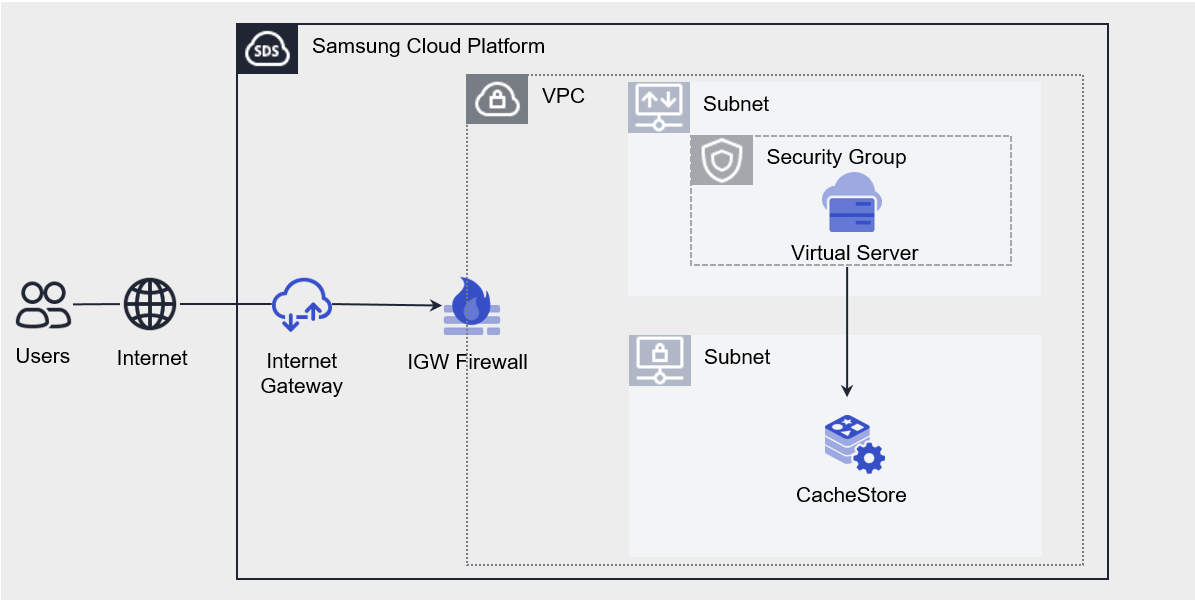
Scenario components
You can build the scenario using the following services.
| Service group | service | Detailed description | |
|---|---|---|---|
| Networking | VPC | A service that provides an isolated virtual network in a cloud environment | |
| Networking | VPC > Subnet | A service that lets users segment the network within a VPC to match their purpose and scale | |
| Networking | VPC > Public IP | A service that reserves a public IP and allocates and releases it to Compute resources. | |
| Networking | VPC > Internet Gateway | A service that connects VPC resources to the Internet | |
| Networking | Security Group | Virtual firewall that controls server traffic | |
| Database | CacheStore(DBaaS) | A service that easily creates and manages CacheStore in a web environment | |
| Compute | Virtual Server | Virtual server optimized for cloud computing | |
| Compute | Virtual Server > Keypair | Encryption file used to connect to the Virtual Server |
- Since the default policy of the Security Group is Deny All, you must register only the allowed IPs.
- The In/Outbound All Open(Any IP, Any Port) policy can expose cloud resources directly to external threats.
- By specifying the required IP and Port and setting a policy, you can strengthen security.
Scenario setup method
Create the services needed to build the scenario by following the procedure below.
1. ## Configure Network
Explains the process of configuring the network environment for accessing the Bastion Host and Database services.
1-1. ### Create VPC
- All Services > Networking > VPC Click the menu. 1. Navigate to the VPC’s Service Home page.
- On the Service Home page, click the Create VPC button. 2. Navigate to the Create VPC page.
- On the VPC creation page, enter the information required to create the service.
- Enter the IP range as
192.168.x.0/16.
- Enter the IP range as
- Summary Check the detailed information and estimated billing amount generated in the panel, and click the Complete button.
- When creation is complete, check the created resources on the VPC List page.
1-2. ### Create Subnet
- All Services > Networking > VPC Click the menu. 1. Navigate to the VPC’s Service Home page.
- On the Service Home page, click the Subnet menu. 2. Navigate to the Subnet list page.
- Create Subnet Click the button. 3. Go to the Subnet Creation page.
- On the Subnet Creation page, enter the information required to create the service.
- Select the Subnet type as General.
- Select a pre‑created VPC.
- Enter the IP range as
192.168.x.0/24.
- Summary Check the detailed information and estimated billing amount generated in the panel, and click the Complete button.
- After creation is complete, check the created resources on the Subnet List page.
1-3. ### Create Internet Gateway
- All Services > Networking > VPC Click the menu. 1. Navigate to the VPC’s Service Home page.
- On the Service Home page, click the Internet Gateway menu. 2. Internet Gateway List Navigate to the page.
- Internet Gateway creation Click the button. 3. Navigate to the Create Internet Gateway page.
- On the Internet Gateway Creation page, enter the required information needed to create the service.
- Select a pre‑created VPC.
- In the Firewall usage option, select Use.
- Summary Check the detailed information and estimated billing amount generated in the panel, and click the Complete button.
- Once creation is complete, check the created resource on the Internet Gateway List page.
1-4. ### Create Public IP
- All Services > Networking > VPC Click the menu. 1. Navigate to the VPC’s Service Home page.
- On the Service Home page, click the Public IP menu. 2. Go to the Public IP List page.
- Public IP reservation Click the button. 3. Go to the Public IP reservation page.
- On the Public IP reservation page, enter the required information for service reservation.
- Summary Check the detailed information and estimated billing amount generated in the panel, and click the Complete button.
- After creation is complete, check the created resources on the Public IP List page.
1-5. ### Create Security Group
- Click the All Services > Networking > Security Group menu. 1. Go to the Service Home page of the Security Group.
- On the Service Home page, click the Create Security Group button. 2. Go to the Security Group Creation page.
- On the Security Group creation page, enter the required information to create the service.
- Check the input information and click the Done button.
- After creation is complete, verify the created resources on the Security Group List page.
2. ## Create Bastion host
Explains the process of configuring a Bastion Host that requires the Database access client to be installed.
2-1. ### Create Server Keypair
- All Services > Compute > Virtual Server Click the menu. 1. Navigate to the Service Home page of the Virtual Server.
- On the Service Home page, click the Keypair menu. 2. Go to the Keypair List page.
- Create Keypair button, click it. 3. Go to the Keypair creation page.
- On the Keypair Creation page, enter the required information needed to create the service.
- Verify the creation information and click the Complete button.
- The key can be downloaded only for the first time, and reissuance is not provided.
- Please store the downloaded key in a secure location.
2-2. ### Create Bastion host
- Click the All Services > Compute > Virtual Server menu. 1. Navigate to the Service Home page of the Virtual Server.
- On the Service Home page, click the Create Virtual Server button. 2. Go to the Create Virtual Server page.
- On the Virtual Server Creation page, enter the required essential information needed to create the service.
- Select Windows for the image.
- Select the pre-created VPC and Subnet.
- Click Use NAT, and select the reserved Public IP from 1-4. Public IP 생성하기.
- Connect the Keypair you created in 2-1. Create Server Keypair.
- Summary Check the detailed information and estimated billing amount generated in the panel, and click the Complete button.
- When creation is complete, check the created resources on the Virtual Server list page.
2-3. ### Check Bastion host login ID and PW
- All Services > Compute > Virtual Server Click the menu. 1. Navigate to the Service Home page of the Virtual Server.
- On the Service Home page, click the Virtual Server menu. 2. Go to the Virtual Server List page.
- Virtual Serve List page, click the resource you created in 2-2. Bastion host 생성하기. 3. Go to the detailed information page for the resource.
- Click the RDP password view button in the Keypair name field on the detail information page. 4. RDP password lookup A popup window opens.
- RDP password lookup popup window, attach the keypair file downloaded from 2-1. 서버 Keypair 생성하기.
- After attaching, click the Password verification button. 6. The ID and password required to access the resource are displayed.
- The ID and Password will be used later as information for connecting to the Bastion host in 5-1. Bastion host 접속하기.
3. ## Create Database
Describes the process of creating a Database service.
3-1. ### CacheStore(DBaaS) Create Service
- All Services > Database > CacheStore(DBaaS) Click the menu. 1. Navigate to the Service Home page of CacheStore (DBaaS).
- On the Service Home page, click the Create CacheStore (DBaaS) button. 2. Create CacheStore(DBaaS) Navigate to the page.
- On the Create CacheStore (DBaaS) page, enter the required information to create the service.
- Select the pre‑created VPC and Subnet and connect them.
- Enter database-related creation information on the required information input screen.
- Add the Bastion host IP in the IP access control item.
- The database port defaults to 2866, but users can also specify a different one.
- Summary Check the detailed information and estimated billing amount generated in the panel, and click the Complete button.
- After creation is complete, check the created resource on the CacheStore(DBaaS) list page.
4. ## Configure Rules
Describes the process of setting rules for a user to connect to the Bastion host and rules for connecting to the Database from the Bastion host.
4-1. ### Security Group Add security rule
- Click the All Services > Networking > Security Group menu. 1. Go to the Service Home page of the Security Group.
- On the Service Home page, click the Security Group menu. 2. Navigate to the Security Group List page.
- **1-5. 3. Select the Security Group resource created in Security Group Create. 3. Go to the detailed information page for the resource.
- On the detail information page, click the Rules tab. 4. Go to the Rules tab.
- Click the Add Rule button on the Rule tab. 5. Add Rule Navigate to the popup window.
- Add Rule In the popup window, enter the rule below, and click the Confirm button.
Direction Remote Target address Protocol Port Explanation Inbound CIDR User PC IP TCP 3389 (RDP) Bastion access PC → Bastion host Outbound CIDR DB IP TCP Database Port (manual entry) Bastion host → Database Table. Security Group rules that need to be added
4-2. ### Add IGW Firewall rule
- Click the All Services > Networking > Firewall menu. 1. Navigate to the Firewall’s Service Home page.
- On the Service Home page, click the Firewall menu. 2. Go to the Firewall List page.
- On the Firewall List page, select the Internet Gateway resource name created in 1-3. Internet Gateway 생성하기. 3. Go to the detailed information page for the resource.
- On the detail information page, click the Rules tab. 4. Go to the Rules tab.
- Click the Add Rule button on the Rule tab. 5. Add Rule Navigate to the popup window.
- Add Rule In the popup window, enter the rule below, and click the Confirm button.
Origin address Destination address Protocol Port Operation Direction Explanation Bastion connection PC IP Bastion host IP TCP 3389(RDP) Allow Inbound User PC → Bastion host Table. Internet Gateway Firewall rules to be added
5. ## Database Connect
Describes the process of a user connecting to a database through a DB client program.
This guide explains how to connect using Another Redis Desktop Manager. Database client programs and CLI utilities are diverse, so you can install and use the tool that best suits your needs.
5-1. ### Connecting to Bastion host
- In the Windows environment of the PC that will connect to the Bastion host, run Remote Desktop Connection, then enter the NAT IP of the Bastion Host and click the Connect button.
- When the remote desktop connection succeeds, user credential input window opens. 2. Enter the ID and Password verified in 2-3. Bastion host 접속 ID 및 PW 확인하기 and click the Confirm button.
5-2. ### Install the DB access client program (Another Redis Desktop Manager) on the Bastion host
- Download the Another Redis Desktop Manager program.
- Another Redis Desktop Manager program download URL: https://github.com/qishibo/AnotherRedisDesktopManager/releases
- Connect the user’s PC hard drive to upload the file to the Bastion host.
- Click the Details button of the Local devices and resources item on the Local Resources tab of the Remote Desktop Connection.
- Select the local disk of the location where the file was downloaded on the drive, and click the Confirm button.
- Copy the downloaded file, upload it to the Bastion Host, and click the pgAdmin installer to install it.
5-3. ### Connect to the database using the DB client program (Another Redis Desktop Manager)
- Run Another Redis Desktop Manager and click New Connection. 1. New Connection A popup window appears.
- In the New Connection popup, enter the Database server information created in 3-1. CacheStore(DBaaS) 서비스 생성하기 and click the OK button.
Required input element item input value Host Database server IP Port Database Port Password Database password Connection Name Custom (ex. service name) Table DB connection client program input fields - After connecting, you can check basic Redis information, manage data, and perform CRUD operations on keys.
3 - API Reference
4 - CLI Reference
5 - Release Note
CacheStore(DBaaS)
- ServiceWatch service integration
- You can view CPU, memory, and DB performance monitoring information through the ServiceWatch service.
- Add third-generation server type
- The third-generation server type has been newly added. * For more details, see CacheStore(DBaaS) 서버 타입.
- Provides stable service continuity through the minor version upgrade feature.
- Add CacheStore (DBaaS) feature
- CacheStore(DBaaS) Add New Image
- Open-source Valkey image support, developed by forking Redis OSS
- Add 2nd-generation server type
- Add a 2nd‑generation (db2) server type based on the Intel 4th‑generation (Sapphire Rapids) Processor. * For more details, see CacheStore(DBaaS) 서버 타입.
- Backup Notification Feature provided
- Provides notification functionality for backup success and failure. * For more details, refer to 알림 정책 생성하기.
- Add HDD, HDD_KMS type to the Block Storage type
- CacheStore(DBaaS) Add New Image
- Samsung Cloud Platform Common Feature Change
- Account, IAM, Service Home, tags, and other common CX changes have been applied.
- Change the service name to CacheStore(DBaaS).
- A volume-encrypted storage selection option has been added to the Block Storage type.
- The Role Switch (Active ↔ Standby) feature for the Active DB and Standby DB configured with redundancy has been added.
- By integrating with the monitoring services provided by the cloud, you can visualize CPU usage, memory usage, disk I/O, and network traffic in real time, set alerts, and when thresholds are exceeded, trigger auto-scaling or automatically collect·analyze·forward logs for troubleshooting through a unified monitoring pipeline. Additionally, by linking security logs and audit logs to a centralized log management system, you strengthen compliance and security monitoring, and by providing performance and capacity monitoring for databases and storage, you support resource optimization and cost reduction. Such unified monitoring enhances system availability, improves operational efficiency, and ensures business continuity.
- Depending on the server type selected by the customer, Planned Compute policy can be configured.
- A Redis (DBaaS) service that enables easy creation and management of Redis OSS in a web environment has been launched.