Containerized applications can be operated stably using Kubernetes by providing an execution, monitoring environment, and open-source software.
This is the multi-page printable view of this section. Click here to print.
Container
- 1: Kubernetes Engine
- 1.1: Overview
- 1.1.1: Monitoring Metrics
- 1.1.2: ServiceWatch metric
- 1.2: How-to guides
- 1.2.1: Managing Namespaces
- 1.2.2: Managing Workloads
- 1.2.3: Managing Services and Ingress
- 1.2.4: Managing Storage
- 1.2.5: Configuration Management
- 1.2.6: Managing Permissions
- 1.2.7:
- 1.3: Using Kubernetes Engine
- 1.3.1: Authentication and Authorization
- 1.3.2: Accessing the Cluster
- 1.3.3: type LoadBalancer Service Usage
- 1.3.4: Considerations for Use
- 1.3.5:
- 1.4: API Reference
- 1.5: CLI Reference
- 1.6: Release Note
- 2: Container Registry
- 2.1: Overview
- 2.1.1: Monitoring Metrics
- 2.1.2: ServiceWatch Metrics
- 2.2: How-to guides
- 2.2.1: Managing Repository
- 2.2.2: Managing Images and Tags
- 2.2.3: Managing Image Security Vulnerabilities
- 2.2.4: Managing Image Tag Deletion Policies
- 2.2.5: Using Container Registry with CLI
- 2.3: API Reference
- 2.4: CLI Reference
- 2.5: Release Note
1 - Kubernetes Engine
1.1 - Overview
Service Overview
Kubernetes Engine is a service that provides lightweight virtual computing and containers, as well as a Kubernetes cluster to manage them. Users can utilize the Kubernetes environment without complex preparation by installing, operating, and maintaining the Kubernetes Control Plane.
Features
Standard Kubernetes Environment Configuration: The standard Kubernetes environment can be used without separate configuration through the default Kubernetes Control Plane provided. It is compatible with applications in other standard Kubernetes environments, so you can use standard Kubernetes applications without modifying the code.
Easy Kubernetes Deployment: Provides secure communication between worker nodes and managed control planes, and quickly provisions worker nodes, allowing users to focus on building applications on the provided container environment.
Convenient Kubernetes Management: Provides various management features to conveniently use the created Kubernetes cluster, such as cluster information inquiry and cluster management, namespace management, and workload management through the dashboard for enterprise environments.
Service Composition Diagram
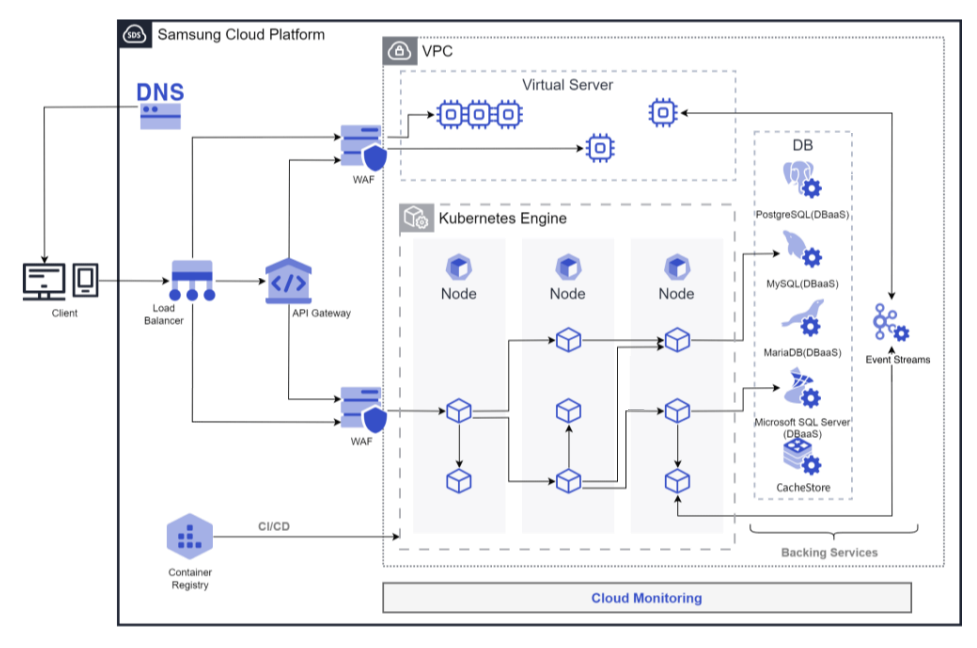
Provided Features
Kubernetes Engine provides the following features.
- Cluster Management: You can create and manage clusters to use the Kubernetes Engine service. After creating a cluster, you can add services necessary for operation, such as nodes, namespaces, and workloads.
- Node Management: A node is a set of machines that run containerized applications. Every cluster must have at least one worker node to deploy applications. Nodes can be defined and used by defining a node pool. Nodes belonging to a node pool must have the same server type, size, and OS image, and multiple node pools can be created to establish a flexible deployment strategy.
- Namespace Management: Namespace is a logical separation unit within a Kubernetes cluster, and is used to specify access permissions or resource usage limits by namespace.
- Workload Management: Workload is an application running on Kubernetes Engine. You can create a namespace, then add or delete workloads. Workloads are created and managed item by item, such as deployments, pods, stateful sets, daemon sets, jobs, and cron jobs.
- Service and Ingress Management: Service is an abstraction method that exposes applications running in a set of pods as a network service, and Ingress is used to expose HTTP and HTTPS paths from outside the cluster to the inside. After creating a namespace, you can create or delete services, endpoints, ingresses, and ingress classes.
- Storage Management: When using Kubernetes Engine, you can create and manage the storage to be used. Storage is created and managed by items such as PVC, PV, and storage class.
- Configuration Management: When there is a need to manage values that change inside a container according to multiple environments such as Dev/Prod, managing them with separate images due to environment variables is inconvenient and causes significant cost waste. In Kubernetes, you can manage environment variables or configuration values as variables from the outside so that they can be inserted when a Pod is created, and at this time, ConfigMap and Secret can be used.
- Access Control: In cases where multiple users access a Kubernetes cluster, you can grant permissions for specific APIs or namespaces to restrict access. You can apply Kubernetes’ role-based access control (RBAC) feature to set permissions for clusters or namespaces. You can create and manage cluster roles, cluster role bindings, roles, and role bindings.
Component
Control Plane
The Control Plane is the master node role in the Kubernetes Engine service. The master node is the management node of the cluster, and it plays a role in managing other nodes in the cluster. The cluster is the basic creation unit of the Kubernetes Engine service, and it is used to manage node pools, objects, controllers, and other components within it. Users set up the cluster name, control plane, network, File Storage, and other settings, and then create a node pool within the cluster to use it. The master node assigns tasks to the cluster, monitors the status of the nodes, and plays a role in data communication between nodes.
The cluster name creation rule is as follows.
- It starts with English and can be set within 3-30 characters using English, numbers, and special characters (
-). - The cluster name must not be duplicated with the existing one.
Worker Node
The Worker Node is a work node in the cluster, playing a role in performing the cluster’s tasks. The Worker Node receives tasks from the cluster’s master node, performs them, and reports the task results to the cluster’s master node. All nodes created within the node pool and namespace play the role of a worker node.
The creation rule of the node pool, which is a collection of worker nodes, is as follows.
- A node pool must have at least one node to be created for application deployment to be possible.
- Up to 100 nodes can be created in a node pool.
- Since the maximum number of nodes is 100, if there are 100 node pools, 1 node per node pool, and if there are 50 node pools, 2 nodes per node pool, the total number of nodes can be created freely within 100 nodes.
- It is possible to set up Block Storage connected to the node pool.
- It is possible to set the server type, size, and OS image for nodes belonging to the node pool, and all must be the same.
- Auto-Scaling service allows you to set automatic node pool expansion/reduction according to the requirements of the deployed application.
Preceding Service
This is a list of services that must be pre-configured before creating this service. Please refer to the guide provided for each service and prepare in advance for more details.
| Service Category | Service | Detailed Description |
|---|---|---|
| Networking | VPC | A service that provides an independent virtual network in a cloud environment |
| Networking | Security Group | A virtual firewall that controls the server’s traffic |
| Storage | File Storage | A storage that allows multiple clients to share files over the network
|
Fig. Preceding services of Kubernetes Engine
1.1.1 - Monitoring Metrics
Kubernetes Engine Monitoring Metrics
The following table shows the monitoring metrics of Kubernetes Engine that can be checked through Cloud Monitoring. For detailed instructions on using Cloud Monitoring, refer to the Cloud Monitoring guide.
| Performance Item | Detailed Description | Unit |
|---|---|---|
| Cluster Namespaces [Active] | Number of active namespaces | cnt |
| Cluster Namespaces [Total] | Total number of namespaces in the cluster | cnt |
| Cluster Nodes [Ready] | Number of nodes in READY state | cnt |
| Cluster Nodes [Total] | Total number of nodes in the cluster | cnt |
| Cluster Pods [Failed] | Number of failed pods in the cluster | cnt |
| Cluster Pods [Pending] | Number of pending pods in the cluster | cnt |
| Cluster Pods [Running] | Number of running pods in the cluster | cnt |
| Cluster Pods [Succeeded] | Number of succeeded pods in the cluster | cnt |
| Cluster Pods [Unknown] | Number of unknown pods in the cluster | cnt |
| Instance Status | Cluster status | status |
| Namespace Pods [Failed] | Number of failed pods in the namespace | cnt |
| Namespace Pods [Pending] | Number of pending pods in the namespace | cnt |
| Namespace Pods [Running] | Number of running pods in the namespace | cnt |
| Namespace Pods [Succeeded] | Number of succeeded pods in the namespace | cnt |
| Namespace Pods [Unknown] | Number of unknown pods in the namespace | cnt |
| Namespace GPU Clock Frequency | SM clock frequency in the namespace | MHz |
| Namespace GPU Memory Usage | Memory utilization in the namespace | % |
| Namespace GPU Usage | GPU utilization in the namespace | % |
| Node CPU Size [Allocatable] | Allocatable CPU in the node | cnt |
| Node CPU Size [Capacity] | CPU capacity in the node | cnt |
| Node CPU Usage | CPU usage in the node | % |
| Node CPU Usage [Request] | CPU request ratio in the node | % |
| Node CPU Used | CPU utilization in the node | status |
| Node Filesystem Usage | Filesystem usage in the node | % |
| Node Memory Size [Allocatable] | Allocatable memory in the node | bytes |
| Node Memory Size [Capacity] | Memory capacity in the node | bytes |
| Node Memory Usage | Memory utilization in the node | % |
| Node Memory Usage [Request] | Memory request ratio in the node | % |
| Node Memory Workingset | Memory working set in the node | bytes |
| Node Network In Bytes | Node network received bytes | bytes |
| Node Network Out Bytes | Node network transmitted bytes | bytes |
| Node Network Total Bytes | Node network total bytes | bytes |
| Node Pods [Failed] | Number of failed pods in the node | cnt |
| Node Pods [Pending] | Number of pending pods in the node | cnt |
| Node Pods [Running] | Number of running pods in the node | cnt |
| Node Pods [Succeeded] | Number of succeeded pods in the node | cnt |
| Node Pods [Unknown] | Number of unknown pods in the node | cnt |
| Pod CPU Usage [Limit] | CPU usage limit ratio in the pod | % |
| Pod CPU Usage [Request] | CPU request ratio in the pod | % |
| Pod CPU Usage | CPU usage in the pod | % |
| Pod GPU Clock Frequency | SM clock frequency in the pod | MHz |
| Pod GPU Memory Usage | Memory utilization in the pod | % |
| Pod GPU Usage | GPU utilization in the pod | % |
| Pod Memory Usage [Limit] | Memory usage limit ratio in the pod | % |
| Pod Memory Usage [Request] | Memory request ratio in the pod | % |
| Pod Memory Usage | Memory usage in the pod | bytes |
| Pod Network In Bytes | Pod network received bytes | bytes |
| Pod Network Out Bytes | Pod network transmitted bytes | bytes |
| Pod Network Total Bytes | Pod network total bytes | bytes |
| Pod Restart Containers | Container restart count in the pod | cnt |
| Workload Pods [Running] | - | cnt |
Table. Kubernetes Engine Monitoring Metrics
1.1.2 - ServiceWatch metric
Kubernetes Engine sends metrics to ServiceWatch. The metrics provided by default monitoring are data collected at a 1‑minute interval.
Reference
To check metrics in ServiceWatch, refer to the ServiceWatch guide.
Basic Indicators
The following are the basic metrics for the namespace Kubernetes Engine.
| Indicator name | Detailed description | Unit | Meaningful statistics |
|---|---|---|---|
| cluster_up | Cluster up | Count |
|
| cluster_node_count | Cluster node count | Count |
|
| cluster_failed_node_count | Cluster failed node count | Count |
|
| cluster_namespace_phase_count | Cluster Namespace Phase Count | Count |
|
| cluster_pod_phase_count | Cluster pod phase count | Count |
|
| node_cpu_allocatable | Node CPU allocatable | - |
|
| node_cpu_capacity | Node CPU capacity | - |
|
| node_cpu_usage | Node CPU usage | - |
|
| node_cpu_utilization | Node CPU Utilization | - |
|
| node_memory_allocatable | Node memory allocatable | Bytes |
|
| node_memory_capacity | Node memory capacity | Bytes |
|
| node_memory_usage | Node memory usage | Bytes |
|
| node_memory_utilization | Node Memory Utilization | - |
|
| node_network_rx_bytes | Node Network Receive Bytes | Bytes/Second |
|
| node_network_tx_bytes | Node network transmission bytes | Bytes/Second |
|
| node_network_total_bytes | Node Network Total Bytes | Bytes/Second |
|
| node_number_of_running_pods | Node Running Pod Count | Count |
|
| namespace_number_of_running_pods | Namespace running pod count | Count |
|
| namespace_deployment_pod_count | Namespace deployment pod count | Count |
|
| namespace_statefulset_pod_count | Namespace StatefulSet Pod Count | Count |
|
| namespace_daemonset_pod_count | Namespace DaemonSet Pod Count | Count |
|
| namespace_job_active_count | Namespace job active count | Count |
|
| namespace_cronjob_active_count | Namespace CronJob Active Count | Count |
|
| pod_cpu_usage | Pod CPU usage | - |
|
| pod_memory_usage | Pod memory usage | Bytes |
|
| pod_network_rx_bytes | Pod network receive bytes | Bytes/Second |
|
| pod_network_tx_bytes | Pod network transmission bytes | Bytes/Second |
|
| pod_network_total_bytes | Pod network total bytes | Count |
|
| container_cpu_usage | Container CPU usage | - |
|
| container_cpu_limit | Container CPU limit | - |
|
| container_cpu_utilization | Container CPU Utilization | - |
|
| container_memory_usage | container memory usage | Bytes |
|
| container_memory_limit | container memory limit | Bytes |
|
| container_memory_utilization | container memory utilization | - |
|
| node_gpu_count | Node GPU count | Count |
|
| gpu_temp | GPU Temperature | - |
|
| gpu_power_usage | GPU power usage | - |
|
| gpu_util | GPU utilization | Percent |
|
| gpu_sm_clock | GPU SM Clock | - |
|
| gpu_fb_used | GPU FB usage | Megabytes |
|
| gpu_tensor_active | GPU Tensor Activation Rate | - |
|
| pod_gpu_util | Pod GPU Usage Rate | Percent |
|
| pod_gpu_tensor_active | Pod GPU Tensor Activation Rate | - |
|
Table. Kubernetes Engine Basic Metrics
1.2 - How-to guides
The user can enter required information for the Kubernetes Engine through the Samsung Cloud Platform Console, select detailed options, and create a service.
Create Kubernetes Engine
You can create and use the Kubernetes Engine service from the Samsung Cloud Platform Console.
You can create and manage clusters to use the Kubernetes Engine service. After creating a cluster, you can add services needed for operation such as nodes, namespaces, and workloads.
Caution
You can select up to 4 Security Groups in the network settings of Kubernetes Engine.
- If you directly add a Security Group to nodes created by Kubernetes Engine on the Virtual Server service page, it may be automatically released because it is not managed by Kubernetes Engine.
- For nodes, the Security Group must be added/managed in the network settings of the Kubernetes Engine service.
Managed Security Group is automatically managed in Kubernetes Engine.
- Do not use it for user arbitrary purposes because deleting the Managed Security Group or adding/deleting rules will automatically be reverted.
Creating a Cluster
You can create and use a Kubernetes Engine cluster service from the Samsung Cloud Platform Console.
To create a Kubernetes Engine cluster, follow these steps.
- All Services > Container > Kubernetes Engine Click the menu. Navigate to the Service Home page of Kubernetes Engine.
- Click the Create Cluster button on the Service Home page. You will be taken to the Create Cluster page.
- Cluster Creation page, enter the information required to create the service, and select detailed options.
- Enter service information area, input or select the required information.
Category Required or notDetailed description Cluster Name Required Cluster Name - Start with an English letter and use English letters, numbers, special character (
-) within 3-30 characters
Control Plane Settings > Kubernetes Version Required Select Kubernetes Version Control Area Settings > Private Endpoint Access Control Select Select whether to use Private Endpoint Access Control - After selecting Use, click Add to select resources that are allowed to access the private endpoint
- Only resources in the same Account and same region can be registered
- Regardless of the Use setting, the nodes of the cluster can access the private endpoint
Control Area Settings > Public Endpoint Access/Access Control Select Select whether to use Public Endpoint Access/Access Control - After selecting Use, enter the Allowed Access IP Range as 192.168.99.0/24
- Set the access control IP range so that external users can access the Kubernetes API server endpoint
- If external access is not needed, you can disable it to reduce security threats
ServiceWatch log collection Optional Set whether to enable log collection so that logs for the cluster can be viewed in ServiceWatch. Log storage up to 5 GB for all services within the account is provided for free, and fees are charged based on storage volume if it exceeds 5 GB. - If you need to check cluster logs, it is recommended to enable the ServiceWatch log collection feature
Cloud Monitoring log collection Optional Set whether to enable log collection so that logs for the cluster can be viewed in Cloud Monitoring. Up to 1 GB of log storage for all services within the account is provided for free, and any amount exceeding 1 GB is deleted sequentially. Network Settings Required Network connection settings for node pool - VPC: Select a pre-created VPC
- Subnet: Choose a standard Subnet to use from the subnets of the selected VPC
- Security Group: after clicking the Select button, select a Security Group in the Security Group Selection popup
- Up to 4 Security Group can be selected
File Storage Settings Required Select the file storage volume to be used in the cluster - Default Volume (NFS): Click the Search button and then select the file storage in the File Storage Selection popup. The default Volume file storage can only use the NFS format.
Table. Kubernetes Engine Service Information Input Items- Additional Information Input Enter or select the required information in the area.
Category RequiredDetailed description Tag Select Add Tag - Up to 50 can be added per resource
- After clicking the Add Tag button, enter or select Key, Value values
Table. Kubernetes Engine Additional Information Input Items
- Start with an English letter and use English letters, numbers, special character (
- Summary Check the detailed information and estimated billing amount generated in the panel, and click the Complete button.
- When creation is complete, check the created resources on the Cluster List page.
Check cluster detailed information
Kubernetes Engine service can view and edit the full resource list and detailed information. Cluster Details page consists of Details, Node Pools, Tags, Activity History tabs.
To view detailed cluster information, follow the steps below.
- All Services > Container > Kubernetes Engine Click the menu. Navigate to the Service Home page of Kubernetes Engine.
- Click the Cluster menu on the Service Home page. Navigate to the Cluster List page.
- Click the resource (cluster) you want to view detailed information for on the Cluster List page. You will be taken to the Cluster Details page.
- Cluster Details page displays the cluster’s status information and detailed information, and consists of Details, Node Pool, Tags, Job History tabs.
Category Detailed description Cluster Status Kubernetes Engine cluster status - Creating: Creating
- Running: Created / Running
- Error: Error occurred
Service Termination Button to terminate a Kubernetes Engine cluster - To terminate the Kubernetes Engine service, you must delete all node pools added to the cluster
- If the service is terminated, the running service may be stopped immediately, so termination is necessary after considering the impact of service interruption
Table. Status Information and Additional Functions
- Cluster Details page displays the cluster’s status information and detailed information, and consists of Details, Node Pool, Tags, Job History tabs.
Detailed Information
Cluster List page allows you to view detailed information of the selected resource and, if necessary, edit the information.
| Category | Detailed description |
|---|---|
| service | service name |
| Resource Type | Resource Type |
| SRN | Unique resource ID in Samsung Cloud Platform |
| Resource Name | Resource Name
|
| Resource ID | Unique resource ID in the service |
| Creator | User who created the service |
| Creation Time | Time the service was created |
| Editor | User who modified the service information |
| Modification DateTime | Date and time when service information was modified |
| Cluster name | Cluster name |
| LLM Endpoint | LLM Endpoint information |
| Control Plane Settings | Check assigned Kubernetes control plane (Control Plane) version and access permission range
|
| Network Settings | Check VPC, Subnet, and Security Group information set when creating a Kubernetes Engine cluster
|
| File Storage Settings | If you click the volume name, you can view detailed information on the storage detail page |
Table. Cluster detailed information items
Reference
- The version of Kubernetes Engine is denoted in order
[major].[minor].[patch], and you can upgrade only one minor version at a time.- Example: version
1.11.x > 1.13.x(Not possible) / version1.11.x > 1.12.x(Possible)
- Example: version
- If you are using a Kubernetes version that has reached end of support or a version that is scheduled to reach end of support, a red exclamation mark will appear to the right of the version. If this icon appears, we recommend upgrading the Kubernetes version.
Node Pool
You can view, add, modify, or delete cluster node pool information. For detailed information on using node pools, refer to Managing Nodes.
| Category | Detailed description |
|---|---|
| Add node pool | Add node pool to the current cluster
|
| Node Pool Information | Provides node pool list view and management functions
|
Table. Node Pool Items
Reference
If a red exclamation mark icon appears on the version of the node pool information, the server OS of that node pool is not supported in higher versions of Kubernetes. To ensure stable service, the node pool server OS must be upgraded.
- If you want to upgrade the node pool version, you must delete the node pool and then create a new node pool with a higher server OS version.
Tag
On the Cluster List page, you can view the tag information of the selected resource, and you can add, modify, or delete it.
| Category | Detailed description |
|---|---|
| Tag List | Tag List
|
Table. Cluster Tag Tab Items
Work History
You can view the operation history of the selected resource on the Cluster List page.
| Category | Detailed description |
|---|---|
| Work History List | Resource Change History
|
Table. Cluster Job History Tab Detailed Information Items
Managing Cluster Resources
To manage cluster resources, we provide cluster version upgrade, kubeconfig download, and control plane logging modification features.
Caution
To use Kubernetes Engine, you need at least read permissions for VPC, VPC Subnet, Security Group, FileStorage, and Virtual Server.
Security Group and Virtual Server are created/deleted by Kubernetes Engine for lifecycle management purposes even without create/delete permissions, and the creator/modifier is indicated as System.
Security Group and Virtual Server are created/deleted by Kubernetes Engine for lifecycle management purposes even without create/delete permissions, and the creator/modifier is indicated as System.
Cluster Version Upgrade
If there is a version that can be upgraded from the cluster’s Kubernetes version, you can perform the upgrade on the Cluster Details page.
Reference
- Before the cluster upgrade, check the following items.
- Check if the cluster’s status is Running
- Check that all node pool statuses of the cluster are Running or Deleting
- Check that all node pool versions in the cluster are the same version as the cluster
- Check whether automatic scaling/downsizing of all node pools in the cluster and node auto-recovery feature are unused
- After upgrading the cluster, proceed with node pool upgrade. The control plane and node pool upgrades of the Kubernetes cluster are performed separately.
- You can only upgrade one minor version at a time.
- Example: version 1.12.x > 1.13.x (possible) / version 1.11.x > 1.13.x (not possible)
- After an upgrade, you cannot perform a downgrade or rollback, so to use the previous version again you must create a new cluster.
Caution
- Since user systems using end-of-support Kubernetes versions may have security vulnerabilities, upgrade the control plane and node pool versions directly in the Samsung Cloud Platform Console.
- No additional cost will be incurred due to the upgrade.
- Please perform compatibility testing for the upgrade version in advance to ensure stable system operation for users.
Cluster version upgrade preparation
There is no need to delete and recreate API objects when upgrading the cluster version. For the transitioned API, all existing API objects can be read and updated using the new API version. However, due to deprecated APIs in older Kubernetes versions, you may be unable to read or modify existing objects or create new ones. Therefore, to ensure system stability, it is recommended to migrate clients and manifests before the upgrade.
Migrate the client and manifest using the following method.
- Download the new version of the client (e.g., kubectl), install it on the cluster, and modify the Yaml to refer to the new API.
- or use a separate plugin (kubectl convert) to automatically convert. For detailed instructions, refer to the Kubernetes official documentation > Install and set up kubectl on Linux.
Reference
Since the deprecated API differs for each cluster version, the scope of application and system impact may also vary. For detailed explanation, refer to the Kubernetes official documentation > Deprecation Guide.
Upgrade Cluster and Node Pool Versions
To update the cluster and node pool, follow the steps below.
- All Services > Container > Kubernetes Engine Click the menu. Navigate to the Service Home page of Kubernetes Engines.
- Click the Cluster menu on the Service Home page. It navigates to the Cluster List page.
- Cluster List page, click the resource (cluster) to upgrade the version. It navigates to the Cluster Details page.
- Click the Edit icon of Kubernetes version on the Cluster Details page. Navigate to the Cluster Version Upgrade popup.
- Select the Kubernetes version to upgrade, and click the Confirm button.
- It may take a few minutes for the cluster upgrade to complete.
- During the upgrade, the cluster status is shown as Updating, and when the upgrade is complete, it is shown as Running.
- When the upgrade is complete, select the Node Pool tab. Go to the Node Pool page.
- Click the More button of the node pool item and click Node Pool Upgrade. It will move to the Node Pool Version Upgrade popup window.
- Node Pool Version Upgrade After checking the message in the popup window, click the Confirm button.
- It may take a few minutes until the node pool upgrade is completed.
- During the upgrade, the node pool status is shown as Updating, and when the upgrade is complete, it is shown as Running.
kubeconfig download
You can download the admin/user kubeconfig settings of the cluster’s public and private endpoints as a yaml document.
To download the cluster’s kubeconfig settings, follow the steps below.
- All Services > Container > Kubernetes Engine Click the menu. Navigate to the Service Home page of Kubernetes Engines.
- Click the Cluster menu on the Service Home page. You will be taken to the Cluster List page.
- On the Cluster List page, click the resource (cluster) to download the kubeconfig. You will be taken to the Cluster Details page.
- On the Cluster Details page, click the Admin kubeconfig download/User kubeconfig download button for the desired endpoint.
- You can download the kubeconfig file in yaml format for each permission.
Edit Private Endpoint Access Control
You can change the private endpoint access control settings of the cluster.
- Click the All Services > Container > Kubernetes Engine menu. Navigate to the Service Home page of Kubernetes Engines.
- Click the Cluster menu on the Service Home page. Navigate to the Cluster List page.
- On the Cluster List page, click the resource (cluster) to modify private endpoint access control. You will be taken to the Cluster Details page.
- Cluster Details page, click the Edit icon of Private Endpoint Access Control. Navigate to the Private Endpoint Access Control Edit popup.
- Private Endpoint Access Control Modification in the popup window, check the Private Endpoint Access Control Usage, add the allowed access resources, and click the Confirm button.
Modify public endpoint access/access control
You can change the public endpoint access control settings of the cluster.
- All Services > Container > Kubernetes Engine Click the menu. Navigate to the Service Home page of Kubernetes Engines.
- Click the Cluster menu on the Service Home page. Navigate to the Cluster List page.
- Click the resource (cluster) to modify public endpoint access control on the Cluster List page. You will be taken to the Cluster Details page.
- Click the Edit icon of Public Endpoint Access/Access Control on the Cluster Details page. It moves to the Public Endpoint Access/Access Control Edit popup.
- Public Endpoint Access/Access Control Modification In the popup window, check the Public Endpoint Access Control Use status and add the allowed IP range, then click the Confirm button.
Modify control area log collection settings
You can change the log collection settings of the cluster’s control plane. Detailed logs of the cluster can be viewed in the ServiceWatch service or the Cloud Monitoring service.
Reference
Even if you set up Cloud Monitoring log collection, you can still view the cluster logs.
- However, since the Cloud Moniotring log collection feature is scheduled for termination, we recommend using ServiceWatch log collection.
Follow the steps below to change the control plane log collection settings of the cluster.
- Click the All Services > Container > Kubernetes Engine menu. Navigate to the Service Home page of Kubernetes Engines.
- Click the Cluster menu on the Service Home page. Navigate to the Cluster List page.
- Cluster List page, click the resource (cluster) to modify control plane logging. Cluster Details page will be opened.
- Cluster Details page, click the Edit icon of ServiceWatch Log Collection. It will navigate to the ServiceWatch Log Collection popup.
- Cloud Monitoring log collection feature can also be set the same way.
- In the ServiceWatch log collection popup, after checking the use of ServiceWatch log modification, click the Confirm button.
Reference
When using log collection, you can view the Audit/Event logs of the cluster control area in each service. Detailed logs can be viewed on the next page.
Security Group Edit
You can modify the cluster’s Security Group.
Caution
In the network settings of Kubernetes Engine, you can select multiple Security Groups. (up to 4)
- If you directly add a Security Group on the Virtual Server service page to nodes created by Kubernetes Engine, they may be automatically released because they are not managed by Kubernetes Engine.
- For nodes, the Security Group must be added/managed in the network settings of the Kubernetes Engine service.
Managed Security Group is automatically managed in Kubernetes Engine.
- Do not use it for any user-defined purpose because if you delete a Managed Security Group or add/delete rules, it will automatically be restored.
To modify the cluster’s Security Group, follow the steps below.
- All Services > Container > Kubernetes Engine menu를 클릭하세요. Kubernetes Engines의 Service Home 페이지로 이동합니다.
- Click the Cluster menu on the Service Home page. You will be taken to the Cluster List page.
- Cluster List page, click the resource (cluster) whose Security Group you want to modify. You will be taken to the Cluster Details page.
- Click the Edit icon of Security Group on the Cluster Details page. It will navigate to the Security Group Edit popup.
- After selecting or deselecting the Security Group to modify, click the Confirm button.
Cancel Cluster
Caution
If you terminate the cluster, all node pools will be deleted, and all data in all pods within the cluster will be permanently deleted.
To cancel the cluster, follow the steps below.
- All Services > Container > Kubernetes Engine Click the menu. Navigate to the Service Home page of Kubernetes Engines.
- Click the Cluster menu on the Service Home page. You will be taken to the Cluster List page.
- Click the resource (cluster) on the Cluster List page to view detailed information. You will be taken to the Cluster Detail page.
- On the Cluster Details page, click Service Termination.
- Service termination After checking the contents in the popup window, click the Confirm button.
1.2.1 - Managing Namespaces
A namespace is a logical separation unit within a Kubernetes cluster, and is used to specify access permissions or resource usage limits by namespace.
Create namespace
To create a namespace, follow these steps.
- Click on the menu for all services > Container > Kubernetes Engine. It moves to the Service Home page of Kubernetes Engine.
- On the Service Home page, click the Namespace menu. It moves to the Namespace List page.
- On the Namespace List page, select the cluster where you want to create a namespace from the gear button at the top left, then click Create Object.
- Object creation popup where you enter object information and click the Confirm button.
Reference
For more information about creating objects, see the Kubernetes official documentation > Kubernetes objects.
Check namespace details
You can check the namespace status and detailed information on the namespace detail page.
To check namespace details, follow the next procedure.
- Click on the menu for all services > Container > Kubernetes Engine. It moves to the Service Home page of Kubernetes Engine.
- On the Service Home page, click the Namespace menu. It moves to the Namespace List page.
- On the Namespace List page, select the cluster where the namespace that requires detailed information is located from the gear button in the top left, and then click OK.
- On the Namespace List page, select and click the item you want to check the details for. It moves to the Namespace Details page.
| Classification | Detailed Description |
|---|---|
| Status Indicator | Displays the current status of the namespace |
| Namespace Deletion | You can delete a namespace
|
| Detailed Information | Check the namespace’s Account information and metadata information |
| YAML | You can modify the namespace in the YAML editor
|
| Event | Check events that occurred within the namespace |
| Pod | Check pod information in the namespace |
| Account Information | Account name, location, creation time, etc., basic information about the Account can be checked |
| Metadata Information | Check the metadata information of the namespace |
Table. Namespace details items
Deleting a namespace
To delete a namespace, follow these steps.
- Click on the menu for all services > Container > Kubernetes Engine. It moves to the Service Home page of Kubernetes Engine.
- On the Service Home page, click the Namespace menu. It moves to the Namespace List page.
- On the Namespace List page, select the cluster where the namespace you want to delete is located from the gear button at the top left, then click the OK button.
- On the Namespace List page, select and click the item you want to check the details for. It moves to the Namespace Details page.
- Click Namespace Delete on the Namespace Details page.
- When the Notification Confirmation Window appears, click the OK button.
Caution
- Select the item to be deleted from the namespace list page, then click Delete to delete the selected namespace. A namespace that contains a workload cannot be deleted. To delete a namespace, delete all associated workloads.
1.2.2 - Managing Workloads
The workload is an application running on Kubernetes Engine. You can create a namespace and then add or remove workloads. Workloads are created and managed item by item, such as deployments, pods, stateful sets, daemon sets, jobs, and cron jobs.
Managing Deployment
Deployment is a resource that provides updates for pods and replica sets. You can create a deployment in a workload, check its details, or delete it.
Creating Deployment
To create a deployment, follow these steps.
- Click on the menu for all services > Container > Kubernetes Engine. It moves to the Service Home page of Kubernetes Engine.
- On the Service Home page, click Deployment under the Workload menu. It moves to the List Deployment page.
- Deployment list page, select the cluster and namespace from the gear button at the top left, then click Create object.
- Object Creation Popup where you enter object information and click the Confirm button.
- The following is an example of a .yaml file showing the required fields and object Spec for deployment creation. (application/deployment.yaml)Color mode
apiVersion: apps/v1 kind: Deployment metadata: name: nginx-deployment spec: selector: matchLabels: app: nginx replicas: 2 # tells deployment to run 2 pods matching the template template: metadata: labels: app: nginx spec: containers: - name: nginx image: nginx:1.14.2 ports: - containerPort: 80apiVersion: apps/v1 kind: Deployment metadata: name: nginx-deployment spec: selector: matchLabels: app: nginx replicas: 2 # tells deployment to run 2 pods matching the template template: metadata: labels: app: nginx spec: containers: - name: nginx image: nginx:1.14.2 ports: - containerPort: 80Code block. Essential fields and object Spec for deployment creation
- The following is an example of a .yaml file showing the required fields and object Spec for deployment creation. (application/deployment.yaml)
Reference
For more information about the concept of deployment and object creation, please refer to the Kubernetes official documentation > Deployment.
Check Deployment Details
To check the deployment details, follow the next procedure.
- Click on the menu for all services > Container > Kubernetes Engine. It moves to the Service Home page of Kubernetes Engine.
- On the Service Home page, click Deployment under the Workload menu. It moves to the Deployment List page.
- Deployment list page, select the cluster and namespace from the gear button at the top left, then click OK.
- Deployment List page, select the item you want to check the detailed information. It moves to the Deployment Details page.
- Selecting Show System Objects at the top of the list displays all items except Kubernetes object entries.
- Click each tab to check service information.
| Classification | Detailed Description |
|---|---|
| Deployment Deletion | Delete the deployment |
| Detailed Information | Check detailed information of deployment |
| YAML | You can modify the resource file of the deployment in the YAML editor
|
| Event | Check the event that occurred within the deployment |
| Pod | Check pod information of deployment
|
| Account Information | Account name, location, creation time, etc. Basic information about the Account can be checked |
| Metadata Information | Check the metadata information of the deployment |
| Object Information | Check object information of deployment |
Table. Deployment details items
Deleting Deployment
To delete a deployment, follow these steps.
- Click on the menu for all services > Container > Kubernetes Engine. It moves to the Service Home page of Kubernetes Engine.
- On the Service Home page, click Deployment under the Workload menu. It moves to the Deployment List page.
- Deployment list page, select the cluster and namespace from the gear button at the top left, then click OK.
- Deployment List page, select the item you want to delete. It moves to the Deployment Details page.
- Deployment Details page, click Delete Deployment.
- When the Notification Confirmation Window appears, click the Confirm button.
Caution
In the deployment list page, you can delete the selected deployment by selecting the item you want to delete and then clicking Delete.
Managing Pods
A Pod is the smallest computing unit that can be created, managed, and deployed in Kubernetes, referring to a group of one or more containers. You can create pods in workloads and view or delete their details.
Creating a Pod
To create a pod, follow the next procedure.
- Click on the menu for all services > Container > Kubernetes Engine. It moves to the Service Home page of Kubernetes Engine.
- On the Service Home page, click Pods under the Workload menu. It moves to the Pod List page.
- Pod list page, select the cluster and namespace from the gear button at the top left, then click Create object.
- Object Creation Popup where you enter object information and click the Confirm button.
Reference
For more information about the concept of pods and object creation, please refer to the Kubernetes official documentation > Pods.
Check Pod Details
To check the pod details, follow the next procedure.
- Click on the menu for all services > Container > Kubernetes Engine. It moves to the Service Home page of Kubernetes Engine.
- On the Service Home page, click Pods under the Workload menu. It moves to the Pod List page.
- Pod list page, select the cluster and namespace from the gear button at the top left, then click OK.
- Pod List page, select the item you want to check the detailed information. It moves to the Pod Detail page.
- Selecting Show System Objects at the top of the list displays all items except Kubernetes object entries.
- Click each tab to check the service information.
| Classification | Detailed Description |
|---|---|
| Status Indicator | Indicates the current status of the pod |
| Delete Pod | Delete the pod |
| Detailed Information | You can check the detailed information of the pod |
| YAML | You can modify the pod’s resource file in the YAML editor
|
| Event | Check the event that occurred within the pod |
| Log | If you select a container, you can check the container information that the pod has |
| Account Information | Account name, location, creation time, etc., basic information about the Account can be checked |
| Metadata Information | Check the pod’s metadata information |
| Object Information | Check the object information of the pod |
| Initialization Container Information | Check the initialization container information of the pod |
| Container Information | Check container information of the pod |
Table. Pod detailed information items
Deleting Pods
To delete a pod, follow these steps.
- Click on the menu for all services > Container > Kubernetes Engine. It moves to the Service Home page of Kubernetes Engine.
- On the Service Home page, click Pods under the Workload menu. It moves to the Pod List page.
- Pod List page, select the cluster and namespace from the gear button at the top left, then click OK.
- Select the item to delete on the Pod List page. It moves to the Pod Detail page.
- Pod Details page, click Delete Pod.
- When the Notification Confirmation Window appears, click the OK button.
Caution
In the pod list page, you can delete the selected pod by clicking Delete after selecting the item you want to delete.
Managing StatefulSets
A StatefulSet is a workload API object used to manage stateful applications, you can create, describe, or delete StatefulSet in the workload.
Creating a StatefulSet
To create a stateful set, follow these steps.
- Click on the menu for all services > Container > Kubernetes Engine. It moves to the Service Home page of Kubernetes Engine.
- On the Service Home page, click StatefulSet under the Workload menu. It moves to the Statefulset List page.
- StatefulSet list page, select the cluster and namespace from the gear button at the top left, then click Create object.
- Object creation popup where you enter object information and click the OK button.
Reference
For more information about the StatefulSet concept and object creation, see Kubernetes official documentation > StatefulSet.
Checking Detailed Information of StatefulSet
To view detailed information about a StatefulSet, follow these steps.
- Click on the menu for all services > Container > Kubernetes Engine. It moves to the Service Home page of Kubernetes Engine.
- On the Service Home page, click StatefulSet under the Workload menu. It moves to the StatefulSet List page.
- StatefulSet list page, select the cluster and namespace from the gear button at the top left, then click OK.
- StatefulSet list page, select the item you want to check the detailed information. It moves to the StatefulSet detail page.
- Selecting Show System Objects at the top of the list displays all items except Kubernetes object entries.
- Click each tab to check service information.
| Classification | Detailed Description |
|---|---|
| StatefulSet deletion | Delete the StatefulSet |
| Detailed Information | Check detailed information of StatefulSet |
| YAML | You can modify the resource file of the StatefulSet in the YAML editor
|
| Event | Check the event that occurred within the stateful set |
| Pod | Check pod information of StatefulSet |
| Account Information | Account name, location, creation time, etc., basic information about the Account can be checked |
| Metadata Information | Check the metadata information of the StatefulSet |
| Object Information | Check object information of the StatefulSet |
Table. Detailed information items of StatefulSet
Deleting a StatefulSet
To delete a stateful set, follow these steps.
- Click on the menu for all services > Container > Kubernetes Engine. It moves to the Service Home page of Kubernetes Engine.
- On the Service Home page, click StatefulSet under the Workload menu. It moves to the StatefulSet List page.
- StatefulSet list page, select the cluster and namespace from the gear button at the top left, then click OK.
- StatefulSet list page, select the item you want to delete. It moves to the StatefulSet details page.
- StatefulSet details page, click Delete StatefulSet.
- When the Notification Confirmation Window appears, click the Confirm button.
Caution
In the stateful set list page, you can delete the selected stateful set by selecting the item you want to delete and then clicking Delete.
Managing DaemonSets
A daemon set is a resource that allows all nodes or some nodes to run a copy of a pod. You can create a daemon set in a workload, check its details, or delete it.
Creating a DaemonSet
To create a daemon set, follow these steps.
- Click on the menu for all services > Container > Kubernetes Engine. It moves to the Service Home page of Kubernetes Engine.
- On the Service Home page, click DaemonSet under the Workload menu. It moves to the DaemonSet list page.
- On the DaemonSet list page, select the cluster and namespace from the gear button in the top left, then click Create object.
- Object creation popup where you enter object information and click the OK button.
Reference
For more information about the concept of daemon sets and object creation, please refer to the Kubernetes official documentation > DaemonSet.
Checking DaemonSet Details
To check the details of the daemon set, follow the next procedure.
- Click on the menu for all services > Container > Kubernetes Engine. It moves to the Service Home page of Kubernetes Engine.
- On the Service Home page, click DaemonSet under the Workload menu. It moves to the DaemonSet list page.
- On the DaemonSet list page, select the cluster and namespace from the gear button at the top left, then click OK.
- Select an item to check the detailed information on the DaemonSet list page. It moves to the DaemonSet details page.
- Selecting Show System Objects at the top of the list displays all items except Kubernetes object entries.
- Click each tab to check service information.
| Classification | Detailed Description |
|---|---|
| Delete DaemonSet | Delete DaemonSet |
| Detailed Information | Check detailed information of daemon set |
| YAML | You can modify the daemon set’s resource file in a YAML editor
|
| Event | Check the event that occurred within the daemon set |
| Pod | Check pod information of daemon set |
| Account Information | Account name, location, creation time, etc., basic information about the Account can be checked |
| Metadata Information | Check the metadata information of the daemon set |
| Object Information | Check the object information of the daemon set |
Table. Detailed information items of daemon set
Deleting DaemonSets
To delete a daemon set, follow these steps.
- Click on the menu for all services > Container > Kubernetes Engine. It moves to the Service Home page of Kubernetes Engine.
- On the Service Home page, click DaemonSet under the Workload menu. It moves to the DaemonSet list page.
- On the DaemonSet list page, select the cluster and namespace from the gear button at the top left, then click OK.
- Select the item to delete from the DaemonSet list page. It will move to the DaemonSet details page.
- DaemonSet details page, click Delete DaemonSet.
- When the Notification Confirmation Window appears, click the Confirm button.
Caution
In the daemon set list page, you can delete the selected daemon set by selecting the item you want to delete and then clicking Delete.
Job Management
A job is a resource that creates one or more pods and continues to run them until a specified number of pods complete successfully. You can create a job in a workload and view or delete its details.
Creating a Job
To create a job, follow these steps.
- Click on the menu for all services > Container > Kubernetes Engine. It moves to the Service Home page of Kubernetes Engine.
- On the Service Home page, click Job under the Workload menu. It moves to the Job List page.
- Job list page, select the cluster and namespace from the gear button at the top left, then click Create object.
- Object Creation Popup where you enter object information and click the Confirm button.
Reference
For more information on the concept of a job and object creation, see Kubernetes official documentation > Job.
Check Job Details
To check the job details, follow the next procedure.
- Click on the menu for all services > Container > Kubernetes Engine. It moves to the Service Home page of Kubernetes Engine.
- On the Service Home page, click Job under the Workload menu. It moves to the Job List page.
- Job List page, select the cluster and namespace from the gear button at the top left, then click Confirm.
- Job list page, select the item you want to check the details. It moves to the Job details page.
- Selecting Show System Objects at the top of the list displays all items except Kubernetes object entries.
- Click each tab to check service information.
| Classification | Detailed Description |
|---|---|
| Job Delete | Delete Job |
| Detailed Information | Check detailed information of the book |
| YAML | You can modify the job’s resource file in the YAML editor
|
| Event | Check the event that occurred in the job |
| Pod | Check the pod information of the job |
| Account Information | Account name, location, creation time, etc., basic information about the Account can be checked |
| Metadata Information | Check the metadata information of the book |
| Object Information | Check the object information of the book |
Table. Job detailed information items
Delete Job
To delete a job, follow these steps.
- Click on the menu for all services > Container > Kubernetes Engine. It moves to the Service Home page of Kubernetes Engine.
- On the Service Home page, click Job under the Workload menu. It moves to the Job List page.
- Job list page, select the cluster and namespace from the gear button at the top left, then click OK.
- Job List page, select the item you want to delete. It moves to the Job Detail page.
- Click Job Delete on the Job Details page.
- When the Notification Confirmation Window appears, click the Confirm button.
Caution
On the job list page, you can delete the selected job by selecting the item you want to delete and then clicking Delete.
Managing Cron Jobs
A cron job is a resource that runs a job periodically according to a schedule written in cron format. It can be used to execute repetitive tasks at a fixed interval, such as backup and report creation. You can create a cron job in the workload and check or delete detailed information.
Creating a Cron Job
To create a cron job, follow these steps.
- Click on the menu for all services > Container > Kubernetes Engine. It moves to the Service Home page of Kubernetes Engine.
- On the Service Home page, click CronJob under the Workload menu. It moves to the CronJob List page.
- CronJob list page, select the cluster and namespace from the gear button at the top left, then click Create Object.
- Object Creation Popup where you enter object information and click the Confirm button.
Reference
For more information on the concept of CronJob and object creation, please refer to the Kubernetes official documentation > CronJob.
Check Cron Job Details
To check the detailed information of the cron job, follow the next procedure.
- Click on the menu for all services > Container > Kubernetes Engine. It moves to the Service Home page of Kubernetes Engine.
- On the Service Home page, click CronJob under the Workload menu. It moves to the CronJob List page.
- CronJob list page, select the cluster and namespace from the gear button at the top left, then click OK.
- Cron Job List page, select the item you want to check the detailed information. It moves to the Cron Job Detail page.
- Selecting Show System Objects at the top of the list displays all items except Kubernetes object entries.
- Click each tab to check the service information.
| Classification | Detailed Description |
|---|---|
| Delete Cron Job | Delete a cron job |
| Detailed Information | Possible to check detailed information of cron job |
| YAML | You can modify the resource file of CronJob in YAML editor
|
| Event | Check the event that occurred within the cron job |
| Job | Check the job information of Cron Job. If you select a job item, it moves to the job detail page |
| Account Information | Account name, location, creation time, etc., basic information about the Account can be checked |
| Metadata Information | Check the metadata information of the cron job |
| Object Information | Check the object information of the cron job |
Table. Cron job detail items
Deleting a Cron Job
To delete a cron job, follow these steps.
- Click on the menu for all services > Container > Kubernetes Engine. It moves to the Service Home page of Kubernetes Engine.
- On the Service Home page, click CronJob under the Workload menu. It moves to the CronJob List page.
- CronJob list page, select the cluster and namespace from the gear button at the top left, then click OK.
- Select the item to be deleted from the Cron Job List page. It will move to the Cron Job Details page.
- Cron Job Details page, click Delete Cron Job.
- When the Notification Confirmation Window appears, click the Confirm button.
Caution
In the cron job list page, you can delete the selected cron job by selecting the item you want to delete and then clicking Delete.
1.2.3 - Managing Services and Ingress
The service is an abstraction method that exposes applications running in a set of pods as a network service, and ingress is used to expose HTTP and HTTPS paths from outside the cluster to inside the cluster. After creating a namespace, you can create or delete services, endpoints, ingresses, and ingress classes.
Reference
Service, Endpoint, Ingress, IngressClass The service is set to the default cluster (namespace) selected when the service is created. Even if you select other items in the list, the default cluster (namespace) setting is maintained.
- To select a different cluster (namespace), click the gear button on the right side of the list. In the Cluster/Namespace Settings popup window, select the cluster and namespace you want to change and click the OK button. You can see the services created in the selected cluster/namespace.
Managing Services
You can create a service, check detailed information, or delete it.
Creating a Service
To create a service, follow these steps.
- Click All services > Container > Kubernetes Engine menu. It moves to the Service Home page of Kubernetes Engine.
- On the Service Home page, click Service under the Service and Ingress menu. It moves to the Service List page.
- On the Service List page, select the cluster and namespace from the gear button at the top left, then click Create Object.
- Object Creation Popup에서 오브젝트 정보를 입력하고 Confirm 버튼을 클릭하세요.
Reference
For more information on the concept of a service and how to create an object, see the Kubernetes official documentation > Service.
Check Service Details
To check the service details, follow the next procedure.
- Click all services > Container > Kubernetes Engine menu. It moves to the Service Home page of Kubernetes Engine.
- Service Home page, click Service under the Service and Ingress menu. It moves to the Service List page.
- On the Service List page, select the cluster and namespace from the gear button at the top left, then click Confirm.
- On the Service List page, select the item you want to check the detailed information. It moves to the Service Detail page.
- Selecting System Object View at the top of the list displays all items except Kubernetes object entries.
- Click each tab to check the service information.
| Classification | Detailed Description |
|---|---|
| Service Deletion | Delete the service |
| Detailed Information | Possible to check detailed information of the service |
| YAML | The service’s resource file can be modified in the YAML editor
|
| Event | Check the events that occurred within the service |
| Account Information | Account name, location, creation time, etc., basic information about the Account can be checked |
| Metadata Information | Check the metadata information of the service |
| Object Information | Check the object information of the service |
Table. Service Detail Information Items
Delete Service
To delete a service, follow these steps.
- Click all services > Container > Kubernetes Engine menu. It moves to the Service Home page of Kubernetes Engine.
- On the Service Home page, click Services under the Services and Ingress menu. It moves to the Service List page.
- On the Service List page, select the cluster and namespace from the gear button at the top left, then click OK.
- Select the item to be deleted on the Service List page. It moves to the Service Detail page.
- Click Service Delete on the Service Details page.
- When the Notification Confirmation Window appears, click the Confirm button.
Caution
On the service list page, after selecting the item you want to delete, clicking Delete allows you to delete the selected service.
- Services connected to the ingress cannot be deleted. To delete a service, delete all connected ingresses.
Managing Endpoints
You can create an endpoint and check or delete detailed information.
Creating Endpoints
To create an endpoint, follow these steps.
- Click All services > Container > Kubernetes Engine menu. It moves to the Service Home page of Kubernetes Engine.
- Service Home page, click Endpoints under the Services and Ingress menu. It moves to the Endpoint List page.
- On the Endpoint List page, select the cluster and namespace from the gear button at the top left, then click Create Object.
- Object Creation Popup에서 오브젝트 정보를 입력하고 확인 버튼을 클릭하세요.
Check Endpoint Details
To check the endpoint details, follow the next procedure.
- Click all services > Container > Kubernetes Engine menu. It moves to the Service Home page of Kubernetes Engine.
- Service Home page, click Endpoints under the Services and Ingress menu. It moves to the Endpoint List page.
- Endpoint list page, select the cluster and namespace from the gear button at the top left, then click OK.
- On the Endpoint List page, select the item you want to check the detailed information. It moves to the Endpoint Detail page.
- Selecting System Object View at the top of the list displays all items except Kubernetes object entries.
- Click each tab to check the service information.
| Classification | Detailed Description |
|---|---|
| Endpoint Deletion | Delete endpoint |
| Detailed Information | Possible to check detailed information of the endpoint |
| YAML | The resource file of the endpoint can be modified in the YAML editor
|
| Event | Check the event that occurred within the endpoint |
| Account Information | Account name, location, creation time, etc., basic information about the Account can be checked |
| Metadata Information | Check the metadata information of the endpoint |
| Object Information | Check the object information of the endpoint |
Table. Endpoint details items
Deleting Endpoints
To delete an endpoint, follow these steps.
- Click all services > Container > Kubernetes Engine menu. It moves to the Service Home page of Kubernetes Engine.
- On the Service Home page, click Endpoints under the Services and Ingress menu. It moves to the Endpoint List page.
- Endpoint list page, select cluster and namespace from the gear button at the top left, then click OK.
- Select the item to delete on the Endpoint List page. It moves to the Endpoint Detail page.
- Endpoint Details page, click Delete Endpoint.
- When the Notification Confirmation Window appears, click the Confirm button.
Reference
On the endpoint list page, you can delete the selected endpoint by selecting the item you want to delete and clicking Delete.
Managing Ingress
Ingress is an API object that manages external access (HTTP, HTTPS) to services within Kubernetes Engine, used to expose workloads to the outside, and provides L7 load balancing functionality.
Creating an Ingress
To create an ingress, follow these steps.
- Click All services > Container > Kubernetes Engine menu. It moves to the Service Home page of Kubernetes Engine.
- On the Service Home page, click Ingress under the Services and Ingress menu. It moves to the Ingress List page.
- Ingress List page, select the cluster and namespace from the gear button at the top left, then click Create Object.
- Object Creation Popup에서 오브젝트 정보를 입력하고 Confirm 버튼을 클릭하세요.
Reference
For more information on the concept of Ingress and creating Ingress objects, see Kubernetes official documentation > Ingress.
Check Ingress Details
To check the details of the ingress, follow the next procedure.
- Click All services > Container > Kubernetes Engine menu. It moves to the Service Home page of Kubernetes Engine.
- Service Home page, click Ingress under the Service and Ingress menu. It moves to the Ingress List page.
- Ingress list page, select the cluster and namespace from the gear button at the top left, then click OK.
- Ingress List page, select the item you want to check the detailed information. It moves to the Ingress Detail page.
- Selecting System Object View at the top of the list displays all items except Kubernetes object entries.
- Click each tab to check service information.
| Classification | Detailed Description |
|---|---|
| Ingress Deletion | Delete Ingress |
| Detailed Information | Possible to check detailed information of Ingress |
| YAML | You can modify the ingress resource file in the YAML editor
|
| Event | Check the event that occurred within the ingress |
| Account Information | Account name, location, creation time, etc., Check the basic information about the Account |
| Metadata Information | Check the metadata information of the ingress |
| Object Information | Check the object information of the ingress |
Table. Ingress detailed information items
Deleting Ingress
To delete an Ingress, follow these steps.
- Click all services > Container > Kubernetes Engine menu. It moves to the Service Home page of Kubernetes Engine.
- On the Service Home page, click Ingress under the Services and Ingress menu. It moves to the Ingress List page.
- Ingress list page, select the cluster and namespace from the gear button at the top left, then click OK.
- Ingress List page, select the item you want to delete. It moves to the Ingress Detail page.
- Ingress Details page, click Delete Ingress.
- When the Notification Confirmation Window appears, click the Confirm button.
Caution
On the Ingress list page, after selecting the item you want to delete, clicking Delete allows you to delete the selected Ingress.
Managing Ingress Classes
An IngressClass is an API resource that allows you to use multiple Ingress controllers in a single cluster. Each Ingress must specify a class that includes the configuration for the IngressClass resource that it refers to, including the controller it should be implemented by.
Creating an Ingress Class
To create an IngressClass, follow these steps.
- Click all services > Container > Kubernetes Engine menu. It moves to the Service Home page of Kubernetes Engine.
- On the Service Home page, click Ingress Class under the Services and Ingress menu. It moves to the Ingress Class List page.
- IngressClass list page, select the cluster and namespace from the gear button in the top left, then click Create object.
- Object Creation Popup에서 오브젝트 정보를 입력하고 Confirm 버튼을 클릭하세요.
Reference
For more information on the concept of IngressClass and creating objects, see the Kubernetes official documentation > Ingress.
Checking Ingress Class Details
To check the details of the IngressClass, follow the next procedure.
- Click All services > Container > Kubernetes Engine menu. It moves to the Service Home page of Kubernetes Engine.
- On the Service Home page, click Ingress Class under the Services and Ingress menu. It moves to the Ingress Class List page.
- IngressClass list page, select the cluster and namespace from the gear button at the top left, then click OK.
- IngressClass list page, select the item you want to check the detailed information. It moves to the IngressClass details page.
- Selecting System Object View at the top of the list displays all items except Kubernetes object entries.
- Click each tab to check the service information.
| Classification | Detailed Description |
|---|---|
| Ingress Class Deletion | Delete an Ingress Class |
| Detailed Information | Possible to check detailed information of Ingress class |
| YAML | The resource file of the Ingress class can be modified in the YAML editor
|
| Event | Check the event that occurred within the Ingress class |
| Account Information | Account name, location, creation time, etc., basic information about the Account can be checked |
| Metadata Information | Check the metadata information of the Ingress class |
| Object Information | Check the object information of the Ingress class |
Table. IngressClass detailed information items
Deleting IngressClass
To delete an IngressClass, follow these steps.
- Click all services > Container > Kubernetes Engine menu. It moves to the Service Home page of Kubernetes Engine.
- On the Service Home page, click Ingress Class under the Services and Ingress menu. It moves to the Ingress Class List page.
- IngressClass list page, select the cluster and namespace from the gear button at the top left, then click OK.
- Select the item to delete on the IngressClass list page. It moves to the IngressClass detail page.
- Ingress Class Details page, click Delete Ingress Class.
- When the Notification Confirmation Window appears, click the Confirm button.
Caution
In the IngressClass list page, you can delete the selected IngressClass by selecting the item you want to delete and clicking Delete.
1.2.4 - Managing Storage
When using the Kubernetes Engine, you can create and manage storage. Storage is created and managed by item, including PVC, PV, and storage classes.
Note
The PVC, PV, and storage class services are set to the default cluster (namespace) selected when the service was created. Even if you select a different item from the list, the default cluster (namespace) setting is maintained.
- To select a different cluster (namespace), click the gear button on the right side of the list. In the Cluster/Namespace Settings popup window, select the cluster and namespace you want to change to, and click the OK button. You can then view the services created in the selected cluster/namespace.
Guide
The items associated with each storage type are as follows:
| Type | Detailed Description |
|---|---|
| Block Storage | Supports storage classes that use the volume of the Block storage product in Virtual Server |
| Object Storage | Can be linked with Samsung Cloud Platform products or external Object Storage
|
| File Storage | Supports storage classes that use NFS and CIFS protocol volumes with the File Storage product
|
Table. Storage association items by type
Managing PVC
A Persistent Volume Claim (PVC) is an object that defines the storage capacity to be allocated. PVC provides high usability through abstraction and can prevent data from being deleted together with the container lifecycle (maintaining Data Persistence).
Creating a PVC
To create a PVC, follow these steps:
- Click All Services > Container > Kubernetes Engine. You will be taken to the Kubernetes Engine Service Home page.
- On the Service Home page, click Storage under the menu, then click PVC. You will be taken to the PVC List page.
- On the PVC List page, select the cluster and namespace from the gear button at the top left, then click Create Object.
- In the Create Object popup window, enter the object information and click the OK button.
Note
For more information on the concept of PVC and creating objects, refer to the Kubernetes official documentation > Persistent Volumes.
Viewing PVC Details
To view PVC details, follow these steps:
- Click All Services > Container > Kubernetes Engine. You will be taken to the Kubernetes Engine Service Home page.
- On the Service Home page, click Storage under the menu, then click PVC. You will be taken to the PVC List page.
- On the PVC List page, select the cluster and namespace from the gear button at the top left, then click OK.
- On the PVC List page, select the item you want to view details for. You will be taken to the PVC Details page.
- Select Show System Objects at the top of the list to display Kubernetes objects.
- Click each tab to view the service information.
Category Detailed DescriptionStatus Displays the current status of the PVC. - Bound: Normal connection
Delete PVC Deletes the PVC Details Displays detailed information about the PVC YAML Allows you to modify the PVC resource file in the YAML editor - Click the Edit button, modify the resource, and click the Save button to apply the changes
Events Displays events that occurred within the PVC Account Information Displays basic information about the account, such as the account name, location, and creation time Metadata Information Displays metadata information about the PVC Object Information Displays object information about the PVC Table. PVC detail items
Delete PVC
To delete a PVC, follow these steps:
- Click All Services > Container > Kubernetes Engine menu. Move to the Service Home page of Kubernetes Engine.
- On the Service Home page, click PVC under the Storage menu. Move to the PVC List page.
- On the PVC List page, select a cluster and namespace from the gear button at the top left, and click Confirm.
- On the PVC List page, select the item you want to delete. Move to the PVC Details page.
- On the PVC Details page, click Delete PVC.
- When the Notification Confirmation window appears, click the Confirm button.
Caution
You can delete the selected PVC by selecting the item you want to delete on the PVC List page and clicking Delete.
- Before deleting a PVC, check if the PV and volume to be deleted are backed up.
Manage PV
Persistent Volume (PV) refers to a physical disk created by the system administrator in Kubernetes Engine.
Create PV
To create a PV, follow these steps:
- Click All Services > Container > Kubernetes Engine menu. Move to the Service Home page of Kubernetes Engine.
- On the Service Home page, click PV under the Storage menu. Move to the PV List page.
- On the PV List page, select a cluster and namespace from the gear button at the top left, and click Create Object.
- In the Create Object popup window, enter object information and click the Confirm button.
Reference
For more information on the concept of PV and object creation, see Kubernetes Official Documentation > Persistent Volumes.
Check PV Details
To check the PV details, follow these steps:
- Click All Services > Container > Kubernetes Engine menu. Move to the Service Home page of Kubernetes Engine.
- On the Service Home page, click PV under the Storage menu. Move to the PV List page.
- On the PV List page, select a cluster and namespace from the gear button at the top left, and click Confirm.
- On the PV List page, select the item you want to check the details of. Move to the PV Details page.
- Select Show System Objects at the top of the list to display items other than Kubernetes objects.
- Click each tab to check the service information.
Category Description Status Displays the current status of the PV. - Bound: Normal connection
Delete PV Delete PV Details Check the detailed information of the PV YAML Modify the PV resource file in the YAML editor - Click the Edit button, modify the resource, and click the Save button to apply the changes
Events Check the events that occurred within the PV Account Information Check the basic information of the account, such as account name, location, and creation time Metadata Information Check the metadata information of the PV Object Information Check the object information of the PV Table. PV Details Items
Delete PV
To delete a PV, follow these steps:
- Click All Services > Container > Kubernetes Engine menu. Move to the Service Home page of Kubernetes Engine.
- On the Service Home page, click PV under the Storage menu. Move to the PV List page.
- On the PV List page, select a cluster and namespace from the gear button at the top left, and click Confirm.
- On the PV List page, select the item you want to delete. Move to the PV Details page.
- On the PV Details page, click Delete PV.
- When the Notification Confirmation window appears, click the Confirm button.
Caution
You can delete the selected PV by selecting the item you want to delete on the PV List page and clicking Delete.
Managing Storage Classes
A Storage Class (Storage Class) is a Kubernetes resource that defines the type or performance level of storage.
Note
Kubernetes Engine provides nfs-subdir-external-sc and bs-sc storage classes by default, with the following characteristics:
- The nfs-subdir-external-sc storage class shares file storage connected to the cluster.
- Access mode: RWX - ReadWriteMany
- Reclaim policy: Delete (deletes PV and stored data when PVC is deleted), Retain (keeps PV and stored data when PVC is deleted)
- Capacity expansion: Individual PVC expansion not supported / File storage expansion allowed
- The bs-sc storage class supports SSD-type volumes in conjunction with block storage products.
- Access mode: RWO - ReadWriteOnce
- Reclaim policy: Delete (deletes PV and stored data when PVC is deleted), Retain (keeps PV and stored data when PVC is deleted)
- Capacity expansion supported: Individual PVC expansion supported (8 Gi unit volume automatic expansion)
Predefined Storage Classes
| Storage Class | Reclaim Policy* | Volume Expansion Supported** | Mount Options | Note |
|---|---|---|---|---|
| nfs-subdir-external-sc (default) | Delete | Not supported | nfsvers=3, noresvport | Linked to default volume (NFS) settings |
| nfs-subdir-external-sc-retain | Retain | Not supported | nfsvers=3, noresvport | Linked to default volume (NFS) settings |
| bs-sc | Delete | Supported | - | Linked to VirtualServer > BlockStorage products |
| bs-sc-retain | Retain | Supported | - | Linked to VirtualServer > BlockStorage products |
- (*) To use a non-default storage class, specify the storage class name in the spec.storageClassName of the PVC.
- (**) Users can change the default storage class (storageclass.kubernetes.io/is-default-class: “true” annotation adjustment)Table. List of predefined storage classes
Caution
The characteristics of the reclaim policy are as follows:
- Delete: When a PVC is deleted, the corresponding PV and physical data are also deleted.
- Retain: When a PVC is deleted, the corresponding PV and physical data are not deleted and are retained. Since physical data not used by the workload can remain in storage, careful capacity management is required.
Caution
When using volume expansion, consider the following:
- nfs-subdir-external-sc storage class
- The capacity of the PVC cannot be adjusted. (Volume expansion not supported)
- All PVs share the total capacity of the file storage, so individual PVC volume expansion is not necessary.
- bs-sc storage class
- The capacity of the PVC can be expanded. (No reduction function supported)
- The capacity of the PV is not guaranteed to be the same as the capacity requested by the PVC. (8 Gi unit expansion supported)
Creating a Storage Class
To create a storage class, follow these steps:
- Click All Services > Container > Kubernetes Engine. The Kubernetes Engine Service Home page appears.
- On the Service Home page, click Storage under the Storage menu. The Storage Class List page appears.
- On the Storage Class List page, select the cluster and namespace from the gear button at the top left, and then click Create Object.
- In the Create Object popup, enter the object information and click OK.NoteFor more information on the concept of storage classes and object creation, see the Kubernetes official documentation > Storage Classes.
Checking Storage Class Details
To check the details of a storage class, follow these steps:
- Click All Services > Container > Kubernetes Engine. The Kubernetes Engine Service Home page appears.
- On the Service Home page, click Storage under the Storage menu. The Storage Class List page appears.
- On the Storage Class List page, select the cluster and namespace from the gear button at the top left, and then click OK.
- On the Storage Class List page, select the item for which you want to check the details. The Storage Class Details page appears.
- Select Show System Objects at the top of the list to display items other than Kubernetes objects.
- Click each tab to check the service information.
Category DescriptionDelete Storage Class Delete the storage class Details Check the detailed information of the storage class YAML Modify the storage class resource file in the YAML editor - Click the Edit button, modify the resource, and click the Save button to apply the changes
Events Check the events that occurred within the storage class Account Information Check the basic information of the account, such as the account name, location, and creation time Metadata Information Check the metadata information of the storage class Object Information Check the object information of the storage class Table. Storage class details items
Deleting a Storage Class
To delete a storage class, follow these steps:
- Click All Services > Container > Kubernetes Engine. The Kubernetes Engine Service Home page appears.
- On the Service Home page, click Storage under the Storage menu. The Storage Class List page appears.
- On the Storage Class List page, select the cluster and namespace from the gear button at the top left, and then click OK.
- On the Storage Class List page, select the item you want to delete. The Storage Class Details page appears.
- On the Storage Class Details page, click Delete Storage Class.
- In the Confirmation window, click OK.CautionOn the storage class list page, you can delete the selected storage class by clicking Delete after selecting the item you want to delete.
1.2.5 - Configuration Management
When there is a need to manage changing values inside the container according to various environments such as development and operation, managing separate images due to environment variables is inconvenient and costly. In Kubernetes, you can manage environment variables or configuration values as variables so that they can be changed from outside, and at this time, ConfigMap and Secret can be used to insert them when a Pod is created.
Reference
ConfigMap and Secret services are set to the cluster (namespace) selected when the service is created by default. Even if you select other items in the list, the default cluster (namespace) setting is maintained.
- To select a different cluster (namespace), click the gear button to the right of the list. In the Cluster/Namespace Settings popup window, select the cluster and namespace you want to change and click the OK button. You can see the config map and secret service created in the selected cluster/namespace.
Managing Config Maps
You can write and manage Config information used in the namespace as a config map.
Creating a Config Map
To create a configmap, follow these steps.
- Click all services > Container > Kubernetes Engine menu. It moves to the Service Home page of Kubernetes Engine.
- On the Service Home page, click ConfigMap under the Configuration menu. It moves to the ConfigMap list page.
- ConfigMap List page, select the cluster and namespace from the gear button at the top left, then click Create Object.
- Object Creation Popup에서 오브젝트 정보를 입력하고 Confirm 버튼을 클릭하세요.
Reference
For more information about the concept of ConfigMap and object creation, see Kubernetes official documentation > ConfigMap.
Checking ConfigMap Details
To check the config map details, follow the next procedure.
- Click all services > Container > Kubernetes Engine menu. It moves to the Service Home page of Kubernetes Engine.
- On the Service Home page, click ConfigMap under the Configuration menu. It moves to the ConfigMap list page.
- ConfigMap List page, select the cluster and namespace from the gear button at the top left, then click OK.
- On the Config Map List page, select the item you want to check the detailed information. It moves to the Config Map Detail page.
- Selecting System Object View at the top of the list displays all items except for Kubernetes object entries.
- Click each tab to check the service information.
| Classification | Detailed Description |
|---|---|
| Config Map Deletion | Delete Config Map |
| Detailed Information | Check detailed information of Config Map |
| YAML | The resource file of ConfigMap can be modified in the YAML editor
|
| Event | Check the event that occurred within the config map |
| Account Information | Account name, location, creation time, etc., check the basic information about the Account |
| Metadata Information | Check the metadata information of the config map |
| Object Information | Check the object information of the config map
|
Table. Configmap detail information items
Deleting ConfigMap
To delete a configmap, follow this procedure.
- Click All services > Container > Kubernetes Engine menu. It moves to the Service Home page of Kubernetes Engine.
- On the Service Home page, click ConfigMap under the Configuration menu. It moves to the ConfigMap list page.
- ConfigMap list page, select the cluster and namespace from the gear button at the top left, then click OK.
- Configmap List page, select the item you want to delete. It moves to the Configmap Detail page.
- Configmap Details page, click Delete Configmap.
- When the Notification Confirmation Window appears, click the Confirm button.
Caution
In the ConfigMap list page, you can delete the selected ConfigMap by selecting the item you want to delete and then clicking Delete.
Managing Secrets
Using secrets, you can safely store and manage sensitive information such as passwords, OAuth tokens, and SSH keys.
Creating a Secret
To create a secret, follow these steps.
- Click All services > Container > Kubernetes Engine menu. It moves to the Service Home page of Kubernetes Engine.
- On the Service Home page, click 시크릿 under the 구성 menu. It moves to the 시크릿 목록 page.
- Secret List page, select cluster and namespace from the gear button at the top left, then click Create Object.
- Object Creation Popup에서 오브젝트 정보를 입력하고 Confirm 버튼을 클릭하세요.
Reference
For more information on the concept of Secrets and creating Secret objects, see Kubernetes official documentation > Secret.
Check Secret Details
To check the secret details, follow the following procedure.
- Click All services > Container > Kubernetes Engine menu. It moves to the Service Home page of Kubernetes Engine.
- On the Service Home page, click 시크릿 under the 구성 menu. It moves to the 시크릿 목록 page.
- Secret List page, select cluster and namespace from the gear button at the top left, then click Confirm.
- Secret List page, select the item you want to check the detailed information. It moves to the Secret Detail page.
- Selecting Show System Objects at the top of the list displays all items except Kubernetes object entries.
- Click each tab to check the service information.
| Classification | Detailed Description |
|---|---|
| Secret Deletion | Delete secret |
| Detailed Information | Check the detailed information of Secret |
| YAML | The resource file of the secret can be modified in the YAML editor
|
| Event | Check the event that occurred within Secret |
| Account Information | Account name, location, creation time, etc., basic information about the Account can be checked |
| Metadata Information | Check the metadata information of the secret |
| Object Information | Check the object information of the secret |
Table. Secret detailed information items
Deleting Secrets
To delete a secret, follow these steps.
- Click all services > Container > Kubernetes Engine menu. It moves to the Service Home page of Kubernetes Engine.
- On the Service Home page, click 시크릿 under the 구성 menu. It moves to the 시크릿 목록 page.
- Secret List page, select the cluster and namespace from the gear button at the top left, then click OK.
- Secret List page, select the item you want to delete. It moves to the Secret Detail page.
- Secret Detail page, click Delete Secret.
- When the Notification Confirmation Window appears, click the Confirm button.
Caution
In the Secret list page, you can delete the selected secret by selecting the item you want to delete and clicking Delete.
1.2.6 - Managing Permissions
When multiple users access the Kubernetes cluster, you can grant permissions by specific API or namespace and specify the access range. You can apply the Role-Based Access Control (RBAC) feature of Kubernetes to set permissions by cluster or namespace. You can create and manage ClusterRole, ClusterRoleBinding, Role, and RoleBinding.
Reference
ClusterRole, ClusterRoleBinding, Role, RoleBinding services are set to the cluster (namespace) selected when the service is created by default. Even if you select other items in the list, the default cluster (namespace) setting is maintained.
- To select a different cluster (namespace), click the gear button on the right side of the list. In the Cluster/Namespace Settings popup window, select the cluster and namespace you want to change and click the OK button. You can view the services created in the selected cluster/namespace.
Reference
- RBAC API declares four kinds of Kubernetes objects.
- Role
- ClusterRole
- RoleBinding
- ClusterRoleBinding
- For detailed explanation and modification of RBAC, please refer to the Kubernetes authentication and authorization item (https://kubernetes.io/docs/reference/access-authn-authz/authentication/)
Managing Cluster Roles
You can set and manage access permissions on a cluster unit basis. You can also set permissions for APIs or resources that are not limited to a namespace.
Creating a Cluster Role
To create a cluster role, follow these steps.
- Click All services > Container > Kubernetes Engine menu. It moves to the Service Home page of Kubernetes Engine.
- On the Service Home page, click ClusterRole under the Authorities menu. It moves to the ClusterRole list page.
- Cluster Role List page, select the cluster and namespace from the gear button at the top left, then click Create Object.
- Enter object information in the object creation popup window and click the OK button.
Reference
For more information on ClusterRole, see Kubernetes official documentation > Using RBAC Authorization.
Check Cluster Role Details
To view detailed information about the cluster role, follow these steps.
- Click All services > Container > Kubernetes Engine menu. It moves to the Service Home page of Kubernetes Engine.
- On the Service Home page, click 클러스터롤 under the 권한 menu. It moves to the 클러스터롤 목록 page.
- Cluster Role List page, select the cluster and namespace from the gear button at the top left, then click Confirm.
- Cluster Roll List page, select the item you want to check the detailed information. Move to the Cluster Roll Detail page.
- Selecting System Object View at the top of the list displays all items except Kubernetes object entries.
- Click each tab to check the service information.
| Classification | Detailed Description |
|---|---|
| Cluster Role Deletion | Delete cluster role |
| Detailed Information | Possible to check detailed information of cluster role |
| YAML | The resource file of the cluster role can be modified in the YAML editor
|
| Event | Check the event that occurred within the cluster role |
| Account Information | Account name, location, creation time, etc., basic information about the Account can be checked |
| Metadata Information | Check the metadata information of the cluster role |
| Policy Rule Information | Check policy rule information for ClusterRole
|
Table. Cluster Role Detailed Information Items
Deleting a Cluster Role
To delete a cluster role, follow this procedure.
- Click all services > Container > Kubernetes Engine menu. It moves to the Service Home page of Kubernetes Engine.
- On the Service Home page, click ClusterRole under the Authority menu. It moves to the ClusterRole list page.
- Cluster Role List page, select the cluster and namespace from the gear button at the top left, then click OK.
- Select the item to delete on the Cluster Role List page. It moves to the Cluster Role Detail page.
- Cluster Role Detail page, click Delete Cluster Role.
- When the Notification Confirmation Window appears, click the Confirm button.
Caution
On the cluster role list page, you can delete the selected cluster role by selecting the item you want to delete and clicking Delete.
Managing Cluster Role Bindings
You can create and manage cluster role bindings by connecting cluster roles and specific targets.
Creating Cluster Role Binding
To create a cluster role binding, follow these steps.
- Click all services > Container > Kubernetes Engine menu. It moves to the Service Home page of Kubernetes Engine.
- On the Service Home page, click ClusterRoleBinding under the Authority menu. It moves to the ClusterRoleBinding list page.
- Cluster Role Binding List page, select the cluster and namespace from the gear button at the top left, then click Create Object.
- Object Creation Popup에서 오브젝트 정보를 입력하고 Confirm 버튼을 클릭하세요.
Reference
For more information on cluster role binding, see Kubernetes official documentation > Using RBAC Authorization.
Check Cluster Role Binding Details
To check the cluster role binding details, follow the next procedure.
- Click all services > Container > Kubernetes Engine menu. It moves to the Service Home page of Kubernetes Engine.
- On the Service Home page, click ClusterRoleBinding under the Authority menu. It moves to the ClusterRoleBinding list page.
- Cluster Role Binding List page, select the cluster and namespace from the gear button at the top left, then click Confirm.
- On the Cluster Role Binding List page, select the item you want to check the detailed information. It moves to the Cluster Role Binding Detail page.
- Selecting Show System Objects at the top of the list displays all items except Kubernetes object entries.
- Click each tab to check the service information.
| Classification | Detailed Description |
|---|---|
| Cluster Role Binding Deletion | Delete cluster role binding |
| Detailed Information | Check the detailed information of the cluster role binding |
| YAML | The resource file of ClusterRoleBinding can be modified in the YAML editor
|
| Event | Check the event that occurred within the cluster role binding |
| Account Information | Account name, location, creation time, etc., basic information about the Account can be checked |
| Metadata Information | Check the metadata information of the cluster role binding |
| Role/Target Information | Check the role and target information of the cluster role |
Table. Cluster Role Binding Details Items
Deleting Cluster Role Binding
To delete a cluster role binding, follow these steps.
- Click all services > Container > Kubernetes Engine menu. It moves to the Service Home page of Kubernetes Engine.
- On the Service Home page, click ClusterRoleBinding under the Authority menu. It moves to the ClusterRoleBinding list page.
- Cluster Role Binding List page, select the cluster and namespace from the gear button at the top left, then click Confirm.
- Cluster Role Binding List page, select the item you want to delete. It moves to the Cluster Role Binding Details page.
- Cluster Role Binding Detail page, click Delete Cluster Role Binding.
- When the Notification Confirmation Window appears, click the Confirm button.
Caution
On the Cluster Role Binding list page, you can delete the selected Cluster Role Binding by selecting the item you want to delete and clicking Delete.
Managing Roles
A role is a set of rules that explicitly define permissions for a specific API or resource, and it can create and manage permissions that can only be accessed within the namespace to which the role belongs.
Create Role
To create a role, follow these steps.
- Click All services > Container > Kubernetes Engine menu. It moves to the Service Home page of Kubernetes Engine.
- On the Service Home page, click 롤 under the 권한 menu. It moves to the 롤 목록 page.
- Roll list page, select cluster and namespace from the gear button at the top left, then click Create Object.
- Object Creation Popup에서 오브젝트 정보를 입력하고 Confirm 버튼을 클릭하세요.
Reference
For more information on roles, see Kubernetes official documentation > Using RBAC Authorization.
Check Roll Details
To check the roll details, follow the next procedure.
- Click All services > Container > Kubernetes Engine menu. It moves to the Service Home page of Kubernetes Engine.
- On the Service Home page, click 롤 under the 권한 menu. It moves to the 롤 목록 page.
- On the Roll List page, select the cluster and namespace from the Gear button at the top left, then click OK.
- Role List page, select the item you want to check the detailed information. Move to the Role Detail page.
- Selecting System Object View at the top of the list displays all items except Kubernetes object entries.
- Click each tab to check the service information.
| Classification | Detailed Description |
|---|---|
| Role Delete | to delete a role |
| Detailed Information | Check the detailed information of the roll |
| YAML | You can modify the role’s resource file in the YAML editor
|
| Event | Check the event that occurred in the roll |
| Account Information | Account name, location, creation time, etc., basic information about the Account can be checked |
| Metadata Information | Check the metadata information of the roll |
| Policy Rule Information | Check the policy rule information of the role
|
Table. Detailed information items of roles
Delete Role
To delete a role, follow these steps.
- Click All services > Container > Kubernetes Engine menu. It moves to the Service Home page of Kubernetes Engine.
- On the Service Home page, click 롤 under the 권한 menu. It moves to the 롤 목록 page.
- On the Roll List page, select the cluster and namespace from the gear button at the top left, then click OK.
- Select the item you want to delete from the Role List page. It moves to the Role Detail page.
- Role Details page, click Delete Role.
- When the Notification Confirmation Window appears, click the Confirm button.
Caution
On the roll list page, after selecting the item you want to delete, clicking Delete allows you to delete the selected roll.
Managing Roll Binding
You can create and manage role bindings by linking roles to specific targets.
Creating Roll Binding
To create a role binding, follow these steps.
- Click All services > Container > Kubernetes Engine menu. It moves to the Service Home page of Kubernetes Engine.
- On the Service Home page, click 롤바인딩 under the 권한 menu. It moves to the 롤바인딩 목록 page.
- Role Binding List page, select the cluster and namespace from the gear button at the top left, then click Create Object.
- Object Creation Popup에서 오브젝트 정보를 입력하고 확인 버튼을 클릭하세요.
Reference
For more information on RoleBinding, please refer to Kubernetes official documentation > Using RBAC Authorization.
Check Roll Binding Details
To check the details of the roll binding, follow the next procedure.
- Click all services > Container > Kubernetes Engine menu. It moves to the Service Home page of Kubernetes Engine.
- On the Service Home page, click 롤바인딩 under the 권한 menu. It moves to the 롤바인딩 목록 page.
- On the 롤바인딩 목록 page, select the cluster and namespace from the 톱니바퀴 button at the top left, then click 확인.
- On the Roll Binding List page, select the item you want to check the detailed information. It moves to the Roll Binding Details page.
- Selecting Show System Objects at the top of the list displays all items except Kubernetes object entries.
- Click each tab to check the service information.
| Classification | Detailed Description |
|---|---|
| Roll Binding Delete | Delete roll binding |
| Detailed Information | Check the detailed information of roll binding |
| YAML | Rollbinding’s resource file can be modified in YAML editor
|
| Event | Check the event that occurred within the roll binding |
| Account Information | Account name, location, creation time, etc., basic information about the Account can be checked |
| Metadata Information | Check the metadata information of Roll Binding |
| Roll/Target Information | Check the roll’s role and target information |
Table. Rollbinding detailed information items
Deleting Roll Binding
To delete a role binding, follow these steps.
- Click all services > Container > Kubernetes Engine menu. It moves to the Service Home page of Kubernetes Engine.
- On the Service Home page, click 롤바인딩 under the 권한 menu. It moves to the 롤바인딩 목록 page.
- Rollbinding List page, select the cluster and namespace from the gear button at the top left, then click OK.
- Select the item to delete from the Roll Binding List page. It moves to the Roll Binding Details page.
- On the Roll Binding Details page, click Delete Roll Binding.
- When the Notification Confirmation Window appears, click the OK button.
Caution
On the Role Binding list page, after selecting the item you want to delete, clicking Delete allows you to delete the selected role binding.
1.2.7 -
1.3 - Using Kubernetes Engine
Configure external network communication to expose HTTP and HTTPS services from the cluster to the outside. To configure external network communication, you can create a service of type LoadBalancer.
Using Kubernetes Engine Guide
The Using Kubernetes Engine guide describes the following features. For more information, refer to the corresponding guide.
| Guide | Description |
|---|---|
| Creating a LoadBalancer Service | Instructions on how to create a LoadBalancer-type service through a service manifest file
|
Table. Description of Using Kubernetes Engine Guide
1.3.1 - Authentication and Authorization
Kubernetes Engine has Kubernetes’ authentication and RBAC authorization features applied. This explains the authentication and authorization features of Kubernetes and how to link them with Kubernetes Engine and IAM.
Kubernetes Authentication and Authorization
This explains the authentication and RBAC authorization features of Kubernetes.
Authentication
The Kubernetes API server acquires the necessary information for user or account authentication from certificates or authentication tokens and proceeds with the authentication process.
Note
For a detailed explanation of Kubernetes authentication, refer to the following document:
https://kubernetes.io/docs/reference/access-authn-authz/authentication/
Note
For a detailed explanation of using kubectl and kubeconfig, refer to Accessing the Cluster.
Authorization
The Kubernetes API server checks if the user has permission for the requested action using the user information obtained through the authentication process and the RBAC-related objects. There are four types of RBAC-related objects as follows:
| Object | Scope | Description |
|---|---|---|
| ClusterRole | Cluster-wide | Definition of permissions across all namespaces in the cluster |
| ClusterRoleBinding | Cluster-wide | Binding definition between ClusterRole and user |
| Role | Namespace | Definition of permissions for a specific namespace |
| RoleBinding | Namespace | Binding definition between ClusterRole or Role and user |
Table. RBAC-related objects
Note
For a detailed explanation of Kubernetes RBAC authorization, refer to the following document:
https://kubernetes.io/docs/reference/access-authn-authz/rbac/
Role
Kubernetes has several predefined ClusterRoles. Some of these ClusterRoles do not have the prefix system:, which means they are intended for user use. These include the cluster-admin role that can be applied to the entire cluster using ClusterRoleBinding, and the admin, edit, and view roles that can be applied to a specific namespace using RoleBinding.
| Default ClusterRole | Default ClusterRoleBinding | Description |
|---|---|---|
| cluster-admin | system:masters group | Grants superuser access to perform all actions on all resources.
|
| admin | None | Grants administrator access to the namespace when used with RoleBinding. When used in RoleBinding, it grants read/write access to most resources in the namespace, including the ability to create roles and role bindings. However, this role does not grant write access to resource quotas or the namespace itself. |
| edit | None | Grants read/write access to most objects in the namespace. This role does not grant the ability to view or modify roles and role bindings. However, this role allows access to secrets, which can be used to run pods in the namespace as any account, effectively granting API access at the account level. |
| view | None | Grants read-only access to most objects in the namespace. Roles and role bindings cannot be viewed. This role does not grant access to secrets, as reading secret contents would allow access to account credentials and potentially grant API access at the account level (a form of privilege escalation). |
Table. Default ClusterRole and ClusterRoleBinding descriptions
Note
For a detailed explanation of user-facing roles, refer to the following document:
https://kubernetes.io/docs/reference/access-authn-authz/rbac/#user-facing-roles
In addition to the predefined ClusterRoles, you can define separate roles (or ClusterRoles) as needed. For example:
Color mode
# Role that grants permission to view pods in the "default" namespace
apiVersion: rbac.authorization.k8s.io/v1
kind: Role
metadata:
  namespace: default
  name: pod-reader
rules:
- apiGroups: [""]
  resources: ["pods"]
  verbs: ["get", "list", "watch"]
# Role that grants permission to view pods in the "default" namespace
apiVersion: rbac.authorization.k8s.io/v1
kind: Role
metadata:
namespace: default
name: pod-reader
rules:
- apiGroups: [""]
resources: ["pods"]
verbs: ["get", "list", "watch"]Color mode
# ClusterRole that grants permission to view nodes
apiVersion: rbac.authorization.k8s.io/v1
kind: ClusterRole
metadata:
  name: node-viewer
rules:
- apiGroups: [""]
  resources: ["nodes"]
  verbs: ["get", "list", "watch"]
# ClusterRole that grants permission to view nodes
apiVersion: rbac.authorization.k8s.io/v1
kind: ClusterRole
metadata:
name: node-viewer
rules:
- apiGroups: [""]
resources: ["nodes"]
verbs: ["get", "list", "watch"]Note
For more information about roles and cluster roles, see the following document:
https://kubernetes.io/docs/reference/access-authn-authz/rbac/#role-and-clusterrole
Role Binding
To manage access to the Kubernetes Engine using Samsung Cloud Platform IAM, you need to understand the relationship between Kubernetes’ role binding and IAM. The target (subjects) of role binding (or cluster role binding) can include individual users (User) or groups (Group).
- User matches the Samsung Cloud Platform username, and Group matches the IAM user group name.
For role binding/cluster role binding, subjects.kind can be one of the following:
- User: Binds to a Samsung Cloud Platform individual user.
- Group: Binds to a Samsung Cloud Platform IAM user group.
Note
In addition to the above, a service account can also be specified, but a service account is generally not for users and cannot be bound to a Samsung Cloud Platform user.
The subjects.name of role binding/cluster role binding can be specified as follows:
- User case: Samsung Cloud Platform individual username (e.g. jane.doe)
- Group case: Samsung Cloud Platform IAM user group name (e.g. ReadPodsGroup)
Note
subjects.name is case-sensitive.
In this way, an IAM user group is bound to a role binding (or cluster role binding) written in the Kubernetes Engine cluster. Additionally, the permission to perform API operations included in the role (or cluster role) bound to the group is granted.
Example) Role Binding read-pods #1
An example of writing a User (Samsung Cloud Platform individual user) to a role binding is as follows:
Color mode
# This role binding allows the user "jane.doe@example.com" to view pods in the "default" namespace.
# A "pod-reader" role must exist in the namespace.
apiVersion: rbac.authorization.k8s.io/v1
metadata:
  name: read-pods
  namespace: default
roleRef:
  # "roleRef" specifies the binding to a role or cluster role.
  kind: Role       # Must be Role or ClusterRole.
  name: pod-reader # Must match the name of the role or cluster role to bind.
  apiGroup: rbac.authorization.k8s.io
subjects:
# One or more "targets" can be specified.
- kind: User
  name: jane.doe
  apiGroup: rbac.authorization.k8s.io
# This role binding allows the user "jane.doe@example.com" to view pods in the "default" namespace.
# A "pod-reader" role must exist in the namespace.
apiVersion: rbac.authorization.k8s.io/v1
metadata:
name: read-pods
namespace: default
roleRef:
# "roleRef" specifies the binding to a role or cluster role.
kind: Role # Must be Role or ClusterRole.
name: pod-reader # Must match the name of the role or cluster role to bind.
apiGroup: rbac.authorization.k8s.io
subjects:
# One or more "targets" can be specified.
- kind: User
name: jane.doe
apiGroup: rbac.authorization.k8s.ioIf a role binding like the above is created in a cluster, a user with the username jane.doe is granted the permission to perform the API actions defined in the pod-reader role.
Example) Role Binding read-pods #2
An example of writing a group (IAM user group) to a role binding is as follows:
Color mode
# This role binding allows users in the "ReadPodsGroup" group to view pods in the "default" namespace.
# A "pod-reader" role must exist in the namespace.
apiVersion: rbac.authorization.k8s.io/v1
kind: RoleBinding
metadata:
  name: read-pods
  namespace: default
roleRef:
  kind: Role
  name: pod-reader
  apiGroup: rbac.authorization.k8s.io
subjects:
# One or more "targets" can be specified.
- kind: Group
  name: ReadPodsGroup
  apiGroup: rbac.authorization.k8s.io
# This role binding allows users in the "ReadPodsGroup" group to view pods in the "default" namespace.
# A "pod-reader" role must exist in the namespace.
apiVersion: rbac.authorization.k8s.io/v1
kind: RoleBinding
metadata:
name: read-pods
namespace: default
roleRef:
kind: Role
name: pod-reader
apiGroup: rbac.authorization.k8s.io
subjects:
# One or more "targets" can be specified.
- kind: Group
name: ReadPodsGroup
apiGroup: rbac.authorization.k8s.ioIf a role binding like the above is created in the cluster, users in the IAM user group ReadPodsGroup are granted the permission to perform API operations written in the pod-reader role.
Example) Cluster Role Binding read-nodes
Color mode
# This cluster role binding allows users in the "ReadNodesGroup" group to view nodes.
# A cluster role named "node-reader" must exist.
apiVersion: rbac.authorization.k8s.io/v1
kind: ClusterRoleBinding
metadata:
  name: read-nodes
roleRef:
  kind: ClusterRole
  name: node-reader
  apiGroup: rbac.authorization.k8s.io
subjects:
- kind: Group
  name: ReadNodesGroup
  apiGroup: rbac.authorization.k8s.io
# This cluster role binding allows users in the "ReadNodesGroup" group to view nodes.
# A cluster role named "node-reader" must exist.
apiVersion: rbac.authorization.k8s.io/v1
kind: ClusterRoleBinding
metadata:
name: read-nodes
roleRef:
kind: ClusterRole
name: node-reader
apiGroup: rbac.authorization.k8s.io
subjects:
- kind: Group
name: ReadNodesGroup
apiGroup: rbac.authorization.k8s.ioWhen a cluster role binding like the one above is created in the cluster, users in the IAM user group ReadNodesGroup are granted the permissions to perform the API actions written in the cluster role node-reader.
Note
For more detailed explanations on role binding creation, refer to the following document:
https://kubernetes.io/docs/reference/access-authn-authz/rbac/#role-binding-examples
Predefined Roles and Role Bindings for Samsung Cloud Platform
The Kubernetes Engine of Samsung Cloud Platform has predefined cluster role bindings scp-cluster-admin, scp-view, scp-namespace-view, and cluster roles scp-namespace-view. The following table shows the binding relationship between predefined roles and role bindings, and Samsung Cloud Platform users. Here, cluster roles cluster-admin and view are predefined within the Kubernetes cluster. For more detailed explanations, refer to the Roles section.
| Cluster Role Binding | Cluster Role | Subjects (User) |
|---|---|---|
| scp-cluster-admin | cluster-admin |
|
| scp-view | view | Group ViewerGroup |
| scp-namespace-view | scp-namespace-view | All authenticated users in the cluster |
Table. Predefined Roles and Role Bindings for Samsung Cloud Platform, IAM User Groups, and User Binding Relationships
- According to the cluster role binding scp-cluster-admin, users in the IAM user groups AdministratorGroup or OperatorGroup, as well as the Kubernetes Engine product applicant, are granted cluster administrator permissions.
- According to the cluster role binding scp-view, users in the ViewerGroup are granted cluster viewer permissions. More precisely, since it is linked to the predefined cluster role view in Kubernetes, access permissions for cluster-scoped resources (e.g., namespaces, nodes, ingress classes, etc.) and secrets within namespaces are not included. For more detailed explanations, refer to the Roles section.
- According to the cluster role binding scp-namespace-view, all authenticated users in the cluster are granted namespace viewer permissions.
Note
- Predefined roles and role bindings for Samsung Cloud Platform are created only once when the cluster product is applied.
- Users can modify or delete predefined cluster role bindings and cluster roles for Samsung Cloud Platform as needed.
The details of predefined roles and role bindings for Samsung Cloud Platform are as follows:
Cluster Role Binding scp-cluster-admin
The cluster role binding scp-cluster-admin is bound to the cluster role cluster-admin and bound to the IAM user groups AdministratorGroup, OperatorGroup, and the SCP user (Kubernetes Engine cluster creator) according to the subjects.
Color mode
apiVersion: rbac.authorization.k8s.io/v1
kind: ClusterRoleBinding
  name: scp-cluster-admin
roleRef:
  kind: ClusterRole
  name: cluster-admin
  apiGroup: rbac.authorization.k8s.io
subjects:
- kind: Group
  name: AdministratorGroup
  apiGroup: rbac.authorization.k8s.io
- kind: Group
  name: OperatorGroup
  apiGroup: rbac.authorization.k8s.io
- kind: User                 # Cluster creator
  name: jane.doe # cluster creater name
apiGroup: rbac.authorization.k8s.ioapiVersion: rbac.authorization.k8s.io/v1
kind: ClusterRoleBinding
name: scp-cluster-admin
roleRef:
kind: ClusterRole
name: cluster-admin
apiGroup: rbac.authorization.k8s.io
subjects:
- kind: Group
name: AdministratorGroup
apiGroup: rbac.authorization.k8s.io
- kind: Group
name: OperatorGroup
apiGroup: rbac.authorization.k8s.io
- kind: User # Cluster creator
name: jane.doe # cluster creater name
apiGroup: rbac.authorization.k8s.ioCluster Role Binding scp-view
The cluster role binding scp-view is bound to the cluster role view and bound to the IAM user group ViewerGroup according to the subjects.
Color mode
apiVersion: rbac.authorization.k8s.io/v1
kind: ClusterRoleBinding
metadata:
  name: scp-view
roleRef:
  kind: ClusterRole
  name: view
  apiGroup: rbac.authorization.k8s.io
subjects:
- kind: Group
  name: ViewerGroup
apiGroup: rbac.authorization.k8s.ioapiVersion: rbac.authorization.k8s.io/v1
kind: ClusterRoleBinding
metadata:
name: scp-view
roleRef:
kind: ClusterRole
name: view
apiGroup: rbac.authorization.k8s.io
subjects:
- kind: Group
name: ViewerGroup
apiGroup: rbac.authorization.k8s.ioCluster Role and Cluster Role Binding scp-namespace-view
Cluster Role scp-namespace-view is a role that defines the authority to view namespaces. Cluster Role Binding scp-namespace-view is associated with Cluster Role scp-namespace-view and grants namespace view authority to all authenticated users in the cluster.
Color mode
apiVersion: rbac.authorization.k8s.io/v1
kind: ClusterRole
metadata:
  name: scp-namespace-view
rules:
- apiGroups: [""]
  resources: ["namespaces"]
  verbs: ["get", "list", "watch"]
---
apiVersion: rbac.authorization.k8s.io/v1
kind: ClusterRoleBinding
metadata:
  name: scp-namespace-view
roleRef:
  kind: ClusterRole
  name: scp-namespace-view
  apiGroup: rbac.authorization.k8s.io
subjects:
- kind: Group
  name: system:authenticated
apiGroup: rbac.authorization.k8s.ioapiVersion: rbac.authorization.k8s.io/v1
kind: ClusterRole
metadata:
name: scp-namespace-view
rules:
- apiGroups: [""]
resources: ["namespaces"]
verbs: ["get", "list", "watch"]
---
apiVersion: rbac.authorization.k8s.io/v1
kind: ClusterRoleBinding
metadata:
name: scp-namespace-view
roleRef:
kind: ClusterRole
name: scp-namespace-view
apiGroup: rbac.authorization.k8s.io
subjects:
- kind: Group
name: system:authenticated
apiGroup: rbac.authorization.k8s.ioIAM User Group RBAC Use Case
This chapter explains examples of granting authority by major user scenarios. The names of IAM user groups, ClusterRoleBindings/RoleBindings, and ClusterRoles presented here are examples for understanding. Administrators should define and apply appropriate names and authorities according to their needs.
| Scope | Use Case | IAM User Group | ClusterRoleBinding/RoleBinding | ClusterRole | Note |
|---|---|---|---|---|---|
| Cluster | Cluster Administrator | ClusterAdminGroup | ClusterRoleBinding cluster-admin-group | cluster-admin | Administrator for a specific cluster |
| Cluster | Cluster Editor | ClusterEditGroup | ClusterRoleBinding cluster-edit-group | edit | Editor for a specific cluster |
| Cluster | Cluster Viewer | ClusterViewGroup | ClusterRoleBinding cluster-view-group | view | Viewer for a specific cluster |
| Namespace | Namespace Administrator | NamespaceAdminGroup | RoleBinding namespace-admin-group | admin | Administrator for a specific namespace |
| Namespace | Namespace Editor | NamespaceEditGroup | RoleBinding namespace-edit-group | edit | Editor for a specific namespace |
| Namespace | Namespace Viewer | NamespaceViewGroup | RoleBinding namespace-view-group | view | Viewer for a specific namespace |
Table. Predefined Roles and RoleBindings, IAM User Groups, and Binding Relationships for Samsung Cloud Platform
Note
The ClusterRoles (cluster-admin, admin, edit, view) in the table above are predefined in the Kubernetes cluster. For more information, see the Role section.
Cluster Administrator
To create a cluster administrator, follow these steps:
- Create an IAM user group named ClusterAdminGroup.
- Create a ClusterRoleBinding with the following content in the target cluster:
Color mode
apiVersion: rbac.authorization.k8s.io/v1
kind: ClusterRoleBinding
metadata:
  name: cluster-admin-group
roleRef:
  kind: ClusterRole
  name: cluster-admin
  apiGroup: rbac.authorization.k8s.io
subjects:
- kind: Group
  name: ClusterAdminGroup
apiGroup: rbac.authorization.k8s.ioapiVersion: rbac.authorization.k8s.io/v1
kind: ClusterRoleBinding
metadata:
name: cluster-admin-group
roleRef:
kind: ClusterRole
name: cluster-admin
apiGroup: rbac.authorization.k8s.io
subjects:
- kind: Group
name: ClusterAdminGroup
apiGroup: rbac.authorization.k8s.io- It is associated with the default ClusterRole cluster-admin, granting administrator authority for the cluster.
Cluster Editor
To create a cluster editor, follow these steps:
- Create an IAM user group named ClusterEditGroup.
- Create a ClusterRoleBinding with the following content in the target cluster:
Color mode
apiVersion: rbac.authorization.k8s.io/v1
kind: ClusterRoleBinding
metadata:
  name: cluster-edit-group
roleRef:
  kind: ClusterRole
  name: edit
  apiGroup: rbac.authorization.k8s.io
subjects:
- kind: Group
  name: ClusterEditGroup
apiGroup: rbac.authorization.k8s.ioapiVersion: rbac.authorization.k8s.io/v1
kind: ClusterRoleBinding
metadata:
name: cluster-edit-group
roleRef:
kind: ClusterRole
name: edit
apiGroup: rbac.authorization.k8s.io
subjects:
- kind: Group
name: ClusterEditGroup
apiGroup: rbac.authorization.k8s.io- The default cluster role edit is associated with it, and editor permissions are granted for the cluster.
Cluster Viewer
To create a cluster viewer, follow these steps:
- Create an IAM user group named ClusterViewGroup.
- Create a cluster role binding with the following content in the target cluster.
Color mode
apiVersion: rbac.authorization.k8s.io/v1
kind: ClusterRoleBinding
metadata:
  name: cluster-view-group
roleRef:
  kind: ClusterRole
  name: view
  apiGroup: rbac.authorization.k8s.io
subjects:
- kind: Group
  name: ClusterViewGroup
apiGroup: rbac.authorization.k8s.ioapiVersion: rbac.authorization.k8s.io/v1
kind: ClusterRoleBinding
metadata:
name: cluster-view-group
roleRef:
kind: ClusterRole
name: view
apiGroup: rbac.authorization.k8s.io
subjects:
- kind: Group
name: ClusterViewGroup
apiGroup: rbac.authorization.k8s.io- The default cluster role view is associated with it, and viewer permissions are granted for the cluster.
Namespace Administrator
To create a namespace administrator, follow these steps:
- Create an IAM user group named NamespaceAdminGroup.
- Create a role binding with the following content in the target cluster.
Color mode
apiVersion: rbac.authorization.k8s.io/v1
kind: RoleBinding
metadata:
  name: namespace-admin-group
  namespace: <namespace_name>
roleRef:
  kind: ClusterRole
  name: admin
  apiGroup: rbac.authorization.k8s.io
subjects:
- kind: Group
  name: NamespaceAdminGroup
apiGroup: rbac.authorization.k8s.ioapiVersion: rbac.authorization.k8s.io/v1
kind: RoleBinding
metadata:
name: namespace-admin-group
namespace: <namespace_name>
roleRef:
kind: ClusterRole
name: admin
apiGroup: rbac.authorization.k8s.io
subjects:
- kind: Group
name: NamespaceAdminGroup
apiGroup: rbac.authorization.k8s.io- The default cluster role admin is associated with it, and administrator permissions are granted for the namespace.
Namespace Editor
To create a namespace editor, follow these steps:
- Create an IAM user group named NamespaceEditGroup.
- Create a role binding with the following content in the target cluster.
Color mode
apiVersion: rbac.authorization.k8s.io/v1
kind: RoleBinding
metadata:
  name: namespace-edit-group
  namespace: <namespace_name>
roleRef:
  kind: ClusterRole
  name: edit
  apiGroup: rbac.authorization.k8s.io
subjects:
- kind: Group
  name: NamespaceEditGroup
apiGroup: rbac.authorization.k8s.ioapiVersion: rbac.authorization.k8s.io/v1
kind: RoleBinding
metadata:
name: namespace-edit-group
namespace: <namespace_name>
roleRef:
kind: ClusterRole
name: edit
apiGroup: rbac.authorization.k8s.io
subjects:
- kind: Group
name: NamespaceEditGroup
apiGroup: rbac.authorization.k8s.io- The default cluster role edit is associated with it, and editor permissions are granted for the namespace.
Namespace Viewer
To create a namespace viewer, follow these steps:
- Create an IAM user group named NamespaceViewGroup.
- Create a role binding with the following content in the target cluster.
Color mode
apiVersion: rbac.authorization.k8s.io/v1
kind: RoleBinding
metadata:
  name: namespace-view-group
  namespace: <namespace_name>
roleRef:
  kind: ClusterRole
  name: view
  apiGroup: rbac.authorization.k8s.io
subjects:
- kind: Group
  name: NamespaceViewGroup
apiGroup: rbac.authorization.k8s.ioapiVersion: rbac.authorization.k8s.io/v1
kind: RoleBinding
metadata:
name: namespace-view-group
namespace: <namespace_name>
roleRef:
kind: ClusterRole
name: view
apiGroup: rbac.authorization.k8s.io
subjects:
- kind: Group
name: NamespaceViewGroup
apiGroup: rbac.authorization.k8s.io- The default cluster role view is associated with it, and viewer permissions are granted for the namespace. To create a namespace viewer, follow these steps:
- Create an IAM user group: Create an IAM user group named NamespaceViewGroup.
- Create a role binding: Create a role binding with the following content in the target cluster.
Color mode
apiVersion: rbac.authorization.k8s.io/v1
kind: RoleBinding
metadata:
  name: namespace-view-group
  namespace: <namespace_name>
roleRef:
  kind: ClusterRole
  name: view
  apiGroup: rbac.authorization.k8s.io
subjects:
- kind: Group
  name: NamespaceViewGroup
apiGroup: rbac.authorization.k8s.ioapiVersion: rbac.authorization.k8s.io/v1
kind: RoleBinding
metadata:
name: namespace-view-group
namespace: <namespace_name>
roleRef:
kind: ClusterRole
name: view
apiGroup: rbac.authorization.k8s.io
subjects:
- kind: Group
name: NamespaceViewGroup
apiGroup: rbac.authorization.k8s.io- The view cluster role is associated with the viewer permission for the specified namespace.
Practice Example
This chapter describes an example and procedure for applying an administrator to a specific namespace.
- IAM user group: NamespaceAdminGroup
- IAM policy: NamespaceAdminAccess
- Role binding: namespace-admin-group
Create an IAM User Group
Note
For more information about IAM user groups, see IAM > User Group.
To create an IAM user group in Samsung Cloud Platform, follow these steps:
Click All Services > Management > IAM. The Identity and Access Management (IAM) Service Home page appears.
On the Service Home page, click User Group. The User Group List page appears.
On the User Group List page, click Create User Group.
Enter the required information in the Basic Information, Add User, Attach Policy, and Additional Information sections.
Category RequiredDescription User Group Name Required Enter the user group name - Use Korean, English, numbers, and special characters (
+=,.@-_) to enter a value between 3 and 24 characters - Enter NamespaceAdminGroup as the user group name
Description Optional Description of the user group name - Enter a detailed description of the user group name, up to 1,000 characters
User Optional Users to add to the user group - The list of users registered in the account is displayed, and the selected user’s name is displayed at the top of the screen when the checkbox is selected
- Click the Delete button at the top of the screen or uncheck the checkbox in the user list to cancel the selection of the selected user
- If there are no users to add, click Create User at the bottom of the user list to register a new user, and then refresh the user list to select the user
Policy Optional Policy to attach to the user group - The list of policies registered in the account is displayed, and the selected policy name is displayed at the top of the screen when the checkbox is selected
- Select ViewerAccess in the policy list
Tag Optional Tags to add to the user group - Up to 50 tags can be added per resource
Table. User Group Creation Information Input Items- Use Korean, English, numbers, and special characters (
Click the Complete button. The User Group List page appears.
Note
In this practice example, the ViewerAccess policy (permission to view all resources) is attached for demonstration purposes.
- If you do not need permission to view all resources in the Samsung Cloud Platform Console, you do not need to attach the ViewerAccess policy. Define and apply a separate policy according to your actual situation.
Create an IAM Policy
Note
If you do not need to grant Samsung Cloud Platform Console usage permissions, you do not need to perform this step.
Note
For more information about IAM policies, see IAM > Policy.
To create an IAM policy in Samsung Cloud Platform, follow these steps:
Click All Services > Management > IAM. The Identity and Access Management (IAM) Service Home page appears.
On the Service Home page, click Policy. The Policy List page appears.
On the Policy List page, click Create Policy. The Create Policy page appears.
Enter the required information in the Basic Information and Additional Information sections.
Category RequiredDescription Policy Name Required Enter the policy name - Use Korean, English, numbers, and special characters (
+=,.@-_) to enter a value between 3 and 128 characters - Enter NamespaceAdminAccess as the policy name
Description Optional Description of the policy name - Enter a detailed description of the policy name, up to 1,000 characters
Tag Optional Tags to add to the policy - Up to 50 tags can be added per resource
Table. Policy Creation Information Input Items - Basic Information and Additional Information- Use Korean, English, numbers, and special characters (
Click the Next button. The Permission Settings section appears.
Enter the required information in the Permission Settings section.
Select Kubernetes Engine in the Service section.
You can create a policy by importing an existing policy using Policy Import. For more information about Policy Import, see Policy Import.
Category RequiredDescription Control Type Required Select the policy control type - Allow Policy: A policy that allows defined permissions
- Deny Policy: A policy that denies defined permissions
Action Required Select actions provided by each service - Create: CreateKubernetesObject selected
- Delete: DeleteKubernetesObject selected
- List: ListKubernetesEngine, ListKubernetesObject selected
- Read: DetailKubernetesObject selected
- Update: UpdateKubernetesObject selected
- Add Action Directly: Use wildcard
*to specify multiple actions at once
Applied Resource Required Resource to which the action is applied - All Resources: Apply to all resources for the selected action
- Individual Resource: Apply only to the specified resource for the selected action
- Individual resources are only possible when selecting actions that allow individual resource selection (purple actions)
- Click the Add Resource button to specify the target resource by resource type
- For more information on Add Resource, see Registering individual resources as applied resources
Authentication Type Required Authentication method for the target user - All Authentication: Apply regardless of authentication method
- API Key Authentication: Apply to users who use API key authentication
- IAM Key Authentication, Console Login: Apply to users who use IAM key authentication or console login
Applied IP Required IP addresses to which the policy is applied - User-specified IP: Register and manage IP addresses directly by the user
- Applied IP: Register IP addresses directly by the user as IP addresses or ranges to which the policy is applied
- Excluded IP: Register IP addresses to be excluded from Applied IP as IP addresses or ranges
- All IP: Do not restrict IP access
- Allow access to all IP addresses, but if exceptions are needed, register Excluded IP to restrict access to registered IP addresses
Table. Policy creation information input items - Permission settings
Note
Permission settings provide Basic Mode and JSON Mode.
- If you write in Basic Mode and enter JSON Mode or move to another screen, services with the same conditions will be integrated into one, and settings that are not completed will be deleted.
- If the content written in JSON Mode does not match the JSON format, you cannot switch to Basic Mode.
- Click the Next button. Move to the Input Information Check page.
- Check the input information and click the Complete button. Move to the Policy List page.
Add a user to an IAM user group
Reference
For more information on managing IAM user groups, see IAM > Managing User Groups.
To add a user to an IAM user group in Samsung Cloud Platform, follow these steps.
- Click All Services > Management > IAM menu. Move to the Identity and Access Management (IAM) Service Home page.
- On the Service Home page, click the User menu. Move to the User List page.
- On the User List page, click the user to be added to the IAM user group. Move to the User Details page.
- On the User Details page, click the User Group tab.
- On the user group tab, select the Add User Group button. Move to the Add User Group page.
- On the Add User Group page, select the user group to be added and click the Complete button. Move to the User Details page.
- Select NamespaceAdminGroup from the user group.
Create a role binding
Create a role binding by referring to the example below.
Color mode
apiVersion: rbac.authorization.k8s.io/v1
kind: RoleBinding
metadata:
  name: namespace-admin-group
  namespace: dev # target namespace
roleRef:
  kind: ClusterRole
  name: admin # pre-defined cluster role in Kubernetes
  apiGroup: rbac.authorization.k8s.io
subjects:
- kind: Group
  name: NamespaceAdminGroup # IAM user group created earlier
apiGroup: rbac.authorization.k8s.ioapiVersion: rbac.authorization.k8s.io/v1
kind: RoleBinding
metadata:
name: namespace-admin-group
namespace: dev # target namespace
roleRef:
kind: ClusterRole
name: admin # pre-defined cluster role in Kubernetes
apiGroup: rbac.authorization.k8s.io
subjects:
- kind: Group
name: NamespaceAdminGroup # IAM user group created earlier
apiGroup: rbac.authorization.k8s.ioVerify the user
Verify that the user’s namespace permissions are applied normally.
To verify namespace user permissions in Samsung Cloud Platform, follow these steps.
- Click All Services > Container > Kubernetes Engine menu. Move to the Kubernetes Engine Service Home page.
- On the Service Home page, click Workload menu under Pod. Move to the Pod List page.
- On the Pod List page, select the cluster and namespace from the gear button at the top left and click Confirm.
- On the Pod List page, verify that the pod list is retrieved.
- If you select a namespace with permissions, the pod list will be displayed.
- If you select a namespace without permissions, a confirmation window will be displayed indicating that you do not have permission to retrieve the list.
1.3.2 - Accessing the Cluster
kubectl Installation and Usage Guide
After creating a Kubernetes Engine service, you can use the Kubernetes command-line tool kubectl to execute commands on a Kubernetes cluster. Using kubectl, you can deploy applications, inspect and manage cluster resources, and view logs. You can find how to install and use kubectl in the official Kubernetes documentation as follows.
| Category | Reference URL |
|---|---|
| kubectl installation (Linux) | https://kubernetes.io/docs/tasks/tools/install-kubectl-linux/ |
| kubectl install (Windows) | https://kubernetes.io/docs/tasks/tools/install-kubectl-windows/ |
| kubectl introduction | https://kubernetes.io/docs/reference/kubectl/ |
| kubectl Quick Reference | https://kubernetes.io/docs/reference/kubectl/quick-reference/ |
| kubectl command reference | https://kubernetes.io/docs/reference/kubectl/kubectl/ |
Table. kubectl reference documentation
Reference
You must use a kubectl version that is within the minor version difference of the cluster. For example, if the cluster version is 1.30, you can use kubectl versions 1.29, 1.30, or 1.31.
- Please refer to the following document about kubectl’s version skew policy. https://kubernetes.io/releases/version-skew-policy/#kubectl
To access a Kubernetes cluster with kubectl, you need a kubeconfig file containing the Kubernetes server address and authentication information.
Reference
For detailed information on Kubernetes authentication and authorization, see Authentication and Authorization.
Kubernetes Engine supports authentication via admin certificate kubeconfig and user authentication key kubeconfig.
admin certificate kubeconfig
This kubeconfig uses the admin certificate as an authentication method when accessing the Kubernetes API.
Admin kubeconfig download
Kubernetes Engine > Cluster List > Cluster Details > Admin kubeconfig Download button to click and download the kubeconfig file.
Caution
- Administrator kubeconfig download is only possible for Admin.
- There are separate private endpoint and public endpoint versions, and you can download each only once.
Admin kubeconfig use
Reference
- By default, kubectl looks for a file named config in the $HOME/.kube directory. Or you can set the KUBECONFIG environment variable or specify the
kubeconfigflag to use a different kubeconfig file. - Private endpoints are by default only accessible from nodes of the respective cluster. For resources in the same Account and same region, you can allow access by adding them to the private endpoint access control settings.
- If you need to access the cluster from the external internet, setting public endpoint access to enabled allows you to access using the public endpoint kubeconfig.
User authentication key kubeconfig
This kubeconfig uses the user’s Open API authentication key as the authentication method when accessing the Kubernetes API.
User kubeconfig download
Kubernetes Engine > Cluster List > Cluster Details > User kubeconfig download Click the button to download the kubeconfig file.
Caution
- User kubeconfig download is only possible for users with cluster view permission.
- There are separate ones for private endpoint and public endpoint.
- Since the downloaded kubeconfig file does not contain the authentication key token, you need to add the authentication key token information before using it. (See the next paragraph)
Add authentication key token to user kubeconfig file
Below is an example of a user’s kubeconfig file. To use the kubeconfig file, you need to add the authentication key token (AUTHKEY_TOKEN) information in the token field inside the file.
Color mode
apiVersion: v1
clusters:
- cluster:
    certificate-authority-data: LS0tLS1CRUdJTiBDRVJUSUZJQ0FURS0t...
    server: https://my-cluster-a1c3e.ske.xxx.samsungsdscloud.com:6443
  name: my-cluster-a1c3e
contexts:
- context:
    cluster: my-cluster-a1c3e
    user: jane.doe
  name: jane.doe@my-cluster-a1c3e
current-context: jane.doe@my-cluster-a1c3e
kind: Config
preferences: {}
users:
- name: jane.doe
  user:
token: <AUTHKEY_TOKEN> #### writing neededapiVersion: v1
clusters:
- cluster:
certificate-authority-data: LS0tLS1CRUdJTiBDRVJUSUZJQ0FURS0t...
server: https://my-cluster-a1c3e.ske.xxx.samsungsdscloud.com:6443
name: my-cluster-a1c3e
contexts:
- context:
cluster: my-cluster-a1c3e
user: jane.doe
name: jane.doe@my-cluster-a1c3e
current-context: jane.doe@my-cluster-a1c3e
kind: Config
preferences: {}
users:
- name: jane.doe
user:
token: <AUTHKEY_TOKEN> #### writing neededAUTHKEY_TOKEN can be generated by concatenating the authentication key’s ACCESS_KEY and SECRET_KEY with a colon (:) and then Base64 encoding it. The following is an example of creating AUTHKEY_TOKEN in a Linux environment.
Color mode
$ ACCESS_KEY=5df418813aed051548a72f4a814cf09e
$ SECRET_KEY=6ba7b810-9dad-11d1-80b4-00c04fd430c8
$ AUTHKEY_TOKEN=$(echo -n "$ACCESS_KEY:$SECRET_KEY" | base64 -w0)
$ echo $AUTHKEY_TOKEN
NWRmNDE4ODEzYWVkMDUxNTQ4YTcyZjRhODE0Y2YwOWU6NmJhN2I4MTAtOWRhZC0xMWQxLTgwYjQtMDBmMDRmZDQzMGM4r
$ ACCESS_KEY=5df418813aed051548a72f4a814cf09e
$ SECRET_KEY=6ba7b810-9dad-11d1-80b4-00c04fd430c8
$ AUTHKEY_TOKEN=$(echo -n "$ACCESS_KEY:$SECRET_KEY" | base64 -w0)
$ echo $AUTHKEY_TOKEN
NWRmNDE4ODEzYWVkMDUxNTQ4YTcyZjRhODE0Y2YwOWU6NmJhN2I4MTAtOWRhZC0xMWQxLTgwYjQtMDBmMDRmZDQzMGM4rNote
- For detailed information on authentication key generation, please refer to API Reference > Common > Samsung Cloud Platform Open API call procedure.
User kubeconfig execution example
You can see an example of executing the user kubeconfig.
When access is blocked by access control or a firewall
Color mode
$ kubectl --kubeconfig=user-kubeconfig.yaml get namespaces
Unable to connect to the server: dial tcp 123.123.123.123:6443: i/o timeout
$ kubectl --kubeconfig=user-kubeconfig.yaml get namespaces
Unable to connect to the server: dial tcp 123.123.123.123:6443: i/o timeoutWhen AUTHKEY_TOKEN does not match and authentication fails
Color mode
$ kubectl --kubeconfig=user-kubeconfig.yaml get namespaces
error: You must be logged in to the server (Unauthorized)
$ kubectl --kubeconfig=user-kubeconfig.yaml get namespaces
error: You must be logged in to the server (Unauthorized)AUTHKEY_TOKEN When authentication succeeds
Color mode
$ kubectl --kubeconfig=user-kubeconfig.yaml get namespaces
...
kube-node-lease    Active 10d
kube-public        Active 10d
kube-system        Active 10d
$ kubectl --kubeconfig=user-kubeconfig.yaml get namespaces
...
kube-node-lease Active 10d
kube-public Active 10d
kube-system Active 10dAUTHKEY_TOKEN Authentication succeeded but no permission
Color mode
$ kubectl --kubeconfig=user-kubeconfig.yaml get nodes
Error from server (Forbidden): nodes is forbidden: User "jane.doe" cannot list resource "nodes" in API group "" at the cluster scope
$ kubectl --kubeconfig=user-kubeconfig.yaml get nodes
Error from server (Forbidden): nodes is forbidden: User "jane.doe" cannot list resource "nodes" in API group "" at the cluster scopeReference
If AUTHKEY_TOKEN authentication succeeds but there is no permission, it means that the authentication process was completed correctly, but the authority to perform the requested operation was not granted (authorized). For detailed information about authorization, see Authentication and Authorization.
1.3.3 - type LoadBalancer Service Usage
Service Configuration Method
Service manifest file (example:
my-lb-svc.yaml
) can be written and applied to configure a Service of type LoadBalancer.
Caution
- LoadBalancer is created in the cluster Subnet by default.
- To create a LoadBalancer in a different Subnet, use the annotation service.beta.kubernetes.io/scp-load-balancer-subnet-id. For more details, see Annotation Detailed Settings
To create and apply a type LoadBalancer Service, follow the steps below.
Service manifest file
my-lb-svc.yamlwrite.Color modeapiVersion: v1 kind: Service metadata: name: my-service spec: selector: app.kubernetes.io/name: MyApp ports: - protocol: TCP port: 80 targetPort: 9376 appProtocol: tcp # Refer to the LB service protocol type setting section type: LoadBalancerapiVersion: v1 kind: Service metadata: name: my-service spec: selector: app.kubernetes.io/name: MyApp ports: - protocol: TCP port: 80 targetPort: 9376 appProtocol: tcp # Refer to the LB service protocol type setting section type: LoadBalancerCode block. Service manifest file my-lb-svc.yaml example Deploy the Service manifest using the kubectl apply command.
Color modekubectl apply -f my-lb-svc.yamlkubectl apply -f my-lb-svc.yamlCode block. Deploy Service manifest with kubectl apply command
Caution
- When a type LoadBalancer Service is created, the corresponding Load Balancer service is automatically created. It may take a few minutes for the configuration to complete.
- Do not arbitrarily modify the automatically generated Load Balancer service and LB server group. Changes may be reverted or cause unexpected behavior.
- For configurable detailed functions, refer to Annotation Detailed Settings.
kubectl get serviceUse the command to check the Load Balancer configuration.Color mode# kubectl get service my-lb-svc NAMESPACE NAME TYPE CLUSTER-IP EXTERNAL-IP PORT(S) AGE default my-lb-svc LoadBalancer 172.20.49.206 123.123.123.123 80:32068/TCP 3m# kubectl get service my-lb-svc NAMESPACE NAME TYPE CLUSTER-IP EXTERNAL-IP PORT(S) AGE default my-lb-svc LoadBalancer 172.20.49.206 123.123.123.123 80:32068/TCP 3mCode block. Verify Load Balancer configuration with kubectl get service command
Protocol Type
You can create a Service manifest and use it. Here is a simple example.
Color mode
apiVersion: v1
kind: Service
metadata:
  name: my-service
spec:
  selector:
    ...
  ports:
    - port: 80
      targetPort: 9376
      protocol: TCP    # required (choose one of TCP, UDP)
      appProtocol: tcp # choice (if not entered, select one of tcp, http, https)
type: LoadBalancer # type LoadBalancerapiVersion: v1
kind: Service
metadata:
name: my-service
spec:
selector:
...
ports:
- port: 80
targetPort: 9376
protocol: TCP # required (choose one of TCP, UDP)
appProtocol: tcp # choice (if not entered, select one of tcp, http, https)
type: LoadBalancer # type LoadBalancerThe list of protocols (protocol and appProtocol) supported by the type Load Balancer Service in Kubernetes Engine, and the settings applied to the Load Balancer service accordingly, are as follows.
| Category | (k8s) protocol | (k8s) appProtocol | (LB) Service Category | (LB) LB Listener | (LB) LB Server Group | (LB) Health Check |
|---|---|---|---|---|---|---|
| L4 TCP | TCP | (tcp) | L4 | TCP {port} | TCP {nodePort} | TCP {nodePort} |
| L4 UDP | UDP | - | L4 | UDP {port} | UDP {nodePort} | TCP {nodePort} |
| L7 HTTP | TCP | http | L7 | HTTP {port} | TCP {nodePort} | TCP/HTTP {nodePort} |
| L7 HTTPS | TCP | https | L7 | HTTPS {port} | TCP {nodePort} | TCP/HTTP {nodePort} |
Table. k8s Service manifest and Load Balancer service configuration
- k8s Service can specify multiple ports for a single service according to the manifest spec.
Caution
According to the Load Balancer service classification (L4, L7), you cannot mix protocol layers within a single Service.
- Thus L4 (TCP, UDP) and L7 (HTTP, HTTPS) cannot be used together in a single Service.
L4 Service Manifest creation example
Color mode
apiVersion: v1
kind: Service
metadata:
  name: my-service
spec:
  selector:
    app.kubernetes.io/name: MyApp
  ports:
    - protocol: TCP
      port: 80
      targetPort: 9376
type: LoadBalancerapiVersion: v1
kind: Service
metadata:
name: my-service
spec:
selector:
app.kubernetes.io/name: MyApp
ports:
- protocol: TCP
port: 80
targetPort: 9376
type: LoadBalancerL7 Service Manifest creation example
Color mode
apiVersion: v1
kind: Service
metadata:
  annotations:
    service.beta.kubernetes.io/scp-load-balancer-layer-type: "L7" # required
    service.beta.kubernetes.io/scp-load-balancer-client-cert-id: "24da35de187b450eb0cf09fb6fa146de" # required
  name: my-service
spec:
  selector:
    app.kubernetes.io/name: MyApp
  ports:
    - appProtocol: http # required
      protocol: TCP
      port: 80
      targetPort: 9376
    - appProtocol: https # required
      protocol: TCP
      port: 443
      targetPort: 9898
  type: LoadBalancer
apiVersion: v1
kind: Service
metadata:
  annotations:
    service.beta.kubernetes.io/scp-load-balancer-layer-type: "L7" # required
    service.beta.kubernetes.io/scp-load-balancer-client-cert-id: "24da35de187b450eb0cf09fb6fa146de" # required
  name: my-service
spec:
  selector:
    app.kubernetes.io/name: MyApp
  ports:
    - appProtocol: http # required
      protocol: TCP
      port: 80
      targetPort: 9376
    - appProtocol: https # required
      protocol: TCP
      port: 443
      targetPort: 9898
  type: LoadBalancer
Annotation Detailed Settings
You can add annotations to the service manifest to configure detailed functions.
Color mode
apiVersion: v1
kind: Service
metatdata:
  name: my-lb-svc
  annotations:
    service.beta.kubernetes.io/scp-load-balancer-public-ip-enabled: "true"
    service.beta.kubernetes.io/scp-load-balancer-health-check-interval: "5"
    service.beta.kubernetes.io/scp-load-balancer-health-check-timeout: "5"
    service.beta.kubernetes.io/scp-load-balancer-health-check-count: "3"
    service.beta.kubernetes.io/scp-load-balancer-session-duration-time: "300"
  spec:
  type: LoadBalancer
  ...
apiVersion: v1
kind: Service
metatdata:
  name: my-lb-svc
  annotations:
    service.beta.kubernetes.io/scp-load-balancer-public-ip-enabled: "true"
    service.beta.kubernetes.io/scp-load-balancer-health-check-interval: "5"
    service.beta.kubernetes.io/scp-load-balancer-health-check-timeout: "5"
    service.beta.kubernetes.io/scp-load-balancer-health-check-count: "3"
    service.beta.kubernetes.io/scp-load-balancer-session-duration-time: "300"
  spec:
  type: LoadBalancer
  ...
If no separate annotation is added to the service, the default and allowed values of the applied annotation are as follows. Also, check the precautions for each annotation.
| Annotation | Protocol | Default | Allowed values | Example | Description |
|---|---|---|---|---|---|
| service.beta.kubernetes.io/scp-load-balancer-source-ranges-firewall-rules | All | false | true, false | false | Automatically add firewall rules (LB source ranges → LB service IP) |
| service.beta.kubernetes.io/scp-load-balancer-snat-healthcheck-firewall-rules | All | false | true,false | false | Automatically add firewall rules (LB Source NAT IP, HealthCheck IP → member IP:Port)
|
Table. Firewall-related settings in Kubernetes annotations
| Annotation | Protocol | Default | Allowed values | Example | Description |
|---|---|---|---|---|---|
| service.beta.kubernetes.io/scp-load-balancer-security-group-id | All | - | UUID | 92d84b44-ee71-493d-9782-3a90481ce5f3 | Automatically adds rules to the Security Group corresponding to the specified ID
|
| service.beta.kubernetes.io/scp-load-balancer-security-group-name | All | - | string | security-group-1 | Automatically adds rules to the Security Group corresponding to the specified Name
|
Table. Security Group related settings in Kubernetes annotations
| Annotation | Protocol | Default | Allowed values | Example | Description |
|---|---|---|---|---|---|
| service.beta.kubernetes.io/scp-load-balancer-layer-type | All | L4 | L4, L7 | L4 | Specify the service type of the Load Balancer
|
| service.beta.kubernetes.io/scp-load-balancer-subnet-id | All | - | ID | 7f05eda5e1cf4a45971227c57a6d60fa | Specify the Service Subnet of the Load Balancer
|
| service.beta.kubernetes.io/scp-load-balancer-service-ip | All | - | IP address | 192.168.10.7 | Specify the Service IP of the Load Balancer
|
| service.beta.kubernetes.io/scp-load-balancer-public-ip-enabled | All | false | true, false | false | Specify whether to use the Load Balancer’s Public NAT IP
|
| service.beta.kubernetes.io/scp-load-balancer-public-ip-id | All | - | ID | 4119894bd9614cef83db6f8dda667a20 | Specify the ID of the Public IP to be used as the Load Balancer’s Public NAT IP
|
Table. Load Balancer related settings in Kubernetes annotations
| Annotation | Protocol | Default | Allowed values | Example | Description |
|---|---|---|---|---|---|
| service.beta.kubernetes.io/scp-load-balancer-response-timeout | HTTP, HTTPS | 0 | 0 - 120 | 60 | Specify the response timeout (seconds) of the LB Listener
|
| service.beta.kubernetes.io/scp-load-balancer-session-duration-time | All | 120 | 0 - 120 | 120 | Specify the session persistence time (seconds) of the LB Listener
|
| service.beta.kubernetes.io/scp-load-balancer-insert-client-ip | TCP | false | true, false | false | Specify Insert Client IP of LB Listener |
| service.beta.kubernetes.io/scp-load-balancer-x-forwarded-proto | HTTP, HTTPS | false | true, false | false | Specify whether to use the X-Forwarded-Proto header of the LB Listener |
| service.beta.kubernetes.io/scp-load-balancer-x-forwarded-port | HTTP, HTTPS | false | true, | false | Specify whether to use the X-Forwarded-Port header of the LB Listener |
| service.beta.kubernetes.io/scp-load-balancer-x-forwarded-for | HTTP, HTTPS | false | true, false | false | Specify whether to use the X-Forwarded-For header of the LB Listener |
| service.beta.kubernetes.io/scp-load-balancer-support-http2 | HTTP, HTTPS | false | true, false | false | Specify whether the LB Listener supports HTTP 2.0 |
| service.beta.kubernetes.io/scp-load-balancer-persistence | TCP, HTTP, HTTPS | "" | "", source-ip, cookie | source-ip | Specify the LB Listener’s persistence (none, source IP, or cookie)
|
| service.beta.kubernetes.io/scp-load-balancer-client-cert-id | HTTPS | - | UUID | 78b9105e00324715b63700933125fa83 | Specify the ID of the client SSL certificate for the LB Listener
|
| service.beta.kubernetes.io/scp-load-balancer-client-cert-level | HTTPS | HIGH | HIGH, NORMAL, LOW | HIGH | Specify the security level of the client SSL certificate for the LB Listener |
| service.beta.kubernetes.io/scp-load-balancer-server-cert-level | HTTPS | - | HIGH, NORMAL, LOW | HIGH | Specifies the security level of the LB Listener’s server SSL certificate |
Table. Settings related to LB Listener in Kubernetes annotations
| Annotation | Protocol | Default value | Allowed values | Example | Description |
|---|---|---|---|---|---|
| service.beta.kubernetes.io/scp-load-balancer-lb-method | All | ROUND_ROBIN | ROUND_ROBIN, LEAST_CONNECTION, IP_HASH | ROUND_ROBIN | Specify the load balancing policy of the LB server group |
Table. Settings related to LB server group in Kubernetes annotations
| Annotation | Protocol | Default | Allowed values | Example | Description |
|---|---|---|---|---|---|
| service.beta.kubernetes.io/scp-load-balancer-health-check-enabled | All | true | true, false | true | Specify whether to use LB health check |
| service.beta.kubernetes.io/scp-load-balancer-health-check-protocol | All | TCP | TCP, HTTP | TCP | Specify the protocol for LB health check |
| service.beta.kubernetes.io/scp-load-balancer-health-check-port | All | {nodeport} | 1 - 65534 | 30000 | Specify the health check port for LB health check
|
| service.beta.kubernetes.io/scp-load-balancer-health-check-count | All | 3 | 1 - 10 | 3 | Specify the detection count of LB health check |
| service.beta.kubernetes.io/scp-load-balancer-health-check-interval | All | 5 | 1 - 180 | 5 | Specifies the LB health check interval |
| service.beta.kubernetes.io/scp-load-balancer-health-check-timeout | All | 5 | 1 - 180 | 5 | Specify the LB health check’s wait time |
| service.beta.kubernetes.io/scp-load-balancer-health-check-http-method | HTTP | GET | GET, POST | GET | Specify the HTTP method for LB health check |
| service.beta.kubernetes.io/scp-load-balancer-health-check-url | HTTP | / | string | /healthz | Specify the URL for LB health check |
| service.beta.kubernetes.io/scp-load-balancer-health-check-response-code | HTTP | 200 | 200 - 500 | 200 | Specify the response code for LB health check |
| service.beta.kubernetes.io/scp-load-balancer-health-check-request-data | HTTP | - | string | username=admin&password=1234 | Specify the request string for LB health check
|
| service.beta.kubernetes.io/scp-load-balancer-port-{port}-health-check-enabled | All | true | true, false | true | Specifies whether to use LB health check for the Service’s {port} port number |
| service.beta.kubernetes.io/scp-load-balancer-port-{port}-health-check-protocol | All | TCP | TCP, HTTP | TCP | Specifies the LB health check protocol for the Service’s {port} port number |
| service.beta.kubernetes.io/scp-load-balancer-port-{port}-health-check-port | All | - | 1 - 65534 | 30000 | Specify the LB health check port for the Service’s {port} port number |
| service.beta.kubernetes.io/scp-load-balancer-port-{port}-health-check-count | All | 3 | 1 - 10 | 3 | Specifies the number of LB health check detections for the Service’s {port} port number |
| service.beta.kubernetes.io/scp-load-balancer-port-{port}-health-check-interval | All | 5 | 1 - 180 | 5 | Specifies the LB health check interval for the Service’s {port} port number |
| service.beta.kubernetes.io/scp-load-balancer-port-{port}-health-check-timeout | All | 5 | 1 - 180 | 5 | Specifies the LB health check timeout for the Service’s {port} port number |
| service.beta.kubernetes.io/scp-load-balancer-port-{port}-health-check-http-method | HTTP | GET | GET, POST | GET | Specify the LB health check HTTP method for the Service’s {port} port number |
| service.beta.kubernetes.io/scp-load-balancer-port-{port}-health-check-url | HTTP | / | string | /healthz | Specifies the LB health check URL for the Service’s {port} port number |
| service.beta.kubernetes.io/scp-load-balancer-port-{port}-health-check-response-code | HTTP | 200 | 200 - 500 | 200 | Specifies the LB health check response code for the Service’s {port} port number |
| service.beta.kubernetes.io/scp-load-balancer-port-{port}-health-check-request-data | HTTP | - | String | username=admin&password=1234 | Specify the LB health check request string for the Service’s {port} port number
|
Table. Settings related to LB health check in Kubernetes annotations
Constraints
The constraints to consider when using Kubernetes annotations are as follows.
| Constraints | Related Annotations |
|---|---|
| When changing the Security Group, rules created in the existing Security Group are not automatically deleted | service.beta.kubernetes.io/scp-load-balancer-security-group-id service.beta.kubernetes.io/scp-load-balancer-security-group-name |
| Cannot change the service classification (L4/L7) of the Load Balancer | service.beta.kubernetes.io/scp-load-balancer-layer-type |
| Cannot use L4 and L7 together within the same k8s Service | service.beta.kubernetes.io/scp-load-balancer-layer-type |
| Load Balancer cannot change subnet | service.beta.kubernetes.io/scp-load-balancer-subnet-id |
| Cannot change the Service IP of the Load Balancer | service.beta.kubernetes.io/scp-load-balancer-service-ip |
| LB Listener response timeout cannot be changed from enabled (1 - 120) to disabled (0) | service.beta.kubernetes.io/scp-load-balancer-response-timeout |
| Cannot use TCP and UDP together on the same port number within the same k8s Service | - |
For L7 HTTP/HTTPS, the routing action applies the URL processing Default pattern ("/")
| - |
Table. Constraints when using Kubernetes annotations
1.3.4 - Considerations for Use
Managed Port Constraints
The following ports are used for SKE management and cannot be used for service use. In addition, if blocked by OS firewall, etc., node functions or some functions may not work normally.
| Port | Description |
|---|---|
| UDP 4789 | calico-vxlan |
| TCP 5473 | calico-typha |
| TCP 10250 | kubelet |
| TCP 19100 | node-exporter |
| TCP 19400 | dcgm-exporter |
Table. Managed Port List
kube-reserved resource constraints
kube-reserved is a feature that reserves resources for system daemons that do not run as pods on the node.
- There are system daemons that do not run as pods, such as kubelet, container runtime, etc.
Reference
For more information on kube-reserved, please refer to the following document.
Kubernetes Engine reserves CPU and memory based on the following criteria.
| CPU specification | Memory specification |
|---|---|
|
|
Table. Resource reservation items based on CPU and memory
Example: For a Virtual Server with 16-core vCPU and 32G Memory, kube-reserved is calculated as follows.
- CPU: (1 core × 0.06) + (1 core × 0.01) + (2 cores × 0.005) + (12 cores × 0.0025) = 0.11 core
- Memory: (4 GB × 0.25) + (4 GB × 0.2) + (8 GB × 0.1) + (16 GB × 0.06) = 3.56 GB
Example: The resources reserved according to CPU size are as follows.
| CPU specification | Resource specification1 | Resource specification2 | Resource specification3 | Resource specification4 |
|---|---|---|---|---|
| kube-reserved CPU | 70 m | 80 m | 90 m | 110 m |
Table. Example of resources reserved according to CPU size
- Example: The resources reserved according to the memory size are as follows.
| Memory Specification | Resource Specification1 | Resource Specification2 | Resource Specification3 | Resource Specification4 | Resource Specification4 | Resource Specification4 | Resource Specification4 |
|---|---|---|---|---|---|---|---|
| kube-reserved memory | 1 GB | 1.8 GB | 2.6 GB | 3.56 GB | 5.48 GB | 9.32 GB | 11.88 GB |
Table. Example of resources reserved according to memory size
1.3.5 -
1.4 - API Reference
API Reference
1.5 - CLI Reference
CLI Reference
1.6 - Release Note
Kubernetes Engine
2025.10.23
FEATURE
Added ServiceWatch log collection feature- Kubernetes Engine feature change
- ServiceWatch provides log collection functionality.
2025.07.01
FEATURE
Kubernetes version addition, public endpoint provision, private endpoint access control target addition, node pool Label/Taint, Block Storage CSI, kubectl login plugin addition- Kubernetes Engine feature change
- Kubernetes v1.31 version is supported.
- Provides the cluster’s public endpoint.
- The private endpoint access control target of the cluster will include MNGC (Baremetal) products and DevOps Service products.
- It provides Node Pool Label and Taint setting features.
- Block Storage CSI and kubectl login plugin features are provided.
- The kubeconfig vulnerability has been improved.
2025.04.28
FEATURE
Private Endpoint Access Control, type: LB function added- Kubernetes Engine feature change
- It provides private endpoint and access control features.
- type: LoadBalancer provides the load balancer function.
2025.02.27
FEATURE
Kubernetes version addition and Kubernetes version upgrade, Custom Image, GPU node creation functionality addition- Kubernetes Engine feature change
- Kubernetes v1.30 version is supported.
- Provides Kubernetes version upgrade functionality for clusters and node pools.
- It provides Multi-Security Group feature.
- Custom Image node and GPU node creation features are provided.
- Samsung Cloud Platform common feature change
- Account, IAM and Service Home, tags, etc. common CX changes have been reflected.
2024.10.01
NEW
Kubernetes Engine Service Official Version Release- Launched Kubernetes Engine product that provides Container, a lightweight virtual computing, and Kubernetes cluster to manage it.
- Container nodes are created and integrated management is possible through the cluster, allowing for the deployment of various Container applications.
2024.07.02
NEW
Beta version release- Kuberntes Engine product Beta version has been released.
2 - Container Registry
2.1 - Overview
Service Overview
Container Registry is a service that provides a registry for storing and managing container images and OCI (Open Container Initiative) standard artifacts. Users can easily store, manage, and share images using the Docker CLI.
Features
- Easy Registry Management and Image Deployment: You can easily create a container registry for your project in Samsung Cloud Platform. By utilizing the standard Docker CLI, you can easily retrieve images from Container Registry for deployment, simplifying the development and service deployment flow.
- Efficient Container Image Storage: Container image storage is possible anywhere, anytime. It can store and retrieve images in conjunction with Object Storage, making efficient image management possible. Additionally, it supports the Docker Registry V2 API specification, making it convenient to use.
- Enhanced security with registry management: You can safely store and use images using the Container Registry. The Container Registry stores images encrypted in Object Storage and transmits them via HTTPS. You can set repository-based access permissions using the IAM resource-based policies of the Samsung Cloud Platform, and use images according to the set permissions.
- Container Image Vulnerability Analysis: Container Registry provides a feature to analyze security vulnerabilities in stored container images. Users can select an image and scan it in a simple way to check the vulnerability results, and identify and remove vulnerabilities based on the analysis results.
Service Composition Diagram
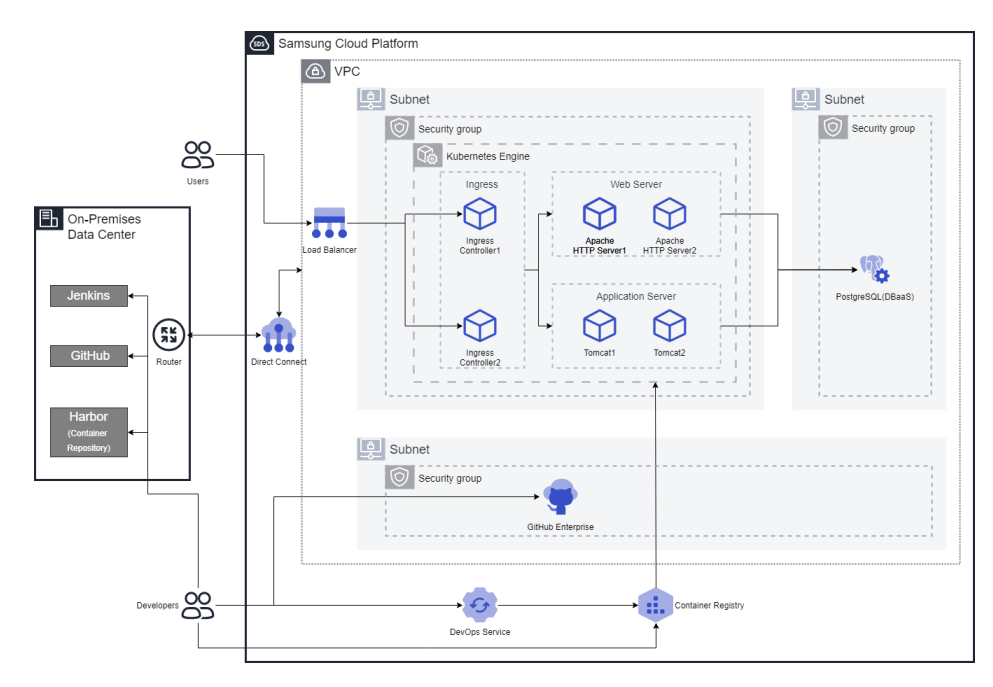
Provided Features
Container Registry provides the following features.
- Registry Management: Provides Container Registry creation, deletion, registry access control management (private), and visibility features.
- Repository Management: It is created under Container Registry and provides functions such as repository creation, inquiry, deletion, and security policy setting.
- Image Management: These are Container Images stored in the Repository, and provide functions such as image push, image pull, inquiry, deletion, applied tag management, and security policy setting.
- Image Vulnerability Check: You can manually or automatically check the security vulnerabilities of OS packages and language packages of images stored in the Container Registry, as well as secrets included in the images. Users can identify and remove known vulnerabilities (CVE) and secrets based on the check results to prevent the use of unsafe images.
Component
Registry
The registry (Registry) is a repository or collection of repositories used to store, access, and manage container images. Container registries can often support the development of container-based applications as part of development and operational processes. It can be directly connected to container orchestration platforms such as Docker and Kubernetes. The registry acts as an intermediary for sharing container images between systems, saving developers time in creating and providing cloud-native applications. In the case of the Samsung Cloud Platform, it is provided in conjunction with Object Storage and images are transmitted via HTTPS.
Repository
The Repository is a logical management unit of image tags. Using the repository, you can efficiently manage image tags. The repository is a centralized virtual storage used by developers to change and manage application source code. When developing an application, various types of documents and source code need to be stored and shared, allowing developers to easily collaborate and edit simultaneously within the same account, and track/manage changes.
Image
An image means a container that contains all the files and settings required for container execution. The image plays a role similar to a class that creates a container, and the container can be seen as a program or process that runs the image. For example, the Ubuntu image contains all the files necessary to run Ubuntu, and the MySQL image contains all the files, IDs, passwords, and port information necessary to run MySQL.
Preceding service
Container Registry has no preceding services.
2.1.1 - Monitoring Metrics
Container Registry monitoring metrics
The table below shows the monitoring metrics of Container Registry that can be checked through Cloud Monitoring. For detailed usage of Cloud Monitoring, please refer to the Cloud Monitoring guide.
| Performance Item | Detailed Description | Unit |
|---|---|---|
| container.registry.status.alive | Registry status | status |
| containerregistry.statics.image.pull.count | Allowed Image Tag(digest) Pull count | cnt |
| containerregistry.statics.image.denied_pull.count | Number of denied image tag(digest) pulls | cnt |
| containerregistry.statics.image.push.count | Allowed Image Tag(digest) Push count | cnt |
| containerregistry.statics.image.denied_push.count | Number of denied image tag(digest) pushes | cnt |
| containerregistry.statics.image.scan.count | Allowed Image Tag(digest) Scan count | cnt |
| containerregistry.statics.image.denied_scan.count | Number of denied image tag(digest) scans | cnt |
| containerregistry.statics.tag.deleted.count | Number of deleted Image Tags (digest) | cnt |
| containerregistry.statics.image.created.count | Number of created images | cnt |
| containerregistry.statics.image.deleted.count | Number of deleted images | cnt |
| containerregistry.statics.login.count | Allowed Registry Login count | cnt |
| containerregistry.statics.denied_login.count | Number of Denied Registry Logins | cnt |
| containerregistry.statics.repository.created.count | Number of created repositories | cnt |
| containerregistry.statics.repository.deleted.count | Number of deleted repositories | cnt |
Fig. Container Registry Monitoring Metrics
2.1.2 - ServiceWatch Metrics
Container Registry sends metrics to ServiceWatch. The metrics provided by default monitoring are data collected at a 1‑minute interval.
Reference
To check metrics in ServiceWatch, refer to the ServiceWatch guide.
Basic Indicators
The following are the basic metrics for the namespace Container Registry.
| Indicator Name | Detailed Description | Unit | Meaningful Statistics |
|---|---|---|---|
| Image Pull Count [Allowed] | Allowed Image Tag(digest) Pull count | Count/Minute |
|
| Image Push Count [Denied] | Denied Image Tag(digest) Push Count | Count/Minute |
|
| Repository Count [Deleted] | Deleted Repository count | Count/Minute |
|
| Repository Count [Created] | Created Repository Count | Count/Minute |
|
| Registry Login Count [Allowed] | Allowed Registry Login count | Count/Minute |
|
| Image Scan Count [Denied] | Denied Image Tag(digest) Scan count | Count/Minute |
|
| Image Pull Count [Denied] | Denied Image Tag(digest) Pull count | Count/Minute |
|
| Registry Login Count [Denied] | Number of Denied Registry Logins | Count/Minute |
|
| Image Push Count [Allowed] | Allowed Image Tag(digest) Push count | Count/Minute |
|
| Image Scan Count [Allowed] | Allowed Image Tag(digest) Scan count | Count/Minute |
|
| Image Count [Deleted] | Deleted Image count | Count/Minute |
|
| Image Count [Created] | Number of Images Created | Count/Minute |
|
| Image Tag Count [Deleted] | Deleted Image Tag(digest) Count | Count/Minute |
|
Table. Container Registry Basic Metrics
2.2 - How-to guides
The user can enter the necessary information for the Container Registry service through the Samsung Cloud Platform Console and create the service by selecting detailed options.
Create Container Registry
You can create and use the Container Registry service in the Samsung Cloud Platform Console.
Note
Container Registry can be created up to 2 per Account (1 per visibility type).
To create a Container Registry service, follow these steps.
- Click All services > Container > Container Registry menu. It moves to the Service Home page of Container Registry.
- On the Service Home page, click the Create Registry button. It moves to the Create Registry page.
- Registry Creation page where you enter the information required for service creation and select detailed options.
- Enter Service Information Enter or select the required information in the area.
Classification NecessityDetailed Description Registry Name Required The name of the registry created by the user - Starts with a lowercase letter and uses lowercase letters and numbers to input 3-25 characters
Endpoint Required Sets the access type for the registry endpoint - Private is selected, only private endpoint access control items can be set
- Private&Public is selected, private endpoint access control items and public endpoint access control settings are available
Private Endpoint Access Control Optional Private Endpoint Access Control Settings - Enable allows you to set access to only specific resources within the same region as the registry, such as within the Account
- Click Add Private Access Resource to add resources that can access the registry using a private endpoint
- If Enable is not selected, access is allowed from all subnets in the same region
Public Endpoint Access Control Optional Public Endpoint Access Control Settings - Enable allows you to set access to the registry and resources in the same region only from specific IPs
- Click Add to add IPs and resources that are allowed to access the registry using the public endpoint
- If Enable is not selected, access from all subnets in the same region is allowed
Visibility Optional Setting for anonymous access to the read (Pull) operation of the registry - Public allows unauthenticated anonymous users to perform read operations (Anonymous Pull) on all contents of the registry
- This setting can only be set to Public when the service is created
Table. Container Registry service information input items
- Enter Service Information Enter or select the required information in the area.
Caution
- If you do not select the use of private endpoint access control, your registry may be exposed to other resources within the Samsung Cloud Platform.
- If you do not select the use of public endpoint access control, external IP access is possible in the internet environment, so the user’s bucket may be exposed to the outside through the internet. If external access is not necessary, uncheck the use checkbox to minimize security threats.
* **Enter Additional Information** Enter or select the required information in the area.
Classification
Necessity
Detailed Description
Tag
Select
Add Tag- Up to 50 can be added per resource
- Click the Add Tag button and enter or select Key, Value
Table. Container Registry additional information input items
- In the Summary panel, review the detailed information and the estimated charge amount, and click the Complete button.
- After creation is complete, check the created resource on the Registry list page.
Check Container Registry Details
The Container Registry service allows you to view and modify the full list of resources and detailed information. The Container Registry details page consists of Details, Tags, Work History tabs.
To check the Container Registry details, follow the next procedure.
Click All services > Container > Container Registry menu. It moves to the Service Home page of Container Registry.
Service Home page, click the Registry menu. Move to the Registry list page.
Registry list page, click the resource (Registry) to check the detailed information. Move to the Registry details page.
- Registry Details page displays the status information and detailed information of the Registry, and consists of Details, Tags, Operation History tabs.
Classification Detailed Description Registry Status Status of the registry - Creating: being created
- Running: created/operating normally
- Editing: settings being changed
- Terminating: being deleted
- Error: error occurred
- Unknown: unknown
Usage Guide CLI-based Registry Usage Guide Service Cancellation Button to cancel the service Fig. Container Registry status information and additional features
Detailed Information
On the Registry List page, you can check the detailed information of the selected resource and modify the information if necessary.
| Division | Detailed Description |
|---|---|
| Service | Service Name |
| Resource Type | Resource Type |
| SRN | Unique resource ID in Samsung Cloud Platform
|
| Resource Name | Resource Name
|
| Resource ID | Unique resource ID in the service |
| Creator | User who created the service |
| Creation Time | The time when the service was created |
| Editor | User who modified the service information |
| Modified Time | The time when service information was modified |
| Registry Name | Registry Title |
| Bucket Name | The name of the Samsung Cloud Platform Object Storage bucket where the registry’s data is stored |
| Usage | Data usage for the Object Storage bucket for the corresponding registry |
| Endpoint | Access type for the registry endpoint |
| Private Endpoint | Private endpoint URL available within Samsung Cloud Platform network
|
| Public Endpoint | Public endpoint URL available within Samsung Cloud Platform network |
| Private Endpoint Access Control | Private Endpoint Access Control Settings
|
| Public Endpoint Access Control | Public Endpoint Access Control Settings
|
| Visibility | Anonymous access setting for read (Pull) operations on the registry
|
Table. Container Registry detailed information items
Tag
On the Registry List page, you can check the tag information of the selected resource, and add, change, or delete it.
| Classification | Detailed Description |
|---|---|
| Tag List | Tag list
|
Fig. Registry Tag Tab Items
Work History
You can check the operation history of the resource selected on the Registry list page.
| Classification | Detailed Description |
|---|---|
| Work history list | Resource change history
|
Fig. Work History Tab Detailed Information Items
Cancel Container Registry
You can cancel the unused Container Registry to reduce operating costs. However, if you cancel the service, the operating service may be stopped immediately, so please proceed with the cancellation work after fully considering the impact that occurs when the service is stopped.
Caution
- If there are items connected to the Registry, they cannot be deleted. Please cancel the connected services displayed in the cancellation of service popup and then delete the Registry.
- When the service is terminated, all data, including the buckets connected to the Registry, will be deleted. Please note that data cannot be recovered after deletion.
To cancel the Container Registry, follow these procedures.
- Click All services > Container > Container Registry menu. It moves to the Service Home page of Container Registry.
- On the Service Home page, click the Registry menu. It moves to the Registry list page.
- Registry list page, click the resource (Registry) to check the detailed information. Move to the Registry details page.
- Registry Details page, click Service Cancellation.
- Click the checkbox to confirm cancellation and enter the Registry name to be deleted.
- If you enter the Registry name correctly, the Confirm button will be activated. Click the Confirm button.
- Once the cancellation is complete, please check if the resource has been cancelled on the Registry list page.
2.2.1 - Managing Repository
The repository is a logical management unit of images within the registry. Using a repository allows you to set the default security policy for images created below it.
Create a repository
To create a repository, follow the following procedure.
- All services > Container > Container Registry menu is clicked. It moves to the Service Home page of Container Registry.
- Service Home page, click the Repository menu. It moves to the Repository list page.
- Repository list page, click the Create Repository button. Move to the Create Repository page.
- Repository list page top, click the Settings icon to select an existing registry, or click Create new to create a registry.
- Repository creation page where you enter the necessary information and select detailed options.
- Service Information Input area, please enter or select the required information.
Classification MandatoryDetailed Description Registry Required Select the registry name to create the repository - If no registry is created, it can be newly created through the New Creation button
Repository Name Required Name of the repository to be created - Enter 3-30 characters using lowercase English letters, numbers, and special characters (
-) (only lowercase English letters and numbers are allowed at the beginning and end)
Table. Repository Essential Information Input Items - Repository basic policy input area, please enter or select the required information.
Classification MandatoryDetailed Description Image Scan Options Repository-generated image vulnerability automatic scan and scan exclusion policy setting - The default scan policy that can be applied when an image is created in the repository can be set
- If auto-scan is set to use, the vulnerability of the image is automatically checked when the image is pushed, and the vulnerability check cost is charged
- If the scan exclusion policy is set to use, you can specify the inspection target and vulnerability to be excluded from the image scan as follows
- Exclusion setting possible inspection targets
- Language Package inspection exclusion
- Secret inspection exclusion
- Exclusion of vulnerabilities without Fix Version
- Exclusion setting possible vulnerabilities: one of the following levels can be selected
- (None / Unknown / Negligible / Low / Medium / High / Critical) level or lower vulnerabilities are excluded
- Exclusion setting possible inspection targets
Image Pull Limit Option Policy setting for the image Pull limit function used in the repository and the limited value - The default Pull limit policy that can be applied when an image is created in the repository can be set
- If the unscanned image Pull limit is set to use, Pull of unscanned images for vulnerability checking is not allowed
- If the vulnerable image Pull limit policy is set to use, Pull of images with Critical or High level vulnerabilities exceeding the entered value is not allowed. The values that can be entered and selected in this policy are as follows
- Critical: 1(default) ~ 9,999,999
- High: 1(default) ~ 9,999,999
- Excluding vulnerabilities without Fix Version
- If use is selected, vulnerabilities without Fix Version (when there is no patch version for vulnerable packages/libraries) are excluded from the Pull limit policy
Image Lock Status Option You can set a lock to prevent all images in the repository from being deleted or updated - If the image lock status of the repository is Lock, the Lock/Unlock function of individual images in the repository is deactivated
- If the lock status of the repository’s image lock status is changed to Unlock, the Lock/Unlock function of individual images is activated
- New image Push is possible
Image tag deletion Option You can set an automatic image deletion policy stored in the repository - Selecting Use for deletion policy activation applies the image deletion policy
- Selecting Untagged Image automatic deletion and Old Image automatic deletion as Use applies the corresponding image deletion policy
- Enter the automatic deletion period for the deletion policy, and the image will be automatically deleted after the set period has passed since it was first pushed
- For a detailed explanation of image tag deletion, refer to Image Tag Deletion Policy Management
Table. Repository Basic Policy Input Items - Additional Information Input area, please enter or select the required information.
Classification MandatoryDetailed Description Description Selection Repository Description - Enter the repository description
Tag Selection Add Tag - Up to 50 can be added per resource
- Click the Add Tag button and enter or select Key, Value
Table. Input items for adding repository information
Reference
- Repository basic policy input items are used to set the default (initial) policy for the Image created in the Repository. (It plays the role of a policy setting template applied when creating an Image)
- This setting can be changed in the detailed view screen after creating the Repository, and the changed policy will be applied to the Image created after changing the Repository basic policy input item. The policy of the Image created before the change will not be changed.
- The default policy set for the Image can be modified in the Image detail screen.
- Summary panel, review the detailed information generated and the estimated billing amount, and click the Complete button.
- Once creation is complete, check the created resource on the Repository list page.
Repository detailed information check
Repository 서비스는 전체 자원 목록과 상세 정보를 확인하고 수정할 수 있습니다. Repository details 페이지에서는 details, tags, work history 탭으로 구성되어 있습니다.
To check the repository details, follow the next procedure.
- All services > Container > Container Registry menu is clicked. It moves to the Service Home page of Container Registry.
- Service Home page, click the Repository menu. It moves to the Repository list page.
- Repository list page, click on the resource (Repository) to check the detailed information. It moves to the Repository details page.
- Repository details page displays the status information and detailed information of the Repository, and consists of details, tags, work history tabs.
Classification Detailed Description Repository Status Expresses the status of the repository - Active: Available status
- Deleting: Being deleted status
- Inactive: Failed to delete and unavailable status (only deletion request is possible)
- Editing: Settings are being modified or sub-resources (images, tags) within the image are being deleted
Usage Guide Repository Usage Guide - CLI-based commands to use images within the repository can be checked
Repository Delete Button to delete the repository Table. Status Information and Additional Functions
Detailed Information
Repository list page where you can check the detailed information of the selected resource and modify the information if necessary.
| Classification | Detailed Description |
|---|---|
| Service | Service Name |
| Resource Type | Resource Type |
| SRN | Unique resource ID in Samsung Cloud Platform
|
| Resource Name | Resource Name
|
| Resource ID | Unique resource ID in the service |
| Creator | The user who created the repository |
| Creation Time | Repository Creation Time |
| Editor | The user who modified the repository |
| Revision Time | Repository Revision Time |
| Repository Name | The repository name created by the user |
| Image | link to view the list of images stored in the repository |
| Description | The description that the user entered for the created repository |
| Image Scan | Repository-generated image vulnerability automatic scan and scan exclusion policy setting
|
| Image Pull Limit | Policy setting for the image Pull limit function used in the repository and the limited value
|
| Image Lock | Set lock to prevent deletion or update of all images within the repository
|
| Image Tag Deletion | Set the automatic image deletion policy stored in the repository
|
Table. Repository detailed information items
Tag
Repository list page where you can check the tag information of the selected resource, and add, change or delete it.
| Classification | Detailed Description |
|---|---|
| Tag List | Tag list
|
Fig. Repository tag tab items
Work History
Repository list page where you can check the work history of the selected resource.
| Classification | Detailed Description |
|---|---|
| work history list | resource change history
|
Table. Work history tab detailed information items
Delete repository
To delete a Repository, follow the following procedure.
- All services > Container > Container Registry menu is clicked. It moves to the Service Home page of Container Registry.
- Service Home page, click the Repository menu. It moves to the Repository list page.
- Repository list page, click on the resource (Repository) to check the detailed information. It moves to the Repository details page.
- Repository details page, click Delete Repository.
- Repository deletion popup window where you enter the Repository name.
- Repository name has been entered correctly, then the Confirm button will be activated. Click the Confirm button.
- Once the cancellation is complete, check if the resource has been cancelled on the Repository list page.
Caution
Repository 내 Image가 존재하면 Repository를 삭제할 수 없습니다. Repository를 삭제하려면 해당 Repository 내 모든 Image를 먼저 삭제한 후, Repository를 삭제하세요. -> If an Image exists in the Repository, you cannot delete the Repository. To delete the Repository, delete all Images in the Repository first, then delete the Repository.
2.2.2 - Managing Images and Tags
The image is a logical management unit of the tag. The user can efficiently manage the image version using the tag.
Creating an image
To generate an image, the repository must be created first. For more information about creating a repository, please refer to Managing Repositories. The image is created by pushing an image or OCI standard artifact to the registry endpoint using the CLI. CLI로 이미지를 Push하는 방법은 사용하는 클라이언트 툴에서 제공하는 공식 문서나 CLI 사용하기를 참고하세요. -> For the method of pushing an image using CLI, please refer to the official documentation provided by the client tool being used or Using CLI.
Check image detailed information
Image can check and modify the entire resource list and detailed information. The Image detail page consists of detailed information, tags, deletion policy test tabs.
To check the image details, follow the following procedure.
- All services > Container > Container Registry menu is clicked. It moves to the Service Home page of Container Registry.
- Service Home page, click the Image menu. It moves to the Image list page.
- Image list Click the Settings icon at the top of the page to check the detailed information and select the Registry name and Repository name where the Image is stored, respectively.
- If the desired item is not available, click Create New to register Registry and Repository and select it.
- Image list page, click on the resource (Image) to check the detailed information. It moves to the Image details page.
- Image details page displays the status information and detailed information of the Image, and consists of details, Tags, deletion policy test tabs.
Classification Detailed Description Image Status Express the status of the image - Active: Available status
- Deleting: Being deleted status
- Inactive: Failed to delete and unavailable status (only deletion request is possible)
- Editing: Configuration modification or deletion of image sub-resources (tags) in progress status
Usage Guide CLI-based Image Usage Guide Image deletion a button to delete the image Table. Status Information and Additional Functions
Detailed Information
Image list page where you can check the detailed information of the selected resource and modify the information if necessary.
| Classification | Detailed Description |
|---|---|
| Creator | The user who created the image |
| Creation Time | The time the image was created |
| Editor | User who edited the image |
| Modified Time | The time when the image was modified |
| Image Name | The image name created by the user |
| Registry | The registry name and query link of the repository where the image is stored |
| Pulls | The number of times the corresponding image was pulled |
| Repository | Name of the repository where the image is stored and its search link |
| Description | the description that the user entered for the image
|
| Image Scan | Image Vulnerability Automatic Scan and Scan Exclusion Policy Setting
|
| Image Pull Limit | Image Pull Limit feature usage and limit value setting
|
| Image lock status | It is possible to set a lock so that the selected image cannot be deleted or updated
|
| Image tag deletion | Set the automatic image deletion policy stored in the repository
|
Table. Image detailed information items
Delete an image
Image를 삭제하려면 다음 절차를 따르세요 translates to: To delete an image, follow the following procedure.
- All services > Container > Container Registry menu is clicked. It moves to the Service Home page of Container Registry.
- Service Home page, click the Image menu. It moves to the Image list page.
- Image list Click the Settings icon at the top of the page and select the Registry name and Repository name where the image to be deleted is stored, respectively.
- Image list page, click the resource (Image) to be deleted. It moves to the Image details page.
- Image deletion button should be clicked.
- Image deletion popup is displayed, click the Confirm button.
- When the deletion is complete, check if the resource has been deleted on the Image list page.
Caution
If you delete an image, all tags within the image will be deleted together.
Image tag detailed information check
To check the tag details, please follow the following procedure.
- All services > Container > Container Registry menu is clicked. It moves to the Service Home page of Container Registry.
- Service Home page, click the Image menu. It moves to the Image list page.
- Image list Click the Settings icon at the top of the page to check the detailed information and select the Registry name and Repository name where the Image is stored, respectively.
- Image list page, click on the resource (Image) to check the detailed information. It moves to the Image details page.
- Image details page displays the status information and detailed information of the Image, and consists of details, Tags, deletion policy test tabs.
- Image details page, click the Tags tab to the right of the detailed information tab at the top, it moves to the Tags list page.
Column RequiredDetailed Description Tags Required Image Digest’s tag name - A single image Digest can have multiple tag names
Digest Required Image Digest value Size Required Image Digest capacity Modification Time Required Image Digest(Tags) Modification Time Inspection Time Required Image Digest(Tags) Vulnerability Inspection Time Vulnerability Check Result Required Image Digest(Tags) Vulnerability Check Result - Vulnerability count summary information and inspection result view button are displayed
- View Result button is clicked to confirm the detailed analysis result of vulnerabilities for image tags
Status Required Status of Image Digest(Tags) - Active: normal usable status
- Deleting: being deleted status
- Inactive: failed to delete and not usable status (only deletion request is possible)
URL copy - To use the image Digest endpoint URL copy - You can copy the endpoint URL to be used for the command to use the image Digest
View more button - Image Digest(Tags) deletion, modification, vulnerability check, detailed usage guide selection menu - Delete to delete the corresponding image Digest(Tags)
- Click Tags modification to display the Tags modification window. In the Tags modification window, you can modify the tag name of the image Digest
- Click Vulnerability check to check for vulnerabilities in the image Digest(Tags)
- Click Detailed usage guide to view the guide for using image Digest(Tags) based on CLI
- Click Tags Lock to set a lock so that the selected image Tags cannot be deleted or updated
- Click Tags Unlock to unlock the lock so that the selected image Tags can be deleted or updated
Table. List of Tags Items
Reference
Tag name is missing Untagged state image Digest is displayed as None in the Tags section.
Detailed Information
Image Click the Tags of the image Digest in the list of Tags for details to check the details, the detailed information window of the image Digest (Tags) appears.
| Column | Detailed Description | |
|---|---|---|
| tag information | tag name, digest, creation time, modification time are displayed
| |
| Manifest Information | Displays manifest type and detailed contents
|
Table. Detailed information window items
- Tag detailed information window, check the information and click confirm to close the window.
Image tag deletion
To delete an image tag, follow the following procedure.
- All services > Container > Container Registry menu is clicked. It moves to the Service Home page of Container Registry.
- Service Home page, click the Image menu. It moves to the Image list page.
- Image list Click the Settings icon at the top of the Image list page to check the detailed information and select the Registry name and Repository name where the Image is stored, respectively.
- Image list page, click the resource (Image) to check the detailed information. It moves to the Image details page.
- Image details page, click the Tags tab to the right of the detailed information tab at the top, it moves to the Tags list page.
- Tags list에서 삭제할 태그의 왼쪽에 위치한 체크박스를 선택한 후 삭제를 클릭하세요. -> 5. Select the checkbox to the left of the tag to be deleted in the Tags list, then click Delete.
- When you select the checkboxes of multiple items, you can delete multiple tags at once, and you can select and delete up to 50 tags at a time.
- You can delete tags one by one by clicking the delete button inside the more button located at the right end of the tag to be deleted.
- Tags deletion popup window opens, click confirm.
- Once the deletion is complete, please check the Tags list page to see if the resource has been deleted.
Caution
If other tags referencing the selected tag exist, the tag cannot be deleted. Delete the reference tags first, then delete the tag.
Image tag deletion policy test
To test the image tag deletion policy you set, follow the next procedure.
- All services > Container > Container Registry menu is clicked. It moves to the Service Home page of Container Registry.
- Service Home page, click the Image menu. It moves to the Image list page.
- Image list Click the Settings icon at the top of the page to check the detailed information and select the Registry name and Repository name where the Image is stored, respectively.
- Image list page, click on the resource (Image) to check the detailed information. It moves to the Image details page.
- Image details page displays the status information and detailed information of the Image, and consists of details, Tags, deletion policy test tabs.
- Image details page, click the Deletion Policy Test tab to the right of the detailed information tab at the top. Move to the Deletion Policy Test tab page.
- Deletion Policy Test tab page, click the Policy Test button in the deletion target Tags item. The deletion policy test will be executed.
- When the deletion policy test execution notification popup window opens, click the Confirm button.
- When the test run application is completed, the test run application for deletion policy has been completed phrase will be displayed.
- When the deletion policy test is completed, please check the test results.
- Deletion Target Tags The image tags (digest) that are the target of the deletion policy are displayed in the item.
2.2.3 - Managing Image Security Vulnerabilities
The image security vulnerability checking function allows you to manually or automatically check the OS package security vulnerabilities and Secrets included in the images stored in the Container Registry. Users can identify and remove known vulnerabilities (CVE) and Secrets based on the inspection results, preventing the use of insecure images.
Vulnerability Check Support Information
Supported OS
The vulnerability checking function supports checking of libraries installed with a package manager on the following OS.
| Supported OS |
|---|
| Ubuntu |
| Cent OS |
| Oracle |
| Debian |
| Alpine |
| AWS Linux |
| RHEL |
| Suse |
| VMWare Photon |
Table. Supported OS types
Supported Language
The vulnerability checking function supports checking for the following languages.
| Supported Language |
|---|
| Python |
| PHP |
| Node.js |
| .NET |
| Go |
| Dart |
Table. Supported Language Type I (Language package manager installed library)
| Supported Language |
|---|
| Java |
Table. Supported Language Type II (identified based on pom.properties and MANIFEST.MF files included in jar, war, par, ear type files)
Support Secret
The vulnerability scanning feature supports the following types of secrets included in the image.
| Support Secret |
|---|
| AWS access key |
| GitHub personal access token |
| GitLab personal access token |
| Asymmetric Private Key |
Table. Supported Secret Types
Checking image security vulnerabilities (manual)
To check for image security vulnerabilities, follow the next procedure.
- Click on the menu for all services > Container > Container Registry. It moves to the Service Home page of Container Registry.
- Service Home page, click the Image menu. It moves to the Image list page.
- Image list Click the Settings icon at the top of the page to check the detailed information and select the Registry name and Repository name where the Image is stored, respectively.
- On the Image List page, click the resource (Image) to check for security vulnerabilities. It moves to the Image Details page.
- Click the Tags tab to the right of the detailed information tab at the top of the Image Details page. Move to the Tags tab page.
- On the Tags tab page, click the more button located at the right end of the tag to check security vulnerabilities, then click Vulnerability Check.
- When the vulnerability check alert popup window opens, click the Confirm button.
- When the inspection starts, vulnerability check will be performed. message is displayed.
- After the inspection is complete, a summary of the inspection results and the View Results button are displayed in the Vulnerability Check Results section. When you click the View Results button, a popup window appears where you can view detailed analysis results of vulnerabilities by Image Digest(Tags).
Note
By clicking the * 결과보기 button, you can check the detailed analysis result of the vulnerability for the image tag.
After checking for vulnerabilities, if a red exclamation mark icon (!) is displayed in the inspection date item, it means that the vulnerability check list of the Container Registry service has been updated. Click Vulnerability Check to recommend re-checking as a new vulnerability item check is required for the corresponding image Digest (Tags).
Check the image security vulnerability check result
To check the vulnerability check result, follow the next procedure.
- Click on the menu for all services > Container > Container Registry. It moves to the Service Home page of Container Registry.
- Service Home page, click the Image menu. It moves to the Image list page.
- Image list Click the Settings icon at the top of the page to check the detailed information and select the Registry name and Repository name where the Image is stored, respectively.
- On the Image List page, click the resource (Image) to check for security vulnerabilities. It moves to the Image Details page.
- Click the Tags tab to the right of the detailed information tab at the top of the Image Details page. Move to the Tags tab page.
- On the Tags tab page, click the View Results button in the Vulnerability Check Result item to check the vulnerability check result.
- Vulnerability Analysis by Image Tags A popup window appears to show detailed analysis results of vulnerabilities by image tags.
Check the test results by vulnerability unit
You can check the image security vulnerability check results by vulnerability in the Vulnerability tab.
| Item | Detailed Description |
|---|---|
| Vulnerability Check | Vulnerability check button
|
| Inspection Date | Vulnerability Inspection Date |
| Distribution | Inspection target image Digest(Tags) OS name and version
|
| Total number of vulnerabilities | Vulnerability inspection result summary
|
Table. Vulnerability Check Result Items
You can check the list of all discovered vulnerabilities in the Vulnerability tab.
| Item | Detailed Description |
|---|---|
| CVE | Detected vulnerability ID (CVE ID) and external link to confirm detailed vulnerability information
|
| Severity | Detected vulnerability severity |
| CVSS | CVSS (Common Vulnerability Scoring System) based vulnerability score |
| Category | Type of inspection target for detected vulnerabilities
|
| OS/Language | Detected vulnerability’s OS or Language package type
|
| Package | Name of the package where the vulnerability was found |
| Current version | Current version of vulnerable package (vulnerable version) |
| Updated version | The version of the vulnerable package in which the vulnerability has been addressed |
| Whether the vulnerability in the discovered package has been fixed (whether a patched version of the vulnerability exists) | |
| Expand Button | Vulnerability Details Inquiry
|
Table. List of vulnerability items
Checking the results by package unit
You can check the image security vulnerability check results by package. In the Image Tag-based Vulnerability detail page, click the Package tab to move to the package-based vulnerability page.
| Item | Detailed Description |
|---|---|
| Vulnerability Check | Vulnerability check button
|
| Inspection Date | Vulnerability Inspection Date |
| Distribution | Inspection target image Digest(Tags) OS name and version
|
| Total number of packages | Summary of total package information
|
Table. Package Vulnerability Check Result Items
In the package tab, you can check the entire package list, the list of packages with vulnerabilities found, and the list of packages with no vulnerabilities found.
| Item | Detailed Description |
|---|---|
| Category | Type of discovered package
|
| OS/Language | Discovered package’s OS or Language detailed type
|
| Package | Discovered package name |
| Version | The current version of the package |
| Vulnerability check result | Summary information of vulnerability count included in the package |
| Type | Details of OS or Language type and details of discovered package |
Table. Package list item
Check the test results by secret unit
You can check the image security vulnerability check results by secret. In the Image Tag-based Vulnerability detail page, clicking the Secret tab will move to the secret-based vulnerability page.
| Item | Detailed Description |
|---|---|
| Vulnerability Check | Vulnerability check button
|
| Inspection Date | Vulnerability Inspection Date |
| Distribution | Inspection target image Digest(Tags) OS name and version
|
| Total number of vulnerabilities | Vulnerability result summary
|
Table. Secret Vulnerability Check Result Items
In the Secret tab
| Item | Detailed Description |
|---|---|
| File | File name where secret is detected |
| Category | Detected secret type
|
| Severity | Detected Secret Severity |
| Match | Detected secret match information in the file |
Fig. Secret List Items
2.2.4 - Managing Image Tag Deletion Policies
The user can register and manage the image tag deletion policy.
Managing image tag deletion policies
The image tag deletion policy refers to the policy that automatically deletes an image when a certain period of time has passed since it was first pushed to the repository. If the image tag deletion policy is enabled, the image tags (digest) stored in the Container Registry will be automatically deleted according to the set deletion policy.
Notice
- After enabling the deletion policy and setting it to use, the image tag (digest) to which the deletion policy is first applied will be deleted within a maximum of 3 days (72 hours). Subsequent image tags (digests) to which the deletion policy is applied will be deleted within a maximum of 1 day (24 hours).
- Image tags (digests) to which the deletion policy is applied are permanently deleted and cannot be recovered.
Support deletion policy information
Describes policy information that supports deleting image tags.
Support Policy
It supports a policy that allows you to set automatic deletion and period for image tags (digest).
| Support Policy |
|---|
| Untagged Image |
| Old Image |
Table. Image tag deletion support policy type
Set the image tag (digest) deletion policy
To set the image tag (digest) deletion policy, follow these steps.
- Click All services > Container > Container Registry menu. It moves to the Service Home page of Container Registry.
- Service Home page, click the Image menu. It moves to the Image list page.
- Click the gear button at the top of the Image 목록 page. The Registry/Repository 설정 popup window opens.
- Registry/Repository settings In the popup window, select the Registry name and Repository name where the Image to be set for the deletion policy is stored, and click the OK button.
- Image list page, click the resource (Image) to set the deletion policy. Move to the Image details page.
- Image Detail page’s Detail Info tab, click the Edit icon of the Delete Image Tag item. The Edit Delete Image Tag popup window will open.
- Image Tag Deletion Modification In the popup window, enter and select the necessary information and activation status, and click the Confirm button.
- Delete policy activation is set to Use, the image tag (digest) will be automatically deleted according to the set delete policy.
- Select the deletion policy to apply and enter the period from when the image was first pushed to the repository to when it will be automatically deleted.
- When the update notification popup window opens, click the Confirm button.
- When the modification is complete, Image tag deletion modification was successful message will be displayed.
Reference
You can also set a deletion policy in the Repository that plays the role of a template for the Image. When setting a deletion policy in the Repository, the set deletion policy is applied equally to all Images stored inside.
Image tag (digest) deletion policy test
To test the image tag (digest) deletion policy, follow these steps.
- Click All services > Container > Container Registry menu. It moves to the Service Home page of Container Registry.
- On the Service Home page, click the Image menu. It moves to the Image list page.
- Click the gear button at the top of the Image 목록 page. The Registry/Repository 설정 popup window will open.
- Registry/Repository Settings In the popup window, select the Registry name and Repository name where the Image to be set for the deletion policy is stored, and click the Confirm button.
- On the Image List page, click the resource (Image) to test the deletion policy. It moves to the Image Detail page.
- Image Detail page, click the Deletion Policy Test tab. Move to the Deletion Policy Test tab page.
- Deletion Policy Test tab page, to test the deletion policy set, click the Policy Test button at the bottom of the deletion target Tags.
- When the deletion policy test notification popup window opens, click the Confirm button.
- When the test run application is completed, the phrase The deletion policy test run application has been completed will be displayed.
- After the test is completed, the image tags (digest) that are the target of the deletion policy will be displayed in the Deletion Target Tags section.
2.2.5 - Using Container Registry with CLI
This explains how to log in to the Container Registry using the CLI command and manage Container images and Helm charts.
Managing Container Images with CLI
You can log in to the Container Registry and push or pull container images using the CLI command.
Logging in to Container Registry
The user can log in to the Container Registry using the authentication key.
Reference
To log in to Container Registry, you need LoginContainerRegistry permission for the registry you want to use.
For more information on policy and permission settings, see Management > IAM > Policy.
For more information on policy and permission settings, see Management > IAM > Policy.
Logging in with an authentication key
Logs in using the AccessKey and SecretKey of the authentication key and the registry endpoint.
- Registry endpoint : Container Registry details page can be found.
- Private endpoint : [registryname-registryid].scr.private.[region].[offering].samsungsdscloud.com
1 docker login <registry_endpoint>
2 Username: <accessKey>
3 Password: <secretKey>
Reference
To log in with an authentication key, you must create an authentication key on the IAM > Authentication Key Management page and set the authentication method to Authentication Key Authentication in the Security Settings.
- Security settings should be checked before modifying the Authentication key security settings modification popup at the top with a notice about the authentication key authentication method. For more information on how to create an authentication key and set up authentication key authentication, see Management > IAM > Managing Authentication Keys.
Pushing Images
To push an image to the registry, please refer to the following command.
1 docker push [registryname]-[registryid].scr.private.[region].[offering].samsungsdscloud.com/[repository]/[image:tag]
Reference
To push an image to the registry, you need LoginContainerRegistry permission for the registry to be used and PushRepositoryImages permission for the repository.
For more information about policy and permission settings, see Management > IAM > Policy.
Image Pulling
To pull an image from the registry, please refer to the following command.
1 docker pull [registryname]-[registryid].scr.private.[region].[offering].samsungsdscloud.com/[repository]/[image:tag]
Reference
To pull an image from the registry, you need LoginContainerRegistry permission for the registry to be used and PullRepositoryImages permission for the repository.
For more information about policy and permission settings, see Management > IAM > Policy.
Managing Helm Charts with CLI
You can log in to the Container Registry using the CLI command and push or pull the Helm chart.
Reference
Container Registry supports Helm v3.8.1 and above.
Logging in to Container Registry
The user can log in to the Container Registry using the authentication key.
Reference
To log in to Container Registry, you need LoginContainerRegistry permission for the registry you want to use.
For more information about policy and permission settings, see Management > IAM > Policy.
For more information about policy and permission settings, see Management > IAM > Policy.
Logging in with an authentication key
Logs in using the AccessKey, SecretKey of the authentication key and the registry endpoint.
- Registry endpoint : Container Registry details page can be found.
- Private endpoint : [registryname-registryid].scr.private.[region].[offering].samsungsdscloud.com
1 helm registry login <registry_endpoint>
2 Username: <accessKey>
3 Password: <secretKey>
Reference
To log in with an authentication key, you must create an authentication key on the IAM > Authentication Key Management page and set the authentication method to Authentication Key Authentication in the Security Settings.
- Security settings should be checked before modifying the Modify authentication key security settings popup at the top, and the guidance phrase for the authentication key authentication method must be confirmed. For more information on how to create an authentication key and set up authentication key authentication, see Management > IAM > Managing Authentication Keys.
Chart Push
To push a chart to the registry, please refer to the following command.
1 helm push [hello-world-0.1.0].tgz oci://[registryname]-[registryid].scr.private.[region].[offering].samsungsdscloud.com/[mychart]
As shown in the example, writing and executing the command will save (upload) the chart to the mychart repository with the hello-world image and apply the 0.1.0 tag.
To push charts to a registry, you need the LoginContainerRegistry permission for the registry you want to use and the PushRepositoryImages permission for the repository. For more information about policy and permission settings, see Management > IAM > Policy.
Chart Pulling
To pull charts from the registry, please refer to the following command.
1 helm pull oci://[registryname]-[registryid].scr.private.[region].[offering].samsungsdscloud.com/[mychart/hello-world] -version [0.1.0]
As shown in the example, writing and executing the command downloads the chart saved with the tag 0.1.0 in the hello-world image in the mychart repository.
To pull charts from a registry, you need the LoginContainerRegistry permission for the registry you want to use and the PullRepositoryImages permission for the repository. For more information about policy and permission settings, see Management > IAM > Policy.
2.3 - API Reference
API Reference
2.4 - CLI Reference
CLI Reference
2.5 - Release Note
Container Registry
2025.10.23
FEATURE
Image tag deletion policy activation items added- Container Registry feature change
- It provides a function to activate the deletion policy setting for the deletion item of the image tag.
2025.07.01
FEATURE
Self-Encryption / S3 API Compatible Bucket-Based Container Registry, Public Endpoint Provision, Private Endpoint Access Control Target Addition, Image Life Cycle Policy Support- Container Registry feature change
- Self-encryption / S3 API compatibility issue patches have been applied to the Object Storage-based Container Registry service.
- Provides public endpoints for Registry and access control features.
- Registry’s private endpoint access control targets include the addition of Multi-Node GPU Cluster products.
- Repository and stored Image and their respective tags (digests) provide automatic deletion policy setting functionality.
2025.02.27
FEATURE
Image Lock feature and monitoring, VPC Endpoint linkage added- Container Registry feature change
- Registry内 stored Image들에 대한 Lock 기능을 제공합니다 becomes * Registry provides Lock function for stored Images.
- It provides monitoring functionality for the Registry in conjunction with the Cloud Monitoring product.
- VPC Endpoint and linkage function are provided.
- Samsung Cloud Platform common feature changes
- Account, IAM and Service Home, tags, etc. common CX changes have been reflected.
2024.11.28
NEW
Container Registry Service Temporary Version Release- Container Registry is a service that provides a registry and repository to easily store, manage, and share container images and OCI (Open Container Initiative) standard artifacts.
- It was released as a temporary version, and when the encryption method is updated, it is expected to migrate to the official version.