Using NVSwitch on GPU Server
After creating a GPU Server, you can enable the NVSwitch feature in the GPU Server’s VM (Guest OS) and quickly use P2P (GPU to GPU) communication between GPUs.
Exploring NVIDIA NVSwitch for Multi GPU
NVIDIA A100 GPU server is a multi-GPU based on the NVIDIA Ampere architecture, with 8 Ampere 80 GB GPUs installed on the baseboard. The GPUs installed on the baseboard are connected to 6 NVSwitches via NVLink ports. Communication between GPUs on the baseboard is done using the full 600 GBps bandwidth. For this reason, the 8 GPUs installed on the A100 GPU server can be connected and operated like one, thereby maximizing GPU-to-GPU usage.
- NVLink(25 GBps) 12 Lane 8 GPU configuration

- NVSwitch(600 GBps) 6 units 8 GPU configuration diagram

Create GPU NVSwitch
To use the GPU NVSwitch feature, create a GPU Server service on the Samsung Cloud Platform, create a VM Instance (GuestOS) with 8 A100 GPUs assigned, and activate the Fabricmanager.
- NVSwitch can only be activated and used for products with 8 A100 GPUs assigned to a single GPU server (g1v128a8 (vCPU 128 | Memory 1920G | A100(80GB)*8)).
- Currently, GPU Server created with Windows OS does not support NVSwitch (Fabricmanager).
NVSwitch Installation and Operation Check (Fabric Manager Activation)
To operate NVSwitch, install Fabricmanager on the GPU Instance and follow the next procedure.
Install NVIDIA GPU Driver (470.52.02 Version) on the GPU server.
Color mode$ add-apt-repository ppa:graphics-drivers/ppa $ apt-get update $ apt-get install nvidia-driver-470-server$ add-apt-repository ppa:graphics-drivers/ppa $ apt-get update $ apt-get install nvidia-driver-470-serverCode Block. NVIDIA GPU Driver Installation Install and run NVIDIA Fabric Manager (470 Version) on the GPU server (For NVSwitch).
Color mode$ apt-get install cuda-drivers-fabricmanager-470 $ systemctl enable nvidia-fabricmanager $ systemctl start nvidia-fabricmanager$ apt-get install cuda-drivers-fabricmanager-470 $ systemctl enable nvidia-fabricmanager $ systemctl start nvidia-fabricmanagerCode Block. NVIDIA Fabric Manager Installation and Operation Check the status of NVIDIA Fabric Manager running on the GPU server.
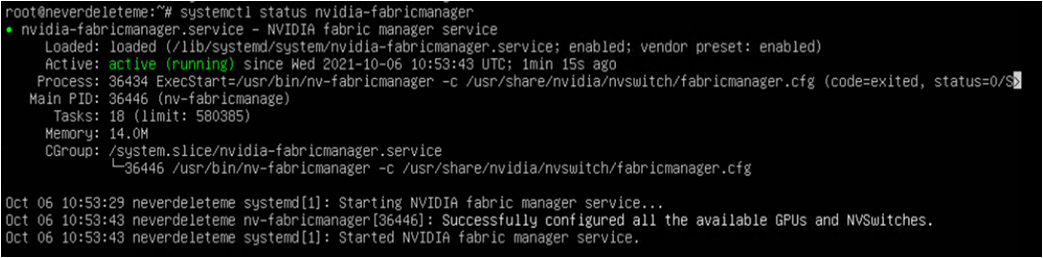
- Normal operation indicates active (running)Color mode
$ systemctl status nvidia-fabricmanager$ systemctl status nvidia-fabricmanagerCode Block. Check NVIDIA Fabric Manager Operation Status
- Normal operation indicates active (running)
- Check the NVSwitch operation status on the GPU server.
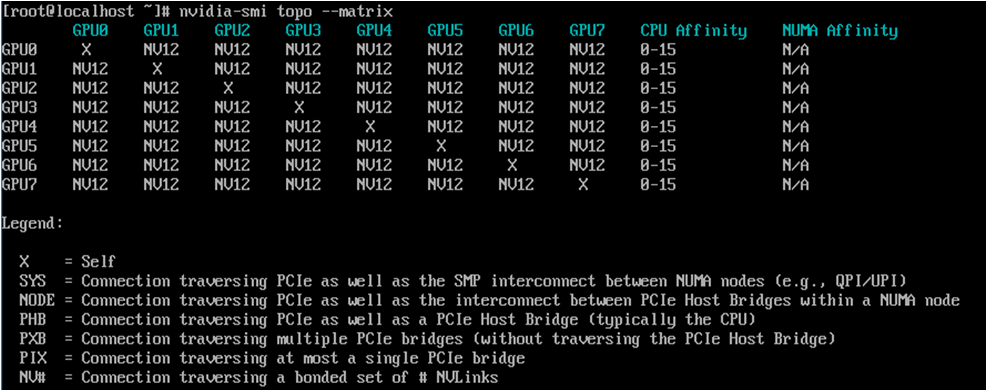
- Normal operation indicates NV12Color mode
$ nvidia-smi topo --matrix$ nvidia-smi topo --matrixCode block. NVSwitch operation status check
- Normal operation indicates NV12