This is the multi-page printable view of this section. Click here to print.
Cloud Functions
- 1: Overview
- 2: How-to guides
- 2.1: Set Trigger
- 2.2: AIOS Connect
- 2.3: Blueprint Detailed Guide
- 2.4: PrivateLink Service Integration
- 3: Release Note
1 - Overview
Service Overview
Cloud Functions is a serverless computing-based FaaS (Function as a Service) that allows you to run applications in the form of functions without the need for server provisioning. The user does not need to manage servers or containers cumbersomely for scale adjustment, and can focus on writing and deploying code for application development.
Features
- Easy and convenient development environment: Developers can easily create Function resources connected to events in various environments using a Code Editor suitable for the chosen runtime, and can write and call code easily.
- Serverless Computing: You can use a serverless type of code execution service for development in the Samsung Cloud Platform environment. The resources required to call and execute function-type applications are allocated and managed by Samsung Cloud Platform according to the scale of execution.
- Efficient Cost Management: The called Function is charged only for the actual application runtime by aggregating usage (total number of calls, total call time). Functions with low usage are adjusted to Scale-to-zero state by Cloud Functions’ Scaler, preventing resource consumption, thus enabling efficient cost management.
Service Composition Diagram
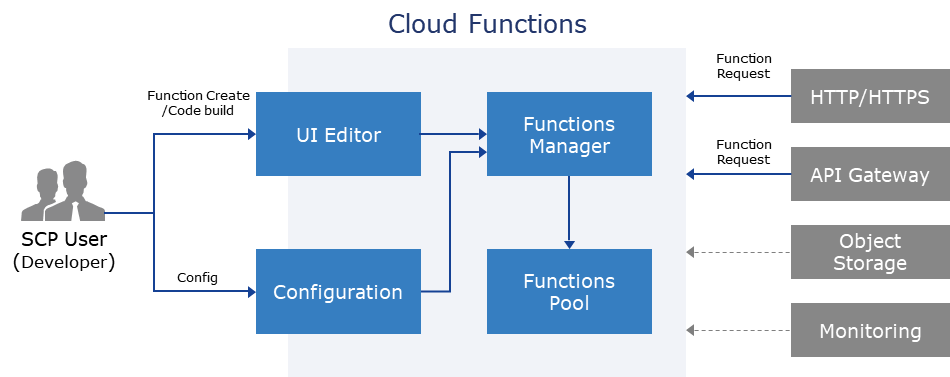
Provided Features
Cloud Functions provides the following features.
- Code Writing Environment: Runtime-optimized Function creation, Code writing and editing
- Supported Runtime refers to Component > Runtime
- Function execution, environment management, monitoring: endpoint definition, Token management, access control setting, trigger setting, etc., definition and modification of operating environment/variables, calling/testing output for Deploy/Test, service deployment, progress status monitoring/logging
- Serverless Computing: all elements required for code writing and deployment are managed by Samsung Cloud Platform, with automatic scale adjustment according to deployment
- Sample Code Provided: Provides various sample codes through Blueprint, allowing for easy and quick start
Component
Runtime
Cloud Functions currently supports the following Runtime, and more supported Runtime will be added continuously.
| Runtime | Version |
|---|---|
| GO | 1.21, 1.23 |
| java | 17 |
| Node.js | 18, 20 |
| PHP | 8.1 |
| Python | 3.9, 3.10, 3.11 |
Regional Provision Status
Cloud Functions service is available in the following environments.
| Region | Availability |
|---|---|
| Korea West 1(kr-west1) | Provided |
| Korean East 1 (kr-east1) | Provided |
| South Korea (kr-south1) | Not provided |
| South Korea southern region 2(kr-south2) | Not provided |
| South Korea southern region 3(kr-south3) | Not provided |
Preceding Service
This is a list of services that can be configured as optional before creating the service. Please refer to the guide provided for each service and prepare in advance for more information.
| Service Category | Service | Detailed Description |
|---|---|---|
| Application Service | API Gateway | A service that easily manages and monitors APIs |
2 - How-to guides
The user can enter the required information for Cloud Functions through the Samsung Cloud Platform Console, select detailed options, and create the service.
Cloud Functions Create
Click the All Services > Compute > Cloud Functions menu. Navigate to the Service Home page of Cloud Functions.
Click the Create Cloud Functions button on the Service Home page. It navigates to the Create Cloud Functions page.
Create Cloud Functions page, enter the information required to create the service.
Category RequiredDetailed description Funtion name Required Enter the Funtion name to create - Start with a lowercase English letter and use lowercase English letters, numbers, and special characters (
-) to input within 3 ~ 64 characters
Runtime Required Select Runtime creation method - Create new: Create a new Runtime
- Start with Blueprint: Create using the Runtime source code provided by the service
Runtime & Vesion Required Select Runtime and Version - Create New을 선택한 경우
- Runtime & Version 목록은 Components > Runtime 참고
- For Java runtime, UI code editing is not supported, but you can run by fetching a Jar file from Object Storage
- Start with Blueprint를 선택한 경우
- You can view source code examples by clicking the View Source Code button for the selected Runtime & Version
- Refer to the Blueprint Detailed Guide for more details on Blueprint settings
Table. Cloud Functions Service Information Input Items- Start with a lowercase English letter and use lowercase English letters, numbers, and special characters (
Summary Check the detailed information and estimated billing amount generated in the panel, and click the Complete button.
- When creation is complete, check the created resource on the Cloud Functions list page.
Cloud Functions Check Detailed Information
Cloud Functions Details page consists of Detail Information, Monitoring, Log, Code, Configuration, Trigger, Tag, Job History tabs.
To view detailed information about the Cloud Functions service, follow these steps.
- All Services > Compute > Cloud Functions Click the menu. Go to the Service Home page of Cloud Functions.
- Click the Function menu on the Service Home page. Move to the Function List page.
- Click the resource to view detailed information on the Function list page. Go to the Function detail page.
- Function Details The page displays status information and additional feature information, and consists of the Details, Monitoring, Log, Code, Configuration, Trigger, Tag, Task History tabs.
Category Detailed description Cloud Functions status Cloud Functions status information - Ready: green icon, state where normal function calls are possible
- Not Ready: gray icon, state where normal function calls are not possible
- Deploying: yellow icon, state where function is being created or changed, triggered by the following actions
- function creation and modification
- modify code with editor in the Code tab
- inspect jar file in the Code tab
- add and modify in the Trigger tab
- modify in the Configuration tab
- Running: blue icon, state where normal function calls are possible and cold start prevention policy is applied
Service cancellation Button to cancel the service Table. Cloud Functions status information and additional features
Detailed Information
Function list page, you can view detailed information of the selected resource and, if necessary, edit the information.
| Category | Detailed description |
|---|---|
| service | service name |
| Resource Type | Resource Type |
| SRN | Unique resource ID in Samsung Cloud Platform |
| Resource Name | Resource Name
|
| Resource ID | Unique resource ID of the service |
| Creator | User who created the service |
| Creation time | Date/time the service was created |
| Editor | User who modified the service |
| Modification Date and Time | Date and time the service was modified |
| Function name | Name of Cloud Function |
| Runtime | Runtime types and versions |
| LLM Endpoint | Click User Guide to view LLM Endpoint information and usage instructions |
Monitoring
You can view the Cloud Functions usage information of the selected resource on the Function List page.
| Category | Detailed description |
|---|---|
| Number of calls | Average number of times the function was called during the unit time (instances) |
| Execution Time | Average execution time (seconds) of the function during the unit time |
| Memory usage | Average memory usage (kb) used during the execution of the function per unit time |
| Current task count | If the function is called multiple times simultaneously, the average number of tasks generated per unit time for concurrent processing (count) |
| Successful call count | Average number of times (cases) the runtime code operated normally and delivered a response code per unit time when the function is called |
| Failed call count | Average number of calls with errors per unit time when the function is invoked
|
Log
You can view the Cloud Functions logs of the selected resource on the Function list page.
| Category | Detailed description |
|---|---|
| Unit period | Select the period to view Cloud Functions log information
|
| Log Message | Displayed in order from the most recent occurring function. |
Code
Function list page allows you to view and edit the Cloud Functions code of the selected resource.
The way to view and edit source code changes depending on the runtime used.
- Inline Editor: Node.js, Python, PHP, Go
- Run compressed file (.jar/.zip): Java
| Category | Detailed description |
|---|---|
| Source Code | Inline Editor Mode |
| Code Information | Display code information |
| Edit | Edit After clicking the button, you can edit the code in the inline editor |
| Category | Detailed description |
|---|---|
| Source code | Compressed file (.jar/.zip) execution method |
| Code Information | Compressed File Information Display
|
| Edit | Jar file can be changed
|
- In the case of Java Runtime, it does not provide UI code editing functionality, and you must select a compressed file (.jar/.zip) from the bucket of the Object Storage service.
- In case of users whose Object Storage service authentication key has not been generated, Import from Object Storage cannot be executed, so you must generate the authentication key in advance.
- For detailed information on creating authentication keys, refer to Create Authentication Key.
- Cloud Functions service’s Object Storage bucket’s access control must be changed to allow state.
- For detailed information about Object Storage access control, please refer to Allow Cloud Functions Service Access.
Composition
Function list page allows you to view the Cloud Functions configuration of the selected resource.
| Category | Detailed description |
|---|---|
| General Configuration | Cloud Function memory and timeout settings
|
| Environment Variable | Set runtime environment variables
|
| Function URL | Issue an HTTPS URL address that can access the function
|
| Private connection configuration | Can be used in conjunction with PrivateLink Service
|
- General Configuration’s memory allocation proportionally determines the number of CPU cores that are automatically assigned.
- General configuration’s minimum execution count of 1 or more prevents Cold Start, but costs are incurred continuously.
Trigger
Function List page allows you to view and configure trigger information of the selected resource. If you set a trigger, the Function can be automatically executed when an event occurs.
| Category | Detailed description |
|---|---|
| Cronjob | Use Cronjob as a trigger
|
| API Gateway | Use API Gateway as a trigger
|
- Deploying If in this state, cannot be edited.
- About trigger settings, please refer to Trigger Setup.
Tag
In the Tag tab, you can view the resource’s tag information, and add, modify, or delete it.
| Category | Detailed description |
|---|---|
| Tag List | Tag List
|
Work History
You can check the work history of resources on the Work History page.
| Category | Detailed description |
|---|---|
| Work History List | Resource Change History
|
Java Runtime Code Change
If you are using Java Runtime, you cannot modify the code directly, so you need to select and change the compressed file (.jar/.zip) in the bucket of the Object Storage service.
Follow the steps below to change the compressed file.
To cancel the Cloud Functions service, follow the steps below.
- Click the All Services > Compute > Cloud Functions menu. Go to the Service Home page of Cloud Functions.
- Service Home on the page click the Function menu. Navigate to the Function list page.
- Click the resource to change the compressed file within the code on the Function List page. Navigate to the Function Details page.
- Click the Edit button on the Code tab of the Function Details page. It moves to the Function Code Edit page.
- Import from Object Storage Click the button. Import from Object Storage popup opens.
| Category | Detailed description |
|---|---|
| Java Runtime | Java Runtime information |
| Handler Information | Handler Information
|
| Compressed file (.jar/.zip) | Set the compressed file to modify
|
- Object Storage URL After entering the URL information of the Object Storage from which to retrieve the compressed file, click the Confirm button. A notification popup will open.
- The URL information can be found in the Folder List tab of the detailed page of the Object Storage to be retrieved, under the File Information > Private URL item.
- Click the Confirm button. The name of the imported archive file is displayed in the Function code edit page’s Archive file name (.jar/.zip).
- Click the Save button.
- In case of a user whose authentication key has not been generated, Import from Object Storage cannot be executed.
- If the URL does not exist or the compressed file corresponds to the following, it cannot be changed.
- When using an unsupported extension
- If there is a harmful file in the compressed file
- If it exceeds the supported size
Cloud Functions Cancel
To cancel the Cloud Functions service, follow the steps below.
- All Services > Compute > Cloud Functions Click the menu. Navigate to the Service Home page of Cloud Functions.
- Click the Function menu on the Service Home page. Go to the Function List page.
- Function list page, click the resource to be terminated and click the Cancel Service button.
- When the termination is completed, check whether the resource has been terminated on the Function List page.
2.1 - Set Trigger
Set up trigger
- By default, all triggers can be added in Cloud Functions.
- If triggered from a specific product, it must be passed to Cloud Functions.
Cronjob Trigger Setup
To set up a Cronjob trigger, follow these steps.
- All Services > Compute > Cloud Functions Click the menu. Navigate to the Service Home page of Cloud Functions.
- Click the Function menu on the Service Home page. It moves to the Function List page.
- Function List 페이지에서 트리거를 설정할 자원을 클릭하세요. Function Details 페이지로 이동합니다.
- After clicking the Trigger tab, click the Add Trigger button. Set it. The Add Trigger popup opens.
- Add Trigger In the popup window, select Trigger Type Cronjob. The required information input area appears at the bottom.
Category Detailed description Cronjob Settings Set the trigger’s repeat frequency - Can be set in minutes, hours, days, months, and weekdays
Timezone setting Set the trigger’s reference time zone Table. Cronjob Trigger Required Information Items - After entering the required information, click the Confirm button.
- When the pop-up window notifying addition opens, click the Confirm button.
API Gateway Trigger Setup
To set up an API Gateway trigger, follow these steps.
- All Services > Compute > Cloud Functions Click the menu. Go to the Service Home page of Cloud Functions.
- Click the Function menu on the Service Home page. Go to the Function List page.
- Function List on the page, click the resource to set the trigger. Function Details go to the page.
- After clicking the Trigger tab, click the Add Trigger button. Set it. The Add Trigger popup window opens.
- Add Trigger In the popup window, select Trigger Type API Gateway. A required information input area appears at the bottom.
Category Detailed description API name API selection - You can select an existing API or create a new one
Stage Select deployment target - You can select an existing stage or create a new one
Table. API Gateway Trigger Required Information Items - After entering the required information, click the Confirm button.
- When the popup notifying addition opens, click the Confirm button.
Setting up Multi Trigger
You can connect multiple triggers to a single function and use them.
Edit Trigger
To modify the added trigger, follow the steps below.
- All Services > Compute > Cloud Functions Click the menu. Go to the Service Home page of Cloud Functions.
- Click the Function menu on the Service Home page. Navigate to the Function List page.
- On the Function List page, click the resource to edit the trigger. It moves to the Function Details page.
- After clicking the Trigger tab, click the Edit button of the trigger whose settings you want to modify in the trigger list. The Edit Trigger popup window opens.
- Trigger Edit After modifying the setting values in the popup window, click the Confirm button.
- The setting values vary depending on the type of trigger (see Cronjob Trigger, API Gateway Trigger).
- When the popup notifying the edit opens, click Confirm.
Delete Trigger
To delete the trigger, follow the steps below.
- All Services > Compute > Cloud Functions Click the menu. Navigate to the Service Home page of Cloud Functions.
- Click the Function menu on the Service Home page. Navigate to the Function List page.
- Function List page, click the resource to set the trigger. Function Details page will be navigated.
- In the Trigger tab’s trigger list, after selecting the trigger to delete, click the Delete button.
- Click the Confirm button when the popup notifying trigger deletion opens.
2.2 - AIOS Connect
AIOS Linking
You can use LLM by linking Cloud Functions with AIOS.
AIOS LLM Private Endpoint
The URL of the AIOS LLM private endpoint is as follows.
- Samsung Cloud Platform for Samsung: https://aios.private.kr-west1.s.samsungsdscloud.com
- Samsung Cloud Platform for Enterprize: https://aios.private.kr-west1.e.samsungsdscloud.com
Refer to the following for detailed information on the availability and provision model of AIOS services by region.
- Availability of AIOS services by region: AIOS Service - Regional Availability Reference
- AIOS service provided LLM model: AIOS Service - LLM Provided Model reference
Blueprint Change Source Code
To integrate Cloud Functions with AIOS, you need to change the URL address in the Blueprint to match the LLM Endpoint used in each region. To change the Blueprint source code, follow the steps below.
- All Services > Compute > Cloud Functions Click the menu. Go to the Service Home page of Cloud Functions.
- Service Home on the page click the Cloud Functions menu. Navigate to the Function list page.
- On the Function List page, click the resource to be called via URL. You will be taken to the Function Detail page.
- After clicking the Code tab, click the Edit button. Navigate to the Function Code Edit page.
- After modifying the Blueprint using Python, Node.js, Go Runtime source code, click the Save button.
Python source code
Color modeimport json import requests def handle_request(params): # User writing area (Function details) url = "{AIOS LLM private endpoint}/{API}" # Destination URL data = { "model": "openai/gpt-oss-120b" , "prompt" : "Write a haiku about recursion in programming." , "temperature": 0 , "max_tokens": 100 , "stream": False } try: response = requests.post(url, json=data, verify=True) return { 'statusCode': response.status_code, 'body': json.dumps(response.text) } except requests.exceptions.RequestException as e: return str(e)import json import requests def handle_request(params): # User writing area (Function details) url = "{AIOS LLM private endpoint}/{API}" # Destination URL data = { "model": "openai/gpt-oss-120b" , "prompt" : "Write a haiku about recursion in programming." , "temperature": 0 , "max_tokens": 100 , "stream": False } try: response = requests.post(url, json=data, verify=True) return { 'statusCode': response.status_code, 'body': json.dumps(response.text) } except requests.exceptions.RequestException as e: return str(e)Python source code Node.js source code
Color modeconst request = require('request'); /** * @description User writing area (Function details) */ exports.handleRequest = async function (params) { return await sendRequest(params); }; async function sendRequest(req) { return new Promise((resolve, reject) => { url = "{AIOS LLM private endpoint}/{API}" data = { model: 'openai/gpt-oss-120b' , prompt : 'Write a haiku about recursion in programming.' , temperature: 0 , max_tokens: 100 , stream: false } const options = { uri: url, method:'POST', body: data, json: true, strictSSL: false, rejectUnauthorized: false } request(options, (error, response, body) => { if (error) { reject(error); } else { resolve({ statusCode: response.statusCode, body: JSON.stringify(body) }); } }); }); }const request = require('request'); /** * @description User writing area (Function details) */ exports.handleRequest = async function (params) { return await sendRequest(params); }; async function sendRequest(req) { return new Promise((resolve, reject) => { url = "{AIOS LLM private endpoint}/{API}" data = { model: 'openai/gpt-oss-120b' , prompt : 'Write a haiku about recursion in programming.' , temperature: 0 , max_tokens: 100 , stream: false } const options = { uri: url, method:'POST', body: data, json: true, strictSSL: false, rejectUnauthorized: false } request(options, (error, response, body) => { if (error) { reject(error); } else { resolve({ statusCode: response.statusCode, body: JSON.stringify(body) }); } }); }); }Node.js Source Code GO source code
Color modepackage gofunction import ( "bytes" "net/http" "encoding/json" "io/ioutil" ) type PostData struct { Model string `json:"model"` Prompt string `json:"prompt"` Temperature int `json:"temperature"` MaxTokens int `json:"max_tokens"` Stream bool `json:"stream"` } func HandleRequest(r *http.Request)(string, error) { url := "{AIOS LLM private endpoint}/{API}" data := PostData { Model: "openai/gpt-oss-120b", Prompt: "Write a haiku about recursion in programming.", Temperature: 0, MaxTokens: 100, Stream: false, } jsonData, err := json.Marshal(data) if err != nil { panic(err) } req, err := http.NewRequest("POST", url, bytes.NewBuffer(jsonData)) if err != nil { panic(err) } req.Header.Set("Content-Type", "application/json") client := &http.Client{} resp, err := client.Do(req) if err != nil { panic(err) } defer resp.Body.Close() // Read response body body, err := ioutil.ReadAll(resp.Body) if err != nil { panic(err) } return string(body), nil "}package gofunction import ( "bytes" "net/http" "encoding/json" "io/ioutil" ) type PostData struct { Model string `json:"model"` Prompt string `json:"prompt"` Temperature int `json:"temperature"` MaxTokens int `json:"max_tokens"` Stream bool `json:"stream"` } func HandleRequest(r *http.Request)(string, error) { url := "{AIOS LLM private endpoint}/{API}" data := PostData { Model: "openai/gpt-oss-120b", Prompt: "Write a haiku about recursion in programming.", Temperature: 0, MaxTokens: 100, Stream: false, } jsonData, err := json.Marshal(data) if err != nil { panic(err) } req, err := http.NewRequest("POST", url, bytes.NewBuffer(jsonData)) if err != nil { panic(err) } req.Header.Set("Content-Type", "application/json") client := &http.Client{} resp, err := client.Do(req) if err != nil { panic(err) } defer resp.Body.Close() // Read response body body, err := ioutil.ReadAll(resp.Body) if err != nil { panic(err) } return string(body), nil "}GO source code
2.3 - Blueprint Detailed Guide
Blueprint Overview
When creating Cloud Functions, you can set the Blueprint to utilize the Runtime source code provided by Cloud Functions. Refer to the following for Blueprint items provided by Cloud Functions.
| Category | Detailed Description | Remarks |
|---|---|---|
| Hello World | When the function is called, it responds with Hello Serverless World! | |
| Execution after timeout | Outputs code that should be executed after the function call time has exceeded, but does not execute. | PHP, Python not supported |
| HTTP request body | Parses the request body. | PHP not supported |
| Send HTTP requests | Send HTTP requests from Cloud functions. | PHP not supported |
| Print logs | Outputs the user’s Samsung Cloud Platform Console Request to the log. | PHP not supported |
| Throw a custom error | Enter the error logic directly to handle the error. | |
| Using Environment Variable | Configure environment variables within the Cloud function and execute. |
Hello World
Hello World explains how to set up receiving responses and an example of function call (using function URL).
Hello World Setting
To set Hello World, follow the steps below.
All Services > Compute > Cloud Functions Click the menu. Navigate to the Service Home page of Cloud Functions.
Click the Function menu on the Service Home page. Go to the Function list page.
Function list page, click the resource to be called via URL. Navigate to the Function detail page.
Click the Configuration tab, then click the Edit button of the Function URL item. The Edit Function URL popup opens.
Edit Function URL in the popup window, after setting Activation Status to Enabled, click the Confirm button.
Category Detailed description Activation status Set whether to use function URL Authentication Type Select whether to use IAM authentication when requesting the function URL Access Control Can manage by adding accessible IPs - After setting to Use, public access IP can be entered and added
Table. Required input fields when adding a triggerAfter moving to the Code tab, click the Edit button. You will be taken to the Function Code Edit page.
After adding the processing logic for success and failure cases, click the Save button.
- Node.js source codeColor mode
exports.handleRequest = async function (params) {
    /**
    * @description User writing area (Function details)
    */
    const response = {
    statusCode: 200,
    body: JSON.stringify('Hello Serverless World!'),
    };"
    return response;
};
exports.handleRequest = async function (params) { /** * @description User writing area (Function details) */ const response = { statusCode: 200, body: JSON.stringify('Hello Serverless World!'), };" return response; };Hello World - Node.js source code - Python source codeColor mode
import json

def handle_request(params):
    # User writing area (Function details)
    return {
    'statusCode': 200,
    'body': json.dumps('Hello Serverless World!')
    }
import json def handle_request(params): # User writing area (Function details) return { 'statusCode': 200, 'body': json.dumps('Hello Serverless World!') }Hello World - Python source code - PHP source codeColor mode
<?php function handle_request() { # User writing area (Function details) $res = array( 'statusCode' => 200, 'body' => 'Hello Serverless World!', ); return $res; } ?><?php function handle_request() { # User writing area (Function details) $res = array( 'statusCode' => 200, 'body' => 'Hello Serverless World!', ); return $res; } ?>Hello World - PHP source code
- Node.js source code
Check function call
After calling the function URL in the Configuration tab of the Function Details page, verify the response.
Hello Serverless World!
# Execution after timeout
Explain the setting for execution after timeout and an example of function call (using function URL).
## Execution after timeout Setting
To set Execution after timeout, follow the steps below.
1. **All Services > Compute > Cloud Functions** Click the menu. Go to the **Service Home** page of Cloud Functions.
2. Click the **Function** menu on the **Service Home** page. Navigate to the **Function List** page.
3. **Function List** page, click the resource to set the trigger. **Function Details** page will be opened.
4. After clicking the **Trigger** tab, click the **Add Trigger** button. The **Add Trigger** popup opens.
5. **Add Trigger** In the popup window, after selecting the **Trigger Type** item, enter the required information displayed at the bottom and click the **Confirm** button.
* Required information varies depending on the trigger type.
Trigger Type
Input Item
API Gateway
- API name: You can select an existing API or create a new one
- Stage: You can select an existing stage or create a new one
Cronjob
- Refer to the example and enter the trigger’s repeat frequency (minute, hour, day, month, day of week)
- Timezone setting: select the reference time zone to apply
Table. Required input items when adding a trigger
6. **Code** after moving to the tab, click the **Edit** button. You will be taken to the **Function Code Edit** page.
7. After adding the processing logic for success and failure cases, click the **Save** button.
* Node.js source code
Color mode
exports.handleRequest = async function (params) {
/**
* @description User writing area (Function details)
*/
console.log("Hello world 3");
await delay(3000);
const response = {
statusCode: 200,
body: JSON.stringify('Hello Serverless World!'),
};;
return response;
};
const delay = (ms) => {
return new Promise(resolve=>{
setTimeout(resolve,ms)
})
}
exports.handleRequest = async function (params) {
/**
* @description User writing area (Function details)
*/
console.log("Hello world 3");
await delay(3000);
const response = {
statusCode: 200,
body: JSON.stringify('Hello Serverless World!'),
};;
return response;
};
const delay = (ms) => {
return new Promise(resolve=>{
setTimeout(resolve,ms)
})
}
Execution after timeout - Node.js source code ## Check function call
**Function Details** page's **configuration** tab call the **function URL** and after a certain amount of time, check the response.Hello Serverless World!
# HTTP request body
Explains the Request Body parsing settings and function call example (using function URL).
## Setting HTTP request body
To set the HTTP request body, follow these steps.
1. Click the **All Services > Compute > Cloud Functions** menu. Go to the **Service Home** page of Cloud Functions.
2. Click the **Function** menu on the **Service Home** page. Navigate to the **Function** list page.
3. **Function List** page, click the resource to set the trigger. **Function Details** page will be opened.
4. After clicking the **Trigger** tab, click the **Add Trigger** button. The **Add Trigger** popup opens.
5. **Add Trigger** in the popup window, after selecting the **Trigger Type** item, enter the required information displayed at the bottom and click the **Confirm** button.
* Required information varies depending on the trigger type.
Trigger Type
Input Item
API Gateway
- API name: You can select an existing API or create a new one
- Stage: You can select an existing stage or create a new one
Cronjob
- Refer to the example and enter the trigger’s repeat frequency (minute, hour, day, month, day of week)
- Timezone setting: select the time zone to apply
Table. Required input items when adding a trigger
6. After moving to the **Code** tab, click the **Edit** button. You will be taken to the **Function Code Edit** page.
7. After adding processing logic for success and failure cases, click the **Save** button.
* Node.js source code
Color mode
exports.handleRequest = async function (params) {
/**
* @description User writing area (Function details)
*/
const response = {
statusCode: 200,
body: JSON.stringify(params.body),
};;
return response;
};
exports.handleRequest = async function (params) {
/**
* @description User writing area (Function details)
*/
const response = {
statusCode: 200,
body: JSON.stringify(params.body),
};;
return response;
};
Execution after timeout - Node.js source code * Python source codeColor modeimport json
def handle_request(params):
# User writing area (Function details)
return {
'statusCode': 200,
'body': json.dumps(params.json)
}
import json
def handle_request(params):
# User writing area (Function details)
return {
'statusCode': 200,
'body': json.dumps(params.json)
}
Execution after timeout - Python source code ## Check function call
**Function Details** page's **Configuration** tab after calling the **function URL**, check the Body data, request Body value, and response Body value.
* request Body valueColor mode{
"testKey" :"cloud-001",
"testNames": ["
{
"name": "Son"
},
{
"name": "Kim"
}
],
"testCode":"test"
}
{
"testKey" :"cloud-001",
"testNames": ["
{
"name": "Son"
},
{
"name": "Kim"
}
],
"testCode":"test"
}
Request Body Value * Response Body valueColor mode{
"testKey" :"cloud-001",
"testNames": [
{
"name": "Son"
},
{
"name": "Kim"
}
],
"testCode":"test"
}
{
"testKey" :"cloud-001",
"testNames": [
{
"name": "Son"
},
{
"name": "Kim"
}
],
"testCode":"test"
}
Response Body Value # Send HTTP requests
Explains the HTTP request settings and function call example (using function URL).
## Send HTTP requests Setup
To configure Send HTTP requests, follow the steps below.
1. **All Services > Compute > Cloud Functions** Click the menu. Go to the **Service Home** page of Cloud Functions.
2. Click the **Function** menu on the **Service Home** page. Go to the **Function List** page.
3. Click the resource to set the trigger on the **Function List** page. It navigates to the **Function Details** page.
4. After clicking the **Trigger** tab, click the **Add Trigger** button. The **Add Trigger** popup opens.
5. **Add Trigger** In the popup window, after selecting the **Trigger Type** item, enter the required information displayed at the bottom and click the **Confirm** button.
* Required information varies depending on the type of trigger.Trigger Type Input Item API Gateway - API name: You can select an existing API or create a new one
- Stage: You can select an existing stage or create a new one
Cronjob - Refer to the example and enter the trigger’s repeat frequency (minute, hour, day, month, day of week)
- Timezone setting: select the reference time zone to apply
Table. Required input items when adding a trigger
6. After moving to the **Code** tab, click the **Edit** button. You will be taken to the **Function Code Edit** page.
7. After adding the processing logic for success and failure cases, click the **Save** button.
* Node.js source codeColor modeconst request = require('request');
/**
* @description User writing area (Function details)
*/
exports.handleRequest = async function (params) {
return await sendRequest(params);
};
async function sendRequest(req) {
return new Promise((resolve, reject) => {
// Port 80 and Port 443 are available
url = "https://example.com"; // Destination URL
const options = {
uri: url,
method:'GET',
json: true,
strictSSL: false,
rejectUnauthorized: false
}
request(options, (error, response, body) => {
if (error) {
reject(error);
} else {
resolve({
statusCode: response.statusCode,
body: JSON.stringify(body)
});
}
});
});
}
const request = require('request');
/**
* @description User writing area (Function details)
*/
exports.handleRequest = async function (params) {
return await sendRequest(params);
};
async function sendRequest(req) {
return new Promise((resolve, reject) => {
// Port 80 and Port 443 are available
url = "https://example.com"; // Destination URL
const options = {
uri: url,
method:'GET',
json: true,
strictSSL: false,
rejectUnauthorized: false
}
request(options, (error, response, body) => {
if (error) {
reject(error);
} else {
resolve({
statusCode: response.statusCode,
body: JSON.stringify(body)
});
}
});
});
}
Send HTTP requests - Node.js source code * Python source codeColor modeimport json
import requests
def handle_request(params):
# User writing area (Function details)
# Port 80 and Port 443 are available
url = "https://example.com" # Destination URL
try:
response = requests.get(url, verify=True)
return {
'statusCode': response.status_code,
'body': json.dumps(response.text)
}
except requests.exceptions.RequestException as e:
return str(e)
import json
import requests
def handle_request(params):
# User writing area (Function details)
# Port 80 and Port 443 are available
url = "https://example.com" # Destination URL
try:
response = requests.get(url, verify=True)
return {
'statusCode': response.status_code,
'body': json.dumps(response.text)
}
except requests.exceptions.RequestException as e:
return str(e)
Send HTTP requests - Python source code ## Check function call
**Function Details** page's **Configuration** tab, after calling the **function URL**, check the response.Color mode<!doctype html>
<html>
<head>
<title>Example Domain</title>
<meta charset="utf-8" />
<meta http-equiv="Content-type" content="text/html; charset=utf-8" />
<meta name="viewport" content="width=device-width, initial-scale=1" />
<style type="text/css">
body {
background-color: #f0f0f2;
margin: 0;
padding: 0;
font-family: -apple-system, system-ui, BlinkMacSystemFont, "Segoe UI", "Open Sans", "Helvetica Neue", Helvetica, Arial, sans-serif;
}
div {
width: 600px;
margin: 5em auto;
padding: 2em;
background-color: #fdfdff;
border-radius: 0.5em;
box-shadow: 2px 3px 7px 2px rgba(0,0,0,0.02);
}
a:link, a:visited {
color: #38488f;
text-decoration: none;
}
@media (max-width: 700px) {
div {
margin: 0 auto;
width: auto;
}
}
</style>
</head>
<body>
<div>
<h1>Example Domain</h1>
<p>This domain is for use in illustrative examples in documents. You may use this
domain in literature without prior coordination or asking for permission.</p>
<p><a href="https://www.iana.org/domains/example">More information...</a></p>
</div>
</body>
</html>
<!doctype html>
<html>
<head>
<title>Example Domain</title>
<meta charset="utf-8" />
<meta http-equiv="Content-type" content="text/html; charset=utf-8" />
<meta name="viewport" content="width=device-width, initial-scale=1" />
<style type="text/css">
body {
background-color: #f0f0f2;
margin: 0;
padding: 0;
font-family: -apple-system, system-ui, BlinkMacSystemFont, "Segoe UI", "Open Sans", "Helvetica Neue", Helvetica, Arial, sans-serif;
}
div {
width: 600px;
margin: 5em auto;
padding: 2em;
background-color: #fdfdff;
border-radius: 0.5em;
box-shadow: 2px 3px 7px 2px rgba(0,0,0,0.02);
}
a:link, a:visited {
color: #38488f;
text-decoration: none;
}
@media (max-width: 700px) {
div {
margin: 0 auto;
width: auto;
}
}
</style>
</head>
<body>
<div>
<h1>Example Domain</h1>
<p>This domain is for use in illustrative examples in documents. You may use this
domain in literature without prior coordination or asking for permission.</p>
<p><a href="https://www.iana.org/domains/example">More information...</a></p>
</div>
</body>
</html>
Check function call response # Print logs
Explains the log output settings and function call example (using function URL).
## Print logs Setup
Print logs To set up receiving responses, follow the steps below.
1. Click the **All Services > Compute > Cloud Functions** menu. Navigate to the **Service Home** page of Cloud Functions.
2. Click the **Function** menu on the **Service Home** page. Move to the **Function List** page.
3. **Function List** page, click the resource to set the trigger. **Function Details** page will be opened.
4. Click the **Trigger** tab, then click the **Add Trigger** button. The **Add Trigger** popup opens.
5. **Add Trigger** In the popup window, after selecting the **Trigger Type** item, enter the required information displayed at the bottom and click the **Confirm** button.
* Required information varies depending on the trigger type.Trigger Type Input Item API Gateway - API name: You can select an existing API or create a new one
- Stage: You can select an existing stage or create a new one
Cronjob - Refer to the example and enter the trigger’s repeat frequency (minute, hour, day, month, day of week)
- Timezone setting: select the reference time zone to apply
Table. Required input items when adding a trigger
6. After moving to the **Code** tab, click the **Edit** button. You will be taken to the **Function Code Edit** page.
7. After adding the processing logic for success and failure cases, click the **Save** button.
* Node.js source codeColor modeconst winston = require('winston');
// Log module setting
const logger = winston.createLogger({
format: winston.format.combine(
winston.format.timestamp(),
winston.format.printf(info => info.timestamp + ' ' + info.level + ': ' + info.message)
),
transports: [
new winston.transports.Console()
]
});
exports.handleRequest = async function (params) {
/**
* @description User writing area (Function details)
*/
const response = {
statusCode: 200,
body: JSON.stringify(params.body),
};"
logger.info(JSON.stringify(response, null, 2));
return response;
};
const winston = require('winston');
// Log module setting
const logger = winston.createLogger({
format: winston.format.combine(
winston.format.timestamp(),
winston.format.printf(info => info.timestamp + ' ' + info.level + ': ' + info.message)
),
transports: [
new winston.transports.Console()
]
});
exports.handleRequest = async function (params) {
/**
* @description User writing area (Function details)
*/
const response = {
statusCode: 200,
body: JSON.stringify(params.body),
};"
logger.info(JSON.stringify(response, null, 2));
return response;
};
Print logs - Node.js source code * Python source codeColor modeimport json
import logging
# Log module setting
logging.basicConfig(level=logging.INFO)
def handle_request(params):
# User writing area (Function details)
response = {
'statusCode': 200,
'body': json.dumps(params.json)
}
logging.info(response)
return response
import json
import logging
# Log module setting
logging.basicConfig(level=logging.INFO)
def handle_request(params):
# User writing area (Function details)
response = {
'statusCode': 200,
'body': json.dumps(params.json)
}
logging.info(response)
return response
Print logs - Python source code ## Check function call
**Function Details** page's **Configuration** tab after calling the **function URL**, check the log in the **Log** tab.Color mode[2023-09-07] 12:06:23] "host": "scf-xxxxxxxxxxxxxxxxxxxxx",
[2023-09-07] 12:06:23] "ce-id": "xxxxxxxxxxxxxxxxxxxxx",
[2023-09-07] 12:06:23] "ce-source": "xxxxxxxxxxxxxxxxxxxxx",
[2023-09-07] 12:06:23] "host": "scf-xxxxxxxxxxxxxxxxxxxxx",
[2023-09-07] 12:06:23] "ce-id": "xxxxxxxxxxxxxxxxxxxxx",
[2023-09-07] 12:06:23] "ce-source": "xxxxxxxxxxxxxxxxxxxxx",
Check function call response # Throw a custom error
Custom error occurrence (Throw a custom error) setting and function call example (function URL usage) is explained.
## Throw a custom error Setting
To set Throw a custom error, follow the steps below.
1. **All Services > Compute > Cloud Functions** Click the menu. Go to the **Service Home** page of Cloud Functions.
2. Click the **Function** menu on the **Service Home** page. Move to the **Function List** page.
3. **Function List** page, click the resource to set the trigger. **Function Details** page will be navigated.
4. **Trigger** tab after clicking, click the **Add Trigger** button. The **Add Trigger** popup window opens.
5. **Add Trigger** In the popup window, after selecting the **Trigger Type** item, enter the required information displayed at the bottom and click the **Confirm** button.
* Required information varies depending on the trigger type.Trigger Type Input Item API Gateway - API name: You can select an existing API or create a new one
- Stage: You can select an existing stage or create a new one
Cronjob - Refer to the example and enter the trigger’s repeat frequency (minute, hour, day, month, day of week)
- Timezone setting: select the time zone to apply
Table. Required input items when adding a trigger6. After moving to the **Code** tab, click the **Edit** button. You will be taken to the **Function Code Edit** page.
7. After adding the processing logic for success and failure cases, click the **Save** button.
* Node.js source codeColor modeclass CustomError extends Error {
constructor(message) {
super(message);
this.name = 'CustomError';
}
}
exports.handleRequest = async function (params) {
/**
* @description User writing area (Function details)
*/
throw new CustomError('This is a custom error!');
};
class CustomError extends Error {
constructor(message) {
super(message);
this.name = 'CustomError';
}
}
exports.handleRequest = async function (params) {
/**
* @description User writing area (Function details)
*/
throw new CustomError('This is a custom error!');
};
Throw a custom error - Node.js source code * Python source codeColor modeclass CustomError(Exception):
def __init__(self, message):
self.message = message
def handle_request(parmas):
raise CustomError('This is a custom error!')
class CustomError(Exception):
def __init__(self, message):
self.message = message
def handle_request(parmas):
raise CustomError('This is a custom error!')
Throw a custom error - Python source code * PHP source codeColor mode<?php
class CustomError extends Exception {
public function __construct($message) {
parent::__construct($message);
$this->message = $message;
}
}
function handle_request() {
throw new CustomError('This is a custom error!');
}
?>
<?php
class CustomError extends Exception {
public function __construct($message) {
parent::__construct($message);
$this->message = $message;
}
}
function handle_request() {
throw new CustomError('This is a custom error!');
}
?>
Throw a custom error - PHP source code ## Check function call
**Function Details** page's **Configuration** tab after calling the **function URL**, check for errors in the **Log** tab.
# Using Environment Variable
Using Environment Variable (Using Environment Variable) configuration and function call example (using function URL) is explained.
## Using Environment Variable Setup
To set Using Environment Variable, follow the steps below.
1. **All Services > Compute > Cloud Functions** Click the menu. Go to the **Service Home** page of Cloud Functions.
2. Click the **Function** menu on the **Service Home** page. Navigate to the **Function List** page.
3. **Function List** Click the resource to set the trigger on the page. **Function Details** Navigate to the page.
4. After clicking the **Trigger** tab, click the **Add Trigger** button. The **Add Trigger** popup opens.
5. **Add Trigger** In the popup window, after selecting the **Trigger Type** item, enter the required information displayed at the bottom and click the **Confirm** button.
* Required information varies depending on the type of trigger.Trigger Type Input Item API Gateway - API name: You can select an existing API or create a new one
- Stage: You can select an existing stage or create a new one
Cronjob - Refer to the example and enter the trigger’s repeat frequency (minute, hour, day, month, day of week)
- Timezone setting: select the reference time zone to apply
Table. Required input items when adding a trigger6. After moving to the **Code** tab, click the **Edit** button. You will be taken to the **Function Code Edit** page.
7. After adding the processing logic for success and failure cases, click the **Save** button.
* Node.js source codeColor modeexports.handleRequest = async function (params) {
/**
* @description User writing area (Function details)
*/
return process.env.test;
};
exports.handleRequest = async function (params) {
/**
* @description User writing area (Function details)
*/
return process.env.test;
};
Using Environment Variable - Node.js source code * Python source codeColor modeimport json
import os
def handle_request(params):
# User writing area (Function details)
return os.environ.get("test")
import json
import os
def handle_request(params):
# User writing area (Function details)
return os.environ.get("test")
Using Environment Variable - Python source code * PHP source codeColor modeimport json
def handle_request(params):
# User writing area (Function details)
return os.environ.get("test")
import json
def handle_request(params):
# User writing area (Function details)
return os.environ.get("test")
Using Environment Variable - PHP source code 9. After moving to the **Configuration** tab, click the **Edit** button in the **Environment Variable** area. The **Edit Environment Variable** popup window opens.
10. After entering the environment variable information, click the **Confirm** button.Category Detailed description Name Enter Key value value ValueEnter value
Table. Environment Variable Input Items## Check function call
**Function Details** page's **Configuration** tab, after calling the **Function URL**, check the environment variable values in the **Log** tab.2.4 - PrivateLink Service Integration
By linking Cloud Functions and PrivateLink services, you can connect VPCs within the Samsung Cloud Platform and VPCs to services without external internet.
The data uses only the internal network, which enhances security, and does not require a public IP, NAT, VPN, internet gateway, etc.
PrivateLink Service Integration
You can expose the function via PrivateLink Service so that it can be accessed privately from another VPC.
To integrate the PrivateLink service, follow the steps below.
- All Services > Compute > Cloud Functions Click the menu. Navigate to the Service Home page of Cloud Functions.
- Click the Cloud Functions menu on the Service Home page. You will be taken to the Function list page.
- Click the resource to associate PrivateLink on the Function List page. It moves to the Function Details page.
- Click the Configuration tab on the Function Details page.
- Click the Edit button of PrivateLink Service in Private connection configuration. Edit PrivateLink Service popup window opens.
- PrivateLink Service Edit in the popup window, after checking the Use item of Activation Status, click the Confirm button. In the Configuration tab’s Private Connection Configuration, the PrivateLink Service information is displayed.
| Category | Detailed description |
|---|---|
| Private URL | PrivateLink Service URL information |
| PrivateLink Service ID | PrivateLink Service ID information |
| Request Endpoint Management | List of PrivateLink Endpoints that requested connection to PrivateLink Service
|
PrivateLink Endpoint Create
Create an entry point to access the user’s VPC PrivateLink Service.
To create a PrivateLink Endpoint, follow these steps.
- All Services > Compute > Cloud Functions Click the menu. Go to the Service Home page of Cloud Functions.
- On the Service Home page, click the Cloud Functions menu. It navigates to the Function list page.
- Click the resource to associate with PrivateLink on the Function List page. You will be taken to the Function Details page.
- Click the Configuration tab on the Function Details page.
- Click the Add button of PrivateLink Endpoint in Configure Private Connection. Add PrivateLink Endpoint popup opens.
- PrivateLink Service Add in the popup window, after entering PrivateLink Service ID and Alias information, click the Confirm button.
- When the popup notifying creation opens, click the Confirm button. In the Configuration tab’s Private connection configuration, the PrivateLink Endpoint information is displayed.
| Category | Detailed description |
|---|---|
| PrivateLink Endpoint ID | PrivateLink Endpoint ID information |
| PrivateLink Service ID | PrivateLink Service ID information |
| Alias | Alias information |
| Status | Approval status of PrivateLink Endpoint
|
3 - Release Note
Cloud Functions
- You can use functions in conjunction with the AIOS service.
- Cloud Functions can be linked with AIOS to utilize LLM.
- You can use functions in conjunction with the PrivateLink service.
- Through Private connection (PrivateLink), you can internally connect Samsung Cloud Platform’s VPC to VPC, and VPC to services without going through the Internet.
- The feature to upload Java Runtime executable files has been added.
- You can fetch and configure a Java Runtime executable archive file (.jar/.zip) to Object Storage.
- Cloud Functions service has been officially launched.
- It is a serverless computing-based FaaS (Function as a Service) that easily runs function-style applications without the need for server provisioning.