Connect to server
When using a volume on the server, a connect or disconnect operation is required.
On the Block Storage Details page, after adding a connected server, access the server and perform the connection tasks (Mount, Disk Online). After usage is complete, perform the disconnect operation (Umount, Disk Offline) and then remove the connected server.
Connect to Server (Mount, Disk Online)
To use the volume added to the connected server, you must log in to the server and perform the connection tasks (Mount, Disk Online). Follow the steps below.
Linux operating system
- Server OS: LINUX
- Mount location: /data
- Volume size: 24 GB
- File system: ext3, ext4, xfs etc
- Additional allocated disk: /dev/vdb
- All Services > Compute > Virtual Server Click the menu. 1. Navigate to the Service Home page of the Virtual Server.
- Click the Block Storage menu. 2. Go to the Block Storage List page.
- On the Block Storage List page, click the resource to be used by the connected server. 3. Navigate to the Block Storage Details page.
- Connection Server item, check the server and then connect.
- Refer to the following procedure to mount the volume.
Switch to root privileges
$ sudo -iCheck Disk
# lsblk
NAME    MAJ:MIN  RM   SIZE RO TYPE MOUNTPOINT
vda       252:0   0    24G  0 disk
├─vda1    252:1   0  23.9G  0 part [SWAP]
└─vda14   252:14  0     4M  0 part /
└─vda15   252:15  0   106M  0 part /boot/efi
vdb       252:16  0    24G  0 disk
Create partition
# fdisk /dev/vdb
Command (m for help): n

Partition type:
   p   primary (0 primary, 0 extended, 4 free)
   e   extended
Select (default p): p
Partition number (1-4, default 1): 1
First sector (2048-50331646, default 2048):
Last sector, +/-sectors or +/-size{K,M,G,T,P} (2048-50331646, default 50331646):

Created a new partition 1 of type 'Linux' and of size 24 GiB.

Command (m for help): w
The partition table has been altered!
Calling ioctl() to re-read partition table.
Syncing disks.
Set partition format (example: ext4)
# lsblk
NAME    MAJ:MIN  RM   SIZE RO TYPE MOUNTPOINT
vda       252:0   0    24G  0 disk
├─vda1    252:1   0  23.9G  0 part [SWAP]
└─vda14   252:14  0     4M  0 part /
└─vda15   252:15  0   106M  0 part /boot/efi
vdb       252:16  0    24G  0 disk
└─vdb1    252:17  0    24G  0 part

# mkfs.ext4 /dev/vdb1
mke2fs 1.46.5 (30-Dec-2021)
...
Writing superblocks and filesystem accounting information: done
Volume Mount
# mkdir /data

# mount /dev/vdb1 /data

# lsblk
NAME    MAJ:MIN  RM   SIZE RO TYPE MOUNTPOINT
vda       252:0   0    24G  0 disk
├─vda1    252:1   0  23.9G  0 part [SWAP]
└─vda14   252:14  0     4M  0 part /
└─vda15   252:15  0   106M  0 part /boot/efi
vdb       252:16  0    24G  0 disk
└─vdb1    252:17  0    24G  0 part /data

# vi /etc/fstab
(추가) /dev/vdb1     /data       ext4     defaults   0 0
| Item | Explanation |
|---|---|
| cat /etc/fstab | File system information file
|
| df -h | Check the total disk usage of mounted disks |
| fdisk -l | Check partition information
|
| command | description |
|---|---|
| m | Check the usage of the fdisk command |
| n | Create a new partition |
| p | Check the updated partition information |
| t | Change the partition’s system ID |
| w | Save partition information and exit fdisk |
Windows operating system
- Click the All Services > Compute > Virtual Server menu. 1. Go to the Service Home page of the Virtual Server.
- Click the Block Storage menu. 2. Go to the Block Storage List page.
- On the Block Storage List page, click the resource to be used on the connected server. 3. Go to the Block Storage Details page.
- After verifying the server in the Connection Server item, connect.
- Please refer to the procedure below to attach the volume (Disk Online).
After right-clicking the Windows start icon, run
Computer Management.In the Computer Management tree structure, select
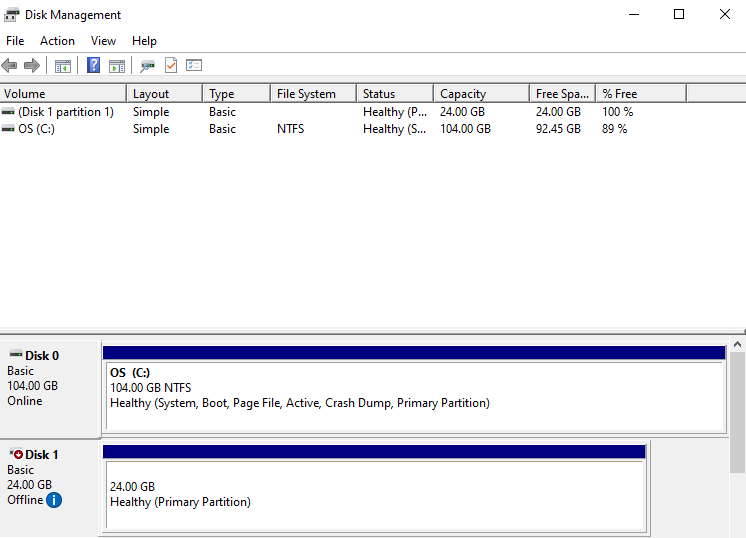
Storage > Disk Management.Check Disk
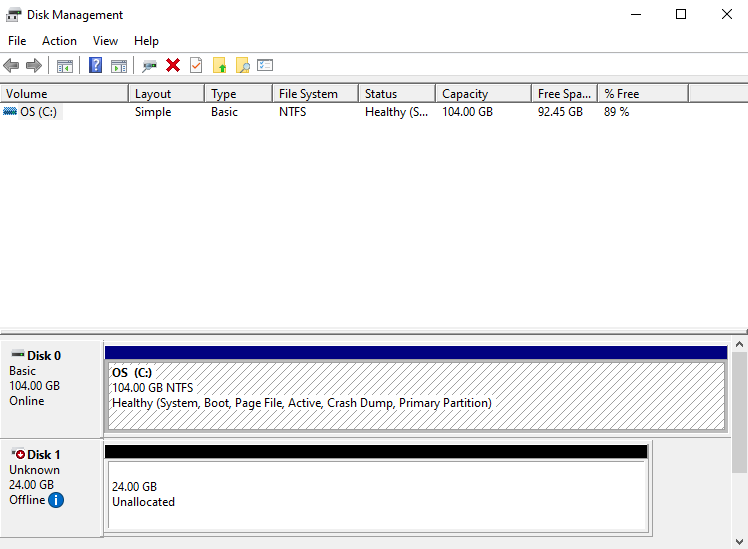
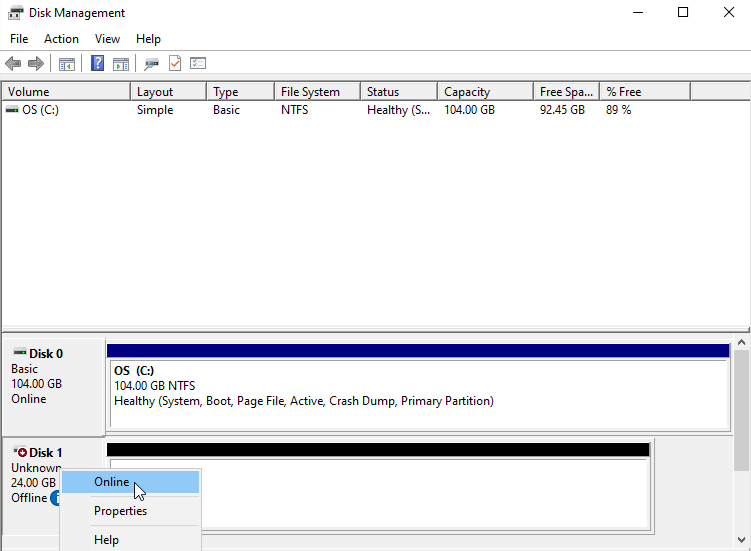
Disk Online
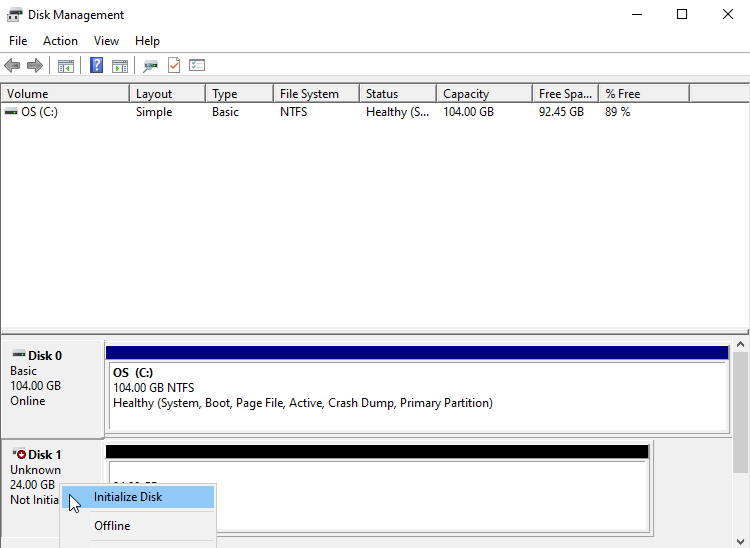
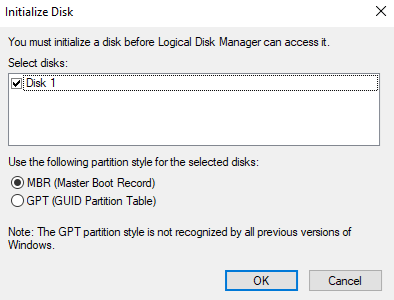
Disk initialization
Partition format
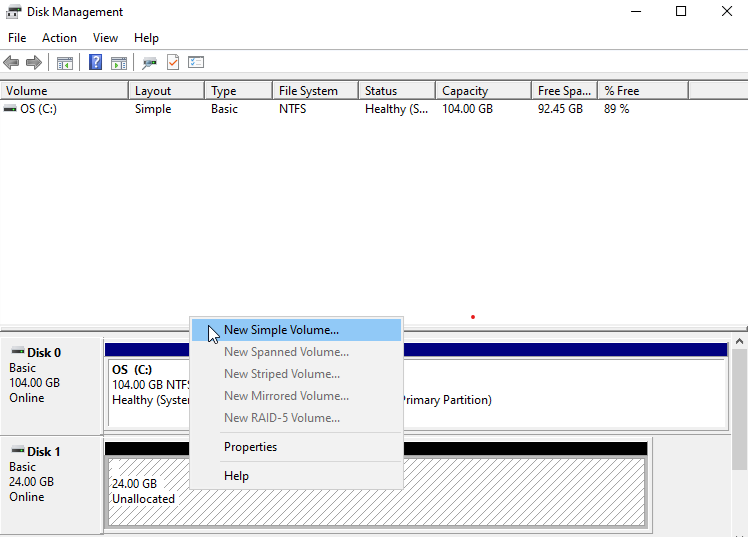
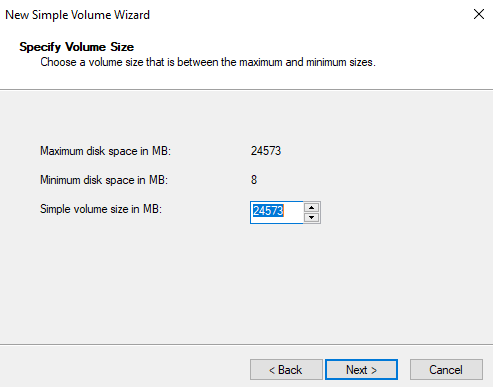
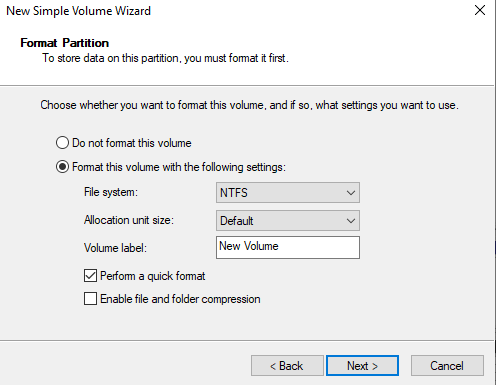
Check volume
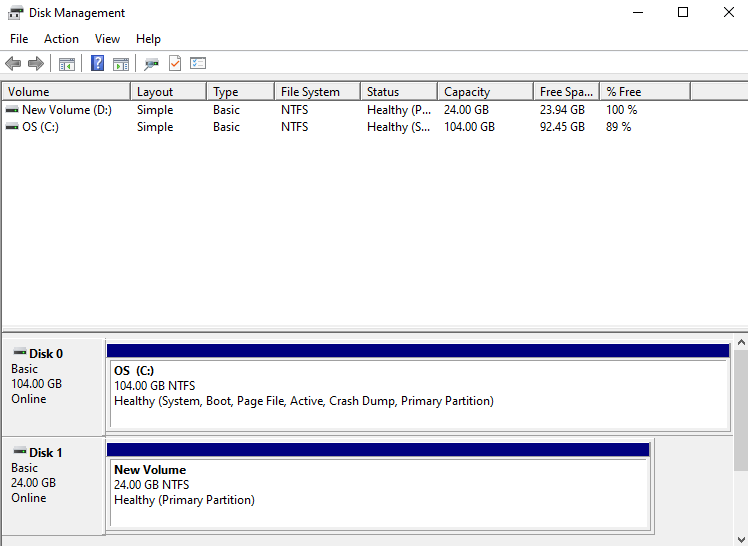
Disconnect Server (Umount, Disk Offline)
Connect to the server and perform the disconnect operations (Umount, Disk Offline), and you must disconnect the server from the Console.
Please follow the steps below.
- If you disconnect the server from the console without performing the disconnect operations (Umount, Disk Offline) on the server, a server status error (Hang) may occur.
- Be sure to complete the OS tasks first.
- The OS default volume cannot have its connected server modified or its service terminated.
Linux operating system
- Click the All Services > Compute > Virtual Server menu. 1. Go to the Service Home page of the Virtual Server.
- Click the Block Storage menu. 2. Go to the Block Storage List page.
- On the Block Storage List page, click the resource to detach the connected server. 3. Block Storage Details Navigate to the page.
- In the Connection Server field, verify the server and then connect.
- Refer to the steps below to unmount (Umount) the volume.
- Volume Umount
  # umount /dev/vdb1 /data

  # lsblk
  NAME    MAJ:MIN  RM   SIZE RO TYPE MOUNTPOINT
  vda       252:0   0    24G  0 disk
  ├─vda1    252:1   0  23.9G  0 part [SWAP]
  └─vda14   252:14  0     4M  0 part /
  └─vda15   252:15  0   106M  0 part /boot/efi
  vdb       252:16  0    24G  0 disk
  └─vdb1    252:17  0    24G  0 part

  # vi /etc/fstab
  (삭제) /dev/vdb1     /data       ext4     defaults   0 0
Windows operating system
All Services > Compute > Virtual Server Click the menu. 1. Navigate to the Service Home page of the Virtual Server.
Block Storage Click the menu. 2. Go to the Block Storage List page.
Block Storage list page, click the resource to detach the connected server. 3. Navigate to the Block Storage Details page.
After checking the server in the Connection Server item, connect.
Unmount the mounted file system.
Refer to the procedure below to detach the volume (Disk Offline).
Right-click the Windows Start icon, then run
Computer Management.In the Computer Management tree structure, select
Storage > Disk ManagementAfter right-clicking the disk to remove, run
Offline.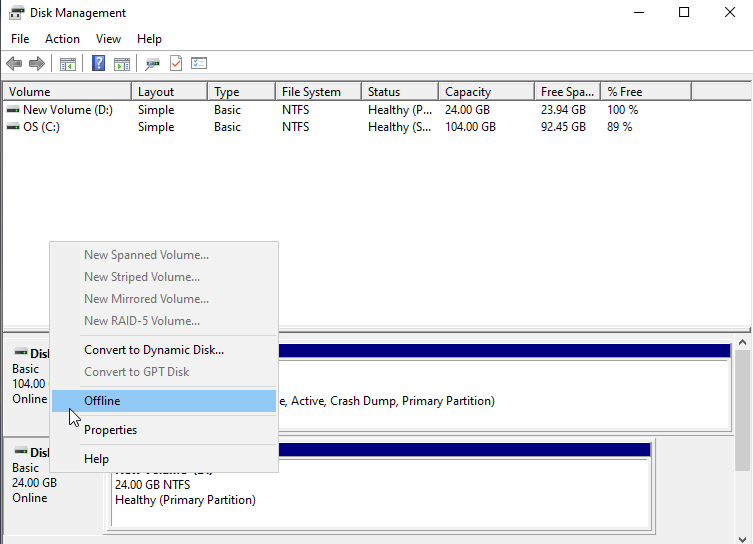
Check disk status