Connecting to the Server
When using a volume on a server, connection or disconnection work is required.
From the Block Storage Details page, add the connection server and then connect to the server to perform the connection work (Mount, Disk Online). After use, perform the disconnection work (Umount, Disk Offline) and then remove the connection server.
Connecting to the Server (Mount, Disk Online)
To use the volume added to the connection server, you must connect to the server and perform the connection work (Mount, Disk Online). Follow the procedure below.
Linux Operating System
- Server OS: LINUX
- Mount location: /data
- Volume capacity: 24 GB
- File system: ext3, ext4, xfs etc
- Additional allocated disk: /dev/vdb
- Click the All Services > Compute > Virtual Server menu. Move to the Service Home page of Virtual Server.
- Click the Block Storage menu. Move to the Block Storage List page.
- On the Block Storage List page, click the resource to be used by the connection server. Move to the Block Storage Details page.
- Check the server in the Connection Server section and connect to it.
- Refer to the procedure below to connect (Mount) the volume.
Switch to root privileges
$ sudo -iCheck the disk
# lsblk
NAME    MAJ:MIN  RM   SIZE RO TYPE MOUNTPOINT
vda       252:0   0    24G  0 disk
├─vda1    252:1   0  23.9G  0 part [SWAP]
└─vda14   252:14  0     4M  0 part /
└─vda15   252:15  0   106M  0 part /boot/efi
vdb       252:16  0    24G  0 disk
Create a partition
# fdisk /dev/vdb
Command (m for help): n

Partition type:
   p   primary (0 primary, 0 extended, 4 free)
   e   extended
Select (default p): p
Partition number (1-4, default 1): 1
First sector (2048-50331646, default 2048):
Last sector, +/-sectors or +/-size{K,M,G,T,P} (2048-50331646, default 50331646):

Created a new partition 1 of type 'Linux' and of size 24 GiB.

Command (m for help): w
The partition table has been altered!
Calling ioctl() to re-read partition table.
Syncing disks.
Set the partition format (e.g., ext4)
# lsblk
NAME    MAJ:MIN  RM   SIZE RO TYPE MOUNTPOINT
vda       252:0   0    24G  0 disk
├─vda1    252:1   0  23.9G  0 part [SWAP]
└─vda14   252:14  0     4M  0 part /
└─vda15   252:15  0   106M  0 part /boot/efi
vdb       252:16  0    24G  0 disk
└─vdb1    252:17  0    24G  0 part

# mkfs.ext4 /dev/vdb1
mke2fs 1.46.5 (30-Dec-2021)
...
Writing superblocks and filesystem accounting information: done
Mount the volume
# mkdir /data

# mount /dev/vdb1 /data

# lsblk
NAME    MAJ:MIN  RM   SIZE RO TYPE MOUNTPOINT
vda       252:0   0    24G  0 disk
├─vda1    252:1   0  23.9G  0 part [SWAP]
└─vda14   252:14  0     4M  0 part /
└─vda15   252:15  0   106M  0 part /boot/efi
vdb       252:16  0    24G  0 disk
└─vdb1    252:17  0    24G  0 part /data

# vi /etc/fstab
(add) /dev/vdb1     /data       ext4     defaults   0 0
| Item | Description |
|---|---|
| cat /etc/fstab | File system information file
|
| df -h | Check the total disk usage of the mounted disk |
| fdisk -l | Check partition information
|
| Command | Description |
|---|---|
| m | Check the usage of the fdisk command |
| n | Create a new partition |
| p | Check the changed partition information |
| t | Change the system ID of the partition |
| w | Save the partition information and exit the fdisk settings |
Windows Operating System
- Click the All Services > Compute > Virtual Server menu. Move to the Service Home page of Virtual Server.
- Click the Block Storage menu. Move to the Block Storage List page.
- On the Block Storage List page, click the resource to be used by the connection server. Move to the Block Storage Details page.
- Check the server in the Connection Server section and connect to it.
- Refer to the procedure below to connect (Disk Online) the volume.
Right-click the Windows start icon and run Computer Management
In the Computer Management tree structure, select Storage > Disk Management
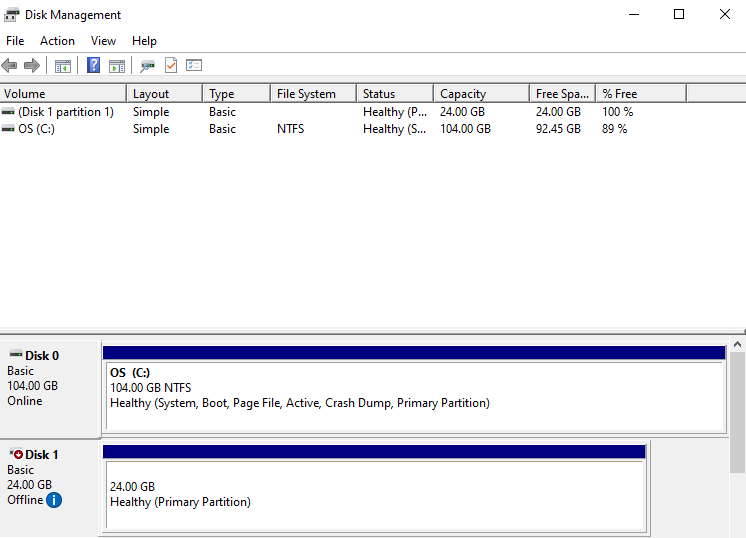
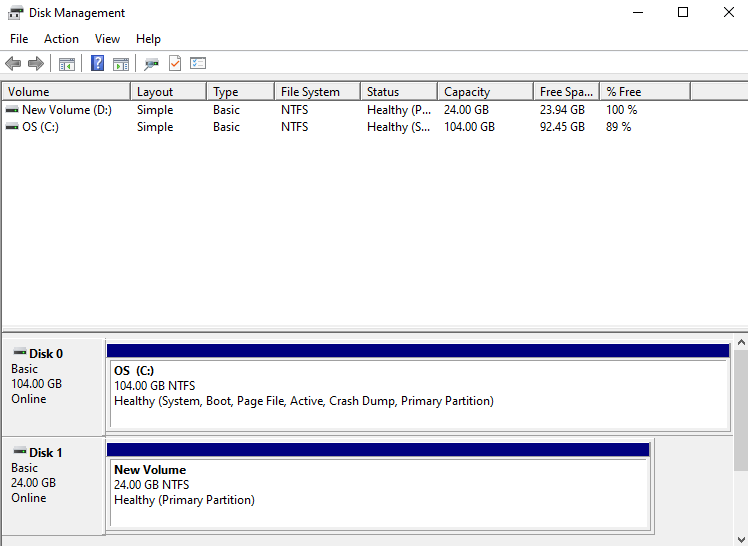
Check the disk
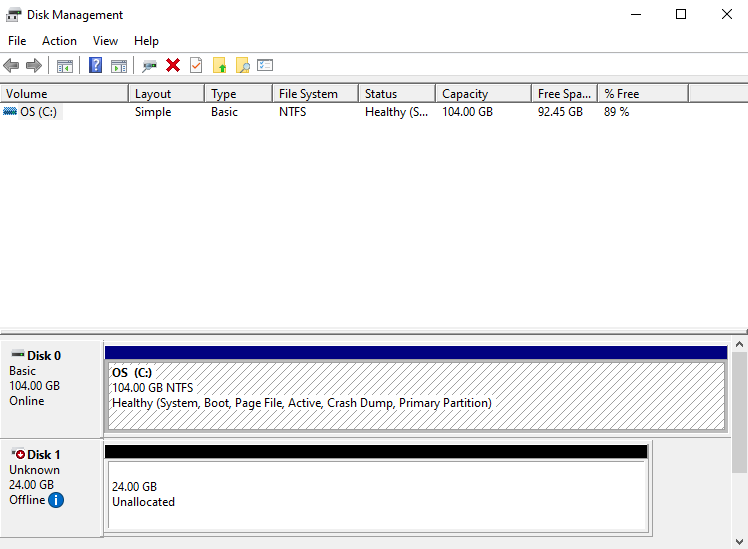
Bring the disk online
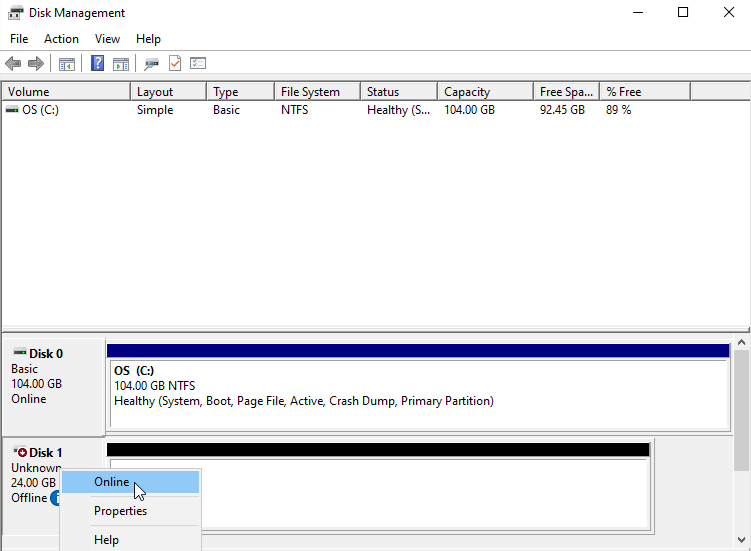
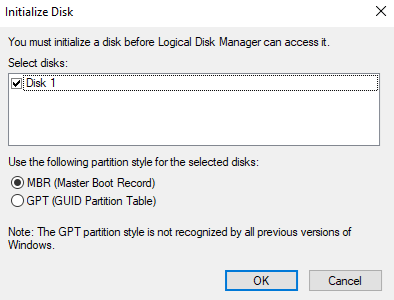
Initialize the disk
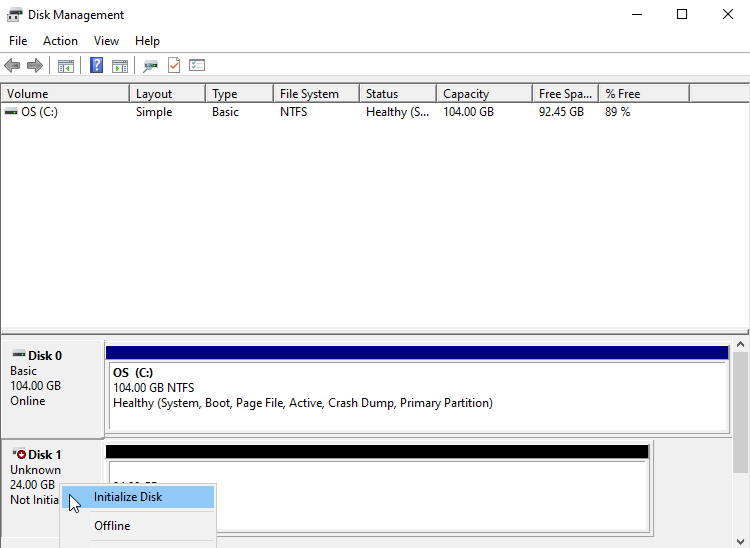
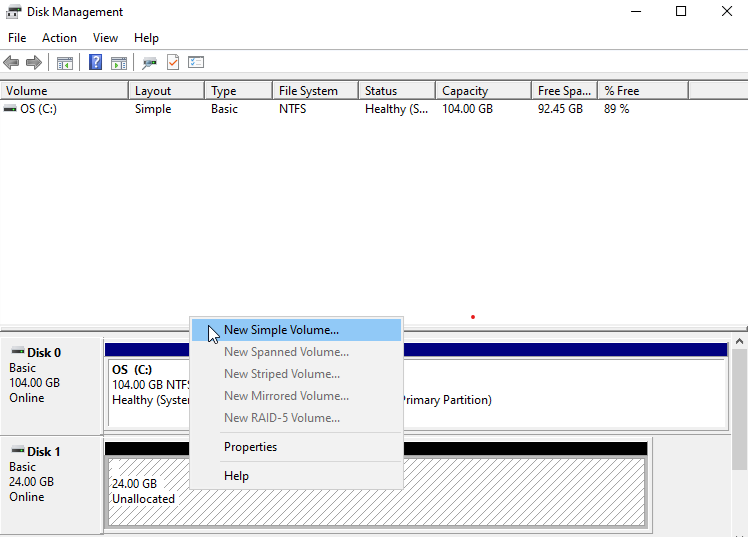
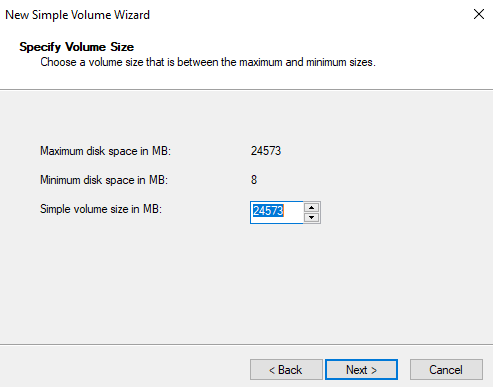
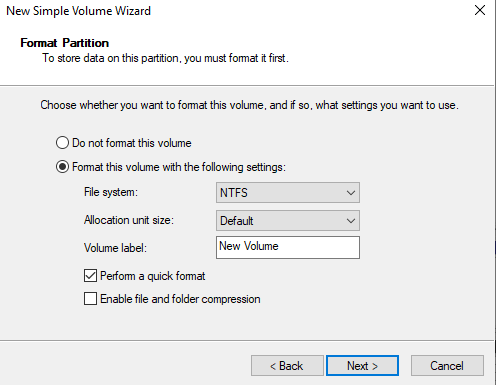
Format the partition
Check the volume
Disconnecting from the Server (Umount, Disk Offline)
Connect to the server and perform the disconnection work (Umount, Disk Offline), and then remove the connection server from the console.
Follow the procedure below.
- If you disconnect the server from the console without performing the disconnection work (Umount, Disk Offline) on the server, a server status error (Hang) may occur.
- Be sure to perform the OS work first.
- For the OS basic volume, connection server modification and service termination are not allowed.
Linux Operating System
- Click the All Services > Compute > Virtual Server menu. Move to the Service Home page of Virtual Server.
- Click the Block Storage menu. Move to the Block Storage List page.
- On the Block Storage List page, click the resource to be disconnected from the connection server. Move to the Block Storage Details page.
- Check the server in the Connection Server section and connect to it.
- Refer to the procedure below to disconnect (Umount) the volume.
- Umount the volume
  # umount /dev/vdb1 /data

  # lsblk
  NAME    MAJ:MIN  RM   SIZE RO TYPE MOUNTPOINT
  vda       252:0   0    24G  0 disk
  ├─vda1    252:1   0  23.9G  0 part [SWAP]
  └─vda14   252:14  0     4M  0 part /
  └─vda15   252:15  0   106M  0 part /boot/efi
  vdb       252:16  0    24G  0 disk
  └─vdb1    252:17  0    24G  0 part

  # vi /etc/fstab
  (delete) /dev/vdb1     /data       ext4     defaults   0 0
Windows Operating System
Click the All Services > Compute > Virtual Server menu. Move to the Service Home page of Virtual Server.
Click the Block Storage menu. Move to the Block Storage List page.
On the Block Storage List page, click the resource to be disconnected from the connection server. Move to the Block Storage Details page.
Check the server in the Connection Server section and connect to it.
Unmount the file system.
Refer to the procedure below to disconnect (Disk Offline) the volume.
Right-click the Windows start icon and run Computer Management
In the Computer Management tree structure, select Storage > Disk Management
Right-click the disk to be removed and run Offline
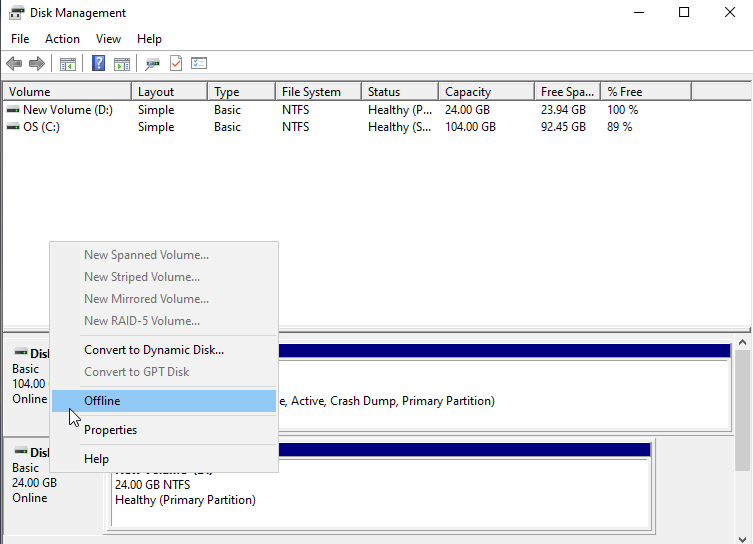
Check the disk status