The user can input required information for a Bare Metal Server through the Samsung Cloud Platform Console, select detailed options, and create the service.
Bare Metal Server Create
You can create and use the Bare Metal Server service from the Samsung Cloud Platform Console.
To create a Bare Metal Server, follow the steps below.
- All Services > Compute > Bare Metal Server Click the menu. Go to the Service Home page of Bare Metal Server.
- Click the Bare Metal Server Create button on the Service Home page. It navigates to the Bare Metal Server Create page.
- Bare Metal Server creation On the page, enter the information required to create the service, and select detailed options.
- Image and Version Selection area, select the required information.
Category Required or notDetailed description Image Required Select the type of image provided - RHEL
- Rocky Linux
- Ubuntu
- Windows
Image Version Required Select version of the chosen image - Provides a list of versions of the provided server images
Table. Bare Metal Server Image and Version Input Items - Service Information Input area, please input or select the required information.
Category Required or notDetailed description Server count Required Number of Bare Metal Server servers to create simultaneously - Only numbers can be entered, and must be between 1 and 5
Service Type > Server Type Required Bare Metal Server Server Type - Select desired vCPU, Memory, Disk specifications
- For detailed information about server types provided by Bare Metal Server, refer to Bare Metal Server Server Type
Service Type > Planned Compute Required Status of resources with Planned Compute set - In Use: Number of resources with Planned Compute set that are in use
- Configured: Number of resources with Planned Compute set
- Coverage Preview: Amount applied by Planned Compute per resource
- Apply for Planned Compute Service: Go to Planned Compute application page
- For details, refer to Apply for Planned Compute
Automation Account Required Automatically creates an account to provide automation functions after Bare Metal Server creation - The account is used only for inter-system interface purposes
- Password is encrypted and cannot be accessed outside the system
- If the account is deleted, network changes and some automation functions will be restricted
Table. Bare Metal Server Service Information Input Items - In the Required Information Input area, enter or select the required information.
Category Required or notDetailed description Administrator Account Required Set the administrator account and password to be used when connecting to the server - RHEL, Ubuntu OS are provided fixed as root
- For Windows OS, enter using lowercase English letters and numbers, 5~20 characters
Administratornot allowed
Server Name Required Enter a name to distinguish the Bare Metal Server when the selected number of servers is 1 - Set the hostname to the entered server name
- Start with a lowercase English letter, and use lowercase letters, numbers, and special character (
-) to enter within 3 to 15 characters
- Must not end with a special character (
-)
Server Name Prefix Required Input Prefix to distinguish each Bare Metal Server generated when the selected number of servers is 2 or more - Automatically generated in the form of user input value (prefix) + ‘
-###’
- Must start with a lowercase English letter, and be entered using lowercase letters, numbers, and special characters (
-) within 3 to 15 characters
- Must not end with a special character (
-)
Network Settings Required Set the network where the Bare Metal Server will be installed - Select a pre-created VPC
- General Subnet: Select a pre-created general Subnet
- IP can be set to Auto-generated or User input; if Input is selected, the user enters the IP directly
- NAT: Available only when there is a single server and the VPC has an Internet Gateway attached
- When checked, a NAT IP can be selected
- NAT IP: Select a NAT IP
- If there is no NAT IP to select, click the Create New button to generate a Public IP
- Click the Refresh button to view and select the created Public IP
- Creating a Public IP incurs charges according to the Public IP pricing policy
- Local Subnet (Optional): Choose to use a local Subnet
- Not a required element for creating the service
- Select a pre-created local Subnet
- IP can be set to Auto-generated or User input; if Input is selected, the user enters the IP directly
Table. Bare Metal Server Required Information Input Items
- Image and Version Selection area, select the required information.
Please use a firewall etc. to control traffic access for Bare Metal Server. Security Group is not provided.
The firewall of the Bare Metal Server can only be used for traffic control between the Bare Metal Server and the Virtual Server. To use the Bare Metal Server’s firewall, follow the steps below.
- Separate the VPC of the Bare Metal Server: Separate them so that the Bare Metal Server and Virtual Server do not use the same VPC.
- Create Transit Gateway: Please create the Transit Gateway.
- The integration between the VPC of Virtual Server and the VPC of Bare Metal Server uses a Transit Gateway.
- When creating a Transit Gateway integration in the VPC of a Bare Metal Server, you must also create the Bare Metal Server’s firewall.
- Firewall Rule registration: Register a rule in the Firewall of the Bare Metal Server.
- Bare Metal Server Creation on the page Additional Information Input area, enter or select the required information.
Category Required or notDetailed description Local disk partition Select Set whether to use local disk partition - Up to 10 can be created, including the root partition
- Up to 90% of total capacity can be used
- After checking Use, partition information can be set
- Root partition information setting
- Partition type: flat, lvm selectable
- Partition name: enter partition name
- Can be entered only when partition type is lvm
- Enter within 15 characters, starting with a letter and including letters, numbers, and special characters (
-)
- Partition size: enter at least 50 GB
- Filesystem type: select according to the used image
- For RHEL, Rocky Linux: xfs, ext4
- For Ubuntu: ext4, xfs, btrfs
- For SLES: btrfs, xfs, ext4
- Mount point: start with special character
/and enter within 15 characters, including letters, numbers, and special characters (-)- If Filesystem type is swap, entry not allowed
- Available capacity: 90% of the default disk capacity provided when selecting a server
- When setting partition size, the remaining capacity is automatically calculated and displayed
- Total partition disk amount cannot exceed available capacity
- Additional partition information setting
- Partition type: flat, lvm selectable
- Partition name: enter partition name
- Can be entered only when partition type is lvm
- Enter within 15 characters, starting with a letter and including letters, numbers, and special characters (
-)
- Partition size: enter at least 1 GB
- Filesystem type: select according to the used image>
- For RHEL, Rocky Linux: xfs, ext4, swap
- For Ubuntu: ext4, xfs, btrfs, swap
- For SLES: btrfs, xfs, ext4, swap
- Mount point: start with special character
/and enter within 15 characters, including letters, numbers, and special characters (-)- If Filesystem type is swap, entry not allowed
- Available capacity: 90% of the default disk capacity provided when selecting a server
- When setting partition size, the remaining capacity is automatically calculated and displayed
- Total partition disk amount cannot exceed available capacity
Placement Group Select Servers belonging to the same Placement group are distributed across different racks - Provides distributed placement for up to 2 servers belonging to the same Placement group
- For distribution of 3 or more servers, add additional Placement groups
- Applicable only at initial creation; cannot be modified after creation
- If you terminate the last server belonging to a Placement group, that Placement group is automatically deleted
Lock Select Using Lock prevents actions caused by mistakes, preventing the server from being terminated, started, or stopped Hyper Threading Select Set logical cores to operate at twice the number of physical cores - Uncheck the box to turn off Hyper Threading
- Cannot be changed after server creation
Init Script Select Script to run when the server starts - Init Script must be selected differently depending on the image type
- For Windows: Select Batch Script
- For Linux: Shell Script
Table. Bare Metal Server Additional Information Input Items - Summary Check the detailed information and estimated billing amount generated in the panel, and click the Complete button.
- When creation is complete, check the created resources on the Bare Metal Server List page.
Bare Metal Server Check detailed information
The Bare Metal Server service can view and edit the full resource list and detailed information. Bare Metal Server Details page consists of Details, Tags, Activity History tabs.
Bare Metal Server If you want to view detailed information, follow the steps below.
- All Services > Compute > Bare Metal Server Click the menu. Navigate to the Service Home page of Bare Metal Server.
- Click the Bare Metal Server menu on the Service Home page. Go to the Bare Metal Server List page.
- Bare Metal Server List page, click the resource to view detailed information. Bare Metal Server Details page moves.
- Bare Metal Server Detail page displays status information and additional feature information, and consists of Detail Information, Tag, Operation History tabs.
Category Detailed description Bare Metal Server status Status of the Bare Metal Server created by the user - Creating: server is being created
- Running:: creation complete and usable
- Editing:: IP is being changed
- Unknown: error state
- Starting: server is starting
- Stopping: server is stopping
- Stopped: server has stopped
- Terminating: termination in progress
- Terminated: termination complete
Server Control Button to change server status - Start: Start a stopped server
- Stop: Stop a running server
Service termination Button to cancel the service Table. Bare Metal Server status information and additional functions
Detailed Information
Bare Metal Server List page allows you to view detailed information of the selected resource and, if necessary, edit the information.
| Category | Detailed description |
|---|---|
| Service | Service Name |
| Resource Type | Resource Type |
| SRN | Unique resource ID in Samsung Cloud Platform
|
| Resource Name | Resource Name
|
| Resource ID | Unique resource ID in the service |
| Creator | User who created the service |
| Creation time | Service creation time |
| Editor | User who edited the service information |
| Modification DateTime | Date and time when service information was modified |
| Server name | Server name |
| Image/Version | Server’s OS image and version |
| Server Type | vCPU, memory information display |
| Planned Compute | Resource status with Planned Compute set
|
| Lock | Display lock usage status
|
| Hyper Threading | Hyper Threading usage/not usage indication
|
| Network | Network information of Bare Metal Server
|
| Local Subnet | Local Subnet information of Bare Metal Server
|
| Block Storage | Block Storage information connected to the server
|
| Init Script | View the Init Script entered when creating the server |
Tag
Bare Metal Server List page, you can view the tag information of the selected resource, and add, modify, or delete it.
| Category | Detailed description |
|---|---|
| Tag List | Tag List
|
Work History
You can view the operation history of the selected resources on the Bare Metal Server List page.
| Category | Detailed description |
|---|---|
| Work History List | Resource Change History
|
Bare Metal Server Resource Management
If you need server control and management functions for the created Bare Metal Server resources, you can perform the tasks on the Bare Metal Server List or Bare Metal Server Details page.
Bare Metal Server Operation Control
You can start, stop, and restart a running Bare Metal Server.
To control the operation of Bare Metal Server, follow the steps below.
- All Services > Compute > Bare Metal Server Click the menu. Navigate to the Service Home page of Bare Metal Server.
- Click the Bare Metal Server menu on the Service Home page. Navigate to the Bare Metal Server List page.
- Bare Metal Server list On the page, after selecting multiple servers, you can control multiple servers simultaneously using the start and stop buttons at the top of the table.
- Bare Metal Server Details page also allows you to start and stop the server.
- Bare Metal Server List on the page click the resource to control operation and navigate to the Bare Metal Server Detail page.
- Check the server status and complete the changes using each Server Management button.
- Start: Start the stopped server.
- Stop: Stops the running server.
When a Bare Metal Server is stopped, the server’s power turns off.
- Since it may affect applications or storage in use, we recommend shutting down the OS and then stopping.
- After shutting down the OS, be sure to also stop in the Console.
- Bare Metal Server If you cannot start when requesting a start, see below.
- When Lock is set: After changing the Lock setting to disabled, try again.
- If the Bare Metal Server’s status is not Stopped: Change the Bare Metal Server’s status to Stopped, then try again.
- If stopping a Bare Metal Server request is not possible, refer to the following.
- If Lock is set: Change the Lock setting to disabled, then try again.
- If the Bare Metal Server’s status is not Running: Change the Bare Metal Server’s status to Running, then try again.
Add Block Storage
You can add Block Storage to a Bare Metal Server.
To add Block Storage, follow the steps below.
- All Services > Compute > Bare Metal Server Click the menu. Navigate to the Service Home page of Bare Metal Server.
- Click the Bare Metal Server menu on the Service Home page. Go to the Bare Metal Server list page.
- On the Bare Metal Server List page, click the server to add Block Storage. You will be taken to the Bare Metal Server Details page.
- Click the Add button in the Block Storage item on the Bare Metal Server Details page.
- If the popup window confirming Block Storage addition opens, click the Confirm button. Move to the Block Storage (BM) Creation page.
- Block Storage(BM) Creation on the page, enter the information required to create the service and create the Block Storage.
- For detailed information about creating Block Storage(BM), please refer to Block Storage(BM) Create.
- Navigate to the Bare Metal Server Details page after adding Block Storage and verify that Block Storage has been added.
Bare Metal Server Termination
If you terminate an unused Bare Metal Server, you can reduce operating costs. However, terminating a Bare Metal Server may cause the running service to stop immediately, so you should consider the impact of service interruption sufficiently before proceeding with the termination.
To cancel the Bare Metal Server, follow the steps below.
- All Services > Compute > Bare Metal Server Click the menu. Navigate to the Service Home page of Bare Metal Server.
- Click the Bare Metal Server menu on the Service Home page. Go to the Bare Metal Server list page.
- Bare Metal Server List page, select the resource to cancel, and click the Cancel Service button.
- You can select multiple resources and delete them simultaneously.
- You can also delete by clicking the Service Termination button on the Bare metal Server details page of the resource to be terminated.
- When termination is complete, check on the Bare Metal Server List page whether the resource has been terminated.
Termination Constraints
Bare Metal Server when a termination request cannot be processed, we will guide with a popup window. Please refer to the cases below.
Block Storage(BM) is connected (simultaneous termination of 2 or more servers): Disconnect the Block Storage(BM) first.
- For detailed information on how to cancel, please refer to Block Storage(BM) Cancel.
If File Storage is connected: Please disconnect the File Storage first.
- For detailed information on how to cancel, please refer to File Storage Cancel.
If Lock is set: After changing the Lock setting to disabled, try again.
If there is a Backup Agent or Load Balancer connection resource: Terminate the connection of that resource first.
If resource management tasks for Bare Metal Server are in progress on the same account: After the Bare Metal Server resource management tasks are completed, please try again.
If the Bare Metal Server’s status is not Running or Stopped: Change the Bare Metal Server’s status to Running or Stopped, then try again.
If the server that cannot be terminated simultaneously is included: Please select only the resources that can be terminated and try again.
Local Subnet Setup
After completing the creation of a Bare Metal Server, if you add a local Subnet on the Bare Metal Server Details page, you must configure the network settings of the local Subnet yourself.
First Connection(kr-west)
There is no local subnet connected to the Bare Metal Server, and if you are adding the first connection, proceed according to the guide below.
This guide applies to kr-west (Korea West) when adding the first local Subnet connection to the server.
- kr-south(South Korea) guide, refer to the First Connection(kr-south) chapter.
Linux - Setting up Subnet on Ubuntu
On the Ubuntu operating system, add a local Subnet, and to proceed with network configuration, follow the steps below.
On the Bare Metal Server Details page, check the Interface Name.
View the network configuration information.
Color mode[root@localhost ~]# vi /etc/netplan/50-cloud-init.yaml network: ethernets: ens2f1: match: macaddress: 68:05:ca:d4:09:91 mtu: 1500 set-name: ens2f1 ens4f1: match: macaddress: 68:05:ca:d4:09:01 mtu: 1500 set-name: ens4f1[root@localhost ~]# vi /etc/netplan/50-cloud-init.yaml network: ethernets: ens2f1: match: macaddress: 68:05:ca:d4:09:91 mtu: 1500 set-name: ens2f1 ens4f1: match: macaddress: 68:05:ca:d4:09:01 mtu: 1500 set-name: ens4f1Code block. Network configuration file lookup After adding a new VLAN, set the IP for the Bonding configuration.
- Change the ID and IP in the example code to the assigned ID and IP.Color mode
[root@localhost ~]# vi /etc/netplan/50-cloud-init.yaml network: bonds: bond-mgt: interfaces: - ens2f1 // **Bare Metal Server Details** page, enter the Interface Name you confirmed. - ens4f1 // **Bare Metal Server detailed** page, enter the Interface Name you verified. mtu: 1500 parameters: mii-monitor-interval: 100 mode: active-backup transmit-hash-policy: layer2 ethernets: ens2f1: match: macaddress: 68:05:ca:d4:09:91 mtu: 1500 set-name: ens2f1 ens4f1: match: macaddress: 68:05:ca:d4:09:01 mtu: 1500 set-name: ens4f1 vlans: bond-mgt.20: // Enter the Vlan ID confirmed in the SCP Console instead of 20. addresses: - 192.168.0.10/24 // Set it to the local Subnet IP confirmed in the SCP Console. id: 20 // Set it to the VLAN ID confirmed in the SCP Console. link: bond-mgt mtu: 1500[root@localhost ~]# vi /etc/netplan/50-cloud-init.yaml network: bonds: bond-mgt: interfaces: - ens2f1 // **Bare Metal Server Details** page, enter the Interface Name you confirmed. - ens4f1 // **Bare Metal Server detailed** page, enter the Interface Name you verified. mtu: 1500 parameters: mii-monitor-interval: 100 mode: active-backup transmit-hash-policy: layer2 ethernets: ens2f1: match: macaddress: 68:05:ca:d4:09:91 mtu: 1500 set-name: ens2f1 ens4f1: match: macaddress: 68:05:ca:d4:09:01 mtu: 1500 set-name: ens4f1 vlans: bond-mgt.20: // Enter the Vlan ID confirmed in the SCP Console instead of 20. addresses: - 192.168.0.10/24 // Set it to the local Subnet IP confirmed in the SCP Console. id: 20 // Set it to the VLAN ID confirmed in the SCP Console. link: bond-mgt mtu: 1500Code block. IP Settings
- Change the ID and IP in the example code to the assigned ID and IP.
Apply the changes to the system.
Color mode# netplan apply# netplan applyCode block. Reflect changes Check the interface status.
Color mode# ip a or # bash /usr/local/bin/ip.sh# ip a or # bash /usr/local/bin/ip.shCode block. Interface lookup
Linux – Setting up Subnet on CentOS/Red Hat
After adding a local Subnet on the CentOS/Red Hat operating system, follow the steps below to configure the network.
On the Bare Metal Server Details page, check the Interface Name.
Modify the following command and execute.
Color mode#!/usr/bin/bash IP_ADDR="10.1.1.3/24" // Set the local Subnet IP that you checked from the Console. VLAN_ID="7" // Set the Vlan ID confirmed in the Console. BOND_NAME="bond-mgt" BOND_IF_name1="ens2f1" // Enter the Interface Name you verified on the **Bare Metal Server Details** page. BOND_IF_name2="ens4f0" // **Bare Metal Server Details** Enter the Interface Name you verified on the page. # Delete Connection nmcli con down "Bond ${BOND_NAME}" nmcli con del "Bond ${BOND_NAME}" nmcli con down "System ${BOND_IF_name1}" nmcli con down "System ${BOND_IF_name2}" nmcli con del "System ${BOND_IF_name1}" nmcli con del "System ${BOND_IF_name2}" # Create Bonding nmcli con add con-name ${BOND_NAME} type bond ifname ${BOND_NAME} nmcli conn mod ${BOND_NAME} con-name "Bond ${BOND_NAME}" nmcli conn mod "Bond ${BOND_NAME}" ipv4.method disabled nmcli conn mod "Bond ${BOND_NAME}" ipv6.method ignore nmcli conn mod "Bond ${BOND_NAME}" connect.autoconnect yes nmcli conn mod "Bond ${BOND_NAME}" +bond.options mode=active-backup \ +bond.options xmit_hash_policy=layer2 \ +bond.options miimon=100 \ +bond.options num_grat_arp=1 \ +bond.options downdelay=0 \ +bond.options updelay=0 # Assign bond-slave nmcli conn add type bond-slave ifname ${BOND_IF_name1} con-name "${BOND_IF_name1}" master ${BOND_NAME} nmcli conn mod ${BOND_IF_name1} con-name "System ${BOND_IF_name1}" nmcli conn add type bond-slave ifname ${BOND_IF_name2} con-name "${BOND_IF_name2}" master ${BOND_NAME} nmcli conn mod ${BOND_IF_name2} con-name "System ${BOND_IF_name2}" # Connection UP nmcli conn up "Bond ${BOND_NAME}" # add vlan nmcli conn add type vlan ifname "${BOND_NAME}.${VLAN_ID}" con-name "${BOND_NAME}.${VLAN_ID}" id ${VLAN_ID} dev ${BOND_NAME} nmcli con mod ${BOND_NAME}.${VLAN_ID} con-name "Vlan ${BOND_NAME}.${VLAN_ID}" nmcli con mod "Vlan ${BOND_NAME}.${VLAN_ID}" ipv4.addresses ${IP_ADDR} nmcli con mod "Vlan ${BOND_NAME}.${VLAN_ID}" ipv4.method manual nmcli con mod "Vlan ${BOND_NAME}.${VLAN_ID}" ipv6.method "ignore" nmcli con mod "Vlan ${BOND_NAME}.${VLAN_ID}" connect.autoconnect yes nmcli con up "Vlan ${BOND_NAME}.${VLAN_ID}" nmcli device reapply ${BOND_NAME}.${VLAN_ID}#!/usr/bin/bash IP_ADDR="10.1.1.3/24" // Set the local Subnet IP that you checked from the Console. VLAN_ID="7" // Set the Vlan ID confirmed in the Console. BOND_NAME="bond-mgt" BOND_IF_name1="ens2f1" // Enter the Interface Name you verified on the **Bare Metal Server Details** page. BOND_IF_name2="ens4f0" // **Bare Metal Server Details** Enter the Interface Name you verified on the page. # Delete Connection nmcli con down "Bond ${BOND_NAME}" nmcli con del "Bond ${BOND_NAME}" nmcli con down "System ${BOND_IF_name1}" nmcli con down "System ${BOND_IF_name2}" nmcli con del "System ${BOND_IF_name1}" nmcli con del "System ${BOND_IF_name2}" # Create Bonding nmcli con add con-name ${BOND_NAME} type bond ifname ${BOND_NAME} nmcli conn mod ${BOND_NAME} con-name "Bond ${BOND_NAME}" nmcli conn mod "Bond ${BOND_NAME}" ipv4.method disabled nmcli conn mod "Bond ${BOND_NAME}" ipv6.method ignore nmcli conn mod "Bond ${BOND_NAME}" connect.autoconnect yes nmcli conn mod "Bond ${BOND_NAME}" +bond.options mode=active-backup \ +bond.options xmit_hash_policy=layer2 \ +bond.options miimon=100 \ +bond.options num_grat_arp=1 \ +bond.options downdelay=0 \ +bond.options updelay=0 # Assign bond-slave nmcli conn add type bond-slave ifname ${BOND_IF_name1} con-name "${BOND_IF_name1}" master ${BOND_NAME} nmcli conn mod ${BOND_IF_name1} con-name "System ${BOND_IF_name1}" nmcli conn add type bond-slave ifname ${BOND_IF_name2} con-name "${BOND_IF_name2}" master ${BOND_NAME} nmcli conn mod ${BOND_IF_name2} con-name "System ${BOND_IF_name2}" # Connection UP nmcli conn up "Bond ${BOND_NAME}" # add vlan nmcli conn add type vlan ifname "${BOND_NAME}.${VLAN_ID}" con-name "${BOND_NAME}.${VLAN_ID}" id ${VLAN_ID} dev ${BOND_NAME} nmcli con mod ${BOND_NAME}.${VLAN_ID} con-name "Vlan ${BOND_NAME}.${VLAN_ID}" nmcli con mod "Vlan ${BOND_NAME}.${VLAN_ID}" ipv4.addresses ${IP_ADDR} nmcli con mod "Vlan ${BOND_NAME}.${VLAN_ID}" ipv4.method manual nmcli con mod "Vlan ${BOND_NAME}.${VLAN_ID}" ipv6.method "ignore" nmcli con mod "Vlan ${BOND_NAME}.${VLAN_ID}" connect.autoconnect yes nmcli con up "Vlan ${BOND_NAME}.${VLAN_ID}" nmcli device reapply ${BOND_NAME}.${VLAN_ID}Code block. IP configuration script Check the interface status.
Color mode# ip a or # bash /usr/local/bin/ip.sh# ip a or # bash /usr/local/bin/ip.shCode block. Interface lookup
Setting up Subnet on Windows
After adding a local Subnet in the Windows operating system, follow these steps to configure the network.
Windows Start icon, right-click, then run the Windows PowerShell (Administrator) program.
Check the Interface Name on the Bare Metal Server Details page.
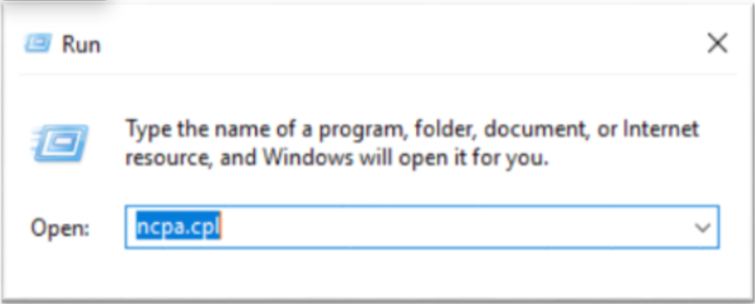
Run ncpa.cpl from the Windows Run menu.
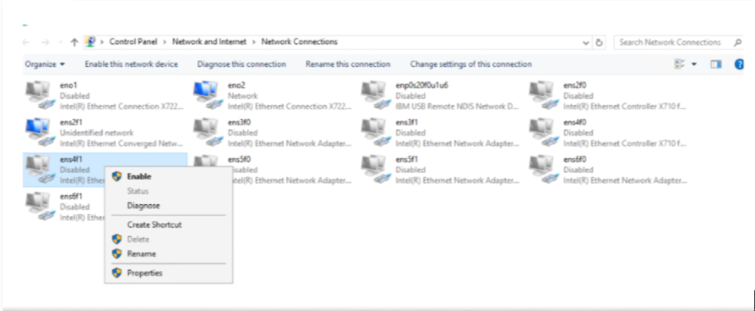
Check whether the interface is activated, and if necessary, activate it.
- Bare Metal Server detail checked on the page Interface Name activate.
Create a Teaming.
Color modePS C:\> New-NetLbfoTeam –Name “bond-mgt” –TeamMembers ens2f1,ens4f1 PS C:\> Set-NetLbfoTeam –Name “bond-mgt” –LoadBalancingAlgorithm DynamicPS C:\> New-NetLbfoTeam –Name “bond-mgt” –TeamMembers ens2f1,ens4f1 PS C:\> Set-NetLbfoTeam –Name “bond-mgt” –LoadBalancingAlgorithm DynamicCode block. Teaming creation 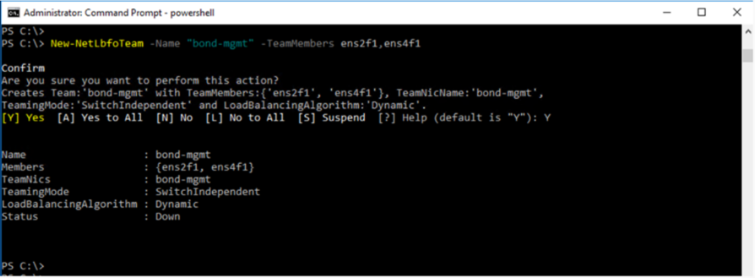
After adding a new VLAN, set the IP.
- Enter the VLAN ID and local Subnet IP confirmed on the Bare Metal Server Details page.Color mode
PS C:\> Add-NetLbfoTeamNIC -Team bond_bond-mgt -VlanID 20 -Name bond-mgt.20 PS C:\> Get-NetAdapter PS C:\> netsh interface ip set address bond-mgt.20 static “192.168.0.10/24”PS C:\> Add-NetLbfoTeamNIC -Team bond_bond-mgt -VlanID 20 -Name bond-mgt.20 PS C:\> Get-NetAdapter PS C:\> netsh interface ip set address bond-mgt.20 static “192.168.0.10/24”Code block. Windows IP Settings
- Run ncpa.cpl from the Windows Run menu to check the interface status.
First connection(kr-south)
If there is no local subnet connected to the Bare Metal Server initially, and you are adding the first connection, proceed according to the guide below.
This guide is for kr-south (Korean region) when adding the first local Subnet connection to the server.
- kr-west(Korea West) the guide that applies to First Connection(kr-west) please refer to the chapter.
Linux - Setting up Subnet on Ubuntu
To add a local Subnet on the Ubuntu operating system and proceed with network settings, follow the steps below.
After adding a new Vlan, set the IP.
- Change the ID and IP in the example code to the assigned ID and IP.Color mode
[root@localhost ~]# vi /etc/netplan/50-cloud-init.yaml network: bonds: bond-mgt: interfaces: - ens2f1 - ens4f1 mtu: 1500 parameters: mii-monitor-interval: 100 mode: active-backup transmit-hash-policy: layer2 ethernets: ens2f1: match: macaddress: 68:05:ca:d4:09:91 mtu: 1500 set-name: ens2f1 ens4f1: match: macaddress: 68:05:ca:d4:09:01 mtu: 1500 set-name: ens4f1 vlans: bond-mgt.20: addresses: - 192.168.0.10/24 id: 20 link: bond-mgt mtu: 1500 vlans: bond-mgt.21: // Enter the Vlan ID you checked on the Console instead of 21. addresses: - 192.168.0.20/24 // Set to the local Subnet IP confirmed in the Console. id: 21 // Set it to the Vlan ID verified in the Console. link: bond-mgt mtu: 1500[root@localhost ~]# vi /etc/netplan/50-cloud-init.yaml network: bonds: bond-mgt: interfaces: - ens2f1 - ens4f1 mtu: 1500 parameters: mii-monitor-interval: 100 mode: active-backup transmit-hash-policy: layer2 ethernets: ens2f1: match: macaddress: 68:05:ca:d4:09:91 mtu: 1500 set-name: ens2f1 ens4f1: match: macaddress: 68:05:ca:d4:09:01 mtu: 1500 set-name: ens4f1 vlans: bond-mgt.20: addresses: - 192.168.0.10/24 id: 20 link: bond-mgt mtu: 1500 vlans: bond-mgt.21: // Enter the Vlan ID you checked on the Console instead of 21. addresses: - 192.168.0.20/24 // Set to the local Subnet IP confirmed in the Console. id: 21 // Set it to the Vlan ID verified in the Console. link: bond-mgt mtu: 1500Code block. Vlan addition and IP setting
- Change the ID and IP in the example code to the assigned ID and IP.
Reflect the modifications in the system.
Color mode# netplan apply# netplan applyCode block. Reflect changes Check the interface status.
Color mode# ip a or # bash /usr/local/bin/ip.sh# ip a or # bash /usr/local/bin/ip.shCode block. Interface lookup
Linux – Setting up Subnet on CentOS/Red Hat
After adding a local Subnet on CentOS/Red Hat operating system, follow the steps below to configure the network.
- Check the Bond Name for local Subnet.Color mode
# sh /usr/local/bin/ip.sh# sh /usr/local/bin/ip.shCode block. Bonding check - Modify the following command and execute.Color mode
#!/usr/bin/bash IP_ADDR="10.1.1.3/24" // Set the local Subnet IP as confirmed from the Console. VLAN_ID="7" // Set the Vlan ID confirmed in the console. BOND_NAME="bond-mgt" // Set the Bond Name confirmed in step 1. # add vlan nmcli conn add type vlan ifname "${BOND_NAME}.${VLAN_ID}" con-name "${BOND_NAME}.${VLAN_ID}" id ${VLAN_ID} dev ${BOND_NAME} nmcli con mod ${BOND_NAME}.${VLAN_ID} con-name "Vlan ${BOND_NAME}.${VLAN_ID}" nmcli con mod "Vlan ${BOND_NAME}.${VLAN_ID}" ipv4.addresses ${IP_ADDR} nmcli con mod "Vlan ${BOND_NAME}.${VLAN_ID}" ipv4.method manual nmcli con mod "Vlan ${BOND_NAME}.${VLAN_ID}" ipv6.method "ignore" nmcli con mod "Vlan ${BOND_NAME}.${VLAN_ID}" connect.autoconnect yes nmcli con up "Vlan ${BOND_NAME}.${VLAN_ID}" nmcli device reapply ${BOND_NAME}.${VLAN_ID}#!/usr/bin/bash IP_ADDR="10.1.1.3/24" // Set the local Subnet IP as confirmed from the Console. VLAN_ID="7" // Set the Vlan ID confirmed in the console. BOND_NAME="bond-mgt" // Set the Bond Name confirmed in step 1. # add vlan nmcli conn add type vlan ifname "${BOND_NAME}.${VLAN_ID}" con-name "${BOND_NAME}.${VLAN_ID}" id ${VLAN_ID} dev ${BOND_NAME} nmcli con mod ${BOND_NAME}.${VLAN_ID} con-name "Vlan ${BOND_NAME}.${VLAN_ID}" nmcli con mod "Vlan ${BOND_NAME}.${VLAN_ID}" ipv4.addresses ${IP_ADDR} nmcli con mod "Vlan ${BOND_NAME}.${VLAN_ID}" ipv4.method manual nmcli con mod "Vlan ${BOND_NAME}.${VLAN_ID}" ipv6.method "ignore" nmcli con mod "Vlan ${BOND_NAME}.${VLAN_ID}" connect.autoconnect yes nmcli con up "Vlan ${BOND_NAME}.${VLAN_ID}" nmcli device reapply ${BOND_NAME}.${VLAN_ID}Code block. IP configuration script - Check the interface status.Color mode
# ip a
or
# bash /usr/local/bin/ip.sh
# ip a or # bash /usr/local/bin/ip.shCode block. Interface lookup
Setting up Subnet on Windows
After adding a local Subnet on the Windows operating system, follow these steps to configure the network.
Windows Start icon, right-click, then run the Windows PowerShell (Administrator) program.
Check the Teaming name for local Subnet.
Color modePS C:\> Get-NetAdapterPS C:\> Get-NetAdapterCode block. Windows interface check After adding a new VLAN, set the IP.
- Enter the Teaming name confirmed in step 2, and the Vlan ID and Local Subnet IP confirmed in the Console.Color mode
PS C:\> Add-NetLbfoTeamNIC -Team bond_bond-mgt -VlanID 20 -Name bond-mgt.20 PS C:\> Get-NetAdapter PS C:\> netsh interface ip set address bond-mgt.20 static “192.168.0.10/24”PS C:\> Add-NetLbfoTeamNIC -Team bond_bond-mgt -VlanID 20 -Name bond-mgt.20 PS C:\> Get-NetAdapter PS C:\> netsh interface ip set address bond-mgt.20 static “192.168.0.10/24”Code block. Create Teaming
- Enter the Teaming name confirmed in step 2, and the Vlan ID and Local Subnet IP confirmed in the Console.
In the Windows Start menu, run ncpa.cpl to check the interface status.
Add second connection (kr-west, kr-south)
If there is a local Subnet connected to the Bare Metal Server, the guide for the second additional connection is as follows.
Because a Bonding was already created when connecting the first local Subnet, there is no procedure to create Bonding when connecting the second local Subnet.
Please refer to the details below.
Linux - Setting up Subnet on Ubuntu
To add a local Subnet on the Ubuntu operating system and proceed with network configuration, follow the steps below.
After adding a new Vlan, set the IP.
- Change the ID and IP of the example code to the assigned ID and IP.Color mode
[root@localhost ~]# vi /etc/netplan/50-cloud-init.yaml network: bonds: bond-mgt: interfaces: - ens2f1 - ens4f1 mtu: 1500 parameters: mii-monitor-interval: 100 mode: active-backup transmit-hash-policy: layer2 ethernets: ens2f1: match: macaddress: 68:05:ca:d4:09:91 mtu: 1500 set-name: ens2f1 ens4f1: match: macaddress: 68:05:ca:d4:09:01 mtu: 1500 set-name: ens4f1 vlans: bond-mgt.20: addresses: - 192.168.0.10/24 id: 20 link: bond-mgt mtu: 1500 vlans: bond-mgt.21: // Enter the Vlan ID you checked on the console instead of 21. addresses: - 192.168.0.20/24 // Set it to the local Subnet IP confirmed from the Console. id: 21 // Set it to the Vlan ID confirmed in the Console. link: bond-mgt mtu: 1500[root@localhost ~]# vi /etc/netplan/50-cloud-init.yaml network: bonds: bond-mgt: interfaces: - ens2f1 - ens4f1 mtu: 1500 parameters: mii-monitor-interval: 100 mode: active-backup transmit-hash-policy: layer2 ethernets: ens2f1: match: macaddress: 68:05:ca:d4:09:91 mtu: 1500 set-name: ens2f1 ens4f1: match: macaddress: 68:05:ca:d4:09:01 mtu: 1500 set-name: ens4f1 vlans: bond-mgt.20: addresses: - 192.168.0.10/24 id: 20 link: bond-mgt mtu: 1500 vlans: bond-mgt.21: // Enter the Vlan ID you checked on the console instead of 21. addresses: - 192.168.0.20/24 // Set it to the local Subnet IP confirmed from the Console. id: 21 // Set it to the Vlan ID confirmed in the Console. link: bond-mgt mtu: 1500Code block. Vlan addition and IP configuration
- Change the ID and IP of the example code to the assigned ID and IP.
Apply the changes to the system.
Color mode# netplan apply# netplan applyCode block. Reflect changes Check the interface status.
Color mode# ip a or # bash /usr/local/bin/ip.sh# ip a or # bash /usr/local/bin/ip.shCode block. Interface lookup
Linux – Setting up Subnet on CentOS/Red Hat
After adding a local Subnet on CentOS/Red Hat operating system, follow the steps below to configure the network.
- Check the Bond Name for the local Subnet.Color mode
# sh /usr/local/bin/ip.sh# sh /usr/local/bin/ip.shCode block. Bonding check - Modify the following command and execute.Color mode
#!/usr/bin/bash IP_ADDR="10.1.1.3/24" // Set the local Subnet IP as confirmed from the console. VLAN_ID="7" // Set the Vlan ID confirmed in the console. BOND_NAME="bond-mgt" // Set the Bond Name confirmed in step 1. # add vlan nmcli conn add type vlan ifname "${BOND_NAME}.${VLAN_ID}" con-name "${BOND_NAME}.${VLAN_ID}" id ${VLAN_ID} dev ${BOND_NAME} nmcli con mod ${BOND_NAME}.${VLAN_ID} con-name "Vlan ${BOND_NAME}.${VLAN_ID}" nmcli con mod "Vlan ${BOND_NAME}.${VLAN_ID}" ipv4.addresses ${IP_ADDR} nmcli con mod "Vlan ${BOND_NAME}.${VLAN_ID}" ipv4.method manual nmcli con mod "Vlan ${BOND_NAME}.${VLAN_ID}" ipv6.method "ignore" nmcli con mod "Vlan ${BOND_NAME}.${VLAN_ID}" connect.autoconnect yes nmcli con up "Vlan ${BOND_NAME}.${VLAN_ID}" nmcli device reapply ${BOND_NAME}.${VLAN_ID}#!/usr/bin/bash IP_ADDR="10.1.1.3/24" // Set the local Subnet IP as confirmed from the console. VLAN_ID="7" // Set the Vlan ID confirmed in the console. BOND_NAME="bond-mgt" // Set the Bond Name confirmed in step 1. # add vlan nmcli conn add type vlan ifname "${BOND_NAME}.${VLAN_ID}" con-name "${BOND_NAME}.${VLAN_ID}" id ${VLAN_ID} dev ${BOND_NAME} nmcli con mod ${BOND_NAME}.${VLAN_ID} con-name "Vlan ${BOND_NAME}.${VLAN_ID}" nmcli con mod "Vlan ${BOND_NAME}.${VLAN_ID}" ipv4.addresses ${IP_ADDR} nmcli con mod "Vlan ${BOND_NAME}.${VLAN_ID}" ipv4.method manual nmcli con mod "Vlan ${BOND_NAME}.${VLAN_ID}" ipv6.method "ignore" nmcli con mod "Vlan ${BOND_NAME}.${VLAN_ID}" connect.autoconnect yes nmcli con up "Vlan ${BOND_NAME}.${VLAN_ID}" nmcli device reapply ${BOND_NAME}.${VLAN_ID}Code block. IP configuration script - Check the interface status.Color mode
# ip a or # bash /usr/local/bin/ip.sh# ip a or # bash /usr/local/bin/ip.shCode block. Interface lookup
Setting Subnet in Windows
After adding a local Subnet in the Windows operating system, follow the steps below to set up the network.
Right-click the Windows Start icon, then run the Windows PowerShell (Administrator) program.
Check the Teaming name for local Subnet.
Color modePS C:\> Get-NetAdapterPS C:\> Get-NetAdapterCode block. Windows interface check After adding a new VLAN, set the IP.
- Enter the Teaming name confirmed in step 2, the Vlan ID and Local Subnet IP confirmed in the Console.Color mode
PS C:\> Add-NetLbfoTeamNIC -Team bond_bond-mgt -VlanID 20 -Name bond-mgt.20
PS C:\> Get-NetAdapter
PS C:\> netsh interface ip set address bond-mgt.20 static “192.168.0.10/24”
PS C:\> Add-NetLbfoTeamNIC -Team bond_bond-mgt -VlanID 20 -Name bond-mgt.20 PS C:\> Get-NetAdapter PS C:\> netsh interface ip set address bond-mgt.20 static “192.168.0.10/24”Code block. Teaming creation
- Enter the Teaming name confirmed in step 2, the Vlan ID and Local Subnet IP confirmed in the Console.
In the Windows Run menu, execute ncpa.cpl to check the interface status.
IP Change
IP can be changed for migration, server replacement, etc.
- If you proceed with changing the IP, you will no longer be able to communicate with that IP, and you cannot cancel the IP change while it is in progress.
- If it is a server running the Load Balancer service, you must delete the existing IP from the LB server group and directly add the changed IP as a member of the LB server group.
- Servers using Public NAT, Privat NAT must disable and reconfigure Public NAT, Privat NAT after an IP change.
- If you are using Public NAT, Privat NAT, first disable the use of Public NAT, Privat NAT, complete the IP change, and then set it again.
- Public NAT, Privat NAT usage can be changed by clicking the Edit button of Public NAT IP, Privat NAT on the Bare Metal Server Details page.
If you want to change the IP, follow the steps below.
All Services > Compute > Bare Metal Server Click the menu. Navigate to the Service Home page of Bare Metal Server.
Click the Bare Metal Server menu on the Service Home page. You will be taken to the Bare Metal Server list page.
Bare Metal Server List page, click the server to change the IP. Bare Metal Server Details page will be opened.
Click the Edit button next to the IP item on the Bare Metal Server Details page.
When the popup notifying IP modification opens, click the Confirm button. The IP Change popup opens.
IP change popup window’s Step 1, Step 2, Step 3Proceed with the tasks in order.
Guide- When changing the IP, the detailed configuration method of the IP change step varies depending on the subnet of the IP to be changed. Be sure to refer to the following example and proceed with the work for each step.
- When changing to an IP that uses the same subnet: Change to IP of the same Subnet see
- When changing to an IP that uses a different subnet: Change IP to a different Subnet see
- When each progress step is completed successfully, the task status in the upper right corner is displayed as Completed, and you can proceed to the next step.
- When performing the final check of Step 3, it is recommended to restart the server and then proceed with the inspection.
- When changing the IP, the detailed configuration method of the IP change step varies depending on the subnet of the IP to be changed. Be sure to refer to the following example and proceed with the work for each step.
After confirming that all tasks have been completed successfully, click the Confirm button.
Change to the same Subnet’s IP
Explains how to set IP per operating system when the IP to be changed uses the same subnet.
Linux – centos/redhat operating system
Step 1
Follow the next procedure and proceed with Step 1 work.
- Select the Subnet to change.
- Enter the IP to change.
- IP allocation request Click the button.
- When the popup notifying IP change confirmation opens, click the Confirm button.
- If the task completes successfully, the task status in the upper right corner will be displayed as Completed.CautionIf you proceed with the IP allocation request of Step 1, you cannot cancel or restore the IP change.
- If the task completes successfully, the task status in the upper right corner will be displayed as Completed.
Step 2
Follow the next procedure and proceed with Step 2 work.
Connect to the IP change target server using NAT IP for the IP change operation.
NoticeTo prevent situations where communication is impossible during operation, it is recommended to connect via another Virtual Server or Bare Metal Server created in the same subnet.Step 1 Enter the assigned IP and set the IP to be changed on the server.
- In the following example, replace
172.17.34.150with the assigned IP. - After checking the information of the Interface you want to change on the server, enter it instead of the example
bond-srv.9.Color mode# nmcli con mod "Vlan bond-srv.9" ipv4.addresses 172.17.34.150/24 # nmcli con mod "Vlan bond-srv.9" ipv4.method manual # nmcli device reapply bond-srv.9# nmcli con mod "Vlan bond-srv.9" ipv4.addresses 172.17.34.150/24 # nmcli con mod "Vlan bond-srv.9" ipv4.method manual # nmcli device reapply bond-srv.9Code block. IP settings to change Guide- If you set the IP, the terminal session will be disconnected.
- Step 2 After completing the task, if the task status changes to Completed, you can reconnect to the terminal.
- In the following example, replace
When all tasks are completed, select the task completion checkbox of Step 2 in the IP Change popup window.
- If the task completes successfully, the task status in the upper right corner will be displayed as Completed.Guide
- If the task status of Step 2 has been changed to Completed but there is still an issue with terminal connection, go to the All Services > Management > Support Center Contact menu and inquire.
- If the task completes successfully, the task status in the upper right corner will be displayed as Completed.
Step 3
Follow the next procedure and proceed with Step 3 work.
Connect to the target server for IP change using NAT IP and check the communication status.
- Use the following command to check again whether the previous configuration information remains and whether it has been changed correctly. If you can connect normally to the IP change target server, the changed IP is in normal communication status.Color mode
# bash /usr/local/bin/ip.sh# bash /usr/local/bin/ip.shCode block. Communication status check ReferenceNAT IP does not change.
- Use the following command to check again whether the previous configuration information remains and whether it has been changed correctly. If you can connect normally to the IP change target server, the changed IP is in normal communication status.
Once all tasks are completed, restart the server and then perform a final check.
ReferenceIt is recommended to perform the final check after restarting the server.If there are no issues in the final inspection results, select the work completion checkbox of Step 3 in the IP Change popup window.
Linux – Ubuntu Operating System
Step 1
Follow the next procedure and proceed with Step 1 work.
- Select the Subnet to change.
- Enter the IP to change.
- IP Allocation Request Click the button.
- If a popup notifying IP change confirmation opens, click the Confirm button.
- If the task completes successfully, the task status in the upper right corner will be displayed as Completed.CautionIf you proceed with the IP allocation request of Step 1, you cannot cancel or restore the IP change.
- If the task completes successfully, the task status in the upper right corner will be displayed as Completed.
Step 2
Proceed with Step 2 work following the next procedure.
To perform the IP change operation, connect to the IP change target server using a NAT IP.
GuideTo prevent situations where communication is impossible during operation, it is recommended to connect via another Virtual Server or Bare Metal Server created in the same subnet.Step 1Enter the IP assigned in Step 1 and set the IP to be changed on the server.
- In the following example, replace
172.17.34.150/24with the assigned IP. - After checking the information of the Interface you want to change on the server, enter it instead of the example
bond-srv.9.Color mode[root@localhost ~]# vi /etc/netplan/50-cloud-init.yaml network: bonds: ...................... omitted ethernets: ...................... omitted vlans: bond-srv.9: addresses: - 172.17.34.150/24 # Enter the IP assigned in Step1. gateway4: 172.17.34.2 id: 9 link: bond-srv mtu: 1500 bond-srv.350: addresses: - 172.16.87.150/24 routes: - to: 172.17.87.0/24 via: 172.16.87.1 - to: 172.17.87.0/24 via: 172.16.87.1 id: 350 link: bond-srv[root@localhost ~]# vi /etc/netplan/50-cloud-init.yaml network: bonds: ...................... omitted ethernets: ...................... omitted vlans: bond-srv.9: addresses: - 172.17.34.150/24 # Enter the IP assigned in Step1. gateway4: 172.17.34.2 id: 9 link: bond-srv mtu: 1500 bond-srv.350: addresses: - 172.16.87.150/24 routes: - to: 172.17.87.0/24 via: 172.16.87.1 - to: 172.17.87.0/24 via: 172.16.87.1 id: 350 link: bond-srvCode block. IP settings to change
- In the following example, replace
Use the Netplan apply command to apply the changes to the system.
Color mode[root@localhost ~]# netplan apply[root@localhost ~]# netplan applyCode block. Run Netplan apply Notice- If you set the IP, the terminal session will be disconnected.
- Step 2 After completing the task, if the task status changes to Completed, you can reconnect to the terminal.
When all tasks are completed, select the task completion checkbox of Step 2 in the IP Change popup window.
- If the task completes successfully, the task status in the upper right corner will be displayed as Completed.Notice
- If the task status of Step 2 has been changed to Completed but there is an issue with terminal access, go to the All Services > Management > Support Center Contact menu and inquire.
- If the task completes successfully, the task status in the upper right corner will be displayed as Completed.
Step 3
Follow the next procedure and proceed with Step 3 work.
Check the communication status by connecting to the IP change target server with NAT IP.
- Use the following command to check again whether the pre-change configuration information remains and whether it has been changed correctly. If you can connect normally to the IP change target server, the changed IP is in normal communication status.Color mode
# bash /usr/local/bin/ip.sh# bash /usr/local/bin/ip.shCode block. Communication status check ReferenceNAT IP does not change.
- Use the following command to check again whether the pre-change configuration information remains and whether it has been changed correctly. If you can connect normally to the IP change target server, the changed IP is in normal communication status.
Once all tasks are completed, restart the server and then perform a final check.
ReferenceIt is recommended to perform the final check after restarting the server.If there are no issues in the final inspection results, select the work completion checkbox of Step 3 in the IP Change popup window.
Windows Operating System
Step 1
Follow the next procedure and proceed with Step 1 work.
- Select the Subnet to change.
- Please enter the IP to change.
- IP Allocation Request Click the button.
- When the popup notifying IP change confirmation opens, click the Confirm button.
- If the task completes successfully, the task status in the upper right corner will be displayed as Completed.CautionIf you proceed with Step 1’s IP allocation request, you cannot cancel or restore the IP change.
- If the task completes successfully, the task status in the upper right corner will be displayed as Completed.
Step 2
Follow the next procedure and proceed with Step 2 work.
Connect to the target server for IP change using NAT IP for the IP change operation.
GuideTo prevent situations where communication is impossible during operation, it is recommended to connect via another Virtual Server or Bare Metal Server created in the same subnet.Right-click the Windows Start icon, then run Windows PowerShell (Administrator).
Step 1Enter the assigned IP and set the IP to be changed on the server.
- In the following example, replace
172.17.34.150with the assigned IP.Color modePS C:\> netsh interface ip set address "bond-srv.20" static 172.17.34.150 255.255.255.0PS C:\> netsh interface ip set address "bond-srv.20" static 172.17.34.150 255.255.255.0Code block. IP settings to change Notice- If you set the IP, the terminal session will be disconnected.
- Step 2 After completing the task, if the task status changes to Completed, you can reconnect to the terminal.
- In the following example, replace
When all tasks are completed, select the task completion checkbox of Step 2 in the IP change popup window.
- If the task completes successfully, the task status in the upper right corner will be displayed as Completed.Notice
- Step 2’s task status changed to Completed, and if there is an issue with terminal access, go to the All Services > Management > Support Center’s Contact Us menu and inquire.
- If the task completes successfully, the task status in the upper right corner will be displayed as Completed.
Step 3
Follow the next procedure and proceed with Step 3 work.
Connect to the server targeted for IP change using NAT IP and check the communication status.
- Use the following command to check again whether the previous configuration information remains and whether it has been changed correctly. If you can connect normally to the IP change target server, the changed IP is in normal communication status.Color mode
PS C:\> Get-NetIPAddress | Format-TablePS C:\> Get-NetIPAddress | Format-TableCode block. Communication status check ReferenceNAT IP does not change.
- Use the following command to check again whether the previous configuration information remains and whether it has been changed correctly. If you can connect normally to the IP change target server, the changed IP is in normal communication status.
Once all tasks are completed, restart the server and then perform a final check.
ReferenceIt is recommended to perform the final check after restarting the server.If there are no issues with the final inspection results, select the work completion checkbox of Step 3 in the IP change popup window.
Change to IP of another Subnet
Explains how to set IP per operating system when the IP to be changed uses a different subnet.
Linux – centos/redhat operating system
Step 1
Follow the next procedure and proceed with Step 1 work.
- Please select the Subnet to change.
- Enter the IP to change.
- IP Allocation Request button을 클릭하세요.
- When the popup that notifies IP change confirmation opens, click the Confirm button.
- If the task completes successfully, Check Vlan ID, Check Default Gateway information is displayed, and the task status at the top right is shown as Completed.CautionIf you proceed with the IP allocation request of Step 1, you cannot cancel or restore the IP change.
- If the task completes successfully, Check Vlan ID, Check Default Gateway information is displayed, and the task status at the top right is shown as Completed.
Step 2
Proceed with Step 2 work following the next procedure.
Connect to the IP change target server with a NAT IP to perform the IP change operation.
GuideTo prevent situations where communication is impossible during operation, it is recommended to connect via another Virtual Server or Bare Metal Server created in the same subnet.Add a new VLAN and set the IP to add the IP to the server.
- Add VLAN: Create the interface of the Vlan ID confirmed in Step 1. In the following example, enter the assigned ID instead of
20.
- Add VLAN: Create the interface of the Vlan ID confirmed in Step 1. In the following example, enter the assigned ID instead of
- IP Settings: Enter the IP assigned in Step 1. In the following example, replace
192.168.0.10/24with the assigned IP.Color mode# nmcli conn add type vlan ifname "bond-srv.20" con-name "bond-srv.20" id 20 dev bond-srv # nmcli con mod bond-srv.20 con-name "Vlan bond-srv.20" # nmcli con mod "Vlan bond-srv.20" ipv4.addresses 192.168.0.10/24 # nmcli con mod "Vlan bond-srv.20" ipv4.method manual # nmcli con mod "Vlan bond-srv.20" ipv6.method "ignore" # nmcli con up "Vlan bond-srv.20"# nmcli conn add type vlan ifname "bond-srv.20" con-name "bond-srv.20" id 20 dev bond-srv # nmcli con mod bond-srv.20 con-name "Vlan bond-srv.20" # nmcli con mod "Vlan bond-srv.20" ipv4.addresses 192.168.0.10/24 # nmcli con mod "Vlan bond-srv.20" ipv4.method manual # nmcli con mod "Vlan bond-srv.20" ipv6.method "ignore" # nmcli con up "Vlan bond-srv.20"Code block. IP settings to change
Set the Default Gateway on the new VLAN.
- Default gateway setting: Enter the Default gateway IP assigned in Step 1. In the following example, replace
192.168.0.1with the assigned Default gateway IP.Color mode# nmcli con mod "Vlan bond-srv.20" ipv4.gateway 192.168.0.1 # nmcli device reapply bond-srv.20# nmcli con mod "Vlan bond-srv.20" ipv4.gateway 192.168.0.1 # nmcli device reapply bond-srv.20Code block. IP settings to change Guide- If you set the Default Gateway on a new VLAN, the terminal session will be disconnected.
- Step 2 After completing the task, if the task status changes to Completed, you can reconnect to the terminal.
- Default gateway setting: Enter the Default gateway IP assigned in Step 1. In the following example, replace
When all tasks are completed, select the task completion checkbox of Step 2 in the IP Change popup window.
- If the task completes successfully, the task status in the upper right corner will be displayed as Completed.Guide
- Step 2’s work status changed to Completed, but if there is still an issue with terminal access, go to the All Services > Management > Support Center Contact menu and inquire.
- If the task completes successfully, the task status in the upper right corner will be displayed as Completed.
Step 3
Follow the next procedure and proceed with Step 3 work.
Connect to the target server for IP change using NAT IP.
After checking the Default Gateway IP of the existing (pre-change) interface, delete it.
- In the following example, enter the verified IP instead of
192.168.10.1.Color mode# ip route del default via 192.168.10.1# ip route del default via 192.168.10.1Code block. Delete Default Gateway IP of existing interface
- In the following example, enter the verified IP instead of
Connect to the IP change target server with a NAT IP and check the communication status.
- Use the following command to check again whether the previous configuration information remains and whether it has been changed correctly. If you can connect normally to the IP change target server, the changed IP is in normal communication status.Color mode
# netstat –nr
# bash /usr/local/bin/ip.sh
# netstat –nr # bash /usr/local/bin/ip.shCode block. Communication status check ReferenceNAT IP does not change.
- Use the following command to check again whether the previous configuration information remains and whether it has been changed correctly. If you can connect normally to the IP change target server, the changed IP is in normal communication status.
After checking the VLAN information of the existing IP, delete it from the server.
- In the following example, replace
30with the ID you verified.Color mode# nmcli con delete "Vlan bond-srv.30"# nmcli con delete "Vlan bond-srv.30"Code block. Delete Vlan information of existing IP
- In the following example, replace
Once all tasks are completed, restart the server and then perform a final check.
ReferenceIt is recommended to perform the final check after restarting the server.If there is no issue with the final inspection results, select the work completion checkbox of Step 3 in the IP Change popup.
Linux – Ubuntu operating system
Step 1
Follow the next procedure and proceed with Step 1 work.
- Please select the Subnet to change.
- Enter the IP to change.
- IP allocation request Click the button.
- When the popup notifying IP change confirmation opens, click the Confirm button.
- If the task completes successfully, Check Vlan ID, Check Default Gateway information is displayed, and the task status at the top right is shown as Completed.CautionStep 1’s IP allocation request cannot be cancelled or restored once processed.
- If the task completes successfully, Check Vlan ID, Check Default Gateway information is displayed, and the task status at the top right is shown as Completed.
Step 2
Follow the next procedure and proceed with Step 2 work.
Connect to the IP change target server using a NAT IP for the IP change operation.
GuideTo prevent situations where communication is impossible during operation, it is recommended to connect via another Virtual Server or Bare Metal Server created in the same subnet.To add the IP to be changed to the server, add a new VLAN and set the IP and Default Gateway.
- This is the part where content is added below the Step 1 work description in the following example.
- In the following example, enter the assigned ID and IP instead of ID and IP.Color mode
[root@localhost ~]# vi /etc/netplan/50-cloud-init.yaml network: bonds: ...................... omitted ethernets: ...................... omitted vlans: bond-srv.9: addresses: - 172.17.34.150/24 gateway4: 172.17.34.2 id: 9 link: bond-srv mtu: 1500 bond-srv.350: addresses: - 172.16.87.150/24 routes: - to: 172.17.87.0/24 via: 172.16.87.1 - to: 172.17.87.0/24 via: 172.16.87.1 id: 350 link: bond-srv # Create the interface of the Vlan ID confirmed in Step1. # Enter the IP assigned in Step1. # Enter the Default gateway IP assigned from Step1. bond-srv.20: addresses: - 192.168.0.10/24 gateway4: 192.168.0.1 id: 20 link: bond-srv mtu: 1500[root@localhost ~]# vi /etc/netplan/50-cloud-init.yaml network: bonds: ...................... omitted ethernets: ...................... omitted vlans: bond-srv.9: addresses: - 172.17.34.150/24 gateway4: 172.17.34.2 id: 9 link: bond-srv mtu: 1500 bond-srv.350: addresses: - 172.16.87.150/24 routes: - to: 172.17.87.0/24 via: 172.16.87.1 - to: 172.17.87.0/24 via: 172.16.87.1 id: 350 link: bond-srv # Create the interface of the Vlan ID confirmed in Step1. # Enter the IP assigned in Step1. # Enter the Default gateway IP assigned from Step1. bond-srv.20: addresses: - 192.168.0.10/24 gateway4: 192.168.0.1 id: 20 link: bond-srv mtu: 1500Code block. IP settings to change
Use the Netplan apply command to apply the changes to the system.
Color mode[root@localhost ~]# netplan apply[root@localhost ~]# netplan applyCode block. Netplan apply execution Notice- If you set a new Default Gateway, the terminal session will be disconnected.
- Step 2 After completing the task, if the task status changes to Completed, you can reconnect to the terminal.
When all tasks are completed, select the task completion checkbox of Step 2 in the IP Change popup window.
- If the task completes successfully, the task status in the upper right corner will be displayed as Completed.Notice
- If the task status of Step 2 has been changed to Completed but there is still an issue with terminal access, go to the All Services > Management > Support Center Contact menu and inquire.
- If the task completes successfully, the task status in the upper right corner will be displayed as Completed.
Step 3
Follow the next procedure and proceed with Step 3 work.
Connect to the target server for IP change using NAT IP.
After checking the Default Gateway IP of the existing (pre-change) interface, delete it.
- In the following example, the Delete this line row is the part that gets deleted.Color mode
[root@localhost ~]# vi /etc/netplan/50-cloud-init.yaml network: bonds: ...................... omitted ethernets: ...................... Omitted vlans: bond-srv.9: addresses: - 172.17.34.150/24 gateway4: 172.17.34.2 # Delete this line id: 9 link: bond-srv mtu: 1500 bond-srv.350: addresses: - 172.16.87.150/24 routes: - to: 172.17.87.0/24 via: 172.16.87.1 - to: 172.17.87.0/24 via: 172.16.87.1 id: 350 link: bond-srv bond-srv.20: addresses: - 192.168.0.10/24 gateway4: 192.168.0.1 id: 20 link: bond-srv mtu: 1500[root@localhost ~]# vi /etc/netplan/50-cloud-init.yaml network: bonds: ...................... omitted ethernets: ...................... Omitted vlans: bond-srv.9: addresses: - 172.17.34.150/24 gateway4: 172.17.34.2 # Delete this line id: 9 link: bond-srv mtu: 1500 bond-srv.350: addresses: - 172.16.87.150/24 routes: - to: 172.17.87.0/24 via: 172.16.87.1 - to: 172.17.87.0/24 via: 172.16.87.1 id: 350 link: bond-srv bond-srv.20: addresses: - 192.168.0.10/24 gateway4: 192.168.0.1 id: 20 link: bond-srv mtu: 1500Code block. Delete Default Gateway IP of existing interface
- In the following example, the Delete this line row is the part that gets deleted.
Connect to the IP change target server using NAT IP and check the communication status.
- Use the following command to check again whether the previous configuration information remains and whether it has been changed correctly. If you can connect normally to the IP change target server, the changed IP is in normal communication state.Color mode
# netstat –nr # bash /usr/local/bin/ip.sh# netstat –nr # bash /usr/local/bin/ip.shCode block. Communication status check ReferenceNAT IP does not change.
- Use the following command to check again whether the previous configuration information remains and whether it has been changed correctly. If you can connect normally to the IP change target server, the changed IP is in normal communication state.
Delete the existing IP.
- In the following example, the Delete this line row is the part that gets deleted.Color mode
[root@localhost ~]# vi /etc/netplan/50-cloud-init.yaml network: bonds: ...................... omitted ethernets: ...................... omitted vlans: bond-srv.9: #Delete this line addresses: # delete this line - 172.17.34.150/24 #Delete this line gateway4: 172.17.34.2 #Delete this line id: 9 #Delete this line link: bond-srv #Delete this line mtu: 1500 #Delete this line bond-srv.350: addresses: - 172.16.87.150/24 routes: - to: 172.17.87.0/24 via: 172.16.87.1 - to: 172.17.87.0/24 via: 172.16.87.1 id: 350 link: bond-srv bond-srv.20: addresses: - 192.168.0.10/24 gateway4: 192.168.0.1 id: 20 link: bond-srv mtu: 1[root@localhost ~]# vi /etc/netplan/50-cloud-init.yaml network: bonds: ...................... omitted ethernets: ...................... omitted vlans: bond-srv.9: #Delete this line addresses: # delete this line - 172.17.34.150/24 #Delete this line gateway4: 172.17.34.2 #Delete this line id: 9 #Delete this line link: bond-srv #Delete this line mtu: 1500 #Delete this line bond-srv.350: addresses: - 172.16.87.150/24 routes: - to: 172.17.87.0/24 via: 172.16.87.1 - to: 172.17.87.0/24 via: 172.16.87.1 id: 350 link: bond-srv bond-srv.20: addresses: - 192.168.0.10/24 gateway4: 192.168.0.1 id: 20 link: bond-srv mtu: 1Code block. Delete existing IP
- In the following example, the Delete this line row is the part that gets deleted.
Apply the modified items to the system.
Color mode[root@localhost ~]# netplan apply [root@localhost ~]# ip link delete bond-srv.9 # Additional actions when VLAN is deleted[root@localhost ~]# netplan apply [root@localhost ~]# ip link delete bond-srv.9 # Additional actions when VLAN is deletedCode block. Apply changes When all tasks are completed, restart the server and then conduct a final check.
- If there are no issues in the final inspection results, select the work completion checkbox of Step 3 in the IP Change popup window.
Windows Operating System
Step 1
Follow the next procedure and proceed with Step 1 work.
- Select the Subnet to change.
- Enter the IP to change.
- IP Allocation Request 버튼을 클릭하세요.
- When the popup that notifies IP change confirmation opens, click the Confirm button.
- If the task completes successfully, Check Vlan ID, Check Default Gateway information is displayed, and the task status at the top right is shown as Completed.CautionIf you proceed with the IP allocation request of Step 1, you cannot cancel or revert the IP change.
- If the task completes successfully, Check Vlan ID, Check Default Gateway information is displayed, and the task status at the top right is shown as Completed.
Step 2
Proceed with Step 2 work following the next procedure.
Connect to the IP change target server using NAT IP for the IP change operation.
GuideTo prevent situations where communication is impossible during operation, it is recommended to connect via another Virtual Server or Bare Metal Server created in the same subnet.Windows Start icon, right-click, then run Windows PowerShell (Administrator).
Add a VLAN and set the IP and default gateway.
- Add VLAN: Create the interface for the Vlan ID identified in Step 1. In the following example, replace
20with the assigned ID. - IP setting: Enter the IP assigned in Step 1. In the following example, replace
46with the ifindex confirmed by Get-NetAdapter, and replace 192.168.0.10 with the assigned IP. - Default gateway setting: Enter the assigned Default gateway IP from Step 1. In the following example, replace
192.168.0.1with the assigned Default gateway IP.Color modePS C:\> Add-NetLbfoTeamNIC -Team bond_bond-srv -VlanID 20 -Name bond-srv.20 -Confirm:$false PS C:\> Get-NetAdapter PS C:\> New-NetIPAddress -InterfaceIndex 46 -IPAddress 192.168.0.10 -PrefixLength 24 –defaultgateway 192.168.0.1PS C:\> Add-NetLbfoTeamNIC -Team bond_bond-srv -VlanID 20 -Name bond-srv.20 -Confirm:$false PS C:\> Get-NetAdapter PS C:\> New-NetIPAddress -InterfaceIndex 46 -IPAddress 192.168.0.10 -PrefixLength 24 –defaultgateway 192.168.0.1Code block. IP settings to change Guide- If you set a new Default Gateway, the terminal session will be disconnected.
- Step 2 After completing the task, if the task status changes to Completed, you can reconnect to the terminal.
- Add VLAN: Create the interface for the Vlan ID identified in Step 1. In the following example, replace
When all tasks are completed, select the task completion checkbox of Step 2 in the IP Change popup window.
- If the task completes successfully, the task status in the upper right corner will be displayed as Completed.Guide
- If the work status of Step 2 has been changed to Completed but there is still an issue with terminal access, go to the All Services > Management > Support Center Contact menu and inquire.
- If the task completes successfully, the task status in the upper right corner will be displayed as Completed.
Step 3
Follow the next procedure and proceed with Step 3 work.
Connect to the IP change target server using NAT IP.
Run the interface index (ifindex) to check the existing Default Gateway IP.
Color modePS C:\> Get-NetAdapter Name InterfaceDescription ifIndex Status MacAddress LinkSpeed ---- -------------------- ------- ------ ---------- --------- bond-srv.9 Microsoft Network Adapter Multiple...#4 30 Up 40-A6-B7-27-96-D5 50 Gbps bond-srv Microsoft Network Adapter Multiple...#3 19 Up 40-A6-B7-27-96-D5 50 Gbps bond-iscsi Microsoft Network Adapter Multiple...#2 18 Up 40-A6-B7-27-96-D4 50 Gbps bond-backup Microsoft Network Adapter Multiplexo... 22 Up 68-05-CA-C9-EB-88 20 Gbps eno2 Intel(R) Ethernet Connection X722 fo... 12 Disabled 38-68-DD-36-A0-59 1 Gbps ens3f0 Intel(R) Ethernet Network Adapter XX... 11 Up 40-A6-B7-27-96-D4 25 Gbps ………………………………………….. omittedPS C:\> Get-NetAdapter Name InterfaceDescription ifIndex Status MacAddress LinkSpeed ---- -------------------- ------- ------ ---------- --------- bond-srv.9 Microsoft Network Adapter Multiple...#4 30 Up 40-A6-B7-27-96-D5 50 Gbps bond-srv Microsoft Network Adapter Multiple...#3 19 Up 40-A6-B7-27-96-D5 50 Gbps bond-iscsi Microsoft Network Adapter Multiple...#2 18 Up 40-A6-B7-27-96-D4 50 Gbps bond-backup Microsoft Network Adapter Multiplexo... 22 Up 68-05-CA-C9-EB-88 20 Gbps eno2 Intel(R) Ethernet Connection X722 fo... 12 Disabled 38-68-DD-36-A0-59 1 Gbps ens3f0 Intel(R) Ethernet Network Adapter XX... 11 Up 40-A6-B7-27-96-D4 25 Gbps ………………………………………….. omittedCode block. Get-NetAdapter execution Color modePS C:\> get-netroute -ifindex 30 ifIndex DestinationPrefix NextHop RouteMetric PolicyStore ------- ----------------- ------- ----------- ----------- 30 255.255.255.255/32 0.0.0.0 256 ActiveStore 30 224.0.0.0/4 0.0.0.0 256 ActiveStore 30 172.17.35.0/24 172.17.35.1 256 ActiveStore 30 172.17.34.255/32 0.0.0.0 256 ActiveStore 30 172.17.34.14/32 0.0.0.0 256 ActiveStore 30 172.17.34.0/24 0.0.0.0 256 ActiveStore 30 0.0.0.0/0 172.17.34.1 1 ActiveStorePS C:\> get-netroute -ifindex 30 ifIndex DestinationPrefix NextHop RouteMetric PolicyStore ------- ----------------- ------- ----------- ----------- 30 255.255.255.255/32 0.0.0.0 256 ActiveStore 30 224.0.0.0/4 0.0.0.0 256 ActiveStore 30 172.17.35.0/24 172.17.35.1 256 ActiveStore 30 172.17.34.255/32 0.0.0.0 256 ActiveStore 30 172.17.34.14/32 0.0.0.0 256 ActiveStore 30 172.17.34.0/24 0.0.0.0 256 ActiveStore 30 0.0.0.0/0 172.17.34.1 1 ActiveStoreCode block. -ifindex execution Delete the existing Default Gateway IP.
- In the following example, replace
30with the ifindex obtained via Get-NetAdapter, and replace172.17.34.1with the IP you verified.Color modePS C:\> Remove-NetRoute -ifIndex 30 -DestinationPrefix 0.0.0.0/0 -NextHop 172.17.34.1 -Confirm:$falsePS C:\> Remove-NetRoute -ifIndex 30 -DestinationPrefix 0.0.0.0/0 -NextHop 172.17.34.1 -Confirm:$falseCode block. Delete Default Gateway IP Color modePS C:\> get-netroute -ifindex 30 ifIndex DestinationPrefix NextHop RouteMetric PolicyStore ------- ----------------- ------- ----------- ----------- 30 255.255.255.255/32 0.0.0.0 256 ActiveStore 30 224.0.0.0/4 0.0.0.0 256 ActiveStore 30 172.17.34.255/32 0.0.0.0 256 ActiveStore 30 172.17.34.14/32 0.0.0.0 256 ActiveStore 30 172.17.34.0/24 0.0.0.0 256 ActiveStorePS C:\> get-netroute -ifindex 30 ifIndex DestinationPrefix NextHop RouteMetric PolicyStore ------- ----------------- ------- ----------- ----------- 30 255.255.255.255/32 0.0.0.0 256 ActiveStore 30 224.0.0.0/4 0.0.0.0 256 ActiveStore 30 172.17.34.255/32 0.0.0.0 256 ActiveStore 30 172.17.34.14/32 0.0.0.0 256 ActiveStore 30 172.17.34.0/24 0.0.0.0 256 ActiveStoreCode block. -ifindex execution Notice- If you delete the existing Default Gateway, the terminal session will be disconnected.
- Step 2 After completing the task, if the task status changes to Completed, you can reconnect to the terminal.
- In the following example, replace
Check the communication status by connecting to the IP change target server with a NAT IP.
- Use the following command to check again whether the previous configuration information remains and whether it has been changed correctly. If you can connect normally to the target server whose IP was changed, the changed IP is in normal communication state.Color mode
PS C:\> netstat –nr | findstr Default
PS C:\> Get-NetIPAddress | Format-Table
PS C:\> netstat –nr | findstr Default PS C:\> Get-NetIPAddress | Format-TableCode block. Communication status check ReferenceNAT IP does not change.
- Use the following command to check again whether the previous configuration information remains and whether it has been changed correctly. If you can connect normally to the target server whose IP was changed, the changed IP is in normal communication state.
Check the existing IP’s VLAN information in the Team information.
Color modePS C:\> Get-NetLbfoTeam Name : bond_bond-srv Members : {ens6f1, ens3f1} TeamNics : {bond-srv, bond-srv.9} TeamingMode : SwitchIndependent LoadBalancingAlgorithm : Dynamic Status : Up Name : bond_bond-iscsi Members : {ens6f0, ens3f0} TeamNics : bond-iscsi TeamingMode : SwitchIndependent LoadBalancingAlgorithm : Dynamic Status : Up Name : bond_bond-backup Members : {ens2f0, ens4f1} TeamNics : bond-backup TeamingMode : SwitchIndependent LoadBalancingAlgorithm : Dynamic Status : Up PS C:\> Get-NetAdapter Name InterfaceDescription ifIndex Status MacAddress LinkSpeed ---- -------------------- ------- ------ ---------- --------- bond-srv.9 Microsoft Network Adapter Multiple...#4 30 Up 40-A6-B7-27-96-D5 50 Gbps bond-srv Microsoft Network Adapter Multiple...#3 19 Up 40-A6-B7-27-96-D5 50 Gbps bond-iscsi Microsoft Network Adapter Multiple...#2 18 Up 40-A6-B7-27-96-D4 50 Gbps bond-backup Microsoft Network Adapter Multiplexo... 22 Up 68-05-CA-C9-EB-88 20 Gbps eno2 Intel(R) Ethernet Connection X722 fo... 12 Disabled 38-68-DD-36-A0-59 1 Gbps ens3f0 Intel(R) Ethernet Network Adapter XX... 11 Up 40-A6-B7-27-96-D4 25 Gbps ………………………………………….. omittedPS C:\> Get-NetLbfoTeam Name : bond_bond-srv Members : {ens6f1, ens3f1} TeamNics : {bond-srv, bond-srv.9} TeamingMode : SwitchIndependent LoadBalancingAlgorithm : Dynamic Status : Up Name : bond_bond-iscsi Members : {ens6f0, ens3f0} TeamNics : bond-iscsi TeamingMode : SwitchIndependent LoadBalancingAlgorithm : Dynamic Status : Up Name : bond_bond-backup Members : {ens2f0, ens4f1} TeamNics : bond-backup TeamingMode : SwitchIndependent LoadBalancingAlgorithm : Dynamic Status : Up PS C:\> Get-NetAdapter Name InterfaceDescription ifIndex Status MacAddress LinkSpeed ---- -------------------- ------- ------ ---------- --------- bond-srv.9 Microsoft Network Adapter Multiple...#4 30 Up 40-A6-B7-27-96-D5 50 Gbps bond-srv Microsoft Network Adapter Multiple...#3 19 Up 40-A6-B7-27-96-D5 50 Gbps bond-iscsi Microsoft Network Adapter Multiple...#2 18 Up 40-A6-B7-27-96-D4 50 Gbps bond-backup Microsoft Network Adapter Multiplexo... 22 Up 68-05-CA-C9-EB-88 20 Gbps eno2 Intel(R) Ethernet Connection X722 fo... 12 Disabled 38-68-DD-36-A0-59 1 Gbps ens3f0 Intel(R) Ethernet Network Adapter XX... 11 Up 40-A6-B7-27-96-D4 25 Gbps ………………………………………….. omittedCode block. Run Get-NetLbfoTeam Delete the existing IP’s VLAN information from the server.
- In the following example, enter the verified ID instead of
30.Color modePS C:\> Remove-NetLbfoTeamNic -Team bond_bond-srv -VlanID 30 -Confirm:$false PS C:\> Get-NetAdapter Name InterfaceDescription ifIndex Status MacAddress LinkSpeed ---- -------------------- ------- ------ ---------- --------- bond-srv Microsoft Network Adapter Multiple...#3 19 Up 40-A6-B7-27-96-D5 50 Gbps bond-iscsi Microsoft Network Adapter Multiple...#2 18 Up 40-A6-B7-27-96-D4 50 Gbps bond-backup Microsoft Network Adapter Multiplexo... 22 Up 68-05-CA-C9-EB-88 20 Gbps eno2 Intel(R) Ethernet Connection X722 fo... 12 Disabled 38-68-DD-36-A0-59 1 Gbps ens3f0 Intel(R) Ethernet Network Adapter XX... 11 Up 40-A6-B7-27-96-D4 25 Gbps ………………………………………….. omittedPS C:\> Remove-NetLbfoTeamNic -Team bond_bond-srv -VlanID 30 -Confirm:$false PS C:\> Get-NetAdapter Name InterfaceDescription ifIndex Status MacAddress LinkSpeed ---- -------------------- ------- ------ ---------- --------- bond-srv Microsoft Network Adapter Multiple...#3 19 Up 40-A6-B7-27-96-D5 50 Gbps bond-iscsi Microsoft Network Adapter Multiple...#2 18 Up 40-A6-B7-27-96-D4 50 Gbps bond-backup Microsoft Network Adapter Multiplexo... 22 Up 68-05-CA-C9-EB-88 20 Gbps eno2 Intel(R) Ethernet Connection X722 fo... 12 Disabled 38-68-DD-36-A0-59 1 Gbps ens3f0 Intel(R) Ethernet Network Adapter XX... 11 Up 40-A6-B7-27-96-D4 25 Gbps ………………………………………….. omittedCode block. Run Get-NetLbfoTeam
- In the following example, enter the verified ID instead of
Once all tasks are completed, restart the server and then perform a final check.
ReferenceIt is recommended to perform the final check after restarting the server.If there are no issues in the final inspection results, select the work completion checkbox of Step 3 in the IP Change popup window.