Overview
Service Overview
Virtual Server Auto-Scaling is a service that automatically scales resources up or down based on demand. You can add or terminate servers running the application according to predefined conditions or schedules.
An Auto-Scaling Group uses a pre-created Launch Configuration as a configuration template to launch servers, and can adjust and manage the number of servers. It adjusts to ensure the number of servers does not fall below the specified minimum or exceed the specified maximum.
If you register a schedule with an Auto-Scaling Group, you can set the number of servers according to the specified schedule. If you register a policy, you can increase or decrease the number of servers based on predefined conditions.
Features
Easy and convenient computing environment setup: Through a web-based Console, users can easily configure the required computing environment themselves via Self Service, from creating Launch Configurations to creating/modifying/deleting Auto-Scaling Groups.
Elastic Resource Usage: Computing resources can be used elastically according to the service load and usage. Users can schedule resource usage for predictable specific time periods, and can adjust resource consumption to accommodate temporary access by an unspecified large number of users.
Availability Improvement: Virtual Server Auto-Scaling provides a function that adjusts resources to match variable demand so that the traffic required by the user can always be handled. Through this, users can achieve improved application performance and availability.
Maximize Cost Savings: You can reduce unnecessary expenses by using resources only as needed according to demand fluctuations. By flexibly allocating resources in response to traffic increases or decreases during specific periods such as nights, weekends, and month-ends, you can maximize cost-saving effects.
Service Architecture Diagram
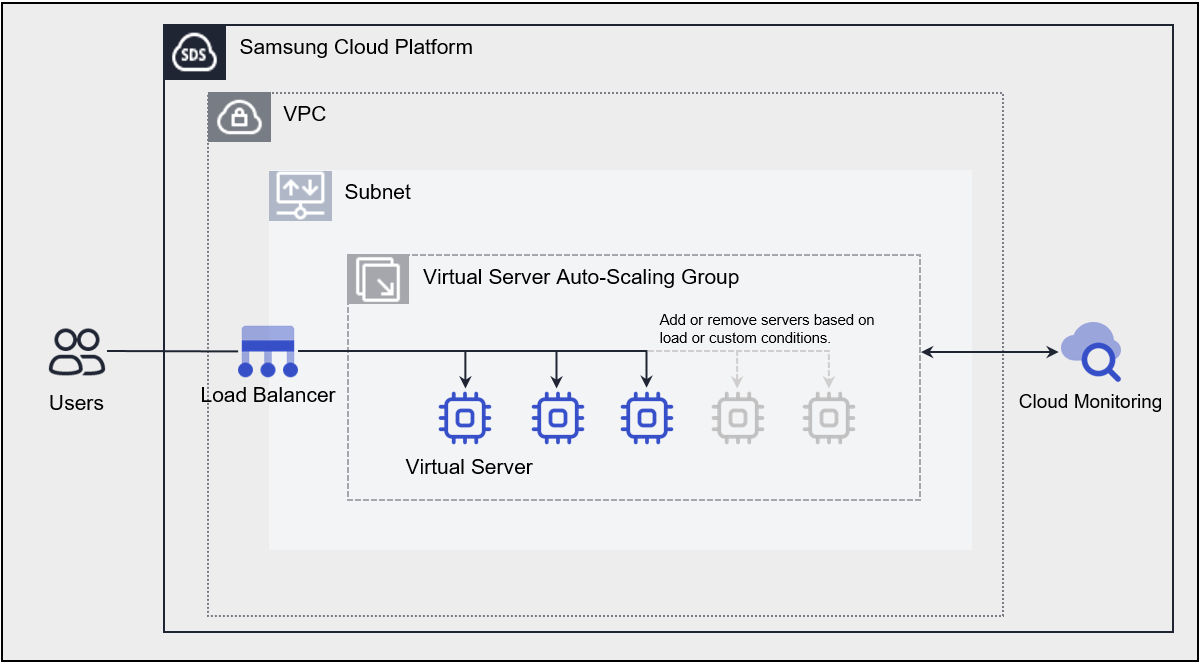
Provided features
Virtual Server Auto-Scaling provides the following features.
- Launch Configuration: It is a configuration template used to create a Virtual Server in an Auto-Scaling Group. When creating a Launch Configuration, you set information about the Virtual Server such as the image, server type, Key Pair, Block Storage, etc.
- Server Count Adjustment: Provides several ways to adjust the number of servers. By using policies, you can add a Virtual Server when load exceeds a threshold and release the Virtual Server when demand is low, maintaining application availability while reducing costs. You can also add and release Virtual Servers according to a predefined schedule, and manually adjust the number of servers in an Auto-Scaling Group as needed.
- Load Balancer Integration: You can use a Load Balancer to evenly distribute application traffic across Virtual Servers. Whenever a Virtual Server is added or removed, it is automatically registered with or deregistered from the Load Balancer.
- Network Connection: You can connect the Auto-Scaling Group’s standard subnet, automatic IP allocation, and Public NAT IP. Provides a local subnet connection for inter-server communication.
- Security Group Application: Security Group is a virtual logical firewall that controls inbound/outbound traffic generated on a Virtual Server. Inbound rules control incoming traffic to the Virtual Server, and outbound rules control outgoing traffic from the Virtual Server.
- Monitoring: You can view monitoring data such as CPU, Memory, and Disk of Virtual Servers created in an Auto-Scaling Group via the ServiceWatch service. Based on the monitoring data, you can set load thresholds using Auto-Scaling policies, and when thresholds are exceeded, you can add or remove servers.
Component
Virtual Server Auto-Scaling creates an Auto-Scaling Group through a Launch Configuration and monitors and manages the servers.
Launch Configuration
This is a Configuration template used to create a Virtual Server in an Auto-Scaling Group. The main features are as follows.
- Image: Provides OS standard images and Custom images created by the user. Users can select and use them according to the service they wish to configure.
- Keypair: Provides the Keypair method for secure OS access.
- Init script: Users can define a script to be executed when the Virtual Server starts.
- For more details, refer to Launch Configuration Create.
Auto-Scaling Group
Launch Configuration is used as a pre-configuration template for creating servers. By creating an Auto-Scaling Group, you can adjust and manage the number of servers. The main features are as follows.
- Launch Configuration: A Configuration template used to create a Virtual Server in an Auto-Scaling Group.
- Server Count Setting: Virtual Server Auto-Scaling provides several ways to adjust the number of servers in an Auto-Scaling Group.
- Fixed Server Count Method: When creating an Auto-Scaling Group, this method keeps the default settings using the configured number of servers without any additional schedules or policies. Refer to Create Auto-Scaling Group to set the Min, Desired, and Max server counts.
- Server Count Manual Adjustment Method: In an Auto-Scaling Group, you can increase or decrease the number of servers by modifying the server count to the desired amount. You can choose whether to manually set the desired server count. Please refer to Update Server Count.
- Schedule reservation method: You can schedule daily, weekly, monthly, or one-time, and set the desired number of servers at the specified time. This is useful when you can predict when to scale the number of servers up or down. If you use the schedule method, please refer to Manage Schedules to add and manage schedules.
- Policy Mode: You can use a policy to dynamically adjust servers. When a monitoring metric exceeds a configured threshold, the number of servers is adjusted. At this time, you can choose one of three methods to adjust the server count: increase or decrease by a specified number, increase or decrease by a specified percentage, or fix the server count to a given value. When servers are started or terminated due to a policy, the monitoring metric (CPU utilization) may temporarily exceed the threshold registered in the policy. However, because this is a brief moment, a cooldown period is set to avoid treating it as an abnormal situation. If you want to use the policy mode, see Managing Policies.
- Load Balancer: Automatically connects and disconnects to the Load Balancer registered in the Auto-Scaling Group whenever a Virtual Server is added or terminated.
- Refer to Auto-Scaling Group Detailed Information for detailed information about the Load Balancer of an Auto-Scaling Group.
Constraints
The constraints of Virtual Server Auto-Scaling are as follows.
| Category | Explanation |
|---|---|
| Number of Virtual Servers per Auto-Scaling Group | 50 or fewer |
| Number of policies per Auto-Scaling Group | 12 or fewer |
| Number of schedules per Auto-Scaling Group | 20 or fewer |
| Number of LB server groups and ports per Auto-Scaling Group | 3 or fewer |
- If the Image you are using is a discontinued standard Image, Scale-out will not work.
If the Image you are using is Custom Image, Scale out will continue to operate correctly even after that version is discontinued. - We recommend replacing the Launch Configuration with the latest version of the Image or a Custom Image before the current Image reaches end of support.
- For detailed information about the OS Image provided by Virtual Server, see OS Image Provided Versions.
Prior Service
This is a list of services that must be pre-configured before creating the service. Please refer to the guide provided for each service and prepare in advance.
| Service Category | service | Detailed description |
|---|---|---|
| Networking | VPC | A service that provides an isolated virtual network in a cloud environment |
| Networking | Security Group | Virtual firewall that controls server traffic |