This is the multi-page printable view of this section. Click here to print.
Virtual Server Auto-Scaling
- 1: Overview
- 1.1: Monitoring Metrics
- 2: How-to guides
- 2.1: Launch Configuration
- 2.2: Managing Policies
- 2.3: Managing Schedules
- 2.4: Managing Notifications
- 3: API Reference
- 4: CLI Reference
- 5: Release Note
1 - Overview
Service Overview
Virtual Server Auto-Scaling is a service that automatically scales resources up or down according to demand. You can add or terminate the number of servers running the application according to predefined conditions or schedule.
Auto-Scaling Group uses a pre-created Launch Configuration as a pre-configuration template to create servers, and can adjust and manage the number of servers. It adjusts so that the number does not fall below the specified minimum number of servers or exceed the maximum number of servers.
If you register a schedule with Auto-Scaling Group, you can set the number of servers according to the predetermined schedule. If you register a policy, you can increase or decrease the number of servers based on predefined conditions.
Features
Easy and convenient computing environment configuration: Through the web-based Console, users can easily configure the required computing environment themselves via Self Service, from creating Launch Configurations to creating/modifying/deleting Auto-Scaling Groups.
Elastic Resource Usage: You can elastically use computing resources according to the service’s load and usage. Users can schedule resource usage for predictable specific time periods, and can adjust resource usage to prepare for temporary connections from an unspecified large number of users.
Availability Improvement: Virtual Server Auto-Scaling adjusts resources to match variable demand so that the traffic required by the user can always be processed. Through this, users can achieve improved application performance and availability.
Maximizing Cost Reduction Effect: By using resources only as needed according to demand fluctuations, unnecessary costs can be reduced. Through flexible resource usage according to traffic increases or decreases at specific times such as night, weekends, and month-end, the cost reduction effect can be maximized.
Service Architecture Diagram
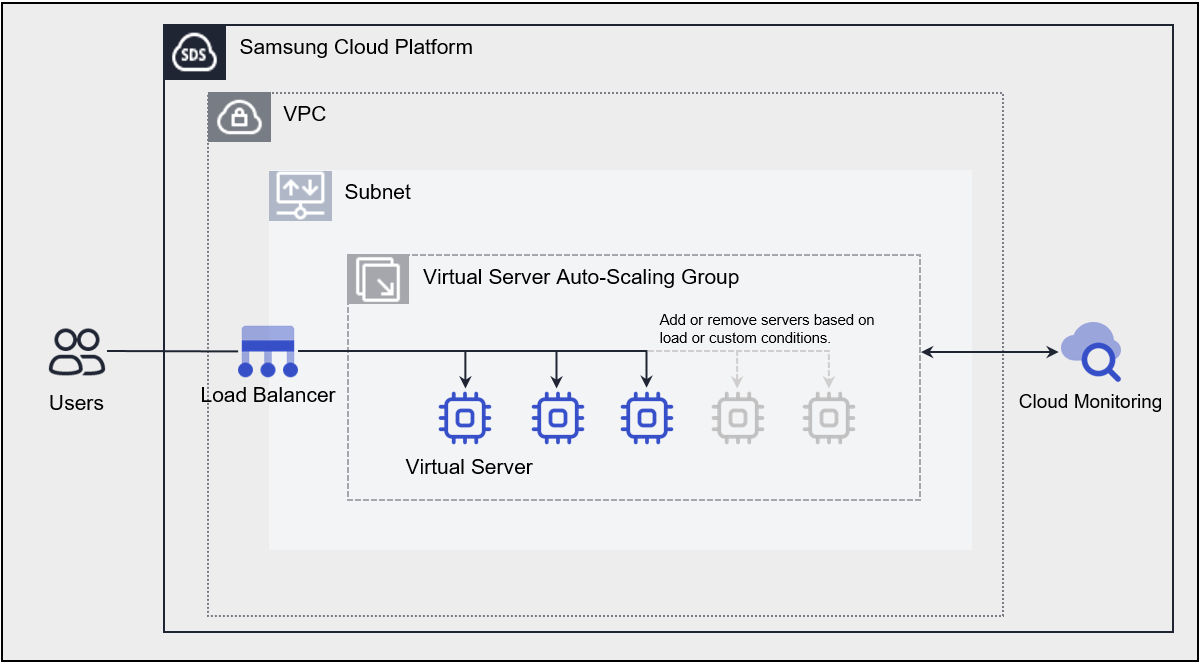
Provided Features
Virtual Server Auto-Scaling provides the following features.
- Launch Configuration: It is a configuration template used to create a Virtual Server in an Auto-Scaling Group. When creating a Launch Configuration, you set information about the Virtual Server such as image, server type, key pair, block storage, etc.
- Server Count Adjustment: Provides several ways to adjust the number of servers. Using policies, you can add a Virtual Server when the load exceeds a threshold and release the Virtual Server when demand is low, maintaining application availability and reducing costs. You can add and release Virtual Servers according to a schedule, and you can also manually adjust the number of servers in an Auto-Scaling Group as needed.
- Load Balancer integration: You can use a Load Balancer to evenly distribute application traffic to Virtual Server. Whenever a Virtual Server is added or removed, it is automatically registered and deregistered with the Load Balancer.
- Network Connection: You can connect the general subnet of the Auto-Scaling Group, automatic IP allocation, and a Public NAT IP. It provides a local subnet connection for inter-server communication.
- Security Group applied: Security Group is a virtual logical firewall that controls inbound/outbound traffic generated on a Virtual Server. Inbound rules control incoming traffic to the Virtual Server, and Outbound rules control outgoing traffic from the Virtual Server.
- Monitoring: You can view monitoring information such as CPU, Memory, Disk of Virtual Servers created in the Auto-Scaling Group through the Cloud Monitoring service. Based on the monitoring information, you can use Auto-Scaling policies to set thresholds for load, and when the threshold is exceeded, you can add or remove servers.
Components
Virtual Server Auto-Scaling creates an Auto-Scaling Group through Launch Configuration and checks and manages the server.
Launch Configuration
This is a Configuration template used to create a Virtual Server in an Auto-Scaling Group. The main features are as follows.
- Image: Provides OS standard images and user-created custom images. Users can select and use them according to the service they want to configure.
- Keypair: Provides the Keypair method for a secure OS access method.
- Init script: The user can define a script to be executed when the Virtual Server starts.
- For more details, please refer to Launch Configuration Creating.
Auto-Scaling Group
Use Launch Configuration as a pre-configuration template for server creation. You can create an Auto-Scaling Group to adjust and manage the number of servers. The main features are as follows.
- Launch Configuration: It is a configuration template used to create a Virtual Server in an Auto-Scaling Group.
- Server Count Settings: Virtual Server Auto-Scaling provides several ways to adjust the number of servers in an Auto-Scaling Group.
- Fixed Server Count Method: When creating an Auto-Scaling Group, this method keeps the default settings by maintaining the configured number of servers without any added schedules or policies. Refer to Create Auto-Scaling Group and set the Min, Desired, Max server counts.
- Manual Server Count Adjustment Method: In an Auto-Scaling Group, this method increases or decreases the number of servers by modifying the server count to the desired amount. You can choose whether to manually set the desired number of servers. Refer to Modify Server Count.
- Schedule Reservation Method: You can schedule daily, weekly, monthly, or one-time, and set the desired number of servers at a specified time. This is useful when you can predict when to reduce or increase the number of servers. If you use the schedule method, refer to Manage Schedule to add and manage schedules.
- Policy Method: You can use a policy as a way to dynamically adjust servers. When the set threshold based on monitoring metrics is exceeded, it adjusts the number of servers. At this time, you can choose one of three ways to adjust the server count. Increase or decrease the number of servers by a specified number, increase or decrease by a specified ratio, or fix the number of servers to an entered value. When servers start and terminate due to the policy, the monitoring metric CPU usage may temporarily exceed the threshold registered in the policy. However, because this is a temporary moment, a cooldown period is set to avoid judging it as an abnormal situation. If you want to use the policy method, refer to Manage Policies.
- Load Balancer: Whenever a Virtual Server is added or terminated, it automatically connects to and disconnects from the Load Balancer registered in the Auto-Scaling Group.
- Auto-Scaling Group’s Load Balancer related detailed information, please refer to Check Auto-Scaling Group detailed information.
Constraints
The constraints of Virtual Server Auto-Scaling are as follows.
| Category | Description |
|---|---|
| Number of Virtual Servers per Auto-Scaling Group | 50 or less |
| Number of policies per Auto-Scaling Group | 12 or fewer |
| Number of schedules per Auto-Scaling Group | 20 or fewer |
| Number of LB server groups and ports per Auto-Scaling Group | 3 or less |
- If the Image you are using is a discontinued standard Image, Scale-out will not work.
If the Image you are using is a Custom Image, Scale out will continue to work properly even after the version is no longer provided. - Before the end of support for the Image you are using, we recommend replacing the Launch Configuration with the latest version of the Image or a Custom Image.
- For detailed information about the OS Image provided by Virtual Server, see OS Image Provided Versions.
Preliminary Service
This is a list of services that must be pre-configured before creating the service. Please refer to the guide provided for each service for details and prepare in advance.
| Service Category | Service | Detailed Description |
|---|---|---|
| Networking | VPC | A service that provides an independent virtual network in a cloud environment |
| Networking | Security Group | Virtual firewall that controls server traffic |
1.1 - Monitoring Metrics
Virtual Server Auto-Scaling is a service provided for Virtual Server targets, providing individual Virtual Server monitoring metrics and monitoring metrics provided by Cloud Monitoring-based policies.
Virtual Server monitoring metrics
The following table shows the monitoring metrics of Virtual Server that can be checked through Cloud Monitoring. For detailed usage of Cloud Monitoring, please refer to the Cloud Monitoring guide.
For Windows OS, memory-related metrics are not provided.
| Performance Item | Detailed Description | Unit |
|---|---|---|
| Memory Total [Basic] | Available memory bytes | bytes |
| Memory Used [Basic] | Currently used memory bytes | bytes |
| Memory Swap In [Basic] | Replaced memory bytes | bytes |
| Memory Swap Out [Basic] | Replaced memory bytes | bytes |
| Memory Free [Basic] | Unused memory bytes | bytes |
| Disk Read Bytes [Basic] | Read bytes | bytes |
| Disk Read Requests [Basic] | Number of Read Requests | cnt |
| Disk Write Bytes [Basic] | Write bytes | bytes |
| Disk Write Requests [Basic] | Write Request Count | cnt |
| CPU Usage [Basic] | 1-minute average system CPU usage rate | % |
| Instance State [Basic] | Instance Status | state |
| Network In Bytes [Basic] | Received bytes | bytes |
| Network In Dropped [Basic] | Received Packet Drop | cnt |
| Network In Packets [Basic] | Received Packet Count | cnt |
| Network Out Bytes [Basic] | Transmission bytes | bytes |
| Network Out Dropped [Basic] | Transmission Packet Drop | cnt |
| Network Out Packets [Basic] | Transmission Packet Count | cnt |
Monitoring metrics provided by Cloud Monitoring-based policies
The following table shows the monitoring metrics provided by the policy of Cloud Monitoring-based Auto-Scaling Group. For more information on policy settings, see Managing Policies.
| Performance Item | Detailed Description | Unit |
|---|---|---|
| CPU Usage [Basic] | 1-minute average system CPU usage rate | % |
| Memory Used [Basic] | Currently used memory bytes | bytes |
| Network In Bytes [Basic] | Received bytes | bytes |
| Network In Packets [Basic] | Number of Received Packets | cnt |
| Network Out Bytes [Basic] | Transmission bytes | bytes |
| Network Out Packets [Basic] | Transmission Packet Count | cnt |
2 - How-to guides
Users can create an Auto-Scaling Group service by entering the required information and selecting detailed options through the Samsung Cloud Platform Console.
Creating an Auto-Scaling Group
You can create an Auto-Scaling Group service through the Samsung Cloud Platform Console.
To create an Auto-Scaling Group, follow these steps:
Click All Services > Compute > Virtual Server menu. It will move to the Virtual Server’s Service Home page.
Click the Auto-Scaling Group menu. It will move to the Auto-Scaling Group list page.
On the Auto-Scaling Group list page, click the Create Auto-Scaling Group button. It will move to the Create Auto-Scaling Group page.
On the Create Auto-Scaling Group page, enter the information required to create the service.
- In the Launch Configuration section, select a Launch Configuration.
- You can create a new Launch Configuration by clicking the Create Launch Configuration button.
- In the Service Information Input section, enter or select the required information.
Category RequiredDetailed Description Auto-Scaling Group Name Required Auto-Scaling Group name - Manage servers of the same type and purpose as a group
Server Name Required Server name within the Auto-Scaling Group - An identifier to distinguish servers created within the Auto-Scaling Group, automatically assigned based on the input server name and sequence
Number of Servers Required Number of servers to create in the Auto-Scaling Group - Enter a value between 0 and 20 (Min≤Desired≤Max)
- Min: Set the minimum number of servers for the Auto-Scaling Group to maintain
- Desired: Set the target number of servers within the Auto-Scaling Group, also meaning the initial number of servers created when the Auto-Scaling Group is created
- Max: Set the maximum number of servers that the Auto-Scaling Group can maintain
- After creating the Auto-Scaling Group, you can modify the settings using the Modify button. For more information, refer to Modifying the Number of Servers
Manual Desired Server Count Setting Optional Choose whether to manually change the Desired server count - After creating the Auto-Scaling Group, you can modify the settings using the Modify button. For more information, refer to Modifying Manual Desired Server Count Setting
Network Settings > Network Settings Required Network settings for the Auto-Scaling Group - Select the desired VPC and general Subnet
- IP can only be automatically generated
- If you select a local Subnet, you can choose the desired local Subnet, and IP can only be automatically generated
Network Settings > Security Group Optional Set a Security Group to allow necessary access - If you don’t set a Security Group, it will follow the default rule (Any/Deny) and block all inbound and outbound traffic
- For Linux servers, allow SSH traffic
- For Windows servers, allow RDP traffic
- After creating the Auto-Scaling Group, you can modify the settings using the Modify button. For more information, refer to Setting Security Group
Load Balancer Optional Connect the Auto-Scaling Group to a Load Balancer - Register the servers in the Auto-Scaling Group as members of the LB server group
- LB server group: Select an existing LB server group in the chosen VPC
- Port: Enter a value between 1 and 65,534
- Click the + button to add an LB server group (up to 3 LB server groups and ports can be added)
- Weighted Round Robin or Weighted Least Connection load balancing LB server groups cannot be selected
- Draining Timeout value: If Draining Timeout is checked as used, set the Draining Timeout value
- Draining Timeout: The time to wait before disconnecting the server from the Load Balancer
- This allows for safe session cleanup, as sessions connected to the server may still exist
- If Load Balancer is not used, Draining Timeout setting is not available
- The default value is 300 seconds, and you can enter a value between 1 second and 3,600 seconds
- Draining Timeout: The time to wait before disconnecting the server from the Load Balancer
- After creating the Auto-Scaling Group, you can modify the settings, and for more information, refer to Using Load Balancer in Auto-Scaling Group
Table. Auto-Scaling Group Service Information Input Items - In the Scaling Policy Settings section, set the scaling policy.
- For more information on policy settings, refer to Adding a Policy.
Category RequiredDetailed Description Set Now Optional Set the scaling policy now - Click the Add Policy button to display the policy information input items
Set Later Optional Set the policy after creating the Auto-Scaling Group, on the detailed information page Table. Auto-Scaling Group Scaling Policy Settings Items
- For more information on policy settings, refer to Adding a Policy.
- In the Notification Settings section, set the notification recipient and method.
- For more information on notification settings, refer to Adding a Notification.
Category RequiredDetailed Description Set Now Optional Set the notification recipient and method now - Click the Add Notification button to open the Add Notification popup window
- For more information on notification settings, refer to the detailed information
- Click the Modify button in the notification recipient list to change the notification information
Set Later Optional Set the notification recipient and method after creating the Auto-Scaling Group, on the detailed information page Table. Auto-Scaling Group Notification Settings Items
- For more information on notification settings, refer to Adding a Notification.
- In the Additional Information Input section, enter or select the required information.
Category RequiredDetailed Description Tag Optional Add a tag - Up to 50 tags can be added per resource
- Click the Add Tag button, then enter or select the Key and Value
Table. Auto-Scaling Group Additional Information Input Items
- In the Launch Configuration section, select a Launch Configuration.
In the Summary panel, review the created details and estimated billing amount, then click the Complete button.
- After creation is complete, you can find the created Auto-Scaling Group on the Auto-Scaling Group list page.
Checking Auto-Scaling Group Details
The Auto-Scaling Group service allows you to view and modify the overall resource list and detailed information. The Auto-Scaling Group details page consists of Details, Policy, Schedule, Virtual Server, Load Balancer, Tag, and Work History tabs.
To check the Auto-Scaling Group details, follow these steps:
- Click All Services > Compute > Virtual Server menu. It will move to the Virtual Server’s Service Home page.
- Click the Auto-Scaling Group menu. It will move to the Auto-Scaling Group list page.
- On the Auto-Scaling Group list page, click the resource you want to check the details for. It will move to the Auto-Scaling Group details page.
- The Auto-Scaling Group details page displays status information and additional feature information, and consists of Details, Policy, Schedule, Virtual Server, Load Balancer, Tag, and Work History tabs.
Category Detailed Description Auto-Scaling Group Status The status of the Auto-Scaling Group created by the user - Creating: Auto-Scaling Group creation in progress
- In Service: Serviceable state
- Scale In: Scale In in progress
- Scale Out: Scale Out in progress
- Cool Down: Cool-down wait in progress
- Terminating: Auto-Scaling Group deletion in progress
- Attach to LB: Connecting to Load Balancer in progress
- Detach from LB: Detaching from Load Balancer in progress
Auto-Scaling Group Deletion Button to delete the Auto-Scaling Group Table. Auto-Scaling Group Status Information and Additional Features
- The Auto-Scaling Group details page displays status information and additional feature information, and consists of Details, Policy, Schedule, Virtual Server, Load Balancer, Tag, and Work History tabs.
Details
… (rest of the content remains the same) Auto-Scaling Group Details page where you can check the detailed information of the selected resource and modify the information if necessary.
| Category | Detailed Description |
|---|---|
| Service | Service name |
| Resource Type | Resource type |
| SRN | Unique resource ID in Samsung Cloud Platform
|
| Resource Name | Resource name
|
| Resource ID | Unique resource ID in the service |
| Creator | User who created the service |
| Creation Time | Time when the service was created |
| Modifier | User who modified the service information |
| Modification Time | Time when the service information was modified |
| Auto-Scaling Group Name | Auto-Scaling Group name |
| Launch Configuration Name | Launch Configuration name selected when creating the Auto-Scaling Group
|
| Number of Servers | Current number of servers in the Auto-Scaling Group and set Min, Desired, Max server numbers
|
| Manual Setting of Desired Server Number | Use or do not use manual setting of Desired server number
|
| VPC | VPC information of the Auto-Scaling Group |
| General Subnet | General Subnet and NAT IP usage information of the Auto-Scaling Group |
| Local Subnet | Local Subnet information of the Auto-Scaling Group |
| Security Group | Security Group information of the Auto-Scaling Group
|
Policy
On the Auto-Scaling Group List page, you can check the policy list of the selected resource and add or manage policies if necessary.
| Category | Detailed Description |
|---|---|
| Category | Policy category
|
| Policy Name | Policy name |
| Execution Condition | Condition for executing the policy
|
| Execution Unit | Method of executing the policy
|
| Cool-down | Waiting time (in seconds) after the policy starts or stops a server
|
| More > Modify | Modify the policy information
|
| More > Activate | Activate the policy
|
| More > Deactivate | Deactivate the policy
|
For more information on policy management and policy examples, see Policy Management.
Schedule
On the Auto-Scaling Group List page, you can check the schedule list of the selected resource and add or manage schedules if necessary.
| Category | Detailed Description |
|---|---|
| Name | Schedule name |
| Min | Minimum server number set in the schedule |
| Desired | Target server number set in the schedule |
| Max | Maximum server number set in the schedule |
| Period | Schedule execution period
|
| Date/Day of the Week | Schedule execution date or day of the week
|
| Execution Time | Schedule execution time |
| Time Zone | Schedule execution time zone |
| Status | Schedule status |
| More > Modify | Modify the schedule information
|
| More > Activate | Activate the schedule
|
| More > Deactivate | Deactivate the schedule
|
For more information on schedule management, see Adding Schedule and Deleting Schedule.
Virtual Server
On the Auto-Scaling Group List page, you can check the Virtual Server list of the selected resource.
| Category | Detailed Description |
|---|---|
| Server Name | Name of the server created in the Auto-Scaling Group
|
| IP | IP assigned to the server |
| Creation Time | Date and time when the server was created |
| Status | Server status
|
| Load Balancer Connection Status | Load Balancer connection status
|
Load Balancer
On the Auto-Scaling Group List page, you can check the Load Balancer list of the selected resource and add or manage Load Balancers if necessary.
| Category | Detailed Description |
|---|---|
| Draining Timeout | Draining Timeout usage
|
| Load Balancer | Load Balancer usage
|
| Load Balancer > Load Balancer Name | Load Balancer name to connect to the Auto-Scaling Group |
| Load Balancer > LB Server Group | Load Balancer’s LB server group
|
| Load Balancer > Port | Port registered as a member of the LB server group |
- The LB server group member information set in the Auto-Scaling Group can also be checked in the Connected Resources of the LB Server Group.
- If manual connection/disconnection between the server and Load Balancer is required, refer to Adding an LB Server Group Member.
Notification
You can check the notification recipient information and notification method for the selected resource on the Auto-Scaling Group List page.
| Category | Detailed Description |
|---|---|
| Notification Recipient | Name of the notification recipient |
| Email of the notification recipient | |
| Server Creation | Whether to send a notification when a server creation-related notification occurs
|
| Server Termination | Whether to send a notification when a server termination-related notification occurs
|
| Policy Execution Condition | Whether to send a notification when the policy execution condition is met |
| Status | Notification activation status
|
| More > Edit | Edit the notification information |
| More > Activate | Activate the notification information
|
| More > Deactivate | Deactivate the notification information
|
For more information on notification settings, refer to Managing Notifications.
Tag
You can check the tag information of the selected resource on the Auto-Scaling Group List page and add, modify, or delete tags.
| Category | Detailed Description |
|---|---|
| Tag List | Tag list
|
Work History
You can check the work history of the selected resource on the Auto-Scaling Group List page.
| Category | Detailed Description |
|---|---|
| Work History List | Resource change history
|
Managing Auto-Scaling Group Resources
If you need to manage the created Auto-Scaling Group, you can perform tasks on the Auto-Scaling Group Details page.
Modifying Launch Configuration
You can modify the Launch Configuration of the Auto-Scaling Group.
To modify the Launch Configuration of the Auto-Scaling Group, follow these steps:
Click All Services > Compute > Virtual Server. The Virtual Server Service Home page opens.
Click Auto-Scaling Group. The Auto-Scaling Group List page opens.
On the Auto-Scaling Group List page, click the resource for which you want to modify the Launch Configuration. The Auto-Scaling Group Details page opens.
Click the Modify button next to the Launch Configuration name. The Modify Launch Configuration popup window opens, where you can view the list of available Launch Configurations.
CategoryDetailed Description Launch Configuration Name Launch Configuration name Image Launch Configuration OS image Server Type Launch Configuration server type Block Storage Launch Configuration Block Storage settings Auto-Scaling Group Count Number of Auto-Scaling Groups to which the Launch Configuration is applied Detailed View Button to view detailed Launch Configuration information Table. Launch Configuration List ItemsIn the Modify Launch Configuration popup window, select the Launch Configuration you want to modify and click OK. The Launch Configuration Modification Notification popup window opens. Check the message and click OK.
Modifying Server Count
You can modify the server count of the Auto-Scaling Group.
To modify the server count of the Auto-Scaling Group, follow these steps:
- Click All Services > Compute > Virtual Server. The Virtual Server Service Home page opens.
- Click Auto-Scaling Group. The Auto-Scaling Group List page opens.
- On the Auto-Scaling Group List page, click the resource for which you want to modify the server count. The Auto-Scaling Group Details page opens.
- Click the Edit Server Count button. The Edit Server Count popup window opens.
- In the Edit Server Count popup window, enter the required items and click the Confirm button.
Classification RequiredDetailed Description Server Count > Min Required Modify the minimum number of servers - Set the minimum number of servers that the Auto-Scaling Group will maintain
Server Count > Desired Required Modify the target server count - Set the target server count in the Auto-Scaling Group
- If Desired Server Count Manual Setting is Not Used, you cannot modify the Desired server count. To modify the Desired server count, refer to Modifying Desired Server Count Manual Setting
Server Count > Max Required Modify the maximum server count - Set the maximum number of servers that the Auto-Scaling Group can maintain
Table. Auto-Scaling Group Server Count Modification Items
Canceling a Virtual Server Created in an Auto-Scaling Group
A Virtual Server created in an Auto-Scaling Group can be canceled by reducing the desired number of servers.
To cancel a Virtual Server created in an Auto-Scaling Group, follow these steps:
- Click All Services > Compute > Virtual Server. You will be taken to the Virtual Server’s Service Home page.
- Click Auto-Scaling Group. You will be taken to the Auto-Scaling Group List page.
- On the Auto-Scaling Group List page, click the resource you want to cancel. You will be taken to the Auto-Scaling Group Details page.
- Click the Edit button in the Server Count section. The Edit Server Count popup window will open.
- In the Edit Server Count popup window, reduce the Desired count and click the Confirm button. The Desired server count will be adjusted, and the Virtual Server will be canceled.
Modifying Desired Server Count Manual Setting
You can change the Desired server count manual setting of the Auto-Scaling Group.
To modify the Desired server count manual setting of the Auto-Scaling Group, follow these steps:
- Click the All Services > Compute > Virtual Server menu. The Virtual Server Service Home page opens.
- Click the Auto-Scaling Group menu. The Auto-Scaling Group List page opens.
- On the Auto-Scaling Group List page, click the resource for which you want to change the Desired server count manual setting. The Auto-Scaling Group Details page opens.
- Click the Edit button for the server count. The Desired Server Count Manual Setting popup window opens.
- In the Desired Server Count Manual Setting popup window, select whether to use it and click the Confirm button.
Setting Security Group
You can set the Security Group for the Auto-Scaling Group.
To set the Security Group for the Auto-Scaling Group, follow these steps:
Click the All Services > Compute > Virtual Server menu. The Virtual Server Service Home page opens.
Click the Auto-Scaling Group menu. The Auto-Scaling Group List page opens.
On the Auto-Scaling Group List page, click the resource for which you want to set the Security Group. The Auto-Scaling Group Details page opens.
Click the Edit button for the Security Group. The Security Group Modification popup window opens, where you can view the list of available Security Groups.
Classification Detailed Description Security Group Name Security Group name Table. Security Group List ItemsIn the Security Group Modification popup window, select the Security Group and click the Confirm button. The Security Group Modification Notification popup window opens. Check the message in the notification popup window and click the Confirm button.
Managing Additional Auto-Scaling Group Information
You can set the Load Balancer to use and select the LB server group for the Auto-Scaling Group. For an Auto-Scaling Group that is using a Load Balancer, you can change it to not use it.
Modifying Load Balancer Draining Timeout
You can set the Load Balancer Draining Timeout for the Auto-Scaling Group.
Draining Timeout is the time to wait before disconnecting the server from the Load Balancer.
- You can set the Draining Timeout to safely clean up sessions, as there may be remaining sessions connected to the server.
- If the Load Balancer is Not Used, the Draining Timeout cannot be set.
- The default value is 300 seconds, and you can set it to a minimum of 1 second and a maximum of 3,600 seconds.
To set the Load Balancer Draining Timeout for the Auto-Scaling Group, follow these steps:
- Click the All Services > Compute > Virtual Server menu. The Virtual Server Service Home page opens.
- Click the Auto-Scaling Group menu. The Auto-Scaling Group List page opens.
- On the Auto-Scaling Group List page, click the resource for which you want to set the Load Balancer Draining Timeout. The Auto-Scaling Group Details page opens.
- Click the Load Balancer tab. The Load Balancer list page opens.
- Click the Edit button for the Draining Timeout. The Draining Timeout Modification popup window opens.
- In the Draining Timeout Modification popup window, select whether to use the Draining Timeout and enter the Draining Timeout time (in seconds).
- In the Draining Timeout Modification popup window, check the input values and click the Confirm button. The Draining Timeout Modification Notification popup window opens. Check the message in the notification popup window and click the Confirm button.
Using Load Balancer
You can modify the Load Balancer for the Auto-Scaling Group. To set the Load Balancer for the Auto-Scaling Group, follow these steps:
- When the Auto-Scaling Group’s server is created, it is automatically connected to the selected Load Balancer’s LB server group as a member, and when the server is terminated, it is disconnected from the LB server group.
- If the Draining Timeout is Used, the server is disconnected from the LB server group after waiting for the Draining Timeout (in seconds).
- For Load Balancer modification, the member is detached from the LB server group and waits in the Detach from LB state. For Scale In, the member is disconnected from the LB server group and waits in the Scale In state.
- Click the All Services > Compute > Virtual Server menu. The Virtual Server Service Home page opens.
- Click the Auto-Scaling Group menu. The Auto-Scaling Group List page opens.
- On the Auto-Scaling Group List page, click the resource for which you want to set the Load Balancer. The Auto-Scaling Group Details page opens.
- Click the Load Balancer tab. The Load Balancer list page opens.
- Click the Edit button for the Load Balancer. The Load Balancer Modification popup window opens.
- In the Load Balancer Modification popup window, select whether to use it. If you select Use, you can select the Load Balancer.
Classification Detailed Description LB Server Group LB server group name - Select the LB server group created in the selected VPC
- LB server groups using Weighted Round Robin or Weighted Least Connection load balancing cannot be selected
Port LB server group port information - Enter the port information required for registering the LB server group member
- Enter a value between 1 and 65,534
Table. Load Balancer List Items- You can add an LB server group by clicking the + button. Up to 3 can be added. You can remove the added Load Balancer by clicking the X button.
- Check the Load Balancer list and click the Confirm button. The Load Balancer Modification Notification popup window opens. Check the message in the notification popup window and click the Confirm button.Caution
- Be cautious when detaching/attaching servers from Load Balancer, as it may affect the service.
- If Draining Timeout is in use, setting Load Balancer to not in use or removing some connected Load Balancers using the X button will not immediately detach the server. The server will be detached from Load Balancer after waiting for the Draining Timeout (seconds). At this time, Auto-Scaling Group will be in Detach from LB state.
- The LB server group member information set in Auto-Scaling Group can also be checked in LB server group connected resources.
- If manual connection/disconnection between server and Load Balancer is required, refer to Registering LB server group members.
Not using Load Balancer
You can modify the Load Balancer of Auto-Scaling Group to not in use. To set Load Balancer to not in use in Auto-Scaling Group, follow the procedure below.
- Be cautious when detaching/attaching servers from Load Balancer, as it may affect the service.
- If Draining Timeout is in use, setting Load Balancer to not in use or removing some connected Load Balancers using the X button will not immediately detach the server. The server will be detached from Load Balancer after waiting for the Draining Timeout (seconds). At this time, Auto-Scaling Group will be in Detach from LB state.
- Click All Services > Compute > Virtual Server menu. Move to the Service Home page of Virtual Server.
- Click Auto-Scaling Group menu. Move to the Auto-Scaling Group list page.
- Click the resource to set Load Balancer in the Auto-Scaling Group list page. Move to the Auto-Scaling Group details page.
- Click the Load Balancer tab. Move to the Load Balancer list page.
- Click the Modify button of Load Balancer. The Load Balancer modification popup window opens.
- Select whether to use Load Balancer in the Load Balancer modification popup window. If you deselect Use, Load Balancer will not be used.
- Confirm the deselection of Use and click the OK button. The Load Balancer modification notification popup window opens. Check the message in the notification popup window and click the OK button.
Deleting Auto-Scaling Group
Deleting unused Auto-Scaling Groups can reduce operating costs. However, deleting an Auto-Scaling Group may immediately stop the service in operation, so you must consider the impact of service termination before proceeding with the deletion.
To delete an Auto-Scaling Group, follow the procedure below.
- Click All Services > Compute > Virtual Server menu. Move to the Service Home page of Virtual Server.
- Click Auto-Scaling Group menu. Move to the Auto-Scaling Group list page.
- Click the resource to delete in the Auto-Scaling Group list page. Move to the Auto-Scaling Group details page.
- Click the Delete Auto-Scaling Group button.
- After deletion is complete, check if the resource has been deleted in the Auto-Scaling Group list page.
2.1 - Launch Configuration
To create an Auto-Scaling Group, you need to create a Launch Configuration in advance.
Creating a Launch Configuration
You can create a Launch Configuration service on the Samsung Cloud Platform Console and use it.
To create a Launch Configuration, follow these steps:
Click All Services > Compute > Virtual Server menu. It moves to the Service Home page of Virtual Server.
Click the Launch Configuration menu. It moves to the Launch Configuration list page.
Click the Create Launch Configuration button on the Launch Configuration list page. It moves to the Create Launch Configuration page.
Select the required information in the Image and Version Selection section of the Create Launch Configuration page and click the Next button.
NoteThe images that can be selected in the Launch Configuration are as follows: Virtual Server OS Image Provided Version.Enter the required information in the Service Information Input section of the Create Launch Configuration page.
Category RequiredDescription Launch Configuration Name Required The name of the Launch Configuration - A name to distinguish the Launch Configuration
Service Type > Server Type Required The server type of the Launch Configuration - Standard: Standard specifications commonly used
- High Capacity: Server specifications with higher capacity than Standard
- Refer to Virtual Server Server Type for the available server types
Block Storage Required Block Storage settings according to the purpose of the Launch Configuration - Basic OS: The area where the OS is installed and used
- The capacity is entered in Units, and the minimum capacity varies depending on the OS image type
- Alma Linux: Enter a value between 2 and 1,536
- Oracle Linux: Enter a value between 5 and 1,536
- RHEL: Enter a value between 2 and 1,536
- Rocky Linux: Enter a value between 2 and 1,536
- Ubuntu: Enter a value between 1 and 1,536
- Windows: Enter a value between 4 and 1,536
- SSD: High-performance general volume
- HDD: General volume
- SSD/HDD_KMS: Additional encrypted volume using Samsung Cloud Platform KMS (Key Management System) encryption key
- Encryption can only be applied when created, and cannot be changed after creation
- Using the SSD_KMS disk type may cause performance degradation
- The capacity is entered in Units, and the minimum capacity varies depending on the OS image type
- Add: Additional user space outside the OS area
- Select Use and enter the storage type and capacity
- Click the + button to add storage, and click the x button to delete (up to 25 can be added)
- Capacity is entered in Units, and enter a value between 1 and 1,536
- 1 Unit is 8GB, so 8 to 12,288GB is created
- SSD: High-performance general volume
- HDD: General volume
- SSD/HDD_KMS: Additional encrypted volume using Samsung Cloud Platform KMS (Key Management System) encryption key
- Encryption can only be applied when created, and cannot be changed after creation
- Using the SSD_KMS disk type may cause performance degradation
- SSD_MultiAttach: Volume that can be connected to two or more servers
- For more information on Block Storage types, refer to Creating Block Storage
Keypair Required Select the authentication method for the Launch Configuration - Server authentication information to access the server created by creating an Auto-Scaling Group with the Launch Configuration
- Create New: Create a new Keypair if needed
- Refer to Creating a Keypair for how to create a new Keypair
- Default access account list by OS
- Alma Linux: almalinux
- RHEL: cloud-user
- Rocky Linux: rocky
- Ubuntu: ubuntu
- Windows: sysadmin
Table. Launch Configuration Service Information Input ItemsEnter the information in the Additional Information Input section of the Create Launch Configuration page and click the Next button.
Category RequiredDescription Init Script Optional Script that runs when the server starts using the Launch Configuration - Enter within 45,000 bytes
- The Init Script must be a batch script for Windows or a shell script or cloud-init for Linux, depending on the selected image.
Tag Optional Add a tag - Up to 50 tags can be added per resource
- Click the Add Tag button, enter the Key and Value, or select them
Table. Launch Configuration Additional Information Input ItemsCheck the input information and estimated cost on the Create Information Confirmation page, and click the Complete button.
- After creation is complete, check the created Launch Configuration on the Launch Configuration list page.
Checking Launch Configuration Details
The Launch Configuration service allows you to check the overall resource list and detailed information, and modify it. The Launch Configuration details page consists of Details, Tags, and Work History tabs.
To check the Launch Configuration details, follow these steps:
- Click All Services > Compute > Virtual Server menu. It moves to the Service Home page of Virtual Server.
- Click the Launch Configuration menu. It moves to the Launch Configuration list page.
- Click the resource to check the details on the Launch Configuration list page. It moves to the Launch Configuration details page.
- The top of the Launch Configuration details page displays status information and additional feature information, and consists of Details, Tags, and Work History tabs.
| Category | Description |
|---|---|
| Launch Configuration Status | The status of the Launch Configuration created by the user
|
| Launch Configuration Deletion | Button to delete the Launch Configuration |
Details
You can check and modify the detailed information of the selected resource on the Launch Configuration list page.
| Category | Description |
|---|---|
| Service | Service category |
| Resource Type | Service name |
| SRN | Unique resource ID in Samsung Cloud Platform
|
| Resource Name | Resource name
|
| Resource ID | Unique resource ID in the service |
| Creator | The user who created the service |
| Creation Time | The time when the service was created |
| Modifier | The user who modified the service information |
| Modification Time | The time when the service information was modified |
| Launch Configuration Name | Launch Configuration name |
| Image | The image name selected when creating the Launch Configuration
|
| Number of Auto-Scaling Groups | The number of Auto-Scaling Groups using the Launch Configuration |
| Server Type | The server type set in the Launch Configuration |
| Block Storage | Block Storage information set in the Launch Configuration
|
| Keypair | Server authentication information set in the Launch Configuration
|
| Init Script | Init Script set in the Launch Configuration
|
Tags
You can check the tag information of the selected resource on the Launch Configuration list page, and add, change, or delete it.
| Category | Description |
|---|---|
| Tag List | Tag list
|
Work History
You can check the work history of the selected resource on the Launch Configuration list page.
| Category | Description |
|---|---|
| Work History List | Resource change history
|
Deleting a Launch Configuration
You can reduce operating costs by deleting unused Launch Configurations. However, deleting a Launch Configuration may immediately stop the operating service, so you should consider the impact of stopping the service before proceeding with the deletion.
To delete a Launch Configuration, follow these steps:
- Click All Services > Compute > Virtual Server menu. It moves to the Service Home page of Virtual Server.
- Click the Launch Configuration menu. It moves to the Launch Configuration list page.
- Click the resource to delete on the Launch Configuration list page. It moves to the Launch Configuration details page.
- Click the Delete Launch Configuration button.
- After deletion is complete, check that the resource has been deleted on the Launch Configuration list page.
2.2 - Managing Policies
The number of servers in an Auto-Scaling Group can be dynamically adjusted based on monitoring metrics. When the set threshold is exceeded based on the monitoring metrics, the number of servers is adjusted. At this time, you can choose one of three ways to adjust the number of servers: increase or decrease the number of servers by a specified number, increase or decrease the number of servers by a specified ratio, or fix the number of servers to a specified value. When a server is started or terminated due to a policy, the monitoring metric, such as CPU usage, may temporarily exceed the threshold set in the policy. However, since this is a temporary moment, a cooldown time is set so that it is not judged as an abnormal situation. You can add and manage policies for an Auto-Scaling Group created in the Samsung Cloud Platform Console.
Adding a Policy
You can add a policy to an Auto-Scaling Group. To add a policy to an Auto-Scaling Group, follow these steps:
All Services > Compute > Virtual Server menu, click. Move to the Service Home page of Virtual Server.
Click the Auto-Scaling Group menu. Move to the Auto-Scaling Group List page.
On the Auto-Scaling Group List page, click the resource to view detailed information. Move to the Auto-Scaling Group Details page.
Click the Policy Tab. Move to the Policy Tab page.
Click the Add Policy button. The Add Policy popup window opens.
Classification RequiredDetailed Description Classification Required Policy classification - Scale In: Server reduction
- Scale Out: Server increase
Policy Name Required Policy name for distinction Execution Condition Required Condition for executing the policy - Statistic: Method of calculating the metric type
- Average: Average of servers in the Auto-Scaling Group
- Min: Minimum value among servers in the Auto-Scaling Group
- Max: Maximum value among servers in the Auto-Scaling Group
- Metric Type: CPU Usage, Memory Usage, Network In(bytes), Network Out(bytes), Network In(Packets), Network Out(Packets)
- Note: Memory usage policy is not available for Windows servers
- Operator:
>=><=<
- Threshold: Threshold for the metric type
- Period: Continuous time to trigger the execution condition (N minutes)
Execution Unit Required Method of executing the policy - Policy Type: Select the type of policy to execute.
- Increase or decrease the number of servers by a specified number: Increase or decrease the target value
- Increase or decrease the number of servers by a specified ratio: Increase or decrease the target value ratio
- Fix the number of servers to a specified value: Fix the target value
- Target Value: Number or ratio to execute the selected Policy Type
Cooldown Required Time to wait (in seconds) when a server is started or terminated due to a policy - Default value is 300 seconds, and it can be set between 60 seconds and 3,600 seconds.
Table. Add Policy Popup ItemsNotePolicy > Cooldown Setting
- When a server is started or terminated due to a policy, wait for the cooldown time set. The monitoring metric, such as CPU usage, may temporarily exceed the threshold set in the policy. However, since this is a temporary moment and not a condition for adjusting the number of servers, the cooldown time is set to wait.
GuidePolicy execution operates within the set minimum and maximum number of servers.
- Even if the number of servers is increased or decreased, or fixed, beyond the minimum and maximum number of servers, it operates within the set minimum and maximum number of servers.
- Example: If the minimum number of servers is 3, even if the number of servers is fixed to 1, the number of servers will not decrease to 1, but will be maintained at the minimum number of servers, which is 3.
In the Add Policy popup window, enter the required values and click the Confirm button. The added policy can be checked in the Policy List.
Policy Creation Example
The following is an explanation of the policy example. Refer to it when creating a policy.
| Classification | Execution Condition | Execution Unit | Cooldown |
|---|---|---|---|
| Scale Out | Average CPU Usage >= 60% for 1 minute | Increase the number of servers by a specified number, 1 server | 300 seconds |
- If the average CPU usage of the servers in the Auto-Scaling Group is 60% or higher for 1 minute, 1 server is added.
- When a server is added, the cooldown time is 300 seconds. During the cooldown time, no additional servers are added or terminated due to the policy.
- After the cooldown time ends, the policy execution condition is checked again.
| Classification | Execution Condition | Execution Unit | Cooldown |
|---|---|---|---|
| Scale In | Min CPU Usage <= 5% for 1 minute | Decrease the number of servers by a specified ratio, 50% | 300 seconds |
- If the minimum CPU usage of the servers in the Auto-Scaling Group is 5% or lower for 1 minute, 50% of the current number of servers are terminated.
- When a server is terminated, the cooldown time is 300 seconds. During the cooldown time, no additional servers are added or terminated due to the policy.
- After the cooldown time ends, the policy execution condition is checked again.
| Classification | Execution Condition | Execution Unit | Cooldown |
|---|---|---|---|
| Scale Out | Max CPU Usage >= 90% for 1 minute | Fix the number of servers to a specified value, 5 servers | 300 seconds |
- If the maximum CPU usage of the servers in the Auto-Scaling Group is 90% or higher for 1 minute, the number of servers is fixed to 5.
- During the server creation, the cooldown time is 300 seconds. During the cooldown time, no additional servers are added or terminated due to the policy.
- After the cooldown time ends, the policy execution condition is checked again.
Modifying a Policy
You can modify a policy of an Auto-Scaling Group. To modify a policy of an Auto-Scaling Group, follow these steps:
All Services > Compute > Virtual Server menu, click. Move to the Service Home page of Virtual Server.
Auto-Scaling Group menu should be clicked. It moves to the Auto-Scaling Group list page.
In the Auto-Scaling Group list page, click on the resource to check the detailed information. It moves to the Auto-Scaling Group details page.
Click on the Policy tab. It moves to the Policy tab page.
Click on the More > Edit button of the policy to be modified. The Policy modification popup opens.
Classification RequiredDetailed Description Classification Required Policy classification - Scale In: Server count return
- Scale Out: Server count increase
Policy Name Required Policy name for distinction Execution Condition Required Condition for executing the policy - Statistic: Method of calculating Metric Type
- Average: Average of servers in Auto-Scaling Group
- Min: Minimum value among servers in Auto-Scaling Group
- Max: Maximum value among servers in Auto-Scaling Group
- Metric Type: CPU Usage, Memory Usage, Network In(bytes), Network Out(bytes), Network In(Packets), Network Out(Packets)
- Note: Memory usage policy cannot be set for Windows servers
- Operator:
>=><=<
- Threshold: Threshold corresponding to Metric Type
- Period: Continuous time (N minutes) to trigger the execution condition
Execution Unit Required Method of executing the policy - Policy Type: Select the type of policy to be executed.
- Increase or decrease the server count by a specified number: Increase or decrease the server count by the target value
- Increase or decrease the server count by a specified ratio: Increase or decrease the server count by the target value ratio
- Fix the server count to the input value: Fix the server count to the target value
- Target Value: The number or ratio of the selected Policy Type to be executed
Cooldown Required Waiting time (in seconds) when a server is started or terminated due to a policy - Default value is 300 seconds, and it can be set from 1 second to a maximum of 3,600 seconds
Table. Policy modification popup itemsClick the Confirm button after entering the required values in the Policy modification popup window.
Policy Addition and Modification Restrictions
There are restrictions when adding or modifying policies, depending on the policy classification, execution condition, and execution condition range. Refer to the examples of restrictions below and add or modify policies accordingly.
Example 1 - Check for duplicate registration of policy classification and execution condition
Duplicate registration is not allowed when the policy classification (Scale Out or Scale In) and execution condition (Metric type) are the same.
| Policy Classification | Policy Name | Execution Condition (Statistic) | Execution Condition (Metric Type) | Execution Condition Range |
|---|---|---|---|---|
Scale Out | ScaleOutPolicy | Average | CPU Usage | >= 60% |
If a policy is already registered as shown above, it is not possible to add or modify a policy with the same classification (Scale Out) and execution condition (Metric type = CPU Usage).
Example 2 - Check the execution condition range for the same execution condition (Metric type) and execution condition (Statistic)
When the policy distinction (Scale Out or Scale In) is different, the execution condition range (Comparison operator + Threshold) cannot be duplicated for the same execution condition (Metric type) and execution condition (Statistic).
| Policy Distinction | Policy Name | Execution Condition (Statistic) | Execution Condition (Metric type) | Execution Condition Range |
|---|---|---|---|---|
Scale Out | ScaleOutPolicy | Average | CPU Usage | >= 60% |
In the case where a policy is registered as above, it is not possible to add a policy or modify it as follows: If the CPU Usage is 60% or higher on average, since the Scale Out policy is already registered, it is not possible to register a Scale In policy for CPU Usage average of 60% or lower, as the 60% case would be a duplicate of the same execution condition.
| Policy Distinction | Policy Name | Execution Condition (Statistic) | Execution Condition (Metric type) | Execution Condition Range |
|---|---|---|---|---|
Scale In | AddUpdatePolicy | Average | CPU Usage | <= 60% |
If a policy is already registered as shown above, it is not possible to add or modify a policy with the same execution condition (Metric type = CPU Usage) and execution condition (Statistic = Average), and an execution condition range that overlaps with the existing policy.
Example 3 - Check the execution condition range for the same execution condition (Metric type) and execution condition (Statistic)
When the policy distinction (Scale Out or Scale In) is different, the execution condition range (Comparison operator + Threshold) cannot be duplicated for the same execution condition (Metric type) and execution condition (Statistic).
| Policy Distinction | Policy Name | Execution Condition (Statistic) | Execution Condition (Metric type) | Execution Condition Range |
|---|---|---|---|---|
Scale In | ScaleInPolicy | Average | CPU Usage | <= 10% |
In the case where a policy is registered as above, it is not possible to add or modify a policy as follows: Since the Scale In policy is already registered when the CPU usage is 10% or less on average, it is not possible to register a Scale Out policy when the CPU usage is less than 60%, less than or equal to 60%, greater than 10%, or greater than 9%.
| Policy Distinction | Policy Name | Execution Condition (Statistic) | Execution Condition (Metric type) | Execution Condition Range |
|---|---|---|---|---|
Scale Out | AddUpdatePolicy1 | Average | CPU Usage | < 60% |
Scale Out | AddUpdatePolicy2 | Average | CPU Usage | <= 60% |
Scale Out | AddUpdatePolicy3 | Average | CPU Usage | >= 10% |
Scale Out | AddUpdatePolicy4 | Average | CPU Usage | > 9% |
Example 4 - Registration is possible when the execution condition range does not overlap
When the policy distinction (Scale Out or Scale In) is different, it is possible to register even if the execution condition (Statistic) is different or the execution condition range (Comparison operator + Threshold) does not overlap for the same execution condition (Metric type).
| Policy Distinction | Policy Name | Execution Condition (Statistic) | Execution Condition (Metric type) | Execution Condition Range |
|---|---|---|---|---|
Scale Out | ScaleOutPolicy | Average | CPU Usage | >= 60% |
In the case where a policy is registered as above, it is possible to add or modify a policy as follows. If the execution condition range does not overlap or the execution condition (Statistic) is different, registration is possible.
| Policy Distinction | Policy Name | Execution Condition (Statistic) | Execution Condition (Metric type) | Execution Condition Range |
|---|---|---|---|---|
Scale In | AddUpdatePolicy1 | Average | CPU Usage | <= 10% |
Scale In | AddUpdatePolicy2 | Min | CPU Usage | <= 60% |
Deleting a Policy
It is possible to delete a policy from an Auto-Scaling Group. To delete a policy, follow the procedure below.
- All Services > Compute > Virtual Server menu, click. Move to the Service Home page of Virtual Server.
- Auto-Scaling Group menu, click. Move to the Auto-Scaling Group List page.
- On the Auto-Scaling Group List page, click the resource to check the detailed information. Move to the Auto-Scaling Group Details page.
- Click the Policy Tab. Move to the Policy Tab page.
- Select the policy to delete and click the Delete button. The Policy Delete Confirmation popup window opens.
- Confirm the Policy Delete Confirmation popup window and click the Confirm button.
2.3 - Managing Schedules
You can schedule daily, weekly, monthly, or one-time, and set the desired number of servers at a fixed time. This is useful when it is possible to predict when to reduce or increase the number of servers.
Add schedule
You can add a schedule to the Auto-Scaling Group. To add a schedule to the Auto-Scaling Group, follow these steps.
- Click All Services > Compute > Virtual Server menu. It moves to the Service Home page of Virtual Server.
- Auto-Scaling Group menu is clicked. It moves to the Auto-Scaling Group list page.
- Auto-Scaling Group list page, click the resource to check the detailed information. It moves to the Auto-Scaling Group details page.
- Click the Schedule Tab. It moves to the Schedule Tab page.
- Click the Add Schedule button. The Add Schedule popup window opens.
Classification RequiredDetailed Description Schedule Name Required Schedule-specific distinguishing name Server count selection Required When performing a schedule, select the number of servers to adjust - Min: The minimum number of servers that the Auto-Scailg Group will maintain
- Desired: The target number of servers within the Auto-Scailg Group
- Max: The maximum number of servers that the Auto-Scailg Group can maintain
Enter the number of servers Required Enter the value of the selected server number - Min value: Please enter a value between 0 and 50. (Min≤Desired≤Max)
- Desired value: Please enter a value between 0 and 50. (Min≤Desired≤Max)
- Max value: Please enter a value between 0 and 50. (Min≤Desired≤Max)
Period Required Schedule execution period - Daily: You can set the start date and end date, and permanent settings for daily schedule execution. You can also set time and time zone
- Weekly: You can set start date and end date, permanent settings, and time and time zone settings. You can also select the day of the week for weekly schedule execution
- Monthly: You can set start date and end date, permanent settings, and time and time zone settings. You can also enter the date for monthly schedule execution
- Once: You can set time and time zone settings. You can also set the date for one-time schedule execution
Start Date Select Set schedule start date - Cannot be set to a date prior to the current date. The default is the current date.
End Date Select Set schedule end date - Cannot be set to a date prior to the current date. The default is the current date + 7.
Permanent Select If permanent is set, the schedule end date is set to 9999-12-31 Time Required Schedule execution time setting - Can be set in 30-minute units. Time faster than the current date and time cannot be set
Time Zone Required Time zone corresponding to the schedule execution time (e.g., Asia/Seoul (GMT +09:00)) Day of the week Required If you select cycle as every week, select the day of the week to perform the schedule Date Essential - Cycle is selected as every month, enter the Date to perform the schedule
- Please enter one or more between -31 and 31, excluding 0. (Example: 3,4,5)
- Cycle is selected as once, set the Date to perform the schedule
- It cannot be set before the current date. The default value is the current date.
Table. Schedule Add Popup Item - In the Add Schedule popup window, enter the required values and click the OK button.
- Check the message in the Add Schedule Confirmation popup window, then click the Confirm button.
If you select monthly for the schedule cycle, you must enter the schedule execution date, which is Date. Please refer to the following contents to register the schedule.
- If you enter a number greater than 0, it means the date of the month.
- Example: If you enter 1, it will be August 1, September 1, …, December 1
- If you enter a number less than 0, it will be calculated from the last day of the month.
- Entering -1 means the last day of the month.
- Example: August 31, September 30, …, December 31
- If -2 is entered, it means the day before the last day of the month.
- Example: August 30, September 29, …, December 30
- Since the last day of each month is different, such as 31st, 30th, 29th, 28th, to handle cases where a schedule should be executed on the last day of each month, negative numbers are used to calculate from the last day, as shown above.
- When the schedule is executed, if the minimum number of servers set in the schedule is greater than the desired number of servers, or the maximum number of servers is less than the desired number of servers, the desired number of servers is also modified.
- If there are schedules with overlapping execution times, they may not run normally. Please try to avoid overlapping execution times if possible.
Modify Schedule
You can modify the schedule of the Auto-Scaling Group. To modify the schedule of the Auto-Scaling Group, follow these steps.
Click All services > Compute > Virtual Server menu. It moves to the Service Home page of Virtual Server.
Auto-Scaling Group menu is clicked. It moves to the Auto-Scaling Group list page.
Auto-Scaling Group list page, click the resource to check the detailed information. Move to the Auto-Scaling Group details page.
Click the Schedule Tab. It moves to the Schedule Tab page.
Click the More > Edit button of the schedule you want to modify. The Edit Schedule popup window will open.
Classification RequiredDetailed Description Schedule Name Required Schedule name to distinguish by schedule Number of servers to select Required When performing a schedule, select the number of servers to adjust - Min: The minimum number of servers that the Auto-Scailg Group will maintain
- Desired: The target number of servers within the Auto-Scailg Group
- Max: The maximum number of servers that the Auto-Scailg Group can maintain
Enter the number of servers Required Enter the value of the selected server number - Min value: Please enter a value between 0 and 50. (Min≤Desired≤Max)
- Desired value: Please enter a value between 0 and 50. (Min≤Desired≤Max)
- Max value: Please enter a value between 0 and 50. (Min≤Desired≤Max)
Period Required Schedule execution period - Daily: You can set the start date and end date, and permanent settings for daily schedule execution. You can also set time and time zone
- Weekly: You can set start date and end date, permanent settings, and time and time zone. You can also select the day of the week for weekly schedule execution
- Monthly: You can set start date and end date, permanent settings, and time and time zone. You can also enter the date for monthly schedule execution
- Once: You can set time and time zone. You can also set the date for one-time schedule execution
Start Date Select Set schedule start date - Cannot be set to a date prior to the current date. The default is the current date.
End Date Select Set schedule end date - Cannot be set to a date prior to the current date. The default is the current date + 7.
Permanent Select If permanent is set, the schedule end date is set to 9999-12-31 Time Required Schedule execution time setting - Can be set in 30-minute units. Time faster than the current date and time cannot be set
Time Zone Required Time zone corresponding to the schedule execution time (e.g. Asia/Seoul (GMT +09:00)) Day Required If you select Weekly as the Cycle, select the day of the week to perform the schedule Date Essential - Cycle를 Every Month selected, enter the Date to perform the schedule
- Please enter one or more from -31 to 31 excluding 0. (Example: 3,4,5)
- Cycle를 Once selected, set the Date to perform the schedule
- Cannot be set before the current date. The default value is the current date.
Fig. Schedule modification popup itemIn the Modify Schedule popup window, enter the required values and click the Confirm button.
Schedule Modification Confirmation Check the message in the popup window and click the Confirm button.
Delete Schedule
You can delete the schedule of the Auto-Scaling Group. To delete the schedule of the Auto-Scaling Group, follow the next procedure.
- Click All Services > Compute > Virtual Server menu. It moves to the Service Home page of Virtual Server.
- Auto-Scaling Group menu is clicked. It moves to the Auto-Scaling Group list page.
- Auto-Scaling Group list page, click the resource to check the detailed information. Move to the Auto-Scaling Group details page.
- Click the Schedule Tab. It moves to the Schedule Tab page.
- Select the schedule to be deleted and click the Delete button. The Schedule Deletion Confirmation popup window will open.
- Schedule deletion confirmation popup window, confirm and click the Confirm button.
2.4 - Managing Notifications
You can specify the notification recipient to send a notification message via E-mail or SMS for a specific situation.
- Notification method (E-mail or SMS) can be set by selecting Notification target as Service > Virtual Server Auto-Scaling on the Notification settings page.
- For more information about modifying alert settings, see Modifying Alert Settings.
Add Alert
You can add notifications to the Auto-Scaling Group. To add notifications to the Auto-Scaling Group, follow these steps.
- All services > Compute > Virtual Server menu, click. It moves to the Service Home page of Virtual Server.
- Auto-Scaling Group menu is clicked. It moves to the Auto-Scaling Group list page.
- Click the resource to add notification information on the Auto-Scaling Group list page. It moves to the Auto-Scaling Group details page.
- Notification Tab을 클릭하세요. Notification Tab 페이지로 이동합니다.
- Click the Add Notification button. The Add Notification popup window opens.
- In the Add Notification popup window, enter the required values and click the Confirm button.
Division Detailed Description Notification Point Notification point when Auto-Scaling Group alert occurs - Server creation, Server termination, Server creation failure, Server termination failure, When policy execution conditions are met
- Multiple selections are possible
Notification Recipient User to receive notification when notification occurs - Add Notification Recipient button to select user
- Only Samsung Cloud Platform users can be selected as recipients
Table. Notification Items
- Check the message in the Add Alert Confirmation popup window, then click the Confirm button.
Modify Alert
You can modify the notification information of the Auto-Scaling Group. To modify the notification information of the Auto-Scaling Group, follow the procedure below.
- Click All Services > Compute > Virtual Server menu. It moves to the Service Home page of Virtual Server.
- Auto-Scaling Group menu will be clicked. It moves to the Auto-Scaling Group list page.
- Click the resource to modify the notification information on the Auto-Scaling Group list page. It moves to the Auto-Scaling Group details page.
- Click the Notification Tab. It moves to the Notification Tab page.
- Click the More > Edit button for the notification information you want to modify in the notification list. The Edit Notification popup window opens.
- Modify Notification In the notification modification popup window, modify the notification information and click the Confirm button.
Classification Detailed Description Notification Point Notification point when Auto-Scaling Group alert occurs - Server creation, Server termination, Server creation failure, Server termination failure, When policy execution conditions are met
- Multiple selections are possible
Table. Notification Modification Items - Check the message in the Notification Modification Confirmation popup window, then click the Confirm button.
Delete Notification
You can delete the notification of Auto-Scaling Group. To delete the notification of Auto-Scaling Group, follow the procedure below.
- 모든 서비스 > Compute > Virtual Server menu should be clicked. It moves to the Service Home page of Virtual Server.
- Auto-Scaling Group menu is clicked. It moves to the Auto-Scaling Group list page.
- Auto-Scaling Group list page, click the resource to modify the notification information. Move to the Auto-Scaling Group details page.
- Click the Notification Tab. It moves to the Notification Tab page.
- Select the notification to be deleted from the notification list, then click the Delete button. The Delete Notification Confirmation popup window will open.
- Notification deletion confirmation popup window, confirm and click the Confirm button.
3 - API Reference
4 - CLI Reference
5 - Release Note
Virtual Server Auto-Scaling
- Added notification feature to Virtual Server Auto-Scaling.
- You can add notification settings in the Auto-Scaling Group creation or detail screen.
- You can set the scaling policy when creating an Auto-Scaling Group.
- Added Metric Type of Auto-Scaling Group policy.
- Added: Memory Usage, Network In(bytes), Network Out(bytes), Network In(Packets), Network Out(Packets)
- You can set the Draining Timeout when connecting to the Load Balancer.
- In an Auto-Scaling Group, a Virtual Server can be connected to up to 50 instances, and an LB server group and port can be connected up to 3 instances.
- Virtual Server Auto-Scaling feature change
- It will be released in conjunction with the Load Balancer service to be released in February 2025.
- NAT setting feature has been added to Auto-Scaling Group.
- Samsung Cloud Platform common feature changes
- Account, IAM and Service Home, tags, etc. reflected common CX changes.
- Virtual Server Auto-Scaling creates and manages Auto-Scaling Group through Launch Configuration and checks and manages the server.
- It provides a schedule method that can set the desired number of servers at a fixed time and a policy method that adjusts the number of servers based on CPU usage rate.