This is the multi-page printable view of this section. Click here to print.
Queue Service
1 - Message API reference
Overview
The Queue Service provided by Samsung Cloud Platform can send, receive, and delete messages.
In this guide, we provide an explanation of the Queue Service API and how to call it.
Queue Service Call Procedure
Queue Service API URL address must be changed according to the operating environment and region. Please check the operating environment and region information in the table below.
| Operating Environment | Region | Queue Service URL |
|---|---|---|
| For Samsung | kr-west1 | https://queueservice.service.kr-west1.s.samsungsdscloud.com |
| For Samsung | kr-east1 | https://queueservice.service.kr-east1.s.samsungsdscloud.com |
| For Enterprise | kr-west1 | https://queueservice.service.kr-west1.e.samsungsdscloud.com |
| For Enterprise | kr-east1 | https://queueservice.service.kr-east1.e.samsungsdscloud.com |
Calling API
AUTH PARAMS
Header Description
Scp-Accesskey      : Access Key issued from the Samsung Cloud Platform portal
Scp-Signature      : Signature that encrypts the called API request with the Access Secret Key mapped to the Access Key. The HMAC encryption algorithm uses HmacSHA256.
Scp-Target         : Action that requests the Queue Service. ScpQS.SendMessage, ScpQS.SendMessageBatch, ScpQS.ReceiveMessage, ScpQS.DeleteMessage, ScpQS.DeleteMessageBatch one of
Scp-Timestamp      : January 1, 1970 00:00:00 defines the elapsed time from Coordinated Universal Time (UTC) as milliseconds.
Scp-ClientType     : user-api specification
Create Signature
- Generate the string to be signed from the request, encrypt it with HmacSHA256 algorithm using Access and Secret Key, then encode it in Base64.
- Use this value as Scp-Signature.
- The generated Signature is valid for 15 minutes.1. Click the All Services > Application > Queue Service menu. Navigate to the Service Home page of Queue Service.
Signature Generation Sample Code (Java)
public static String makeHmacSignature(String method,
                                       String url,
                                       String timestamp,
                                       String accessKey,
                                       String accessSecretKey,
                                       String clientType) {

    String body = method + url + timestamp + accessKey + clientType;

    String encodeBase64Str;

    try {
        byte[] message = body.getBytes("UTF-8");
        byte[] secretKey = accessSecretKey.getBytes("UTF-8");

        Mac mac = Mac.getInstance("HmacSHA256");
        SecretKeySpec secretKeySpec = new SecretKeySpec(secretKey, "HmacSHA256");
        mac.init(secretKeySpec);
        byte[] hmacSha256 = mac.doFinal(message);
        encodeBase64Str = Base64.getEncoder().encodeToString(hmacSha256);
    } catch (Exception e) {
        throw new RuntimeException("Failed to calculate hmac-sha256", e);
    }

    return encodeBase64Str;
}
Signature Generation Sample Code (JavaScript)
### Queue Service API Call Example
#### Curl
```commandline
curl -i -X GET
-H "Scp-Accesskey:2sd2gg=2agbdSD26svcD"
-H "Scp-Signature:fsfsdf235f9U35sdgf35Xsf/qgsdgsdg326=sfsdr23rsef="
-H "Scp-Timestamp:1605290625682"
-H "Scp-ClientType:user-api"
-H "Scp-Target:ScpQS.SendMessage"
--data '{"MessageBody": "sample message",  "QueueUrl": "https://queueservice.kr-west1.e.samsungsdscloud.com/33ff0000a8a345d78cdf163673f3da11/samplequeue"}'
'https://queueservice.service.kr-west1.e.samsungsdscloud.com'
Python
import requests

url = "https://queueservice.service.kr-west1.e.samsungsdscloud.com"
payload = {
   'MessageBody': 'sample message',
   'QueueUrl': 'https://queueservice.kr-west1.e.samsungsdscloud.com/33ff0000a8a345d78cdf163673f3da11/samplequeue'
}
headers = {
  'Scp-Accesskey': '2sd2gg=2agbdSD26svcD',
  'Scp-Signature': 'fsfsdf235f9U35sdgf35Xsf/qgsdgsdg326=sfsdr23rsef=',
  'Scp-Timestamp': '1605290625682',
  'Scp-ClientType': 'user-api',
  'Scp-Target': 'ScpQS.SendMessage'
}

response = requests.request("GET", url, headers=headers, data=payload)

if response.status_code == 200:
    contents = response.text
    return contents
else:
    raise Exception(f"Failed to GET API: {response.status_code}, {response.text}")
Java
String apiUrl = "https://queueservice.service.kr-west1.e.samsungsdcloud.com";
String accessKey = "2sd2gg=2agbdSD26svcD"
String signature = "fsfsdf235f9U35sdgf35Xsf/qgsdgsdg326=sfsdr23rsef="
String timestamp = "1605290625682"
String clientType = "user-api"
String scpTarget = "ScpQS.SendMessage"

public static String getAPI(String token, String apiUrl) throws IOException {
        CloseableHttpClient httpClient = HttpClients.createDefault();
        HttpGet getRequest = new HttpGet(apiUrl);
        getRequest.addHeader("Scp-Accesskey", accessKey);
        getRequest.addHeader("Scp-Signature", signature);
        getRequest.addHeader("Scp-Timestamp", timestamp);
        getRequest.addHeader("Scp-ClientType", clientType);
        getRequest.addHeader("Scp-Target", scpTarget);

        HttpResponse response = httpClient.execute(getRequest);
        int statusCode = response.getStatusLine().getStatusCode();

        if (statusCode == 200) {
            String responseBody = EntityUtils.toString(response.getEntity());
            httpClient.close();
            return responseBody;
        } else {
            String responseBody = EntityUtils.toString(response.getEntity());
            httpClient.close();
            throw new RuntimeException("Failed to Request: " + statusCode + ", " + responseBody);
        }
    }
Queue Service API
SendMessage
POST https://queueservice.service.kr-west1.e.samsungsdscloud.com
Description
Send message
Parameters
| Field Name | Required | Type | Description |
|---|---|---|---|
| MessageAttributes | false | MessageAttribute | |
| MessageBody | true | string | |
| MessageDeduplicationId | false | string | FIFO Queue |
| MessageGroupId | false | string | FIFO Queue |
| QueueUrl | true | string |
MessageAttribute
| Field Name | Required | Type | Description |
|---|---|---|---|
| BinaryValue | false | string | |
| DataType | false | string | |
| StringValue | false | string |
Responses
| HTTP Code | Description | Schema |
|---|---|---|
| 200 | Created | |
| 400 | Bad Request | |
| 403 | Forbidden |
Example HTTP request
Request Header
"Scp-Accesskey:2sd2gg=2agbdSD26svcD","
"Scp-Signature:fsfsdf235f9U35sdgf35Xsf/qgsdgsdg326=sfsdr23rsef=","


"Scp-Timestamp:1605290625682",
"Scp-ClientType:user-api","
Scp-Target:ScpQS.SendMessage
Request Body
{
  "QueueUrl": "https://queueservice.kr-west1.e.samsungsdscloud.com/123e54b7303749f38ca59a5c6d419a75/test",
  "MessageBody": "Hello SQS!",
  "MessageAttributes": {
    "Special": {
      "DataType": "string",
      "StingValue": "testBodyString12345678910!/wow$#@!"
    }
  }
}
Example HTTP response
200 Response
{
  "MD5OfMessageAttributes": "139818cac45117a07428826a8c533c01",
  "MD5OfMessageBody": "098f6bcd4621d373cade4e832627b4f6",
  "MessageId": "14b37b86-8117-484a-aea4-1eae3b98d5d0",
  "SequenceNumber": "11764568839"
}
SendMessageBatch
POST https://queueservice.service.kr-west1.e.samsungsdscloud.com
Description
Bulk message sending
Parameters
| Field Name | Required | Type | Description |
|---|---|---|---|
| Entries | true | array of SendMessageBatchRequestEntry | |
| QueueUrl | true | string |
SendMessageBatchRequestEntry
| Field Name | Required | Type | Description |
|---|---|---|---|
| Id | true | string | |
| MessageAttributes | false | MessageAttribute | |
| MessageBody | true | string | |
| MessageDeduplicationId | false | string | FIFO Queue |
| MessageGroupId | false | string | FIFO Queue |
Responses
| HTTP Code | Description | Schema |
|---|---|---|
| 200 | Created | |
| 400 | Bad Request | |
| 403 | Forbidden |
Example HTTP request
Request Header
“Scp-Accesskey:2sd2gg=2agbdSD26svcD”, “Scp-Signature:fsfsdf235f9U35sdgf35Xsf/qgsdgsdg326=sfsdr23rsef=”,"
“Scp-Timestamp:1605290625682”," “Scp-ClientType:user-api”," Scp-Target:ScpQS.SendMessageBatch
###### Request Body
```json
{
   "QueueUrl": "https://queueservice.kr-west1.dev3.samsungsdscloud.com/123e54b7303749f38ca59a5c6d419a75/test",
   "Entries": [
      {
         "Id": "1",
         "MessageBody": "test-body-1"
      },
      {
         "Id": "2",
         "MessageBody": "test-body-2"
      }
   ]
}
Example HTTP response
200 Response
{
   "Failed": [],
   "Successful": [
      {
         "Id": "2",
         "MD5OfMessageAttributes": "d41d8cd98f00b204e9800998ecf8427e",
         "MD5OfMessageBody": "82ddf04637119b9a77e9b44095f5ba11",
         "MessageId": "68aa4629-bfbc-4bb0-898b-52db94438526",
         "SequenceNumber": "31764583416"
      },
      {
         "Id": "1",
         "MD5OfMessageAttributes": "d41d8cd98f00b204e9800998ecf8427e",
         "MD5OfMessageBody": "8344ca2f91203b151e4d0aafc9248a8b",
         "MessageId": "3523740f-9e7c-429e-8514-5ec21b1d3cd8",
         "SequenceNumber": "41764583416"
      }
   ]
}
ReceiveMessage
POST https://queueservice.service.kr-west1.e.samsungsdscloud.com
Description
Message reception
Parameters
| Field Name | Required | Type | Description |
|---|---|---|---|
| MaxNumberOfMessages | false | string | |
| MessageAttributeNames | false | array of string | |
| MessageSystemAttributeNames | false | array of string | |
| QueueUrl | true | string | |
| WaitTimeSeconds | false | string |
Responses
| HTTP Code | Description | Schema |
|---|---|---|
| 200 | Created | |
| 400 | Bad Request | |
| 403 | Forbidden |
Example HTTP request
Request Header
"Scp-Accesskey:2sd2gg=2agbdSD26svcD","
"Scp-Signature:fsfsdf235f9U35sdgf35Xsf/qgsdgsdg326=sfsdr23rsef=",
"Scp-Timestamp:1605290625682","
"Scp-ClientType:user-api",
Scp-Target:ScpQS.ReceiveMessage
Request Body
{
   "QueueUrl": "https://queueservice.kr-west1.dev3.samsungsdscloud.com/123e54b7303749f38ca59a5c6d419a75/test",
   "MaxNumberOfMessages": "2"
}
Example HTTP response
200 Response
{
   "messages": [
      {
         "MessageId": "14b37b86-8117-484a-aea4-1eae3b98d5d0",
         "Body": "sample-body-1",
         "Attributes": {},
         "MessageAttributes": {
            "Special": {
               "DataType": "string",
               "StingValue": "testBodyString12345678910!/wow$#@!"
            }
         },
         "MD5OfBody": "098f6bcd4621d373cade4e832627b4f6",
         "MD5OfMessageAttributes": "139818cac45117a07428826a8c533c01",
         "ReceiptHandle": "400tf1nY4HbXEP7UX4OtxPVIPlq9vw1eeKDFwNMeNiEuZvMSbvdPCBOF/P96FUF9XT7TALMzP91ViCxQjnOIyBWw+fr4EhihdJ0Z2QHau1LMHbxD+GngcM2Pv6d5HM4KCmBgB2GxFA5qpUFBPPI="
      },
      {
         "MessageId": "aee85517-1437-4877-8de8-00eee69e11dc",
         "Body": "sample-body-2",
         "Attributes": {},
         "MD5OfBody": "ad0234829205b9033196ba818f7a872b",
         "MD5OfMessageAttributes": "139818cac45117a07428826a8c533c01",
         "ReceiptHandle": "400tf1nY4HbXEP7UX4OtxPVIPlq9vw1eeKDFwNMeNiEuZvMSbvdPCBPVrfhxFxZ0XD7aBbEzP91Vi3pQ13KMxBWxrP74REyhKcgd2VLauFLMHbxD+GngcM2Pv6d5HCzyqhEoB9DHI5NmOhgaOJ4="
      }
   ]
}
DeleteMessage
POST https://queueservice.service.kr-west1.e.samsungsdscloud.com
Description
Delete message
Parameters
| Field Name | Required | Type | Description |
|---|---|---|---|
| QueueUrl | true | string | |
| ReceiptHandle | true | string |
Responses
| HTTP Code | Description | Schema |
|---|---|---|
| 200 | Created | |
| 400 | Bad Request | |
| 403 | Forbidden |
Example HTTP request
Request Header
“Scp-Accesskey:2sd2gg=2agbdSD26svcD”," “Scp-Signature:fsfsdf235f9U35sdgf35Xsf/qgsdgsdg326=sfsdr23rsef=”, “Scp-Timestamp:1605290625682”, “Scp-ClientType:user-api”," Scp-Target:ScpQS.DeleteMessage
###### Request Body
```json
{
   "QueueUrl": "https://queueservice.kr-west1.dev3.samsungsdscloud.com/123e54b7303749f38ca59a5c6d419a75/test",
   "ReceiptHandle": "400tf1nY4HbXEP7UX4OtxPVIPlq9vw1eeKDFwNMeNiEuZvMSbvdPCBPVrfhxFxZ0XD7aBbEzP91Vi3pQ13KMxBWxrP74REyhKcgd2VLauFLMHbxD+GngcM2Pv6d5HCzyqhEoB9DHI5NmOhgaOJ4="
}
Example HTTP response
200 Response
DeleteMessageBatch
aiignore
POST https://queueservice.service.kr-west1.e.samsungsdscloud.com
#### Description
Bulk message deletion

#### Parameters
| Field Name      | Required | Type                                      | Description |
|----------|-------|-----------------------------------------|----|
| Entries  | true  | array of DeleteMessageBatchRequestEntry |    |
| QueueUrl | true  | string                                  |    |

##### DeleteMessageBatchRequestEntry
| Field Name           | Required | Type     | Description |
|---------------|-------|--------|----|
| Id            | true  | string |    |
| ReceiptHandle | true  | string |    |

#### Responses

| HTTP  Code | Description	 | Schema |
|------------|--------------|--------|
| 200        | 	Created	    |        |
| 400        | 	Bad Request |        |
| 403        | 	Forbidden	  |        |


#### Example HTTP request

###### Request Header
“Scp-Accesskey:2sd2gg=2agbdSD26svcD”," Scp-Signature:fsfsdf235f9U35sdgf35Xsf/qgsdgsdg326=sfsdr23rsef=, “Scp-Timestamp:1605290625682”, “Scp-ClientType:user-api”," Scp-Target:ScpQS.DeleteMessageBatch
###### Request Body
```json
{
   "QueueUrl": "https://queueservice.kr-west1.dev3.samsungsdscloud.com/123e54b7303749f38ca59a5c6d419a75/test",
   "Entries": [
      {
         "Id": "1",
         "ReceiptHandle": "400tf1nY4HbXEP7UX4OtxPVIPlq9vw1eeKDFwNMeNiEuZvMSbvdPCBOF/P96FUF9XT7TALMzP91ViCxQjnOIyBWw+fr4EhihdJ0Z2QHau1LMHbxD+GngcMyJvqN5F17gym/YF4JoroeBXMSvIG0="
      },
      {
         "Id": "2",
         "ReceiptHandle": "400tf1nY4HbXEP7UX4OtxPVIPlq9vw1eeKDFwNMeNiEuZvMSbvdPCBOC8PwoFhV3Uj6JV+BnP90P3n1Q1y/RnhW0rv//GE6sf8EZjwfauVLMHbxD+GngcMyJvqN5F1Hs5T3vAZxgIV20IPdscTQ="
      }
   ]
}
Example HTTP response
200 Response
{
   "Failed": [],
   "Successful": [
      {
         "Id": "1"
      },
      {
         "Id": "2"
      }
   ]
}
2 - How to guides
Create Queue Service
You can create and use a Queue Service from the Samsung Cloud Platform Console.
To create a Queue Service, follow these steps.
- Click the All Services > Application > Queue Service menu. Go to the Service Home page of Queue Service.
- Click the Create Queue button on the Service Home page. It navigates to the Create Queue page.
- After entering the information required to create the service on the Queue creation page, click the Confirm button.
| Category | Required | Detailed description |
|---|---|---|
| Type | Required | Select service type
|
| Queue name | Required | Enter queue name
|
| Description | Select | Enter service description within 100 characters |
| Message Size | Required | Enter the message size value (KB) between 1 and 256
|
| Message retention period | Required | Enter message retention period
|
| Encryption | Required | Choose whether to use encryption
|
| Tag | Select | Add Tag
|
- When the popup notifying creation opens, click the Confirm button.
Queue is charged based on usage.
Queue Service Check detailed information
You can view detailed information and messages about the Queue Service.
To view detailed information of the Queue Service, follow the steps below.
- All Services > Application > Queue Service Click the menu. Go to the Service Home page of Queue Service.
- Click the Queue menu on the Service Home page. It moves to the Queue List page.
- Click the resource to view detailed information on the Queue list page. It moves to the Queue details page.
- Queue Details page displays status information and additional feature information, and consists of Details, Message Management, Tags, Task History tabs.
| Category | Detailed description |
|---|---|
| Queue Service status | Describes the status of Queue Service
|
| Service termination | Service termination button |
Detailed Information
On the Queue list page, you can view detailed information of the selected resource and, if necessary, edit the information.
| Category | Detailed description |
|---|---|
| service | service name |
| Resource Type | Resource Type |
| SRN | Unique resource ID in Samsung Cloud Platform
|
| Resource Name | Resource Name
|
| Resource ID | Unique resource ID of the service |
| Creator | User who created the service |
| Creation DateTime | Date and time the service was created |
| Editor | User who modified the service |
| Modification Date/Time | Date/Time when the service was modified |
| Volume name | Volume name |
| type | Queue type |
| Configuration Settings | Queue configuration information
|
| Description | Queue description
|
| IP Access Allow List | List of IPs allowed to access the Queue service
|
Message Management
Queue list page allows you to view and manage the message list of the selected resource.
- Messages are displayed up to a maximum of 10.
- How to manage messages, see Message Management.
| Category | Detailed description |
|---|---|
| Message polling | Perform message polling from Queue to Console and refresh the message list |
| More | Message sending, deletion, removal possible
|
| Message List | Message ID, message sent datetime, message received datetime, message size can be checked
|
| Message Sent Date/Time | Snapshot Size |
| Message Received Time | Snapshot Creation Time |
| Message Size | Snapshot Status
|
Tag
On the Queue list page, you can view the tag information of the selected resource, and you can add, modify, or delete it.
| Category | Detailed description |
|---|---|
| Tag List | Tag List
|
Work History
Queuee 목록 page allows you to view the operation history of the selected resource.
| Category | Detailed description |
|---|---|
| Work History List | Resource Change History
|
Queue configuration setup
You can reconfigure the settings configured when creating the Queue Service.
To reset the Queue configuration, follow these steps.
- Click the All Services > Application > Queue Service menu. Go to the Service Home page of Queue Service.
- Click the Queue menu on the Service Home page. Navigate to the Queue list page.
- Queue List page, click the resource to reconfigure the Queue. Queue Details page will be opened.
- Click the Edit button of the Configuration Settings item. The Edit Configuration Settings popup window opens.
- Modify Configuration Settings After modifying the configuration information in the popup window, click the Confirm button.
| Category | Required | Detailed description |
|---|---|---|
| Message Size | Required | Enter the message size value (KB) between 1 and 256
|
| Message retention period | Required | Enter message retention period
|
| Encryption | Required | Choose whether to use encryption
|
Manage IP Access Allowance
You can manage IPs that can access the Queue Service.
Add Accessible IP
To add an accessible IP, follow the steps below.
- All Services > Application > Queue Service Click the menu. Go to the Service Home page of Queue Service.
- Click the Queue menu on the Service Home page. It navigates to the Queue List page.
- On the Queue list page, click the resource to add an accessible IP. It navigates to the Queue details page.
- Click the Add IP Address button of the IP Access Allow List item. The Add IP Address popup opens.
- After entering the IP to add to the IP Access Allow List, click the Confirm button.
- Click the + button to add multiple IPs at once (up to 10).
- When the popup notifying the addition of IP opens, click the Confirm button.
Exclude accessible IP
To exclude IPs registered in the IP Access Allow List, follow the steps below.
- All Services > Application > Queue Service Click the menu. Navigate to the Service Home page of Queue Service.
- Service Home page, click the Queue menu. Navigate to the Queue list page.
- Click the resource to exclude the accessible IP on the Queue List page. You will be taken to the Queue Details page.
- IP Access Allow List After checking the IP to exclude from the item, click the Delete button at the top of the list.
- IP Access Allow List you can also individually exclude by clicking the Delete button of the IP you want to remove.
- When the popup notifying IP deletion opens, click the Confirm button.
Message Management
You can send or manage queue messages.
Send Message
To send a Queue message, follow the steps below.
- All Services > Application > Queue Service Click the menu. Go to the Service Home page of Queue Service.
- Click the Queue menu on the Service Home page. Move to the Queue list page.
- Click the resource to send a Queue message on the Queue List page. You will be taken to the Queue Details page.
- Queue Details page’s Message Management tab, click it.
- Click the More > Send Message button at the top of the message list. The Send Message popup window will open.
- Message Sending After entering the message information to be sent in the popup window, click the Confirm button.
| Category | Required | Detailed description |
|---|---|---|
| Message body | Required | Enter the message to send
|
| Meta Information | Select | Select whether to use meta information to add to the message
|
| Encryption | Required | Choose whether to use encryption
|
Delete individual messages
You can delete Queue messages individually. To delete a message, follow the steps below.
- All Services > Application > Queue Service Click the menu. Go to the Service Home page of Queue Service.
- Click the Queue menu on the Service Home page. Navigate to the Queue List page.
- On the Queue List page, click the resource to delete the Queue message. You will be taken to the Queue Details page.
- Click the Message Management tab on the Queue Details page.
- After selecting all messages to delete from the message list, click the More > Delete button at the top of the list.
- You can also delete individually by clicking the Delete button at the far right of the message you want to delete in the message list.
- If a popup window notifying message deletion opens, click the Confirm button.
Remove all messages
You can delete all messages in the queue.
- Message removal deletes messages that cannot be recovered.
- If the same removal request is in progress, it will not be deleted. Please try removing the message again after a moment.
To delete all messages, follow the steps below.
- All Services > Application > Queue Service Click the menu. Navigate to the Service Home page of Queue Service.
- Click the Queue menu on the Service Home page. Go to the Queue List page.
- Queue List page, click the resource to remove the Queue message. Navigate to the Queue Details page.
- Click the Message Management tab on the Queue Details page.
- Click the More > Remove Message button at the top of the message list.
- When the popup notifying message deletion opens, click the Confirm button.
Queue Service Cancel
You can reduce operating costs by canceling the unused Queue Service.
However, if you terminate the service, the currently operating service may be discontinued immediately, so you should proceed with the termination after fully considering the impact that may occur when the service is discontinued.
To cancel the Queue Service, follow the steps below.
- All Services > Application > Queue Service Click the menu. Navigate to the Service Home page of Queue Service.
- Click the Queue menu on the Service Home page. It moves to the Queue List page.
- Queue List page, after selecting the resource to cancel, click the Cancel Service button.
- After moving to the Queue Details page of the resource to be terminated, you can also terminate individually by clicking the Terminate Service button.
- If a popup notifying service termination opens, click the Confirm button.
PrivateLink Service Integration
Queue Service can be used by integrating with PrivateLink Service, allowing direct communication with Queue Service from the user’s VPC instead of internet communication, thereby enhancing security.
PrivateLink Endpoint Create and Connect
Follow the steps below to integrate the Queue Service with the PrivateLink Service.
- Check the PrivateLink Service ID of the Queue Service for creating a PrivateLink Endpoint.
- The PrivateLink Service ID of Queue Service can be obtained by contacting us.
- Create a PrivateLink Endpoint.
- PrivateLink Endpoint creation method is refer to Creating PrivateLink Endpoint.
- PrivateLink Service usage approval is automatically processed when connected.
- Check the Security Group of the PrivateLink Endpoint to verify whether the target VM IP is registered.
3 - Overview
Service Overview
Queue Service is a service that efficiently manages and delivers messages or tasks, supporting message transmission between systems.
This service smooths the data flow between the Producer that generates messages and the Consumer that receives messages, and provides a FIFO (First-In-First-Out) function that guarantees message order. Through this, it distributes system load caused by messages, allowing efficient message management in microservice architectures or event-driven systems.
Features
- Efficient message processing : By processing and managing the simultaneous sending and receiving of a large number of messages, you can efficiently handle the message processing tasks of the user system.
- Fast Service Processing : Producer and Consumer operate independently of each other, allowing for improved responsiveness and processing speed.
- Message Order Guarantee : Ensures the order of received messages to maintain data consistency.
- Strong security and reliability : Protects sensitive information through encryption during message transmission and storage, and provides reliable message management.
Service Diagram
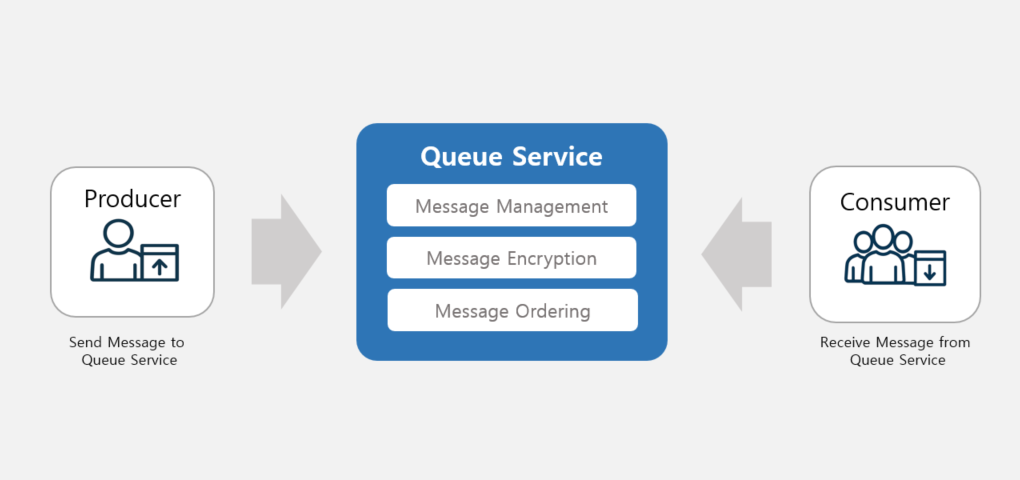
Provided Features
Queue Service provides the following features.
- Queue creation: Create a Queue of type basic or FIFO that guarantees message order, depending on the message reception handling method.
- If using FIFO type, the Queue Service sorts messages in order of receipt time.
- Message Transmission: The Producer sends the message to be delivered to the Consumer to the Queue.
- Message Reception: Consumer receives the Producer’s message from the Queue.
- Message Management: Check and manage messages stored in the Queue.
- Message Encryption: Encrypt messages within the Queue by integrating with the KMS service.
- We support preventing message exposure by configuring message encryption.
Components
Producer
Create and send messages using Queue Service.
Consumer
Receive and process messages from the Queue Service.
Message Manager
You can check the loaded messages in the Queue Service and manage them, such as deleting them.
Region-specific provision status
Queue Service can be provided in the environment below.
| Region | Availability |
|---|---|
| Korea West 1(kr-west1) | Provided |
| Korea East 1 (kr-east1) | Provided |
| South Korea 1(kr-south1) | Not provided |
| Korea South2(kr-south2) | Not provided |
| South Korea South 3 (kr-south3) | Not provided |
Pre-service
Queue Service has no preceding service.
4 - CLI Reference
5 - API Reference
6 - Release Note
Queue Service
- Queue Service has been officially released.
- Through Queue Service, you can distribute system load caused by messages and efficiently manage messages in microservice architectures or event-driven systems.
- Message transmission and reception operate independently, improving responsiveness and processing speed.