This is the multi-page printable view of this section. Click here to print.
Vertica(DBaaS)
- 1: Overview
- 1.1: Server Type
- 1.2: Monitoring Metrics
- 2: How-to guides
- 3: API Reference
- 4: CLI Reference
- 5: Release Note
1 - Overview
Service Overview
Vertica(DBaaS) is a high-availability enterprise database based on Data Warehouse for large-scale data analysis/processing. It is a data analysis platform that, through a single engine, can perform basic analyses such as queries on data coming from various sources without moving them, as well as AI analyses like machine learning. In Samsung Cloud Platform, DB management functions such as high‑availability configuration, backup/recovery, patching, parameter management, and monitoring are added to ensure stable management of single instances or critical data, enabling automation of tasks throughout the database lifecycle. Additionally, to prepare for issues with DB servers or data, it provides an automatic backup function at user‑specified times, supporting data recovery at the desired point in time.
Service Architecture Diagram
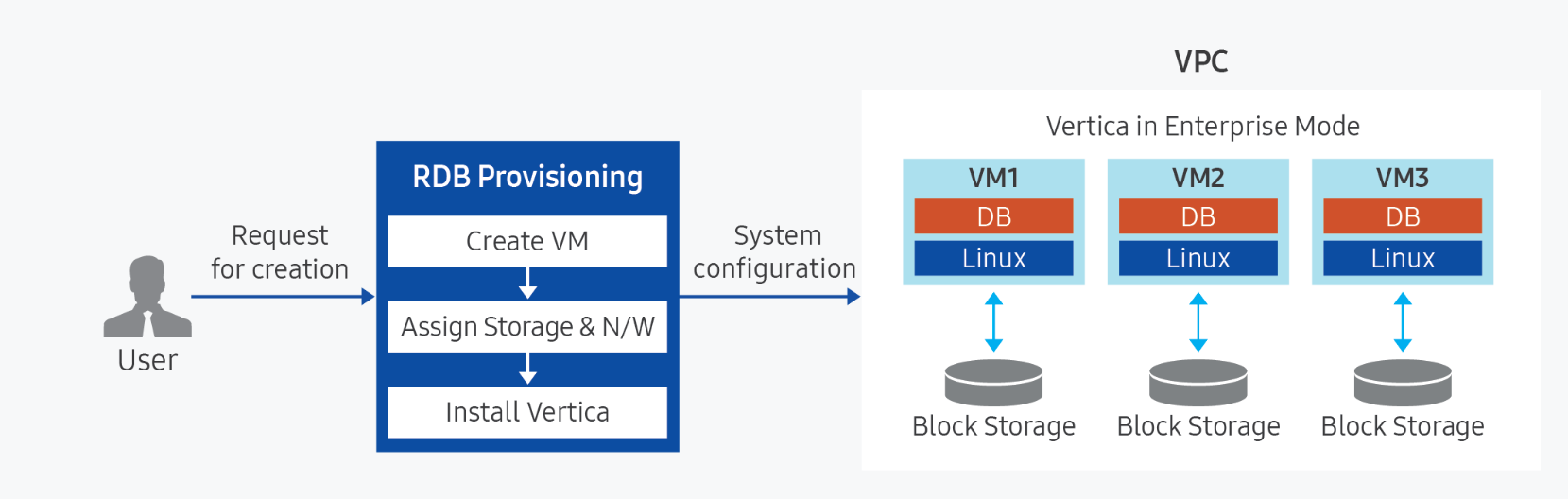
Provided Features
Vertica (DBaaS) provides the following features.
- Auto Provisioning: Automatically installs the DB of the standard version of Samsung Cloud Platform based on Virtual Servers of various specifications.
- Cluster configuration: Provides its own high-availability architecture in a Masterless form.
- Operation Control Management: Provides a function to control the status of running servers. Servers can be started and stopped, and can be restarted if there is a problem with the DB or to apply configuration values.
- Backup and Recovery: Provides a data backup function based on its own backup commands. The backup retention period and backup start time can be set by the user, and additional charges apply based on backup size. It also provides a recovery function for backed-up data; when the user performs a recovery, a separate DB is created and recovery proceeds to the point selected by the user (backup save point, user-specified point). When recovering a Database, you can choose to install the Management Console for use.
- Service status query: You can view the final status of the current DB service.
- Monitoring: CPU, memory, DB performance monitoring information can be checked through the Cloud Monitoring service.
- High-performance processing of large-scale data: Guarantees stable performance in environments with massive parallel processing (MPP, Massively Parallel Processing) and SQL query Mixed Workload. Vertica processes queries through distributed processing and has a structure that allows queries to be started from any node, so there is no Single Point of Failure where queries would not be executed in case of a specific node failure.
Components
Vertica(DBaaS) provides pre-validated engine versions and various server types. Users can select and use them according to the scale of the service they want to configure.
Engine Version
The engine versions supported by Vertica(DBaaS) are as follows.
Technical support can be used until the supplier’s EoTS (End of Technical Service) date, and the EOS date when new creation is stopped is set to six months before the EoTS date.
According to the supplier’s policy, the EOS and EoTS dates may change, so please refer to the supplier’s license management policy page for details.
| Provided version | EOS date(Samsung Cloud Platform new creation stop date) | EoTS date(supplier technical support end date) |
|---|---|---|
| 24.2.0-2 | 2026-09 (planned) | 2027-04-30 |
Server Type
The server types supported by Vertica (DBaaS) are as follows.
For detailed information about the server types provided by Vertica (DBaaS), please refer to Vertica server types.
| Category | Example | Detailed Description |
|---|---|---|
| Server Type | Standard | Provided Server Types
|
| Server specifications | Db1 | Provided server specifications
|
| Server specifications | V2 | vCore count
|
| Server specifications | M4 | Memory capacity
|
Preliminary Service
This is a list of services that must be pre-configured before creating the service. Please refer to the guide provided for each service for details and prepare in advance.
| Service Category | Service | Detailed Description |
|---|---|---|
| Networking | VPC | A service that provides an independent virtual network in a cloud environment |
1.1 - Server Type
Vertica(DBaaS) server type
Vertica(DBaaS) provides a server type composed of various combinations such as CPU, Memory, Network Bandwidth, etc. When creating Vertica(DBaaS), the Database Engine is installed according to the server type selected for the purpose of use.
The server types supported by Vertica(DBaaS) are as follows.
Standard db1v2m4
Classification | Example | Detailed Description |
|---|---|---|
| Server Type | Standard | Provided server type classification
|
| Server Specification | db1 | Classification of provided server type and generation
|
| Server Specification | v2 | Number of vCores
|
| Server Specification | m4 | Memory Capacity
|
db1 server type
The db1 server type of Vertica(DBaaS) is provided with standard specifications (vCPU, Memory) and is suitable for various database workloads.
- Up to 3.3Ghz Intel 3rd generation (Ice Lake) Xeon Gold 6342 Processor
- Supports up to 16 vCPUs and 256 GB of memory
- Up to 12.5 Gbps networking speed
| Division | Server Type | vCPU | Memory | Network Bandwidth |
|---|---|---|---|---|
| Standard | db1v1m2 | 1 vCore | 2 GB | Up to 10 Gbps |
| Standard | db1v2m4 | 2 vCore | 4 GB | Up to 10 Gbps |
| Standard | db1v2m8 | 2 vCore | 8 GB | Up to 10 Gbps |
| Standard | db1v2m16 | 2 vCore | 16 GB | Up to 10 Gbps |
| Standard | db1v2m24 | 2 vCore | 24 GB | Up to 10 Gbps |
| Standard | db1v2m32 | 2 vCore | 32 GB | Up to 10 Gbps |
| Standard | db1v4m8 | 4 vCore | 8 GB | Up to 10 Gbps |
| Standard | db1v4m16 | 4 vCore | 16 GB | Up to 10 Gbps |
| Standard | db1v4m32 | 4 vCore | 32 GB | Up to 10 Gbps |
| Standard | db1v4m48 | 4 vCore | 48 GB | Up to 10 Gbps |
| Standard | db1v4m64 | 4 vCore | 64 GB | Up to 10 Gbps |
| Standard | db1v6m12 | 6 vCore | 12 GB | Up to 10 Gbps |
| Standard | db1v6m24 | 6 vCore | 24 GB | Up to 10 Gbps |
| Standard | db1v6m48 | 6 vCore | 48 GB | Up to 10 Gbps |
| Standard | db1v6m72 | 6 vCore | 72 GB | Up to 10 Gbps |
| Standard | db1v6m96 | 6 vCore | 96 GB | Up to 10 Gbps |
| Standard | db1v8m16 | 8 vCore | 16 GB | Up to 10 Gbps |
| Standard | db1v8m32 | 8 vCore | 32 GB | Up to 10 Gbps |
| Standard | db1v8m64 | 8 vCore | 64 GB | Up to 10 Gbps |
| Standard | db1v8m96 | 8 vCore | 96 GB | Up to 10 Gbps |
| Standard | db1v8m128 | 8 vCore | 128 GB | Up to 10 Gbps |
| Standard | db1v10m20 | 10 vCore | 20 GB | Up to 10 Gbps |
| Standard | db1v10m40 | 10 vCore | 40 GB | Up to 10 Gbps |
| Standard | db1v10m80 | 10 vCore | 80 GB | Up to 10 Gbps |
| Standard | db1v10m120 | 10 vCore | 120 GB | Up to 10 Gbps |
| Standard | db1v10m160 | 10 vCore | 160 GB | Up to 10 Gbps |
| Standard | db1v12m24 | 12 vCore | 24 GB | Up to 12.5 Gbps |
| Standard | db1v12m48 | 12 vCore | 48 GB | Up to 12.5 Gbps |
| Standard | db1v12m96 | 12 vCore | 96 GB | Up to 12.5 Gbps |
| Standard | db1v12m144 | 12 vCore | 144 GB | Up to 12.5 Gbps |
| Standard | db1v12m192 | 12 vCore | 192 GB | Up to 12.5 Gbps |
| Standard | db1v14m28 | 14 vCore | 28 GB | Up to 12.5 Gbps |
| Standard | db1v14m56 | 14 vCore | 56 GB | Up to 12.5 Gbps |
| Standard | db1v14m112 | 14 vCore | 112 GB | Up to 12.5 Gbps |
| Standard | db1v14m168 | 14 vCore | 168 GB | Up to 12.5 Gbps |
| Standard | db1v14m224 | 14 vCore | 224 GB | Up to 12.5 Gbps |
| Standard | db1v16m32 | 16 vCore | 32 GB | Up to 12.5 Gbps |
| Standard | db1v16m64 | 16 vCore | 64 GB | Up to 12.5 Gbps |
| Standard | db1v16m128 | 16 vCore | 128 GB | Up to 12.5 Gbps |
| Standard | db1v16m192 | 16 vCore | 192 GB | Up to 12.5 Gbps |
| Standard | db1v16m256 | 16 vCore | 256 GB | Up to 12.5 Gbps |
DB2 server type
The db2 server type of Vertica(DBaaS) is provided with standard specifications (vCPU, Memory) and is suitable for various database workloads.
- Up to 3.2GHz Intel 4th generation (Sapphire Rapids) Xeon Gold 6448H Processor
- Supports up to 16 vCPUs and 256 GB of memory
- Up to 12.5 Gbps networking speed
| Classification | Server Type | vCPU | Memory | Network Bandwidth |
|---|---|---|---|---|
| Standard | db2v1m2 | 1 vCore | 2 GB | Up to 10 Gbps |
| Standard | db2v2m4 | 2 vCore | 4 GB | Up to 10 Gbps |
| Standard | db2v2m8 | 2 vCore | 8 GB | Up to 10 Gbps |
| Standard | db2v2m16 | 2 vCore | 16 GB | Up to 10 Gbps |
| Standard | db2v2m24 | 2 vCore | 24 GB | Up to 10 Gbps |
| Standard | db2v2m32 | 2 vCore | 32 GB | Up to 10 Gbps |
| Standard | db2v4m8 | 4 vCore | 8 GB | Up to 10 Gbps |
| Standard | db2v4m16 | 4 vCore | 16 GB | Up to 10 Gbps |
| Standard | db2v4m32 | 4 vCore | 32 GB | Up to 10 Gbps |
| Standard | db2v4m48 | 4 vCore | 48 GB | Up to 10 Gbps |
| Standard | db2v4m64 | 4 vCore | 64 GB | Up to 10 Gbps |
| Standard | db2v6m12 | 6 vCore | 12 GB | Up to 10 Gbps |
| Standard | db2v6m24 | 6 vCore | 24 GB | Up to 10 Gbps |
| Standard | db2v6m48 | 6 vCore | 48 GB | Up to 10 Gbps |
| Standard | db2v6m72 | 6 vCore | 72 GB | Up to 10 Gbps |
| Standard | db2v6m96 | 6 vCore | 96 GB | Up to 10 Gbps |
| Standard | db2v8m16 | 8 vCore | 16 GB | Up to 10 Gbps |
| Standard | db2v8m32 | 8 vCore | 32 GB | Up to 10 Gbps |
| Standard | db2v8m64 | 8 vCore | 64 GB | Up to 10 Gbps |
| Standard | db2v8m96 | 8 vCore | 96 GB | Up to 10 Gbps |
| Standard | db2v8m128 | 8 vCore | 128 GB | up to 10 Gbps |
| Standard | db2v10m20 | 10 vCore | 20 GB | Up to 10 Gbps |
| Standard | db2v10m40 | 10 vCore | 40 GB | Up to 10 Gbps |
| Standard | db2v10m80 | 10 vCore | 80 GB | Up to 10 Gbps |
| Standard | db2v10m120 | 10 vCore | 120 GB | Up to 10 Gbps |
| Standard | db2v10m160 | 10 vCore | 160 GB | Up to 10 Gbps |
| Standard | db2v12m24 | 12 vCore | 24 GB | Up to 12.5 Gbps |
| Standard | db2v12m48 | 12 vCore | 48 GB | Up to 12.5 Gbps |
| Standard | db2v12m96 | 12 vCore | 96 GB | Up to 12.5 Gbps |
| Standard | db2v12m144 | 12 vCore | 144 GB | Up to 12.5 Gbps |
| Standard | db2v12m192 | 12 vCore | 192 GB | Up to 12.5 Gbps |
| Standard | db2v14m28 | 14 vCore | 28 GB | Up to 12.5 Gbps |
| Standard | db2v14m56 | 14 vCore | 56 GB | Up to 12.5 Gbps |
| Standard | db2v14m112 | 14 vCore | 112 GB | Up to 12.5 Gbps |
| Standard | db2v14m168 | 14 vCore | 168 GB | Up to 12.5 Gbps |
| Standard | db2v14m224 | 14 vCore | 224 GB | Up to 12.5 Gbps |
| Standard | db2v16m32 | 16 vCore | 32 GB | Up to 12.5 Gbps |
| Standard | db2v16m64 | 16 vCore | 64 GB | Up to 12.5 Gbps |
| Standard | db2v16m128 | 16 vCore | 128 GB | Up to 12.5 Gbps |
| Standard | db2v16m192 | 16 vCore | 192 GB | Up to 12.5 Gbps |
| Standard | db2v16m256 | 16 vCore | 256 GB | up to 12.5 Gbps |
DBH2 Server Type
The dbh2 server type of Vertica(DBaaS) is provided with large-capacity server specifications and is suitable for database workloads for large-scale data processing.
- Up to 3.2GHz Intel 4th generation (Sapphire Rapids) Xeon Gold 6448H Processor
- Supports up to 128 vCPUs and 1,536 GB of memory
- Up to 25Gbps networking speed
| Classification | Server Type | vCPU | Memory | Network Bandwidth |
|---|---|---|---|---|
| High Capacity | dbh2v24m48 | 24 vCore | 48 GB | Up to 25 Gbps |
| High Capacity | dbh2v24m96 | 24 vCore | 96 GB | Up to 25 Gbps |
| High Capacity | dbh2v24m192 | 24 vCore | 192 GB | Up to 25 Gbps |
| High Capacity | dbh2v24m288 | 24 vCore | 288 GB | Up to 25 Gbps |
| High Capacity | dbh2v32m64 | 32 vCore | 64 GB | Up to 25 Gbps |
| High Capacity | dbh2v32m128 | 32 vCore | 128 GB | Up to 25 Gbps |
| High Capacity | dbh2v32m256 | 32 vCore | 256 GB | Up to 25 Gbps |
| High Capacity | dbh2v32m384 | 32 vCore | 384 GB | Up to 25 Gbps |
| High Capacity | dbh2v48m192 | 48 vCore | 192 GB | Up to 25 Gbps |
| High Capacity | dbh2v48m576 | 48 vCore | 576 GB | Up to 25 Gbps |
| High Capacity | dbh2v64m256 | 64 vCore | 256 GB | Up to 25 Gbps |
| High Capacity | dbh2v64m768 | 64 vCore | 768 GB | Up to 25 Gbps |
| High Capacity | dbh2v72m288 | 72 vCore | 288 GB | Up to 25 Gbps |
| High Capacity | dbh2v72m864 | 72 vCore | 864 GB | Up to 25 Gbps |
| High Capacity | dbh2v96m384 | 96 vCore | 384 GB | Up to 25 Gbps |
| High Capacity | dbh2v96m1152 | 96 vCore | 1152 GB | Up to 25 Gbps |
| High Capacity | dbh2v128m512 | 128 vCore | 512 GB | Up to 25 Gbps |
| High Capacity | dbh2v128m1536 | 128 vCore | 1536 GB | Up to 25 Gbps |
1.2 - Monitoring Metrics
Vertica(DBaaS) monitoring metrics
The following table shows the performance monitoring metrics of Vertica (DBaaS) that can be checked through Cloud Monitoring. For detailed instructions on how to use Cloud Monitoring, please refer to the Cloud Monitoring guide.
The server monitoring metrics of Vertica(DBaaS) refer to the Virtual Server monitoring metrics guide.
| Performance Item | Detailed Description | Unit |
|---|---|---|
| Active Locks | Number of Active Locks | cnt |
| Active Sessions | Total number of active sessions | cnt |
| Instance Status | Node alive status | status |
| Tablespace Used | Tablespace usage | bytes |
2 - How-to guides
The user can enter the required information of Vertica(DBaaS) through the Samsung Cloud Platform Console and create the service by selecting detailed options.
Creating Vertica(DBaaS)
You can create and use the Vertica (DBaaS) service in the Samsung Cloud Platform Console.
To create a Vertica(DBaaS), follow these steps.
Click All Services > Data Analytics > Vertica(DBaaS) menu. It moves to the Service Home page of Vertica(DBaaS).
Service Home page, click the Vertica(DBaaS) creation button. Move to the creation page.
Create Vertica(DBaaS) page, enter the information required for service creation, and select detailed options.
Image and Version Selection area, please select the necessary information.
Classification NecessityDetailed Description Image Version Required Provides a list of Vertica (DBaaS) versions Table. Vertica(DBaaS) image and version input itemsEnter Service Information Enter or select the necessary information in the area.
Classification NecessityDetailed Description Server Name Prefix Required The name of the server where Vertica will be installed - Starts with a lowercase letter, and consists of 3 to 13 characters using lowercase letters, numbers, and special characters (
-)
- A postfix such as 001, 002 is attached based on the server name to create the actual server name
Cluster Name Required The name of the cluster that the servers are configured in - Enter in English, 3-20 characters
- A cluster is a unit that bundles multiple servers
Number of Nodes Required Number of Data Nodes - The number of nodes must be entered within the range of 1-10
- Entering the number of nodes as 2 or more to form a cluster ensures high availability
Service Type > Server Type Required Data Node Server Type - Standard: Standard specification commonly used
- High Capacity: High-capacity server with 24vCore or more
- For more information on the server types provided by Vertica(DBaaS), see Vertica(DBaaS) Server Type
Service Type > Planned Compute Selection Current status of resources with Planned Compute set - In Use: Number of resources with Planned Compute set that are currently in use
- Settings: Number of resources with Planned Compute set
- Coverage Preview: Amount applied by Planned Compute for each resource
- Apply for Planned Compute Service: Move to the Planned Compute service application page
- For more details, refer to How to Apply for Planned Compute
Service Type > Block Storage Required Type of Block Storage to be used for data node - Base OS: Area where the engine is installed
- DATA: Area for storing data files
- Select storage type and enter capacity (For more information on Block Storage type, refer to Creating Block Storage)
- SSD: General Block Storage
- SSD_KMS: Additional encryption volume using KMS (Key Management System) encryption key
- The set storage type will be applied equally to additional storage
- Capacity can be entered in multiples of 8 in the range of 16 to 5,120
- Select storage type and enter capacity (For more information on Block Storage type, refer to Creating Block Storage)
- Additional: DATA, Backup data storage area
- Select Use and enter Purpose and Capacity of storage
- To add storage, click the + button, and to delete, click the x button, up to 9 can be added
- Capacity can be entered in multiples of 8 in the range of 16 to 5,120, and up to 9 can be created
Management Console Selection Use selection, then select the server type of Node for cluster management and monitoring, and Block Storage settings Management Console > Server Type Required Select server type for data node for cluster management and monitoring Management Console > Block Storage Essential Select the type of Block Storage to be used for data nodes for cluster management and monitoring Network > Common Settings Required Network settings for servers created by the service - Select if you want to apply the same settings to all servers being installed
- Select pre-created VPC and Subnet
- IP: Enter the IP for each server
- Public NAT settings are only possible in server-specific settings
Network > Server Settings Required Network settings for installing servers created by the service - Select to apply different settings for each server being installed
- Select pre-created VPC and Subnet
- IP: Enter the IP for each server
- Public NAT feature is available only when the VPC is connected to the Internet Gateway, checking Use allows selection from the reserved IP in the VPC product’s Public IP. For more information, see Creating Public IP
IP Access Control Select Set service access policy - Set access policy for the IP entered on the page, so you don’t need to set Security Group policy separately
- Enter in IP format (e.g.,
192.168.10.1) or CIDR format (e.g.,192.168.10.0/24,192.168.10.1/32), and click the Add button
- To delete the entered IP, click the x button next to the entered IP
Maintenance period Select DB maintenance period - Use Select the day of the week, start time, and duration
- It is recommended to set the maintenance period for stable DB management. Patch work is performed at the set time and service interruption occurs
- If set to not used, SamsungSDS is not responsible for any problems that occur due to non-application of patches.
Table. Vertica(DBaaS) Service Configuration Items- Starts with a lowercase letter, and consists of 3 to 13 characters using lowercase letters, numbers, and special characters (
Database Configuration Required Information Input area, please enter or select the required information.
Classification NecessityDetailed Description Database name Mandatory Server name applied when installing DB - Starts with English and enters 3 to 20 characters using English and numbers
Database username required DB username - An account with the same name is also created in the OS
- Enter 2-20 characters using lowercase English letters
- Restricted Database usernames can be checked in the Console
Database password required Password to use when accessing the DB - Enter 8-30 characters including English, numbers, and special characters (excluding
"’)
Database password confirmation required Re-enter the password to be used when accessing the DB Database Port number required port number required for DB connection - DB port should be entered within the range of 1,024 ~ 65,535
Backup > Use Selection Whether to use node backup - Use is selected to select the node backup storage period and backup start time
Backup > Retention Period Select Backup Retention Period - Select the backup retention period. The file retention period can be set from 7 days to 35 days
- Backup files are charged separately depending on the capacity
Backup > Backup start time Select Backup start time - Select the backup start time
- The minutes when the backup is performed are set randomly, and the backup end time cannot be set
License Key Required Enter the Vertica License Key owned by the customer - If the entered license key is not valid, service creation is not possible
DB Locale required Settings related to string handling, number/currency/date/time display formats, etc. to be used in Vertica(DBaaS) - DB is created with the selected Locale as the default setting
Time Zone Required Standard time zone to use for Vertica (DBaaS) Fig. Essential configuration items for Vertica(DBaaS)Enter Additional Information Please enter or select the required information in the area.
Classification NecessityDetailed Description Tag Select Add Tag - Up to 50 can be added per resource
- Click the Add Tag button and enter or select Key, Value
Fig. Vertica(DBaaS) additional information input items
In the Summary panel, check the detailed information generated and the estimated billing amount, and click the Complete button.
- Once creation is complete, check the created resource on the Resource List page.
Check detailed information about Vertica(DBaaS)
The Vertica(DBaaS) service allows you to check and modify the entire resource list and detailed information. The Vertica(DBaaS) details page consists of details, tags, and operation history tabs.
To check the detailed information of the Vertica(DBaaS) service, follow the next procedure.
- Click All Services > Data Analytics > Vertica(DBaaS) menu. It moves to the Service Home page of Vertica(DBaaS).
- Service Home page, click the Vertica(DBaaS) menu. It moves to the Vertica(DBaaS) list page.
- Vertica(DBaaS) list page, click on the resource to check the detailed information. Move to the Vertica(DBaaS) details page.
- Vertica(DBaaS) Details page top shows status information and additional features.
| Classification | Detailed Description |
|---|---|
| Cluster Status | Cluster Status
|
| Cluster Control | Buttons that can change the cluster status
|
| Additional features more | Cluster related management buttons
|
| Service Cancellation | Button to cancel the service |
Detailed Information
On the Vertica(DBaaS) list page, you can check the detailed information of the selected resource and modify the information if necessary.
| Classification | Detailed Description |
|---|---|
| Server Information | Server information configured in the corresponding cluster
|
| Service | Service Name |
| Resource Type | Service Name |
| SRN | Unique resource ID in Samsung Cloud Platform
|
| Resource Name | Resource Name
|
| Resource ID | Unique resource ID in the service |
| Creator | User who created the service |
| Creation Time | Time when the service was created |
| Modifier | Service information modified user |
| Modified Time | Time when service information was modified |
| Image/Version | Installed DB image and version information |
| Cluster Name | Server cluster name composed of servers |
| Database name | Server name applied when DB was installed |
| Database username | DB user name |
| Planned Compute | Planned Compute status of set resources
|
| Maintenance Period | DB Maintenance Period Status
|
| Backup | Backup setting status
|
| Managed Console | Resource status of Managed Console set during DB installation |
| Network | Installed network information(VPC, Subnet) |
| IP Access Control | Service Access Policy Setting
|
| Time Zone | Standard time zone where Vertica(DBaaS) DB will be used |
| License | Vertica(DBaaS) license information |
| Server Information | Data/Console server type, default OS, additional Disk information
|
Tag
On the Vertica(DBaaS) list page, you can check the tag information of the selected resource, and add, change, or delete it.
| Classification | Detailed Description |
|---|---|
| Tag List | Tag list
|
Work History
You can check the operation history of the selected resource on the Vertica(DBaaS) list page.
| Classification | Detailed Description |
|---|---|
| Work history list | Resource change history
|
Managing Vertica (DBaaS) Resources
If you need to change the existing setting options of the generated Vertica(DBaaS) resource or add storage configuration, you can perform the task on the Vertica(DBaaS) details page.
Operating Control
If there are changes to the running Vertica (DBaaS) resource, you can start, stop, and restart it.
To control the operation of Vertica(DBaaS), follow the next procedure.
- Click All Services > Data Analytics > Vertica(DBaaS) menu. It moves to the Service Home page of Vertica(DBaaS).
- Service Home page, click the Vertica(DBaaS) menu. It moves to the Vertica(DBaaS) list page.
- Click the resource to control operation on the Vertica(DBaaS) list page. It moves to the Vertica(DBaaS) detail page.
- Check the status of Vertica(DBaaS) and complete the change through the control button below.
- Start: The server where the Vertica(DBaaS) service is installed and the Vertica(DBaaS) service is running.
- 중지: Vertica(DBaaS) service installed server and Vertica(DBaaS) service will be stopped.
- Restart: Only the Vertica (DBaaS) service will be restarted.
Synchronizing Service Status
You can synchronize the real-time service status of Vertica(DBaaS).
To check the service status of Vertica(DBaaS), follow the next procedure.
- Click All Services > Data Analytics > Vertica(DBaaS) menu. It moves to the Service Home page of Vertica(DBaaS).
- Service Home page, click the Vertica(DBaaS) menu. It moves to the Vertica(DBaaS) list page.
- Click the resource to check the service status on the Vertica(DBaaS) list page. It moves to the Vertica(DBaaS) details page.
- Service Status Synchronization button should be clicked. During the inquiry, the cluster changes to Synchronizing status.
- Once the query is complete, the status in the server information item is updated, and the cluster changes to Running status.
Changing the Server Type
You can change the configured server type.
- If the server type is configured as Standard, it cannot be changed to High Capacity. If you want to change to High Capacity, please create a new service.
- Modifying the server type requires a server restart. Please check separately for SW license modifications and SW settings due to server specification changes.
To change the server type, follow these steps.
- Click All Services > Data Analytics > Vertica(DBaaS) menu. It moves to the Service Home page of Vertica(DBaaS).
- Service Home page, click the Vertica(DBaaS) menu. Move to the Vertica(DBaaS) list page.
- On the Vertica(DBaaS) list page, click the resource you want to change the server type for. It moves to the Vertica(DBaaS) details page.
- Click the Edit icon of the server type you want to change at the bottom of the detailed information. The Server Type Edit popup window opens.
- Modify Server Type In the modify server type popup window, select the server type and click the OK button.
Adding Storage
If you need more than 5 TB of data storage space, you can add storage. If it is a high-availability configuration (HA cluster), adding or expanding storage capacity will be applied to all DBs simultaneously.
To add storage, follow these steps.
- Click All Services > Data Analytics > Vertica(DBaaS) menu. It moves to the Service Home page of Vertica(DBaaS).
- Service Home page, click the Vertica(DBaaS) menu. It moves to the Vertica(DBaaS) list page.
- On the Vertica(DBaaS) list page, click the resource to add storage. It moves to the Vertica(DBaaS) details page.
- Click the Disk 추가 button at the bottom of the detailed information. The 추가 스토리지 요청 popup window will open.
- In the Additional Storage Request popup window, enter the purpose and capacity, then click the Confirm button.
Expanding Storage
The storage added to the data area can be expanded up to a maximum of 5TB based on the initially allocated capacity. Storage can be expanded without stopping Vertica (DBaaS), and if configured in a cluster, all nodes are expanded simultaneously.
To increase the storage capacity, follow the procedure below.
- Click All Services > Data Analytics > Vertica(DBaaS) menu. It moves to the Service Home page of Vertica(DBaaS).
- On the Service Home page, click the Vertica(DBaaS) menu. It moves to the Vertica(DBaaS) list page.
- On the Vertica(DBaaS) list page, click the resource you want to change the server type for. It moves to the Vertica(DBaaS) details page.
- Click the Modify button of the additional Disk you want to add at the bottom of the detailed information. The Modify Additional Storage popup window will open.
- Modify Additional Storage popup window, enter the expansion capacity, then click the Confirm button.
Change Recovery DB instance type
After DB recovery is complete, you can change the instance type from the Recovery detailed information screen.
To change the Recovery DB instance type, follow these steps.
- Click All Services > Data Analytics > Vertica(DBaaS) menu. It moves to the Service Home page of Vertica(DBaaS).
- On the Service Home page, click the Vertica(DBaaS) menu. It moves to the Vertica(DBaaS) list page.
- Vertica(DBaaS) list page, click the resource to change the Recovery DB instance type. It moves to the Vertica(DBaaS) details page.
- Click the Change Instance Type button. The Change Instance Type confirmation window will be displayed.
- The DB instance type is changed from Recovery to Active to perform the same function as a single DB.
Canceling Vertica(DBaaS)
You can cancel unused Vertica(DBaaS) to reduce operating costs. However, when canceling the service, the operating service may be stopped immediately, so you should consider the impact of stopping the service sufficiently before proceeding with the cancellation work.
To cancel Vertica(DBaaS), follow these steps.
- Click All Services > Data Analytics > Vertica(DBaaS) menu. It moves to the Service Home page of Vertica(DBaaS).
- Service Home page, click the Vertica(DBaaS) menu. Move to the Vertica(DBaaS) list page.
- Vertica(DBaaS) list page, select the resource to be canceled and click the Service Cancellation button.
- Once the cancellation is complete, check if the resource has been cancelled on the Vertica(DBaaS) list page.
2.1 - Vertica Backup and Recovery
Users can set up backups of Vertica (DBaaS) through the Samsung Cloud Platform Console and restore from the backed-up files.
Vertica(DBaaS) Backup
You can set up a backup function so that the user’s data can be stored safely. Also, through the backup history function, you can verify whether the backup was performed correctly and you can also delete backed-up files.
Set up backup
For backup configuration of Vertica(DBaaS), see Create Vertica(DBaaS).
To modify the backup settings of Vertica (DBaaS), follow the steps below.
- If a backup is set, the backup will be performed at the designated time after the set time, and additional charges will be incurred depending on the backup size.
- If you change the backup setting to unused, backup execution will stop immediately, and the stored backup data will be deleted and can no longer be used.
- All Services > Data Analytics > Vertica(DBaaS) Click the menu. Navigate to the Service Home page of Vertica(DBaaS).
- Click the Vertica(DBaaS) menu on the Service Home page. Navigate to the Vertica(DBaaS) List page.
- Click the resource to set backup on the Vertica(DBaaS) List page. You will be taken to the Vertica(DBaaS) Details page.
- Click the Edit button of the backup item. Backup Settings popup window opens.
- When setting up a backup, click Use in the Backup Settings popup, select the retention period and backup start time, and click the Confirm button.
- If you want to stop the backup setting, uncheck Use in the Backup Setting popup window and click the Confirm button.
Check backup history
To view the backup history, follow these steps.
- All Services > Data Analytics > Vertica(DBaaS) Click the menu. Go to the Service Home page of Vertica(DBaaS).
- Click the Vertica(DBaaS) menu on the Service Home page. Navigate to the Vertica(DBaaS) list page.
- Click the resource to view the backup history on the Vertica(DBaaS) 목록 page. Go to the Vertica(DBaaS) 상세 page.
- Click the Backup History button. Backup History popup opens.
- Backup History In the popup window, you can check the backup status, version, backup start date and time, backup completion date and time, and size.
Delete backup file
To delete the backup history, follow the steps below.
- All Services > Data Analytics > Vertica(DBaaS) Click the menu. Navigate to the Service Home page of Vertica(DBaaS).
- Service Home page, click the Vertica(DBaaS) menu. Go to the Vertica(DBaaS) list page.
- Vertica(DBaaS) List On the page, click the resource to view the backup history. Vertica(DBaaS) Details You will be taken to the page.
- Click the Backup History button. The Backup History popup window opens.
- Backup History In the popup window, check the file you want to delete, then click the Delete button.
Vertica(DBaaS) Recover
If restoration from a backup file is required due to a failure or data loss, you can use the cluster recovery feature to recover based on a specific point in time.
Vertica (DBaaS)를 복구하려면 다음 절차를 따르세요.
- All Services > Data Analytics > Vertica(DBaaS) Click the menu. Navigate to the Service Home page of Vertica(DBaaS).
- Click the Vertica(DBaaS) menu on the Service Home page. Go to the Vertica(DBaaS) List page.
- Vertica(DBaaS) Resource On the list page, click the resource you want to recover. You will be taken to the Vertica(DBaaS) Detail page.
- Click the Database Recovery button. Go to the Database(DBaaS) Recovery page.
- Database Recovery area, after entering the relevant information, click the Complete button.
Category Required or notDetailed description Recovery Type Required Set the point in time the user wants to recover - Backup point (recommended): Recover based on backup file. Select from the list of backup file timestamps displayed in the list
- Recovery point: Choose the date and time to recover. Can be selected from the start time of the backup history
Server Name Prefix Required Recovery DB Server Name - Enter 3~16 characters starting with a lowercase English letter, using lowercase letters, numbers, and the special character (
-)
- A postfix such as 001, 002 is appended based on the server name to create the actual server name
Cluster Name Required Recovery DB Cluster Name - Enter using English, 3 to 20 characters
- A cluster is a unit that groups multiple servers
Number of nodes Select Number of data nodes - Set to be the same as the number of nodes configured in the original cluster.
Service Type > Server Type Required Recovery DB Server Type - Standard: Standard specifications commonly used
- High Capacity: Large-capacity server of 24 vCore or more
Service Type > Planned Compute Select Status of resources with Planned Compute set - In Use: Number of resources with Planned Compute that are currently in use
- Configured: Number of resources with Planned Compute set
- Coverage Preview: Amount applied per resource by Planned Compute
- Planned Compute Service Application: Go to the Planned Compute service application page
- For details, refer to Planned Compute Apply
Service Type > Block Storage Required Block Storage settings used by the recovery DB - Base OS: Area where the DB engine is installed
- DATA: Storage area for table data, archive files, etc.
- Apply the same Storage type as set in the source cluster
- After selecting Use, enter the storage purpose and capacity
- Click the + button to add storage, and the x button to delete
- Capacity can be entered in multiples of 8 within the range 16 to 5,120, and up to 9 can be created
Management Console > Server Type Required Management Console Server Type - After selecting Use, choose the storage purpose and capacity
- Standard: Standard specifications commonly used
- High Capacity: Large-capacity server with 24 vCore or more
Management Console > Block Storage Required Block Storage settings used by Management Console - Select Use and then select Base OS
Database username Required Database username - Apply the same username set in the original cluster
Database Password Required Database Password - Apply the same password set in the original cluster
Database Port Number Required Database Port Number - Apply the same Port number as set in the original cluster
IP Access Control Select Service Access Policy Settings - Since the access policy is set for the IP entered on the page, you do not need to separately configure Security Group policies.
- Enter in IP format (e.g.,
192.168.10.1) or CIDR format (e.g.,192.168.10.0/24,192.168.10.1/32) and click the Add button
- To delete an entered IP, click the x button next to the entered IP
Maintenance period Select DB maintenance period - If Use is selected, set day of week, start time, and duration
- It is recommended to set a maintenance period for stable DB management. Patch work will be performed at the set time, causing service interruption
- If set to not use, Samsung SDS is not responsible for issues arising from unapplied patches.
License Key Required Enter the Vertica License Key to recover - If the entered license key is not valid, service creation is not possible
Tag Select Add Tag - Add Tag button click after entering or selecting Key, Value values
Table. Vertica(DBaaS) Recovery Configuration Items