This is the multi-page printable view of this section. Click here to print.
Quick Query
- 1: Overview
- 2: How-to guides
- 3: API Reference
- 4: CLI Reference
- 5: Release Note
1 - Overview
Service Overview
Quick Query is an interactive query service that allows you to analyze large amounts of data quickly and easily using standard SQL. It is automatically installed on a standard Kubernetes cluster and provides easy and fast access to various data sources such as Cloud Hadoop, Object Storage, and RDB, enabling data retrieval and processing.
Key Features
- Easy and Fast Data Retrieval: After defining a schema for data stored in Object Storage, you can easily and quickly retrieve data using standard SQL. Any user who can handle SQL can easily analyze large datasets without being a professional analyst.
- Rapid Parallel Distributed Processing: Using the Trino engine, which supports parallel distributed processing, queries are automatically divided and processed in parallel on multiple nodes, allowing you to quickly retrieve query results even for large amounts of data.
- Various Service Structures: It provides a shared fixed resource mode, a shared resource expansion mode, and a personal resource expansion mode. The shared fixed resource mode supports a stable response speed for large data queries, while the shared resource expansion mode allows for more affordable use in cases of irregular usage. Additionally, the personal resource expansion mode supports each user’s independent analysis work, enabling the use of Quick Query with a structure that meets user demands.
Service Composition Diagram
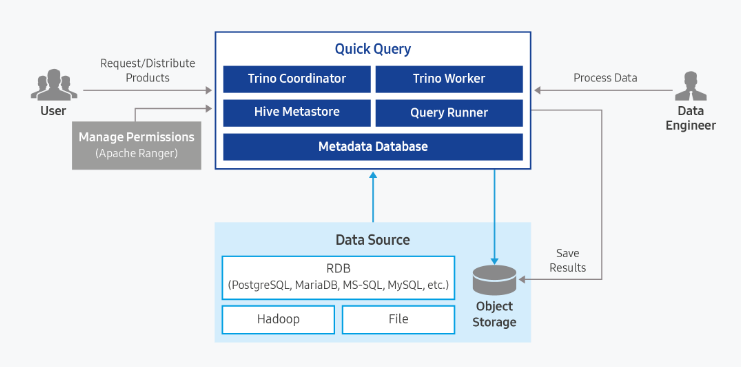
Provided Functions
Quick Query provides the following functions:
- Single Access Support for Various Data Sources (Supporting 11 Data Sources)
- Automatic Storage Function for Result Data in Object Storage
- Reuse Function for Query Results
- Access Control Function through Ranger Integration
- Data Usage Control Function
| Category | Type | Note |
|---|---|---|
| Cloud Hadoop | hive_on_cloud_hadoop iceberg_on_cloud_hadoop | Using Cloud Hadoop’s Hive Metastore |
| Object Storage | hive_on_object_storage iceberg_on_object_storage | Deploying Hive Metastore in Quick Query |
| RDB | postgresql mariadb sqlserver oracle mysql | JDBC Driver Upload required (licensed) |
| TPCDS | tpcds | Built-in Data Source provided by Quick Query |
| TPCH | tpch | Built-in Data Source provided by Quick Query |
| Type | select | insert | update | delete | create | drop | alter | analyze | call |
|---|---|---|---|---|---|---|---|---|---|
| hive_on_cloud_hadoop | O | O | O | O | O | O | O | O | O |
| iceberg_on_cloud_hadoop | O | O | O | O | O | O | O | O | O |
| hive_on_object_storage | O | O | O | O | O | O | O | O | O |
| iceberg_on_object_storage | O | O | O | O | O | O | O | O | O |
| postgresql | O | O | O | O | O | O | |||
| mariadb | O | O | O | O | O | O | |||
| sqlserver | O | O | O | O | O | O | |||
| greenplum | O | O | O | O | O | O | |||
| oracle | O | O | O | O | O | O | |||
| mysql | O | O | O | O | O | O | |||
| tpcds | O | ||||||||
| tpch | O |
Components
Query Engine Type: Shared
The query engine is a structure that is shared by multiple users when one is running.
Fixed Resource Mode (No Auto Scaling): When Auto Scaling is not used, the query engine runs with fixed resources according to the user’s selection. Since the query engine always runs with the same resources, it can guarantee consistent query performance.
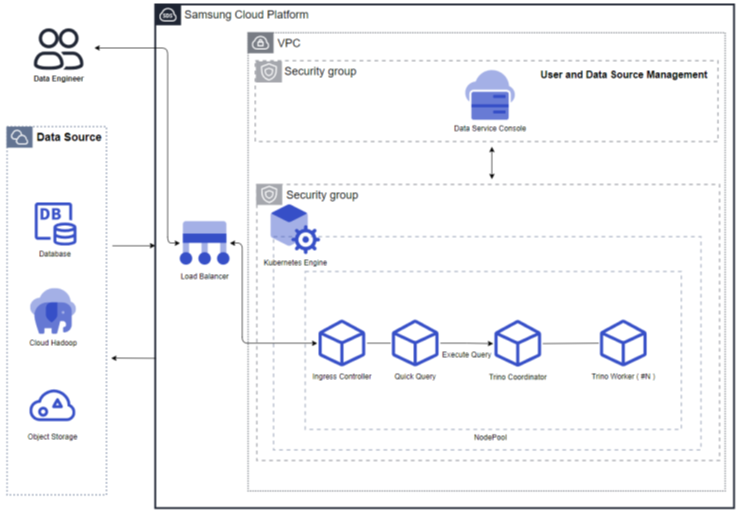
Figure. Fixed Resource Mode (No Auto Scaling) Resource Expansion Mode (Using Auto Scaling): When Auto Scaling is used, the query engine’s worker nodes automatically scale in/out according to the processing volume. When the processing volume is low, the worker nodes decrease to one, and when the processing volume increases, the worker nodes increase. Additionally, resources can be adjusted according to the cluster size.
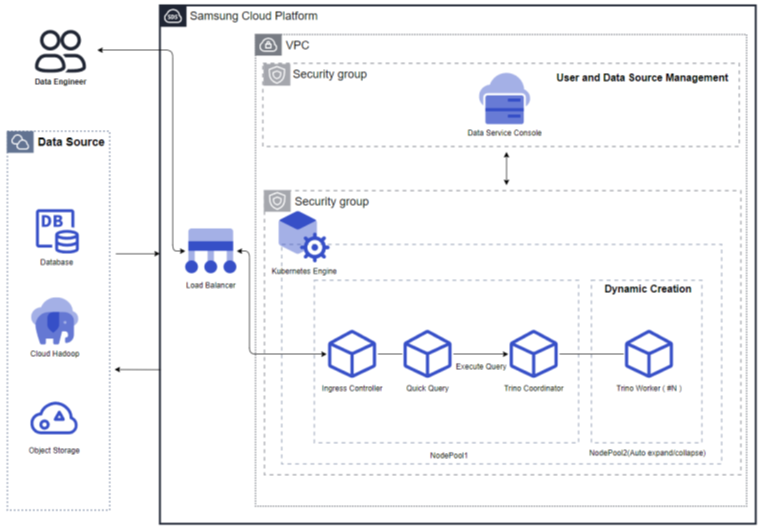
Figure. Resource Expansion Mode (Using Auto Scaling)
Query Engine Type: Personal
Resource Expansion Mode (Using Auto Scaling): The personal query engine type is a structure where the query engine runs separately for each user. Each query engine supports Auto Scale in/out and automatically stops when not used for an extended period. When used again, the query engine automatically restarts. The worker nodes decrease to one when the processing volume is low and increase when the processing volume increases. Additionally, resources can be adjusted according to the cluster size.
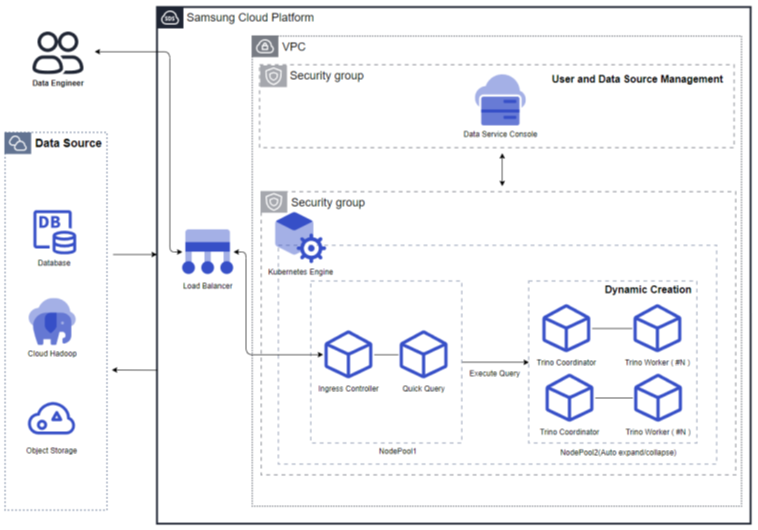
Figure. Resource Expansion Mode (Using Auto Scaling)
Server Type
The server types supported by Quick Query are as follows:
| Classification | Example | Detailed Description |
|---|---|---|
| Server Type | Standard | Provided server types
|
| Server Size | s1v2m4 | Provided server specifications
|
The minimum specifications required to use Quick Query are as follows:
| Classification | Details | Cluster Size (User Input Value) | Fixed Node Pool | Auto-Scaling Node Pool |
|---|---|---|---|---|
| Shared | Fixed Resource Mode (No Auto Scaling) | Replica: 1 CPU: 4 Core Memory: 8GB | 8 Core, 16GB * 4 | N/A |
| Shared | Resource Expansion Mode (Using Auto Scaling) | Small(1 Core, 4GB) | 8 Core, 16GB * 3 | 8 Core, 16GB * 1 |
| Personal | Resource Expansion Mode (Using Auto Scaling) | Small(1 Core, 4GB) | 8 Core, 16GB * 3 | 8 Core, 32GB * 2 |
Region-Based Provisioning Status
Quick Query is available in the following environments:
| Region | Availability |
|---|---|
| Korea West (kr-west1) | Available |
| Korea East (kr-east1) | Available |
| Korea South 1 (kr-south1) | Not Available |
| Korea South 2 (kr-south2) | Not Available |
| Korea South 3 (kr-south3) | Not Available |
Preceding Services
The following services must be configured before creating Quick Query. Please refer to the guides provided for each service to prepare them in advance.
| Service Category | Service | Detailed Description |
|---|---|---|
| Networking | VPC | A service that provides an independent virtual network in a cloud environment |
| Networking | Security Group | A virtual firewall that controls server traffic |
| Storage | File Storage | A storage that allows multiple client servers to share files through network connections |
2 - How-to guides
Users can create Quick Query services by entering the required information and selecting detailed options through the Samsung Cloud Platform Console.
Creating Quick Query
You can create Quick Query services through the Samsung Cloud Platform Console.
To create Quick Query, follow these steps:
Click All Services > Data Analytics > Quick Query. This will take you to the Service Home page of Quick Query.
On the Service Home page, click the Create Quick Query button. This will take you to the Create Quick Query page.
On the Create Quick Query page, enter the required information and select the detailed options.
- In the Version Selection section, select the required information.
Category RequiredDescription Quick Query Required Select the Quick Query service version - Provides a list of available versions
Table. Quick Query Service Version Selection Items - In the Service Information Input section, enter or select the required information.
Category RequiredDescription Quick Query Name Required Enter the Quick Query name - Starts with a lowercase letter and does not end with a special character (-), uses lowercase letters, numbers, and special characters (-) to enter 3-30 characters
Description Optional Enter additional information or description of Quick Query within 150 characters Domain Setting Required Enter the Quick Query domain - Starts with a lowercase letter and does not end with special characters (-, .), uses lowercase letters, numbers, and special characters (-, .) to enter 3-50 characters
- {Quick Query Name}.{Set Domain} will be the Quick Query access address.
Query Engine Type Required Select the query engine type - Shared: Multiple users share a single query engine
- Dedicated: Each user has a separate engine
Cluster Size Required Select the resource capacity for cluster configuration - If the engine type is Shared,
- Auto Scaling can be selected to choose the cluster capacity (Small, Medium, Large, Extra Large).
- If Auto Scaling is not selected, the cluster capacity can be set by entering Replica, CPU, and Memory.
- If the engine type is Dedicated,
- the cluster capacity can be selected (Small, Medium, Large, Extra Large).
- Engine capacity (when using Auto Scaling)
- Small: 1Core, 4GB
- Medium: 4Core, 16GB
- Large: 8Core, 64GB
- Extra Large: 16Core, 128GB
- Engine capacity (when not using Auto Scaling)
- Replica: 1-9 input possible, default: 1
- CPU: 4-24 input possible (4, 6, 8, 10, 12, 14, 16, 18, 20, 22, 24 input possible), default: 4
- Memory: 8-256 input possible (8, 16, 32, 64, 128, 192, 256 input possible), default: 8
Maximum Concurrent Query Execution Required Select the maximum number of queries to execute concurrently in Quick Query - Available values: 32, 64, 96, 128
Data Service Console Connection Required Enter the Data Service Console domain - Starts with a lowercase letter and does not end with special characters (-, .), uses lowercase letters, numbers, and special characters (-, .) to enter 3-50 characters
Host Alias Optional Add host information to be connected to Quick Query (up to 20 can be created, including the default) - Use is selected, and the + button is clicked
- Hostname: Hostname or domain format, using lowercase letters, numbers, and special characters (-, .) to enter 3-63 characters
- IP: IP format input
- To delete, click the X button
- The firewall between the cluster and the corresponding server must be open to use the added host information
Table. Quick Query Service Information Input Items - In the Cluster Information Input section, enter or select the required information.
Category RequiredDescription Cluster Name Required Enter the cluster name - Starts with a lowercase letter and does not end with a special character (-), uses lowercase letters, numbers, and special characters (-) to enter 3-30 characters
Control Area Setting Required/Optional - Kubernetes Version: Displays the Kubernetes version
- The Kubernetes version can be upgraded after provisioning.
- Public Endpoint Access: To access the Kubernetes API server endpoint from outside, select Use and enter the Access Control IP Range (cannot be changed after service application).
- Control Area Logging: Select whether to use control area logging
- If Use is selected, the cluster control area’s Audit/event log can be checked in Management > Cloud Monitoring > Log Analysis.
- 1GB of log storage is provided free of charge for all services in the project, and logs exceeding 1GB will be deleted sequentially.
Network Setting Required Set the network connection - VPC: Use the same VPC as Data Service Console
- Subnet: Select a subnet from the selected VPC
- Security Group: Click Search and select a security group in the Security Group Selection popup window
File Storage Setting Required Select the file storage volume to be used by the cluster - Default Volume (NFS): Click Search and select a file storage in the File Storage Selection popup window
Table. Quick Query Service Cluster Information Input Items - Enter Node Pool Information area, enter or select the required information.
Classification RequiredDetailed Description Node Pool Configuration Required/Optional Enter detailed information about the node pool to be added - * marked items are required input items
- If the Query Engine Type is Public and Auto Scaling is set to Not Used, only the Node Pool Configuration (Fixed) item can be set.
- Keypair: Select the authentication method to use when connecting to the Virtual Server
Table. Quick Query Service Node Pool Information Input Items - * marked items are required input items
- Enter Additional Information area, enter or select the required information.
Classification RequiredDetailed Description Tags Optional Add tags - Tag Add button to create and add tags or add existing tags
- Up to 50 tags can be added
- Newly added tags are applied after service creation is complete
Table. Quick Query Service Additional Information Input Items
- In the Version Selection section, select the required information.
In the Summary panel, check the detailed information created and the estimated billing amount, and click the Complete button.
- After creation is complete, check the created resource in the Quick Query List page.
Check Quick Query Details
You can check the entire resource list and detailed information of the Quick Query service and modify it. The Quick Query Details page consists of Details, Tags, and Work History tabs.
To check the detailed information of the Quick Query service, follow these steps:
- Click All Services > Data Analytics > Quick Query menu. Move to the Quick Query Service Home page.
- Click the Quick Query menu on the Service Home page. Move to the Quick Query List page.
- Click the resource to check the detailed information on the Quick Query List page. Move to the Quick Query Details page.
- At the top of the Quick Query Details page, status information and additional feature information are displayed.
Classification Detailed Description Status Display Status of the Quick Query created by the user - Creating: Creating
- Running: Creation complete, service available
- Updating: Setting update in progress
- Terminating: Service termination in progress
- Error: Error occurred during creation or service abnormal state
Hosts File Setting Information Button to check and copy host file information for accessing Quick Query and Data Service Console Service Termination Button to terminate the service Table. Quick Query Status Information and Additional Features
- At the top of the Quick Query Details page, status information and additional feature information are displayed.
Details
You can check the detailed information of the resource selected on the Quick Query List page and modify it if necessary.
| Classification | Detailed Description |
|---|---|
| Service | Service name |
| Resource Type | Resource type |
| SRN | Unique resource ID in Samsung Cloud Platform
|
| Resource Name | Resource name
|
| Resource ID | Unique resource ID in the service |
| Creator | User who created the service |
| Creation Time | Time when the service was created |
| Modifier | User who modified the service information |
| Modification Time | Time when the service information was modified |
| Quick Query Name | Quick Query name |
| Description | Additional information or description of Quick Query |
| Version | Quick Query version |
| Service Type | Quick Query service type |
| Query Engine Type | Quick Query engine type |
| Engine Spec |
|
| Maximum Concurrent Query Execution | Maximum number of queries that can be executed concurrently in Quick Query |
| Domain Setting | Quick Query domain |
| Data Service Console | Data Service Console domain |
| Host Alias | Host information to be connected to Quick Query |
| Web URL | Web URL of Data Service Console and Quick Query |
| Cluster Name | Name of the cluster composed of servers |
| Installation Node Information | Detailed information of the installed node pool |
Tags
You can check the tag information of the resource selected on the Quick Query List page and add, change, or delete it.
| Classification | Detailed Description |
|---|---|
| Tag List | Tag list
|
Work History
You can check the work history of the resource selected on the Quick Query List page.
| Classification | Detailed Description |
|---|---|
| Work History List | Resource change history
|
Connecting to Quick Query
To connect to Quick Query, follow these steps:
- Check the IP of the Windows system (PC) that you want to connect to Quick Query.
- You need to check the public IP of the system since external access is required.
- Check if the IGW connection is set to use in the VPC where Quick Query is installed.
- The Internet Gateway setting must be enabled for external access.
- Add the following contents to the hosts file of the Windows system:
- Domain address of Data Service Console
- Domain address of Data Service Console IAM
- Domain address of Quick Query
- You can check the hosts file setting information by clicking Hosts file setting information in the Quick Query detailed screen.
- Add the following rules to the VPC IGW Firewall that you selected when applying for the Quick Query service:
- Source IP: IP of the Windows system (PC)
- Destination IP: Subnet range of the Kubernetes where Quick Query is installed
- Protocol: TCP
- Port: 443
- Add the following rules to the Load Balancer Firewall that you selected when applying for the Quick Query service:
- Source IP: IP of the Windows system (PC)
- Destination IP: Subnet range of the Kubernetes where Quick Query is installed
- Protocol: TCP
- Port: 443
- Add the following rules to the Security Group that you selected when applying for the Quick Query service:
- Type: Inbound rule
- Destination address: IP of the Windows system (PC)
- Protocol: TCP
- Port: 443, 30000 ~ 32767
- Run the Chrome browser on the Windows system (PC) that you want to connect to and access the Quick Query URL.
Quick Query Target IP/Port Information
To access Quick Query, add the target IP and port for each service to the Security Group as follows:
| Item | Protocol | Source | Target IP | Port | Note |
|---|---|---|---|---|---|
| Quick Query | TCP | User IP | Quick Query | 443, 30000 ~ 32767 | Quick Query web https |
Canceling Quick Query
You can cancel the service to reduce operating costs. However, canceling the service may immediately stop the operating service, so you should carefully consider the impact of service cancellation before proceeding.
To cancel Quick Query, follow these steps:
- Click the All Services > Data Analytics > Quick Query menu. You will be taken to the Service Home page of Quick Query.
- Click the Quick Query menu on the Service Home page. You will be taken to the Quick Query List page.
- On the Quick Query List page, select the resource you want to cancel and click the Cancel Service button.
- After cancellation is complete, check if the resource has been canceled on the Quick Query List page.