This is the multi-page printable view of this section. Click here to print.
Data Ops
1 - Overview
Service Overview
Data Ops is a managed workflow orchestration service based on Apache Airflow that writes workflows for periodic or repetitive data processing tasks and automates task scheduling. Users can automate the process of bringing useful data to the right place at the right time, and monitor the configuration and progress of data pipelines.
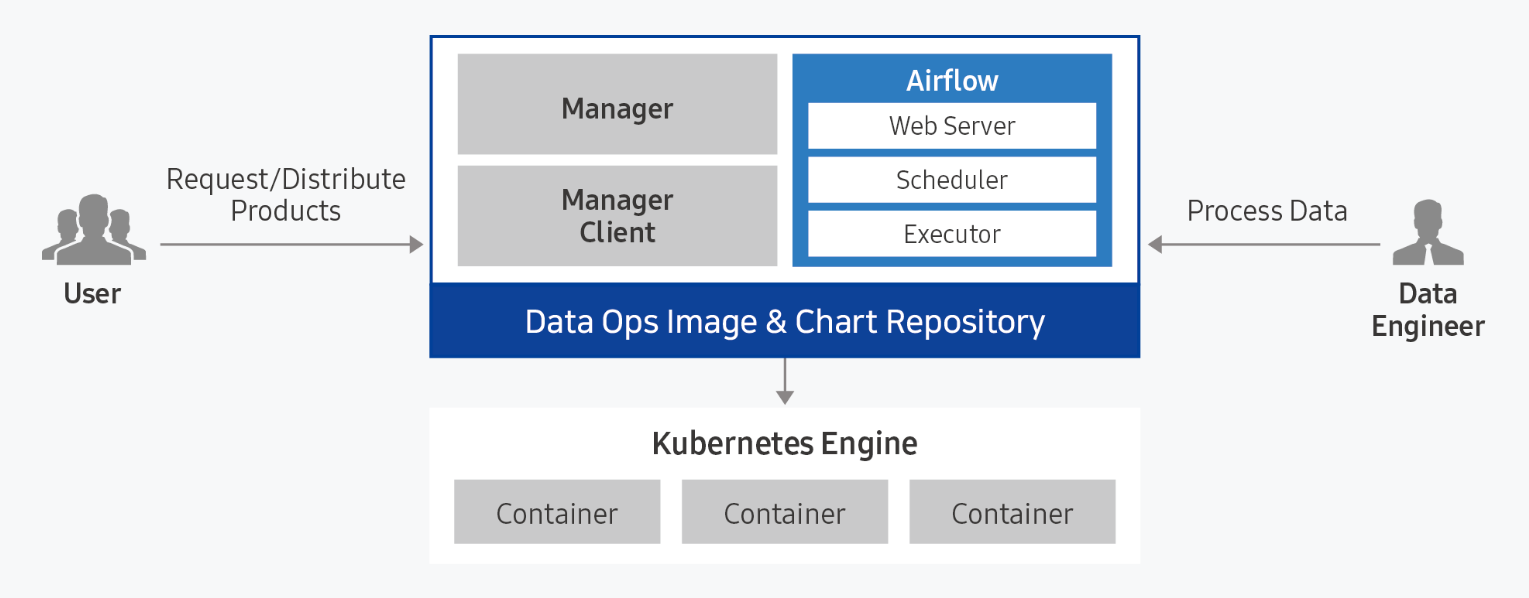
Provided Features
Data Ops provides the following functions.
- Easy installation and management: Data Ops can be easily installed through a web-based Console in a standard Kubernetes cluster environment. Apache Airflow and management modules are automatically installed, and integrated monitoring of the execution status of web servers and schedulers is possible through an integrated dashboard.
- Dynamic Pipeline Composition: Pipeline composition for data tasks is possible based on Python code. Since it dynamically generates tasks in conjunction with data task scheduling, you can freely compose the desired workflow form and scheduling.
- Convenient workflow management: DAG (Direct Acyclic Graph: directed acyclic graph) configuration is visualized and managed through a web-based UI, making it easy to understand the data flow’s preceding and parallel relationships. Additionally, each task’s timeout, retry count, priority definition, etc. can be easily managed.
Component
Data Ops consists of Manager and Service modules, and provides Apache Airflow by packaging it.
Data Ops Manager
Data Ops Manager provides various managing functions to use Airflow more efficiently.
- You can upload Plugin File, Shared File, Python Library File to be used in Ops Service through Ops Manager.
- You can easily provision setting information for Airflow configuration components within the cluster.
- You can manage and easily provision different service settings within the Airflow cluster.
Data Ops Service
- Provides a managed workflow orchestration service based on Apache Airflow.
- When Airflow is provided, you can set Description, necessary resource size, DAGs GitSync, and Host Alias.
- After creating a service, you can modify Description, resource usage, DAGs GitSync, and Host Alias to reflect the service.
Server Spec Type
When creating a Data Ops service, please check the following contents.
- Recommended Service Installation Specifications: CPU KubernetesExecutor 43 core, CPU CeleryExecutor 25 core, Memory 50 GB, storage 100 GB or more
- It is necessary to install Ingress Controller before creating Data Ops service.
- In a Kubernetes cluster, only 1 Ingress Controller can be installed.
- For more detailed information, please refer to Ingress Controller installation.
Regional Provision Status
Data Ops is available in the following environments.
| Region | Availability |
|---|---|
| Western Korea(kr-west1) | Provided |
| Korea East(kr-east1) | Not provided |
| South Korea (kr-south1) | Provided |
| South Korea Central(kr-central) | Available |
| South Korea southern region 3(kr-south3) | Provided |
Preceding Service
This is a list of services that must be pre-configured before creating this service. Please refer to the guide provided for each service and prepare in advance.
| Service Category | Service | Detailed Description |
|---|---|---|
| Storage | File Storage | Storage that allows multiple client servers to share files through network connections |
| Container | Kubernetes Engine | Kubernetes container orchestration service |
| Container | Container Registry | A service that easily stores, manages, and shares container images |
2 - How-to guides
The user can enter the essential information of Data Ops through the Samsung Cloud Platform Console and create the service by selecting detailed options.
Create Data Ops
You can create and use the Data Ops service on the Samsung Cloud Platform Console.
To create Data Ops, follow the following procedure.
Click on the menu for all services > Data Analytics > Data Ops. It moves to the Service Home page of Data Ops.
On the Service Home page, click the Create Data Ops button. It moves to the Create Data Ops page.
Data Ops Creation page, enter the information required for service creation and select detailed options.
Version Selection area, please select the necessary information.
Classification NecessityDetailed Description Data Ops version required Select version of the selected image - Provide a list of versions of the provided server image
Table. Data Ops version selection itemsCluster Selection area, please enter or select the required information. To install Data Ops, it is necessary to create nodes for the Kubernetes cluster and the working environment first.
Classification MandatoryDetailed Description Cluster Name Required Select Cluster to Use Ingress Controller required Select the Ingress Controller installed in the cluster Fig. Data Ops Cluster Selection ItemsEnter Service Information area, please enter or select the necessary information.
Classification NecessityDetailed Description Data Ops name required Enter Data Ops name - Start with lowercase English letters and do not end with special characters (
-), use lowercase letters, numbers, and special characters (-) to enter 3 ~ 30 characters
Storage Class Required Select the storage class used by the selected cluster Description Optional Enter additional information or description about Data Ops within 150 characters Domain Setting Mandatory Enter Data Ops domain - Start with lowercase English letters and do not end with a special character (
-), use lowercase letters, numbers, and special characters (-) to enter 3 to 50 characters
- {Data Ops name}.{set domain} will be the Data Ops access address.
Node Selector Required To install on a specific node, enter a distinguishable Label from the node’s Labels - If the node Label is entered incorrectly, an installation error may occur, so check the node Label in advance
- The node Label can be checked in the yaml file of the corresponding node
Account Required Enter Data Ops Manager account - ID: Enter a value between 6 and 30 characters, starting with a lowercase English letter and using only lowercase letters and numbers
- Password: Enter a value between 8 and 50 characters, including uppercase letters (English), lowercase letters (English), numbers, and special characters (
!@#$%^&*)
- Password Confirmation: Enter the password again, identical to the previous entry
Host Alias Selection Add host information to be connected to Data Ops (up to 20 can be created, including default) - Select “Use” and click the + button
- Hostname: Enter in hostname or domain format, using lowercase letters, numbers, and special characters (
-) in 3-63 characters
- IP: Enter in IP format
- To delete, click the X button
- The firewall between the cluster and the corresponding server must be open to use the added host information
Fig. Data Ops Service Information Input Items- Start with lowercase English letters and do not end with special characters (
Enter Additional Information Enter or select the required information in the area.
Classification NecessityDetailed Description Tag Select Add Tag - Add Tag button to create and add tags or add existing tags
- Up to 50 tags can be added
- Newly added tags will be applied after service creation is complete
Fig. Data Ops Additional Information Input Items
In the Summary panel, review the detailed information and estimated charges, and then click the Complete button.
- Once creation is complete, check the created resource on the Data Ops list page.
Data Ops detailed information check
You can check and modify the full list of Data Ops resources and detailed information. The Data Ops details page consists of detailed information, tags, and work history tabs.
To check the detailed information of Data Ops, follow the next procedure.
- 모든 서비스 > Data Analytics > Data Ops menu should be clicked. It moves to the Service Home page of Data Ops.
- Service Home page, click the Data Ops menu. It moves to the Data Ops list page.
- Data Ops list page, click on the resource to check the detailed information. It moves to the Data Ops details page.
- Data Ops Details page top shows status information and additional function information.
| Classification | Detailed Description |
|---|---|
| Status Display | Data Ops Status
|
| Hosts file setting information | Button to check and copy host file information to access Data Ops |
| Service Cancellation | Button to cancel the service |
Detailed Information
On the Data Ops list page, you can check the detailed information of the selected resource and modify the information if necessary.
| Classification | Detailed Description |
|---|---|
| Service | Service Name |
| Resource Type | Resource Type |
| SRN | Unique resource ID in Samsung Cloud Platform
|
| Resource Name | Resource Name
|
| Resource ID | Unique resource ID in the service |
| Creator | User who created the service |
| Creation Time | Time when the service was created |
| Modifier | User who modified the service information |
| Modified Date | Date when service information was modified |
| Cluster Name | Server cluster name composed of servers |
| Storage Class | Storage class used by the selected cluster |
| Description | Additional information or description about Data Ops |
| Domain Setting | Data Ops Domain Name |
| Node Selector | Node Label |
| Web Url | Data Ops URL |
| Account | Data Ops Manager account |
| Host Alias | Host information to be connected to Data Ops |
| Fig. Data Ops detailed information tab items |
Tag
On the Data Ops list page, you can check the tag information of the selected resource, and add, change, or delete it.
| Classification | Detailed Description |
|---|---|
| Tag list | Tag list
|
Work History
You can check the work history of the selected resource on the Data Ops list page.
| Classification | Detailed Description |
|---|---|
| Work history list | Resource change history
|
Cancel Data Ops
You can cancel unused Data Ops to reduce operating costs. However, if you cancel the service, the operating service may be stopped immediately, so you should consider the impact of stopping the service sufficiently before proceeding with the cancellation work.
To cancel Data Ops, follow the procedure below.
- Click All Services > Data Analytics > Data Ops menu. It moves to the Service Home page of Data Ops.
- On the Service Home page, click the Data Ops menu. It moves to the Data Ops list page.
- Data Ops list page, select the resource to be canceled and click the Service Cancellation button.
- Once the cancellation is complete, please check if the resource has been cancelled on the Data Ops list page.
2.1 - Data Ops Services
Users can enter essential information for Data Ops Services within the Data Ops service and create the service by selecting detailed options through the Samsung Cloud Platform Console.
Create Data Ops Services
The user can add a service by selecting detailed options for Data Ops or entering setting values.
To create Data Ops Services, follow the procedure below.
Click on the menu for all services > Data Analytics > Data Ops. It moves to the Service Home page of Data Ops.
On the Service Home page, click Data Ops Services. It moves to the Data Ops Services list page.
On the Data Ops Services list page, click the Create Data Ops Services button. It moves to the Create Data Ops Services page.
Data Ops Services Creation page, enter the information required for service creation and select detailed options.
Enter Service Information area, enter or select the required information.
Division NecessityDetailed Description Data Ops Name Required Data Ops Selection Ops Service Name Required Enter Data Ops Services name - Start with lowercase English letters and do not end with a special character (
-), use lowercase letters, numbers, and special characters (-) to input 3 ~ 30 characters
Storage Class Required Select the storage class used by the chosen cluster Description Optional Enter additional information or description about Data Ops Services within 150 characters Domain setting Mandatory Enter Data Ops Services domain - Start with lowercase English letters and do not end with a special character (
-), use lowercase letters, numbers, and special characters (-) to input 3 ~ 50 characters
- {Data Ops Services name}.{set domain} will be the Data Ops Services access address.
Node Selector Required To install on a specific node, enter a distinguishable label from the node’s labels - If the node label is entered incorrectly, an installation error may occur, so check the node label in advance
- Node labels can be checked in the yaml file of the corresponding node
Service Workload Required - Web Server: Provides visualization of DAG components and status, and Airflow configuration management module
- Scheduler: Manages scheduling and execution of various DAGs and tasks for orchestration
- Worker: Performs actual orchestration and data processing tasks
- Worker(Kubernetes): Dynamically creates and runs pods when worker conditions are met, allowing for efficient resource usage. The Replica text box is disabled when Kubernetes is selected.
- Worker(Celery): Creates and maintains static pods when worker conditions are met, allowing for faster performance with large requests. The Replica text box is enabled and user input is allowed when Celery is selected.
- The type of executor chosen cannot be changed once selected
Account Required Enter Airflow account - ID: Starts with lowercase English letters and uses lowercase letters and numbers to enter a value between 6 and 30 characters
- Password: Includes uppercase (English), lowercase (English), numbers, and special characters (
!@#$%^&*) and enters 8 to 50 characters
- Password Confirmation: Enter the password again
Table. Data Ops Services service information input items - Start with lowercase English letters and do not end with a special character (
Enter Additional Information area, enter or select the required information.
Classification NecessityDetailed Description Host Alias Selection Add host information to be connected to Data Ops (up to 20 can be created, including default) - Select “Use” and click the + button
- Hostname: Enter in hostname or domain format, using lowercase letters, numbers, and special characters (
-) with 3 ~ 63 characters
- IP: Enter in IP format
- To delete, click the X button
- The firewall between the cluster and the server must be open to use the added host information
Tag Selection Tag addition - Tag addition button to create and add tags or add existing tags possible
- Up to 50 tags can be added
- Newly added tags are applied after service creation is complete
Fig. Additional Data Ops information input items
In the Summary panel, review the detailed information and estimated charges, then click the Complete button.
- Once creation is complete, check the created resource on the Data Ops Services list page.
Data Ops Services detailed information check
You can check and modify the full list of Data Ops Services resources and detailed information. The Data Ops Services details page consists of details, tags, and work history tabs.
To check the details of Data Ops Services, follow the next procedure.
- Click on the menu for all services > Data Analytics > Data Ops. It moves to the Service Home page of Data Ops.
- On the Service Home page, click the Data Ops Services menu. It moves to the Data Ops Services list page.
- Data Ops Services list page, click on the resource to check the detailed information. It moves to the Data Ops Services details page.
- Data Ops Services Details page top shows status information and additional features.
| Classification | Detailed Description |
|---|---|
| Status Indicator | Data Ops Services status
|
| Hosts file setting information | Button to check and copy host file information to access Data Ops Services |
| Data Ops Services deletion | button to cancel the service |
Detailed Information
On the Data Ops Services list page, you can check the detailed information of the selected resource and modify the information if necessary.
| Classification | Detailed Description |
|---|---|
| Service | Service Category |
| Resource Type | Service Name |
| SRN | Unique resource ID in Samsung Cloud Platform
|
| Resource Name | Resource Name
|
| Resource ID | Unique resource ID in the service |
| Creator | User who created the service |
| Creation Time | Time when the service was created |
| Modifier | User who modified the service information |
| Revision Time | The time when service information was revised |
| Data Ops Name | Data Ops Full Name |
| Storage Class | Storage class used by the selected cluster |
| Description | Additional information or description about Data Ops Services |
| Domain Setting | Data Ops Services domain name |
| Node Selector | Node Label |
| Web Url | Data Ops Services URL |
| Account | Airflow Account |
| Host Alias | Host information to be connected to Data Ops Services |
| Fig. Data Ops Services detailed information tab items |
Tag
On the Data Ops Services list page, you can check the tag information of the selected resource and add, change, or delete it.
| Classification | Detailed Description |
|---|---|
| Tag list | Tag list
|
Work History
You can check the operation history of the selected resource on the Data Ops Services list page.
| Classification | Detailed Description |
|---|---|
| Work history list | Resource change history
|
| Fig. Data Ops Services job history tab detailed information items |
Data Ops Services cancellation
You can cancel unused Data Ops Services to reduce operating costs. However, when canceling a service, the operating service may be stopped immediately, so you should consider the impact of stopping the service sufficiently before proceeding with the cancellation work.
To cancel Data Ops Services, follow the procedure below.
- Click on the menu for all services > Data Analytics > Data Ops. It moves to the Service Home page of Data Ops.
- On the Service Home page, click the Data Ops Services menu. It moves to the Data Ops Services list page.
- Data Ops Services list page, select the resource to be canceled and click the Data Ops Services delete button.
- Once the cancellation is complete, please check if the resource has been cancelled on the Data Ops Services list page.
2.2 - Installing Ingress Controller
The user must install the Ingress Controller before creating the Data Ops service. Only one Ingress Controller can be installed in a Kubernetes cluster.
Install Ingress Controller using Container Registry
To install Ingress Controller using Container Registry, follow the procedure below.
- Prepare the SCR (Samsung Container Registry) to store the Ingress Controller image.
- Push the Ingress Controller image to SCR(Samsung Container Registry).
- Download the YAML file used for installation from Ingress GitHub and modify the following items.
kind: Deployment
...
spec:
  template:
    spec:
      containers:
image: {SCR private endpoint}.{repository name}.{image name}:{tag}kind: Deployment
...
spec:
template:
spec:
containers:
image: {SCR private endpoint}.{repository name}.{image name}:{tag}kind: ConfigMap
...
metadata:
labels:
app: ingress-controller
kind: Service
...
metadata:
labels:
app: ingress-controller
kind: Deployment
...
metadata:
labels:
app: ingress-controller
kind: IngressClass
...
metadata:
labels:
app: ingress-controllerkind: ConfigMap
...
metadata:
labels:
app: ingress-controller
kind: Service
...
metadata:
labels:
app: ingress-controller
kind: Deployment
...
metadata:
labels:
app: ingress-controller
kind: IngressClass
...
metadata:
labels:
app: ingress-controller- You can install the Ingress Controller using the Create Object button in the Workloads > Deployments list in Kubernetes Engine using the modified YAML file.