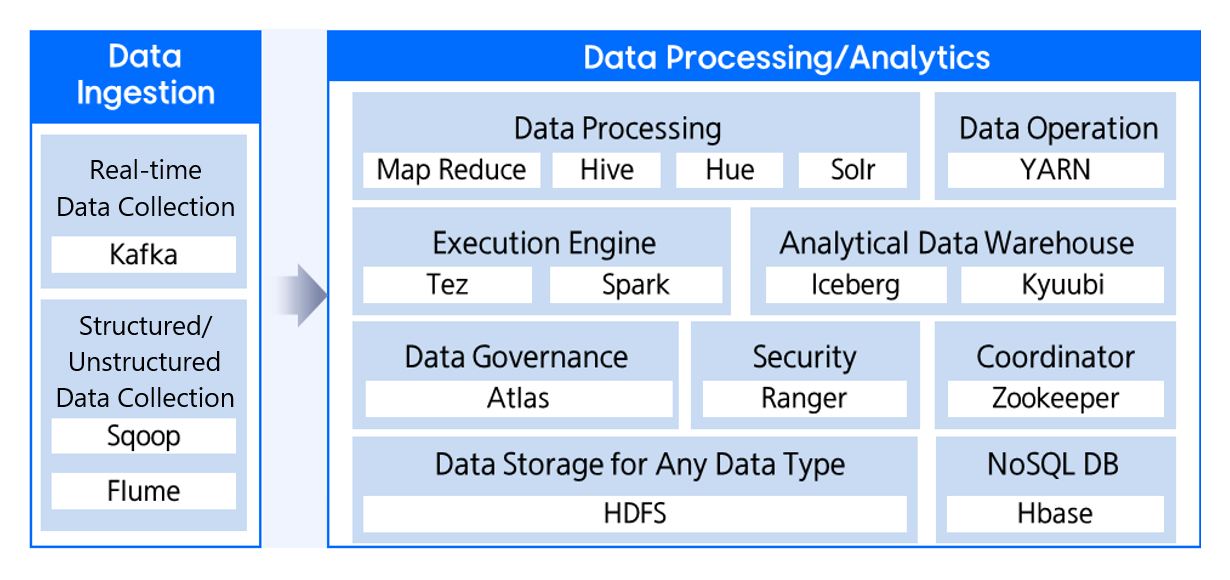
Provides an analysis service that can process big data easily and quickly.
This is the multi-page printable view of this section. Click here to print.
Data Analytics
- 1: Event Streams
- 1.1: Overview
- 1.1.1: Server Type
- 1.1.2: Monitoring Metrics
- 1.1.3: ServiceWatch Metrics
- 1.2: How-to guides
- 1.3: API Reference
- 1.4: CLI Reference
- 1.5: Release Note
- 2: Search Engine
- 2.1: Overview
- 2.1.1: Server Type
- 2.1.2: Monitoring Metrics
- 2.2: How-to guides
- 2.3: API Reference
- 2.4: CLI Reference
- 2.5: Release Note
- 3: Vertica(DBaaS)
- 3.1: Overview
- 3.1.1: Server Type
- 3.1.2: Monitoring Metrics
- 3.2: How-to guides
- 3.2.1: Vertica Backup and Recovery
- 3.3: API Reference
- 3.4: CLI Reference
- 3.5: Release Note
- 4: Data Flow
- 4.1: Overview
- 4.2: How-to guides
- 4.2.1: Data Flow Services
- 4.2.2: Install Ingress Controller
- 4.3: API Reference
- 4.4: CLI Reference
- 4.5: Release Note
- 5: Data Ops
- 5.1: Overview
- 5.2: How-to guides
- 5.2.1: Data Ops Services
- 5.2.2: Ingress Controller Install
- 5.3: API Reference
- 5.4: CLI Reference
- 5.5: Release Note
- 6: Quick Query
- 6.1: Overview
- 6.2: How-to guides
- 6.3: API Reference
- 6.4: CLI Reference
- 6.5: Release Note
1 - Event Streams
1.1 - Overview
Service Overview
Event Streams provides fully managed creation and configuration of the open source Apache Kafka for large-scale, massive message data processing. Samsung Cloud Platform automates the creation and configuration of Apache Kafka through a web-based Console, and users can configure the main components of Apache Kafka, such as Broker, Zookeeper, and AKHQ, in a single or cluster form.
Event Streams cluster is composed of multiple Broker nodes, and Brokers can be installed from a minimum of 1 up to a maximum of 10, typically installed with 3 or more. Zookeeper can be installed separately to manage the distributed Brokers, and if not installed separately, it is installed together on the Broker node. Additionally, a tool for managing Kafka called AKHQ (Apache Kafka HQ) is provided, allowing users to manage cluster operations through it.
Provided Features
Event Streams provides the following features.
- Auto Provisioning (Auto Provisioning): You can configure and set up an Apache Kafka cluster via the UI.
- Operation Control Management: Provides a function to control the status of running servers. In addition to starting and stopping the cluster, restarting is possible to apply configuration values.
- AKHQ Provision: AKHQ, a tool that can manage Kafka, is provided, allowing users to manage and monitor clusters through it.
- Add Broker node: If expansion is required to improve the cluster’s performance and stability, you can add nodes with the same specifications as the existing Broker nodes.
- Parameter management: Performance improvement and security-related configuration parameter setting and modification are possible.
- Monitoring: CPU, memory, and performance monitoring information can be checked via Cloud Monitoring and Servicewatch.
Components
Event Streams provides pre-validated engine versions and various server types according to the open source support policy. Users can select and use them according to the scale of the service they want to configure.
Engine Version
The engine versions supported by Event Streams are as follows.
Technical support can be used until the supplier’s EoTS (End of Technical Service) date, and the EOS date when new creation is stopped is set to six months before the EoTS date.
According to the supplier’s policy, the EOS and EoTS dates may change, so please refer to the supplier’s license management policy page for details.
- Apache Kafka: https://docs.confluent.io/platform/current/installation/versions-interoperability.html
| Provided Version | EoS Date | EoTS Date |
|---|---|---|
| 3.8.0 | 2026-06 (scheduled) | 2026-12-02 |
| 3.9.1 | 2026-09 (scheduled) | 2027-02-19 |
Server Type
The server types supported by Event Streams are as follows.
For detailed information about the server types provided by Event Streams, see Event Streams Server Types.
Standard ess1v2m4
| Category | Example | Detailed description |
|---|---|---|
| Server Type | Standard | Provided Server Types
|
| Server Specifications | ess1 | Provided server specifications
|
| Server specifications | v2 | Number of vCores
|
| Server Specifications | m4 | Memory Capacity
|
Preceding Service
This is a list of services that must be pre-configured before creating the service. Please refer to the guide provided for each service for details and prepare in advance.
| Service Category | Service | Detailed Description |
|---|---|---|
| Networking | VPC | A service that provides an independent virtual network in a cloud environment |
1.1.1 - Server Type
Event Streams server type
Event Streams provides a server type composed of various combinations such as CPU, Memory, Network Bandwidth, etc. When creating Event Streams, Apache Kafka is installed according to the selected server type suitable for the purpose of use.
The server types supported in Event Streams are as follows.
Standard ess1v2m4
Classification | Example | Detailed Description |
|---|---|---|
| Server Type | Standard | Provided server type distinction
|
| Server Specifications | ess1 | Classification of provided server type and generation
|
| Server Specification | v2 | Number of vCores
|
| Server Specification | m4 | Memory Capacity
|
Please select the server type by checking the node’s minimum specifications as follows.
| Division | vCPU | Memory |
|---|---|---|
| Broker | 2 vCore | 4 GB |
| Zookeeper | 1 vCore | 2 GB |
ess1 server type
The ess1 server type of Event Streams is provided with standard specifications (vCPU, Memory) and is suitable for various database workloads.
- Up to 3.3Ghz Intel 3rd generation (Ice Lake) Xeon Gold 6342 Processor Supports up to 16 vCPUs and 64 GB of memory
- Up to 12.5 Gbps networking speed
| Classification | Server Type | vCPU | Memory | Network Bandwidth |
|---|---|---|---|---|
| Standard | ess1v1m2 | 1 vCore | 2 GB | Up to 10 Gbps |
| Standard | ess1v2m4 | 2 vCore | 4 GB | Up to 10 Gbps |
| Standard | ess1v2m8 | 2 vCore | 8 GB | Up to 10 Gbps |
| Standard | ess1v4m8 | 4 vCore | 8 GB | Up to 10 Gbps |
| Standard | ess1v4m16 | 4 vCore | 16 GB | Up to 10 Gbps |
| Standard | ess1v8m16 | 8 vCore | 16 GB | Up to 10 Gbps |
| Standard | ess1v8m32 | 8 vCore | 32 GB | Up to 10 Gbps |
| Standard | ess1v16m32 | 16 vCore | 32 GB | Up to 12.5 Gbps |
| Standard | ess1v16m64 | 16 vCore | 64 GB | Up to 12.5 Gbps |
ess2 server type
The ess2 server type of Event Streams is provided with standard specifications (vCPU, Memory) and is suitable for various database workloads.
- Up to 3.2GHz Intel 4th generation (Sapphire Rapids) Xeon Gold 6448H Processor
- Supports up to 16 vCPUs and 64 GB of memory
- Up to 12.5 Gbps networking speed
| Classification | Server Type | CPU vCore | Memory | Network Bandwidth(Gbps) |
|---|---|---|---|---|
| Standard | ess2v1m2 | 1 vCore | 2 GB | Up to 10 Gbps |
| Standard | ess2v2m4 | 2 vCore | 4 GB | Up to 10 Gbps |
| Standard | ess2v2m8 | 2 vCore | 8 GB | Up to 10 Gbps |
| Standard | ess2v4m8 | 4 vCore | 8 GB | Up to 10 Gbps |
| Standard | ess2v4m16 | 4 vCore | 16 GB | Up to 10 Gbps |
| Standard | ess2v8m16 | 8 vCore | 16 GB | Up to 10 Gbps |
| Standard | ess2v8m32 | 8 vCore | 32 GB | Up to 10 Gbps |
| Standard | ess2v16m32 | 16 vCore | 32 GB | Up to 12.5 Gbps |
| Standard | ess2v16m64 | 16 vCore | 64 GB | Up to 12.5 Gbps |
esh2 server type
The esh2 server type of Event Streams is provided with high-capacity server specifications and is suitable for database workloads for large-scale data processing.
- Up to 3.2GHz Intel 4th generation (Sapphire Rapids) Xeon Gold 6448H Processor
- Supports up to 32 vCPUs and 128 GB of memory
- Up to 25Gbps networking speed
| Division | Server Type | vCPU | Memory | Network Bandwidth |
|---|---|---|---|---|
| High Capacity | esh2v32m64 | 32 vCore | 64 GB | Up to 25 Gbps |
| High Capacity | esh2v32m128 | 32 vCore | 128 GB | Up to 25 Gbps |
1.1.2 - Monitoring Metrics
Event Streams Monitoring Metrics
The table below shows the performance monitoring metrics of Event Streams that can be checked through Cloud Monitoring. For detailed Cloud Monitoring usage instructions, refer to Cloud Monitoring guide.
For server monitoring metrics of Event Streams, refer to Virtual Server Monitoring Metrics guide.
| Performance Item | Description | Unit |
|---|---|---|
| AKHQ State [PID] | AHKQ process PID | PID |
| Connections [Zookeeper Client] | Number of ZooKeeper connections | cnt |
| Disk Used | datadir usage amount | bytes |
| Failed [Client Fetch Request] | Number of failed client Fetch request processing | cnt |
| Failed [Produce Request] | Number of failed Producer request processing | cnt |
| Incomming Messages | Number of messages received by Broker | cnt |
| Instance State [PID] | kafka process PID | PID |
| Kibana state [PID] | Kibana process PID | PID |
| Leader Elections | Number of Leader Election occurrences | cnt |
| Leader Elections [Unclean] | Number of Unclean Leader Election occurrences | cnt |
| Log Flushes | Number of log flush occurrences | cnt |
| Network In Bytes | Bytes received by all Topics | bytes |
| Network Out Bytes | Bytes sent by all Topics | bytes |
| Rejected Bytes | Bytes rejected by all Topics | bytes |
| Request Queue Length | Request queue size | cnt |
| Shards | Cluster shard count | cnt |
| Zookeeper Sessions [Closed] | ZooKeeper closed sessions per second | cnt |
| Zookeeper Sessions [Expired] | Zookeeper expired sessions per second | cnt |
| Zookeeper State [PID] | zookeeper process PID | PID |
1.1.3 - ServiceWatch Metrics
Event Streams sends metrics to ServiceWatch. The metrics provided by basic monitoring are data collected at a 1‑minute interval.
Basic Indicators
The following are the basic metrics for the namespace Event Streams.
OS Basic Metrics
| Category | Performance Item | Detailed Description | Unit | Meaningful Statistics |
|---|---|---|---|---|
| CPU | CPU Usage | CPU Usage Rate | Percent | |
| Disk | Disk Usage | Disk Usage Rate | Percent | |
| Disk | Disk Write Bytes | Write capacity on block device (bytes/second) | Bytes/Second | |
| Disk | Disk Read Bytes | Amount read from block device (bytes/second) | Bytes/Second | |
| Disk | Disk Write Request | Number of write requests on block device (requests/second) | Count/Second | |
| Disk | Disk Read Requests | Number of read requests on block device (requests/second) | Count/Second | |
| Disk | Average Disk I/O Queue Size | Average queue length of requests issued to the block device | None | |
| Disk | Disk I/O Utilization | Proportion of time the block device actually processes I/O operations | Percent | |
| Memory | Memory Usage | Memory Usage Rate | Percent | |
| Network | Network In Bytes | Received capacity on the network interface (bytes/second) | Bytes/Second | |
| Network | Network Out Bytes | Data transmitted from network interface (bytes/second) | Bytes/Second | |
| Network | TCP Connections | Total number of TCP connections currently established correctly | Count/Second | |
| Network | Network In Packets | Number of packets received on the network interface | Count | |
| Network | Network Out Packets | Number of packets transmitted from the network interface | Count | |
| Network | Network In Dropped | Number of packet drops received on the network interface | Count | |
| Network | Network Out Dropped | Number of packet drops transmitted from the network interface | Count | |
| Network | Network In Errors | Number of packet errors received on the network interface | Count | |
| Network | Network Out Errors | Number of packet errors transmitted from the network interface | Count |
Event Streams Basic Metrics
| Category | Performance Item | Detailed Description | Unit | Meaningful Statistics |
|---|---|---|---|---|
| Activelock | Active locks | Number of active locks | Count | |
| Activesession | Active sessions | Number of active sessions | Count | |
| Activesession | Connection usage | DB connection session usage rate | Percent | |
| Activesession | Connections | DB connection session | Count | |
| Activesession | Connections(MAX) | Maximum number of connections that can be attached to the DB | Count | |
| ProxySQL | Proxy Uptime | Express the proxy’s uptime in seconds | Seconds | |
| ProxySQL | Backend connections(CONNECTED) | Number of sessions connected to the Proxy server | Count | |
| ProxySQL | Client connections connected | Number of client sessions currently connected to the proxy | Count | |
| ProxySQL | Queries routed | Number of queries routed to backend server | Count | |
| ProxySQL | Backend connections(ACTIVE, IDLE) | Number of Active / idle connections per Endpoint | Count | |
| ProxySQL | Backend server status | Backend server status
| None | |
| ProxySQL | Backend connection check | Backend server’s connection success/failure check | Count | |
| State | Instance state | Scalable DB status up/down check | Count | |
| State | Slave behind master seconds | Replica’s delay amount (unit: seconds) | Seconds | |
| Tablespace | Tablespace used | Tablespace usage | Megabytes | |
| Tablespace | Tablespace used(TOTAL) | Tablespace usage (total) | Megabytes | |
| Transactions | Slow queries | Number of slow queries | Count | |
| Transactions | Transaction time | Long Transaction time | Seconds | |
| Transactions | Wait locks Lock | Number of waiting sessions | Count |
1.2 - How-to guides
The user can enter the required information for Event Streams through the Samsung Cloud Platform Console, select detailed options, and create the service.
Event Streams Create
You can create and use the Event Streams service from the Samsung Cloud Platform Console.
Before creating the service, please configure the VPC’s Subnet type as General.
- If the Subnet type is Local, the creation of the corresponding Database service is not possible.
To create Event Streams, follow these steps.
- Click the All Services > Data Analytics > Event Streams menu. Navigate to the Service Home page of Event Streams.
- On the Service Home page, click the Create Event Streams button. You will be taken to the Create Event Streams page.
- Create Event Streams page, enter the information required to create the service, and select detailed options.
- Image and version selection area, select the required information.
Category Required or notDetailed description Image version Required Provide version list of Event Streams Table. Event Streams Service Information Input Items- Service Information Input area, input or select the required information.
Category Required or notDetailed description Server Name Prefix Required Server name where Apache Kafka will be installed - Start with a lowercase English letter, and use lowercase letters, numbers, and the special character (
-) to input 3 to 13 characters
- A postfix such as 001, 002 is attached based on the server name to create the actual server name
Cluster Name Required Cluster name of the servers - Enter using English letters, 3 ~ 20 characters
- A cluster is a unit that groups multiple servers
Broker > Broker Node count required Broker Node count Broker > Server Type Required Server type where the Broker will be installed - Standard: Standard specifications commonly used
- High Capacity: Large-capacity server with 24 vCore or more
- For detailed information about server types provided by Event Streams, refer to Event Streams Server Type
Broker > Planned Compute Select Status of resources with Planned Compute set - In Use: Number of resources with Planned Compute set that are currently in use
- Configured: Number of resources with Planned Compute set
- Coverage Preview: Amount applied by Planned Compute per resource
- Apply for Planned Compute Service: Go to the Planned Compute service application page
- For details, refer to Apply for Planned Compute
Broker > Block Storage Required Block Storage type to be used for the Broker node - Base OS: Area where the engine is installed
- DATA: Data file storage area
- Select the storage type and then enter the capacity. (For detailed information on each Block Storage type, refer to Create Block Storage)
- SSD: High‑performance general volume
- HDD: General volume
- SSD_KMS/HDD_KMS: Additional encrypted volume using Samsung Cloud Platform KMS (Key Management System) encryption key
- Enter capacity as a multiple of 8 within the range 16 ~ 5,120
- Select the storage type and then enter the capacity. (For detailed information on each Block Storage type, refer to Create Block Storage)
Zookeeper separate installation > Use Select Zookeeper node separate installation option - If Use is selected, install Zookeeper node separately
- If Zookeeper node is not installed separately, the Broker node also performs the Zookeeper role
Zookeeper separate installation > server type select Server type where Zookeeper will be installed - Zookeeper node provides vCPU 1, Memory 2G or vCPU 2, Memory 4G
Zookeeper separate installation > Planned Compute Select Status of resources with Planned Compute set - In use: Number of resources with Planned Compute set that are currently in use
- Configured: Number of resources with Planned Compute set
- Coverage preview: Amount applied per resource by Planned Compute
- Apply for Planned Compute service: Go to Planned Compute service application page
- For details, refer to Apply for Planned Compute
Zookeeper separate installation > Block Storage Required Block Storage type to be used on Zookeeper nodes - Base OS: Area where the engine is installed
- DATA: Data file storage area
- Select the storage type and then enter the capacity. (For detailed information on each Block Storage type, refer to Creating Block Storage)
- SSD: High‑performance general volume
- HDD: General volume
- SSD_KMS/HDD_KMS: Additional encrypted volume using Samsung Cloud Platform KMS (Key Management System) encryption keys
- Enter capacity as a multiple of 8 within the range 16 to 5,120
- Select the storage type and then enter the capacity. (For detailed information on each Block Storage type, refer to Creating Block Storage)
AKHQ > Use Required AKHQ installation status - If Use is selected, AKHQ will be installed
AKHQ > Server Type Required Server type where AKHQ will be installed - AKHQ only provides vCPU 2, Memory 4G type
AKHQ > Planned Compute Select Status of resources with Planned Compute set - In use: Number of resources with Planned Compute that are currently in use
- Configured: Number of resources with Planned Compute set
- Coverage preview: Amount applied per resource by Planned Compute
- Apply for Planned Compute service: Go to the Planned Compute service application page
- For more details, refer to Apply for Planned Compute
AKHQ > Block Storage Required Block Storage type to be used on the server where AKHQ is installed - Base OS: Area where the engine is installed
AKHQ > AKHQ account Required AKHQ account - Enter using lowercase English letters, 2 to 20 characters
AKHQ > AKHQ password Required AKHQ account password - Enter 8 ~ 30 characters including English letters, numbers and special characters (excluding “ ‘)
AKHQ > AKHQ Password Confirmation Required AKHQ Account Password Confirmation - Re-enter the same AKHQ account password
AKHQ > AKHQ Port Number Required AKHQ connection port number - Port number is automatically set to 8080 and cannot be modified
Network > Common Settings Required Network settings where servers generated by the service are installed - Choose if you want to apply the same settings to all installed servers
- Select a pre‑created VPC and Subnet
- IP: Only automatic generation is possible
- For Public NAT settings, it is only possible in per‑server settings
Network > Per-Server Settings Required Network settings where servers generated by the service are installed - Select if you want to apply different settings per installed server
- Select a pre‑created VPC and Subnet
- IP: Enter each server’s IP
- Public NAT feature is available only when the VPC is connected to an Internet Gateway; if you check Use, you can select from reserved IPs in the VPC product’s Public IP. For details, see Create Public IP
IP Access Control Select Service Access Policy Settings - Since the access policy is set for the IP entered on the page, you do not need to separately configure Security Group policies.
- Enter in IP format (e.g.,
192.168.10.1) or CIDR format (e.g.,192.168.10.0/24,192.168.10.1/32) and click the Add button
- To delete an entered IP, click the x button next to the entered IP
Maintenance Period Select Event Streams Maintenance Period - Select Use to set day of week, start time, and duration
- It is recommended to set a maintenance period for stable service management. Patch work will be performed at the set time, and service interruption may occur
- We are not responsible for issues arising from patches not applied (set as not used)
Table. Event Streams service configuration items - Start with a lowercase English letter, and use lowercase letters, numbers, and the special character (
- Service Information Input area, input or select the required information.
- Database configuration required information input Please enter or select the required information in this area.
Category Required or notDetailed description Zookeeper SASL account Required Zookeeper account - Enter using lowercase English letters, 2 ~ 20 characters
Zookeeper SASL password Required Zookeeper account password - Enter 8 to 30 characters including letters, numbers, and special characters (excluding
“‘)
Zookeeper SASL password verification Required Zookeeper account password verification - Re-enter the Zookeeper SASL account password identically
Zookeeper Port number required Zookeeper port number 1200 ~ 65535can be entered, but the Broker port or2888,3888cannot be used
Broker SASL Account Required Kafka connection account - Enter using lowercase English letters, 2 to 20 characters
Broker SASL password Required Kafka connection account password - Enter 8 to 30 characters including English letters, numbers, and special characters (excluding “ and ‘)
Broker SASL password verification Required Check Kafka connection account password - Re-enter the Broker SASL account password identically
Broker Port number Required Kafka port number 1200 ~ 65535can be entered, and Broker port or2888,3888cannot be used
Parameter Required Event Streams configuration parameters - View button click to view detailed information of the parameter
- Parameters can be modified after the service creation is completed, and a restart is required when modified
Time zone Selection Standard time zone used by the service ServiceWatch log collection Select Whether to collect ServiceWatch logs - Select Use to set up the ServiceWatch log collection feature
- For details about the collected logs, refer to ServiceWatch metrics
- Provided free up to 5 GB for all services within the account, and charges apply based on storage size if exceeding 5 GB
- When collecting, log groups and log streams are automatically created and cannot be deleted until the resources are removed
- To prevent exceeding 5 GB, direct deletion of log data or shortening the retention period is recommended
Table. Required information input items for Event Streams Database configuration- Additional Information Input Enter or select the required information in the area.
Category Required or notDetailed description Tag Select Add Tag - Add Tag button can be clicked to create and add a tag, or add an existing tag
- Up to 50 tags can be added
- Added new tags are applied after the service creation is completed
Table. Event Streams Service Additional Information Input Items
- Summary Check the detailed information and estimated billing amount generated in the panel, and click the Create button.
- Once creation is complete, check the created resource on the Resource List page.
Event Streams Check Detailed Information
Event Streams service can view and edit the full resource list and detailed information. Event Streams Details page consists of Details, Tags, Activity History tabs.
To view detailed information about the Event Streams service, follow these steps.
- All Services > Data Analytics > Event Streams Click the menu. Navigate to the Service Home page of Event Streams.
- On the Service Home page, click the Event Streams menu. It navigates to the Event Streams List page.
- Click the resource to view detailed information on the Event Streams List page. It navigates to the Event Streams Details page.
- Event Streams Details The top of the page displays status information and information about additional features.
Category Detailed description Cluster Status Cluster Status - Creating: Cluster is being created
- Editing: Cluster is changing to a state of performing operation
- Error: Cluster is in a state where a failure occurred while performing a task
- If it occurs continuously, contact the administrator
- Failed: Cluster is in a failed state during creation
- Restarting: Cluster is restarting
- Running: Cluster is operating normally
- Starting: Cluster is starting
- Stopped: Cluster is stopped
- Stopping: Cluster is being stopped
- Synchronizing: Cluster is synchronizing
- Terminating: Cluster is terminating
- Unknown: Cluster status is unknown
- If it occurs continuously, contact the administrator
- Upgrading: Cluster is changing to an upgrade execution state
Cluster Control Button to change cluster state - Start: Start a stopped cluster
- Stop: Stop a running cluster
- Restart: Restart a running cluster
More additional features Cluster-related management button - Service status synchronization: Can query current server status and synchronize to the Console
- Parameter management: Can view and modify service configuration parameters
- Add Broker Node: Add a Broker Node
- If configured as a cluster, the Add Broker Node button is displayed
Service termination Button to cancel the service Table. Event Streams status information and additional features
- Event Streams Details The top of the page displays status information and information about additional features.
Detailed Information
Event Streams list page you can view the detailed information of the selected resource and, if necessary, edit the information.
| Category | Detailed description |
|---|---|
| Server Information | Server information configured in the respective cluster
|
| service | service name |
| Resource Type | Resource Type |
| SRN | Unique resource ID in Samsung Cloud Platform
|
| Resource Name | Resource Name
|
| Resource ID | Unique resource ID in the service |
| Creator | User who created the service |
| Creation Date/Time | Service Creation Date/Time |
| Modifier | User who edited the service information |
| Modification Date/Time | Date/Time Service Information Was Modified |
| Image Version | Installed service image and version information
|
| Cluster Name | Name of the cluster composed of servers |
| Planned Compute | Resource status with Planned Compute set
|
| Maintenance Period | Patch Work Period Setting Status
|
| Time Zone | Standard time zone used by the service |
| Zookeeper Port Number | Zookeeper Port Number |
| Broker Port number | Kafka port number |
| AKHQ connection information | AKHQ connection information |
| ServiceWatch log collection | ServiceWatch log collection configuration status
|
| Network | Installed network information (VPC, Subnet) |
| IP Access Control | Service Access Policy Settings
|
| Zookeeper | Server type, default OS, additional Disk information for Zookeeper node
|
| Broker | Server type, default OS, additional Disk information for the Broker node
|
| AKHQ | Server type and basic OS information for AKHQ node
|
Tag
On the Event Streams List page, you can view the tag information of the selected resource, and you can add, modify, or delete it.
| Category | Detailed description |
|---|---|
| Tag List | Tag List
|
Work History
You can view the operation history of the selected resource on the Event Streams list page.
| Category | Detailed description |
|---|---|
| Work History List | Resource Change History
|
Event Streams Resource Management
If you need to change the existing configuration options of a created Event Streams resource, manage parameters, or add broker node configurations, you can perform the tasks on the Event Streams Details page.
Operating Control
If changes occur to the running Event Streams resources, you can start, stop, or restart.
To control the operation of Event Streams, follow the steps below.
- All Services > Data Analytics > Event Streams Click the menu. Navigate to the Service Home page of Event Streams.
- Click the Event Streams menu on the Service Home page. Navigate to the Event Streams List page.
- On the Event Streams List page, click the resource to control operation. It navigates to the Event Streams Details page.
- Check the Event Streams status and complete the changes using the control button below.
- Start: the server where the Event Streams service is installed and the Event Streams service is running.
- Stop: The server where the Event Streams service is installed and the Event Streams service will be stopped (Stopped).
- Restart: Only the Event Streams service will be restarted.
Synchronize Service Status
You can query the current server status and synchronize it to the Console.
To synchronize the service status of Event Streams, follow the steps below.
- All Services > Data Analytics > Event Streams Click the menu. Navigate to the Service Home page of Event Streams.
- Click the Event Streams menu on the Service Home page. Navigate to the Event Streams List page.
- Event Streams list 페이지에서 서비스 상태를 조회할 자원을 클릭하세요. Event Streams details 페이지로 이동합니다.
- Click the Service Status Synchronization button. It takes a little time to retrieve, and while retrieving, the cluster changes to Synchronizing state.
- When the query is completed, the status in the server information item is updated, and the cluster changes to Running state.
Parameter Management
Provides parameter query and modification functions.
To view and modify configuration parameters, follow the steps below.
- All Services > Data Analytics > Event Streams Click the menu. Navigate to the Service Home page of Event Streams.
- Click the Event Streams menu on the Service Home page. Navigate to the Event Streams List page.
- Event Streams List Click the resource whose parameters you want to view and edit on the page. Event Streams Details You will be moved to the page.
- Click the Parameter Management button. You will be taken to the Parameter Management page.
- Parameter Management on the page, click the Search button. Database Search popup window opens.
- To view the Parameter information, click the Confirm button. It takes a little time to retrieve.
- You can modify the Parameter information after performing a query.
- To edit the Parameter information, click the Edit button and then enter the changes in the Custom Value area of the Parameter to be edited.
- When the application type is dynamic, it is applied immediately, and when it is static, a service restart is required, causing service interruption.
- When input is complete, click the Save button.
Change Server Type
You can change the configured server type.
To change the server type, follow the steps below.
- If the server type is configured as Standard, it cannot be changed to High Capacity. If you want to change to High Capacity, create a new service.
- If you modify the server type, a server reboot is required. Please separately verify any SW license changes or SW settings and reflections due to spec changes.
- Click the All Services > Data Analytics > Event Streams menu. Navigate to the Service Home page of Event Streams.
- Click the Event Streams menu on the Service Home page. Navigate to the Event Streams list page.
- On the Event Streams list page, click the resource to change the server type. You will be taken to the Event Streams details page.
- Click the Edit button of the server type you want to change at the bottom of the detailed information. The Edit Server Type popup window opens.
- Edit Server Type After selecting the server type in the popup window, click the Confirm button.
Expanding storage
You can expand the storage added to the data area up to a maximum of 5TB based on the initially allocated capacity. You can expand the storage without stopping Event Streams, and if configured as a cluster, all nodes are expanded simultaneously.
- If encryption is set on the existing Block Storage, encryption will also be applied to the additional Disk.
- Disk size modification is only possible to increase by at least 16GB over the current disk size.
To increase storage capacity, follow the steps below.
- All Services > Data Analytics > Event Streams Click the menu. Navigate to the Service Home page of Event Streams.
- Click the Event Streams menu on the Service Home page. Navigate to the Event Streams List page.
- On the Event Streams list page, click the resource whose server type you want to change. You will be taken to the Event Streams details page.
- Click the Edit button of the added Disk you want to expand at the bottom of the detailed information. The Disk Edit popup window opens.
- Disk edit In the popup window, after entering the expanded capacity, click the Confirm button.
Add Broker Node
If Event Streams cluster expansion is required, you can add nodes with the same specifications as the Broker Node you are using. The added nodes are added to the existing cluster without server downtime, and the existing data is automatically distributed.
- Up to 10 nodes can be used within the cluster. Please note that additional charges apply for created nodes.
- Adding nodes may degrade cluster performance.
To add a Broker node, follow the steps below.
- All Services > Data Analytics > Event Streams Click the menu. Navigate to the Service Home page of Event Streams.
- On the Service Home page, click the Event Streams menu. Navigate to the Event Streams list page.
- Event Streams resource On the list page, click the resource you want to recover. Event Streams details page will be opened.
- Click the Broker Node Add button. Navigate to the Broker Node Add page.
- Enter required information after entering the relevant information in the area, click the Complete button.
Category RequiredDetailed description Server Name Required Server name where Broker is installed - It is set to the server name configured in the original cluster.
Cluster Name Required Cluster Name - It will be set to the cluster name set in the original cluster.
Number of additional Nodes Required Number of Nodes to add - Use up to 10 nodes per cluster
Service Type > Server Type Required Server type where the Broker will be installed - It is set to be the same as the server type set in the original cluster.
Service Type > Planned Compute Select Status of resources with Planned Compute set - In Use: Number of resources with Planned Compute that are currently in use
- Configured: Number of resources with Planned Compute set
- Coverage Preview: Amount applied per resource by Planned Compute
- Planned Compute Service Application: Go to the Planned Compute service application page
- For more details, refer to Apply for Planned Compute
Service Type > Block Storage Required Block Storage settings to be used on Broker nodes - The Storage type and capacity set in the original cluster are applied identically
Network Required Network where servers are installed - Apply the same network as set in the original cluster
Table. Event Streams Broker Node Additional Items
Event Streams Cancel
You can cancel unused Event Streams to reduce operating costs. However, if you cancel the service, the running service may be stopped immediately, so you should consider the impact of service interruption sufficiently before proceeding with the cancellation.
To cancel Event Streams, follow the steps below.
- All Services > Data Analytics > Event Streams Click the menu. Go to the Service Home page of Event Streams.
- Click the Event Streams menu on the Service Home page. Navigate to the Event Streams List page.
- Event Streams list on the page, select the resource to cancel, and click the Cancel Service button.
- Once the termination is complete, check on the Event Streams list page whether the resource has been terminated.
1.3 - API Reference
1.4 - CLI Reference
1.5 - Release Note
Event Streams
- It provides Terraform.
- HDD, HDD_KMS disk types are also provided.
- An Event Streams service that easily creates and manages Apache Kafka clusters in a web environment has been released.
2 - Search Engine
2.1 - Overview
Service Overview
Search Engine provides automated creation and configuration of the distributed search and analytics engines Elasticsearch and OpenSearch through a web-based console. Users can select a server type that fits the system configuration to set up a cluster, and it supports the data analysis and visualization tools Kibana and the OpenSearch dashboard.
- Search Engine provides Elasticsearch Enterprise version and OpenSearch version.
- Elasticsearch Enterprise’s software license uses a Bring Your Own License (BYOL), and the software license policy in cloud environments must follow the supplier’s policy.
Search Engine Cluster consists of multiple master nodes and data nodes. Data nodes can be installed from a minimum of 1 up to a maximum of 10, and are usually installed with 3 or more. If a master node is not installed separately, the data node also performs the role of the master node and can be installed up to a maximum of 10. When a master node is installed separately, data nodes can be up to 50.
Provided Features
Search Engine provides the following functions.
- Auto Provisioning (Auto Provisioning): You can configure and set up Elasticsearch and OpenSearch clusters via UI.
- Operation Control Management: Provides functionality to control the status of running servers. Restart is possible for reflecting configuration values, along with starting and stopping the cluster.
- Backup and Recovery: Backup is possible using the built-in backup feature, and recovery can be performed to the point in time of the backup file.
- Add Data Node: If cluster expansion is required, you can add nodes with the same specifications as the data nodes in use. Up to 10 nodes can be added within the cluster.
- Visualization tool support: Provides data analysis and visualization tools, and supports Elasticsearch Kibana or OpenSearch dashboards.
- Monitoring: CPU, memory, cluster performance monitoring information can be checked through the Cloud Monitoring service.
Components
Search Engine provides pre-validated engine versions and various server types according to the open source support policy. Users can select and use them according to the scale of the service they want to configure.
Engine Version
Search Engine supported engine versions are as follows.
Technical support can be used until the supplier’s EoTS (End of Technical Service) date, and the EOS date when new creation is stopped is set to six months before the EoTS date.
Since the EOS and EoTS dates may change according to the supplier’s policy, please refer to the supplier’s license management policy page for details.
- Elasticsearch: https://www.elastic.co/kr/support/eol
Search Engine’s next version is scheduled to be provided after March 2026. The actual service provision schedule may change.
- OpenSearch 3.4.0 version
| Provided Version | EoS Date | EoTS Date |
|---|---|---|
| 8.15.0 | 2027-01 (planned) | 2027-07-15 |
| 8.19.7 | 2027-01 (scheduled) | 2027-07-15 |
- OpenSearch: https://opensearch.org/releases/
| Provided Version | EoS Date | EoTS Date |
|---|---|---|
| 2.19.3 | 2027-01 (planned) | 2027-07-15 |
| 3.4.0 | TBD | TBD |
Server Type
The server types supported by Search Engine are as follows.
For detailed information about the server types provided by Search Engine, please refer to Search Engine Server Type.
Standard se1v2m4
| Category | Example | Detailed description |
|---|---|---|
| Server Type | Standard | Provided Server Types
|
| Server specifications | se1 | Provided server specifications
|
| Server specifications | v2 | Number of vCores
|
| Server specifications | m4 | Memory capacity
|
Preliminary Service
This is a list of services that must be pre-configured before creating the service. Please refer to the guide provided for each service for details and prepare in advance.
| Service Category | Service | Detailed Description |
|---|---|---|
| Networking | VPC | A service that provides an independent virtual network in a cloud environment |
2.1.1 - Server Type
Search Engine server type
Search Engine provides a server type composed of various combinations such as CPU, Memory, Network Bandwidth, etc. When creating a Search Engine, Elastic Search is installed according to the server type selected to match the purpose of use.
The server types supported by the Search Engine are as follows.
Standard ses1v2m4
Classification | Example | Detailed Description |
|---|---|---|
| Server Type | Standard | Provided server type distinction
|
| Server Specification | db1 | Classification of provided server type and generation
|
| Server Specification | v2 | Number of vCores
|
| Server Specification | m4 | Memory Capacity
|
ses1 server type
The ses1 server type of Search Engine is provided with standard specifications (vCPU, Memory) and is suitable for various database workloads.
- Up to 3.3Ghz Intel 3rd generation (Ice Lake) Xeon Gold 6342 Processor
- Supports up to 16 vCPUs and 256 GB of memory
- Up to 12.5 Gbps networking speed
| Classification | Server Type | vCPU | Memory | Network Bandwidth |
|---|---|---|---|---|
| Standard | ses1v1m2 | 1 vCore | 2 GB | Up to 10 Gbps |
| Standard | ses1v2m8 | 2 vCore | 8 GB | Up to 10 Gbps |
| Standard | ses1v2m16 | 2 vCore | 16 GB | up to 10 Gbps |
| Standard | ses1v2m24 | 2 vCore | 24 GB | Up to 10 Gbps |
| Standard | ses1v2m32 | 2 vCore | 32 GB | Up to 10 Gbps |
| Standard | ses1v4m8 | 4 vCore | 8 GB | Up to 10 Gbps |
| Standard | ses1v4m16 | 4 vCore | 16 GB | Up to 10 Gbps |
| Standard | ses1v4m32 | 4 vCore | 32 GB | Up to 10 Gbps |
| Standard | ses1v4m48 | 4 vCore | 48 GB | Up to 10 Gbps |
| Standard | ses1v4m64 | 4 vCore | 64 GB | up to 10 Gbps |
| Standard | ses1v6m12 | 6 vCore | 12 GB | Up to 10 Gbps |
| Standard | ses1v6m24 | 6 vCore | 24 GB | Up to 10 Gbps |
| Standard | ses1v6m48 | 6 vCore | 48 GB | Up to 10 Gbps |
| Standard | ses1v6m72 | 6 vCore | 72 GB | Up to 10 Gbps |
| Standard | ses1v6m96 | 6 vCore | 96 GB | Up to 10 Gbps |
| Standard | ses1v8m16 | 8 vCore | 16 GB | Up to 10 Gbps |
| Standard | ses1v8m32 | 8 vCore | 32 GB | Up to 10 Gbps |
| Standard | ses1v8m64 | 8 vCore | 64 GB | Up to 10 Gbps |
| Standard | ses1v8m96 | 8 vCore | 96 GB | Up to 10 Gbps |
| Standard | ses1v8m128 | 8 vCore | 128 GB | Up to 10 Gbps |
| Standard | ses1v10m20 | 10 vCore | 20 GB | Up to 10 Gbps |
| Standard | ses1v10m40 | 10 vCore | 40 GB | Up to 10 Gbps |
| Standard | ses1v10m80 | 10 vCore | 80 GB | up to 10 Gbps |
| Standard | ses1v10m120 | 10 vCore | 120 GB | Up to 10 Gbps |
| Standard | ses1v10m160 | 10 vCore | 160 GB | up to 10 Gbps |
| Standard | ses1v12m24 | 12 vCore | 24 GB | Up to 12.5 Gbps |
| Standard | ses1v12m48 | 12 vCore | 48 GB | Up to 12.5 Gbps |
| Standard | ses1v12m96 | 12 vCore | 96 GB | up to 12.5 Gbps |
| Standard | ses1v12m144 | 12 vCore | 144 GB | Up to 12.5 Gbps |
| Standard | ses1v12m192 | 12 vCore | 192 GB | up to 12.5 Gbps |
| Standard | ses1v14m28 | 14 vCore | 28 GB | Up to 12.5 Gbps |
| Standard | ses1v14m56 | 14 vCore | 56 GB | Up to 12.5 Gbps |
| Standard | ses1v14m112 | 14 vCore | 112 GB | Up to 12.5 Gbps |
| Standard | ses1v14m168 | 14 vCore | 168 GB | up to 12.5 Gbps |
| Standard | ses1v14m224 | 14 vCore | 224 GB | Up to 12.5 Gbps |
| Standard | ses1v16m32 | 16 vCore | 32 GB | Up to 12.5 Gbps |
| Standard | ses1v16m64 | 16 vCore | 64 GB | up to 12.5 Gbps |
| Standard | ses1v16m128 | 16 vCore | 128 GB | up to 12.5 Gbps |
| Standard | ses1v16m192 | 16 vCore | 192 GB | up to 12.5 Gbps |
| Standard | ses1v16m256 | 16 vCore | 256 GB | up to 12.5 Gbps |
ses2 server type
The ses1 server type of Search Engine is provided with standard specifications (vCPU, Memory) and is suitable for various database workloads.
- Up to 3.2GHz Intel 4th generation (Sapphire Rapids) Xeon Gold 6448H Processor
- Supports up to 16 vCPUs and 256 GB of memory
- Up to 12.5 Gbps networking speed
| Classification | Server Type | CPU vCore | Memory | Network Bandwidth(Gbps) |
|---|---|---|---|---|
| Standard | ses2v2m4 | 2 vCore | 4 GB | Up to 10 Gbps |
| Standard | ses2v2m8 | 2 vCore | 8 GB | Up to 10 Gbps |
| Standard | ses2v2m16 | 2 vCore | 16 GB | Up to 10 Gbps |
| Standard | ses2v2m24 | 2 vCore | 24 GB | Up to 10 Gbps |
| Standard | ses2v2m32 | 2 vCore | 32 GB | Up to 10 Gbps |
| Standard | ses2v4m8 | 4 vCore | 8 GB | Up to 10 Gbps |
| Standard | ses2v4m16 | 4 vCore | 16 GB | Up to 10 Gbps |
| Standard | ses2v4m32 | 4 vCore | 32 GB | Up to 10 Gbps |
| Standard | ses2v4m48 | 4 vCore | 48 GB | Up to 10 Gbps |
| Standard | ses2v4m64 | 4 vCore | 64 GB | Up to 10 Gbps |
| Standard | ses2v6m12 | 6 vCore | 12 GB | Up to 10 Gbps |
| Standard | ses2v6m24 | 6 vCore | 24 GB | Up to 10 Gbps |
| Standard | ses2v6m48 | 6 vCore | 48 GB | Up to 10 Gbps |
| Standard | ses2v6m72 | 6 vCore | 72 GB | Up to 10 Gbps |
| Standard | ses2v6m96 | 6 vCore | 96 GB | Up to 10 Gbps |
| Standard | ses2v8m16 | 8 vCore | 16 GB | Up to 10 Gbps |
| Standard | ses2v8m32 | 8 vCore | 32 GB | Up to 10 Gbps |
| Standard | ses2v8m64 | 8 vCore | 64 GB | up to 10 Gbps |
| Standard | ses2v8m96 | 8 vCore | 96 GB | Up to 10 Gbps |
| Standard | ses2v8m128 | 8 vCore | 128 GB | Up to 10 Gbps |
| Standard | ses2v10m20 | 10 vCore | 20 GB | Up to 10 Gbps |
| Standard | ses2v10m40 | 10 vCore | 40 GB | Up to 10 Gbps |
| Standard | ses2v10m80 | 10 vCore | 80 GB | Up to 10 Gbps |
| Standard | ses2v10m120 | 10 vCore | 120 GB | Up to 10 Gbps |
| Standard | ses2v10m160 | 10 vCore | 160 GB | Up to 10 Gbps |
| Standard | ses2v12m24 | 12 vCore | 24 GB | Up to 12.5 Gbps |
| Standard | ses2v12m48 | 12 vCore | 48 GB | Up to 12.5 Gbps |
| Standard | ses2v12m96 | 12 vCore | 96 GB | Up to 12.5 Gbps |
| Standard | ses2v12m144 | 12 vCore | 144 GB | Up to 12.5 Gbps |
| Standard | ses2v12m192 | 12 vCore | 192 GB | Up to 12.5 Gbps |
| Standard | ses2v14m28 | 14 vCore | 28 GB | Up to 12.5 Gbps |
| Standard | ses2v14m56 | 14 vCore | 56 GB | Up to 12.5 Gbps |
| Standard | ses2v14m112 | 14 vCore | 112 GB | Up to 12.5 Gbps |
| Standard | ses2v14m168 | 14 vCore | 168 GB | Up to 12.5 Gbps |
| Standard | ses2v14m224 | 14 vCore | 224 GB | up to 12.5 Gbps |
| Standard | ses2v16m32 | 16 vCore | 32 GB | Up to 12.5 Gbps |
| Standard | ses2v16m64 | 16 vCore | 64 GB | up to 12.5 Gbps |
| Standard | ses2v16m128 | 16 vCore | 128 GB | Up to 12.5 Gbps |
| Standard | ses2v16m192 | 16 vCore | 192 GB | Up to 12.5 Gbps |
| Standard | ses2v16m256 | 16 vCore | 256 GB | up to 12.5 Gbps |
SEH2 server type
The seh2 server type of Search Engine is provided with large-capacity server specifications and is suitable for database workloads for large-scale data processing.
- Up to 3.2GHz Intel 4th generation (Sapphire Rapids) Xeon Gold 6448H Processor
- Supports up to 72 vCPUs and 288 GB of memory
- Up to 25Gbps networking speed
| Classification | Server Type | vCPU | Memory | Network Bandwidth |
|---|---|---|---|---|
| High Capacity | seh2v24m48 | 24 vCore | 48 GB | Up to 25 Gbps |
| High Capacity | seh2v24m96 | 24 vCore | 96 GB | Up to 25 Gbps |
| High Capacity | seh2v24m192 | 24 vCore | 192 GB | Up to 25 Gbps |
| High Capacity | seh2v24m288 | 24 vCore | 288 GB | Up to 25 Gbps |
| High Capacity | seh2v32m64 | 32 vCore | 64 GB | Up to 25 Gbps |
| High Capacity | seh2v32m128 | 32 vCore | 128 GB | Up to 25 Gbps |
| High Capacity | seh2v32m256 | 32 vCore | 256 GB | Up to 25 Gbps |
| High Capacity | seh2v48m96 | 48 vCore | 96 GB | Up to 25 Gbps |
| High Capacity | seh2v48m192 | 48 vCore | 192 GB | Up to 25 Gbps |
| High Capacity | seh2v64m128 | 64 vCore | 128 GB | Up to 25 Gbps |
| High Capacity | seh2v64m256 | 64 vCore | 256 GB | Up to 25 Gbps |
| High Capacity | seh2v72m144 | 72 vCore | 144 GB | Up to 25 Gbps |
| High Capacity | seh2v72m288 | 72 vCore | 288 GB | Up to 25 Gbps |
2.1.2 - Monitoring Metrics
Search Engine Monitoring Metrics
The following table shows the performance monitoring metrics of Event Streams that can be checked through Cloud Monitoring. For detailed Cloud Monitoring usage, please refer to the Cloud Monitoring guide.
For server monitoring metrics of the Search Engine, please refer to the Virtual Server Monitoring Metrics guide.
| Performance Item | Detailed Description | Unit |
|---|---|---|
| Disk Usage | datadir usage | MB |
| Documents [Deleted] | total number of deleted documents | cnt |
| Documents [Existing] | total number of existing documents | cnt |
| Filesystem Bytes [Available] | available filesystem | bytes |
| Filesystem Bytes [Free] | free filesystem | bytes |
| Filesystem Bytes [Total] | total filesystem | bytes |
| Instance Status [PID] | Elasticsearch process PID | PID |
| JVM Heap Used [Init] | JVM heap used init (bytes) | bytes |
| JVM Heap Used [MAX] | JVM heap used max (bytes) | bytes |
| JVM Non Heap Used [Init] | JVM non-heap used init (bytes) | bytes |
| JVM Non Heap Used [MAX] | JVM non-heap used max (bytes) | bytes |
| Kibana Connections | Kibana connections | cnt |
| Kibana Memory Heap Allocated [Limit] | maximum allocated Node.js process heap size (bytes) | bytes |
| Kibana Memory Heap Allocated [Total] | total allocated Node.js process heap size (bytes) | bytes |
| Kibana Memory Heap Used | used Node.js process heap size (bytes) | bytes |
| Kibana Process Uptime | Kibana process uptime | ms |
| Kibana Requests [Disconnected] | request count metric | cnt |
| Kibana Requests [Total] | request count metric | cnt |
| Kibana Response Time [Avg] | response time metric | ms |
| Kibana Response Time [MAX] | response time metric | ms |
| Kibana Status [PID] | Kibana process PID | PID |
| License Expiry Date [ms] | license expiry date [milliseconds] | ms |
| License Status | license status | status |
| License Type | license type | type |
| Queue Time | queue time | ms |
| Segments | total number of segments | cnt |
| Segments Bytes | total segment size (bytes) | bytes |
| Shards | cluster shard count | cnt |
| Store Bytes | total store size (bytes) | bytes |
2.2 - How-to guides
Users can create the Search Engine service by entering required information and selecting detailed options through Samsung Cloud Platform Console.
Create Search Engine
You can create and use the Search Engine service in Samsung Cloud Platform Console.
Before creating the service, make sure to configure the VPC Subnet type to General.
- If the Subnet type is Local, you cannot create the Database service.
Follow the procedure below to create a Search Engine.
Click All Services > Database > Search Engine menu. You will be moved to the Service Home page of Search Engine.
Click the Create Search Engine button on the Service Home page. You will be moved to the Create Search Engine page.
Enter the information required to create the service and select detailed options on the Create Search Engine page.
- Select the required information in the Image and Version Selection area.
Division RequiredDescription Image Required Select the type of image provided - Elasticsearch Enterprise, OpenSearch
Image Version Required Select the version of the selected image - List of versions of provided server images
Table. Search Engine Image and Version Selection Items - Enter or select the required information in the Service Information Input area.
Division RequiredDescription Server Name Prefix Required Server name where Elasticsearch is installed - Start with lowercase English letters, and enter 3 to 13 characters using lowercase letters, numbers, and special characters (
-)
- Actual server name is created with postfix such as 001, 002 based on the server name
Cluster Name Required Cluster name where servers are configured - Enter 3 to 20 characters using English letters
- Cluster is a unit that bundles multiple servers
Install MasterNode Separately > Use Required Whether to install Master node separately - If Use is selected, Master node is installed separately
- If Master node is not installed separately, data node performs master role as well
Install MasterNode Separately > MasterNode Count Required Number of Master nodes - Master nodes are installed with fixed 3 units for recovery (Fail-over)
Install MasterNode Separately > Server Type Required Master node server type - Standard: Standard specifications commonly used
- High Capacity: Large capacity servers with 24vCore or more
- For more information about server types provided by Search Engine, refer to Search Engine Server Type
Install MasterNode Separately > Planned Compute Optional Resource status where Planned Compute is set - In Use: Number of resources in use among resources where Planned Compute is set
- Set: Number of resources where Planned Compute is set
- Coverage Preview: Amount applied with Planned Compute for each resource
- Apply for Planned Compute Service: Move to Planned Compute service application page
- For more information, refer to Apply for Planned Compute
Install MasterNode Separately > Block Storage Required Block Storage type to be used for Master node - Basic OS: Area where engine is installed
- DATA: Data file storage area
- Select storage type and enter capacity (for more details about each Block Storage type, refer to Create Block Storage)
- SSD: High performance general volume
- HDD: General volume
- SSD_KMS/HDD_KMS: Additional encrypted volume using KMS(Key Management System) encryption key
- Enter capacity in multiples of 8 in the range of 16 ~ 5,120
- Select storage type and enter capacity (for more details about each Block Storage type, refer to Create Block Storage)
- Add Disk: Data storage area
- Select Use and enter storage Capacity
- Click + button to add storage, and click x button to delete. You can add up to 9.
- Enter capacity in multiples of 8 in the range of 16 ~ 5,120, and you can create up to 9
Node Count Required Number of data nodes - If Master node is installed separately, select 2 or more; otherwise, select 1 or more
Service Type > Server Type Required Data node server type - Standard: Standard specifications commonly used
- High Capacity: Large capacity servers with 24vCore or more
Service Type > Planned Compute Optional Resource status where Planned Compute is set - In Use: Number of resources in use among resources where Planned Compute is set
- Set: Number of resources where Planned Compute is set
- Coverage Preview: Amount applied with Planned Compute for each resource
- Apply for Planned Compute Service: Move to Planned Compute service application page
- For more information, refer to Apply for Planned Compute
Service Type > Block Storage Required Block Storage type to be used for data nodes - Basic OS: Area where engine is installed
- DATA: Data file storage area
- Select storage type and enter capacity (for more details about each Block Storage type, refer to Create Block Storage)
- SSD: High performance general volume
- HDD: General volume
- SSD_KMS/HDD_KMS: Additional encrypted volume using KMS(Key Management System) encryption key
- Enter capacity in multiples of 8 in the range of 16 ~ 5,120
- Select storage type and enter capacity (for more details about each Block Storage type, refer to Create Block Storage)
- Add Disk: Data, backup additional storage area
- Select Use and enter storage Purpose, Capacity
- Click + button to add storage, and click x button to delete. You can add up to 9.
- Enter capacity in multiples of 8 in the range of 16 ~ 5,120, and you can create up to 9
Kibana > Server Type Required Server type where Kibana is installed - Standard: Standard specifications commonly used
Kibana > Planned Compute Optional Resource status where Planned Compute is set - In Use: Number of resources in use among resources where Planned Compute is set
- Set: Number of resources where Planned Compute is set
- Coverage Preview: Amount applied with Planned Compute for each resource
- Apply for Planned Compute Service: Move to Planned Compute service application page
- For more information, refer to Apply for Planned Compute
Kibana > Block Storage Required Block Storage type to be used for server where Kibana is installed - Basic OS: Area where engine is installed
Network > Common Settings Required Network settings where servers created in the service are installed - Select to apply the same settings to all servers being installed
- Select previously created VPC and Subnet
- IP: Only automatic creation is possible
- Public NAT settings are only possible with per-server settings
Network > Per-Server Settings Required Network settings where servers created in the service are installed - Select to apply different settings for each server being installed
- Select previously created VPC and Subnet
- IP: Enter IP for each server
- Public NAT function can be used only when VPC is connected to Internet Gateway. If Use is checked, you can select from reserved IPs in Public IP of VPC product. For more information, refer to Create Public IP
IP Access Control Optional Service access policy settings - Access policy is set for IPs entered on the page, so separate Security Group policy settings are not required
- Enter in IP format (example:
192.168.10.1) or CIDR format (example:192.168.10.0/24,192.168.10.1/32) and click Add button
- To delete entered IP, click x button next to the entered IP
Maintenance Window Optional Search Engine maintenance window - If Use is selected, set day of week, start time, and duration
- It is recommended to set a maintenance window for stable service management. Patch work proceeds at the set time and service interruption occurs
- If set to Not Used, problems caused by not applying patches are not the responsibility of the company
Table. Search Engine Service Information Input Items - Start with lowercase English letters, and enter 3 to 13 characters using lowercase letters, numbers, and special characters (
- Enter or select the required information in the Database Configuration Required Information Input area.
Division RequiredDescription Backup > Use Optional Whether to use node backup - If node backup is selected, select retention period and backup start time
Backup > Retention Period Optional Backup retention period - Select backup retention period. File retention period can be set from 7 days to 35 days
- Separate charges occur for backup files depending on capacity
Backup > Backup Start Time Optional Backup start time - Select backup start time
- Backup execution minutes are set randomly, and backup end time cannot be set
Cluster Port Number Required Elasticsearch connection port number - Can enter one of
1200 ~ 65535, but cannot use 9300 which is Elasticsearch internal port and 5301 which is Kibana port
Elastic Username Required Elasticsearch username - Enter within 2 to 20 characters using lowercase English letters
- Following usernames cannot be used
- apm_system, beats_system, elastic, kibana, kibana_system, logstash_system, remote_monitoring_user, scp_kibana_system, scp_manager, maxigent_cl
Elastic Password Required Elasticsearch connection password - Enter 8 to 30 characters including English letters, numbers, and special characters (excluding
",’,\)
Elastic Password Confirmation Required Elasticsearch connection password confirmation - Re-enter the Elasticsearch connection password identically
License Key Required Elasticsearch License Key - Enter the entire content in the issued license file (.json)
- If the entered license key is invalid, service creation may not be possible
- OpenSearch does not require License Key
Time Zone Optional Standard time zone where the service is used Table. Search Engine Database Configuration Required Information Input Items - Enter or select the required information in the Additional Information Input area.
Division RequiredDescription Tags Optional Add tags - Create and add tags by clicking Add Tag button or add existing tags
- Can add up to 50 tags
- Added new tags are applied after service creation is completed
Table. Search Engine Service Additional Information Input Items
- Select the required information in the Image and Version Selection area.
Check the detailed information and estimated billing amount in the Summary panel, and click the Complete button.
- When creation is completed, check the created resource on the Resource List page.
Check Search Engine Detailed Information
Search Engine service can check and modify the entire resource list and detailed information. The Search Engine Details page consists of Details, Tags, Operation History tabs.
Follow the procedure below to check the detailed information of Search Engine service.
- Click All Services > Data Analytics > Search Engine menu. You will be moved to the Service Home page of Search Engine.
- Click Search Engine menu on the Service Home page. You will be moved to the Search Engine List page.
- Click the resource for which you want to check detailed information on the Search Engine List page. You will be moved to the Search Engine Details page.
- Status information and additional feature information are displayed at the top of the Search Engine Details page.
Division Description Cluster Status Cluster status - Creating: Cluster is being created
- Editing: Cluster is changing to state where Operation is being performed
- Error: Cluster failed while performing operation
- If it occurs continuously, contact administrator
- Failed: Cluster failed during creation process
- Restarting: Cluster is being restarted
- Running: Cluster is operating normally
- Starting: Cluster is being started
- Stopped: Cluster is stopped
- Stopping: Cluster is in stopping state
- Synchronizing: Cluster is being synchronized
- Terminating: Cluster is being deleted
- Unknown: Cluster status is unknown
- If it occurs continuously, contact administrator
- Upgrading: Cluster is changing to state where upgrade is being performed
Cluster Control Buttons to change cluster status - Start: Starts the stopped cluster
- Stop: Stops the running cluster
- Restart: Restarts the running cluster
Additional Features More Cluster-related management buttons - Synchronize Service Status: Can synchronize to Console by checking current server status
- Backup History: If backup is set, check whether backup is executed normally and history
- Cluster Recovery: Recovers cluster based on specific time point
- Add Node: Adds data nodes
Service Termination Button to terminate service Table. Search Engine Status Information and Additional Features
- Status information and additional feature information are displayed at the top of the Search Engine Details page.
Details
You can check the detailed information of the resource selected on the Search Engine List page and modify information if necessary.
| Division | Description |
|---|---|
| Server Information | Server information configured in the cluster
|
| Service | Service name |
| Resource Type | Resource type |
| SRN | Unique resource ID in Samsung Cloud Platform
|
| Resource Name | Resource name
|
| Resource ID | Unique resource ID in the service |
| Creator | User who created the service |
| Created At | Date and time when the service was created |
| Modifier | User who modified the service information |
| Modified At | Date and time when the service information was modified |
| Image/Version | Installed service image and version information |
| Cluster Name | Cluster name where servers are configured |
| Planned Compute | Resource status where Planned Compute is set
|
| Maintenance Window | Maintenance window status
|
| Backup | Backup setting status
|
| Time Zone | Standard time zone where the service is used |
| License | Elasticsearch license information
|
| Elastic Username | Elasticsearch username |
| Kibana Connection Information | Kibana connection information |
| Network | Installed network information (VPC, Subnet) |
| IP Access Control | Service access policy settings
|
| Master | Server type, basic OS, additional Disk information for Master node
|
| Data | Server type, basic OS, additional Disk information for Broker node
|
| Kibana | Server type, basic OS information for Kibana node
|
Tags
You can check the tag information of the resource selected on the Search Engine List page and add, change, or delete tags.
| Division | Description |
|---|---|
| Tag List | Tag list
|
Operation History
You can check the operation history of the resource selected on the Search Engine List page.
| Division | Description |
|---|---|
| Operation History List | Resource change history
|
Manage Search Engine Resources
If you need to change existing configuration options of created Search Engine resources, manage parameters, or add Node configuration, you can perform tasks on the Search Engine Details page.
Control Operation
If there are changes to running Search Engine resources, you can start, stop, or restart.
Follow the procedure below to control the operation of Search Engine.
- Click All Services > Data Analytics > Search Engine menu. You will be moved to the Service Home page of Search Engine.
- Click Search Engine menu on the Service Home page. You will be moved to the Search Engine List page.
- Click the resource for which you want to control operation on the Search Engine List page. You will be moved to the Search Engine Details page.
- Check Search Engine status and complete changes through the following control buttons.
- Start: Server where Search Engine service is installed and Search Engine service become running.
- Stop: Server where Search Engine service is installed and Search Engine service become stopped.
- Restart: Only Search Engine service is restarted.
Synchronize Service Status
You can check the current server status and synchronize it to Console.
Follow the procedure below to synchronize the service status of Search Engine.
- Click All Services > Data Analytics > Search Engine menu. You will be moved to the Service Home page of Search Engine.
- Click Search Engine menu on the Service Home page. You will be moved to the Search Engine List page.
- Click the resource for which you want to check service status on the Search Engine List page. You will be moved to the Search Engine Details page.
- Click Synchronize Service Status button. It takes some time to check, and cluster changes to Synchronizing status during checking.
- When checking is completed, status is updated in the server information item, and cluster changes to Running status.
Change Server Type
You can change the configured server type.
Follow the procedure below to change the server type.
- If server type is configured as Standard, it cannot be changed to High Capacity. If you want to change to High Capacity, create a new service.
- If server type is modified, server restart is required. Please check separately for SW license modification matters or SW settings and reflection according to specification change.
- Click All Services > Data Analytics > Search Engine menu. You will be moved to the Service Home page of Search Engine.
- Click Search Engine menu on the Service Home page. You will be moved to the Search Engine List page.
- Click the resource for which you want to change server type on the Search Engine List page. You will be moved to the Search Engine Details page.
- Click Modify button of the Server Type you want to change at the bottom of detailed information. Modify Server Type popup window opens.
- Select server type in the Modify Server Type popup window, and click Confirm button.
Expand Storage
You can expand storage added as data area up to 5TB based on initially allocated capacity. You can expand storage without stopping Search Engine, and if configured as a cluster, all nodes are expanded simultaneously.
- If existing Block Storage has encryption setting, encryption is also applied to additional Disk.
- Disk size modification is only possible to expand more than 16GB than current disk size.
Follow the procedure below to expand storage capacity.
- Click All Services > Data Analytics > Search Engine menu. You will be moved to the Service Home page of Search Engine.
- Click Search Engine menu on the Service Home page. You will be moved to the Search Engine List page.
- Click the resource for which you want to change server type on the Search Engine List page. You will be moved to the Search Engine Details page.
- Click Modify button of the Additional Disk you want to expand at the bottom of detailed information. Modify Disk popup window opens.
- Enter expansion capacity in the Modify Disk popup window, and click Confirm button.
Add Storage
If you need more than 5TB of data storage space, you can add storage.
- If existing Block Storage has encryption setting, encryption is also applied to additional Disk.
Follow the procedure below to add storage capacity.
- Click All Services > Data Analytics > Search Engine menu. You will be moved to the Service Home page of Search Engine.
- Click Search Engine menu on the Service Home page. You will be moved to the Search Engine List page.
- Click the resource for which you want to add storage on the Search Engine List page. You will be moved to the Search Engine Details page.
- Click Add Disk button at the bottom of detailed information. Add Disk popup window opens.
- Enter purpose and capacity in the Add Disk popup window, and click Confirm button.
Backup Search Engine
Through backup setting functionality, users can set data retention period and start cycle, and can perform backup history lookup and deletion through backup history functionality.
Set Backup
For the procedure of setting backup while creating Search Engine, refer to Create Search Engine guide, and follow the procedure below to modify backup settings of created resources.
- If backup is set, backup is performed at the specified time after the set time, and additional charges occur depending on backup capacity.
- If backup setting is changed to Not Set, backup execution stops immediately, and stored backup data is deleted and can no longer be used.
- Click All Services > Data Analytics > Search Engine menu. You will be moved to the Service Home page of Search Engine.
- Click Search Engine menu on the Service Home page. You will be moved to the Search Engine List page.
- Click the resource for which you want to set backup on the Search Engine List page. You will be moved to the Search Engine Details page.
- Click Modify button in the backup item. Modify Backup popup window opens.
- If setting backup, click Use in the Modify Backup popup window, select retention period, backup start time, Archive backup cycle, and click Confirm button.
- If stopping backup setting, uncheck Use in the Modify Backup popup window, and click Confirm button.
Check Backup History
Follow the procedure below to check backup history.
- Click All Services > Data Analytics > Search Engine menu. You will be moved to the Service Home page of Search Engine.
- Click Search Engine menu on the Service Home page. You will be moved to the Search Engine List page.
- Click the resource for which you want to check backup history on the Search Engine List page. You will be moved to the Search Engine Details page.
- Click Backup History button. Backup History popup window opens.
- In the Backup History popup window, you can check backup status, version, backup start date and time, backup completion date and time, and capacity.
Delete Backup File
Follow the procedure below to delete backup history.
- Click All Services > Data Analytics > Search Engine menu. You will be moved to the Service Home page of Search Engine.
- Click Search Engine menu on the Service Home page. You will be moved to the Search Engine List page.
- Click the resource for which you want to check backup history on the Search Engine List page. You will be moved to the Search Engine Details page.
- Click Backup History button. Backup History popup window opens.
- Check the file you want to delete in the Backup History popup window, and click Delete button.
Recover Search Engine
If recovery is needed from backup file due to failure or data loss, recovery is possible based on specific time point through cluster recovery functionality.
Follow the procedure below to recover Search Engine.
- Click All Services > Data Analytics > Search Engine menu. You will be moved to the Service Home page of Search Engine.
- Click Search Engine menu on the Service Home page. You will be moved to the Search Engine List page.
- Click the resource you want to recover on the Search Engine Resource list page. You will be moved to the Search Engine Details page.
- Click Cluster Recovery button. You will be moved to the Cluster Recovery page.
- Enter the corresponding information in the Cluster Recovery Configuration area, and click Complete button.
Division RequiredDescription Recovery Time Point Required Set the time point user wants to recover - Select from the list of time points of backup files displayed in the list
Server Name Prefix Required Recovery server name - Start with lowercase English letters and enter 3 to 16 characters using lowercase letters, numbers, and special characters (
-)
- Actual server name is created with postfix such as 001, 002 based on server name
Cluster Name Required Recovery server cluster name - Enter 3 to 20 characters using English letters
- Cluster is a unit that bundles multiple servers
Node Count Required Number of data nodes - Set to the same as the number of nodes set in the original cluster
Service Type > Server Type Required Data node server type - Set to the same as the number of nodes set in the original cluster
Service Type > Planned Compute Optional Resource status where Planned Compute is set - In Use: Number of resources in use among resources where Planned Compute is set
- Set: Number of resources where Planned Compute is set
- Coverage Preview: Amount applied with Planned Compute for each resource
- Apply for Planned Compute Service: Move to Planned Compute service application page
- For more information, refer to Apply for Planned Compute
Service Type > Block Storage Required Block Storage to be used for data nodes - Basic OS: Area where engine is installed
- DATA: Data file storage area
- Applied identically to the Storage type set in the original cluster
- Enter capacity in multiples of 8 in the range of 16 ~ 5,120
- Add Disk: Data, backup additional storage area
- Select Use and enter storage purpose and capacity
- Click + button to add storage, and click x button to delete
- Enter capacity in multiples of 8 in the range of 16 ~ 5,120, and you can create up to 9
Install MasterNode Separately > Use Required Whether to install Master node separately - Applied identically to the installation status of the original cluster
Install MasterNode Separately > MasterNode Count Required Number of Master nodes Install MasterNode Separately > Server Type Required Master node server type - Set to the same as the number of nodes set in the original cluster
Install MasterNode Separately > Planned Compute Optional Resource status where Planned Compute is set - In Use: Number of resources in use among resources where Planned Compute is set
- Set: Number of resources where Planned Compute is set
- Coverage Preview: Amount applied with Planned Compute for each resource
- Apply for Planned Compute Service: Move to Planned Compute service application page
- For more information, refer to Apply for Planned Compute
Install MasterNode Separately > Block Storage Required Block Storage to be used for Master node - Basic OS: Area where engine is installed
- DATA: Data file storage area
- Applied identically to the Storage type set in the original cluster
- Enter capacity in multiples of 8 in the range of 16 ~ 5,120
- Add Disk: Data additional storage area
- Select Use and enter storage capacity
- Click + button to add storage, and click x button to delete
- Enter capacity in multiples of 8 in the range of 16 ~ 5,120, and you can create up to 9
Kibana > Server Type Required Kibana node server type - Set to the same as the number of nodes set in the original cluster
Kibana > Planned Compute Optional Resource status where Planned Compute is set - In Use: Number of resources in use among resources where Planned Compute is set
- Set: Number of resources where Planned Compute is set
- Coverage Preview: Amount applied with Planned Compute for each resource
- Apply for Planned Compute Service: Move to Planned Compute service application page
- For more information, refer to Apply for Planned Compute
Kibana > Block Storage Required Block Storage to be used for Kibana node - Basic OS: Area where engine is installed
Cluster Port Number Required Elasticsearch connection port number - Set identically to the port number set in the original cluster
License Key Required Elasticsearch License Key - Enter the entire content in the issued license file (.json)
- If the entered license key is invalid, service creation may not be possible
- OpenSearch does not require License Key
IP Access Control Optional Service access policy settings - Access policy is set for IPs entered on the page, so separate Security Group policy settings are not required
- Enter in IP format (example:
192.168.10.1) or CIDR format (example:192.168.10.0/24,192.168.10.1/32) and click Add button
- To delete entered IP, click x button next to the entered IP
Maintenance Window Optional Maintenance window - If Use is selected, set day of week, start time, and duration
- It is recommended to set a maintenance window for stable service management. Patch work proceeds at the set time and service interruption occurs
- If set to Not Used, problems caused by not applying patches are not the responsibility of the company
Table. Search Engine Recovery Configuration Items
Add Node
If Search Engine cluster expansion is needed, you can add nodes with the same specifications as currently used data nodes.
- You can use up to 10 nodes within a cluster. Note that additional charges occur for created nodes.
- During node addition, cluster performance may degrade.
Follow the procedure below to add nodes.
- Click All Services > Data Analytics > Search Engine menu. You will be moved to the Service Home page of Search Engine.
- Click Search Engine menu on the Service Home page. You will be moved to the Search Engine List page.
- Click the resource you want to recover on the Search Engine Resources list page. You will be moved to the Search Engine Details page.
- Click Add Broker Node button. You will be moved to the Add Broker Node page.
- Enter the corresponding information in the Required Information Input area, and click Complete button.
Division RequiredDescription Server Name Prefix Required Data node server name - Set to the server name set in the original cluster
Cluster Name Required Cluster name - Set to the cluster name set in the original cluster
Additional Node Count Required Number of Nodes to add - Use up to 10 nodes in one cluster
Service Type > Server Type Required Data node server type - Set identically to the server type set in the original cluster
Service Type > Planned Compute Optional Resource status where Planned Compute is set - In Use: Number of resources in use among resources where Planned Compute is set
- Set: Number of resources where Planned Compute is set
- Coverage Preview: Amount applied with Planned Compute for each resource
- Apply for Planned Compute Service: Move to Planned Compute service application page
- For more information, refer to Apply for Planned Compute
Service Type > Block Storage Required Block Storage settings to be used for data nodes - Storage type and capacity set in the original cluster are applied identically
Network Required Network where servers are installed - Applied identically to the network set in the original cluster
Table. Search Engine Node Addition Items
Terminate Search Engine
You can reduce operating costs by terminating unused Search Engine. However, if you terminate the service, the running service may stop immediately, so you should fully consider the impact of service interruption before proceeding with termination work.
Follow the procedure below to terminate Search Engine.
- Click All Services > Data Analytics > Search Engine menu. You will be moved to the Service Home page of Search Engine.
- Click Search Engine menu on the Service Home page. You will be moved to the Search Engine List page.
- Select the resource to terminate on the Search Engine List page, and click Terminate Service button.
- When termination is completed, check if the resource is terminated on the Search Engine list page.
2.3 - API Reference
2.4 - CLI Reference
2.5 - Release Note
Search Engine
- OpenSearch 2.17.1 is newly provided.
- It provides Terraform.
- HDD, HDD_KMS disk types are also provided.
- A Search Engine service that can easily create and manage ElasticSearch Enterprise in a web environment has been released.
3 - Vertica(DBaaS)
3.1 - Overview
Service Overview
Vertica(DBaaS) is a high-availability enterprise database based on Data Warehouse for large-scale data analysis/processing. It is a data analysis platform that, through a single engine, can perform basic analyses such as queries on data coming from various sources without moving them, as well as AI analyses like machine learning. In Samsung Cloud Platform, DB management functions such as high‑availability configuration, backup/recovery, patching, parameter management, and monitoring are added to ensure stable management of single instances or critical data, enabling automation of tasks throughout the database lifecycle. Additionally, to prepare for issues with DB servers or data, it provides an automatic backup function at user‑specified times, supporting data recovery at the desired point in time.
Service Architecture Diagram
Provided Features
Vertica (DBaaS) provides the following features.
- Auto Provisioning: Automatically installs the DB of the standard version of Samsung Cloud Platform based on Virtual Servers of various specifications.
- Cluster configuration: Provides its own high-availability architecture in a Masterless form.
- Operation Control Management: Provides a function to control the status of running servers. Servers can be started and stopped, and can be restarted if there is a problem with the DB or to apply configuration values.
- Backup and Recovery: Provides a data backup function based on its own backup commands. The backup retention period and backup start time can be set by the user, and additional charges apply based on backup size. It also provides a recovery function for backed-up data; when the user performs a recovery, a separate DB is created and recovery proceeds to the point selected by the user (backup save point, user-specified point). When recovering a Database, you can choose to install the Management Console for use.
- Service status query: You can view the final status of the current DB service.
- Monitoring: CPU, memory, DB performance monitoring information can be checked through the Cloud Monitoring service.
- High-performance processing of large-scale data: Guarantees stable performance in environments with massive parallel processing (MPP, Massively Parallel Processing) and SQL query Mixed Workload. Vertica processes queries through distributed processing and has a structure that allows queries to be started from any node, so there is no Single Point of Failure where queries would not be executed in case of a specific node failure.
Components
Vertica(DBaaS) provides pre-validated engine versions and various server types. Users can select and use them according to the scale of the service they want to configure.
Engine Version
The engine versions supported by Vertica(DBaaS) are as follows.
Technical support can be used until the supplier’s EoTS (End of Technical Service) date, and the EOS date when new creation is stopped is set to six months before the EoTS date.
According to the supplier’s policy, the EOS and EoTS dates may change, so please refer to the supplier’s license management policy page for details.
| Provided version | EOS date(Samsung Cloud Platform new creation stop date) | EoTS date(supplier technical support end date) |
|---|---|---|
| 24.2.0-2 | 2026-09 (planned) | 2027-04-30 |
Server Type
The server types supported by Vertica (DBaaS) are as follows.
For detailed information about the server types provided by Vertica (DBaaS), please refer to Vertica server types.
| Category | Example | Detailed Description |
|---|---|---|
| Server Type | Standard | Provided Server Types
|
| Server specifications | Db1 | Provided server specifications
|
| Server specifications | V2 | vCore count
|
| Server specifications | M4 | Memory capacity
|
Preliminary Service
This is a list of services that must be pre-configured before creating the service. Please refer to the guide provided for each service for details and prepare in advance.
| Service Category | Service | Detailed Description |
|---|---|---|
| Networking | VPC | A service that provides an independent virtual network in a cloud environment |
3.1.1 - Server Type
Vertica(DBaaS) server type
Vertica(DBaaS) provides a server type composed of various combinations such as CPU, Memory, Network Bandwidth, etc. When creating Vertica(DBaaS), the Database Engine is installed according to the server type selected for the purpose of use.
The server types supported by Vertica(DBaaS) are as follows.
Standard db1v2m4
Classification | Example | Detailed Description |
|---|---|---|
| Server Type | Standard | Provided server type classification
|
| Server Specification | db1 | Classification of provided server type and generation
|
| Server Specification | v2 | Number of vCores
|
| Server Specification | m4 | Memory Capacity
|
db1 server type
The db1 server type of Vertica(DBaaS) is provided with standard specifications (vCPU, Memory) and is suitable for various database workloads.
- Up to 3.3Ghz Intel 3rd generation (Ice Lake) Xeon Gold 6342 Processor
- Supports up to 16 vCPUs and 256 GB of memory
- Up to 12.5 Gbps networking speed
| Division | Server Type | vCPU | Memory | Network Bandwidth |
|---|---|---|---|---|
| Standard | db1v1m2 | 1 vCore | 2 GB | Up to 10 Gbps |
| Standard | db1v2m4 | 2 vCore | 4 GB | Up to 10 Gbps |
| Standard | db1v2m8 | 2 vCore | 8 GB | Up to 10 Gbps |
| Standard | db1v2m16 | 2 vCore | 16 GB | Up to 10 Gbps |
| Standard | db1v2m24 | 2 vCore | 24 GB | Up to 10 Gbps |
| Standard | db1v2m32 | 2 vCore | 32 GB | Up to 10 Gbps |
| Standard | db1v4m8 | 4 vCore | 8 GB | Up to 10 Gbps |
| Standard | db1v4m16 | 4 vCore | 16 GB | Up to 10 Gbps |
| Standard | db1v4m32 | 4 vCore | 32 GB | Up to 10 Gbps |
| Standard | db1v4m48 | 4 vCore | 48 GB | Up to 10 Gbps |
| Standard | db1v4m64 | 4 vCore | 64 GB | Up to 10 Gbps |
| Standard | db1v6m12 | 6 vCore | 12 GB | Up to 10 Gbps |
| Standard | db1v6m24 | 6 vCore | 24 GB | Up to 10 Gbps |
| Standard | db1v6m48 | 6 vCore | 48 GB | Up to 10 Gbps |
| Standard | db1v6m72 | 6 vCore | 72 GB | Up to 10 Gbps |
| Standard | db1v6m96 | 6 vCore | 96 GB | Up to 10 Gbps |
| Standard | db1v8m16 | 8 vCore | 16 GB | Up to 10 Gbps |
| Standard | db1v8m32 | 8 vCore | 32 GB | Up to 10 Gbps |
| Standard | db1v8m64 | 8 vCore | 64 GB | Up to 10 Gbps |
| Standard | db1v8m96 | 8 vCore | 96 GB | Up to 10 Gbps |
| Standard | db1v8m128 | 8 vCore | 128 GB | Up to 10 Gbps |
| Standard | db1v10m20 | 10 vCore | 20 GB | Up to 10 Gbps |
| Standard | db1v10m40 | 10 vCore | 40 GB | Up to 10 Gbps |
| Standard | db1v10m80 | 10 vCore | 80 GB | Up to 10 Gbps |
| Standard | db1v10m120 | 10 vCore | 120 GB | Up to 10 Gbps |
| Standard | db1v10m160 | 10 vCore | 160 GB | Up to 10 Gbps |
| Standard | db1v12m24 | 12 vCore | 24 GB | Up to 12.5 Gbps |
| Standard | db1v12m48 | 12 vCore | 48 GB | Up to 12.5 Gbps |
| Standard | db1v12m96 | 12 vCore | 96 GB | Up to 12.5 Gbps |
| Standard | db1v12m144 | 12 vCore | 144 GB | Up to 12.5 Gbps |
| Standard | db1v12m192 | 12 vCore | 192 GB | Up to 12.5 Gbps |
| Standard | db1v14m28 | 14 vCore | 28 GB | Up to 12.5 Gbps |
| Standard | db1v14m56 | 14 vCore | 56 GB | Up to 12.5 Gbps |
| Standard | db1v14m112 | 14 vCore | 112 GB | Up to 12.5 Gbps |
| Standard | db1v14m168 | 14 vCore | 168 GB | Up to 12.5 Gbps |
| Standard | db1v14m224 | 14 vCore | 224 GB | Up to 12.5 Gbps |
| Standard | db1v16m32 | 16 vCore | 32 GB | Up to 12.5 Gbps |
| Standard | db1v16m64 | 16 vCore | 64 GB | Up to 12.5 Gbps |
| Standard | db1v16m128 | 16 vCore | 128 GB | Up to 12.5 Gbps |
| Standard | db1v16m192 | 16 vCore | 192 GB | Up to 12.5 Gbps |
| Standard | db1v16m256 | 16 vCore | 256 GB | Up to 12.5 Gbps |
DB2 server type
The db2 server type of Vertica(DBaaS) is provided with standard specifications (vCPU, Memory) and is suitable for various database workloads.
- Up to 3.2GHz Intel 4th generation (Sapphire Rapids) Xeon Gold 6448H Processor
- Supports up to 16 vCPUs and 256 GB of memory
- Up to 12.5 Gbps networking speed
| Classification | Server Type | vCPU | Memory | Network Bandwidth |
|---|---|---|---|---|
| Standard | db2v1m2 | 1 vCore | 2 GB | Up to 10 Gbps |
| Standard | db2v2m4 | 2 vCore | 4 GB | Up to 10 Gbps |
| Standard | db2v2m8 | 2 vCore | 8 GB | Up to 10 Gbps |
| Standard | db2v2m16 | 2 vCore | 16 GB | Up to 10 Gbps |
| Standard | db2v2m24 | 2 vCore | 24 GB | Up to 10 Gbps |
| Standard | db2v2m32 | 2 vCore | 32 GB | Up to 10 Gbps |
| Standard | db2v4m8 | 4 vCore | 8 GB | Up to 10 Gbps |
| Standard | db2v4m16 | 4 vCore | 16 GB | Up to 10 Gbps |
| Standard | db2v4m32 | 4 vCore | 32 GB | Up to 10 Gbps |
| Standard | db2v4m48 | 4 vCore | 48 GB | Up to 10 Gbps |
| Standard | db2v4m64 | 4 vCore | 64 GB | Up to 10 Gbps |
| Standard | db2v6m12 | 6 vCore | 12 GB | Up to 10 Gbps |
| Standard | db2v6m24 | 6 vCore | 24 GB | Up to 10 Gbps |
| Standard | db2v6m48 | 6 vCore | 48 GB | Up to 10 Gbps |
| Standard | db2v6m72 | 6 vCore | 72 GB | Up to 10 Gbps |
| Standard | db2v6m96 | 6 vCore | 96 GB | Up to 10 Gbps |
| Standard | db2v8m16 | 8 vCore | 16 GB | Up to 10 Gbps |
| Standard | db2v8m32 | 8 vCore | 32 GB | Up to 10 Gbps |
| Standard | db2v8m64 | 8 vCore | 64 GB | Up to 10 Gbps |
| Standard | db2v8m96 | 8 vCore | 96 GB | Up to 10 Gbps |
| Standard | db2v8m128 | 8 vCore | 128 GB | up to 10 Gbps |
| Standard | db2v10m20 | 10 vCore | 20 GB | Up to 10 Gbps |
| Standard | db2v10m40 | 10 vCore | 40 GB | Up to 10 Gbps |
| Standard | db2v10m80 | 10 vCore | 80 GB | Up to 10 Gbps |
| Standard | db2v10m120 | 10 vCore | 120 GB | Up to 10 Gbps |
| Standard | db2v10m160 | 10 vCore | 160 GB | Up to 10 Gbps |
| Standard | db2v12m24 | 12 vCore | 24 GB | Up to 12.5 Gbps |
| Standard | db2v12m48 | 12 vCore | 48 GB | Up to 12.5 Gbps |
| Standard | db2v12m96 | 12 vCore | 96 GB | Up to 12.5 Gbps |
| Standard | db2v12m144 | 12 vCore | 144 GB | Up to 12.5 Gbps |
| Standard | db2v12m192 | 12 vCore | 192 GB | Up to 12.5 Gbps |
| Standard | db2v14m28 | 14 vCore | 28 GB | Up to 12.5 Gbps |
| Standard | db2v14m56 | 14 vCore | 56 GB | Up to 12.5 Gbps |
| Standard | db2v14m112 | 14 vCore | 112 GB | Up to 12.5 Gbps |
| Standard | db2v14m168 | 14 vCore | 168 GB | Up to 12.5 Gbps |
| Standard | db2v14m224 | 14 vCore | 224 GB | Up to 12.5 Gbps |
| Standard | db2v16m32 | 16 vCore | 32 GB | Up to 12.5 Gbps |
| Standard | db2v16m64 | 16 vCore | 64 GB | Up to 12.5 Gbps |
| Standard | db2v16m128 | 16 vCore | 128 GB | Up to 12.5 Gbps |
| Standard | db2v16m192 | 16 vCore | 192 GB | Up to 12.5 Gbps |
| Standard | db2v16m256 | 16 vCore | 256 GB | up to 12.5 Gbps |
DBH2 Server Type
The dbh2 server type of Vertica(DBaaS) is provided with large-capacity server specifications and is suitable for database workloads for large-scale data processing.
- Up to 3.2GHz Intel 4th generation (Sapphire Rapids) Xeon Gold 6448H Processor
- Supports up to 128 vCPUs and 1,536 GB of memory
- Up to 25Gbps networking speed
| Classification | Server Type | vCPU | Memory | Network Bandwidth |
|---|---|---|---|---|
| High Capacity | dbh2v24m48 | 24 vCore | 48 GB | Up to 25 Gbps |
| High Capacity | dbh2v24m96 | 24 vCore | 96 GB | Up to 25 Gbps |
| High Capacity | dbh2v24m192 | 24 vCore | 192 GB | Up to 25 Gbps |
| High Capacity | dbh2v24m288 | 24 vCore | 288 GB | Up to 25 Gbps |
| High Capacity | dbh2v32m64 | 32 vCore | 64 GB | Up to 25 Gbps |
| High Capacity | dbh2v32m128 | 32 vCore | 128 GB | Up to 25 Gbps |
| High Capacity | dbh2v32m256 | 32 vCore | 256 GB | Up to 25 Gbps |
| High Capacity | dbh2v32m384 | 32 vCore | 384 GB | Up to 25 Gbps |
| High Capacity | dbh2v48m192 | 48 vCore | 192 GB | Up to 25 Gbps |
| High Capacity | dbh2v48m576 | 48 vCore | 576 GB | Up to 25 Gbps |
| High Capacity | dbh2v64m256 | 64 vCore | 256 GB | Up to 25 Gbps |
| High Capacity | dbh2v64m768 | 64 vCore | 768 GB | Up to 25 Gbps |
| High Capacity | dbh2v72m288 | 72 vCore | 288 GB | Up to 25 Gbps |
| High Capacity | dbh2v72m864 | 72 vCore | 864 GB | Up to 25 Gbps |
| High Capacity | dbh2v96m384 | 96 vCore | 384 GB | Up to 25 Gbps |
| High Capacity | dbh2v96m1152 | 96 vCore | 1152 GB | Up to 25 Gbps |
| High Capacity | dbh2v128m512 | 128 vCore | 512 GB | Up to 25 Gbps |
| High Capacity | dbh2v128m1536 | 128 vCore | 1536 GB | Up to 25 Gbps |
3.1.2 - Monitoring Metrics
Vertica(DBaaS) monitoring metrics
The following table shows the performance monitoring metrics of Vertica (DBaaS) that can be checked through Cloud Monitoring. For detailed instructions on how to use Cloud Monitoring, please refer to the Cloud Monitoring guide.
The server monitoring metrics of Vertica(DBaaS) refer to the Virtual Server monitoring metrics guide.
| Performance Item | Detailed Description | Unit |
|---|---|---|
| Active Locks | Number of Active Locks | cnt |
| Active Sessions | Total number of active sessions | cnt |
| Instance Status | Node alive status | status |
| Tablespace Used | Tablespace usage | bytes |
3.2 - How-to guides
Users can create the Vertica(DBaaS) service by entering required information and selecting detailed options through Samsung Cloud Platform Console.
Create Vertica(DBaaS)
You can create and use the Vertica(DBaaS) service in Samsung Cloud Platform Console.
Follow the procedure below to create Vertica(DBaaS).
Click All Services > Data Analytics > Vertica(DBaaS) menu. You will be moved to the Service Home page of Vertica(DBaaS).
Click Create Vertica(DBaaS) button on the Service Home page. You will be moved to the Create page.
Enter the information required to create the service and select detailed options on the Create Vertica(DBaaS) page.
- Select the required information in the Image and Version Selection area.
Division RequiredDescription Image Version Required List of Vertica(DBaaS) versions Table. Vertica(DBaaS) Image and Version Input Items - Enter or select the required information in the Service Information Input area.
Division RequiredDescription Server Name Prefix Required Server name where Vertica is installed - Start with lowercase English letters, and enter 3 to 13 characters using lowercase letters, numbers, and special characters (
-)
- Actual server name is created with postfix such as 001, 002 based on server name
Cluster Name Required Cluster name where servers are configured - Enter 3 to 20 characters using English letters
- Cluster is a unit that bundles multiple servers
Node Count Required Number of data nodes - Enter node count in the range of 1-10
- If you enter 2 or more nodes to configure a cluster, you secure High Availability
Service Type > Server Type Required Data node server type - Standard: Standard specifications commonly used
- High Capacity: Large capacity servers with 24vCore or more
- For more information about server types provided by Vertica(DBaaS), refer to Vertica(DBaaS) Server Type
Service Type > Planned Compute Optional Resource status where Planned Compute is set - In Use: Number of resources in use among resources where Planned Compute is set
- Set: Number of resources where Planned Compute is set
- Coverage Preview: Amount applied with Planned Compute for each resource
- Apply for Planned Compute Service: Move to Planned Compute service application page
- For more information, refer to Apply for Planned Compute
Service Type > Block Storage Required Block Storage type to be used for data nodes - Basic OS: Area where engine is installed
- DATA: Data file storage area
- Select storage type and enter capacity (for detailed information about each Block Storage type, refer to Create Block Storage)
- SSD: General Block Storage
- SSD_KMS: Additional encrypted volume using KMS(Key Management System) encryption key
- Set Storage type is also applied identically to additional storage
- Enter capacity in multiples of 8 in the range of 16 ~ 5,120
- Select storage type and enter capacity (for detailed information about each Block Storage type, refer to Create Block Storage)
- Additional: DATA, Backup data storage area
- Select Use and enter storage Purpose, Capacity
- Click + button to add storage, and click x button to delete, you can add up to 9
- Enter capacity in multiples of 8 in the range of 16 ~ 5,120, and you can create up to 9
Management Console Optional If Use is selected, server type and Block Storage settings for Node for cluster management and monitoring Management Console > Server Type Required Select data node server type for cluster management and monitoring Management Console > Block Storage Required Select Block Storage type to be used for data node for cluster management and monitoring Network > Common Settings Required Network settings where servers created in the service are installed - Select to apply the same settings to all servers being installed
- Select previously created VPC and Subnet
- IP: Enter IP for each server
- Public NAT settings are only possible with per-server settings
Network > Per-Server Settings Required Network settings where servers created in the service are installed - Select to apply different settings for each server being installed
- Select previously created VPC and Subnet
- IP: Enter IP for each server
- Public NAT function can be used only when VPC is connected to Internet Gateway. If Use is checked, you can select from reserved IPs in Public IP of VPC product. For more information, refer to Create Public IP
IP Access Control Optional Service access policy settings - Access policy is set for IPs entered on the page, so separate Security Group policy settings are not required
- Enter in IP format (example:
192.168.10.1) or CIDR format (example:192.168.10.0/24,192.168.10.1/32) and click Add button
- To delete entered IP, click x button next to the entered IP
Maintenance Window Optional DB maintenance window - If Use is selected, set day of week, start time, and duration
- It is recommended to set a maintenance window for stable DB management. Patch work proceeds at the set time and service interruption occurs
- If set to Not Used, problems caused by not applying patches are not the responsibility of Samsung SDS
Table. Vertica(DBaaS) Service Configuration Items - Start with lowercase English letters, and enter 3 to 13 characters using lowercase letters, numbers, and special characters (
- Enter or select the required information in the Database Configuration Required Information Input area.
Division RequiredDescription Database Name Required Server name applied when DB is installed - Start with English letters, and enter 3 to 20 characters using English letters and numbers
Database Username Required DB username - Account with that name is also created in OS
- Enter 2 to 20 characters using lowercase English letters
- Database usernames with restricted use can be checked in Console
Database Password Required Password to use when accessing DB - Enter 8 to 30 characters including English letters, numbers, and special characters (excluding
"’)
Database Password Confirmation Required Re-enter the password to use when accessing DB identically Database Port Number Required Port number required for DB connection - Enter DB port in the range of 1200 ~ 65535
Backup > Use Optional Whether to use node backup - Select Use and select node backup retention period and backup start time
Backup > Retention Period Optional Backup retention period - Select backup retention period. File retention period can be set from 7 days to 35 days
- Separate fees are charged for backup files depending on capacity
Backup > Backup Start Time Optional Backup start time - Select backup start time
- Backup execution minutes are set randomly, and backup end time cannot be set
License Key Required Enter Vertica License Key held by customer - If the entered license key is invalid, service creation is not possible
DB Locale Required Settings related to string processing, number/currency/date/time display format, etc. to use in Vertica(DBaaS) - DB is created with default settings to the selected Locale
Time Zone Required Standard time zone to use in Vertica(DBaaS) Table. Vertica(DBaaS) Required Configuration Items - Enter or select the required information in the Additional Information Input area.
Division RequiredDescription Tags Optional Add tags - Can add up to 50 per resource
- After clicking Add Tag button, enter or select Key, Value values
Table. Vertica(DBaaS) Additional Information Input Items
- Select the required information in the Image and Version Selection area.
Check the detailed information and estimated billing amount in the Summary panel, and click Complete button.
- When creation is completed, check the created resource on the Resource List page.
Check Vertica(DBaaS) Detailed Information
Vertica(DBaaS) service can check and modify the entire resource list and detailed information. The Vertica(DBaaS) Details page consists of Details, Tags, Operation History tabs.
Follow the procedure below to check the detailed information of Vertica(DBaaS) service.
- Click All Services > Data Analytics > Vertica(DBaaS) menu. You will be moved to the Service Home page of Vertica(DBaaS).
- Click Vertica(DBaaS) menu on the Service Home page. You will be moved to the Vertica(DBaaS) List page.
- Click the resource for which you want to check detailed information on the Vertica(DBaaS) List page. You will be moved to the Vertica(DBaaS) Details page.
- Status information and additional feature information are displayed at the top of the Vertica(DBaaS) Details page.
Division Description Cluster Status Cluster status - Creating: Cluster is being created
- Editing: Cluster is changing to state where Operation is being performed
- Error: Cluster failed while performing operation
- If it occurs continuously, contact administrator
- Failed: Cluster failed during creation process
- Restarting: Cluster is being restarted
- Running: Cluster is operating normally
- Starting: Cluster is being started
- Stopped: Cluster is stopped
- Stopping: Cluster is in stopping state
- Synchronizing: Cluster is being synchronized
- Terminating: Cluster is being deleted
- Unknown: Cluster status is unknown
- If it occurs continuously, contact administrator
- Upgrading: Cluster is changing to state where upgrade is being performed
Cluster Control Buttons to change cluster status - Start: Start the stopped cluster
- Stop: Stop the running cluster
- Restart: Restart the running cluster
Additional Features More Cluster-related management buttons - Synchronize Service Status: Check real-time DB service status
- Backup History: If backup is set, check whether backup is executed normally and history
- Database Recovery: Recover DB based on specific time point
Service Termination Button to terminate service Table. Vertica(DBaaS) Status Information and Additional Features
- Status information and additional feature information are displayed at the top of the Vertica(DBaaS) Details page.
Details
You can check the detailed information of the resource selected on the Vertica(DBaaS) List page and modify information if necessary.
| Division | Description |
|---|---|
| Server Information | Server information configured in the cluster
|
| Service | Service name |
| Resource Type | Resource type |
| SRN | Unique resource ID in Samsung Cloud Platform
|
| Resource Name | Resource name
|
| Resource ID | Unique resource ID in the service |
| Creator | User who created the service |
| Created At | Date and time when the service was created |
| Modifier | User who modified the service information |
| Modified At | Date and time when the service information was modified |
| Image/Version | Installed DB image and version information |
| Cluster Name | Cluster name where servers are configured |
| Database Name | Server name applied when DB is installed |
| Database Username | DB username |
| Planned Compute | Resource status where Planned Compute is set
|
| Maintenance Window | DB maintenance window status
|
| Backup | Backup setting status
|
| Managed Console | Managed Console resource status set when DB is installed |
| Network | Installed network information (VPC, Subnet) |
| IP Access Control | Service access policy settings
|
| Time Zone | Standard time zone where Vertica(DBaaS) DB is used |
| License | Vertica(DBaaS) license information |
| Server Information | Data/Console server type, basic OS, additional Disk information
|
Tags
You can check the tag information of the resource selected on the Vertica(DBaaS) List page and add, change, or delete tags.
| Division | Description |
|---|---|
| Tag List | Tag list
|
Operation History
You can check the operation history of the resource selected on the Vertica(DBaaS) List page.
| Division | Description |
|---|---|
| Operation History List | Resource change history
|
Manage Vertica(DBaaS) Resources
If you need to change existing configuration options of created Vertica(DBaaS) resources or add storage configuration, you can perform tasks on the Vertica(DBaaS) Details page.
Control Operation
If there are changes to running Vertica(DBaaS) resources, you can start, stop, or restart.
Follow the procedure below to control the operation of Vertica(DBaaS).
- Click All Services > Data Analytics > Vertica(DBaaS) menu. You will be moved to the Service Home page of Vertica(DBaaS).
- Click Vertica(DBaaS) menu on the Service Home page. You will be moved to the Vertica(DBaaS) List page.
- Click the resource for which you want to control operation on the Vertica(DBaaS) List page. You will be moved to the Vertica(DBaaS) Details page.
- Check Vertica(DBaaS) status and complete changes through the following control buttons.
- Start: Server where Vertica(DBaaS) service is installed and Vertica(DBaaS) service become running.
- Stop: Server where Vertica(DBaaS) service is installed and Vertica(DBaaS) service become stopped.
- Restart: Only Vertica(DBaaS) service is restarted.
Synchronize Service Status
You can synchronize the real-time service status of Vertica(DBaaS).
Follow the procedure below to check the service status of Vertica(DBaaS).
- Click All Services > Data Analytics > Vertica(DBaaS) menu. You will be moved to the Service Home page of Vertica(DBaaS).
- Click Vertica(DBaaS) menu on the Service Home page. You will be moved to the Vertica(DBaaS) List page.
- Click the resource for which you want to check service status on the Vertica(DBaaS) List page. You will be moved to the Vertica(DBaaS) Details page.
- Click Synchronize Service Status button. Cluster changes to Synchronizing status during checking.
- When checking is completed, status is updated in the server information item, and cluster changes to Running status.
Change Server Type
You can change the configured server type.
- If server type is configured as Standard, it cannot be changed to High Capacity. If you want to change to High Capacity, create a new service.
- If server type is modified, server restart is required. Please check separately for SW license modification matters or SW settings and reflection according to server specification change.
Follow the procedure below to change the server type.
- Click All Services > Data Analytics > Vertica(DBaaS) menu. You will be moved to the Service Home page of Vertica(DBaaS).
- Click Vertica(DBaaS) menu on the Service Home page. You will be moved to the Vertica(DBaaS) List page.
- Click the resource for which you want to change server type on the Vertica(DBaaS) List page. You will be moved to the Vertica(DBaaS) Details page.
- Click Modify icon of the server type you want to change at the bottom of detailed information. Modify Server Type popup window opens.
- Select server type in the Modify Server Type popup window, and click Confirm button.
Add Storage
If you need more than 5 TB of data storage space, you can add storage. If it is High Availability configuration (HA cluster), when storage capacity is expanded or added, it is applied to all DBs simultaneously.
Follow the procedure below to add storage.
- Click All Services > Data Analytics > Vertica(DBaaS) menu. You will be moved to the Service Home page of Vertica(DBaaS).
- Click Vertica(DBaaS) menu on the Service Home page. You will be moved to the Vertica(DBaaS) List page.
- Click the resource for which you want to add storage on the Vertica(DBaaS) List page. You will be moved to the Vertica(DBaaS) Details page.
- Click Add Disk button at the bottom of detailed information. Request Additional Storage popup window opens.
- Enter purpose and capacity in the Request Additional Storage popup window, and click Confirm button.
Expand Storage
You can expand storage added as data area up to 5TB based on initially allocated capacity. You can expand storage without stopping Vertica(DBaaS), and if configured as a cluster, all nodes are expanded simultaneously.
Follow the procedure below to expand storage capacity.
- Click All Services > Data Analytics > Vertica(DBaaS) menu. You will be moved to the Service Home page of Vertica(DBaaS).
- Click Vertica(DBaaS) menu on the Service Home page. You will be moved to the Vertica(DBaaS) List page.
- Click the resource for which you want to change server type on the Vertica(DBaaS) List page. You will be moved to the Vertica(DBaaS) Details page.
- Click Modify button of the additional Disk you want to expand at the bottom of detailed information. Modify Additional Storage popup window opens.
- Enter expansion capacity in the Modify Additional Storage popup window, and click Confirm button.
Change Recovery DB Instance Type
After DB recovery is completed, you can change the instance type in the Recovery detailed information screen.
Follow the procedure below to change the Recovery DB instance type.
- Click All Services > Data Analytics > Vertica(DBaaS) menu. You will be moved to the Service Home page of Vertica(DBaaS).
- Click Vertica(DBaaS) menu on the Service Home page. You will be moved to the Vertica(DBaaS) List page.
- Click the resource for which you want to change Recovery DB instance type on the Vertica(DBaaS) List page. You will be moved to the Vertica(DBaaS) Details page.
- Click Change Instance Type button. Change Instance Type confirmation dialog is displayed.
- DB instance type is changed from Recovery to Active to perform the same function as a single DB.
Terminate Vertica(DBaaS)
You can reduce operating costs by terminating unused Vertica(DBaaS). However, if you terminate the service, the running service may stop immediately, so you should fully consider the impact of service interruption before proceeding with termination work.
Follow the procedure below to terminate Vertica(DBaaS).
- Click All Services > Data Analytics > Vertica(DBaaS) menu. You will be moved to the Service Home page of Vertica(DBaaS).
- Click Vertica(DBaaS) menu on the Service Home page. You will be moved to the Vertica(DBaaS) List page.
- Select the resource to terminate on the Vertica(DBaaS) List page, and click Terminate Service button.
- When termination is completed, check if the resource is terminated on the Vertica(DBaaS) list page.
3.2.1 - Vertica Backup and Recovery
Users can set up backups of Vertica (DBaaS) through the Samsung Cloud Platform Console and restore from the backed-up files.
Vertica(DBaaS) Backup
You can set up a backup function so that the user’s data can be stored safely. Also, through the backup history function, you can verify whether the backup was performed correctly and you can also delete backed-up files.
Set up backup
For backup configuration of Vertica(DBaaS), see Create Vertica(DBaaS).
To modify the backup settings of Vertica (DBaaS), follow the steps below.
- If a backup is set, the backup will be performed at the designated time after the set time, and additional charges will be incurred depending on the backup size.
- If you change the backup setting to unused, backup execution will stop immediately, and the stored backup data will be deleted and can no longer be used.
- All Services > Data Analytics > Vertica(DBaaS) Click the menu. Navigate to the Service Home page of Vertica(DBaaS).
- Click the Vertica(DBaaS) menu on the Service Home page. Navigate to the Vertica(DBaaS) List page.
- Click the resource to set backup on the Vertica(DBaaS) List page. You will be taken to the Vertica(DBaaS) Details page.
- Click the Edit button of the backup item. Backup Settings popup window opens.
- When setting up a backup, click Use in the Backup Settings popup, select the retention period and backup start time, and click the Confirm button.
- If you want to stop the backup setting, uncheck Use in the Backup Setting popup window and click the Confirm button.
Check backup history
To view the backup history, follow these steps.
- All Services > Data Analytics > Vertica(DBaaS) Click the menu. Go to the Service Home page of Vertica(DBaaS).
- Click the Vertica(DBaaS) menu on the Service Home page. Navigate to the Vertica(DBaaS) list page.
- Click the resource to view the backup history on the Vertica(DBaaS) List page. Go to the Vertica(DBaaS) Details page.
- Click the Backup History button. Backup History popup opens.
- Backup History In the popup window, you can check the backup status, version, backup start date and time, backup completion date and time, and size.
Delete backup file
To delete the backup history, follow the steps below.
- All Services > Data Analytics > Vertica(DBaaS) Click the menu. Navigate to the Service Home page of Vertica(DBaaS).
- Service Home page, click the Vertica(DBaaS) menu. Go to the Vertica(DBaaS) list page.
- Vertica(DBaaS) List On the page, click the resource to view the backup history. Vertica(DBaaS) Details You will be taken to the page.
- Click the Backup History button. The Backup History popup window opens.
- Backup History In the popup window, check the file you want to delete, then click the Delete button.
Vertica(DBaaS) Recover
If restoration from a backup file is required due to a failure or data loss, you can use the cluster recovery feature to recover based on a specific point in time.
To recover Vertica (DBaaS), follow the steps below.
- All Services > Data Analytics > Vertica(DBaaS) Click the menu. Navigate to the Service Home page of Vertica(DBaaS).
- Click the Vertica(DBaaS) menu on the Service Home page. Go to the Vertica(DBaaS) List page.
- Vertica(DBaaS) Resource On the list page, click the resource you want to recover. You will be taken to the Vertica(DBaaS) Detail page.
- Click the Database Recovery button. Go to the Database(DBaaS) Recovery page.
- Database Recovery area, after entering the relevant information, click the Complete button.
Category Required or notDetailed description Recovery Type Required Set the point in time the user wants to recover - Backup point (recommended): Recover based on backup file. Select from the list of backup file timestamps displayed in the list
- Recovery point: Choose the date and time to recover. Can be selected from the start time of the backup history
Server Name Prefix Required Recovery DB Server Name - Enter 3~16 characters starting with a lowercase English letter, using lowercase letters, numbers, and the special character (
-)
- A postfix such as 001, 002 is appended based on the server name to create the actual server name
Cluster Name Required Recovery DB Cluster Name - Enter using English, 3 to 20 characters
- A cluster is a unit that groups multiple servers
Number of nodes Select Number of data nodes - Set to be the same as the number of nodes configured in the original cluster.
Service Type > Server Type Required Recovery DB Server Type - Standard: Standard specifications commonly used
- High Capacity: Large-capacity server of 24 vCore or more
Service Type > Planned Compute Select Status of resources with Planned Compute set - In Use: Number of resources with Planned Compute that are currently in use
- Configured: Number of resources with Planned Compute set
- Coverage Preview: Amount applied per resource by Planned Compute
- Planned Compute Service Application: Go to the Planned Compute service application page
- For details, refer to Planned Compute Apply
Service Type > Block Storage Required Block Storage settings used by the recovery DB - Base OS: Area where the DB engine is installed
- DATA: Storage area for table data, archive files, etc.
- Apply the same Storage type as set in the source cluster
- After selecting Use, enter the storage purpose and capacity
- Click the + button to add storage, and the x button to delete
- Capacity can be entered in multiples of 8 within the range 16 to 5,120, and up to 9 can be created
Management Console > Server Type Required Management Console Server Type - After selecting Use, choose the storage purpose and capacity
- Standard: Standard specifications commonly used
- High Capacity: Large-capacity server with 24 vCore or more
Management Console > Block Storage Required Block Storage settings used by Management Console - Select Use and then select Base OS
Database username Required Database username - Apply the same username set in the original cluster
Database Password Required Database Password - Apply the same password set in the original cluster
Database Port Number Required Database Port Number - Apply the same Port number as set in the original cluster
IP Access Control Select Service Access Policy Settings - Since the access policy is set for the IP entered on the page, you do not need to separately configure Security Group policies.
- Enter in IP format (e.g.,
192.168.10.1) or CIDR format (e.g.,192.168.10.0/24,192.168.10.1/32) and click the Add button
- To delete an entered IP, click the x button next to the entered IP
Maintenance period Select DB maintenance period - If Use is selected, set day of week, start time, and duration
- It is recommended to set a maintenance period for stable DB management. Patch work will be performed at the set time, causing service interruption
- If set to not use, Samsung SDS is not responsible for issues arising from unapplied patches.
License Key Required Enter the Vertica License Key to recover - If the entered license key is not valid, service creation is not possible
Tag Select Add Tag - Add Tag button click after entering or selecting Key, Value values
Table. Vertica(DBaaS) Recovery Configuration Items
3.3 - API Reference
3.4 - CLI Reference
3.5 - Release Note
Vertica(DBaaS)
- Released Vertica(DBaaS) service, which can efficiently store data and improve query performance with columnar storage-based compression and encoding features.
4 - Data Flow
4.1 - Overview
Service Overview
Data Flow is a data processing flow tool that extracts large amounts of data from various data sources and visually creates a processing flow for transformation/transmission of stream/batch data, providing open-source Apache NiFi. Data Flow can be used independently in the Kubernetes Engine cluster environment of the Samsung Cloud Platform or with other application software.
Provided Features
Data Flow provides the following functions.
- Easy installation and management: Data Flow can be easily installed through the web-based Samsung Cloud Platform Console in a standard Kubernetes cluster environment. Based on open-source Apache NiFi, it automatically configures the architecture required for extensible clustering, and automatically installs ZooKeeper, Registry, and management modules. Through Data Flow, you can set up and deploy the setting files, NiFi templates, etc. required for service connection.
- Easy Data Flow Management: The processing flow of stream/batch data can be easily written in a GUI-based manner tailored to the user environment, and efficient data extraction/transmission/processing between systems is possible with GUI-based data flow writing.
- NiFi Template Gallery: You can share/distribute reference NiFi templates. Data Flow provides a gallery of work files for data processing flows frequently used in the field, and users can share their own data processing flow tasks.
Component
Data Flow is composed of Manager and Service modules, and provides Apache NiFi as a package.
Data Flow Manager
Data Flow Manager provides various managing functions to utilize NiFi more efficiently.
- Through Data Flow Manager, customers can upload the Nar File they created and use it in the Processor, and upload setting files to share them.
- Among NiFi templates, high-frequency templates are assetized and provided as a gallery, and can be used immediately with just one click.
- Provides real-time monitoring and resource status monitoring for multiple services configured for Native NiFi Service.
- You can easily provision setting information for NiFi configuration components within the cluster.
Data Flow Service
- It provides a data flow management service based on Apache NiFi.
- It automatically configures the architecture required for extensible clustering based on Apache NiFi, and Nifi, ZooKeeper, Nifi Registry modules are automatically installed.
- When providing Nifi, you can set Description, resource size, access ID/PW, and Host Alias.
- After creating the service, you can modify the Description, necessary resource size, access password, Host Alias, etc. and reflect them in the service.
Server spec type
When creating a Data Flow service, please check the following contents.
- Recommended Service Installation Specifications: CPU 21 core, Memory 57 GB, storage 100 GB or more
- The Data Flow service needs to be installed before creating the Ingress Controller.
- In a Kubernetes cluster, only 1 Ingress Controller can be installed.
- For more information, please refer to Ingress Controller installation.
Regional Provision Status
Data Flow is available in the following environments.
| Region | Availability |
|---|---|
| Western Korea (kr-west1) | Provided |
| Korea East (kr-east1) | Available |
| South Korea (kr-south1) | Not provided |
| South Korea southern region 2 (kr-south2) | Not provided |
| South Korea southern region 3(kr-south3) | Not provided |
Preceding Service
This is a list of services that must be pre-configured before creating this service. Please refer to the guide provided for each service and prepare in advance.
| Service Category | Service | Detailed Description |
|---|---|---|
| Storage | File Storage | Storage that allows multiple client servers to share files through network connections |
| Container | Kubernetes Engine | Kubernetes container orchestration service |
4.2 - How-to guides
The user can enter the essential information of Data Flow through the Samsung Cloud Platform Console and create the service by selecting detailed options.
Creating Data Flow
You can create and use the Data Flow service in the Samsung Cloud Platform Console.
To create a Data Flow, follow the next procedure.
Click on the menu for all services > Data Analytics > Data Flow. It moves to the Service Home page of Data Flow.
On the Service Home page, click the Create Data Flow button. It moves to the Create Data Flow page.
Data Flow Creation page where you enter the information needed to create a service and select detailed options.
Version Selection area, please select the necessary information.
Division NecessityDetailed Description Data Flow version required Select version of the selected image - Provide a list of versions of the server image provided
Fig. Data Flow version selection itemsCluster Selection area, please enter or select the required information. To install Data Flow, creating nodes for the Kubernetes cluster and a workspace is required first.
Classification NecessityDetailed Description Cluster Name Required Select Cluster to Use Ingress Controller Required Select the Ingress Controller installed in the cluster - In the Details tab of the installed Ingress Controller, add the following information to the ConfigMap item:
- Key: allow-snippet-annotations
- Value: true
Fig. Data Flow cluster selection items - In the Details tab of the installed Ingress Controller, add the following information to the ConfigMap item:
Service Information Input area, please enter or select the necessary information.
Classification NecessityDetailed Description Data Flow name required Enter Data Flow name - Start with lowercase English letters and do not end with a special character (
-), using lowercase English letters, numbers, and special characters (-) to input 3 ~ 30 characters
Storage Class Required Select the storage class used by the chosen cluster Description Select Enter additional information or description about the Data Flow within 150 characters Domain setting Mandatory Enter Data Flow domain - Start with lowercase English letters and do not end with a special character (
-), using lowercase letters, numbers, and special characters (-) to input 3 to 50 characters
- {Data Flow name}.{set domain} will be the Data Flow access address.
Node Selector Required To install on a specific node, enter a distinguishable label from the node’s labels - If the node label is entered incorrectly, an installation error may occur, so check the node label in advance
- The node label can be checked in the yaml file of the corresponding node
Account Required Enter Data Flow Manager account - ID: Starts with lowercase English letters and uses lowercase letters and numbers to enter a value between 6 and 30
- Password: Includes uppercase (English), lowercase (English), numbers, and special characters (
!@#$%^&*) and enter 8 to 50 characters
- Password Confirmation: Enter the password exactly once more
Host Alias Selection Add host information to be connected to Data Flow (up to 20 can be created, including default) - Select “Use”, then click the + button
- Hostname: Enter in hostname or domain format, using lowercase, numbers, and special characters (
-) with 3-63 characters
- IP: Enter in IP format
- To delete, click the X button
- The firewall between the cluster and the server must be open to use the added host information
Fig. Data Flow service information input items - Start with lowercase English letters and do not end with a special character (
Enter Additional Information area, please enter or select the necessary information.
Division NecessityDetailed Description Tag Selection Tag addition - Tag addition button to create and add tags or add existing tags possible
- Up to 50 tags can be added
- Newly added tags are applied after service creation is complete
Fig. Data Flow Additional Information Input Items
In the Summary panel, review the detailed information and estimated charges, then click the Complete button.
- Once creation is complete, check the created resource on the Data Flow list page.
Check Data Flow Detailed Information
You can check and modify the list of all resources and detailed information of Data Flow. The Data Flow details page consists of detailed information, tags, and work history tabs.
To check the detailed information of Data Flow, follow the next procedure.
- Click on the menu for all services > Data Analytics > Data Flow. It moves to the Service Home page of Data Flow.
- On the Service Home page, click the Data Flow menu. It moves to the Data Flow list page.
- Data Flow list page, click on the resource to check the detailed information. It moves to the Data Flow details page.
- Data Flow Details page top shows status information and additional function information.
| Classification | Detailed Description |
|---|---|
| Status Display | Data Flow Status
|
| Hosts file setting information | Button to check and copy host file information to access Data Flow |
| Service Cancellation | Button to cancel the service |
Detailed Information
On the Data Flow List page, you can check the detailed information of the selected resource and modify the information if necessary.
| Classification | Detailed Description |
|---|---|
| Service | Service Category |
| Resource Type | Service Name |
| SRN | Unique resource ID on Samsung Cloud Platform
|
| Resource Name | Resource Name
|
| Resource ID | Unique resource ID in the service |
| Creator | User who created the service |
| Creation Time | Time when the service was created |
| Modifier | User who modified the service information |
| Revision Time | Time when service information was revised |
| Cluster Name | Server cluster name composed of servers |
| Storage Class | Storage class used by the selected cluster |
| Description | Additional information or description about Data Flow |
| Domain Setting | Data Flow Domain Name |
| Node Selector | Node Label |
| Web Url | Data Flow URL |
| Account | Data Flow Manager account |
| Host Alias | Host information to be connected to Data Flow |
Tag
On the Data Flow List page, you can check the tag information of the selected resource, and add, change, or delete it.
| Classification | Detailed Description |
|---|---|
| Tag list | Tag list
|
Work History
You can check the work history of the selected resource on the Data Flow list page.
| Classification | Detailed Description |
|---|---|
| Work history list | Resource change history
|
| Fig. Data Flow job history tab detailed information items |
Data Flow cancellation
You can cancel unused Data Flow to reduce operating costs. However, if you cancel the service, the operating service may be stopped immediately, so you should consider the impact of stopping the service sufficiently before proceeding with the cancellation work.
To cancel Data Flow, follow the next procedure.
- Click on the menu for all services > Data Analytics > Data Flow. It moves to the Service Home page of Data Flow.
- Service Home page, click the Data Flow menu. It moves to the Data Flow list page.
- Data Flow list page, select the resource to be canceled and click the Service Cancellation button.
- Once the cancellation is complete, check the Data Flow list page to see if the resource has been cancelled.
- Data Flow You must first delete the connected Data Flow Services to cancel.
- Data Flow will be cancelled, and the created namespace will also be deleted.
4.2.1 - Data Flow Services
The user can enter the essential information of Data Flow Services in the Data Flow service through the Samsung Cloud Platform Console and create the service by selecting detailed options.
Create Data Flow Services
The user can add a service by selecting the detailed options of the Data Flow service or entering the setting value.
To create Data Flow Services, follow these steps.
Click all services > Data Analytics > Data Flow menu. It moves to Data Flow Service Home page.
On the Service Home page, click Data Flow Services. It moves to the Data Flow Services list page.
On the Data Flow Services list page, click the Create Data Flow Services button. It moves to the Create Data Flow Services page.
Data Flow Services Creation page, enter the information required for service creation and select detailed options.
Enter Service Information Enter or select the required information in the area.
Classification NecessityDetailed Description Data Flow name required Data Flow selection Flow Service name Required Enter Data Flow Services name - Start with lowercase English letters and do not end with a special character (
-), use lowercase letters, numbers, and special characters (-) to enter 3 to 30 characters
Storage Class Required Select the storage class used by the selected cluster Description Select Enter additional information or description about Data Flow Services within 150 characters Domain Setting Mandatory Enter the Data Flow Services domain - Start with lowercase English letters and do not end with a special character (
-), use lowercase letters, numbers, and special characters (-) to input 3 ~ 50 characters
- {Data Flow Services name}.{set domain} will be the Data Flow Services access address.
Node Selector Required To install on a specific node, enter a distinguishable Label from the node’s Labels - If the node Label is entered incorrectly, an installation error may occur, so check the node Label in advance
- The node Label can be checked in the yaml file of the corresponding node
Service Workload Required - Nifi: A module that provides Apache Nifi services and UI
- Nifi Registry: A module for setting and deploying Nifi templates
- Zookeeper: A module that supports distributed processing of Nifi in multiple nodes
Account Required Enter Nifi account - ID: Enter a value between 6 and 30 characters, starting with a lowercase letter and using lowercase letters and numbers
- Password: Enter a value of 8 to 50 characters, including uppercase letters (English), lowercase letters (English), numbers, and special characters (
!@#$%^&*)
- Password Confirmation: Enter the password again, identical to the previous entry
Fig. Data Flow Services Service Information Input Items- Start with lowercase English letters and do not end with a special character (
Additional Information Input area, please enter or select the required information.
Classification NecessityDetailed Description Host Alias Selection Add host information to be connected to Data Flow (up to 20 can be created, including default) - Use is selected and then + button is clicked
- Hostname: in the form of hostname or domain, using lowercase letters, numbers, and special characters (
-) to enter 3 ~ 63 characters
- IP: enter in IP format
- click the X button to delete
- the firewall between the cluster and the corresponding server must be open to use the added host information
Tag Selection Add tag - Add tag button to create and add tags or add existing tags
- Up to 50 tags can be added
- Newly added tags are applied after service creation is completed
Fig. Data Flow Additional Information Input Items
In the Summary panel, review the detailed information and estimated charges, and click the Complete button.
- Once creation is complete, check the created resource on the Data Flow Services list page.
Data Flow Services detailed information check
You can check and modify the list of all resources and detailed information of Data Flow Services. The Data Flow Services details page consists of details, tags, and operation history tabs.
To check the detailed information of Data Flow Services, follow the next procedure.
- All Services > Data Analytics > Data Flow menu should be clicked. It moves to the Service Home page of Data Flow.
- Service Home page, click the Data Flow Services menu. It moves to the Data Flow Services list page.
- Data Flow Services list page, click on the resource to check the detailed information. Move to the Data Flow Services details page.
- Data Flow Services Details page displays status information and additional features at the top.
| Classification | Detailed Description |
|---|---|
| Status Display | Data Flow Services status
|
| Hosts file setting information | A button to check and copy host file information to access Data Flow Services |
| Data Flow Services deletion | Button to cancel the service |
Detailed Information
On the Data Flow Services list page, you can check the detailed information of the selected resource and modify the information if necessary.
| Division | Detailed Description |
|---|---|
| Service | Service Name |
| Resource Type | Resource Type |
| SRN | Unique resource ID in Samsung Cloud Platform
|
| Resource Name | Resource Name
|
| Resource ID | Unique resource ID in the service |
| Creator | Service creator user |
| Creation Time | The time when the service was created |
| Modifier | User who modified the service information |
| Modified Time | Time when service information was modified |
| Data Flow Name | Data Flow Name |
| Storage Class | Storage class used by the selected cluster |
| Description | Additional information or description about Data Flow Services |
| Domain Setting | Data Flow Services domain name |
| Node Selector | Node Label |
| Web Url | Data Flow Services URL |
| Account | Airflow Account |
| Host Alias | Host information to be connected to Data Flow Services |
Tag
On the Data Flow Services List page, you can check the tag information of the selected resource, and add, change, or delete it.
| Classification | Detailed Description |
|---|---|
| Tag list | Tag list
|
Work History
You can check the operation history of the selected resource on the Data Flow Services list page.
| Classification | Detailed Description |
|---|---|
| Work history list | Resource change history
|
Cancel Data Flow Services
You can cancel unused Data Flow Services to reduce operating costs. However, when canceling a service, the operating service may be stopped immediately, so you should consider the impact of stopping the service sufficiently before proceeding with the cancellation work.
To cancel Data Flow or Data Flow Services, follow the procedure below.
- Click All Services > Data Analytics > Data Flow menu. It moves to the Service Home page of Data Flow.
- Service Home page, click the Data Flow Services menu. Move to the Data Flow Services list page.
- Data Flow Services list page, select the resource to be canceled and click the Data Flow Services delete button.
- Once the cancellation is complete, please check if the resource has been cancelled on the Data Flow Services list page.
- Data Flow Services will be cancelled, and the created namespace will also be deleted.
4.2.2 - Install Ingress Controller
User must install Ingress Controller before creating Data Flow service. Only one Ingress Controller should be installed in the Kubernetes cluster.
Install Ingress Controller using Container Registry
To install the Ingress Controller using Container Registry, follow the steps below.
- After checking the service domain, download the corresponding Ingress Controller image file.Table. Yaml file by domain
- All Services > Container > Kubernetes Engine > Workloads > Pods menu, click. Pod List page will be displayed.
- Object Creation Click the button. Object Creation A popup window opens.
- After selecting the cluster to install Data Flow, copy and paste the contents of the Yaml file.
- Click the Confirm button to complete the installation. The installed Ingress Controller can be seen in the list.
4.3 - API Reference
4.4 - CLI Reference
4.5 - Release Note
Data Flow
- The Data Flow service, which extracts/transforms/transfers data from various sources and automates data processing flows, has been released.
- It provides open-source Apache NiFi.
5 - Data Ops
5.1 - Overview
Service Overview
Data Ops is a managed workflow orchestration service based on Apache Airflow that writes workflows for periodic or repetitive data processing tasks and automates task scheduling. Users can automate the process of bringing useful data to the right place at the right time, and monitor the configuration and progress of data pipelines.
Provided Features
Data Ops provides the following functions.
- Easy installation and management: Data Ops can be easily installed through a web-based Console in a standard Kubernetes cluster environment. Apache Airflow and management modules are automatically installed, and integrated monitoring of the execution status of web servers and schedulers is possible through an integrated dashboard.
- Dynamic Pipeline Composition: Pipeline composition for data tasks is possible based on Python code. Since it dynamically generates tasks in conjunction with data task scheduling, you can freely compose the desired workflow form and scheduling.
- Convenient workflow management: DAG (Direct Acyclic Graph: directed acyclic graph) configuration is visualized and managed through a web-based UI, making it easy to understand the data flow’s preceding and parallel relationships. Additionally, each task’s timeout, retry count, priority definition, etc. can be easily managed.
Component
Data Ops consists of Manager and Service modules, and provides Apache Airflow by packaging it.
Data Ops Manager
Data Ops Manager provides various managing functions to use Airflow more efficiently.
- You can upload Plugin File, Shared File, Python Library File to be used in Ops Service through Ops Manager.
- You can easily provision setting information for Airflow configuration components within the cluster.
- You can manage and easily provision different service settings within the Airflow cluster.
Data Ops Service
- Provides a managed workflow orchestration service based on Apache Airflow.
- When Airflow is provided, you can set Description, necessary resource size, DAGs GitSync, and Host Alias.
- After creating a service, you can modify Description, resource usage, DAGs GitSync, and Host Alias to reflect the service.
Server Spec Type
When creating a Data Ops service, please check the following contents.
- Recommended Service Installation Specifications: CPU KubernetesExecutor 43 core, CPU CeleryExecutor 25 core, Memory 50 GB, storage 100 GB or more
- It is necessary to install Ingress Controller before creating Data Ops service.
- In a Kubernetes cluster, only 1 Ingress Controller can be installed.
- For more detailed information, please refer to Ingress Controller installation.
Regional Provision Status
Data Ops is available in the following environments.
| Region | Availability |
|---|---|
| Western Korea(kr-west1) | Provided |
| Korea East(kr-east1) | Not provided |
| South Korea (kr-south1) | Provided |
| South Korea Central(kr-central) | Available |
| South Korea southern region 3(kr-south3) | Provided |
Preceding Service
This is a list of services that must be pre-configured before creating this service. Please refer to the guide provided for each service and prepare in advance.
| Service Category | Service | Detailed Description |
|---|---|---|
| Storage | File Storage | Storage that allows multiple client servers to share files through network connections |
| Container | Kubernetes Engine | Kubernetes container orchestration service |
| Container | Container Registry | A service that easily stores, manages, and shares container images |
5.2 - How-to guides
The user can enter the essential information of Data Ops through the Samsung Cloud Platform Console and create the service by selecting detailed options.
Create Data Ops
You can create and use the Data Ops service on the Samsung Cloud Platform Console.
To create Data Ops, follow the following procedure.
Click on the menu for all services > Data Analytics > Data Ops. It moves to the Service Home page of Data Ops.
On the Service Home page, click the Create Data Ops button. It moves to the Create Data Ops page.
Data Ops Creation page, enter the information required for service creation and select detailed options.
Version Selection area, please select the necessary information.
Classification NecessityDetailed Description Data Ops version required Select version of the selected image - Provide a list of versions of the provided server image
Table. Data Ops version selection itemsCluster Selection area, please enter or select the required information. To install Data Ops, it is necessary to create nodes for the Kubernetes cluster and the working environment first.
Classification MandatoryDetailed Description Cluster Name Required Select Cluster to Use Ingress Controller required Select the Ingress Controller installed in the cluster Fig. Data Ops Cluster Selection ItemsEnter Service Information area, please enter or select the necessary information.
Classification NecessityDetailed Description Data Ops name required Enter Data Ops name - Start with lowercase English letters and do not end with special characters (
-), use lowercase letters, numbers, and special characters (-) to enter 3 ~ 30 characters
Storage Class Required Select the storage class used by the selected cluster Description Optional Enter additional information or description about Data Ops within 150 characters Domain Setting Mandatory Enter Data Ops domain - Start with lowercase English letters and do not end with a special character (
-), use lowercase letters, numbers, and special characters (-) to enter 3 to 50 characters
- {Data Ops name}.{set domain} will be the Data Ops access address.
Node Selector Required To install on a specific node, enter a distinguishable Label from the node’s Labels - If the node Label is entered incorrectly, an installation error may occur, so check the node Label in advance
- The node Label can be checked in the yaml file of the corresponding node
Account Required Enter Data Ops Manager account - ID: Enter a value between 6 and 30 characters, starting with a lowercase English letter and using only lowercase letters and numbers
- Password: Enter a value between 8 and 50 characters, including uppercase letters (English), lowercase letters (English), numbers, and special characters (
!@#$%^&*)
- Password Confirmation: Enter the password again, identical to the previous entry
Host Alias Selection Add host information to be connected to Data Ops (up to 20 can be created, including default) - Select “Use” and click the + button
- Hostname: Enter in hostname or domain format, using lowercase letters, numbers, and special characters (
-) in 3-63 characters
- IP: Enter in IP format
- To delete, click the X button
- The firewall between the cluster and the corresponding server must be open to use the added host information
Fig. Data Ops Service Information Input Items- Start with lowercase English letters and do not end with special characters (
Enter Additional Information Enter or select the required information in the area.
Classification NecessityDetailed Description Tag Select Add Tag - Add Tag button to create and add tags or add existing tags
- Up to 50 tags can be added
- Newly added tags will be applied after service creation is complete
Fig. Data Ops Additional Information Input Items
In the Summary panel, review the detailed information and estimated charges, and then click the Complete button.
- Once creation is complete, check the created resource on the Data Ops list page.
Data Ops detailed information check
You can check and modify the full list of Data Ops resources and detailed information. The Data Ops details page consists of detailed information, tags, and work history tabs.
To check the detailed information of Data Ops, follow the next procedure.
- All Services > Data Analytics > Data Ops menu should be clicked. It moves to the Service Home page of Data Ops.
- Service Home page, click the Data Ops menu. It moves to the Data Ops list page.
- Data Ops list page, click on the resource to check the detailed information. It moves to the Data Ops details page.
- Data Ops Details page top shows status information and additional function information.
| Classification | Detailed Description |
|---|---|
| Status Display | Data Ops Status
|
| Hosts file setting information | Button to check and copy host file information to access Data Ops |
| Service Cancellation | Button to cancel the service |
Detailed Information
On the Data Ops list page, you can check the detailed information of the selected resource and modify the information if necessary.
| Classification | Detailed Description |
|---|---|
| Service | Service Name |
| Resource Type | Resource Type |
| SRN | Unique resource ID in Samsung Cloud Platform
|
| Resource Name | Resource Name
|
| Resource ID | Unique resource ID in the service |
| Creator | User who created the service |
| Creation Time | Time when the service was created |
| Modifier | User who modified the service information |
| Modified Date | Date when service information was modified |
| Cluster Name | Server cluster name composed of servers |
| Storage Class | Storage class used by the selected cluster |
| Description | Additional information or description about Data Ops |
| Domain Setting | Data Ops Domain Name |
| Node Selector | Node Label |
| Web Url | Data Ops URL |
| Account | Data Ops Manager account |
| Host Alias | Host information to be connected to Data Ops |
| Fig. Data Ops detailed information tab items |
Tag
On the Data Ops list page, you can check the tag information of the selected resource, and add, change, or delete it.
| Classification | Detailed Description |
|---|---|
| Tag list | Tag list
|
Work History
You can check the work history of the selected resource on the Data Ops list page.
| Classification | Detailed Description |
|---|---|
| Work history list | Resource change history
|
Cancel Data Ops
You can cancel unused Data Ops to reduce operating costs. However, if you cancel the service, the operating service may be stopped immediately, so you should consider the impact of stopping the service sufficiently before proceeding with the cancellation work.
To cancel Data Ops, follow the procedure below.
- Click All Services > Data Analytics > Data Ops menu. It moves to the Service Home page of Data Ops.
- On the Service Home page, click the Data Ops menu. It moves to the Data Ops list page.
- Data Ops list page, select the resource to be canceled and click the Service Cancellation button.
- Once the cancellation is complete, please check if the resource has been cancelled on the Data Ops list page.
5.2.1 - Data Ops Services
Users can enter essential information for Data Ops Services within the Data Ops service and create the service by selecting detailed options through the Samsung Cloud Platform Console.
Create Data Ops Services
The user can add a service by selecting detailed options for Data Ops or entering setting values.
To create Data Ops Services, follow the procedure below.
Click on the menu for all services > Data Analytics > Data Ops. It moves to the Service Home page of Data Ops.
On the Service Home page, click Data Ops Services. It moves to the Data Ops Services list page.
On the Data Ops Services list page, click the Create Data Ops Services button. It moves to the Create Data Ops Services page.
Data Ops Services Creation page, enter the information required for service creation and select detailed options.
Enter Service Information area, enter or select the required information.
Division NecessityDetailed Description Data Ops Name Required Data Ops Selection Ops Service Name Required Enter Data Ops Services name - Start with lowercase English letters and do not end with a special character (
-), use lowercase letters, numbers, and special characters (-) to input 3 ~ 30 characters
Storage Class Required Select the storage class used by the chosen cluster Description Optional Enter additional information or description about Data Ops Services within 150 characters Domain setting Mandatory Enter Data Ops Services domain - Start with lowercase English letters and do not end with a special character (
-), use lowercase letters, numbers, and special characters (-) to input 3 ~ 50 characters
- {Data Ops Services name}.{set domain} will be the Data Ops Services access address.
Node Selector Required To install on a specific node, enter a distinguishable label from the node’s labels - If the node label is entered incorrectly, an installation error may occur, so check the node label in advance
- Node labels can be checked in the yaml file of the corresponding node
Service Workload Required - Web Server: Provides visualization of DAG components and status, and Airflow configuration management module
- Scheduler: Manages scheduling and execution of various DAGs and tasks for orchestration
- Worker: Performs actual orchestration and data processing tasks
- Worker(Kubernetes): Dynamically creates and runs pods when worker conditions are met, allowing for efficient resource usage. The Replica text box is disabled when Kubernetes is selected.
- Worker(Celery): Creates and maintains static pods when worker conditions are met, allowing for faster performance with large requests. The Replica text box is enabled and user input is allowed when Celery is selected.
- The type of executor chosen cannot be changed once selected
Account Required Enter Airflow account - ID: Starts with lowercase English letters and uses lowercase letters and numbers to enter a value between 6 and 30 characters
- Password: Includes uppercase (English), lowercase (English), numbers, and special characters (
!@#$%^&*) and enters 8 to 50 characters
- Password Confirmation: Enter the password again
Table. Data Ops Services service information input items - Start with lowercase English letters and do not end with a special character (
Enter Additional Information area, enter or select the required information.
Classification NecessityDetailed Description Host Alias Selection Add host information to be connected to Data Ops (up to 20 can be created, including default) - Select “Use” and click the + button
- Hostname: Enter in hostname or domain format, using lowercase letters, numbers, and special characters (
-) with 3 ~ 63 characters
- IP: Enter in IP format
- To delete, click the X button
- The firewall between the cluster and the server must be open to use the added host information
Tag Selection Tag addition - Tag addition button to create and add tags or add existing tags possible
- Up to 50 tags can be added
- Newly added tags are applied after service creation is complete
Fig. Additional Data Ops information input items
In the Summary panel, review the detailed information and estimated charges, then click the Complete button.
- Once creation is complete, check the created resource on the Data Ops Services list page.
Data Ops Services detailed information check
You can check and modify the full list of Data Ops Services resources and detailed information. The Data Ops Services details page consists of details, tags, and work history tabs.
To check the details of Data Ops Services, follow the next procedure.
- Click on the menu for all services > Data Analytics > Data Ops. It moves to the Service Home page of Data Ops.
- On the Service Home page, click the Data Ops Services menu. It moves to the Data Ops Services list page.
- Data Ops Services list page, click on the resource to check the detailed information. It moves to the Data Ops Services details page.
- Data Ops Services Details page top shows status information and additional features.
| Classification | Detailed Description |
|---|---|
| Status Indicator | Data Ops Services status
|
| Hosts file setting information | Button to check and copy host file information to access Data Ops Services |
| Data Ops Services deletion | button to cancel the service |
Detailed Information
On the Data Ops Services list page, you can check the detailed information of the selected resource and modify the information if necessary.
| Classification | Detailed Description |
|---|---|
| Service | Service Category |
| Resource Type | Service Name |
| SRN | Unique resource ID in Samsung Cloud Platform
|
| Resource Name | Resource Name
|
| Resource ID | Unique resource ID in the service |
| Creator | User who created the service |
| Creation Time | Time when the service was created |
| Modifier | User who modified the service information |
| Revision Time | The time when service information was revised |
| Data Ops Name | Data Ops Full Name |
| Storage Class | Storage class used by the selected cluster |
| Description | Additional information or description about Data Ops Services |
| Domain Setting | Data Ops Services domain name |
| Node Selector | Node Label |
| Web Url | Data Ops Services URL |
| Account | Airflow Account |
| Host Alias | Host information to be connected to Data Ops Services |
| Fig. Data Ops Services detailed information tab items |
Tag
On the Data Ops Services list page, you can check the tag information of the selected resource and add, change, or delete it.
| Classification | Detailed Description |
|---|---|
| Tag list | Tag list
|
Work History
You can check the operation history of the selected resource on the Data Ops Services list page.
| Classification | Detailed Description |
|---|---|
| Work history list | Resource change history
|
| Fig. Data Ops Services job history tab detailed information items |
Data Ops Services cancellation
You can cancel unused Data Ops Services to reduce operating costs. However, when canceling a service, the operating service may be stopped immediately, so you should consider the impact of stopping the service sufficiently before proceeding with the cancellation work.
To cancel Data Ops Services, follow the procedure below.
- Click on the menu for all services > Data Analytics > Data Ops. It moves to the Service Home page of Data Ops.
- On the Service Home page, click the Data Ops Services menu. It moves to the Data Ops Services list page.
- Data Ops Services list page, select the resource to be canceled and click the Data Ops Services delete button.
- Once the cancellation is complete, please check if the resource has been cancelled on the Data Ops Services list page.
5.2.2 - Ingress Controller Install
User must install the Ingress Controller before creating the Data Ops service. Only one Ingress Controller should be installed in the Kubernetes cluster.
Install Ingress Controller using Container Registry
To install the Ingress Controller using Container Registry, follow the steps below.
- Check the service domain, then download the corresponding Ingress Controller image file.Table. Yaml file by domain
- All Services > Container > Kubernetes Engine > Workloads > Pods menu, click. Pod List page, navigate.
- Click the Create Object button. The Create Object popup opens.
- After selecting the cluster to install Data Ops, copy and paste the contents of the Yaml file.
- Confirm Click the button to complete the installation. The installed Ingress Controller can be seen in the list.
5.3 - API Reference
5.4 - CLI Reference
5.5 - Release Note
Data Ops
- A workflow can be created and job scheduling automated for periodic or repetitive data processing tasks with the release of the Data Ops service.
- It is a managed workflow orchestration service based on Apache Airflow.
6 - Quick Query
6.1 - Overview
Service Overview
Quick Query is an interactive query service that allows you to analyze large amounts of data quickly and easily using standard SQL. It is automatically installed on a standard Kubernetes cluster and provides easy and fast access to various data sources such as Cloud Hadoop, Object Storage, and RDB, enabling data retrieval and processing.
Key Features
- Easy and Fast Data Retrieval: After defining a schema for data stored in Object Storage, you can easily and quickly retrieve data using standard SQL. Any user who can handle SQL can easily analyze large datasets without being a professional analyst.
- Rapid Parallel Distributed Processing: Using the Trino engine, which supports parallel distributed processing, queries are automatically divided and processed in parallel on multiple nodes, allowing you to quickly retrieve query results even for large amounts of data.
- Various Service Structures: It provides a shared fixed resource mode, a shared resource expansion mode, and a personal resource expansion mode. The shared fixed resource mode supports a stable response speed for large data queries, while the shared resource expansion mode allows for more affordable use in cases of irregular usage. Additionally, the personal resource expansion mode supports each user’s independent analysis work, enabling the use of Quick Query with a structure that meets user demands.
Service Composition Diagram
Provided Functions
Quick Query provides the following functions:
- Single Access Support for Various Data Sources (Supporting 11 Data Sources)
- Automatic Storage Function for Result Data in Object Storage
- Reuse Function for Query Results
- Access Control Function through Ranger Integration
- Data Usage Control Function
| Category | Type | Note |
|---|---|---|
| Cloud Hadoop | hive_on_cloud_hadoop iceberg_on_cloud_hadoop | Using Cloud Hadoop’s Hive Metastore |
| Object Storage | hive_on_object_storage iceberg_on_object_storage | Deploying Hive Metastore in Quick Query |
| RDB | postgresql mariadb sqlserver oracle mysql | JDBC Driver Upload required (licensed) |
| TPCDS | tpcds | Built-in Data Source provided by Quick Query |
| TPCH | tpch | Built-in Data Source provided by Quick Query |
| Type | select | insert | update | delete | create | drop | alter | analyze | call |
|---|---|---|---|---|---|---|---|---|---|
| hive_on_cloud_hadoop | O | O | O | O | O | O | O | O | O |
| iceberg_on_cloud_hadoop | O | O | O | O | O | O | O | O | O |
| hive_on_object_storage | O | O | O | O | O | O | O | O | O |
| iceberg_on_object_storage | O | O | O | O | O | O | O | O | O |
| postgresql | O | O | O | O | O | O | |||
| mariadb | O | O | O | O | O | O | |||
| sqlserver | O | O | O | O | O | O | |||
| greenplum | O | O | O | O | O | O | |||
| oracle | O | O | O | O | O | O | |||
| mysql | O | O | O | O | O | O | |||
| tpcds | O | ||||||||
| tpch | O |
Components
Query Engine Type: Shared
The query engine is a structure that is shared by multiple users when one is running.
Fixed Resource Mode (No Auto Scaling): When Auto Scaling is not used, the query engine runs with fixed resources according to the user’s selection. Since the query engine always runs with the same resources, it can guarantee consistent query performance.
Figure. Fixed Resource Mode (No Auto Scaling) Resource Expansion Mode (Using Auto Scaling): When Auto Scaling is used, the query engine’s worker nodes automatically scale in/out according to the processing volume. When the processing volume is low, the worker nodes decrease to one, and when the processing volume increases, the worker nodes increase. Additionally, resources can be adjusted according to the cluster size.
Figure. Resource Expansion Mode (Using Auto Scaling)
Query Engine Type: Personal
Resource Expansion Mode (Using Auto Scaling): The personal query engine type is a structure where the query engine runs separately for each user. Each query engine supports Auto Scale in/out and automatically stops when not used for an extended period. When used again, the query engine automatically restarts. The worker nodes decrease to one when the processing volume is low and increase when the processing volume increases. Additionally, resources can be adjusted according to the cluster size.
Figure. Resource Expansion Mode (Using Auto Scaling)
Server Type
The server types supported by Quick Query are as follows:
| Classification | Example | Detailed Description |
|---|---|---|
| Server Type | Standard | Provided server types
|
| Server Size | s1v2m4 | Provided server specifications
|
The minimum specifications required to use Quick Query are as follows:
| Classification | Details | Cluster Size (User Input Value) | Fixed Node Pool | Auto-Scaling Node Pool |
|---|---|---|---|---|
| Shared | Fixed Resource Mode (No Auto Scaling) | Replica: 1 CPU: 4 Core Memory: 8GB | 8 Core, 16GB * 4 | N/A |
| Shared | Resource Expansion Mode (Using Auto Scaling) | Small(1 Core, 4GB) | 8 Core, 16GB * 3 | 8 Core, 16GB * 1 |
| Personal | Resource Expansion Mode (Using Auto Scaling) | Small(1 Core, 4GB) | 8 Core, 16GB * 3 | 8 Core, 32GB * 2 |
Region-Based Provisioning Status
Quick Query is available in the following environments:
| Region | Availability |
|---|---|
| Korea West (kr-west1) | Available |
| Korea East (kr-east1) | Available |
| Korea South 1 (kr-south1) | Not Available |
| Korea South 2 (kr-south2) | Not Available |
| Korea South 3 (kr-south3) | Not Available |
Preceding Services
The following services must be configured before creating Quick Query. Please refer to the guides provided for each service to prepare them in advance.
| Service Category | Service | Detailed Description |
|---|---|---|
| Networking | VPC | A service that provides an independent virtual network in a cloud environment |
| Networking | Security Group | A virtual firewall that controls server traffic |
| Storage | File Storage | A storage that allows multiple client servers to share files through network connections |
6.2 - How-to guides
Users can create Quick Query services by entering the required information and selecting detailed options through the Samsung Cloud Platform Console.
Creating Quick Query
You can create Quick Query services through the Samsung Cloud Platform Console.
To create Quick Query, follow these steps:
Click All Services > Data Analytics > Quick Query. This will take you to the Service Home page of Quick Query.
On the Service Home page, click the Create Quick Query button. This will take you to the Create Quick Query page.
On the Create Quick Query page, enter the required information and select the detailed options.
- In the Version Selection section, select the required information.
Category RequiredDescription Quick Query Required Select the Quick Query service version - Provides a list of available versions
Table. Quick Query Service Version Selection Items - In the Service Information Input section, enter or select the required information.
Category RequiredDescription Quick Query Name Required Enter the Quick Query name - Starts with a lowercase letter and does not end with a special character (-), uses lowercase letters, numbers, and special characters (-) to enter 3-30 characters
Description Optional Enter additional information or description of Quick Query within 150 characters Domain Setting Required Enter the Quick Query domain - Starts with a lowercase letter and does not end with special characters (-, .), uses lowercase letters, numbers, and special characters (-, .) to enter 3-50 characters
- {Quick Query Name}.{Set Domain} will be the Quick Query access address.
Query Engine Type Required Select the query engine type - Shared: Multiple users share a single query engine
- Dedicated: Each user has a separate engine
Cluster Size Required Select the resource capacity for cluster configuration - If the engine type is Shared,
- Auto Scaling can be selected to choose the cluster capacity (Small, Medium, Large, Extra Large).
- If Auto Scaling is not selected, the cluster capacity can be set by entering Replica, CPU, and Memory.
- If the engine type is Dedicated,
- the cluster capacity can be selected (Small, Medium, Large, Extra Large).
- Engine capacity (when using Auto Scaling)
- Small: 1Core, 4GB
- Medium: 4Core, 16GB
- Large: 8Core, 64GB
- Extra Large: 16Core, 128GB
- Engine capacity (when not using Auto Scaling)
- Replica: 1-9 input possible, default: 1
- CPU: 4-24 input possible (4, 6, 8, 10, 12, 14, 16, 18, 20, 22, 24 input possible), default: 4
- Memory: 8-256 input possible (8, 16, 32, 64, 128, 192, 256 input possible), default: 8
Maximum Concurrent Query Execution Required Select the maximum number of queries to execute concurrently in Quick Query - Available values: 32, 64, 96, 128
Data Service Console Connection Required Enter the Data Service Console domain - Starts with a lowercase letter and does not end with special characters (-, .), uses lowercase letters, numbers, and special characters (-, .) to enter 3-50 characters
Host Alias Optional Add host information to be connected to Quick Query (up to 20 can be created, including the default) - Use is selected, and the + button is clicked
- Hostname: Hostname or domain format, using lowercase letters, numbers, and special characters (-, .) to enter 3-63 characters
- IP: IP format input
- To delete, click the X button
- The firewall between the cluster and the corresponding server must be open to use the added host information
Table. Quick Query Service Information Input Items - In the Cluster Information Input section, enter or select the required information.
Category RequiredDescription Cluster Name Required Enter the cluster name - Starts with a lowercase letter and does not end with a special character (-), uses lowercase letters, numbers, and special characters (-) to enter 3-30 characters
Control Area Setting Required/Optional - Kubernetes Version: Displays the Kubernetes version
- The Kubernetes version can be upgraded after provisioning.
- Public Endpoint Access: To access the Kubernetes API server endpoint from outside, select Use and enter the Access Control IP Range (cannot be changed after service application).
- Control Area Logging: Select whether to use control area logging
- If Use is selected, the cluster control area’s Audit/event log can be checked in Management > Cloud Monitoring > Log Analysis.
- 1GB of log storage is provided free of charge for all services in the project, and logs exceeding 1GB will be deleted sequentially.
Network Setting Required Set the network connection - VPC: Use the same VPC as Data Service Console
- Subnet: Select a subnet from the selected VPC
- Security Group: Click Search and select a security group in the Security Group Selection popup window
File Storage Setting Required Select the file storage volume to be used by the cluster - Default Volume (NFS): Click Search and select a file storage in the File Storage Selection popup window
Table. Quick Query Service Cluster Information Input Items - Enter Node Pool Information area, enter or select the required information.
Classification RequiredDetailed Description Node Pool Configuration Required/Optional Enter detailed information about the node pool to be added - * marked items are required input items
- If the Query Engine Type is Public and Auto Scaling is set to Not Used, only the Node Pool Configuration (Fixed) item can be set.
- Keypair: Select the authentication method to use when connecting to the Virtual Server
Table. Quick Query Service Node Pool Information Input Items - * marked items are required input items
- Enter Additional Information area, enter or select the required information.
Classification RequiredDetailed Description Tags Optional Add tags - Tag Add button to create and add tags or add existing tags
- Up to 50 tags can be added
- Newly added tags are applied after service creation is complete
Table. Quick Query Service Additional Information Input Items
- In the Version Selection section, select the required information.
In the Summary panel, check the detailed information created and the estimated billing amount, and click the Complete button.
- After creation is complete, check the created resource in the Quick Query List page.
Check Quick Query Details
You can check the entire resource list and detailed information of the Quick Query service and modify it. The Quick Query Details page consists of Details, Tags, and Work History tabs.
To check the detailed information of the Quick Query service, follow these steps:
- Click All Services > Data Analytics > Quick Query menu. Move to the Quick Query Service Home page.
- Click the Quick Query menu on the Service Home page. Move to the Quick Query List page.
- Click the resource to check the detailed information on the Quick Query List page. Move to the Quick Query Details page.
- At the top of the Quick Query Details page, status information and additional feature information are displayed.
Classification Detailed Description Status Display Status of the Quick Query created by the user - Creating: Creating
- Running: Creation complete, service available
- Updating: Setting update in progress
- Terminating: Service termination in progress
- Error: Error occurred during creation or service abnormal state
Hosts File Setting Information Button to check and copy host file information for accessing Quick Query and Data Service Console Service Termination Button to terminate the service Table. Quick Query Status Information and Additional Features
- At the top of the Quick Query Details page, status information and additional feature information are displayed.
Details
You can check the detailed information of the resource selected on the Quick Query List page and modify it if necessary.
| Classification | Detailed Description |
|---|---|
| Service | Service name |
| Resource Type | Resource type |
| SRN | Unique resource ID in Samsung Cloud Platform
|
| Resource Name | Resource name
|
| Resource ID | Unique resource ID in the service |
| Creator | User who created the service |
| Creation Time | Time when the service was created |
| Modifier | User who modified the service information |
| Modification Time | Time when the service information was modified |
| Quick Query Name | Quick Query name |
| Description | Additional information or description of Quick Query |
| Version | Quick Query version |
| Service Type | Quick Query service type |
| Query Engine Type | Quick Query engine type |
| Engine Spec |
|
| Maximum Concurrent Query Execution | Maximum number of queries that can be executed concurrently in Quick Query |
| Domain Setting | Quick Query domain |
| Data Service Console | Data Service Console domain |
| Host Alias | Host information to be connected to Quick Query |
| Web URL | Web URL of Data Service Console and Quick Query |
| Cluster Name | Name of the cluster composed of servers |
| Installation Node Information | Detailed information of the installed node pool |
Tags
You can check the tag information of the resource selected on the Quick Query List page and add, change, or delete it.
| Classification | Detailed Description |
|---|---|
| Tag List | Tag list
|
Work History
You can check the work history of the resource selected on the Quick Query List page.
| Classification | Detailed Description |
|---|---|
| Work History List | Resource change history
|
Connecting to Quick Query
To connect to Quick Query, follow these steps:
- Check the IP of the Windows system (PC) that you want to connect to Quick Query.
- You need to check the public IP of the system since external access is required.
- Check if the IGW connection is set to use in the VPC where Quick Query is installed.
- The Internet Gateway setting must be enabled for external access.
- Add the following contents to the hosts file of the Windows system:
- Domain address of Data Service Console
- Domain address of Data Service Console IAM
- Domain address of Quick Query
- You can check the hosts file setting information by clicking Hosts file setting information in the Quick Query detailed screen.
- Add the following rules to the VPC IGW Firewall that you selected when applying for the Quick Query service:
- Source IP: IP of the Windows system (PC)
- Destination IP: Subnet range of the Kubernetes where Quick Query is installed
- Protocol: TCP
- Port: 443
- Add the following rules to the Load Balancer Firewall that you selected when applying for the Quick Query service:
- Source IP: IP of the Windows system (PC)
- Destination IP: Subnet range of the Kubernetes where Quick Query is installed
- Protocol: TCP
- Port: 443
- Add the following rules to the Security Group that you selected when applying for the Quick Query service:
- Type: Inbound rule
- Destination address: IP of the Windows system (PC)
- Protocol: TCP
- Port: 443, 30000 ~ 32767
- Run the Chrome browser on the Windows system (PC) that you want to connect to and access the Quick Query URL.
Quick Query Target IP/Port Information
To access Quick Query, add the target IP and port for each service to the Security Group as follows:
| Item | Protocol | Source | Target IP | Port | Note |
|---|---|---|---|---|---|
| Quick Query | TCP | User IP | Quick Query | 443, 30000 ~ 32767 | Quick Query web https |
Canceling Quick Query
You can cancel the service to reduce operating costs. However, canceling the service may immediately stop the operating service, so you should carefully consider the impact of service cancellation before proceeding.
To cancel Quick Query, follow these steps:
- Click the All Services > Data Analytics > Quick Query menu. You will be taken to the Service Home page of Quick Query.
- Click the Quick Query menu on the Service Home page. You will be taken to the Quick Query List page.
- On the Quick Query List page, select the resource you want to cancel and click the Cancel Service button.
- After cancellation is complete, check if the resource has been canceled on the Quick Query List page.