This is the multi-page printable view of this section. Click here to print.
CloudML
1 - Overview
Service Overview
CloudML is an integrated platform that supports the entire machine learning process—from data analysis to model development, training, validation, and deployment—in a cloud environment.
Features
- Cloud ML is designed to enable users in various roles such as analysts, machine learning engineers, and developers to collaborate in a single environment and easily design and operate machine learning workflows.
- Cloud ML provides an analysis environment based on Python and R, and users with programming experience can leverage the platform more flexibly and effectively. In particular, using the generative AI–based Copilot feature allows code writing, refactoring, error correction, and function recommendation to be performed easily with natural language input, thereby increasing analytical productivity and accessibility.
- Cloud ML systematically supports each stage, including configuring the analysis environment, model development and serving, analysis automation, and visualization. It enables improvements in both productivity and model quality through repetitive experiments and operational automation.
Service Architecture Diagram
CloudML consists of an analysis environment, machine learning lifecycle management, automated analysis support, visualization, and a generative AI‑based Copilot feature, allowing users to perform the entire machine‑learning process in an integrated manner.
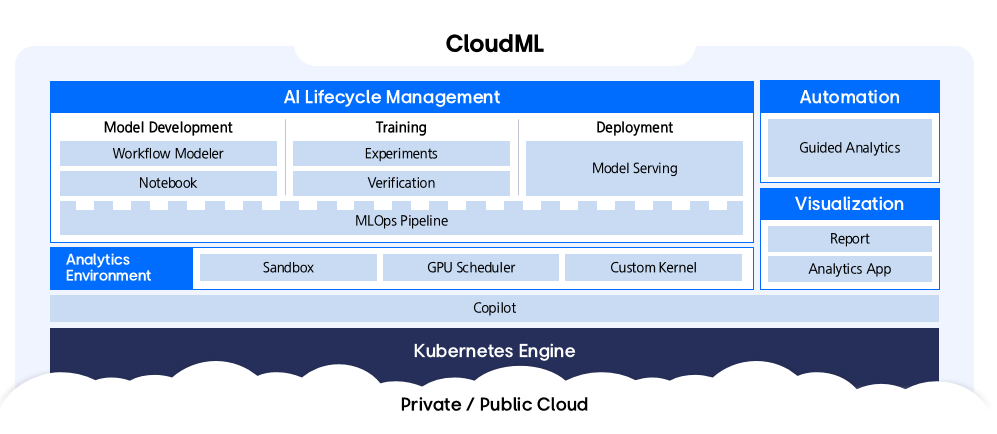
Provided features
CloudML provides the following features.
- Visual Modeling: Provides an intuitive interface that lets you build and deploy machine learning models without coding using a Drag&Drop approach. You can easily manage the entire process from data loading to model evaluation and deployment.
- Code-based Development: In the Jupyter Notebook environment, you can freely write and execute code using Python, R, and others. It provides powerful features for advanced users and researchers.
- Workflow Automation: It efficiently automates complex machine learning workflows such as data preprocessing, model training, evaluation, and deployment.
- Experiment Management: You can train machine learning models with various parameter combinations and systematically manage and compare the results.
- Using Copilot Features: It provides a natural-language-based AI assistant that guides and automates the model development process. It supports various tasks such as code generation, refactoring, error correction, and documentation, enhancing productivity.
- Integrated Platform: All features are integrated within CloudML for convenient use.
- Scalability and Flexibility: Supports scaling computing resources and connecting various data sources as needed.
Constraints
Before using CloudML, be sure to check the following constraints and incorporate them into your service usage plan. Since Cloud ML operates in a Kubernetes-based environment, appropriate cluster resource configuration is required for stable service operation.
- Application Basic Resources: To run the Application, a minimum of 24 vCPU cores and 96 GBi of memory are allocated by default.
- Analysis Task Resources: To perform analysis tasks, additional CPU or GPU resource configuration is required beyond the basic resources above. It should be configured appropriately, taking the workload of the analysis tasks into account.
- Copilot (CPU-based usage): To run Copilot on CPU resources, a minimum of 16 vCPU cores and 10 GiB of memory are required. In this case, the CPU resources available for analysis tasks are reduced accordingly.
- Copilot (GPU-based usage): Copilot can also be configured to use dedicated GPU resources.
- Supported LLM models: Currently, the LLM models that can be applied to Copilot are limited to Llama3.
Provision status by region
CloudML is available in the following environments.
| region | Availability |
|---|---|
| Korea West (kr-west1) | Provide |
| Korea East (kr-east1) | Provide |
| South Korea South 1 (kr-south1) | Not provided |
| South Korea South 2 (kr-south2) | Not provided |
| South Korea South 3 (kr-south3) | Not provided |
Preliminary Service
This is a list of services that must be pre-configured before creating the service. Please refer to the guide provided for each service for details and prepare in advance.
| Service Category | service | Detailed description |
|---|---|---|
| Container | Container Registry | A service that stores, manages, and shares container images. |
| Container | Kubernetes Engine | Kubernetes container orchestration service |
| Networking | Load Balancer | A service that automatically distributes server traffic load. |
2 - How-to guides
Create CloudML
Users can create the service by entering the required CloudML information and selecting detailed options through the Samsung Cloud Platform Console.
To create a CloudML, follow these steps.
Click the All Services > AI/ML > CloudML menu. Navigate to CloudML’s Service Home page.
On the Service Home page, click the Create CloudML button. You will be taken to the CloudML page.
On the CloudML Creation page, enter the information required to create the service and select detailed options.
In the Version Selection area, select the version of the service.
Category RequiredDetailed description Select version Required Select CloudML version Table. CloudML service version selection optionsSCP Kubernetes Engine deployment Select the options needed to create a service in this area.
Category RequiredDetailed description Cluster name Required Select Kubernetes Engine cluster Table. CloudML Service Cluster Selection OptionsIn the Service Information Input area, select the options required to create the service.
Category required or notDetailed description CloudML name Required Enter service name Explanation Selection Enter service description Domain name Required Enter the domain name to be used for the service - Enter 2-63 characters using lowercase English letters, numbers, and special characters
endpoint Required Select the endpoint to use in the service - Choose between Private and Public
Copilot Selection Select whether to use Copilot in the service - Apply when selected requires agreement to terms in the popup window
- If the selected cluster is not configured with GPUs dedicated to LLMs, or the allocated LLM resources are insufficient, Copilot cannot be applied
Resource Information Required Display resource information of the selected cluster Enter SCR information Required Enter SCR information to be used in the service - Enter private endpoint, authentication key, secret key
Table. CloudML service information input itemsAdditional Information Input area, please enter or select the required information.
Category RequiredDetailed description tag Selection Add Tag - Up to 50 can be added per resource
- After clicking the Add Tag button, enter or select Key, Value values
Table. CloudML Additional Information Input Items
Summary Check the detailed information and estimated billing amount generated in the panel, and click the Complete button.
- When creation is complete, check the created resources on the CloudML List page.
Check CloudML detailed information
You can view and edit the full list of resources and detailed information for the CloudML service. CloudML Details page consists of Details, Tags, Activity Log tabs.
To view the detailed information of CloudML, follow these steps.
- Click the All Services > AI/ML > CloudML menu. Navigate to CloudML’s Service Home page.
- On the Service Home page, click the resource (CloudML) to view detailed information. You will be taken to the CloudML Details page.
- CloudML Details page displays CloudML’s status information and detailed information, and consists of Details, Tags, Activity History tabs.
Category Detailed description Service status CloudML status - Creating: Creating
- Deployed: Created / operating normally
- Updating: Updating settings
- Terminating: Terminating
- Error: Error occurred
Connection Guide Service Access Guide - Information on host to register on the user’s PC
Service termination Cancel Service button Table. CloudML status information and additional features
- CloudML Details page displays CloudML’s status information and detailed information, and consists of Details, Tags, Activity History tabs.
Detailed Information
CloudML List page lets you view detailed information of the selected resource and modify it if necessary.
| Category | Detailed description |
|---|---|
| service | Service name |
| Resource Type | Resource Type |
| SRN | Unique resource ID in Samsung Cloud Platform |
| Resource name | Resource name |
| Resource ID | Unique resource ID in the service |
| constructor | User who created the service |
| Creation date and time | Service creation date and time |
| editor | User who edited the service information |
| Modification date | Date and time the service information was modified |
| Product name | CloudML name |
| Copilot | Whether to use Copilot |
| Explanation | Description of the service |
| Cluster name | Selected Kubernetes Engine cluster name |
| domain name | Entered service domain name |
| Version | Selected service version |
| Installation node information | Node information installed on the cluster |
| SCR information | Entered SCR information |
tag
On the CloudML List page, you can view the tag information of the selected resource, and add, modify, or delete it.
| Category | Detailed description |
|---|---|
| Tag list | Tag list
|
Job History
On the CloudML list page, you can view the operation history of the selected resource.
| Category | Detailed description |
|---|---|
| Task History List | Resource Change History
|
Terminate CloudML Service
Users can cancel the CloudML service through the Samsung Cloud Platform Console.
To cancel CloudML, follow the steps below.
- Click the All Services > AI/ML > CloudML menu. Navigate to CloudML’s Service Home page.
- Click the Cancel Service button on the Service Home page. A service cancellation alert window appears.
- Enter the CloudML name to delete in the dialog and click the Confirm button.
2.1 - Kubernetes Cluster Configuration
Configuring a Kubernetes cluster
To apply for the CloudML service, a dedicated cluster for CloudML must be set up. A dedicated cluster means creating a Kubernetes Engine that meets or exceeds the required minimum specifications and configuring several necessary settings. Create a dedicated cluster in advance before applying for the CloudML service.
- For instructions on creating a cluster, see the Cluster Creation guide.
- CloudML exposes an HTTPS endpoint on port 443. When creating a cluster, select Public Endpoint.
Recommended specifications for cluster nodes and storage
Cluster nodes can be added or modified after the cluster is created. The following are the recommended specifications for cluster nodes and storage that should be prepared to install CloudML for five users.
| Category | Item | role | capacity |
|---|---|---|---|
| cluster node | Kubernetes node pool (Virtual Server) | Application execution
| 24 core / 96 GBi |
| Cluster node | Kubernetes node pool (Virtual Server) | Run Analysis
| 8 core / 32 GBi x 2 EA
|
| repository | File Storage | Data storage | 1 TB |
If you need to change specifications such as adjusting the number of nodes, adding GPU nodes, or expanding resources, please request technical support.
- Technical Support Information Page: https://www.samsungsds.com/kr/support/support_tech.html
- Technical support request email: brightics.cs@samsung.com
Add a label to a node
Add labels to the nodes directly according to the role-specific recommendations in the cluster node and storage specifications.
- For instructions on adding labels to a node YAML, refer to the Edit Node YAML guide.
To add a label to a cluster node, follow these steps.
- Click the All Services > Container > Kubernetes Engine menu. Navigate to the Service Home page of Kubernetes Engine.
- On the Service Home page, click the Node menu. You will be taken to the Node List page.
- On the Node List page, select the cluster for which you want to view detailed information from the gear button at the top left, then click the Confirm button.
- Select the node you want to view details for and click it. You will be taken to the Node Details page.
- On the Node Details page, click the YAML tab. You will be taken to the YAML tab page.
- On the YAML tab page, click the Edit button. The node edit window opens.
- In the node edit window, add a label that matches the role and click the Save button.
- Check the following information and add a label that matches the node specifications.
Category Purpose-specific labels CPU node - App:
node.kubernetes.io/nodetype: ml-app
- Analytics:
node.kubernetes.io/nodetype: ml-analytics
GPU node - Analysis:
node.kubernetes.io/nodetype: ml-analytics-gpu
- Copilot:
node.kubernetes.io/nodetype: ml-gpu
Table. Kubernetes node label items by purpose - App:
- Check the following information and add a label that matches the node specifications.
3 - API Reference
4 - CLI Reference
5 - Release Note
CloudML
- We have launched the CloudML service, which supports the entire machine learning process—from data analysis to model development, training, validation, and deployment—in a cloud environment through the Samsung Cloud Platform.