This is the multi-page printable view of this section. Click here to print.
CloudML
1 - Overview
Service Overview
CloudML is an integrated platform that supports the entire machine learning process from data analysis to model development, learning, verification, and deployment in a cloud environment.
Features
- Cloud ML is designed to allow users of various roles such as analysts, machine learning engineers, and developers to collaborate in one environment, and to easily design and operate machine learning workflows.
- Cloud ML provides an analysis environment based on Python and R, and users with programming experience can utilize the platform more flexibly and effectively. In particular, using the Copilot function based on generative AI, you can easily perform code writing, refactoring, error correction, and function recommendations with just natural language input, thereby increasing analysis productivity and analysis accessibility.
- Cloud ML supports each stage of analysis, including environment configuration, model development and serving, analysis automation, and visualization, in a systematic way. It also supports improving both productivity and model quality by automating repetitive experiments and operations.
Service Composition Diagram
CloudML consists of analysis environment, machine learning lifecycle management, automated analysis support, visualization, and generative AI-based Copilot function, and users can perform the entire machine learning process integrally through these components.
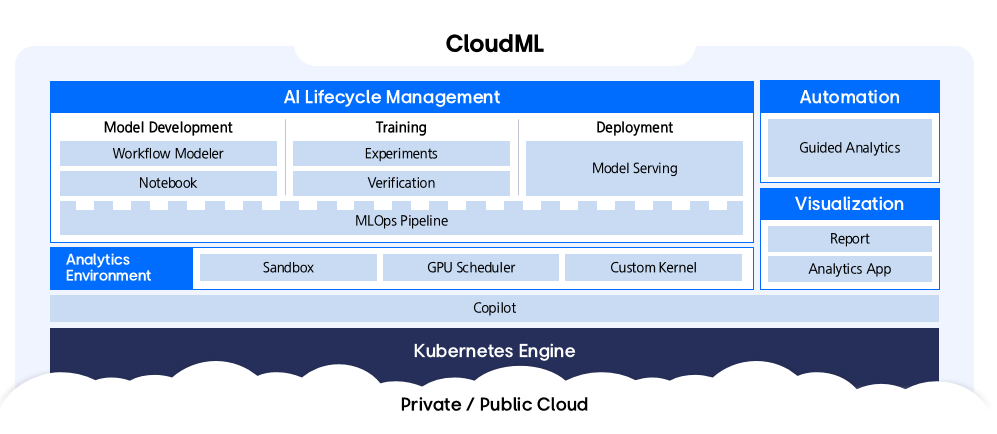
Provided Features
CloudML provides the following features.
- Visual Modeling: Provides an intuitive interface to build and deploy machine learning models without coding using a Drag&Drop method. You can easily manage all processes from data import to model evaluation and deployment.
- Code-based development: You can freely write and execute code using Python, R, etc. in the Jupyter Notebook environment. It provides powerful features for advanced users and researchers.
- Workflow Automation: It efficiently automates complex machine learning workflows such as data preprocessing, model training, evaluation, and deployment.
- Experiment Management: You can train machine learning models with various parameter combinations and systematically manage and compare the results.
- Copilot Feature Utilization: Provides natural language-based AI assistant functionality to guide and automate the model development process. It supports various tasks such as code generation, refactoring, error correction, and explanation, thereby improving productivity.
- Integrated Platform: All features are integrated within CloudML, making it convenient to use.
- Scalability and Flexibility: Supports expansion of computing resources and connection to various data sources as needed.
Constraints
Before using CloudML, please check the following restrictions and reflect them in your service usage plan. Cloud ML operates in a Kubernetes-based environment, so proper cluster resource settings are required for stable service operation.
- Application basic resources: For Application operation, a minimum of vCPU 24 cores and 96GB of memory are assigned by default.
- Analysis Job Resources: In addition to the basic resources, analysis jobs require additional CPU or GPU resources to be set. These resources should be set appropriately considering the workload of the analysis job.
- Copilot (CPU-based usage): To run Copilot on CPU resources, a minimum of 16-core vCPU and 10GBi of memory are required. In this case, the CPU resources available for analysis tasks are reduced accordingly.
- Copilot (GPU-based usage): Copilot can also be used by setting up dedicated GPU resources.
- Supported LLM models: Currently, the LLM models applicable to Copilot are limited to Llama3.
Region-based provision status
CloudML is available in the following environments.
| Region | Availability |
|---|---|
| Western Korea(kr-west1) | Provided |
| Korea East(kr-east1) | Provided |
| South Korea 1 (kr-south1) | Not provided |
| South Korea, southern region 2(kr-south2) | Not provided |
| South Korea southern region 3(kr-south3) | Not provided |
Preceding Service
This is a list of services that must be pre-configured before creating this service. Please refer to the guide provided for each service and prepare in advance for more details.
| Service Category | Service | Detailed Description |
|---|---|---|
| Container | Container Registry | A service that stores, manages, and shares container images |
| Container | Kubernetes Engine | Kubernetes container orchestration service |
| Networking | Load Balancer | A service that automatically distributes server traffic load |
2 - How-to guides
Create CloudML
The user can enter the essential information of CloudML through the Samsung Cloud Platform Console and create the service by selecting detailed options.
To create CloudML, follow these steps.
Click on the menu for all services > AI/ML > CloudML. It moves to the Service Home page of CloudML.
Service Home page, click the CloudML creation button. It moves to the CloudML page.
CloudML Creation page where you enter the information required for service creation and select detailed options.
Version Selection area, select the version of the service.
Classification NecessityDetailed Description Version Selection Required CloudML Version Selection Fig. CloudML Service Version Selection ItemsIn the SCP Kubernetes Engine deployment area, select the options required to create a service.
Classification NecessityDetailed Description Cluster Name Required Select Kubernetes Engine Cluster Fig. CloudML Service Cluster Selection ItemsService Information Input area, select the options required for service creation.
Classification NecessityDetailed Description CloudML name required Enter service name Description Selection Enter Service Description Domain Name Required Enter the domain name to be used in the service - Enter 2-63 characters using lowercase English letters, numbers, and special characters
Endpoint Required Select the endpoint to use for the service - Private and Public options
Copilot Selection Select whether to use Copilot in the service - Application selection requires agreement to terms in a popup window
- If the selected cluster is not composed of LLM dedicated GPU and the allocated LLM resources are insufficient, Copilot application is not possible
Resource Information Required Displays resource information of the selected cluster SCR Information Input Required Input SCR information to be used in the service - Private Endpoint, Authentication Key, Secret Key input
Table. CloudML Service Information Input ItemsEnter Additional Information Please enter or select the necessary information in the area.
Classification MandatoryDetailed Description Tag Selection Add Tag - Up to 50 can be added per resource
- Click the Add Tag button and enter or select Key, Value
Table. CloudML Additional Information Input Items
In the Summary panel, review the detailed information and estimated charges, and click the Complete button.
- Once creation is complete, check the created resource on the CloudML list page.
Check CloudML details
You can check and modify the entire resource list and detailed information of the CloudML service. The CloudML details page consists of details, tags, work history tabs.
To check the CloudML details, follow the next procedure.
Click on all services > AI/ML > CloudML menu. It moves to the Service Home page of CloudML.
Service Home page, click the resource (CloudML) to check the detailed information. It moves to the CloudML detail page.
- CloudML Details page displays the status information and detailed information of CloudML, and consists of Details, Tags, Work History tabs.
Division Detailed Description Service Status CloudML’s Status - Creating: being created
- Deployed: created/completed and operating normally
- Updating: updating settings
- Terminating: being deleted
- Error: error occurred
Connection Guide Service Connection Guide - Host information guide to be registered on the user PC
Service Cancellation Button to cancel the service Fig. CloudML Status Information and Additional Features
Detailed Information
On the CloudML list page, you can check the detailed information of the selected resource and modify the information if necessary.
| Division | Detailed Description |
|---|---|
| Service | Service Name |
| Resource Type | Resource Type |
| SRN | Unique resource ID in Samsung Cloud Platform |
| Resource Name | Resource Title |
| Resource ID | Unique resource ID in the service |
| Creator | User who created the service |
| Creation Time | The time when the service was created |
| Editor | User who modified the service information |
| Modified Date | Date when service information was modified |
| Product Name | CloudML Name |
| Copilot | Whether to use Copilot |
| Description | Description of the service |
| Cluster Name | Selected Kubernetes Engine cluster name |
| Domain Name | Entered Service Domain Name |
| Version | Selected Service Version |
| Installation Node Information | Node information installed in the cluster |
| SCR Information | Entered SCR Information |
Tag
On the CloudML list page, you can check the tag information of the selected resource, and add, change, or delete it.
| Classification | Detailed Description |
|---|---|
| Tag List | Tag list
|
Work History
You can check the job history of the selected resource on the CloudML list page.
| Classification | Detailed Description |
|---|---|
| Work history list | Resource change history
|
Canceling CloudML Service
Users can cancel the CloudML service through the Samsung Cloud Platform Console.
To cancel CloudML, follow these steps.
- Click on all services > AI/ML > CloudML menu. It moves to the Service Home page of CloudML.
- Service Home page, click the service cancellation button. A service cancellation notification window appears.
- Enter the CloudML name to be deleted in the notification window and click the Confirm button.
2.1 - Kubernetes Cluster Configuration
Configuring a Kubernetes Cluster
To apply for the CloudML service, a dedicated cluster for CloudML only must be configured. A dedicated cluster means creating a Kubernetes Engine with the required minimum specifications or higher and setting a few necessary requirements. Create a dedicated cluster before applying for the CloudML service.
- The way to create a cluster is to refer to the Cluster Configuration guide.
- CloudML exposes an HTTPS endpoint on port 443. Select the public endpoint when creating a cluster.
Cluster Node and Storage Recommended Specifications
Cluster nodes can be added or modified after the cluster is created. The following are the recommended specifications for the cluster nodes and storage that should be prepared to install CloudML based on 5 users.
| Division | Item | Role | Capacity |
|---|---|---|---|
| Cluster Node | Kubernetes Node Pool (Virtual Server) | Application Execution
| 24 core / 96 GB |
| Cluster Node | Kubernetes Node Pool (Virtual Server) | Analysis Execution
| 8 core / 32 GBi x 2 EA
|
| Repository | File Storage | Data Storage | 1 TB |
If you need to change the number of nodes, add GPU nodes, or scale up resources, please request technical support.
- Technical Support Guide Page: https://www.samsungsds.com/kr/support/support_tech.html
- Technical support request email: brightics.cs@samsung.com
Adding Labels to Nodes
Add labels to nodes directly based on the roles presented in the recommended specifications for cluster nodes and storage.
- To add labels to a node YAML, see the Editing Node YAML guide.
To add a label to a cluster node, follow these steps.
- Click all services > Container > Kubernetes Engine menu. It moves to the Service Home page of Kubernetes Engine.
- On the Service Home page, click the Node menu. It moves to the Node List page.
- On the Node List page, select the cluster you want to check detailed information from the Gear button at the top left, then click the Confirm button.
- Select and click the node you want to check the detailed information of. It will move to the Node Details page.
- Click the Node Details page YAML tab. Move to the YAML tab page.
- Click the Edit button on the YAML tab page. The node editing window opens.
- In the node editing window, add a label that matches the role and click the Save button.
- Check the following information and add labels that match the node specifications.
Division Purpose-based Label CPU Node - For app:
node.kubernetes.io/nodetype: ml-app
- For analytics:
node.kubernetes.io/nodetype: ml-analytics
GPU node - For analysis:
node.kubernetes.io/nodetype: ml-analytics-gpu
- For copilot:
node.kubernetes.io/nodetype: ml-gpu
Table. Kubernetes node labels by purpose - For app:
- Check the following information and add labels that match the node specifications.