Kubeflow User Guide
Below is a guide on how to use Kubeflow after creation.
Adding Kubeflow Users
Below is a guide on how to use Kubeflow after creation.
Kubeflow only has one Admin User account created from the initial setup screen.
To add users to the Kubeflow Dashboard, you need to change the Dex settings (Kubeflow’s authentication component).
- Dex is deployed in the auth namespace and its settings are stored in a configmap named dex.
The following is an example of the Dex configuration.
apiVersion: v1
kind: ConfigMap
metadata:
  name: dex
  namespace: auth
data:
  config.yaml: |
    issuer: http://dex.auth.svc.cluster.local:5556/dex
    storage:
      type: kubernetes
      config:
        inCluster: true
    web:
      http: 0.0.0.0:5556
    logger:
      level: "debug"
      format: text
    oauth2:
      skipApprovalScreen: true
    enablePasswordDB: true
    staticPasswords:
    - email: admin@kubeflow.org
      hash: $2y$10$Yb9WVbn8pzVSM6fBgKdFae1Bh6Z.XTihi7bNu3sB6/h5bt1JuUOgq
      username: admin
      userID: 9cb67307-fd6d-4441-9b59-52acd78f4c9e
    staticClients:
    - id: kubeflow-oidc-authservice
      redirectURIs: ["/login/oidc"]
      name: 'Dex Login Application'
      secret: pUBnBOY80SnXgjibTYM9ZWNzY2xreNGQok
If the enablePasswordDB value is true in the configuration, Dex saves the list of users defined in staticPasswords in the internal storage when the service starts. Therefore, you can add new users by adding new values to staticPasswords with email, hash, username, and userID.
The properties for adding users are defined as follows.
| Parameter | Description |
|---|---|
| A value in the standard email format | |
| hash | A user password value encrypted with the Bcrypt algorithm, and the hash value created with the Bcrypt algorithm can be entered directly
|
| username | Username
|
| userID | A unique ID value
|
You can edit the dex configmap using the following command on a node where kubectl is available.
$ kubectl edit configmap dex -n auth
staticPasswords:
    - email: admin@kubeflow.org
      hash: $2y$10$Yb9WVbn8pzVSM6fBgKdFae1Bh6Z.XTihi7bNu3sB6/h5bt1JuUOgq
      username: admin
      userID: 9cb67307-fd6d-4441-9b59-52acd78f4c9e
    - email: sds@samsung.com
      hash: $2y$12$0g5.y86jnrt0v6In5NRCZ.YVuvrAUQ6j/RJYO3rV.kNulaDALOKfq
      username: sds
      userID: 8961d517-3498-4148-90c9-7e442ee91154
The staticPasswords value in the configmap is reflected when the Dex service starts, so you need to restart the Dex service using the following command.
kubectl rollout restart deployment dex -n auth
Try logging in with the new user information.
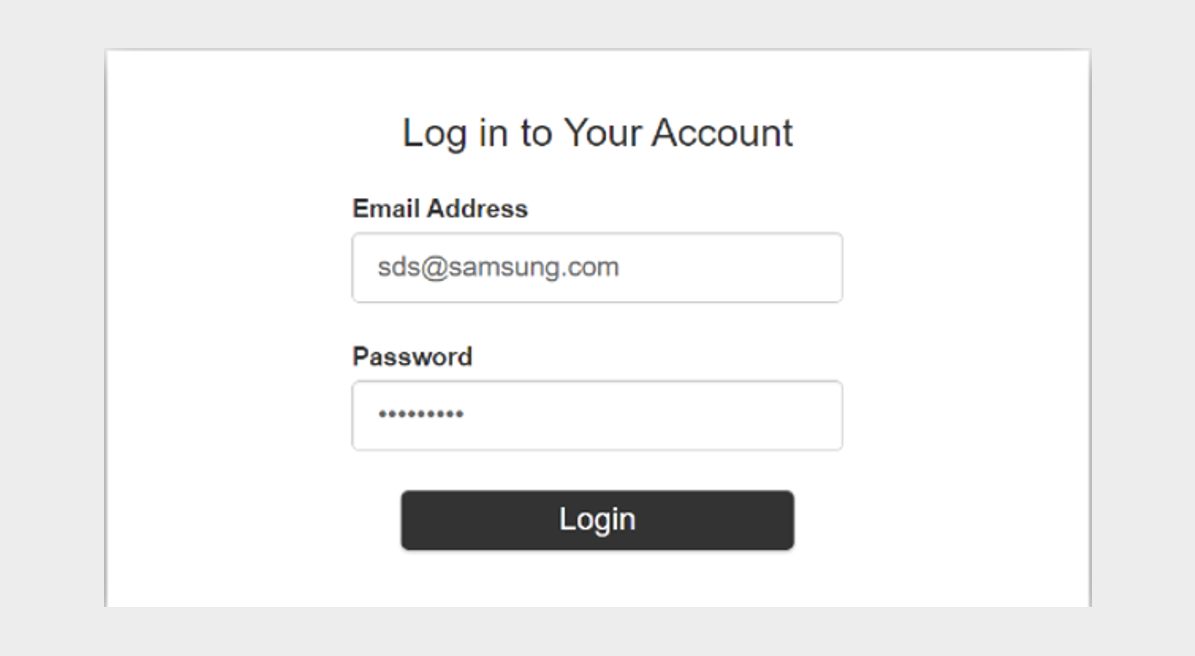
You should see that you are logged in successfully and can create a new namespace (profile).
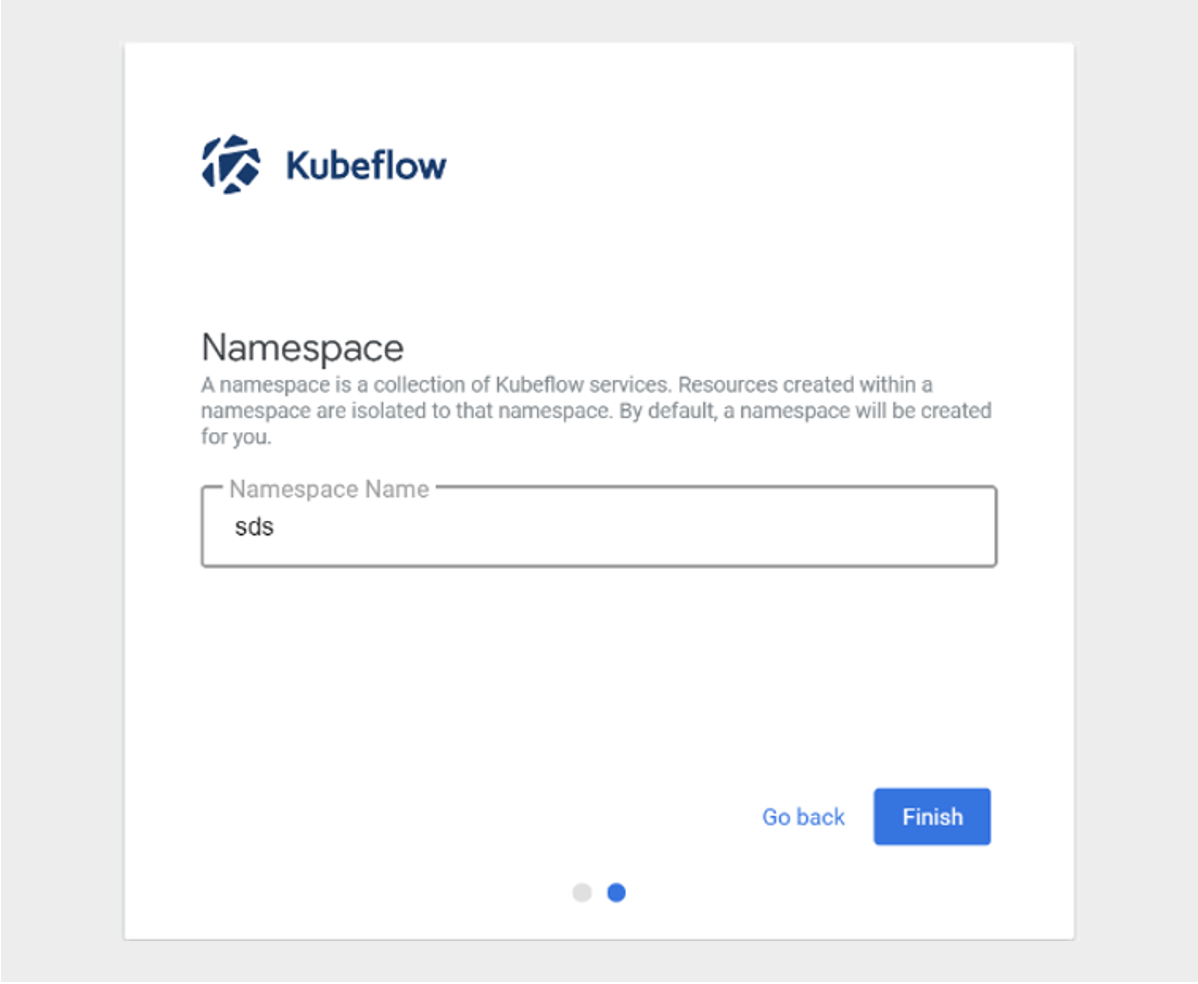
The above content was written with reference to the Kubeflow official website. For more information, please refer to Kubeflow Profiles.
Using Custom Images in Kubeflow Jupyter Notebook
To use a custom image in Kubeflow Notebook Controller, which manages the Notebook life cycle, you need to meet certain requirements.
Kubeflow assumes that Jupyter starts automatically when the notebook image runs. Therefore, you need to set the default command to start Jupyter in the container image.
The following is an example of what you need to include in your Dockerfile.
ENV NB_PREFIX /

CMD ["sh","-c", "jupyter notebook --notebook-dir=/home/${NB_USER} --ip=0.0.0.0 --no-browser --allow-root --port=8888 --NotebookApp.token='' --NotebookApp.password='' --NotebookApp.allow_origin='*' --NotebookApp.base_url=${NB_PREFIX}"]
The above items are explained as follows.
| Parameter | Description |
|---|---|
--notebook-dir=/home/jovyan | Set the working directory
|
--ip=0.0.0.0 | Allow Jupyter Notebook to listen on all IPs |
--allow-root | Allow the user to run Jupyter Notebook as root |
--port=8888 | Set the port |
--NotebookApp.token=’’ –NotebookApp.password=’’ | Disable Jupyter authentication
|
--NotebookApp.allow_origin=’*’ | Allow origin |
--NotebookApp.base_url=NB_PREFIX | Set the base URL |
You can create a custom image by referencing the Dockerfile used to create the TensorFlow notebook image.
- Refer to https://github.com/kubeflow/kubeflow/blob/v1.2.0/components/tensorflow-notebook-image/Dockerfile.
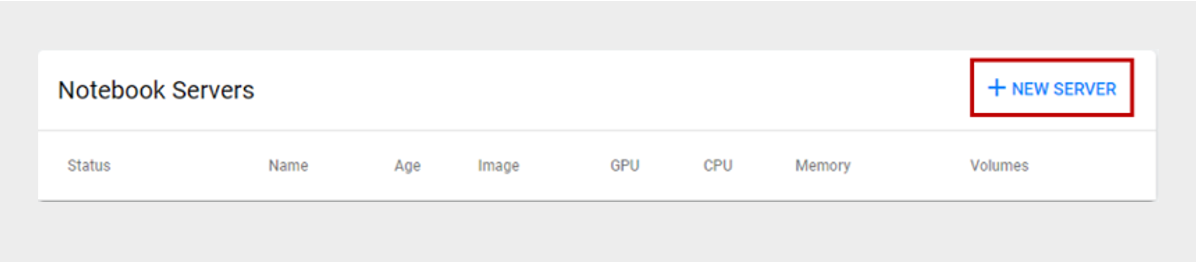
Click the +NEW SERVER button on the Notebook Servers page.
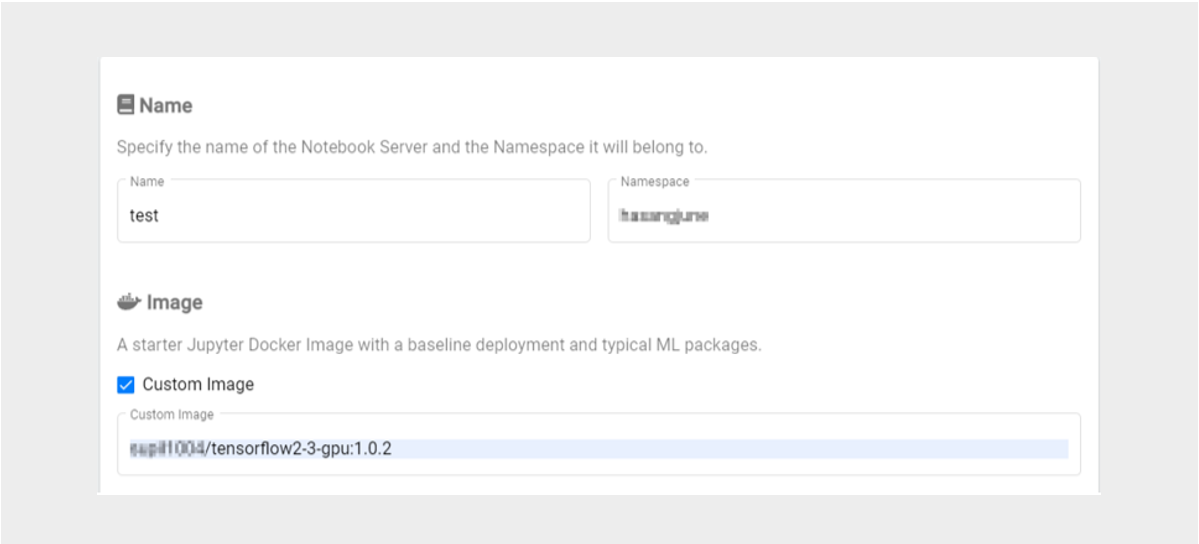
If you have created a custom image, check Custom Image on the Kubeflow Notebook Server screen and enter the Custom Image address to create a new Notebook Server.
The above content was written with reference to the Kubeflow official website.
- For more information, please refer to the Kubeflow official website’s Kubeflow Notebooks > Container Images documentation.