How-to guides
The user can enter the essential information of the AI&MLOps Platform through the Samsung Cloud Platform Console and create the service by selecting detailed options.
To create an AI&MLOps Platform, follow these steps.
All Services > AI/ML > AI&MLOps Platform menu is clicked. It moves to the Service Home page of AI&MLOps Platform.
On the Service Home page, click the Create AI&MLOps Platform button. It moves to the Create AI&MLOps Platform page.
On the Service Type Selection page of AI&MLOps Platform creation, enter the information required for service creation and select detailed options.
- Select Service Type and Version Select the service type in the 서비스 유형 및 버전 선택 area.
| Classification | Necessity | Detailed Description |
|---|
| Service Type | Required | The type of service chosen by the user |
| Service Type Version | Required | Version of the selected service- Provides a list of versions of the provided service
|
Table. AI&MLOps Platform Service Type and Version Selection Items
- Cluster Deployment Area Division Select the options required for service creation in the area.
| Classification | Necessity | Detailed Description |
|---|
| Cluster Deployment Area | Required | - Deploy to Kubernetes Engine: Select an existing Kubernetes Engine
- Deploy to New Cluster: Create a Kubernetes Engine when creating the AI&MLOps Platform
|
Table. AI&MLOps Platform Service Cluster Deployment Area Division Items
Reference
Depending on the settings of this cluster deployment, the following configuration elements of the Service Information Input page will be different.
On the Service Information Input page of AI&MLOps Platform creation, enter the information required for service creation and select detailed options.
- You can select the cluster deployment area.
- The Kubernetes cluster specifications required for installation can be found in the Kubernetes cluster specifications guide.
On the Creation Information Confirmation page of AI&MLOps Platform Creation, check the detailed information created and the expected billing amount, and click the Complete button.
- Once creation is complete, check the created resource on the AI&MLOps Platform service list page.
The AI&MLOps Platform service can check and modify the entire resource list and detailed information. The AI&MLOps Platform Service Details page consists of Detailed Information, Tags, Work History tabs.
To check the detailed information of the AI&MLOps Platform service, follow the next procedure.
- All Services > AI/ML > AI&MLOps Platform Service menu is clicked. It moves to the Service Home page of the AI&MLOps Platform Service.
- Service Home page, click the AI&MLOps Platform menu. It moves to the AI&MLOps Platform service list page.
- AI&MLOps Platform Service List page, click on the resource to view detailed information. Move to the AI&MLOps Platform Service Details page.
- AI&MLOps Platform Service Details page displays status information and additional feature information, and consists of Details, Tags, Work History tabs.
On the AI&MLOps Platform 서비스 목록 page, you can check the detailed information of the selected resource and modify the information if necessary.
| Classification | Detailed Description |
|---|
| Service | Service Category |
| Resource Type | Service Name |
| SRN | Unique resource ID in Samsung Cloud Platform |
| Resource Name | Resource Name- In the AI&MLOps Platform service, it means the cluster name
|
| Resource ID | Unique resource ID in the service |
| Creator | User who created the service |
| Creation Time | The time when the service was created |
| Modifier | Service information modified user |
| Modified Date | Date when service information was modified |
| Dashboard Status | Dashboard Status Value |
| Service Name | Service Name |
| Admin Email Address | Administrator Email Address |
| Image Name | Service Image Name |
| Version | Image Version |
| Service Type | Deployed Service Type |
Table. AI&MLOps Platform Service Detailed Information Items
Tag
On the AI&MLOps Platform 서비스 목록 page, you can check the tag information of the selected resource, and add, change, or delete it.
| Classification | Detailed Description |
|---|
| Tag List | Tag list- Key, Value information of the tag can be checked
- Up to 50 tags can be added per resource
- When entering a tag, search and select from the existing Key and Value list
|
Table. Cluster tags tab items
Work History
You can check the work history of the selected resource on the AI&MLOps Platform 서비스 목록 page.
| Classification | Detailed Description |
|---|
| Work history list | Resource change history- Work details, work time, resource type, resource name, work result, worker information can be checked
- Click the corresponding resource in the Work History List list. The Work History Details popup window opens.
|
Fig. AI&MLOps Platform Service Work History Tab Detailed Information Items
To access the AI&MLOps Platform dashboard, preliminary work must be done in advance.
Pre-work
To access the AI&MLOps Platform, you must set the relevant ports and IP addresses for access in the Security Group and Firewall (if using a firewall) in advance.
Kubeflow Mini: 31390 port (Security Group’s inbound rule, VPC firewall)
To access the cluster Worker Node, you must set the inbound rule for port 22 in the Security Group and Firewall (if using VPC firewall).
Logging into the Dashboard
To access the AI&MLOps Platform service, follow the procedure below.
- All Services > AI/ML > AI&MLOps Platform Service menu is clicked. It moves to the Service Home page of the AI&MLOps Platform Service.
- On the Service Home page, click the AI&MLOps Platform 서비스 menu. It moves to the AI&MLOps Platform 서비스 목록 page.
- AI&MLOps Platform Service List page, click on the resource to view detailed information. It moves to the AI&MLOps Platform Details page.
- AI&MLOps Platform details page, click the Access Guide button. The Access Guide popup window opens.
- Connection Guide In the Connection Guide popup window, click the URL link of the Dashboard. It moves to the corresponding dashboard page.
Caution
When using Public Subnet and assigning a public IP, it may be exposed to security attacks such as external hacking and malware infection.
You can save operating costs by canceling the corresponding service that is not in use. However, if you cancel the service, the operating service may be stopped immediately, so you should consider the impact of stopping the service sufficiently before proceeding with the cancellation work.
Caution
After the service is cancelled, the data cannot be recovered, so please be careful.
To cancel the AI&MLOps Platform, follow the procedure below.
- Click on the menu for all services > AI/ML > AI&MLOps Platform service. It moves to the Service Home page of the AI&MLOps Platform service.
- On the Service Home page, click the AI&MLOps Platform Service menu. It moves to the AI&MLOps Platform Service List page.
- AI&MLOps Platform Service List page, click on the resource to check the detailed information. It moves to the AI&MLOps Platform Details page.
- On the AI&MLOps Platform details page, click the Cancel Service button. The Cancel Service popup window will open.
- To confirm, enter the service name and click Confirm.
- Once the cancellation is complete, please check if the resource has been cancelled on the AI&MLOps Platform service list page.
1 - Cluster Deployment
Cluster Deployment Area
On the Samsung Cloud Platform, the AI&MLOps Platform creation’s service type selection provides 2 cloud deployment areas.
Common
Before proceeding with the cluster deployment task, please check the Kubernetes cluster specifications required for installation.
- Regardless of the selection of the cluster deployment area, the Kubernetes cluster specification must be checked in advance.
- Please refer to the Cluster Specification guide for detailed specification information.
Depending on the selection of the cluster deployment area, the installation content on the Service Information Input page of AI&MLOps Platform creation varies.
Deploying on SCP Kubernetes Engine
- Click on the All Services > AI/ML > AI&MLOps Platform menu. It moves to the Service Home page of AI&MLOps Platform.
- Service Home page, click the AI&MLOps Platform creation button. Move to the AI&MLOps Platform creation page.
- On the Service Type Selection page of AI&MLOps Platform creation, enter the information required for service creation and select detailed options.
Cluster Deployment
Select the SCP Kubernetes Engine deployment option.
- On the Service Information Input page of AI&MLOps Platform creation, enter the information required for service creation and select detailed options.
- Service Information Input area where you can enter or inquire the necessary information for service creation.
| Classification | Necessity | Detailed Description |
|---|
| Service Name | Required | Enter AI&MLOps Platform name- AI&MLOps Platform name cannot be duplicated within the project
|
| Storage Class | Required | Storage Class is registered automatically |
| Installation Node Information | Query | Confirm node information of the selected Kubernetes Engine |
| Admin Email Address | Required | Input the email address of the administrator (Admin) to use when logging in |
| Password | Required | Enter the password to use when logging in |
| Password Confirmation | Required | Re-enter password to prevent password errors |
Table. AI&MLOps Platform Service Information Input Items
- Additional Information Input area, please enter or select the information needed to create the service.
| Classification | Necessity | Detailed Description |
|---|
| Tag | Selection | Select a tag to add to the AI&MLOps Platform- Clicking on tag addition creates and adds a tag or adds an existing tag
- Up to 50 tags can be registered
- Newly added tags are applied after service creation is completed
|
Table. Additional Information Input Items for AI&MLOps Platform Service
Deploy to a new cluster
- Click all services > AI/ML > AI&MLOps Platform menu. It moves to the Service Home page of AI&MLOps Platform.
- On the Service Home page, click the Create AI&MLOps Platform button. It moves to the Create AI&MLOps Platform page.
- AI&MLOps Platform creation’s service type selection page, enter the information required for service creation and select detailed options.
Cluster Deployment
Select the new cluster to deploy option.
- On the Service Information Input page of AI&MLOps Platform creation, enter the information required for service creation and select detailed options.
Service Information Input area where you can enter or inquire about the information needed to create a service.
| Classification | Necessity | Detailed Description |
|---|
| Service Name | Required | Enter AI&MLOps Platform name- AI&MLOps Platform name cannot be duplicated within the project
|
| Storage Class | required | Storage Class is registered automatically |
| Installation Node Information | Query | Confirm node information of the selected Kubernetes Engine |
| Admin Email Address | Required | Enter the email address of the administrator (Admin) to use when logging in |
| Password | Required | Enter the password to use when logging in |
| Password Confirmation | Required | Re-enter password to prevent password errors |
Table. AI&MLOps Platform Service Information Input Items
Enter Kubernetes Engine information Enter or select the necessary information in the area.
| Classification | Necessity | Detailed Description |
|---|
| Cluster Name | Required | Cluster name- Starts with English and uses English, numbers, and special characters(
-)
- Input within 3~30 characters
|
| Control Plane Version > Kubernetes Version | Required | Select Kubernetes Version |
| Control Area Setting > Control Area Logging | Select | Select whether to use control area logging- Audit/Event logs of the cluster control area can be checked in Cloud Monitoring’s log analysis
- 1GB of log storage for all services in the account is provided for free, and logs are deleted sequentially when exceeding 1GB
|
| Network Settings | Required | Network connection settings for the node pool- VPC: Select a pre-created VPC
- Subnet: Select a general Subnet to use from the selected VPC’s subnets
- Security Group: Click the Search button and select a Security Group from the Security Group Selection popup window
- Load Balancer: Provides
type: LoadBalancer functionality in Kubernetes Service objects- Select a load balancer on the same network
- Usage: Select whether to use it
- Cannot be changed after setting
|
| File Storage settings | Required | Select the file storage volume to be used in the cluster- Default volume (NFS): Select File Storage through the Search button
- The default volume file storage only provides NFS format
|
Table. Kubernetes Engine service information input items
Enter Node Pool Information Enter or select the required information in the area.
| Classification | Necessity | Detailed Description |
|---|
| Node Pool Configuration | Required | Select node pool information- * marked items are required input items, so they must be entered
- In the case of AI&MLOps Platform, the image capacity may continue to increase depending on use, so setting Block Storage to at least 200GB or more allows for smooth system configuration
|
Table. AI&MLOps Platform Service Information Input Items
Reference
- Windows OS node pool can only be created when additional storage (CIFS) volumes are in use in the cluster.
- Node pool Block Storage’s volume encryption can only be set at the time of initial creation.
- Setting encryption may cause performance degradation of some features.
- If you choose to use the node pool auto-scaling or auto-resizing feature, you can only enter number of nodes, minimum number of nodes, maximum number of nodes.
* **Additional Information Input** area, please enter or select the necessary information.
| Classification |
Necessity |
Detailed Description |
| Tag |
Selection |
Select a tag to add to the AI&MLOps Platform - Clicking on tag addition creates and adds a tag or adds an existing tag
- Up to 50 tags can be registered
- Newly added tags are applied after service creation is completed
|
Table. AI&MLOps Platform Service Information Input Items
Cluster Specifications
To use the AI&MLOps Platform, a Kubernetes Engine to install the AI&MLOps Platform is required. You can select an existing Kubernetes Engine or create a Kubernetes Engine when creating the AI&MLOps Platform.
The specifications of the Kubernetes cluster required for installation are as follows.
Notice
Only one AI&MLOps Platform can be installed per Kubernetes cluster, and AI&MLOps Platform cannot be installed on a cluster that is being used for other purposes.
2 - Kubeflow User Guide
Below is a guide on how to use Kubeflow after creation.
Adding Kubeflow Users
Below is a guide on how to use Kubeflow after creation.
Kubeflow only has one Admin User account created from the initial setup screen.
To add users to the Kubeflow Dashboard, you need to change the Dex settings (Kubeflow’s authentication component).
- Dex is deployed in the auth namespace and its settings are stored in a configmap named dex.
Note
Kubeflow has separate namespaces for each user
The following is an example of the Dex configuration.
apiVersion: v1
kind: ConfigMap
metadata:
  name: dex
  namespace: auth
data:
  config.yaml: |
    issuer: http://dex.auth.svc.cluster.local:5556/dex
    storage:
      type: kubernetes
      config:
        inCluster: true
    web:
      http: 0.0.0.0:5556
    logger:
      level: "debug"
      format: text
    oauth2:
      skipApprovalScreen: true
    enablePasswordDB: true
    staticPasswords:
    - email: admin@kubeflow.org
      hash: $2y$10$Yb9WVbn8pzVSM6fBgKdFae1Bh6Z.XTihi7bNu3sB6/h5bt1JuUOgq
      username: admin
      userID: 9cb67307-fd6d-4441-9b59-52acd78f4c9e
    staticClients:
    - id: kubeflow-oidc-authservice
      redirectURIs: ["/login/oidc"]
      name: 'Dex Login Application'
      secret: pUBnBOY80SnXgjibTYM9ZWNzY2xreNGQok
If the enablePasswordDB value is true in the configuration, Dex saves the list of users defined in staticPasswords in the internal storage when the service starts. Therefore, you can add new users by adding new values to staticPasswords with email, hash, username, and userID.
The properties for adding users are defined as follows.
| Parameter | Description |
|---|
| email | A value in the standard email format |
| hash | A user password value encrypted with the Bcrypt algorithm, and the hash value created with the Bcrypt algorithm can be entered directly |
| username | Username- Follows Kubernetes namespace naming rules
- 63 character limit, only lowercase letters, numbers, and
- characters are allowed
|
| userID | A unique ID value- The initial user’s userID is generated using the uuidgen command
|
Table. Properties for adding users
You can edit the dex configmap using the following command on a node where kubectl is available.
$ kubectl edit configmap dex -n auth
staticPasswords:
    - email: admin@kubeflow.org
      hash: $2y$10$Yb9WVbn8pzVSM6fBgKdFae1Bh6Z.XTihi7bNu3sB6/h5bt1JuUOgq
      username: admin
      userID: 9cb67307-fd6d-4441-9b59-52acd78f4c9e
    - email: sds@samsung.com
      hash: $2y$12$0g5.y86jnrt0v6In5NRCZ.YVuvrAUQ6j/RJYO3rV.kNulaDALOKfq
      username: sds
      userID: 8961d517-3498-4148-90c9-7e442ee91154
The staticPasswords value in the configmap is reflected when the Dex service starts, so you need to restart the Dex service using the following command.
kubectl rollout restart deployment dex -n auth
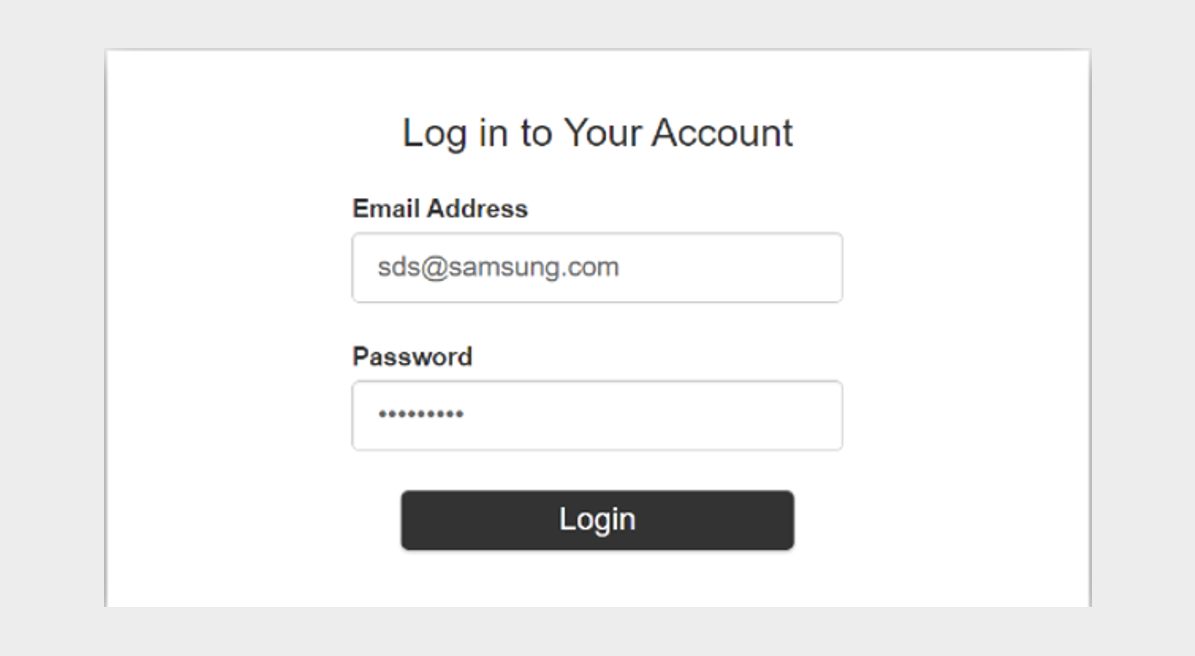
Try logging in with the new user information.
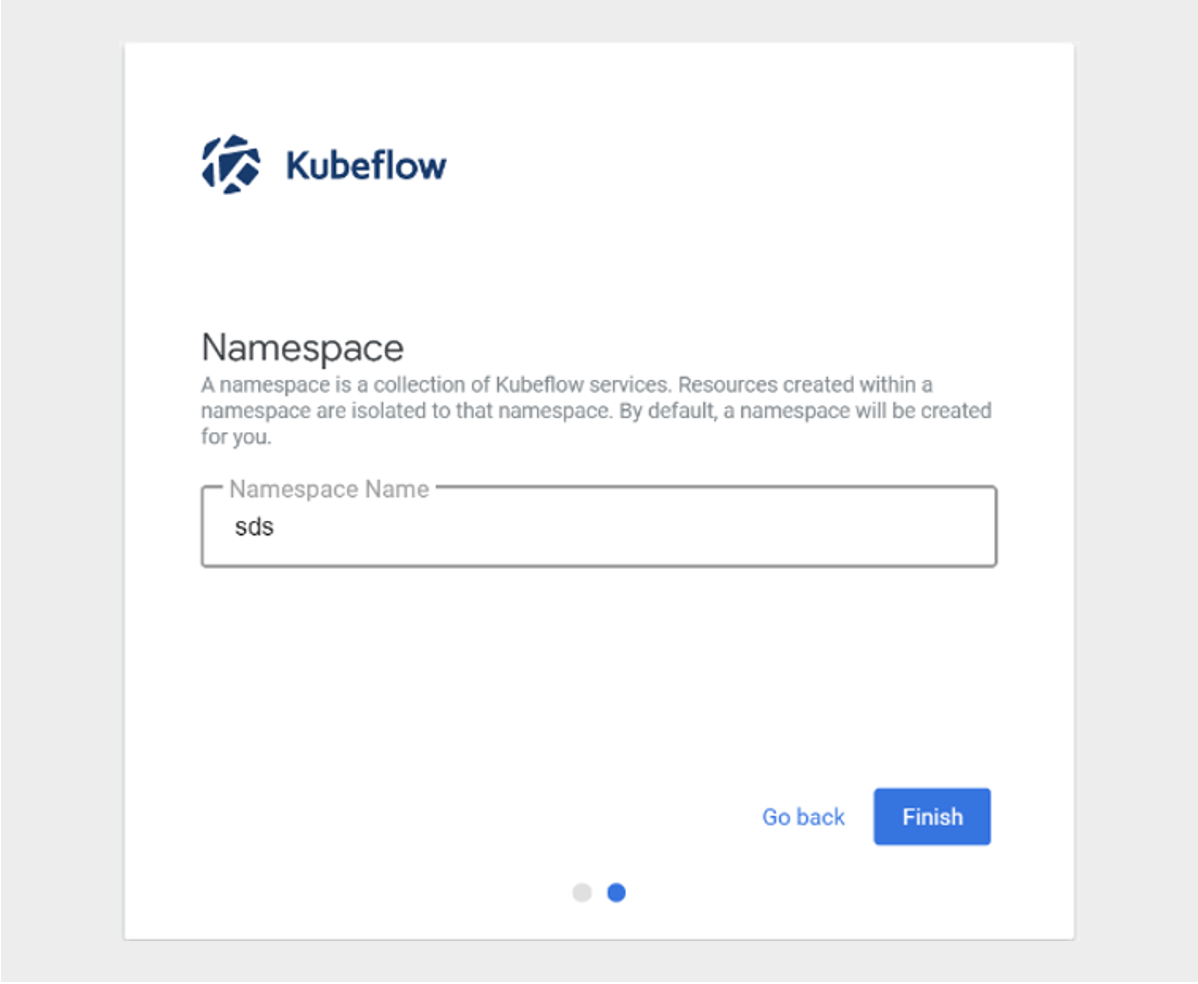
You should see that you are logged in successfully and can create a new namespace (profile).
The above content was written with reference to the Kubeflow official website. For more information, please refer to Kubeflow Profiles.
Using Custom Images in Kubeflow Jupyter Notebook
To use a custom image in Kubeflow Notebook Controller, which manages the Notebook life cycle, you need to meet certain requirements.
Kubeflow assumes that Jupyter starts automatically when the notebook image runs. Therefore, you need to set the default command to start Jupyter in the container image.
The following is an example of what you need to include in your Dockerfile.
ENV NB_PREFIX /

CMD ["sh","-c", "jupyter notebook --notebook-dir=/home/${NB_USER} --ip=0.0.0.0 --no-browser --allow-root --port=8888 --NotebookApp.token='' --NotebookApp.password='' --NotebookApp.allow_origin='*' --NotebookApp.base_url=${NB_PREFIX}"]
The above items are explained as follows.
| Parameter | Description |
|---|
--notebook-dir=/home/jovyan | Set the working directory- /home/jovyan directory is mounted to a Kubernetes persistent volume (PV)
|
--ip=0.0.0.0 | Allow Jupyter Notebook to listen on all IPs |
--allow-root | Allow the user to run Jupyter Notebook as root |
--port=8888 | Set the port |
--NotebookApp.token=’’ –NotebookApp.password=’’ | Disable Jupyter authentication- Kubeflow uses Istio for authentication, so Jupyter’s built-in authentication is disabled
- With this setting, you can access the Jupyter Notebook server without a password
|
--NotebookApp.allow_origin=’*’ | Allow origin |
--NotebookApp.base_url=NB_PREFIX | Set the base URL |
Table. Settings to include in Dockerfile
You can create a custom image by referencing the Dockerfile used to create the TensorFlow notebook image.
Note
The custom image must be stored in a public registry like Docker Hub or a private registry that can be pushed and pulled from Kubeflow.
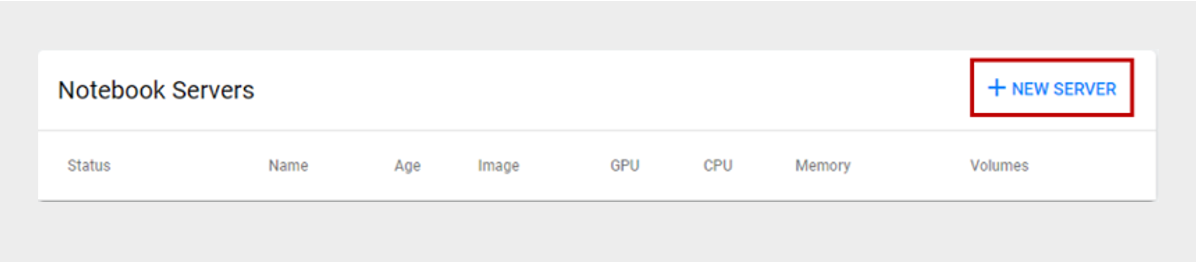
Click the +NEW SERVER button on the Notebook Servers page.
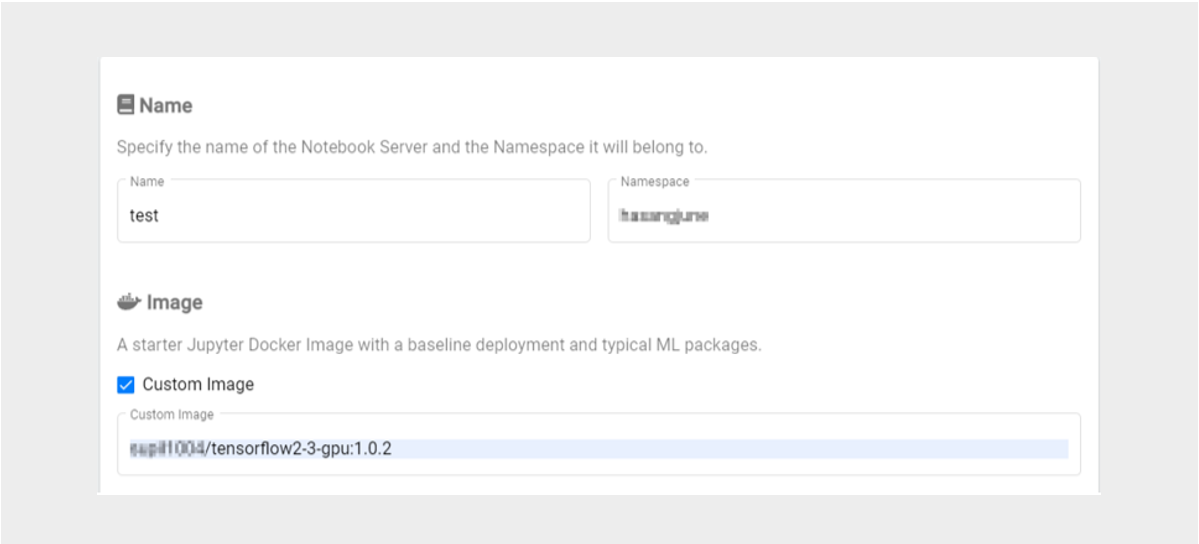
If you have created a custom image, check Custom Image on the Kubeflow Notebook Server screen and enter the Custom Image address to create a new Notebook Server.
Guide
The above content was written with reference to the Kubeflow official website.