This is the multi-page printable view of this section. Click here to print.
AI&MLOps Platform
- 1: Overview
- 2: How-to guides
- 2.1: Cluster deployment
- 2.2: Kubeflow Usage Guide
- 3: API Reference
- 4: CLI Reference
- 5: Release Note
1 - Overview
Service Overview
AI&MLOps Platform is a machine learning platform that automates repetitive tasks across the entire pipeline of developing, training, and deploying machine learning models. Through the AI&MLOps Platform service, integrated management of training data, models, and operational data is possible on a Kubernetes-based AI/MLOps environment.
The AI&MLOps Platform provides an Enterprise service that adds add-on features such as distributed training job execution and monitoring to the open-source product Kubeflow.Mini, which enables development, training, tuning, and deployment of machine learning models.
Features
Providing a Cloud Native MLOps Environment: The AI&MLOps Platform provides a cloud‑optimized machine learning model development environment, and its Kubernetes‑based architecture makes integration with various open‑source tools convenient.
Machine Learning Development and Operations Convenience: Provides a standardized environment that supports various machine learning frameworks such as TensorFlow, PyTorch, scikit-learn, Keras, etc. By automating the entire pipeline for developing, training, and deploying machine learning models, it makes model composition and creation easy and promotes reusability.
Enhanced GPU Integration: By leveraging Multi‑Node GPU on a Bare Metal Server and GPUDirect RDMA (Remote Direct Memory Access), the job speed of LLM (Large Language Model) and natural language processing (NLP) can be dramatically improved.
Service Diagram
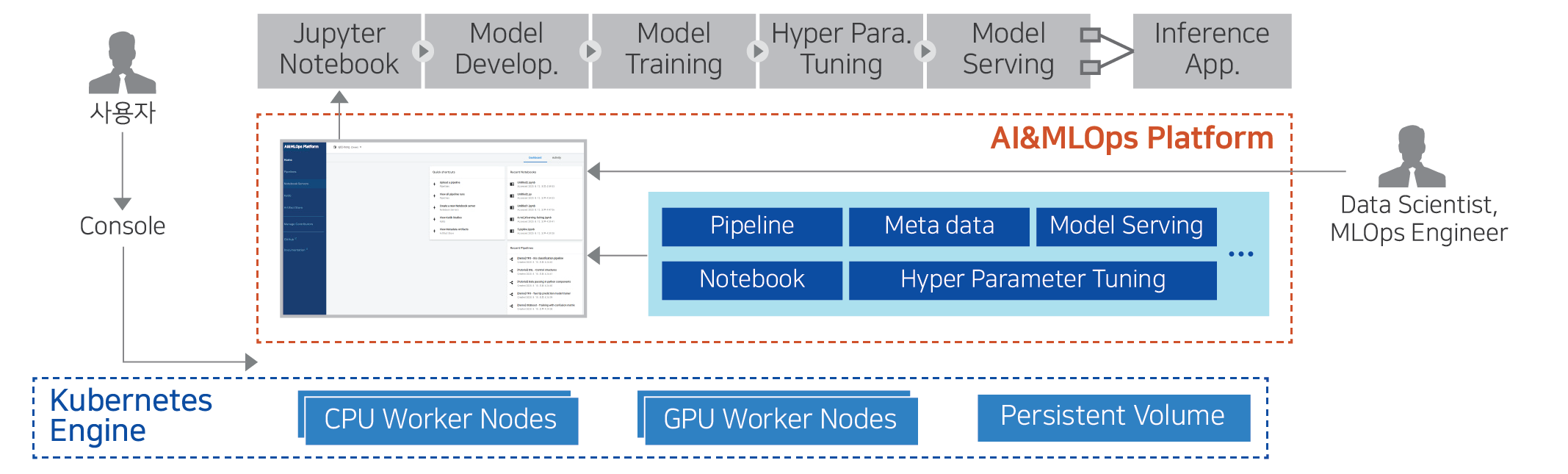
Provided features
The AI&MLOps Platform provides the following features.
ML Model Development Environment and Features
- Notebook Provision: Creates Jupyter Notebooks and VS Code that include ML frameworks such as Tensorflow, Pytorch, etc.
- TensorBoard: TensorBoard(ML model training process visualization/analysis tool) creates and manages the server.
- Volumes: When developing ML models, store datasets and models, and connect a Volume when creating a Jupyter Notebook.
ML model distributed training Job execution/management
- Supports execution and monitoring of distributed training jobs, as well as management and analysis of inference services. (Add-on)
- Provides various features for configuring MLOps environments, such as Job Queue management. (Add-on)
- Provides efficient GPU resource utilization features such as Job Scheduler (FIFO, Bin-packing, Gang-based), GPU Fraction, and GPU resource monitoring, etc. (Add-on)
- We dramatically improved the job speed of LLM (Large Language Model) and natural language processing (NLP) by using BM-based Multi-Node GPU and GPU Direct RDMA (Remote Direct Memory Access). (Add-on)
ML Model Experiment Management and Pipeline
- Provides Experiments (KFP) for managing ML pipeline experiments.
- Supports pipeline automation features for configuring and executing ML tasks in stages.
Component
Operating System version
The operating systems supported by the AI&MLOps Platform are as follows.
| Operating System (OS) | Version |
|---|---|
| RHEL | RHEL 8.3 |
| Ubuntu | Ubuntu 18.04, Ubuntu 20.04, Ubuntu 22.04 |
Provision status by region
The AI&MLOps Platform is available in the environments below.
| region | Provision status |
|---|---|
| Korea West (kr-west1) | Provide |
| Korea East (kr-east1) | Provide |
| South Korea South 1 (kr-south1) | Not provided |
| South Korea South 2 (kr-south2) | Not provided |
| South Korea South 3(kr-south3) | Not provided |
Prior Service
This is a list of services that must be pre-configured before creating the service. For details, refer to the guide provided for each service and prepare in advance.
| Service Category | service | Detailed description |
|---|---|---|
| Container | Kubernetes Engine | Kubernetes container orchestration service |
2 - How-to guides
Create AI&MLOps Platform
Users can create the service by entering the required information for the AI&MLOps Platform and selecting detailed options through the Samsung Cloud Platform Console.
To create an AI&MLOps Platform, follow these steps.
- Click the All Services > AI/ML > AI&MLOps Platform menu. You will be taken to the Service Home page of AI&MLOps Platform.
- Service Home page, click the AI&MLOps Platform Create button. You will be taken to the AI&MLOps Platform Create page.
- On the AI&MLOps Platform creation Service Type Selection page, enter the information required to create the service and select detailed options.
- Select the service type in the Service Type and Version Selection area.
Category RequiredDetailed description Service type Required Service type selected by the user - AI&MLOps Platform
- Kubeflow Mini
Service type version Required Select version of the selected service - Provide a list of versions of the offered service
Table. AI&MLOps Platform service types and version selection items - Cluster Deployment Area Classification Select the options required to create a service in this area.
Category RequiredDetailed description Cluster deployment area Required - Deploy from Kubernetes Engine: Select the previously created Kubernetes Engine
- Deploy to a new cluster: When creating the AI&MLOps Platform, also create a Kubernetes Engine
Table. AI&MLOps Platform Service Cluster Deployment Area Classification ItemsReferenceThe configuration elements on the following Service Information Input page vary depending on the cluster deployment settings.
- Select the service type in the Service Type and Version Selection area.
- On the Service Information Input page of AI&MLOps Platform Creation, enter the information required to create the service and select detailed options.
- You can select the cluster deployment region.
- For instructions on configuring Deploy to a new cluster, see the Deploy to a new cluster guide.
- Deploy on SCP Kubernetes Engine For configuration, refer to the Deploy on SCP Kubernetes Engine guide.
- Refer to the Kubernetes Cluster specifications guide for the Kubernetes cluster specifications required for installation.
- You can select the cluster deployment region.
- On the Creation Information Check page of AI&MLOps Platform creation, review the detailed information you created and the estimated billing amount, and click the Complete button.
- Once creation is complete, check the created resources on the AI&MLOps Platform Service List page.
Check detailed information of AI&MLOps Platform
The AI&MLOps Platform service allows you to view and edit the full list of resources and detailed information. AI&MLOps Platform Service Details page consists of Details, Tags, Activity History tabs.
To view detailed information about the AI&MLOps Platform service, follow the steps below.
- Click the All Services > AI/ML > AI&MLOps Platform Service menu. Navigate to the Service Home page of the AI&MLOps Platform Service.
- On the Service Home page, click the AI&MLOps Platform menu. You will be taken to the AI&MLOps Platform Service List page.
- On the AI&MLOps Platform Service List page, click the resource to view detailed information. You will be taken to the AI&MLOps Platform Service Details page.
- AI&MLOps Platform Service Details page displays status information and additional feature information, and consists of Details, Tags, Activity History tabs.
Detailed Information
AI&MLOps Platform Service List page lets you view detailed information of the selected resource and edit the information if needed.
| Category | Detailed description |
|---|---|
| service | Service name |
| Resource Type | Resource Type |
| SRN | Unique resource ID in Samsung Cloud Platform |
| Resource name | Resource name
|
| Resource ID | Unique resource ID in the service |
| constructor | User who created the service |
| Creation date and time | Service creation date and time |
| editor | User who edited the service information |
| Modification date | Date and time the service information was modified |
| Dashboard status | Dashboard status value |
| Service name | Service name |
| Admin Email Address | Administrator email address |
| image name | Service image name |
| Version | Image version |
| Service type | Deployed service type |
tag
AI&MLOps Platform Service List page lets you view the tag information of the selected resource, and you can add, modify, or delete it.
| Category | Detailed description |
|---|---|
| Tag list | Tag list
|
Job History
AI&MLOps Platform Service List page lets you view the operation history of the selected resource.
| Category | Detailed description |
|---|---|
| Task History List | Resource Change History
|
Access AI&MLOps Platform
To access the AI&MLOps Platform dashboard, you must complete the prerequisite steps.
Preliminary work
To access the AI&MLOps Platform, you must preconfigure the relevant ports and the IP addresses required for connection in the Security Group and Firewall (if using a firewall).
Kubeflow Mini: port 31390 (inbound rules of Security Group, VPC firewall)
To access the cluster’s worker node, you must set an inbound rule for port 22 on the Security Group and Firewall (when using a VPC firewall).
Access Dashboard
To access the AI&MLOps Platform service, follow these steps.
- Click the All Services > AI/ML > AI&MLOps Platform Service menu. You will be taken to the Service Home page of the AI&MLOps Platform service.
- Click the AI&MLOps Platform Service menu on the Service Home page. You will be taken to the AI&MLOps Platform Service List page.
- Click the resource to view detailed information on the AI&MLOps Platform Service List page. You will be taken to the AI&MLOps Platform Details page.
- AI&MLOps Platform Details on the page, click the Access Guide button. The Access Guide popup window opens.
- Access Guide In the popup window, click the dashboard’s URL link. You will be taken to the corresponding dashboard page.
Terminate AI&MLOps Platform
You can cancel the unused service to reduce operating costs. However, canceling the service may cause the running service to stop immediately, so you should thoroughly consider the impact of service interruption before proceeding with the cancellation.
To cancel the AI&MLOps Platform, follow the steps below.
- Click the All Services > AI/ML > AI&MLOps Platform Service menu. Navigate to the Service Home page of the AI&MLOps Platform Service.
- On the Service Home page, click the AI&MLOps Platform Service menu. You will be taken to the AI&MLOps Platform Service List page.
- Click the resource to view detailed information on the AI&MLOps Platform Service List page. You will be taken to the AI&MLOps Platform Details page.
- AI&MLOps Platform Details on the page, click the Cancel Service button. The Cancel Service popup will open.
- After entering the service name for verification, click Confirm.
- When termination is complete, check on the AI&MLOps Platform Service List page whether the resource has been terminated.
2.1 - Cluster deployment
Cluster deployment area
Samsung Cloud Platform offers two cloud deployment regions in the AI&MLOps Platform creation’s service type selection.
Before proceeding with the cluster deployment, be sure to verify the Kubernetes cluster specifications required for installation.
- Regardless of the choice of cluster deployment region, you must verify the Kubernetes cluster specifications in advance.
- For detailed specification information, refer to the Kubernetes cluster specifications guide.
Depending on the selection of the cluster deployment region, the installation details on the AI&MLOps Platform creation service information input page differ.
Deploy on SCP Kubernetes Engine
- All Services > AI/ML > AI&MLOps Platform Click the menu. 1. Navigate to the Service Home page of the AI&MLOps Platform.
- On the Service Home page, click the Create AI&MLOps Platform button. 2. Navigate to the Create AI&MLOps Platform page.
- On the Service Type and Version Selection page of AI&MLOps Platform creation, enter the information required to create the service and select detailed options.Cluster deploymentPlease select the Deploy on SCP Kubernetes Engine option.
- AI&MLOps Platform Creation’s Service Information Input page: enter the information required to create the service and select detailed options.
- Service Information Input area, enter or view the information required to create a service.
구분 RequiredDetailed description Service Name Required Enter AI&MLOps Platform name - AI&MLOps Platform name cannot be duplicated within the project
Storage Class Required Storage Class is automatically registered Installation node information Lookup Check the node information of the selected Kubernetes Engine Admin Email Address Required Enter the administrator (Admin) email address to use for login Password required Enter the password to use for login Confirm password Required Re-enter the password to prevent password errors Table. AI&MLOps Platform Service Information Input Items - Additional Information Input area, enter or select the information needed to create the service.
Category RequiredDetailed description tag Select Select tags to add to the AI&MLOps Platform - Click Add Tag to create a new tag or add an existing tag
- Up to 50 tags can be registered
- The newly added tags are applied after the service creation is completed
Table. AI&MLOps Platform Service Additional Information Input Items
- Service Information Input area, enter or view the information required to create a service.
Deploy to a new cluster
- All Services > AI/ML > AI&MLOps Platform Click the menu. 1. Navigate to the Service Home page of the AI&MLOps Platform.
- On the Service Home page, click the Create AI&MLOps Platform button. 2. Go to the AI&MLOps Platform Creation page.
- On the Service Type and Version Selection page of AI&MLOps Platform creation, enter the information required to create the service and select detailed options.Cluster deploymentSelect the Deploy to a new cluster option.
- On the Service Information Input page of AI&MLOps Platform creation, enter the information required to create a service and select detailed options.
Service Information Input area, enter or view the information required for service creation.
Category RequiredDetailed description Service Name Required Enter AI&MLOps Platform name - AI&MLOps Platform name cannot be duplicated within a project
Storage Class Required Storage Class is automatically registered Installation node information Lookup Check the node information of the selected Kubernetes Engine Admin Email Address Required Enter the administrator (Admin) email address to use for login Password Required Enter the password to use for login Confirm password Required Re-enter the password to prevent password errors Table. AI&MLOps Platform Service Information Input ItemsKubernetes Engine Information Input Enter or select the required information in the area.
Category Required statusDetailed description Cluster name Required Cluster name - must start with an English letter and may use English letters, numbers, and special characters (
-)
- Enter within 3 to 30 characters
Control Plane Settings > Kubernetes Version required Select Kubernetes version Control Area Settings > Control Area Logging Selection Select whether to enable control plane logging - Audit/Event logs from the cluster control plane can be viewed in Cloud Monitoring’s log analysis
- Each account receives 1 GB of free log storage for all services, and logs exceeding 1 GB are deleted sequentially
- For more details, refer to Cloud Monitoring > log analysis
Network Settings Required Network connection settings for the node pool - VPC: Select a pre‑created VPC
- Availability Zone: Choose the Availability Zone of the selected VPC
- Subnet: Select a standard Subnet to use from the subnets of the selected VPC
- Security Group: Click the Search button and then select a Security Group in the Select Security Group popup
- Load Balancer: Provides the
type:LoadBalancerfeature in a Kubernetes Service object- Select a load balancer on the same network
- Use: select whether to enable
- Cannot be changed after configuration
File Storage Settings Required Select the file storage volume to use in the cluster - Default Volume (NFS): Select File Storage via the Search button
- Default Volume file storage offers only the NFS format
Table. Kubernetes Engine service information entry items- must start with an English letter and may use English letters, numbers, and special characters (
In the Node Pool Information Input area, enter or select the required information.
Category RequiredDetailed description Node pool configuration Required Select node pool information - * Marked items are required fields, so they must be entered
- For the AI&MLOps Platform, image size can continuously increase depending on usage, so setting Block Storage to at least 200GB enables smooth system configuration
Table. AI&MLOps Platform Service Information Input ItemsReference- A Windows OS node pool can be created only when an additional storage (CIFS) volume is in use in the cluster.
- Volume encryption for node pool Block Storage can only be set at initial creation.
- Enabling encryption may cause performance degradation in some features.
- You can enter node count, minimum node count, maximum node count only when you have selected the node pool auto‑scaling or shrinking feature.
In the Additional Information Input area, enter or select the required information.
Category RequiredDetailed description tag Select Select tags to add to the AI&MLOps Platform - Click Add Tag to create a new tag or add an existing tag
- Up to 50 tags can be registered
- The newly added tags are applied after the service creation is completed
Table. AI&MLOps Platform service information input items
Cluster specifications
To use the AI&MLOps Platform, you need a Kubernetes Engine to install the AI&MLOps Platform. You can select an existing Kubernetes Engine, or create a Kubernetes Engine together when creating the AI&MLOps Platform.
The specifications of the Kubernetes cluster required for installation are as follows.
Node pool resource size (composed of two or more nodes)
- AI&MLOps Platform: vCPU 32, Memory 128G or more Kubeflow Mini: up to vCPU 24, Memory 96G
Kubernetes version
AI&MLOps Platform v1.9.1 (k8s v1.30) Kubeflow Mini v1.9.1 (k8s v1.30)
2.2 - Kubeflow Usage Guide
Below, we guide you on how to use Kubeflow after creating it.
Add Kubeflow User
Below is a guide on how to use Kubeflow after it has been created.
Kubeflow only creates the account of the single Admin User entered on the initial installation screen.
When using the Kubeflow Dashboard, to add users other than the initial user, you must modify the settings of Dex (the authentication integration component of Kubeflow).
- Dex is deployed in the auth namespace, and its configuration is stored in a configmap named dex.
The following is an example of Dex configuration.
apiVersion: v1
kind: ConfigMap
metadata:
  name: dex
  namespace: auth
data:
  config.yaml: |
    issuer: http://dex.auth.svc.cluster.local:5556/dex
    storage:
      type: kubernetes
      config:
        inCluster: true
    web:
      http: 0.0.0.0:5556
    logger:
      level: "debug"
      format: text
    oauth2:
      skipApprovalScreen: true
    enablePasswordDB: true
    staticPasswords:
    - email: admin@kubeflow.org
      hash: $2y$10$Yb9WVbn8pzVSM6fBgKdFae1Bh6Z.XTihi7bNu3sB6/h5bt1JuUOgq
      username: admin
      userID: 9cb67307-fd6d-4441-9b59-52acd78f4c9e
    staticClients:
    - id: kubeflow-oidc-authservice
      redirectURIs: ["/login/oidc"]
      name: 'Dex Login Application'
secret: pUBnBOY80SnXgjibTYM9ZWNzY2xreNGQok apiVersion: v1
kind: ConfigMap
metadata:
name: dex
namespace: auth
data:
config.yaml: |
issuer: http://dex.auth.svc.cluster.local:5556/dex
storage:
type: kubernetes
config:
inCluster: true
web:
http: 0.0.0.0:5556
logger:
level: "debug"
format: text
oauth2:
skipApprovalScreen: true
enablePasswordDB: true
staticPasswords:
- email: admin@kubeflow.org
hash: $2y$10$Yb9WVbn8pzVSM6fBgKdFae1Bh6Z.XTihi7bNu3sB6/h5bt1JuUOgq
username: admin
userID: 9cb67307-fd6d-4441-9b59-52acd78f4c9e
staticClients:
- id: kubeflow-oidc-authservice
redirectURIs: ["/login/oidc"]
name: 'Dex Login Application'
secret: pUBnBOY80SnXgjibTYM9ZWNzY2xreNGQok When the enablePasswordDB value in the configuration is true, Dex stores the list of users defined in staticPasswords from the configmap into its internal storage when the service starts. Therefore, by adding new user entries composed of email, hash, username, and userID to staticPasswords, you can freely add users beyond the initial ones and use the Kubeflow service.
The attribute values for adding a user can be defined as follows.
| parameter | Explanation |
|---|---|
| A value in a standard E‑mail format | |
| hash | Bcrypt algorithm encrypted user password value, and you can directly input the hash value generated by the Bcrypt algorithm
|
| username | User name
|
| userID | A uniquely identifiable ID value
|
From a node where you can use kubectl, use the following command to enter the edit screen of dex configmap.
kubectl edit configmap dex -n authkubectl edit configmap dex -n authstaticPasswords:
- email: admin@kubeflow.org
hash: $2y$10$Yb9WVbn8pzVSM6fBgKdFae1Bh6Z.XTihi7bNu3sB6/h5bt1JuUOgq
username: admin
userID: 9cb67307-fd6d-4441-9b59-52acd78f4c9e
- email: sds@samsung.com
hash: $2y$12$0g5.y86jnrt0v6In5NRCZ.YVuvrAUQ6j/RJYO3rV.kNulaDALOKfq
username: sds
userID: 8961d517-3498-4148-90c9-7e442ee91154staticPasswords:
- email: admin@kubeflow.org
hash: $2y$10$Yb9WVbn8pzVSM6fBgKdFae1Bh6Z.XTihi7bNu3sB6/h5bt1JuUOgq
username: admin
userID: 9cb67307-fd6d-4441-9b59-52acd78f4c9e
- email: sds@samsung.com
hash: $2y$12$0g5.y86jnrt0v6In5NRCZ.YVuvrAUQ6j/RJYO3rV.kNulaDALOKfq
username: sds
userID: 8961d517-3498-4148-90c9-7e442ee91154Since the staticPasswords value in the configmap is applied when the Dex service starts, restart the Dex service using the following command.
kubectl rollout restart deployment dex -n authkubectl rollout restart deployment dex -n authAttempt to log in using new user information.
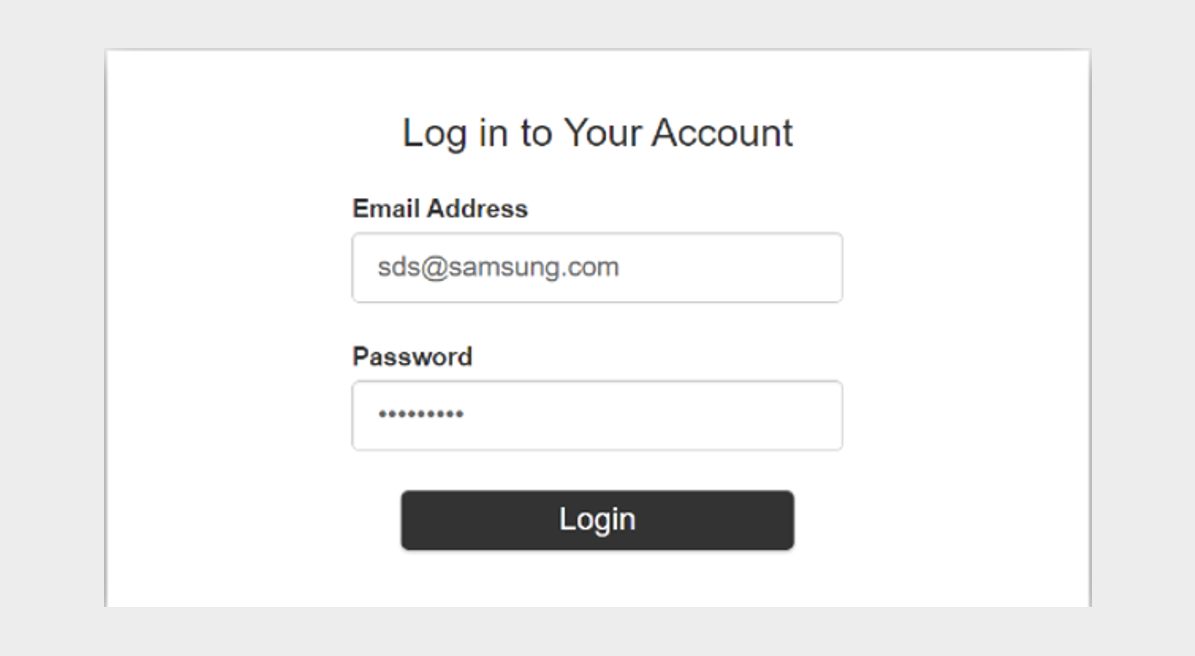
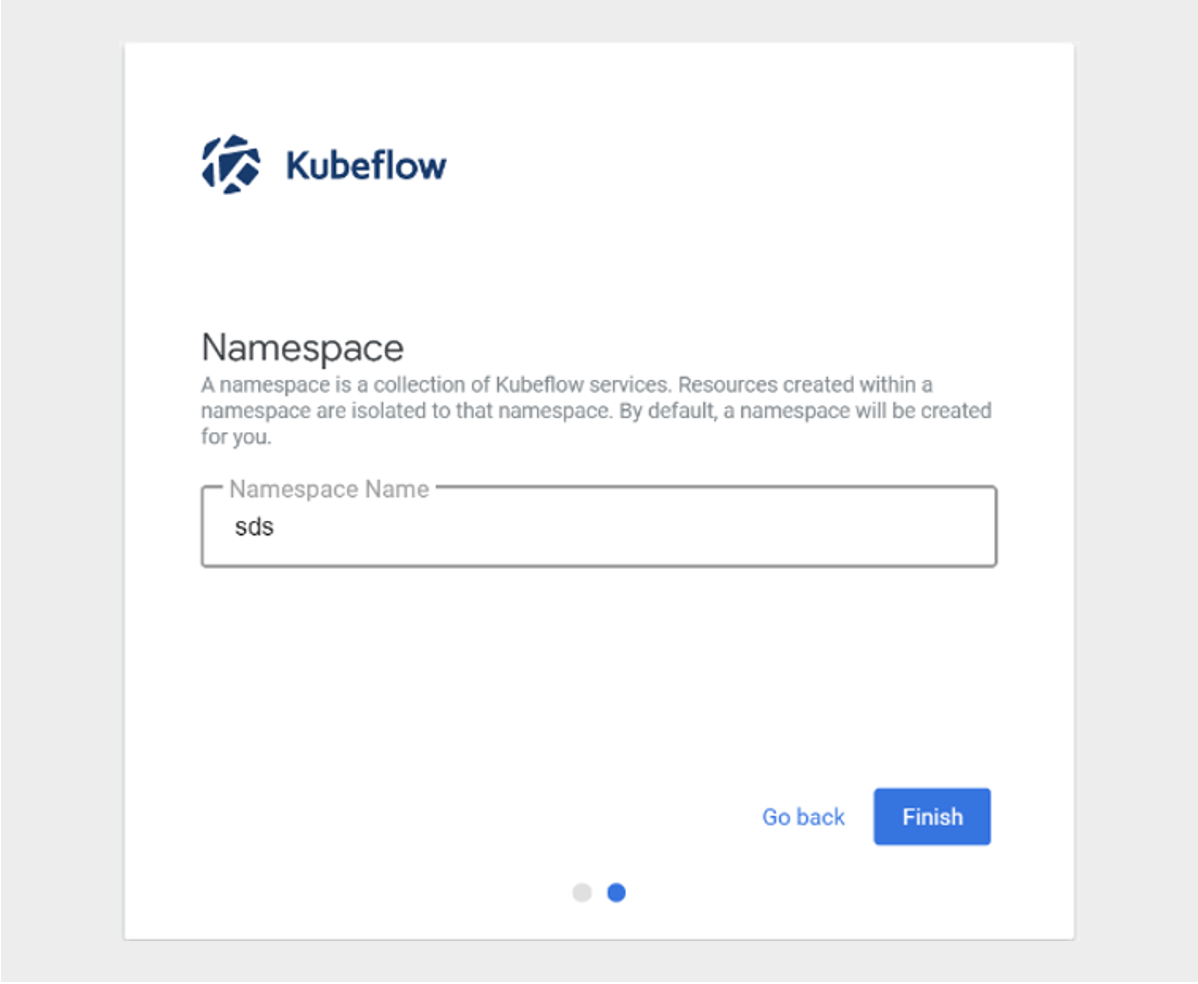
Verify that after successful login, it transitions to the screen for creating a new Namespace(profile).
The above content was written with reference to the official Kubeflow site. For more details, see Kubeflow Profiles.
How to use Custom Image in Kubeflow Jupyter Notebook
To use a custom image in the Kubeflow Notebook Controller that manages the Notebook life cycle of Kubeflow, you must meet several requirements.
Kubeflow assumes that Jupyter will start automatically when a Notebook image is run. Therefore, you need to set the default command to start Jupyter in the container image.
The following is an example of what should be included in a Dockerfile.
ENV NB_PREFIX

CMD ["sh","-c", "jupyter notebook --notebook-dir=/home/${NB_USER} --ip=0.0.0.0 --no-browser --allow-root --port=8888 --NotebookApp.token='' --NotebookApp.password='' --NotebookApp.allow_origin='*' --NotebookApp.base_url=${NB_PREFIX}"]
ENV NB_PREFIX
CMD ["sh","-c", "jupyter notebook --notebook-dir=/home/${NB_USER} --ip=0.0.0.0 --no-browser --allow-root --port=8888 --NotebookApp.token='' --NotebookApp.password='' --NotebookApp.allow_origin='*' --NotebookApp.base_url=${NB_PREFIX}"]The above items are explained as follows.
| parameter | Explanation |
|---|---|
--notebook-dir=/home/jovyan | Set working directory
|
--ip=0.0.0.0 | Allow Jupyter Notebook to accept connections from any IP |
--allow-root | Allow the user to run Jupyter Notebook as root |
--port=8888 | Port configuration |
--NotebookApp.token=’’ –NotebookApp.password=’’ | Disable Jupyter authentication
|
--NotebookApp.allow_origin=’*’ | Allow origin |
--NotebookApp.base_url=NB_PREFIX | Base URL setting |
You can create a Custom Image by referring to the Dockerfile that builds the tesorflow notebook image.
- https://github.com/kubeflow/kubeflow/blob/v1.2.0/components/tensorflow-notebook-image/Dockerfile Please refer to it.
On the Notebook Servers page, click the +NEW SERVER button.
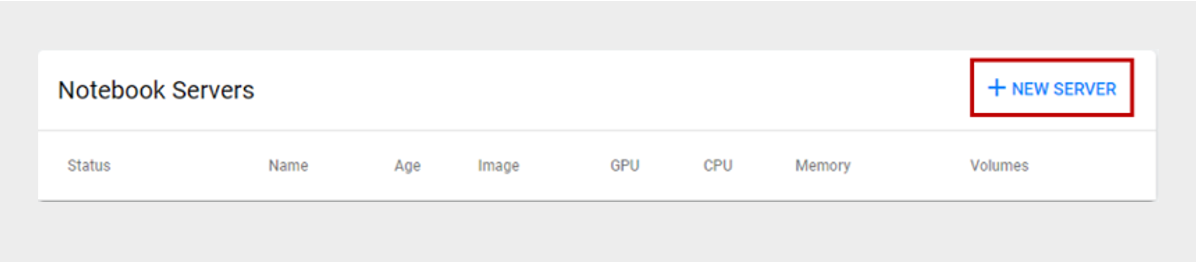
If you have created a Custom Image, check Custom Image on the Kubeflow Notebook Server screen and enter the Custom Image address to create a new Notebook Server.
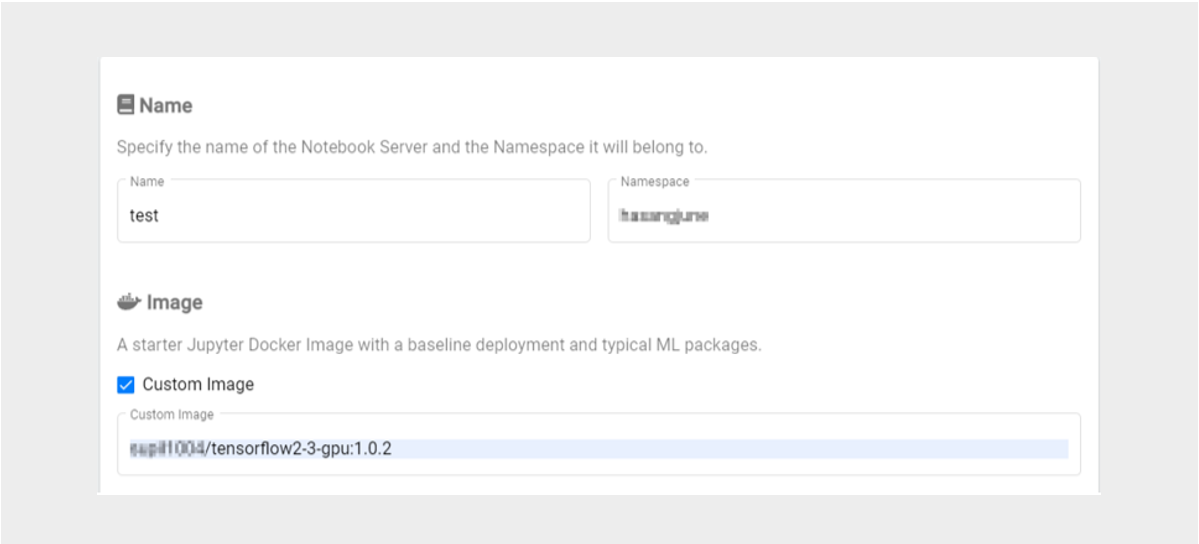
The above content was written with reference to the Kubeflow official site.
- For more details, see the Kubeflow Notebooks > Container Images documentation on the official Kubeflow website.
3 - API Reference
4 - CLI Reference
5 - Release Note
AI&MLOps Platform
- The AI&MLOps Platform open-source version has been upgraded.
- Kubeflow 1.9
- The AI&MLOps Platform service, which automates repetitive tasks across the entire pipeline of machine learning model development, training, and deployment, has been launched.
- We provide a machine learning platform service based on Kubernetes.