Credential and Permission Management
Credential Management
Authentication Method Management
Samsung Cloud Platform provides strong user authentication by default to secure console access.
Users must perform multi-factor authentication (Multi-Factor Authentication, MFA), and when using an authentication key, they can designate an allowed IP range to fundamentally block unauthorized external access.
Administrators can limit users’ access permissions to the scope required for their work by managing IAM policies.
Additionally, by establishing granular access control policies for control items, actions, resource types, authentication methods, IPs, and so on, you can apply a least‑privilege policy to users or groups.
Samsung Cloud Platform provides administrators with the authority to take actions on specific resources and a permission management dashboard that enables centralized, focused management.
Through this, you can efficiently manage permissions even in complex organizational structures.
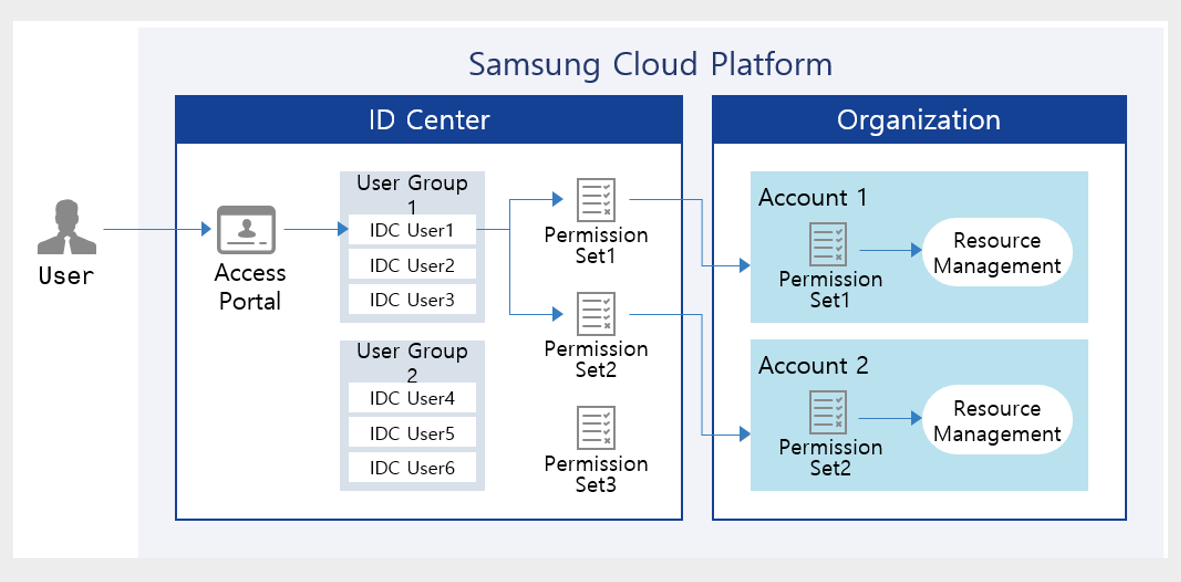
The ID Center of Samsung Cloud Platform is a service that enables easy centralized management of access permissions for resources per account.
After creating permission policies per service, you can manage users to perform tasks appropriate to their permissions by assigning them accounts and policies associated with the Organization service.
Using temporary authentication
All cloud services, including Samsung Cloud Platform, operate on a REST API basis.
This means that, regardless of whether it is a console or CLI, an API call is made to run the service, and the service performs the required tasks accordingly.
You can perform tasks using the most basic tool, the Console, and you can also work with the CLI and Open API, but an authentication key is required in that case.
When accessing the console, multi-factor authentication is performed for security, but because authentication keys cannot be managed uniformly, separate management and careful handling of the keys are required.
- Specify the authentication key expiration period and the connecting IP address to strengthen access security.
- Enhance security by using a temporary key.
To mitigate the risk of leakage, it is advisable to avoid using permanent authentication keys and to specify an expiration period for the keys.
Restricting the IP addresses that can connect is also a way to strengthen security.
Instead of using an authentication key, you can strengthen security by issuing a token through Secret Vault and authenticating with a temporary key.
Below is the implementation architecture of Secret Vault.
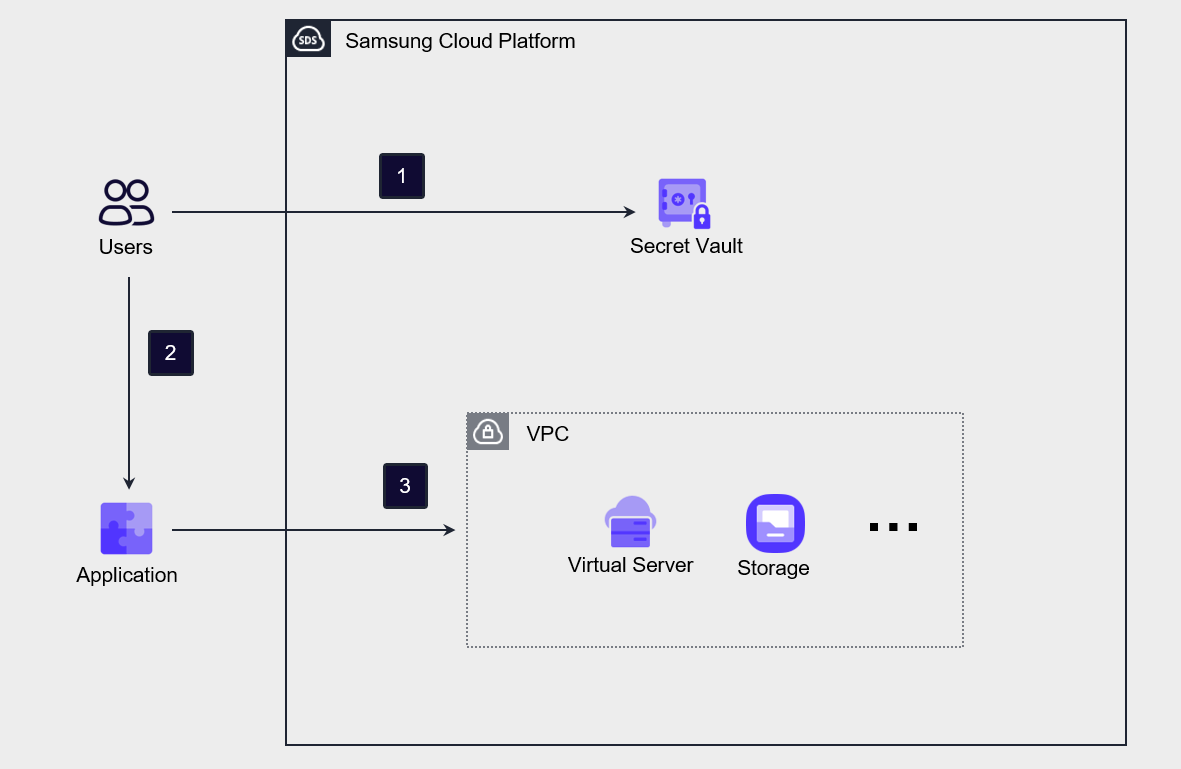
The user requests a token from the Secret Vault using the authentication key information previously obtained from the Console. The Secret Vault generates and issues a token in response to the request.
The user sets the issued Token in the Application.
Obtain an OpenAPI token by using the API with token information. Then, use this token to access or utilize services and resources of the Samsung Cloud Platform.
Credential integration via credential provider
By using Samsung Cloud Platform’s credential provider (Identity Provider, IdP), you can integrate third‑party IdPs with Samsung Cloud Platform’s IAM.
By using this method, users can access the Samsung Cloud Platform Console after authenticating through a third‑party credential provider.
If the organization already has an existing authentication service, using that service is efficient because it allows you to reflect user changes quickly without managing user information separately.
Through the authentication credentials (such as SAML, OIDC, etc.) of third‑party IdPs pre‑registered in Samsung Cloud Platform, the user’s authentication information is passed to the Console, and credential verification is performed.
At this point, if you use SSO (Single Sign-On), users can access multiple services with a single authentication.
When implementing this IdP-based authentication method, you can enhance security and improve management efficiency by centrally protecting user credentials and managing users.
Process for Allowing Emergency Access
In the Samsung Cloud Platform, the top-level resource management authority is the Account, and the highest authority within the Account is the AdministratorAccess policy.
If the only user linked to AdministratorAccess, or the sole user in a group linked to AdministratorAccess, becomes unable to authenticate for administrator access due to loss or damage of a Yugo or a mobile phone, such as breakage or loss, a situation may arise where administrator login is impossible.
To prepare for this, we need to establish a process that allows emergency access.
The most effective response is to request the account administrator within the organization to add a new user to the group to which AdministratorAccess is attached.
Another approach is to assign both a primary administrator and a secondary administrator to the user group linked with AdministratorAccess.
This allows the secondary administrator to assume the primary administrator’s role in the event of an incident.
Applying the principle of least privilege and continuous review
In Samsung Cloud Platform, permission policies can be linked to a user or a user group.
A user can perform actions within the attached permission policy, and if the user belongs to a user group, they may inherit permissions through the permission policy associated with that group.
Personnel within an organization can change due to reasons such as hiring, resignation, department transfers, or role changes, and situations requiring updates to user permissions occur frequently.
If user permission changes occur frequently, the administrative workload becomes excessive, and the likelihood of missing user account deletions or permission changes also increases.
Therefore, it is advisable to minimize directly attaching permission policies to users and instead manage by linking the required permissions to a permission group, then adding or removing users.
Doing so simplifies user and permission policy management tasks and minimizes errors such as missed user or permission changes.
Also, checking whether appropriate users are registered in the permission group is more efficient than reviewing the permission policy on a per-user basis.
This method helps ensure that only users who need to perform actual tasks can access the permissions.
You can predefine the IP addresses of devices that access the Console and API, preventing credential leaks or unauthorized actions from being performed outside the organization.
- Regularly review users to verify that the users required for the task are included.
- Regularly review the group’s users to ensure that the necessary users are included in the group.
- Specify the user access IP address to block unauthorized external access.
Access Permission Management
Role-based group management
In Samsung Cloud Platform, permissions can be granted to both users and groups.
Additionally, when you add a user to a group, you can add the permissions associated with the group to the user’s permissions.
Groups are typically formed at the department or project team level.
This is because departments and project teams generally have the same security requirements.
When a variety of personnel need to perform tasks in the cloud, you must create groups that meet security requirements according to the group management plan, assign users, and implement groups based on RBAC (Role-Based Access Control).
You must establish a mechanism to assign users with common security requirements to the intended groups and verify that the attributes used for access control are updated correctly.
Through this, when you want to change a user’s permissions, you need to review which approach is appropriate: adding the user to a group, moving them to another group, or modifying the group plan.
Managing permissions at the group level based on roles simplifies policies and makes user permission management easier.
In Samsung Cloud Platform, permissions are assigned to groups by default rather than to individual users.
You can manage permissions by creating groups based on the roles of departments or project teams and adding users to those groups.
You can create a group and, depending on the nature of the project or department, configure (minimal) permission policies and attach them to the group.
RBAC-based group management simplifies permission management, enabling enhanced security.
Applying the principle of least privilege and continuous review
To grant the necessary access permissions to the group, a review process based on the principle of least privilege must be established.
Additionally, you must remove unused credentials and permissions through continuous monitoring and regular review processes.
For the sake of administrative convenience, there are cases where administrator privileges are granted to all users during the information system implementation period.
In fact, at the start of a project, all users must manage and operate the entire system, but after the project is completed, the scope of work narrows and the required permissions decrease.
Nevertheless, if credentials and permissions are not reduced according to the scope of work, the impact of a security incident can increase.
Therefore, it is important to regularly review the user’s scope of work and adjust permissions accordingly, continuously practicing the principle of least privilege.