Availability Management
Availability Management
Availability Check and Test
Availability Scenario Test
In on-premises, a small-scale test environment is set up to perform testing, but in the cloud, a test environment of production scale that will actually be deployed can be set up for testing.
By conducting tests in a separate environment without affecting users, you can verify that the service operates normally without damage to the service or data.
- Compose test scenarios and perform unit functional tests and integration tests.
- Check measurement indicators according to documented service level objectives (Service Level Object, SLO), service level agreements (Service Level Agreeement, SLA), and measure whether the service is operating according to the goals.
- Verify that the required load is handled by adjusting resources when conducting a load test.
- Identify bottlenecks and implement improvements.
From now on, we will check the architecture design and testing according to the availability goals.
The following is the availability status of each major service of Samsung Cloud Platform.
| Service | Maximum Monthly Availability | Downtime |
|---|---|---|
| Virtual Server (single) | 99.9% | 43.8 minutes |
| Virtual Server(Redundancy) | 99.99% | 4.3 minutes |
| Database(HA) | 99.95% | 21.9 minutes |
| Load Balancer | 99.95% | 21.9 minutes |
If the availability target is a monthly availability rate of 99%, based on 730 hours per month, the mean time to repair (MTTR) is 43.8 minutes.
The three-tier architecture to achieve these availability goals is as follows.
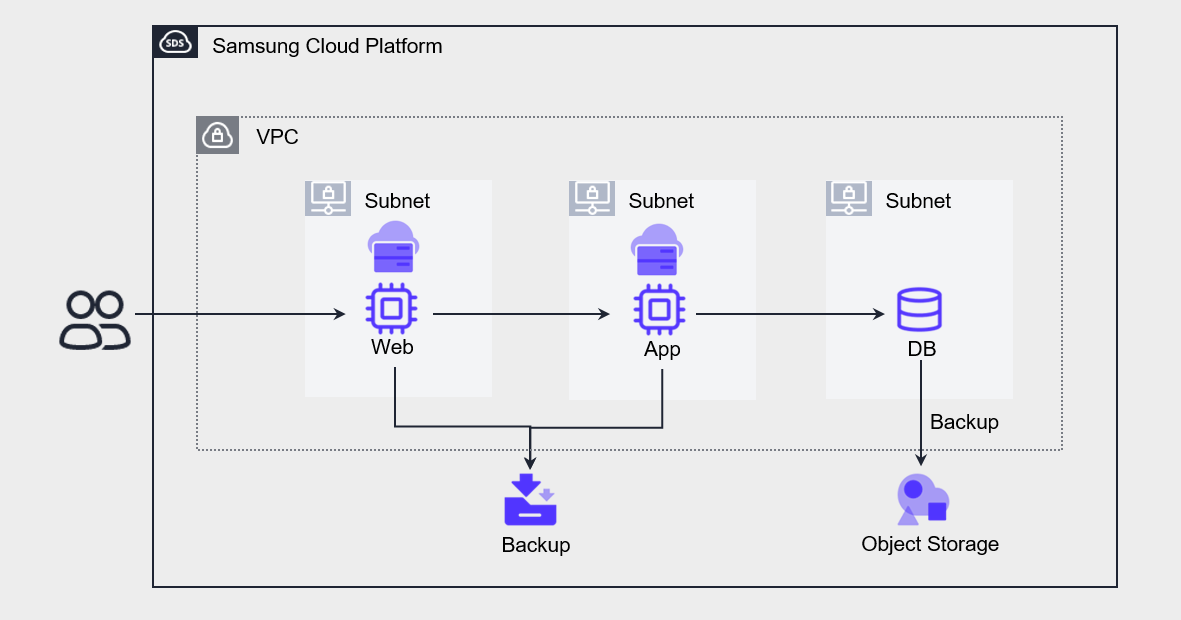
Web, App, DB are all single configurations, and the VM stores a copy as a backup, and the DB stores a copy using the backup function provided by the Database service.
The allowable service downtime when a failure occurs in each component is 44 minutes according to the SLA.
The steps for performing availability testing can be organized as follows.
| Item | Test Item | Estimated Time |
|---|---|---|
| Failure Detection Test | Cloud Monitoring Event Notification Settings | Administrator Analysis/Response Time |
| Disaster response test | Restore Virtual Server from Backup Public IP switch | Maximum 20 minutes |
| Resilience Test | Create new Database Recover Database from Backup Apply data changes up to the point of failure after backup | Up to 60 minutes |
| Load Test | Virtual Server Server type change Database server type change | Maximum 15 minutes per task |
When performing step-by-step recovery after a failure occurs, the expected recovery time is estimated to be up to 90 minutes.
If you prepare and perform the recovery work using a CLI script instead of the Console, and perform data work through a test environment, the work time can be further reduced.
However, the most uncertain interval in the overall recovery process is the time from the occurrence of a failure, its detection, and notification to the administrator, to the actual initiation of recovery work.
How much this time can be shortened is something that needs to be reviewed during the testing process.
The following is an architecture targeting a monthly availability of 99.9%, with an MTTR (Mean Time To Repair) of approximately 44 minutes based on a 730-hour month.
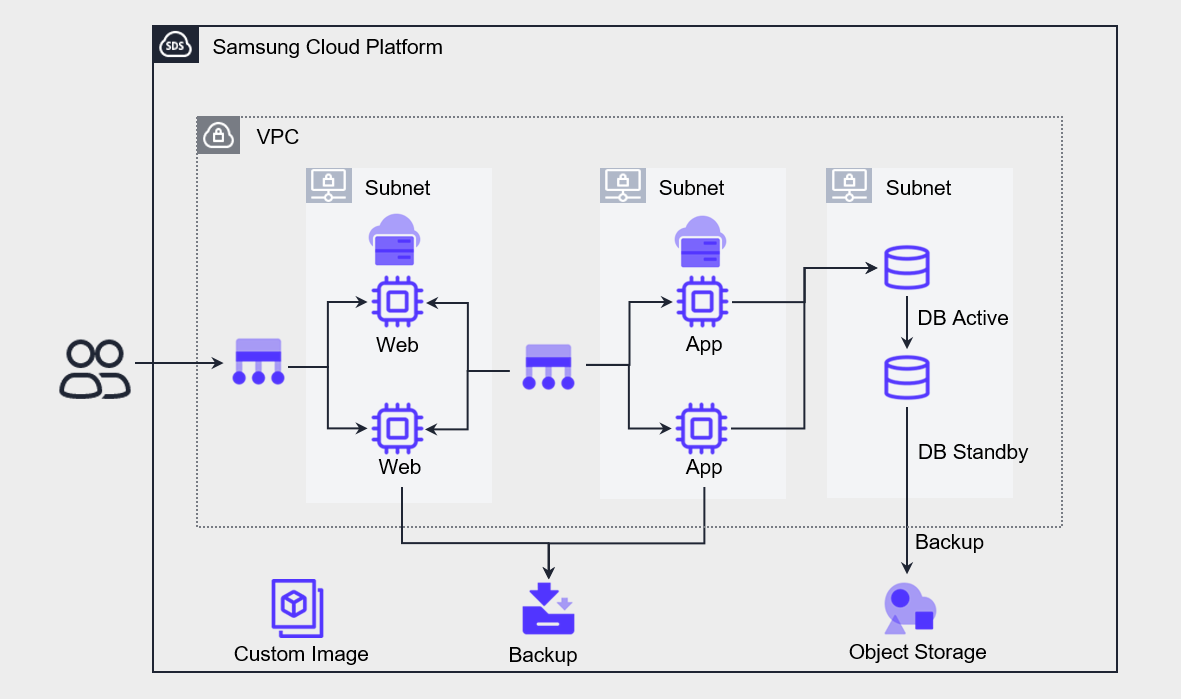
Web, App, DB are all configured redundantly for high availability.
Implement a Load Balancer in front of the Web and App to distribute requests to redundant servers.
The DB was deployed with high availability for the Database service and configured as Active-Standby.
The maximum availability of each redundant component is within the service availability of 99.9%.
The steps for performing availability testing can be organized as shown in the table below.
| Item | Test Item | Estimated Time |
|---|---|---|
| Virtual Server Failure detection and response test | Load Balancer Health Check Failure detection and switching | 30 seconds (default setting) |
| Database Failure detection and response test | Switch to Standby DB after stopping Active DB | Seconds to minutes |
| Recovery Test | Restore Virtual Server from Backup Create new Database Recover Database from Backup Reflect data changes up to the failure point after backup | Maximum 60 minutes |
| Load test | Create a new VM with Custom Image and register it to Load Balancer Change Database server type | Per task Maximum 15 minutes |
We perform a test that stops one of the redundant servers at each stage and checks whether fail‑over occurs.
The Load Balancers configured for Web and App each forward front-end requests to each VM while performing health checks.
When configuring a Health Check, you can specify the check interval, timeout, and number of attempts.
By default, it is set to a period of 5 seconds, a wait time of 5 seconds, and a detection count of 3 times, and it takes 30 seconds [(period 5 seconds + wait time 5 seconds) * detection count 3 times] to detect a failure and perform fail‑over.
The user can modify values per item, and can set values of 1~2, 147, 483, 647 seconds, and if set to the minimum value, the fault detection time can be reduced to as low as 6 seconds.
Unlike the previous scenario, because Fail-over is switched to an automated action, if a simple failure occurs, the service can be resumed within the availability range.
However, if a VM or database is lost, it still takes time to recover the data.
And when performing a load test, you need to create a new VM from the Image and directly register it to the Load Balancer’s server group.
In the case of the database, we respond to load by changing the server type.
The following is an architecture targeting a monthly availability of 99.99%, with an MTTR of about 4 minutes based on a 730-hour month.
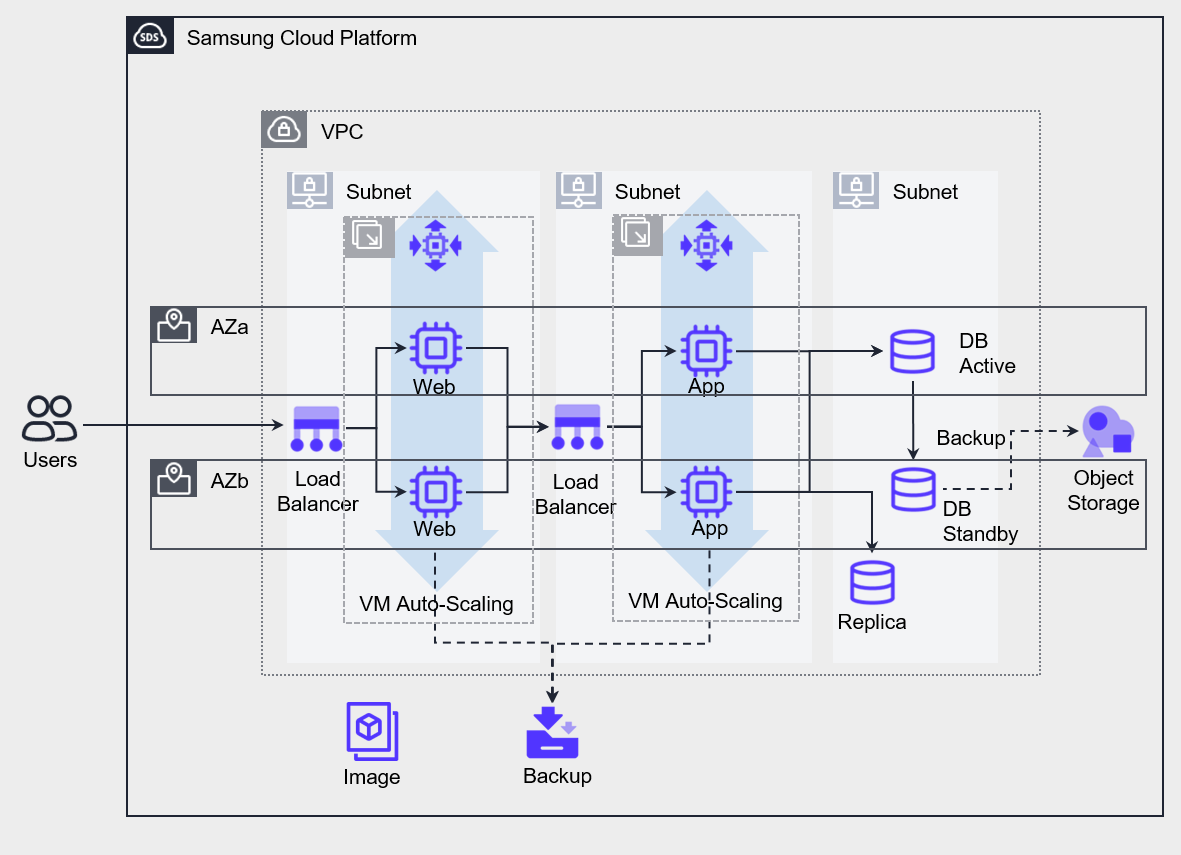
Implemented VPC and each service on a Multi-AZ basis.
Web and App’s VMs were deployed based on metric-based Auto-Scaling, and the server was configured by adding a replica to offload Database read workload.
The availability of each component deployed in Multi-AZ is designed to meet the monthly availability of 99.99% required by the service.
The steps for performing availability testing can be organized as shown in the table below.
| Item | Test Item | Estimated Time |
|---|---|---|
| Virtual Server Failure detection and response test | Load Balancer Health Check failure detection and failover | 30 seconds (default setting) |
| Database Failure detection and response test | Switch to Standby DB after stopping Active DB | seconds to minutes |
| Resilience Test | Restore Virtual Server from Backup Create new Database Recover Database from Backup Apply data changes up to the point of failure after backup | Maximum 60 minutes |
| Load Test | Auto-Scaling new server creation Database server type change Create additional Replica according to database read load | Maximum 5 minutes |
The difference from the previous scenario is that resources are deployed in Multi-AZ, and Auto-Scaling that can automatically scale out/in horizontally based on load changes has been implemented.
Stop one of the redundant components to perform a failover test, and incrementally increase the load while comparing the server creation speed and the load increase speed.
If the load increase rate is faster than the server creation rate, lower the threshold of the scale-out policy to expand earlier, and perform adjustment work to increase the number of created servers.
Configure the database read load to be performed on the Replica in advance.
During load testing, measure the database latency speed step by step, and after the test, adjust the server type to an appropriate capacity.
Regular review implementation
Planned Maintenance
Test the component and service flow during the regular maintenance (Maintenance) period when updating components or applying security patches. Perform tests on component changes and check whether new bottlenecks arise in the overall service flow.Unplanned Failure
If an unexpected service interruption occurs, after confirming the failure, you must determine the recoverable time and proceed with recovery according to the pre-established priority. Then identify the root cause of the service interruption and resolve it. When the cause analysis is completed, we document the root cause, the solution, and the preventive measures to avoid recurrence. If it is necessary to suspend the service for a long time to solve a problem, take action in accordance with the scheduled regular inspection period, and implement the pre-prepared emergency measures before the regular inspection. We also collect logs to perform remedial actions. After solving the problem, perform unit and integration testing to maintain overall availability.
Monitoring and Alerts
Monitoring and Log Collection
After selecting and collecting key metrics from all components, we ensure workload stability and optimal user experience by linking analysis results with notifications.
We perform real-time monitoring according to metrics that meet availability requirements, collect time-series logs, and by linking the analysis results with alerts, we detect failures in advance and prepare for them.
Monitor components of all layers, and when necessary define key metrics and extract those metrics based on log data.
- Set metrics and goals to maintain availability.
- Activate monitoring for all possible services and configure the dashboard.
- Enable logging for all possible services, and manage the collected logs in a central repository.
If an indicator that falls short of the availability target appears, take the necessary actions.
For example, if the average CPU usage of a specific Virtual Server exceeds 90%, the probability of a failure occurring on that server increases.
If it is a single server, replace it with a server with increased capacity, and if it is a server group configured with a Load Balancer, you need to add a new server to reduce the overall load.
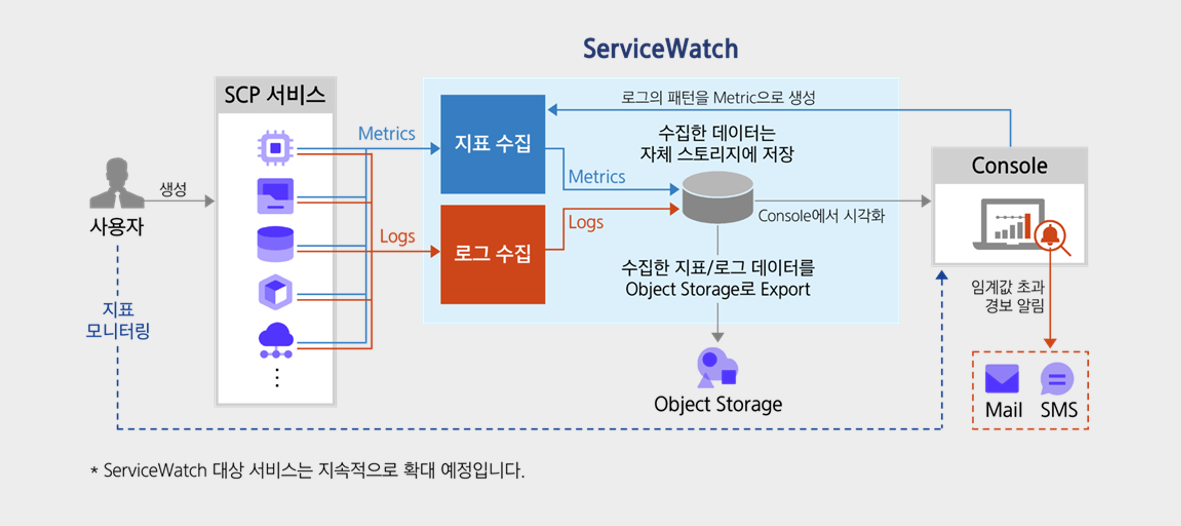
Notification and Response Automation
Disabilities can occur not only during working hours but also at any time.
If a metric is detected to not meet the availability target, it promptly notifies of a failure situation and enables recovery.
- If the indicator reaches the threshold, set an Event to automatically send a notification.
- Prepare the necessary actions for each Event in advance, and perform the actions immediately upon receiving the notification.
- Configure response measures that can be implemented automatically so that the necessary response is carried out.
The risk level of Event can be divided into three types.
| Risk level | Description |
|---|---|
| Fatal | It is the highest level of risk. Generally, this level is set for very dangerous situations. |
| Warning | It is a medium level of risk. Generally, if it causes a problem in the system and requires a solution, set it to this level. |
| Information | It is the lowest level of risk. It also includes simple notification-level information, and generally when a situation requires verification, it is set to this level. |