
Virtual Server/Bare Metal Serverof Synchronization configuration
Virtual Server/Bare Metal Serverof Synchronization configuration
Overview
This document covers how to configure time synchronization on Virtual Server or Bare Metal Server in Samsung Cloud Platform (hereafter SCP). Accurate time synchronization is essential for software running on the system to maintain stable and consistent system time information. In particular, in business systems composed of multiple servers, all servers must synchronize their time through the same Network Time Protocol (hereafter NTP) server. This ensures that system logs record accurate timestamps, allowing efficient analysis of time-based issues when events occur.
SCP provides an NTP-dedicated server that can be used across Multi-AZ or all regions. Additionally, SCP’s Virtual Server or Bare Metal Server comes with SCP’s time synchronization settings pre-configured in the OS image by default. Therefore, simply adding a Compute product and starting the OS automatically enables time synchronization.
※ SCP supports both Public IP and Private IP for time synchronization. NTP server information provided by SCP can be found in the user manual. To register NTP server information as a domain, SCP DNS configuration is required.
Linux server time synchronization configuration
Basic components for Linux time synchronization
NTP service programs – chrony, ntpd
To configure time synchronization on a Linux server, you need to install a program for the NTP service. Two NTP programs, ntpd and chrony, can be used, and Linux distributions available on SCP (Redhat, Ubuntu, CentOS) use chrony by default. In the latest versions of Linux OS, chrony is used instead of ntpd to take advantage of enhanced features, so this document provides guidance only for chrony.
Security settings for NTP communication
NTP communicates primarily over UDP port 123. When using SCP’s NTP server, there is no need to add separate security settings (Security Group). However, if you configure SCP’s NTP server with a public IP, you must add an Internet Gateway and configure firewall and Security Group policies.
Configure time synchronization using chrony
Before configuring time synchronization, connect to the server to check the synchronization status, and if the chrony package is not installed, install the chrony package and configure it.
Check chrony synchronization status
Users can refer to the SCP NTP IP information and configure NTP manually when necessary.
Check the synchronization status of Chrony with the following command.
chronyc sources -v
As shown in the figure below, if there is no SCP NTP server configuration information (the red box information), or when configuring synchronization with an external NTP server, proceed with the following steps.
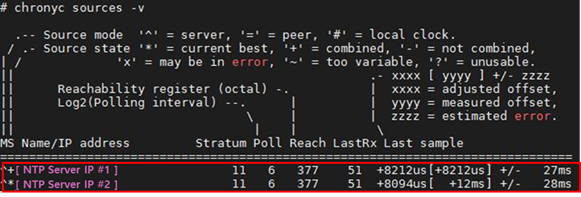
chrony configuration
Install and verify chrony
Check whether the chrony package is installed, and if it is not, install it using the following command. If ntp is installed, remove the ntp package or stop the ntpd daemon before installing chrony.
Redhat/CentOS
Check whether chrony is installed and install the chrony package with yum
rpm -qa | grep chrony
yum install chrony
Enable chronyd.service to start the daemon automatically at boot
systemctl enable chronyd
Ubuntu
Check whether chrony is installed and install the chrony package with apt
dpkg -l | grep chrony
apt-get install chrony
Enable chrony.service so that the daemon starts automatically at boot.
systemctl enable chrony
chrony configuration
Add SCP NTP server information and primary options to the chrony configuration file.
Redhat/CentOS
Edit the chrony configuration file with the vi editor
vi /etc/chrony.conf
Register NTP server and add options
server [NTP Server IP 1] iburst
server [NTP Server IP 2] iburst
#makestep 1.0 3                  <--------------- 주석처리
leapsecmode slew
Ubuntu
Edit the chrony configuration file with the vi editor
vi /etc/chrony/chrony.conf
Register NTP server and add options
server [NTP Server IP 1] iburst
server [NTP Server IP 2] iburst
#makestep 1.0 3                  <--------------- 주석처리
leapsecmode slew
| option | Explanation |
|---|---|
| server | NTP source server information |
| iburst | Used with the server directive, this option minimizes the time to synchronize with the initial NTP server by sending eight packets instead of the usual single packet when the NTP server cannot be reached. |
| minpoll maxpoll | The option to change the basic polling interval is set in log2 seconds, with the default minpoll value of 6 (2^6), which is 64 seconds, and the default maxpoll value of 10 (2^10), which is 1024 seconds. The polling value can be set to a value between 3 and 17, and by setting minpoll and maxpoll to shorter intervals, clock accuracy can be improved server [NTP Server IP #1] iburst minpoll 6 maxpoll 6server [NTP Server IP #2] iburst minpoll 6 maxpoll 6 |
| slew option (gradual synchronization) | If the time synchronization option is set to Step mode, any time offset will be corrected in a single step, which can cause the system clock to jump backward or forward abruptly, potentially affecting services. For critical servers such as DB services, comment out the makestep directive and add the leapsecmode slew option as follows # makestep 1.0 3leapsecmode slew |
Starting and verifying the chrony daemon
Redhat/CentOS
Restart chronyd service
systemctl restart chronyd
Check chronyd service status
systemctl status chronyd
Ubuntu
Restart chrony service
systemctl restart chrony
Check chrony service status
systemctl status chrony
Check time synchronization
You can check in detail whether chrony is synchronized by using the chronyc commands tracking, sources, and sourcestats.
chronyc sources
You can view detailed information about the current NTP servers accessed by chronyd and their synchronization status.
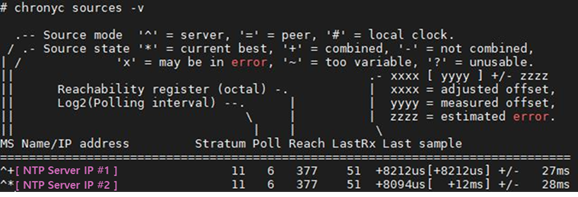
The description of each column in the source information above is as follows.
| Item | Explanation |
|---|---|
| M | Indicates the mode of the source ^ indicates a server, = indicates a peer, # indicates an NTP source connected locally |
| S | Source status information * : chronyd’s currently synchronized source + : acceptable source that is combined with the selected source - : acceptable source excluded by the combination algorithm ? : source whose connection failed or whose packets did not pass all tests ~ : time does not match other sources One of the registered NTP servers * indicator must appear for the system to be time‑synchronized. |
| Stratum | It is the stratum information of the registered NTP source, representing the NTP hierarchy. In the case of SCP NTP servers, the stratum appears as 5 and 11, but they are actually the same stratum. |
| Poll | Displays the polling rate of the NTP source in seconds, and a value of 6 indicates that polling occurs every 64 seconds. If minpoll and maxpoll values are not specified, the polling rate changes automatically according to the internal algorithm. |
| Reach | Shows the source’s response register value in octal, and the 8 bits contain either a normal or a failed packet value. If the value is 377, it means all eight transmissions are normal.When the “*” value in front of the source server and 377 are displayed, time synchronization is normal. Therefore, when checking synchronization status, both values must be verified. |
| LastRx | The recent sample’s received time from the source is usually in seconds, but when reception is slow, m, h, d, or y may be shown as minutes, hours, days, or years. |
| Last Sample | Display the offset between the local clock and the source in the last measurement The number in brackets shows the actual measured offset, and this suffix can be attached as ns (nanoseconds), us (microseconds), ms (milliseconds), or s (seconds). The number to the left of the brackets shows the original measurement adjusted to allow all slews that will be applied to the local clock thereafter, and the number after the +/- indicator shows the error margin in the measurement. A positive offset indicates that the local clock is ahead of the source. |
chronyc tracking
You can track the synchronization status with the NTP source to provide a more detailed view of the time synchronization status.
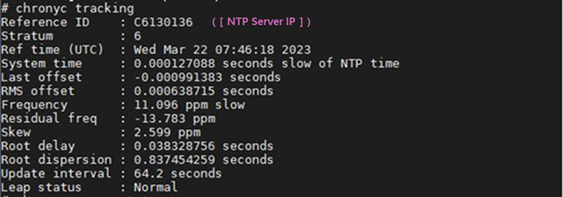
| Item | Explanation |
|---|---|
| Reference ID | Information about the currently synchronized NTP server among servers registered as NTP sources Reference ID is displayed in hexadecimal to avoid confusion with IPv4 addresses. |
| Stratum | It represents the hierarchical information of the system, and the NTP source’s stratum -1 value is displayed as this value. |
| Ref Time (UTC) | Reference source’s last measurement processing time (UTC) |
| System time | Time difference with NTP source |
| Last offset | Expected local offset at the last clock update |
| RMS offset | Long-term average of offset value |
| Frequency | If chronyd does not correct it, the value indicating the rate at which the system clock is off is expressed in ppm (parts per million). Example: A value of 1 ppm means that when the system clock is thought to be 1 second fast, it is actually 1.000001 seconds ahead of real time. |
| Residual freq | It displays the difference between the frequency indicated by the measurement of the currently selected reference source and the frequency currently in use as the ‘Residual frequency’. |
| Skew | Expected error range of Frequency value |
| Root delay | as the total network path delay from the NTP source to the Stratum-1 NTP, and the root delay is calculated in nanoseconds. |
| Root dispersion | It is calculated in nanoseconds as the total accumulated dispersion value across all computers in the Stratum-1 NTP where NTP ultimately synchronizes. |
| Update interval | Polling interval based on minpoll/maxpoll settings |
| Leap status | Display the current state as Normal, Insert second, Delete second, or Not synchronized. |
chrony operation management
It is necessary to monitor the synchronization status to ensure that time synchronization is operating properly under normal conditions. Additionally, for BM servers, if the system is down for an extended period due to hardware component replacement and then boots with a large time offset, chrony may fail to synchronize the time or the synchronization may be delayed because of the slew option. Therefore, configure the boot script as shown below so that a one‑time time synchronization occurs at system boot and the chrony daemon can start.
Create a time synchronization script for hardware boot using the vi editor
vi /etc/rc.d/rc.local
Time synchronization script during hardware boot
systemctl stop chronyd
chronyd -t 6 -q "server xx.xx.xx.xx iburst" (ntp 서버 설정함)
hwclock -w
systemctl start chronyd
Grant execution permission to the chrony boot script
chmod +x /etc/rc.d/rc.local
Windows time synchronization configuration
On Windows servers, time synchronization plays a crucial role in Kerberos authentication within Active Directory (hereafter AD)). The allowed time skew between the client and the Domain Controller (hereafter DC) is limited to 5 minutes by default, so if the skew exceeds 5 minutes, AD authentication errors may occur. Consequently, it can affect external services such as SQL or Failover Cluster, as well as internal OS operations. Therefore, when it is an AD member, it is configured to synchronize time based on the Primary Domain Controller (hereafter PDC), and the PDC server or a standalone server performs time synchronization by referencing an NTP server. This ensures correct time synchronization is maintained, allowing stable service delivery.
Components for Windows time synchronization
Windows Time Service (W32Time)
One way to configure time synchronization on a Windows server is to use the Windows Time Service (hereafter W32Time). This service is installed by default on the OS and is used as an NTP service. Additionally, starting with Windows Server 2016, a time synchronization feature using Precision Time Protocol (hereafter PTP) has been added to provide accurate time synchronization. SCP uses W32Time based on the NTP protocol to synchronize time.
Security settings for NTP communication
NTP communicates primarily over UDP port 123. When using SCP’s NTP server, there is no need to add separate security settings (Security Group). However, if you configure SCP’s NTP server with a public IP, you must add an Internet Gateway and configure firewall and Security Group policies.
Configure time synchronization using W32Time
Before configuring time synchronization, connect to the server, verify that the W32Time service is running and check the time synchronization status, and start the service if it is stopped.
Check W32Time configuration status
In an SCP environment, Windows servers do not have time synchronization configured by default. If the Leap Indicator value is 3 or the ReferenceId is displayed as 0x0000000, proceed to the next steps to configure W32Time.
Check current synchronization status of W32Time
PS C:\> w32tm /query /status
Leap Indicator: 3(not synchronized)
Stratum: 0 (unspecified)
Precision: -23 (119.209ns per tick)
Root Delay: 0.0000000s
Root Dispersion: 0.0000000s
ReferenceId: 0x00000000 (unspecified)
Last Successful Sync Time: unspecified
Source: Local CMOS Clock
Poll Interval: 6 (64s)
W32Time configuration
Verify W32Time service startup
Check whether the W32Time service is running, and start the service if it is not running.
Check whether the W32Time service is running
PS C:\> get-service w32time

Status   Name               DisplayName
------   ----               -----------
Running  w32time            Windows Time
When the W32Time service is not running, start the service and check its status
PS C:\> Start-Service W32Time
PS C:\> Get-Service W32Time

Status   Name               DisplayName
------   ----               -----------
Running  W32Time            Windows Time
W32Time configuration
W32Time can view and configure settings using the w32tm command.
Check W32Time service configuration information
PS C:\> w32tm /query /configuration
[구성]

EventLogFlags: 2 (로컬)
AnnounceFlags: 10 (로컬)
TimeJumpAuditOffset: 28800 (로컬)
MinPollInterval: 10 (로컬)
MaxPollInterval: 15 (로컬)
MaxNegPhaseCorrection: 4294967295 (로컬)
MaxPosPhaseCorrection: 4294967295 (로컬)
MaxAllowedPhaseOffset: 300 (로컬)

FrequencyCorrectRate: 4 (로컬)
PollAdjustFactor: 5 (로컬)
LargePhaseOffset: 50000000 (로컬)
SpikeWatchPeriod: 900 (로컬)
LocalClockDispersion: 10 (로컬)
HoldPeriod: 5 (로컬)
PhaseCorrectRate: 1 (로컬)
UpdateInterval: 30000 (로컬)


[시간 공급자]

NtpClient (로컬)
DllName: C:\WINDOWS\system32\w32time.dll (로컬)
Enabled: 1 (로컬)
InputProvider: 1 (로컬)
CrossSiteSyncFlags: 2 (로컬)
AllowNonstandardModeCombinations: 1 (로컬)
ResolvePeerBackoffMinutes: 15 (로컬)
ResolvePeerBackoffMaxTimes: 7 (로컬)
CompatibilityFlags: 2147483648 (로컬)
EventLogFlags: 1 (로컬)
LargeSampleSkew: 3 (로컬)
SpecialPollInterval: 3600 (로컬)
Type: NT5DS (로컬)

VMICTimeProvider (로컬)
DllName: C:\WINDOWS\System32\vmictimeprovider.dll (로컬)
Enabled: 1 (로컬)
InputProvider: 1 (로컬)

NtpServer (로컬)
DllName: C:\WINDOWS\system32\w32time.dll (로컬)
Enabled: 0 (로컬)
InputProvider: 0 (로컬)
Key item description
| Item | description |
|---|---|
| MinPollInterval MaxPollInterval | It is an option to change the default polling interval, set in log2 seconds, with a default minpoll value of 6 (2 ^ 6), which is 64 seconds, and a default maxpoll value of 10 (2 ^ 10), which is 1024 seconds. The polling value can be set to a value between 6 and 15, and by setting MinPollInterval and MaxPollInterval to shorter values, you can improve clock accuracy. |
| MaxNegPhaseCorrection | The maximum negative time (seconds) that can be used to change the time. If this value is exceeded, the event is recorded without changing the time. |
| MaxPosPhaseCorrection | The maximum positive time (seconds) that can be used to adjust the time. If this value is exceeded, the event is recorded without changing the time. |
| MaxAllowedPhaseOffset | A value that determines whether to change the time immediately in Step mode or to change it in Slew mode. The domain member defaults to 300 seconds, and the server defaults to 1 second. |
| SpecialPollInterval | Set the polling interval to the SpecialPollInterval value between MinPollInterval and MaxPollInterval. |
| Type | NTP source connection method Set the Workgroup and the AD PDC to NTP, specifying an NTP server, and set the other AD DCs and members to NT5DS to synchronize with the PDC. |
W32Time property change
To change the properties of the W32Time service, you must modify the registry key and restart the service. The attribute is stored in the following subkey of the registry HKLM\SYSTEM\CurrentControlSet\Services\W32Time path.
- \Config
- \Parameters
- \TimeProviders\NtpClient
- \TimeProviders\NtpServer
Config item
The subkey items under Config are located at HKLM\SYSTEM\CurrentControlSet\Services\W32Time\Config.
| Item | Explanation |
|---|---|
| MinPollInterval MaxPollInterval | It is an option to change the default polling interval, set in log2 seconds, with the default minpoll value of 6 (2 ^ 6), which is 64 seconds, and the default maxpoll value of 10 (2 ^ 10), which is 1024 seconds. The polling value can be set to a value between 6 and 15, and by setting MinPollInterval and MaxPollInterval shorter, you can improve clock accuracy. |
| MaxNegPhaseCorrection | The maximum negative time (seconds) that can be changed. If this value is exceeded, the event is recorded without changing the time. |
| MaxPosPhaseCorrection | The maximum positive time (seconds) that can be changed. If this value is exceeded, the event is recorded without changing the time. |
| MaxAllowedPhaseOffset | Determines whether to change the time immediately in Step mode or gradually in Slew mode. The domain member defaults to 300 seconds, and the server defaults to 1 second. |
configuration command
Set MInPollInterval to 6
PS C:\> Set-ItemProperty -Path "HKLM:SYSTEM\CurrentControlSet\Services\W32Time\Config" -Name "MinPollInterval" -value 6
Set MaxPollInterval to 6
PS C:\> Set-ItemProperty -Path "HKLM:SYSTEM\CurrentControlSet\Services\W32Time\Config" -Name "MaxPollInterval" -value 6
Set MaxNegPhaseCorrection to 900
PS C:\> Set-ItemProperty -Path "HKLM:SYSTEM\CurrentControlSet\Services\W32Time\Config" -Name "MaxPosPhaseCorrection" -value 900
Set MaxAllowedPhaseOffset to 1
PS C:\> Set-ItemProperty -Path "HKLM:SYSTEM\CurrentControlSet\Services\W32Time\Config" -Name "MaxAllowedPhaseOffset" -value 1
Check configuration values
PS C:\>  Get-ItemProperty -Path "HKLM:SYSTEM\CurrentControlSet\Services\W32Time\Config" |select MinPollInterval,MaxPollInterval,MaxNegPhaseCorrection,MaxPosPhaseCorrection,MaxAllowedPhaseOffset |fl


MinPollInterval       : 6
MaxPollInterval       : 10
MaxNegPhaseCorrection : 900
MaxPosPhaseCorrection : 900
MaxAllowedPhaseOffset : 1
Parameters item
The subkey items under Parameters are located at HKLM\SYSTEM\CurrentControlSet\Services\W32Time\Parameters. Item Description Type NTP source connection method Set the Workgroup and the AD PDC to NTP, specifying an NTP server, and configure the other AD DCs and members to NT5DS to synchronize with the PDC.
configuration command
If AD PDC or a standalone server, set Type to NTP
PS C:\> Set-ItemProperty -Path "HKLM:\SYSTEM\CurrentControlSet\Services\W32Time\Parameters" -Name "Type" -value "NTP"
Check configuration values
PS C:\>  Get-ItemProperty -Path "HKLM:\SYSTEM\CurrentControlSet\Services\W32Time\Parameters" -Name "Type"

Type         : NTP
If the AD member, set Type to NT5DS
PS C:\> Set-ItemProperty -Path "HKLM:\SYSTEM\CurrentControlSet\Services\W32Time\Parameters" -Name "Type" -value "NT5DS"
Check configuration values
PS C:\>  Get-ItemProperty -Path "HKLM:\SYSTEM\CurrentControlSet\Services\W32Time\Parameters" -Name "Type"

Type         : NT5DS
NtpClient item
The NtpClient subkey is located at HKLM\SYSTEM\CurrentControlSet\Services\W32Time\TimeProviders\NtpClient.
| Item | Explanation |
|---|---|
| SpecialPollInterval | Polling interval is set to the SpecialPollInterval value between MinPollInterval and MaxPollInterval The setting value is in seconds |
configuration command
Set the SpecicalPollInterval value to 600 seconds (10 minutes)
PS C:\> Set-ItemProperty -Path "HKLM:\SYSTEM\CurrentControlSet\Services\W32Time\TimeProviders\NtpClient" -Name "SpecialPollInterval" -value 600
Check configuration values
PS C:\>  Get-ItemProperty -Path "HKLM:\SYSTEM\CurrentControlSet\Services\W32Time\TimeProviders\NtpClient" -Name "SpecialPollInterval"

SpecialPollInterval : 600
Restart W32Time service
Changing the NTP properties requires stopping and starting the service for the changes to take effect.
Restart the service after modifying the W32Time service properties
PS C:\> Stop-Service W32Time
PS C:\> Start-Service W32Time
PS C:\> Get-Service W32Time

Status   Name               DisplayName
------   ----               -----------
Running  W32Time            Windows Time
Change NTP server
Change NTP server
PS C:\> w32tm /config /manualpeerlist:"[NTP Server IP #1],0x09 [NTP Server IP #1],0x02" /syncfromflags:manual /update

The command completed successfully.
NTP synchronization command
PS C:\> w32tm /resync

Sending resync command to local computer
The command completed successfully.
Main item description
| option | Explanation |
|---|---|
| /manualpeerlist | When setting NTP sources, if there are two or more, they must be enclosed in quotation marks. Specify the options to apply to each NTP source, and the options can be combined using bitwise operations. Example) 0x09 - 0x01 SpecialInterval - 0x02 UseAsFallbackOnly - 0x04 SymmetricActive - 0x08 client |
| /syncfromflags | Set the type of NTP source - MANUAL: include peers from a manual peer list - DOMAIN: synchronize from the DC (domain controller) in the domain hierarchy |
| /update | Reflect the changed configuration in the W32Time service |
Time Synchronization Operations Management
The synchronization between the NTP server and the system time must be monitored. Additionally, during a restart, the BM server boots the OS using the hardware clock. If the hardware clock accumulates drift or component replacement results in an incorrect time, and the OS time differs by more than 900 seconds, W32TM will not perform time synchronization. Therefore, upon system boot, it is necessary to verify that time synchronization is functioning correctly and to determine the time offset with the NTP server.
Check time synchronization status
Check time synchronization status
PS C:\>  w32tm /query /status
Leap Indicator: 0(no warning)
Stratum: 6 (secondary reference - syncd by (S)NTP)
Precision: -23 (119.209ns per tick)
Root Delay: 0.0384860s
Root Dispersion: 7.8452150s
ReferenceId: 0xC6130135 (source IP:  [NTP Server IP #1] )
Last Successful Sync Time: 4/5/2023 6:46:59 PM
Source: [NTP Server IP #1] ,0x09
Poll Interval: 6 (64s)
You can check whether synchronization is occurring using the Leap Indicator value. If the value is shown as 3, it is not synchronized with the NTP server.
Key item description
| Item | Explanation |
|---|---|
| Leap Indicator (Leap Indicator) | Variable indicating the presence of a leap second. Uses a range value of 0 to 3. - 0 (00) : No leap second warning - 1 (01) : The last minute has 61 seconds - 2 (10) : The last minute has 59 seconds - 3 (11) : Alarm condition. Time is not synchronized. |
| Stratum (Stratum) | Shows the system’s stratum information, and the NTP source’s stratum -1 value is displayed as this value. |
| Root Delay (Root Delay ) | The total network path delay from the NTP source to the Stratum-1 NTP, i.e., the root delay value |
| Root Dispersion (Root Dispersion) | The total dispersion accumulated across all computers in the Stratum-1 NTP to which NTP ultimately synchronizes |
| Reference ID (Reference ID) | Information on the currently synchronized NTP server among the servers registered as NTP sources Reference ID is displayed in hexadecimal to avoid confusion with IPv4 addresses |
| Last Successful Sync Time (Last Successful Sync Time) | Last time synchronized using the NTP source |
| Original (Source) | NTP source |
| Polling Interval (Poll Interval) | The interval for polling the NTP source, expressed in log2 seconds. For example, 10 (1024s) polls every 2 ^ 10 (1024 seconds). |
Check time offset
PS C:\>  w32tm /stripchart /computer:NTP_ Server /dataonly /samples:1
Tracking NTP_server [111.222.333.444:123].
Collecting 1 samples.
The current time is 12/13/2023 7:27:32 PM.
19:27:32, -00.0000631s
You can check the time offset with the NTP server using the W32tm command. If the time difference exceeds 900 seconds, synchronization will not occur.
Manual time adjustment and synchronization with NTP server
Manual time adjustment
PS C:\>  Set-Date -Date "2023-12-12 07:40"

Tuesday, December 12, 2023 7:40:00 AM
NTP synchronization command
PS C:\> w32tm /resync

Sending resync command to local computer
The command completed successfully.
When the time differs from the NTP server by 900 or more and fails to synchronize, you need to set the time manually and then synchronize again.
You can manually adjust the time using the Set-Date command.
Manually adjust the time to the current time, then re-execute NTP synchronization.