Configuring Time Synchronization for Virtual Server/Bare Metal Server
Configuring Time Synchronization for Virtual Server/Bare Metal Server
Overview
This document describes how to configure time synchronization settings for Virtual Server or Bare Metal Server on Samsung Cloud Platform (hereinafter referred to as SCP). Accurate time synchronization is essential for software operating on the system to maintain stable and consistent system time information. In particular, in a task system consisting of multiple servers, all servers must be synchronized with the same Network Time Protocol (hereinafter referred to as NTP) server. This allows for accurate timestamps to be recorded in system logs and enables efficient analysis of time zone-based issues when events occur.
SCP provides a dedicated NTP server that can be commonly used in Multi-AZ or all regions. Additionally, SCP’s Virtual Server or Bare Metal Server has the time synchronization setting pre-configured in the OS image by default. Therefore, you can activate time synchronization automatically by adding a compute product and starting the OS.
※ SCP supports both Public IP and Private IP for time synchronization. You can find the NTP server information provided by SCP in the user manual. To register the NTP server information in domain format, you need to set up SCP DNS.
Configuring Time Synchronization for Linux Server
Basic Elements for Linux Time Synchronization
NTP Service Program – chrony, ntpd
To configure time synchronization on a Linux server, you need to install a program for NTP services. There are two NTP programs available: ntpd and chrony. SCP’s supported Linux distributions (Redhat, Ubuntu, CentOS) use chrony by default.
The latest versions of Linux OS use chrony instead of ntpd for improved functionality, so this document only provides guidance on chrony.
Security Settings for NTP Communication
NTP communicates through UDP port 123 by default. If you use SCP’s NTP server, you do not need to add separate security settings (Security Group). However, if you set SCP’s NTP server to Public IP, you need to add an Internet Gateway and set Firewall and Security Group policies.
Configuring Time Synchronization using chrony
Before configuring time synchronization, access the server and check the synchronization status. If the chrony package is not installed, install it and configure it.
Checking chrony Synchronization Status
You can directly check the NTP setting using the SCP NTP IP information if needed.
Use the following command to check the synchronization status of Chrony:
chronyc sources -v
If the SCP NTP server setting information is not available (red box information) or if you want to set up an external NTP server, proceed to the next step.
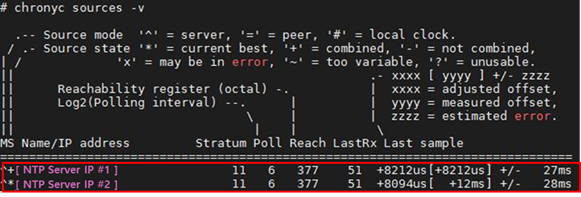
chrony Settings
Installing and Checking chrony
Check if the chrony package is installed, and if not, install it using the following command. If ntp is installed, delete the ntp package or stop the ntpd daemon and install chrony.
Redhat/CentOS
Check if chrony is installed and install the chrony package using yum:
rpm -qa | grep chrony
yum install chrony
Enable the chronyd service to start automatically on boot:
systemctl enable chronyd
Ubuntu
Check if chrony is installed and install the chrony package using apt:
dpkg -l | grep chrony
apt-get install chrony
Enable the chrony service to start automatically on boot:
systemctl enable chrony
chrony Configuration
Add the SCP NTP server information and main options to the chrony configuration file.
Redhat/CentOS
Modify the chrony configuration file using vi:
vi /etc/chrony.conf
Register the NTP server and add options:
server [NTP Server IP 1] iburst
server [NTP Server IP 2] iburst
#makestep 1.0 3                  <--------------- comment out
leapsecmode slew
Ubuntu
Modify the chrony configuration file using vi:
vi /etc/chrony/chrony.conf
Register the NTP server and add options:
server [NTP Server IP 1] iburst
server [NTP Server IP 2] iburst
#makestep 1.0 3                  <--------------- comment out
leapsecmode slew
| Option | Description |
|---|---|
| server | NTP source server information |
| iburst | Used with the server directive, this option sends 8 packets instead of one to minimize the time required to synchronize with the NTP server when it cannot connect |
| minpoll maxpoll | Options to change the default polling interval, set in log2 seconds, with default minpoll value of 6 (2^6) or 64 seconds, and default maxpoll value of 10 (2^10) or 1024 seconds. The polling value can be set to any value between 3 and 17, and setting minpoll and maxpoll to shorter values can increase clock accuracy server [NTP Server IP #1] iburst minpoll 6 maxpoll 6server [NTP Server IP #2] iburst minpoll 6 maxpoll 6 |
| slew option (gradual synchronization) | If the time synchronization option is set to Step mode and a time difference occurs, the time is adjusted at once, which can cause the system time to go backward or increase rapidly, affecting services. For important servers such as DB services, comment out the makestep directive and add the leapsecmode slew option # makestep 1.0 3leapsecmode slew |
Running and Checking the Chrony Daemon
Redhat/CentOS
Restart the chronyd service
systemctl restart chronyd
Check the status of the chronyd service
systemctl status chronyd
Ubuntu
Restart the chrony service
systemctl restart chrony
Check the status of the chrony service
systemctl status chrony
Checking Time Synchronization
You can check if chrony is synchronized using the tracking, sources, and sourcestats commands.
chronyc sources
This command provides detailed information about the current NTP servers being accessed by chronyd and their synchronization status.
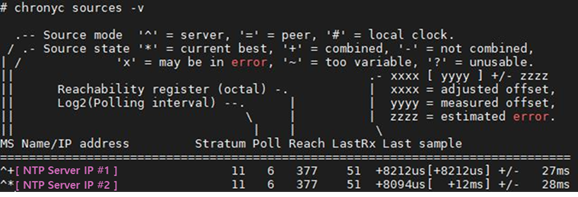
The columns in the source information are described as follows:
| Item | Description |
|---|---|
| M | Mode of the source, where ^ indicates a server, = indicates a peer, and # indicates a local NTP source |
| S | Status information of the source : currently synchronized source + : selected source that can be combined - : allowed source excluded by the combination algorithm ? : source with failed connection or packet that did not pass all tests ~ : source with inconsistent time One of the registered NTP servers should have an mark to indicate that time synchronization is complete. |
| Stratum | Information about the NTP hierarchy, indicating the stratum of the registered NTP source. The SCP NTP server has a stratum of 5 or 11, but it is actually the same stratum. |
| Poll | Polling speed of the NTP source in seconds, where a value of 6 indicates polling every 64 seconds.. If minpoll and maxpoll values are not specified, the polling speed changes automatically based on internal algorithms. |
| Reach | Response register value of the source in octal, containing normal or failed packet values. A value of 377 indicates that all 8 transmissions were successful, meaning the source server is marked with an * value and the output is 377, indicating normal time synchronization. Therefore, both values must be checked when verifying the synchronization status. |
| LastRx | Time when the last sample was received from the source, usually in seconds, but may be displayed in minutes, hours, days, or years if reception is slow. |
| Last Sample | Offset between the local clock and the source at the last measurement The number in brackets shows the actual measurement offset, and the suffix can be ns (nanoseconds), us (microseconds), ms (milliseconds), or s (seconds). The number to the left of the brackets shows the original measurement adjusted to allow all slews to be applied to the local clock, and the +/- indicator and subsequent number show the error margin of the measurement. A positive offset indicates that the local clock is ahead of the source. |
chronyc tracking
This command provides more detailed information about the time synchronization status, allowing you to track the NTP source and synchronization status.
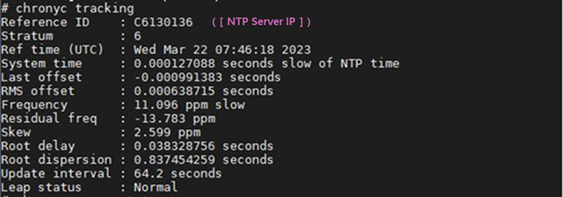
| Item | Description |
|---|---|
| Reference ID | Currently synchronized NTP server information among the registered servers Reference ID is displayed in hexadecimal to avoid confusion with IPv4 addresses. |
| Stratum | Hierarchy information of the system, indicating the stratum of the NTP source - 1. |
| Ref Time (UTC) | Time when the last measurement from the reference source was processed (UTC) |
| System time | Time difference between the system and the NTP source |
| Last offset | Expected local offset at the last clock update |
| RMS offset | Long-term average of the offset values |
| Frequency | Rate at which the system clock would be incorrect if chronyd did not correct it, displayed in ppm (parts per million). Example: A value of 1 ppm means that if the system clock thinks it has advanced by 1 second, it has actually advanced by 1.000001 seconds. |
| Residual freq | Difference between the frequency indicated by the measurements of the currently selected reference source and the frequency currently in use. |
| Skew | Expected error range of the frequency value |
| Root delay | Total network path delay to the Stratum-1 NTP, calculated in nanoseconds. |
| Root dispersion | Total dispersion accumulated from all computers to the Stratum-1 NTP that NTP ultimately synchronizes with, calculated in nanoseconds. |
| Update interval | Polling interval based on minpoll/maxpoll settings |
| Leap status | Current status, displayed as Normal, Insert second, Delete second, or Not synchronized |
Chrony Operation Management
Monitoring the time synchronization status is necessary to ensure that it is operating normally. In the case of BM servers, after a long system downtime due to hardware replacement, the time difference may be significant, and chrony may not synchronize or may be delayed due to the slew option. Therefore, it is recommended to set up a boot script to synchronize the time once at system boot and then start the chrony daemon.
Create a boot script using the vi editor to synchronize the time at hardware boot
vi /etc/rc.d/rc.local
Boot script to synchronize the time at hardware boot
systemctl stop chronyd
chronyd -t 6 -q "server xx.xx.xx.xx iburst" (ntp server setting)
hwclock -w
systemctl start chronyd
Grant execution permission to the chrony boot script
chmod +x /etc/rc.d/rc.local
Windows Time Synchronization Configuration
In Windows servers, time synchronization plays a crucial role in Active Directory (AD) Kerberos authentication. The allowed time difference between the client and Domain Controller (DC) is limited to 5 minutes by default, and if the difference exceeds 5 minutes, AD authentication errors may occur, affecting external services like SQL or Failover Cluster and internal OS operations.
Therefore, AD members are set to synchronize time based on the Primary Domain Controller (PDC), and PDC servers or independent servers synchronize time by referencing an NTP server, ensuring accurate time synchronization and stable services.
Windows Time Synchronization Components
Windows Time Service (W32Time)
One way to configure time synchronization in Windows servers is to use the Windows Time Service (W32Time). This service is installed by default in the OS and is used for NTP.
From Windows Server 2016 onwards, the Precision Time Protocol (PTP) is also available for time synchronization, providing more accurate time synchronization.
SCP uses W32Time based on the NTP protocol for time synchronization.
Security Settings for NTP Communication
NTP communicates using UDP port 123 by default. When using SCP’s NTP server, no additional security settings (Security Group) are required. However, if SCP’s NTP server is set to a public IP, an Internet Gateway must be added, and Firewall and Security Group policies must be configured.
Configuring Time Synchronization using W32Time
Before setting up time synchronization, log in to the server to check the status of the W32Time service and time synchronization. If the service is stopped, start it.
Checking W32Time Settings
In the SCP environment, Windows servers do not have time synchronization set up by default. If the Leap Indicator value is 3 or the ReferenceId is 0x0000000, follow the next steps to set up W32Time.
Checking the Current Synchronization Status of W32Time
PS C:\> w32tm /query /status
Leap Indicator: 3(not synchronized)
Stratum: 0 (unspecified)
Precision: -23 (119.209ns per tick)
Root Delay: 0.0000000s
Root Dispersion: 0.0000000s
ReferenceId: 0x00000000 (unspecified)
Last Successful Sync Time: unspecified
Source: Local CMOS Clock
Poll Interval: 6 (64s)
Configuring W32Time
Checking if the W32Time Service is Running
Check if the W32Time service is running and start it if it’s not.
Checking if the W32Time Service is Running
PS C:\> get-service w32time

Status   Name               DisplayName
------   ----               -----------
Running  w32time            Windows Time
Starting the W32Time Service and Checking its Status
PS C:\> Start-Service W32Time
PS C:\> Get-Service W32Time

Status   Name               DisplayName
------   ----               -----------
Running  W32Time            Windows Time
Configuring W32Time
W32Time can be configured using the w32tm command to check and set configuration information.
Checking W32Time Service Configuration Information
PS C:\> w32tm /query /configuration
[Configuration]

EventLogFlags: 2 (local)
AnnounceFlags: 10 (local)
TimeJumpAuditOffset: 28800 (local)
MinPollInterval: 10 (local)
MaxPollInterval: 15 (local)
MaxNegPhaseCorrection: 4294967295 (local)
MaxPosPhaseCorrection: 4294967295 (local)
MaxAllowedPhaseOffset: 300 (local)

FrequencyCorrectRate: 4 (local)
PollAdjustFactor: 5 (local)
LargePhaseOffset: 50000000 (local)
SpikeWatchPeriod: 900 (local)
LocalClockDispersion: 10 (local)
HoldPeriod: 5 (local)
PhaseCorrectRate: 1 (local)
UpdateInterval: 30000 (local)


[Time Provider]

NtpClient (local)
DllName: C:\WINDOWS\system32\w32time.dll (local)
Enabled: 1 (local)
InputProvider: 1 (local)
CrossSiteSyncFlags: 2 (local)
AllowNonstandardModeCombinations: 1 (local)
ResolvePeerBackoffMinutes: 15 (local)
ResolvePeerBackoffMaxTimes: 7 (local)
CompatibilityFlags: 2147483648 (local)
EventLogFlags: 1 (local)
LargeSampleSkew: 3 (local)
SpecialPollInterval: 3600 (local)
Type: NT5DS (local)

VMICTimeProvider (local)
DllName: C:\WINDOWS\System32\vmictimeprovider.dll (local)
Enabled: 1 (local)
InputProvider: 1 (local)

NtpServer (local)
DllName: C:\WINDOWS\system32\w32time.dll (local)
Enabled: 0 (local)
InputProvider: 0 (local)
Description of Key Items
| Item | Description |
|---|---|
| MinPollInterval MaxPollInterval | The option to change the default polling interval, set in log2 seconds, with the default minpoll value being 6 (2 ^ 6), which is 64 seconds, and the default maxpoll value being 10 (2 ^ 10), which is 1024 seconds. The polling value can be set to a value between 6 and 15, and MinPollInterval and MaxPollInterval can be set shorter to increase clock accuracy. |
| MaxNegPhaseCorrection | The maximum negative time (in seconds) that can be changed. If this value is exceeded, events are recorded without changing the time. |
| MaxPosPhaseCorrection | The maximum positive time (in seconds) that can be changed. If this value is exceeded, events are recorded without changing the time. |
| MaxAllowedPhaseOffset | A value that determines whether to change the time in Step mode or Slew mode The default value for domain members is 300 seconds, and the default value for servers is 1 second. |
| SpecialPollInterval | Specifies the polling interval to a value between MinPollInterval and MaxPollInterval. |
| Type | NTP source connection method Workgroup and AD PDC are set to NTP to specify the NTP server, and AD’s other DCs and members are set to NT5DS to synchronize with PDC. |
W32Time Property Changes
To change the properties of the W32Time service, you must change the registry key and restart the service. The properties are stored in the following subkeys under the registry key HKLM\SYSTEM\CurrentControlSet\Services\W32Time.
- \Config
- \Parameters
- \TimeProviders\NtpClient
- \TimeProviders\NtpServer
Config Items
The Config subkey items are located in HKLM\SYSTEM\CurrentControlSet\Services\W32Time\Config.
| Item | Description |
|---|---|
| MinPollInterval MaxPollInterval | The option to change the default polling interval, set in log2 seconds, with the default minpoll value being 6 (2 ^ 6), which is 64 seconds, and the default maxpoll value being 10 (2 ^ 10), which is 1024 seconds. The polling value can be set to a value between 6 and 15, and MinPollInterval and MaxPollInterval can be set shorter to increase clock accuracy. |
| MaxNegPhaseCorrection | The maximum negative time (in seconds) that can be changed. If this value is exceeded, events are recorded without changing the time. |
| MaxPosPhaseCorrection | The maximum positive time (in seconds) that can be changed. If this value is exceeded, events are recorded without changing the time. |
| MaxAllowedPhaseOffset | A value that determines whether to change the time in Step mode or Slew mode The default value for domain members is 300 seconds, and the default value for servers is 1 second. |
Setting Commands
Set MinPollInterval to 6
PS C:\> Set-ItemProperty -Path "HKLM:SYSTEM\CurrentControlSet\Services\W32Time\Config" -Name "MinPollInterval" -value 6
Set MaxPollInterval to 6
PS C:\> Set-ItemProperty -Path "HKLM:SYSTEM\CurrentControlSet\Services\W32Time\Config" -Name "MaxPollInterval" -value 6
Set MaxNegPhaseCorrection to 900
PS C:\> Set-ItemProperty -Path "HKLM:SYSTEM\CurrentControlSet\Services\W32Time\Config" -Name "MaxPosPhaseCorrection" -value 900
Set MaxAllowedPhaseOffset to 1
PS C:\> Set-ItemProperty -Path "HKLM:SYSTEM\CurrentControlSet\Services\W32Time\Config" -Name "MaxAllowedPhaseOffset" -value 1
Check setting values
PS C:\>  Get-ItemProperty -Path "HKLM:SYSTEM\CurrentControlSet\Services\W32Time\Config" |select MinPollInterval,MaxPollInterval,MaxNegPhaseCorrection,MaxPosPhaseCorrection,MaxAllowedPhaseOffset |fl


MinPollInterval       : 6
MaxPollInterval       : 10
MaxNegPhaseCorrection : 900
MaxPosPhaseCorrection : 900
MaxAllowedPhaseOffset : 1
Parameters Items
The Parameters subkey items are located in HKLM\SYSTEM\CurrentControlSet\Services\W32Time\Parameters. Item Description Type NTP source connection method Workgroup and AD PDC are set to NTP to specify the NTP server, and AD’s other DCs and members are set to NT5DS to synchronize with PDC.
Setting Commands
Set Type to NTP for AD PDC or standalone server
PS C:\> Set-ItemProperty -Path "HKLM:\SYSTEM\CurrentControlSet\Services\W32Time\Parameters" -Name "Type" -value "NTP"
Check setting value
PS C:\>  Get-ItemProperty -Path "HKLM:\SYSTEM\CurrentControlSet\Services\W32Time\Parameters" -Name "Type"

Type         : NTP
Set Type to NT5DS for AD member
PS C:\> Set-ItemProperty -Path "HKLM:\SYSTEM\CurrentControlSet\Services\W32Time\Parameters" -Name "Type" -value "NT5DS"
Check setting value
PS C:\>  Get-ItemProperty -Path "HKLM:\SYSTEM\CurrentControlSet\Services\W32Time\Parameters" -Name "Type"

Type         : NT5DS
NtpClient Items
The NtpClient subkey items are located in HKLM\SYSTEM\CurrentControlSet\Services\W32Time\TimeProviders\NtpClient.
| Item | Description |
|---|---|
| SpecialPollInterval | Specifies the polling interval to a value between MinPollInterval and MaxPollInterval The setting value is in seconds. |
Setting Commands
Set SpecialPollInterval to 600 seconds (10 minutes)
PS C:\> Set-ItemProperty -Path "HKLM:\SYSTEM\CurrentControlSet\Services\W32Time\TimeProviders\NtpClient" -Name "SpecialPollInterval" -value 600
Configuration Value Check
PS C:\>  Get-ItemProperty -Path "HKLM:\SYSTEM\CurrentControlSet\Services\W32Time\TimeProviders\NtpClient" -Name "SpecialPollInterval"

SpecialPollInterval : 600
W32Time Service Restart
After changing the NTP properties, stop and start the service to reflect the properties.
W32Time service restart after property change
PS C:\> Stop-Service W32Time
PS C:\> Start-Service W32Time
PS C:\> Get-Service W32Time

Status   Name               DisplayName
------   ----               -----------
Running  W32Time            Windows Time
NTP Server Change
NTP server change
PS C:\> w32tm /config /manualpeerlist:"[NTP Server IP #1],0x09 [NTP Server IP #1],0x02" /syncfromflags:manual /update

The command completed successfully.
NTP synchronization command
PS C:\> w32tm /resync

Sending resync command to local computer
The command completed successfully.
Main Item Description
| Option | Description |
|---|---|
| /manualpeerlist | Value for setting NTP source. If there are two or more, set by enclosing in “ “. Options can be specified for each NTP source and combined using bitwise operations. Example) 0x09 - 0x01 SpecialInterval - 0x02 UseAsFallbackOnly - 0x04 SymmetricActive - 0x08 Client |
| /syncfromflags | Set the type of NTP source - MANUAL: Include peers in the manual peer list - DOMAIN: Synchronize from DC (domain controller) in the domain hierarchy |
| /update | Reflect the changed configuration to the W32Time service |
Time Synchronization Operation Management
The NTP server and time synchronization status must be monitored. In addition, the BM server restarts and boots the OS with the hardware time. Due to the accumulated time error and component replacement in the hardware time, if the OS has a time difference of more than 900 seconds, W32TM does not synchronize the time. Therefore, it is necessary to check if the time synchronization is normal at system boot time and what the time difference is with the NTP server.
Time Synchronization Status Check
Time synchronization status check
PS C:\>  w32tm /query /status
Leap Indicator: 0(no warning)
Stratum: 6 (secondary reference - syncd by (S)NTP)
Precision: -23 (119.209ns per tick)
Root Delay: 0.0384860s
Root Dispersion: 7.8452150s
ReferenceId: 0xC6130135 (source IP:  [NTP Server IP #1] )
Last Successful Sync Time: 4/5/2023 6:46:59 PM
Source: [NTP Server IP #1] ,0x09
Poll Interval: 6 (64s)
The Leap Indicator value can be used to check if the synchronization is working. If the value is 3, it means that the NTP server and the time are not synchronized.
Main Item Description
| Item | Description |
|---|---|
| Leap Indicator (Leap Indicator) | Variable indicating the presence or absence of a leap second. Uses a range value of 0-3. - 0 (00) : No leap second warning - 1 (01) : Last minute is 61 seconds - 2 (10) : Last minute is 59 seconds - 3 (11) : Alarm state. Time is not synchronized. |
| Stratum (Stratum) | System hierarchy information, displayed as the stratum -1 value of the NTP source |
| Root Delay (Root Delay ) | Total network path delay value from the NTP source to Stratum-1 NTP |
| Root Dispersion (Root Dispersion) | Total dispersion value accumulated from Stratum-1 NTP to all computers |
| Reference ID (Reference ID) | Currently synchronized NTP server information among registered NTP servers Reference ID is displayed in hexadecimal to avoid confusion with IPv4 addresses |
| Last Successful Sync Time (Last Successful Sync Time) | Last time synchronized with the NTP source |
| Source (Source) | NTP source |
| Poll Interval (Poll Interval) | Interval for polling the NTP source, displayed in log2 seconds. Example: 10 (1024s) means polling every 2 ^ 10 (1024 seconds) seconds |
Time Difference Check
PS C:\>  w32tm /stripchart /computer:NTP_Server /dataonly /samples:1
Tracking NTP_server [111.222.333.444:123].
Collecting 1 samples.
The current time is 12/13/2023 7:27:32 PM.
19:27:32, -00.0000631s
The W32tm command can be used to check the time difference with the NTP server. If the time difference is more than 900 seconds, it will not be synchronized.
Time Manual Correction and NTP Server Synchronization
Time manual correction
PS C:\>  Set-Date -Date "2023-12-12 07:40"

Tuesday, December 12, 2023 7:40:00 AM
NTP synchronization command
PS C:\> w32tm /resync

Sending resync command to local computer
The command completed successfully.
When the time difference with the NTP server is 900 or more and synchronization does not occur, the time must be set manually and then synchronized again.
The Set-Date command can be used to manually modify the time.
After manually modifying the time to the latest time, NTP synchronization is performed again.