Installing and Utilizing MS HPC Pack for Windows HPC Cluster
Installing and Utilizing MS HPC Pack for Windows HPC Cluster
Overview
Traditionally, the HPC (High Performance Computing) field has been built with Linux. However, some HPC applications only support Windows, so a Windows-based cluster is needed. Microsoft HPC Pack is a Windows HPC cluster management tool provided to meet these requirements.
This guide explains the procedure for building and operating an HPC Pack-based Windows HPC cluster on the Samsung Cloud Platform infrastructure. In Chapter 2, we will look at how to install HPC Pack. In Chapter 3, we will explain how to submit jobs. In Chapter 4, we will summarize and introduce future plans.
Installing HPC Pack
Overall Architecture and Terminology
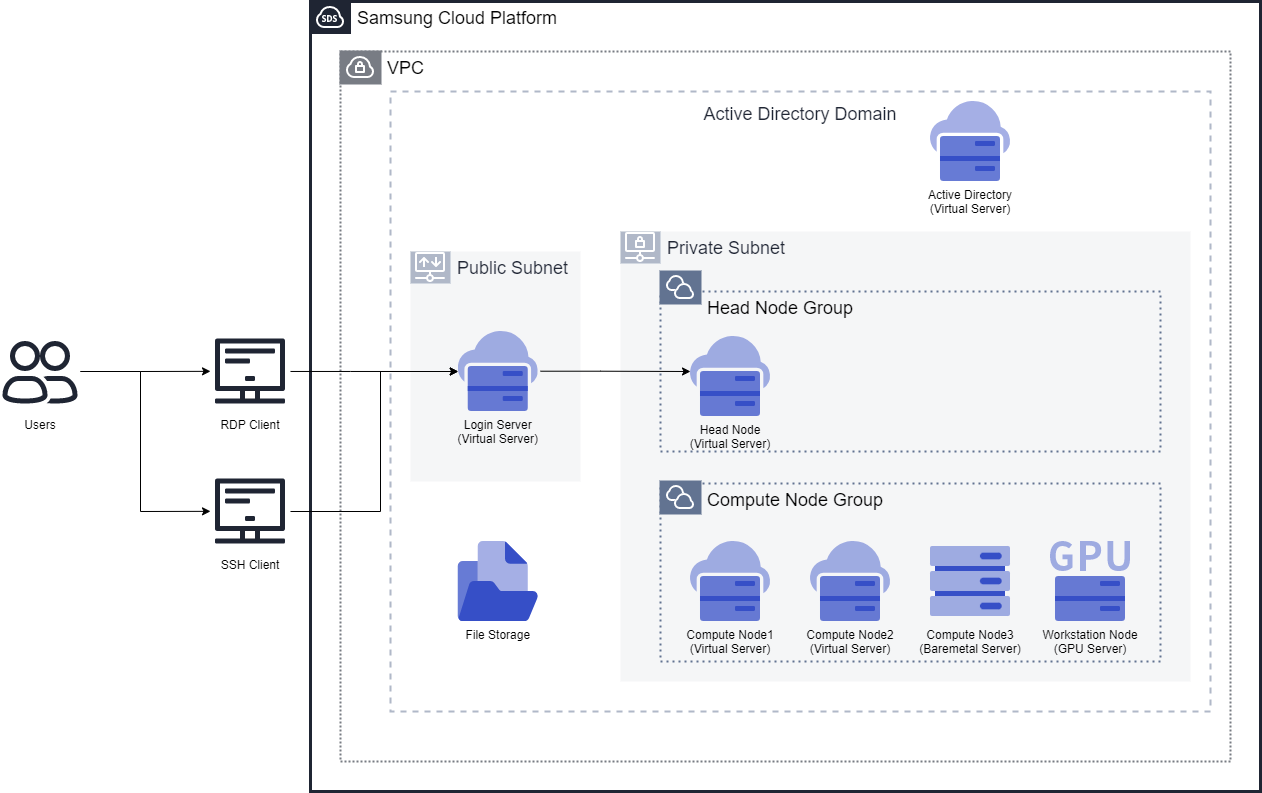
In this guide, we will create two subnets in one VPC. One subnet is a public subnet, and the other is a private subnet. The public subnet will have a Virtual Server that will be used as a login node for user access. This login node will have RDP Client or SSH Client for user access. The private subnet will have a head node, compute nodes, and workstation nodes (GPU).
RDP is a Remote Desktop Protocol that allows users to access another computer with a graphical interface remotely. It typically uses TCP port 3389. An SSH client is a client that allows users to access a remote server securely. It typically uses TCP port 22. On the Samsung Cloud Platform, Windows servers are set to use RDP for access, and Linux servers are set to use SSH for access. In this guide, we will also introduce how to install SSH on a Windows server for access.
The HPC Cluster consists of a head node, compute nodes, and workstation nodes. The head node is configured as a Virtual Server, and the compute nodes are configured as two Virtual Servers and one Bare Metal Server. Additionally, a workstation node for graphics work is configured as a GPU Server. This configuration may vary depending on the purpose of the HPC Cluster, and the number of servers and server specifications can be adjusted accordingly. We want to emphasize that a mixed HPC cluster configuration with Virtual Server, Bare Metal Server, and GPU Server is possible within the Samsung Cloud Platform.
The list of servers required for this guide is as follows. Assuming that the basic features of the Samsung Cloud Platform are known, we will not cover the creation of VPC, Subnet, Security Group, Virtual Server, and Bare Metal Server.
| Node Type | Recommended Server Specifications | OS | Purpose |
|---|---|---|---|
| Login Node | s1v1m2 | Windows 2019 | HPC Pack Client installation |
| Head Node | s1v4m8 or higher | Windows 2019 | HPC Pack Head Node installation |
| Compute Node (Virtual Server) | h2 series | Windows 2019 Standard | HPC Pack Compute Node installation |
| Compute Node (Bare Metal Server) | h2v96m768_metal | Windows 2019 Standard | HPC Pack Compute Node installation |
| Workstation Node (GPU Server) | - | Windows 2019 Standard | HPC Pack Workstation Node installation |
One of the prerequisites for HPC Pack is the domain service, Active Directory. All nodes must belong to the same domain. Although the architecture diagram shows Active Directory installed on a Virtual Server, this guide will not cover the details of Active Directory, and it is assumed that all servers belong to the same domain.
Installing the Head Node
The version of HPC Pack used in this guide is 2019 Update 2. The download link for Update 2 is as follows.
https://www.microsoft.com/en-us/download/details.aspx?id=105615
If the download link changes or a new version is released, please search for the new link and download it.
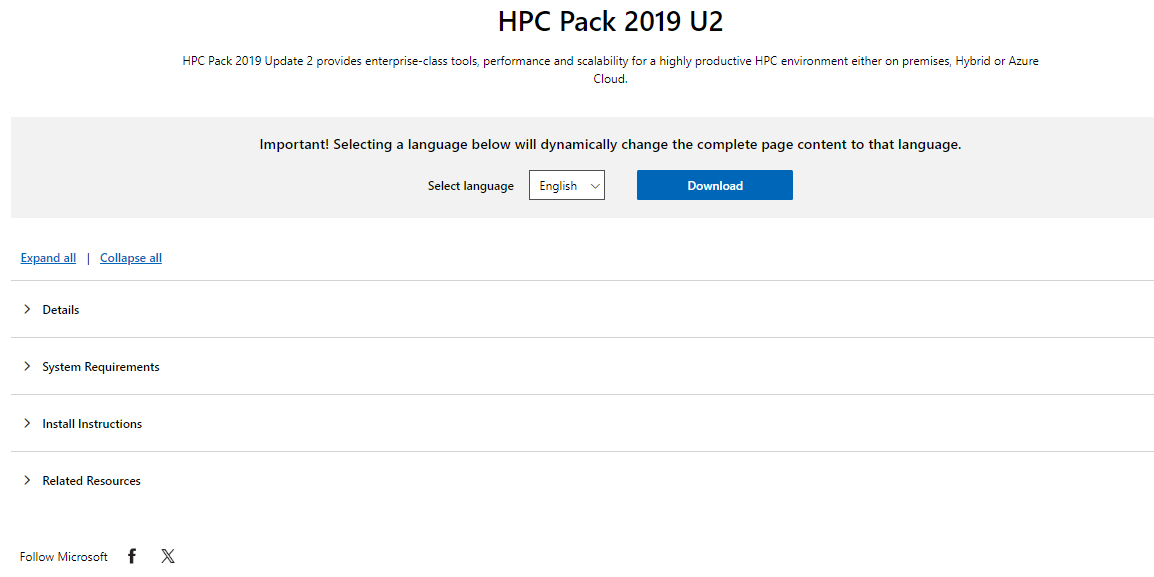
Click the download button.

Download the Full version and Client X64 version. Since this is the first installation, do not download the patch. Move these files to the head node (or download them on the head node) and unzip them.
HPC Pack requires an X.509 certificate for secure communication between nodes. If you are not familiar with certificates, you can create one using the script provided by HPC Pack. The script file is named CreateHpcCertificate.ps1 and is located in the setup folder of the unzipped HPC Pack files. Open PowerShell, navigate to the setup folder, and run the following command to create the certificate.
.\CreateHpcCertificate.ps1 -CommonName "HPC Pack Node Communication" -Path "[certificate file path]\hpccomm.pfx" -Password (ConvertTo-SecureString "[password]" -AsPlainText -Force)
Replace [certificate file path] with the actual path where you want to save the certificate file, and [password] with the actual password you want to use. This password is only used for HPC Pack and does not need to match the OS password.
File C:Users\newone\Downloads\HPCPack2019Update2-Full-v7756\setup\CreateHpcCertificate.ps1 is published by CN=Microsoft Corporation, O=Microsoft Corporation, L=Redmond, S=Washington, C=US and is not trusted on your system. Only run scripts from trusted publishers.
  [V] Never run  [D] Do not run  [R] Run once  [A] Always run  [?] Help (default is "D"):
Press R and then Enter to run the script. If there are no error messages, the installation is successful, and you should see the hpccomm.pfx file in the specified path.
Now, run the setup.exe file in the root folder of the unzipped HPC Pack files to start the installation.
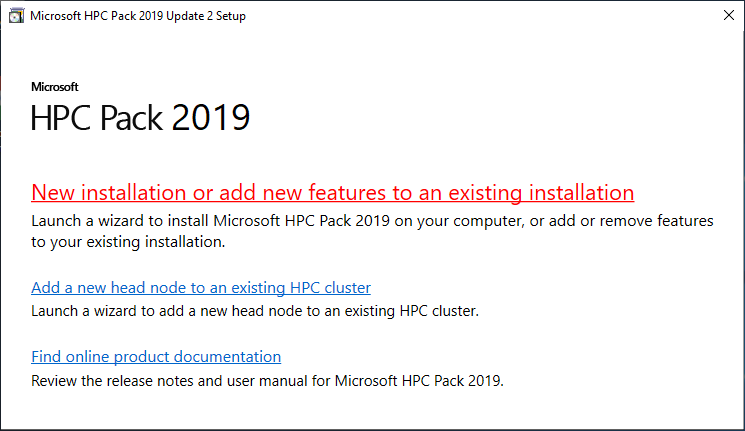
Click New installation or add new features to an existing installation.
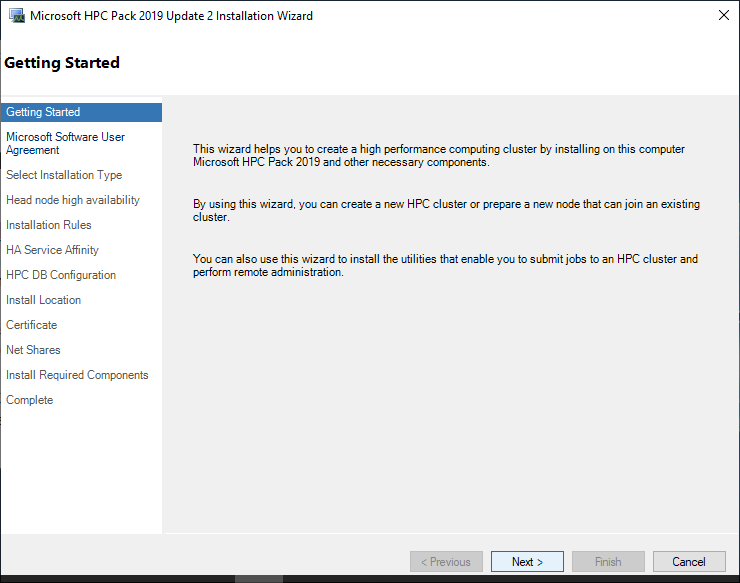
This is a simple installation guide. Click the Next button.
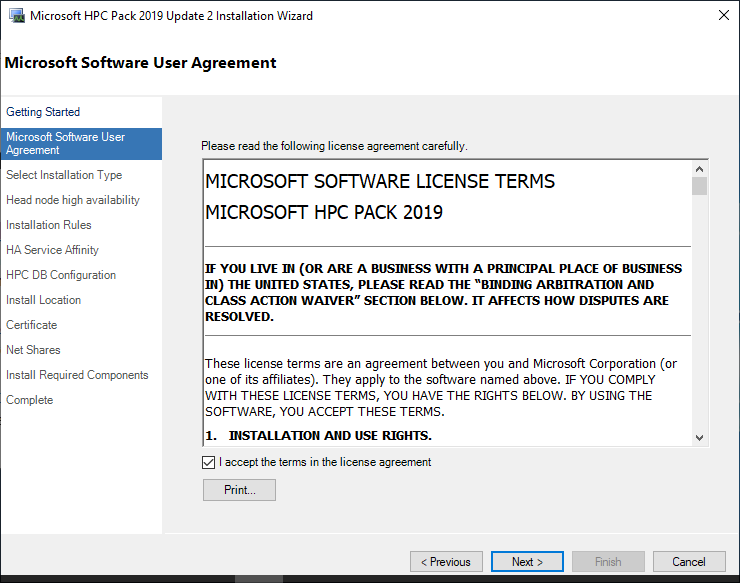
You will be asked to agree to the license terms. Read and click the Next button.
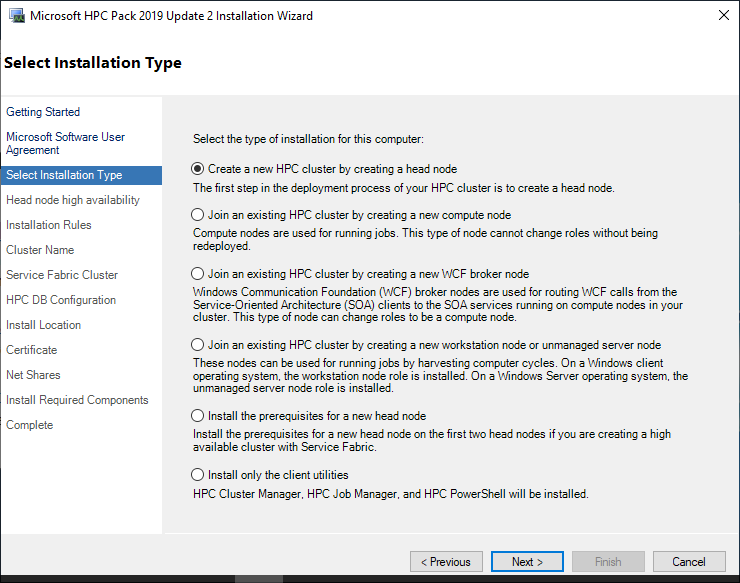
Since we are installing the head node, select the top option Create a new HPC cluster by creating a head node and click the Next button.
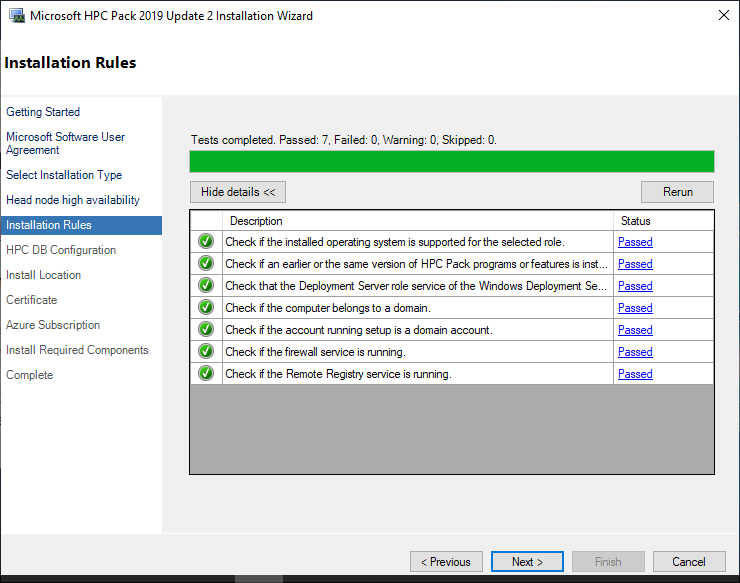
The system automatically performs tests on the pre-installation requirements. If any of the status is not “Passed”, it is recommended to resolve the issue before proceeding. If all are “Passed”, click the Next button.
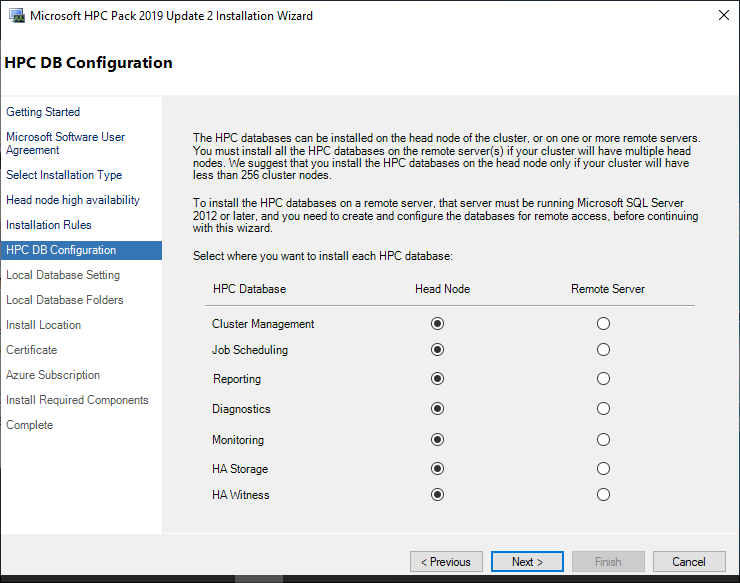
From now on, it’s about setting up the database. You can set up multiple databases, but since we decided not to use a remote database, select the head node for all and click the Next button.
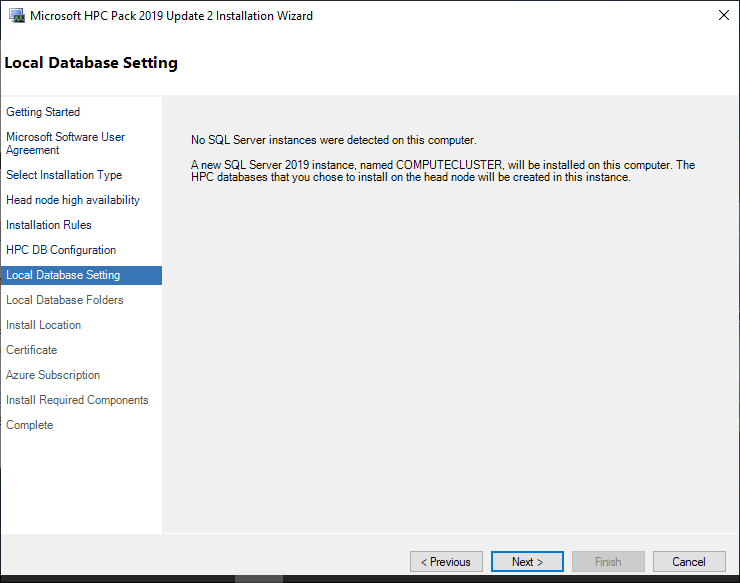
This is a message saying that SQL Server is not installed, so it will be installed newly. Click the Next button.
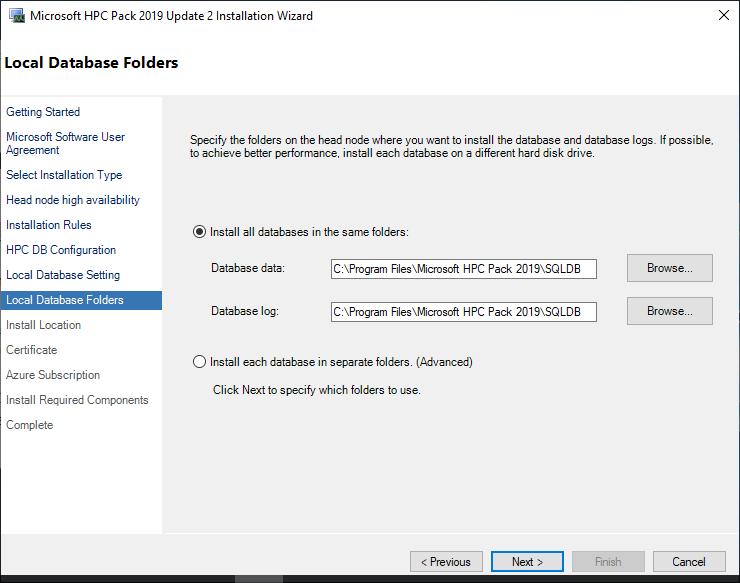
This is where the SQL server will be installed. Leave the default installation path as it is and click the Next button.
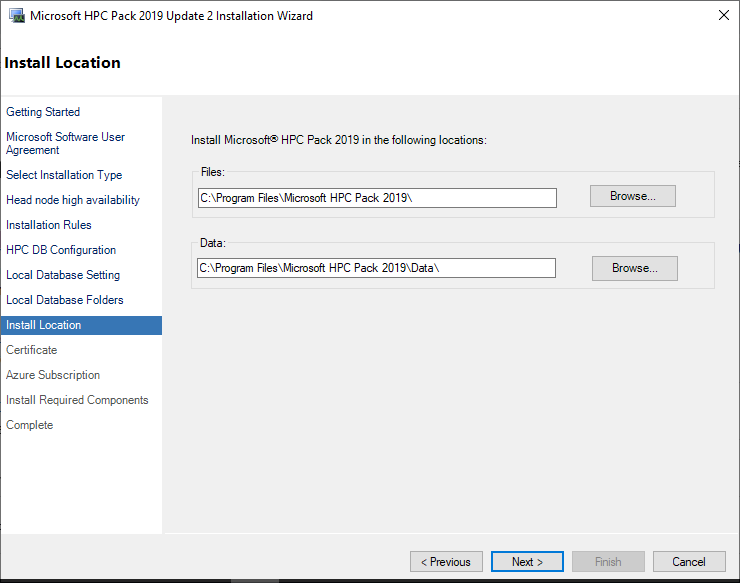
This is where HPC Pack will be installed. Leave the default installation path as it is and click the Next button.
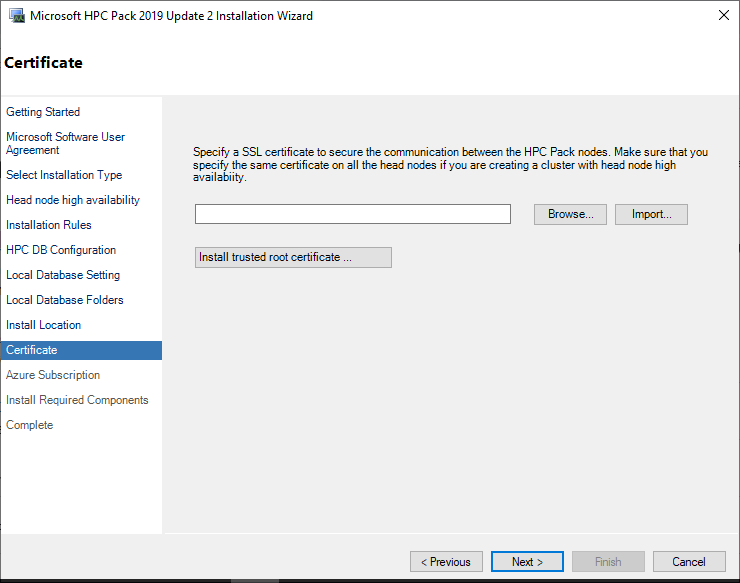
This is the step to register the certificate. Click the Import button.
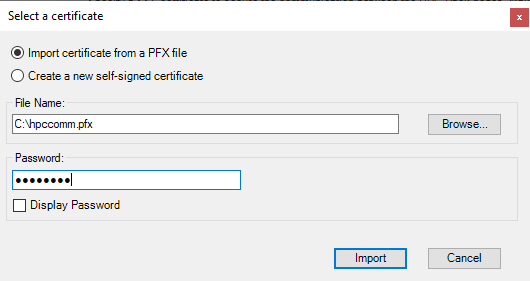
Select “Import Certificate from a PFX file” and browse to select the certificate created earlier. Enter the password used when creating the certificate, and then click the Import button to proceed to the next step.
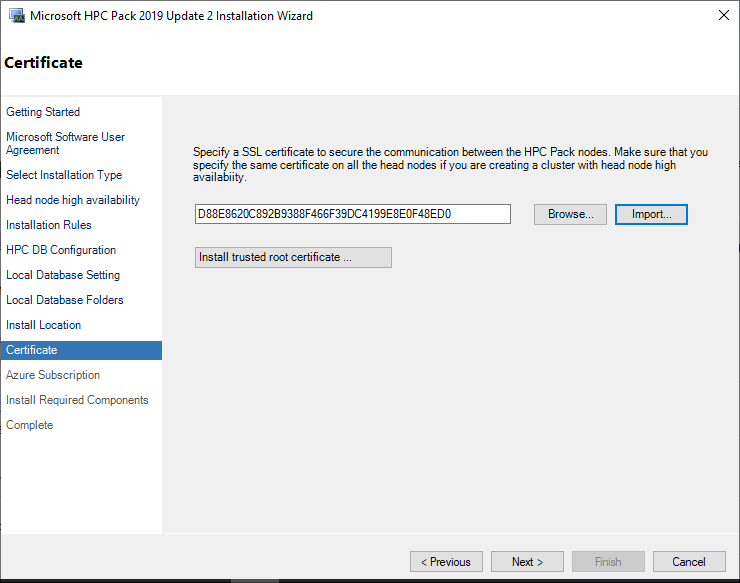
If the certificate import is successful, click the Next button.
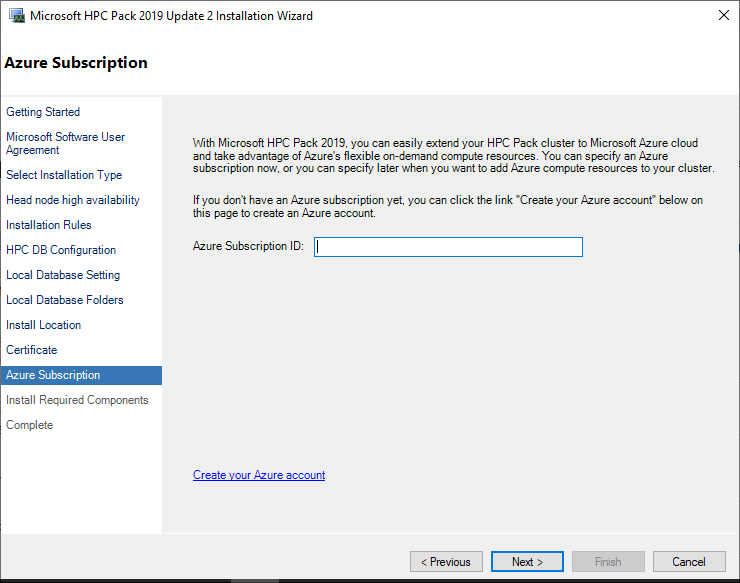
This is the step to enter information when using the Azure integration feature. In this guide, leave it blank. Click the Next button.
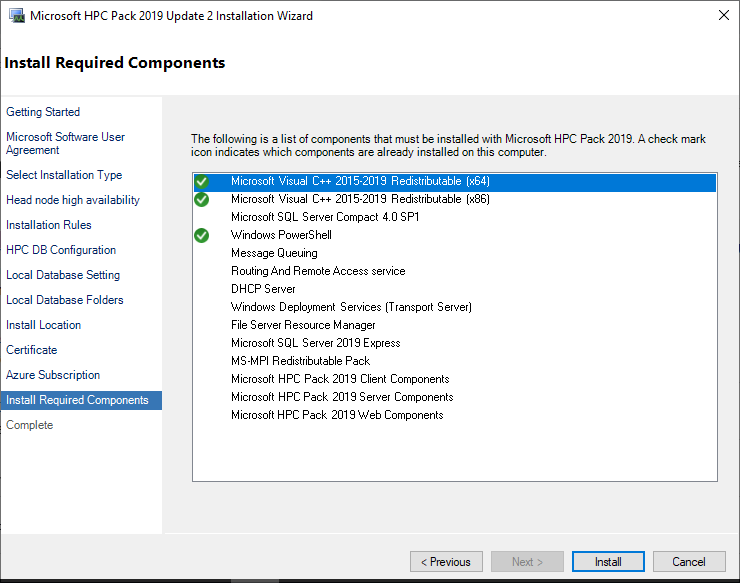
Now it’s the installation step. Click the Install button to install. The installation takes about 10-20 minutes, so you can take a coffee break and come back.
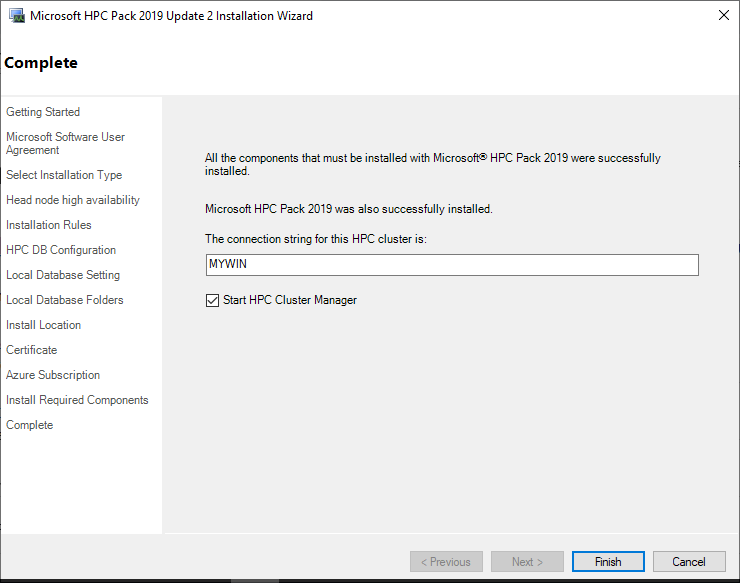
The installation is complete, and click the Finish button. Now, if you go to the Start menu by clicking the Windows button, you can see that HPC Cluster Manager and HPC Job Manager are installed in the HPC Pack 2019 section. Since all functions of HPC Job Manager are included in HPC Cluster Manager, you can use HPC Cluster Manager on the head node. On the other hand, if you don’t want to give all HPC Pack permissions to users, you can install only HPC Job Manager. This can be done by installing the client file (HpcClient_x64.msi) that came with the download. This will be explained again in the process of describing the login node.
Cluster Settings
There are steps to be taken to complete the cluster settings on the head node. When you run HPC Cluster Manager, you need to complete the Required deployment tasks. First, select Configure your network.
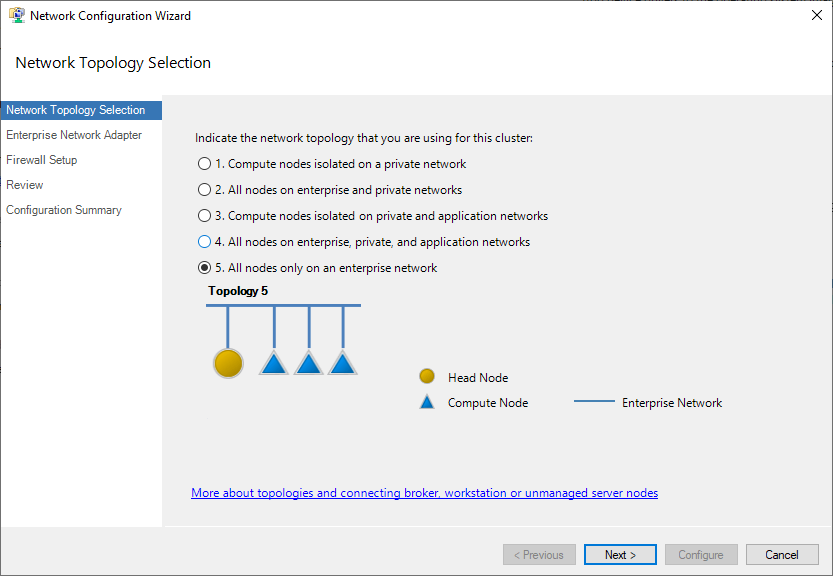
This is the step to determine the network topology. Select All nodes only on an enterprise network.
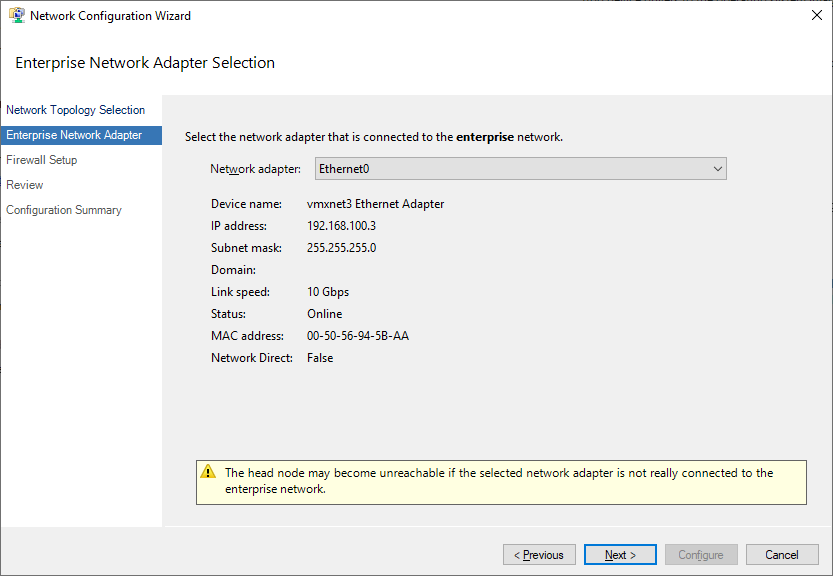
Select the network adapter as Ethernet0 and click the Next button.
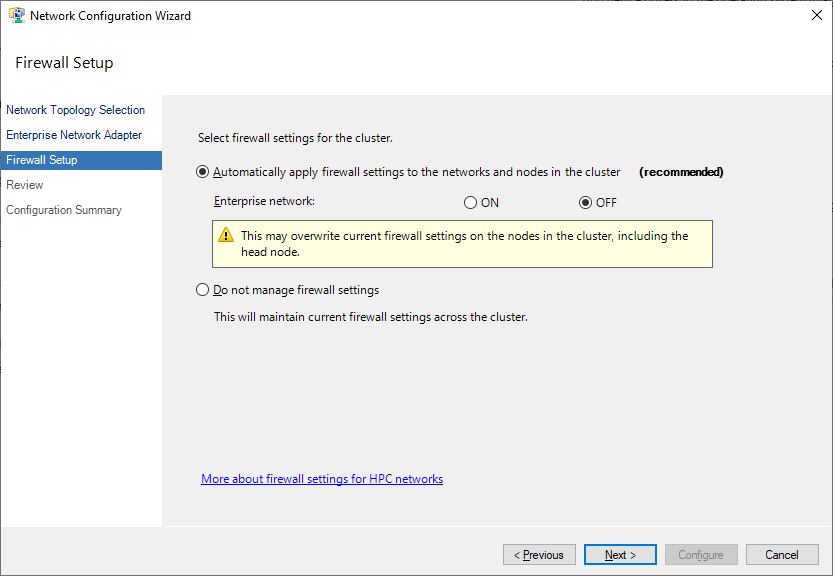
This is the step to set up the firewall, but since it can be set up in the Samsung Cloud Platform Console, set it to OFF.
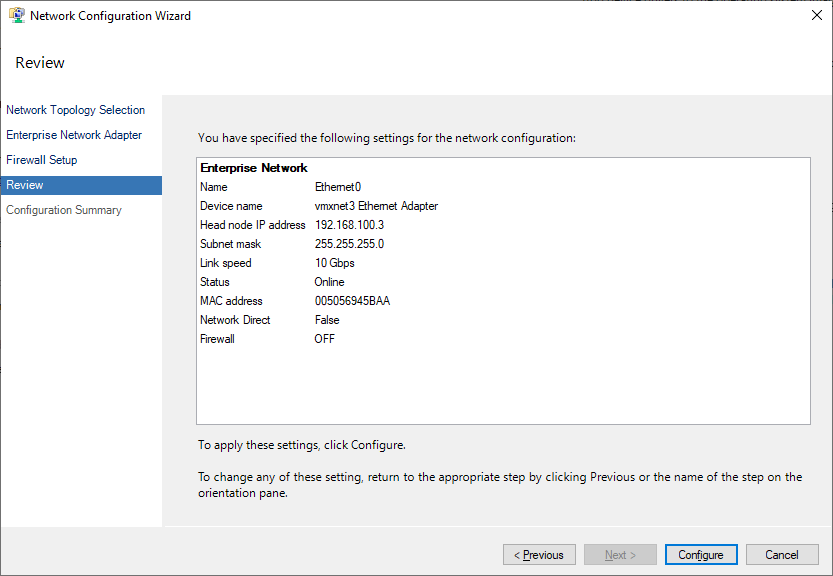
Check the network settings and click the Configure button.
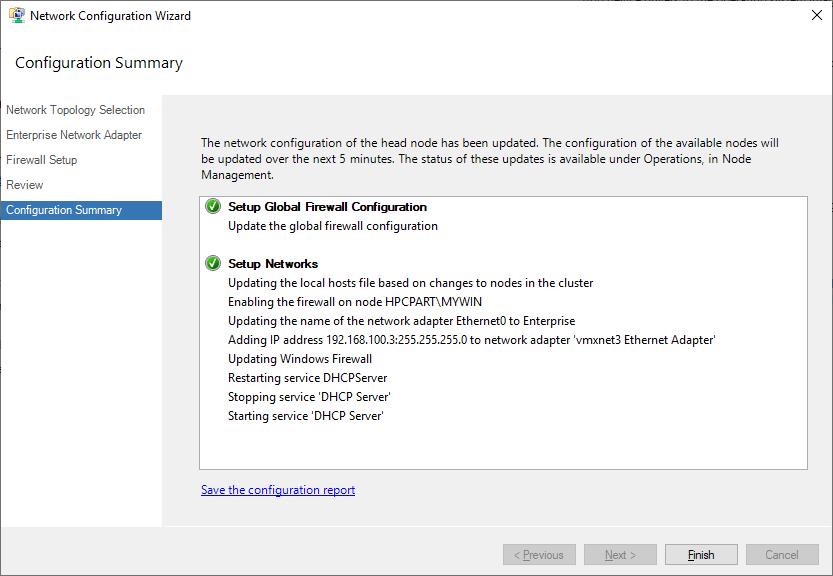
Click the Finish button, and the network settings will be complete.
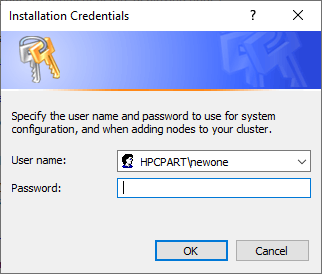
Second, select Provide installation credentials, and a screen like the one above will appear. This authentication selects a user from the Active Directory domain.
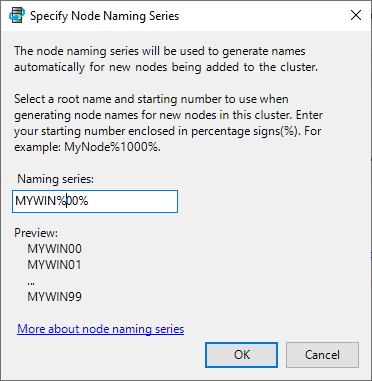
Third, select Configure the naming of new node. This is to set the naming rules for compute nodes when they are added automatically. Since we will set them manually, it doesn’t matter much, so just enter something suitable.
Adding Compute Nodes
In this guide, the compute nodes are 2 Virtual Servers and 1 Bare Metal Server. The following compute node tasks will be repeated 3 times. To add a compute node, HPC Pack must be installed on the compute node as well. Move the installation files installed on the head node to the compute node. Run the setup.exe file and proceed with the installation until the license agreement, which is the same as installing the head node.
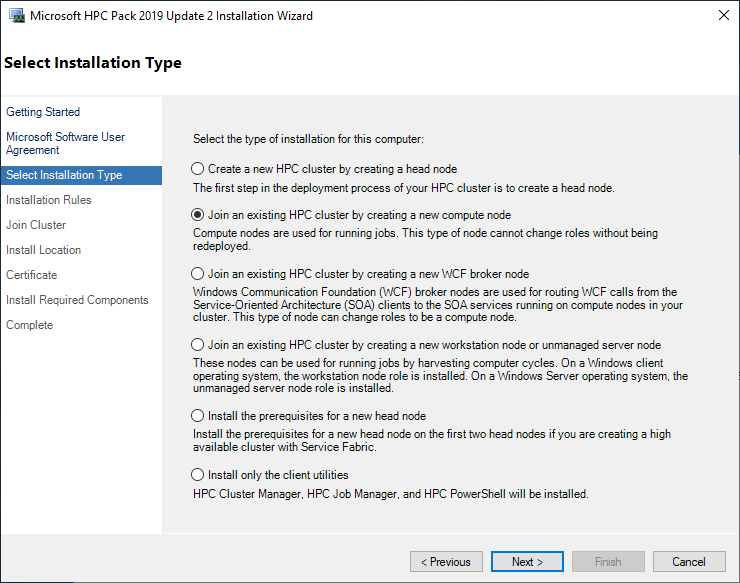
The difference starts from the “Select Installation Type” step. Select Join an existing HPC Cluster by creating a new compute node and click the Next button.
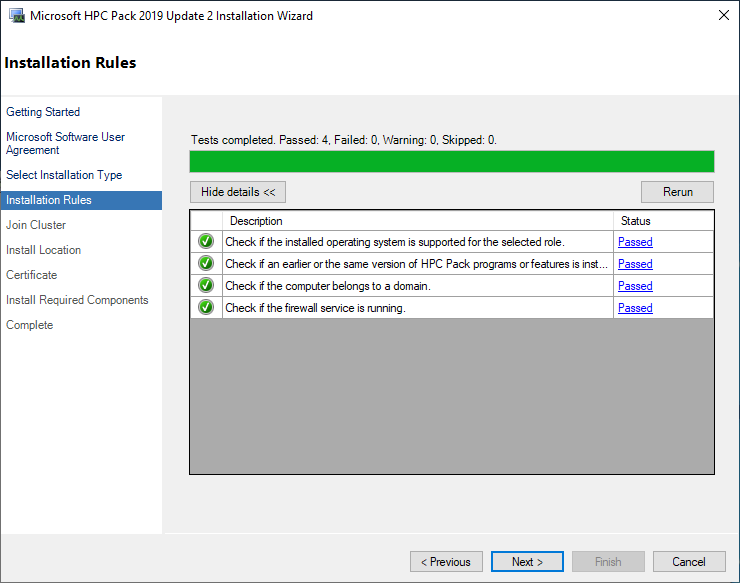
The system automatically performs tests on the pre-installation requirements. If any of the status is not “Passed”, it is recommended to resolve the issue before proceeding. If all are “Passed”, click the Next button.
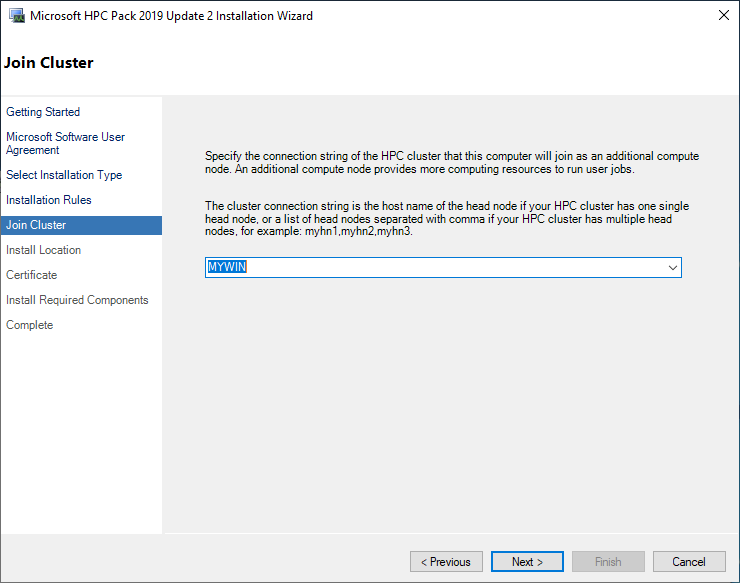
Select the head node to connect to. If it’s in the same Active Directory domain, the head node name will be displayed. If the head node installed earlier is not listed, you cannot proceed.
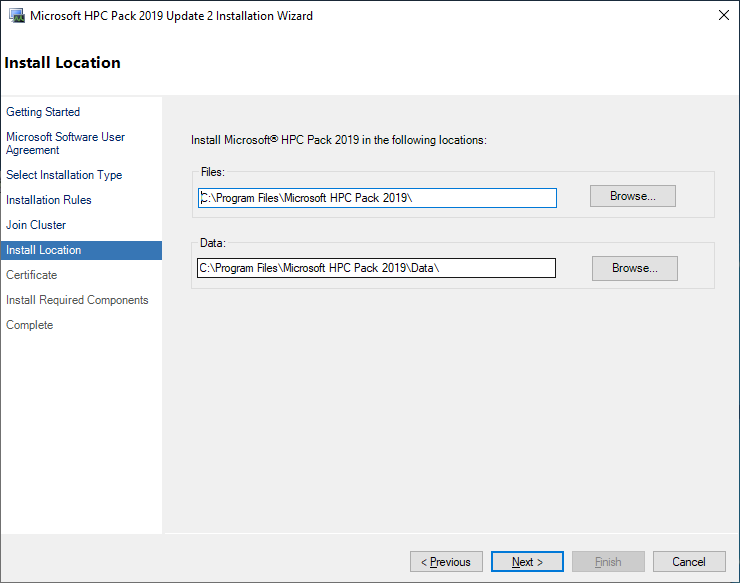
Select the installation path. Leave the existing path as it is and click the Next button. In the certificate screen, proceed with the same certificate file as the head node. That is, do not create a new certificate on the compute node, but move the head node’s certificate to the compute node and proceed.
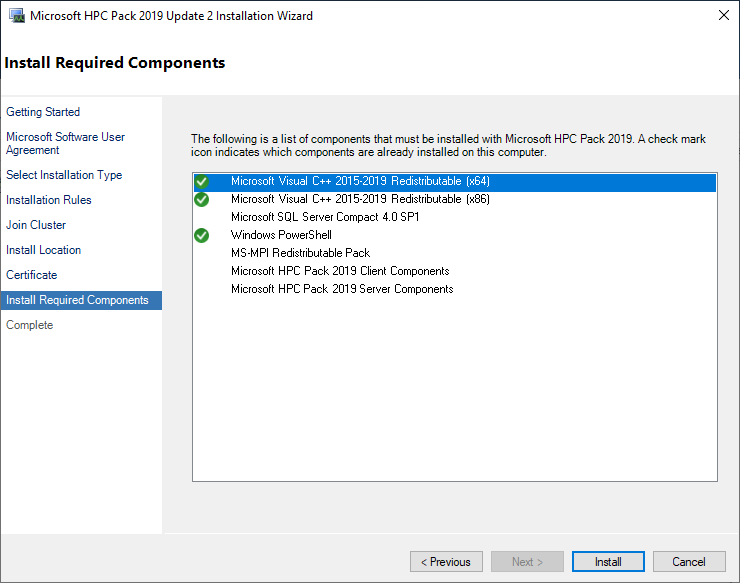
Perform the installation. It will take less time than the head node.
Note: The rest of the guide remains the same, as there were no Korean characters to translate.
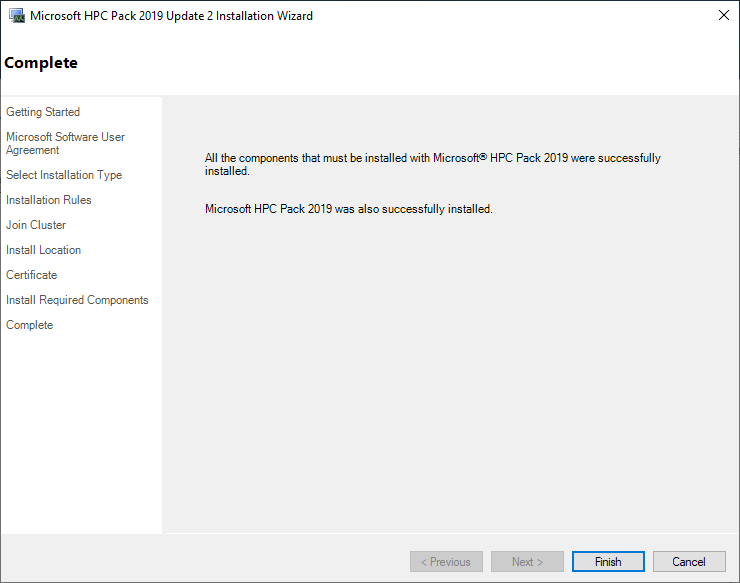
Click the Finish button to complete the installation. The installation is not complete until it is registered with the cluster. If you go to Resource Management in the HPC Cluster Manager of the head node, you can see the added compute node.
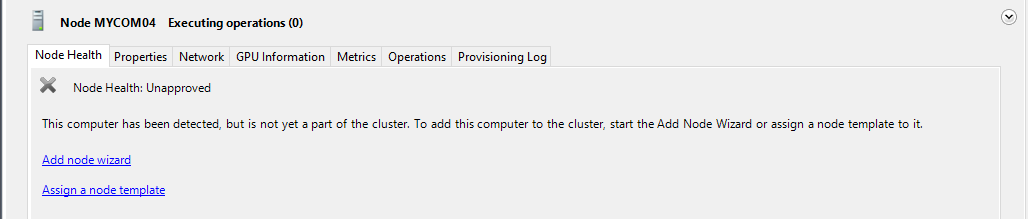
However, the Node Health is ‘Unapproved’. Click ‘Assign a node Template’.
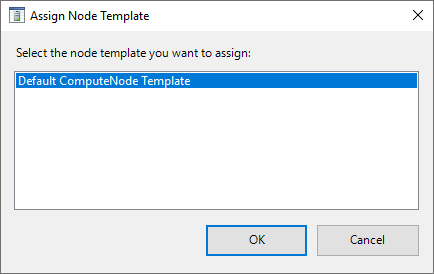
Select the ‘Default ComputeNode Template’. Then, after a brief provisioning time, the status changes as follows.
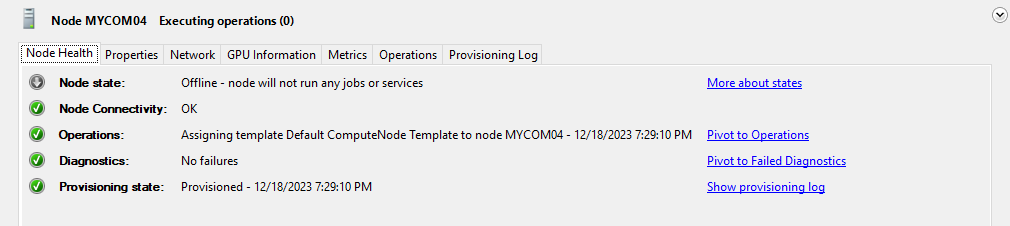
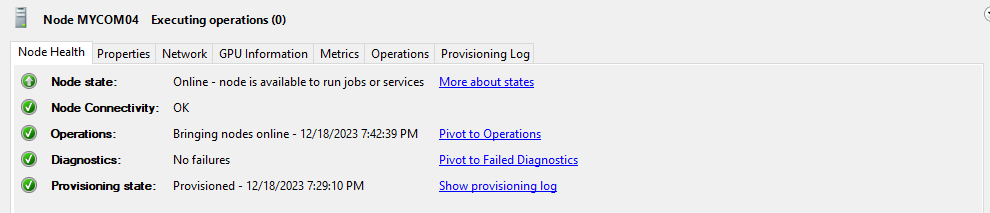
The node is normal, but the Node state is still offline. Right-click on the node and click Bring Online. Then, the Node State changes to Online as follows.
Workstation Node Setup
The workstation node of HPC Pack is a somewhat unique feature that is not found in other schedulers. In HPC, a workstation usually refers to a server that performs pre- and post-processing. The traditional workflow of HPC applications is to perform pre-processing on the workstation, solve on the HPC cluster, and then perform post-processing on the workstation after the solution is complete. However, recently, pre- and post-processing also require a lot of CPU, memory, or GPU resources, so it is common to perform pre- and post-processing on the HPC cluster without using a separate workstation. Even in such cases, resources are shared and allocated by the job scheduler. However, the workstation node in HPC Pack is a different concept. It assumes that there are tasks that do not go through the job scheduler. If the HPC Pack management is not received, you may wonder why you need to register it. HPC Pack allows you to set availability policies for workstation nodes. For example, you can set it to not allow job schedulers during working hours and allow batch jobs to enter after working hours. If there is no such availability policy and it is an unmanaged server 100% of the time, there is no need to register it with the HPC Pack cluster.
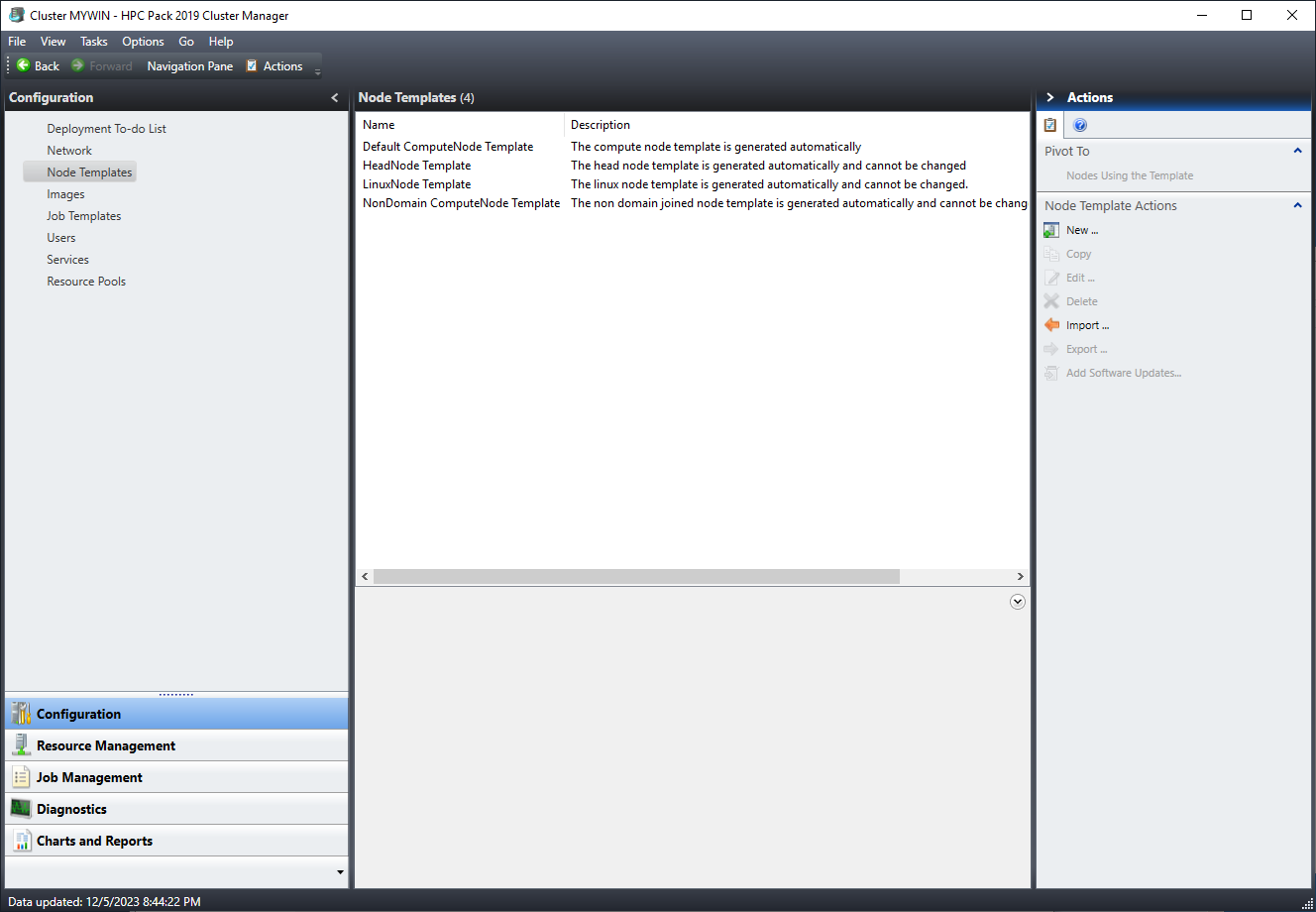
Before installing the workstation node, you need to create a template. Unlike compute nodes, which have a default template, workstation nodes do not have a basic template, so you need to create one. Click Configuration → Node Templates → Actions → New.
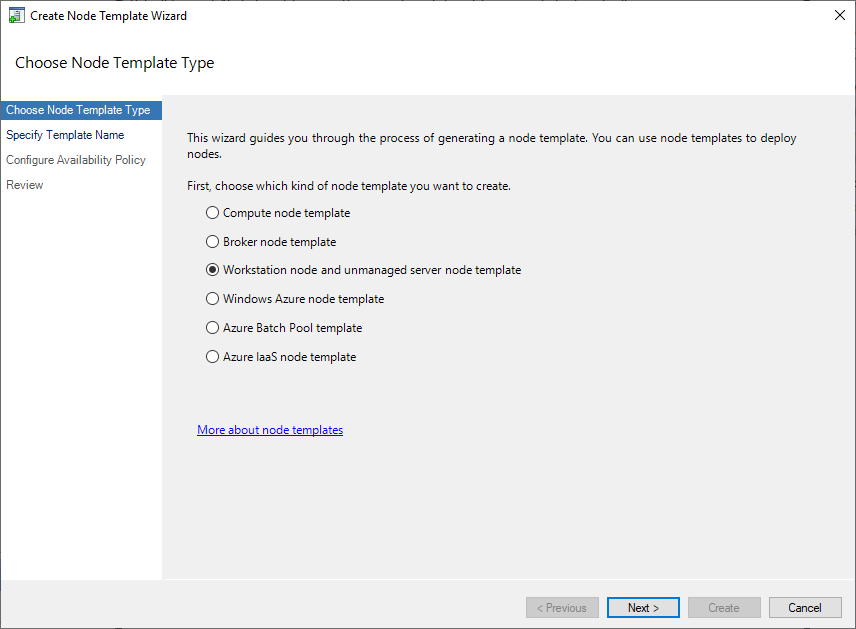
Select the ‘Workstation node and unmanaged server node template’.
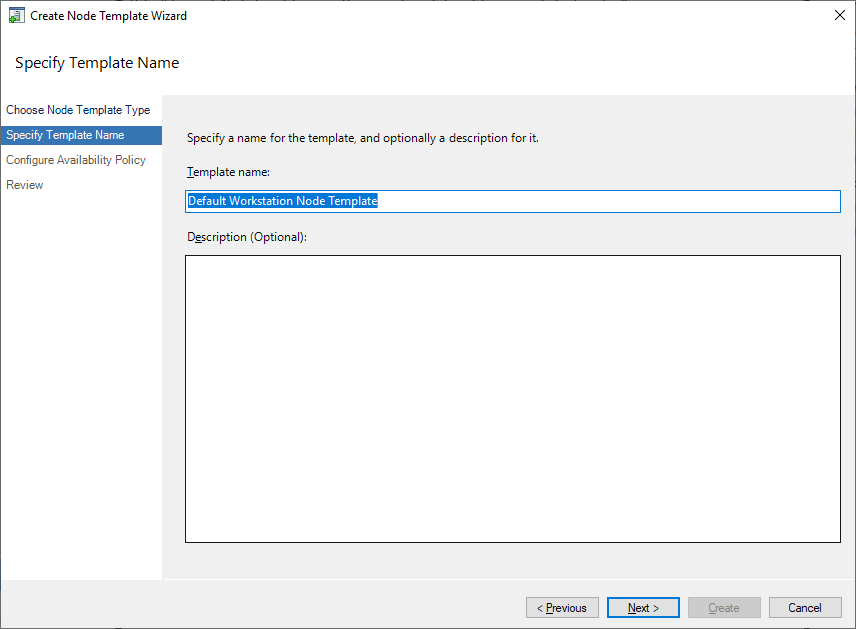
Name the template. It’s not very important, so just give it a suitable name.
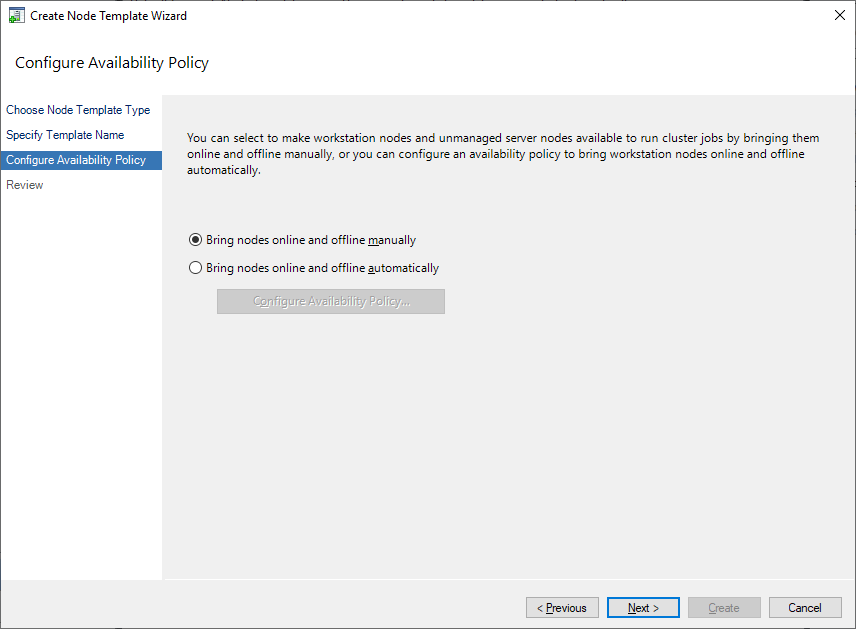
Set the availability policy. Select ‘Bring nodes online and offline manually’. You will make detailed settings after the template is complete.
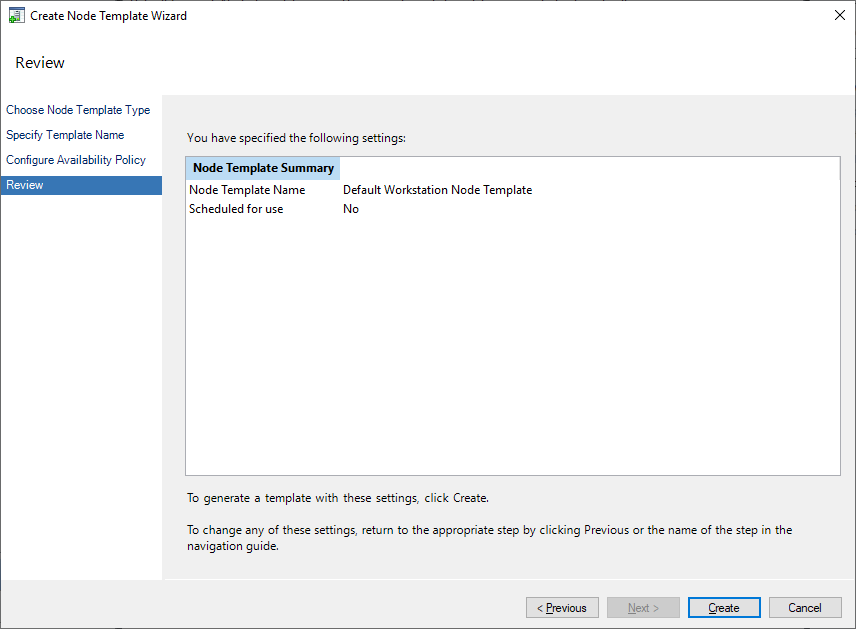
Click the Create button to create the template.
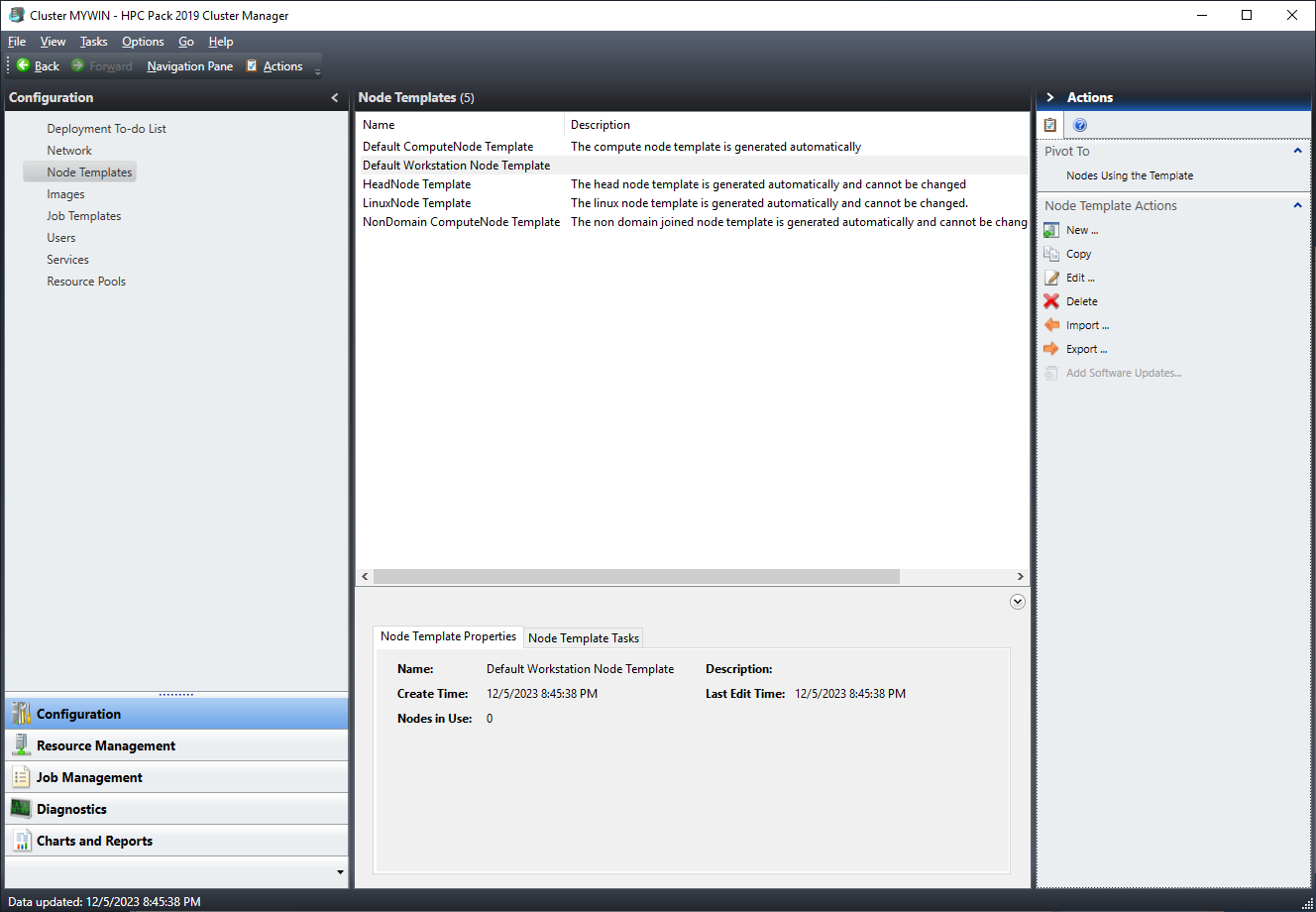
In the node template window, click the Edit button in Node Template Actions for the template you just created.
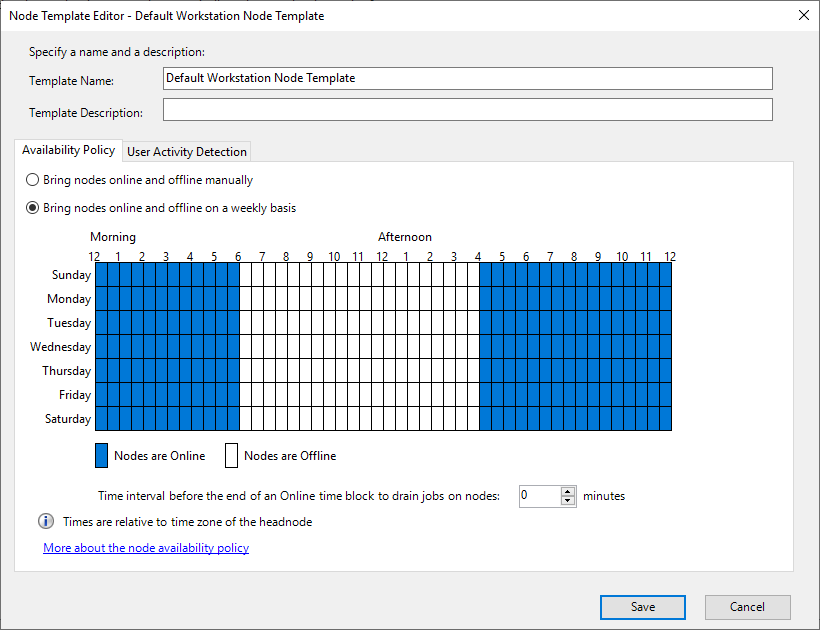
There are Availability Policy and User Activity Detection tabs. ‘Bring nodes online and offline manually’ in Availability Policy is to manually set online/offline. This is not a special feature, as it can also be done for compute nodes, not just workstation nodes. ‘Bring nodes online and offline on a weekly basis’ sets online and offline times based on a weekly basis. For example, you can set it to be online during working hours so that only jobs assigned by the job scheduler are possible, and offline after working hours so that it can be used freely.
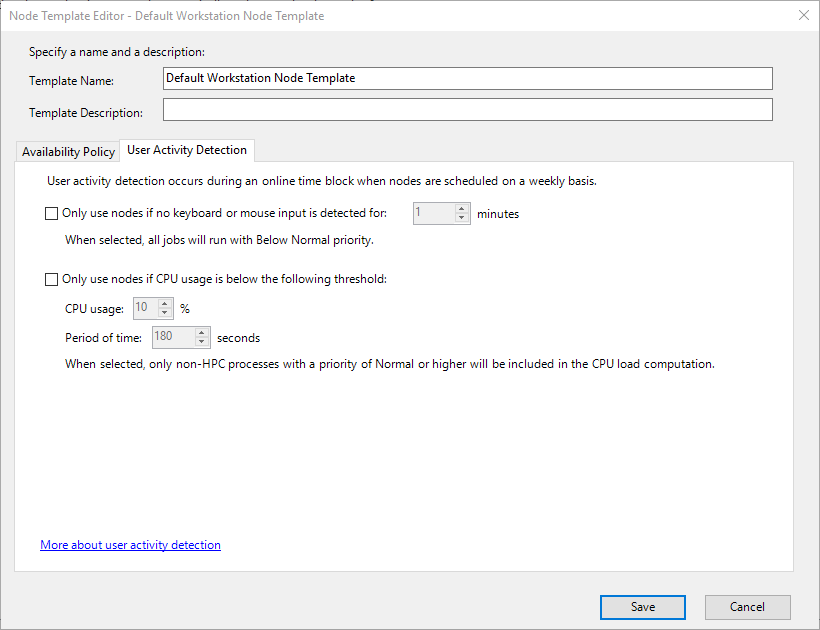
‘User Activity Detection’ reports user activity on the workstation and adjusts the job priority.
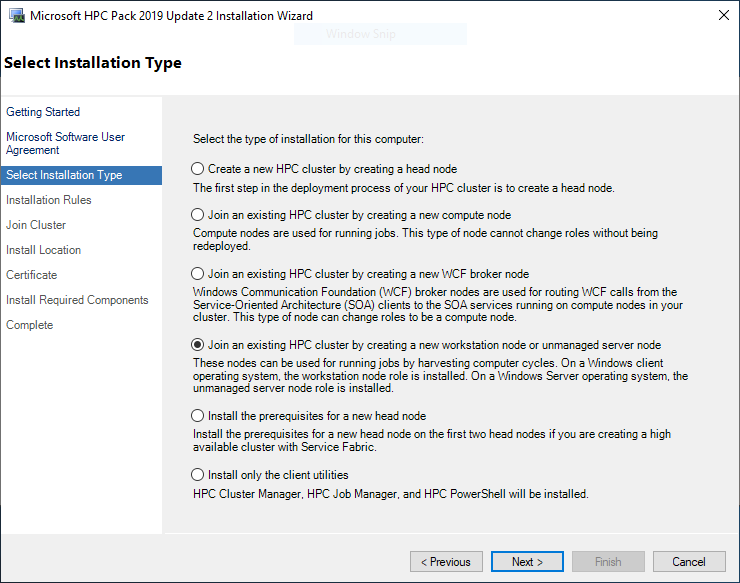
To install the workstation node, run the installation file and proceed to the license agreement stage. In the installation type stage, select ‘Join an existing HPC cluster by creating a new workstation node or unmanaged server node’.
The subsequent settings are the same as those for installing compute nodes. After installation is complete, go to Resource Management, just like when adding compute nodes. The node you just registered is in the Unapproved state. Select the second item, ‘Assign a node template’.
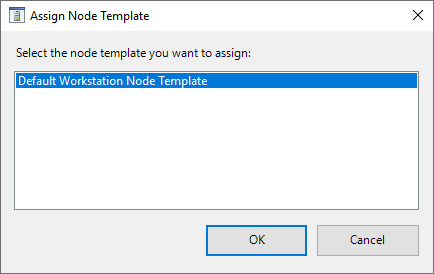
Select the template you created earlier and click the Ok button. Now you have completed the workstation node setup. Other HPC services also have services that combine workstation nodes with remote desktop clients. However, note that HPC Pack’s workstation node is different from such remote desktop features. Note that HPC Pack also supports a feature to connect to nodes using Windows Remote Desktop (RDP).
Login Node
As mentioned when installing the head node, to create a login node, you only need to install the HPC Pack client file to install the HPC Job Manager. Let’s install the client to create a login node.
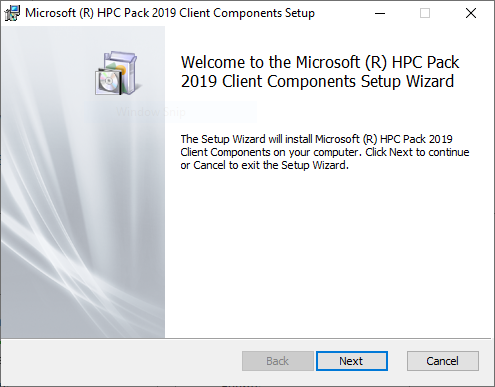
Click the Next button.

This is about the license, so agree and click the Next button.
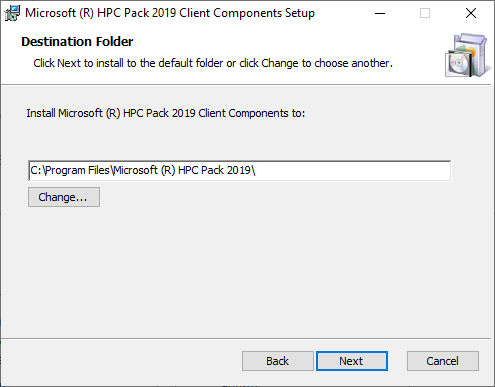
This is where the HPC Pack client is installed. Click the Next button.
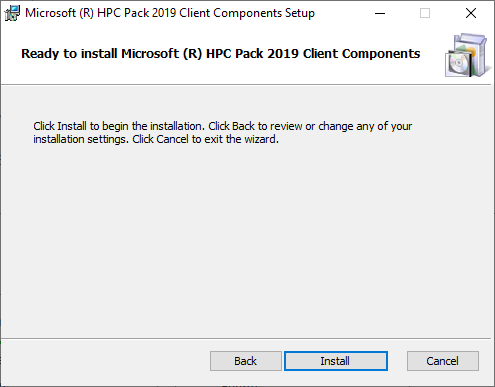
Click the Install button.
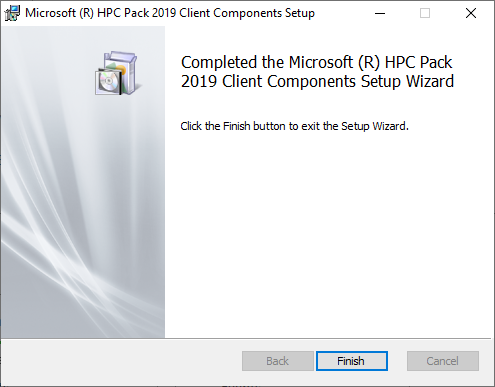
The client installation is completed in a very short time. After installation is complete, run the Job Manager.
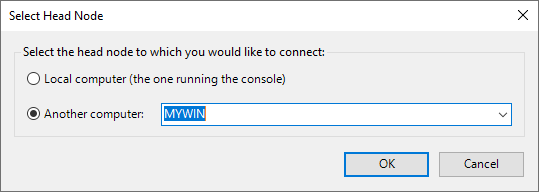
Run it, and if you are asked to set up the head node, select the head node, just like when installing compute nodes. The HPC Job Manager is almost identical to the HPC Cluster Manager. By allowing users to access the login node and only allowing administrators to access the head node, you can manage permissions more finely.
SSH Setup
For HPC users familiar with Linux, one of the inconveniences of Windows is the terminal environment. However, Windows also has a shell environment called PowerShell, and it is possible to use SSH. However, since SSH is not a default service in Windows, you need to install it as follows.
Download the Open SSH installation file for Windows 64-bit from https://github.com/PowerShell/Win32-OpenSSH/releases. At the time of writing this guide, the latest version was OpenSSH-Win64-v9.4.0.0.msi. Since it’s an msi file, it installs without any special guidance. The installation path is C:\Program Files\OpenSSH, and you can check if it’s installed by looking in the file explorer.
Open the Windows PowerShell and run the following commands. These commands add the OpenSSH execution path to the PATH environment variable.
$env:Path="$env:Path;C:\Program
Files\OpenSSH\"
Set-ItemProperty –Path
‘Registry::HKEY_LOCAL_MACHINE\System\CurrentControlSet\Control\Session
Manager\Environment' -Name PATH -Value $env:Path
If this were a Linux cluster, you would add the following command to the bashrc file:
PATH=$PATH:$HOME/bin
This command is similar to the previous one in that it sets the PATH environment variable.
To start the SSH service, run the following command in PowerShell:
Start-Service sshd
To start the service automatically, run the following command:
Set-Service sshd -StartupType Automatic
These two commands are similar to the following Linux commands:
systemctl start sshd
systemctl enable sshd
Now, you can connect to the SSH client. In MobaXterm, create a new session and connect to the server. Enter the Host IP in the first field, the username in the second field, and add powershell.exe in the third field if you want to use the PowerShell environment by default. If you want to use the default Command environment, leave the third field blank.
Job Settings
Single Task Job
The Job Management screen looks like this:
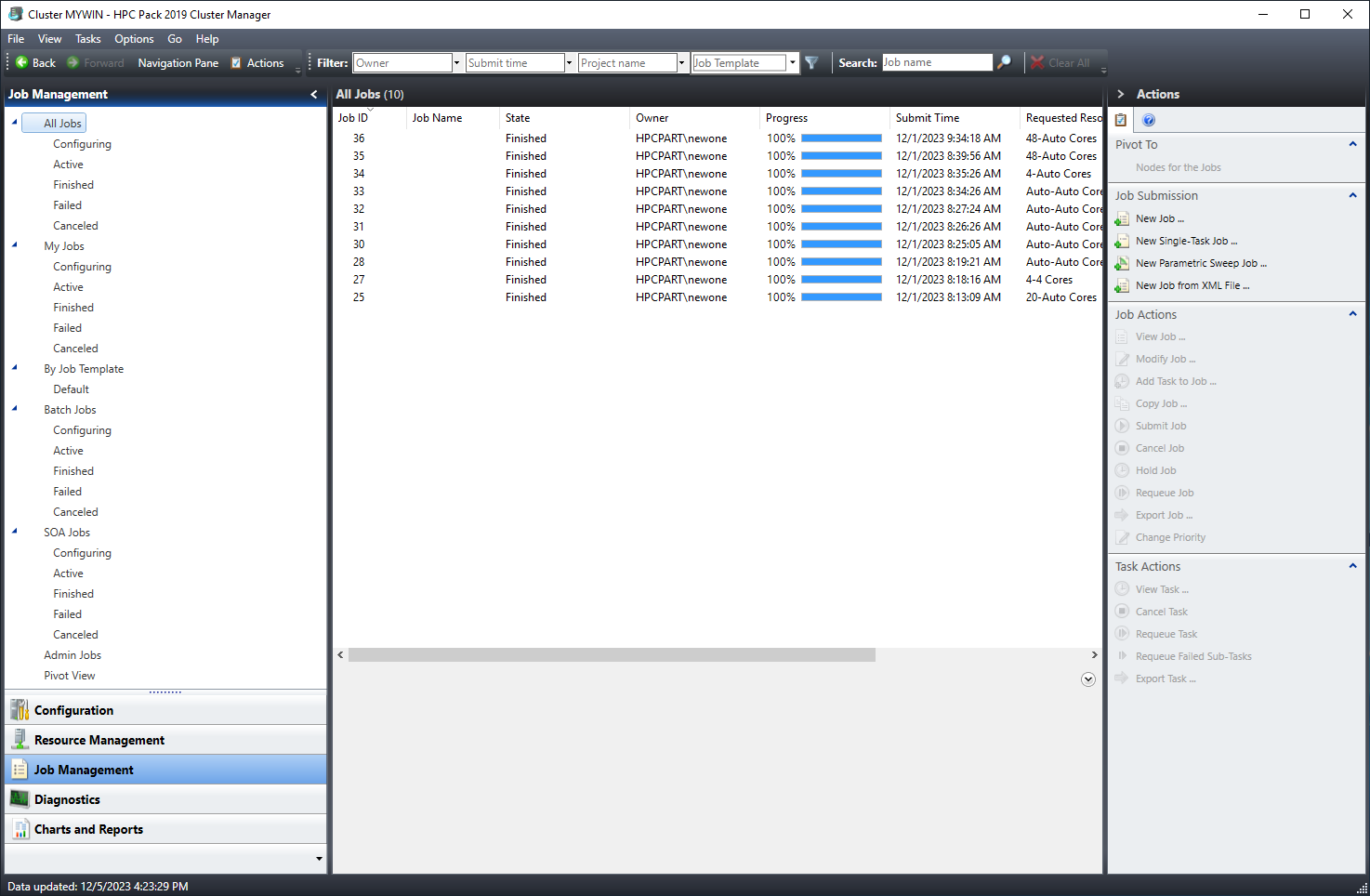
The main screen in the center displays a list of jobs. The left sidebar is used to filter jobs by status, type, and other options. The right sidebar is used to perform actions on existing jobs or submit new ones.
In the right sidebar, click on “Job Submission” and then select “New Single Task Job”.
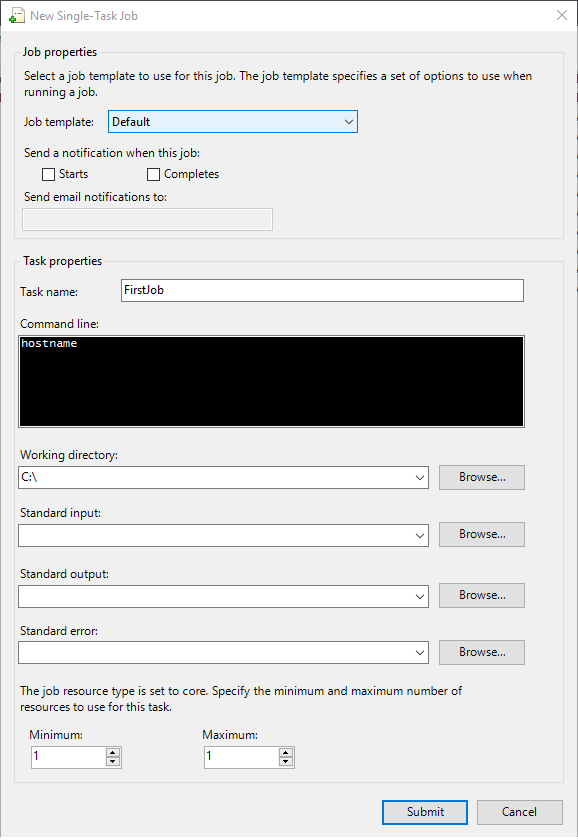
In the center, you will see the “Task” section. In HPC Pack, a task is a subunit of a job. One job can consist of multiple tasks. However, since we selected “Single Task Job” earlier, we only need to create one task. Enter a suitable name in the “Task Name” field. Since this is a single task, the task name will also be the job name. These names are only for human identification, and the actual scheduler uses numerical IDs, so job and task names can be duplicated or even blank.
In the “Command Line” field, enter the command you want to run. For this test, let’s use the simple Linux command “hostname”. This command outputs the hostname of the node. Next, enter the working directory or the path for standard output. Since we don’t want to output to a file, leave this field blank. Finally, enter the number of cores you want to allocate to this job. Unless it’s a special job, set the minimum and maximum to the same value. For this job, we will allocate 1 core. Click the “Submit” button to submit the job. Once the job is submitted, a new job ID will be assigned, and the job will appear in the list. Since this job will finish quickly, its status will immediately change to “Finished”. If the status doesn’t change to “Finished” immediately, there might be an issue.
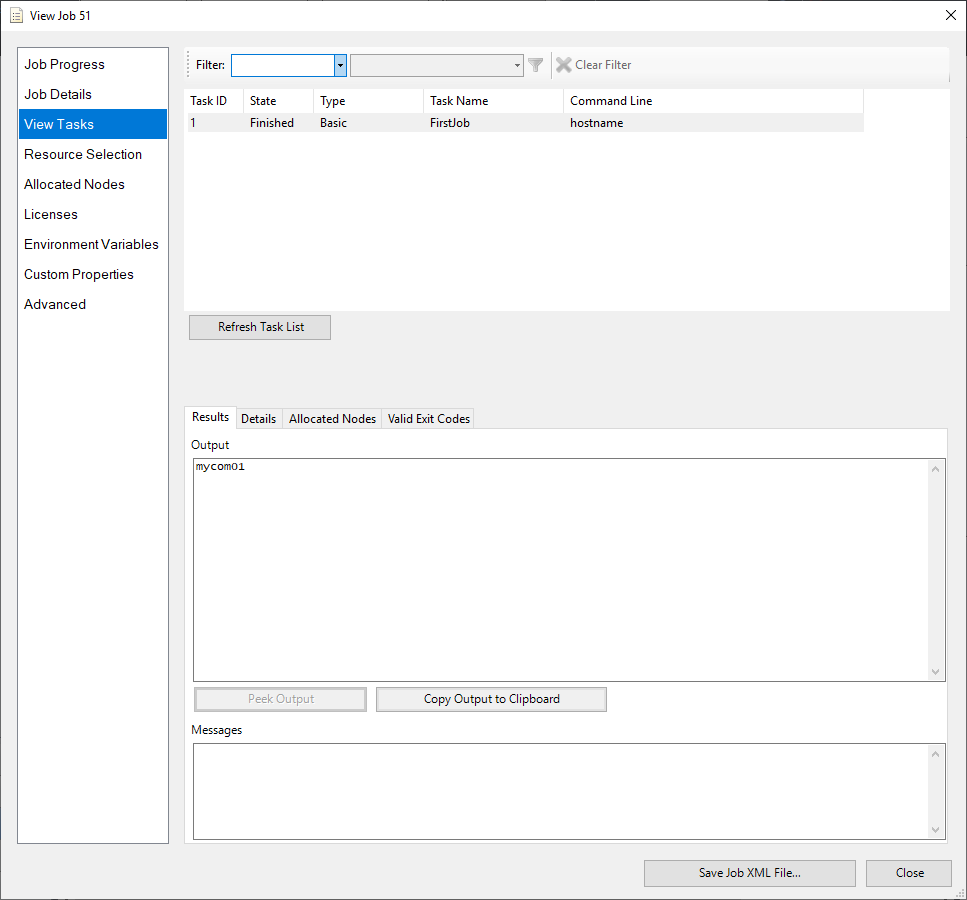
Now, click on the job to view its detailed information. In the left menu, click on “View Tasks” to view the job’s results. In the “Output” section, you should see the hostname of the compute node, “mycom01”, output correctly.
Job Manager Details
HPC Pack allows you to create more detailed jobs.
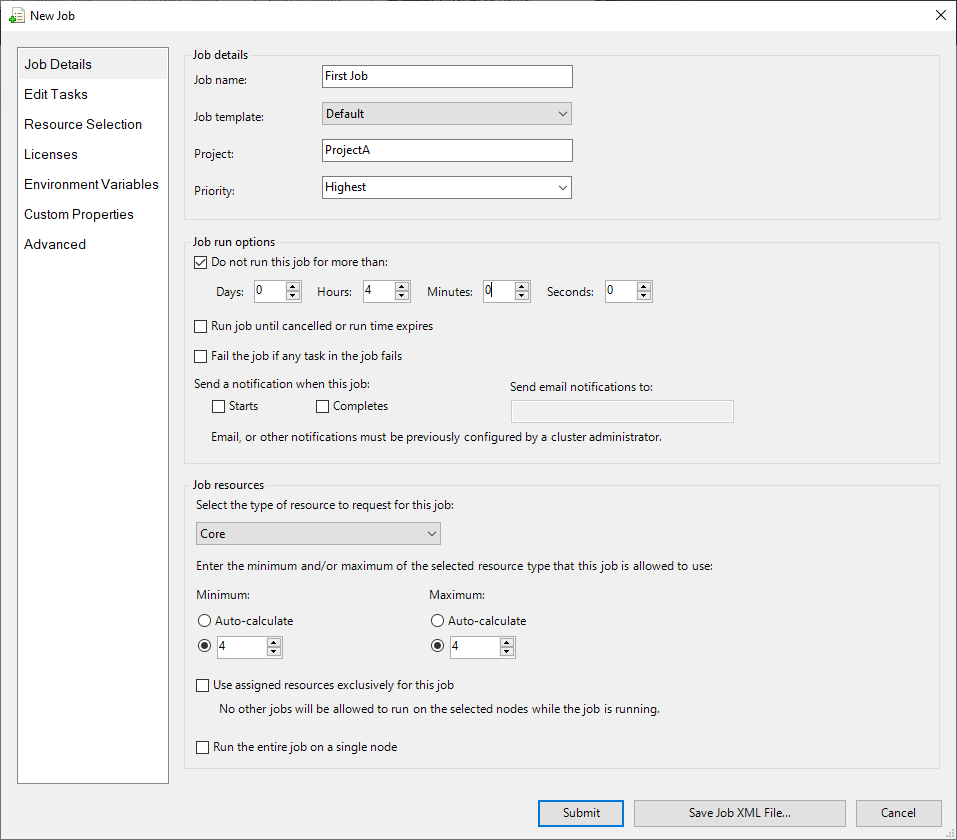
In the “Job Details” section, you can set the job’s name, project, and priority. The project can be useful for analyzing jobs later, as you can group them by project. Priority determines which job will be executed first when multiple jobs are in the queue. You can set the priority from “Lowest” to “Highest” in five levels.
In the “Job run options” section, you can set options for how the job will run. The “Do not run this job for more than” option prevents the job from running for more than a specified time. Other schedulers, like Slurm, use the term “Walltime” for this option. The “Run job until cancelled or run time expires” option keeps the job running even after it’s completed, until the specified run time or cancel action is taken. The “Fail the job if any task in this job” option fails the entire job if any task fails. The “Send a notification when this job” option sets up email notifications for job completion. Among these options, “Walltime” (or run time) and email notifications are commonly used.
The “Job resource” section is used to set the job’s resources. You can choose from “Core”, “CPU”, “Socket”, or “GPU”. Usually, “Core” or “GPU” is used. You can set the minimum and maximum resources, and you can also set it to “Auto”, which automatically calculates the resources based on the job’s tasks. The “Use assigned resource exclusively for this job” option ensures that no other job will run on the same node as this job. This can be useful for testing or benchmarking. The “Run the entire job on a single node” option ensures that the job will run on a single node, even if it requires more resources than available on one node.
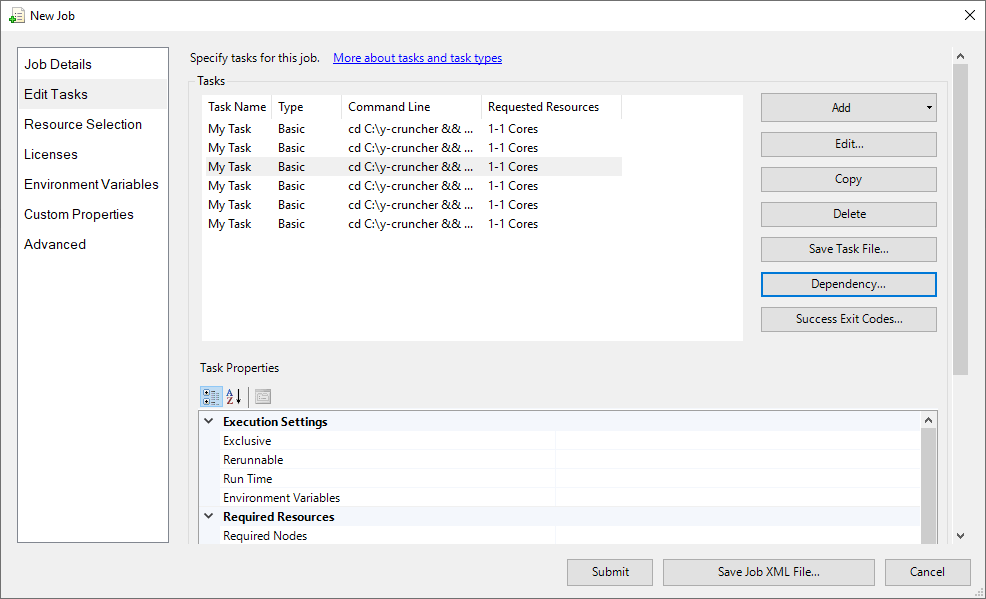
The “Edit Tasks” section is used to set up tasks for the job. You can add tasks by clicking the “Add” button, and the interface will be similar to the single task job setup. You can edit, copy, or delete tasks. You might wonder how a single task job differs from a job with multiple tasks. With multiple tasks, you can break down the job into more detailed steps.
Clicking on the “Dependency” button allows you to set up dependencies between tasks.
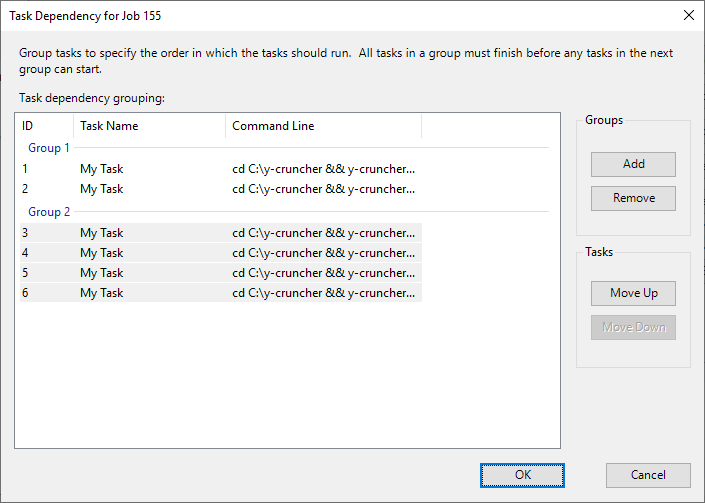
In this example, we have six tasks divided into two groups. Tasks 1 and 2 are in one group, and tasks 3-6 are in another. Within each group, multiple tasks can run simultaneously, but the second group will only start after all tasks in the first group have completed. You can also set dependencies between jobs.
You can also specify which nodes to run the job on. Let’s go to the “Resource Selection” menu.
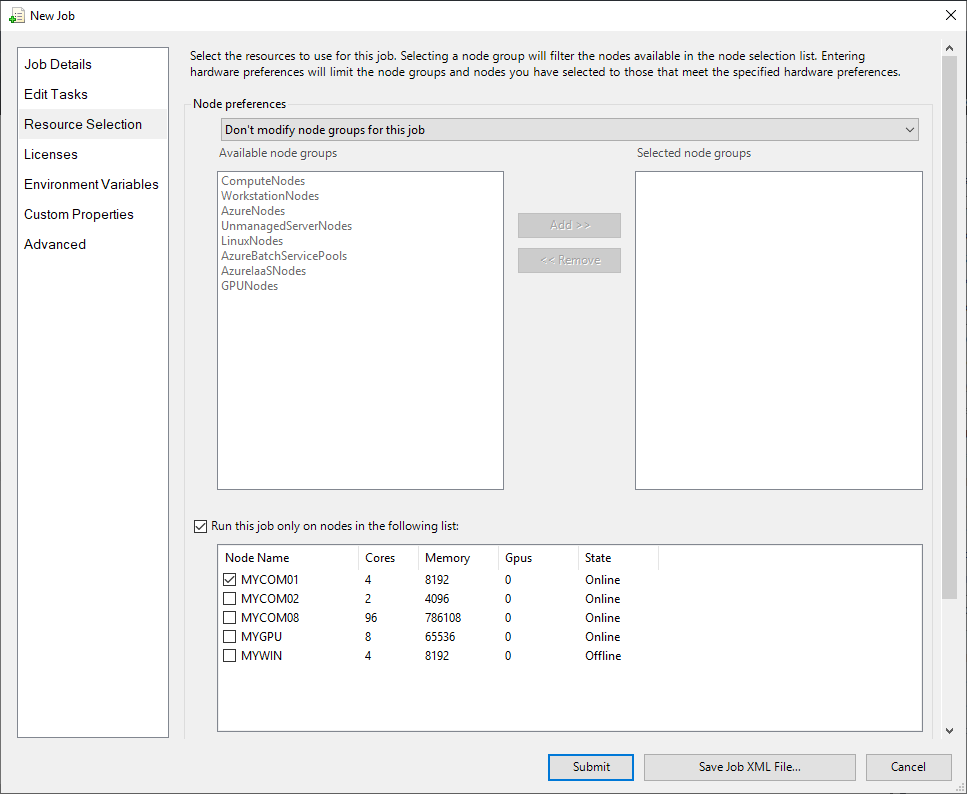
If you have grouped nodes, you can select a specific group to run the job on. For example, if you have virtual servers and bare-metal servers with different specs, grouping them can be useful. You can also select a specific node to run the job on. In this example, we selected the “MYCOM01” node. Now, let’s submit the job.
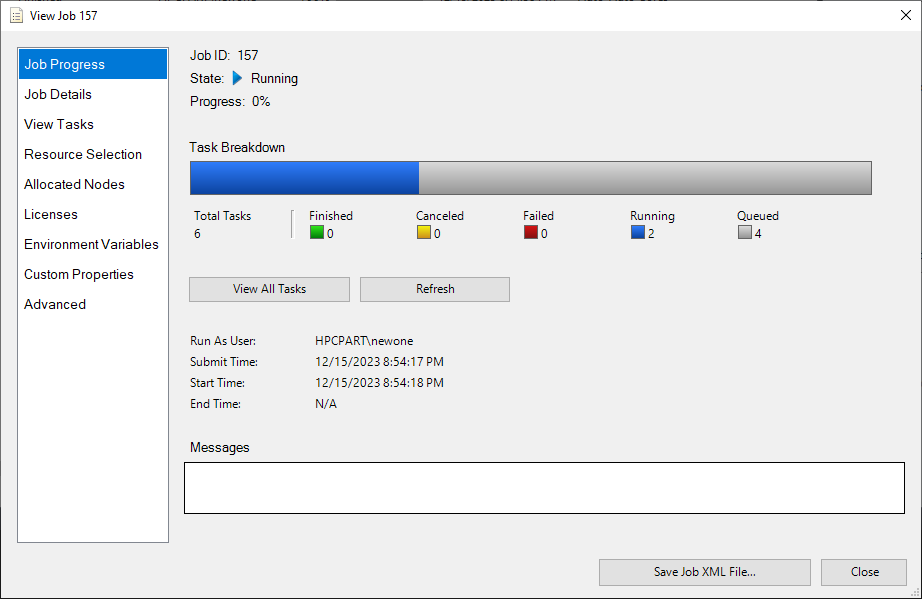
In the job details screen, you can see that two tasks are running, and four tasks are queued. Although we allocated four cores, only two are being used because we set up dependencies between the tasks.
Another advanced feature is the “Parametric Sweep” job. Clicking on “Parametric Sweep Job” in the right sidebar brings up the following screen:
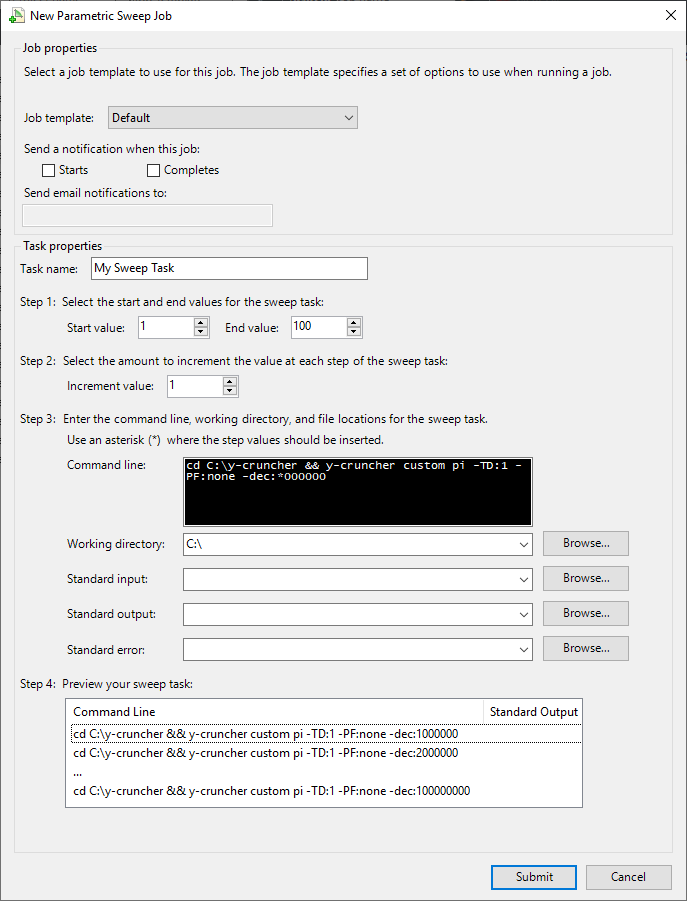
Here, you can set up a sweep of numerical values. In this example, we set the sweep to run from 1 to 100 with an increment of 1. You can then use the sweep values in your command. For example, if you use the command cd C:y-cruncher && y-cruncher custom pi -TD:1 -PF:none -dec:*000000, the * will be replaced with the sweep value. This allows you to run the same command with different parameters.
While it’s convenient to set up jobs using the GUI, it can be tedious for repetitive tasks. HPC Pack allows you to export jobs as XML files, which can be modified and reused later. The following is a sample of Single Task Job and Parametric Sweep Task Job.
<?xml version="1.0" encoding="utf-8"?>
<Task Version="3.000" Name="My Task" CommandLine="cd C:\y-cruncher && y-cruncher bench 500m -TD:4
-PF:cppasync" WorkDirectory="C:\" MinCores="4" MaxCores="4" Type="Basic" xmlns="http://schemas.microsoft.com/
HPCS2008R2/scheduler/" />
<?xml version="1.0" encoding="utf-8"?>
<Task Version="3.000" Name="My Sweep Task" StartValue="1" EndValue="100" IncrementValue="1" CommandLine="cd
C:\y-cruncher && y-cruncher custom pi -TD:1 -PF:none -dec:*000000" WorkDirectory="C:\"
Type="ParametricSweep" MinCores="1" MaxCores="1" IsParametric="true" xmlns="http://schemas.microsoft.com/HPCS2008R2/scheduler/" />
HPC Pack Command Introduction
As mentioned earlier, when accessing through SSH, we also introduced the terminal. HPC Pack has commands that can be used in the terminal environment. These commands can alleviate the inconvenience of the GUI. Although there are many types of commands, we will introduce the main ones.
1) clusrun
Clusrun is used to send terminal commands to nodes belonging to the cluster at the same time. This command is primarily for administrators, used for system management, such as checking the status of multiple nodes. This command is not found in general job schedulers, and in HPC Cluster services based on Slurm, it is replaced by middleware called ClusterShell.
The following /all option sends the command to all nodes in the cluster.
PS C:\> clusrun /all hostname
-------------------------- MYCOM01 returns 0 --------------------------
mycom01
-------------------------- MYCOM02 returns 0 --------------------------
mycom02
-------------------------- MYCOM08 returns 0 --------------------------
mycom08
-------------------------- MYGPU returns 0 --------------------------
mygpu
-------------------------- MYWIN returns 0 --------------------------
mywin

-------------------------- Summary --------------------------
5 Nodes succeeded
The following command can send commands to specific nodes only. Note that Windows does not distinguish between uppercase and lowercase letters.
PS C:\> clusrun /nodes:*com*
-------------------------- MYCOM01 returns 0 --------------------------
mycom01
-------------------------- MYCOM02 returns 0 --------------------------
mycom02
-------------------------- MYCOM08 returns 0 --------------------------
mycom08

-------------------------- Summary --------------------------
3 Nodes succeeded
2) hpcfile
This command is used to move small files. In Linux, the scp command is used. It is used as follows:
hpcfile put -file:"[file path]" -targetnode:MYCOM01 -destFile:"[file path]"
3) job
The job command is used to submit and manage jobs. First, to check the current queued and running jobs, the list command is used.
PS C:\> job list
Id          Owner               Name                 State        Priority        Resource Request

---------- -------------------- -------------------- ------------ --------------- ------------------

196        HPCPART\newone       My Sweep Task                  Running      Normal          *-* cores
198        HPCPART\newone       My Task                        Queued       Normal          *-* cores
199        HPCPART\newone       My Task                        Queued       Normal          *-* cores
201        HPCPART\newone       My Task                        Queued       Normal          *-* cores
To submit a job, three steps are required. The first step is to create a job, which is a preparation step before submitting the job. The next step is to add tasks to the created job. Finally, the job is submitted. The following is an example of submitting a job:
PS C:\> job new
Created job, ID: 221
PS C:\> job add 221 /taskfile:SingleTask.xml
Task 221.1 added.
PS C:\> job submit 221
Job has been submitted. ID: 222.
The SingleTask.xml file created earlier was used. Although it is possible to input the contents of the XML file through options, it is not recommended as there are too many options, making it inconvenient to use.
4) node
The node command is used to check the status of cluster nodes. In HPC Cluster services based on Slurm, the sinfo command is used. The usage example is as follows:
PS C:\> node list
Node Name           State       Max Run Idle Availability    Cost Per Hour
------------------- ----------- --- --- ---- --------------- -------------
MYCOM01  Online      4   4   0    AlwaysOn        1
MYCOM02  Online      4   0   0    AlwaysOn        1
MYCOM08  Unreachable 96  0   96  AlwaysOn        1
MYGPU    Unreachable 8   0   0   AlwaysOn        1
MYWIN    Offline     4   0   0    AlwaysOn        1
Admin Portal
In traditional Linux HPC, users were required to submit jobs in a terminal environment, which posed a barrier for novice users. Recently, web portals have been developed to make it easier for users. HPC Pack also provides a portal for administrators. However, this portal is primarily for administrators and lacks features for general users. Additionally, since HPC Pack is a GUI desktop program, the need for a web portal is not high. Nevertheless, the portal has the advantage of not requiring a separate installation program, as long as a web browser is available.
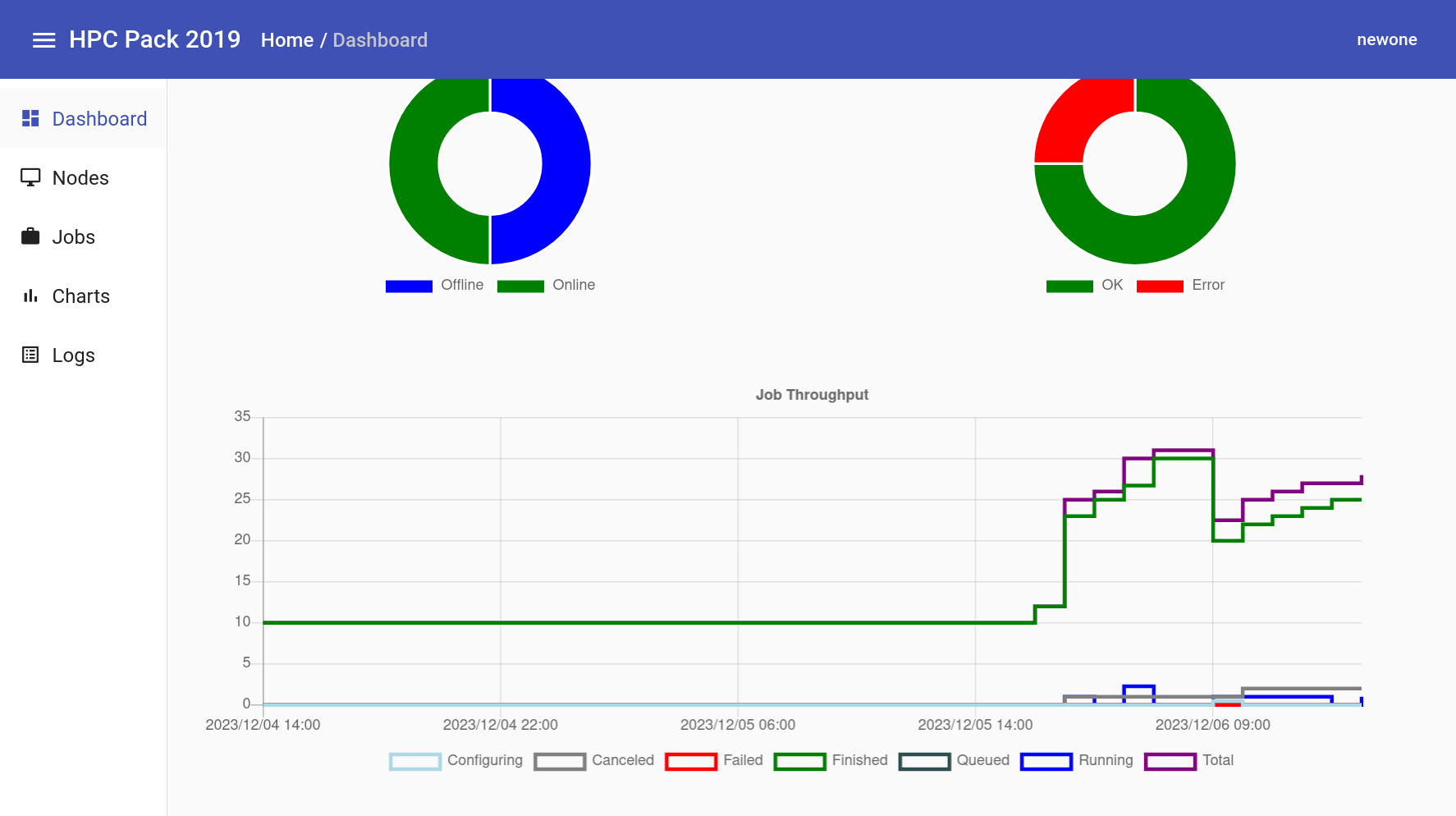
This is the dashboard screen, where you can roughly check the status of nodes and job status.
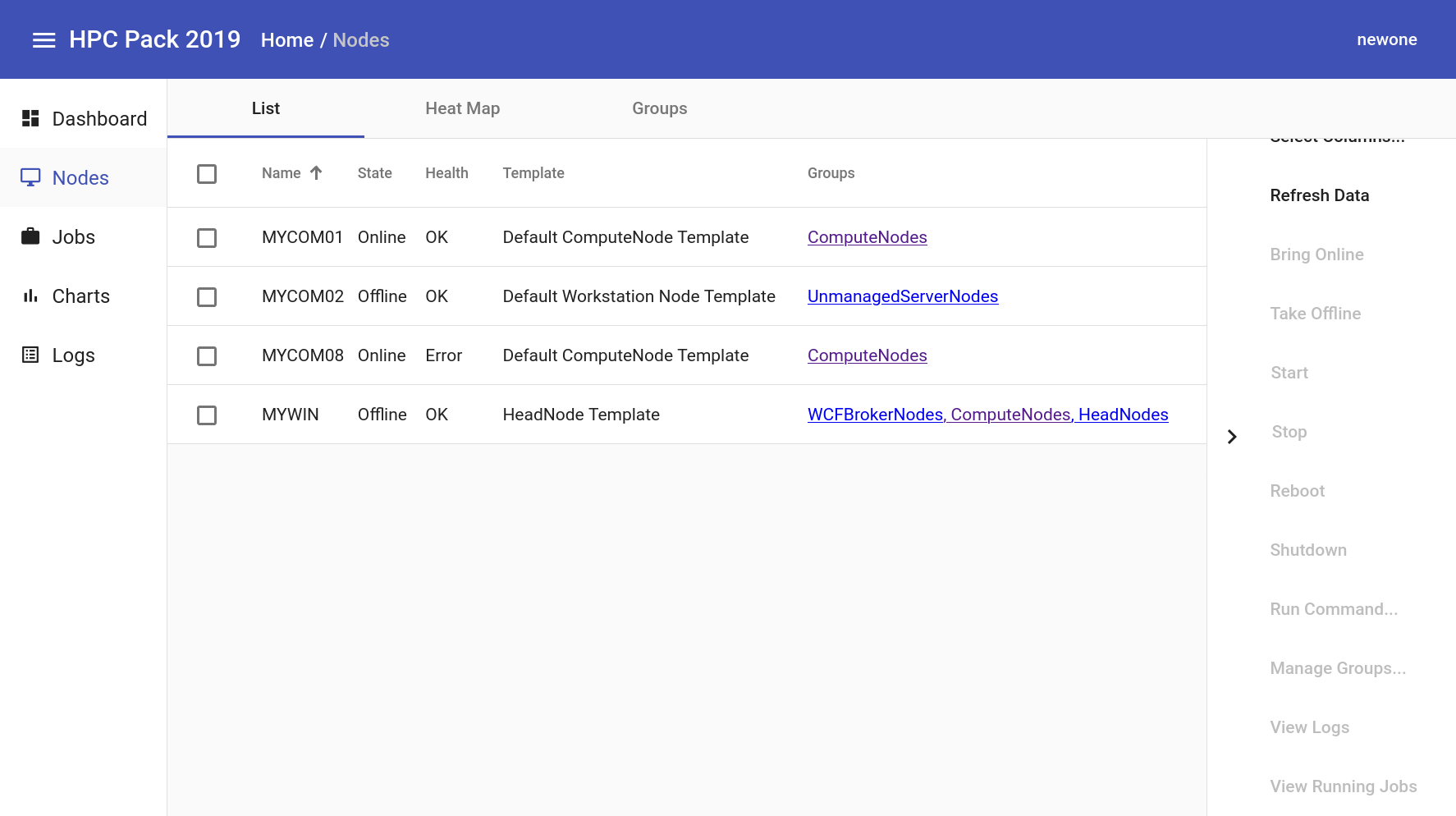
On the node screen, you can check the status of nodes and perform simple actions. This is similar to the Resource Management menu in Cluster Manager.
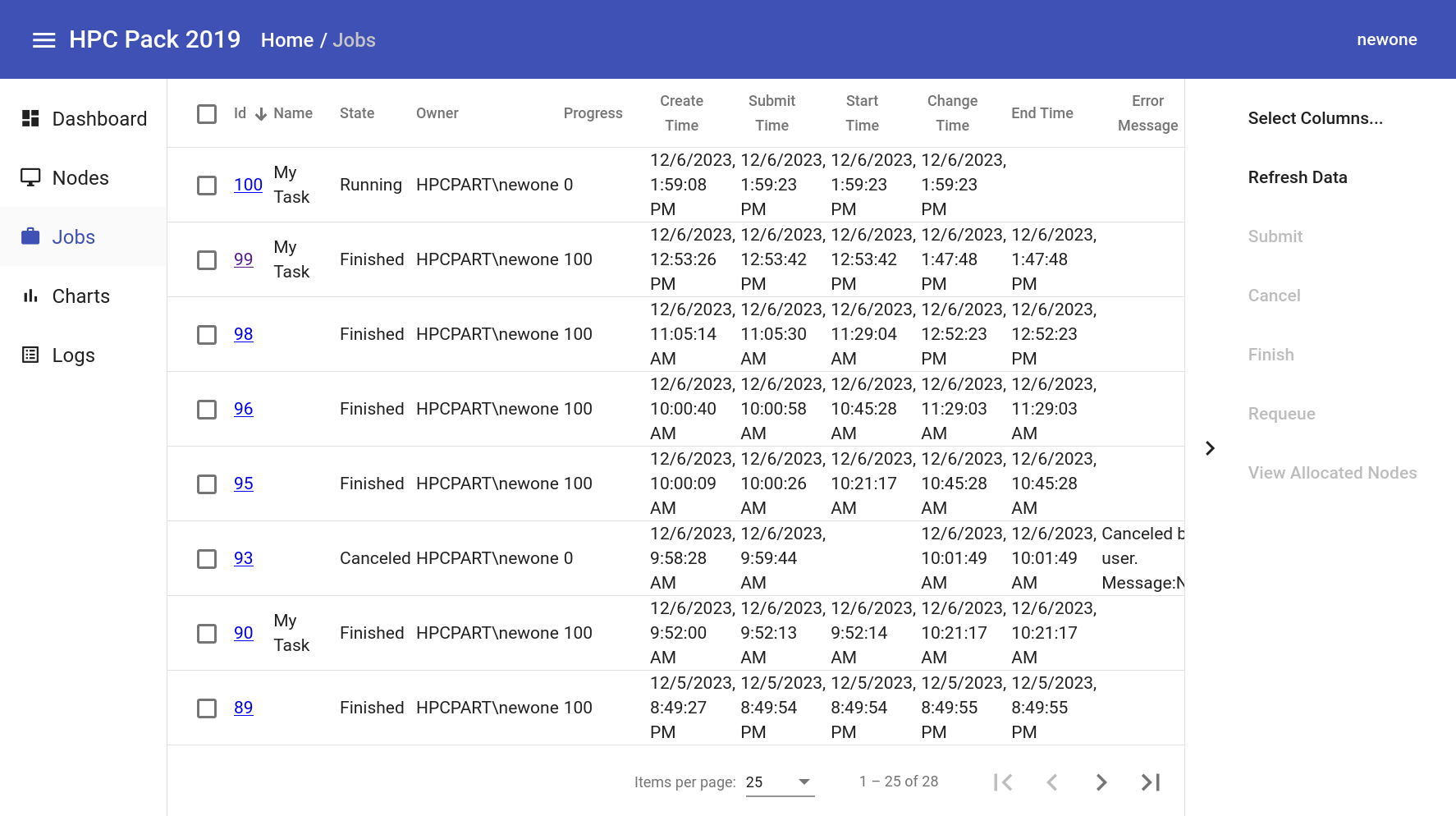
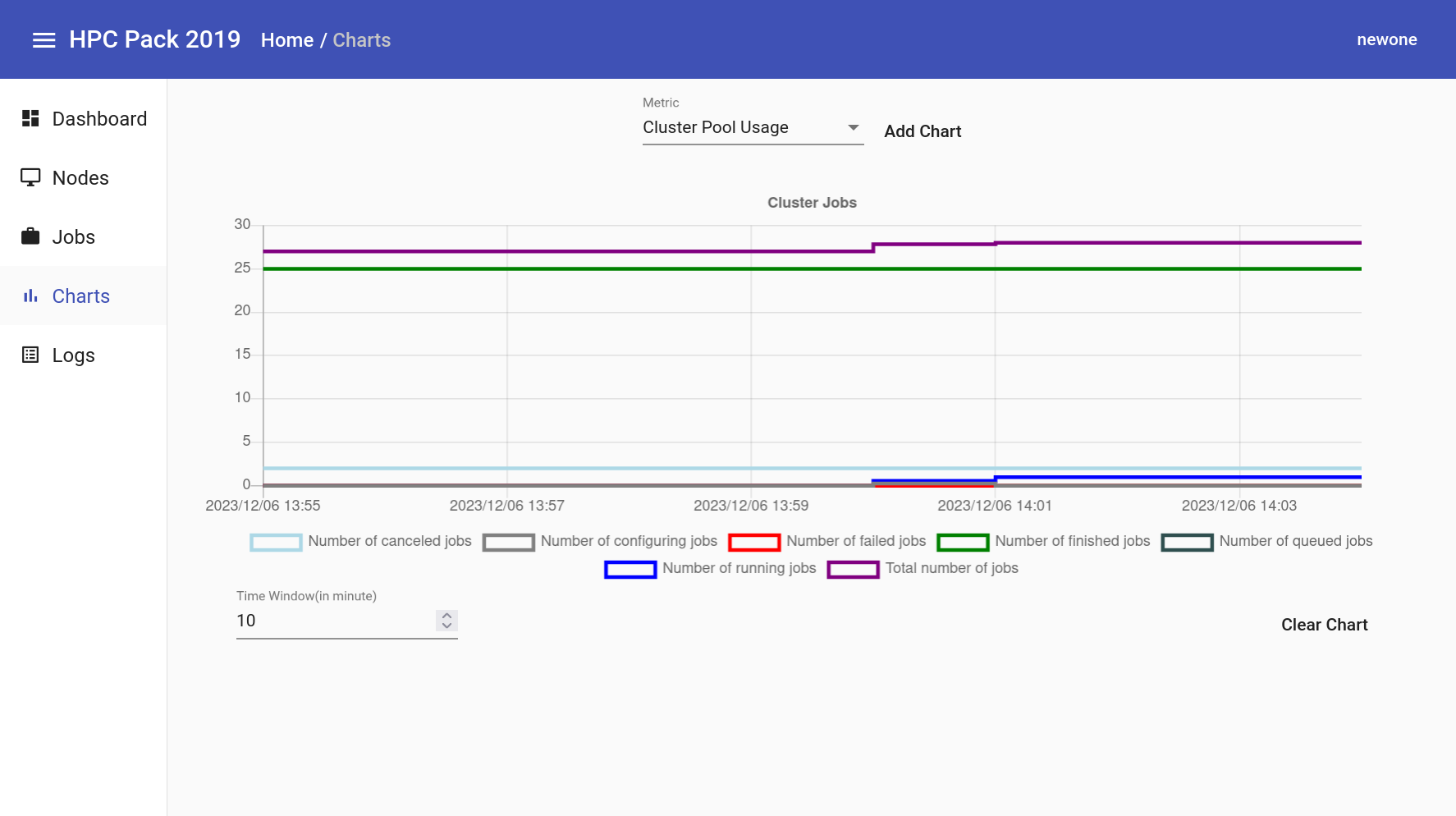
The chart menu allows you to display various metrics in a chart.
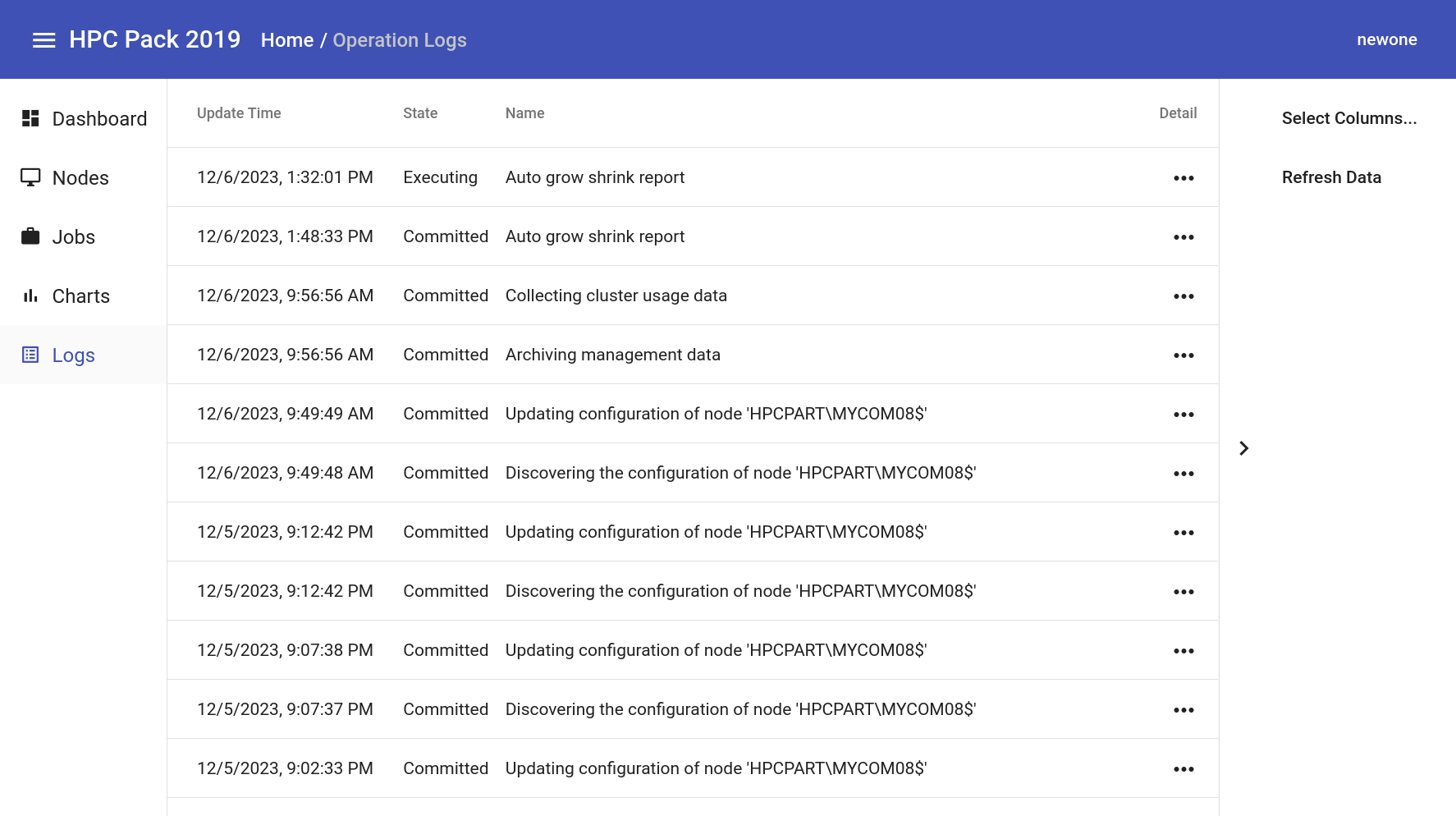
The log menu displays the cluster’s logs.
Summary and Future Plans
In this way, we have installed MS HPC Pack for Windows HPC cluster on Samsung Cloud Platform and submitted jobs. HPC clusters can use not only single server specifications but also various server specifications, and it is possible to configure a mix of Virtual Server, Baremetal Server, and GPU Server on Samsung Cloud Platform.
We hope this guide will be helpful to those who need a Windows HPC cluster.
Although we tried to include many contents, there are many functions that were not covered. We plan to supplement the contents in the guide. The tasks to be added are as follows:
- Active Directory installation and setup
- Security Group setting for HPC Pack
- Remote Database setup
- Head node duplication (HA, High Availability)
- More Windows HPC application use cases (e.g., Excel, VBA, etc.)
- Adding Linux compute nodes
- SOA (Service-oriented architecture) service setup/WCF broker node setup
- Automating compute node addition
- Node Preparation, Release Task setup
- GPGPU setup
Currently, this guide explains how to manually configure an HPC cluster. In contrast, Samsung Cloud Platform’s “HPC Cluster” service provides automated installation, automating everything from Baremetal server creation to middleware installation.
We are also considering MS’s HPC Pack automation feature. If this happens, Windows HPC cluster users will be able to use HPC clusters more comfortably.
Reference Documents
[1] Overview of Microsoft HPC Pack 2019, https://learn.microsoft.com/en-us/powershell/high-performance-computing/overview?view=hpc19-ps
[2] y-cruncher A Multi-Threaded Pi-Program, http://www.numberworld.org/y-cruncher/
[3] PowerShell, https://learn.microsoft.com/en-us/powershell/scripting/overview?view=powershell-7.4