Apache Kafkaof AKHQ usevector
Apache Kafkaof AKHQ usevector
Overview
Apache Kafka HQ(AKHQ) is an open-source web interface for managing and monitoring Apache Kafka. AKHQ provides features to visualize and control the status of Kafka clusters, topics, consumer groups, etc. It offers various functions to facilitate Kafka management tasks through an intuitive user interface.
How to access AKHQ
Generally, Kafka is deployed in a private subnet, making it inaccessible from outside. Therefore, we explain how to set up a Bastion (Windows Server) in a public subnet for access.
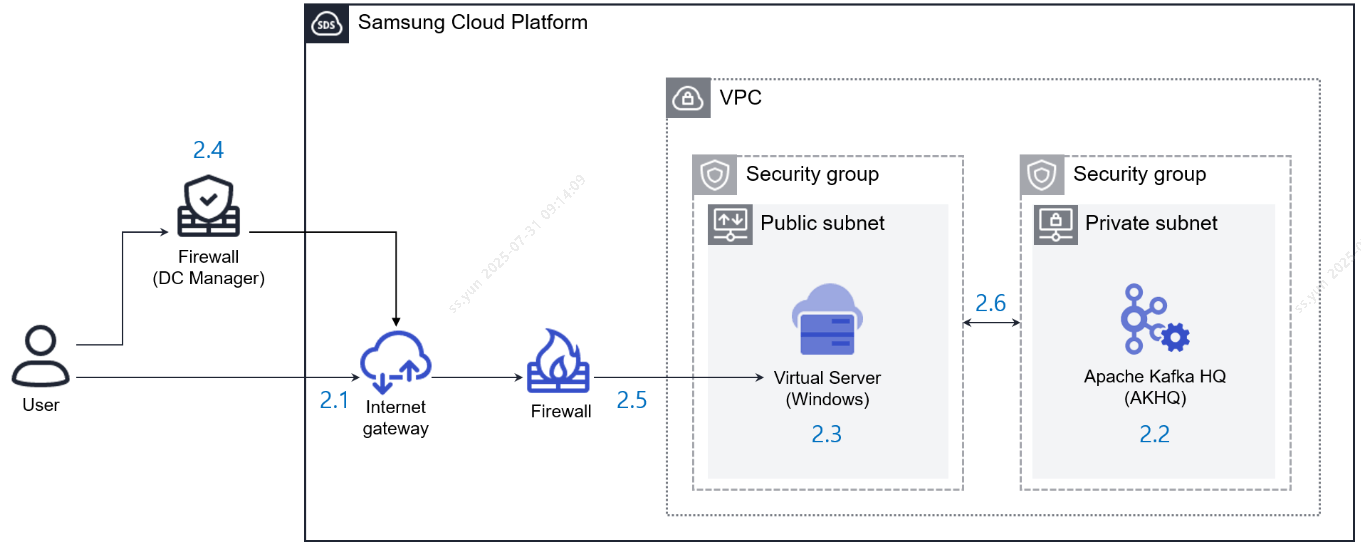
VPC Internet gateway(IGW) creation
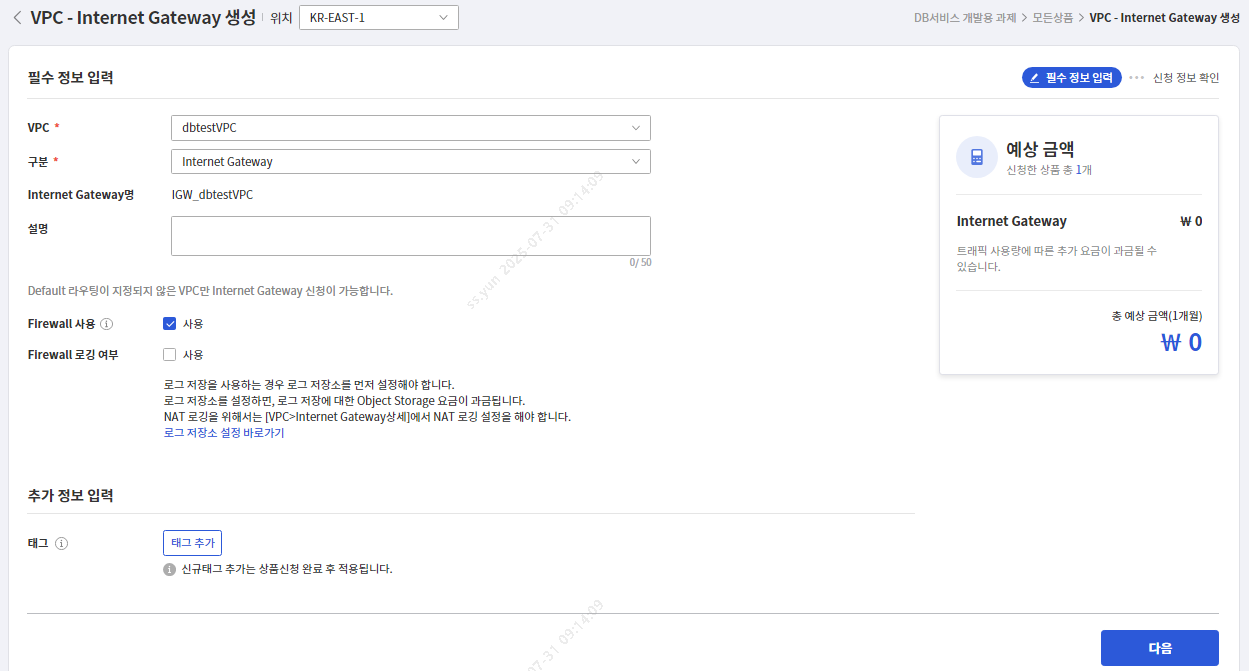
Preliminary steps for configuring the IGW and firewall of the VPC used for creating Apache Kafka and Windows servers (the VPC must be created first).
[SCP] 모든 상품 > Networking > VPC > Internet Gateway

VPC : Kafka와 Windows 서버 생성에 사용할 VPC 선택
구분 : Internet Gateway
Firewall : 사용 O
Apache Kafka creation
Preliminary work for IGW and firewall configuration of the VPC to be used for creating Apache Kafka and Windows servers (VPC creation must be done first.)
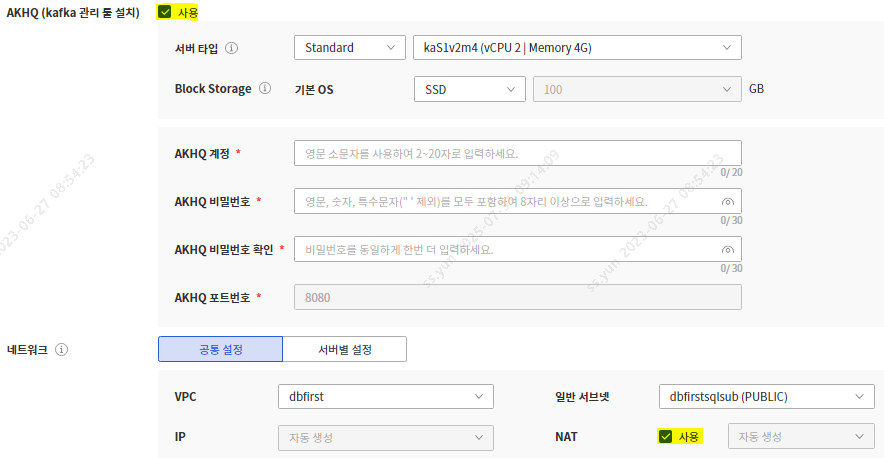
[SCP] 모든 상품 > Data Analytics > Apache Kafka(Managed)

AKHQ (Kafka 관리 툴 설치) : 사용 O
네트워크 – 일반 서브넷 : Private 서브넷 선택
Create Windows Server
[SCP] 모든 상품 > Compute > Virtual Server

네트워크 – VPC : Kafka와 동일한 VPC 선택
네트워크 – 일반 서브넷 : Public 서브넷 선택
NAT : 사용 O
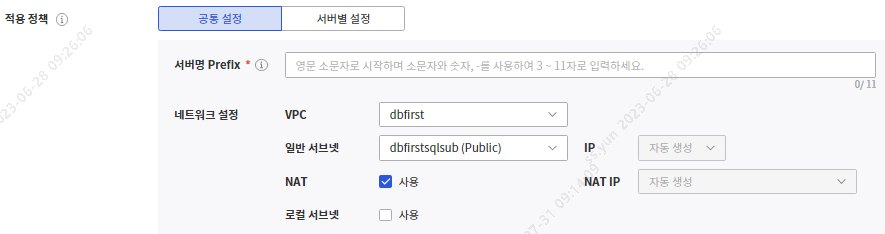
Disable firewall between user and Windows server
[방화벽 해제 정보]

출발지 : 사용자 IP
도착지 : Windows 서버 NAT IP
포트 : 3389 (원격접속용)
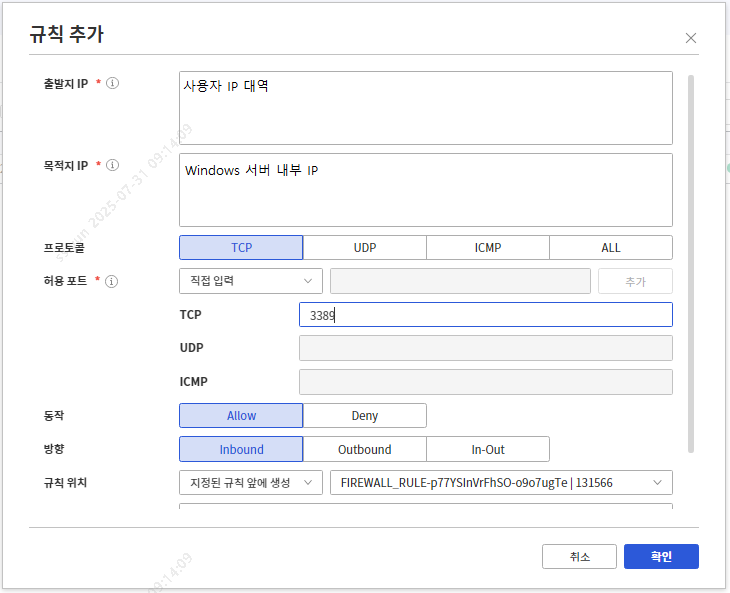
Add Firewall (FW) Rule
[SCP] 모든 상품 > Networking > Firewall > Firewall 상세 > 규칙 탭 > 규칙 추가


[FW등록용 룰 정보]
사용자의 Windows 서버 원격 접속 용도

출발지 IP : 사용자 IP 대역 (서버 접속용 VDI 경우 203.244.212.0/24)
목적지 IP : Windows 서버 내부 IP
프로토콜 : TCP
허용 포트 : 3389
동작 : Allow
방향 : Inbound
※ If you have registered the SDS NAT range in the firewall and access‑control settings of an external system to enable access from the server‑access VDI, also register the VDI’s public IP 203.244.212.0/24 in the external system’s firewall and access‑control settings.
Security Group(SG) Configuration
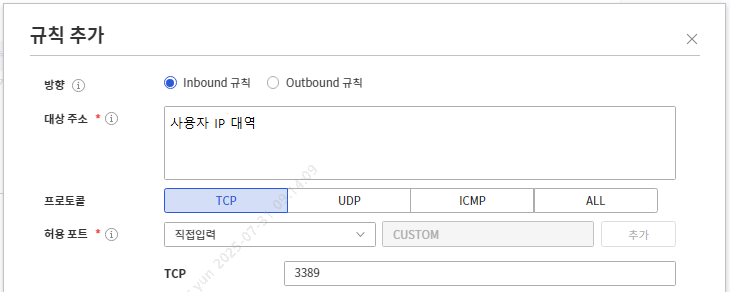
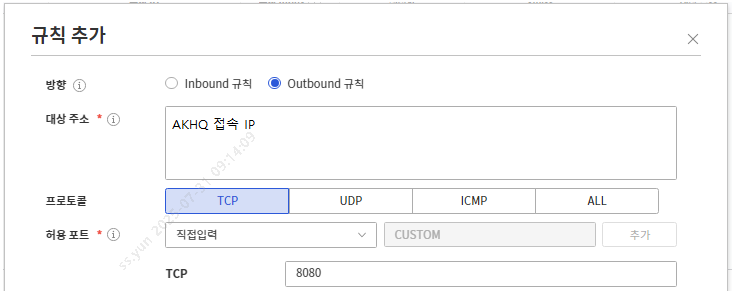
[SCP] 모든 상품 > Networking > Security Group > 생성한 Security Group 상세 > 규칙 탭 > 규칙 추가

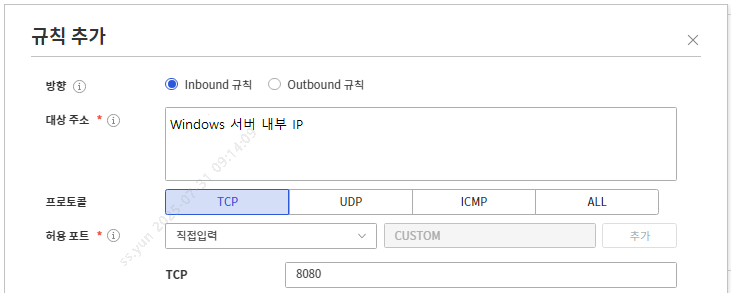
[ Windows 서버 SG등록용 룰 정보 ]

1.
방향 : Inbound 규칙
대상 주소 : 사용자 IP 대역 (서버 접속용 VDI일 경우 203.244.212.0/24)
프로토콜 : TCP
허용 포트 : 3389

2.
방향 : Outbound 규칙
대상 주소 : AKHQ 접속 IP (생성한 Apache Kafka 상세의 AKHQ 접속 정보에서 확인 가능)
프로토콜 : TCP
허용 포트 : 8080
[ Kafka 서버 SG등록용 룰 정보 ]

방향 : Inbound 규칙
대상 주소 : Windows 서버 내부 IP
프로토콜 : TCP
허용 포트 : 8080
Google Chrome installation
Installing the Google Chrome browser is required to access the AKHQ web page.
When remotely connecting to a Windows server from a VDI used for server access
- Google Chrome standalone 64‑bit file that can be installed offline Move it to the C drive of the VDI used for server access.
- Remote Desktop Connection – Local Resources – Local Devices and Resources – Click the Details button Drive – Local Disk (C:) Select
- Move the Chrome installer from the C drive of the VDI used to access the server on the Windows server, and install it.
Using AKHQ features
Topic Management
Topic list
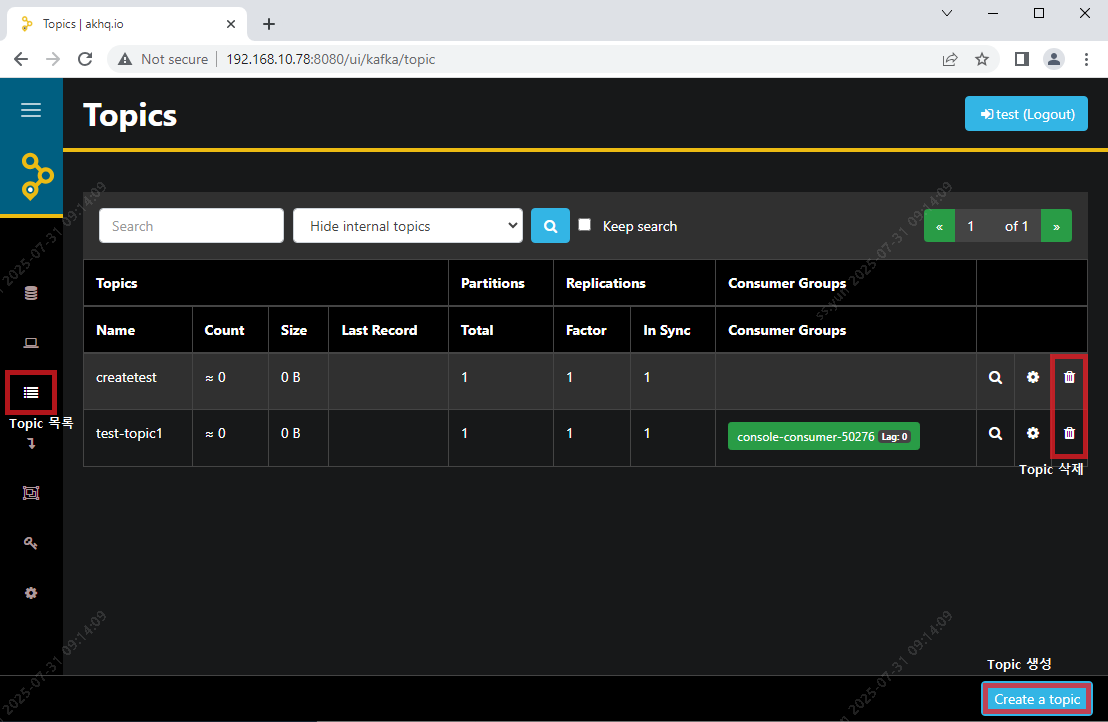
In the Topic list, you can view each Topic’s name, partitions, replications, consumer groups, and you can delete Topics.
Topic creation
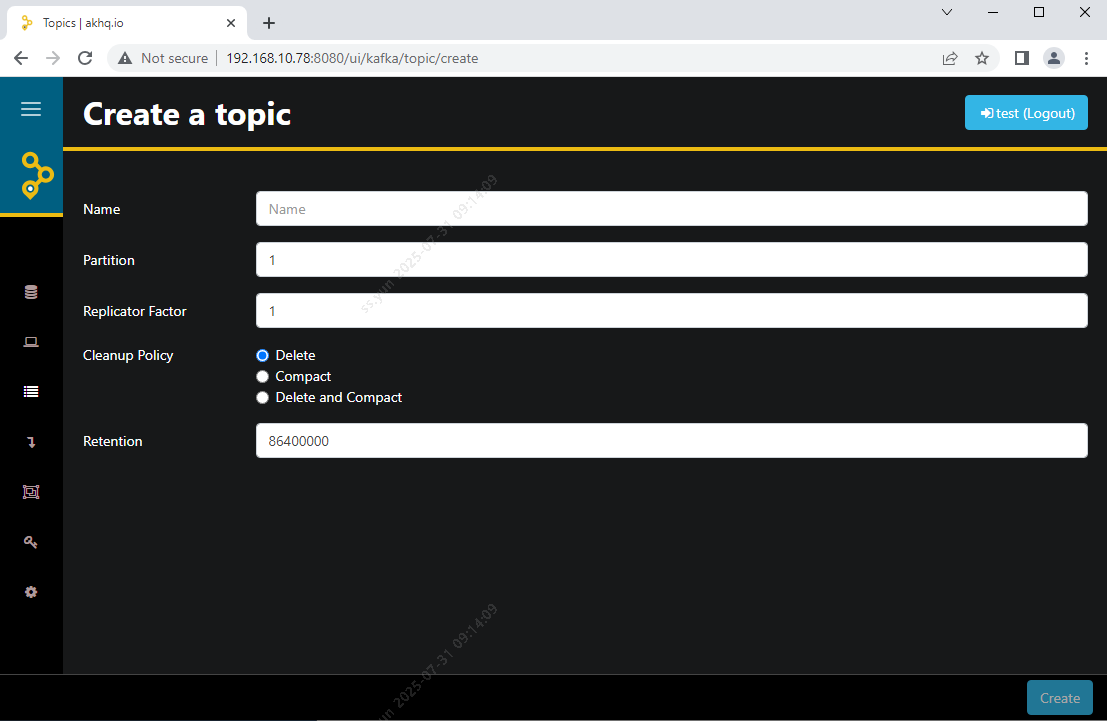
You can create a new Topic. When creating a Topic, you can set properties such as the Topic name, Partitions, and Replication Factor.
Topic detailed information view
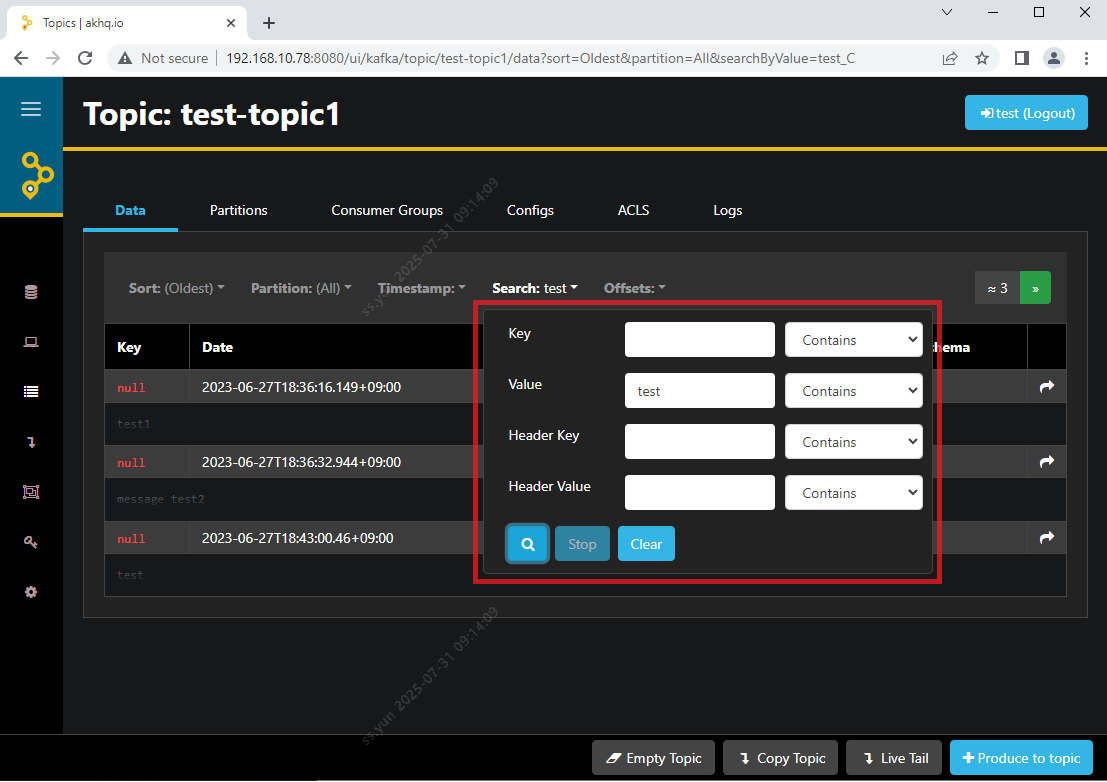
- Data : You can view the messages published to a specific Topic. You can check detailed information such as the message’s Partition, Offset, etc.
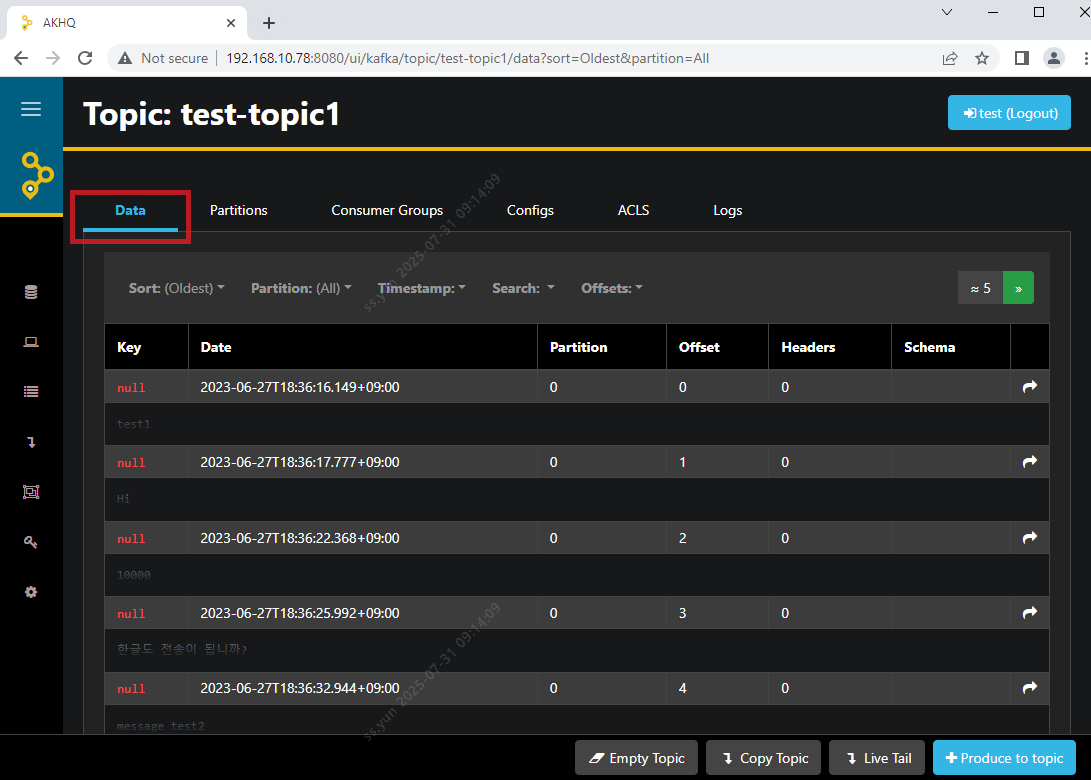
- Data – Search : Provides the ability to search and filter messages of a Topic. You can retrieve messages by specifying a specific time or an Offset range.
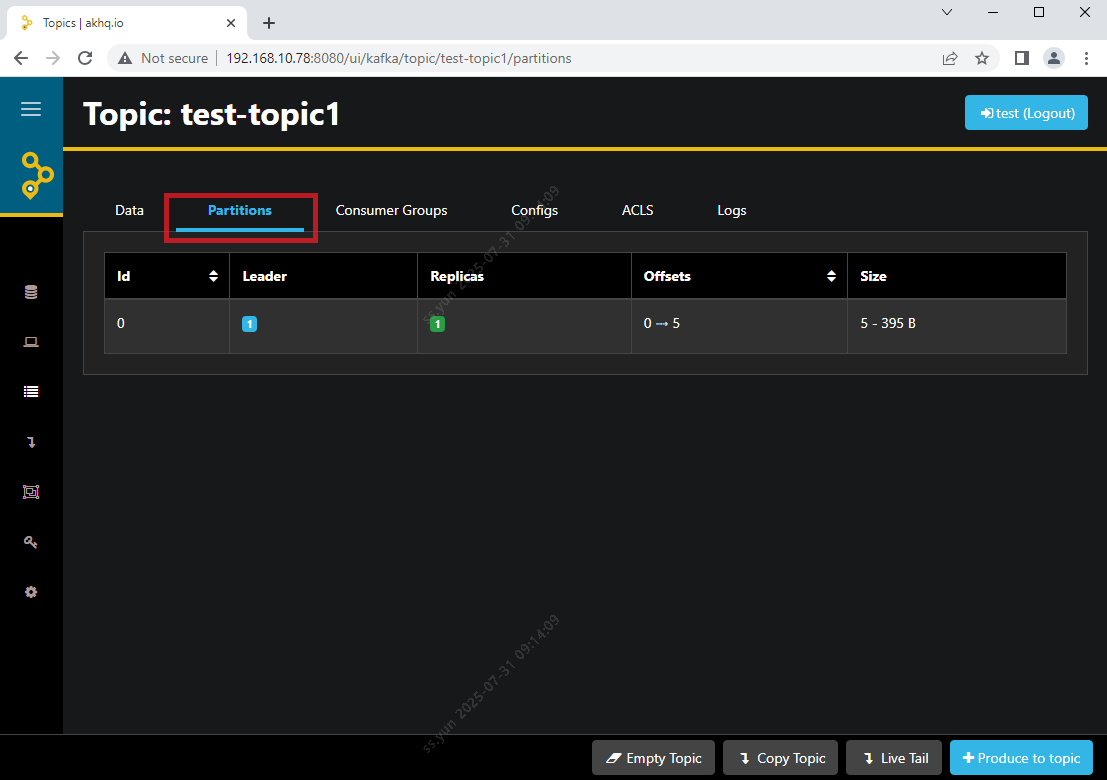
- Partitions : You can view detailed information such as the partitions of a specific topic, replication factor, leader partition, and offset.
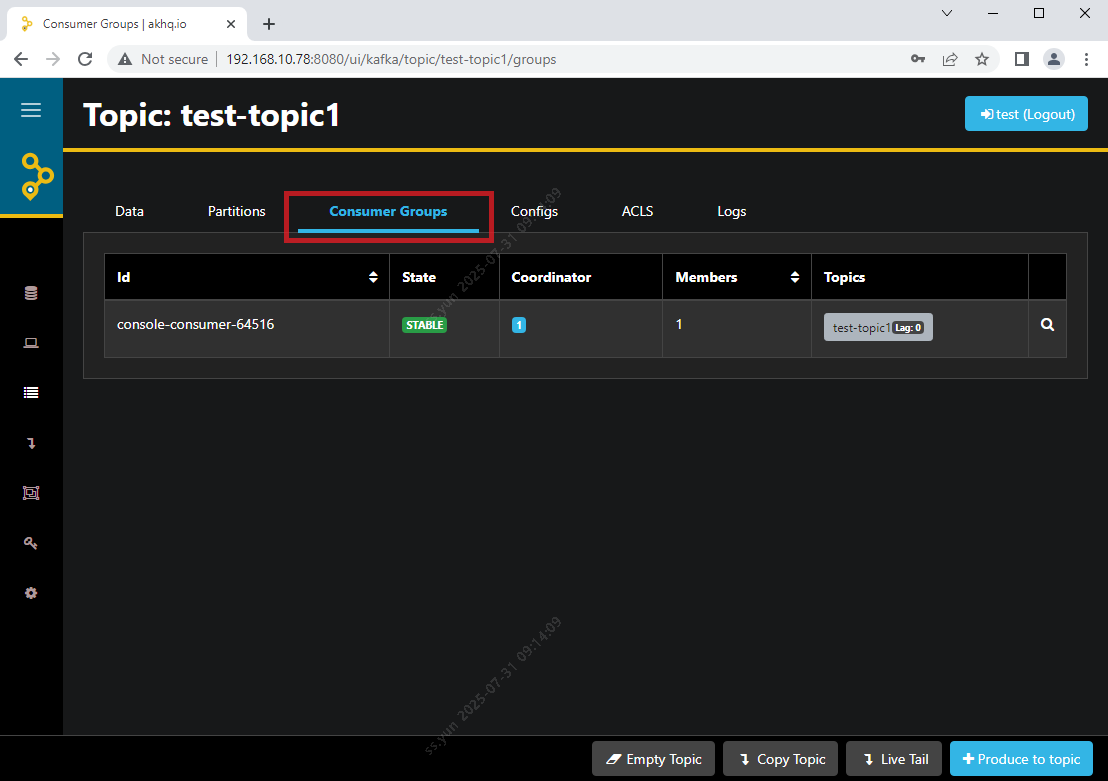
- Consumer Groups : You can check the current status, members, etc., of the Consumer Group for a specific topic.
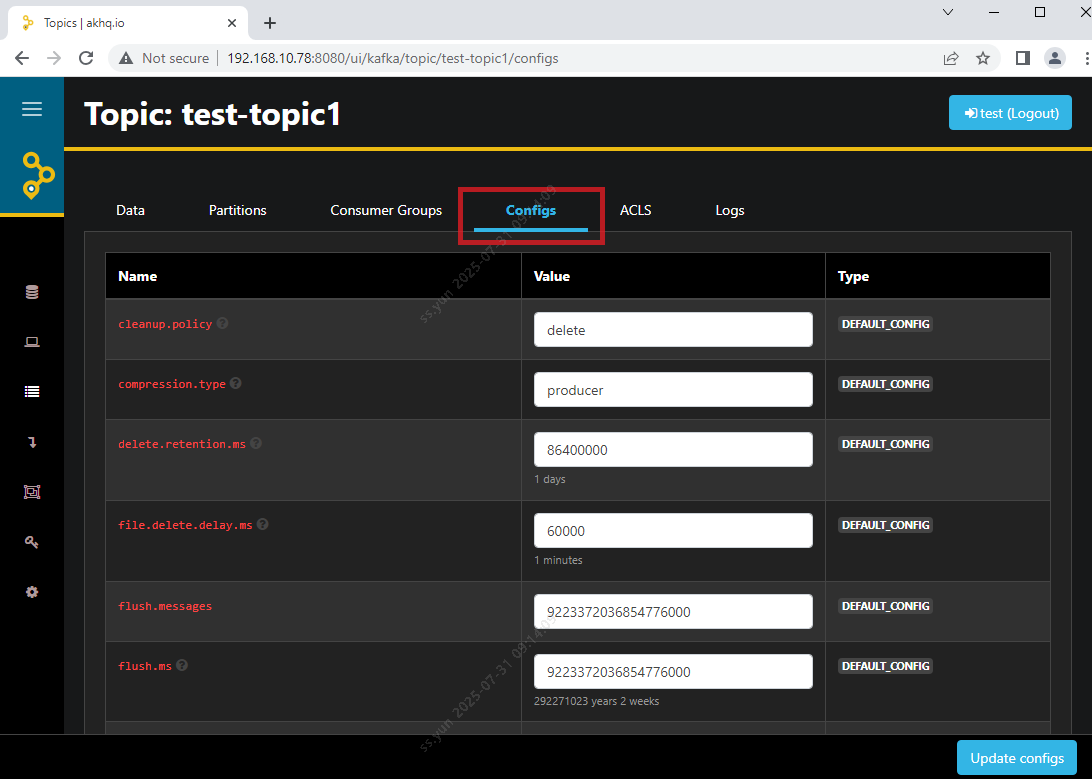
- Configs : You can modify the attribute values of a specific Topic.
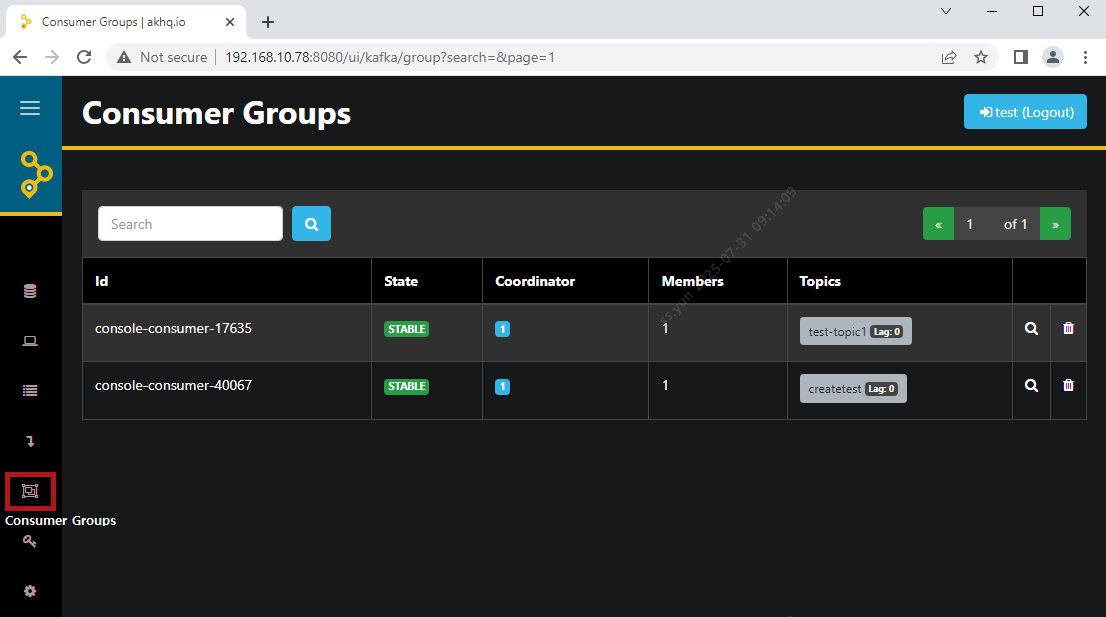
Consumer Groups
You can monitor the status of Consumer Groups for all topics. You can view the members of a Consumer Group, reset Consumer Offsets, or remove them from the group.
Live Tail
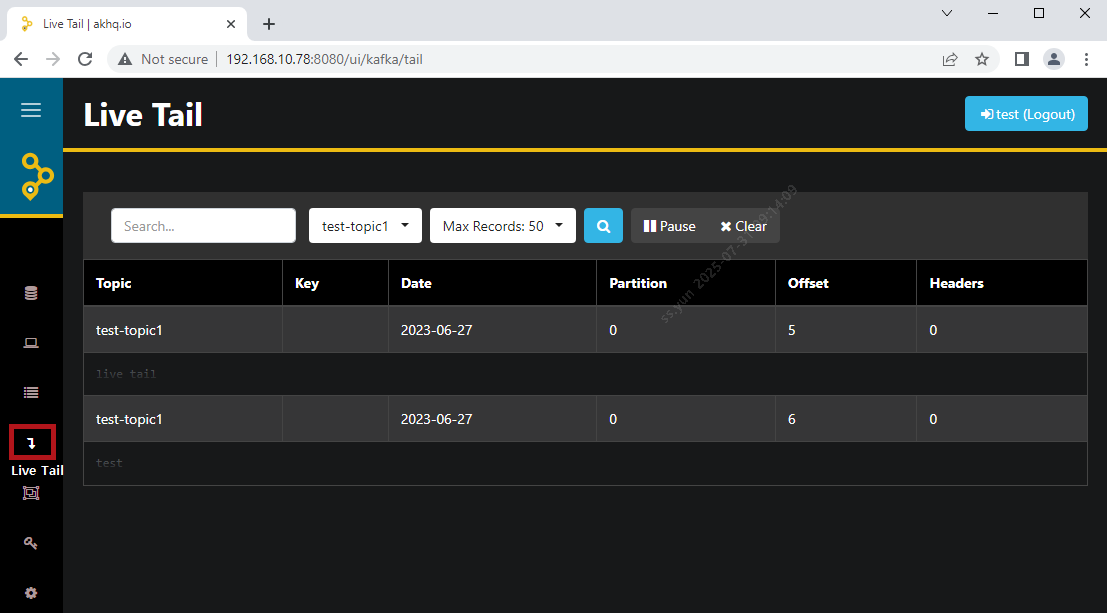
When a new message arrives in the selected Topic, AKHQ automatically updates and displays the latest message. This allows you to monitor the data stream in real time.