
Active Directory Domain Controller build vector
Active Directory Domain Controller build vector
Overview
Active Directory (hereafter AD) is a service that provides Single Sign-On (hereafter SSO) to computing resources on a network. Generally, AD is used to configure user authentication and authorization within computing resources. In AD, the Domain Name System (hereinafter DNS) is used to build the directory structure, enabling recognition, management, operation, and configuration of network resources. To achieve redundancy of the Windows server’s Operating System (hereafter OS), you can use the native solution Windows Server Failover Cluster (hereafter WSFC), and WSFC can be configured both in a domain environment using AD and in a workgroup without AD. When configuring WSFC on Samsung Cloud Platform (hereafter SCP), it is recommended to use an AD Domain Controller (hereafter DC).
Creating resources in SCP
The capacity of the AD DC is calculated based on the number of users. The Central Processing Unit (hereafter CPU) supports 1,000 users per core, and the size of the disk and the DC’s Database (hereafter DB) is based on 60KB per user. Memory is based on (base OS usage 2GB) + (required AD DB size) + (OS security solution) usage. The AD DC server should be configured simply by using only one Network Interface Card (hereafter NIC).
Estimated Capacity
| Category | capacity |
|---|---|
| CPU | 2Core |
| Memory | 4GB |
| OS | Windows Server 2022 Standard |
| NIC | 1EA |
| Disk | No data disk. |
When used for redundancy within SCP, it involves fewer than ten users and computers, so the required computing resources are low. We selected 2 cores and 4 GB to provide minimal parallel processing and task handling.
IP Allocation
Define the required IP before deploying and allocating the server. SCP V2 uses DHCP (Dynamic Host Configuration Protocol) to assign IP addresses. When creating a Console VM, the IP is generated automatically and selected randomly, so if you want to use a specific IP, you must enter the IP when creating the VM.
Configuration example
| Category | IP | Explanation |
|---|---|---|
| addc-1 | 192.168.10.5 | This DC performs the role of Primary Domain Controller. |
| addc-2 | 192.168.10.6 | This is a server that runs the Domain Controller service. |
It is recommended that an AD DC server use a simple network configuration with only one NIC and a single IP. Authentication and authorization between servers are based on host name and IP. Adding extra NICs, such as for Heartbeat, requires subnet separation during operation and additional DNS configuration.
IP information of the VM for Primary Domain Controller
The generated VM has an IP assigned as shown below.
ipconfig /allipconfig /allWindows IP Configuration
Host Name . . . . . . . . . . . . : WIN-XXXXXXXXXXX
Primary Dns Suffix . . . . . . . :
Node Type . . . . . . . . . . . . : Hybrid
IP Routing Enabled. . . . . . . . : No
WINS Proxy Enabled. . . . . . . . : No
DNS Suffix Search List. . . . . . : network.kr-west1.e.samsungsdscloud.internal.
Ethernet adapter Ethernet Instance 0:
Connection-specific DNS Suffix . : network.kr-west1.e.samsungsdscloud.internal.
Description . . . . . . . . . . . : Red Hat VirtIO Ethernet Adapter
Physical Address. . . . . . . . . : AA-BB-CC-DD-EE-FF
DHCP Enabled. . . . . . . . . . . : Yes
Autoconfiguration Enabled . . . . : Yes
IPv4 Address. . . . . . . . . . . : 192.168.10.5(Preferred)
Subnet Mask . . . . . . . . . . . : 255.255.255.0
Lease Obtained. . . . . . . . . . : Thursday, October 30, 2025 3:00:16 PM
Lease Expires . . . . . . . . . . : Friday, October 31, 2025 3:00:16 AM
Default Gateway . . . . . . . . . : 192.168.10.1
DHCP Server . . . . . . . . . . . : 192.168.10.1
DNS Servers . . . . . . . . . . . : 198.19.0.53
NetBIOS over Tcpip. . . . . . . . : Enabled
The hostname is not reflected by the information entered in the SCP console. IP and DNS server are configured via DHCP. The DNS server is an internal DNS server provided within SCP, and it is set up to allow integration with other servers inside SCP.
Firewall and Security Group Configuration
After creating the VM, you must open the ports used by AD in the firewall and Security Group.
| Protocol | Server port (inbound) | client port (outbound) | Explanation |
|---|---|---|---|
| TCP | 53 | 53, 49152-65535 | DNS |
| TCP | 88 | 49152-65535 | Kerberos Authentication |
| TCP | 135 | 49152-65535 | RPC Endpoint Mapper |
| TCP | 445 | 49152-65535 | SMB (file sharing) |
| TCP | 464 | 49152-65535 | Kerberos password change |
| TCP | 389 | 49152-65535 | LDAP |
| TCP | 636 | 49152-65535 | LDAP over TLS/SSL |
| TCP | 3268 | 49152-65535 | LDAP Global Catalog |
| TCP | 3269 | 49152-65535 | LDAP Global Catalog SSL |
| TCP | 5985 | 49152-65535 | WinRM HTTP |
| TCP | 5986 | 49152-65535 | WinRM HTTPS |
| TCP | 9389 | 49152-65535 | Active Directory Management Gateway Service |
| TCP | 49152-65535 | 49152-65535 | RPC for LSA, SAM, NetLogon, FRS RPC, DFSR RPC |
| UDP | 123 | 49152-65535/UDP | NTP (W32Time) |
| UDP | 464 | 49152-65535/UDP | Kerberos password change |
| UDP | 389 | 49152-65535/UDP | LDAP |
| UDP | 53 | 53, 49152-65535 | DNS |
| UDP | 88 | 49152-65535 | Kerberos Authentication |
| ICMP | 0, 8 | 0, 8 | Echo request (8),Echo reply (0) |
Primary Domain Controller configuration
AD is based on a multi‑master database, so objects such as users or computers have their data changed on all DCs. Important databases, such as certain schemas, are updated only on a single DC selected as the Primary Domain Controller (hereafter PDC). When configuring AD DC, the first server, the PDC, holds the Flexible Single Master Operations (FSMO) Role, and the FSMO Role can be failed over via commands. The creation and information updates of objects such as Cluster Name Object (CNO) and Virtual Computer Object (VCO) used in the WSFC configuration process are performed on all DCs.
Change host name
In SCP V2, when a Windows server is deployed, the host name is generated randomly. Change it to the host name selected during the AD DC configuration planning. While host name changes are possible during operation, it is recommended to change them in advance according to the planned configuration.
Run Powershell (administrator privileges)
Run PowerShell (with administrator privileges) from Windows.

Check host name status
Print the current host name.
hostnamehostnameWIN-XXXXXXXXXXX
You can confirm that the host name is randomly generated and starts with “WIN-”.
Host Name Change
Change the host name to the planned name addc-1. Windows servers require a restart when the host name is changed.
Rename-Computer -NewName "addc-1" -Restart -ForceRename-Computer -NewName "addc-1" -Restart -Force| option | value | Explanation |
|---|---|---|
| -NewName | addc-1 | The host name to be changed. |
| -Restart | Restarting. | |
| -Force | Force execution. |
Powershell(Administrator privileges) Run
When the OS restarts, launch PowerShell with administrator privileges from Windows.
Check status after changing host name
Print the changed host name.
hostnamehostnameaddc-1
You can confirm that the host name has been changed to the scheduled addc-1.
Disable IPv6 adapter binding
When Windows Server is deployed, each NIC can bind both IPv4 and IPv6, and the basic functions are enabled. Because Windows servers used in SCP do not use IPv6, IPv6 is disabled to prevent DNS malfunctions and similar issues. When a Windows server is deployed, unique names are assigned sequentially within the server, and IPv6 is enabled by default. The NIC name may vary depending on the Windows OS version and configuration.
Display NIC information that can be configured for IPv6
Outputs the NIC information that can currently bind IPv6.
Get-NetAdapterBinding -ComponentID ms_tcpip6Get-NetAdapterBinding -ComponentID ms_tcpip6| option | value | description |
|---|---|---|
| -ComponentID | ms_tcpip6 | This is the component ID to set. |
Name                         DisplayName                                        ComponentID          Enabled
----                         -----------                                        -----------          -------
Ethernet Instance 0          Internet Protocol Version 6 (TCP/IPv6)             ms_tcpip6            True
The NIC of the deployed server is named Ethernet Instance 0 and IPv6 is enabled by default.
Disable IPv6 on NIC
Ethernet Instance 0 Disable IPv6 on the NIC.
Disable-NetAdapterBinding -Name "Ethernet Instance 0" -ComponentID ms_tcpip6Disable-NetAdapterBinding -Name "Ethernet Instance 0" -ComponentID ms_tcpip6| option | value | description |
|---|---|---|
| -Name | Ethernet Instance 0 | The NIC name to be changed. |
| -ComponentID | ms_tcpip6 | This is the component ID to set. |
Display NIC information after disabling IPv6
After changing the NIC settings, output the NIC information that can bind IPv6.
Get-NetAdapterBinding -ComponentID ms_tcpip6Get-NetAdapterBinding -ComponentID ms_tcpip6Name DisplayName ComponentID Enabled
---- ----------- ----------- -------
Ethernet Instance 0 Internet Protocol Version 6 (TCP/IPv6) ms_tcpip6 False
You can verify that IPv6 is disabled on the Ethernet0 NIC.
Install Active Directory Domain Controller role
Add the AD-Domain-Services role to serve as an AD DC.
Install-WindowsFeature AD-Domain-Services -IncludeManagementToolsInstall-WindowsFeature AD-Domain-Services -IncludeManagementTools| option | value | Explanation |
|---|---|---|
| -IncludeManagementTools | When installing the AD-Domain-Services role, the UI for management is automatically installed as an add‑on. |
This is the result of a successful installation.
Success Restart Needed Exit Code      Feature Result
------- -------------- ---------      --------------
True    No             Success        {Active Directory Domain Services, Group P...
Primary Domain Controller role promotion
When the AD-Domain-Services feature is installed, configure a new DC role. The information to be used is as follows.
| Category | variable name | value |
|---|---|---|
| Domain name | $FQDN | scp.test |
| NetBIOS | $NETBIOS | SCP |
| Directory Services Restore Mode password Domain Administrator password | $PASSWORD | It receives input when the command is executed. |
| Installation directory | $InstallDirectory | C:\Windows\ |
In SCP V2, the default Administrator account is disabled and has no password set. Therefore, you must change the Administrator account’s password before using it. Additionally, the Domain Administrator account’s password must also be changed, and the Domain Administrator account will be set to the password specified during the AD DC role promotion.
Primary Domain Controller role promotion command
$FQDN = "scp.test"
$NETBIOS= "SCP"
$PASSWORD = Read-host 'Safe Mode Administrator Password: ' -AsSecureString
$InstallDirectory ="C:\Windows\"
Set-LocalUser -Name "Administrator" -Password $PASSWORD
Import-Module ADDSDeployment
Install-ADDSForest
-CreateDnsDelegation:$false `
-DatabasePath $InstallDirectory"NTDS" `
-DomainMode "WinThreshold"
-DomainName $FQDN
-DomainNetbiosName $NETBIOS
-ForestMode "WinThreshold"
-InstallDns:$true `
-LogPath $InstallDirectory"NTDS" `
-NoRebootOnCompletion:$false `
-SysvolPath $InstallDirectory"SYSVOL"
-SafeModeAdministratorPassword  $PASSWORD
-Force:$true
$FQDN = "scp.test"
$NETBIOS= "SCP"
$PASSWORD = Read-host 'Safe Mode Administrator Password: ' -AsSecureString
$InstallDirectory ="C:\Windows\"
Set-LocalUser -Name "Administrator" -Password $PASSWORD
Import-Module ADDSDeployment
Install-ADDSForest
-CreateDnsDelegation:$false `
-DatabasePath $InstallDirectory"NTDS" `
-DomainMode "WinThreshold"
-DomainName $FQDN
-DomainNetbiosName $NETBIOS
-ForestMode "WinThreshold"
-InstallDns:$true `
-LogPath $InstallDirectory"NTDS" `
-NoRebootOnCompletion:$false `
-SysvolPath $InstallDirectory"SYSVOL"
-SafeModeAdministratorPassword $PASSWORD
-Force:$true| option | value | Explanation |
|---|---|---|
| -CreateDnsDelegation | $false | Create DNS delegation. Used when integrating with an existing AD. |
| -DatabasePath | $InstallDirectory"NTDS" | AD database storage location |
| -DomainMode | WinThreshold | The AD domain functional level WinThreshold is Windows Server 2016, a recent functional level. |
| -DomainNetbiosName | $NETBIOS | Net BIOS name |
| -ForestMode | WinThreshold | The AD domain functional level WinThreshold is Windows Server 2016, a recent functional level. |
| -InstallDns | $true | Whether to install DNS when configuring a DC |
| -LogPath | $InstallDirectory"NTDS" | Log storage location |
| -NoRebootOnCompletion | $false | Whether to restart after DC configuration is completed |
| -SysvolPath | $InstallDirectory"SYSVOL | SYSVOL storage location SYSVOL is the file share location used when deploying computer and user group policies. |
| -SafeModeAdministratorPassword | $PASSWORD | Password when using directory service restore mode |
This is the result of successful execution.
Message                          Context           RebootRequired  Status
-------                          -------           --------------  ------
Operation completed successfully DCPromo.General.1          False Success
If the AD DC role is successfully promoted, the system will automatically restart.
Log in with the domain Administrator account
Verify that you can log in with the Administrator account of the created domain. The information to be used is as follows.
| Category | value |
|---|---|
| Domain name | scp.test |
| NetBIOS | SCP |
| Account name | SCP |
| Domain Administrator password | The $PASSWORD value entered when promoting the above Primary Domain Controller |
Enter the password used for the above PDC promotion for the scp\Administrator account to connect to the server.
Secondary Domain Controller configuration
How to configure an additional DC.
You must add it as a member to the existing PDC and promote the DC role.
Change host name
In SCP V2, when a Windows server is deployed, the host name is generated randomly. Change it to the host name selected during the AD DC configuration planning. While host name changes are possible during operation, it is recommended to change them in advance according to the planned configuration.
Run PowerShell (Administrator privileges)
Connect to the secondary DC server and run PowerShell (administrator privileges) from the Windows Run.
Check host name status
Print the current host name.
hostnamehostnameWIN-XXXXXXXXXXX
You can see that the host name is randomly generated and starts with “WIN-”.
Change host name
Change the host name to the planned name addc-2. Windows servers require a restart when the host name is changed.
Rename-Computer -NewName "addc-2" -Restart -ForceRename-Computer -NewName "addc-2" -Restart -Force| option | value | description |
|---|---|---|
| -NewName | addc-2 | The host name to be changed. |
| -Restart | Restarting. | |
| -Force | Force execution. |
Run PowerShell (administrator privileges)
When the OS restarts, launch PowerShell (administrator privileges) in Windows.
Check status after changing host name
Print the changed host name.
hostnamehostnameaddc-2
You can confirm that the host name has been changed to addc-2.
Disable IPv6 adapter binding
In Windows Server, after the initial deployment, a single NIC is enabled to bind both IPv4 and IPv6. Because Windows servers used in SCP do not use IPv6, IPv6 is disabled to prevent DNS malfunctions and similar issues. Outputs the adapter information that can currently bind IPv6. When a Windows server is deployed, unique names are assigned sequentially within the server, and IPv6 is enabled by default. The NIC name may vary depending on the Windows OS version and configuration.
Output NIC information that can be configured for IPv6
Displays the adapter information that can currently bind IPv6.
Get-NetAdapterBinding -ComponentID ms_tcpip6Get-NetAdapterBinding -ComponentID ms_tcpip6Name DisplayName ComponentID Enabled
---- ----------- ----------- -------
Ethernet Instance 0 Internet Protocol Version 6 (TCP/IPv6) ms_tcpip6 True
After the OS is deployed, the server’s NIC is named Ethernet Instance 0 and IPv6 is enabled by default.
Disable IPv6 on NIC
Disable IPv6 on Ethernet Instance 0.
Disable-NetAdapterBinding -Name "Ethernet Instance 0" -ComponentID ms_tcpip6Disable-NetAdapterBinding -Name "Ethernet Instance 0" -ComponentID ms_tcpip6Display NIC information after disabling IPv6
After changing the NIC settings, output the adapter information that can bind IPv6.
Get-NetAdapterBinding -ComponentID ms_tcpip6Get-NetAdapterBinding -ComponentID ms_tcpip6Name DisplayName ComponentID Enabled
---- ----------- ----------- -------
Ethernet Instance 0 Internet Protocol Version 6 (TCP/IPv6) ms_tcpip6 False
You can verify that IPv6 is disabled on the Ethernet0 NIC.
DNS client configuration
To add a member to the AD domain, you must change to a DNS server that contains DC information.
Check DNS client configuration information
Verify the currently configured DNS server settings.
Get-DnsClientServerAddressGet-DnsClientServerAddressInterfaceAlias Interface Address ServerAddresses
Index Family
-------------- --------- ------- ---------------
Ethernet Instance 0 3 IPv4 {198.19.0.53}
Ethernet Instance 0 3 IPv6 {}
You can confirm that the NIC index of the network card on the server is 3.
Change the DNS server to PDC
Change the DNS server to the PDC server’s IP, 192.168.10.5. Select interface number 3 of the NIC to configure.
$DNSSERVERS = ("192.168.10.5")
$INTERFACEINDEX = 3
Set-DnsClientServerAddress -InterfaceIndex $INTERFACEINDEX -ServerAddresses $DNSSERVERS
$DNSSERVERS = ("192.168.10.5")
$INTERFACEINDEX = 3
Set-DnsClientServerAddress -InterfaceIndex $INTERFACEINDEX -ServerAddresses $DNSSERVERSCheck information after changing DNS client settings
Verify the changed DNS server settings.
Get-DnsClientServerAddressGet-DnsClientServerAddressYou can verify that the DNS server is set as the PDC.
InterfaceAlias               Interface Address ServerAddresses
                             Index     Family
--------------               --------- ------- ---------------
Ethernet Instance 0                  3 IPv4    {192.168.10.5}
Ethernet Instance 0                  3 IPv6    {}
AD domain information lookup
Verify that the scp.test domain resolves using the modified DNS server.
nslookup scp.testnslookup scp.testServer: addc-1.network.kr-west1.e.samsungsdscloud.internal
Address: 192.168.10.5
Name: scp.test
Address: 192.168.10.5
When querying the scp.test domain, you can confirm that the PDC’s IP address is returned.
Join as AD Member
When Windows Server is deployed, it defaults to a Workgroup, and joining it as a member of an AD domain changes it to that domain. Domain → Workgroup or Workgroup → Domain requires a server restart.
Join as a member in the AD domain
If the DNS server is changed to the one that queries DC information, you can join the queried domain as a member.
$FQDN = "scp.test"
Add-Computer -DomainName $FQDN -Restart
$FQDN = "scp.test"
Add-Computer -DomainName $FQDN -Restart| option | value | description |
|---|---|---|
| -Restart | Join the domain as a member and restart the OS. |
When the command is executed, provide the account credentials that can join the domain you are connecting to.
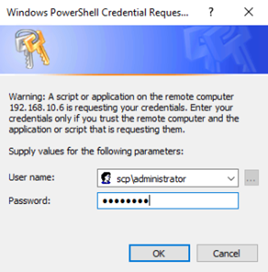
If you join as a member of the scp.test domain, you must restart the server for the changes to take effect.
Active Directory Domain Controller role installation
Run PowerShell (Administrator privileges)
Connect to the secondary DC server and launch PowerShell (administrator privileges) from the Windows Run dialog.
Install AD-Domain-Services role
Add the AD-Domain-Services role for the AD DC role.
Install-WindowsFeature AD-Domain-Services -IncludeManagementToolsInstall-WindowsFeature AD-Domain-Services -IncludeManagementTools| option | value | description |
|---|---|---|
| -IncludeManagementTools | When installing the AD-Domain-Services role, the UI for management is automatically added. |
Success Restart Needed Exit Code      Feature Result
------- -------------- ---------      --------------
True    No             Success        {Active Directory Domain Services, Group P...
This is the result of a successful installation.
Secondary Domain Controller role promotion
When the AD-Domain-Services feature is installed, configure a new DC role. The information to be used is as follows.
| Category | variable name | value |
|---|---|---|
| Domain name | $FQDN | scp.test |
| NetBIOS | $NETBIOS | SCP |
| Installation directory | $InstallDirectory | C:\Windows\ |
| DNS site name | $SITENAME | Default-First-Site-Name |
$FQDN = "scp.test"
$NETBIOS= "SCP"
$InstallDirectory ="C:\Windows\"
$SITENAME = "Default-First-Site-Name"
$PASSWORD = Read-host 'Set Administrator Password: ' -AsSecureString
Set-LocalUser -Name "Administrator" -Password $PASSWORD
Import-Module ADDSDeployment
Install-ADDSDomainController
-NoGlobalCatalog:$false
-CreateDnsDelegation:$false `
-Credential (Get-Credential) `
-CriticalReplicationOnly:$false
-DatabasePath $InstallDirectory"NTDS" `
-DomainName $FQDN  `
-InstallDns:$true `
-LogPath $InstallDirectory"NTDS" `
-NoRebootOnCompletion:$false `
-SiteName $SITENAME
-SysvolPath $InstallDirectory"SYSVOL"
-Force:$true
$FQDN = "scp.test"
$NETBIOS= "SCP"
$InstallDirectory ="C:\Windows\"
$SITENAME = "Default-First-Site-Name"
$PASSWORD = Read-host 'Set Administrator Password: ' -AsSecureString
Set-LocalUser -Name "Administrator" -Password $PASSWORD
Import-Module ADDSDeployment
Install-ADDSDomainController
-NoGlobalCatalog:$false
-CreateDnsDelegation:$false `
-Credential (Get-Credential) `
-CriticalReplicationOnly:$false
-DatabasePath $InstallDirectory"NTDS" `
-DomainName $FQDN `
-InstallDns:$true `
-LogPath $InstallDirectory"NTDS" `
-NoRebootOnCompletion:$false `
-SiteName $SITENAME
-SysvolPath $InstallDirectory"SYSVOL"
-Force:$true| option | value | description |
|---|---|---|
| -NoGlobalCatalog | $false | Global catalog installation status. The default DC installs the global catalog. |
| -CreateDnsDelegation | $false | Create DNS delegation. Used when integrating with an existing AD. |
| -Credential | Input when executing the command | Enter the account information with permissions for DC deployment. An account with Enterprise Admin or Domain Admin privileges is required. |
| -CriticalReplicationOnly | $false | Whether to replicate only important information. |
| -DatabasePath | $InstallDirectory"NTDS" | AD database storage location |
| -DomainName | $FQDN | Domain name |
| -InstallDns | $true | Whether to install DNS when configuring a DC |
| -LogPath | $InstallDirectory"NTDS" | Log storage location |
| -NoRebootOnCompletion | $false | Whether to restart after completing DC configuration |
| -SiteName | $SITENAME | Existing site name |
| -SysvolPath | $InstallDirectory"SYSVOL" | SYSVOL storage location SYSVOL is a file share location used when deploying computer and user group policies. |
| -Force | $true | Whether to force execution without requesting user confirmation `` |
Enter the PDC’s Domain Administrator account information to promote the AD to an additional DC.
Supply values for the following parameters:
Credential
Enter the password for recovery mode during the deployment process.
SafeModeAdministratorPassword: ********
Confirm SafeModeAdministratorPassword: ********
Message Context RebootRequired Status
------- ------- -------------- ------
Operation completed successfully DCPromo.General.1 False Success
If promotion to AD DC succeeds, the server will restart.
Change DNS settings on the PDC
In AD, the DC configures the DNS server on the remote server as the primary DNS server and sets the local DNS as the secondary DNS server. To prepare for server restarts or internal DNS errors, configure the DNS server of another DC as the primary DNS server.
DNS client configuration change
Connect to the PDC server and run PowerShell (with administrator privileges) from Windows.
Check current DNS client configuration
Check the DNS client configuration information of the server deployed with PDC.
Get-DnsClientServerAddressGet-DnsClientServerAddressThe server deployed with the new PDC is set to the loopback address 127.0.0.1.
InterfaceAlias               Interface Address ServerAddresses
                             Index     Family
--------------               --------- ------- ---------------
Ethernet0                            4 IPv4    {127.0.0.1}
Ethernet0                            4 IPv6    {}
Set the additional DC’s IP 192.168.10.6 as primary and configure the local DNS as secondary.
Modify DNS client information
The PDC’s DNS client must be configured with the backup DC as primary and the PDC server as secondary. The secondary DNS server address is set by selecting either the local DNS server’s loopback (127.0.0.1) address or the PDC’s actual IP address.
$DNSSERVERS = ("192.168.10.6","127.0.0.1")
$INTERFACEINDEX = 4
Set-DnsClientServerAddress -InterfaceIndex $INTERFACEINDEX -ServerAddresses $DNSSERVERS
Get-DnsClientServerAddress
$DNSSERVERS = ("192.168.10.6","127.0.0.1")
$INTERFACEINDEX = 4
Set-DnsClientServerAddress -InterfaceIndex $INTERFACEINDEX -ServerAddresses $DNSSERVERS
Get-DnsClientServerAddressThe configuration was applied without any issues.
InterfaceAlias               Interface Address ServerAddresses
                             Index     Family
--------------               --------- ------- ---------------
Ethernet0                            4 IPv4    {192.168.10.6, 127.0.0.1}
Ethernet0                            4 IPv6    {}
NTP configuration
In Active Directory, time is a critical factor in the process of issuing and validating tickets for authentication and authorization.
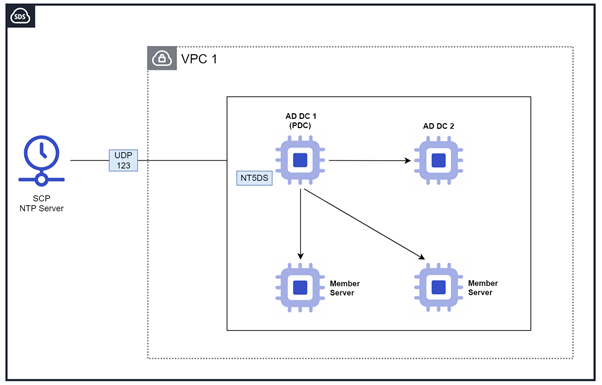
In an AD domain, the time synchronization standard is that the PDC uses the NTP policy to synchronize time via an external NTP, and other DCs and member servers synchronize time based on the PDC using the NT5DS policy. The NTP server provided by SCP V2 is 198.10.0.54.
NTP Server Information
The following configuration is set based on SCP’s internal NTP.
| NTP server IP | Flag option | description |
|---|---|---|
| 198.19.0.54 | 0x9 | 0x8 client 0x1 SpecialInterval |
Primary Domain Controller NTP configuration
Connect to the Primary Domain Controller server and launch PowerShell (administrator privileges) from the Windows Run dialog.
Primary Domain Controller’s NTP configuration command
$NTPSERVERS = "198.19.0.54,0x9"
$POLLINTERVAL = 6
w32tm /config /manualpeerlist:"$NTPSERVERS" /syncfromflags:MANUAL /update
Set-ItemProperty -Path 'HKLM:\SYSTEM\CurrentControlSet\Services\W32Time\Config' -Name MaxPollInterval -Value $POLLINTERVAL
Set-ItemProperty -Path 'HKLM:\SYSTEM\CurrentControlSet\Services\W32Time\Config' -Name MinPollInterval -Value $POLLINTERVAL
net stop w32time
net start w32time
w32tm /resync
w32tm /query /status
$NTPSERVERS = "198.19.0.54,0x9"
$POLLINTERVAL = 6
w32tm /config /manualpeerlist:"$NTPSERVERS" /syncfromflags:MANUAL /update
Set-ItemProperty -Path 'HKLM:\SYSTEM\CurrentControlSet\Services\W32Time\Config' -Name MaxPollInterval -Value $POLLINTERVAL
Set-ItemProperty -Path 'HKLM:\SYSTEM\CurrentControlSet\Services\W32Time\Config' -Name MinPollInterval -Value $POLLINTERVAL
net stop w32time
net start w32time
w32tm /resync
w32tm /query /statusPoll attempts time synchronization using the value 2^PollInterval. Since the PDC server requires precise time, it uses the shortest possible synchronization interval.
Leap Indicator: 0(no warning)
Stratum: 4 (secondary reference - syncd by (S)NTP)
Precision: -23 (119.209ns per tick)
Root Delay: 0.0028150s
Root Dispersion: 7.8464434s
ReferenceId: 0xC6130036 (source IP:  198.19.0.54)
Last Successful Sync Time: 10/31/2025 3:41:12 PM
Source: 198.19.0.54,0x9
Poll Interval: 6 (64s)
When the NTP client configuration is complete, it synchronizes to the time of the NTP server 198.19.0.54. If the source is displayed as the NTP server, the configuration and service restart have been completed successfully.
Secondary Domain Controller’s NTP configuration
Connect to the secondary server and run PowerShell (with administrator privileges) from the Windows Run.
NTP configuration
In an AD domain, a secondary DC configures the NT5DS policy to synchronize its time based on the PDC.
NTP configuration command for the Secondary Domain Controller
$POLLINTERVAL = 6
w32tm /config /syncfromflags:domhier /update
Set-ItemProperty -Path 'HKLM:\SYSTEM\CurrentControlSet\Services\W32Time\Config' -Name MaxPollInterval -Value $POLLINTERVAL
Set-ItemProperty -Path 'HKLM:\SYSTEM\CurrentControlSet\Services\W32Time\Config' -Name MinPollInterval -Value $POLLINTERVAL
net stop w32time
net start w32time
w32tm /resync
w32tm /query /status
$POLLINTERVAL = 6
w32tm /config /syncfromflags:domhier /update
Set-ItemProperty -Path 'HKLM:\SYSTEM\CurrentControlSet\Services\W32Time\Config' -Name MaxPollInterval -Value $POLLINTERVAL
Set-ItemProperty -Path 'HKLM:\SYSTEM\CurrentControlSet\Services\W32Time\Config' -Name MinPollInterval -Value $POLLINTERVAL
net stop w32time
net start w32time
w32tm /resync
w32tm /query /statusPoll attempts time synchronization using the value 2^PollInterval.
Because time accuracy is critical for DC servers, they use the shortest possible synchronization interval.
Leap Indicator: 0(no warning)
Stratum: 5 (secondary reference - syncd by (S)NTP)
Precision: -23 (119.209ns per tick)
Root Delay: 0.0045627s
Root Dispersion: 7.9036352s
ReferenceId: 0x0A00026F (source IP:  192.168.10.5)
Last Successful Sync Time: 10/31/2025 8:22:41 PM
Source: addc-1.scp.test
Poll Interval: 6 (64s)
When the NTP client configuration is complete, the NTP time source is set to the PDC server addc-1.scp.test, and the time has been synchronized correctly. If the source is displayed as an NTP server, the configuration is successful and the NTP service restart has been completed.
Reference document
Capacity Planning for Active Directory Domain Services
Best practices for DNS client settings in Windows Server
Service overview and network port requirements for Windows