Active Directory Domain Controller Setup Guide
Active Directory Domain Controller Setup Guide
Overview
Active Directory (hereafter AD) is a service that provides Single Sign-On (hereafter SSO) to computing resources on the network. Generally, within computing resources, AD is used to configure user authentication and authorization. In AD, the Domain Name System (hereinafter DNS) is used to construct the directory structure to recognize, manage, operate, and configure network resources. Windows server’s Operating System (hereinafter OS) redundancy configuration can use the proprietary solution Windows Server Failover Cluster (hereinafter WSFC), and when configuring WSFC, it can be set up in both domain environments using AD and workgroups not using AD. When configuring WSFC on Samsung Cloud Platform (hereinafter SCP), it is recommended to use an AD Domain Controller (hereinafter DC).
Resource Generation in SCP
The capacity of AD DC is calculated based on the number of users. Central Processing Unit (hereinafter CPU) is 1,000 users per core, and the size of the disk and DC’s Database (hereinafter DB) is based on 60KB per user. Memory is based on (base OS usage 2GB) + (required AD DB capacity) + (OS security solution) usage. AD DC server should be configured simply by using only one Network Interface Card (hereinafter NIC).
Estimated Capacity
| Category | Capacity |
|---|---|
| CPU | 2Core |
| Memory | 4GB |
| OS | Windows Server 2022 Standard |
| NIC | 1EA |
| Disk | Data Disk none. |
When used for redundancy within SCP, only fewer than 10 users and computers are used, so the required computing resources are small. I selected 2Core, 4GB for minimal parallel processing and task handling.
IP Assignment
You must define the required IP before deploying and allocating the server. In SCP V2, IP addresses are assigned using DHCP (Dynamic Host Configuration Protocol). When creating a Console VM, the IP is generated automatically and selected randomly, so if you want to use a specific IP, you must enter the IP when creating the VM.
Configuration Example
| Category | IP | Description |
|---|---|---|
| addc-1 | 192.168.10.5 | Primary Domain Controller DC that performs the role. |
| addc-2 | 192.168.10.6 | This is a server that runs the Domain Controller service. |
It is recommended to configure a simple network for AD DC servers using only one NIC and one IP. Authentication and authorization between servers are based on host name and IP, and if additional NICs such as Heartbeat are added, subnet separation is required during operation and separate work is needed in DNS.
IP information of VM for Primary Domain Controller
The generated VM has an IP assigned as follows.
ipconfig /allipconfig /allWindows IP Configuration
Host Name . . . . . . . . . . . . : WIN-XXXXXXXXXXX
Primary Dns Suffix . . . . . . . :
Node Type . . . . . . . . . . . . : Hybrid
IP Routing Enabled. . . . . . . . : No
WINS Proxy Enabled. . . . . . . . : No
DNS Suffix Search List. . . . . . : network.kr-west1.e.samsungsdscloud.internal.
Ethernet adapter Ethernet Instance 0:
Connection-specific DNS Suffix . : network.kr-west1.e.samsungscloud.internal.
Description . . . . . . . . . . . : Red Hat VirtIO Ethernet Adapter
Physical Address. . . . . . . . . : AA-BB-CC-DD-EE-FF
DHCP Enabled. . . . . . . . . . . : Yes
Autoconfiguration Enabled . . . . : Yes
IPv4 Address. . . . . . . . . . . : 192.168.10.5(Preferred)
Subnet Mask . . . . . . . . . . . : 255.255.255.0
Lease Obtained. . . . . . . . . . : Thursday, October 30, 2025 3:00:16 PM
Lease Expires . . . . . . . . . . : Friday, October 31, 2025 3:00:16 AM
Default Gateway . . . . . . . . . : 192.168.10.1
DHCP Server . . . . . . . . . . . : 192.168.10.1
DNS Servers . . . . . . . . . . . : 198.19.0.53
NetBIOS over Tcpip. . . . . . . . : Enabled
The host name is not reflected with the information entered in the SCP console. Through DHCP, IP and DNS servers are configured. The DNS server is an internal DNS server provided within SCP, and it is configured to allow integration with other servers within SCP.
Firewall and Security Group Settings
After creating the VM, you need to open the ports used by AD in the firewall and Security Group.
| Protocol | Server Port (inbound) | Client Port (outbound) | Description |
|---|---|---|---|
| TCP | 53 | 53, 49152-65535 | DNS |
| TCP | 88 | 49152-65535 | Kerberos Authentication |
| TCP | 135 | 49152-65535 | RPC Endpoint Mapper |
| TCP | 445 | 49152-65535 | SMB (file sharing) |
| TCP | 464 | 49152-65535 | Kerberos password change |
| TCP | 389 | 49152-65535 | LDAP |
| TCP | 636 | 49152-65535 | LDAP over TLS/SSL |
| TCP | 3268 | 49152-65535 | LDAP Global Catalog |
| TCP | 3269 | 49152-65535 | LDAP Global Catalog SSL |
| TCP | 5985 | 49152-65535 | WinRM HTTP |
| TCP | 5986 | 49152-65535 | WinRM HTTPS |
| TCP | 9389 | 49152-65535 | Active Directory Management Gateway Service |
| TCP | 49152-65535 | 49152-65535 | RPC for LSA, SAM, NetLogon, FRS RPC, DFSR RPC |
| UDP | 123 | 49152-65535/UDP | NTP (W32Time) |
| UDP | 464 | 49152-65535/UDP | Kerberos password change |
| UDP | 389 | 49152-65535/UDP | LDAP |
| UDP | 53 | 53, 49152-65535 | DNS |
| UDP | 88 | 49152-65535 | Kerberos Authentication |
| ICMP | 0, 8 | 0, 8 | Echo request (8),Echo reply (0) |
Primary Domain Controller configuration
AD is based on a multi‑master DB, so objects such as users or computers have their data changed on all DCs. Important DBs such as certain schemas are updated only on a single DC selected as the Primary Domain Controller (hereafter PDC). When configuring AD DC, the first server, the PDC, holds the Flexible Single Master Operations (FSMO) role, and the FSMO role can be failover via commands. The creation and information update of objects such as Cluster Name Object (CNO) and Virtual Computer Object (VCO) used in the process of configuring WSFC are performed on all DCs.
Host Name Change
When Windows servers are deployed in SCP V2, the host name is generated randomly. Change it to the host name selected during AD DC configuration planning. Host name changes are possible during operation, but it is recommended to change them in advance according to the planned configuration.
Powershell(administrator privileges) run
Run PowerShell (with administrator privileges) from Windows Run.

Host name status check
Print the current host name.
hostnamehostnameWIN-XXXXXXXXXXX
You can see that the host name is randomly generated starting with “WIN-”.
Host Name Change
Change the host name to the planned name addc-1. Windows servers require a restart when the host name is changed.
Rename-Computer -NewName "addc-1" -Restart -ForceRename-Computer -NewName "addc-1" -Restart -Force| Option | Value | Description |
|---|---|---|
| -NewName | addc-1 | This is the host name to be changed. |
| -Restart | Restarting. | |
| -Force | Execute forcibly. |
Powershell(Administrator privileges) Run
When the OS restarts, run PowerShell (with administrator privileges) from Windows.
Check status after host name change
Print the changed host name.
hostnamehostnameaddc-1
You can confirm that the host name has been changed to the planned addc-1.
Disable IPv6 adapter binding
When Windows Server is deployed, each NIC can bind both IPv4 and IPv6, and the basic functionality is enabled. Because Windows servers used in SCP do not use IPv6, IPv6 is disabled to prevent DNS malfunctions and the like. When Windows server is deployed, unique names are assigned sequentially within the server, and IPv6 is enabled by default. The NIC name may vary depending on the Windows OS version and configuration.
Print NIC information that can be configured for IPv6
Prints NIC information that can bind the current IPv6.
Get-NetAdapterBinding -ComponentID ms_tcpip6Get-NetAdapterBinding -ComponentID ms_tcpip6| Option | Value | Description |
|---|---|---|
| -ComponentID | ms_tcpip6 | This is the component ID to set. |
Name                         DisplayName                                        ComponentID          Enabled
----                         -----------                                        -----------          -------
Ethernet Instance 0          Internet Protocol Version 6 (TCP/IPv6)             ms_tcpip6            True
The NIC of the deployed server has the name Ethernet Instance 0 and IPv6 is enabled by default.
Disable IPv6 on NIC
Ethernet Instance 0 Disable IPv6 on the NIC.
Disable-NetAdapterBinding -Name "Ethernet Instance 0" -ComponentID ms_tcpip6Disable-NetAdapterBinding -Name "Ethernet Instance 0" -ComponentID ms_tcpip6| Option | Value | Description |
|---|---|---|
| -Name | Ethernet Instance 0 | This is the NIC name to be changed. |
| -ComponentID | ms_tcpip6 | Component ID to set. |
Display NIC information after disabling IPv6
Outputs NIC information that can bind IPv6 after changing NIC settings.
Get-NetAdapterBinding -ComponentID ms_tcpip6Get-NetAdapterBinding -ComponentID ms_tcpip6Name DisplayName ComponentID Enabled
---- ----------- ----------- -------
Ethernet Instance 0 Internet Protocol Version 6 (TCP/IPv6) ms_tcpip6 False
You can confirm that IPv6 is disabled on Ethernet0 NIC.
Active Directory Domain Controller Role Installation
Add the AD-Domain-Services role for the AD DC role.
Install-WindowsFeature AD-Domain-Services -IncludeManagementToolsInstall-WindowsFeature AD-Domain-Services -IncludeManagementTools| Option | Value | Description |
|---|---|---|
| -IncludeManagementTools | When installing the AD-Domain-Services role, it automatically adds the UI for management. |
This is the result installed normally.
Success Restart Needed Exit Code      Feature Result
------- -------------- ---------      --------------
True    No             Success        {Active Directory Domain Services, Group P...
## Primary Domain Controller role promotion
When the AD-Domain-Services feature is installed, configure a new DC role.
The information to be used is as follows.
|Category|Variable Name|Value|
|---|---|---|
|Domain name|$FQDN| scp.test |
|NetBIOS|$NETBIOS|SCP|
|Directory Service Restore Mode password<br/>Domain Administrator password|$PASSWORD|It will be prompted when the command is executed.|
|Installation Directory|$InstallDirectory|C:\Windows\ |
In SCP V2, the default Adminstrator account is disabled and no password is set. Therefore, you must change the password of the Adminstrator account to use it. Also, the password of the Domain Administrator account must be changed, and the Domain Administrator account is changed to the password specified during AD DC role promotion.
### Primary Domain Controller role promotion command
Color mode
$FQDN = "scp.test"
$NETBIOS= "SCP"
$PASSWORD = Read-host 'Safe Mode Administrator Password: ' -AsSecureString
$InstallDirectory ="C:\Windows\"
Set-LocalUser -Name "Administrator" -Password $PASSWORD
Import-Module ADDSDeployment
Install-ADDSForest `
-CreateDnsDelegation:$false `
"-DatabasePath $InstallDirectory"NTDS" ``
-DomainMode "WinThreshold" ``
-DomainName $FQDN `
-DomainNetbiosName $NETBIOS `
-ForestMode "WinThreshold" ``
-InstallDns:$true `
-LogPath $InstallDirectory"NTDS" `
-NoRebootOnCompletion:$false `
- SysvolPath $InstallDirectory"SYSVOL ``
-SafeModeAdministratorPassword $PASSWORD `
-Force:$true
$FQDN = "scp.test"
$NETBIOS= "SCP"
$PASSWORD = Read-host 'Safe Mode Administrator Password: ' -AsSecureString
$InstallDirectory ="C:\Windows\"
Set-LocalUser -Name "Administrator" -Password $PASSWORD
Import-Module ADDSDeployment
Install-ADDSForest `
-CreateDnsDelegation:$false `
"-DatabasePath $InstallDirectory"NTDS" ``
-DomainMode "WinThreshold" ``
-DomainName $FQDN `
-DomainNetbiosName $NETBIOS `
-ForestMode "WinThreshold" ``
-InstallDns:$true `
-LogPath $InstallDirectory"NTDS" `
-NoRebootOnCompletion:$false `
- SysvolPath $InstallDirectory"SYSVOL ``
-SafeModeAdministratorPassword $PASSWORD `
-Force:$true
Primary Domain Controller role promotion |Option|Value|Description|
|---|---|---|
|-CreateDnsDelegation|$false|Create DNS delegation. Used when integrating with existing AD. |
|-DatabasePath|$InstallDirectory"NTDS"|AD database storage location |
|-DomainMode|"WinThreshold"|The AD domain functional level WinThreshold is Windows Server 2016 and is a recent functional level. |
|-DomainNetbiosName|$NETBIOS|NetBIOS name |
|-ForestMode|"WinThreshold"|The AD domain functional level WinThreshold is Windows Server 2016 and is a recent functional level. |
|-InstallDns|$true|Whether to install DNS during DC configuration |
|-LogPath|$InstallDirectory"NTDS"|Log storage location |
|-NoRebootOnCompletion|$false|Whether to restart after DC configuration is completed |
|-SysvolPath|$InstallDirectory"SYSVOL|SYSVOL storage location<br>SYSVOL is a file share location used when deploying computer and user group policies. |
|-SafeModeAdministratorPassword|$PASSWORD|Password when using Directory Services Restore Mode|-Force|$true|Whether to force execution without requesting user confirmation |
This is the result that was completed normally.
```powershell
Message Context RebootRequired Status
------- ------- -------------- ------
Operation completed successfully DCPromo.General.1 False SuccessWhen the AD DC role is successfully promoted, the system automatically restarts.
## Log in with domain Administrator account
Check whether you can log in with the Administrator account of the created domain.
The information to be used is as follows.
|Category|Value|
|---|---|
|Domain name| scp.test |
|Netbios|SCP|
|Account name|SCP|
|Domain Administrator password|the $PASSWORD value entered when promoting the above Primary Domain Controller|
**scp\Administrator** Enter the password used for the above PDC promotion to log into the server.
# Secondary Domain Controller configuration
How to configure an additional DC.
You must add as a member to the existing PDC and promote the DC role.
## Host Name Change
In SCP V2, when a Windows server is deployed, the host name is generated randomly. Change it to the host name selected during AD DC configuration planning. Changing the host name during operation is possible, but it is recommended to change it in advance according to the planned configuration.
### Powershell(administrator privileges) Run
Connect to the secondary DC server and run PowerShell (with administrator privileges) from Windows.

### Check host name status
Print the current host name.
Color mode
hostname
hostname
Host Name Output ```powershell
WIN-XXXXXXXXXXXYou can see that the host name is randomly generated starting with “WIN-”.
Host Name Change
Change the host name to the planned name addc-2. Windows servers require a restart when changing the host name.
Rename-Computer -NewName "addc-2" -Restart -ForceRename-Computer -NewName "addc-2" -Restart -Force| Option | Value | Description |
|---|---|---|
| -NewName | addc-2 | The host name to be changed. |
| -Restart | Restarting. | |
| -Force | Execute forcibly. |
Powershell(administrator privileges) run
When the OS restarts, run PowerShell (with administrator privileges) from Windows.
Check status after host name change
Print the changed host name.
hostnamehostnameaddc-2
You can confirm that the host name has been changed to addc-2.
IPv6 Adapter Binding Disabled
In Windows Server, after the initial deployment, it is enabled to bind IPv4 and IPv6 to a single NIC. Because Windows servers used in SCP do not use IPv6, IPv6 is disabled to prevent DNS malfunctions, etc. Outputs adapter information that can bind the current IPv6. When the Windows server is deployed, unique names are sequentially assigned within the server, and IPv6 is enabled by default. The NIC name may vary depending on the Windows OS version and configuration.
Display NIC information that can be configured for IPv6
Prints the adapter information that can bind IPv6 currently.
Get-NetAdapterBinding -ComponentID ms_tcpip6Get-NetAdapterBinding -ComponentID ms_tcpip6Name DisplayName ComponentID Enabled
---- ----------- ----------- -------
Ethernet Instance 0 Internet Protocol Version 6 (TCP/IPv6) ms_tcpip6 True
After the OS is deployed, the server’s NIC is named Ethernet Instance 0 and IPv6 is enabled by default.
Disable IPv6 on NIC
Disable IPv6 on Ethernet Instance 0.
Disable-NetAdapterBinding -Name "Ethernet Instance 0" -ComponentID ms_tcpip6Disable-NetAdapterBinding -Name "Ethernet Instance 0" -ComponentID ms_tcpip6Output NIC information after disabling IPv6
Outputs adapter information that can bind IPv6 after changing NIC settings.
Get-NetAdapterBinding -ComponentID ms_tcpip6Get-NetAdapterBinding -ComponentID ms_tcpip6Name DisplayName ComponentID Enabled
---- ----------- ----------- -------
Ethernet Instance 0 Internet Protocol Version 6 (TCP/IPv6) ms_tcpip6 False
You can confirm that IPv6 is disabled on Ethernet0 NIC.
DNS client configuration
To add a member to the domain in AD, you must change to a DNS server that contains DC information.
Check DNS client configuration information
Check the currently configured DNS server settings.
Get-DnsClientServerAddressGet-DnsClientServerAddressInterfaceAlias Interface Address ServerAddresses
Index Family
-------------- --------- ------- ---------------
Ethernet Instance 0 3 IPv4 {198.19.0.53}
Ethernet Instance 0 3 IPv6 {}
You can confirm that the NIC index of the network card on the server is 3.
Change DNS server to PDC
Change the DNS server to 192.168.10.5, the IP of the PDC server. Select interface number 3 of the NIC to configure.
$DNSSERVERS = ("192.168.10.5")
$INTERFACEINDEX = 3
Set-DnsClientServerAddress -InterfaceIndex $INTERFACEINDEX -ServerAddresses $DNSSERVERS
$DNSSERVERS = ("192.168.10.5")
$INTERFACEINDEX = 3
Set-DnsClientServerAddress -InterfaceIndex $INTERFACEINDEX -ServerAddresses $DNSSERVERSCheck information after changing DNS client settings
Check the changed DNS server settings.
Get-DnsClientServerAddressGet-DnsClientServerAddressYou can confirm that the DNS server is set to PDC.
InterfaceAlias               Interface Address ServerAddresses
                             Index     Family
--------------               --------- ------- ---------------
Ethernet Instance 0                  3 IPv4    {192.168.10.5}
Ethernet Instance 0                  3 IPv6    {}
AD domain information lookup
Check whether the scp.test domain is resolved using the changed DNS server.
nslookup scp.testnslookup scp.testServer: addc-1.network.kr-west1.e.samsungsdscloud.internal
Address: 192.168.10.5
Name: scp.test
Address: 192.168.10.5
You can confirm that querying the scp.test domain returns the PDC’s IP address.
Join as AD Member
Windows Server when deployed is a Workgroup by default, and if you join as a member to an AD domain, it changes to that domain. Domain → Workgroup or Workgroup → Domain requires a server restart.
Join as a member to the AD domain
If the DNS server is changed to the DNS server where DC information is queried, you can join the queried domain as a member.
$FQDN = "scp.test"
Add-Computer -DomainName $FQDN -Restart
$FQDN = "scp.test"
Add-Computer -DomainName $FQDN -Restart| Option | Value | Description |
|---|---|---|
| -Restart | Join as a member of the domain and the OS restarts. |
When the command is executed, enter the account information that can join the domain to connect.
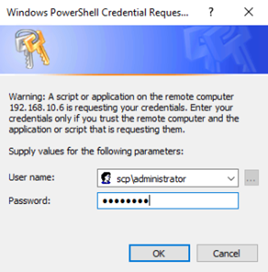
If you join as a member on the scp.test domain, you need to restart the server for the information to take effect.
Active Directory Domain Controller role installation
Powershell(administrator privileges) run
Connect to the Secondary DC server and run PowerShell (administrator privileges) from Windows.
AD-Domain-Services role installation
For the AD DC role, add the AD-Domain-Services role.
Install-WindowsFeature AD-Domain-Services -IncludeManagementToolsInstall-WindowsFeature AD-Domain-Services -IncludeManagementTools| Option | Value | Description |
|---|---|---|
| -IncludeManagementTools | When installing the AD-Domain-Services role, it automatically adds the UI for management. |
Success Restart Needed Exit Code      Feature Result
------- -------------- ---------      23-03-2023 --------------
True    No             Success        {Active Directory Domain Services, Group P...
This is the result installed normally.
### Secondary Domain Controller role promotion
AD-Domain-Services feature is installed, configure a new DC role.
The information to be used is as follows.
|Category|Variable Name|Value|
|---|---|---|
|Domain name|$FQDN|scp.test |
|NetBIOS|$NETBIOS|SCP |
|Installation Directory|$InstallDirectory|C:\Windows\ |
|DNS site name|$SITENAME|"Default-First-Site-Name"|
Color mode
$FQDN = "scp.test"
$NETBIOS= "SCP"
$InstallDirectory ="C:\Windows\"
$SITENAME = "Default-First-Site-Name"
$PASSWORD = Read-host 'Set Administrator Password: ' -AsSecureString
Set-LocalUser -Name "Administrator" -Password $PASSWORD
Import-Module ADDSDeployment
Install-ADDSDomainController `
-NoGlobalCatalog:$false `
-CreateDnsDelegation:$false `
-Credential (Get-Credential) `
-CriticalReplicationOnly:$false `
-DatabasePath $InstallDirectory"NTDS" ``
-DomainName $FQDN `
-InstallDns:$true `
-LogPath $InstallDirectory"NTDS" `"
-NoRebootOnCompletion:$false `
-SiteName $SITENAME `
- SysvolPath $InstallDirectory"SYSVOL" ``
-Force:$true
$FQDN = "scp.test"
$NETBIOS= "SCP"
$InstallDirectory ="C:\Windows\"
$SITENAME = "Default-First-Site-Name"
$PASSWORD = Read-host 'Set Administrator Password: ' -AsSecureString
Set-LocalUser -Name "Administrator" -Password $PASSWORD
Import-Module ADDSDeployment
Install-ADDSDomainController `
-NoGlobalCatalog:$false `
-CreateDnsDelegation:$false `
-Credential (Get-Credential) `
-CriticalReplicationOnly:$false `
-DatabasePath $InstallDirectory"NTDS" ``
-DomainName $FQDN `
-InstallDns:$true `
-LogPath $InstallDirectory"NTDS" `"
-NoRebootOnCompletion:$false `
-SiteName $SITENAME `
- SysvolPath $InstallDirectory"SYSVOL" ``
-Force:$true
Secondary Domain Controller role promotion |Option|Value|Description|
|---|---|---|
|-NoGlobalCatalog|$false|Whether to install the global catalog. The default DC installs the global catalog.|
|-CreateDnsDelegation|$false|Create DNS delegation. Used when integrating with existing AD.|
|-Credential|Input when executing command|Enter the account information that has permission for DC deployment. <br> An account with Enterprise Admin or Domain Admin privileges is required. |
|-CriticalReplicationOnly|$false|Whether to replicate only important information. |
|-DatabasePath|$InstallDirectory"NTDS"|AD database storage location |
|-DomainName|$FQDN|Domain name |
|-InstallDns|$true|Whether to install DNS during DC configuration |
|-LogPath|$InstallDirectory"NTDS"|Log storage location |
|-NoRebootOnCompletion|$false|Whether to restart after DC configuration is completed|
|-SiteName|$SITENAME|Existing site name |
|-SysvolPath|$InstallDirectory"SYSVOL"|SYSVOL storage location<br>SYSVOL is a file share location used when deploying computer and user group policies. |
|-Force|$true|whether to force execution without requesting user confirmation ``|
Enter the PDC's Domain Administrator account information to promote it to an auxiliary DC in AD.
```powershell
Supply values for the following parameters:
CredentialEnter the password for recovery mode during the deployment process.
SafeModeAdministratorPassword: ********
Confirm SafeModeAdministratorPassword: ********
Message Context RebootRequired Status
------- ------- -------------- ------
Operation completed successfully DCPromo.General.1 False Success
If promotion to AD DC succeeds, the server will restart.
Change DNS settings on PDC
In AD, the DC configures the DNS server to set the remote server as the primary DNS server and the local DNS as the secondary DNS server. To prepare for server restarts or internal DNS errors, the DNS server of another DC is set as the primary DNS server.
DNS client configuration change
Connect to the PDC server and run PowerShell (administrator privileges) in Windows.
Check current DNS client settings
Check the DNS client configuration information of the server deployed with PDC.
Get-DnsClientServerAddressGet-DnsClientServerAddressThe server deployed with the new PDC is set to the loopback address 127.0.0.1.
InterfaceAlias               Interface Address ServerAddresses
                             Index     Family
--------------               --------- ------- ---------------
Ethernet0                            4 IPv4    {127.0.0.1}
Ethernet0                            4 IPv6    {}
Set the additional DC’s IP 192.168.10.6 as primary and set the local DNS as secondary.
DNS Client Information Edit
The PDC’s DNS client should be set with the backup DC as primary and the PDC server as secondary. The secondary DNS server address is set by choosing either the local DNS server loopback (127.0.0.1) address or the actual IP address of the PDC.
$DNSSERVERS = ("192.168.10.6","127.0.0.1")
$INTERFACEINDEX = 4
Set-DnsClientServerAddress -InterfaceIndex $INTERFACEINDEX -ServerAddresses $DNSSERVERS
Get-DnsClientServerAddress
$DNSSERVERS = ("192.168.10.6","127.0.0.1")
$INTERFACEINDEX = 4
Set-DnsClientServerAddress -InterfaceIndex $INTERFACEINDEX -ServerAddresses $DNSSERVERS
Get-DnsClientServerAddressThe settings have been applied without any issues.
InterfaceAlias               Interface Address ServerAddresses
                             Index     Family
--------------               --------- ------- ---------------
Ethernet0                            4 IPv4    {192.168.10.6, 127.0.0.1}
Ethernet0                            4 IPv6    {}
NTP Settings
In AD, time is a critical factor in the process of issuing and verifying tickets for authentication and authorization.
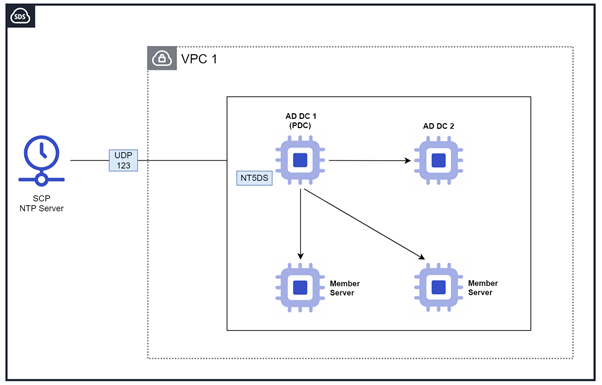
In the AD domain, the standard for synchronizing time is that the PDC synchronizes time via an external NTP using the NTP policy, and other DCs and member servers synchronize time based on the PDC using the NT5DS policy. The NTP server provided by SCP V2 is 198.10.0.54.
NTP Server Information
The following settings were configured based on the internal NTP of SCP.
| NTP Server IP | Flag Option | Description |
|---|---|---|
| 198.19.0.54 | 0x9 | 0x8 client 0x1 SpecialInterval |
Primary Domain Controller’s NTP configuration
Connect to the Primary Domain Controller server and run PowerShell (with administrator privileges) from Windows Run.
Primary Domain Controller’s NTP configuration command
$NTPSERVERS = "198.19.0.54,0x9"
$POLLINTERVAL = 6
w32tm /config /manualpeerlist:"$NTPSERVERS" /syncfromflags:MANUAL /update
Set-ItemProperty -Path 'HKLM:\SYSTEM\CurrentControlSet\Services\W32Time\Config' -Name MaxPollInterval -Value $POLLINTERVAL
Set-ItemProperty -Path 'HKLM:\SYSTEM\CurrentControlSet\Services\W32Time\Config' -Name MinPollInterval -Value $POLLINTERVAL
net stop w32time
net start w32time
w32tm /resync
w32tm /query /status
$NTPSERVERS = "198.19.0.54,0x9"
$POLLINTERVAL = 6
w32tm /config /manualpeerlist:"$NTPSERVERS" /syncfromflags:MANUAL /update
Set-ItemProperty -Path 'HKLM:\SYSTEM\CurrentControlSet\Services\W32Time\Config' -Name MaxPollInterval -Value $POLLINTERVAL
Set-ItemProperty -Path 'HKLM:\SYSTEM\CurrentControlSet\Services\W32Time\Config' -Name MinPollInterval -Value $POLLINTERVAL
net stop w32time
net start w32time
w32tm /resync
w32tm /query /statusPoll attempts time synchronization with a value of 2^PollInterval. PDC server uses the shortest possible synchronization interval because time accuracy is important.
Leap Indicator: 0(no warning)
Stratum: 4 (secondary reference - syncd by (S)NTP)
Precision: -23 (119.209ns per tick)
Root Delay: 0.0028150s
Root Dispersion: 7.8464434s
ReferenceId: 0xC6130036 (source IP:  198.19.0.54)
Last Successful Sync Time: 10/31/2025 3:41:12 PM
Source: 198.19.0.54,0x9
Poll Interval: 6 (64s)
When the NTP client configuration is completed, it has been synchronized based on the time of the NTP server 198.19.0.54. If the Source is displayed as the NTP server, the configuration and service restart have been completed successfully.
Secondary Domain Controller’s NTP configuration
Connect to the Secondary server and run Powershell (administrator privileges) from Windows.
NTP Settings
In an AD domain, a backup DC sets the NT5DS policy to synchronize time based on the PDC.
Secondary Domain Controller’s NTP configuration command
$POLLINTERVAL = 6
w32tm /config /syncfromflags:domhier /update
Set-ItemProperty -Path 'HKLM:\SYSTEM\CurrentControlSet\Services\W32Time\Config' -Name MaxPollInterval -Value $POLLINTERVAL
Set-ItemProperty -Path 'HKLM:\SYSTEM\CurrentControlSet\Services\W32Time\Config' -Name MinPollInterval -Value $POLLINTERVAL
net stop w32time
net start w32time
w32tm /resync
w32tm /query /status
$POLLINTERVAL = 6
w32tm /config /syncfromflags:domhier /update
Set-ItemProperty -Path 'HKLM:\SYSTEM\CurrentControlSet\Services\W32Time\Config' -Name MaxPollInterval -Value $POLLINTERVAL
Set-ItemProperty -Path 'HKLM:\SYSTEM\CurrentControlSet\Services\W32Time\Config' -Name MinPollInterval -Value $POLLINTERVAL
net stop w32time
net start w32time
w32tm /resync
w32tm /query /statusPoll attempts time synchronization with a value of 2^PollInterval.
DC servers use the shortest possible synchronization interval because time accuracy is important.
Leap Indicator: 0(no warning)
Stratum: 5 (secondary reference - syncd by (S)NTP)
Precision: -23 (119.209ns per tick)
Root Delay: 0.0045627s
Root Dispersion: 7.9036352s
ReferenceId: 0x0A00026F (source IP:  192.168.10.5)
Last Successful Sync Time: 10/31/2025 8:22:41 PM
Source: addc-1.scp.test
Poll Interval: 6 (64s)
When the NTP client configuration is completed, the NTP time source is set to the PDC server addc-1.scp.test, and the time has been synchronized correctly. If the Source is displayed as an NTP server, the configuration is correct and the NTP service restart has been completed.
Reference Document
Active Directory Domain Services Capacity Planning
Best practices for DNS client settings in Windows Server
Service overview and network port requirements for Windows