Object Storage(rclone)
Object Storage(rclone)
Overview
This page provides a guide on how to replicate Object Storage using an open-source tool called rclone.
Migration tool
Migration Depending on the size and usage environment of the version cut that is the migration target, you can use the following tools.
| Tool | Live Migrataion | Type | Description |
|---|---|---|---|
| sdt-migration | O | CLI + k8s | - Even during migration work, if source objects continuously have changes occurring - If versioning is enabled on the source bucket and previous version objects also need to be migrated - If you are already using a k8s cluster or have an environment where you can deploy a new k8s cluster |
| rclone | X | CLI | - If the bucket changes are not significant during migration, or the environment allows stopping Apps and performing migration. ※ For buckets with versioning enabled, only the latest version is replicated. |
Rclone
rclone is an open-source, command-line based file management program that supports more than 70 different cloud storage products. It is designed to allow users to efficiently sync, copy, move, and manage multiple cloud services and local storage, and is sometimes called the “Swiss knife of cloud storage”.
Main Features
- Various storage support: Amazon S3, Google Drive, Dropbox, Microsoft OneDrive, Azure Blob, FTP, WebDAV, etc. Supports more than 70 cloud and storage protocols.
- File management commands: You can manage files using syntax similar to standard Unix commands such as rsync, cp, mv, ls, mount, etc.
- Data synchronization and backup: Provides a sync function that keeps source and target identical and a copy function for backup.
- Encryption and integrity verification: verifies checksums for data integrity during transmission, and can encrypt files before upload.
- Bandwidth Optimization: Supports efficient data transmission with bandwidth limit settings and the ability to resume interrupted transfers.
- Direct transfer between clouds: You can migrate data directly between cloud providers without going through a local disk.
- Mount feature: You can mount cloud storage as if it were a local file system.
General Use
- Large-scale data migration: Used when efficiently moving large amounts of data between cloud services or from local to cloud.
- Automated backup: You can automate scheduled backup tasks using scripts.
- Media server integration: It is used to stream content stored in the cloud directly from media servers such as Plex and Emby.
More detailed information and downloads can be found on the rclone official website.
Pre-work
- The server with rclone installed must be able to access v1, v2 Object Storage buckets.
- Depending on the execution location of rclone, a VPC endpoint configuration is required for accessing Object Storage. (When installed on v1, VPC endpoint configuration is needed on v2)
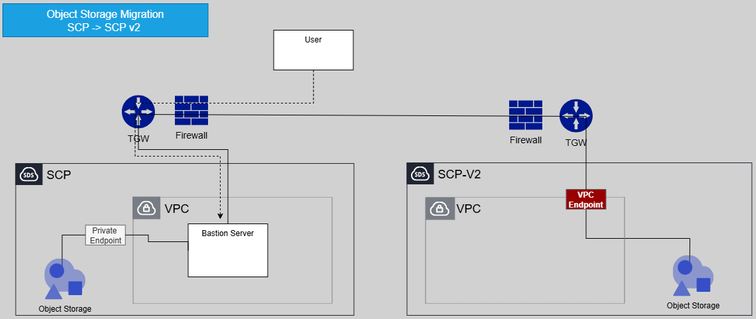
Migration Procedure
1. Configuration
Set the Object Storage connection information for each Source and Target to perform replication. Use the rclone config command or register the following content in $HOME/.config/rclone/rclone.conf or a specific directory.
| Variables | Example | Remarks |
|---|---|---|
| v1_object_storage_private_endpoint_url | https://obj1.skr-west-1.scp-in.com:8443 | SCP v1 Object Storage private endpoint url |
| v1_access_key | SCP v1 Object Storage authentication key-Access key | |
| v1_secret_key | SCP v1 Object Storage authentication key-Secret key | |
| v1_region | KR-WEST-1 | SCP v1 resion |
| v2_object_storage_private_endpoint_url | https://object-store.private.kr-west1.s.samsungsdscloud.com | SCP v2 Object Storage private endpoint url |
| v2_access_key | SCP v2 Access key | |
| v2_secret_key | SCP v2 Secret key | |
| v2_region | kr-west1 | SCP v2 region |
rclone.conf
[source]
type = s3
provider = Other
env_auth = true
access_key_id = <<v1_access_key(storage authentication key)>>
secret_access_key = <<v1_secret_key(storage authentication key)>>
region = <<v1_region>>
endpoint = <<v1_object_storage_private_endpoint_url>>
acl = private

[target]
type = s3
provider = Other
env_auth = true
access_key_id = <<v2_access_key>>
secret_access_key = <<v2_secret_key>>
region = <<v2_region>>
endpoint = <<v2_object_storage_private_endpoint_url>>
acl = private
2. Execution(Sync)
Execute replication using the sync or copy command. You must specify a bucket when replicating.
rclone --config="./rclone.conf" sync source:magicscenario001/ target:magicscenario001/ --progress --transfers=12 --checkers=24 --multi-thread-streams=12

Transferred:        3.092 GiB / 3.092 GiB, 100%, 20.547 MiB/s, ETA 0s
Checks:                 0 / 0, -, Listed 8587
Transferred:         4779 / 4779, 100%
Elapsed time:      4m31.0s
Main Options
--transfers : Adjust the number of files transferred simultaneously (parallelism). The default is 4. Increasing this value can speed up copy performance, but memory and network usage will also increase.
--checkers : the number of threads that read the file list and quickly find files to copy. The default is 8. If there are many transfer targets, setting this value very high speeds up the list reading.
--multi-thread-stream : One large file can also be split and transmitted using multiple threads. The default is 4. Setting it to 1 or higher can increase the transfer speed of large files.
--buffer-size : The buffer size for loading files into memory at once. If you increase this value, more data is read at once, speeding up transmission, but memory usage also increases.
--progress : Shows the progress in real time. You can immediately check the conversion status and the transfer status of each file.
3. Verification(Check)
After the transfer is complete, you can verify that the transferred object has no issues.
rclone --config="./rclone.conf" check source:magicscenario001/ target:magicscenario001/ --progress

2025/10/15 14:07:02 NOTICE: S3 bucket magicscenario001: 0 differences found
2025/10/15 14:07:02 NOTICE: S3 bucket magicscenario001: 1 hashes could not be checked
2025/10/15 14:07:02 NOTICE: S3 bucket magicscenario001: 4781 matching files
Transferred:              0 B / 0 B, -, 0 B/s, ETA -
Checks:              4781 / 4781, 100%, Listed 17178
Elapsed time:         5.8s