File Storage
File Storage
Overview
This page is a guide that can be referenced when migrating Local File or NAS (Network-Attached Storage) File to Samsung Cloud Platform (hereafter SCP) File Storage. First, we introduce the Data Migration tools by purpose and provide detailed guidance on migration examples up to the commands.
Migration tool
Depending on the Protocol and Source environment, you can use the following tools. Each Linux and Windows OS built-in tool can be used without separate installation.
| Data Type | Protocol | Tool | Description |
|---|---|---|---|
| File | NFS | Rsync | Used for File Migration in Linux server environment |
| File | CIFS | RoboCopy | Used when performing file migration in a Windows server environment |
Pre-work
VPC Endpoint
Create a VPC Endpoint so that the Bastion Host can access the File Storage of SCP v2. The Bastion Host can also be created in the SCP v2 environment, and in that case a VPC Endpoint must be created in the SCP environment, not the SCP v2 environment.
After creating the VPC Endpoint, perform the vpc endpoint connection task in the detailed information of the connected File Storage.
Firewall/Security Group
Enable communication of the connection path to the VPC Endpoint of SCP v2 from the Bastion Host.
| Origin | Destination | Port/Service | Type | Description |
|---|---|---|---|---|
| Bastion Host | SCP v2 File Storage VPC endpoint | TCP, UDP common / 111, 300, 302, 304, 2049, 635, 4045, 4046, 4049 | One-way | File Storage access |
- To configure communication from SCP to the SCP v2 environment, all items below must be properly applied.
- Bastion Host security group
- SCP DC/TGW’s Firewall & Routing
- Physical firewall(DC Manager)
- SCP v2 DC/TGW’s Firewall & Routing
File Storage Mount Task
Mount the File Storage of SCP and SCP v2 on the Bastion Host.
Connecting File Storage on Linux VM
When creating File Storage to connect to a Linux VM, it is generally created with the NFS protocol. To access File Storage from a VM, authorization is required. In the detailed information of File Storage, click the pencil icon next to the connected resource, select the VM you want to connect to, and click Confirm.
If you connect File Storage from a VM without the above settings, the following error occurs.
- mount.nfs: access denied by server while mounting
Connect File Storage on the VM using the command below. The mount name to be used in the mount command can be found in the detailed information of File Storage.
Mount command
$ mkdir /data
$ mount -t nfs -o vers=3,noresvport 198.19.64.232:/shae_e7e17de9_120d_494a_90e6_ec9217c4ad60 /data
If the mount command does not execute, check whether the packages or services below are installed/running. Package Installation (Redhat series)
$ yum install nfs-utils
Package Installation (Debian-based)
$ apt-get install nfs-common
NFS related daemon activation and operation
$ systemctl enable rpcbind.service
$ systemctl start rpcbind.service
To automatically connect the File Storage even when the VM is rebooted, add the following to the /etc/fstab file. fstab file
$ vi /etc/fstab
198.19.64.232:/shae_e7e17de9_120d_494a_90e6_ec9217c4ad60	/data	nfs	defaults,vers=3,_netdev,noresvport	0	0
Connecting File Storage on Windows VM
When creating File Storage to connect to a Windows VM, it is generally created with the CIFS protocol. To access File Storage from a VM, authorization is required.
- In the detailed information of File Storage, click the pencil icon next to the linked resource, select the VM you want to connect to, and click Confirm.
When accessing File Storage from a Windows VM, an ID/Password is required.
- ID can be checked in the Protocol item on the detailed information screen of File Storage: CIFS(ID:xxxx)
- Password is required to be entered when creating a File Storage. When connecting Files Storage, in Explorer, from the right-click menu of My PC, click Map network drive (network drive connection).
- Refer to the detailed information of the File Storage volume to be connected, then enter the drive and folder and click Finish: Enter the Mount name in the folder. To set it to automatically reconnect when the server restarts, select Reconnect at sign-in when logging in.
- When you enter ID and Password on the ID/Password input screen, File Storage will be connected.
Migration Procedure
1. Rsync
Rsync is an abbreviation for Remote Sync and is a representative File Migration Tool in NFS (Linux, Unix) environments. It is provided as a default package of Linux, and by executing the command you can synchronize (or copy) files or directories between remote and local. Various options are provided, and you can use them to perform migration suitable for each environment.
Procedure
#rsync [options] [source] [destination]
Main Options
- v : detailed progress
- a : Archive mode
- z : data compression transmission
- h : human-readable display output number in a readable format
–delete : Delete if there is data in the Target directory
(delete option is used during synchronization of source and target, and if there is data in the target directory it will be deleted, so please confirm before using.)
Usage Example
Ex1> Local File to SCP File Storage Migration
- After creating SCP File Storage, mount on the server.
- Migration using rsync command (/mig_src -> /mig_tgt)
#rsync -avzh –delete /mig_src/ /mig_tgt » /log/rsync.log
Ex2> AWS EFS to SCP File Storage Migration
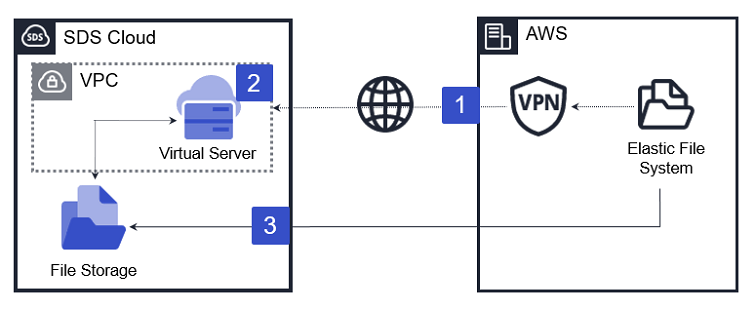
- Connect SCP and Network using AWS VPN Service
Open firewall for TCP Port 2049
: SCP Security Group Outbound
: AWS Security Group Inbound - Mount both AWS EFS (Source) and SCP File Storage (Target) on the SCP server
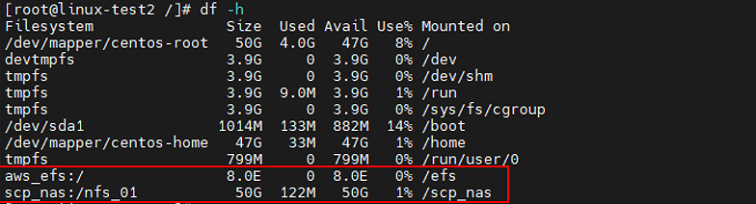
- Migration using rsync command (/efs -> /scp_nas)
#rsync –avzh –delete /efs/ /scp_nas » /log/rsync.log
2. RoboCopy
Windows OS Built-In Tool and supports migration functionality for Local File or Network File System. As a stable tool that can be most easily used on Windows, it can be run with commands in the command prompt. Various options are provided, allowing migration to be performed according to various conditions.
How to Perform
#robocopy [source] [destination] [options]
Main Options
/MIR : mirroring the directory tree
/W:n : wait time between retries
/R:n : Number of retries for failed copies
/TEE : output to log file and console window
/ETA : Display the estimated arrival time of the file being copied
/LOG+:file : output the status to the log file (append to existing log)
/MT[:n] : copy multithread with n threads (default 8, n is between 1 and 128 inclusive)
Additional detailed options can be checked with the “robocopy /?” command.
Usage Example
- Ex1> Local to Local
- Migration of the mig_src directory on C drive to the mig_tgt directory on D drive
>robocopy c:\mig_src d:\mig_tgt /mir /w:3 /r:3 /eta /log+:c:\log.txt
- Ex2> Local to Network Filesystem Migration
- Migrate mig_src directory to the mig_tgt directory of CIFS1 server
>robocopy c:\mig_src \CIFS1\mig_tgt /mir /w:3 /r:3 /log+:c:\log.txt
- Ex3> NAS FileSystem Migration
- Migrating in-use NAS FileSystem data to a new NAS FileSystem
Check As-Is FileSystem CIFS Share path and To-Be FileSystem CIFS Share path
When mounting as a network drive, you can specify using the letter name, e.g., Z:, Y:
>robocopy Z:(Source) Y:(Target) /mir /w:3 /r:3 /eta /mt:64 /log+:c:\log.txt