VM Migration ZConverter utilization
VM Migration ZConverter utilization
Overview
We provide the procedures and tasks for using ZConverter as one of the methods to migrate the OS and related data installed on the Virtual Server located in Samsung Cloud Platform to Samsung Cloud Platform v2.
ZConverter is a migration technology of the Copying and pasting method, and supports continuing operation after migration with the original server’s operating environment and state unchanged.
ZConverter Migration Overview
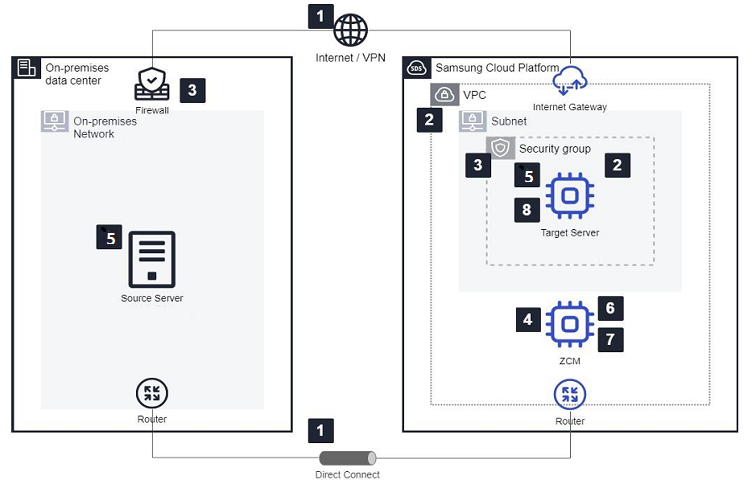
- Connect the network between the Source server environment and the Target server environment (Samsung Cloud Platform).
- Create a VPC in the Target server environment and create a Target VM for migration.
- Open security groups and firewalls between the Source server, Target server, and ZCM (ZConverter Cloud Manager, management server).
- Install ZCM.
- OS: Windows 2016 or higher
- vCPU: 2Cores
- Memory: 8GB or more
- Disk: 500GB or more recommended
- Install the Agent on the Source server and Target server.
- Connect to the Source server and Target server using the wizard in the ZCM portal.
- Perform migration through the ZCM portal.
- Perform post-processing on the Target server.
- IP, specific user/file/service etc. maintenance information recovery
- Normal boot with migrated OS
- Check whether the target server boots normally and monitor the application.
Constraints
- Migration is possible to the same major version target during migration.
- If Source is Redhat 7.2 version, Target can be Redhat 7.9 version
- If Source is Windows 2022, Target can be Windows 2022
Pre-work
- Virtual Server to configure ZConverter management server (ZCM): configured in SCP v2 environment
- OS: Windows 2016 or higher
- vCPU: 2Cores, Memory: 8GB or more
- Disk: 500GB or more: for backup image storage, may vary depending on the capacity of the Source Virtual Server.
- Firewall settings for the management server (ZCM) for migration
| Origin | Destination | Port/Service | Type | Description |
|---|---|---|---|---|
| User | ZCM(ZConverter Cloud Manager) | TCP/58080 | One-way | ZCM web access |
| Source VM | ZCM | TCP / 50000, 50001, 58080 | One-way | Agent management |
| Target VM | ZCM | TCP / 50000, 50001, 58080 | One-way | Agent Management |
| Source VM | ZCM | TCP / 139, 445(CIFS) | One-way | Data storage |
| Target VM | ZCM | TCP / 139, 445(CIFS) | One-way | Data storage |
( ※ List based on data storage method - NAS method, Basic method additionally requires opening port 50005 between Source VM - Target VM )
Create Target VM (SCP v2) for migration
- Pre-create a Target VM (TO-BE: SCP v2) with the same major version as the Source VM (AS-IS: SCP).
- OS disk or Data disk partitioning (same configuration as source) is required.
- Linux OS(Only) Additional preparation items
- Additional disk (20GB) for ZConverter for migration: add it last after partition configuration is completed.
- Source VM(AS-IS) and Target VM(TO-BE) when installing Agent uses network storage via CIFS protocol. Therefore, for connecting to CIFS network storage, each server may need to install cifs-utils (Linux) package or SMB protocol (Windows).
ZCM installation
- Installation Requirements
- OS: Windows 2016 or later / vCPU: 2Cores, Memory: 8GB or more, Additional Disk: recommended 500GB or more (Additional Disk required for configuring NAS for incremental sync.)
- Installation method
Upload the ZCM installation file to the created Windows server, right-click with the mouse, and click the Run as administrator button to install.
- Installation file (request to the person in charge): ZConverter_CloudManager_Setup_v4.3.2_SCP.exe
- Installation occurs after the file extraction screen appears, then the CMD window pops up several times and completes (the completion message may pass quickly, making it difficult to confirm)
- Data storage methods include NAS method and Basic method. Basic method requires additional space and sufficient capacity to store VM images on both Source and Target VMs, and only Incremental Sync is possible with NAS method, so we recommend setting to NAS method.
Installation check:
- Check the 3 installed apps (Apps & Features): MariaDB, XAMPP, ZConverter Cloud Manager
- Check if the two services are running: ZConverter Cloud API Service, ZConverter Cloud Manager
ZCM web access (performed locally or remotely)
- Access URL: http://
:58080 - ID(e-mail)/Password is accessed by contacting the person in charge.
- Access URL: http://
ZCM License Issuance
- After installation, ZCM ID is required.
- Installation Requirements
Left menu > Configuration > Setting on the screen, check the ZCM ID and send it to the person in charge by email. * Left menu > Configuration > License screen, click the Add button to register the license key.
Client Agent installation (for Linux OS)
- Installation target: Source/Target VM
- Installation files: ZConverter_CloudSourceClient_Setup_V4.2_Build_4016.tar.gz, ZConverter_CloudTargetClient_Setup_V4.2_Build_4016.tar.gz
- File location: ZCM web’s left menu > Cloud Migration > downloadable from the Samsung screen
- Installation method
# ls ZConverter_CloudSourceClient_Setup_Last.tar.gz # tar zxvf ZConverter_CloudSourceClient_Setup_Last.tar.gz # cd ZConverter_install_source/ # ./install.sh- Source/Target Client Agent additional settings when installing: enter ZCM IP adress and ID(e-mail)
[ Connection type ] 1. Public ZConverter SaaS (http://www.z-cloud.net) 2. Private ZConverter Cloud Manager (ZCM) Select connection type (1/2 or q/skip) : 2 Enter private ZConverter Cloud Manager(ZCM) IP address : xxx.xxx.xxx.xxx Test connection to Private Cloud Manager (ZCM) [xxx.xxx.xxx.xxx] Try to connect [xxx.xxx.xxx.xxx, port 50000] ... [ OK ] Try to connect [xxx.xxx.xxx.xxx, port 50001] ... [ OK ] Please, Enter your ZConverter login account (ex>user@zconverter.com) : ???@?????.com- Target Client Agent additional settings when installing: specify additional partition
   last device : sdb (E: ID_PATH=pci-0000:03:00.0-scsi-0:0:1:0)
   last device : sdc (E: ID_PATH=pci-0000:03:00.0-scsi-0:0:2:0)
   ----------------------------------------------------------
   1: sda   100G Virtual disk
   2: sdb    10G Virtual disk
   3: sdc    20G Virtual disk
   =======================================================================================================================================
   >> Select the disk to set as ZConverter disk. [default:3]
Client Agent installation (for Windows OS)
- Installation target: Source/Target VM
- Installation files: ZConverter_CloudSourceClient_Setup_V4.2_Build_4008.exe, ZConverter_CloudTargetClient_Setup_V4.2_Build_4008.exe
- File location: ZCM web’s left menu > Cloud Migration > Samsung can be downloaded from the screen.
- Installation method
- Run the file from Explorer: If you press the Next button with the default settings, the ZCM configuration screen appears.
- In the ZCM settings screen, register the ZCM server IP address and ZCM login ID (e-mail), press the Check button, and then select the OK button.
Client Agent installation - CLI method
- Source server installation (Linux) (root or sudo privileges required, run with sudo ./install.sh)
curl -O http://[ZCM Server IP]:58080/Download/ZConverter_CloudSourceClient_Setup_V4.2_Build_4016.tar.gz tar zxvf ZConverter_CloudSourceClient_Setup_V4.2_Build_4016.tar.gz -C /tmp /tmp/zconverter_install_source/install.sh -s [ZCM Server IP] -u [ZCM user id] - Target server installation (Linux) (root or sudo privileges required, run with sudo ./install.sh)
curl -O http://[ZCM Server IP]:58080/Download/ZConverter_CloudTargetClient_Setup_V4.2_Build_4016.tar.gz tar zxvf ZConverter_CloudTargetClient_Setup_V4.2_Build_4016.tar.gz -C /tmp /tmp/zconverter_install_target/install.sh -s [ZCM Server IP] -u [ZCM user id] - Source Server Installation (Windows)
curl -O http://[ZCM Server IP]:58080/Download/ZConverter_CloudSourceClient_Setup_V4.2_Build_4008.exe ZConverter_CloudSourceClient_Setup_V4.2_Build_4008.exe /zcm [ZCM Server IP] /user [ZCM user id] - Target Server Installation (Windows)
curl -O http://[ZCM Server IP]:58080/Download/ZConverter_CloudTargetClient_Setup_V4.2_Build_4008.exe
ZConverter_CloudTargetClient_Setup_V4.2_Build_4008.exe /zcm [ZCM Server IP] /user [ZCM user id]
- Source server installation (Linux) (root or sudo privileges required, run with sudo ./install.sh)
Agent uninstall : execute uninstall.sh
※ Agent installation and removal are unrelated to the ZConverter license, and the license is deducted upon the first successful migration execution.
ZConverter Migration
- Run ZCM (ZConverter Manager).
- ZCM web access: http://
:58080
- ZCM web access: http://
- Select the Source virtual Server.
- Left menu > Cloud Migration > Samsung Select
- Register a Source Server > Load a Server list after clicking, select the server that becomes the migration target (Source).
- Create or select a source image In the tab, select “create a new image”.
- Disk information of Source Server Select the Disk that is the migration target in the tab.
- Option > Repository Select the location to store replicated data in the tab: It is recommended to select NAS for future incremental backup.
- Basic(/ZConverter): Source/Target VM’s local disk
- Advanced > NAS(ZConverter): ZCM server’s local disk (NAS share)
- When you click Next, if you select NAS in the Repository, the NAS authentication screen appears.
- Clicking the OK button will proceed with authentication: No need to enter ID/Password.
- Select the Target virtual Server.
- Register a Cloud Instance > List of Cloud instances Select the server that becomes the migration target (Target) in the tab.
- Disk information appropriately map the Disk that is the target of migration.
- Linux: Source(/)->Target(/), Source(/boot)→Target(/boot)
- Windows: Source(C:)->Target(C:), Source(D:)→Target(D:)
- After selecting Target Repository, Replication Option and Other Option, click Next.
- Target Repository: Use the Repository selected from Source as is
- Replication Option: Use Target IP and Replication Port as is
- Other Option
- Hypervisor: Select the virtual device driver type of the cloud instance
- Kernel Update: Select if you want to update the server’s kernel version
- Encryption(AES256): Select if you want to apply data encryption during migration
- Schedule: Select when you want to perform the migration at a set time
- Select the license for proceeding with the migration procedure.
- After selecting the Migration License you want to use, click the Select button.
- Migration Information On the screen, pre-check the Migration status, and when all checks are completed, select OK.
- Event > Monitoring can be switched to the screen, and the Migration status can be checked.
- If a blue bar is visible in the Job message, it is in progress.
- If it turns green right away in the Job message, it’s complete.
Application Test
Before executing the service Cutover, it is necessary to test whether the migrated Target server can provide services properly in the SCP v2 environment.
It is recommended to connect to all target servers via SSH (Linux) or RDP (Windows), test the service normality for at least two weeks, and resolve any issues.
Cutover
At the predefined date and time, we stop the service of the Source server and start the service on the Target server that has been migrated to Samsung Cloud Platform.
Incremental Sync
After clicking the Source server to be migrated in the source server registration menu, in the Create or select a source image panel, select the Create an incremental image option to repeat the migration configuration process. ZCM images the files changed on the Source server after the Initial Sync and transfers them to the Target server.
Database (DB) Replication
Operating systems and applications are migrated using the VM Migration service, and data that undergoes real-time changes such as databases are migrated according to the DB migration guide.
DNS change
Modify the IP of the DNS A record so that internet services can be provided through the newly assigned public IP of the web server in SCP v2.
We have learned the procedure for migrating servers in the SCP environment to the SCP v2 environment using ZConverter so far.